Parallel File Storage is a All NVMe-based high-performance parallel file storage that can process large amounts of data quickly and efficiently. Storage that can be used in various fields such as AI/ML and big data analysis, distributes data across multiple storage nodes to improve data processing speed and reduce analysis time.
Features
High Performance and Reliability: Distributes data across multiple NVMe-based nodes to provide high performance and reliability. High-performance processing is possible regardless of file size, and even if a single node fails, data is safely maintained through other nodes.
Large-capacity volume: It can be reliably expanded while online, and its scalability is excellent, allowing use without capacity limits.
Snapshot Backup: Through the image snapshot feature, recovery of changed and deleted data is possible. Recovery is performed by using the snapshot created at the point in time you want to recover.
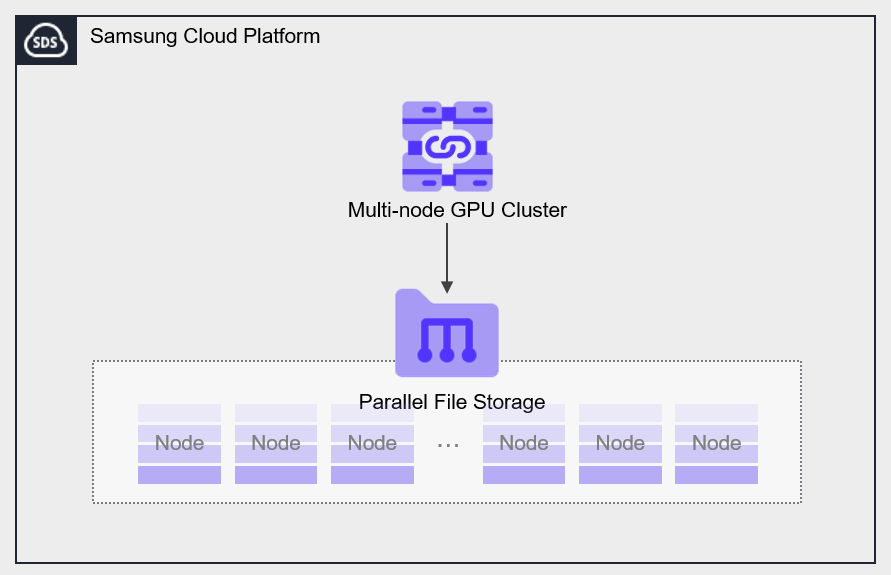
Diagram
Figure. Parallel File Storage diagram
Provided Features
Parallel File Storage provides the following features.
Volume Name: Users can set names for each volume.
Capacity: Volumes can be created with capacities ranging from a minimum of 1TB to a maximum of up to 1,000TB.
Connected Resource: Can be connected and used in a Multi-node GPU Cluster.
Snapshot: Through the image snapshot feature, recovery of changed and deleted data is possible. Users select a snapshot created at the point in time they wish to recover from the list to perform the recovery.
Components
Volume
Volume (Volume) is the basic creation unit of the Parallel File Storage service and is used as data storage space. Users create a volume by entering a name and capacity, then connect it to one or more Multi-node GPU Clusters for use. The volume name creation rules are as follows.
It must start with a lowercase English letter and can be set to 3 to 21 characters using lowercase letters, numbers, and the special character (_).
Snapshot
A snapshot is an image backup of a volume at a specific point in time. Users can view the snapshot name and creation date in the snapshot list to select the snapshot they want to restore, and can recover data that was changed or deleted using that snapshot. The notes for using snapshots are as follows.
Reference
The snapshot creation time is based on Asia/Seoul (GMT +09:00).
You can create up to 50 snapshots.
Snapshot capacity is included in File Storage usage and incurs charges, so please delete unnecessary snapshots.
Preceding Service
This is a list of services that must be pre-configured before creating the service. For details, refer to the guide provided for each service and prepare in advance.
Service providing many GPUs for large-scale high-performance AI computation
Table. Parallel File Storage Preceding Service
1 - Overview
Service Overview
Parallel File Storage is a high-performance parallel file storage based on All NVMe that can process large amounts of data quickly and efficiently.
Features
Data Processing Speed Improvement: By distributing file data across multiple storage nodes, it improves data processing speed and reduces analysis time.
Various Field Utilization: Through fast data processing speed and analysis time, it can be used in various fields such as AI/ML analysis, big data analysis, etc.
Diagram
Figure. Parallel File Storage diagram
Provided Features
Parallel File Storage provides the following features.
Volume Name: Users can set names for each volume.
Snapshot: You can create a snapshot to restore to a specific point in time.
Connection Resource: Can be connected and used in a Multi-node GPU Cluster.
Components
You can create a volume by selecting the disk type and protocol according to the user’s service environment and performance requirements.
When using the snapshot feature, you can restore data to the point in time you want to recover.
Volume
Volume is the basic creation unit of the Parallel File Storage service and is used as data storage space. Users select a name and capacity to create a volume, then connect and use it in a Multi-node GPU Cluster. The volume name creation rules are as follows.
Starts with a lowercase English letter and can be set to 3 to 21 characters using lowercase letters, numbers, and special character (_).
Snapshot
Snapshot (Snapshot) is an image backup at a specific point in time. Using the image snapshot function, you can recover changed or deleted data. The user selects the snapshot created at the point in time they want to recover from the snapshot list and performs the recovery.
Reference
Snapshots can be created up to a maximum of 50.
You can recover by selecting a specific snapshot from the snapshot list and creating a new volume based on the snapshot.
Notice
The snapshot recovery feature will be provided later.
Pre-service
This is a list of services that must be pre-configured before creating the service. For details, refer to the guide provided for each service and prepare in advance.
Physical GPU servers for large-scale high-performance AI computation
Table. Parallel File Storage Preliminary Service
2 - How-to guides
The user can enter the required information for Parallel File Storage through the Samsung Cloud Platform Console, select detailed options, and create the service.
Parallel File Storage Create
You can create and use the Parallel File Storage service from the Samsung Cloud Platform Console. To create Parallel File Storage, follow the steps below.
All Services > Storage > Parallel File Storage Click the menu. Go to the Service Home page of Parallel File Storage.
Click the Create Parallel File Storage button on the Service Home page. You will be taken to the Create Parallel File Storage page.
Parallel File Storage creation On the page, enter the information required to create the service.
Category
Required
Detailed description
Volume Name
Required
Enter volume name
Start with a lowercase English letter
Use lowercase letters, numbers, special character (_) to input 3 ~ 21 characters
Generated in the form ‘user input value+{6-character UUID composed of lowercase English letters and numbers}’
Cannot be modified after service creation
Capacity
Required
Enter the capacity to use
1 ~ 1000 TB available
Only expansion is possible after service creation
Tag
Select
Add Tag
Up to 50 can be added per resource
After clicking the Add Tag button, enter or select Key, Value values
Table. Parallel File Storage Service Creation Information Input Items
Check the detailed information and estimated billing amount generated in the summary panel, and click the Complete button.
When the popup notifying creation opens, click the Confirm button.
When creation is complete, check the created resources on the Parallel File Storage list page.
Reference
Parallel File Storage creation can take more than several tens of minutes depending on the service scale.
Parallel File Storage Check Detailed Information
Parallel File Storage service can view and edit the full resource list and detailed information. Parallel File Storage If you want to check the detailed information of the service, follow the steps below.
All Services > Storage > Parallel File Storage Click the menu. Go to the Service Home page of Parallel File Storage.
Click the Parallel File Storage menu on the Service Home page. Navigate to the Parallel File Storage list page.
Parallel File Storage List page, click the resource to view detailed information. It navigates to the Parallel File Storage Details page.
Parallel File Storage Details page displays status information and additional feature information, and consists of Details, Snapshot List, Tags, Operation History tabs.
Category
Detailed description
Volume Status
Represents the status of the volume
Creating: In creation
Available: Creation complete, server connection possible
Extending: Capacity expansion in progress
Deleting: Service termination in progress
Error Deleting: Abnormal state during deletion
Error: Abnormal state during creation
Error Extending: Abnormal state during capacity expansion
Snapshot Creation
Immediately create a snapshot at the time of creation
Up to 50 can be created
For detailed information about snapshot creation, see Create Snapshot
Service cancellation
Button to cancel the service
Table. Parallel File Storage status information and additional features
Detailed Information
On the Parallel File Storage List page, you can view the detailed information of the selected resource and, if necessary, edit the information.
Category
Detailed description
service
service name
Resource Type
Resource Type
SRN
Unique resource ID in Samsung Cloud Platform
In the Parallel File Storage service, it refers to a volume SRN
Resource Name
Resource Name
In the Parallel File Storage service, it refers to the volume name
Mount Name: Mount name per volume for server connection
{Storage IP}:/{Volume Name} is created
Mount Account: View button after clicking, entering the password allows you to view the account information and verify the password
Connected Resources
List of connected resources (Multi-node GPU Server)
Resource Type: Service type of the connected resource
Resource Name: Name of the connected resource
IP: Connected resource IP information
Resource Status: Status of the connected resource
Connection Status: Connection status of the resource
If the connection status is partially successful, verify that the two N/W interfaces for Parallel File Storage connection in the Multi-node GPU Cluster are functioning properly, then disconnect and reconnect in Parallel File Storage to check the status
Resources can be added up to a maximum of 300
Click the Edit button to add or remove connected resources
Table. Parallel File Storage Details - Job History Tab Items
Parallel File Storage Resource Management
If you need to modify settings in Parallel File Storage or add or delete a connected server, you can perform the operation on the Parallel File Storage Details page.
Edit Capacity
You can expand the capacity of Parallel File Storage.
To modify the capacity, follow the steps below.
All Services > Storage > Parallel File Storage Click the menu. Navigate to the Service Home page of Parallel File Storage.
Click the Parallel File Storage menu on the Service Home page. Go to the Parallel File Storage list page.
Parallel File Storage List page, click the resource to modify the capacity. Parallel File Storage Details page, navigate.
Click the Edit button of the Capacity item. The Capacity Edit popup window opens.
After entering the capacity to be expanded, click the Confirm button.
You can expand up to a maximum of 1000 TB, including the existing capacity.
When a popup notifying capacity expansion opens, click the Confirm button.
Edit Connected Resources
You can connect resources to Parallel File Storage or disconnect the connected resources.
Notice
You cannot modify the linked resource while the linked resource modification is in progress.
If communication with the target resource is lost or the connection is impossible, you cannot modify the connection resource.
When connecting resources, you can connect up to 300 resources at the same location. If you exceed 300, use the API.
To modify the connection resource, follow the steps below.
All Services > Storage > Parallel File Storage Click the menu. Navigate to the Service Home page of Parallel File Storage.
Click the Parallel File Storage menu on the Service Home page. Navigate to the Parallel File Storage list page.
Parallel File Storage List page, click the resource to edit the connected resource. Move to the Parallel File Storage Details page.
Click the Edit button of the Connected Resource item. The Select Connected Resource popup window opens.
After selecting the resource to connect or unchecking the resource to disconnect, click the Confirm button.
You can select multiple resources at the same time.
Caution
Multi-node GPU Cluster server is connected to Parallel File Storage through two N/W interfaces. To optimize storage performance, please check that both N/W are properly connected.
Parallel File Storage Details page, if the resource’s connection status is Partial Success, follow the steps below to verify.
Verify that the 2 N/W interfaces for connecting Parallel File Storage in the Multi-node GPU Cluster are functioning properly.
After disconnecting from Parallel File Storage, reconnect.
Parallel File Storage Details Check the connection status of the resource on the page.
When disconnecting, you must first access the server and perform the disconnect operation (Umount, disconnect network drive).
If you disconnect without OS operation, a status error (Hang) may occur on the connection server.
For detailed information about the server unmount operation, please refer to Unmount Server.
When adding a connected server, you must first perform the connection tasks (Mount, network drive connection) on the server.
For detailed information about server connection, please refer to Connecting to Server.
Parallel File Storage Cancel
You can cancel unused Parallel File Storage to reduce operating costs. However, if you cancel the service, the service currently in operation may be terminated immediately, so you should proceed with the cancellation after fully considering the impact that may occur when the service is discontinued.
Caution
Be careful because data cannot be recovered after termination.
If there are resources connected to Parallel File Storage, you cannot cancel. Remove all connected resources before canceling the service.
You can only delete when the volume status is Available or Error.
To cancel Parallel File Storage, follow the steps below.
All Services > Storage > Parallel File Storage Click the menu. Go to the Service Home page of Parallel File Storage.
Click the Parallel File Storage menu on the Service Home page. Go to the Parallel File Storage list page.
Parallel File Storage list On the page, select the resource to cancel, and click the Cancel Service button.
You can go to the Parallel File Storage Details page of the resource to be terminated and delete it individually.
If a popup notifying termination opens, click the Confirm button.
When the termination is completed, check on the Parallel File Storage list page whether the resource has been terminated.
2.1 - Using Snapshots
You can create, delete, or recover using snapshots of Parallel File Storage.
Guide
The snapshot recovery feature will be provided later.
Create Snapshot
You can create a snapshot of Parallel File Storage. To create a snapshot, follow the steps below.
All Services > Storage > Parallel File Storage Click the menu. Move to the Service Home page of Parallel File Storage.
Click the Parallel File Storage menu on the Service Home page. Navigate to the Parallel File Storage list page.
Parallel File Storage List page, click the resource to create a snapshot. Go to the Parallel File Storage Details page.
Parallel File Storage Details page, click the Create Snapshot button.
If a popup notifying snapshot creation opens, click the Confirm button.
Snapshot List Click the button. Navigate to the File Storage Snapshot List page.
Check the generated snapshot.
Caution
Snapshot fees are included in the File Storage usage fees.
Reference
You can create up to 50 snapshots.
Delete Snapshot
You can delete the snapshot of Parallel File Storage. To delete a snapshot, follow these steps.
All Services > Storage > Parallel File Storage Click the menu. Navigate to the Service Home page of Parallel File Storage.
Service Home on the page click the Parallel File Storage menu. Navigate to the Parallel File Storage list page.
Parallel File Storage List on the page, click the resource to delete the snapshot. Parallel File Storage Details navigate to the page.
Click the Snapshot List tab on the Parallel File Storage Details page.
In the snapshot list, click the More > Delete button at the far right of the snapshot to be restored.
Click the Confirm button when the popup notifying snapshot deletion opens.
2.2 - Install Agent
To use the Parallel File Storage service, you need to connect to the target server and install the Agent. After installing the Agent, mount on the server and use Parallel File Storage.
Install Agent and Connect to Server (Mount)
Agent installation and server connection consist of six steps. Follow the next procedure.
Agent installation
Account Login
Mount Point Creation
Filesystem Mount
Mount check
fstab registration
Agent Installation
Install the Agent using Mount IP.
Reference
Mount IP can be found in the Mount name item on the detail page of the Samsung Cloud Platform Console.
All Services > Storage > Parallel File Storage Click the menu. Go to the Service Home page of Parallel File Storage.
Click the Parallel File Storage menu on the Service Home page. Navigate to the Parallel File Storage list page.
Parallel File Storage List page, click the resource to be used on the connected server. Move to the Parallel File Storage Details page.
Connection Server After checking the server in the item, please connect.
Refer to the following example to install the Volume Agent and proceed with server connection (Mount).
curl <Mount IP>:14000/dist/v1/install | sh
root@RESD-s4sr3h:/# curl http://10.102.160.254:14000/dist/v1/install | sh
  % Total    % Received % Xferd  Average Speed   Time    Time     Time  Current
                                 Dload  Upload   Total   Spent    Left  Speed
100  1424  100  1424    0     0  1978k      0 --:--:-- --:--:-- --:--:-- 1390k
Downloading WekaIO CLI 4.2.4.29-hcsf
  % Total    % Received % Xferd  Average Speed   Time    Time     Time  Current
                                 Dload  Upload   Total   Spent    Left  Speed
100 58.7M  100 58.7M    0     0  1079M      0 --:--:-- --:--:-- --:--:-- 1088M
Installing...
Installing agent of version 4.2.4.29-hcsf
The agent is configured to detect cgroups - cgroups v1 not found, cgroups are disabled
Waiting for agent service to be ready
Installation finished successfully
WekaIO CLI 4.2.4.29-hcsf is now installed
## Account Login

Log in using the mount information for server mount.


  Reference

    You can check the Mount name, Mount account, and password in the Mount information item of the detail page of Samsung Cloud Platform Console.
#weka user login -H root@RESD-s4sr3h:/# weka user login -H 10.102.160.254
Organization (enter name or ID, default: 0) admin_org
Username: admin_reg
Password: ###########
+——————————+
| Login completed successfully |
+——————————+
## Mount Point creation

Create a mount point on the server for the filesystem mount.
#mkdir /mnt/weka
## Filesystem Mount

Follow the steps below to mount the filesystem.

1. Use the #ip a command to check the IP and Interface Name information for Mount.
root@RESD-s4sr3h:/# ip a |grep 10.102
inet 10.102.160.248/23 brd 10.102.161.255 scope global ibs4f0.8010
inet 10.102.160.249/23 brd 10.102.161.255 scope global ibP1s8f0.8010
  Note

    The IP information and Interface Name that can be confirmed in the above example are as follows.

IP: 10.102.160.10, 10.102.160.11
Interface Name: ibs4f0.8010, ibP1s8f0.8010


2. Execute the mount command using the verified IP and Interface Name.
mount -t wekafs / -o net=//mask -o mgmt_ip= /mnt/weka
root@RESD-s4sr3h:/# mount -t wekafs -o num_cores=8 -o net:ha=ibs4f0.8010,net:ha=ibP1s8f0.8010,mgmt_ip=‘10.102.160.10+10.102.160.11’ 10.102.160.254/wekafs /mnt/weka
Mounting 10.102.161.254/bmtfs on /weka_fs
Basing mount on container client
Downloading [1/21] http://10.102.160.254:14000/dist/v1/image/envoy-fe-e6b882a6bce3c0de8cd9c7833df1a567.squashfs
Downloading [2/21] http://10.102.160.254:14000/dist/v1/image/weka-driver-1.0.0-d10ca9cff59b98778b4314014569e00f.squashfs
Downloading [3/21] http://10.102.160.254:14000/dist/v1/image/weka-driver-igb-uio-4.0.0-7eee7dc5b7f1d85a1be0e448d5e97312.squashfs
Downloading [4/21] http://10.102.160.254:14000/dist/v1/image/container-s3-tmp-1.57f-9cb61c7e0ae3ca9e2b476c191e4e84ab.squashfs
Downloading [5/21] http://10.102.160.254:14000/dist/v1/image/container-smbw-weka-4.7.12.3-9b67132a85a950260f048955dc33c7a9.squashfs
Downloading [6/21] http://10.102.160.254:14000/dist/v1/image/weka-drain-tools-2d01044c641816d9002ca594a6ae9d90.squashfs
Downloading [7/21] http://10.102.160.254:14000/dist/v1/image/container-ganesha-dev-weka-5-11becf16b21c9635daa23a247340a7bd.squashfs
Downloading [8/21] http://10.102.160.254:14000/dist/v1/image/dependencies-1.0.0-9b64fdba87a4d6e6efa9ab5250169ec8.squashfs
Downloading [9/21] http://10.102.160.254:14000/dist/v1/image/weka-container-2.3.0-be66bcc7c9739b15cacd910d7cac031e.squashfs
Downloading [10/21] http://10.102.160.254:14000/dist/v1/image/weka-hostside-faf9aa30ec9ac7521ffbc9589ac23deb.squashfs
Downloading [11/21] http://10.102.160.254:14000/dist/v1/image/api-6f501306831ff9a223a7f706c5a661e1.squashfs
Downloading [12/21] http://10.102.160.254:14000/dist/v1/image/weka-s3-3508f2f1afb4900ab11c4772e327b1ac.squashfs
Downloading [13/21] http://10.102.160.254:14000/dist/v1/image/weka-ganesha-5c6ef6d08e31f80580f50bab7d1b8134.squashfs
Downloading [14/21] http://10.102.160.254:14000/dist/v1/image/dashboard-dfb78995154ab40fb274037ac9fe8a45.squashfs
Downloading [15/21] http://10.102.160.254:14000/dist/v1/image/container-samba-weka-4.7.12.3-69835f740573b7ded6faed1dfe737bed.squashfs
Downloading [16/21] http://10.102.160.254:14000/dist/v1/image/weka-smbw-8a1430e5f0f2cca6d2a4af603d630882.squashfs
Downloading [17/21] http://10.102.160.254:14000/dist/v1/image/ui-1.0.0-5bc747765d326e6e1c3488285822f459.squashfs
Downloading [18/21] http://10.102.160.254:14000/dist/v1/image/weka-samba-8102bcf3d3a81f02755cb2e75b1b8d16.squashfs
Downloading [19/21] http://10.102.160.254:14000/dist/v1/image/weka-node-fbd17baa570969b6da7e5561f1eb652f.squashfs
Downloading [20/21] http://10.102.160.254:14000/dist/v1/image/ofed-b643ca3e4fa06d84416d463afe74a66a.squashfs
Downloading [21/21] http://10.102.160.254:14000/dist/v1/image/driver-uio-pci-generic-1.0.0-322a3daa84c41eeb6f0cafd0802fbf50.squashfs
Finished getting version 4.2.4.29-hcsf
Creating Weka container ‘client’ in version 4.2.4.29-hcsf
Preparing version 4.2.4.29-hcsf of container client
Base port was not explicitly provided, the container will use 14000
Applying resources
Starting container ‘client’
Waiting for container ‘client’ to join cluster
Container “client” is ready (pid = 392216)
Calling the mount command
Cgroups v1 not found, running without cgroups
Mount completed successfully
## Mount Check

<code>#df -h</code> Run the command to check the mount status of the filesystem.
## fstab registration

Register fstab so that it automatically mounts on server reboot.<br>
To register fstab, run the <code>#vi /etc/fstab</code> command, then add the following command.
root@RESD-s4sr3h:/# cat /etc/fstab
/etc/fstab: static file system information.
Use ‘blkid’ to print the universally unique identifier for a
device; this may be used with UUID= as a more robust way to name devices
that works even if disks are added and removed. See fstab(5).
/ was on /dev/nvme2n1p2 during curtin installation
# Disconnect server (Umount)

To disconnect the server, first connect to the server and perform the disconnect operation (Umount), then you must disconnect the server from the Console.<br>
To disconnect the server, follow the steps below.

1. **All Services > Storage > Parallel File Storage** Click the menu. Go to the **Service Home** page of Parallel File Storage.
2. Click the **Parallel File Storage** menu on the **Service Home** page. You will be taken to the **Parallel File Storage** list page.
3. **Parallel File Storage List** page, click the resource to disconnect the server. Move to the **Parallel File Storage Details** page.
4. **Connection Server** after checking the server information in the item, connect to the server.
5. Refer to the commands shown in the following example and proceed with the unmount operation (Umount).
umount /mnt/weka
vi /etc/fstab
2.3 - File-level recovery
You can restore data on a per-file basis using the generated snapshot.
Use file-level recovery
You can connect to the server and select and recover data. To perform file-level recovery, follow the steps below.
All Services > Storage > Parallel File Storage Click the menu. Go to the Service Home page of Parallel File Storage.
Click the Parallel File Storage menu on the Service Home page. Navigate to the Parallel File Storage list page.
Click the resource to recover the file on the Parallel File Storage List page. Navigate to the Parallel File Storage Details page.
After checking the connected server in the Connected Resources item, access that server.
Check the mount name of File Storage on the server.
Mount name is the same as the Mount Point set on the server for the Filesystem’s mount.
Go to the snapshot location under the Mount name.
# cd /MountName/.snapshots/snapshotName
After checking the recovery target file at the Snapshot location, recover it to the required path.