Service Overview
File Storage servers connected via network can easily store and share data can, making it suitable for application environments that use multiple servers.
You can select the disk type according to performance requirements, and it will automatically expand or shrink according to the user’s data size without capacity limits.
Features
- Free volume usage: The volume capacity is automatically expanded or reduced according to data creation and deletion without user configuration. There is no cost for creating volumes, and only usage fees for stored data capacity are incurred.
- Various disk types provided: Users can select disk type according to usage purpose. HDD that can store large data cost‑effectively, SSD that provides reduced response time and high IOPS performance, and high‑performance SSD can be used.
- Snapshot Backup: Through the image snapshot feature, recovery of changed or deleted data is possible, and when performing disk backup, snapshots can be stored in a location different from the original. Users select the snapshot created at the point in time they wish to recover from the list and perform the recovery.
- Replication: Creates an identical replica volume at a different location, and the user can set the data replication schedule. In case the original volume cannot be used due to failures or disasters, service can be provided through the replica volume.
Configuration Diagram
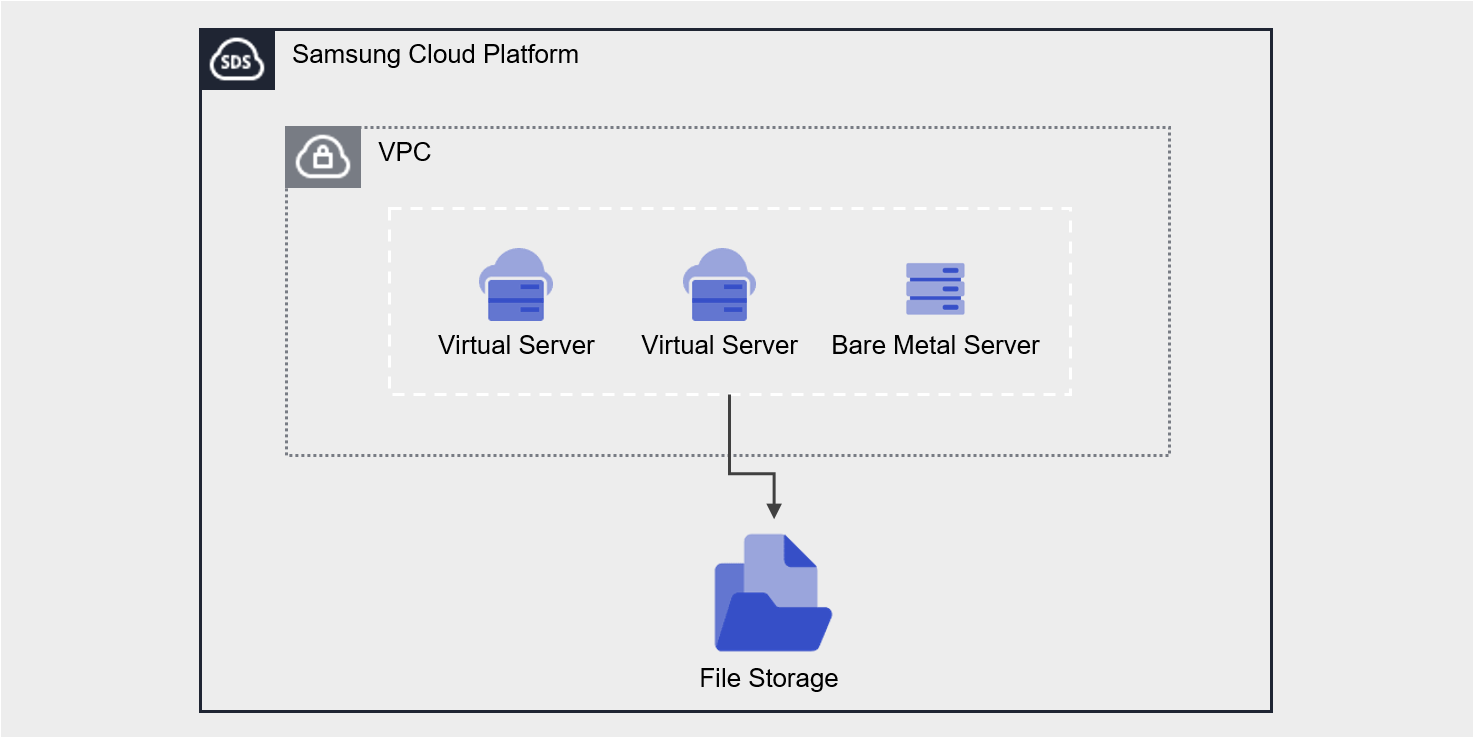
Provided Features
File Storage provides the following features.
- Volume Name: Users can set or edit names per volume.
- Disk Type: You can select the disk type according to the user’s performance requirements.
- HDD: General Volume
- SSD: High-performance general volume
- High-performance SSD: Performance-optimized volume that can be connected to a Multi-node GPU Cluster
- SSD SAP_S, SSD SAP_E: SAP Account dedicated volume
- Protocol: You can select the protocol according to the user’s OS Image.
- NFS: Primarily used on Linux operating systems
- CIFS: Primarily used in Windows operating systems
- Free volume usage: Provides flexible volume size based on the amount of stored data without user capacity settings.
- Connection Resources: Virtual Server, Bare Metal Server, Multi-node GPU Cluster can be connected and used.
- Encryption: Regardless of disk type, all volumes are encrypted with the XTS-AES-256 algorithm.
- Snapshot: Through the image snapshot feature, you can create snapshots immediately or schedule them.
- Retention Count: The number of snapshots retained that are automatically created via schedule
- Schedule: Snapshot automatic creation interval
- Recovery: Recover the original volume to the latest snapshot, or select a snapshot at a specific point in time to create a recovery volume
- Replication: Replicates the volume to another location, and the user can set the replication interval.
- Disk Backup: Stores snapshots on backup-dedicated HDD storage and allows you to select the backup location.
- VPC Endpoint connection: File Storage can be used via Private Network connection from an external network.
- Monitoring: You can view usage, IOPS, Throughput, etc., monitoring information through the Cloud Monitoring service.
- ServiceWatch Service Integration Provided: You can monitor data through the ServiceWatch service.
Components
You can create a volume by selecting the disk type and protocol according to the user’s service environment and performance requirements.
When using the snapshot feature, you can restore data to the point in time you want to recover.
Volume
Volume (Volume) is the basic creation unit of the File Storage service and is used as data storage space. Users select a name, disk type, and protocol (CIFS/NFS) to create a volume, then connect it to one or more servers for use.
The volume name creation rules are as follows.
- Must start with a lowercase English letter and can be set to 3~21 characters using lowercase letters, numbers, and special character (
_).
Snapshot
Snapshot (Snapshot) is an image backup at a specific point in time. Using the image snapshot feature, you can recover changed or deleted data or store the snapshot in a different location from the original when performing disk backup. The user selects the snapshot created at the point in time they want to recover from the snapshot list and performs the recovery.
The notes for using snapshots are as follows.
- Snapshot creation time is based on Asia/Seoul (GMT +09:00).
- Snapshots can be created up to 800, and snapshots generated by schedule are not included. (Automatic creation via schedule is up to 128)
- By selecting the snapshot recovery button, you can restore the File Storage volume to the latest snapshot.
- If you select a specific snapshot from the snapshot list, recovery is possible by creating a new volume based on the snapshot.
- Automatic creation is possible through snapshot schedule settings.
- Snapshot capacity is included in File Storage usage and incurs charges, so adjust storage capacity by setting the snapshot retention period.
Prior Service
This is a list of services that must be pre-configured before creating the service. For details, refer to the guide provided for each service and prepare in advance.
| Service Category | Service | Detailed Description |
|---|---|---|
| Compute | Virtual Server | Virtual server optimized for cloud computing |
| Compute | Bare Metal Server | High-performance physical server used without virtualization |