Connecting to a Server
When using a volume on a server, a connection or disconnection operation is required.
When using a volume on a server, you need to perform a connection or disconnection operation. After adding a connection server on the Block Storage(BM) details page, access the server and perform Multi Path settings and connection operations (Mount, Disk Online). After completing the use, perform disconnection operations (Umount, Disk Offline) and remove the connection server.
Configuring Multi Path
Before using a volume on a connection server, you need to configure Multi Path. Follow the procedure below.
Linux Operating System
Click the All Services > Storage > Block Storage(BM) menu. The Block Storage(BM) Service Home page will be displayed.
On the Service Home page, click the Block Storage(BM) menu. The Block Storage(BM) list page will be displayed.
On the Block Storage(BM) list page, click the resource you want to set up Multi Path for. The Block Storage(BM) details page will be displayed.
In the Connected Server section, check the server and access it. Follow the guide below to configure Multi Path.
Device confirmation
- The created volume can be confirmed using the
fdisk -lcommand.
- The created volume can be confirmed using the
DM-Multipath application confirmation
- The Linux system automatically applies Multi Path during the volume recognition process, and you can confirm it using the
multipath –llcommand. - The volume with Multi Path applied uses a Multipath device name in the format
/dev/mapper/#####, not/dev/sd#, and can be confirmed using thefdisk –lcommand.
- The Linux system automatically applies Multi Path during the volume recognition process, and you can confirm it using the
iSCSI replacement timeout value setting
- Set the
replacement timeoutwhen connecting to iSCSI.
# vi /etc/iscsi/iscsid.conf node.session.timeo.replacement_timeout = 5 (change the default value of 120 to 5)- After changing the above content, restart the iSCSI service
# systemctl restart iscsid- Set the
Windows Operating System
Click the All Services > Storage > Block Storage(BM) menu. The Block Storage(BM) Service Home page will be displayed.
On the Service Home page, click the Block Storage(BM) menu. The Block Storage(BM) list page will be displayed.
On the Block Storage(BM) list page, click the resource you want to set up Multi Path for. The Block Storage(BM) details page will be displayed.
In the Connected Server section, check the server and access it. Follow the guide below to configure Multi Path.
Device confirmation
- Click the Start > Server Manager menu to run Server Manager.
- Click Server Manager > File and Storage Services > Volumes > Disks to confirm the iscsi device.
- Before setting up Multi Path, one device appears as multiple devices for each path.
MPIO installation (Reboot required)
Click Server Manager > Dashboard > Add roles and features.
The Add Roles and Features Wizard popup window will open. Click the Next button.
On the Select installation type page, select Role-based or feature-based installation and click the Next button.
On the Select destination server page, the current server will be automatically searched. Confirm the content and click the Next button.
On the Select features page, select Features on the left menu and check Multipath I/O. Then, click the Next button.
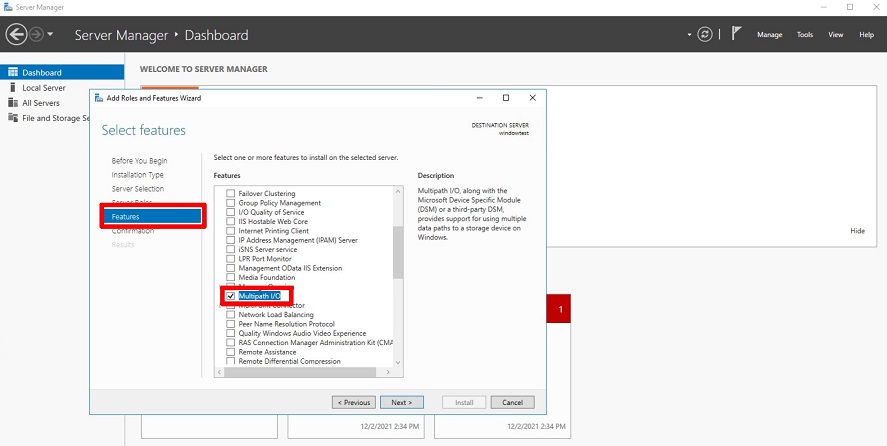
On the Confirm installation selections page, check Restart the destination server automatically if required. If a popup window opens, click Yes and then click the Install button.
The installation will start, and the server will automatically reboot.
After reconnecting to the server, the installation will be complete. Click the Close button to close the Wizard popup window.
Click Server Manager > Dashboard > Tools > MPIO.
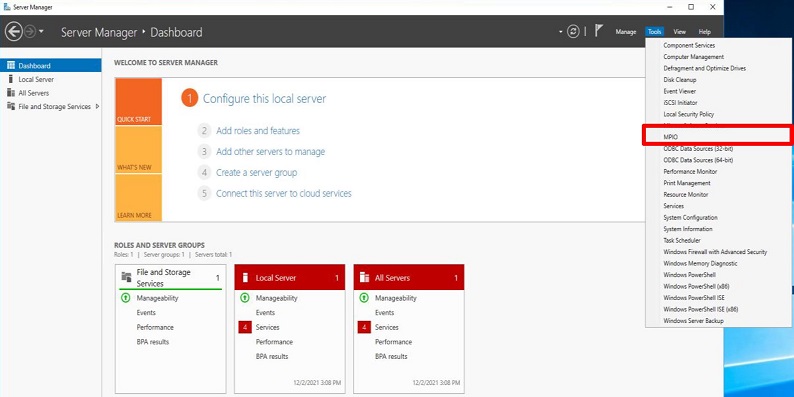
On the Discover Multi-Paths tab, check Add support for iSCSI devices and click the Add button.
- If a message is displayed, reboot the server again.
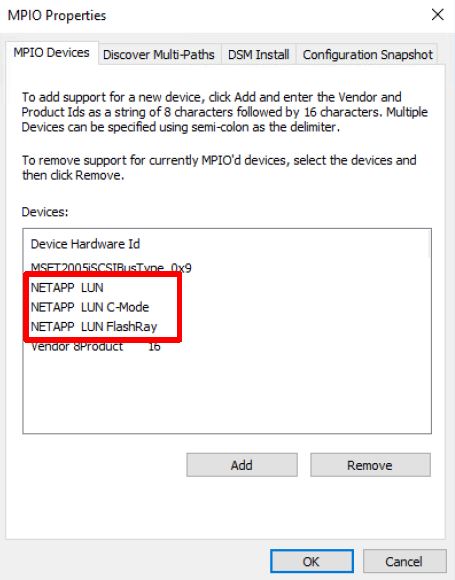
After the reboot is complete, you can confirm NETAPP Devices in MPIO devices.
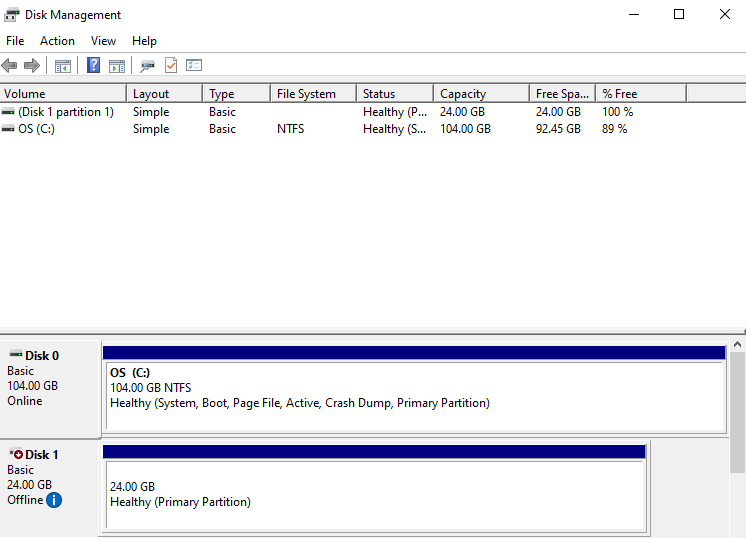
Run diskmgmt.msc in the Windows execution window (command prompt) to open the Disk Management popup window.
- You can confirm that MPIO is applied through the properties of the volume created in the Block Storage(BM) service.
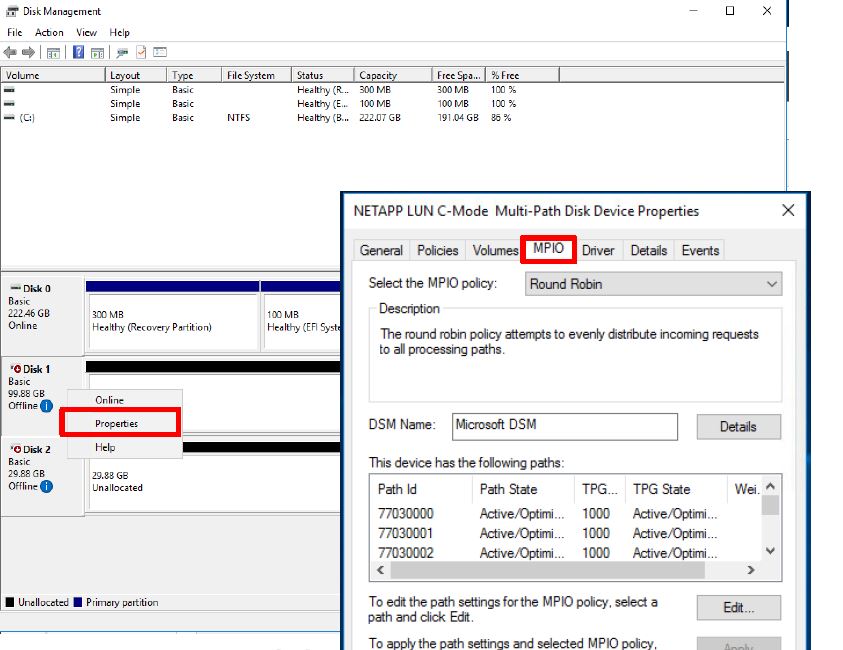
- You can confirm that MPIO is applied through the properties of the volume created in the Block Storage(BM) service.
Connecting to a Server (Mount, Disk Online)
To use a volume added to a connection server, you need to access the server and perform connection operations (Mount, Disk Online). Follow the procedure below.
Linux Operating System
- Server OS: LINUX
- Mount location: /data
- Volume capacity: 24 GB
- File system: ext3, ext4, xfs, etc.
- Additional allocated disk: /dev/vdb
Click the All Services > Storage > Block Storage(BM) menu. The Block Storage(BM) Service Home page will be displayed.
On the Service Home page, click the Block Storage(BM) menu. The Block Storage(BM) list page will be displayed.
On the Block Storage(BM) list page, click the resource you want to connect to the server. The Block Storage(BM) details page will be displayed.
In the Connected Server section, check the server and access it. Follow the guide below to connect (Mount) the volume.
Switch to root privileges
$ sudo -iConfirm the disk
# lsblk
NAME    MAJ:MIN  RM   SIZE RO TYPE MOUNTPOINT
vda       252:0   0    24G  0 disk
├─vda1    252:1   0  23.9G  0 part [SWAP]
└─vda14   252:14  0     4M  0 part /
└─vda15   252:15  0   106M  0 part /boot/efi
vdb       252:16  0    24G  0 disk
Create a partition
# fdisk /dev/vdb
Command (m for help): n

Partition type:
   p   primary (0 primary, 0 extended, 4 free)
   e   extended
Select (default p): p
Partition number (1-4, default 1): 1
First sector (2048-50331646, default 2048):
Last sector, +/-sectors or +/-size{K,M,G,T,P} (2048-50331646, default 50331646):

Created a new partition 1 of type 'Linux' and of size 24 GiB.

Command (m for help): w
The partition table has been altered!
Calling ioctl() to re-read partition table.
Syncing disks.
Set the partition format (e.g., ext4)
# lsblk
NAME    MAJ:MIN  RM   SIZE RO TYPE MOUNTPOINT
vda       252:0   0    24G  0 disk
├─vda1    252:1   0  23.9G  0 part [SWAP]
└─vda14   252:14  0     4M  0 part /
└─vda15   252:15  0   106M  0 part /boot/efi
vdb       252:16  0    24G  0 disk
└─vdb1    252:17  0    24G  0 part

# mkfs.ext4 /dev/vdb1
mke2fs 1.46.5 (30-Dec-2021)
...
Writing superblocks and filesystem accounting information: done
Mount the volume
# mkdir /data

# mount /dev/vdb1 /data

# lsblk
NAME    MAJ:MIN  RM   SIZE RO TYPE MOUNTPOINT
vda       252:0   0    24G  0 disk
├─vda1    252:1   0  23.9G  0 part [SWAP]
└─vda14   252:14  0     4M  0 part /
└─vda15   252:15  0   106M  0 part /boot/efi
vdb       252:16  0    24G  0 disk
└─vdb1    252:17  0    24G  0 part /data

# vi /etc/fstab
(add) /dev/vdb1     /data       ext4     defaults   0 0
| Item | Description |
|---|---|
| cat /etc/fstab | Linux system file containing filesystem information. Used when the server starts. |
| df -h | Confirms the total disk usage of the mounted filesystems in the Linux system. |
| fdisk -l | Confirms partition information.
|
| Command | Description |
|---|---|
| m | Displays the usage of the fdisk command. |
| n | Creates a new partition. |
| p | Displays the changed partition information. |
| t | Changes the system ID of the partition. |
| w | Saves the partition information and exits the fdisk settings. |
Windows Operating System
Click the All Services > Storage > Block Storage(BM) menu. The Block Storage(BM) Service Home page will be displayed.
On the Service Home page, click the Block Storage(BM) menu. The Block Storage(BM) list page will be displayed.
On the Block Storage(BM) list page, click the resource you want to connect to the server. The Block Storage(BM) details page will be displayed.
In the Connected Server section, check the server and access it. Follow the guide below to connect (Disk Online) the volume.
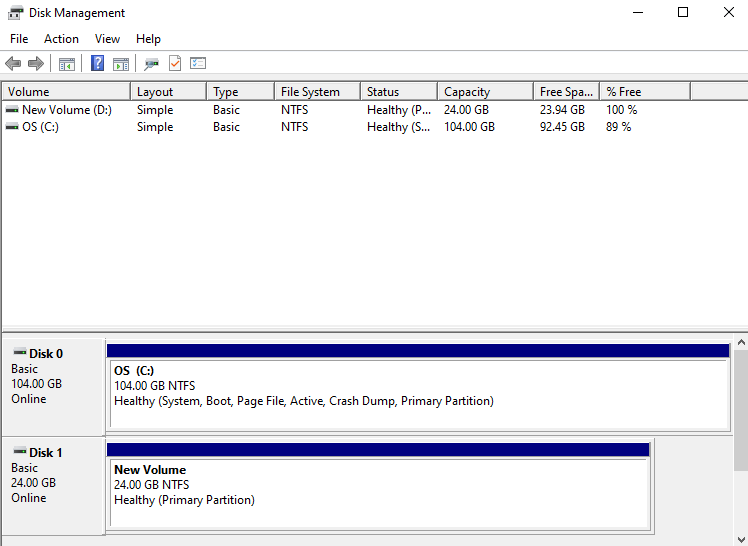
Right-click the Windows Start icon and run Computer Management.
In the Computer Management tree structure, select Storage > Disk Management.
Confirm the disk
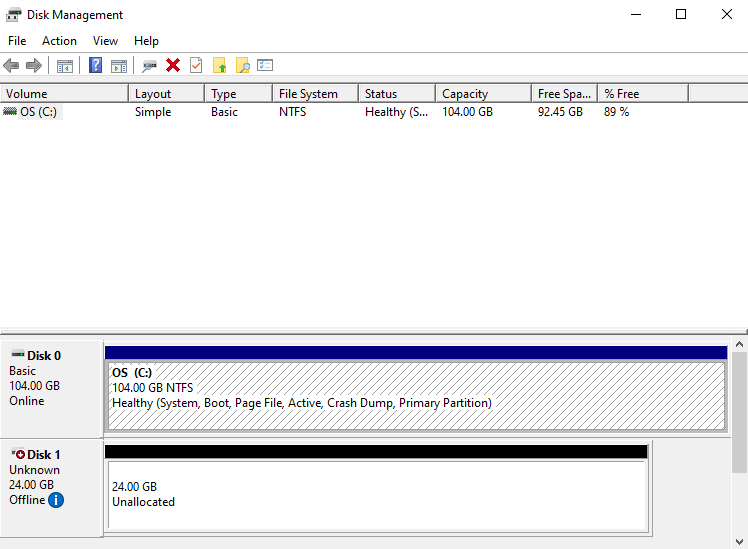
- Set the disk to Online
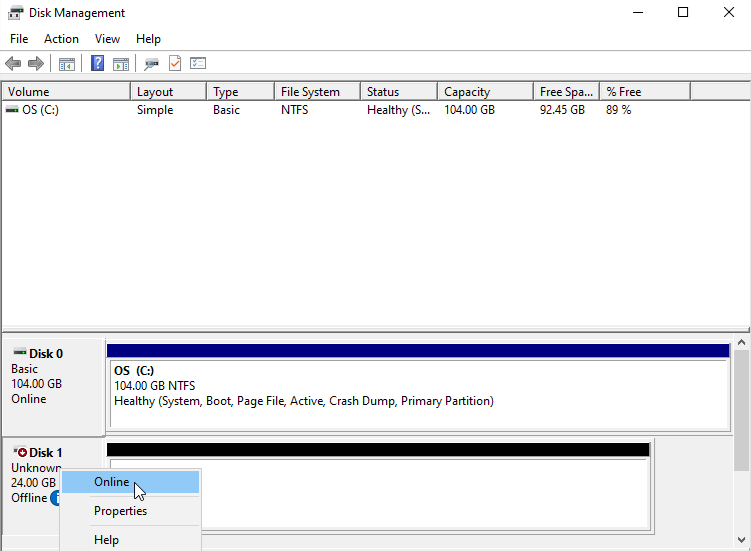
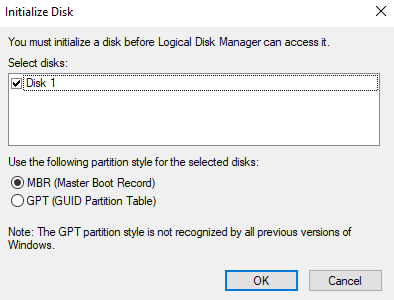
- Initialize the disk
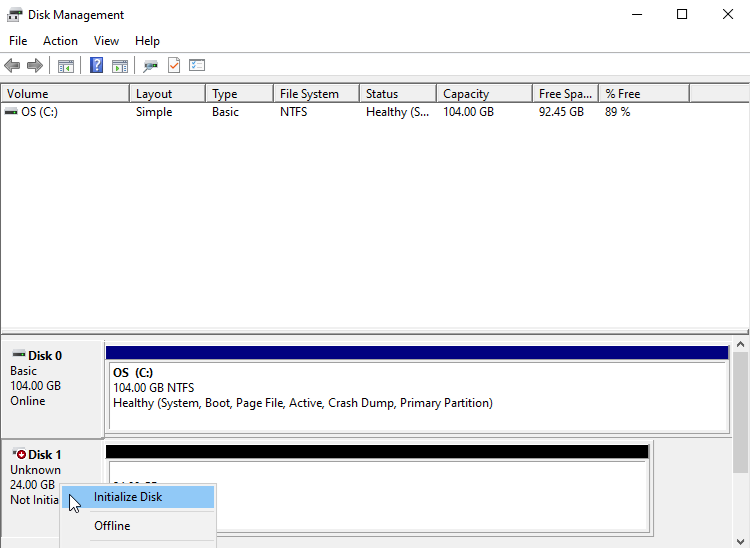
- Format the partition
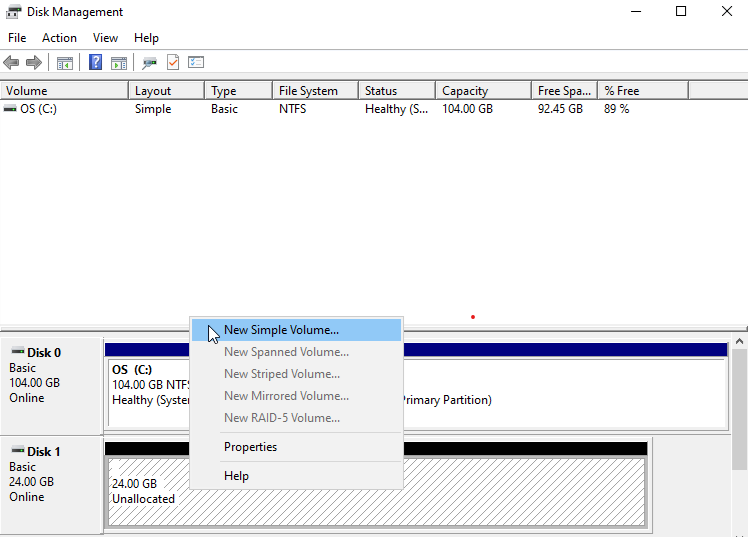
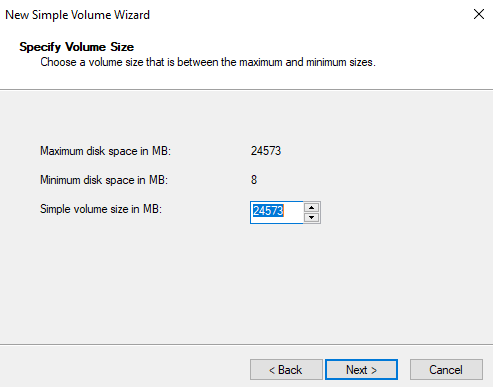
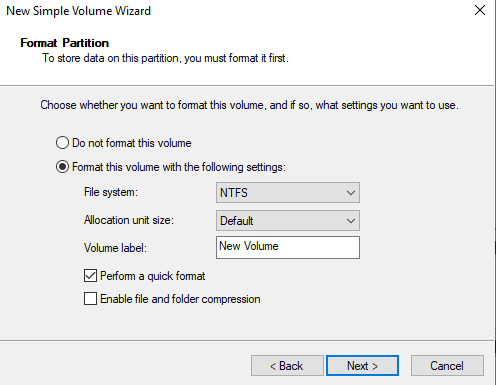
- Confirm the volume
Disconnecting from the Server (Umount, Disk Offline)
After disconnecting from the server (Umount, Disk Offline) and performing the disconnection work, you must disconnect the connected server from the Console. Follow the procedure below.
Linux Operating System
Click All Services > Storage > Block Storage (BM) menu. Move to the Service Home page of Block Storage (BM).
Click the Block Storage (BM) menu on the Service Home page. Move to the Block Storage (BM) list page.
Click the resource to be disconnected from the server on the Block Storage (BM) list page. Move to the Block Storage (BM) details page.
Check the server in the Connected Server item and access it. Follow the guide below to disconnect the volume (Umount).
- Volume Umount
# umount /dev/vdb1 /data

# lsblk
NAME    MAJ:MIN  RM   SIZE RO TYPE MOUNTPOINT
vda       252:0   0    24G  0 disk
├─vda1    252:1   0  23.9G  0 part [SWAP]
└─vda14   252:14  0     4M  0 part /
└─vda15   252:15  0   106M  0 part /boot/efi
vdb       252:16  0    24G  0 disk
└─vdb1    252:17  0    24G  0 part

# vi /etc/fstab
(delete) /dev/vdb1     /data       ext4     defaults   0 0
- Volume Umount
Windows Operating System
Click All Services > Storage > Block Storage (BM) menu. Move to the Service Home page of Block Storage (BM).
Click the Block Storage (BM) menu on the Service Home page. Move to the Block Storage (BM) list page.
Click the resource to be disconnected from the server on the Block Storage (BM) list page. Move to the Block Storage (BM) details page.
Check the server in the Connected Server item and access it. Follow the guide below to disconnect the volume (Disk Offline).
Right-click the Windows Start icon and run Computer Management
Select Storage > Disk Management in the Computer Management tree structure
Right-click the disk to be removed and run Offline
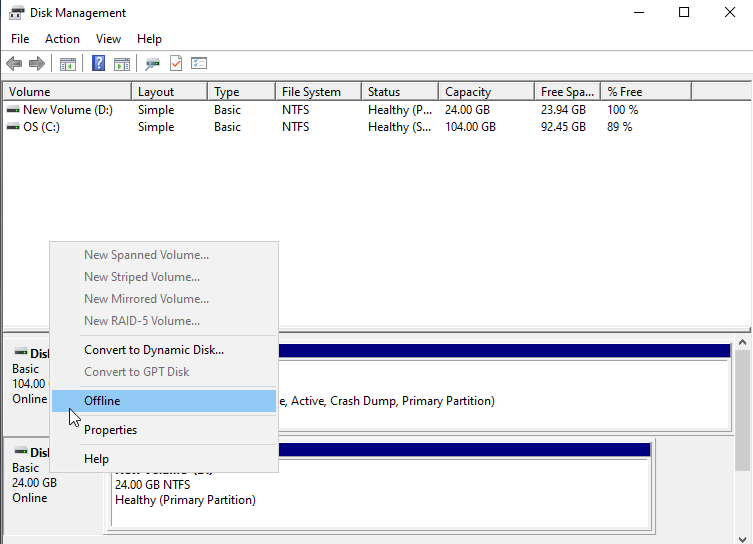
- Check the disk status