This is the multi-page printable view of this section. Click here to print.
Block Storage(BM)
- 1: Overview
- 1.1: Monitoring Metrics
- 2: How-to Guides
- 2.1: Connecting to a Server
- 2.2: Using Snapshots
- 2.3: Using Replication
- 2.4: Using Volume Group
- 3: API Reference
- 4: CLI Reference
- 5: Release Note
1 - Overview
Service Overview
Block Storage is a high-performance storage that stores data in block units with a certain size and arrangement.
It is suitable for large-capacity, high-performance requirements such as databases, mail servers, etc. and users can directly assign volumes to the server for use.
Key Features
- High-capacity volume provision: you can create volumes of up to 16TB in size.
- Full SSD-based high-performance delivery: Dualized Controller and Disk Array Raid-based, providing high durability and availability. Since the full SSD disk is provided by default, it is suitable for high-speed data processing tasks such as database workloads.
- Snapshot Backup: Through the image snapshot function, it is possible to recover data that has been changed or deleted. The user selects a snapshot created at the desired recovery point from the list and performs the recovery.
- Replication: creates identical replica volumes in different locations, and users can set the data replication cycle, in case the original volume is unavailable due to a disaster or failure, services can be provided through the replica volume.
Composition Diagram
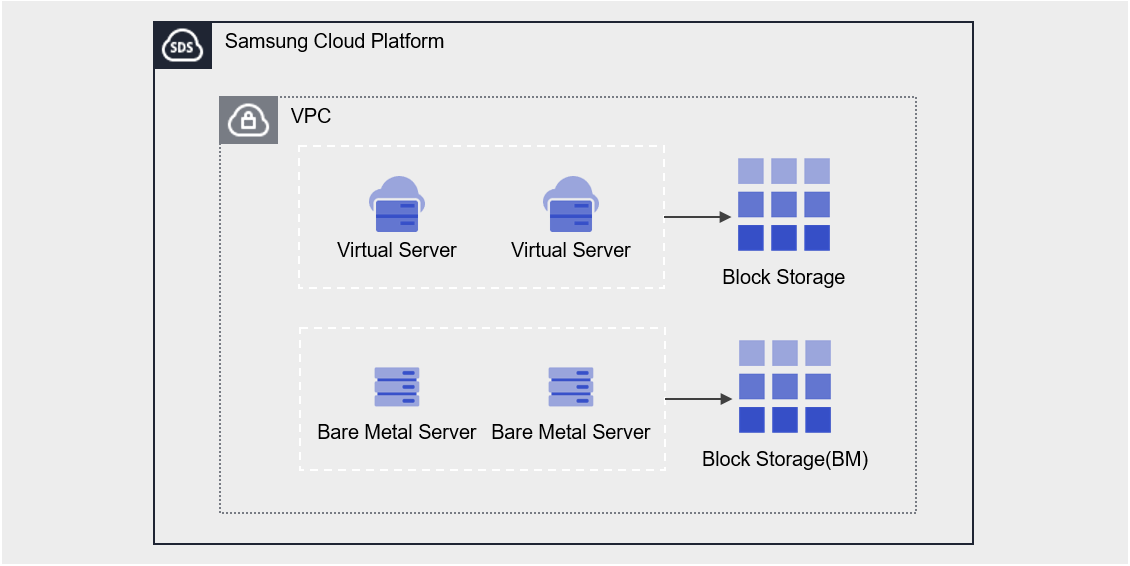
Provided Function
Block Storage provides the following functions.
- Volume Name: The user can set or modify the name by volume.
- Capacity: Volume creation is possible with a capacity of at least 1GB and up to 16TB.
- Connection Server : Bare Metal Server, Multi Node GPU Cluster can be selected to connect or disconnect.
- Multi Attach: connect up to 5 servers, no limit on the number of volumes that can be attached to a Bare Metal Server
- Encryption: Regardless of the disk type, all volumes have AES-256 algorithm encryption enabled by default.
- Snapshot: You can create a snapshot at a specific point in time using the image snapshot feature or generate snapshots at regular intervals.
- Capacity: The capacity of snapshot storage space
- Schedule: snapshot automatic creation cycle
- Recovery: Restore the original volume to the latest snapshot, select a snapshot at a specific point in time to create a recovery volume
- Recovery volume a separate volume created with the same capacity as the original (incurring additional costs)
- Replication: replicates the volume to a different location, and users can set the replication cycle.
- The replica volume can also serve as the original role in the event of a disaster through the snapshot function
- Volume Group: Sets a group of up to 16 Block Storage volumes, allowing for snapshot and replication settings at the group level.
- Monitoring: You can check performance information such as IOPS, Latency, Throughput through the Cloud Monitoring service.
Components
You can create a volume by entering the capacity based on the user’s service size and performance requirements and selecting the disk type.
When using the snapshot function, you can restore the data to the point you want to restore.
Volume
Volume is the basic creation unit of the Block Storage service and is used as a data storage space. The user creates a volume by setting the name, capacity, disk type, snapshot, etc., and then connects and uses it to the Bare Metal Server.
The volume name creation rule is as follows.
- It starts with English and can be set within 3-28 characters using English, numbers, and special characters (
-).
Snapshot
Snapshot is an image backup of a volume at a specific point in time. The user can select the snapshot to be recovered by checking the snapshot name and creation time in the snapshot list, and can recover the data changed or deleted through the snapshot.
The notes to refer to when using snapshots are as follows.
- The snapshot creation time is based on Asia/Seoul (GMT +09:00) standard.
- Snapshots can be created up to 1,023. (Automatic creation through scheduling is up to 128.)
- Automatic generation through snapshot schedule setting is possible.
- The snapshot capacity is added to the Block Storage(BM) fee, so adjust the capacity of the snapshot storage space.
Volume Group
Volume Group is a group unit management function that allows users who have configured databases and applications with two or more volumes to create snapshots and replicas at a consistent point in time, users can create a Volume Group by selecting a name and target Block Storage.
Preceding Service
This is a list of services that must be pre-configured before creating the service. Please refer to the guide provided for each service and prepare in advance.
| Service Category | Service | Detailed Description |
|---|---|---|
| Compute | Bare Metal Server | High-performance physical server used without virtualization |
1.1 - Monitoring Metrics
Block Storage BM Monitoring Metrics
The following table shows the monitoring metrics of Block Storage BM that can be checked through Cloud Monitoring. For detailed usage of Cloud Monitoring, please refer to the Cloud Monitoring guide.
| Performance Item Name | Description | Unit |
|---|---|---|
| Instance Status | File Storage Volume Status | status |
| Volume Total | Total Bytes | bytes |
| IOPS [Total] | iops(total) | iops |
| IOPS [Read] | iops(reading) | iops |
| IOPS [Write] | iops(writing) | iops |
| IOPS [Other] | iops (etc.) | iops |
| Latency Time [Total] | Delay Time (Total) | usec |
| Latency Time [Read] | Delay Time (Read) | usec |
| Latency Time [write] | Delay Time (write) | usec |
| Latency Time [Other] | Delayed time (etc.) | usec |
| Throughput [Total] | Processing amount (total) | bytes/s |
| Throughput [Read] | Throughput (Read) | bytes/s |
| Throughput [Write] | Throughput (Write) | bytes/s |
| Throughput [Other] | Processing capacity (etc.) | bytes/s |
2 - How-to Guides
The user can enter the required information for Block Storage (BM) and select detailed options through the Samsung Cloud Platform Console to create the service.
Block Storage(BM) Create
You can create and use the Block Storage (BM) service from the Samsung Cloud Platform Console.
To create Block Storage (BM), follow the steps below.
Click the All Services > Storage > Block Storage(BM) menu. Navigate to the Service Home page of Block Storage(BM).
Click the Block Storage(BM) Create button on the Service Home page. You will be taken to the Block Storage(BM) Create page.
Block Storage(BM) Creation On the page, enter the information required to create the service, and select detailed options.
Category RequiredDetailed description Volume Name Required Volume Name - Must start with an English letter and use English letters, numbers, and the special character (-) to input 3~28 characters
- Cannot be modified after service creation
Disk Type Required Select Disk Type - SSD: High-performance general volume
- HDD: General volume
- Cannot be modified after service creation
Capacity Required Capacity Setting - Enter a number between 1~16,384GB
- Cannot be modified after service creation
IOPS Required Enter IOPS value - Enter a number between 3,000~16,000
- HDD type does not provide performance metric setting function
Throughput Required Enter Throughput speed (MB/s) - Enter a number between 125~1,000
- HDD type does not provide performance metric setting function
Connection Server Required Select Connected Bare Metal Server - Provide up to 8 Bare Metal Server connections
- No limit on the number of volumes that can be connected to a Bare Metal Server
Table. Block Storage(BM) Service Information Input ItemsSummary Check the detailed information and estimated billing amount generated in the panel, and click the Complete button.
- When creation is complete, check the created resources on the Block Storage (BM) List page.
- All volumes are encrypted by default with server-side encryption based on the AES-256 algorithm, regardless of disk type.
- Snapshot schedule can be set on the detail page.
- The performance metrics (IOPS, Throughput) of the configured storage are based on the maximum values and do not guarantee consistent values.
iSCSI Setting up
Volumes created by the user in addition to the OS default volume require iSCSI configuration.
Block Storage(BM) Details page’s iSCSI information after checking the IP provided, follow the iSCSI configuration method for each OS.
Linux Operating System
iSCSI information (Storage Target IP) was written assuming 10.40.40.41, 10.40.40.42.
- Block Storage(BM) Check iSCSI information on the detail page.
- All Services > Storage > Block Storage(BM) Click the menu. Navigate to the Service Home page of Block Storage(BM).
- Click the Block Storage(BM) menu on the Service Home page. You will be taken to the Block Storage(BM) List page.
- Block Storage(BM) List page, click the resource to be used on the connected server. You will be taken to the Block Storage(BM) Details page.
- Connection Server Check the server in the item and then connect.
- Follow the procedure below to configure iSCSI.
- Storage (target IP) Discover the connection information.Color mode
[root@localhost ~]# iscsiadm -m discovery -t st -p 10.40.40.41 10.40.40.41:3260,1024 iqn.2000-05.com.3pardata:20210002ac026169 [root@localhost ~]# iscsiadm -m discovery -t st -p 10.40.40.42 10.40.40.42:3260,1025 iqn.2000-05.com.3pardata:20220002ac026169[root@localhost ~]# iscsiadm -m discovery -t st -p 10.40.40.41 10.40.40.41:3260,1024 iqn.2000-05.com.3pardata:20210002ac026169 [root@localhost ~]# iscsiadm -m discovery -t st -p 10.40.40.42 10.40.40.42:3260,1025 iqn.2000-05.com.3pardata:20220002ac026169Code Block. Storage (target IP) Connection Information Discovery - Connect to Storage (target IP). If already connected, proceed to the next step.Color mode
[root@localhost ~]# iscsiadm -m node -p 10.40.40.41:3260 --login Logging in to [iface: default, target: iqn.2000-05.com.3pardata:20210002ac026169, portal: 10.40.40.41,3260] (multiple) Logging in to [iface: default, target: iqn.2000-05.com.3pardata:20210002ac026169, portal: 10.40.40.41,3260] (multiple) Login to [iface: default, target: iqn.2000-05.com.3pardata:20210002ac026169, portal: 10.40.40.41,3260] successful. Login to [iface: default, target: iqn.2000-05.com.3pardata:20210002ac026169, portal: 10.40.40.41,3260] successful [root@localhost ~]# iscsiadm -m node -p 10.40.40.42:3260 --login Logging in to [iface: default, target: iqn.2000-05.com.3pardata:20220002ac026169, portal: 10.40.40.42,3260] (multiple) Logging in to [iface: default, target: iqn.2000-05.com.3pardata:20220002ac026169, portal: 10.40.40.42,3260] (multiple) Login to [iface: default, target: iqn.2000-05.com.3pardata:20220002ac026169, portal: 10.40.40.42,3260] successful. Login to [iface: default, target: iqn.2000-05.com.3pardata:20220002ac026169, portal: 10.40.40.42,3260] successful.[root@localhost ~]# iscsiadm -m node -p 10.40.40.41:3260 --login Logging in to [iface: default, target: iqn.2000-05.com.3pardata:20210002ac026169, portal: 10.40.40.41,3260] (multiple) Logging in to [iface: default, target: iqn.2000-05.com.3pardata:20210002ac026169, portal: 10.40.40.41,3260] (multiple) Login to [iface: default, target: iqn.2000-05.com.3pardata:20210002ac026169, portal: 10.40.40.41,3260] successful. Login to [iface: default, target: iqn.2000-05.com.3pardata:20210002ac026169, portal: 10.40.40.41,3260] successful [root@localhost ~]# iscsiadm -m node -p 10.40.40.42:3260 --login Logging in to [iface: default, target: iqn.2000-05.com.3pardata:20220002ac026169, portal: 10.40.40.42,3260] (multiple) Logging in to [iface: default, target: iqn.2000-05.com.3pardata:20220002ac026169, portal: 10.40.40.42,3260] (multiple) Login to [iface: default, target: iqn.2000-05.com.3pardata:20220002ac026169, portal: 10.40.40.42,3260] successful. Login to [iface: default, target: iqn.2000-05.com.3pardata:20220002ac026169, portal: 10.40.40.42,3260] successful.Code block. Storage (target IP) connection - To minimize search time, delete all unused Storage (target IP).Color mode
[root@localhost ~]# iscsiadm -m node show 100.100.100.10:3260,1026 iqn.1992-08.com.netapp:sn.c9adbd09cf301d039ea2bc878:vs.3 10.40.40.41:3260,1024 iqn.2000-05.com.3pardata:20210002ac026169 10.40.40.42:3260,1025 iqn.2000-05.com.3pardata:20220002ac026169 [root@localhost ~]# iscsiadm -m node -o delete -p 100.100.100.10:3260[root@localhost ~]# iscsiadm -m node show 100.100.100.10:3260,1026 iqn.1992-08.com.netapp:sn.c9adbd09cf301d039ea2bc878:vs.3 10.40.40.41:3260,1024 iqn.2000-05.com.3pardata:20210002ac026169 10.40.40.42:3260,1025 iqn.2000-05.com.3pardata:20220002ac026169 [root@localhost ~]# iscsiadm -m node -o delete -p 100.100.100.10:3260Code block. Delete unused Storage (target IP) - Please rescan to check additional Disk.Color mode
[root@localhost ~]# iscsiadm -m session --rescan Rescanning session [sid: 65, target: iqn.2000-05.com.3pardata:20210002ac026169, portal: 10.40.40.41,3260] Rescanning session [sid: 66, target: iqn.2000-05.com.3pardata:20210002ac026169, portal: 10.40.40.41,3260] Rescanning session [sid: 67, target: iqn.2000-05.com.3pardata:20220002ac026169, portal: 10.40.40.42,3260] Rescanning session [sid: 68, target: iqn.2000-05.com.3pardata:20220002ac026169, portal: 10.40.40.42,3260][root@localhost ~]# iscsiadm -m session --rescan Rescanning session [sid: 65, target: iqn.2000-05.com.3pardata:20210002ac026169, portal: 10.40.40.41,3260] Rescanning session [sid: 66, target: iqn.2000-05.com.3pardata:20210002ac026169, portal: 10.40.40.41,3260] Rescanning session [sid: 67, target: iqn.2000-05.com.3pardata:20220002ac026169, portal: 10.40.40.42,3260] Rescanning session [sid: 68, target: iqn.2000-05.com.3pardata:20220002ac026169, portal: 10.40.40.42,3260]Code block. Rescan - Set Auto Login so that it automatically logs in even after reboot.Color mode
[root@localhost ~]# iscsiadm -m node --op=update -n node.conn[0].startup -v automatic [root@localhost ~]# iscsiadm -m node --op=update -n node.startup -v automatic[root@localhost ~]# iscsiadm -m node --op=update -n node.conn[0].startup -v automatic [root@localhost ~]# iscsiadm -m node --op=update -n node.startup -v automaticCode block. Auto Login setting - Please confirm the final settings using the following command.Color mode
[root@localhost ~]# lsblk[root@localhost ~]# lsblkCode block. Check configuration content
- Storage (target IP) Discover the connection information.
Windows Operating System
iSCSI information (Storage Target IP) was written assuming 10.40.40.41, 10.40.40.42.
- Block Storage(BM) Check iSCSI information on the detail page.
- All Services > Storage > Block Storage(BM) Click the menu. Navigate to the Service Home page of Block Storage(BM).
- Service Home page, click the Block Storage(BM) menu. Go to the Block Storage(BM) list page.
- Click the resource to be used on the connected server on the Block Storage(BM) List page. It moves to the Block Storage(BM) Details page.
- After checking the server in the Connection Server item, connect.
- Follow the procedure below to configure iSCSI.
- Open Command Prompt (Admin) and run PowerShell.Color mode
Windows PowerShell
Copyright (C) Microsoft Corporation. All rights reserved.

PS C:\Users> cd ..
PS C:\>
Windows PowerShell Copyright (C) Microsoft Corporation. All rights reserved. PS C:\Users> cd .. PS C:\>Code block. powershell execution - Start the volume service.Color mode
PS C:\> Set-Service -Name MSiSCSI -StartupType Automatic
PS C:\> Start-Service -Name MSiSCSI
PS C:\> get-service -Name MSiSCSI |  select -Property Name, DisplayName, Status, StartType

Name       DisplayName                           Status    StartType
-------    --------------                        -------   -----------
MSiSCSI    Microsoft iSCSI Initiator Service     Running   Automatic
PS C:\> Set-Service -Name MSiSCSI -StartupType Automatic PS C:\> Start-Service -Name MSiSCSI PS C:\> get-service -Name MSiSCSI | select -Property Name, DisplayName, Status, StartType Name DisplayName Status StartType ------- -------------- ------- ----------- MSiSCSI Microsoft iSCSI Initiator Service Running AutomaticCode block. Volume service start - Please install Multipath I/O. If the Restart Needed item is displayed as Yes, a restart is required.Color mode
PS C:\> Install-WindowsFeature -name Multipath-IO

Success   Restart Needed   Exit Code   Feature Result
-------   --------------   ---------   -----------------
True      No               Success     {Multipath I/O}
PS C:\> Install-WindowsFeature -name Multipath-IO Success Restart Needed Exit Code Feature Result ------- -------------- --------- ----------------- True No Success {Multipath I/O}Code block. Multipath I/O installation - Please modify the Initiator Port Address.
If you are not an Active Directory Member, skip this procedure. The Initiator Port Address needs to be modified only if you are an Active Directory Member.- iqn is generated based on the Hostname, but when joined to Active Dicrectory it changes to DNS format.
Based on the basic hostname, it is registered in Storage, so for iqn.1991-05.com.microsoft:iqn01.scp.com, iqn01 is the Hostname. Remove DNS information and change it to the name registered when creating the OS in the user Console, such as iqn.1991-05.com.microsoft:iqn01. - If you are not an AD Member, no changes are required.Color mode
PS C:\> $address = (Get-InitiatorPort | select NodeAddress)
PS C:\> echo $address
NodeAddress
-----------
iqn.1991-05.com.microsoft:iqn01.scp.com

PS C:\> Set-InitiatorPort -NodeAddress $address.NodeAddress -NewNodeAddress "iqn.1991-05.com.microsoft:iqn01"
PS C:\> Get-InitiatorPort | select NodeAddress
NodeAddress
-----------
iqn.1991-05.com.microsoft:iqn01
PS C:\> $address = (Get-InitiatorPort | select NodeAddress) PS C:\> echo $address NodeAddress ----------- iqn.1991-05.com.microsoft:iqn01.scp.com PS C:\> Set-InitiatorPort -NodeAddress $address.NodeAddress -NewNodeAddress "iqn.1991-05.com.microsoft:iqn01" PS C:\> Get-InitiatorPort | select NodeAddress NodeAddress ----------- iqn.1991-05.com.microsoft:iqn01Code Block. Initiator Port Address Edit
- iqn is generated based on the Hostname, but when joined to Active Dicrectory it changes to DNS format.
- Storage (target Portal) Set the address as a variable.Color mode
PS C:\> $TargetPortalAddresses = @("10.40.40.41", "10.40.40.42")PS C:\> $TargetPortalAddresses = @("10.40.40.41", "10.40.40.42")Code block. Set Storage (target Portal) address as variable - Discover the Storage (target Portal).Color mode
PS C:\> Foreach ($TargetPortalAddress in $TargetPortalAddresses){
    New-IscsiTargetPortal -TargetPortalAddress $TargetPortalAddress
}
InitiatorInstanceName   :
InitiatorPortalAddress  :
IsDataDigest            : False
IsHeaderDigest          : False
TargetPortalAddress     : 10.40.40.41
TargetPortalPortNumber  : 3260
PSComputerName          :

InitiatorInstanceName   :
InitiatorPortalAddress  :
IsDataDigest            : False
IsHeaderDigest          : False
TargetPortalAddress     : 10.40.40.42
TargetPortalPortNumber  : 3260
PSComputerName          :
PS C:\> Foreach ($TargetPortalAddress in $TargetPortalAddresses){ New-IscsiTargetPortal -TargetPortalAddress $TargetPortalAddress } InitiatorInstanceName : InitiatorPortalAddress : IsDataDigest : False IsHeaderDigest : False TargetPortalAddress : 10.40.40.41 TargetPortalPortNumber : 3260 PSComputerName : InitiatorInstanceName : InitiatorPortalAddress : IsDataDigest : False IsHeaderDigest : False TargetPortalAddress : 10.40.40.42 TargetPortalPortNumber : 3260 PSComputerName :Code block. Storage (target Portal) Discovery - Connect the disk (target).Color mode
PS C:\> Foreach ($TargetPortalAddress in $TargetPortalAddresses){
    Get-IscsiTarget | Connect-IscsiTarget -IsMultipathEnabled $true -IsPersistent $true -TargetPortalAddress $TargetPortalAddress
}
AuthenticationType      : NONE
InitiatorInstanceName   : ROOT\ISCSIPRT\0000_0
InitiatorNodeAddress    : iqn.1991-05.com.microsoft:iqn01
InitiatorPortalAddress  : 0.0.0.0
InitiatorSideIdentifier : 400001370000
IsConnected             : True
IsDataDigest            : False
IsDiscovered            : True
IsHeaderDigest          : False
IsPersistent            : True
NumberOfConnections     : 1
SessionIdentifier       : ffffcd0b7ba58010-4000013700000006
TargetNodeAddress       : iqn.1992-08.com.netapp:sn.f807925eeae311ec9270d039ea38b250:vs.3
TargetSideIdentifier    : 1100
PSComputerName          :

AuthenticationType      : NONE
InitiatorInstanceName   : ROOT\ISCSIPRT\0000_0
InitiatorNodeAddress    : iqn.1991-05.com.microsoft:iqn01
InitiatorPortalAddress  : 0.0.0.0
InitiatorSideIdentifier : 400001370002
IsConnected             : True
IsDataDigest            : False
IsDiscovered            : True
IsHeaderDigest          : False
IsPersistent            : True
NumberOfConnections     : 1
SessionIdentifier       : ffffcd0b7ba58010-4000013700000007
TargetNodeAddress       : iqn.1992-08.com.netapp:sn.f807925eeae311ec9270d039ea38b250:vs.3
TargetSideIdentifier    : 1000
PSComputerName          :IsHeaderDigest         : False
TargetPortalAddress     : 10.40.40.42
TargetPortalPortNumber  : 3260
PSComputerName          :
PS C:\> Foreach ($TargetPortalAddress in $TargetPortalAddresses){ Get-IscsiTarget | Connect-IscsiTarget -IsMultipathEnabled $true -IsPersistent $true -TargetPortalAddress $TargetPortalAddress } AuthenticationType : NONE InitiatorInstanceName : ROOT\ISCSIPRT\0000_0 InitiatorNodeAddress : iqn.1991-05.com.microsoft:iqn01 InitiatorPortalAddress : 0.0.0.0 InitiatorSideIdentifier : 400001370000 IsConnected : True IsDataDigest : False IsDiscovered : True IsHeaderDigest : False IsPersistent : True NumberOfConnections : 1 SessionIdentifier : ffffcd0b7ba58010-4000013700000006 TargetNodeAddress : iqn.1992-08.com.netapp:sn.f807925eeae311ec9270d039ea38b250:vs.3 TargetSideIdentifier : 1100 PSComputerName : AuthenticationType : NONE InitiatorInstanceName : ROOT\ISCSIPRT\0000_0 InitiatorNodeAddress : iqn.1991-05.com.microsoft:iqn01 InitiatorPortalAddress : 0.0.0.0 InitiatorSideIdentifier : 400001370002 IsConnected : True IsDataDigest : False IsDiscovered : True IsHeaderDigest : False IsPersistent : True NumberOfConnections : 1 SessionIdentifier : ffffcd0b7ba58010-4000013700000007 TargetNodeAddress : iqn.1992-08.com.netapp:sn.f807925eeae311ec9270d039ea38b250:vs.3 TargetSideIdentifier : 1000 PSComputerName :IsHeaderDigest : False TargetPortalAddress : 10.40.40.42 TargetPortalPortNumber : 3260 PSComputerName :Code block. Disk (target) connection - Refresh Storage (target) information.Color mode
PS C:\> Update-IscsiTargetPS C:\> Update-IscsiTargetCode Block. Storage (target) Information Refresh - Register the Multipath I/O DSM and create an MPIO Disk.
When creating an MPIO disk, a query occurs if a reboot is required. Reboot by entering Y or the Enter Key.Color modePS C:\> New-MSDSMSupportedHW -VendorId MSFT2005 -ProductId iSCSIBusType_0x9 PS C:\> Update-MPIOClaimedHW Confirm Are you sure you want to perform this action? The operation may require a system restart. [Y] Yes [A] Yes to All [N] No [L] No to All [S] Suspend [?] Help (default is "Y"): FalsePS C:\> New-MSDSMSupportedHW -VendorId MSFT2005 -ProductId iSCSIBusType_0x9 PS C:\> Update-MPIOClaimedHW Confirm Are you sure you want to perform this action? The operation may require a system restart. [Y] Yes [A] Yes to All [N] No [L] No to All [S] Suspend [?] Help (default is "Y"): FalseCode block. Multipath I/O DSM registration, MPIO Disk creation - Multipath I/O Disk Check the list and path.
mpclaim.exe can be used to check MPIO disk information. Enter the generated MPIO disk number to check the disk path and status.Color modePS C:\> mpclaim.exe -s -d For more information about a particular disk, use 'mpclaim -s -d #' where # is the MPIO disk number. MPIO Disk System Disk LB Policy DSM Name ------------------------------------------------------------------------------- MPIO Disk3 Disk 1 RR Microsoft DSM PS C:\> mpclaim.exe -s -d 3 MPIO Disk3: 02 Paths, Round Robin, Symmetric Access Controlling DSM: Microsoft DSM SN: 600A098038314853475D543544614131 Supported Load Balance Policies: FOO RR RRWS LQD WP LB Path ID State SCSI Address Weight --------------------------------------------------------------------------- 0000000077040001 Active/Optimized 004|000|001|000 0 TPG_State : Active/Optimized , TPG_Id: 1000, : 25 0000000077040000 Active/Optimized 004|000|000|000 0 TPG_State : Active/Optimized , TPG_Id: 1001, : 26PS C:\> mpclaim.exe -s -d For more information about a particular disk, use 'mpclaim -s -d #' where # is the MPIO disk number. MPIO Disk System Disk LB Policy DSM Name ------------------------------------------------------------------------------- MPIO Disk3 Disk 1 RR Microsoft DSM PS C:\> mpclaim.exe -s -d 3 MPIO Disk3: 02 Paths, Round Robin, Symmetric Access Controlling DSM: Microsoft DSM SN: 600A098038314853475D543544614131 Supported Load Balance Policies: FOO RR RRWS LQD WP LB Path ID State SCSI Address Weight --------------------------------------------------------------------------- 0000000077040001 Active/Optimized 004|000|001|000 0 TPG_State : Active/Optimized , TPG_Id: 1000, : 25 0000000077040000 Active/Optimized 004|000|000|000 0 TPG_State : Active/Optimized , TPG_Id: 1001, : 26Code block. Multipath I/O Disk list and path verification - Please check in Disk Management.
- Open Command Prompt (Admin) and run PowerShell.
Block Storage(BM) Check Detailed Information
Block Storage(BM) service can view and edit the full resource list and detailed information. Block Storage(BM) Detail page consists of Detail Information, Snapshot List, Replication, Operation History tabs.
To view detailed information of the Block Storage (BM) service, follow the steps below.
- All Services > Storage > Block Storage(BM) Click the menu. Navigate to the Service Home page of Block Storage(BM).
- Click the Block Storage(BM) menu on the Service Home page. You will be taken to the Block Storage(BM) List page.
- Click the resource to view detailed information on the Block Storage(BM) List page. You will be taken to the Block Storage(BM) Details page.
- Block Storage(BM) Details page displays status information and additional feature information, and consists of Details, Snapshot List, Replication, Tags, Operation History tabs.
Category Detailed description Volume Status Status of the volume - Creating: Creating
- Available: Creation completed, server connection possible
- Attaching: Connecting to server
- Detaching: Disconnecting from server
- In Use: Server connection established
- Deleting: Service termination in progress
- Editing: Changing settings
- Error Deleting: Abnormal state while deleting
- Error: Abnormal state during creation
Create Replication Create a replica at another location - For detailed information about replication creation, see Create Replication
Snapshot Creation Create a snapshot at a specific point in time - For detailed information on snapshot creation, see Create Snapshot
Service termination Button to cancel the service Table. Status Information and Additional Functions
- Block Storage(BM) Details page displays status information and additional feature information, and consists of Details, Snapshot List, Replication, Tags, Operation History tabs.
Detailed Information
Block Storage(BM) List page allows you to view detailed information of the selected resource and, if necessary, edit the information.
| Category | Detailed description |
|---|---|
| service | service name |
| Resource Type | Resource Type |
| SRN | Unique resource ID in Samsung Cloud Platform
|
| Resource Name | Resource Name
|
| Resource ID | Unique resource ID of the service |
| Creator | User who created the service |
| Creation time | Date/time the service was created |
| Editor | User who modified the service |
| Modification Date/Time | Date/Time when the service was modified |
| Volume Name | Volume Name
|
| Category | Original status regarding duplication |
| Storage Volume Name | Volume name within storage device
|
| capacity | volume capacity |
| IOPS | IOPS value set when creating service
|
| Throughput | Throughput speed (MB/s) set when creating the service
|
| Disk type | Disk type |
| Encryption | Encryption status
|
| Volume Group | Name of the Volume Group that the volume belongs to |
| iSCSI information | Storage Target IP information for server connection |
| Snapshot Capacity | Capacity of snapshot storage space
|
| Snapshot Schedule | Snapshot automatic creation cycle
|
| Snapshot | Name of the snapshot
|
| Connected Server | Connected Bare Metal Server
|
Snapshot List
Block Storage(BM) List page allows you to view the snapshot of the selected resource.
| Category | Detailed description |
|---|---|
| Snapshot Usage | Total Capacity of Stored Snapshots |
| Snapshot name | Snapshot name |
| Capacity | Snapshot Capacity |
| Creation Time | Snapshot Creation Time |
| Additional features > More | Snapshot management button
|
- If the maximum number of snapshots or the snapshot space threshold (around 90%) is exceeded, older snapshots will be deleted.
- If the snapshot capacity usage rate is high (around 90%), replication may be stopped.
- Snapshots can be created up to a maximum of 1,023 (the automatic creation count via schedule is up to 128), and if the maximum creation count is exceeded, no more snapshots can be created.
- Snapshot recovery must be performed while all connected servers are disconnected (Umount, Disk Offline), and the recovered volume can be used after being reconnected (Mount, Disk Online).
- Only one recovery copy can be created, and it is a separate volume that incurs the same charges as the original.
- Snapshot creation date and time is based on Asia/Seoul (GMT +09:00).
- Snapmirror files cannot be deleted when using replication.
- When using Volume Group, set the snapshot schedule on the Volume Group (BM) detail information screen. The created snapshots can be viewed in the Block Storage (BM) snapshot list.
Replication
Block Storage(BM) List page you can view the replication information of the selected resource.
| Category | Detailed description |
|---|---|
| Replication Policy | Replication policy set by the user
|
| Replication Cycle | Replication cycle of the original set by the user
|
| Replication Status | Replication progress status according to policy settings |
| Volume Information | Volume information of original and replica
|
- When creating a clone, a replica with the same disk type is created.
- After setting the snapshot capacity, you can create a replica.
- If using Volume Group, check the replication information on the Volume Group (BM) list page.
- A replica can modify the connected server if the replication policy is stopped or deleted.
- The replica can use the snapshot feature after the replication policy is deleted.
- If the replication policy is stopped or the replication status is completed, you can modify the policy and schedule in the replica.
Tag
Block Storage(BM) List page allows you to view the tag information of the selected resource, and you can add, modify, or delete it.
| Category | Detailed description |
|---|---|
| Tag List | Tag List
|
Work History
Block Storage(BM) List page allows you to view the operation history of the selected resource.
| Category | Detailed description |
|---|---|
| Work History List | Resource Change History
|
Block Storage(BM) Resource Management
If you need to modify the settings of a created Block Storage (BM) or add or delete a connected server, you can perform the task on the Block Storage (BM) Details page.
Edit Volume Name
You can edit the name of the volume. To edit the volume name, follow these steps.
- All Services > Storage > Block Storage(BM) Click the menu. Go to the Service Home page of Block Storage(BM).
- Click the Block Storage(BM) menu on the Service Home page. You will be taken to the Block Storage(BM) List page.
- Block Storage(BM) List Click the resource to edit the volume name. Block Storage(BM) Details page will be opened.
- Click the Edit button of Volume Name. Volume Name Edit popup opens.
- Enter the volume name and click the Confirm button.
-) within 3 to 28 characters.Modify Snapshot Capacity
You can modify the capacity of the snapshot storage space. To modify the snapshot capacity, follow the steps below.
- All Services > Storage > Block Storage(BM) Click the menu. Go to the Service Home page of Block Storage(BM).
- Service Home page, click the Block Storage(BM) menu. Navigate to the Block Storage(BM) list page.
- Block Storage(BM) List page, click the resource to modify the snapshot capacity. Block Storage(BM) Details page will be opened.
- Click the Edit button of the Snapshot Capacity item. The Snapshot Capacity Edit popup window opens.
- Set the Usage status and Generation Capacity (%), and click the Confirm button.
- Generation capacity(%) can be selected in units of 50 between 100 and 500.
- The charges change depending on whether snapshots are used and their size. (Example: If the volume size is 10GB and the snapshot creation size is 100%, a total of 20GB charges occur.)
- If the maximum number of snapshots or the snapshot space threshold (around 90%) is exceeded, older snapshots will be deleted.
- If the size after modification is smaller than the original, older snapshots will be deleted first.
- When edited as unused, all snapshots will be deleted.
- Replication can be created after setting snapshot capacity.
- After setting the snapshot capacity, it can be added to the Volume Group.
- If the snapshot capacity usage rate is high (around 90%), replication may be stopped.
- The replica can use the snapshot feature after the replication policy is deleted.
Edit Snapshot Schedule
You can modify the snapshot auto-creation interval. To modify the snapshot schedule, follow the steps below.
- All Services > Storage > Block Storage(BM) menu, click it. Navigate to the Service Home page of Block Storage(BM).
- Service Home page에서 Block Storage(BM) 메뉴를 클릭하세요. Block Storage(BM) 목록 페이지로 이동합니다.
- Block Storage(BM) List on the page, click the resource to edit the snapshot schedule. Block Storage(BM) Details page will be opened.
- Click the Snapshot Schedule Edit button. The Snapshot Schedule Edit popup opens.
- Set the snapshot auto generation status and generation interval, and click the Confirm button.
- Creation Cycle based, if you want to automatically create snapshots, select Auto Creation as Enabled.
- Generation cycle can be selected daily, hourly, or weekly, day of week, hourly.
- The snapshot schedule is based on Asia/Seoul (GMT +09:00).
- After setting snapshot capacity, schedule registration is possible.
- When setting a snapshot schedule, it cannot be added to the Volume Group.
Modify IOPS
You can modify the IOPS value. To modify the IOPS value, follow the steps below.
- All Services > Storage > Block Storage(BM) Click the menu. Go to the Service Home page of Block Storage(BM).
- Click the Block Storage(BM) menu on the Service Home page. Navigate to the Block Storage(BM) list page.
- Click the resource to modify the IOPS value on the Block Storage(BM) List page. It moves to the Block Storage(BM) Details page.
- Click the Edit button of IOPS. The IOPS Edit popup opens.
- After entering the IOPS value to change, click the Confirm button.
- IOPS value can be entered between 3,000 and 16,000.
- The IOPS value can be modified after the initial server attach.
- In the case of a recovery copy, the IOPS value cannot be modified.
Throughput Edit
You can modify the Throughput speed. To modify the Throughput speed, follow the steps below.
- All Services > Storage > Block Storage(BM) Click the menu. Go to the Service Home page of Block Storage(BM).
- Click the Block Storage(BM) menu on the Service Home page. Navigate to the Block Storage(BM) List page.
- Click the resource to modify the Throughput speed on the Block Storage(BM) List page. Block Storage(BM) Details page will be opened.
- Click the Edit button of Throughput. Throughput Edit popup window opens.
- After entering the Throughput speed to change, click the Confirm button.
- Throughput speed can be set to a value between 125 and 1,000.
- Throughput speed can be modified after the initial server attach.
- In the case of a recovery copy, the Throughput speed cannot be modified.
Edit Connection Server
Bare Metal Server, you can connect or disconnect the Multi Node GPU Cluster. To modify the connected server, follow the steps below.
- All Services > Storage > Block Storage(BM) Click the menu. Go to the Service Home page of Block Storage(BM).
- Service Home page, click the Block Storage(BM) menu. Go to the Block Storage(BM) list page.
- On the Block Storage(BM) List page, click the resource to edit the connected server. You will be taken to the Block Storage(BM) Details page.
- If you want to add a connection server, click the Add button in the Connection Server item. The Add Connection Server popup window will open.
- After selecting the server you want to connect to, click the Confirm button.
- If you want to disconnect the server, click the Disconnect button in the Connection Server item.
- Be sure to connect to the server and perform the disconnect operation (Umount, Disk Offline) before disconnecting.
- Connect to the server and be sure to perform disconnect operations (Umount, Disk Offline) before releasing the connected server. If you release without OS operations, a status error (Hang) may occur on the connected server. For detailed information on server disconnect, see Disconnect Server.
- You can connect up to 8 Bare Metal Servers created in the same location as Block Storage.
- There is no limit on the number of volume connections for Bare Metal Server.
- When adding a connected server, you can use it after performing connection tasks (Mount, Disk Online) on the server. For detailed information about server connection, refer to Server Connection.
- Please connect to the server and be sure to perform disconnect operations (Umount, Disk Offline) before releasing the connected server. If you release without OS operations, a status error (Hang) may occur on the connected server. For detailed information on server disconnect, refer to Disconnect Server.
- If the replica’s replication policy is stopped or deleted, the connected server can be modified.
Block Storage(BM) Cancel
You can reduce operating costs by terminating unused Block Storage (BM). However, if you terminate the service, the running service may be immediately stopped, so you should consider the impact of service interruption sufficiently before proceeding with the termination.
- After termination, you cannot recover data, so be careful.
- If there is a connected server, you can cancel after removing all connected resources.
- The volume can be terminated only when it is in Available or Error state.
- If you are using a replication policy, you can cancel it after deleting the replication policy from the connected replica.
- If a Volume Group is being used, you can cancel it after disconnecting the connected Volume Group.
- If there is a backup of the original, you can delete the backup and then cancel.
To cancel Block Storage, follow the steps below.
- All Services > Storage > Block Storage(BM) Click the menu. Navigate to the Service Home page of Block Storage(BM).
- Click the Block Storage(BM) menu on the Service Home page. Navigate to the Block Storage(BM) List page.
- On the Block Storage(BM) List page, select the resource to terminate, and click the Terminate Service button.
- When termination is complete, check whether the resource has been terminated on the Block Storage(BM) List page.
2.1 - Connecting to a Server
When using a volume on a server, a connection or disconnection operation is required.
When using a volume on a server, you need to perform a connection or disconnection operation. After adding a connection server on the Block Storage(BM) details page, access the server and perform Multi Path settings and connection operations (Mount, Disk Online). After completing the use, perform disconnection operations (Umount, Disk Offline) and remove the connection server.
Configuring Multi Path
Before using a volume on a connection server, you need to configure Multi Path. Follow the procedure below.
Linux Operating System
Click the All Services > Storage > Block Storage(BM) menu. The Block Storage(BM) Service Home page will be displayed.
On the Service Home page, click the Block Storage(BM) menu. The Block Storage(BM) list page will be displayed.
On the Block Storage(BM) list page, click the resource you want to set up Multi Path for. The Block Storage(BM) details page will be displayed.
In the Connected Server section, check the server and access it. Follow the guide below to configure Multi Path.
Device confirmation
- The created volume can be confirmed using the
fdisk -lcommand.
- The created volume can be confirmed using the
DM-Multipath application confirmation
- The Linux system automatically applies Multi Path during the volume recognition process, and you can confirm it using the
multipath –llcommand. - The volume with Multi Path applied uses a Multipath device name in the format
/dev/mapper/#####, not/dev/sd#, and can be confirmed using thefdisk –lcommand.
- The Linux system automatically applies Multi Path during the volume recognition process, and you can confirm it using the
iSCSI replacement timeout value setting
- Set the
replacement timeoutwhen connecting to iSCSI.
# vi /etc/iscsi/iscsid.conf node.session.timeo.replacement_timeout = 5 (change the default value of 120 to 5)- After changing the above content, restart the iSCSI service
# systemctl restart iscsid- Set the
Windows Operating System
Click the All Services > Storage > Block Storage(BM) menu. The Block Storage(BM) Service Home page will be displayed.
On the Service Home page, click the Block Storage(BM) menu. The Block Storage(BM) list page will be displayed.
On the Block Storage(BM) list page, click the resource you want to set up Multi Path for. The Block Storage(BM) details page will be displayed.
In the Connected Server section, check the server and access it. Follow the guide below to configure Multi Path.
Device confirmation
- Click the Start > Server Manager menu to run Server Manager.
- Click Server Manager > File and Storage Services > Volumes > Disks to confirm the iscsi device.
- Before setting up Multi Path, one device appears as multiple devices for each path.
MPIO installation (Reboot required)
Click Server Manager > Dashboard > Add roles and features.
The Add Roles and Features Wizard popup window will open. Click the Next button.
On the Select installation type page, select Role-based or feature-based installation and click the Next button.
On the Select destination server page, the current server will be automatically searched. Confirm the content and click the Next button.
On the Select features page, select Features on the left menu and check Multipath I/O. Then, click the Next button.
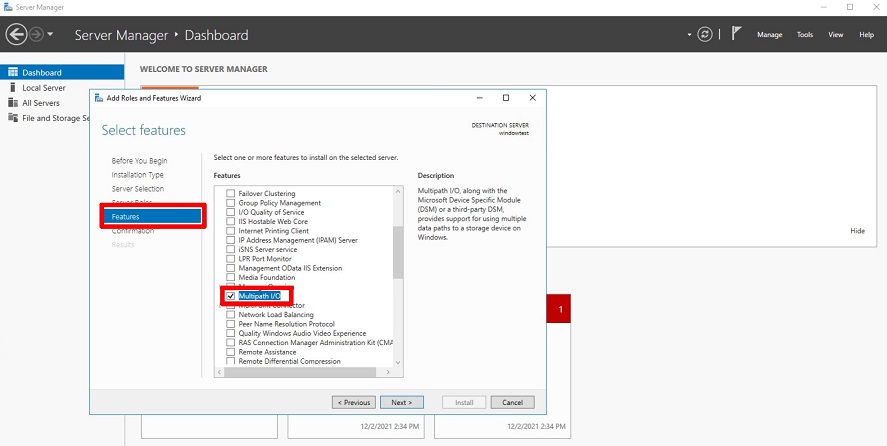
On the Confirm installation selections page, check Restart the destination server automatically if required. If a popup window opens, click Yes and then click the Install button.
The installation will start, and the server will automatically reboot.
After reconnecting to the server, the installation will be complete. Click the Close button to close the Wizard popup window.
Click Server Manager > Dashboard > Tools > MPIO.
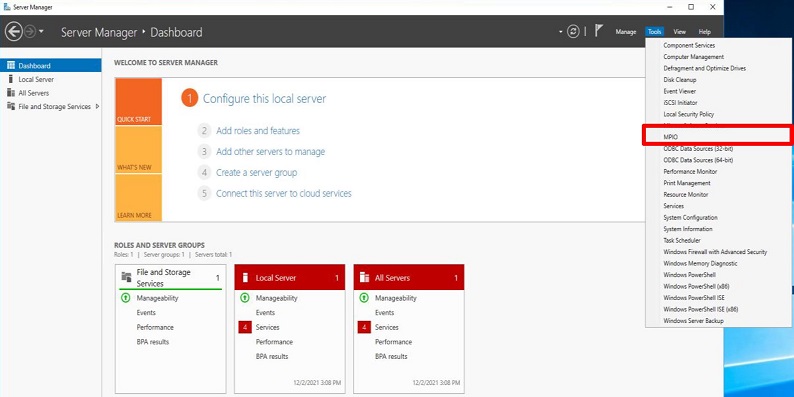
On the Discover Multi-Paths tab, check Add support for iSCSI devices and click the Add button.
- If a message is displayed, reboot the server again.
After the reboot is complete, you can confirm NETAPP Devices in MPIO devices.
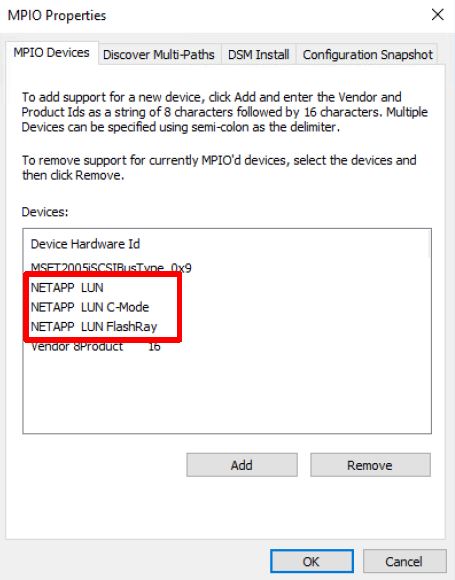
Run diskmgmt.msc in the Windows execution window (command prompt) to open the Disk Management popup window.
- You can confirm that MPIO is applied through the properties of the volume created in the Block Storage(BM) service.
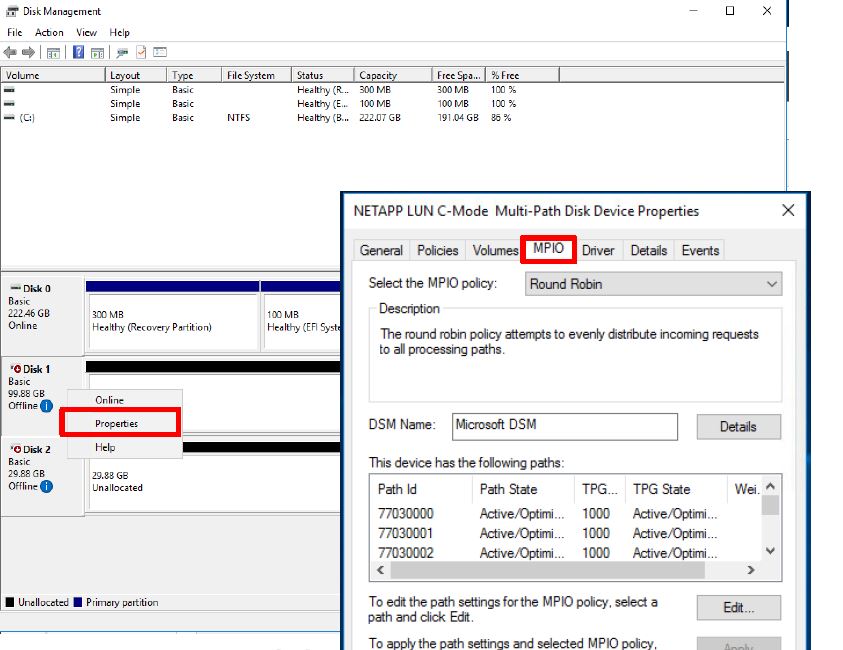
- You can confirm that MPIO is applied through the properties of the volume created in the Block Storage(BM) service.
Connecting to a Server (Mount, Disk Online)
To use a volume added to a connection server, you need to access the server and perform connection operations (Mount, Disk Online). Follow the procedure below.
Linux Operating System
- Server OS: LINUX
- Mount location: /data
- Volume capacity: 24 GB
- File system: ext3, ext4, xfs, etc.
- Additional allocated disk: /dev/vdb
Click the All Services > Storage > Block Storage(BM) menu. The Block Storage(BM) Service Home page will be displayed.
On the Service Home page, click the Block Storage(BM) menu. The Block Storage(BM) list page will be displayed.
On the Block Storage(BM) list page, click the resource you want to connect to the server. The Block Storage(BM) details page will be displayed.
In the Connected Server section, check the server and access it. Follow the guide below to connect (Mount) the volume.
Switch to root privileges
$ sudo -iConfirm the disk
# lsblk
NAME    MAJ:MIN  RM   SIZE RO TYPE MOUNTPOINT
vda       252:0   0    24G  0 disk
├─vda1    252:1   0  23.9G  0 part [SWAP]
└─vda14   252:14  0     4M  0 part /
└─vda15   252:15  0   106M  0 part /boot/efi
vdb       252:16  0    24G  0 disk
Create a partition
# fdisk /dev/vdb
Command (m for help): n

Partition type:
   p   primary (0 primary, 0 extended, 4 free)
   e   extended
Select (default p): p
Partition number (1-4, default 1): 1
First sector (2048-50331646, default 2048):
Last sector, +/-sectors or +/-size{K,M,G,T,P} (2048-50331646, default 50331646):

Created a new partition 1 of type 'Linux' and of size 24 GiB.

Command (m for help): w
The partition table has been altered!
Calling ioctl() to re-read partition table.
Syncing disks.
Set the partition format (e.g., ext4)
# lsblk
NAME    MAJ:MIN  RM   SIZE RO TYPE MOUNTPOINT
vda       252:0   0    24G  0 disk
├─vda1    252:1   0  23.9G  0 part [SWAP]
└─vda14   252:14  0     4M  0 part /
└─vda15   252:15  0   106M  0 part /boot/efi
vdb       252:16  0    24G  0 disk
└─vdb1    252:17  0    24G  0 part

# mkfs.ext4 /dev/vdb1
mke2fs 1.46.5 (30-Dec-2021)
...
Writing superblocks and filesystem accounting information: done
Mount the volume
# mkdir /data

# mount /dev/vdb1 /data

# lsblk
NAME    MAJ:MIN  RM   SIZE RO TYPE MOUNTPOINT
vda       252:0   0    24G  0 disk
├─vda1    252:1   0  23.9G  0 part [SWAP]
└─vda14   252:14  0     4M  0 part /
└─vda15   252:15  0   106M  0 part /boot/efi
vdb       252:16  0    24G  0 disk
└─vdb1    252:17  0    24G  0 part /data

# vi /etc/fstab
(add) /dev/vdb1     /data       ext4     defaults   0 0
| Item | Description |
|---|---|
| cat /etc/fstab | Linux system file containing filesystem information. Used when the server starts. |
| df -h | Confirms the total disk usage of the mounted filesystems in the Linux system. |
| fdisk -l | Confirms partition information.
|
| Command | Description |
|---|---|
| m | Displays the usage of the fdisk command. |
| n | Creates a new partition. |
| p | Displays the changed partition information. |
| t | Changes the system ID of the partition. |
| w | Saves the partition information and exits the fdisk settings. |
Windows Operating System
Click the All Services > Storage > Block Storage(BM) menu. The Block Storage(BM) Service Home page will be displayed.
On the Service Home page, click the Block Storage(BM) menu. The Block Storage(BM) list page will be displayed.
On the Block Storage(BM) list page, click the resource you want to connect to the server. The Block Storage(BM) details page will be displayed.
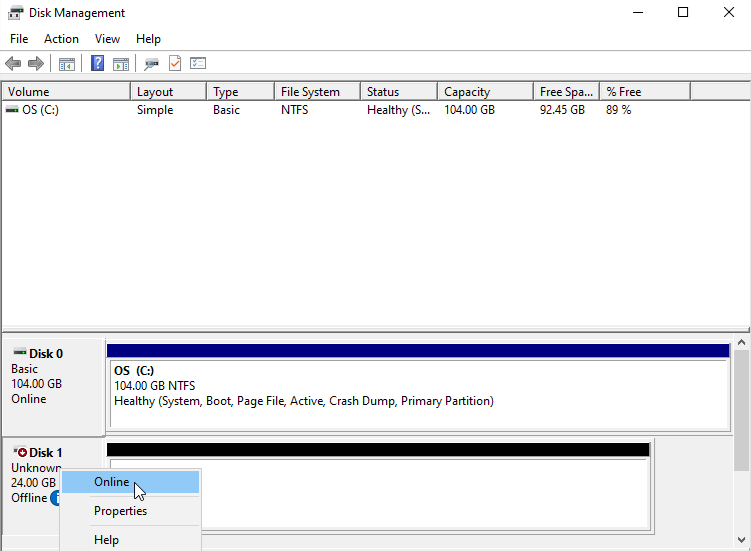
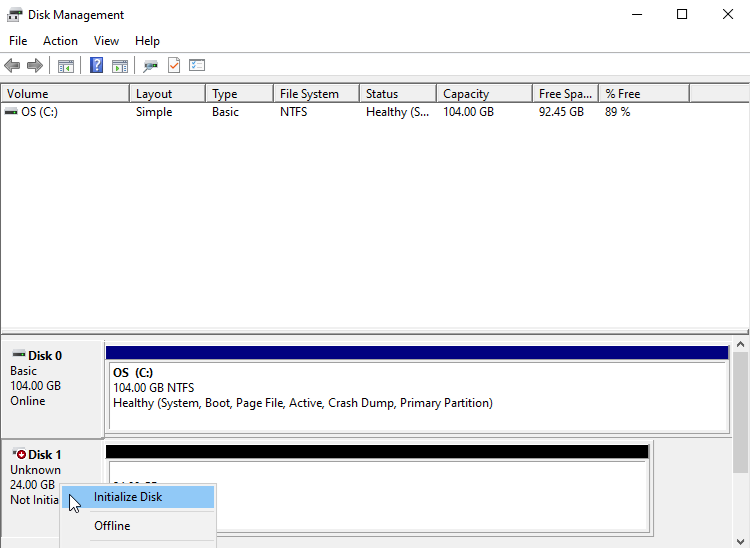
In the Connected Server section, check the server and access it. Follow the guide below to connect (Disk Online) the volume.
Right-click the Windows Start icon and run Computer Management.
In the Computer Management tree structure, select Storage > Disk Management.
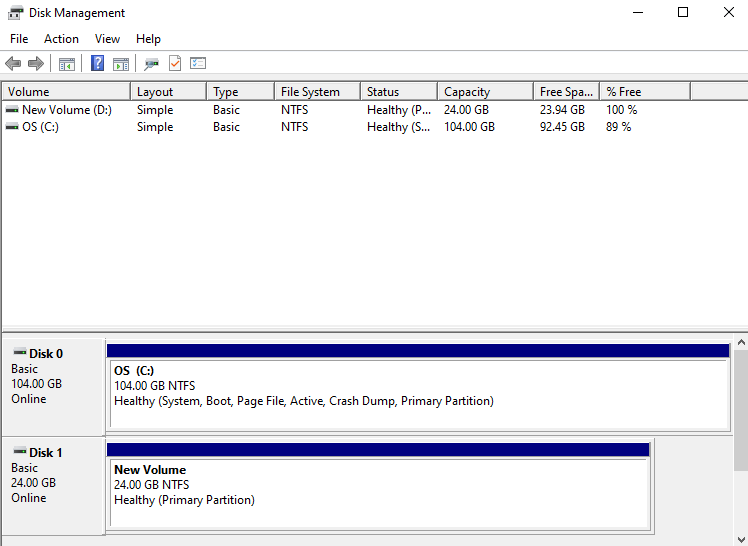
Confirm the disk
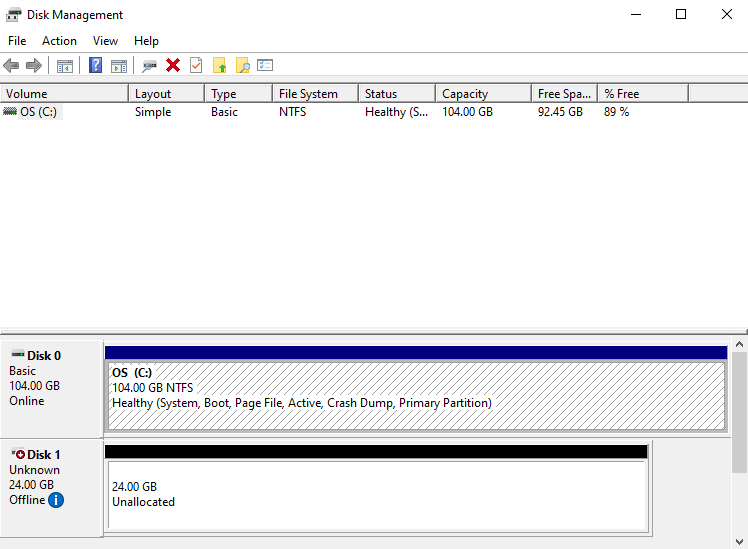
- Set the disk to Online
- Initialize the disk
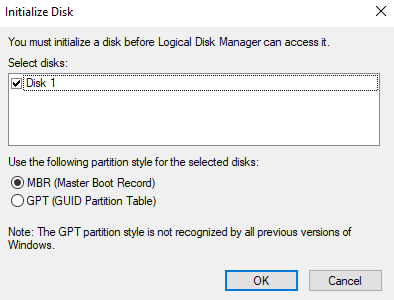
- Format the partition
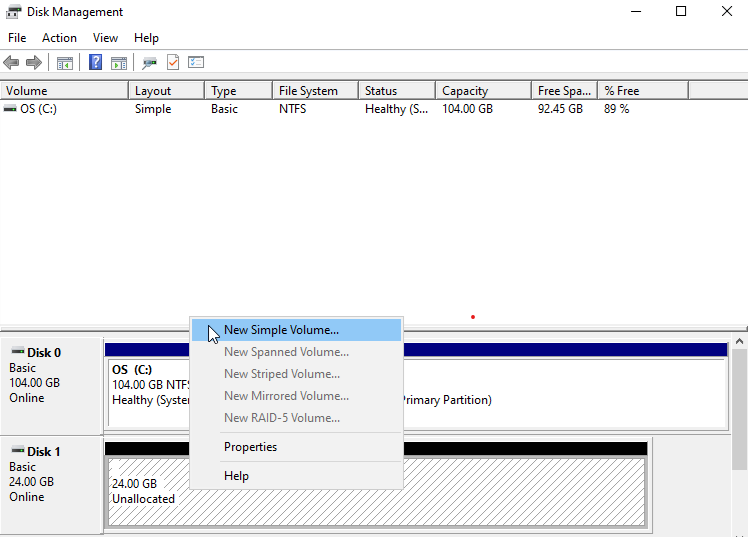
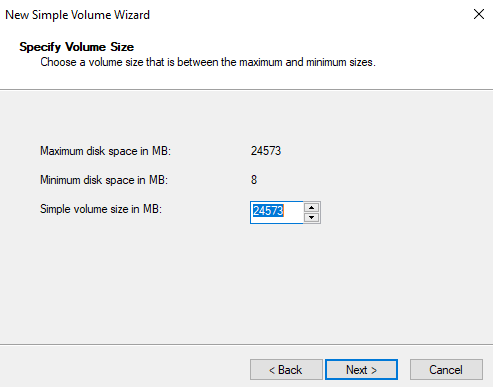
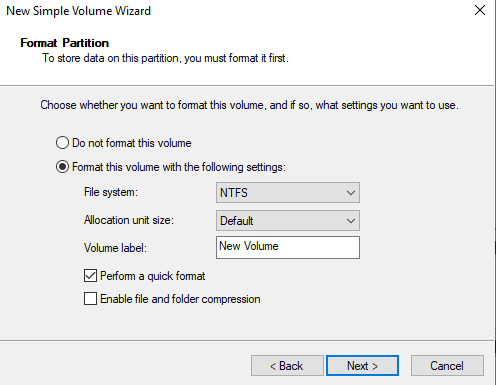
- Confirm the volume
Disconnecting from the Server (Umount, Disk Offline)
After disconnecting from the server (Umount, Disk Offline) and performing the disconnection work, you must disconnect the connected server from the Console. Follow the procedure below.
Linux Operating System
Click All Services > Storage > Block Storage (BM) menu. Move to the Service Home page of Block Storage (BM).
Click the Block Storage (BM) menu on the Service Home page. Move to the Block Storage (BM) list page.
Click the resource to be disconnected from the server on the Block Storage (BM) list page. Move to the Block Storage (BM) details page.
Check the server in the Connected Server item and access it. Follow the guide below to disconnect the volume (Umount).
- Volume Umount
# umount /dev/vdb1 /data

# lsblk
NAME    MAJ:MIN  RM   SIZE RO TYPE MOUNTPOINT
vda       252:0   0    24G  0 disk
├─vda1    252:1   0  23.9G  0 part [SWAP]
└─vda14   252:14  0     4M  0 part /
└─vda15   252:15  0   106M  0 part /boot/efi
vdb       252:16  0    24G  0 disk
└─vdb1    252:17  0    24G  0 part

# vi /etc/fstab
(delete) /dev/vdb1     /data       ext4     defaults   0 0
- Volume Umount
Windows Operating System
Click All Services > Storage > Block Storage (BM) menu. Move to the Service Home page of Block Storage (BM).
Click the Block Storage (BM) menu on the Service Home page. Move to the Block Storage (BM) list page.
Click the resource to be disconnected from the server on the Block Storage (BM) list page. Move to the Block Storage (BM) details page.
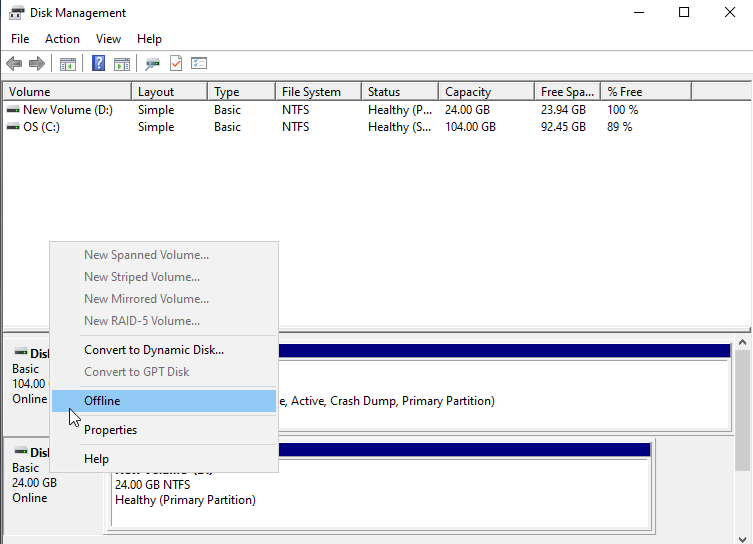
Check the server in the Connected Server item and access it. Follow the guide below to disconnect the volume (Disk Offline).
Right-click the Windows Start icon and run Computer Management
Select Storage > Disk Management in the Computer Management tree structure
Right-click the disk to be removed and run Offline
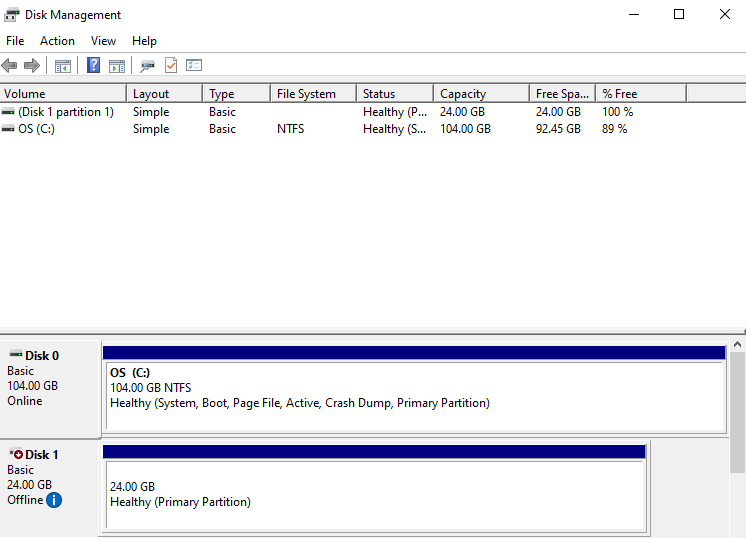
- Check the disk status
2.2 - Using Snapshots
You can create, delete, or recover snapshots of the generated Block Storage (BM). You can perform actions on the Block Storage (BM) Details page and the Snapshot List page.
Create Snapshot
You can create a snapshot at the point in time you want. To create a snapshot, follow the steps below.
- All Services > Storage > Block Storage(BM) Click the menu. Navigate to the Service Home page of Block Storage(BM).
- Click the Block Storage(BM) menu on the Service Home page. You will be taken to the Block Storage(BM) List page.
- Block Storage(BM) List page, click the resource to create a snapshot. Navigate to the Block Storage(BM) Details page.
- Snapshot Capacity Check the setting status of the item.
- Snapshots can only be created when storage space is secured by setting the snapshot capacity.
- For more details, please refer to Modify Snapshot Capacity.
- Click the Create Snapshot button. Create Snapshot popup window opens.
- Confirm Click the button. Creates a snapshot of the current point in time.
- Click the Snapshot List page. Go to the Block Storage(BM) Snapshot list page.
- Check the generated snapshot.
- If the maximum number of snapshots or the snapshot space threshold (around 90%) is exceeded, older snapshots will be deleted.
- If the usage rate within snapshot capacity is high (around 90%), replication may be stopped.
- If there is a volume in the Volume Group with snapshot capacity not set, you cannot create a snapshot. Set the snapshot capacity for all volumes first.
- Snapshots can be created up to a maximum of 1,023 (the automatic creation count via schedule is up to 128), and if the maximum creation count is exceeded, no more snapshots can be created.
- The snapshot creation date and time is based on Asia/Seoul (GMT +09:00).
- If you want to automatically create snapshots via a schedule, set the snapshot schedule on the Block Storage(BM) Details page.
- For detailed information about snapshot schedules, see Edit Snapshot Schedule.
- The replica can use the snapshot feature after the replication policy is deleted.
Recover Snapshot
Block Storage(BM) volumes can be restored from a snapshot. To perform snapshot recovery, follow the steps below.
- Click the All Services > Storage > Block Storage(BM) menu. Go to the Service Home page of Block Storage(BM).
- Service Home page, click the Block Storage(BM) menu. Navigate to the Block Storage(BM) list page.
- Block Storage(BM) List On the page, click the resource to restore from the snapshot. Block Storage(BM) Details Navigate to the page.
- If there is a server added in the Connection Server item, after connecting to the server, perform the disconnect operation (Umount, Disk Offline).
- For more details, please refer to Disconnect Server.
- Snapshot List Click the page. Block Storage(BM) Snapshot List Go to the page.
- After checking the Snapshot Name and Creation Date/Time, click the More button of the snapshot you want to restore.
- Recovery Click the button. The snapshot recovery popup window opens.
- Snapshot Name and Creation Date and Time after checking, click the Confirm button. Recover the Block Storage volume as a snapshot.
- Click the Details button. You will be taken to the Block Storage (BM) Details page.
- Connection Server If there is a server added in the item, after connecting to the server, perform the connection tasks (Mount, Disk Online).
- For more details, please refer to Connect to Server.
- Snapshot recovery must be performed while disconnected (Umount, Disk Offline) on all connected servers, and the recovered volume can be used after reconnecting (Mount, Disk Online).
- After the snapshot recovery is completed, all snapshots created after the snapshot used for recovery will be deleted.
- When restoring a snapshot, the volume is restored to that point.
- If you are using Volume Group (BM), you can perform snapshot recovery from the detail page of Volume Group (BM).
Create a recovery copy
Block Storage(BM) volume’s snapshot can be used to create a recovery copy. To create a snapshot recovery copy, follow the steps below.
- All Services > Storage > Block Storage(BM) Click the menu. Navigate to the Service Home page of Block Storage(BM).
- Click the Block Storage(BM) menu on the Service Home page. Navigate to the Block Storage(BM) List page.
- On the Block Storage(BM) List page, click the resource to restore from a snapshot. You will be taken to the Block Storage(BM) Details page.
- Connection Server If there is a server added in the item, after connecting to the server, perform the disconnect operation (Umount, Disk Offline).
- For more details, see Disconnect Server.
- Snapshot List page, click it. Block Storage(BM) Snapshot List page, go to it.
- After confirming the Snapshot name and Creation date/time, click the More button of the snapshot you want to create a recovery copy for.
- Click the Create Recovery button. The snapshot recovery creation popup opens.
- After entering the Recovery volume name, click the Confirm button. A popup notifying the creation of the recovery copy opens.
- Click the Confirm button. The recovery copy creation request is completed.
- Only one backup can be created per original.
- A recovery copy is a separate volume created with the same capacity as the original, and incurs additional costs.
- If you are using Volume Group (BM), you can create a backup on the detail page of Volume Group (BM).
Delete Snapshot
You can select a snapshot to delete. To delete a snapshot, follow the steps below.
- All Services > Storage > Block Storage(BM) Click the menu. Navigate to the Service Home page of Block Storage(BM).
- Service Home on the page, click the Block Storage(BM) menu. Go to the Block Storage(BM) list page.
- Block Storage(BM) List page, click the resource to delete the snapshot. Block Storage(BM) Details page will be opened.
- Click Snapshot List. Go to the Block Storage (BM) Snapshot List page.
- After checking the Snapshot Name and Creation Date/Time, click the More button of the snapshot you want to delete.
- Click the Delete button. The snapshot will be removed from the Snapshot List page.
- Snapshots that contain snapmirror in the snapshot name cannot be deleted. snapmirror is included in the snapshot name when a replication is created.
- If you are using Volume Group (BM), you can delete snapshots from the detail page of Volume Group (BM).
2.3 - Using Replication
You can create a replica in a different location of the created Block Storage(BM) and synchronize it periodically, and you can perform tasks on the Block Storage(BM) details page and the replication page.
- The kr-south region does not provide Block Storage(BM) replication feature.
Create a copy
You can create a replica volume in a different location. To create a replica volume, follow these steps.
- All Services > Storage > Block Storage(BM) menu is clicked. It moves to the Service Home page of Block Storage(BM).
- Service Home page, click the Block Storage(BM) menu. It moves to the Block Storage(BM) list page.
- Block Storage(BM) list page, click on the resource to create a replica. It moves to the Block Storage(BM) details page.
- Snapshot capacity item’s setting status should be checked.
- Replication creation is only possible when storage space is secured through snapshot capacity setting.
- For more detailed information, please refer to Modifying snapshot capacity.
- Replicate Create button will be clicked. Replicate Create popup window will be opened.
- Replication location and replication volume name, replication cycle should be entered and the confirm button should be clicked. It creates a replica with the same disk type.
- Replication location: Select a location different from the original Block Storage(BM) volume.
- Replica Volume Name: It should start with English and use English, numbers, and special characters(
-) to input 3-28 characters. - Replication cycle: Choose from 5 minutes, 1 hour, daily, weekly, or monthly. Replication will be performed according to the selected cycle.
- Daily: every day 23:59:00
- Every week: every Sunday 23:59:00
- Every month: every month 1st 23:59:00
- Replication page will be clicked. It moves to the Replication page.
- Check the replication information.
- When selecting the volume name of the original or replica, it moves to the Block Storage(BM) details page of the volume.
- When replicating, a replica with the same disk type is created.
- After setting the snapshot capacity, a replica can be created, and the disk type of the created replica is the same as the original.
- In cases where the snapshot capacity usage rate is high (around 90%), replication may be stopped.
- After setting the snapshot capacity, the volume added to the Volume Group can be replicated in units of Group on the Volume Group page.
- One replica can be created per volume, and additional data transfer fees apply when replicating across regions.
- The replicated created volume cannot be added to the Volume Group.
- If you are using Volume Group, you can check the replication information from Volume Group (BM).
Modify replication policy
You can change the replication status through replication policy modification.
To modify the replication policy, follow the following procedure.
- All services > Storage > Block Storage(BM) menu is clicked. It moves to the Service Home page of Block Storage(BM).
- Service Home page, click the Block Storage(BM) menu. It moves to the Block Storage(BM) list page.
- Block Storage(BM) list page, click the resource to modify the replication policy. It moves to the Block Storage(BM) details page.
- Replication page is clicked. It moves to the Block Storage(BM) replication page.
- Replication Policy’s Edit button should be clicked. Replication Policy Edit popup window will be opened.
- Usage: performs replication. Paused can be modified to Usage.
- Temporary suspension: temporarily suspends replication. If in use, it can be modified to temporary suspension.
- Delete: It deletes the replication. In case of pause, it can be modified to delete, and after deletion, replication cannot be used again.
- Block Storage(BM) replication page, check the modified replication policy.
- Be aware of the following when deleting a policy.
- After deleting the policy, the replica is not converted to the original and cannot create a replica.
- After deleting the policy, you cannot connect to the existing replica, and you can only create a new replica.
- Data stored only in replicas after temporary suspension will be deleted when replication is used again.
- When using the replication policy, the replica is in a read-only state and data modification is not possible. Please use replication after unmounting from all connected resources
- The replication policy can be mounted from the connection server only when it is deleted or in a paused state.
Modify replication cycle
You can change the synchronization cycle between the original and the copy through replication cycle modification.
To modify the replication cycle, follow the following procedure.
- All services > Storage > Block Storage(BM) menu is clicked. It moves to the Service Home page of Block Storage(BM).
- Service Home page, click the Block Storage(BM) menu. It moves to the Block Storage(BM) list page.
- Block Storage(BM) list page, click the resource to modify the replication cycle. It moves to the Block Storage(BM) details page.
- Replication page will be clicked. It moves to the Block Storage(BM) replication page.
- Replication Cycle’s Edit button should be clicked. Replication Cycle Edit popup window will be opened.
- Replication cycle: Select from 5 minutes, 1 hour, daily, weekly, or monthly. Replication will be performed according to the selected cycle.
- Daily: every day 23:59:00
- Every week: every Sunday 23:59:00
- Every month: every month 1st 23:59:00
- Block Storage(BM) replication page where you can check the modified replication cycle.
2.4 - Using Volume Group
Volume Group(BM) service allows you to create a group of up to 16 Block Storage(BM) volumes to create snapshots and replicas at a consistent point in time.
The user can enter the necessary information of the Volume Group (BM) through the Samsung Cloud Platform Console and select detailed options to create the corresponding service.
Creating Volume Group (BM)
You can create and use the Volume Group(BM) service on the Samsung Cloud Platform Console.
To create Block Storage, follow the next procedure.
- All services > Storage > Block Storage(BM) menu should be clicked. It moves to the Service Home page of Block Storage(BM).
- Volume Group(BM) menu should be clicked. It moves to the Volume Group(BM) list page.
- Volume Group(BM) page, click the Volume Group(BM) creation button. It moves to the Volume Group(BM) creation page.
Classification MandatoryDetailed Description Volume Group name Required Volume Group name - Starts with English and uses English, numbers, and special characters (
-) to input 3-28 characters
- Cannot be modified after service creation
Target Volume Required Add target volume to Volume Group - Add button is clicked, and then select the target volume in the target add popup
- Target volume basis
- Snapshot capacity: Setting
- Snapshot automatic creation, creation cycle: Not used
- Replication: Not used
- Up to 16 can be added
Table. Volume Group(BM) Service Information Input Items - Starts with English and uses English, numbers, and special characters (
- Complete button을 클릭하세요 -> 4. Complete button should be translated as: 4. Click the Complete button. So the final translation is: 4. Click the Complete button.
- Once creation is complete, check the created resource from the Volume Group(BM) list page.
- When adding the target volume, you can add the volume corresponding to the following to the Volume Group (BM).
- Snapshot capacity: setting
- Snapshot automatic creation, creation cycle: not used
- Replication: Not used
- The target volume can be added up to a maximum of 16.
Volume Group(BM) detailed information check
Volume Group(BM) service allows you to check and modify the entire resource list and detailed information. The Volume Group(BM) details page consists of detailed information, snapshot list, replication, job history tabs.
Volume Group(BM) service’s detailed information can be checked by following the next procedure.
- All Services > Storage > Block Storage(BM) menu should be clicked. It moves to the Service Home page of Block Storage(BM).
- Service Home page, click the Volume Group(BM) menu. It moves to the Volume Group(BM) list page.
- Volume Group(BM) list page, click on the resource to check the detailed information. It moves to the Volume Group(BM) details page.
- Volume Group(BM) details page displays status information and additional feature information, and consists of details, snapshot list, replication, tags, job history tabs.
Classification Detailed Description Volume Group status Volume Group’s status - Creating: being created
- Available: creation completed, server connection available
- Deleting: service termination in progress
- Editing: settings being changed
- Error Deleting: abnormal state during deletion
- Error: abnormal state during creation
Replication creation Create a replica in a different location - For more information on replication creation, see Replication Creation
Creating a snapshot Create a snapshot at a specific point in time - For more information on creating a snapshot, see Creating a Snapshot
Service Cancellation Button to cancel the service Table. Status Information and Additional Functions
Detailed Information
Volume Group(BM) list page where you can check the detailed information of the selected resource and modify the information if necessary.
| Classification | Detailed Description |
|---|---|
| Service | Service Name |
| Resource Type | Resource Type |
| SRN | Unique resource ID in Samsung Cloud Platform
|
| Resource Name | Resource Name
|
| Resource ID | Service’s unique resource ID |
| Creator | The user who created the service |
| Creation Time | The time when the service was created |
| Editor | User who modified the service |
| Revision Time | The time when the service was revised |
| Volume Group name | Volume Group Name |
| Division | Division of original related to replication |
| Storage Volume Group name | Storage device internal Volume Group name
|
| Snapshot Schedule | Snapshot automatic generation cycle
|
| Backup | Volume Group’s backup name
|
| Target Volume | Volume Group added Block Storage(BM)
|
Snapshot list
Volume Group(BM) Resource List page where you can check the snapshot of the selected resource.
| Classification | Detailed Description |
|---|---|
| Snapshot Name | Snapshot Name |
| Creation Time | Snapshot Creation Time |
| Additional Features > More | Snapshot Management Button
|
- When creating a snapshot in the Volume Group, a snapshot is created in the Block Storage (BM).
- Volume Group snapshot is used when managing the target volume’s snapshot capacity and count.
- If the maximum number of snapshot creations or the threshold of snapshot space (around 90%) is exceeded, old snapshots will be deleted from oldest.
- If the snapshot capacity usage rate is high (around 90%), replication may be stopped.
- Snapshots can be created up to a maximum of 1,023 (the maximum number of automatic creations through scheduling is 128), and if the maximum number of creations is exceeded, no more snapshots can be created.
- Snapshot recovery must be performed in a state where all connected servers are disconnected (Umount, Disk Offline), and the recovered volume can be used after reconnection (Mount, Disk Online).
- The snapshot creation time is based on Asia/Seoul (GMT +09:00) standard.
- When using replication, the snapmirror file cannot be deleted.
- When using Volume Group, set the snapshot schedule on the Volume Group (BM) detailed information screen. The created snapshot can be checked in the Block Storage (BM) snapshot list.
Replication
Volume Group(BM) Resource List page where you can check the replication information of the selected resource.
| Classification | Detailed Description |
|---|---|
| Replication Policy | Replication policy set by the user
|
| Replication Cycle | The replication cycle of the original set by the user
|
| Replication Status | Replication progress status according to policy settings |
| Volume Information | Volume information of the original and replica
|
- If the snapshot capacity usage rate is high (around 90%), replication may be stopped
- When replicating, a replica with the same disk type is created.
- Snapshot capacity setting and replica creation are possible after setting.
- If you are using a Volume Group, check the replication information on the Volume Group(BM) resource list page.
- The replica Block Storage can modify the connected server when the replication policy is paused or deleted.
- The replica Block Storage can use the snapshot feature after the replication policy is deleted.
- If the replication policy is paused or the replication status is completed, you can modify the policy and cycle from the replica.
Tag
Volume Group(BM) list page where you can check the tag information of the selected resource, and add, change or delete it.
| Classification | Detailed Description |
|---|---|
| Tag List | Tag List
|
Work History
Volume Group(BM) Resource List page where you can check the work history of the selected resource.
| Classification | Detailed Description |
|---|---|
| Job history list | Resource change history
|
Volume Group(BM) Resource Management
If you need to modify the settings of the created Volume Group(BM) or add or remove target volumes, you can perform the task on the Volume Group(BM) details page.
Modifying the Snapshot Schedule
You can modify the snapshot automatic creation cycle. To modify the snapshot schedule, follow the following procedure.
- All Services > Storage > Block Storage(BM) menu should be clicked. It moves to the Service Home page of Block Storage(BM).
- Service Home page, click the Volume Group(BM) menu. It moves to the Volume Group(BM) list page.
- Volume Group(BM) list page, click the resource to modify the snapshot schedule. It moves to the Volume Group(BM) details page.
- Snapshot Schedule item’s Edit button should be clicked. Snapshot Schedule Edit popup window will be opened.
- Set the snapshot automatic creation and creation cycle, and click the confirm button.
- Creation Cycle basis to automatically create a snapshot, in the case of Auto Creation select Yes.
- Creation cycle can be selected as daily, hourly, or weekly, day of the week, hourly.
Volume Group snapshot is used when managing the target volume’s snapshot capacity and count
- Snapshots can be created up to a maximum of 1,023 (the maximum number of automatic creations through scheduling is 128), and if the maximum number of creations is exceeded, no more snapshots can be created.
Modifying the target volume
You can add or detach the target volume. To modify the target volume, follow these procedures.
- All Services > Storage > Block Storage(BM) menu should be clicked. It moves to the Service Home page of Block Storage(BM).
- Service Home page, click the Volume Group(BM) menu. It moves to the Volume Group(BM) list page.
- Volume Group(BM) list page, click the resource to modify the target volume. It moves to the Volume Group(BM) detail page.
- If you add a target volume, click the Add button in the Target Volume item. The Add Volume popup window opens.
- If you want to disconnect the volume, click the Disconnect button in the Target Volume section.
- Select the volume you want to add and then click the Confirm button.
- Volume Group’s replication policy is in use, the target volume cannot be modified.
- When adding the target volume, you can add the following volume to the Volume Group (BM).
- Snapshot capacity: settings
- Snapshot automatic creation, creation cycle: not used
- Copy: Not used
- The target volume can be added up to a maximum of 16.
Volume Group(BM) snapshot usage
You can create, delete a snapshot of the created Volume Group(BM), or restore it using a snapshot. You can perform tasks on the Volume Group(BM) details page and the Snapshot list page.
Creating a snapshot
The user can create a snapshot of the desired point in time. To create a snapshot, follow the following procedure.
- All Services > Storage > Block Storage(BM) menu should be clicked. It moves to the Service Home page of Block Storage(BM).
- Service Home page, click the Volume Group(BM) menu. It moves to the Volume Group(BM) list page.
- Volume Group(BM) list page, click on the resource to create a snapshot. It moves to the Volume Group(BM) details page.
- Create Snapshot button is clicked. Create Snapshot popup window is opened.
- Confirm button, click. It creates a snapshot of the current point in time.
- Snapshot List page, click. It moves to the Volume Group(BM) Snapshot list page.
- Check the generated snapshot.
- When creating a snapshot in the Volume Group, a snapshot is also created on the connected target volume.
- Volume Group snapshot usage, manage the snapshot capacity and number of the target volume.
- If the maximum number of snapshot creations or the threshold of snapshot space (around 90%) is exceeded, old snapshots will be deleted from oldest.
- If the snapshot capacity usage rate is high (around 90%), replication may be stopped.
- A snapshot can be created up to 1,023 (the automatic creation number through the schedule is up to 128), and if the maximum creation number is exceeded, no more snapshots can be created.
- The snapshot creation time is based on Asia/Seoul (GMT +09:00) standard.
- Snapshot storage space will be applied according to the settings on the Block Storage(BM) details page of the target volume.
- If you want to automatically create snapshots through a schedule, set the snapshot schedule on the Volume Group(BM) details page.
- For more information about the snapshot schedule, please refer to Modifying the Snapshot Schedule.
- The replica can use the snapshot feature after the replication policy is deleted.
Restoring a snapshot
Volume Group(BM)’s target volumes can all be restored as snapshots. To restore as a snapshot, follow the following procedure.
- All Services > Storage > Block Storage(BM) menu should be clicked. It moves to the Service Home page of Block Storage(BM).
- Service Home page, click the Volume Group(BM) menu. It moves to the Volume Group(BM) list page.
- Volume Group(BM) list page, click the resource to be restored with a snapshot. It moves to the Volume Group(BM) detail page.
- Target Volume에 추가된 볼륨의 Volume Name을 클릭하세요. Block Storage(BM) Detail 페이지로 이동합니다. -> 4. Click the Volume Name of the volume added to the Target Volume. It moves to the Block Storage(BM) Detail page.
- connected server item has a server added, after server connection, perform disconnect work (Umount, Disk Offline) please.
- Please refer to Server Connection Release for more detailed information.
- Volume Group(BM) details page, click the snapshot list page. It moves to the Volume Group(BM) snapshot list page.
- Snapshot name and Creation time should be confirmed, then click the More button of the snapshot you want to restore.
- Restore button, click. Snapshot restore popup window opens.
- Snapshot name and Creation time are confirmed after clicking the Confirm button. The target volumes are restored as snapshots.
- Detailed Information button will be clicked. It will move to the Volume Group(BM) Detail page.
- Target Volume에 추가된 볼륨의 Volume Name을 클릭하세요. Block Storage(BM) Detail 페이지로 이동합니다.
- connected server items have been added, after server connection, perform connection work (Mount, Disk Online)
- For more detailed information, please refer to 서버 연결하기 becomes * For more detailed information, please refer to Connect to Server
- Snapshot recovery must be performed with all target volumes disconnected (Umount, Disk Offline) from the connected server, and the recovered volume can be used after reconnection (Mount, Disk Online).
- After the snapshot restoration is complete, all snapshots created after the snapshot used for restoration will be deleted.
Creating a recovery version
You can create a replica from a snapshot of the target volume. To create a snapshot replica, follow these steps.
- All services > Storage > Block Storage(BM) menu is clicked. It moves to the Service Home page of Block Storage(BM).
- Service Home page, click the Volume Group(BM) menu. It moves to the Volume Group(BM) list page.
- Volume Group(BM) list page, click on the resource to create a backup. It moves to the Volume Group(BM) details page.
- Volume Group(BM) details page, click the snapshot list page. It moves to the Volume Group(BM) snapshot list page.
- Snapshot name and Creation time are confirmed, then click the More button of the snapshot you want to create a restore from.
- Restore Point Creation button should be clicked. Snapshot restore point creation popup window will be opened.
- Prefix를 입력한 후, 확인 버튼을 클릭하세요. becomes 9. Enter the Prefix and then click the Confirm button. 복구본 생성을 알리는 팝업창이 열립니다. becomes A pop-up window announcing the creation of a backup will open. So the translation is: 9. Enter the Prefix and then click the Confirm button. A pop-up window announcing the creation of a backup will open.
- The name of the backup is created with the input prefix value + original Block Storage name entered.
- Confirm button will be clicked. The application for creating a backup copy will be completed.
- A backup copy can be created only one per original.
- The recovery volume is a separate volume created with the same capacity as the original, and additional costs are incurred.
Deleting a snapshot
You can select a snapshot to delete it. To delete a snapshot, follow these steps.
- All Services > Storage > Block Storage(BM) menu should be clicked. It moves to the Service Home page of Block Storage(BM).
- Service Home page, click the Volume Group(BM) menu. It moves to the Volume Group(BM) list page.
- Volume Group(BM) list page, click the resource to delete the snapshot. It moves to the Volume Group(BM) details page.
- Snapshot list을 클릭하세요. Volume Group (BM) snapshot list 페이지로 이동합니다.
- Snapshot name and Creation time should be confirmed, then click the More button of the snapshot you want to delete.
- Delete button will be clicked. Snapshot list page will remove the snapshot.
Volume Group(BM) replication usage
The created Volume Group(BM) can be synchronized periodically and consistently after creating replicas in other locations, and work can be done on the Volume Group(BM) details page and the replication page.
Create a copy
You can create a replica of the Volume Group and volume in a different location. To create a copy, follow the following procedure.
- All services > Storage > Block Storage(BM) menu is clicked. It moves to the Service Home page of Block Storage(BM).
- Service Home page, click the Volume Group(BM) menu. It moves to the Volume Group(BM) list page.
- Volume Group(BM) list page, click the resource to create a replica. It moves to the Volume Group(BM) details page.
- Replicate Create button should be clicked. Replicate Create popup window will be opened.
- Replication Location and Replication Volume Group, Replication Block Storage Name Prefix, Replication Cycle should be entered and the Confirm button should be clicked. It creates a replica Volume Group and a replica Block Storage volume with the same disk type.
- Replication location: Select a location different from the original Volume Group (BM).
- Replica Volume Group name: It should start with English and use English, numbers, and special characters (
-) to input 3-28 characters. - Replica Block Storage Name Prefix: It should start with English and use English, numbers, and special characters (
-) to input 3-28 characters. - The replica Block Storage(BM) is created with a volume name of ‘replica Block Storage name prefix + original Block Storage volume name’.
- Replication cycle: Choose from 5 minutes, 1 hour, daily, weekly, or monthly. Replication will be performed according to the cycle below.
- Daily: every day 23:59:00
- Every week: every Sunday 23:59:00
- Every month: every month 1st 23:59:00
- Replication page will be clicked. It moves to the Replication page.
- Check the replication information.
- When the original or replica Volume Group name is selected, it moves to the Volume Group(BM) details page.
- When creating a replica in the Volume Group, a replica Volume Group and Block Storage (BM) are created.
- The replica Block Storage has the same type as the original and disk type.
- You can create one replica per Volume Group, and additional data transfer fees apply when replicating across regions.
Modify replication policy
You can change the replication status through replication policy modification.
To modify the replication policy, follow the following procedure.
- All services > Storage > Block Storage(BM) menu is clicked. It moves to the Service Home page of Block Storage(BM).
- Service Home page, click the Volume Group(BM) menu. It moves to the Volume Group(BM) list page.
- Volume Group(BM) list page, click the resource to modify the replication policy. It moves to the Volume Group(BM) details page.
- Replication page will be clicked. It moves to the Volume Group(BM) Replication page.
- Replication Policy’s Edit button is clicked. Replication Policy Edit popup window is opened.
- Usage: performs replication. Pause can be modified to Usage.
- Temporary Suspension: temporarily suspends replication. If in use, it can be modified to temporary suspension.
- Delete: It deletes the replication. In case of pause, it can be modified to delete, and after deletion, replication cannot be used again.
- Volume Group(BM) replication page where you can check the modified replication policy.
- Note the following when deleting a policy.
- After deleting the policy, the replica cannot be converted to the original and replication cannot be created.
- After deleting the policy, you cannot connect to the existing replica, and you can only create a new replica.
- Data stored only in replicas after temporary suspension will be deleted when replication is used again.
- When using the replication policy, the replica is in a read-only state and data modification is not possible. Please use replication after unmounting all connected resources
Modify Replication Cycle
You can change the synchronization cycle between the original and the replica through replication cycle modification.
To modify the replication cycle, follow the following procedure.
- All services > Storage > Block Storage(BM) menu is clicked. It moves to the Service Home page of Block Storage(BM).
- Service Home page, click the Volume Group(BM) menu. It moves to the Volume Group(BM) list page.
- Volume Group(BM) list page, click the resource to modify the replication cycle. It moves to the Volume Group(BM) details page.
- Replication page is clicked. It moves to the Volume Group(BM) replication page.
- Replication Cycle’s Edit button should be clicked. Replication Cycle Edit popup window will be opened.
- Replication cycle: Choose from 5 minutes, 1 hour, daily, weekly, or monthly. Replication will be performed according to the cycle below.
- Daily: every day 23:59:00
- Every week: every Sunday 23:59:00
- Every month: every month 1st 23:59:00
- Volume Group(BM) replication page where you can check the modified replication cycle.
Volume Group(BM) cancellation
You can cancel the unused Volume Group(BM).
Volume Group(BM) has no separate cancellation procedure, and it is automatically deleted when all volumes are disconnected from the target volume item.
3 - API Reference
4 - CLI Reference
5 - Release Note
Block Storage(BM)
- You can set the volume performance metrics (IOPS, Throughput) and edit them on the detail page.
- IOPS: 3,000 ~ 16,000
- Throughput: 125 ~ 1,000
- No separate charges during the preview period (billing planned for the first half of 2026).
- The feature to create a recovery (Recovery) using snapshots has been added.
- A recovery copy is a separate volume created with the same capacity as the original, and additional costs are incurred.
- HDD Disk type has been added. When creating Block Storage (BM), HDD disk can be selected.
- Provides an IaC environment through Terraform.
- You can use the snapshot feature on a replica volume.
- Cloud Monitoring has been linked.
- You can view IOPS, Latency, and Throughput information in Cloud Monitoring.
- Block Storage(BM) Feature Change
- Block Storage(BM) Replication feature that allows volumes to be replicated to another location has been added.
- The Volume Group feature has been added, allowing you to set up to 16 Block Storage (BM) volumes as a group to create snapshots and replication at a consistent point in time.
- For detailed information, please refer to Block Storage(BM) Overview.
- Samsung Cloud Platform Common Feature Change
- Account, IAM and Service Home, tags etc. reflected the common CX changes.
- Launched a high-performance storage service suitable for handling large-scale data and database workloads.