Data stored in Object Storage is automatically transferred to Archive Storage for retention and can be easily restored when needed.
This is the multi-page printable view of this section. Click here to print.
Archive Storage
- 1: Overview
- 1.1: ServiceWatch Metrics
- 2: How-to guides
- 3: API Reference
- 4: CLI Reference
- 5: Release Note
1 - Overview
Service Overview
Archive Storage is a storage service suitable for long-term retention of large amounts of data. The user can set a schedule to automatically move infrequently accessed data stored in Object Storage to Archive Storage, enabling efficient storage configuration and cost management. Additionally, upon user request, data stored in Archive Storage can be restored to Object Storage for use.
Features
Free Capacity Usage: When you create a bucket in Archive Storage, the bucket automatically expands or contracts based on the user’s data archiving and deletion. There is no cost for creating a storage bucket; you are only charged for storage usage.
Stable Data Recovery: Data that has been stored long-term can be searched and reliably recovered within three hours. During data recovery, select the target file and the Object Storage bucket where you want to store the data to recover it.
Cost Efficiency: By configuring Object Storage and Archive Storage efficiently according to the purpose and frequency of data usage, you can store and manage data at a reasonable cost.
Convenient Use: You can conveniently use features such as creating buckets, setting archiving schedules, and data recovery in the Samsung Cloud Platform Console. After migrating data for all files in Object Storage, you can apply a source deletion policy.
Configuration diagram
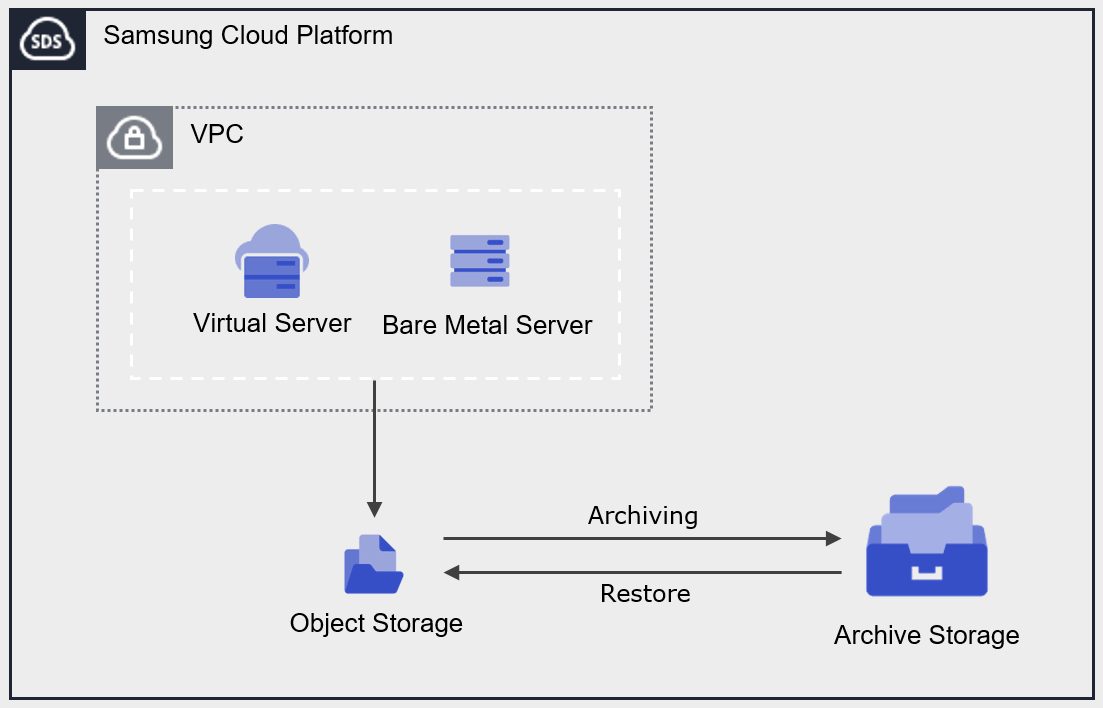
Provided features
Archive Storage provides the following features.
- Archiving Plan Configuration: Set a schedule to perform Archiving on all files in the Object Storage bucket.
- Data Recovery: You can recover to the target Object Storage bucket and folder using folders or files stored in Archive Storage.
- Archiving status monitoring: You can check the Archiving status (success, cancelled, failed, in progress, pending, skipped).
- Recovery status monitoring: You can view the recovery status (success, canceled, failed, in progress, pending).
- Encryption: When encryption is set to enabled, encryption is provided via the SSE‑S3 method.
- Version Management: You can manage archived files by version and restore a selected version.
- ServiceWatch Service Integration: You can monitor data using the ServiceWatch service.
Component
Authentication key
To create and access the Archive Storage service in the Samsung Cloud Platform Console, an authentication key is required. Therefore, to use Archive Storage, you must create an authentication key.
Bucket
A bucket is the top-level folder, and all folders and files reside under the bucket. When you create an Archive Storage service in the Samsung Cloud Platform Console, a bucket is created, and you can then upload folders or files.
The bucket name creation rules are as follows.
- Bucket names must be at least 3 characters and at most 63 characters.
- Bucket names can only be composed of lowercase English letters, numbers, periods
., and hyphens-. - Bucket names must start with a lowercase letter or a digit.
- Bucket names must not contain two consecutive periods.
- Bucket names cannot end with a period or hyphen.
- Bucket names cannot have a period and a hyphen adjacent to each other.
- Bucket names do not use the IP address format (e.g., 192.168.x.x).
- The bucket name cannot be admin.
- Bucket names must be unique within an Account/Region.
- The bucket name you previously used will be available after 1 hour.
| Example of a valid bucket name | Example of an invalid bucket name |
|---|---|
The following bucket names can be used
| The following bucket names cannot be used
|
folder
A folder (Folder) is used to logically group files.
The folder naming rules are as follows.
- Folder names can consist of Korean characters, English letters, numbers, and special characters.
- The special characters that cannot be entered are listed below.
| Special characters that cannot be used in folder names |
|---|
|
File
File (File) refers to data stored in Archive Storage and is the same as a regular file.
The filename generation rules are as follows.
- Filenames can consist of Korean characters, English letters, numbers, and special characters.
- The special characters that cannot be entered are listed below.
| Special characters that cannot be used in file names |
|---|
|
Folder names and file names are separated by slash /. The following are examples of valid folder and file names.
| Example of mixed use of folder names and file names |
|---|
|
Reference
The length of the path, including the folder name, file name, and separator (
/), must be within 1,024 bytes (based on UTF-8 encoding).Constraints
The limitations of Archive Storage are as follows.
| Category | description |
|---|---|
| Number of creatable Archive Storage services | 1000 or fewer |
| File name length (including path) | up to 1,024 Bytes |
Table. Archive Storage constraints
Preceding Service
This is a list of services that must be pre‑configured before creating the service. Please refer to the guide provided for each service for details and prepare in advance.
| Service Category | Service | Detailed description |
|---|---|---|
| Storage | Object Storage | Object storage that simplifies data storage and retrieval |
Table. Archive Storage preliminary service
1.1 - ServiceWatch Metrics
Archive Storage sends metrics to ServiceWatch. The metrics provided by default monitoring are data collected at 5‑minute intervals.
Reference
For checking metrics in ServiceWatch, refer to the ServiceWatch guide.
Basic Metrics
The following are the basic metrics for the Archive Storage namespace.
The indicators whose names are shown in bold below are the key indicators selected from the basic metrics provided by Archive Storage. Key metrics are used to configure service dashboards that are automatically generated for each service in ServiceWatch.
Each metric indicates, via the user guide, which statistical value is meaningful when viewing that metric, and among the meaningful statistics, the values shown in bold are the primary statistics. In the service dashboard, you can view key metrics using these primary statistical values.
| Performance items | Detailed description | unit | Meaningful statistics |
|---|---|---|---|
| object_count | Number of objects stored in the bucket | Count |
|
| object_byte | Amount of data stored in the bucket | Bytes |
|
Table. Archive Storage Basic Metrics
2 - How-to guides
Users can create a service by entering the required information for Archive Storage and selecting detailed options through the Samsung Cloud Platform Console.
Create Authentication Key
To create and use the Archive Storage service in the Samsung Cloud Platform Console, you must generate an authentication key in advance.
Authentication key creation is My Menu > My Info. > Authentication key management > Authentication keys can be created from . For more details, refer to IAM > 인증키 생성하기.
Reference
- The authentication key is used not only for Archive Storage but also for authentication in OpenAPI and CLI.
- You can create up to two authentication keys.
Warning
- If the authentication key expires, access to the Archive Storage service will be restricted. * Check the authentication key’s expiration period in advance to ensure smooth service usage.
- If you disable the authentication key, access to the Archive Storage service will be restricted.
Create Archive Storage
You can create and use the Archive Storage service in the Samsung Cloud Platform Console.
To create Archive Storage, follow these steps.
- Click the All Services > Storage > Archive Storage menu. 1. Navigate to the Service Home page of Archive Storage.
- Click the Create Archive Storage button on the Service Home page. 2. Go to the Create Archive Storage page.
- On the Archive Storage Creation page, enter the information required to create the service and select detailed options.
Category Required statusDetailed description Bucket name Essential Bucket name for performing archiving - must start with a lowercase letter or digit and be entered using 3 to 63 characters of lowercase letters, digits, hyphen
-, and period.
- period
.cannot appear consecutively two or more times
- period
.and hyphen-cannot be adjacent
- period
.or hyphen-cannot be used to end the name
- IP address format not allowed
- admin name not allowed
- cannot use a bucket name already in use in the same region within the Samsung Cloud Platform Console
- see 버킷명 생성 규칙 for details about the bucket
Table. Archive Storage service information input items - must start with a lowercase letter or digit and be entered using 3 to 63 characters of lowercase letters, digits, hyphen
- Summary Verify the detailed information and estimated billing amount generated in the panel, then click the Create button.
- When creation is complete, check the created resources on the Archive Storage List page.
Information
- After creating the bucket, configure encryption and versioning for secure data management.
- Encryption and versioning can be configured on the Archive Storage Details page. * For detailed information, refer to Archive Storage 암호화 설정하기 and 버전 관리 설정하기.
Archive Storage Check Detailed Information
Archive Storage Detailed page consists of Detail Information, Folder List, Archiving History, Recovery History, Tags tabs.
To view detailed information about the Archive Storage service, follow these steps.
- Click the All Services > Storage > Archive Storage menu. 1. Navigate to the Service Home page of Archive Storage.
- On the Service Home page, click the Archive Storage menu. 2. Go to the Archive Storage List page.
- Archive Storage List page, click the resource to view detailed information. 3. Go to the Archive Storage Details page.
- Archive Storage Details page displays status information and additional feature information, and consists of Details, Folder List, Archiving History, Recovery History, Tags tabs.
Category Detailed description Archive Storage status Archive Storage status information - Active: Available
- Error: Abnormal state during termination
- Deleting: Service termination in progress
Service cancellation Button to cancel the service Table. Archive Storage status information and additional features
- Archive Storage Details page displays status information and additional feature information, and consists of Details, Folder List, Archiving History, Recovery History, Tags tabs.
Detailed Information
Detailed Information tab lets you view the resource’s detailed information and modify it if needed.
| Category | Detailed description |
|---|---|
| service | service group |
| Resource Type | Resource Type |
| SRN | Unique resource ID in Samsung Cloud Platform |
| Resource name | Resource name
|
| Resource ID | Service’s unique resource ID |
| Bucket name | User-created bucket name |
| Usage | Total data usage of the bucket |
| Encryption | Encryption usage information
|
| Version control | Version control usage information
|
| Archiving policy | Check configured archiving targets and policy actions
|
| Archiving target | After adding the policy task for the Object Storage bucket
|
| Policy work | Archiving policy list
|
Table. Archive Storage detailed information tab items
Reference
- Archiving 대상 can be set only once initially. * It cannot be modified after being set.
- If the target files for the archiving policy are set to All, you cannot set additional policies.
- Archiving policies can be set up to a maximum of 100.
- The Archiving policy is performed once a day based on the addition point.
- Even if you delete all Archiving policies, the Archiving targets remain.
- The policy operation performs archiving on all versioned files in Object Storage.
Caution
If you reuse the bucket name of the archiving target, the configured archiving policy will be applied, so be careful.
Folder list
In the Folder List tab, you can view the list and size of folders that have been archived.
| Category | Detailed description |
|---|---|
| name | Name of the file or folder that was archived
|
| Size | Size of archived files or folders |
| Modification date/time | Last modified date and time of the file or folder |
| More button | Manage selected files or folders
|
Table. Archive Storage folder list tab item
Archiving History
In the Archiving History tab, you can view the list of archiving performed over a specific period.
| Category | Detailed description |
|---|---|
| Search area | Set the policy name, period, and status conditions for Archiving to search
|
| status | Select Archiving status
|
| Policy name | Archiving policy name
|
| Execution time | Archiving start time |
| Completion time | Archiving completion time |
| status | Archiving status information |
| Cancel operation | Cancel Archiving task
|
Table. Archive Storage Archiving History Tab Items
Recovery History
In the Recovery History tab, you can view the list of Archives that performed recovery tasks over a specific period.
| Category | Detailed description |
|---|---|
| Query period | Select the period to view the recovery history
|
| status | Select recovery status
|
| Recovery target | Recovery target Object Storage name
|
| Recovery Date/Time | Recovery start time |
| Completion date/time | Recovery completion time |
| status | Recovery status information |
| Cancel recovery operation | Cancel recovery operation
|
Table. Archive Storage recovery history tab items
Tag
In the Tag tab, you can view the resource’s tag information, and add, modify, or delete it.
| Category | Detailed description |
|---|---|
| Tag list | Tag list
|
Table. Archive Storage tag tab items
Archive Storage Encryption Settings
You can configure it to encrypt the data stored in the bucket. After configuring bucket encryption, the encryption settings are applied to data uploaded thereafter. When encryption is used, the SSE‑S3 encryption key method and the AES256 encryption algorithm are applied.
Reference
Archive Storage’s bucket encryption can provide two options (SSE-S3/SSE-KMS).
- SSE‑S3 is server‑side encryption (SSE‑S3) that uses Amazon S3 managed keys.
- SSE-KMS is server-side encryption (SSE-KMS) that uses Key Management Service (KMS) keys.
- In this service, server-side encryption using Amazon S3 managed keys (SSE‑S3) has been released as the default method, and server-side encryption using Key Management Service (KMS) keys (SSE‑KMS) will be provided in the future according to the service roadmap.
Information
If there is data saved before bucket encryption was configured, the encryption settings will not be applied.
- Re‑uploading the file will apply the encryption.
- To set encryption for existing data, you need to re‑upload it.
To set up encryption, follow these steps.
- Click the All Services > Storage > Archive Storage menu. 1. Navigate to the Service Home page of Archive Storage.
- On the Service Home page, click the Archive Storage menu. 2. Archive Storage List Navigate to the page.
- Archive Storage List page, click the resource (bucket) to use for encryption. 3. Navigate to the Archive Storage Details page.
- On the Archive Storage Details page, after confirming that encryption is not used, click the Edit button. The Edit Encryption popup window opens.
- After checking the use of encryption, click the Confirm button.
Cancel Archive Storage
Information
- You cannot cancel Archive Storage while archiving is in progress or while restoring an archive file.
- If data is stored in the bucket, the service cannot be terminated. * Delete the data in the bucket first.
- Deleted data cannot be recovered, so please exercise caution.
To cancel Archive Storage, follow the steps below.
- Click the All Services > Storage > Archive Storage menu. 1. Navigate to the Service Home page of Archive Storage.
- On the Service Home page, click the Archive Storage menu. 2. Go to the Archive Storage List page.
- On the Archive Storage list page, select the resource to cancel and click the Cancel Service button.
- When termination is complete, check on the Archive Storage list page whether the resource has been terminated.
2.1 - Managing Archiving Policies
You can add, modify, or delete archiving policies.
Add Archiving Policy
To add an Archiving policy, follow the steps below.
- Click the All Services > Storage > Archive Storage menu. 1. Navigate to the Service Home page of Archive Storage.
- On the Service Home page, click the Archive Storage menu. 2. Archive Storage List Navigate to the page.
- Archive Storage List page, click the resource to view detailed information. 3. Archive Storage Details Navigate to the page.
- Click the Add button of Policy Task. 4. Add Archiving Policy The popup window opens.
- After entering the Archiving policy information, click the Confirm button.
Category Detailed description Archiving target Select the Object Storage bucket to perform archiving - Cannot be modified after initial configuration
- Only buckets within the same region can be added
- Buckets used in policies of other Arcvhie Storage cannot be selected
Policy name Enter policy name - Enter within 60 characters using English letters, numbers, and special characters (- _)
- Cannot enter a policy name identical to another Archiving policy name
Target file Select files to archive - All: Perform archiving on all files
- If a prefix is used in another Archiving policy, All cannot be set
- Prefix: Perform archiving on files that include the specified prefix
- Prefix input required when selected
- The prefix cannot start with / and cannot contain special characters(%<>#\`^)
Policy work When selected, perform archiving on all versioned objects in Object Storage - When version management of Archive Storage is enabled: manage each version separately
- When version management of Archive Storage is not used: manage by overwriting the current version
execution time Enter the archiving execution time - 1 to 3,650 as a number
Table. Archiving policy addition popup items
Reference
- Archiving target can be set only once initially. * It cannot be modified after being set.
- If the target files for the archiving policy are set to All, you cannot set additional policies.
- Archiving policies can be set up to a maximum of 100.
- The Archiving policy is executed once per day based on the addition point.
- The policy operation performs archiving on all versioned files in Object Storage.
Modify Archiving Policy
To modify the Archiving policy, follow the steps below.
- All Services > Storage > Archive Storage menu, click it. 1. Navigate to the Service Home page of Archive Storage.
- On the Service Home page, click the Archive Storage menu. 2. Go to the Archive Storage List page.
- Archive Storage List Click the resource on the page to view its detailed information. 3. Go to the Archive Storage Details page.
- From the Policy Actions list, select the policy you want to edit, then click the More > Add button on the right. 4. Archiving policy edit The popup window opens.
- After modifying the Archiving policy information, click the Confirm button.
Caution
If you reuse the bucket name of the archiving target, the configured archiving policy will be applied, so be careful.
Delete Archiving Policy
You can delete unused Archiving policies.
Information
If archiving is in progress, it cannot be deleted. On the detail page’s Archiving History tab, after Cancel Operation, proceed with deletion.
To delete the Archiving policy, follow these steps.
- All Services > Storage > Archive Storage Click the menu. 1. Navigate to the Service Home page of Archive Storage.
- On the Service Home page, click the Archive Storage menu. 2. Go to the Archive Storage List page.
- Archive Storage List On the page, click the resource to view detailed information. 3. Archive Storage Details Navigate to the page.
- Policy Actions After selecting the policy you wish to delete from the list, click the More > Delete button on the right. 4. Delete Archiving Policy popup opens.
- After checking the Archiving policy information, click the Confirm button.
Reference
- Even if you delete all Archiving policies, the Archiving targets are retained.
- Deleted Archiving policies cannot be viewed in the Archiving history.
Changing Archiving Policy Status
You can enable or disable the Archiving policy to change whether the Archiving policy is executed.
To change the Archiving policy status, follow the steps below.
- Click the All Services > Storage > Archive Storage menu. 1. Navigate to the Service Home page of Archive Storage.
- On the Service Home page, click the Archive Storage menu. 2. Go to the Archive Storage List page.
- On the Archive Storage List page, click the resource to change the Archiving policy status. 3. Archive Storage Details Navigate to the page.
- In the Policy Actions list, click the More > Activate or More > Deactivate button for the policy whose status you want to change. 4. A popup window notifying the change of the Archiving policy status opens.
- Enable: Perform archiving according to the archiving policy.
- Disable: Stop performing archiving.
- Click the Confirm button. 6. The status of the Archiving policy will change.
Cancel Archiving operation
Information
Only Archiving tasks that are pending or in progress can be canceled.
To cancel Archiving, follow the steps below.
- All Services > Storage > Archive Storage Click the menu. 1. Navigate to the Service Home page of Archive Storage.
- On the Service Home page, click the Archive Storage menu. 2. Go to the Archive Storage List page.
- On the Archive Storage List page, click the resource to cancel the Archiving operation. 3. Archive Storage Details Navigate to the page.
- Archive History Click the tab.
- In the Archiving history list, verify that the status of the Archiving policy to cancel the job is Pending or In progress.
- Click the Cancel operation button. 6. A confirmation popup for canceling the operation opens.
- Click the Confirm button. 7. The Archiving operation will be canceled.
Archiving How it works
The Archiving behavior based on the Archiving target is as follows.
| Archiving target | Detailed description |
|---|---|
| previous version/current version file | Depends on whether versioning is used for Archive Storage
|
| Files that contain the Delete Marker version | Delete Marker version cannot be archived
|
| Empty folder | Cannot create folder in Archive Storage |
| Folder containing files | Depending on whether the folder is an Object, the folder deletion behavior in Object Storage differs after archiving
|
| If the target file does not exist | Archiving schedule performed as is
|
| If the target Object Storage bucket is deleted |
|
Table. Archiving method according to archiving target
Reference
- Archiving is performed based on the Etag value of the Object Storage file.
- After archiving, version ID and modification timestamp are changed. * However, the Etag value is the same.
2.2 - Use Version Management
By enabling versioning on a bucket, you can manage all Object Storage versions in Archive Storage.
Using version control, you can view a file’s version list and select a previous version from the list to restore it.
Setting up version control
To configure the version control feature, follow these steps.
- Click the All Services > Storage > Archive Storage menu. Navigate to the Service Home page of Archive Storage.
- On the Service Home page, click the Archive Storage menu. You will be taken to the Archive Storage list page.
- On the Archive Storage List page, click the resource to use the version control feature. You will be taken to the Archive Storage Details page.
- On the Archive Storage Details page, verify that Version Management is Not Used, then click the Edit button.Version Management Edit popup opens.
- After checking Enabled for version management, click the Confirm button. The Version Management on the Archive Storage Details page will be changed to Enabled.
Reference
- When you configure version control for the first time, it may take some time for changes to be applied.
- The time required varies depending on the size of the bucket, and versioning may not be applied until the configuration is completed.
Check version list
You can view and manage the list of file versions.
To view and manage the file’s version list, follow these steps.
- Click the All Services > Storage > Archive Storage menu. Navigate to the Service Home page of Archive Storage.
- On the Service Home page, click the Archive Storage menu. You will be taken to the Archive Storage list page.
- Archive Storage List page, click the resource to view the version list. Archive Storage Details page will be opened.
- On the Archive Storage Details page, click the Folder List tab.
- Click the More > Version Management button of the file whose version list you want to view. The version list popup will open.
| Category | Detailed description |
|---|---|
| filename | File name under version control |
| Modification date | File modification date and time |
| Version ID | Version ID assigned to each individual file
|
| Etag | Object that can identify a file, specific version |
| Size | Version file size |
| More | Delete or restore the version
|
Table. Version list items
guide
From the moment version control is configured, you can view and manage the version IDs of archived files.
- Before configuring version control, archived files: the version ID is shown as null(-).
- After configuring version control, the archived file: a version file is added, and a unique version ID is generated and assigned.
Delete version file
To delete unused version files, follow the steps below.
- Click the All Services > Storage > Archive Storage menu. Navigate to the Service Home page of Archive Storage.
- On the Service Home page, click the Archive Storage menu. You will be taken to the Archive Storage list page.
- Archive Storage List page, click the resource to view the version list. You will be taken to the Archive Storage Details page.
- On the Archive Storage Details page, click the Folder List tab.
- Click the More > Version Control button of the file whose version file you want to delete. The version list popup will open.
- Click the More > Delete button for the version file you want to delete. The version file will be removed from the version list.
- After selecting all version files to delete, click the Delete button at the top of the list to delete them all at once.
Caution
If you delete all version files, the original file will also be deleted. To retain the original file, keep at least one version.
2.3 - Archive Recovery
Archive Recovery
Reference
- Recovery can be performed on a per-file basis, and the data stored in Archive Storage is not deleted after recovery.
- When restoring an archive file, select the bucket and folder in Object Storage and restore to that location. Before starting the restoration, first verify the Object Storage you intend to restore.
Recover from folder list
If you are not using the version control feature, you can recover by selecting the Archive file from the folder list.
To check and recover the archive file, follow these steps.
- Click the All Services > Storage > Archive Storage menu. Navigate to the Service Home page of Archive Storage.
- On the Service Home page, click the Archive Storage menu. You will be taken to the Archive Storage List page.
- On the Archive Storage List page, click the resource to view detailed information. You will be taken to the Archive Storage Details page.
- Click the Folder List tab.
- Select the folder or file name to restore from the folder list. The Delete button and Restore button appear at the top of the list.
- Click the Restore button. The Archive Restore popup opens.
- After selecting the recovery information, click the Confirm button.
Category Detailed description Bucket name Object Storage bucket name Original location Original file or folder location Recovery target Select the bucket to recover Overwrite Select whether to use the overwrite function - When selecting a bucket in Object Storage with versioning enabled as the recovery target, using the overwrite function stores the existing file with the same name as a previous version
Table. Archive recovery popup items
Caution
- Recovery may fail due to character length restrictions on files and folders. For the character length restrictions on files and folders, see the File name creation rules and Folder name creation rules.
- After a recovery failure, if you perform the recovery again using the overwrite function, you may be charged duplicate fees.
Information
If recovery fails, verify that the completed files are present in the target Object Storage.
Recover from version list
When using the version control feature, you can check a file’s version and restore it to the desired version.
guide
- To view and restore a file’s version, set the version control feature to enabled..
- Refer to Configure Version Management for how to configure the versioning feature.
To restore an Archive file using a version file, follow these steps.
- Click the All Services > Storage > Archive Storage menu. Navigate to the Service Home page of Archive Storage.
- On the Service Home page, click the Archive Storage menu. You will be taken to the Archive Storage List page.
- Archive Storage List page, click the resource to view detailed information. You will be taken to the Archive Storage Details page.
- Click the Folder List tab.
- In the folder list, click the More > Version Management button for the file whose version list you want to view. The version list popup will open.
- In the version list, click the More > Restore button for the version file you want to recover. The Archive Restore popup window will open.
- After selecting the recovery information, click the Confirm button.
Category Detailed description Bucket name Object Storage bucket name Original location Original file or folder location Version list Modification timestamp, version ID, Etag, and size information of the version to be restored Recovery target Select the bucket to recover Overwrite Select whether to use the overwrite function - When selecting a bucket in Object Storage with versioning enabled as the recovery target, using the overwrite function stores the existing file with the same name as a previous version
Table. Archive recovery popup items
Caution
- Recovery may fail due to character length limits on files and folders. For the character length limits on files and folders, see File Name Creation Rules and Folder Name Creation Rules.
- After a recovery failure, if you perform the recovery again using the overwrite function, you may be charged duplicate fees.
guide
If recovery fails, verify that the completed files are present in the target Object Storage.
Cancel recovery operation
guide
Only recovery tasks that are pending or in progress can be canceled.
To cancel the recovery operation, follow these steps.
- Click the All Services > Storage > Archive Storage menu. Navigate to the Service Home page of Archive Storage.
- On the Service Home page, click the Archive Storage menu. You will be taken to the Archive Storage list page.
- On the Archive Storage List page, click the resource for which you want to cancel the recovery operation. You will be taken to the Archive Storage Details page.
- Click the Recovery History tab.
- Verify that the status of the recovery target to be canceled in the recovery history list is Pending or In Progress.
- Click the Cancel button. A confirmation popup for canceling the operation will open.
- Click the Confirm button. The recovery operation will be canceled.
Understanding archive recovery methods
The recovery methods according to the type of recovery are as follows.
| Recovery type | Status description |
|---|---|
| General recovery |
|
| If there are no files to recover (overwrite option not used) | Not shown in the status check list |
Table. Recovery method based on recovery type
3 - API Reference
API Reference
4 - CLI Reference
CLI Reference
5 - Release Note
Archive Storage
2026.07.16
FEATURE
Archiving policy improvement and addition of delete function- You can apply the archiving policy to target files based on their prefix.
- You can set a prefix to perform archiving on the relevant files.
- You can delete the Archiving policy.
2026.03.19
FEATURE
ServiceWatch service integration provision- ServiceWatch service integration offering
- You can monitor data using the ServiceWatch service.
2025.10.23
FEATURE
Add version control feature- You can manage archived folders or files by version.
- Users can view archived folders or files by version and select the desired version to delete or restore.
2025.07.01
NEW
Archive Storage service official version release- We have launched the Archive Storage service.
- Data stored in Object Storage is automatically transferred to Archive Storage for retention and can be easily restored when needed.