Data stored in Object Storage can be automatically transferred to Archive Storage for storage and easily recovered when needed.
This is the multi-page printable view of this section. Click here to print.
Archive Storage
- 1: Overview
- 2: How-to guides
- 3: API Reference
- 4: CLI Reference
- 5: Release Note
1 - Overview
Service Overview
Archive Storage is a storage service suitable for long-term storage of large amounts of data. Users can set a schedule to automatically transfer infrequently used data stored in Object Storage to Archive Storage, thereby efficiently configuring storage and managing costs. Additionally, if a user requests, data stored in Archive Storage can be restored to Object Storage for use.
Special Features
Free capacity usage: If you create a bucket in Archive Storage, the bucket automatically expands or shrinks according to the user’s data archiving and deletion. There is no cost for creating a storage bucket, and you are only charged for storage usage.
Stable Data Recovery: Data that has been stored long-term can be searched and reliably recovered within 3 hours. When recovering data, select the target file and the Object Storage bucket where you want to store it to recover the data.
Cost Efficiency: Depending on the purpose and frequency of data usage, you can efficiently configure Object Storage and Archive Storage to store and manage data at a reasonable cost.
Convenient Use: You can conveniently use functions such as bucket creation, Archiving schedule setting, and data recovery on the Samsung Cloud Platform Console. After migrating data for all files in Object Storage, you can apply a source deletion policy.
Diagram
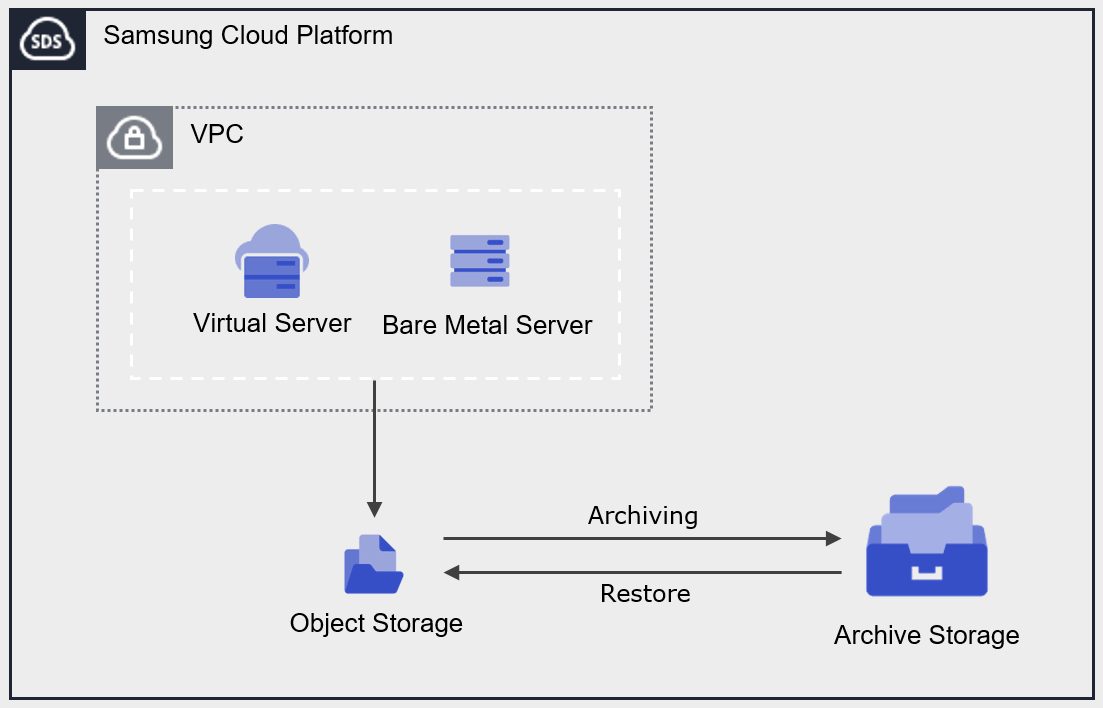
Provided Features
Archive Storage provides the following functions.
- Archiving Plan Setting: Set a schedule to perform archiving on all files in the Object Storage bucket.
- Data Recovery: You can recover to the Object Storage bucket and folder you want to store using folders or files stored in Archive Storage.
- Archiving status monitoring: Archiving status (success, cancelled, failed, in progress, pending, skipped) can be checked.
- Recovery status monitoring: You can check the recovery status (success, cancelled, failure, in progress, pending).
- Encryption: If encryption is set to use, encryption is provided via the SSE‑S3 method.
- Version Management: You can manage archived files by version and recover by selecting the desired version.
Components
Authentication Key
To create and access the Archive Storage service on the Samsung Cloud Platform Console, an authentication key is required. Therefore, to use Archive Storage, you must generate an authentication key.
bucket
Bucket (Bucket) is the top-level folder and all folders and files exist under the bucket. When you create an Archive Storage service in the Samsung Cloud Platform Console, a bucket is created, and thereafter you can upload folders or files.
The bucket name creation rules are as follows.
- Bucket name must be at least 3 characters and at most 63 characters.
- Bucket names can only consist of lowercase English letters, numbers, period
.and hyphen-. - Bucket name must start with a lowercase English letter or a number.
- Bucket names must not be used with two periods placed side by side.
- Bucket names cannot end with a period or hyphen.
- Bucket names cannot have periods and hyphens adjacent.
- Bucket names do not use IP address format (e.g., 192.168.x.x).
- You cannot use the name admin as a bucket name.
- Bucket name must be unique within the Account.
- The previously used bucket name can be used after up to 1 hour.
| Valid bucket name example | Invalid bucket name example |
|---|---|
Usable bucket names are as follows
| The following bucket names cannot be used
|
folder
Folder (Folder) is used to logically group files.
The folder name creation rules are as follows.
- Folder names can consist of Korean, English, numbers, and special characters.
- The special characters that cannot be entered are as follows.
| Special characters that cannot be used in folder names |
|---|
|
file
File (File) is the data stored in Archive Storage and is the same as a regular file.
The file name generation rules are as follows.
- File names can consist of Korean, English, numbers, and special characters.
- The special characters that cannot be entered are as follows.
| Special characters not allowed in file names |
|---|
|
Folder names and file names are separated by a slash/. The following are examples of valid folder names and file names.
| Example of mixed use of folder names and file names |
|---|
|
Note
The length of the path, including folder name, file name, and the delimiter (
/), is limited to within 1,024 Bytes (based on UTF-8 encoding).Constraints
Archive Storage’s constraints are as follows.
| Category | Description |
|---|---|
| Number of creatable Archive Storage services | 1,000 or less |
| File name length (including path) | 1,024 Bytes or less |
Table. Archive Storage Constraints
Reference
- If using through IAM role, Archive Storage cannot be used via Samsung Cloud Platform Console, and only IAM users can use it.
Preliminary Service
This is a list of services that must be pre-configured before creating the service. For details, refer to the guide provided for each service and prepare in advance.
| Service Category | Service | Detailed Description |
|---|---|---|
| Storage | Object Storage | Object storage that facilitates data storage and retrieval |
Table. Archive Storage Preliminary Service
2 - How-to guides
The user can enter the required information for Archive Storage through the Samsung Cloud Platform Console, select detailed options, and create the service.
Create authentication key
To create and use the Archive Storage service in the Samsung Cloud Platform Console, you need to generate an authentication key in advance.
API key creation can be done from My menu > My Info. > API key management > Create API key. For detailed information, see IAM > Create API key.
Note
- The authentication key is used not only for Archive Storage, but also for authentication in OpenAPI and CLI.
- Authentication keys can be generated up to a maximum of 2.
Caution
- If the authentication key expires, access to the Archive Storage service will be restricted. To ensure smooth service usage, please check the expiration period of the authentication key in advance.
- If you disable the authentication key, access rights to the Archive Storage service will be restricted.
Archive Storage Create
You can create and use the Archive Storage service from the Samsung Cloud Platform Console.
To create Archive Storage, follow the steps below.
- All Services > Storage > Archive Storage Click the menu. Go to the Service Home page of Archive Storage.
- Service Home on the page click the Create Archive Storage button. Navigate to the Create Archive Storage page.
- Archive Storage creation On the page, enter the information required to create the service, and select detailed options.
Category RequiredDetailed description Bucket Name Required Bucket name for performing Archiving - Start with a lowercase letter or number, and use lowercase letters, numbers, dash
-, and period.to input 3~63 characters
- Cannot have two or more consecutive periods
.
- Periods
.and dashes-cannot be adjacent
- Cannot end with a period
.or dash-
- IP format not allowed
- admin name not allowed
- Cannot use a bucket name already in use in the same region within the Samsung Cloud Platform Console
- Refer to Bucket Name Creation Rules for detailed information about buckets
Table. Archive Storage service information input items - Start with a lowercase letter or number, and use lowercase letters, numbers, dash
- Summary Check the detailed information and estimated billing amount generated in the panel, and click the Complete button.
- Once creation is complete, check the created resource on the Archive Storage List page.
Notice
- After creating a bucket, set up encryption and versioning for secure data management.
- Encryption and versioning can be set on the Archive Storage Details page. For more details, please refer to Archive Storage Encryption Settings and Version Management Settings please refer to.
Archive Storage Check detailed information
Archive Storage Detail page consists of Detailed Information, Folder List, Archiving History, Recovery History, Tag tabs.
To view detailed information of the Archive Storage service, follow the steps below.
- All Services > Storage > Archive Storage Click the menu. Navigate to Archive Storage’s Service Home page.
- Service Home page, click the Archive Storage menu. Go to the Archive Storage list page.
- Archive Storage list on the page, click the resource to view detailed information. Archive Storage details navigate to the page.
- Archive Storage Details The page displays status information and additional feature information, and consists of Details, Folder List, Archiving History, Recovery History, Tags tabs.
Category Detailed description Archive Storage status Archive Storage status information - Active: available
- Error: abnormal state during termination
- Deleting: service termination in progress
Service termination Button to cancel the service Table. Archive Storage status information and additional functions
- Archive Storage Details The page displays status information and additional feature information, and consists of Details, Folder List, Archiving History, Recovery History, Tags tabs.
Detailed Information
In the Detailed Information tab, you can view the resource’s detailed information and, if necessary, edit the information.
| Category | Detailed description |
|---|---|
| Service | Service group |
| resource type | resource type |
| SRN | Unique resource ID in Samsung Cloud Platform |
| Resource Name | Resource Name
|
| Resource ID | Service’s unique resource ID |
| Bucket name | User-created bucket name |
| Usage | Total data usage of the bucket |
| Encryption | Encryption usage information
|
| Version Management | Version Management Usage Information
|
| Archiving policy | Check configured archiving target and policy tasks
|
| Archiving target | Object Storage bucket to perform archiving |
| Policy Work | Archiving Policy List
|
Table. Archive Storage detailed information tab items
Reference
- Archiving target can be set only once initially. After setting, it cannot be modified.
- Policy work performs archiving for the entire version files of Object Storage.
- Archiving policy can only be modified, not deleted.
- Archiving policy is performed once a day based on the addition point.
Caution
If you reuse the bucket name of the Archiving target, be careful as the configured archiving policy will be applied.
Folder List
Folder List in the tab, you can view the list and size of folders that have been archived.
| Category | Detailed description |
|---|---|
| Name | Name of the file or folder on which Archiving was performed
|
| Size | Size of archived file or folder |
| Modification Date/Time | File or folder’s last modified date/time |
| More button | Manage selected files or folders
|
Table. Archive Storage folder list tab items
Archiving History
Archiving History in the tab, you can view the list of archiving performed over a specific period.
| Category | Detailed description |
|---|---|
| Query period | Select the period to check the Archiving history
|
| Status | Select Archiving status
|
| Policy ID | Archiving Policy ID
|
| Execution Date and Time | Archiving Start Time |
| Completion Date/Time | Archiving Completion Time |
| Status | Archiving status information |
| Cancel Task | Cancel Archiving Task
|
Table. Archive Storage Archiving History Tab Items
Recovery History
You can view the list of Archives that performed recovery tasks over a specific period in the Recovery History tab.
| Category | Detailed description |
|---|---|
| Search period | Select the period to view the recovery history
|
| Status | Select recovery status
|
| Recovery Target | Recovery Target Object Storage Name
|
| Recovery Date and Time | Recovery Start Time |
| Completion Date/Time | Recovery Completion Time |
| Status | Recovery status information |
| Cancel recovery operation | Cancel recovery operation
|
Table. Archive Storage Recovery History Tab Items
tag
In the Tag tab, you can view the resource’s tag information, and you can add, modify, or delete it.
| Category | Detailed description |
|---|---|
| Tag List | Tag List
|
Table. Archive Storage tag tab items
Archive Storage Set up encryption
You can configure the data stored in the bucket to be encrypted. After setting bucket encryption, the encryption setting is applied to data uploaded thereafter. When encryption is used, the SSE‑S3 encryption key method and the AES256 encryption algorithm are applied.
Reference
Archive Storage’s bucket encryption can provide two types (SSE-S3/SSE-KMS).
- SSE-S3 is server-side encryption (SSE-S3) using Amazon S3 managed keys.
- SSE-KMS is server-side encryption (SSE-KMS) using Key Management Service (KMS) keys.
- In this service, server-side encryption using Amazon S3 managed keys (SSE-S3) has been released as the default method, and server-side encryption using Key Management Service (KMS) keys (SSE-KMS) will be provided in the future according to the service roadmap.
Notice
If there is data saved before bucket encryption was set, the encryption settings will not be applied.
- If you re-upload the file, encryption will be applied.
- To set encryption for existing data, you need to re-upload.
To set up encryption, follow the steps below.
- All Services > Storage > Archive Storage Click the menu. Navigate to Archive Storage’s Service Home page.
- Click the Archive Storage menu on the Service Home page. Go to the Archive Storage list page.
- Archive Storage List page, click the resource (bucket) to use encryption. Navigate to the Archive Storage Details page.
- On the Archive Storage Details page, after confirming that encryption is unused, click the edit button. Encryption Edit popup window opens.
- After checking the use of encryption, click the Confirm button.
Archive Storage Cancel
Note
Archiving is in progress or when restoring an Archive file, Archive Storage cannot be cancelled.
To cancel Archive Storage, follow the steps below.
- All Services > Storage > Archive Storage Click the menu. Go to the Service Home page of Archive Storage.
- Click the Archive Storage menu on the Service Home page. Go to the Archive Storage list page.
- Archive Storage List On the page, select the resource to cancel, and click the Cancel Service button.
- When the termination is completed, check on the Archive Storage list page whether the resource has been terminated.
2.1 - Archiving Policy Management
You can add, modify, or delete Archiving policies.
Archiving Add Policy
To add an Archiving policy, follow the steps below.
- All Services > Storage > Archive Storage Click the menu. Go to the Service Home page of Archive Storage.
- Service Home on the page click the Archive Storage menu. Navigate to the Archive Storage list page.
- Click the resource on the Archive Storage List page to view detailed information. It navigates to the Archive Storage Details page.
- Click the Add button of Policy Actions. The Add Archiving Policy popup opens.
- After entering the Archiving policy information, click the Confirm button.
Category Detailed description Archiving target Select the bucket of Object Storage to perform Archiving - Cannot be modified after initial setup
- Only buckets within the same region can be added
- Buckets used in policies of other Arcvhie Storage cannot be selected
Target Object Select Archiving target object - All only selectable
Archiving policy work When selected, archiving is performed on all version objects of Object Storage - When using Archive Storage version management: manage all versions separately
- When not using Archive Storage version management: manage by overwriting the current version
Execution time archiving execution time input - Enter a number between 1 and 3,650
Table. Archiving policy addition popup items
Reference
- Archiving target can be set only once initially. It cannot be modified after being set.
- Policy work performs archiving for the entire version files of Object Storage.
- Archiving policy can only be edited, not deleted.
- Archiving policy is performed once a day based on the addition point.
Archiving Modify policy
To modify the Archiving policy, follow the steps below.
- Click the All Services > Storage > Archive Storage menu. Navigate to the Service Home page of Archive Storage.
- Click the Archive Storage menu on the Service Home page. Go to the Archive Storage list page.
- Archive Storage List page, click the resource to view detailed information. It navigates to the Archive Storage Details page.
- Policy Actions After selecting the policy you want to edit from the list, click the More > Add button on the right. Edit Archiving Policy popup opens.
- After modifying the Archiving policy information, click the Confirm button.
Caution
If you reuse the bucket name of the Archiving target, the configured archiving policy will be applied, so be careful.
Archiving Change policy status
You can change whether the Archiving policy is performed by enabling or disabling the Archiving policy.
To change the Archiving policy status, follow the steps below.
- All Services > Storage > Archive Storage Click the menu. Navigate to the Service Home page of Archive Storage.
- Click the Archive Storage menu on the Service Home page. Navigate to the Archive Storage List page.
- Click the resource to change the Archiving policy status on the Archive Storage List page. It navigates to the Archive Storage Details page.
- Policy Actions in the list, click the More > Activate or More > Deactivate button for the policy whose status you want to change. A popup window notifying the Archiving policy status change will open.
- Activation: Perform archiving according to the archiving policy.
- Disable: Stops performing archiving.
- Click the Confirm button. The status of the Archiving policy will change.
Archiving Cancel operation
Notice
Only Archiving tasks that are pending or in progress can be cancelled.
To cancel Archiving, follow the steps below.
- All Services > Storage > Archive Storage menu. Go to the Service Home page of Archive Storage.
- Click the Archive Storage menu on the Service Home page. Navigate to the Archive Storage list page.
- Archive Storage List on the page, click the resource to cancel the Archiving operation. Navigate to the Archive Storage Details page.
- Click the Archive History tab.
- In the Archiving history list, check whether the status of the Archiving policy for which you want to cancel the job is Pending or In progress.
- Cancel button click. Cancel confirmation popup opens.
- Confirm Click the button. The corresponding Archiving task will be canceled.
Archiving How it works
The Archiving behavior according to the target is as follows.
| Archiving target | detailed description |
|---|---|
| Previous version/current version file | Depends on whether versioning is used in Archive Storage
|
| Delete Marker version containing file | Delete Marker version cannot be archived
|
| Empty folder | Folder creation not possible in Archive Storage |
| Folder with files | Depending on whether the folder is an Object, the folder deletion in Object Storage after archiving differs
|
| When there is no target file | Perform the Archiving schedule as is
|
| When the target Object Storage bucket is terminated |
|
Table. Archiving method according to archiving target
Reference
- Archiving is performed based on the Etag value of the Object Storage file.
- After archiving, Version ID and Modification Timestamp are changed. However, Etag value remains the same.
2.2 - Using Version Control
You can set versioning on the bucket to manage all versions of Object Storage in Archive Storage.
If you use version control, you can view the list of file versions, and from the version list you can select a previous version of the file to restore.
Version Control Setup
Follow the steps below to set up the version control feature.
- All Services > Storage > Archive Storage Click the menu. Navigate to Archive Storage’s Service Home page.
- Click the Archive Storage menu on the Service Home page. Go to the Archive Storage list page.
- Click the resource to use the version control feature on the Archive Storage List page. Navigate to the Archive Storage Details page.
- Archive Storage Details on the page, Version Management is Unused after confirming, click the Edit button. Edit Version Management popup window opens.
- After checking the use of version control, click the Confirm button. The Archive Storage Details page’s version control will be changed to use.
Note
- If you set up version control for the first time, it may take some time for changes to be completed.
- The time required varies depending on the size of the bucket, and version control may not be applied before the settings are completed.
Check version list
You can view and manage the version list of the file.
To view and manage the file’s version list, follow these steps.
- All Services > Storage > Archive Storage Click the menu. Go to the Service Home page of Archive Storage.
- Click the Archive Storage menu on the Service Home page. Go to the Archive Storage list page.
- Archive Storage list page, click the resource to view the version list. Archive Storage detail page, navigate to it.
- Archive Storage Details page, click the Folder List tab.
- Click the More > Version Management button of the file whose version list you want to check. The version list popup will open.
| Category | Detailed description |
|---|---|
| Filename | File name under version control |
| Modification Date and Time | File’s modification date and time |
| Version ID | Version ID assigned to each individual file
|
| Etag | object that can identify a file’s specific version |
| Size | Version file size |
| More | Delete or restore the version
|
Table. Version list item
Notice
From the point when version control is set, you can check and manage the version ID of archived files.
- Before setting version control archived file: Version ID is displayed as null(-).
- After setting up version control archived file: Version file is added and a unique version ID is generated and assigned.
Delete version file
To delete unused version files, follow the steps below.
- All Services > Storage > Archive Storage Click the menu. Navigate to the Archive Storage Service Home page.
- Click the Archive Storage menu on the Service Home page. Go to the Archive Storage list page.
- Archive Storage list page, click the resource to view the version list. Archive Storage details page will be opened.
- Archive Storage Details on the page Folder List Click the tab.
- Click the More > Version Management button of the file whose version file you want to delete. The version list popup opens.
- Click the More > Delete button for the version file to be deleted. The version file will be removed from the version list.
- After selecting all version files to delete, you can click the Delete button at the top of the list to delete them all at once.
Caution
If you delete all version files, the original file will also be deleted. To keep the original file, leave at least one version.
2.3 - Archive Recover
Archive Recover
Note
- Recovery can be performed on a per-file basis, and even after recovery, data stored in Archive Storage is not deleted.
- When restoring the Archive file, select the bucket and folder of the Object Storage and restore to that location. Before starting the restoration, first verify the Object Storage you want to restore.
Recover from folder list
If you are not using the version control feature, you can recover by selecting the Archive file from the folder list.
To check and recover the Archive file, follow the steps below.
- All Services > Storage > Archive Storage Click the menu. Navigate to the Archive Storage Service Home page.
- Service Home page, click the Archive Storage menu. Go to the Archive Storage list page.
- Click the resource to view detailed information on the Archive Storage List page. It navigates to the Archive Storage Details page.
- Folder List Click the tab.
- Select the folder or file name to restore from the folder list. The Delete and Restore buttons appear at the top of the list.
- Recover Click the button. Archive Recover popup window opens.
- After selecting the recovery information, click the Confirm button.
Category Detailed description Bucket Name Object Storage’s bucket name Original location Original file or folder location Recovery target Select recovery target bucket Overwrite Select whether to use the overwrite function - When selecting a bucket of Object Storage that is using versioning as the recovery target, using the overwrite function will store the existing file with the same name as a previous version
Table. Archive Recovery Popup Items
Caution
- Recovery may fail due to character count restrictions on files and folders. The character count restrictions on files and folders are File name creation rules, Folder name creation rules. Please refer.
- After a recovery failure, if you use the overwrite function to perform recovery again, you may be charged duplicate fees.
Notice
If recovery fails, check whether the completed recovered files are present in the target Object Storage.
Recover from version list
If you use the version control feature, you can check the file’s version and restore it to the desired version.
Notice
- To check the file’s version and recover it, you need to set the version control feature to use..
- To set up version control features, please refer to Setting up version control.
Use the version file to recover the Archive file by following these steps.
- All Services > Storage > Archive Storage Click the menu. Move to Archive Storage’s Service Home page.
- Service Home on the page, click the Archive Storage menu. Navigate to the Archive Storage list page.
- Archive Storage List page, click the resource to view detailed information. Archive Storage Details page will be opened.
- Folder List Click the tab.
- In the folder list, click the More > Version Management button for the file whose version list you want to check. The version list popup will open.
- In the version list, click the More > Recover button of the version file to be restored. Archive Recover popup window opens.
- After selecting the recovery information, click the Confirm button.
Category Detailed description Bucket name Object Storage’s bucket name Original location Original file or folder location Version List Modification date and time of the version to be restored, version ID, Etag, size information Recovery target Select recovery target bucket Overwrite Select whether to use the overwrite function - When selecting a bucket of Object Storage that is using versioning as the recovery target, using the Overwrite function saves the existing file with the same name as a previous version
Table. Archive Recovery Popup Items
Caution
- Recovery may fail due to character count restrictions on files and folders. The character count restrictions on files and folders are File name creation rules, Folder name creation rules. Please refer to.
- After a recovery failure, if you perform recovery again using the overwrite function, you may be charged duplicate fees.
Notice
If recovery fails, check whether the completed recovered files are present in the target Object Storage.
Cancel recovery operation
Notice
Only recovery tasks that are pending or in progress can be canceled.
To cancel the recovery operation, follow the steps below.
- All Services > Storage > Archive Storage Click the menu. Navigate to the Archive Storage Service Home page.
- Click the Archive Storage menu on the Service Home page. Go to the Archive Storage list page.
- Archive Storage List On the page, click the resource to cancel the recovery operation. Archive Storage Details Navigate to the page.
- Recovery History Click the tab.
- In the recovery history list, check whether the status of the recovery target to cancel the operation is Pending or In Progress.
- Cancel operation Click the button. A cancel operation confirmation popup will open.
- Confirm Click the button. The recovery operation will be canceled.
Archive Learn about recovery methods
The recovery methods according to the type of recovery are as follows.
| Recovery Type | Status Description |
|---|---|
| General Recovery |
|
| When there is no file to recover (overwrite option not used) | Not shown in the status check list |
Table. Recovery method according to recovery type
3 - API Reference
API Reference
4 - CLI Reference
CLI Reference
5 - Release Note
Archive Storage
2025.10.23
FEATURE
Version control feature added- You can manage archived folders or files by version.
- The user can view archived folders or files by version and select the desired version to delete or restore.
2025.07.01
NEW
Archive Storage Service Official Version Release- Archive Storage service has been launched.
- Automatically transfer data stored in Object Storage to Archive Storage for storage, and easily recover it when needed.