This is the multi-page printable view of this section. Click here to print.
WAF
- 1: Overview
- 2: How-to guides
- 3: Release Note
1 - Overview
Service Overview
WAF (Web Application Firewall) is a service that monitors website traffic to securely protect web applications. It quickly detects and analyzes HTTP and HTTPS‑based security threats that target website vulnerabilities.
Features
- Powerful Detection/Blocking: We monitor the HTTP and HTTPS traffic of web pages registered by the customer to detect hacker attack attempts in real time. We classify attacks such as SQL Injection, Cross-Site Scripting (XSS), Web Scan, and provide various defense features needed for web security to respond immediately to new web attack types.
- Stable web service operation support: We address new security threats through web firewall signature patterns and firmware updates. We detect hacker attempts, including emerging web threats such as OWASP (Open Web Application Security Project) Top 10 attacks, the National Intelligence Service’s eight major vulnerabilities, Zero-Day attacks, and Bad Bots, to help you operate an efficient and stable web service.
- Convenient Security Management: By monitoring various attack events in real time and notifying the customer’s representative, it enables proactive response to security threats. It also provides monthly reports so you can review event details.
Service Architecture Diagram
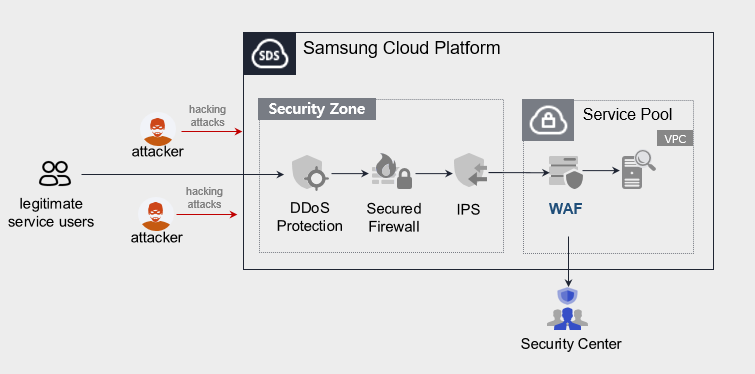
Provided features
We provide the following features.
- Provision of intrusion detection/analysis and monitoring information
- 24x365 event monitoring (alert issuance, monthly report provision)
- Attack classification (Injection, XSS, File Include, File Up/Download, Web Scan, etc.) through web firewall event analysis
- Detection of latest attack patterns (e.g., Apache Struts vulnerabilities)
- Intrusion Response
- Provide IP information for attack attempts targeting registered URLs (recommended to block on Samsung Cloud Platform network firewall)
Component
We install a WAF license on the Virtual Server within the VPC of Samsung Cloud Platform and provide the service.
Constraints
To use WAF, first verify the following items.
- If the WAF is configured as a single instance, service continuity cannot be guaranteed in the event of a failure of the WAF installation VM or the WAF application.
- The Load Balancer and WAF of Samsung Cloud Platform do not support bypass.
- The security monitoring service provided by Samsung Cloud Platform is offered only for Pentasecurity products. (operation + monitoring product)
- The WAF service is installed with direct support from an engineer, and it takes a certain amount of time from request to deployment.
Provision status by region
WAF is available in the environments below.
| Region | Provision status |
|---|---|
| Korea West (kr-west1) | Not provided |
| Korea East (kr-east1) | Not provided |
| South Korea South 1 (kr-south1) | Provided |
| South Korea South 2 (kr-south2) | Provided |
| South Korea South 3 (kr-south3) | Provided |
Prior Service
This is a list of services that must be pre-configured before applying for the service. For details, refer to the guide provided for each service and prepare in advance.
- When using the WAF service, a WAF license is installed on the Virtual Server and provided. Install a Virtual Server that matches the service specifications you want first.
| Service Category | Service | Detailed description |
|---|---|---|
| Compute | Virtual Server | Virtual server optimized for cloud computing |
2 - How-to guides
Users can apply for the service by entering the required information for using the WAF service through the Samsung Cloud Platform Console.
Apply for WAF
You can apply for and use the WAF service from the Samsung Cloud Platform Console.
To request the creation of a WAF service, follow these steps.
Click the All Services > Security > WAF menu. You will be taken to the WAF’s Service Home page.
On the Service Home page, click the WAF Service Request button. You will be taken to the Support Center > Service Request List > Service Request page.
Service Request page: enter or select the required information in the mandatory input fields.
- Select WAF creation in the task type.
Input field Detailed description Title Enter the title of the service request - Example: WAF Service Creation Request
Region Select the location of the Samsung Cloud Platform - Automatically filled with the region corresponding to the Account
Service Select the service category and service. If you click the WAF service request button, it is entered automatically - Service Category: Security
- Service: WAF
Task classification Select the type you want to request - Create WAF: select when requesting a new service
content Guide to the service application process and reference information Attachment If you have a completed WAF service application (required) and any additional files you wish to share, proceed with the upload - You can attach up to 5 files, each not exceeding 5 MB
- Only doc, docx, xls, xlsx, ppt, ppts, hwp, txt, pdf, jpg, jpeg, png, gif, and tif files are allowed
Table. WAF Service Creation Request Items
- Select WAF creation in the task type.
After reviewing the application process and reference information, click the Form Download > Service Request Form Download button to download the WAF Service Application Form.
Please fill out the WAF Service Application.
- Refer to the item descriptions in the Application Information and Monitoring Information tabs and complete the required fields.
Category Detailed description Application Information Fill in required items such as application type, usage period, throughput information, basic information, etc. Monitoring information Fill in required items such as WAF service application information and SSL certificate information. Table. Main contents of the WAF service creation request form
- Refer to the item descriptions in the Application Information and Monitoring Information tabs and complete the required fields.
Attach the completed application form in the attachment area.
Click the Request button on the service request page.
- After the request is completed, check the submitted details on the Support Center > Service Request List page.
After the monitoring personnel review the submitted service request, they proceed with the process to use the service.
The WAF service is being launched.
Terminate WAF
To request termination of the WAF service, follow the steps below.
- Click the All Services > Management > Support Center menu. You will be taken to the Support Center > Service Home page.
- On the Support Center Service Home page, click the Service Request button. You will be taken to the Service Request List page.
- On the Service Request List page, click the Service Request button. You will be taken to the Service Request page.
- Service Request page: enter or select the required information in the mandatory input fields.
- Select WAF termination in the task category.
Input field Detailed description Title Enter the title of the service request - Example: WAF Service Termination Request
Region Select the location of the Samsung Cloud Platform - automatically entered with the region corresponding to the Account
Service Select service category and service - Service Category: Security
- Service: WAF
Task classification Select the type you want to request - WAF termination: select if you are terminating the service
content Guide to the service application process and reference information Attachment If you have a completed WAF service application (required) and any additional files you wish to share, proceed with the upload - You can attach up to 5 files, each no larger than 5 MB
- Only doc, docx, xls, xlsx, ppt, ppts, hwp, txt, pdf, jpg, jpeg, png, gif, and tif files are allowed
Table. Table. WAF service termination request items
- Select WAF termination in the task category.
- After reviewing Application Process and Notes, click the Form Download > Service Request Form Download button to download the WAF Service Application Form.
- Please complete the WAF Service Application.
- Refer to the item descriptions in the Application Information and Monitoring Information tabs, and fill out the required fields.
Category Detailed description Application Information Fill out required fields such as application type, usage period, transaction volume information, and basic information. Monitoring information When terminating the entire service, no input is required. Table. Main contents of WAF service termination request form
- Refer to the item descriptions in the Application Information and Monitoring Information tabs, and fill out the required fields.
- Attach the completed application form to the attachment area.
- On the service request page, click the Request button.
- After the request is completed, verify the submitted information on the Support Center > Service Request list page.
- After the monitoring staff verifies the submitted service request, the termination process is completed once the monitored URL, port, and IP are removed.
- Service termination requires three business days, including the cancellation request date.