This is the multi-page printable view of this section. Click here to print.
WAF
1 - Overview
Service Overview
WAF(Web Application Firewall) is a service that safely protects web applications by monitoring website traffic and blocking threat events. It quickly detects and blocks HTTP, HTTPS-based security threats that target website vulnerabilities.
Samsung Cloud Platform WAF is SECaaS‑based, and all user traffic passes through a SECaaS PoP before reaching the server. When attack traffic arrives, it is analyzed by SECaaS Rules, detected and blocked, and only clean traffic is forwarded to the server. Additionally, the service is provided from a nearby PoP based on the user’s connection country, and if a PoP fails, service is offered from another PoP within the same country or region.
Features
- Powerful detection/blocking: Monitor HTTP and HTTPS traffic of user‑registered domains to detect hacker attack attempts in real time. Analyze web firewall events to classify attacks such as Injection, XSS, Bot, Remote File Inclusion, and provide various defense capabilities needed for web security, including protection against bot attacks and various CVE vulnerabilities (Apache Struts, Log4j, etc.), enabling immediate response to emerging web attack types.
- Stable Web Service Operation: Perform web firewall signature pattern updates, and detect emerging web threats such as the top 10 OWASP (Open Web Application Security Project) attacks, Zero-Day attacks, and hacker attempts, to support efficient and reliable web service operation.
- Convenient Security Management: By monitoring various attack events in real time and notifying the customer’s representative, it enables proactive response to security threats. Additionally, detailed alert information about attacks (attack IP, target domain, detection time, etc.) can be conveniently viewed through the dashboard.
Service Architecture Diagram
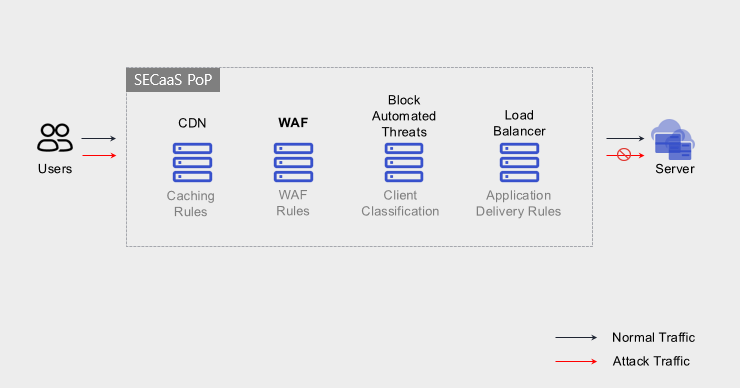
Provided features
We provide the following features.
- Intrusion detection and response via monitoring of registered URLs
- Attack classification through web firewall event analysis (Injection, XSS, Bot, Remote File Inclusion, etc.)
- Block attack traffic targeting registered URLs
- 24x365 event monitoring
- Precise security Rule creation and application through Customizing
- Supports various response settings (IP, request blocking, redirect, rewrite, rate limit, CAPTCHA, etc.)
- Web firewall operation
- Automatic updates of security threats (e.g., signature patterns) collected by TI and firmware updates
- Web firewall ACL management
- Flexible White List implementation (IP, Network, URL, country-based access control)
- Dashboard and Report screens (attack types, target IP, alarm list, etc.) provided
Component
domain
SECaaS WAF is registered on a per-domain basis.
- It can only be applied to domains served with an FQDN (Fully Qualified Domain Name); if the service is provided using an IP address instead of a domain, SECaaS WAF cannot be applied.
- Registration is allowed only for domains registered in the public DNS, and after verifying domain integrity via DNS lookup, it cannot be used when registering a private internal IP.
- It applies to traffic that uses HTTP/HTTPS protocols based on web applications, and other TCP traffic is dropped and cannot be used.
Traffic
Traffic is aggregated as the total Mbps of each registered domain between the SECaaS WAF and the Origin server.
Constraints
To use WAF, first verify the following items.
- Domain Use
- It can be applied only when the service uses an FQDN (Fully Qualified Domain Name). If the service is provided via an IP address instead of a website URL, WAF cannot be applied.
- Registration is possible only for domains registered in the public DNS. The WAF is located in the external Internet segment and verifies domain integrity via DNS lookup. (Registration with an internal private IP such as 10.10.10.10 makes WAF usage unavailable.)
- Use HTTP/HTTPS
- Only traffic using the HTTP/HTTPS protocol for web applications is accepted.
- TCP traffic that uses protocols other than http/https is dropped, so WAF cannot be used.
- XFF(X-Forwarded-For) header function Enable required
- SECaaS WAF has the XFF header feature enabled by default. If the XFF header feature is disabled, a session termination issue may occur.
- Client Source IP Change
- When forwarding a user request from the SECaaS WAF to the customer system, the Source IP is changed from the user’s original public IP to an IP range owned by the WAF. The original user public IP is delivered via the XFF header.
- Maximum Upload Size Limit
- The maximum uploadable file size is limited to 500 MB. (If the file exceeds 500 MB, separate agreement is required.)
Provision status by region
WAF is available in the environments below.
| Region | Provision status |
|---|---|
| Korea West (kr-west1) | Provided |
| Korea East (kr-east1) | Provided |
| South Korea South 1 (kr-south1) | Not provided |
| South Korea South 2 (kr-south2) | Not provided |
| South Korea South 3 (kr-south3) | Not provided |
Prior Service
This is a list of services that must be pre-configured before applying for the service. For details, refer to the guide provided for each service and prepare in advance.
| Service Category | Service | Detailed description |
|---|---|---|
| Compute | Virtual Server | Virtual server optimized for cloud computing |
2 - How-to guides
Users can create the service by entering the required information to obtain the WAF service through the Samsung Cloud Platform Console.
Create WAF
You can create and use a WAF service from the Samsung Cloud Platform Console.
To request the creation of a WAF service, follow these steps.
Click the All Services > Security > WAF menu. You will be taken to the WAF’s Service Home page.
On the Service Home page, click the WAF Service Request button. Navigate to the Support Center > Service Request List > Service Request page.
On the Service Request page, enter or select the required information in the mandatory input fields.
- Select WAF creation for the task type.
Input field Detailed description Title Enter the title of the service request - Example: WAF Service Creation Request
Region Select the location of the Samsung Cloud Platform - automatically entered with the region corresponding to the Account
Service Select the service category and service. If you click the WAF service request button, it is entered automatically - Service Category: Security
- Service: WAF
Task classification Select the Activity you want to request - Create WAF: select when requesting a new service
content Guide to the service application process and reference information Attachment Upload the completed WAF service application (required) and, if you have any additional files you want to share, proceed with the upload - You can attach up to 5 files, each no larger than 5 MB
- Only doc, docx, xls, xlsx, ppt, ppts, hwp, txt, pdf, jpg, jpeg, png, gif, tif files are allowed
Table. WAF Service Creation Request Items
- Select WAF creation for the task type.
After reviewing the application process and reference information, download the form > click the Service Request Form Download button to download the WAF Service Application Form.
Please fill out the WAF Service Application.
- Please refer to the item descriptions in the Application Information and Monitoring Information tabs and complete the required fields.
Category Detailed description Application Information Complete required fields such as application type, usage period, and usage amount. Control information Complete required items such as migration schedule, domain, and secure recipient information - Complete all items except for special notes
Table. Main contents of the WAF service creation request form
- Please refer to the item descriptions in the Application Information and Monitoring Information tabs and complete the required fields.
Attach the completed application form in the attachment area.
Click the request button on the service request page.
- When the request is completed, check the submitted details on the Support Center > Service Request List page.
After the monitoring personnel review the submitted service request, they proceed with the process to use the service.
- The monitoring officer is contacting you via email to proceed with opening the firewall, SECaaS domain authentication, and certificate deployment.
- Please refer to Applying WAF Service and proceed with the monitoring integration.
- We confirm the monitoring integration by conducting a test at the security monitoring center (securitycenter@samsung.com).
- Perform a final check to confirm normal service access and detect any SSL certificate errors.
The WAF service is being launched.
Check WAF detailed information
Detailed WAF information can be accessed on the separate Security Platform(SSMP).
VM list
- Security Platform(SSMP) Please access it.
- Enter Knox login information.
- Assets > Cloud Monitoring Management > Cloud URL List page, verify the SECaaS deployment status. You can enter the required fields to perform a query.Item
Detailed description Business Unit Select the appropriate business unit Business name Select the magnifying glass icon, then search for and enter the corresponding business name. website URL Enter URL SECaaS implementation Select whether to apply SECaaS (Apply/Do not apply) SECaaS mode Select SECaaS mode (block/detect) SECaaS vendor Select SECaaS vendor (None/Imperva/Cloudflare) Platform Input with SCP Deletion status Table. Search items - When you click individual URL, you can view the URL details.SECaaS status
Detailed description Apply (Detection) SECaaS applied state, conduct attack pattern detection and log analysis - Recommend maintaining detection mode for at least one month, and after analyzing false positives/negatives for at least one month, send an email recommending switching to blocking mode
Apply (Block) SECaaS applied state, automatic blocking of detected attacks Not applied State where SECaaS is not applied Table. SECaaS implementation status
Terminate WAF
To request termination of the WAF service, follow the steps below.
- Click the All Services > Management > Support Center menu. Go to the Support Center > Service Home page.
- On the Support Center Service Home page, click the Service Request button. You will be taken to the Service Request List page.
- On the Service Request List page, click the Service Request button. You will be taken to the Service Request page.
- On the Service Request page, enter or select the required information in the mandatory input fields.
- Select WAF termination as the operation type.
Input field Detailed description Title Enter the title of the service request - Example: WAF Service Termination Request
Region Select the location of the Samsung Cloud Platform - Automatically filled with the region corresponding to the Account
Service Select service category and service - Service Category: Security
- Service: WAF
Task classification Select the Activity you want to request - WAF termination: select if you are requesting service termination
content Guide to the service application process and reference information Attachment If you have a completed WAF service application (required) and any additional files you wish to share, proceed with the upload - You can attach up to 5 files, each no larger than 5 MB
- Only doc, docx, xls, xlsx, ppt, ppts, hwp, txt, pdf, jpg, jpeg, png, gif, and tif files are allowed
Table. Table. WAF service termination request items
- Select WAF termination as the operation type.
- After reviewing Application Process and Notes, click the Form Download > Service Request Form Download button to download the WAF Service Application Form.
- Please complete the WAF Service Application.
- Refer to the item descriptions in the Application Information and Monitoring Information tabs and complete the required fields.
Category Detailed description Application Information Fill in required fields such as request type, usage period, and usage amount - Usage amount does not need to be filled in
Monitoring information Complete required items such as migration schedule, domain, and secure recipient information - Complete all items except for special notes
Table. Main contents of WAF service termination request form
- Refer to the item descriptions in the Application Information and Monitoring Information tabs and complete the required fields.
- Attach the completed application form to the attachment area.
- Click the Request button on the service request page.
- After the request is completed, verify the submitted information on the Support Center > Service Request list page.
- After the monitoring staff verifies the submitted service request, the termination process is completed once the URL is deleted.
- Service termination takes 2–3 business days (including the cancellation request date).
- The restoration of DNS settings that were changed for SECaaS implementation must be performed directly by the service operator.
- When the service termination is completed, you cannot view the URL on the Security Platform (SSMP) > Assets > Cloud Monitoring Management > Cloud URL List page.
2.1 - WAF Preparation
Configure firewall open settings
Client (User) - SECaaS (WAF) - Origin Server Each segment requires firewall opening. For the information required to open the firewall (Source, Type, Protocol, Destination), please inquire via the Support Center > Contact menu.
- Please open the firewall for the segment where the client (User) connects to the SECaaS (WAF).
- The default supported web ports for SECaaS are as follows.
- http : 80, 8080, 8880, 2052, 2082, 2086, 2095
- https : 443, 2053, 2087, 2096, 8443
- For websites that use ports other than the default supported web port, fill out the WAF service request form to proceed with the service request. We will provide the Destination IP via the email account in the service request form. If, after applying SECaaS, the port changes (added or removed) or the Origin changes, the IP may change. If you email the security monitoring center account (securitucenter@samsung.com) in advance, we will inform you of the updated IP through the responsible person.
- If you do not use an IPv6 IP, you do not need to register it.
- The service application form can be downloaded and attached from the All Services > Security > WAF menu by clicking the WAF Service Request button, then on the Service Request page.
- For information related to service application, please refer to the How-to guides’ Create WAF.
Source Type Protocol Destination: SECaaS Client HTTP, HTTPS TCP - IPv4: 162.159.141.5 / 172.66.1.3
- IPv6: 2606:4700:7::102 / 2a06:98c1:58::102
Table. Example of IP forwarding form
- The default supported web ports for SECaaS are as follows.
- Proceed with opening the firewall for the segment that connects to the Origin Server from SECaaS (WAF).
- The origin server is the device that receives traffic from SECaaS. (e.g., LB, server, etc.)
- The firewall or security device in front of the origin server must allow a specific range.
- Cloudflare IP range information: https://www.cloudflare.com/ko-kr/ips/
- If you do not use an IPv6 IP, you do not need to register it.CautionWe recommend blocking web traffic (HTTP, HTTPS) outside the specified range. If not blocked, the Origin IP may be exposed, leading to attacks that bypass SECaaS, and such bypass attacks are difficult to monitor; please note this.
Authenticate SECaaS domain
To verify the ownership of the registered domain, you need to create a host and add a TXT record for domain verification to DNS for authentication.
- Authentication typically takes about 15 minutes after registration, but can take up to 24 hours depending on the environment. For example, when registering www.test.com, you must create and enter the Host and TXT Record values we provide into DNS.
Applying SECaaS Certificate
You can select and use either the certificate provided by SECaaS or the certificate provided by the customer. Certificate installation is possible only when HTTPS is prepared for the domain, and if the certificate is not installed, HTTPS communication will be unavailable.
1. When using SECaaS certificate
- A new SSL certificate used between the Client ↔ SECaaS server will be generated.
- Domain owner verification (validation) is required for the generated SSL certificate. The verification process is carried out by creating or entering the provided HOST and CNAME values in DNS.
- Certificates cannot be extracted and delivered, and there is an automatic renewal feature, so no separate renewal is required.
- Authentication typically takes about 15 minutes after registration, but may take up to 24 hours depending on the environment.
2. When using a client (Custom) certificate
- Provide the Full chain certificate, Key File, and Key Value.
- An API communication issue occurs when registering a single certificate. (Only pfx, pem, cer files are supported)
- The renewed certificate must be provided for renewal before the certificate expires.
2.2 - WAF Service Application
After completing the service request on the service request page, proceed with the steps below in order.
Perform pre-test
- Before changing the traffic path with SECaaS, verify its proper operation through a test.
- The security monitoring center provides the IP to be used in SECaaS. Example: 103.22.200.1
- We will explain using aaa.test.com as the example website.
- Add the example text below to the C:\Windows\System32\drivers\etc\hosts file and save it.
- Example phrase : 103.22.200.1 aaa.test.com
- In Chrome browser, press F12 and when accessing the URL, select F5 (refresh) in the ‘Network tab at the top of the developer tools’.
- The process completes when the response header ‘X-cdn’ has the value imperva, or when a SECaaS IP is present in the remote address.
Changing DNS Settings
The path is changed so that actual traffic is transmitted via SECaaS.
- We will configure each domain’s address as a CNAME using the provided CNAME domain. When using a CDN, change the CDN’s origin address to a CNAME.
- Root (Naked) domains cannot have a CNAME record. It is recommended to set an A record using the two Anycast IPs provided by default. If configuring both IPs is difficult, set only one.
- Example: Register/modify DNS for test.com with the provided CNAME, and register/modify the A Record DNS for test.com with the provided IP.
Notify DNS Change
After the DNS change is announced, the security monitoring center checks for proper integration and traffic inflow.
Check Service
Verify normal service connectivity.
- Check whether an SSL certificate error occurs.
- The WAF is operated in detection mode for one month, after which the logs are analyzed and provided to the service owner.
- If no legitimate traffic is detected as an attack, switch to blocking mode. If a false positive occurs, verify with the service owner and then add an exception in the WAF.
2.3 - WAF Service Outage Response
When a WAF service outage occurs, address and respond to the issue in the order below.
Service outage detection
- The service owner will become aware of a failed service URL health check or a response error.
- The security monitoring center will encounter SECaaS service disruptions and cause the registered Origin Healthcheck to fail.
Remediation
- After confirming the cause of the outage, if it is determined to be a failure of the SECaaS service, you must change the registered CNAME/A Record values back to the original service’s Origin IP/address for redirection (reversion). Since DNS values need to be changed, the user must handle it directly.
- When an urgent bypass (restoration) is required.
- SECaaS(WAF) → Server(Origin) Open the segment firewall to any.
- You can achieve the same effect by asking the SECaaS administrator to request DNS bypass processing in the SECaaS settings. (It is applied based on the DNS TTL value and takes about 5 minutes.)
- Websites that use an A Record for DNS, such as root (naked) domains, cannot be applied.
SECaaS reapplication
After the outage is resolved, reapply the modified CNAME/A Record values to the SECaaS CNAME/A Record address.