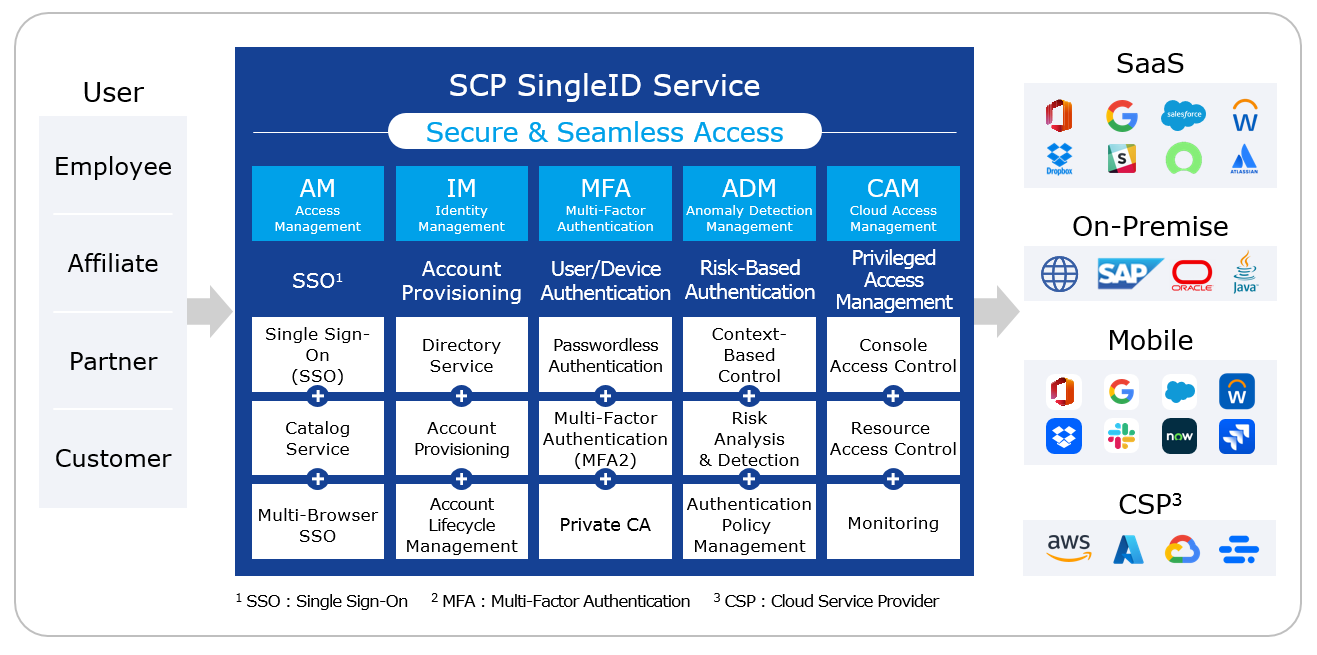
SingleID allows only authorized users to easily access information assets with a single authentication, and strengthens account security through policy-based permission management and real-time detection of authentication anomalies, and provides account management and access framework through various history management.
Provided Features
Integrated authentication and account management
Support various authentication integration protocols (SAML, OIDC, etc)
Provision of self-service function for app usage request and approval
Salesforce, Workday account synchronization and role (group) synchronization/management within the account
Provide sign-up/withdrawal functionality that can issue accounts to partners, customers, etc., who are not employees.
Passwordless and Multi-Factor Authentication
PC/Mobile passwordless authentication and multi-factor authentication (MFA)
Provide composite authentication for secondary authentication through integration with existing primary authentication environment (MFA-only service use case)
private certificate issuance/management function Private CA(Certificate Service Authority) through certificate-based authentication support(separate Use Case)
Authentication and Account Information Integration
Automation of app integration through Pre-Built Connector
Simplified custom app integration through DIY integration templates
Risk-based authentication anomaly detection
Context-based access control based on the situation of attempting authentication
Strengthening security through detailed login and authentication policy settings
Public cloud access management for cloud operators/developers
Console access control through role-based assigned accounts
Resource access permission request/approval and resource access using OTP-based credential verification method
Notice
Depending on the company’s SingleID usage plan, the features provided to users may vary.
Service Configuration Diagram
Figure. SingleID Diagram
Reference
Depending on the SingleID product configuration, the features and configurations provided to the user may differ.
User Portal what is?
SingleID User Portal is the user interface of the SingleID service, providing various security features such as access to company applications, SSO, and access permission requests.
User Portal Screen Layout
User Portal is composed of the following menus.
My App
App Catalog
Notification
Approval Request
Manual composition
This manual is composed of the following contents.
Overview: Explains the concept and manual screen composition with the SingleID overview.
Announcements and Language Settings: Explains how to set the language in the SingleID solution and how to check urgent announcements that can be viewed before logging in.
Login and Authentication: It explains how to register and use various authentication methods for login.
Register authentication tool: Explains the enrollment process where the user registers an authentication tool.
Sign Up: Explains the two methods of sign up.
Find ID: Describes the procedure where the user finds their ID themselves through the Find ID function.
Privacy Policy and Terms of Use: Explains the privacy policy and terms of use that can be found via the link at the bottom of the screen.
PC SSO Agent: Describes the PC SSO Agent, which is a login/logout auxiliary function of SingleID.
My App: Describes the My App menu that can be accessed via SSO.
App Catalog: Describes the App Catalog menu that allows you to view the list of apps that can be requested.
Notification: Describes the Notification menu that can check emergency notices and general notices.
12.Approval Request: Describes the Approval Request menu that can request or approve app usage.
Personal Information Settings: You can set photos, preferred language, and system time zone Personal Information Settings, Authentication Settings, Login History/Environment, Logout etc., describing the personal settings menu.
1 - Notice and Language Settings
Notice
You can check the notice notifications posted by the administrator on the user portal login screen and the screen after logging in to the user portal. Notices are divided into general notices and urgent notices.
General Notice: General notices posted by administrators, used to deliver information to users. It can be checked in the User Portal > Notification menu.
Urgent Notice: Urgent notices posted by the administrator, and can be checked on the User Portal > Login Screen and User Portal > Notification menu.
Language setting
To modify the language that appears on the screen, follow these steps.
User Portal Screen > Top Language selection, click on the desired language from Korean or English.
A dropdown list to select between Korean and English appears.
Select your desired language. The screen will be switched according to the selected language.
Note
It is provided in the language set in the user’s browser at the initial login. If the language is not Korean or English, it will be set to English.
Guide
All SingleID portal sites provide services in Korean and English.
2 - Login using authentication method
Log in using authentication method
What is authentication method?
Authentication method is commonly called Authenticator and refers to an authentication tool.
SingleID provides the following nine authentication methods for user authentication.
Password: Enter password on SingleID login screen
Email OTP: Send OTP via email and enter OTP on the SingleID login screen
SMS OTP: Send OTP via SMS and enter OTP on the SingleID login screen
Knox Messenger OTP: Send OTP via Knox Messenger and enter OTP on the SingleID login screen
Knox Identity: Authentication integration with Knox Portal user ID/Password
SingleID Authenticator Bio: Install the dedicated SingleID mobile app and link authentication with biometric verification
SingleID Authenticator PIN: Install the dedicated SingleID mobile app and link authentication with a PIN.
SingleID Authenticator mOTP: Install the SingleID dedicated mobile app and integrate authentication with mOTP (Mobile OTP)
SingleID Authenticator TOTP: Install the SingleID dedicated mobile app and integrate authentication with TOTP (Time base OTP)
Passkey: Login and authentication using biometrics (fingerprint, facial), Mobile, PIN code without password based on Windows Hello
Reference
If you are using the SingleID Authenticator mobile app for the first time, please refer to SingleID Authenticator.
Enter user ID
The user attempts to log in by entering their ID on the login screen below.
To log in using the user ID, follow the steps below.
Login screen > Account ID Enter the ID in the input field, and click the Next button.
Enter the password in the password field, and click the Next button.
Login is completed.
Passwordless Login
SingleID provides login service without a password.
To log in without using a password, follow the steps below.
Login screen > Do you want to log in without a password? Click it.
Select verification method The screen appears. Click one of the desired authentication methods.
Enter the authentication code according to the selected authentication method.
After login is completed, you will be taken to the User Portal main screen.
Reference
Authentication methods displayed as Registration Required require registration. Click Registration Required to register immediately, or check Register Authentication Tool.
Notice
Passwordless login may not be provided depending on whether it is set in the login policy settings. Please contact the administrator.
Set Preferred Authentication Method
SingleID users log in to the User Portal provided by SingleID and set up their preferred primary and secondary authentication methods.
If the user sets their preferred method, the Select verification method screen is omitted during login and authentication, allowing immediate authentication using primary and secondary methods.
If you want to set your preferred authentication method, follow the steps below.
Click the User Portal > Personal Profile > Authentication settings.
Authentication Settings screen appears.
Click the ☆ 1st, ☆ 2nd that you want in front of each authentication method.
1st, 2nd can each be selected only one at a time. Selection is completed when it changes to ★.
Once the setup is complete, it will be configured in that manner for the next login, providing convenient login.
Reference
Even if a user sets a preferred authentication method for first and second factor authentication, the administrator can restrict it to a specific authentication method through login policy settings.
Register authentication method
All authentication methods can be set by the user. Registering an authentication method by the user is called enrollment. When a user account is first created, only email OTP is automatically enrolled using the email information from the user data. Other authentication methods can be directly enrolled by the user as needed.
There are two ways to register authentication methods (Enrollment).
Register from Authentication Settings: User Portal > Profile > Authentication settings, click the + Add New button at the bottom to register.
Select verification method screen registration: first authentication at login, second authentication at Select verification method screen, select the authentication method with a gray check mark (V) and register.
Reference
For detailed information about authentication method registration (Enrollment), refer to Register Authentication Tool.
First login
Password Reset
If the user logs in for the first time, they can log in after resetting the password.
If you want to reset your password, follow the steps below.
Login screen > Account ID input field, enter the ID, and click the Next button.
Click reset password under the Next button.
Consent for collection/use of personal information
When logging in for the first time or during a certain period, SingleID requires consent for the collection/use of personal information. According to the consent procedure, select the required, optional items and agree.
Required items must be selected to log in.
Password Authentication
Password is the most basic authentication method as the default authentication tool of SingleID.
Enter password
Follow the steps below to log in using your user ID.
Login screen > Account ID input field, enter ID, and click the Next button.
Password input field, enter the password, and click the Next button to log in.
Reference
If you click the eye-shaped icon in the password input field, you can view the password you entered.
Caution
When the entered password is entered incorrectly
If the entered password is entered incorrectly, re-entry is required along with the message ID or password is incorrect. (1/3). The number of retry attempts is limited to the number set by the administrator in the password policy.
If the password is entered incorrectly consecutively and locked
If you entered the password incorrectly and the device is locked, you can unlock it in two ways.
Automatic unlock after 1~5 minutes: When automatic unlock is set, the account will be locked for 1~5 minutes. After that time, login is possible.
Unlock with password reset: When the administrator sets the password policy to password reset, a password reset is required. Login is possible after password reset. Find ID you can check detailed information there.
Email OTP Authentication
Authenticate
If you want to authenticate with email OTP, an OTP will be sent to the email registered by the user.
If you want to authenticate with email OTP, follow the steps below.
Click Email in the Identity Verification Selection method.
An OTP code will be sent to the registered email. Enter the OTP within the time set by the administrator (usually 3-5 minutes).
After entering the OTP, click the Confirm button, and the authentication will be completed.
Reference
Code Resend: If you exceed the input validity time, click the code resend button. The OTP code will be resent via email.
‘Would you like to authenticate in a different way?’: If the current authentication cannot be used, switch to a different authentication method.
‘If you have changed your email, please register.’: Depending on the administrator settings, you can register (Enrollment) a different email to authenticate. For registration, you can check the details at Email Authentication Tool Registration.
Guide
If you entered the code incorrectly
If the user enters the OTP code incorrectly, they can re-enter it as many times as the administrator specifies.
When locked due to exceeding the user input limit
If you enter the OTP code incorrectly more times than the number set by the administrator, the screen will be locked for the duration set by the administrator. After waiting for that time, you can enter again. Refresh and try again after the input restriction period.
SMS OTP authentication
Authenticate
If you want to authenticate with SMS OTP, an SMS OTP will be sent to the mobile registered by the user.
If you want to authenticate with email OTP, follow the steps below.
Click Email in the Identity Verification Selection method.
The OTP code will be sent to the registered mobile phone. Enter the OTP within the time set by the administrator (usually 3–5 minutes).
After entering, click the Confirm button, and the authentication will be completed.
Reference
Resend Code: If you exceed the input validity time, click the resend code button. The OTP code will be resent to your mobile phone.
‘Would you like to authenticate in a different way?’: If the current authentication cannot be used, switch to a different authentication method.
‘If you have changed your mobile phone, please register.’: Clicking the link will take you to a screen for enrolling with the new mobile. You can check the details for registration at Register SMS authentication tool.
Notice
If you entered the code incorrectly
If the user enters the OTP code incorrectly, they can re-enter it as many times as the administrator specifies.
If locked due to exceeding the user input limit
If you enter the OTP code incorrectly more times than the number set by the administrator, the screen will be locked for the duration set by the administrator. After waiting for that time, you can enter again. Refresh and try again after the input restriction period.
Knox Messenger OTP authentication
Authenticate
Knox Messaenger OTP if you want to authenticate with OTP, the OTP will be sent to the Knox Messanger you are using.
To authenticate Knox Messenger OTP, follow the steps below.
In the Identity Verification Selection method, click Knox Messenger.
The OTP code is sent via the Knox Messenger you are using. Enter the OTP within the time set by the administrator (usually 3-5 minutes).
After entering, click the Confirm button, and the authentication will be completed.
Reference
Resend Code: If you exceed the input validity time, click the resend code button. The OTP code will be resent via Knox Messenger.
‘Would you like to authenticate in a different way?’: If the current authentication cannot be used, switch to a different authentication method.
‘Would you like to use a different Knox ID?’: Clicking the link takes you to a screen for enrolling a new Knox ID. For registration, you can see the details at Knox Messenger Authentication Tool Registration.
Guide
If you entered the code incorrectly
If the user enters the OTP code incorrectly, they can re-enter it as many times as the administrator specifies.
If locked due to exceeding the user input limit
If you enter the OTP code incorrectly more times than the number set by the administrator, the screen will be locked for the duration set by the administrator. After waiting for that time, you can enter again. Refresh and try again after the input restriction period.
Knox Identity Password Authentication
Authenticate
To authenticate with Knox Identity, you need to enter the Knox Identity password you are using.
If you want to authenticate with Knox Identity, follow the steps below.
In the Select Identity Verification method, click Knox Identity.
Enter the password for your own Knox account.
After entering, click the Confirm button, and the authentication will be completed.
Reference
‘Would you like to authenticate in a different way?’: If the current authentication cannot be used, it changes to a different authentication method.
Guide
If the password is entered incorrectly
If the user enters the password incorrectly, they can re-enter it as many times as the administrator specifies.
When locked due to exceeding the user input limit
If you enter the password incorrectly more times than the number set by the administrator, the screen will be locked for the amount of time set by the administrator. After waiting for that time, you can enter again. Refresh and try again after the input restriction period.
SingleID Authenticator Authentication
SingleID service provides a mobile authentication app called SingleID Authenticator, and offers authentication in various ways.
Authentication method
Authentication method
Description
SingleID Authenticator Bio
Send a push via the installed SingleID Authenticator mobile app on the mobile to request biometric authentication.
SingleID Authenticator Pin
Send a push using the installed SingleID Authenticator mobile app on the mobile device to request authentication with a PIN code. Not provided
SingleID Authenticator TOTP
Send a push via the installed SingleID Authenticator mobile app on the mobile device to request authentication with TOTP.
SingleID Authenticator mOTP
Send a push via the installed SingleID Authenticator mobile app on the mobile device to request authentication with mOTP.
For SingleID Authenticator installation and configuration method, refer to SingleID Authenticator.
Passkey authentication
SingleID service provides simple authentication and multi-factor authentication through a window-based Passkey.
Authentication Method
Simple authentication: Provides easy login without ID/Password through Sign in with Passkey at the bottom of the login page.
Multi-factor authentication: Provides easy login without needing ID/Password during secondary multi-factor authentication.
Authentication Types
Mobile Passkey: Scan the QR code, and log in using Android and iOS mobile
Security key: Log in using the Windows security key
PIN: Login using Windows PIN code
Reference
Passkey support environment
1.Operating System(laptop or desktop)
Windows 11, macOS Ventura, ChromeOS 109 or higher
Mobile phone: iOS 16 or Android 9 or higher
Hardware security key: hardware security key supporting the FIDO2 protocol
Browse version
Chrome 109 or higher
Safari 16 or higher
Edge 109
Device Settings
Bluetooth activation
Set password for screen lock
PIN code registration
Allow fingerprint or facial recognition
Reference
Passkey must have Windows Hello set up in advance. For details, see the Reference Link.
Admin Authentication
Authenticate
In the SingleID service, the administrator provides authentication by delegating identity verification on behalf of the user.
If you want to perform administrator authentication, follow the steps below.
Identity verification selection method, if you cannot perform identity verification at the bottom of the screen, you can request verification from the administrator. Click here. Click.
On the administrator selection screen, select the administrator to delegate and click the Request button.
After clicking the Request button and requesting approval from the selected administrator, the authentication will be completed.
Guide
If there is no phrase at the bottom If you cannot verify your identity, you can request verification from the administrator. Click here
The administrator has disabled the admin authentication delegation feature by policy. Please contact the administrator.
3 - Register authentication tool
Register authentication tool
All authentication tools should be registered and used by the user themselves as a principle. Registering an authentication tool by a user is called enrollment. When a user is created for the first time, only Email OTP is automatically registered using the email information from the user data. The remaining information can be directly registered and used by the user as needed.
There are three ways to register.
Login screen > ID/Passwrod Enter > Identity verification method Register on the selection screen
On the identity verification method selection screen, if you click the authentication tool marked Registration Required (V mark), you can register.
User Portal(after login) > Profile > Authentication Settings > + Add New Click the button to register
Register through the registration message link at the bottom of all authentication screens
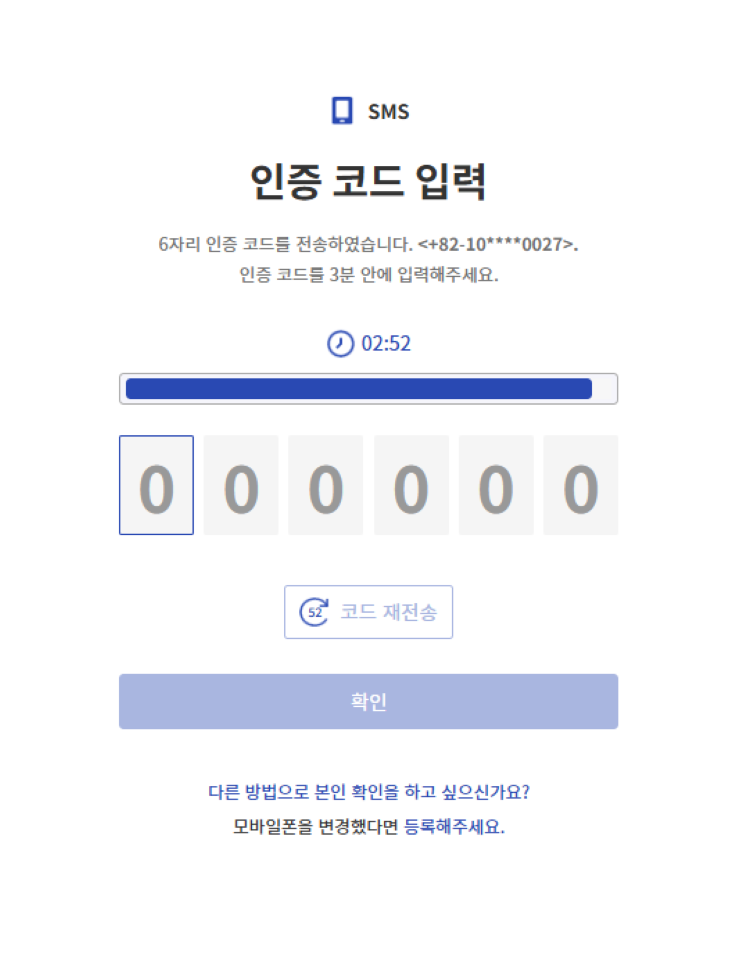
Below screen is an example of SMS verification screen. At the bottom, you can click the If you have changed your mobile phone, please register. message to register.
All authentication code entries can be changed via the message below(Message format: ~ please register.)
Example of authentication code input screen
Figure. Authentication Screen
Register Email Verification Tool
Email registration consists of the following three steps.
Verification Stage: It is the identity verification stage before registering the email authentication tool.
Registration stage: This is the step of registering a new email and checking whether the number is valid.
Completion Stage: This is the final step to confirm that the registration has been completed successfully.
Verification Stage
This is the step of identity verification before using the authentication tool. To view the identity verification process, refer to Login and Authenticate.
Caution
In the verification stage, the authentication method to be used can only be performed with the authentication tool configured by the administrator.
Registration Stage
It is the step of registering the email address the user wants to register and checking the email address’s validity.
The user proceeds as follows.
Confirm step, when you complete identity verification, you automatically move to the Register step.
Enter the email address you want to register.
Send verification code button을 클릭하세요.
Check the OTP code sent to the entered email address, and enter the OTP code on the screen.
If the verification code is entered correctly, it moves to the Complete stage.
Notice
According to company policy, for security reasons, a new email address that is not a company email address may not be registered.
Completion Stage
Registration completion screen will appear, and on the next login you can perform first and second authentication using the email verification tool.
Register SMS authentication tool
SMS registration consists of the following three steps.
Verification step: This is the identity verification step before registering the SMS authentication tool.
Registration Stage: This is the stage where you register a new mobile phone number and check whether the number is valid.
Completion Stage: This is the final step to confirm that the registration has been completed successfully.
Verification Stage
It is the step of verifying your identity before using the authentication tool. To view the identity verification process, refer to Login and Authentication.
Confirm stage can only be authenticated using the authentication tool set by the administrator.
Registration Stage
It is the step of registering the mobile phone number the user wants to register and checking the validity of the mobile phone number.
The user proceeds as follows.
Verification stage, if you complete identity verification, you automatically move to the Registration stage.
Select the Country code, and enter the mobile phone number you want to register.
Click the Send verification code button.
Check the OTP code sent to the entered mobile phone number, and enter the OTP code on the screen.
If the verification code is entered correctly, it moves to the complete stage.
Completion Stage
Registration complete screen will appear, and on the next login you can perform first and second authentication using the SMS authentication tool.
Register Knox Messenger authentication tool
Knox Messenger registration consists of the following three steps.
Verification Stage: This is the verification stage before registering the Knox Messenger authentication tool.
Registration step: Enter the Knox ID to register. This is the step that checks whether the Knox ID to be registered is valid.
Completion Stage: This is the final verification stage confirming that the registration has been completed successfully.
Verification Stage
It is the step of identity verification before using the authentication tool. To view the identity verification process, refer to Login and Authentication.
In the verification stage, the authentication method to be used can only be authenticated using the authentication tool configured by the administrator.
Registration Stage
This is the step of registering the mobile phone number the user wants to register and checking the validity of the mobile phone number.
The user proceeds as follows.
Verification stage, if you complete identity verification, you automatically move to the Registration stage.
Enter the Knox ID to register.
Click the Send verification code button.
Check the OTP code sent to Knox Messenger of the entered Knox ID, and enter the OTP code on the screen.
If the authentication code is entered correctly, it moves to the complete stage.
Completion Stage
Registration complete screen appears, and on the next login you can perform first and second authentication using the Knox Messenger authentication tool.
Register Passkey authentication tool
SingleID Authenticator is an authentication tool provided to the SingleID service.
Passkey enrollment consists of the following three steps.
Verification stage: This is the identity verification stage before registering the Passkey authentication tool.
Registration Stage: Passkey registration stage.
Completion Stage: This is the final step to confirm that the registration has been completed successfully.
Confirmation Stage
This is the step to verify your identity before registering the authentication tool. To view the identity verification process, refer to Login and Authenticate.
Notice
In the verification stage, the authentication method to be used can only be authenticated using the authentication tool configured by the administrator.
Registration Stage
This is the step to check the mobile phone or PC environment you want to register a Passkey on.
Please complete the registration process in the four steps below.
Activation: This is a guide to the Passkey supported environment.
Confirm: Complete identity verification using an authentication method.
Registration: This is the Passkey registration step. Create on this device button click generates and registers a Passkey on the PC. Create on another device button click registers with a mobile phone or hardware security key.
Complete: Registration completed is the step to confirm that it has been completed. Click the Continue button.
Reference
Passkey supported environment
1.Operating System(Laptop or Desktop)
Windows 11, macOS Ventura, ChromeOS 109 or higher
Mobile phone: iOS 16 or Android 9 or higher
Hardware security key: hardware security key supporting the FIDO2 protocol
Browse version
Chrome 109 or higher
Safari 16 or higher
Edge 109
3.Device Settings
Bluetooth activation
Set password for screen lock
PIN code registration
Allow fingerprint or facial recognition
Completion Stage
After the Passkey registration is completed, the Registration complete screen appears. During the next login, you can perform first and second factor authentication using the Windows Hello authentication tool.
Reference
PC Passkey must have Windows Hello set up in advance. For details, see the Reference Link.
When registering a passkey on mobile, it can be set in an environment where QR code scanning is possible.
SingleID Authenticator is an authentication tool provided to the SingleID service.
SingleID Authenticator enrollment consists of the following four steps.
Verification Stage: It is the identity verification stage before registering the SingleID Authenticator authentication tool.
Installation Step: This is the user’s SingleID installation guide step.
Registration Stage: This is the step to register a new mobile app and for service registration.
Completion Stage: This is the final step to confirm that the registration has been completed successfully.
Verification Stage
Before using the authentication tool, this is the step of verifying your identity. To view the identity verification process, refer to Login and Authenticate.
Guide
In the verification stage, the authentication method to be used can only be authenticated using the authentication tool configured by the administrator.
Installation Steps
There are three main ways to install the SingleID mobile app.
Recognize QR code on user mobile or search for “SinlgeID” on Google Play (for Android) or App Store (for iOS) to install SingleID Authenticator.
How to install by entering your mobile phone number and using the download link via SMS
How to install via manual download link
Install the SingleID Authenticator app and click the Next button to proceed to the registration step.
Registration Stage
After installing the SingleID Authenticator mobile app on the mobile phone you want to register, please run SingleID Authenticator.
Please perform the registration process in the following three steps.
Service Registration: Click the ‘+’ at the top in the SingleID Authenticator app.
QR or authentication number input: Scan QR code or enter authentication code to register.
Service Registration Complete: Confirm Click the button to complete the registration.
Completion Stage
After registration is completed in SingleID Authenticator, the Registration Complete screen appears. At the next login, you can perform first and second factor authentication using the Windows Hello authentication tool.
4 - Sign up
Sign up
According to the company’s internal policy, users who are not employees, such as partners, subsidiaries, and customers, can create an account through separate membership registration.
Sign up through the login page link
This is a method of signing up through the sign up link on the login page.
On the login page, click “Sign up” at the bottom if you don’t have an account, join.
Agreement
To sign up, you need to agree to the terms and conditions.
Information Input
Follow the procedure below.
Please enter the email you want to register.
After entering the email, click the OTP transmission button, and the OTP code will be sent.
Enter the OTP code from the received email address and click the Confirm button.
If you enter the authentication code correctly, the sign-up button will be activated.
Sign up button을 클릭하세요.
Information Input
Enter various personal information required for membership.
Division
Description
ID
Enter the ID to register
Korean Name
Enter Korean Name
English Name
Enter English Name
Enter phone number
Enter registered country and mobile phone number
OTP Code
Enter the received OTP code
Department
Department Name Input
Language and Time Zone
User language and time zone settings
Table. Personal Information Input Items
Notice
The above information input items may vary depending on the company’s membership policy.
Membership
After entering personal information and clicking the join button, the approval request will be completed. You can proceed to the next step after approval is completed.
Once the administrator has completed the approval, you can log in through password reset.
Notice
You may also be able to join without approval according to the membership policy.
Membership through invitation email
You can join through an invitation email from the administrator.
By clicking the sign up button in the received email, you can sign up for membership.
If the user has forgotten their ID, click ID Find on the login screen.
Find ID using mobile phone number
The user can find their ID by entering their name and mobile phone number.
Follow the procedure below.
Mobile tab should be clicked.
Name을 입력하세요.
Last Name을 입력하세요.
Enter the country code and phone number.
Click the Send Authentication Code button.
On the authentication code input screen, enter the received authentication code and click the Confirm button.
Reference
If the ID with the corresponding information does not exist, a ‘ID not found’ message appears. To search again, click the Go back to find ID button.
Password Reset
Reset Password
If the user wants to reset their password, click Password Reset at the bottom of the login screen.
Perform self-authentication
To set a password, the user must first go through self-authentication. When the password reset button is clicked, a screen for selecting an authentication method according to the policy set by the administrator appears. For more information on authentication, please refer to Logging in and Authenticating.
Password Reset
Once the user completes the self-authentication, the user can move to the screen where they can set their new password. The password must be set to match the password pattern and complexity set by the administrator as a policy. When the user enters the password, it is displayed in green if it meets the conditions, and in red if it does not. Set the password so that all items turn green.
Please follow the following procedure to reset your password.
Please enter a new password.
If the newly entered password does not meet any of the complexity and patterns set by the administrator, create a more complex password.
To prevent user input errors, please enter the same password as the one you entered again.
Click the Change Password button.
When the password setting is complete, clicking the Login with Password button will take you back to the login screen.
6 - Privacy Policy, Terms of Service, Service Desk
All screens have links to Personal Information Processing Policy and Terms of Use at the bottom left, so users can always check them.
Personal Information Processing Policy
A link to the Privacy Policy is provided at the bottom left of every screen, allowing users to view the privacy policy for SingleID services at any time.
To check the privacy policy, please follow the following procedure.
Click the Privacy Policy at the bottom left of the screen. You can view the latest version of the Privacy Policy.
When you want to check the previous version, you can select the desired version at the top and inquire about it.
Terms of Service
There is a link to Terms of Service at the bottom left of every screen, so users can always check the terms of service for SingleID services.
To check the terms of use, please follow the following procedure.
Click the Terms of Service at the bottom left of the screen. You can view the latest version of the Terms of Service.
When you want to check the previous version, you can select the desired version at the top and inquire about it.
Service Desk Information
If the user has any inquiries about SingleID, they can contact us using the Service Desk phone number and the representative email account at the bottom of the screen.
7 - PC SSO Agent
PC SSO Agent
SingleID PC SSO Agent provides integrated SSO authentication services in the Window Desktop environment.
SingleID PC SSO Agent provides the following features.
Integration SSO and login/logout between internet browsers
PC Device Authentication
Check for installation of essential security software feature (SingleID administrator settings)
Notice
SingleID PC SSO Agent may not be used depending on the administrator’s settings.(Agentless operation)
Reference
PC SSO Agent recommended installation environment
Windows Desktop 10 and 11 (x86 and x64 CPU Only)
Web Browser: Microsoft Edge 88.x or higher, Chrome 87.x or higher
.NET Framework 4.0 or higher
Disk Capacity 100MB or more
Check if PC SSO Agent is installed
If the administrator has set the policy to use the PC SSO Agent, SingleID automatically checks if the SingleID SSO Agent is installed on the user’s PC as follows:
After the user logs in to SingleID, check if the PC SSO Agent is installed automatically.
If the PC SSO Agent is installed on the user’s PC, it automatically moves to the next screen, and if not, it automatically moves to the installation guide screen.
If the automatic installation guide screen does not appear, click the Next button to install the PC SSO Agent.
Download PC SSO Agent
Click the Download button on the PC SSO Agent installation guide screen to download and install the PC SSO Agent program on your PC.
Installing PC SSO Agent
If you download and install the SingleID Agent.exe file on your PC, a ‘ID’ tray will be created in the right bottom tray of the PC as follows.
If the PC SSO Agent is installed normally and SSO authentication is successful, you can check that it is working normally by right-clicking and clicking Status View.
Notice
If the installation does not proceed smoothly, remove the ‘SingleIdAgent’ app from the list of existing installed apps and install again.
Re-authentication attempt
After installing the PC SSO Agent, you can log in from the beginning again or click the Re-authentication button at the bottom of the screen below to try re-authentication using the Agent.
Notice
SingleID PC SSO Agent integrates logout processing for Chrome and Edge browsers when logging out.
8 - My App
Recently used apps
When the user logs in to the User Portal, they can see the My Apps menu first.
The left menu bar can be expanded or collapsed by clicking the arrow(→) icon at the bottom left.
When you click the My App menu, 3 sub-menus that are provided by default and cannot be modified will appear
Recently used apps
Bookmark
basic app
Among them, clicking Recently Used Apps will display the apps that the user has recently used. Recently used apps can be displayed up to a maximum of 12.
Bookmark
In the My App menu, clicking the Bookmark menu displays the apps that the user has bookmarked. You can bookmark frequently used apps to use them conveniently.
You can add a bookmark by clicking the Bookmark button at the bottom right of the app card, and clicking it again will remove the bookmark. Up to 12 bookmarks are possible.
Add/Delete Bookmark
Click the Bookmark button at the bottom right of the app you want to add, and it will be added to the Bookmark. If you click again, the bookmark will be deleted.
Basic App
The basic app menu exposes all apps available to the logged-in user. When the user clicks on an app, it is authenticated with SSO and the app runs in a new browser. If a disabled app is clicked, a popup window appears indicating that it is disabled.
Add category
The user can click the Add Category button to create a category with the user’s desired category name and manage the app.
Click the Add Category button, then enter the category name and click the Check button.
After adding a category, the user can click the More button located to the right of the category to move, change, or delete the category.
If an app is included in a category and the category is deleted, the remaining apps will be moved to the Default App category.
9 - App Catalog
Using the App Catalog
When you click the App Catalog menu, by default, the list of apps that are Pending Approval is displayed.
The app catalog can be checked as a list of apps in three states
Not in use: available for request
Pending Approval: The request for use has been completed and is waiting for approval
In use: The request for use has been approved and is in the state of being used
If there is no “request” button among unused apps, it is a case where the user cannot request it by themselves due to company policy. Please contact the administrator to use it.
Requesting App Usage
To request the use of an unused app, the user must click the Request button, enter the purpose of using the app, and then click the Request button.
The app usage approval process may vary depending on the administrator’s settings.
By default, the list of approvers set by the administrator is displayed, and if there are multiple approvers, it is determined by the result of the first approval or rejection process.
When the app usage request is completed, you can check the request status in two menus.
App Catalog > Pending Approval status can be checked from the status.
App Usage Approval > My Request can be checked in detail.
You can check the details by clicking my request list and app, and in the waiting state for use approval, you can cancel the request through the Cancel Request button.
10 - Notification
Notification
If you click the notification menu, you can check the notification list. There are two types of notifications.
Urgent: Tenant administrator urgently announces an urgent notification (e.g., system outage) that users can check before login regardless of the user’s login.
General: All notifications that are not emergency alerts, which the user can see after logging in, can be checked in the Notifications menu.
When you click the Notification menu, by default the All status notification is set, so both urgent and regular notifications are displayed.
If there are unread notifications, they are displayed as a number next to the notification menu, and because they are marked with a red dot in the list, unread notifications can be easily recognized.
If you click this notification, you can view the details.
Name
Description
Type
This is the type of notice. It is divided into urgent and general.
Title
This is a notice title.
Start date and time
This is the start date and time of the notice posting.
End Date/Time
This is the end date and time of the notice posting.
Table. Notification List
Approval Request
When you click the approval request menu, the administrator can view and cancel all users’ approval requests.
Approval requests consist of the Approval request list and Approval request queue tabs.
Approval Request List
There are several types of approval request statuses. You can easily filter and view them using the Approval Request, Approve, Reject, Cancel Submission buttons at the top. If you want detailed search, you can use detailed search in the search bar at the top right.
Approval Request: Shows all approval request statuses.
Approval: Shows all approved completed statuses.
Rejection: Shows approval request items that have been rejected.
Submission Cancellation: Shows approval request items where the approval has been cancelled.
The description of the approval request list items is as follows.
Name
Description
Approval System
It indicates the approval system according to the approval policy. It is possible to verify which approval system the request was made through. Policy > Approval Policy Please refer to.
Title
This is a notice title.
Start date and time
This is the start date and time of the notice posting.
End Date/Time
This is the end date and time of the notice posting.
Table. Notification List
11 - Approval Request
Approval Request
The app usage approval menu provides two functions.
My Request Tab: A list of apps I’ve requested to use is displayed.
Approved List Tab: A list of app usage requests requested by me will be displayed.
Requesting App Usage
To request the use of an unused app, the user must click the request button, enter the purpose of using the app, and then click the request button. The app usage approval process may vary from company to company.
By default, the list of approvers set by the tenant administrator is displayed, and if there are multiple approvers, it is determined by the result of the first approval or rejection process.
When the app usage request is completed, you can check the request status in two menus.
App Catalog > Pending Approval status can be checked from the status.
Approval Request > My Request where you can check the details and perform additional tasks.
My Request
You can check the details by clicking the app in the My Request list, and when waiting for use approval, you can cancel the request through the Cancel Request button.
When the use approval is completed, the status item in my request list will be changed to Approved.
By clicking approved apps in the list, you can check the details of the approved use.
Approval List
If you are an app usage approver, please click the Approved List tab.
If the user is in a state where approval for using the app is requested, you can see that the status item in the list is indicated as Pending Approval.
To check the details of the requested approval, click on the corresponding list.
After checking the details and leaving the approver’s opinion, clicking the approval button will approve the request so that the requester can use the app.
In the Approved List tab, you can see that the status item has been changed to Approved.
By clicking on the app in the list, you can also check the details of the history approved by the user as an approver.
12 - Personal Profile
Set up personal information
This is a menu for the user’s environment settings.
To set up your personal information, please follow the following procedure.
Click the personal profile > personal information settings on the top right corner of the screen.
You can check photos, names, emails, phone numbers, languages, and time zones.
Photo: Photo > Photo Click to change and upload the icon image you want to display.
Language: Korean or English, please select your desired language.
Language Time Zone: Please select the time zone where you are currently located. When you click the City Search button, a city search popup window appears. Search for the desired city in English and select it.
Click the Save button at the bottom of the screen to save.
Reference
By clicking the withdrawal button at the bottom left of the personal information screen, you can withdraw your current user account.
If you withdraw, your account will be deleted, so please only withdraw if you are sure you want to delete it.
Set up authentication
You can register the user’s authentication tool and set the preferred authentication tool.
To set up authentication, please follow the following procedure.
Click the Personal Profile > Authentication setting on the top right corner of the screen.
+Add new button is clicked to add the desired authentication tool.
Delete button to delete the authentication tool you do not want to use.
☆ Click the icon to set your preferred authentication method.
Reference
Please refer to ‘How to register/delete authentication tools’(link insertion needed) for the user’s authentication tool registration/deletion method.
Change password
In the authentication settings, you can change your password by clicking on the password change and going through the self-confirmation authentication process.
Check login history
You can check the user’s login history/environment.
To view the user’s login history/environment, please follow the following procedure.
Click Personal Profile > Login History/Environment at the top right corner of the screen.
Login History tab allows you to check the information of login time, location, country, city, IP address, OS type, browser type, detection, and result.
Login Environment tab, if there is a registered login environment, you can check the detailed contents, and if it is an environment that is no longer used, you can delete it through the ‘Delete’ button.
If you are using the SingleID ADM (Anomaly Detection Management) feature
The detection item will be displayed as Normal or Detected. The item is a login history where authentication abnormality was detected.
Log out
Click the photo icon located at the top right of the screen and click Logout.
When you click the Logout button, you will be logged out of all applications you visited through SingleID, and if PC SSO Agent is set up for integrated logout, you will also be logged out of the associated browser.