The page has been translated by Gen AI.
User Portal
Overview
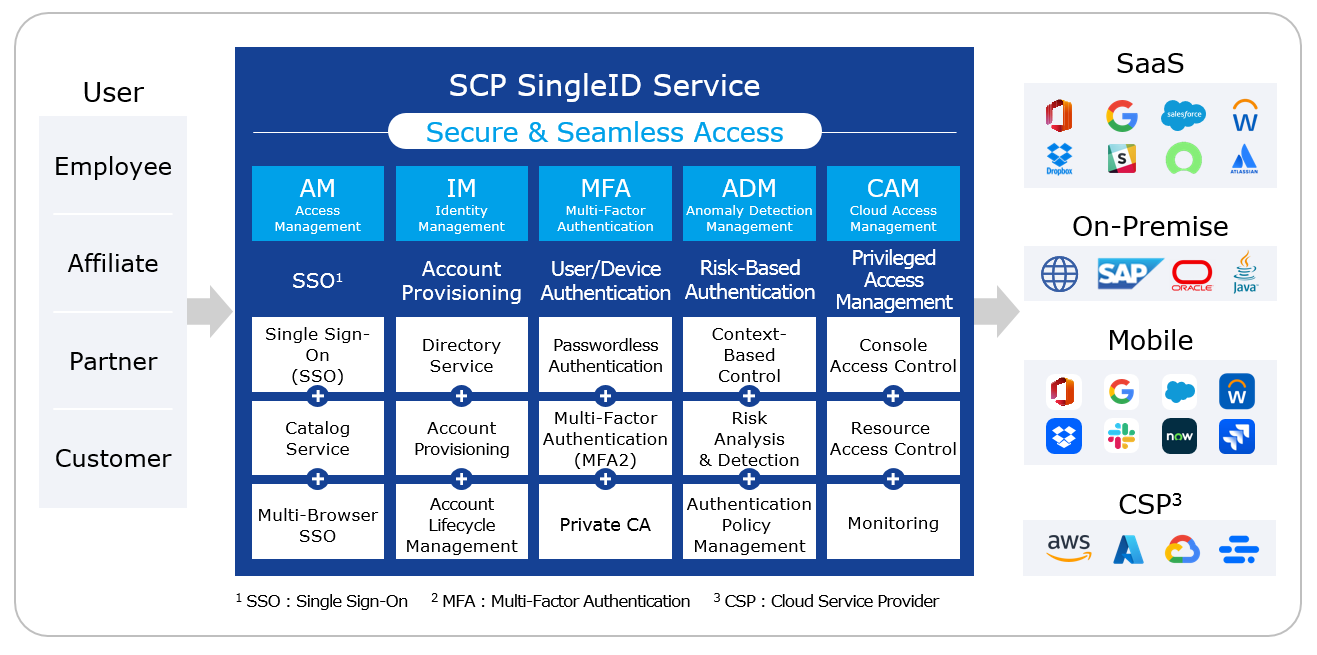
SingleID not only enables authorized users to easily access information assets with a single authentication, but also strengthens account security through policy‑based permission management and real‑time detection of abnormal authentication activities, and provides account management and access frameworks through various audit logs.
Provided features
- Integrated Authentication and Account Management
- Support for various authentication integration protocols (SAML, OIDC, etc.)
- Providing a self-service feature for app usage requests and approvals
- Account synchronization for platforms like Salesforce and Workday, as well as synchronization and management of roles (groups) within accounts.
- Offer sign‑up and account termination functions that enable issuing accounts to partners, customers, and other non‑employee users.
- Passwordless and Multi-Factor Authentication
- PC·Mobile passwordless authentication and multi-factor authentication (MFA)
- Authentication methods: SMS, email, SingleID Authenticator(mOTP, TOTP, PIN, biometrics), Knox Messenger, Passkey, etc
- Providing composite authentication for secondary authentication by integrating with the existing primary authentication environment (MFA‑only service use case)
- Support for certificate-based authentication through the Private CA (Certificate Service Authority) private certificate issuance and management feature (Separate Use Case)
- PC·Mobile passwordless authentication and multi-factor authentication (MFA)
- Authentication and Account Information Integration
- Automation of app integration via Pre‑Built Connector
- Simplifying custom app integration through DIY integration templates
- Risk-Based Authentication Anomaly Detection
- Context-based access control based on authentication attempt scenarios
- Enhancing security through detailed login and authentication policy configuration
- Public cloud access management for cloud operators/developers
- Console access control via role-based assigned accounts
Service Architecture Diagram
What is a User Portal?
The SingleID User Portal is the user interface of the SingleID service, providing various security features such as access to company applications, SSO, and access permission requests.
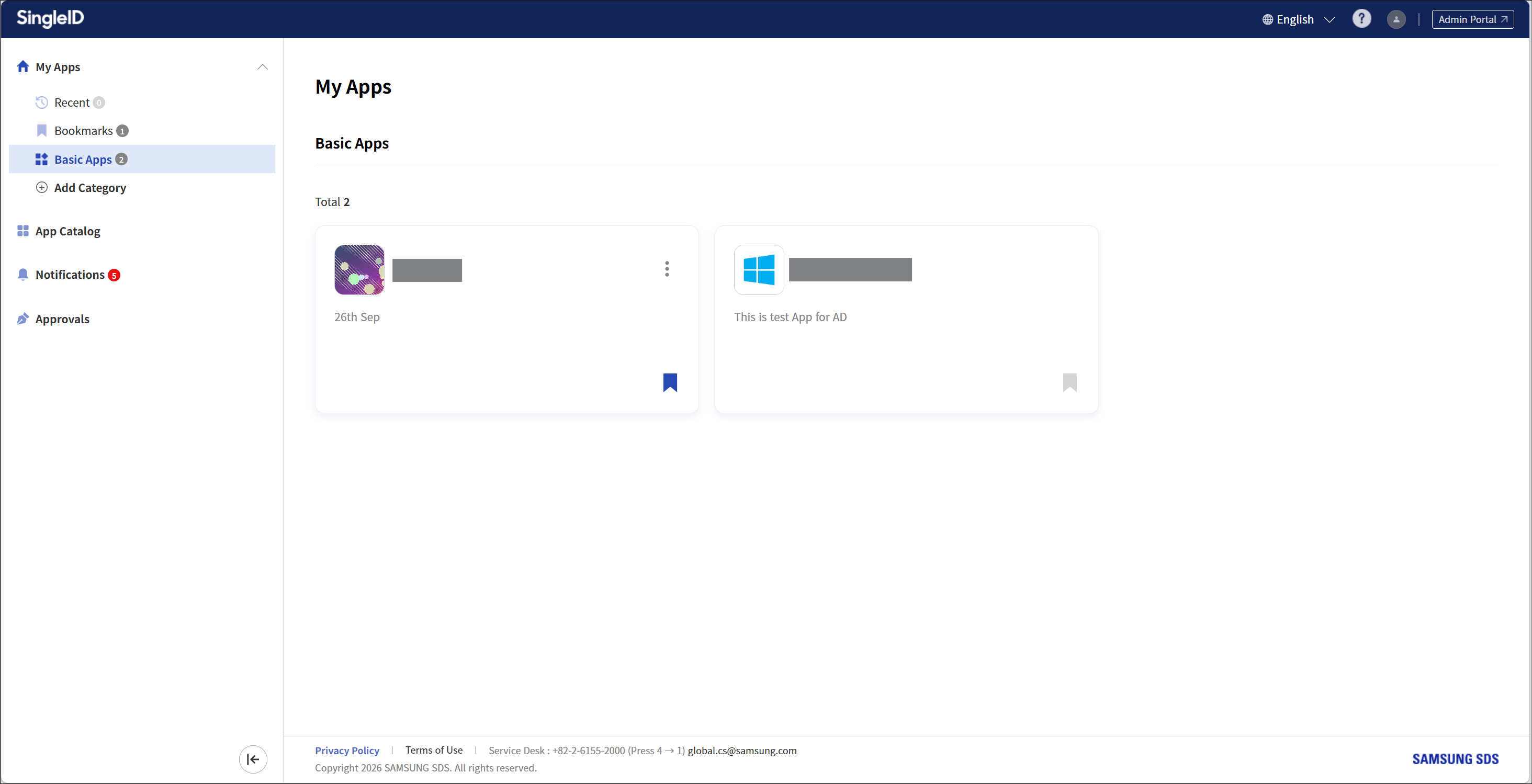
User Portal screen layout
The User Portal consists of the following menus.
- My App: A menu that allows users to view the list of applications they are currently using. 1. Users can conveniently access and manage approved apps.
- App Catalog: A menu that displays a list of accessible applications.
- Notice: This menu allows the SingleID administrator to display announcements to users.
- Approval Requests: This menu allows you to manage approval requests related to application access, member registration, usage period extensions, and other similar items.
Manual composition
This manual is organized as follows.
- Announcements and Language Settings: It explains how to set the language in the SingleID solution and how to check urgent notices that can be viewed before logging in.
- Login using authentication methods: Describes how to register and use various authentication methods for login.
- Register Authentication Tool: Describes the enrollment process, which is the procedure for users to register authentication tools.
- Sign Up: Describes the two methods of signing up.
- Find ID and Reset Password: Describes the procedure by which a user finds their own ID through the ID recovery process.
- Privacy Policy, Terms of Service, Service Desk: Explains the privacy policy and terms of service that can be accessed via the links at the bottom of the screen.
- PC SSO Agent: Explains the PC SSO Agent, which assists with login and logout for SingleID.
- My App: This explains the My App menu that can be accessed via SSO.
- App Catalog: Describes the App Catalog menu that lets you view the list of apps that can be requested.
- Notification: This explains the Notification menu that allows you to view urgent notices and regular notices.
- Approval Request: Describes the Approval Request menu that allows you to request or approve app usage.
- Personal Profile: It describes the personal settings menu, such as photo, preferred language, personal settings for configuring the system time zone, authentication settings, login history·environment, logout, and other options.