Register authentication tool
Register authentication tool (Enrollment)
All authentication tools are to be registered and used by the user themselves as a principle. The act of a user registering an authentication tool is called enrollment (Enrollment). When a user is first created, only Email OTP is automatically registered using the email information among the user information. The remaining information can be directly registered by the user as needed.
There are three ways to register.
- Login screen > ID/Passwrod entry > Select authentication method Register on the screen
- If you click the authentication tool marked as ‘Registration required’ (gray check mark) on the authentication method selection screen, you can register.
- User Portal(after login) > Profile > in authentication settings +Add New Click the button to register
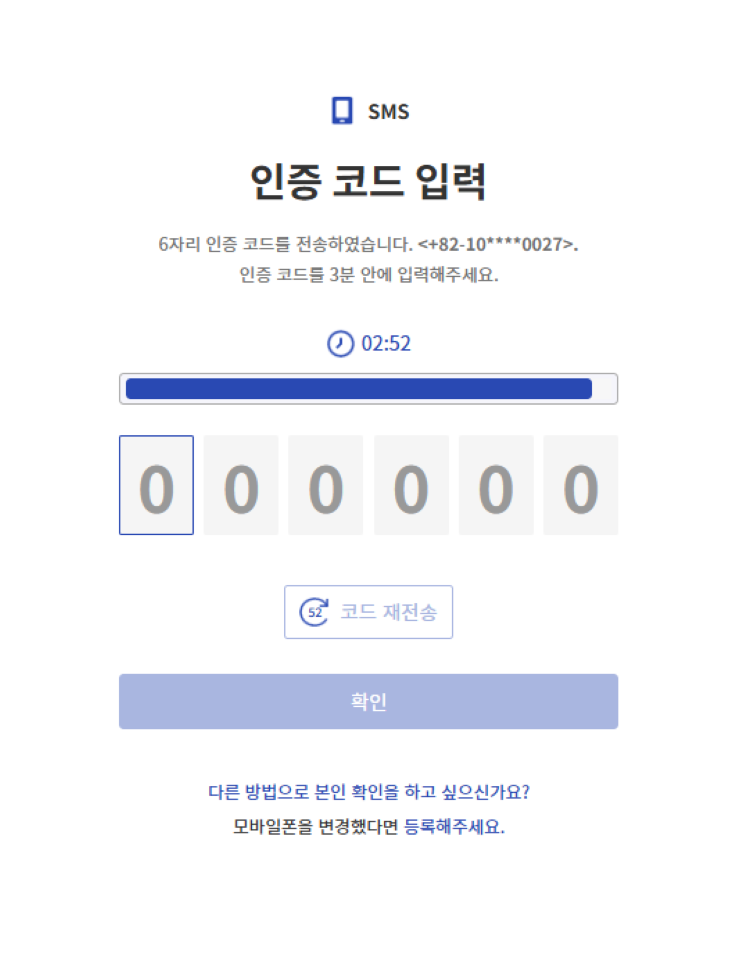
- Register via the registration message link at the bottom of all authentication screens
- The screen below is an example of an SMS verification screen. At the bottom, you can click the ‘If you have changed your mobile phone, please register.’ message to register.
- You can change it through a message below all authentication code inputs (Message format: ~ please register.)
Register email verification tool
Email registration consists of the following three steps.
- Verification Stage: This is the identity verification stage before registering the email authentication tool.
- Registration Stage: This is the step where you register a new email and check if the number is valid.
- Completion Stage: This is the final step to confirm that the registration has been completed successfully.
Verification Stage
This is the step of verifying your identity before using the authentication tool. To view the identity verification process, refer to Login.
Registration Stage
It is the step of registering the email address the user wants to register and checking the email address’s validity.
The user can proceed with the following procedure.
- If you complete identity verification in the confirmation step, you will automatically move to the registration step.
- Please enter the email address you want to register.
- Send verification code button을 클릭하세요.
- Check the OTP code sent to the entered email address and enter the OTP code on the screen.
- If the authentication code is entered correctly, it moves to the completion stage.
Completion Stage
The registration complete screen will appear, and on the next login you can perform first and second authentication using the email verification tool.
Register SMS authentication tool
SMS registration consists of the following three steps.
- Verification step: This is the identity verification step before registering the SMS authentication tool.
- Registration Stage: This is the stage where you register a new mobile phone number and check if the number is valid.
- Completion Stage: This is the final step to confirm that the registration has been completed successfully.
Verification Stage
It is the step of identity verification before using the authentication tool. To view the identity verification process, refer to Login.
In the verification stage, the authentication method to be used can only be authenticated using the authentication tool set by the administrator.
Registration Stage
This is the step of registering the mobile phone number the user wants to register and checking the validity of the mobile phone number.
The user proceeds as follows.
- If you complete identity verification in the confirmation step, you will automatically move to the registration step.
- Select the country code and enter the mobile phone number you want to register.
- Click the Send verification code button.
- Check the OTP code sent to the entered mobile phone number, and enter the OTP code on the screen.
- If the authentication code is entered correctly, it moves to the completion stage.
Completion Stage
Registration Complete The screen will appear, and on the next login you can perform first and second authentication using the SMS verification tool.
Register Knox Messenger authentication tool
Knox Messenger registration consists of the following three steps.
- Verification Stage: This is the identity verification stage before registering the Knox Messenger authentication tool.
- Registration step: Enter the Knox ID to register. This is the step that checks whether the Knox ID to be registered is valid.
- Completion Stage: This is the final step to confirm that the registration has been completed successfully.
Verification Stage
It is the step of verifying your identity before using the authentication tool. To view the identity verification process, refer to Login.
In the verification stage, the authentication method to be used can only be authenticated using the authentication tool configured by the administrator.
Registration Stage
This is the step of registering the mobile phone number the user wants to register and checking the validity of the mobile phone number.
The user proceeds as follows.
- If you complete identity verification in the confirmation step, you will automatically move to the registration step.
- Enter the Knox ID to register.
- Click the Send verification code button.
- Check the OTP code sent to the Knox Messenger of the entered Knox ID, and enter the OTP code on the screen.
- If the authentication code is entered correctly, it moves to the completion stage.
Completion Stage
Registration Complete screen will appear, and on the next login you can perform first and second authentication using the Knox Messenger authentication tool.
Register Passkey authentication tool
SingleID Authenticator is an authentication tool provided to the SingleID service.
Passkey enrollment consists of the following three steps.
- Verification stage: It is the identity verification stage before registering the Passkey authentication tool.
- Registration Stage: This is the Passkey registration stage.
- Completion Stage: This is the final step to confirm that the registration has been completed successfully.
Verification Stage
This is the step to verify your identity before registering the authentication tool. To view the identity verification process, refer to Login and Authenticate.
Registration Stage
This is the step to verify the mobile phone you want to register the Passkey on or the PC environment you are accessing.
Please complete the registration process in the four steps below.
- Activation: This is a guide to the Passkey supported environment.
- Confirm: Complete identity verification using an authentication method.
- Registration: Passkey registration stage. Create on this device button click registers the passkey on the PC. Create on another device button click registers with a mobile phone or hardware security key.
- Complete: Registration Complete is the step to confirm that it has been completed. Click the Continue button.
Passkey support environment 1.Operating System(Laptop or Desktop)
- Windows 11, macOS Ventura, ChromeOS 109 or higher
- Mobile phone: iOS 16 or Android 9 or higher
- Hardware security key: Hardware security key that supports the FIDO2 protocol
- Browse version
- Chrome 109 or higher
- Safari 16 or higher
- Edge 109
3.Device Settings
- Bluetooth activation
- Set password for screen lock
- PIN code registration
- Allow fingerprint or facial recognition
Completion Stage
After the Passkey registration is completed, the registration complete screen appears. At the next login, you can perform first and second factor authentication using the Windows Hello authentication tool.
PC Passkey must have Windows Hello set up in advance. For detailed information, see the Reference Link.
When registering a passkey on mobile, it can be set in an environment where QR code scanning is possible.
SingleID Authenticator Register authentication tool
SingleID Authenticator is an authentication tool provided to the SingleID service.
SingleID Authenticator enrollment consists of the following four steps.
- Verification Stage: This is the identity verification stage before registering the SingleID Authenticator authentication tool.
- Installation step: This is the user’s SingleID installation guide step.
- Registration Stage: This is the stage to register a new mobile app and for service registration.
- Completion Stage: This is the final step to confirm that the registration has been completed successfully.
Confirmation Stage
Before using the authentication tool, this is the step to verify your identity. To view the identity verification process, refer to Login.
Installation Steps
There are three main ways to install the SingleID mobile app.
- How to install ‘SingleID Authenticator’ by recognizing a QR code on the user’s mobile, or searching for ‘SinlgeID’ on Google Play (for Android) or the App Store (for iOS).
- How to install by entering your mobile phone number and using the download link via SMS
- How to install via manual download link SingleID Authenticator install the app and click the Next button to move to the registration step.
Registration Stage
After installing the SingleID Authenticator mobile app on the mobile phone you want to register, run the SingleID Authenticator.
Please complete the registration process in the three steps below.
- Service Registration: In the SingleID Authenticator app, click the ‘+’ at the top.
- QR or authentication number input: Scan QR code or enter authentication code to register.
- Service Registration Complete: Click the Confirm button to complete registration.
Completion Stage
SingleID Authenticator after registration is completed Registration Complete screen appears. On the next login, you can perform first and second factor authentication using the Windows Hello authentication tool.
Registration Stage
After installing the SingleID Authenticator mobile app on the mobile phone you want to register, run the SingleID Authenticator.
Perform the registration process in the three steps below.
- Service Registration: Click the ‘+’ at the top in the SingleID Authenticator app.
- QR or authentication number input: Scan QR code or enter authentication code to register.
- Service registration complete: Confirm Click the button to complete the registration.
Completion Stage
SingleID Authenticator after registration is completed, the Registration Complete screen appears. At the next login, you can perform first and second factor authentication using the Windows Hello authentication tool.