SingleID’s MFA service provides additional 2-factor authentication services to users through system integration while maintaining the authentication system used by applications.
Also, SingleID provides an MFA Portal that allows users to pre-register and manage their preferred authentication method, making it easy to set up.
The MFA Portal manual provides a function for users to self-register for 2-factor composite authentication.
For more information, please refer to the following items:
Select the language at the top of the user portal screen > Select the desired language from ‘Korean’ or ‘English’.
The language will be changed to the selected language.
Note
It is provided in the language set by the user’s browser at the initial login. If the language is not Korean or English, it is set to English.
SingleID Access Environment and Support
Support
Recommended
Windows : Windows Desktop 10 and 11 (x86 and x64 CPU Only)
Web Browser: Microsoft Edge, Latest public version
Windows : Windows Desktop 10 and 11 (x86 and x64 CPU Only)
Web Browser: Microsoft Edge 88.x ↑, Chrome 87.x ↑Android : 8 and later versions
Galaxy S9 ↑
Models released in 2018 and beyond among Samsung Galaxy Mobile Products
Web Browser: Samsung Internet 9.0 ↑
Android : 8 and later versions
Web Browser: Samsung Internet Latest public version
Android : 8 and later versions
Models released in 2018 and beyond among Samsung Galaxy Mobile Products
Galaxy S9 ↑
Web Browser: Samsung Internet 9.0 ↑
iOS : 16 ,17
Web Browser: Safari , Latest public version
iOS : 16 ,17
iPhone Xs ↑, Models released in 2018 and beyond among Apple iPhone Products
Web Browser: Safari 14.1 ↑
Table. SingleID Access Environment and Support
1 - Login using authentication method
Log in using authentication method
What is an authentication method?
Authentication method is commonly called Authenticator and refers to an authentication tool.
SingleID provides the following 9 authentication methods for user authentication.
Password: Enter password on SingleID login screen
Email OTP: Send OTP via email and enter OTP on the SingleID login screen
SMS OTP: Send OTP via SMS and enter OTP on the SingleID login screen
Knox Messenger OTP: Send OTP via Knox Messenger and enter OTP on the SingleID login screen.
Knox Identity: Knox Portal authentication integration using user ID and password
lo: When activated on PC, link the activated Windows Hello authentication with authentication results
SingleID Authenticator Bio: Install the SingleID dedicated mobile app and link authentication using biometric authentication (fingerprint, facial)
SingleID Authenticator PIN: Install the SingleID dedicated mobile app and link authentication with a PIN
SingleID Authenticator mOTP: Install the SingleID dedicated mobile app and integrate authentication with mOTP (Mobile OTP)
SingleID Authenticator TOTP: Install the SingleID dedicated mobile app and integrate authentication with TOTP (Time-based OTP)
Passkey: Login and authentication using biometrics (fingerprint, facial), Mobile, PIN code without a password, based on Windows Hello
Note
SingleID Authenticator if you are using the mobile app for the first time, please refer to SingleID Authenticator.
Set Preferred Authentication Method
The user logs into the User Portal provided by SingleID and provides settings for the primary and secondary authentication methods they prefer.
When the user sets their preferred method, the screen for selecting a verification method is skipped during login and authentication, allowing immediate authentication with first and second factor methods.
If you want to set your preferred authentication method, follow the steps below.
User Portal > Personal Profile > Authentication settings click.
Preferred 1st authentication (1st) method, 2nd authentication (2nd) method click the star (☆) for each.
When the setup is complete, it will be set in that method at the next login, providing convenient login.
Notice
Even if a user sets a preferred authentication method for first and second factor authentication, the administrator can restrict it to a specific authentication method through login policy settings.
Register authentication tool
All authentication methods can be set by the user. Registering an authentication method by the user is called enrollment (Enrollment). When a user account is first created, only email OTP is automatically enrolled (Enrollment) using the email information from the user data. Other authentication methods can be directly enrolled (Enrollment) by the user as needed.
I will explain the two methods of authentication registration (Enrollment).
Register from Authentication Settings: User Portal > Profile > Authentication settings, click the bottom + Add New button to register.
Register on the identity verification method selection screen: During login, first authentication; during second authentication, on the Identity Verification Method Selection screen, select the authentication method that has the gray check mark (V) and register.
SingleID requires consent for the collection/use of personal information when logging in for the first time or during a certain period. According to the consent procedure, select required, optional items to agree. Required items must be selected in order to log in.
Password Authentication
Password is the most basic authentication method as a SingleID basic authentication tool.
Enter password
To log in using the user ID, follow the steps below.
Login screen > Account ID Enter the ID in the input field, and click the Next button.
Enter the password in the Password field, and click the Next button to log in.
Reference
If you click the eye-shaped icon in the password input field, you can check the password you entered.
Notice
When the entered password is entered incorrectly
If the entered password is not correct, you can re-enter it with a message indicating it is wrong.
The number of retry attempts allowed is as many as set by the administrator in the password policy.
When the password is entered incorrectly consecutively and gets locked
If you entered the password incorrectly and the device is locked, you can unlock it in two ways.
Automatically unlock after 1~5 minutes: When the automatic unlock setting is enabled, the account will be locked for 1~5 minutes. After that period, login is possible.
Unlock with password reset: When the administrator sets the password policy to password reset, a password reset is required. Login is possible after resetting the password.
Find ID you can view the detailed contents.
Email OTP Authentication
Authenticate
If you want to authenticate with email OTP, an OTP will be sent to the email registered by the user.
If you want to authenticate with email OTP, follow the steps below.
Click Email in Identity verification selection method.
An OTP code will be sent to the registered email. Enter the OTP within the time set by the administrator (usually 3-5 minutes).
After entering, click the Confirm button, and the authentication will be completed.
Reference
Code Resend: If you exceed the input validity time, click the code resend button. The OTP code will be resent via email.
Do you want to authenticate in a different way?: If the current authentication cannot be used, change to a different authentication method.
If you have changed your email, please register.: Depending on the administrator settings, you can register (Enrollment) a different email for verification.
You can check the details of enrollment at Email authentication tool enrollment.
Notice
If the code is entered incorrectly
If the user enters the OTP code incorrectly, they can re-enter it as many times as the administrator has specified.
If locked due to exceeding the user input limit
If you enter the OTP code incorrectly more times than the number set by the administrator, the screen will be locked for the time set by the administrator. After waiting for that time, you can enter again. Refresh and try again after the input restriction period.
SMS OTP authentication
Authenticate
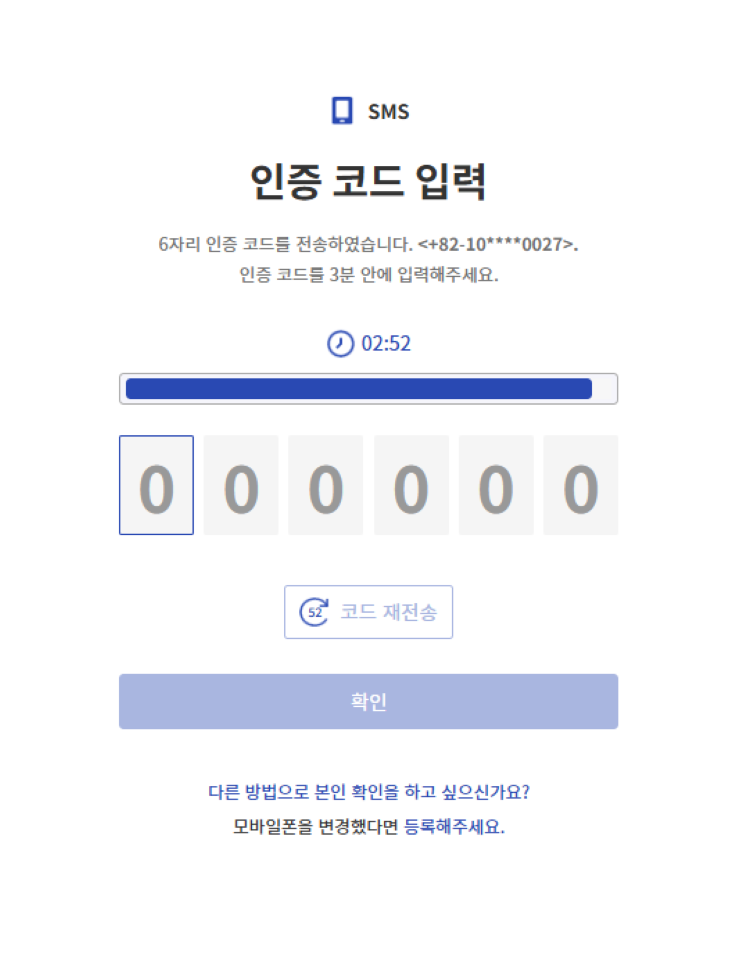
If you want to authenticate with SMS OTP, an SMS OTP will be sent to the mobile registered by the user.
If you want to authenticate with email OTP, follow the steps below.
Click Email in Identity Verification Selection Method.
The OTP code will be sent to the registered mobile phone. Enter the OTP within the time set by the administrator (usually 3~5 minutes).
After entering, click the Confirm button, and the authentication will be completed.
Reference
Code Resend: If you exceed the input validity time, click the code resend button. The OTP code will be resent to your mobile phone.
Would you like to authenticate in a different way?: If the current authentication cannot be used, switch to a different authentication method.
If you have changed your mobile phone, please register.: Clicking the link will take you to a screen to enroll the new mobile.
You can check the detailed information about enrollment at SMS authentication tool enrollment.
Guide
If you entered the code incorrectly
If the user enters the OTP code incorrectly, they can re-enter it as many times as the administrator specifies.
If locked due to exceeding the user input limit
If you enter the OTP code incorrectly more times than the number set by the administrator, the screen will be restricted from input for the time set by the administrator. After waiting for that time, you can input again. Refresh and try again after the input restriction period.
Knox Messenger OTP authentication
Authenticate
Knox Messaenger If you want to authenticate with OTP, the OTP will be sent to the Knox Messanger you are using.
If you want to authenticate Knox Messenger OTP, follow the steps below.
From Identity verification selection method, click Knox Messenger.
The OTP code will be sent via the Knox Messenger you are using. Enter the OTP within the time set by the administrator (usually 3~5 minutes).
After entering, click the Confirm button, and the authentication will be completed.
Reference
Resend Code: If you exceed the input validity time, click the resend code button. The OTP code will be resent to your mobile phone.
Would you like to authenticate in a different way?: If the current authentication cannot be used, switch to a different authentication method.
Would you like to use a different Knox ID?: Clicking the link will take you to a screen that enrolls a new Knox ID.
You can view the detailed information for enrollment at Knox Messenger Authentication Tool Enrollment.
Information
If you entered the code incorrectly
If the user enters the OTP code incorrectly, they can re-enter it up to the number of times specified by the administrator.
If locked due to exceeding user input limit
If you enter the OTP code incorrectly more times than the number set by the administrator, the screen will be locked for the amount of time set by the administrator. After waiting for that time, you can enter again. Refresh and try again after the input restriction period.
Knox Identity Password Authentication
Authenticate
If you want to authenticate with Knox Identity, you need to enter the Knox Identity password you are using.
If you want to authenticate with Knox Identity, follow the steps below.
Click Knox Identity in Identity verification selection method.
Please enter the password of your own Knox account.
After entering, click the Confirm button, and the authentication will be completed.
Reference
Would you like to authenticate in a different way?: If the current authentication cannot be used, it changes to a different authentication method.
Notice
If the password is entered incorrectly
If the user enters the password incorrectly, they can re-enter it up to the number of times specified by the administrator.
If locked due to exceeding user input limit
If you enter the password incorrectly more times than the number set by the administrator, the screen will be locked for the duration set by the administrator. You can enter after waiting for that time. Refresh and try again after the lockout period.
SingleID Authenticator authentication
SingleID service provides a mobile authentication app called SingleID Authenticator, and offers authentication in various ways.
Authentication Method
Authentication method
Description
SingleID Authenticator Bio
Send a push via the installed SingleID Authenticator mobile app on the mobile device to request biometric authentication.
SingleID Authenticator PIN
Send a push via the installed SingleID Authenticator mobile app on the mobile device to request authentication with a PIN code.
SingleID Authenticator TOTP
Send a push using the installed ID Authenticator mobile app on the mobile to request authentication with TOTP.
SingleID Authenticator mOTP
Send a push using the installed SingleID Authenticator mobile app on the mobile device to request authentication with mOTP.
SingleID Authenticator installation and configuration method, please refer to SingleID Authenticator.
SingleID Authenticator Detailed information on how to register the authentication tool can be found at Register Authentication Tool.
Passkey authentication
SingleID service provides simple authentication and multi-factor authentication through a window-based Passkey.
Authentication Method
Convenient authentication: Provides easy login without ID/Password through Sign in with Passkey at the bottom of the login page.
Multi-factor authentication: Provides easy login without needing ID/Password during secondary multi-factor authentication.
Authentication Types
Mobile Passkey: Scan the QR code and log in using Android and iOS mobile
Security key: Log in using the Windows security key
PIN: Window login using PIN code
Reference
Passkey supported environment
1.Operating System(Laptop or Desktop)
Windows 11, macOS Ventura, ChromeOS 109 or higher
Mobile phone: iOS 16 or Android 9 or higher
Hardware security key: hardware security key that supports the FIDO2 protocol
Browse version
Chrome 109 or higher
Safari 16 or higher
Edge 109
3.Device Settings
Bluetooth activation
Set password for screen lock
PIN code registration
Allow fingerprint or facial recognition
Reference
Passkey must have Window Hello set up in advance. For detailed information, please check the Reference link.
Admin Authentication
Authenticate
In the SingleID service, the administrator delegates identity verification on behalf of the user and provides authentication.
If you want to perform administrator authentication, follow the steps below.
Identity verification selection method, if you cannot perform identity verification at the bottom of the screen, you can request verification from the administrator. Click here. Click it.
On the administrator selection screen, select the administrator to delegate and click the Request button.
After clicking the Request button and requesting approval from the selected administrator, the authentication will be completed.
Guide
If there is no If you cannot perform identity verification, you can request verification from the administrator. Click here text at the bottom
The administrator has disabled the admin authentication delegation feature by policy. Please contact the administrator.
2 - Register authentication tool
Register authentication tool (Enrollment)
All authentication tools are to be registered and used by the user themselves as a principle. The act of a user registering an authentication tool is called enrollment (Enrollment).
When a user is first created, only Email OTP is automatically registered using the email information among the user information. The remaining information can be directly registered by the user as needed.
There are three ways to register.
Login screen > ID/Passwrod entry > Select authentication method Register on the screen
If you click the authentication tool marked as ‘Registration required’ (gray check mark) on the authentication method selection screen, you can register.
User Portal(after login) > Profile > in authentication settings +Add New Click the button to register
Register via the registration message link at the bottom of all authentication screens
The screen below is an example of an SMS verification screen. At the bottom, you can click the ‘If you have changed your mobile phone, please register.’ message to register.
You can change it through a message below all authentication code inputs (Message format: ~ please register.)
Figure. Authentication screen example
Register email verification tool
Email registration consists of the following three steps.
Verification Stage: This is the identity verification stage before registering the email authentication tool.
Registration Stage: This is the step where you register a new email and check if the number is valid.
Completion Stage: This is the final step to confirm that the registration has been completed successfully.
Verification Stage
This is the step of verifying your identity before using the authentication tool. To view the identity verification process, refer to Login.
Caution
In the verification stage, the authentication method to be used can only be authenticated with the authentication tool configured by the administrator.
Registration Stage
It is the step of registering the email address the user wants to register and checking the email address’s validity.
The user can proceed with the following procedure.
If you complete identity verification in the confirmation step, you will automatically move to the registration step.
Please enter the email address you want to register.
Send verification code button을 클릭하세요.
Check the OTP code sent to the entered email address and enter the OTP code on the screen.
If the authentication code is entered correctly, it moves to the completion stage.
Completion Stage
The registration complete screen will appear, and on the next login you can perform first and second authentication using the email verification tool.
Register SMS authentication tool
SMS registration consists of the following three steps.
Verification step: This is the identity verification step before registering the SMS authentication tool.
Registration Stage: This is the stage where you register a new mobile phone number and check if the number is valid.
Completion Stage: This is the final step to confirm that the registration has been completed successfully.
Verification Stage
It is the step of identity verification before using the authentication tool. To view the identity verification process, refer to Login.
In the verification stage, the authentication method to be used can only be authenticated using the authentication tool set by the administrator.
Registration Stage
This is the step of registering the mobile phone number the user wants to register and checking the validity of the mobile phone number.
The user proceeds as follows.
If you complete identity verification in the confirmation step, you will automatically move to the registration step.
Select the country code and enter the mobile phone number you want to register.
Click the Send verification code button.
Check the OTP code sent to the entered mobile phone number, and enter the OTP code on the screen.
If the authentication code is entered correctly, it moves to the completion stage.
Completion Stage
Registration Complete The screen will appear, and on the next login you can perform first and second authentication using the SMS verification tool.
Register Knox Messenger authentication tool
Knox Messenger registration consists of the following three steps.
Verification Stage: This is the identity verification stage before registering the Knox Messenger authentication tool.
Registration step: Enter the Knox ID to register. This is the step that checks whether the Knox ID to be registered is valid.
Completion Stage: This is the final step to confirm that the registration has been completed successfully.
Verification Stage
It is the step of verifying your identity before using the authentication tool. To view the identity verification process, refer to Login.
In the verification stage, the authentication method to be used can only be authenticated using the authentication tool configured by the administrator.
Registration Stage
This is the step of registering the mobile phone number the user wants to register and checking the validity of the mobile phone number.
The user proceeds as follows.
If you complete identity verification in the confirmation step, you will automatically move to the registration step.
Enter the Knox ID to register.
Click the Send verification code button.
Check the OTP code sent to the Knox Messenger of the entered Knox ID, and enter the OTP code on the screen.
If the authentication code is entered correctly, it moves to the completion stage.
Completion Stage
Registration Complete screen will appear, and on the next login you can perform first and second authentication using the Knox Messenger authentication tool.
Register Passkey authentication tool
SingleID Authenticator is an authentication tool provided to the SingleID service.
Passkey enrollment consists of the following three steps.
Verification stage: It is the identity verification stage before registering the Passkey authentication tool.
Registration Stage: This is the Passkey registration stage.
Completion Stage: This is the final step to confirm that the registration has been completed successfully.
Verification Stage
This is the step to verify your identity before registering the authentication tool. To view the identity verification process, refer to Login and Authenticate.
Notice
In the verification stage, the authentication method to be used can only be authenticated using the authentication tool configured by the administrator.
Registration Stage
This is the step to verify the mobile phone you want to register the Passkey on or the PC environment you are accessing.
Please complete the registration process in the four steps below.
Activation: This is a guide to the Passkey supported environment.
Confirm: Complete identity verification using an authentication method.
Registration: Passkey registration stage. Create on this device button click registers the passkey on the PC. Create on another device button click registers with a mobile phone or hardware security key.
Complete: Registration Complete is the step to confirm that it has been completed. Click the Continue button.
Reference
Passkey support environment
1.Operating System(Laptop or Desktop)
Windows 11, macOS Ventura, ChromeOS 109 or higher
Mobile phone: iOS 16 or Android 9 or higher
Hardware security key: Hardware security key that supports the FIDO2 protocol
Browse version
Chrome 109 or higher
Safari 16 or higher
Edge 109
3.Device Settings
Bluetooth activation
Set password for screen lock
PIN code registration
Allow fingerprint or facial recognition
Completion Stage
After the Passkey registration is completed, the registration complete screen appears. At the next login, you can perform first and second factor authentication using the Windows Hello authentication tool.
Reference
PC Passkey must have Windows Hello set up in advance. For detailed information, see the Reference Link.
When registering a passkey on mobile, it can be set in an environment where QR code scanning is possible.
SingleID Authenticator is an authentication tool provided to the SingleID service.
SingleID Authenticator enrollment consists of the following four steps.
Verification Stage: This is the identity verification stage before registering the SingleID Authenticator authentication tool.
Installation step: This is the user’s SingleID installation guide step.
Registration Stage: This is the stage to register a new mobile app and for service registration.
Completion Stage: This is the final step to confirm that the registration has been completed successfully.
Confirmation Stage
Before using the authentication tool, this is the step to verify your identity. To view the identity verification process, refer to Login.
Notice
In the verification stage, the authentication method to be used can only be authenticated using the authentication tool configured by the administrator.
Installation Steps
There are three main ways to install the SingleID mobile app.
How to install ‘SingleID Authenticator’ by recognizing a QR code on the user’s mobile, or searching for ‘SinlgeID’ on Google Play (for Android) or the App Store (for iOS).
How to install by entering your mobile phone number and using the download link via SMS
How to install via manual download link
SingleID Authenticator install the app and click the Next button to move to the registration step.
Registration Stage
After installing the SingleID Authenticator mobile app on the mobile phone you want to register, run the SingleID Authenticator.
Please complete the registration process in the three steps below.
Service Registration: In the SingleID Authenticator app, click the ‘+’ at the top.
QR or authentication number input: Scan QR code or enter authentication code to register.
Service Registration Complete: Click the Confirm button to complete registration.
Completion Stage
SingleID Authenticator after registration is completed Registration Complete screen appears. On the next login, you can perform first and second factor authentication using the Windows Hello authentication tool.
Registration Stage
After installing the SingleID Authenticator mobile app on the mobile phone you want to register, run the SingleID Authenticator.
Perform the registration process in the three steps below.
Service Registration: Click the ‘+’ at the top in the SingleID Authenticator app.
QR or authentication number input: Scan QR code or enter authentication code to register.
Service registration complete: Confirm Click the button to complete the registration.
Completion Stage
SingleID Authenticator after registration is completed, the Registration Complete screen appears. At the next login, you can perform first and second factor authentication using the Windows Hello authentication tool.
3 - Set Up Personal Information
Set Up Personal Information
This menu is for the user’s environment settings.
To set up your personal information, follow these steps:
Click on Personal Profile > Personal Information settings in the top right corner of the screen.
You can view your photo, name, email, phone number, language, and time zone.
Photo: Click on Photo > Change Photo to upload the icon image you want to display.
Language: Select your desired language, either Korean or English.
Time Zone: Select the time zone where you are currently located. Click the City Search button to open the city search popup window, search for your city in English, and select it.
Click the Save button at the bottom of the screen to save your changes.
Note
You can click the Withdrawal button at the bottom left of the personal information screen to withdraw from your current user account.
Please note that withdrawing will delete your account, so only do so if you intend to delete it.
Set Up Authentication
You can register your authentication tools and set your preferred authentication tool.
To set up authentication, follow these steps:
Click on Personal Profile > Authentication settings in the top right corner of the screen.
Click the + Add New button to add your desired authentication tool.
Click the Delete button to delete the authentication tool you no longer want to use.
Click the Star (☆) icon to set your preferred authentication method.
In the authentication settings, you can change your password by going through the self-verification authentication process.
Check Login History
You can check your login history/environment.
To view your login history/environment, follow these steps:
Click on Personal Profile > Login History/Environment in the top right corner of the screen.
In the Login History tab, you can view information such as login time, location, country, city, IP address, OS type, browser type, detection, and results.
In the Login Environment tab, you can view detailed information if you have registered login environments, and delete them if you no longer use them.
If you are using the SingleID ADM (Anomaly Detection Management) feature,
the detection items will be displayed as Normal or Detected. These items are login histories where authentication anomalies were detected.
Log Out
Click on the photo icon in the top right corner of the screen and click Log Out.
The Log Out button will log you out of all applications you visited through SingleID, and if PC SSO Agent is set up for integrated logout, it will also log you out of associated browsers.