CAM Portal
Service Overview
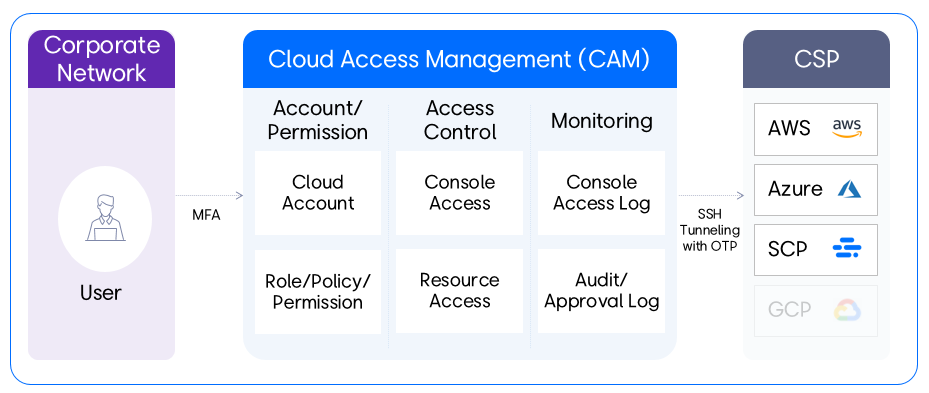
CAM(Cloud Access Management) is a service for managing access to cloud consoles and resources, providing users with an easy and convenient way to access cloud consoles and resources.
Users can access the portal from PCs located on the internal network using multi-factor authentication (MFA, Multi-Factor Authentication). Instead of a password, a one-time token is issued to enable access to the cloud console and resources, and all console access logs, operation logs, and permission approval logs can be monitored.
Service scenario
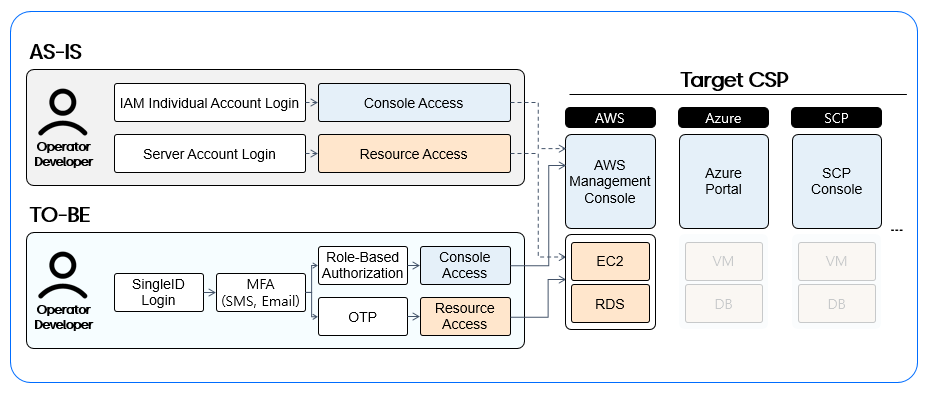
Previously, we accessed the console and resources directly with individual IAM accounts, but now we provide a unified access path through CAM.
- Step 1: During the transition period, newly establish the TO-BE access channel and operate it in parallel with the AS-IS access channel.
- Step 2: After blocking the AS-IS access channel via Cut-Over, switch to the TO-BE channel
Key Features
User Scenario
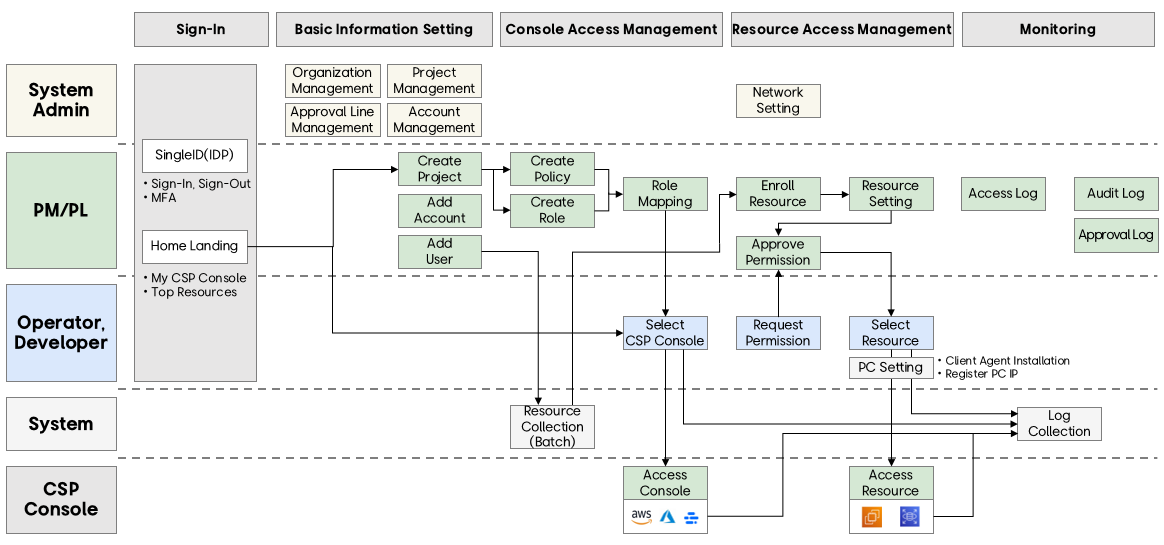
The user scenario proceeds in the following order.
- Authentication → Base Information Settings → Console Access Management → Resource Access Management → Monitoring
Login & Home
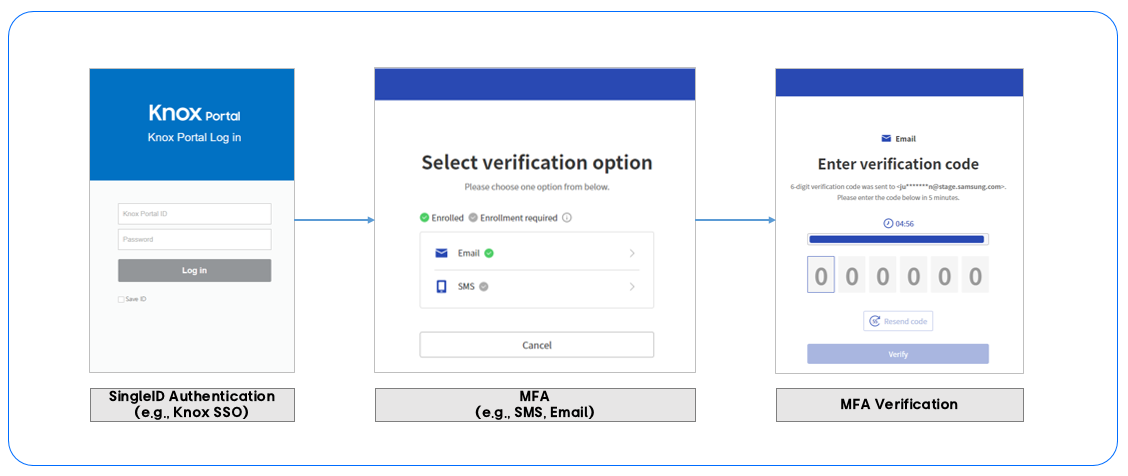
Log in using SingleID or an SSO account (e.g., Knox Portal) and complete multi-factor authentication (MFA). Enter the verification code received via SMS or email to finish the login process and access CAM.
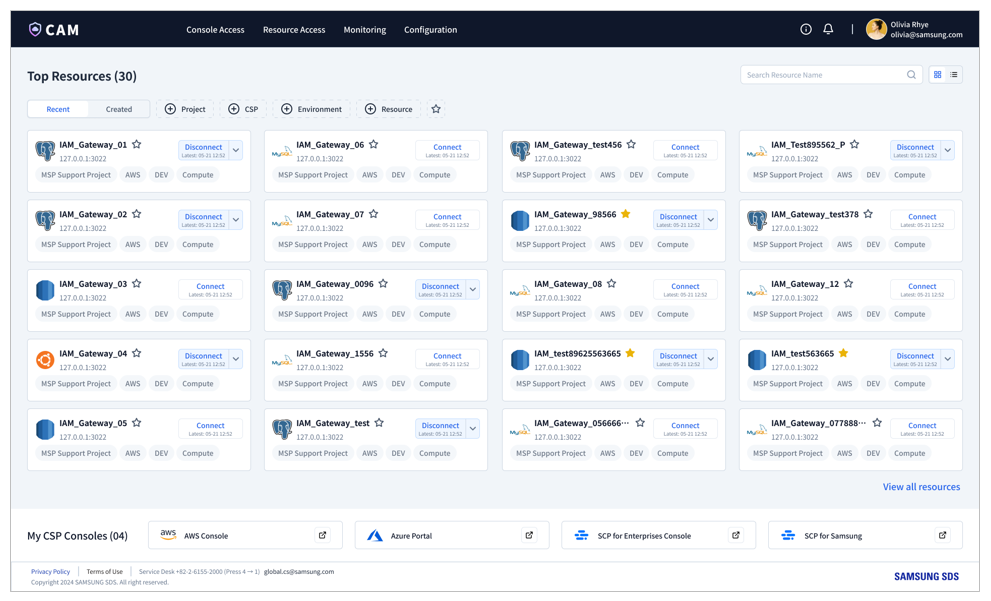
On the Home screen, a personalized custom view is provided so that users can access the cloud console and resources with a single click, allowing easy access to the console and resources.
Configuration
After creating a project, you can easily register a CSP (Cloud Service Provider) account. You can also add users to the project to grant permissions within the project.
Console Access
You can create roles and policies to set and control access permissions for the cloud console, and map roles to specific accounts and users to define which users can access the CSP console and their permission levels.
Resource Access
Manages access permissions for cloud resources. To manage cloud resource access, each user first requests permission, downloads and installs the PC client agent, and registers the access IP address. Once the setup is complete, users can connect to the desired resources from their personalized resource list.