This is the multi-page printable view of this section. Click here to print.
Secured VPN
1 - Overview
Service Overview
Secured VPN(Virtual Private Network) is a service that securely connects external customer networks and the Samsung Cloud Platform network through an encrypted virtual private network. Authenticated customer networks can safely access the Samsung Cloud Platform at any time via a secure channel.
Features
- Rapid Service Provision: To ensure a secure VPN communication link between the customer’s network and the Samsung Cloud Platform, a dedicated VPN device must be deployed, and we provide installation support services by security specialists during deployment.
- Secure Access: Provides a virtual network tunnel equipped with certified authentication devices and nationally certified encryption modules that have proven performance and reliability, allowing customers to securely connect from their external network to their internal network built on the Samsung Cloud Platform.
- Simple operating environment: We provide network configuration and VPN operation services optimized for the customer’s environment by security experts, offering an operating environment that makes it easier to use VPN services.
Configuration diagram
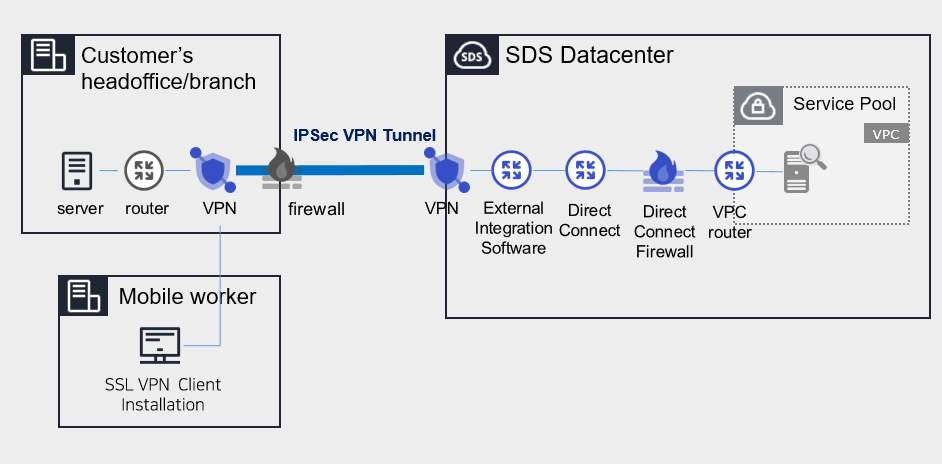
Provided features
We provide the following features.
- IPSec VPN Provision
- Providing IPSec VPN with a nationally certified cryptographic module
- Virtual Private Gateway Creation
- Create a Virtual Private Gateway to connect the cloud internal network with the customer’s network.
- Select traffic bandwidth for bidirectional communication based on network scale
- Create VPN Tunnel
- Ensuring service continuity in the event of a failure by configuring redundant IPsec VPN Gateways.
Component
Secured VPN(Virtual Private Network) provides services composed of Center VPN managed by SDS and Branch VPN installed within the customer’s premises.
Constraints
- The center VPN equipment is a shared device used by many customers, and it cannot be used if its address range overlaps with VPC ranges used by other customers or ranges currently used in Samsung Cloud Platform. Customers who need to use the Secured VPN service should check the available ranges in advance.
- Samsung Cloud Platform usage range: 172.16.0.0/12, 192.168.240.0/20
- Example: Customer A has applied for and is using the 10.0.0.1/24 range; when Customer B newly applies for a Secured VPN, the 10.0.0.1/24 range cannot be used. Verify the available ranges in advance and configure the VPC range accordingly.
- To verify the available band, contact Console > Support Center > Contact or email mssp.scp@samsung.com.
- After confirming the available address range, SDS performs NAT on the rented branch VPN to change the IP. However, if the branch VPN equipment was purchased directly by the customer, the NAT configuration is handled by the customer.
- The MSP adds the NATed IP to the VPC routing rules in the Samsung Cloud Platform Console.
- Check for cases where the branch VPN and Samsung Cloud Platform IP ranges overlap. If the destination IP range is included in the source IP range, the router will send traffic internally instead of outward, making communication impossible.
- Branch VPN is offered as a rental of SECUI equipment, and a separate fee applies for the equipment lease. If the client already uses VPN equipment, it is necessary to confirm whether non‑SECUI vendor devices are compatible with the center VPN equipment (SECUI).
- For compatibility testing matters other than SECUI equipment, please contact Console > Support Center > Contact Us or via mssp.scp@samsung.com.
Provision status by region
Secured VPN is available in the following environments.
| Region | General (Enter) | Public |
|---|---|---|
| Korea West (kr-west1) | Provided | Not provided |
| Korea East (kr-east1) | Not provided | Not provided |
| South Korea South 1 (kr-south1) | Not provided | Provided |
| South Korea South 2 (kr-south2) | Not provided | Provided |
| South Korea South 3 (kr-south3) | Not provided | Provided |
Preceding Service
This is a list of services that must be pre‑configured before creating a Secured VPN service. Refer to the guides provided for each service for details and prepare them in advance.
- When creating a Direct Connect, create a connection to the target VPC and a DCon-VPN connection.
| Service Category | Service | Detailed description |
|---|---|---|
| Networking | Direct Connect | A service that securely and quickly connects the customer’s network with the Samsung Cloud Platform |
- To use the Secured VPN service, configuration work is required for communication between the customer’s on-premise Office and the customer’s VPC within the Samsung Cloud Platform. Please follow the process below to request an uplink line, including external integration software and VPN configuration, and opening the Direct Connect firewall.
- Application path : Console > Support Center > Service Request
- Service : Networking > Direct Connect
- Task Category : Uplink line request
2 - How-to guides
Users can create the service by entering the required information for using the Secured VPN (Virtual Private Network) service through the Samsung Cloud Platform Console.
Create Secured VPN
You can apply for and use the Secured VPN service from the Samsung Cloud Platform Console.
To request the creation of a Secured VPN service, follow these steps.
Click the All Services > Security > Secured VPN menu. You will be taken to the Service Home page of Secured VPN.
On the Service Home page, click the Secured VPN Service Request button. Navigate to the Support Center > Service Request List > Service Request page.
Service Request page, enter or select the required information in the mandatory input fields.
- In the task category, select Secured VPN creation.
Input field Detailed description Title Enter the title of the service request - Example: Secured VPN Service Creation Request
Region Select the location of the Samsung Cloud Platform - Automatically filled with the region corresponding to the Account
Service Select the service category and service. If you click the Secured VPN service request button, it is entered automatically - Service Category: Security
- Service: Secured VPN
Task classification Select the type you want to request - Create Secured VPN: select when requesting a new service
content Customer Basic Information Entry and Application Process Guide - Content: End Customer/MSP Information
Attachment If you have a completed Secured VPN service application (required) and any additional files you wish to share, proceed with the upload - You can attach up to 5 files, each no larger than 5 MB
- Only doc, docx, xls, xlsx, ppt, ppts, hwp, txt, pdf, jpg, jpeg, png, gif, and tif files are allowed
Table. Secured VPN service creation request items
- In the task category, select Secured VPN creation.
After reviewing the application process and reference information, click the Form Download > Service Request Form Download button to download the Secured VPN Service Application Form.
Please fill out the Secured VPN Service Application Form.
- Refer to the item descriptions in the Application Information and Monitoring Information tabs and complete the required fields.
Category Detailed description Application Information Complete required fields such as request type, usage period, and basic information - Application type: select application
- Usage period: enter desired start date
- Guaranteed bandwidth: select bandwidth
- Basic information: enter Account name, Project name, recipient information
Monitoring information Common application information, same-model/different-model connection application information, etc., fill in required items (specify usage per IP) - Same-model connection application information: when connecting SECUI equipment
- Different-model connection application information: when connecting equipment other than SECUI
Table. Main contents of the Secured VPN service creation request form
- Refer to the item descriptions in the Application Information and Monitoring Information tabs and complete the required fields.
Attach the completed application form in the attachment area.
Click the Request button on the service request page.
- After the request is completed, check the submitted details on the Support Center > Service Request List page.
After the monitoring personnel review the submitted service request, they proceed with the process to use the service.
Secured VPN service will be launched.
Terminate Secured VPN
To request termination of the Secured VPN service, follow the steps below.
- Click the All Services > Management > Support Center menu. Go to the Support Center > Service Home page.
- On the Support Center Service Home page, click the Service Request button. You will be taken to the Service Request List page.
- On the Service Request List page, click the Service Request button. You will be taken to the Service Request page.
- Service Request page, enter or select the required information in the mandatory input fields.
- In the task category, select Secured VPN termination.
Input field Detailed description Title Enter the title of the service request - Example: Secured VPN Service Termination Request
Region Select the location of the Samsung Cloud Platform - Automatically filled with the region corresponding to the Account
Service Select service category and service - Service Category: Security
- Service: Secured VPN
Task classification Select the type you want to request - Terminate Secured VPN: select if you are terminating the service
content Guide to Entering Customer Basic Information and Application Process - Content: End Customer/MSP Information
Attachment If you have a completed Secured VPN service application (required) and any additional files you wish to share, proceed with the upload - You can attach up to 5 files, each no larger than 5 MB
- Only doc, docx, xls, xlsx, ppt, ppts, hwp, txt, pdf, jpg, jpeg, png, gif, and tif files can be attached
Table. Table. Secured VPN Service Termination Request Items
- In the task category, select Secured VPN termination.
- After reviewing Application Process and Notes, click the Form Download > Service Request Form Download button to download the Secured VPN Service Request Form.
- Please fill out the Secured VPN Service Application Form.
- Refer to the item descriptions in the Application Information and Monitoring Information tabs, and fill out the required fields.
Category Detailed description Application Information Complete required fields such as request type, usage period, and basic information - Request type: select termination
- Usage period: enter desired termination date
- Guaranteed bandwidth: select the bandwidth you applied for
- Basic information: enter Account name, Project name, and recipient details
Monitoring information When terminating the entire service, no input is required. Table. Main contents of the Secured VPN service termination request form
- Refer to the item descriptions in the Application Information and Monitoring Information tabs, and fill out the required fields.
- Attach the completed application form to the attachment area.
- Click the Request button on the service request page.
- Once the request is completed, verify the submitted information on the Support Center > Service Request list page.
- After the monitoring team reviews the submitted service request, the termination is completed once the monitored IP is deleted.
- Service termination requires three business days, including the cancellation request date.
2.1 - Secured VPN Build Process Guide
To launch the Secured VPN service, you need to install a branch VPN in the client’s network and then perform an integration check. However, if you have a VPN that you operate directly, the integration check is not required. Refer to the process below to apply for the Secured VPN service.
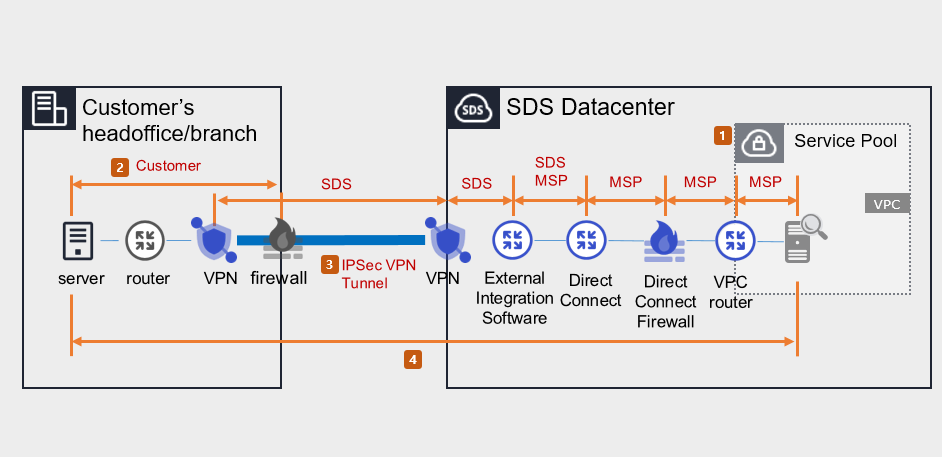
Samsung Cloud Platform Console task (perform MSP)
- Apply for Direct Connect.
- Create a VPC and DCon-VPN connection for the connection target.
- Apply for Uplink line.
- Purpose of request: Configuration work to enable communication between the customer’s Office(On-premise) and the customer’s VPC within the Samsung Cloud Platform.
- Select the application path: Console > Support Center > Service Request.
- Service: Networking > Direct Connect
- Task Category: Uplink line request
- For the construction lead time and Uplink line work schedule, please inquire via Console > Support Center > Contact.
- Set up routing for Firewall, Security Group, Direct Connect, etc.
Routing and firewall configuration (client performed)
- Configure routing between the client’s Office internal network and the branch VPN, and set up the client’s firewall.
- Prior consultation is required for routing and firewall configuration. (SDS → MSP → customer)
- Configure the Samsung Cloud Platform segment and the client Office segment for bidirectional communication.
Installation of client VPN equipment and tunnel activation (MSP/SDS performed)
When installing the customer’s VPM equipment, you can either rent equipment from SDS or use your own equipment. Check the process that applies to your situation.
Case 1) When using the branch VPN device as a SECUI rental device provided by SDS
- Check the specifications, quantity, schedule, and installation location of the leased VPN equipment. (MSP→SDS)
- Please request the preparation of a pre‑installation environment survey for VPN. (SDS → MSP)
- Visit the client site and install the SECUI rental VPN equipment. (SDS)
- Open a tunnel between the branch VPN and the center VPN. (SDS)
Case 2) When using the branch VPN device as the customer’s own equipment
- Check the branch VPN equipment specifications and schedule. (MSP→SDS)
- Request equipment compatibility and IPSec VPN license/equipment setup. (SDS → client/MSP)
- Establish a tunnel between the branch VPN ↔ center VPN. (Customer/SDS)
- If the client requests a VPN installation work plan, contact via Console > Support Center > Contact or mssp.scp@samsung.com.
- Proceed with the work in compliance with the National Intelligence Service VPN installation guide and security review standards.
End-to-End test (perform MSP/SDS)
- Verify and share the test schedule after installing the branch VPN equipment (or configuring existing equipment). (SDS → MSP)
- Verify communication between the branch VPN device and the VPC (bidirectional).