This is the multi-page printable view of this section. Click here to print.
Secured VPN
1 - Overview
Service Overview
Secured VPN (Virtual Private Network) is a service that securely connects external customer networks and the Samsung Cloud Platform network through an encrypted virtual private network. Authenticated customer networks can securely access the Samsung Cloud Platform at any time via a secure channel.
Features
- Rapid Service Provision: To ensure a secure VPN communication link between the customer’s network and the Samsung Cloud Platform, a dedicated VPN device must be deployed, and during deployment, we provide installation support services by security specialists.
- Secure Access: Provides a virtual network tunnel equipped with certified authentication devices and nationally certified encryption modules that have been verified for performance and stability, allowing customers to safely connect from their external network to the internal network built on the Samsung Cloud Platform.
- Convenient operating environment: Providing network configuration and VPN operation services optimized for the customer’s environment by security experts, we provide an operating environment that enables easier use of VPN services.
Configuration diagram
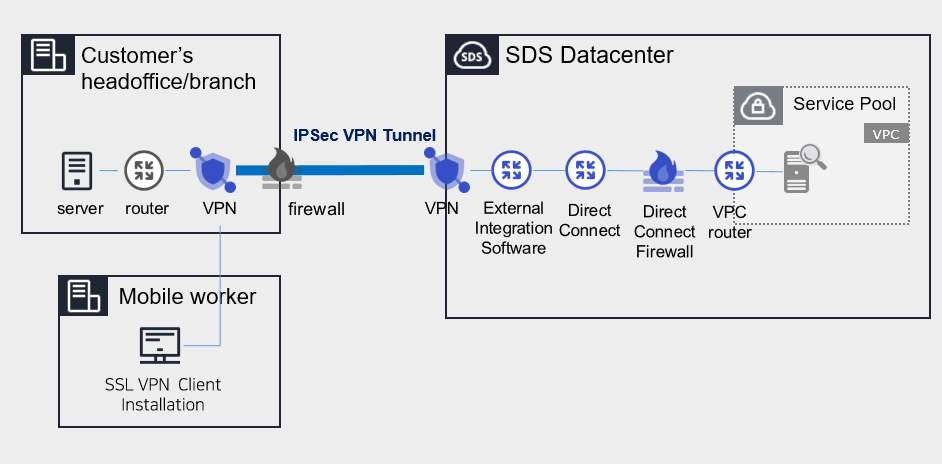
Provided Features
We provide the following features.
- IPSec VPN provision
- IPSec VPN provided with nationally validated cryptographic module
- Virtual Private Gateway creation
- to connect the internal cloud network with the customer’s network, create Virtual Private Gateway
- Select traffic bandwidth for bidirectional communication considering network scale
- VPN Tunnel Creation
- IPsec VPN Gateway Redundant configuration ensures service continuity in case of failure
Components
Secured VPN(Virtual Private Network) is composed of a center VPN managed by SDS and a branch VPN installed within the customer’s internal network, providing services.
Constraints
- The center VPN equipment is a shared device used by many customers, and it cannot be used if it overlaps with VPC ranges used by other client companies or ranges currently used in Samsung Cloud Platform. Customers who need to use the Secured VPN service, please check the available range in advance.
- Samsung Cloud Platform usage range: 172.16.0.0/12, 192.168.240.0/20
- Example: Customer A has applied for and is using the 10.0.0.1/24 range, and when Customer B newly applies for Secured VPN, the 10.0.0.1/24 range cannot be used. Need to check available ranges in advance and configure VPC range accordingly.
- To check the available band, go to Console > Support Center > Contact or inquire via mssp.scp@samsung.com.
- After checking the available range, SDS changes the IP by processing NAT on the branch VPN (rental). However, if the branch VPN equipment was purchased directly by the customer, the NAT setting is performed by the customer.
- MSP adds the NATed IP to the VPC routing rule in the Samsung Cloud Platform Console.
- Check if the branch VPN and Samsung Cloud Platform IP ranges overlap. If the destination IP range is included in the source IP range, the router will send traffic internally instead of externally, making communication impossible.
- The branch VPN is provided as a rental of SECUI equipment, and a separate cost is incurred when renting the equipment. If the client has VPN equipment in use, it is necessary to verify whether non-SECUI vendor equipment is compatible with the center VPN equipment (SECUI).
- For matters related to compatibility testing other than SECUI equipment, Console > Support Center > Contact Us or contact via mssp.scp@samsung.com.
Provision status by region
Secured VPN is available in the following environment.
| Region | General (Enter) | Public |
|---|---|---|
| Korea West (kr-west1) | Provided | Not provided |
| Korea East (kr-east1) | Not provided | Not provided |
| Korea South1(kr-south1) | Not provided | Provided |
| South Korea 2 (kr-south2) | Not provided | Provided |
| South Korea 3 (kr-south3) | Not provided | Provided |
Preceding Service
Before creating the Secured VPN service, this is a list of services that must be pre-configured. For details, refer to the guide provided for each service and prepare in advance.
- When creating Direct Connect, create a connection to the target VPC and DCon-VPN.
| Service Category | Service | Detailed Description |
|---|---|---|
| Networking | Direct Connect | A service that safely and quickly connects the customer’s network with Samsung Cloud Platform |
- Secured VPN service usage requires configuration work for communication between the customer’s Office (On-premise) and the customer’s VPC within Samsung Cloud Platform. Please follow the process below, including external integration software and VPN settings, Direct Connect firewall opening, etc., to apply for an Uplink line.
- Application path : Console > Support Center > Service request
- Service : Networking > Direct Connect
- Work classification : Uplink line request
2 - How-to guides
The user can create the service by entering the required information for using the Secured VPN (Virtual Private Network) service through the Samsung Cloud Platform Console.
Secured VPN Create
You can apply for and use the Secured VPN service from the Samsung Cloud Platform Console.
To request the creation of a Secured VPN service, follow the steps below.
All Services > Security > Secured VPN Click the menu. Go to the Secured VPN Service Home page.
Service Home page, click the Secured VPN Service Request button. Navigate to the Support Center > Service Request List > Service Request page.
Service Request page, enter or select the relevant information in the required input fields.
- In the task category, select Secured VPN creation.
Input Item Detailed Description Title Enter the title of the service request content - Example: Secured VPN service creation request
Region Select the location of Samsung Cloud Platform - Automatically filled with the region corresponding to the Account
Service Select the service category and service. If the Secured VPN service request button is pressed, it is entered automatically - Service Category: Security
- Service: Secured VPN
Task Category Select the type you want to request - Secured VPN creation: select when requesting a new service
Content Guidance on creating and applying basic customer information - Content to write: End customer/MSP information
Attachment Upload the completed Secured VPN service application form (required) and any additional files you wish to share - Each attached file can be up to 5 MB, with a maximum of 5 files
- Only doc, docx, xls, xlsx, ppt, ppts, hwp, txt, pdf, jpg, jpeg, png, gif, tif files can be attached
Table. Secured VPN Service Creation Request Items
- In the task category, select Secured VPN creation.
After checking the application process and reference information, click the Form Download > Service Request Form Download button to download the Secured VPN Service Application Form.
Secured VPN service application form please fill it out.
- Refer to the item descriptions in the Application Information and Control Information tabs, and fill out the required items.
Category Details Application Information Fill in required items such as application type, usage period, basic information, etc. - Application type: select application
- Usage period: enter desired start date
- Guaranteed bandwidth: select bandwidth
- Basic information: enter Account name, Project name, recipient information
Control information Common application information, same model/different model connection application information, etc. Fill required items (need to specify purpose per IP) - Same-model connection application information: when connecting SECUI equipment
- Different-model connection application information: when connecting equipment other than SECUI
Table. Secured VPN Service Creation Application Form Main Contents
- Refer to the item descriptions in the Application Information and Control Information tabs, and fill out the required items.
Attach the completed application form in the attachment area.
On the service request page, click the Request button.
- When the application is completed, check the submitted details on the Support Center > Service Request List page.
After the monitoring officer verifies the submitted service request, the process for using the service proceeds.
Secured VPN service will be launched.
Secured VPN Cancel
If you want to request termination of Secured VPN service, follow the steps below.
- All Services > Management > Support Center Click the menu. Support Center > Service Home Navigate to the page.
- Support Center Service Home on the page click the Service Request button. Service Request List page navigate.
- Service Request List page, click the Service Request button. Service Request page will be opened.
- Service Request page, enter or select the relevant information in the required input fields.
- In the work category, please select Secured VPN termination.
Input Item Detailed Description Title Enter the title of the service request content - Example: Secured VPN Service Termination Request
Region Select the location of Samsung Cloud Platform - Automatically filled with the region corresponding to the Account
Service Select service category and service - Service Category: Security
- Service: Secured VPN
Task Category Select the type you want to request - Secured VPN termination: select if you want to terminate the service
Content Guidance on creating and applying basic customer information - Content to write: End customer/MSP information
Attachment Upload the completed Secured VPN service application form (required) and any additional files you wish to share - Each attached file can be up to 5 MB, with a maximum of 5 files
- Only doc, docx, xls, xlsx, ppt, ppts, hwp, txt, pdf, jpg, jpeg, png, gif, tif files can be attached
Table. Table. Secured VPN Service Termination Request Items
- In the work category, please select Secured VPN termination.
- Application Process and Reference Information after checking, click the Form Download > Service Request Form Download button to download the Secured VPN Service Application Form.
- Secured VPN Service Application please fill out.
- Refer to the item descriptions in the Application Information and Control Information tabs, and fill out the required items.
Category Detailed Content Application Information Fill in required items such as application type, usage period, basic information, etc. - Application type: select termination
- Usage period: enter desired termination date
- Guaranteed bandwidth: select the bandwidth applied for
- Basic information: enter Account name, Project name, recipient information
Control Information When terminating the entire service, no input is required Table. Secured VPN Service Termination Application Form Main Contents
- Refer to the item descriptions in the Application Information and Control Information tabs, and fill out the required items.
- Attach the completed application form in the attachment area.
- On the service request page, click the Request button.
- When the application is completed, check the applied content on the Support Center > Service Request list page.
- After the monitoring staff verifies the submitted service request, if the monitored target IP is deleted, the termination process is completed.
- Service termination takes 3 business days, including the cancellation request date.
2.1 - Secured VPN Construction Process Guide
To initiate the Secured VPN service, it is necessary to proceed with the installation of the branch VPN in the customer’s band and then perform the connection inspection work. However, if you have a directly operated VPN, you do not need to perform the connection inspection work. Please refer to the process below to apply for the Secured VPN service.
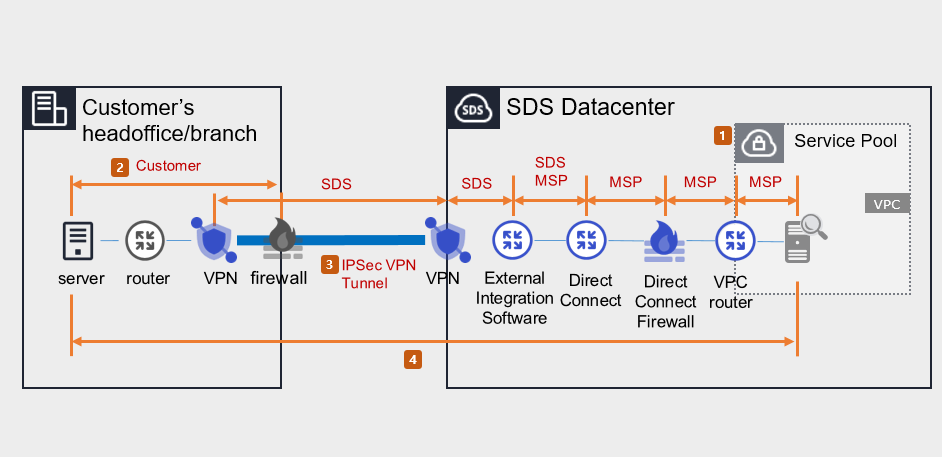
1. Samsung Cloud Platform Console work (MSP performance)
- Apply for Direct Connect.
- Create a connection target VPC and DCon-VPN connection.
- Apply for Uplink line.
- Application purpose: This is a setup work for communication between the customer’s Office (On-premise) and the customer VPC within the Samsung Cloud Platform.
- Application path: Console > Support Center > Service Request should be selected.
- Service: Networking > Direct Connect
- Work classification: Uplink line application
- Please inquire about the construction period and Uplink line work schedule through Console > Support Center > Contact Us.
- Set up routing, such as Firewall, Security Group, Direct Connect, etc.
2. Routing and Firewall Settings (Customer Implementation)
- Set up routing between the customer’s Office internal subnet and branch VPN, and configure the customer’s firewall. Prior consultation is required for routing and firewall settings. (SDS → MSP → Customer Company)
- Set up the Samsung Cloud Platform bandwidth and the customer’s Office bandwidth to allow for two-way communication.
3. Installation of customer’s VPN equipment and tunnel opening (MSP/SDS performance)
When installing VPM equipment for customer companies, you can use SDS equipment for rent or use your own equipment. Please check the process suitable for the situation.
Case 1) Using the branch VPN equipment as SECUI leased equipment provided by SDS
- Check the specifications, quantity, schedule, and installation location of the leased VPN equipment.(MSP→SDS)
- Request to create a pre-installation environment survey for VPN installation.(SDS → MSP)
- Visit the customer’s site and install SECUI leased VPN equipment.(SDS)
- Open a tunnel between the branch VPN and the center VPN.(SDS)
Case 2) When using the branch VPN equipment as the customer’s own equipment
- Check the specifications and schedule of the branch VPN equipment.(MSP→SDS)
- Request equipment compatibility, IPSec VPN license/equipment settings. (SDS → Customer/MSP)
- Open a tunnel between the branch VPN and the center VPN.(Customer/SDS)
- In case the customer requests a VPN installation work plan, please inquire through Console > Support Center > Contact Us or mssp.scp@samsung.com.
- Please proceed with the work in compliance with the National Intelligence Service VPN installation guide and security review standards.
4. End-to-End test (MSP/SDS execution)
- Check and share the test schedule after installing the branch VPN equipment (or setting up existing equipment) and share it. (SDS → MSP)
- Check the communication between the branch VPN device and VPC (both directions).