This is the multi-page printable view of this section. Click here to print.
Secured Firewall
- 1: Overview
- 2: How-to guides
- 3: Release Note
1 - Overview
Service Overview
Secured Firewall is a next‑generation firewall service for cloud network security provided by Samsung Cloud Platform. It manages network access to servers based on IP address/port policies and supports detailed analysis in the event of a security incident.
Features
- Protecting Diverse Network Environments: Supports setting robust network security policies to securely protect cloud assets. Detects and blocks based on IP and protocol/port‑based ACL policies, providing a safe network communication environment.
- Easy and Simple Network Management: You can easily establish firewall policies and conveniently create and manage applied rules such as source/destination IP, protocol/port, inbound/outbound, etc.
- Security expert-based firewall policy implementation: We support establishing firewall policies optimized for customers’ systems migrating to the cloud. To make it easier to apply security policies in cloud environments, we accept firewall policy requests from customers and provide a service where security experts incorporate the policies.
- Security Authentication Product-Based Service: You can use firewall services that meet various networks and requirements for internet connectivity and ensure an optimized security environment. This safely protects the internal network from unauthorized access.
Configuration diagram
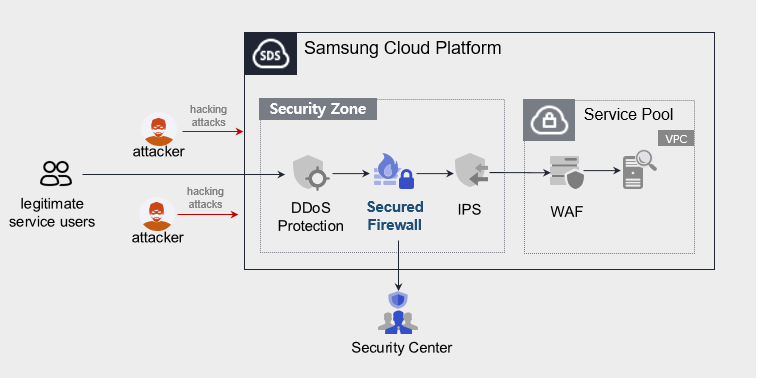
Provided features
We provide the following features.
- Cloud Optimized Firewall
- Applying domain policies considering cloud environments
- Apply firewall rules and logging
- Monitoring Information Provision
- Monthly report provision
Component
- Secured Firewall provides services based on a public IP configured within the VPC.
- We provide services for servers that are accessible over the Internet, and when a user requests a service, we refer to the server (Virtual Server) specifications listed in the service application form.
Constraints
- Firewall policy requests cannot be submitted from the Samsung Cloud Platform Console.
- We will send the application form to the email you registered when applying for the service. Please refer to the form to proceed with the firewall request.
- The access control management (such as Security Group and other firewall policy management) for systems built inside the pool must be performed directly by the customer.
Provision status by region
Secured Firewall is available in the following environments.
| Region | General (Enter) | Public |
|---|---|---|
| Korea West (kr-west1) | Provided | Not provided |
| Korea East (kr-east1) | Not provided | Not provided |
| South Korea South 1 (kr-south1) | Not provided | Provided |
| South Korea South 2 (kr-south2) | Not provided | Provided |
| South Korea South 3 (kr-south3) | Not provided | Provided |
Preceding Service
- This is a list of services that must be pre‑configured before creating a Secured Firewall service. For details, refer to the guides provided for each service and prepare in advance.
- When creating a VPC’s Internet Gateway, you must select SIGW (Secure Internet Gateway) in Category to be able to use Secured Firewall.
- When creating an Internet Gateway for a VPC, selecting Internet Gateway in the “Category” prevents the use of the Secured Firewall service.
- If you switch to Secure Internet Gateway, you need to change the public IP you are using.
| Service Category | Service | Detailed description |
|---|---|---|
| Networking | VPC | A service that protects web applications from web vulnerabilities and attacks |
2 - How-to guides
Users can apply for the service by entering the required information for using the Secured Firewall service through the Samsung Cloud Platform Console.
Create Secured Firewall
You can request and use the Secured Firewall service from the Samsung Cloud Platform Console.
To request the creation of a Secured Firewall service, follow these steps.
Click the All Services > Security > Secured Firewall menu. You will be taken to the Service Home page of Secured Firewall.
On the Service Home page, click the Secured Firewall Service Request button. You will be taken to the Support Center > Service Request List > Service Request page.
Service Request page, enter or select the required information in the mandatory input fields.
- Select Secured Firewall creation in the task type.
Input field Detailed description Title Enter the title of the service request - Example: Secured Firewall service creation request
Region Select the location of the Samsung Cloud Platform - Automatically entered with the region corresponding to the Account
Service Select the service category and service. If you click the Secured Firewall service request button, it is entered automatically - Service Category: Security
- Service: Secured Firewall
Task classification Select the type you want to request - Create Secured Firewall: select when requesting a new service
content Customer Basic Information Entry and Application Process Guide - Content: End Customer/MSP Information
Attachment If you have a completed Secured Firewall service application (required) and any additional files you wish to share, proceed with the upload - You can attach up to 5 files, each no larger than 5 MB
- Only doc, docx, xls, xlsx, ppt, ppts, hwp, txt, pdf, jpg, jpeg, png, gif, and tif files can be attached
Table. Secured Firewall Service Creation Request Items
- Select Secured Firewall creation in the task type.
After reviewing the application process and reference information, click the Form Download > Service Request Form Download button to download the Secured Firewall Service Application Form.
Please fill out the Secured Firewall Service Application.
- Refer to the item descriptions in the Application Information and Monitoring Information tabs and complete the required fields.
Category Detailed description Application Information Fill in required items such as application type, usage period, and basic information - Application type: select application
- Usage period: enter desired start date, contract status, and estimated usage period
- Basic information: enter Account name, Project name, and recipient information
Monitoring information Enter required items such as protected IP and exception handling IP (specify purpose per IP) - Specify application category per IP
- New: select when applying for a new service
- Public-sector customers do not need to fill this out
Table. Main contents of the Secured Firewall service creation request form
- Refer to the item descriptions in the Application Information and Monitoring Information tabs and complete the required fields.
Attach the completed application form in the attachment area.
Click the Request button on the service request page.
- After the request is completed, check the submitted details on the Support Center > Service Request List page.
After the monitoring personnel review the submitted service request, they proceed with the process to use the service.
The Secured Firewall service is now being launched.
Terminate Secured Firewall
To request termination of the Secured Firewall service, follow the steps below.
- Click the All Services > Management > Support Center menu. You will be taken to the Support Center > Service Home page.
- On the Support Center Service Home page, click the Service Request button. You will be taken to the Service Request List page.
- On the Service Request List page, click the Service Request button. You will be taken to the Service Request page.
- Service Request page: enter or select the required information in the mandatory input fields.
- Select Secured Firewall termination in the task type.
Input field Detailed description Title Enter the title of the service request - Example: Secured Firewall service termination request
Region Select the location of the Samsung Cloud Platform - Automatically entered with the region corresponding to the Account
Service Select service category and service - Service Category: Security
- Service: Secured Firewall
Task classification Select the type of request you want to make - Terminate Secured Firewall: select when terminating the service
content Customer Basic Information Entry and Application Process Guide - Content: End Customer/MSP Information
Attachment If you have a completed Secured Firewall service application (required) and any additional files you wish to share, proceed with the upload - You can attach up to 5 files, each no larger than 5 MB
- Only doc, docx, xls, xlsx, ppt, ppts, hwp, txt, pdf, jpg, jpeg, png, gif, and tif files are allowed
Table. Table. Secured Firewall Service Termination Request Items
- Select Secured Firewall termination in the task type.
- After reviewing Application Process and Reference Information, click the Form Download > Service Request Form Download button to download the Secured Firewall Service Request Form.
- Please fill out the Secured Firewall Service Application.
- Refer to the item descriptions in the Application Information and Monitoring Information tabs, and fill out the required fields.
Category Detailed description Application Information Fill in required fields such as request type, usage period, and basic information - Request type: select termination
- Usage period: enter desired termination date
- Basic information: Account name, Project name, recipient information
Monitoring information When terminating the entire service, no input is required. Table. Main contents of Secured Firewall service termination application form
- Refer to the item descriptions in the Application Information and Monitoring Information tabs, and fill out the required fields.
- Attach the completed application form to the attachment area.
- Click the Request button on the service request page.
- After the request is completed, verify the submitted information on the Support Center > Service Request list page.
- After the monitoring team reviews the submitted service request, the termination is completed once the monitored IP is deleted.
- Service termination requires three business days, including the cancellation request date.