This is the multi-page printable view of this section. Click here to print.
Secrets Manager
1 - Overview
Service Overview
Secrets Manager is a service that encrypts customers’ sensitive information as Secrets (secure data) and stores and manages it safely. Remove hard-coded sensitive information from the application source code and retrieve it by invoking Secrets stored securely in a Key-Value format. A secret is encrypted with a user‑managed key in conjunction with the Key Management Service and stored securely.
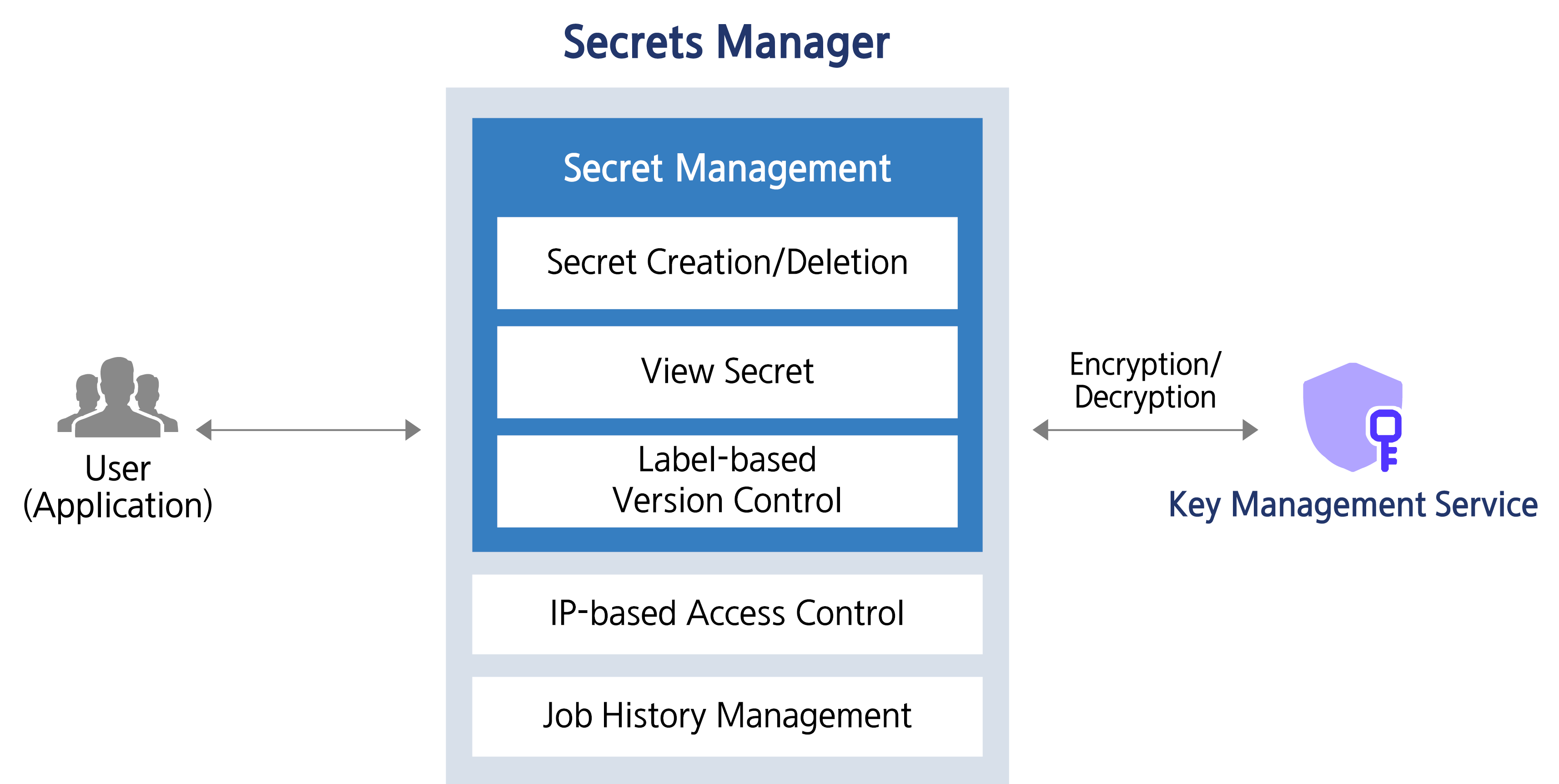
Service Architecture Diagram
Provided features
Secrets Manager provides the following features.
- Secret creation/deletion: Secrets Manager can create, delete, and manage Secrets. * The user stores security (sensitive) information in key/value format in the generated Secret.
- Secret lookup: You can retrieve Secret values based on custom policies and permission settings.
- Label-based version control: When a Secret is modified, you can set a label on the version, which is a snapshot of the uniquely generated data, allowing you to manage Secrets more efficiently.
Component
Secret
It stores sensitive (critical) information as a logical unit, encrypting security information values in Key/Value format with a KMS key.
- A Secret is an object created through the creation of a Secrets Manager product service in the Samsung Cloud Platform Console.
Version
It is a snapshot of unique data that is newly created each time a Secret is modified (the unit that stores the actual value of the Secret).
Label
It is a label or tag attached to a specific version of a Secret (a pointer for referencing a specific version).
Constraints
The limitations of the Secrets Manager service are as follows. Before use, be sure to review the following constraints and incorporate them into your service usage plan.
- Secrets Manager is a regional service, and a created secret can be used only within that region.
- When rotating a customer-managed key, the key version is changed internally. * By using the newly generated version of the key, you can decrypt data that was encrypted with the previous version of the key. * (maintain compatibility)
- Versions through key rotation are compatible up to the 100th version, regardless of the encryption algorithm.
| Item | Detailed description | Quota |
|---|---|---|
| Secret Value Size | Size of the encrypted Secret value | 65,536 |
| Secrets | Number of Secrets per region in an account | 500,000 |
| Attached Labels for Secret | Number of Labels attached to all versions of Secret | 20 |
| Versions per Secret | Number of versions of Secret | 100 |
Preliminary Service
Secrets Manager has no prerequisite services.
2 - How-to guides
Users can create the service by entering the required information for the Secrets Manager service through the Samsung Cloud Platform Console and selecting detailed options.
Create Secrets Manager
You can create and use Secrets Manager in the Samsung Cloud Platform Console.
To create a Secrets Manager, follow these steps.
Click the All Services > Security > Secrets Manager menu. 1. Go to the Service Home page of Secrets Manager.
On the Service Home page, click the Create Secrets Manager button. 2. Navigate to the Create Secrets Manager page.
Create Secrets Manager page, enter the information required to create the service and input additional details.
- Enter or select the required information in the Service Information Input area.Categoryrequired status
Detailed description Secret name Required Enter the secret name type Required Select the type to manage encrypted with Secret from the list. Key/Value input Required Enter a pair of Key/Value for Secret information - Click the Add button to add up to 10 entries
- Click the X icon to delete the entry
encryption key Essential Select the KMS key from the list to encrypt the Secret - Select a key created in the KMS service from the list. Or click +Create New to create a KMS key
- Only KMS keys for encryption/decryption can be selected. The selectable encryption/decryption KMS key types are encryption/decryption (AES-256), encryption/decryption and signing/verification (RSA-2048), and encryption/decryption (ARIA) – three types.
- When entering Key/Value, input must be within 64 KB; registration is not allowed if the size exceeds this limit.
- For detailed information on creating KMS keys, see KMS 키 생성하기 for reference
Public access control Required Enter public access allowed IP - After entering the IP address, click the Add button to register up to 10 entries
- Click the Delete All button to remove all IP entries from the list
- You can register the 0.0.0.0/24 - 0.0.0.0/32 range, but it may be insecure
Private access control Selection Use After selecting, select the resource to allow private access - Click the Add button to add an access‑allowed resource
- If the setting is not enabled, access is allowed for all subnet resources in the same region
Explanation Selection Enter description for Secrets Manager Table. Secrets Manager service information input items - Enter or select the required information in the Additional Information Input area.
Category required statusDetailed description tag Selection Add Tag - Up to 50 per resource can be added
- After clicking the Add Tag button, input or select Key, Value values
Table. Secrets Manager additional information input fields
- Enter or select the required information in the Service Information Input area.
Summary Check the detailed information and estimated charges generated in the panel, and click the Create button.
- Once creation is complete, verify the created resource on the Secrets Manager list page.
Check Secrets Manager detailed information
Secrets Manager can view and edit the complete list of resources and detailed information. Secrets Manager Details page consists of Details, Versions, Tags, Activity History tabs.
To view detailed information about Secrets Manager, follow these steps.
- All Services > Security > Secrets Manager Click the menu. 1. Go to the Service Home page of Secrets Manager.
- On the Service Home page, click the Secrets Manager menu. 2. Go to the Secrets Manager List page.
- On the Secrets Manager List page, click the resource to view its details. 3. Go to the Secrets Manager Details page.
- Secrets Manager Details At the top of the page, status information and descriptions of additional features are displayed.
Category Detailed description status Display the status of Secrets Manager - Active: available/enabled
- To be terminated: scheduled for deletion
Service termination Cancel Service button Table. Secrets Manager status information and additional features
- Secrets Manager Details At the top of the page, status information and descriptions of additional features are displayed.
Detailed Information
Secrets Manager list page allows you to view detailed information of the selected resource and edit the information if necessary.
Category | Detailed description |
|---|---|
| service | Service name |
| Resource Type | Resource Type |
| SRN | Unique resource ID in Samsung Cloud Platform |
| Resource name | Resource Name |
| Resource ID | Unique resource ID in the service |
| Constructor | User who created the service |
| Creation date and time | Service creation date and time |
| Modifier | User who modified the service |
| Modification date | Service modification date and time |
| Secret name | Name of the generated Secret |
| Secret value | the entered Secret value
|
| type | Type of the generated Secret |
| Recent search date and time | Last retrieval time of the generated Secret |
| encryption key | Display the KMS key name selected by the user
|
| URL | Public/Private URL information display
|
| Public access control | Display the registered public access allowed IP
|
| Private access control | Display registered private access allowed resources
|
| Explanation | Display additional description for Secret
|
Version
Secrets Manager list page allows you to use labels to track the version of the selected Secret.
Refer to the definition of each item when checking the version information of Secret Manager.
- Secret: logical unit that stores sensitive (important) information
- Version: A snapshot of unique data generated each time a Secret is modified (the unit that stores the actual value of the Secret)
- Label: a nameplate or tag attached to a specific version of a Secret (a pointer for referencing a specific version)
| Category | Detailed description |
|---|---|
| Version ID | Current version, previous version, and the ID of the version with a custom label (Custom Label) displayed
|
| Label | Secret version display
|
| Last access time | Secret’s most recent access time |
| Creation date and time | Secret creation timestamp |
The limitations when using a version of Secret are as follows.
- You can store up to 100 versions per Secret. * Regardless of whether a custom label is set, if the number of versions exceeds 100, the oldest versions are deleted first.
- For important versions with custom labels, create a new Secret before the version is deleted due to quota limits, and configure it so that the running application can reference the new Secret.
Tag
Secrets Manager list page allows you to view the tag information of the selected resource, and to add, modify, or delete it.
| Category | Detailed description |
|---|---|
| Tag list | Tag list
|
Job History
Secrets Manager list page lets you view the operation history of the selected resource.
| Category | Detailed description |
|---|---|
| Work history | Task execution details |
| Work Date/Time | Task execution date and time |
| Resource Type | Resource Type |
| Resource name | Resource Name |
| Operation result | Task execution result (success/failure) |
| Operator Information | User information of the person who performed the task |
Terminate Secrets Manager
You can cancel Secrets Manager that you are not using.
To cancel Secrets Manager, follow the steps below.
- All Services > Security > Secrets Manager Click the menu. 1. Go to the Service Home page of Secrets Manager.
- On the Service Home page, click the Secrets Manager menu. 2. Go to the Secrets Manager List page.
- On the Secrets Manager List page, click the resource to view its details. 3. Go to the Secrets Manager Details page.
- On the Secrets Manager Details page, click the Cancel Service button. 4. Service Cancellation popup will be opened.
- Service Cancellation in the popup window, enter the cancellation waiting period, and click the Confirm button.
- The termination waiting period can be entered within a range of 7 to 30 days.
- After termination is complete, check on the Secrets Manager List page whether the resource has been terminated.
2.1 - Secret Retrieval API Reference
This user guide explains how to use and invoke the Public/Private endpoints of Secrets Manager.
- Public Endpoint can be called from an environment that can communicate over the Internet.
- Private Endpoint can only be called from a Samsung Cloud Platform VM.
Pre-configuration for Endpoint Calls
Describes the prerequisite configuration items required when calling the Secrets Manager endpoint.
Register Outbound Rule for Security Group
To call the endpoint, you need to register an outbound rule in the security group.
To register an Outbound Rule for a Security Group, follow the steps below.
- Click the All Services > Security > Secrets Manager menu. You will be taken to the Service Home page of Secrets Manager.
- On the Service Home page, click the Secrets Manager menu. You will be taken to the Secrets Manager List page.
- On the Secrets Manager List page, click the resource whose details you want to view. You will be taken to the Secrets Manager Details page.
- On the Secrets Manager Details page, check the URL information.
- You can copy the public/private URL information from the URL field.
- Use the nslookup command to verify the IP to register in the Security Group.
nslookup <호출할 endpoint url>
- From Security Group > Security Group List, select the Security Group of the VM for which you want to set access control. Then navigate to the Security Group Details page.
- In the Security Group Details > Rules tab, click the Add Rule button. When the Add Rule window appears, enter the information below to add a rule.
Item Detailed description Target input method CIDR selection Target address Enter the IP address retrieved by nslookup type Select Destination Port/Type then enter protocol information - Select TCP among the protocols, and enter 443 in the TCP Destination Port
direction Outbound rule Select Explanation Enter the invocation rules for Secrets Manager public/private endpoints Table. Input items for adding Security Group rules - Security Group rules Verify that the rule you entered in the list has been added.
Register access control for Secrets Manager
You can register public/private access controls for Secrets Manager.
To configure the access control items of Secrets Manager, follow these steps.
- Click the All Services > Security > Secrets Manager menu. You will be taken to the Service Home page of Secrets Manager.
- On the Service Home page, click the Secrets Manager menu. You will be taken to the Secrets Manager list page.
- On the Secrets Manager List page, click the resource to view detailed information. You will be taken to the Secrets Manager Details page.
- On the Secrets Manager Details page, click the edit icon of Public Access Control to add an allowed IP for Public Endpoint access.
- Public Access Control Edit Popup window, enter the IP and click the Add button. When the addition is complete, click the Confirm button.
- For security, we recommend adding a single IP, and you can register up to 10.
- You can register the 0.0.0.0/24 – 0.0.0.0/32 range, but be careful as it may be insecure.
- On the Secrets Manager Details page, click the edit icon of Private Access Control to add a VM that allows Private Endpoint access.
- Private Access Control Edit Popup window, select the resource to allow access and click the Add button. When addition is complete, click the Confirm button.
- If you do not enable the setting, you can access all subnet resources in the same region.
Calling Secrets Manager API
Describes how to call the Secrets Manager API.
Check the URL information of Secrets Manager
On the All Services > Security > Secrets Manager > Secrets Manager Details page, check the URL information.
- You can copy the public/private URL information from the URL field.
Secrets Manager Retrieval API
get /v1/secret
Description
Secret value lookup
Parameters
| Type | Name | Description | Schema |
|---|---|---|---|
| query | secretId (required) | Secret ID (Example : b3ed8b7637574255b83c274a6ed79426) | string |
Responses
| Http Code | Description | Schema |
|---|---|---|
| 200 | OK | None |
| 400 | Bad Request | None |
| 401 | Unauthorized | None |
| 403 | IP Not Allowed | None |
| 404 | Not Found | None |
Example HTTP request
Request path
/v1/secret?secretId={secretId}
Request header
"AccessKey = 341g54421b5d67a1gf2b30f1a5415e75",
"SecretKey = 87d5eec6-998h-4933-e865-fd837495je28"
Example HTTP response
Response 200
{
  "status": "success",
  "data": {
    "key": "value"
  },
  "timestamp": "2026-01-20T09:21:18.92730172"
}
3 - Release Note
Secrets Manager
- Provides a Private Endpoint that can be called as a Secret from VM resources in the Samsung Cloud Platform.
- You can select a VM resource in Samsung Cloud Platform that stores secret security information and configure access control.
- We have launched a service that encrypts customers’ sensitive information as Secret(secure information) and safely stores and manages it.
- Remove hard-coded security information from the application source code and retrieve it by invoking securely stored Secrets.