How-to guides
Users can create the service by entering the required information for the Key Management Service through the Samsung Cloud Platform Console and selecting detailed options.
Key Management Service provides the following two key services.
- Customer-managed key: To securely protect important application data, users can generate and manage encryption keys themselves.
- Platform-managed key: Since CSP(Cloud Service Provider) creates and manages it directly, users cannot change or delete the key’s properties.
Create a customer-managed key
You can create and use a customer-managed key in the Samsung Cloud Platform Console.
To create a customer-managed key, follow these steps.
All Services > Security > Key Management ServiceClick the menu. 1. Go to the Service Home page of Key Management Service.
On the Service Home page, click the Create Customer Managed Key button. 2. Go to the Customer Managed Key Creation page.
On the Customer Managed Key Creation page, enter the information required to create the service and provide additional details.
- Enter or select the required information in the Service Information Input area.Categoryrequired status
Detailed description Key name Required Enter key name Public authentication algorithm Selection Use When selected, you can generate encryption keys that comply with public encryption standards - The public authentication algorithm option is available only in the KR SOUTH region
- The public authentication algorithm provides the ARIA algorithm, which has passed security verification through Korea’s cryptographic module validation program
Purpose Required Select the key purpose and encryption method - If you do not select the use of public authentication algorithms, choose among encryption/decryption (AES-256), encryption/decryption and signing/verification (RSA-2048), signing/verification (ECDSA), and generation/verification (HMAC)
Auto rotation Selection Select whether to enable automatic key rotation - If Use is selected, the internal algorithm of the generated key is converted to a different value and applied at each configured rotation interval
- The rotation interval can be set to a value between 1 and 730 days. If the rotation interval is not specified, it defaults to 90 days
Public access control Required Enter the IP range to allow access - After entering the IP range to use, click the Add button
- You must enter at least one, and up to a maximum of 10 can be entered
- /24 - /32 ranges can be used, but may be vulnerable to security risks
- Click Delete All in the IP list to remove all registered entries
Private access control Selection Select the resource to allow access - Use select, then click the Add button to select the resource to use
- Click Delete in the resource list to remove the registered item
- If private access control is not set, you cannot access any private resources
Explanation Selection Enter additional information for the key Table. Customer Managed Key Service Information Input Items - In the Additional Information Input area, enter or select the required information.
Category required statusDetailed description tag Selection Add Tag - Up to 50 per resource can be added
- Add Tag After clicking the Add Tag button, enter or select Key, Value values
Table. Customer-managed key additional information input fields
- Enter or select the required information in the Service Information Input area.
Summary Check the detailed information and estimated charges generated in the panel, and click the Create button.
- Once creation is complete, check the created resource on the Customer Managed Key List page.
Check detailed information of customer-managed key
You can view and edit the full resource list and detailed information of customer-managed keys. Customer Managed Key Details page consists of Details, Tags, Activity Log tabs.
If the status of the customer-managed key service is Creating, the service is being created, so you cannot navigate to the detail page.
- If it remains in the Creating state after a certain amount of time, delete the key and recreate it.
To view detailed information about the Key Management Service, follow these steps.
- Click the All Services > Security > Key Management Service menu. 1. Go to the Service Home page of Key Management Service.
- On the Service Home page, click the Customer Managed Key menu. 2. Navigate to the Customer Managed Key List page.
- On the Customer Managed Key List page, click the resource to view its details. 3. Go to the Customer Managed Key Details page.
- Customer Managed Key Details The top of the page displays status information and descriptions of additional features.
Category Detailed description status Displays the status of a customer-managed key - Active: available/activated
- Stop: stopped/disabled
- To be terminated: scheduled for deletion
- Creating: creating/creation error (immediate retry possible)
Key rotation Button to manually rotate the generated key Key Deactivation Button to deactivate the generated key Service cancellation Button to terminate the service - When the status is To be terminated, display the Cancel termination button
Table. Customer-managed key status information and additional features
- Customer Managed Key Details The top of the page displays status information and descriptions of additional features.
Detailed Information
Customer Managed Key List page allows you to view detailed information of the selected resource and edit the information if necessary.
Category | Detailed description |
|---|---|
| service | Service Name |
| Resource Type | Resource Type |
| SRN | Unique resource ID in Samsung Cloud Platform |
| Resource Name | Resource Name |
| Resource ID | Unique resource ID in the service |
| Constructor | User who created the service |
| Creation Date/Time | Service creation date and time |
| key name | Name of the generated key |
| Public authentication algorithm | Whether to use public authentication algorithm |
| Purpose | Key purposes and encryption methods, such as encryption/decryption and signing/verification |
| Current version | Current version of the generated key
|
| Auto rotation | Automatic key rotation usage
|
| Next rotation day | Display the next key rotation date based on the rotation cycle
|
| rotation period | Rotation period when auto-rotate is enabled |
| URL | Public/Private access URL address
|
| Public access control | Public access allowed IP address
|
| Private access control | Private access allowed resource
|
| description | Show additional description for the key
|
Tag
On the Customer Managed Key List page, you can view the tag information of the selected resource and add, modify, or delete it.
| Category | Detailed description |
|---|---|
| Tag list | Tag list
|
Job History
On the Customer Managed Key List page, you can view the operation history of the selected resource.
| Category | Detailed description |
|---|---|
| Work log | Task execution details
|
| Operation date and time | Task execution date and time |
| Resource Type | Resource Type |
| Resource Name | Resource Name |
| Work Result | Task execution result (success/failure) |
| Operator Information | User information of the person who performed the task |
Managing Customer-Managed Keys
You can create a new version of a registered key or change its usage status.
Configure customer-managed key rotation
Key rotation is a feature that transforms the internal algorithm of a generated key into a different value.
- When rotating the key, only the master key value changes, and the ciphertext and plaintext values of previously generated data keys remain unchanged.
- Even if key rotation is performed, the master key retains the previous version’s data, so decryption using the master key is unaffected, and the value of the data key in use also remains unchanged.
- However, when wrapping with a changed master key (decrypting and then re‑encrypting), calling the rewrapData API will trigger the key rotation function.
- When rotating a customer-managed key, the key’s version is changed internally. * By using a newly generated version key, you can decrypt data encrypted with the previous version’s key, preserving compatibility.
- Versions changed by key rotation are compatible up to the 100th version, regardless of the encryption algorithm.
To create a new version of a customer-managed key (key rotation), follow these steps.
- Click the All Services > Security > Key Management Service menu. 1. Go to the Service Home page of Key Management Service.
- On the Service Home page, click the Customer Managed Key menu. 2. Navigate to the Customer Managed Key List page.
- On the Customer Managed Key List page, click the resource to view detailed information. 3. Navigate to the Customer Managed Key Details page.
- On the Customer Managed Key Details page, click the Key Rotation button. 4. Key Rotation Navigate to the notification window.
- In the Key rotation notification dialog, click the Confirm button.
Configure Customer-Managed Key Activation
You can configure the usage of the selected key.
To set the activation/deactivation status of a customer-managed key you created, follow these steps.
- Click the All Services > Security > Key Management Service menu. 1. Go to the Service Home page of Key Management Service.
- On the Service Home page, click the Customer Managed Key menu. 2. Navigate to the Customer Managed Key List page.
- On the Customer Managed Key List page, click the resource to view its details. 3. Navigate to the Customer Managed Key Details page.
- On the Customer Managed Key Details page, click the Enable/Disable Key button. 4. Key activation/Key deactivation Navigate to the notification dialog.
- In the Key activation/key deactivation notification dialog, click the OK button.
Encryption case using Key Management Service keys
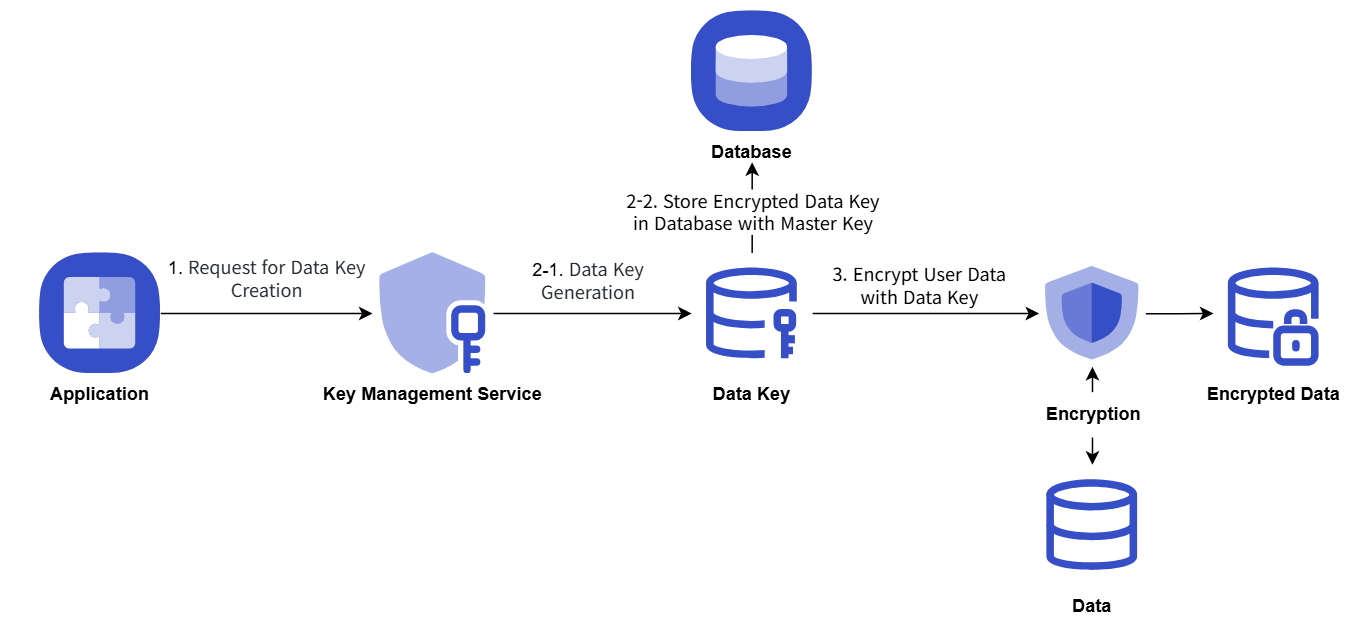
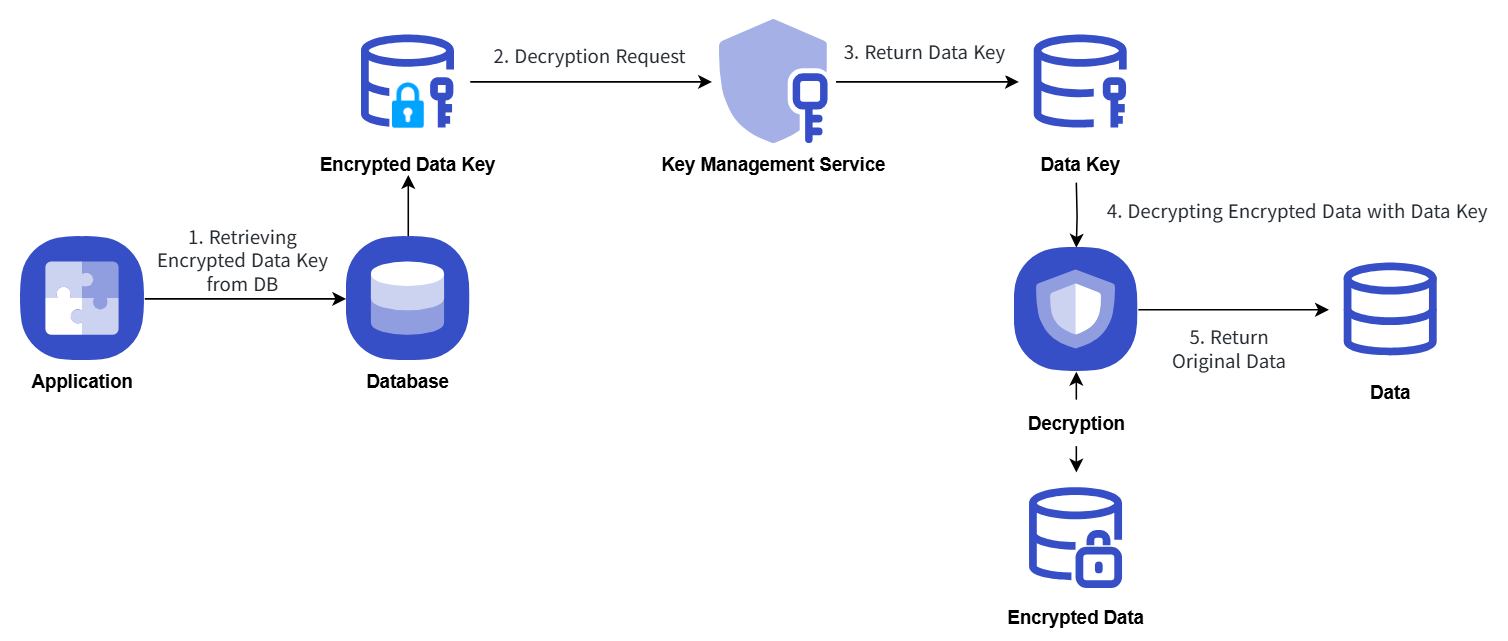
An example procedure for encrypting and storing a user application’s critical data by obtaining a data key from KMS is as follows.
- When the application starts, it obtains a data key using the KMS master key information, and then uses the plaintext data key on the client side to perform secure data encryption and store it.
- The data key is stored in the database in an encrypted form using the master key.
- When performing secure data decryption, the data key stored in the database is retrieved and a decryption request is made using the KMS master key information.
The encryption/decryption process using the Key Management Service key is explained with the following diagram.
Encryption
Decryption
Terminate Customer Managed Key
You can revoke customer-managed keys that are not in use.
To cancel a customer-managed key, follow these steps.
- Click the All Services > Security > Key Management Service menu. 1. Go to the Service Home page of Key Management Service.
- On the Service Home page, click the Customer Managed Key menu. 2. Go to the Customer Managed Key List page.
- On the Customer Managed Key List page, click the resource to view its details. 3. Go to the Customer Managed Key Details page.
- On the Customer Managed Key Details page, click the Terminate Service button. 4. Navigate to the Service Cancellation alert window.
- Service cancellation alert dialog, select Immediate cancellation / Scheduled cancellation and verify the contents, then click the Confirm button.
- When termination is complete, check on the Customer Managed Key List page whether the resource has been terminated.
- When the key deletion is complete, a notification is sent to both the user who created the key and the user who deleted it.
- Even if you click the Service Termination button in the More Options menu at the far right of the generated customer-managed key list, you can terminate the selected key.
- To undo the cancellation of a reserved service, click the Cancel Cancellation button on the customer-managed key list page or the detail page.
- Cancel Service Termination in the popup window, if you click Confirm, the selected key will not be deleted and will be restored in a disabled state.
- To reuse the key, click the Customer Managed Key Details page’s Activate Key button.