How-to guides
The user can enter the essential information of the Key Management Service service and create the service by selecting detailed options through the Samsung Cloud Platform Console.
Key Management Service creation
You can create and use the Key Management Service on the Samsung Cloud Platform Console.
To create a Key Management Service, follow the following procedure.
- All services > Security > Key Management Service menu is clicked. It moves to the Service Home page of Key Management Service.
- Service Home page, click the Key Management Service creation button. It moves to the Key Management Service creation page.
- Key Management Service creation page, enter the information required for service creation and add additional information.
- Service Information Input area, please enter or select the required information.ClassificationMandatory
Detailed Description Key Name Required Enter Key Name Public Certification Algorithm Option Select whether to use the public certification algorithm - The public certification algorithm option is only available in SCP Sovereign
- The public certification algorithm provides the Aria algorithm that has completed security verification by the National Intelligence Service
Purpose Required Select the purpose and encryption method of the key Automatic Rotation Option Select whether to use automatic rotation of the key - Use is selected, the internal algorithm of the generated key is converted to a different value and applied for each set rotation cycle
Auto Rotation > Rotation Period Required Enter the rotation period of the key - The rotation period can enter a value between 1~730 days. If the rotation period is not entered, it is automatically set to 90 days
Description Options Enter additional information for the key Table. Key Management Service service information input items - Additional Information Input area, please enter or select the required information.
Classification MandatoryDetailed Description Tag Selection Add Tag - Up to 50 can be added per resource
- Click the Add Tag button and enter or select Key, Value
Table. Key Management Service Additional Information Input Items
- Summary panel, review the detailed information generated and the estimated billing amount, and click the Complete button.
- Once creation is complete, check the created resource on the Key Management Service list page.
Key Management Service detailed information check
Key Management Service can check and modify the entire resource list and detailed information. The Key Management Service details page consists of details, tags, and operation history tabs.
Key Management Service detailed information to confirm, please follow the next procedure.
- All services > Security > Key Management Service menu is clicked. It moves to the Service Home page of Key Management Service.
- Service Home page, click the Key Management Service menu. It moves to the Key Management Service list page.
- Key Management Service list page, click the resource to check the detailed information. It moves to the Key Management Service details page.
- Key Management Service details page top displays the status information and additional features description.
Classification Detailed Description Status Indicates the status of Key Management Service - Active: Available/Activated
- Stop: Stopped/Deactivated
- To be Terminated: Scheduled for Deletion
- Creating: Being Created/Creation Error (Only immediate deletion is possible for retrying creation)
Key Rotation A button that can manually rotate the generated key Key Deactivation a button that can deactivate the generated key Service Cancellation Button to cancel the service Table. Key Management Service Status Information and Additional Features
Detailed Information
Key Management Service list page where you can check the detailed information of the selected resource and modify the information if necessary.
Classification | Detailed Description |
|---|---|
| Service | Service Name |
| Resource Type | Resource Type |
| SRN | Unique resource ID in Samsung Cloud Platform |
| Resource Name | Resource Title |
| Resource ID | Unique resource ID in the service |
| Creator | The user who created the service |
| Creation Time | The time when the service was created |
| Key Name | Name of the generated key |
| Public Certification Algorithm | Cryptographic algorithm verified through the Korea Cryptographic Module Validation Program
|
| Purpose | Purpose of the key such as encryption/decryption and signing/verification and encryption method |
| Automatic Rotation | Whether to use automatic rotation of the key |
| Rotation Period | Set the rotation period when using auto-rotation |
| Next rotation date | Display of the next rotation date of the key according to the rotation cycle
|
| usage count | the number of times the key is used to call the encryption/decryption function |
| Description | Display additional description for the key |
Tag
Key Management Service list page where you can check the tag information of the selected resource, and add, change or delete it.
| Classification | Detailed Description |
|---|---|
| Tag List | Tag list
|
Work History
Key Management Service list page where you can check the operation history of the selected resource.
| Classification | Detailed Description |
|---|---|
| Work History | Work Performance Contents
|
| Work Time | Work Performance Time |
| Resource Type | Resource Type |
| Resource Name | Resource Title |
| Task Result | Task Execution Result(Success/Failure) |
| Worker Information | Information of the user who performed the task |
Key Management Service management
You can create a new version of the registered key or change its usage status.
KMS Key Rotation Settings
Key rotation is a function that converts the internal algorithm of the generated key into another value.
- When rotating the key, only the master key value is changed, and the ciphertext and plaintext values of the data key created previously are not changed.
- Even if the key rotation is performed, the master key has the previous version of the data, so there is no effect on the decryption performed through the master key, and the value of the data key being used is also not changed.
- However, if you wrap (decrypt and re-encrypt) with a changed master key, calling the rewrapData API will execute the key rotation function.
To create a new version of the created Key Management Service (key rotation), follow these steps.
- All services > Security > Key Management Service menu is clicked. It moves to the Service Home page of Key Management Service.
- Service Home page, click the Key Management Service menu. It moves to the Key Management Service list page.
- Key Management Service list page, click on the resource to check the detailed information. It moves to the Key Management Service details page.
- Key Management Service details page, click the key rotation button. It moves to the key rotation popup window.
- Key Rotation popup window, check the message and click the Confirm button.
KMS Key Activation Settings
You can set whether to use the selected key.
To set whether to enable or disable the created Key Management Service, follow the next procedure.
- All services > Security > Key Management Service menu is clicked. It moves to the Service Home page of Key Management Service.
- Service Home page, click the Key Management Service menu. It moves to the Key Management Service list page.
- Key Management Service list page, click on the resource to check the detailed information. It moves to the Key Management Service details page.
- Key Management Service details page, click the key activation/key deactivation button. Move to the key activation/key deactivation popup window.
- Key Activation/Key Deactivation popup window, check the message and click the Confirm button.
Key Management Service utilizing keys for encryption cases
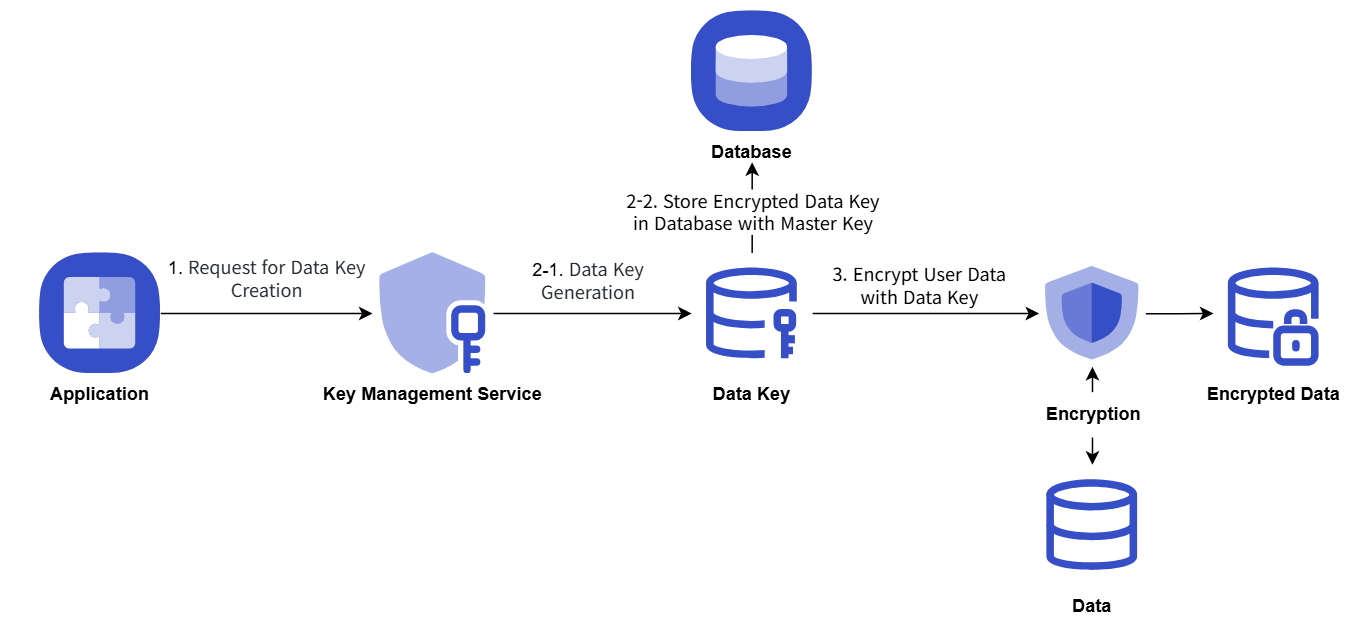
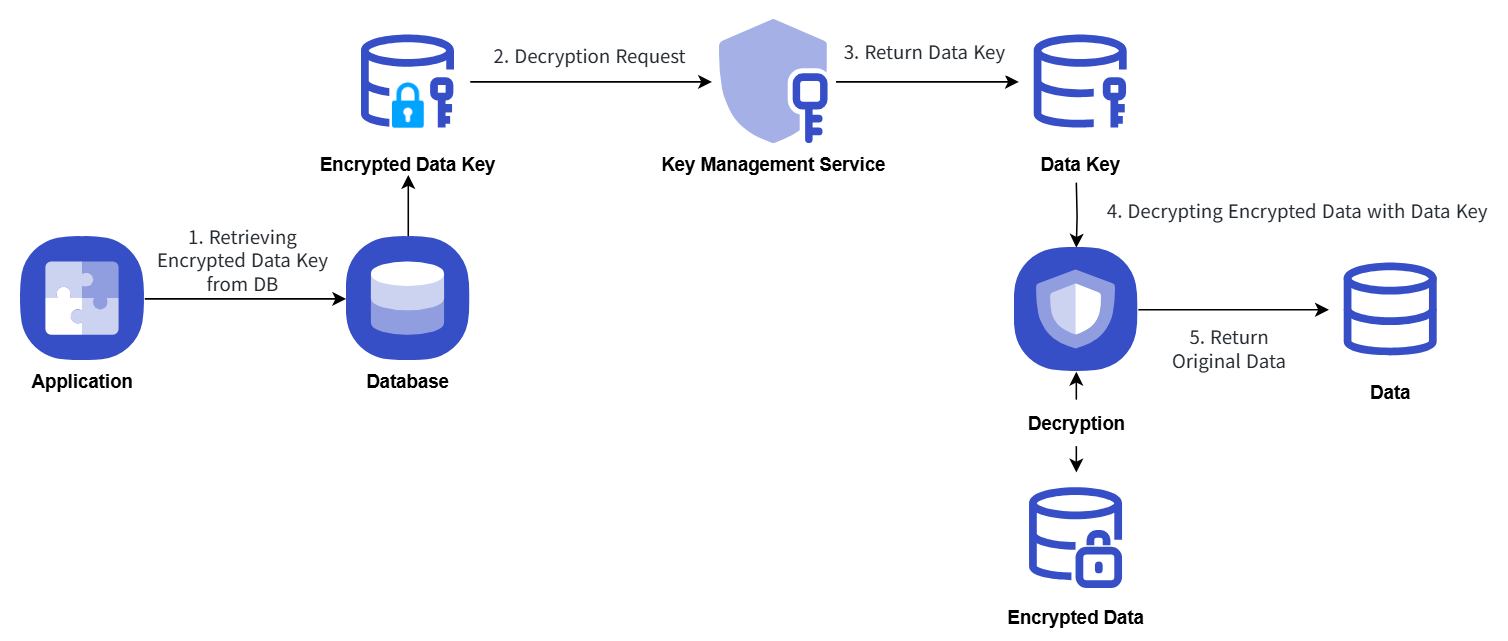
The procedure example for storing important data of the user Application by issuing a data key from KMS and encrypting it is as follows.
- Application startup, when KMS master key information is used to issue a data key, and then the data key in plain text form is used on the client-side to perform secure data encryption and storage.
- The data key is stored in the database in the form encrypted with the master key.
- When performing security data decryption, it requests decryption with KMS master key information by querying the data key stored in the database.
Key Management Service uses the key for encryption/decryption procedures, which are explained in the following concept diagram.
Encryption
Decryption
Key Management Service Cancellation
You can cancel the Key Management Service that is not being used.
To cancel the Key Management Service, follow the following procedure.
- All services > Security > Key Management Service menu, click. It moves to the Service Home page of Key Management Service.
- Service Home page, click the Key Management Service menu. It moves to the Key Management Service list page.
- Key Management Service list page, click the resource to check the detailed information. It moves to the Key Management Service details page.
- Key Management Service details page, click the service cancellation button. It moves to the service cancellation pop-up window.
- Service Cancellation popup window, select Immediate Cancellation/Reserved Cancellation and confirm the contents, then click the Confirm button.
- Once the cancellation is complete, check if the resource has been cancelled on the Key Management Service list page.
- Key deletion notification will be sent to both the user who created the key and the user who deleted it when the key deletion is completed.
- You can also deactivate the selected key by clicking the Cancel Service button in the More Menu button at the far right of the generated KMS list.
- To cancel the cancellation of a reserved service, click the Cancel Cancellation button on the KMS list page or detail page.
- Service Cancellation Cancellation In the popup window, if you click Confirm, the selected key will be restored to an inactive state without being deleted.
- To reuse the key, click the Key Activation button on the Key Management Service details page.