This is the multi-page printable view of this section. Click here to print.
IPS
- 1: Overview
- 2: How-to guides
- 3: Release Note
1 - Overview
Service Overview
IPS(Intrusion Prevention System) continuously updates IPS intrusion detection policies reflecting the latest security threats to respond in real time. Additionally, packet monitoring detects up to the application layer.
Features
- Latest Attack Type Detection: Generate detection patterns for new threats and improve detection rates through continuous signature management. Apply the TI DB of a security specialist company and our own advanced detection policies, and provide services by correlating attack patterns detected by IPS with patterns configured in SIEM(Security Information and Event Management) through correlation analysis.
- Cloud Optimized Operations: We provide detection services optimized for cloud environments. When a security threat occurs, we respond promptly with specialized security personnel.
- Efficient response and support: Monthly reports are provided so you can review the details of events.
Configuration diagram
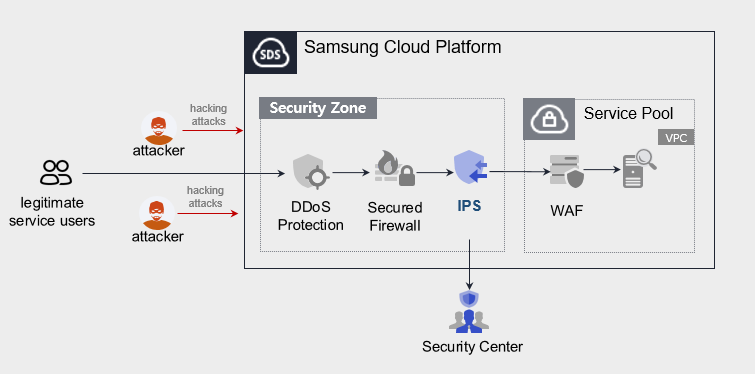
Provided features
We provide the following features.
- Intrusion Detection and Analysis
- In-depth analysis using raw data
- Update new threat detection patterns incorporating external trend information
- Periodic detection pattern optimization
- Monitoring Information Provision
- Monthly report provision
- Intrusion Response
- Provide IP information of attack attempts targeting SCP client servers
Component
- IPS provides services based on public IPs configured within the VPC.
- We provide services for servers that are accessible over the Internet, and when a user requests a service, we refer to the server (Virtual Server) specifications listed in the service application form.
Constraints
IPS provides detection for traffic that is not encrypted with HTTP. It does not provide monitoring for HTTS SSL encrypted traffic.
Provision status by region
IPS is available in the environments below.
| Region | General (Enter) | Public |
|---|---|---|
| Korea West (kr-west1) | Provided | Not provided |
| Korea East (kr-east1) | Not provided | Not provided |
| South Korea South 1 (kr-south1) | Not provided | Provided |
| South Korea South 2 (kr-south2) | Not provided | Provided |
| South Korea South 3 (kr-south3) | Not provided | Provided |
Preceding Service
- This is a list of services that must be pre-configured before creating an IPS service. Refer to the guides provided for each service and prepare them in advance.
- When creating a VPC Internet Gateway, you must select SIGW (Secure Internet Gateway) in Category to be able to use IPS.
- When creating a VPC Internet Gateway, if you select Internet Gateway in the ‘Category’, you cannot use the IPS service.
- If you switch to Secure Internet Gateway, you need to change the public IP you are using.
| Service Category | Service | Detailed description |
|---|---|---|
| Networking | VPC | A service that provides an isolated virtual network in a cloud environment |
2 - How-to guides
Users can apply for the service by entering the required information for using the IPS service through the Samsung Cloud Platform Console.
Create IPS
You can apply for and use the IPS service from the Samsung Cloud Platform Console.
To request the creation of an IPS service, follow these steps.
- Click the All Services > Security > IPS menu. You will be taken to the IPS Service Home page.
- On the Service Home page, click the IPS Service Request button. You will be taken to the Support Center > Service Request List > Service Request page.
- Service Request page, enter or select the required information in the mandatory input fields.
- Select IPS creation in the task classification.
Input field Detailed description Title Enter the title of the service request content - Example: IPS Service Creation Request
Region Select the location of the Samsung Cloud Platform - Automatically filled with the region corresponding to the Account
Service Select the service category and service. If you click the IPS service request button, it is entered automatically - Service Category: Security
- Service: IPS
Task classification Select the type you want to request - Create IPS: select when requesting a new service
content Guide to Creating Customer Basic Information and Application Process - Content: End Customer/MSP Information
Attachment Upload the completed IPS service application (required) and any additional files you wish to share - You can attach up to 5 files, each no larger than 5 MB
- Only doc, docx, xls, xlsx, ppt, ppts, hwp, txt, pdf, jpg, jpeg, png, gif, tif files are allowed
Table. IPS Service Creation Request Items
- Select IPS creation in the task classification.
- After reviewing the application process and reference information, click the Form Download > Service Request Form Download button to download the IPS Service Application Form.
- Please fill out the IPS Service Application.
- Refer to the item descriptions in the Application Information and Monitoring Information tabs, and fill out the required fields.
Category Detailed description Application Information Fill out required items such as application type, usage period, and basic information - Application type: select application
- Usage period: enter desired start date, contract status, and estimated usage period
- Basic information: enter Account name, Project name, and recipient information
Monitoring information Enter required items such as protected IP and exception handling IP (specify purpose per IP) - Specify application category per IP
- New: select when applying for a new service
- Public-sector customers do not need to fill this out
Table. Main contents of the IPS service creation application form
- Refer to the item descriptions in the Application Information and Monitoring Information tabs, and fill out the required fields.
- Attach the completed application form in the attachment area.
- On the service request page, click the Request button.
- After the request is completed, check the submitted details on the Support Center > Service Request List page.
- After the monitoring personnel review the submitted service request, they proceed with the process to use the service.
- The IPS service is being launched.
Terminate IPS
To request termination of the IPS service, follow the steps below.
- Click the All Services > Management > Support Center menu. Go to the Support Center > Service Home page.
- On the Support Center Service Home page, click the Service Request button. You will be taken to the Service Request List page.
- On the Service Request List page, click the Service Request button. You will be taken to the Service Request page.
- Service Request page: enter or select the required information in the mandatory input fields.
- Select IPS termination in the task type.
Input field Detailed description Title Enter the title of the service request - Example: IPS Service Termination Request
Region Select the location of the Samsung Cloud Platform - Automatically filled with the region corresponding to the Account
Service Select service category and service - Service Category: Security
- Service: IPS
Task classification Select the type you want to request - IPS termination: select if you want to cancel the service
content Customer Basic Information Entry and Application Process Guide - Content: End Customer/MSP Information
Attachment If you have a completed IPS service application (required) and any additional files you wish to share, proceed with the upload - You can attach up to 5 files, each no larger than 5 MB
- Only doc, docx, xls, xlsx, ppt, ppts, hwp, txt, pdf, jpg, jpeg, png, gif, tif files can be attached
Table. Table. IPS service termination request items
- Select IPS termination in the task type.
- After reviewing the Application Process and Reference Information, click the Form Download > Service Request Form Download button to download the IPS Service Application Form.
- Please fill out the IPS Service Application.
- Refer to the item descriptions in the Application Information and Monitoring Information tabs and complete the required fields.
Category Detailed description Application Information Fill in required fields such as request type, usage period, and basic information - Request type: select termination
- Usage period: enter desired termination date
- Basic information: Account name, Project name, recipient information
Monitoring information When terminating the entire service, no input is required. Table. Main contents of IPS service termination application form
- Refer to the item descriptions in the Application Information and Monitoring Information tabs and complete the required fields.
- Attach the completed application form to the attachment section.
- Click the Request button on the service request page.
- Once the request is completed, verify the submitted information on the Support Center > Service Request list page.
- After the monitoring staff verifies the submitted service request, the termination process is completed once the monitored IP is removed.
- Service termination requires three business days, including the cancellation request date.