This is the multi-page printable view of this section. Click here to print.
IPS
- 1: Overview
- 2: How-to guides
- 3: Release Note
1 - Overview
Service Overview
IPS(Intrusion Prevention System) continuously updates IPS intrusion detection policies reflecting the latest security threats to respond in real time. Additionally, it detects up to the application layer through packet monitoring.
Features
- Latest Attack Type Detection: Generate detection patterns for new threats, and improve detection rate through continuous signature management. Apply the TI DB of security specialist companies and self-developed advanced detection policies, and provide services by correlational analysis of the relationship between attack patterns detected by IPS and patterns set in SIEM (Security Information and Event Management).
- Cloud Optimized Operations: We provide detection services optimized for cloud environments. When a security threat occurs, we respond quickly through security professionals.
- Efficient response and support: Monthly reports are provided to check the details of the event.
Configuration diagram
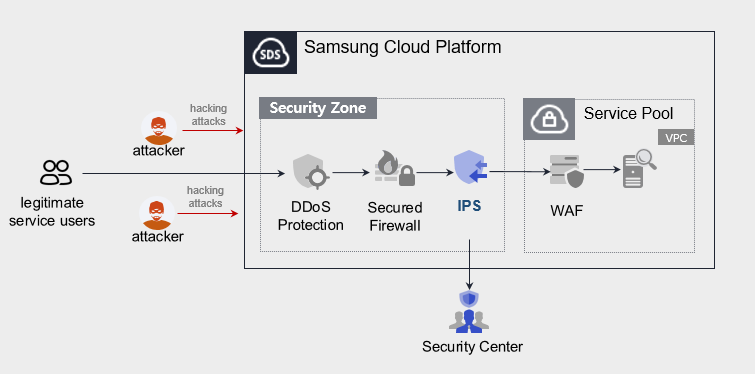
Provided Features
We provide the following features.
- Intrusion Detection and Analysis
- In-depth analysis through raw data
- New threat detection pattern update reflecting external trend information
- Periodic detection pattern optimization
- Monitoring Information Provision
- Monthly report provision
- Intrusion response
- Provide IP information of attack attempts on SCP client servers
Components
- IPS provides services based on public IP configured within the VPC.
- We provide services targeting servers that can be accessed via the Internet, and when a user requests a service, we refer to the server (Virtual Server) specifications listed in the service application form.
Constraints
IPS provides detection based on traffic that is not encrypted with HTTP. It does not provide monitoring for traffic encrypted with HTTS SSL.
Provision status by region
IPS can be provided in the environment below.
| Region | Normal (Enter) | Public |
|---|---|---|
| Korea West (kr-west1) | Provided | Not provided |
| Korea East (kr-east1) | Not provided | Not provided |
| Korea South 1 (kr-south1) | Not provided | Provided |
| South Korea South 2(kr-south2) | Not provided | Provided |
| South Korea South3 (kr-south3) | Not provided | Provided |
Preceding Service
- This is a list of services that must be pre-configured before creating the IPS service. For details, refer to the guide provided for each service and prepare in advance.
- When creating a VPC’s Internet Gateway, you must select SIGW (Secure Internet Gateway) in the category to be able to use IPS.
- When creating a VPC’s Internet Gateway, if you select Internet Gateway in the ‘Category’, you cannot use the IPS service.
- If you change to Secure Internet Gateway, you need to change the public IP you are using.
| Service Category | Service | Detailed Description |
|---|---|---|
| Networking | VPC | A service that provides an independent virtual network in a cloud environment |
2 - How-to guides
The user can apply for the service by entering the required information for using the IPS service through the Samsung Cloud Platform Console.
Create IPS
You can apply for the IPS service and use it from the Samsung Cloud Platform Console.
To request IPS service creation, follow the steps below.
- All Services > Security > IPS Click the menu. Navigate to the IPS Service Home page.
- Service Home on the page, click the IPS Service Request button. Navigate to the Support Center > Service Request List > Service Request page.
- Service Request page, please enter or select the relevant information in the required input fields.
- Please select IPS creation in the work category.
Input Item Detailed Description Title Enter the title of the service request content - Example: IPS service creation request
Region Select the location of Samsung Cloud Platform - Automatically filled with the region corresponding to the Account
Service Select the service category and service. If the IPS service request button is pressed, it is entered automatically - Service Category: Security
- Service: IPS
Task Classification Select the type you want to request - IPS creation: select when requesting a new service
Content Guidance on creating and applying basic customer information - Content to be written: End customer/MSP information
Attachment Upload the completed IPS service application (required) and any additional files you wish to share - Each attached file can be up to 5 MB, with a maximum of 5 files
- Only doc, docx, xls, xlsx, ppt, ppts, hwp, txt, pdf, jpg, jpeg, png, gif, tif files can be attached
Table. IPS Service Creation Request Items
- Please select IPS creation in the work category.
- After checking the application process and reference information, click the Form Download > Service Request Form Download button to download the IPS Service Application Form.
- IPS Service Application Form please fill out.
- Refer to the item-by-item description of the Application Information and Control Information tabs, and fill out the required fields.
Category Details Application Information Fill in required items such as application type, usage period, basic information, etc. - Application type: select application
- Usage period: enter desired start date, contract status, expected usage period
- Basic information: enter Account name, Project name, recipient information
Monitoring Information Write required items such as protected target IP, exception handling IP, etc. (Purpose per IP required) - Write application classification per IP
- New: select when applying for a new service
- Public customers do not need to fill out
Table. IPS Service Creation Application Form Main Contents
- Refer to the item-by-item description of the Application Information and Control Information tabs, and fill out the required fields.
- Attach the completed application form in the attachment area.
- On the service request page, click the Request button.
- When the application is completed, check the requested details on the Support Center > Service Request List page.
- After the monitoring officer verifies the submitted service request, the process for using the service proceeds.
- IPS service will be launched.
Cancel IPS
To request termination of the IPS service, follow the steps below.
- All Services > Management > Support Center Click the menu. Support Center > Service Home Navigate to the page.
- Support Center Service Home on the page, click the Service Request button. Navigate to the Service Request List page.
- Service Request List page, click the Service Request button. Service Request page will be opened.
- Service Request page, enter or select the required information in the mandatory input fields.
- Select IPS termination in the work type.
Input Item Detailed Description Title Enter the title of the service request content - Example: IPS service termination request
Region Select the location of Samsung Cloud Platform - Automatically filled with the region corresponding to the Account
Service Select service category and service - Service Category: Security
- Service: IPS
Task Category Select the type you want to request - IPS termination: select if canceling the service
Content Guidance on creating and applying basic customer information - Content to be written: End customer/MSP information
Attachment Upload the completed IPS service application (required) and any additional files you want to share - Each attached file can be up to 5 MB, with a maximum of 5 files
- Only doc, docx, xls, xlsx, ppt, ppts, hwp, txt, pdf, jpg, jpeg, png, gif, tif files can be attached
Table. Table. IPS Service Termination Request Items
- Select IPS termination in the work type.
- After checking the Application Process and Reference Information, click the Form Download > Service Request Form Download button to download the IPS Service Application Form.
- IPS Service Application Form please fill out.
- Refer to the item-by-item description of the Application Information and Control Information tabs, and fill out the required fields.
Category Detailed Content Application Information Fill in required items such as application type, usage period, basic information - Application type: Termination selected
- Usage period: Enter desired termination date
- Basic information: Account name, Project name, recipient information
Control Information When the entire service is cancelled, no input is required Table. Main contents of IPS service termination application form
- Refer to the item-by-item description of the Application Information and Control Information tabs, and fill out the required fields.
- Attach the completed application form in the attachment area.
- Click the request button on the service request page.
- When the application is completed, check the applied content on the Support Center > Service Request list page.
- After the monitoring staff verifies the submitted service request, the termination process is completed once the monitored IP is deleted.
- Service termination takes 3 business days, including the cancellation request date.