Statistics and Reports
View and manage rule sets, policies, analyses, object reports, and connection events.
Ruleset Report
You can generate reports by period and download them as Excel files.
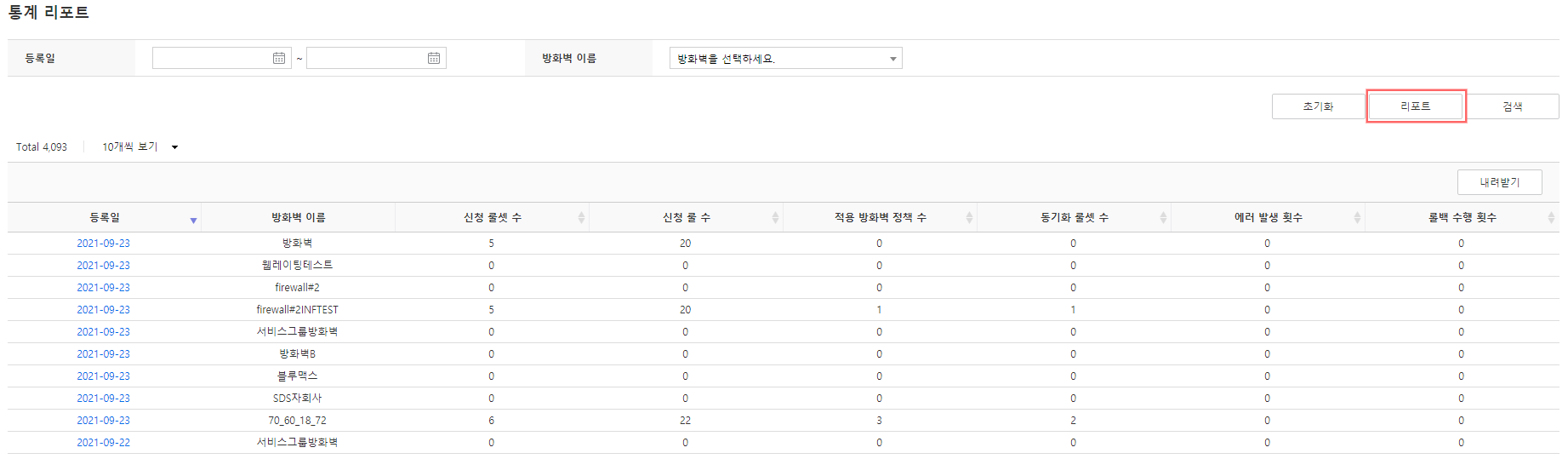
- Click Management > Statistics Report.
- Click Rule Set Report in the left menu.
- Select the registration date and firewall, then click Report. 3. The ruleset report is downloaded in the “DashboardReport.xls” format.
- When the registration date is not selected: set to data from the most recent 5 days (default)
- When no firewall is selected: Retrieve data for all firewalls assigned to the work group.
- Search when clicked, the summary of the rule set report is displayed.
Policy Report
You can generate period-specific reports and download them as Excel files.
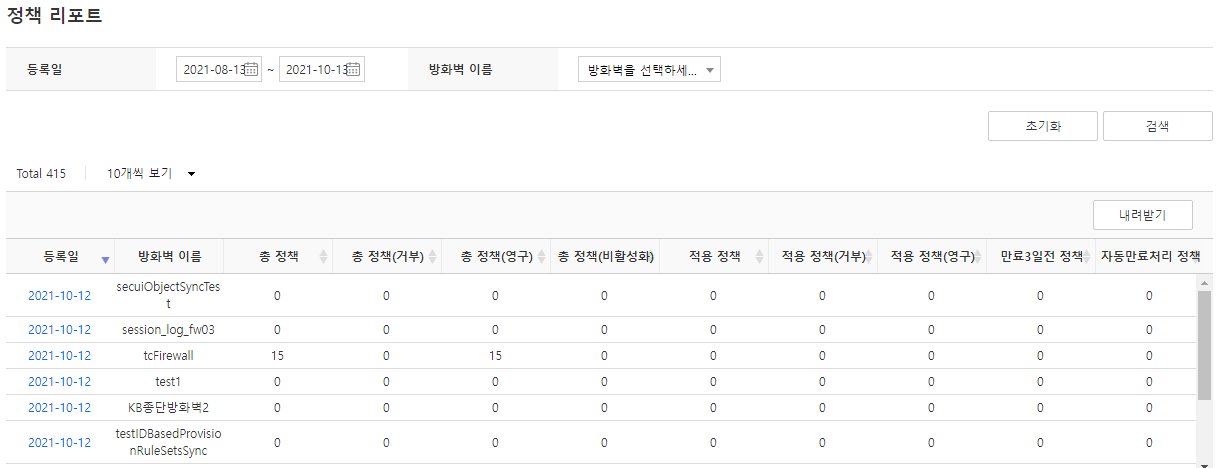
- Click Management > Statistics Report.
- Click the Policy Report in the left menu.
- Select the registration date and firewall, then click Search. 3. The summary of the policy report is displayed.
- If the registration date is not selected, set to data from the most recent 3 months (default)
- When no firewall is selected: Retrieve data for all firewalls assigned to the work group.
Policy Dashboard
It is provided based on policy report data. For more details, see the firewall policy dashboard in 「Policy Management」.
Analysis Report
You can generate reports by period and download them as Excel files.
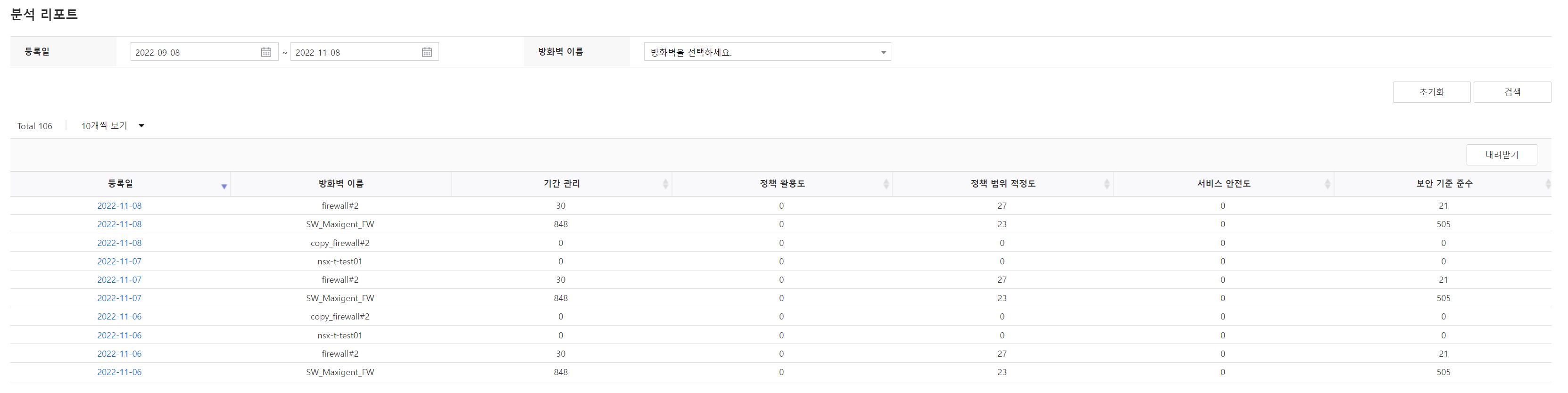
- Click Management > Statistics Report.
- Click the Analysis Report in the left menu.
- Select the registration date and firewall, then click Search. 3. The summary of the analysis report is displayed.
- When the registration date is not selected: set to data from the past three months (default)
- When no firewall is selected: Retrieve data for all firewalls assigned to the work group.
Object Report
You can generate reports by period and download them as Excel files.
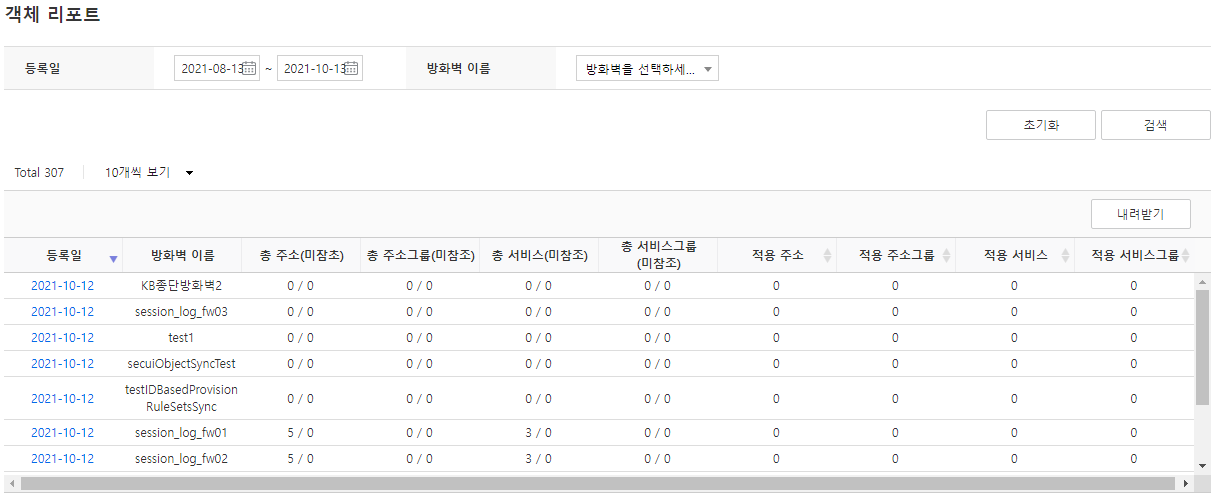
- Click Management > Statistics Report.
- Click Object Report in the left menu.
- Select the registration date and firewall, then click Search. 3. The summary of the object report is retrieved.
- If the registration date is not selected: set to data from the most recent 3 months (default)
- When no firewall is selected: Retrieve data for all firewalls assigned to the work group.
Object Dashboard
It is provided based on the object report data. For detailed information, refer to the object dashboard of 「Object Management」.
Access Event
You can verify administrator access (login, logout, login failure) and view content (view page).
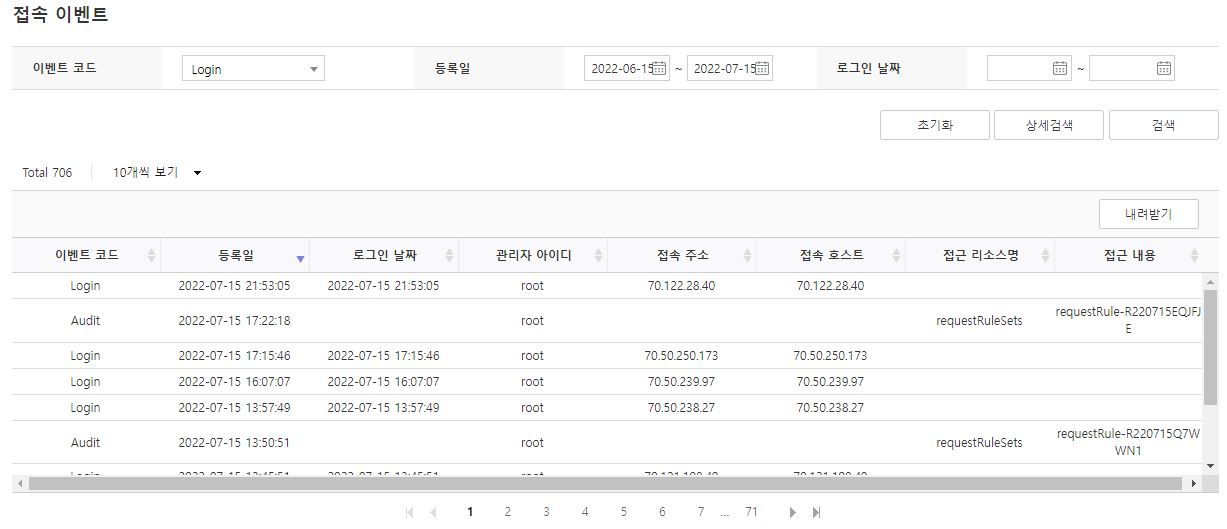
- Click Management > Statistics Report.
- Click Connection Event in the left menu.
- Select the event code and registration date, then click Search. 3. The event details are displayed.
- If registration date is not selected: set to data from the last 3 months (default)
- When no event code is selected: Retrieve all data for the five event codes
The data collected for each event code is as follows.
| Event code | Collected content |
|---|---|
| Login | Logged-in account information, date, access address, etc. |
| LoginFail | Account information, date, and access address of failed login attempts, etc. |
| Logout | Logged-out account information, date, access address, etc. |
| Access | When clicking an item in a specific menu on a web page, the account name, accessed menu, and item content are displayed. |
| Audit | When the Edit button is clicked in a specific menu on the web page, the account name, accessed menu, and the corresponding item content. |