Policy analysis
You can analyze firewall policies according to their intended use. The types of firewall policy analysis are consistency analysis, security analysis, and configuration analysis.
Rule analysis tasks are executed as batch jobs and may take a short time to complete.
- Operation status: WAITING(waiting) → RUNNING(rule analysis in progress) → DONE(rule analysis completed)
- You can easily check the progress of the work by using the automatic refresh function on the “Rule Analysis” page.
Consistency Analysis
Create consistency analysis task
Follow these steps to perform consistency analysis of firewall policies.
Click Analysis > Rule Analysis.
Click Create on the “Rule Analysis” page.
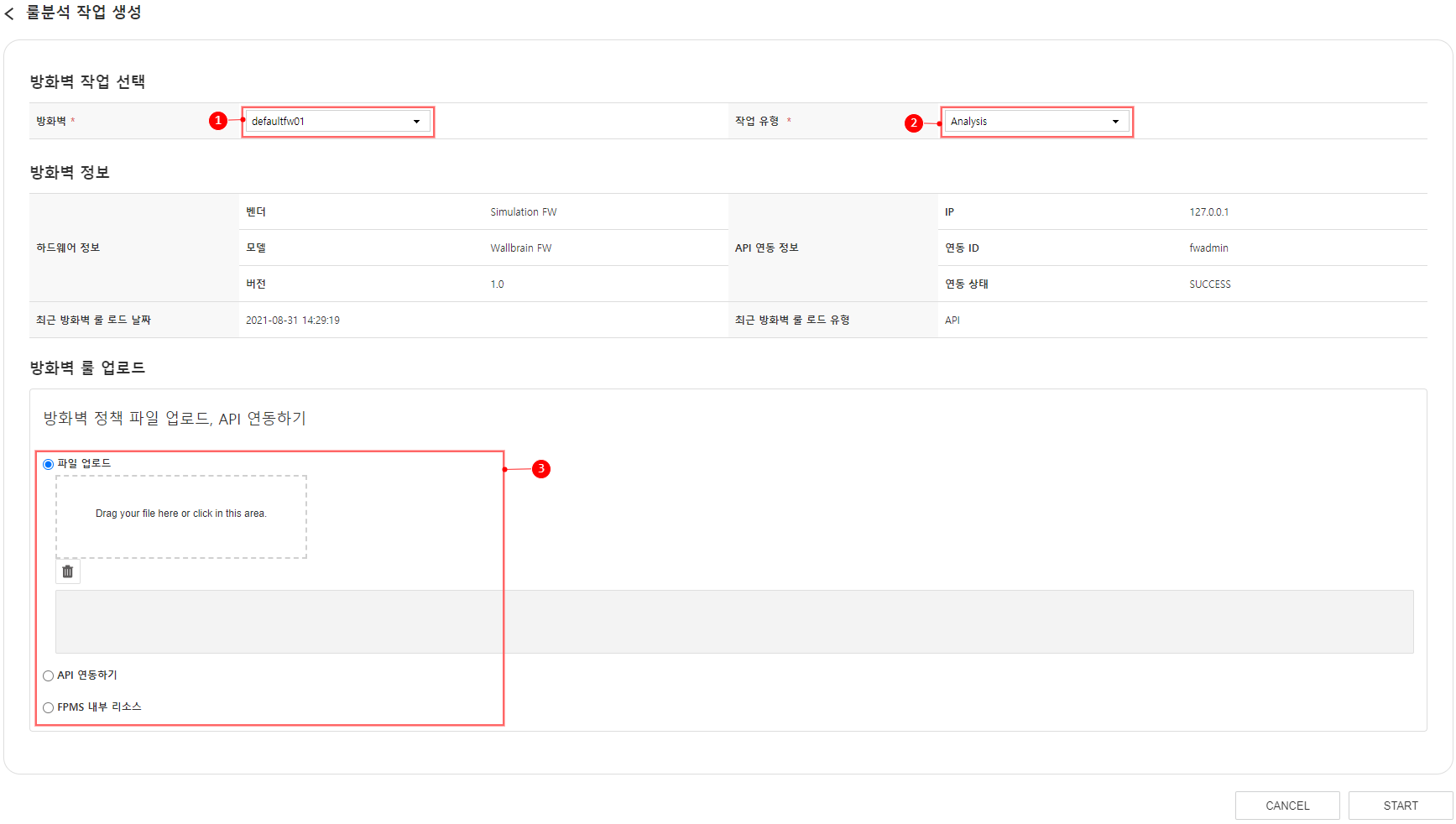
Figure. Create Rule Analysis Job Enter the following items on the “Rule Analysis Job Creation” page.
- ① Firewall: Select the firewall to be analyzed. * When selecting a firewall, the selected firewall information is displayed in ‘Firewall Information’. * When ALL is selected, a rule analysis job is created for all firewalls displayed in the firewall list.
- ② Task Type: Please select ‘Analysis’.
- Please select the ③ firewall rule upload method. * (Excel file upload, API integration, FPMS internal resources)
Click START.
When a popup asking whether to proceed opens, click OK. 5. Go to the “Rule Analysis” page.
You can view the rule analysis jobs created on the “Rule Analysis” page.
View Consistency Analysis Results
You can view rule analysis results by clicking the job ID of a job whose rule analysis is completed (operation status “DONE”).
- Click Analysis > Rule Analysis.
- Click the target job ID (operation status DONE) on the “Rule Analysis” page.
- “Firewall Rule Analysis Job Details” page is displayed.
The consistency analysis information provided on the “Firewall Rule Analysis Job Details” page is as follows.

- Analysis metric: Shows the comparison of consistency between firewall policies and application system information as a donut chart.
- Risk Rule Classify: Displays the violations of the compared policies in a bar graph.
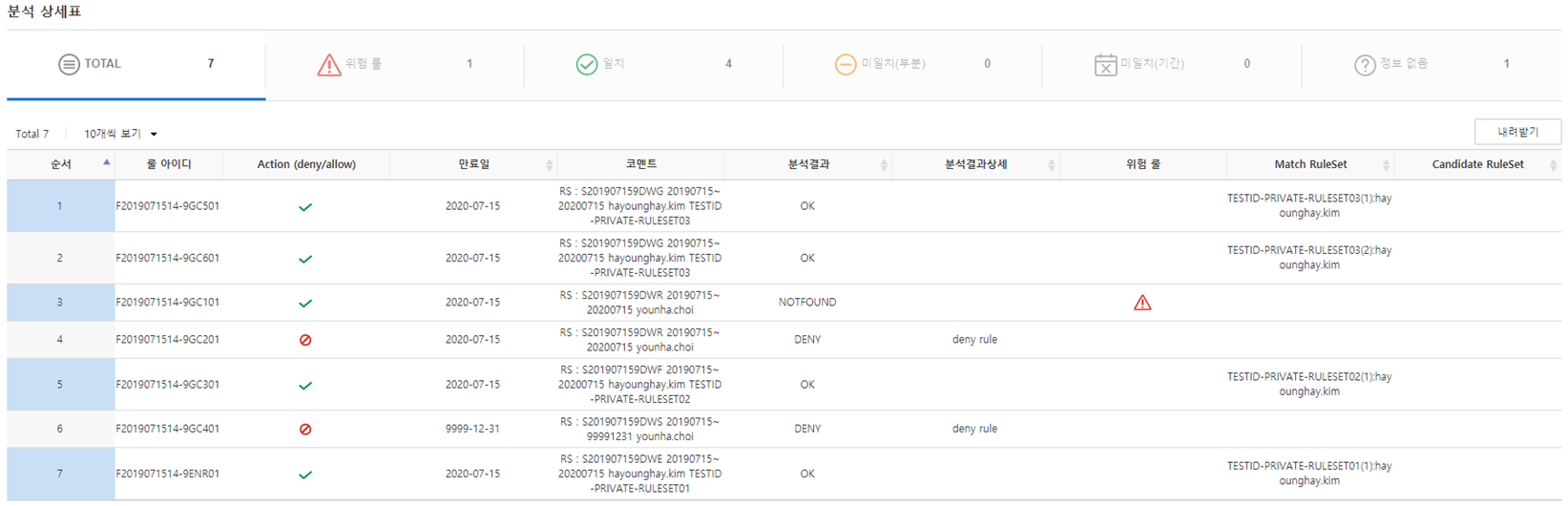
- Outputs the detailed analysis results in table format.
- Analysis result: The consistency analysis result indicates the keywords.
- Detailed analysis results: Displays detailed analysis content for each policy.
- Risk rule: Mark policies that appear to have no basis or are presumed to have been entered manually.
- Match RuleSet: Displays information about the matched reference rule set.
- Candidate RuleSet: Indicates information about rule sets that are not an exact match but are similar or used as references.
Security Analysis
Create Security Analysis Task
Analyze firewall policies that could pose security issues according to the predefined conditions (rule security analysis template). For security analysis, a ‘security analysis template’ must be set for each firewall, and if no separate specification is provided, the default template is used.
- If you need a new rule security analysis template, please refer to “Create Rule Security Analysis Template” and create one.
- To assign a security analysis template to the firewall, see “Setting the Rule Security Analysis Template on the Firewall.”
- Perform steps 1–2 of creating a consistency analysis task.
- Enter the following items on the “Rule Analysis Job Creation” page.
- ① Firewall and ③ rule upload methods are the same as creating a consistency analysis job.
- ② Task type: select ‘RuleSecurity’. * When the firewall and work type are selected, the template information to be used in ‘Rule Security Analysis Template Information’ is retrieved. * If there is no rule security analysis template set on the firewall, the default template (template name: Default) is applied.
- Perform steps 4–6 of creating a consistency analysis task.
View Security Analysis Results
The rule analysis results can be viewed by clicking the job ID for jobs where the rule analysis is completed (status “DONE”).
- Click Analysis > Rule Analysis.
- Click the target job ID (operation status DONE) on the “Rule Analysis” page.
- The “Firewall Rule Analysis Job Details” page is displayed.
The security analysis information provided on the “Firewall Rule Analysis Job Details” page is as follows.
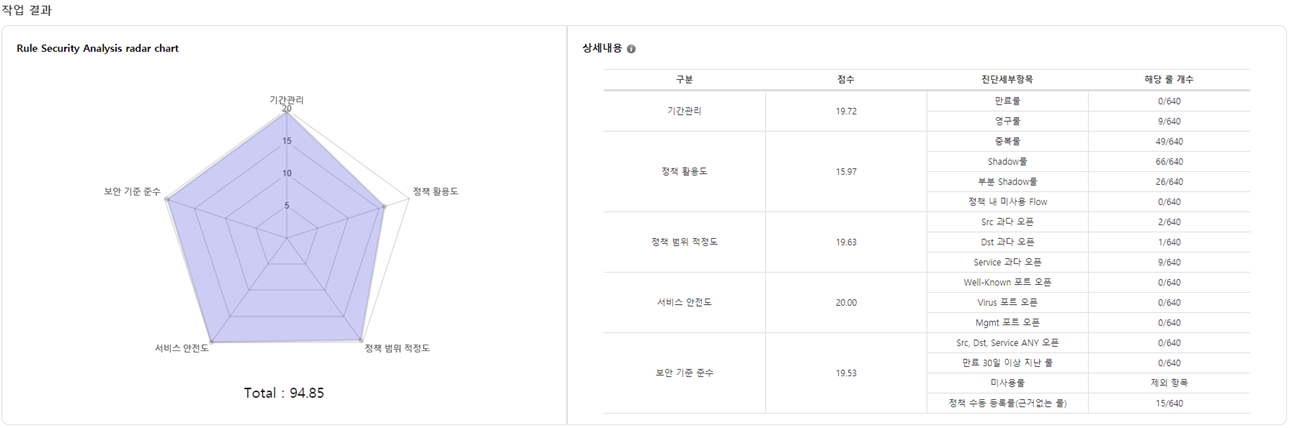
- Rule Security Analysis radar chart: Outputs the analysis results as a radar chart by category.
- Detailed description: Shows analysis results for each item in a table format.
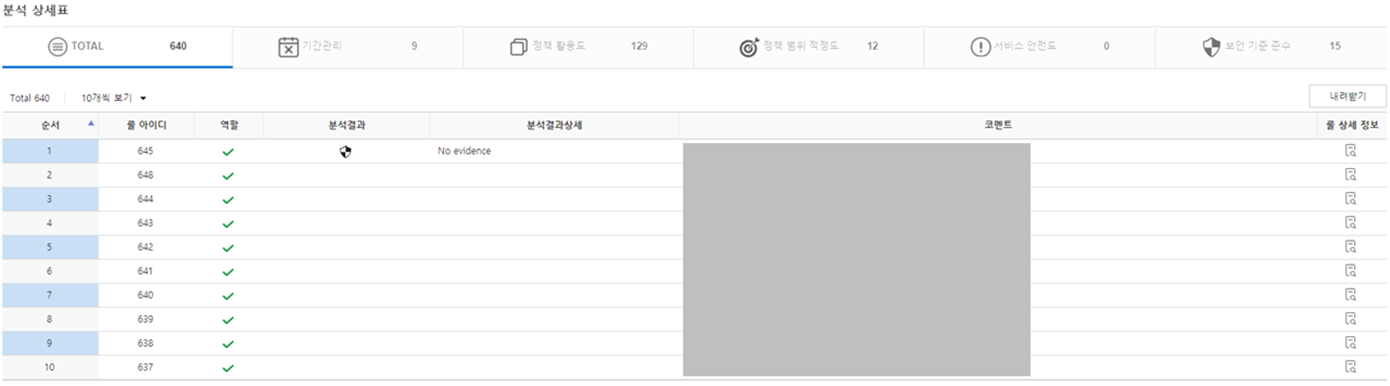
- Outputs the detailed analysis results in table format.
- Analysis result: displays the five categories that violate security.
- Analysis result details: Prints the detailed violated content.
- Rule details: When clicked, the policy content will pop up.
Use daily analysis, comparative analysis between policies
- In addition to manual analysis, you can configure it to perform daily analysis, comparative analysis between policies, and other tasks on a regular basis.
- Daily analysis: It is performed periodically only for analyses that do not involve comparisons between policies such as duplicate rules and shadow. - (Set interval in days, default 1)
- Policy comparison analysis: It is performed periodically only for analyses that require comparisons between policies, such as duplicate rules and shadowing. - (Set interval in weeks, default 4)
- For detailed information, please refer to Using the daily·policy comparative analysis in 「Add‑ons」.
Composition analysis
Create composition analysis task
Analyzes policies that can be merged within the firewall.
- Perform steps 1~2 of creating a consistency analysis job.
- Enter the following items on the “Rule Analysis Job Creation” page.
- ① firewall and ③ rule upload methods are the same as creating a consistency analysis job.
- ② Task type: select ‘RuleComposition’.
- Perform steps 4~6 of creating a consistency analysis task.
View composition analysis results
Rule analysis results can be viewed by clicking the job ID of jobs where rule analysis is completed (operation status “DONE”).
Manage rule security analysis templates
Create and modify templates to be used for rule security analysis.
Create Rule Security Analysis Template
Click Analysis > Rule Security Analysis Template.
Click Create on the “Rule Security Analysis Template” page.
Enter the following items on the “Rule Security Analysis Template Creation” page.
Category Item content Required/Optional Remarks Basic Information Template Name Enter between 2 and 30 characters. Special characters are not allowed (except . _ - + @ ( )). Duplicate names are not allowed. required Basic Information Explanation Enter up to 255 characters. Selection Basic Information Activation status If enabled (‘Yes’), it appears in the firewall’s security analysis template list. Required Period Management Expiration rule analysis Analyzes expiration rules upon activation. Required Period Management Permanent rule analysis When activated, it analyzes permanent rules. required Policy utilization Duplicate rule analysis When activated, it analyzes duplicate rules. Essential Policy utilization shadow rule analysis When enabled, it analyzes the Shadow rule. Required Check whether there is a policy that is completely filtered based on seq. Policy utilization Partial shadow rule analysis When activated, it analyzes the partial Shadow rule. required Check whether any policies are partially hidden based on seq. Policy utilization Unused rule analysisWeek 1) When enabled, it analyzes unused rules. (You must set the number of unused days.) required Policy utilization Unused days Enter the number of unused days for unused rule analysis. Selection Policy utilization Analysis of unused objects (session-based)Week 2) When enabled, it analyzes unused objects. (You must set the number of days of inactivity for sessions/objects.) required Check for unused objects in the policy Policy utilization Days without using session/object Enter the number of days a session/object has not been used for unused object analysis. Selection Policy scope adequacy Origin Overopen Analysis When enabled, it analyzes the source over‑open. (You must set the number of objects.) required Check whether there are objects that exceed the number set in the policy or are of class C or higher. Policy scope adequacy Number of objects Enter the number of objects for departure over‑open analysis. Selection Policy scope adequacy Destination Overopen Analysis When enabled, it analyzes destination over‑open. (You need to set the object count.) Required Check if there are objects that exceed the number of objects set in the policy or are of class C or higher. Policy scope adequacy Number of objects Enter the number of objects for destination over‑open analysis. Selection Policy scope adequacy Service Pre-Open Analysis When activated, it analyzes service over‑open. (You must set the number of objects.) Essential Check whether there are service objects exceeding the number of objects configured in the policy. Policy scope adequacy Number of objects Enter the number of objects for service over‑open analysis. Selection Service safety Well-Known Port Analysis When enabled, it analyzes Well-Known ports. (You need to set the Well-Known port list and the number of objects.) Essential Check whether there are at least as many objects corresponding to the configured port list as the configured number of objects. Service safety level Well-Known port list Enter the Well-Known port list. Click to reset the port list.
Selection Clicking the refresh button next to the phrase allows initial setup according to KISA and SSI standards. Service safety level Number of objects Enter the number of objects for Well-Known port analysis. Selection Service safety level Virus port analysis When activated, analyzes the Virus ports. (You must set the Virus port list and the number of objects.) Required Check whether there are at least as many objects corresponding to the configured port list as the configured number of objects. Service safety Virus port list Enter the Virus port list. Clicking it resets the port list.
Selection Clicking the refresh button next to the text restores the initial settings according to KISA and SSI standards. Service safety level Number of objects Enter the number of objects for virus port analysis. Selection Service safety level Management Port Analysis When activated, it analyzes the management ports. (You must set the management port list and the number of objects.) required Verify that the number of objects corresponding to the configured port list is at least the configured object count. Service safety Management Port List Enter the management port list. When clicked, the port list will be reset.
Selection Clicking the refresh button next to the phrase allows initial setup according to KISA and SSI standards. Service safety Number of objects Enter the number of objects for management port analysis. Selection Compliance with security standards AnyOpen analysis When activated, it analyzes AnyOpen. required Compliance with security standards Rule analysis for items expired for more than 30 days When activated, it analyzes rules that have been expired for more than 30 days. Required Compliance with security standards Analysis of baseless rules When activated, it analyzes baseless rules. Required Check if a matching rule set exists in FPMS. Compliance with security standards Compliance analysis Analyzes compliance when activated. Essential Verify whether the policy is a compliance rule within the policy rule group assigned to the firewall. Table. Rule security analysis template input itemsClick Create.
Note 1) Unused rule analysis
- In the case of Unused Rule Analysis, usage collection proceeds after checking the “Unused Rule Analysis” part in the template. - (Daily dawn collection)
- We recommend a data collection period of about one month, after which you can verify the non‑use status for each policy through rule analysis.
- If you need to analyze unused rules, you can use the pre‑created BasicTemplateWithUnusedCheck template.
Note 2) Unused object analysis (session-based)
- For analysis of unused sessions/objects, a separate log server must be configured.
Edit rule security analysis template
- Click Analysis > Rule Security Analysis Template.
- Click the template name you want to edit on the “Rule Security Analysis Template” page.
- Click Edit on the “Rule Security Analysis Template Details” page.
- Enter the content to modify on the “Rule Security Analysis Edit” page. 4. All items can be edited.
- Click Save.
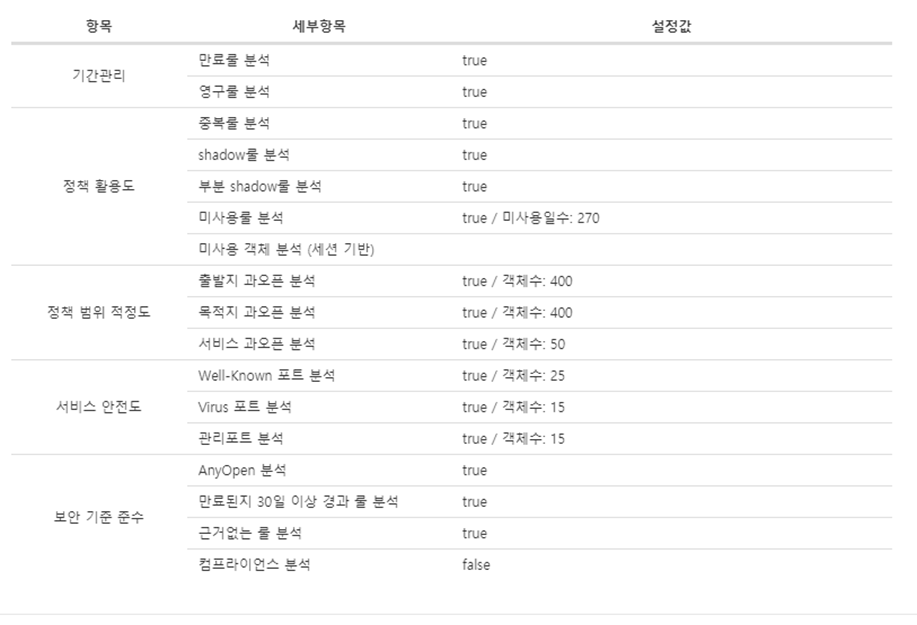
Default Security Analysis Template
If a security analysis template is not assigned to the firewall, the Default security analysis template is used during security analysis. Information about the Default security analysis template is as follows.
Setting a rule security analysis template on the firewall
To use the rule security analysis template, you must configure the template on the firewall that is the target of the security analysis.
Perform steps 1~3 to modify the firewall in 「Firewall Management」.
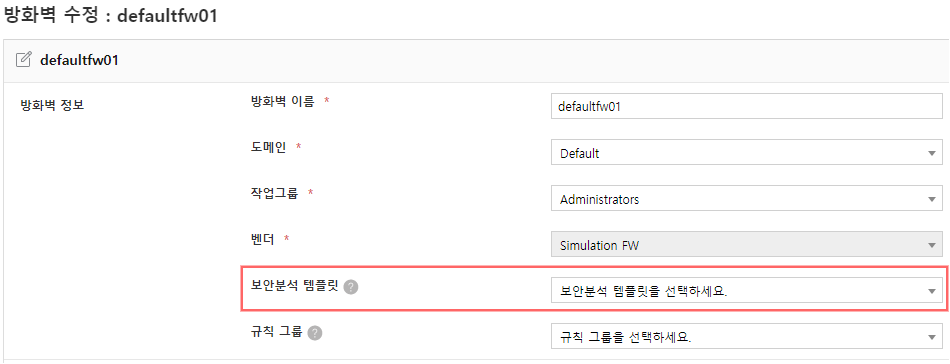
Figure. Firewall Security Analysis Template Settings Select a template from the ‘Security Analysis Template’ list on the “Firewall Edit” page. 2. Only active templates are retrieved.
Click Save.