Completed Task Management
Manages the rule set of the completed tasks list.
View completed tasks
Shows the policy/object rule sets that have been requested for application to the firewall or have already been applied. In the “Requested Work List”, rule sets that have been COMMITted transition to the PROVISIONED state, and it takes about 10–15 minutes until they become SYNCHRONIZED. (FPMS rule set commit batch time)
Click the Completed Tasks List menu at the top to view the “Completed Tasks List” page.
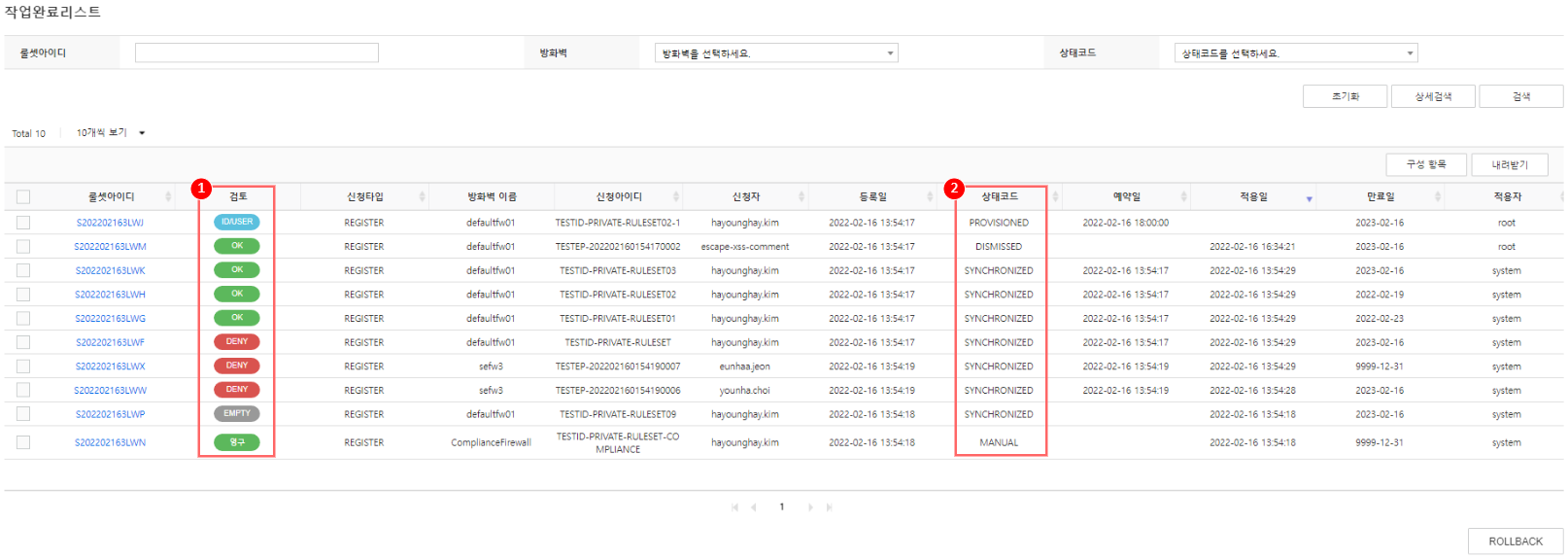
① Review: It is the same as the review of the request task list (see rule set review details), but if expiration, termination, or unused rule collection tasks are performed, it will be updated accordingly.
| Review after task completion | Explanation |
|---|---|
| RISK | If a rule set scheduled to expire within 30 days still has usage (only possible when the unused rule collection feature is enabled) |
| EXPIRED (orange) | Rule set that has expired and was deactivated via FPMS |
| EXPIRED (red) | Rule set that was expired and deleted through FPMS |
| UNREG | Rule set terminated by termination request (see Applying termination policy of 「Request Task Management」) |
② Status Code: Indicates the rule set’s progress status.
| Status Code | Explanation |
|---|---|
| PROVISIONED | Firewall policy pending application |
| HOLDING | Policy application pending because it was caught by the error filter, requiring a rule set or firewall modification. |
| SYNCHRONIZING | Applying firewall policy |
| SYNCHRONIZED | A policy is applied to the firewall. |
| MANUAL | State for generating evidence. Not actually applied to the firewall |
| DISMISSED | Rule set not applied |
| CLOSED | Firewall policy modification request completed status |
| ERROR | An error occurs when the firewall is applied. |
Rollback Policy
Rollback the rule set corresponding to the applied firewall policy. Rollback is primarily used when the application information is incorrect.
The rollback procedure varies depending on the ruleset’s status code.
- Status Code: SYNCHRONIZED
- The policy is also deleted in the firewall.
- You can choose immediate or scheduled time.
- When a rollback is requested, the request type changes to “ROLLBACK”, the status code changes to “PROVISIONED”, and it is viewable on the “Work Completion List” page until the rollback is completed.
- When the Batch Job runs, it changes from PROVISIONED state to SYNCHRONIZING state, and a ROLLBACK is performed. * (approximately 15 minutes)
- When the rollback is complete, it will be shown with the “REQUESTED” status on the “Requested Work List” page.
- Status codes: PROVISIONED, HOLDING, MANUAL, DISMISSED, ERROR
- It does not affect the actual firewall equipment.
- Only immediate application (Now) is possible.
- When a rollback is requested, it is immediately restored and appears with a “REQUESTED” status on the “Request Work List” page.
Rollback multiple items from the completed tasks list
Click the Completed Tasks List in the top menu.
On the “Work Completion List” page, check all rule set IDs you want to roll back.
Click ROLLBACK at the bottom. 3. “RollBack Time Setting” popup window appears.
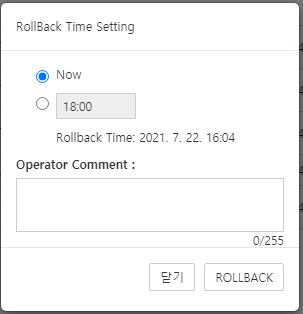
Figure. Work Completion List Rollback Popup In the “RollBack Time Setting” popup, select Now or a scheduled time. 4. If the rollback target includes rule sets that are in PROVISIONED, MANUAL, DISMISSED, or ERROR states, you cannot select a scheduled time.
Please enter the Operator Comment. 5. (Optional) If entered, you can view the ROLLBACK reason in the ruleset report (see 「Add-on」’s Setting add-on features for reference).
Click ROLLBACK.
Rollback rule set in task completion details
Click the Completed Tasks List in the top menu.
Click the rule set ID you want to roll back on the “Completed Tasks List” page.
Click ROLLBACK at the bottom of the “Work Completion Details” page. 3. “RollBack Time Setting” popup appears.
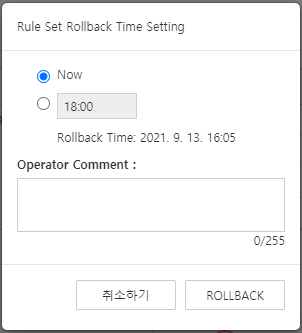
Figure. Detailed Rollback Popup after Task Completion In the “RollBack Time Setting” popup, select Now or a scheduled time. 4. If the rollback target is in PROVISIONED, HOLDING, MANUAL, DISMISSED, or ERROR state, you cannot select a scheduled time.
Please enter the Operator Comment. 5. (Optional) If entered, you can check the ROLLBACK reason in the ruleset report (refer to setting additional features of 「Additional features」).
Click ROLLBACK.