Admin Settings
Manage the personal information of the logged-in administrator, and configure the administrator’s usage status, level, and access permissions.
Manage Personal Information
Manages the information of the logged-in administrator. You can change the name, password, and work group.
Rename
Change the name of the administrator who registered using a personal email.
Click the ID (name) at the top right of the page.
Click the
next to the name in the user information on the “Personal Information Change” page. 2. A window appears that allows you to edit the name.
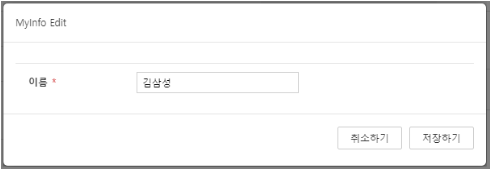
Figure. Rename Enter the name to change in the name input field.
Click Save.
Change Password
Change the password for the administrator who registered using a Personal Email.
Click the ID (name) at the top right of the page.
Click the
for the recent password change date in the password change section of the “Personal Information Change” page. 2. A window appears where you can change the password.
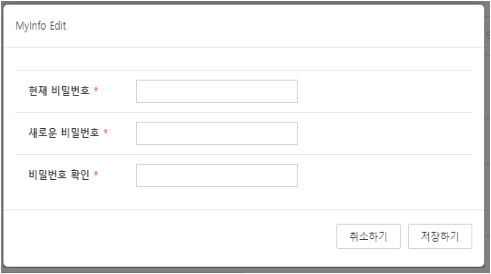
Figure. Change Password Enter your current password in the ‘Current Password’ field.
Enter the new password in the ‘New Password’ field. 4. (8 characters or more, up to 15 characters, must include letters, numbers, and special characters, cannot be the same as the current password)
Enter the same as the new password in the ‘Password Confirmation’ field.
Click Save. 6. If the password is changed successfully, the recent change time will be displayed in ‘Recent Password Change Date’.
Set notification for rule application history
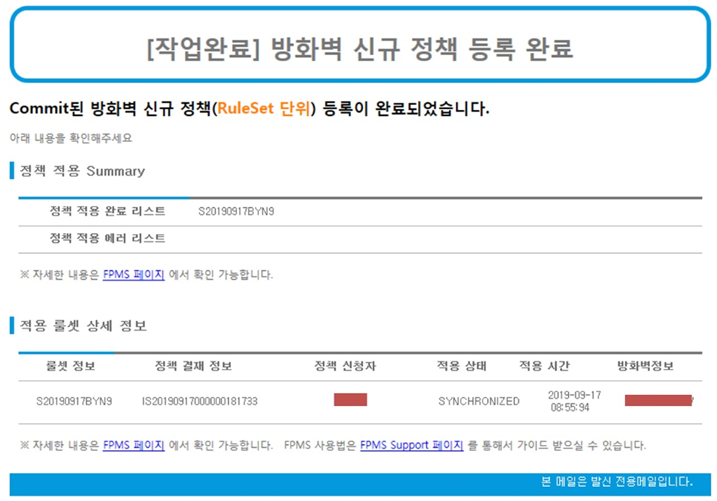
When a logged-in administrator COMMITs a rule set to apply a policy, they can receive an email indicating whether the firewall policy was applied (normal, error).
Click the ID (name) at the top right of the page.
In the “Personal Information Change” page’s ‘Notice Mail Reception Settings’, click ‘Rule Application Details Notification’ and set it to ‘Yes’.

Figure. Rule Application History Notification Settings
Mail Sending Criteria: To apply policies, we email the administrator who committed the rule set three times daily (12:00, 17:00, 20:00) with either the applied rule set or a list of rule sets that generated errors. (Refer to the mail server in “Add-ons” for SMTP server settings)
Mail Sending Content: The sender is the FPMS account, the recipient is the rule set COMMIT administrator, and the details consist of per‑rule‑set list information (applicant, application status, firewall), including both the applied‑success list and the application‑error list.
Set policy expiration notifications for users
Users can receive an email when the firewall policy they requested is 7 days or 3 days before expiration.
Click the ID (name) at the top right of the page.
On the “Personal Information Change” page’s ‘Notification Email Reception Settings’, click ‘Firewall Policy Expiration Alert’ and set it to ‘Yes’.
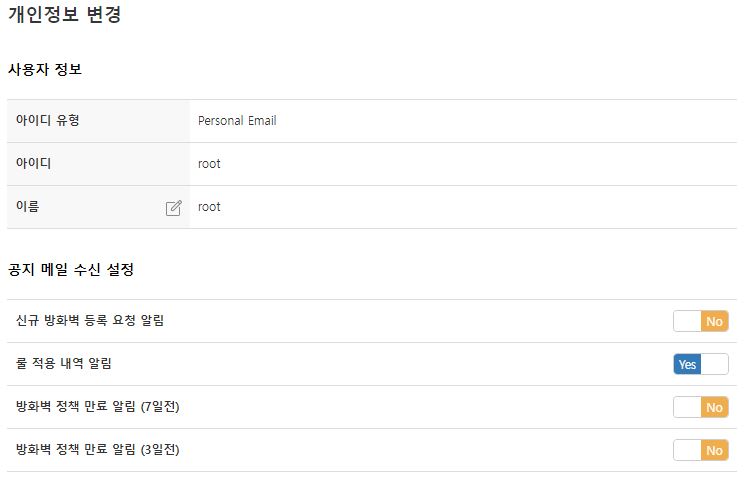
Figure. Policy Expiration Alert Settings
Apply to Join Workgroup
If the work group join request was omitted when registering as an administrator, or if you need to join a new work group, you can apply for a work group join request on the “Personal Information Change” page.
Click the ID (name) at the top right of the page.
On the “Personal Information Change” page’s ‘Group Selection’, click the
of the work group you wish to join. 2. You can apply to join a work group with a group status of ‘NONE’.

Figure. Work group join request When a request to join a work group is made, the group status is ‘REQUEST’; when the join is approved, it changes to ‘ACTIVE’.
- Only the administrator can apply to join a work group.
- Joining a work group can be approved by a super administrator belonging to the work group. - (Refer to approving a work group join request for 「Add-on」)
- If a system administrator applies for membership, the registration is automatically approved and becomes ‘ACTIVE’ status.
Cancel workgroup membership
If you no longer use a work group due to changes in work or personnel, you must cancel your work group membership.
Click the ID (name) at the top right of the page.
On the “Personal Information Change” page, in the ‘Group Selection’, click the
of the work group you wish to cancel enrollment for. 2. You can cancel membership for work groups whose status is ‘REQUEST’ (join request) or ‘ACTIVE’ (joined).

Figure. Work group join cancellation The group status of a work group that has been unsubscribed changes to ‘NONE’.
A work group membership can be canceled by the individual or a super administrator within the work group.
- You: Cancel directly on the “Edit Personal Information” page
- Super Administrator: Unsubscribe on the “Work Group” page or the “Administrator” page (see “Unsubscribe from Work Group” in “Add-on Features”)
Change default group
The default group is the work group that is automatically selected in the top work group (Scope) when you log in, among the groups you have joined.
- Click the ID (name) at the top right of the page.
- Click the default group Radio button for the work group you want to designate as the default group in the ‘Group Selection’ of the “Personal Information Change” page. 2. You can select a default group for work groups whose status is ‘REQUEST’ (join request) or ‘ACTIVE’ (joined).
Withdraw Administrator
Cancel the FPMS registration. Withdrawal can only be performed by the account holder, and the group membership is canceled simultaneously with the withdrawal. Rejoining is possible after withdrawal.
- Click the ID (name) at the top right of the page.
- Click Delete in the ‘Account Status’ of the “Personal Information Change” page.
- When the popup asking if you want to withdraw opens, click OK.
Manage administrators
You can set the administrator’s usage status, access permissions (ACL), and level.
Change usage status
Change the administrator’s usage status to enrollment or termination.
- Click Management > Administrator.
- Click the administrator ID whose usage status you want to change on the “Administrator” page.
- Click Edit on the “Admin Details” page.
- Select the desired status (registration or cancellation) from the ‘Usage Status’ list on the “Admin Edit” page.
- Click Save.
- For accounts deactivated due to prolonged inactivity, the usage status is shown as ‘Terminated’. - To activate, change the usage status to ‘Sign up’.
- If you change the usage status to ’termination’, that administrator will not be able to log in to FPMS.
Change Grade
Change the administrator’s level. The available menus and permissions vary depending on the administrator level. When registering as an administrator, the default level is OPERATOR.
| Administrator level | Grade name | Permission | Authorization Method |
|---|---|---|---|
| OPERATOR | General administrator | The main menu and the submenus under Management allow use of firewall, administrator, synchronization, work group, etc. (the work group is view‑only) | Super admin changes on the “Admin Edit” page |
| SUPER | Super Administrator | OPERATOR + user permission adjustment, domain, rule analysis template, read & write permission in the compartment | Super admin changes on the “Admin Edit” page |
| SYSTEM | System Administrator | SUPER + read & write permissions for node system, session, access control, and announcements | Contact the system administrator |
| VIEWER | viewer | The OPERATOR and the displayed menu are identical, but it has only read‑only permissions. | Contact the system administrator |
- Perform steps 1–3 of changing the usage status.
- Select the desired level (OPERATOR or SUPER) from the ‘Administrator Level’ list on the “Administrator Edit” page.
- Click Save.
Register allowed access address
Register the accessible addresses (host, network) for each administrator account. When an allowed address is registered, if that administrator logs in from a different address, a “Access from restricted IP.” message appears.
Perform steps 1–3 of changing the usage status.
Click Create Access Allowed URL on the “Admin Edit” page. 2. The “Create Allowed Access Address” popup page appears.
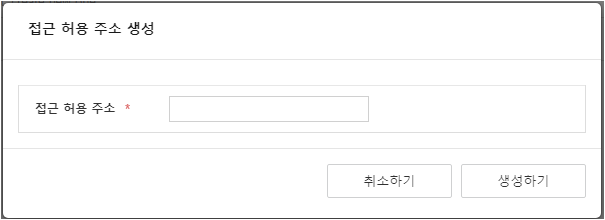
Figure. Create Allowed Access Address Enter the allowed access address.
Click Create. 4. If there are multiple allowed access addresses, repeat steps 3–4.
Click Save on the “Admin Edit” page.