This is the multi-page printable view of this section. Click here to print.
ESS(Endpoint Security Suite)
- 1: Overview
- 2: How-to guides
- 3: Release Note
1 - Overview
Service Overview
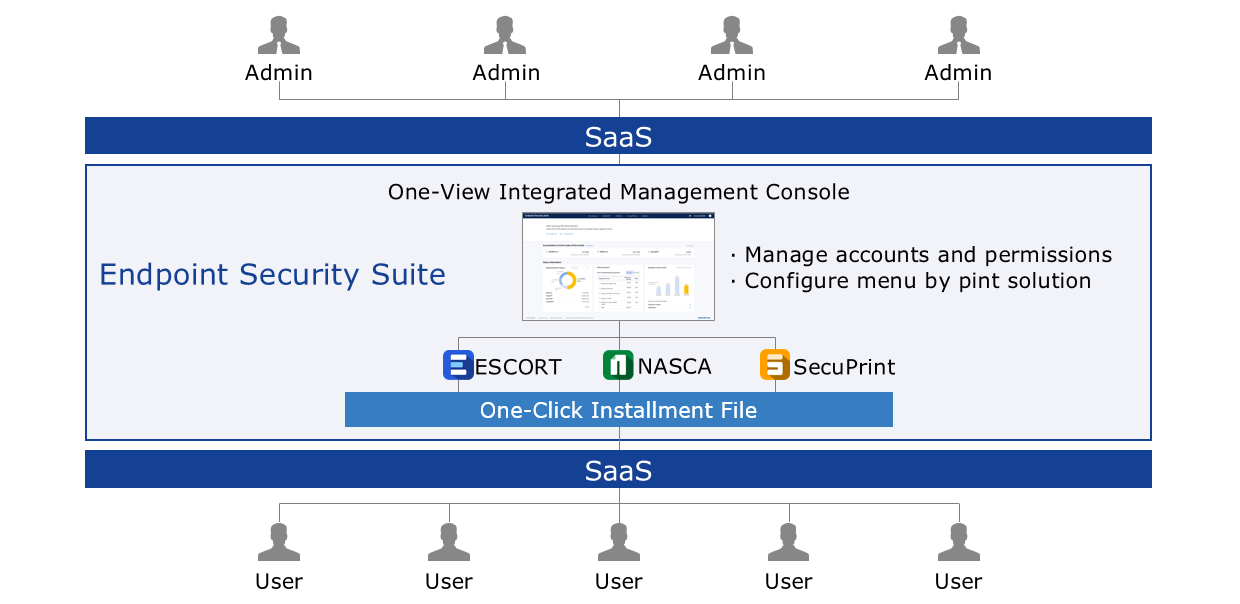
The Endpoint Security Suite (ESS) provides the existing on‑premise Endpoint Security solutions ESCORT, NASCA, and SecuPrint as SaaS, allowing reduced deployment and operational costs. Additionally, the One‑View integrated management console enables easy and convenient management of each point solution, supporting efficient security solution operation.
Features
One-View Integrated Management
By consolidating the management consoles previously provided for each solution—ESCORT, NASCA, and SecuPrint—into One-View, integrated installation and removal of the solutions became possible, improving the efficiency of solution management and security operations.Expansion of PC Security Management Scope
The traditional On-Premise solution managed only PCs within the site after configuring a local network, but the Endpoint Security Suite that uses the Internet enables the same level of PC security management regardless of whether the PCs are inside or outside the site.Flexible scalability based on Rest API
By providing various common functions such as personnel information, administrator account information, and license management information through Rest API, integration and expansion with point solutions become easy.
Service Architecture Diagram
Provided features
ESS provides the following features.
ESCORT
- Control of information leakage through storage devices (USB, external HDD, etc.)
- Control of information leakage via network (WiFi, Bluetooth, etc.)
- Program execution control and vulnerability mitigation
NASCA
- Electronic document permission management and encryption/decryption
- Ensuring business continuity by providing automatic decryption functionality
- Screen watermark
SecuPrint
- Output watermark
- Output history management (log/statistics/tracking)
- Personal data search and blocking (resident registration number/account number/card number, etc.)
Component
ESCORT Windows Client
- ESCORT solution client for Windows PC to prevent internal information leakage
ESCORT Linux Client
- ESCORT solution client for Linux PC to prevent internal data leakage
NASCA Client
- Windows PC client for the NASCA solution for document encryption/decryption and permission management
SecuPrint Client
- Windows PC client for the SecuPrint solution, providing output watermarks and output security
Base Plan
- Annual license cost for each server software of the ESCORT, NASCA, and SecuPrint solutions
Provision status by region
ESS is available in the following environments.
| Region | Provision status |
|---|---|
| Korea West (kr-west1) | Provide |
| Korea East (kr-east1) | Not provided |
| South Korea South 1 (kr-south1) | Not provided |
| South Korea South 2 (kr-south2) | Not provided |
| South Korea South 3 (kr-south3) | Not provided |
Preliminary Service
ESS has no prior service.
2 - How-to guides
Users can apply for the service by entering the required information for using the Endpoint Security Suite (ESS) service through the Samsung Cloud Platform Console.
Create ESS
You can apply for and use the ESS service from the Samsung Cloud Platform Console.
To request the creation of an ESS service, follow these steps.
- All Services > Security > ESS Click the menu. Navigate to the Service Home page of ESS.
- On the Service Home page, click the ESS Service Request button. You will be taken to the Support Center > Service Request List > Service Request page.
- Service Request page: enter or select the required information in the mandatory input fields.
- Select ESS creation in the task category.
Input field Detailed description Title Enter the title of the service request content - Example: ESS Service Creation Request
Region Select the location of the Samsung Cloud Platform - Automatically entered with the region corresponding to the Account
Service Select the service category and service. If you click the ESS service request button, it is entered automatically - Service Category: Security
- Service: ESS
Task classification Select the type you want to request - Create ESS: select when requesting a new service
content Guide to the service application process and reference information Attachment If you have a completed ESS service application (required) and any additional files you wish to share, proceed with the upload - You can attach up to 5 files, each no larger than 5 MB
- Only doc, docx, xls, xlsx, ppt, ppts, hwp, txt, pdf, jpg, jpeg, png, gif, and tif files are allowed
Table. ESS Service Creation Request Items
- Select ESS creation in the task category.
- Check the required information entered on the Service Request page, and click the Request button.
- When the request is completed, check the submitted details on the Support Center > Service Request List page.
- After the service manager reviews the submitted service request, the process for using the service is initiated.
Check ESS application details
After applying for the ESS service, you can view the detailed information and processing steps.
To check your ESS service application details, follow these steps.
- Click the All Services > Support Center menu. Go to the Service Home page of Support Center.
- On the Service Home page, click the Service Request menu. You will be taken to the Service Request List page.
- On the Service Request List page, select the request item. You will be taken to the Service Request Details page.
- Service Request Details page lets you view detailed information and processing steps.
Terminate ESS
To request termination of the ESS service, follow the steps below.
Click the All Services > Security > ESS menu. Go to the Service Home page of ESS.
On the Service Home page, click the ESS Service Request button. You will be taken to the Support Center > Service Request List > Service Request page.
Service Request page, enter or select the required information in the mandatory input fields.
- Select ESS Service Termination in the task category.
Input field Detailed description Title Enter the title of the service request - Example: ESS Service Termination Request
Region Select the location of the Samsung Cloud Platform - automatically entered with the region corresponding to the Account
Service Select the service group and service. If you click the ESS service request button, it is entered automatically - Service Group: Security
- Service: ESS
Task classification Select the task you want to request - ESS Service Termination: select if you want to terminate the service
content Review the service termination process and reference information, then enter the detailed application details. Attachment If you have any additional files you wish to share for service termination, proceed with the upload - You can attach up to 5 files, each within 5 MB
- Only files with the following extensions are allowed: doc, docx, xls, xlsx, ppt, ppts, hwp, txt, pdf, jpg, jpeg, png, gif, tif
Table. ESS Service Termination Request Items
- Select ESS Service Termination in the task category.
Check the required information entered on the Service Request page, and click the Request button.
- After you complete the ESS service termination request, the service manager will verify it, and the ESS service termination and deletion process will proceed.
3 - Release Note
ESS
- We are launching the ESS external-facing product that offers the previously on-premises Endpoint Security service, which was provided to external customers under a perpetual license, as a SaaS-based Endpoint Security service with a subscription license.
- We are launching a service that offers the on‑premise Endpoint Security solutions ESCORT, NASCA, and SecuPrint as SaaS, and enables efficient management of endpoint security solutions from the One‑view integrated admin console.