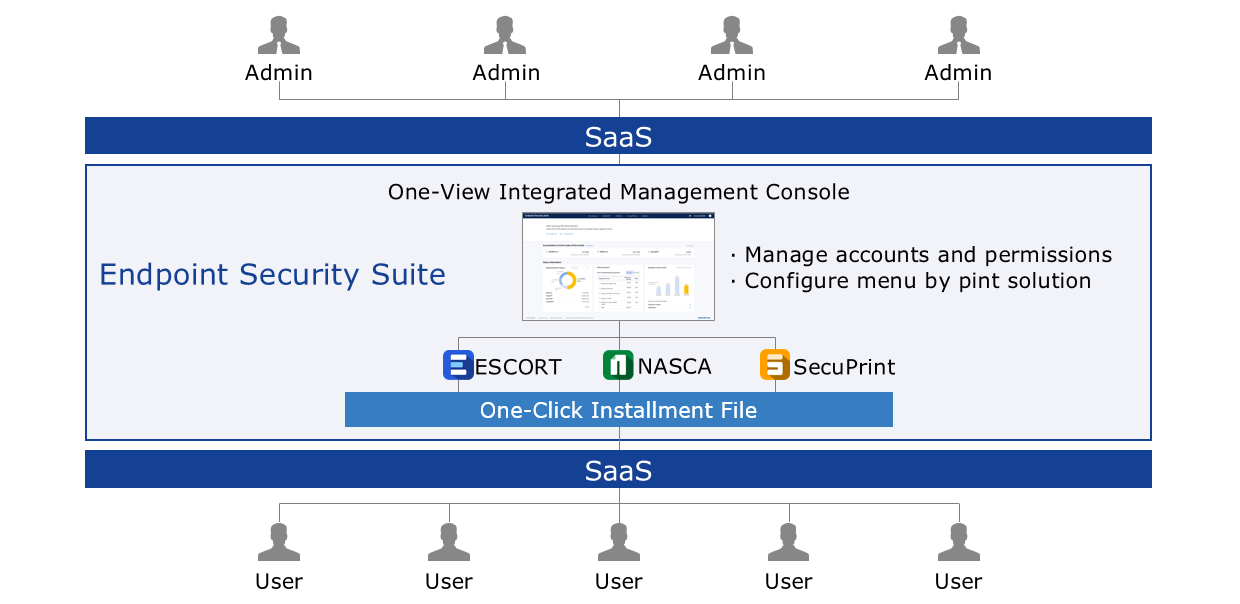
Endpoint Security Suite (ESS) provides the existing On-Premise Endpoint Security solutions ESCORT, NASCA, SecuPrint as SaaS, enabling reduction of security solution adoption and operational costs. Also, through the One-View integrated management console, each point solution can be managed easily and conveniently, allowing efficient security solution operation.
Features
One-View Integrated Management ESCORT, NASCA, SecuPrint By integrating the management consoles previously provided for each solution into One-View, it became possible to install/uninstall solutions in an integrated manner, improving the efficiency of solution management and security operations.
PC Security Management Area Expansion The existing On-Premise solution managed only PCs within the site after setting up a local network within the site, but the Endpoint Security Suite that uses the Internet network can provide the same level of PC security management regardless of whether it is inside or outside the site.
Flexible scalability based on Rest API By providing various common functions such as personnel information, administrator account information, and license management information via Rest API, integration and expansion with point solutions become easy.
Service Architecture Diagram
Figure. Endpoint Security Suite (ESS) concept diagram
Provided Features
ESS provides the following functions.
ESCORT
Control of information leakage through storage devices (USB, external HDD, etc.)
Control of information leakage through networks (WiFi, Bluetooth, etc.)
Program execution control and vulnerability removal
NASCA
Electronic document permission management and encryption/decryption
Ensuring business continuity by providing automatic decryption functionality
screen watermark
SecuPrint
Output watermark
Output history management (log/statistics/tracking)
Personal information search and blocking (resident registration number/account number/card number, etc.)
Components
ESCORT Windows Client
ESCORT solution’s Windows PC client for preventing internal information leakage
ESCORT Linux Client
ESCORT solution’s Linux PC client for preventing internal information leakage
NASCA Client
NASCA solution’s Windows PC client for document encryption/decryption and document permission management
SecuPrint Client
Providing output watermark and SecuPrint solution’s Windows PC client for output security
Base Plan
ESCORT, NASCA, SecuPrint annual license cost for each server SW of the solution
Region-wise Provision Status
ESS is available in the environment below.
Region
Availability
Korea West (kr-west1)
Provided
Korea East (kr-east1)
Not provided
Korea South 1 (kr-south1)
Not provided
South Korea 2(kr-south2)
Not provided
South Korea 3(kr-south3)
Not provided
Table. ESS Region-wise Provision Status
Preceding Service
ESS has no prior service.
2 - How-to guides
The user can apply for the service by entering the required information for using the Endpoint Security Suite (ESS) service through the Samsung Cloud Platform Console.
Create ESS
You can apply for the ESS service from the Samsung Cloud Platform Console.
To request ESS service creation, follow the steps below.
All Services > Security > ESS Click the menu. Go to the Service Home page of ESS.
Service Home on the page, click the ESS Service Request button. Navigate to the Support Center > Service Request List > Service Request page.
Service Request page, enter or select the required information in the required input fields.
Select ESS creation in the work classification.
Input Item
Detailed Description
Title
Enter the title of the service request content
Example: ESS Service Creation Request
Region
Select the location of Samsung Cloud Platform
Automatically filled with the region corresponding to the Account
Service
Select the service category and service. If the ESS service request button is pressed, it is entered automatically
Service Category: Security
Service: ESS
Task Classification
Select the type you want to request
ESS creation: select when requesting a new service
Content
Guide to the service application process and reference information
Attachment
Upload the completed ESS service application form (required) and any additional files you wish to share
Each attached file must be within 5MB, and up to 5 files can be attached
Only doc, docx, xls, xlsx, ppt, ppts, hwp, txt, pdf, jpg, jpeg, png, gif, tif files can be attached
Table. ESS Service Creation Request Items
Service Request Verify the required information entered on the page, and click the Request button.
When the application is completed, check the submitted request on the Support Center > Service Request List page.
After the service manager verifies the submitted service request, the process for using the service is carried out.
Check ESS application details
You can view the detailed information and processing steps after applying for the ESS service.
To check the ESS service application details, follow the steps below.
All Services > Support Center Click the menu. Navigate to Support Center’s Service Home page.
Click the Service Request menu on the Service Home page. You will be taken to the Service Request List page.
Service Request List page, select the request item. Service Request Details page will be displayed.
Service Request Details Check the detailed information and processing steps on the page.
Cancel ESS
To request termination of the ESS service, follow the steps below.
Click the All Services > Security > ESS menu. Go to the ESS Service Home page.
Click the ESS Service Request button on the Service Home page. Navigate to the Support Center > Service Request List > Service Request page.
Service Request on the page, enter or select the required information in the mandatory input fields.
Select ESS service termination in the work category.
Input Item
Detailed Description
Title
Enter the title of the service request content
Example: ESS service termination request
Region
Select the location of Samsung Cloud Platform
Automatically filled with the region corresponding to the Account
Service
Select service group and service. If the ESS service request button is pressed, it is entered automatically
Service Group: Security
Service: ESS
Work Category
Select the task you want to request
ESS Service Termination: Select if you want to terminate the service
Content
Check the service termination process and reference notes, and enter detailed application content
Attachment
If there are any additional files you want to share for service termination, proceed with the upload
Each attached file can be up to 5 MB, with a maximum of 5 files
Only doc, docx, xls, xlsx, ppt, ppts, hwp, txt, pdf, jpg, jpeg, png, gif, tif files can be attached
Table. ESS Service Termination Request Items
Service Request page, verify the required information entered, and click the Request button.
If you complete the ESS service termination request, the service manager will verify it, and the ESS service termination and deletion process will proceed.