This is the multi-page printable view of this section. Click here to print.
Config Inspection
- 1: Overview
- 1.1: Checklist
- 2: How-to guides
- 2.1: Check dashboard
- 2.2: Diagnostic Result Management
- 2.3: Preconfigure
- 3: Release Note
1 - Overview
Service Overview
Config Inspection is a service that diagnoses the security level of Console settings for each service of the Samsung Cloud Platform. Provides a security checklist organized by areas such as IAM, Networking, Database, and Logging, and checks the current status via API calls to verify whether the recommended security settings for each diagnostic item are applied.
Users can create a diagnostic target by creating a service, then request a diagnosis, and view the diagnostic request results through a Report. The report provides the diagnostic request history and item-specific diagnostic results, and for diagnostic items that require the user’s final confirmation or action, detailed results—including the associated resource information and remediation guide—can be viewed.
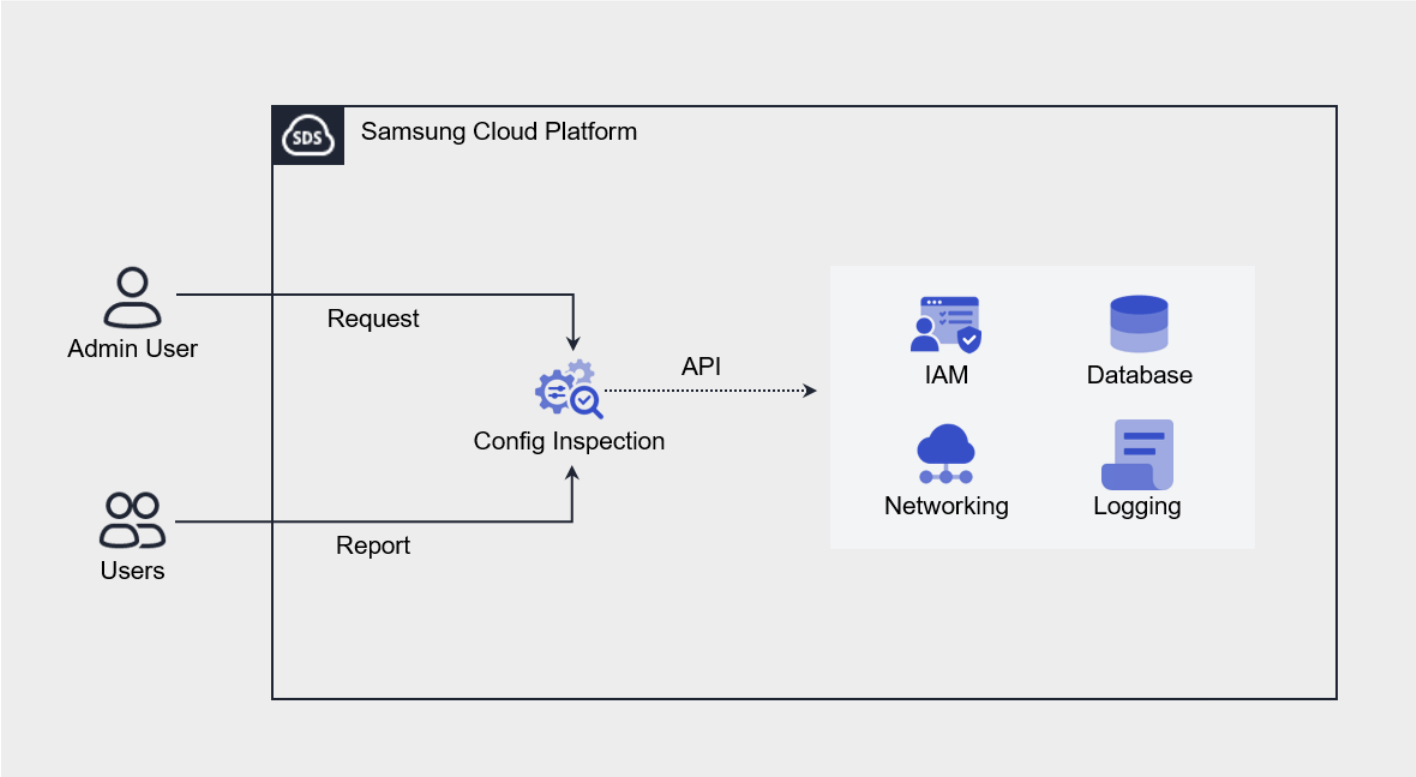
Provided Features
Config Inspection provides the following features.
- Console Diagnostics: You can call the Console API using an authentication key method to assess the security level.
- Diagnostic Target Management: You can create and manage a user’s Samsung Cloud Platform account as a diagnostic target through service creation.
- Diagnostic Request: On the resource detail screen, you can request a diagnosis by clicking the Diagnostic Request button.
- Diagnostic Result Management: In Report, you can view the list of diagnostic requests and detailed diagnostic results, and download them as an Excel file.
Component
Checklist
A checklist is a collection of diagnostic items that serve as the basis for diagnostic results, and the checklist currently provided by Config Inspection is as follows.
- Refer to the Checklist for detailed diagnostic items of the checklist provided by Samsung Cloud Platform.
| Cloud | Checklist name | Number of items |
|---|---|---|
| Samsung Cloud Platform | Best Practice | 27 |
Report
In the Config Inspection Report, you can view diagnostic results in the order of result list, result details, and item details.
| Category | Detailed description |
|---|---|
| Diagnostic Results List | All diagnostic request history in the Account
|
| Detailed Diagnosis Results | Result of a successfully completed diagnostic request (list of diagnostic items)
|
| Diagnostic Item Details | Detailed results by diagnostic item |
Preceding Service
Config Inspection has no prerequisite service.
1.1 - Checklist
You can view the types of checklists provided by Config Inspection and the detailed diagnostic items for each checklist.
Checklist
A checklist is a collection of diagnostic items that serve as the basis for diagnostic results, and the types of checklists currently provided by Config Inspection are as follows.
| Cloud | Checklist name | Number of items |
|---|---|---|
| Samsung Cloud Platform | Best Practice | 27 |
Best Practice
The detailed diagnostic items of the Best Practice checklist provided by Samsung Cloud Platform are as follows.
| area | Diagnostic Items |
|---|---|
| IAM |
|
| Networking |
|
| Compute |
|
| Container |
|
| Database |
|
| Logging |
|
2 - How-to guides
Users can create the service by entering the required information for the Config Inspection service and selecting detailed options through the Samsung Cloud Platform Console.
Create Certificate
To create and use the Config Inspection service in the Samsung Cloud Platform Console, you must first generate an authentication key.
Authentication key creation is **My 메뉴 > My Info. > Authentication Key Management > Authentication Key Creation can be created. For more details, please refer to Authentication Key Management.
- The expiration period of the authentication key is up to 365 days.
- To create an authentication key without an expiration date, it must be generated permanently.
Create Config Inspection
You can create and use the Config Inspection service in the Samsung Cloud Platform Console.
To create a Config Inspection, follow these steps.
- Click the All Services > Security > Config Inspection menu. 1. Navigate to the Service Home page of Config Inspection.
- On the Service Home page, click the Create Config Inspection button. 2. Go to the Create Config Inspection page.
- Config Inspection Creation On the page, enter the inputs required to create the service, and select detailed options.
- Enter or select the required information in the Service Information Input area.
Category required statusDetailed description Diagnosis Type - Automatic configuration via Console Cloud Required Select cloud to diagnose - SCP: Samsung Cloud Platform
- AWS: Amazon Web Services
- Azure: Microsoft Azure
- Detailed input fields vary depending on the selected cloud type
Diagnostic Target > Diagnosis Name Required Name to distinguish the diagnostic target - Use the entered value as the resource name
- Enter within 25 characters using English letters, numbers, and special characters (
-,_)
Diagnostic target > Diagnostic account Required Console information to be diagnosed - Select the Account ID to diagnose from the list
- If the same Account ID is selected, duplicate requests will be made, resulting in additional charges
- AWS is selected, enter the Account ID (12 digits) for the diagnostic account
- Azure is selected, enter the Subscription ID (36 characters, including letters, numbers, and special characters) for the diagnostic account
Checklist Required Select the checklist to apply during diagnosis version Required Select the checklist version to apply during diagnosis Diagnostic Schedule > Diagnostic Cycle Required After selecting Use, choose the diagnostic interval - The diagnosis runs on the selected date according to the specified interval
- If Monthly is selected, the diagnosis may not be performed on the selected date
- Example) Selecting the 31st of each month – February has no such date, so the diagnosis is not performed
Diagnostic Schedule > Start Time Required Select diagnostic start time - Set the hour and minute information for starting the diagnostic
authentication key Required Select authentication key to use for Open API calls - Select button click and, in the Select authentication key popup, choose the appropriate key from the authentication key list
- If no selectable authentication keys are available, click 인증키 관리 to create a new authentication key
- For detailed information about authentication keys, refer to Authentication Key Management
Pricing plan Selection Select a plan - Standard: Charges are based on the number of diagnoses
- Monthly subscription: Charges a fixed amount each month regardless of the number of diagnoses (up to 30 diagnoses per month)
- The plan cannot be changed after service enrollment
Table. Config Inspection service information input fields - Enter or select the required information in the Additional Information Input area.
Category required statusDetailed description tag Selection Add Tag - Up to 50 per resource can be added
- After clicking the Add Tag button, input or select Key, Value values
Table. Config Inspection additional information entry fields
- Enter or select the required information in the Service Information Input area.
- Summary Check the detailed information and estimated charges generated in the panel, and click the Create button.
- When creation is complete, check the created resources on the Config Inspection List page.
View detailed information of Config Inspection
The Config Inspection service allows you to view and edit the full list of resources and detailed information. On the Config Inspection Details page, it consists of the Detailed Information, Tags, Operation History tabs.
To view detailed information of the Config Inspection service, follow these steps.
- Click the All Services > Security > Config Inspection menu. 1. Navigate to the Service Home page of Config Inspection.
- On the Service Home page, click the Config Inspection menu. 2. Go to the Config Inspection List page.
- Config Inspection List page, click the resource to view detailed information. 3. Config Inspection Details page.
- Config Inspection Details page displays status information and additional feature information, and consists of Details, Tags, Activity Log tabs.
Category Detailed description status Indicates the status of Config Inspection - Ready: When there is no diagnostic request after the service is created (diagnostic request possible)
- In Progress: When a diagnostic request is being executed (diagnostic request/service termination not allowed)
- Error: When an error occurs in the diagnostic request (diagnostic request possible)
- Completed: When the diagnostic request completes successfully (diagnostic request possible)
Diagnosis request Button to perform console diagnostics Service termination Cancel service button Table. Config Inspection status information and additional features
- Config Inspection Details page displays status information and additional feature information, and consists of Details, Tags, Activity Log tabs.
Detailed Information
Config Inspection List page lets you view detailed information of the selected resource and, if needed, modify the information.
| Category | 상세 설명 |
|---|---|
| 서비스 | 서비스명 |
| 자원 유형 | 자원유형 |
| SRN | Samsung Cloud Platform에서의 고유 자원 ID |
| 자원명 | 자원 이름 |
| 자원 ID | 서비스에서의 고유 자원 ID |
| 생성자 | 서비스를 생성한 사용자 |
| 생성 일시 | 서비스를 생성한 일시 |
| 수정자 | 서비스 정보를 수정한 사용자 |
| 수정 일시 | 서비스 정보를 수정한 일시 |
| 진단 유형 | 서비스에서 제공하는 진단 유형 |
| 클라우드 | 진단 대상 종류 |
| 진단 대상 | 진단 대상이 되는 Console 정보
|
| 최근 진단 결과 | 마지막으로 실행된 진단 요청 결과
|
| 최근 진단 일시 | 마지막으로 실행된 진단 요청 일시 |
| 진단 스케줄 | 선택한 진단 스케줄 정보 표시
|
| 인증키 | 서비스 생성 시에 등록된 사용자의 인증키
|
| 체크 리스트 | 선택한 진단 체크 리스트 종류 |
| 버전 | 선택한 진단 체크 리스트 버전 정보 |
| 버전 상태 | 선택한 진단 체크 리스트 버전 상태 |
| 요금제 | 선택한 요금제 종류 |
Tag
On the Config Inspection List page, you can view the tag information of the selected resource and add, modify, or delete it.
| 구분 | 상세 설명 |
|---|---|
| 태그 목록 | 태그 목록
|
Job History
Config Inspection list On the page, you can view the operation history of the selected resource.
| 구분 | 상세 설명 |
|---|---|
| 작업 이력 목록 | 자원 변경 이력
|
Config Inspection Resource Management
If you need to view the status of a Config Inspection resource and request a diagnosis, you can perform the task on the Config Inspection List or Config Inspection Details page.
Modify authentication key
You can select the authentication key to use for each diagnostic target.
To modify the service’s authentication key, follow these steps.
- All Services > Security > Config Inspection click the menu. 1. Navigate to the Service Home page of Config Inspection.
- On the Service Home page, click the Config Inspection menu. 2. Go to the Config Inspection List page.
- On the Config Inspection List page, click the resource to edit the authentication key. 3. Navigate to the Config Inspection Details page.
- Check the authentication key and click the Edit icon. 4. Edit Authentication Key The popup window opens.
- Edit Authentication Key Select the authentication key to use in the popup window and click the Confirm button.
구분 상세 설명 인증키 인증키 상세 정보 생성 일시 인증키 생성 일자 만료 일시 인증키 만료 일자 상태 인증키의 상태 - 사용: 사용 가능 상태
- 만료: 사용 기간 만료 상태
Table. Authentication key edit popup items
- When the authentication key is deleted, it is displayed as
-status. - The authentication key information (authentication key, status) of resources created by other users is displayed as
-.
Request Diagnosis
You can request a diagnosis from the Console based on the configured checklist.
To request a console diagnosis, follow these steps.
Click the All Services > Security > Config Inspection menu. 1. Navigate to the Service Home page of Config Inspection.
On the Service Home page, click the Config Inspection menu. 2. Go to the Config Inspection List page.
Config Inspection List page, click the resource for which you want to request a diagnosis. 3. Go to the Config Inspection Details page.
On the Config Inspection Details page, click the Diagnostic Request button. 4. Diagnostic Request The popup window opens.
Diagnosis Request In the popup window, enter the information required for the diagnosis and click the Confirm button.
- Diagnostic Request popup window items vary depending on the selected Console.
구분 상세 설명 콘솔 접근방식 Console을 접근하는 방식으로 인증키 방식 고정 인증키 SCP를 선택한 경우 사전에 생성한 인증키 선택 Access Key AWS를 선택한 경우 Access Key 입력 Secret Key AWS를 선택한 경우 Secret Key 입력 Client ID Azure를 선택한 경우 Client ID 입력 Client Secret Azure를 선택한 경우 Client Secret 입력 Tenant ID Azure를 선택한 경우 Tenant ID 입력 Table. Diagnosis request popup items
- Diagnostic Request popup window items vary depending on the selected Console.
On the Config Inspection List page, check the status value.
- When the diagnostic request is completed, the status value is displayed as Completed or Error.
- In the case of Completed, you can view the diagnostic request results in the diagnostic results menu. * For more details, please refer to Diagnostic Result Management.
Terminate Config Inspection
You can cancel the Config Inspection service you are not using. Note that if you disable Config Inspection, all stored diagnostic data will be deleted.
- If you terminate the resource, all diagnostic data will be deleted, and you will not be able to view diagnostic results in the Report.
- If the status of the Config Inspection service is In Progress, the service cannot be terminated.
To disable Config Inspection, follow these steps.
- All Services > Security > Config Inspection Click the menu. 1. Navigate to the Service Home page of Config Inspection.
- On the Service Home page, click the Config Inspection menu. 2. Navigate to the Config Inspection List page.
- On the Config Inspection List page, click the resource to be terminated. 3. Navigate to the Config Inspection Details page.
- On the Config Inspection Details page, click the Service Termination button.
- When termination is complete, check on the Config Inspection List page whether the resource has been terminated.
2.1 - Check dashboard
Users can view the diagnostic results of the Config Inspection service at a glance on the dashboard through the Samsung Cloud Platform Console.
Check the dashboard
On the dashboard page, you can view the status of Config Inspection’s diagnostic targets, diagnostic history, and more.
To view the dashboard, follow these steps.
- Click the All Services > Security > Config Inspection menu. 1. Navigate to the Service Home page of Config Inspection.
- On the Service Home page, click the Dashboard menu. 2. Go to the Dashboard page.
- View the diagnostic result summary on the Dashboard page.
- Dashboard page at the top allows you to view dashboard information based on period or diagnosis name.
- Period: You can set a period within six months from the current month to view a summary of the diagnostic results.
- Diagnosis Name: If you select All, you can view a summary of the entire diagnostic results, and if you select a diagnostic account, you can view the detailed information of that diagnostic result.
- When you click the Download button, you can download the information displayed on the dashboard page as a PDF file.
Category Detailed description Security level (overall) Display the average of the latest diagnostic results for all subjects - The recent diagnostic results are displayed in the list
- Diagnostic score calculation formula = Total – (Fail + Error + Check)) / Total x 100
Diagnosis status by period Display diagnostic status by target during the search period - Diagnosis Completed: Show recent completed diagnosis records
- Diagnosis Error: Show recent diagnosis error records, and when a diagnosis name is selected, navigate to the detailed diagnosis result page
Summary of diagnostic results by period (overall) Display summary of diagnostic results (overall) for the search period - Selecting a diagnosis name from the list navigates to the detailed diagnostic result page
Table. Detailed description of dashboard items for overall diagnostic resultsCategory Detailed description Security level Display the last diagnostic result score of the selected diagnostic account - Recent diagnostic results are displayed in the list
Summary of Diagnostic Results by Period Display summary of the diagnostic results for the last diagnostic account within the search period Vulnerability status by period Display the vulnerability assessment results of the diagnostic account as a graph during the search period - When a graph is selected, display detailed information of the vulnerable item in the assessment results
Table. Detailed description of dashboard items for diagnostic results by diagnostic account
- Dashboard page at the top allows you to view dashboard information based on period or diagnosis name.
2.2 - Diagnostic Result Management
You can view the Config Inspection diagnostic request results on the diagnostic results page and modify the diagnostic results.
The diagnostic results are generated when a diagnostic request is made in the Config Inspection service, and they are deleted when the service is terminated.
- Config Inspection Request Diagnosis and Config Inspection Terminate please refer to.
Check diagnostic results
On the diagnosis results page, you can view the results of the diagnosis request.
Check diagnostic result list
To view the list of diagnostic results, follow these steps.
- Click the All Services > Security > Config Inspection menu. 1. Navigate to the Service Home page of Config Inspection.
- On the Service Home page, click the Diagnostic Results menu. 2. Diagnostic Results List navigate to the page.
- On the Diagnostic Results List page, check the summary information of diagnostic results.
Category Detailed description Diagnosis name Resource name diagnostic account Console information subject to diagnosis Checklist Collection of diagnostic items that serve as the basis for diagnostic results Version Version information of the diagnostic checklist used as the basis for diagnosis results Version status Diagnostic checklist version status used as the basis for diagnosis results PASS Number of checklist items with a diagnosis result of PASS (normal) FAIL Number of checklist items with a diagnosis result of FAIL (vulnerable) CHECK Number of checklist items with a diagnosis result of CHECK (verification needed) ERROR Number of checklist items with a diagnosis result of ERROR (diagnosis not possible) N/A Number of checklist items with a diagnosis result of N/A (not applicable) All Total number of checklist items Diagnostic Result Diagnosis request result - Completed: The diagnosis request has been successfully completed, clicking Completed moves to the detail page
- Error: The diagnosis request was not completed successfully, error items cannot view detailed information
Diagnosis date and time Diagnosis request date and time Table. Diagnosis result list items
View detailed diagnostic result information
To view detailed information of the diagnostic results, follow these steps.
All Services > Security > Config Inspection Click the menu. 1. Navigate to the Service Home page of Config Inspection.
Click the Diagnostic Results menu on the Service Home page. 2. Go to the Diagnostic Results List page.
- Diagnosis Result List You can search by entering a diagnosis name in the page’s search area or by clicking the Detailed Search button.
On the Diagnosis Result List page, click the item whose diagnosis result is Completed. 3. Go to the detailed diagnosis result page.
- Items with a diagnostic result in error status do not display detailed information.
On the Detailed Diagnosis Result page, view the detailed diagnosis results.
Category Detailed description Excel download Download the detailed list of diagnostic results as an Excel file More > Diagnosis Result Management Go to the diagnostic results management page Checklist Collection of diagnostic items that serve as the basis for diagnostic results version Version of the diagnostic checklist that serves as the basis for the diagnosis results area Diagnostic scope (services of Samsung Cloud Platform) Diagnostic Items Recommended security standards for service-specific configurations Result Diagnostic Item Standard Inspection Results Table. Detailed diagnosis result itemsClick the diagnostic item to view detailed information. 5. Diagnosis Item Details The popup window opens.
- Diagnosis Item Details In the popup window, you can view the following information.
Category Detailed description area Diagnostic scope (services of Samsung Cloud Platform) Diagnostic Items Recommended security standards for service-specific configurations Result Diagnostic Item Standard Inspection Results Diagnostic criteria Result Evaluation Criteria Diagnostic method How to check the current settings Action Guide Configuration method that complies with security standards Detailed results Resource information and settings for the diagnostic item Change diagnostic result Button to change the diagnosis result - When the diagnosis result is changed, the Check Result button is displayed, and you can delete the changed result by clicking the Delete button
Table. Config Inspection diagnostic item details
- Diagnosis Item Details In the popup window, you can view the following information.
Manage Diagnostic Results
On the diagnosis results page, you can modify the results of items whose diagnosis result is in the CHECK state.
Change diagnostic result
To change the diagnostic result, follow the steps below.
Click the All Services > Security > Config Inspection menu. 1. Navigate to the Service Home page of Config Inspection.
On the Service Home page, click the Diagnostic Results menu. 2. Go to the Diagnosis Result List page.
On the Diagnosis Result List page, click the item whose diagnosis result is Completed. 3. Go to the Diagnosis Result Details page.
- Items with a diagnostic result in error status do not display detailed information.
On the Diagnosis Result Details page, click the More > Diagnosis Result Management button at the top. 4. Navigate to the Diagnostic Result Management page.
On the Diagnosis Result Management page, click the Change Result button for the item whose diagnosis result you want to modify. 5. Result Change A popup window opens.
Result Change In the popup window, select or enter the information required to change the result.
Category Required or not Detailed description Registrant - Diagnostic result change registrant email Validity period Required Set the diagnostic result validity period Result change Required Select the diagnostic result to change among Pass, Check, Fail Detailed reason Required Enter the detailed reason for changing the result. Attachment Selection 결과 변경 확인 시 필요한 파일을 업로드 - 파일첨부 버튼을 클릭해 파일 업로드, 최대 5개까지 등록 가능
점검결과 - 상세 점검 결과 표시 Table. Detailed items of diagnostic result changesReview the entered information and click the Register button. 7. Diagnostic Result Management list, verify whether the diagnostic results have been changed.
Delete diagnostic result change history
To delete the diagnostic result change log, follow these steps.
- All Services > Security > Config Inspection click the menu. 1. Navigate to the Service Home page of Config Inspection.
- On the Service Home page, click the Diagnostic Results menu. 2. Go to the Diagnostic Results List page.
- On the Diagnosis Result List page, click the item whose diagnosis result is completed. 3. Navigate to the Diagnostic Result Details page.
- Items with a diagnostic result in error status do not display detailed information.
- On the Diagnosis Result Details page, click the Diagnosis Result Management button at the top. 4. Go to the Diagnosis Result Management page.
- On the Diagnosis Result Management page, click the Result Check button for the item whose diagnosis result you want to change. 5. Result Confirmation A popup window opens.
- Check Result in the popup window, click the Delete button.
2.3 - Preconfigure
Users must perform pre‑cloud configuration, such as creating authentication keys and adding access‑control IPs, through the Samsung Cloud Platform Console to use the Config Inspection service.
Setting up Samsung Cloud Platform Console
To diagnose Samsung Cloud Platform and external clouds in the Config Inspection service, configure the items below.
Check policies attached to the user group
- In Config Inspection, you can diagnose the Samsung Cloud Platform or external clouds. * You can assign appropriate policy requirements to user groups based on the diagnostic target and use them.
- Verify that a user group policy appropriate for the desired diagnostic target is configured.
- If policy creation is required, please contact the Account administrator.
To check the policy of the user group to which the user belongs, follow the steps below.
- All Services > Management > IAM Click the menu. 1. Navigate to the Service Home page of IAM.
- On the Service Home page, click the User Group menu. 2. Navigate to the User Group List page.
- On the User Group List page, click the user group you want to view. 3. Navigate to the User Group Details page.
- On the User Group Details page, click the Policy tab. 4. Navigate to the Policy tab page.
- Policy tab page, click the policy you want to view. 5. Navigate to the Policy Details page.
- Policy Details page, view detailed information.
- Verify that the policy information in the table below is set. * If necessary, contact the administrator to add a policy.
Item Policy Requirement 1 Policy Requirement 2 action List, Read Create, Delete, List, Read, Update Applied resource All resources Individual Resource (Config Inspection) Authentication Type All authentication Temporary key authentication, Console login Applied IP 123.37.11.42, custom IP - the IP 123.37.11.42 for diagnostics, and the IP for the user to access the console must each be added
Custom IP Table: Detailed policy setting items for all cloud diagnostics
- Verify that the policy information in the table below is set. * If necessary, contact the administrator to add a policy.
Authentication key generation
You can view and generate the authentication key for the Config Inspection service.
- You can create up to two authentication keys.
- After generating a new authentication key, you must apply the updated API authentication key to the service you are using.
To generate an authentication key in the Samsung Cloud Platform Console, follow these steps.
- Click the My menu > My info. menu in the Console. 1. My info. Go to the detail page.
- My info. Click the Authentication Key Management tab on the detail page. 2. Navigate to the Authentication Key Management tab page.
- On the Authentication Key Management tab page, click the Create Authentication Key button. 3. Navigate to the Create Authentication Key page.
- You can view the list of authentication keys on the authentication key management page.
- On the Create Auth Key page, after entering the expiration period, click the Confirm button.
- Verify that the generated authentication key is displayed in the authentication key list.
Add allowed IP
You can add allowed IP addresses in the Samsung Cloud Platform Console.
To add an allowed IP for the Console, follow these steps.
- Click the My menu > My info. menu in the Console. 1. My info. Go to the detail page.
- My info. On the detail page, click the Authentication Key Management tab. 2. Navigate to the Authentication Key Management tab page.
- On the Authentication Key Management tab page, click the Edit icon of the Security Settings item. 3. Edit Authentication Key Security Settings The popup window opens.
- Edit Authentication Key Security Settings Enter the authentication method and allowed IP addresses in the popup window.
- Select the authentication method authentication key.
- Set the allowed access IP to Use, enter the IP address, and click the Add button.
- When the allowed IP addition is complete, click the Confirm button. 5. Check that the Security Settings item has been updated with the entered information.
Configure AWS
To diagnose the AWS (Amazone Web Services) cloud in the Config Inspection service, set the items below.
Add permission policy
You can add permission policies for users or user groups in the AWS Console.
Add user permission
To add a user access policy in the AWS Console, follow these steps.
- Click IAM > Users in the AWS Console.
- Select the diagnostic user name from the user list.
- On the user information page, click the Permissions tab.
- Select Add Permission in the permission policy.
- When adding permissions, select ReadOnlyAccess, ViewOnlyAccess.
Add user group permission
To add a user group access permission policy in the AWS Console, follow these steps.
- Click IAM > User Groups in the AWS Console.
- Select the group that the user belongs to from the list of user groups.
- On the user group page, click the Permissions tab.
- Select Add Permission in the permission policy.
- When adding permissions, select ReadOnlyAccess, ViewOnlyAccess.
Add access control IP
When using an IP access control policy, you must add the exception IP for blocking to the policy.
Add user access control IP
To add a user access control IP in the AWS Console, follow these steps.
- Click IAM > Users in the AWS Console.
- Select the diagnostic user name from the user list.
- On the user information page, click the Permissions tab.
- Click Edit for the IP Access Control Policy in the permission policy section.
- Add 123.37.24.82 to the block exception IP.
Add user group access control IP
To add a user group access control IP in the AWS Console, follow these steps.
- Click IAM > User Groups in the AWS Console.
- Select the group that the user belongs to from the list of user groups.
- On the user group page, click the Permissions tab.
- In the permission policy item, click Edit of IP Access Control Policy.
- Add 123.37.24.82 to the block exception IP.
Create Access Key
To create an Access Key in the AWS Console, follow these steps.
- Click IAM > Users in the AWS Console.
- Select the diagnostic user name from the user list.
- On the user information page, click the Security Credentials tab.
- On the Security credentials page, click Access keys.
- On the Create Access Key page, generate an access key for third‑party services.
- Be sure to save the generated access key information.
Secret Key can be downloaded as a CSV file or saved separately.
- Secret key information can only be viewed when creating an access key and cannot be recovered later.
Configure Azure
To diagnose Azure cloud in the Config Inspection service, set the items below.
Entra ID Application registration
To register an Entra ID application in the Azure Console, follow these steps.
- Click Microsoft Entra ID > App registrations in the Azure Console.
- On the App Registration page, click New Registration.
- Register the application (client) ID.
- After the app registration is complete, check the app name, application (client) ID, directory (tenant) ID on the overview page.
Add API usage permission
To add API permissions in Azure Console, follow these steps.
- In the Azure Console, click Microsoft Entra ID > App registrations(App registrations) > Entra ID Application registration > App name > API permissions(App permissions) > Add a permission(Add a permission).
- API permissions From the list, select the Microsoft Graph to which you want to add permissions.
- On the API Permission Request page, click Application Permissions.
- Select Application.Read.All, Device.Read.All, Group.Read.All, User.Read.All, DeviceManagementManagedDevices.Read.All, AuditLog.Read.All, Directory.Read.All, Domain.Read.All, GroupMember.Read.All, Policy.Read.All, Reports.Read.All from the permission list.
- In App API permission registration, after adding a permission, click Grant admin consent (Grant admin consent for account name).
- Check whether it has been changed to the Allowed (Granted for account name) status for the account name.
Create Client Secret
To create a Client Secret in the Azure Console, follow these steps.
- Click the App name > Certificates & secrets that you created in the Azure Console’s Microsoft Entra ID > App registrations > Entra ID Application registration.
- Click New client password in the Certificates and passwords list.
- When the client secret is generated, check the Client Secret in the Value column of the list.
- Be sure to store the Client Secret value.
Add subscription access permission in Azure Console
Subscription access permissions in the Azure Console can be added from the tenant root group or an individual subscription. Select the desired method to add subscription access permissions.
Add permissions in Tenant Root Group
To add subscription access permissions in the Azure Console from the Tenant Root Group, follow these steps.
- Click Management groups (Management groups) > Overview (Overview) in the Azure Console.
- Tenant Root Group > Access Control (IAM) Click.
- If you cannot access the Tenant Root Group menu, change the settings below.
- Microsoft Entra ID > Properties > ‘Account name’ can manage access to all Azure subscriptions and management groups in this tenant. * Change to yes(yes)**
- After adding the permission, you must change it to No.
- If you cannot access the Tenant Root Group menu, change the settings below.
- On the Access Control page, click Add(Add) > Add role assignment(Add role assignment).
- On the Add role assignment page, after entering the detailed information, click Save (Review+assign).
- When entering role assignment information, select the information below in the Role and Member tabs to add the app created in Entra ID Application registration. * All three permissions below must be added.
Category Permission Reader(Reader) User, group, or service principal(Users, group, or service principal) Key Vault read permission (Key Vault Reader) User, group, or service principal(Users, group, or service principal) Reader and Data Access (Reader and Data Access) User, group, or service principal(Users, group, or service principal) Table. Additional permission items when entering role assignment information
- When entering role assignment information, select the information below in the Role and Member tabs to add the app created in Entra ID Application registration. * All three permissions below must be added.
Add permission in individual Subscription
To add subscription access permissions in the Azure Console for an individual subscription, follow these steps.
- Click Subscription > Overview in the Azure Console.
- Check the Subscription ID (Subscription ID) in the basic information on the Overview page.
- Click Subscription (Subscription) > Access Control (IAM).
- On the Access Control page, click Add(Add) > Add role assignment(Add role assignment).
- On the Add Role Assignment page, after entering the details, click Save (Review+assign).
- When entering role assignment information, select the information below in the Role and Member tabs to add the App created in Entra ID Application registration. * All three permissions below must be added.
Category Permission Reader(Reader) User, group, or service principal(Users, group, or service principal) Key Vault Reader (Key Vault Reader) User, group, or service principal(Users, group, or service principal) Reader and Data Access (Reader and Data Access) User, group, or service principal(Users, group, or service principal) Table. Additional permission items when entering role assignment information
- When entering role assignment information, select the information below in the Role and Member tabs to add the App created in Entra ID Application registration. * All three permissions below must be added.
Adding access permissions via PowerShell
To add subscription access permissions in the Azure Console using PowerShell, follow these steps.
- Run the following command in Cloud shell > PowerShell of Azure Console.
New-AzRoleAssignment -ObjectId “App’s Object ID as seen in Enterprise Application” -Scope “/providers/Microsoft.aadiam” -RoleDefinitionName ‘Reader’ -ObjectType ‘ServicePrincipal’- If the command does not execute, change the settings below.
- Microsoft Entra ID > Properties > ‘account name’ can manage access to all Azure subscriptions and management groups in this tenant. * > Change to yes
- After adding the permission, you must change it to No (no).
- Execute the following command to verify whether the configuration is complete.
Get-AzRoleAssignment –ObjectId "App Object ID found in Enterprise Application" –Scope "/providers/Microsoft.aadiam"- If you need to delete permissions, run the command below.
Remove-AzRoleAssignment -ObjectId “App’s Object ID found in Enterprise Application” -Scope “/providers/Microsoft.aadiam” -RoleDefinitionName ‘Reader’
3 - Release Note
Config Inspection
- When creating a diagnostic resource, you can select the checklist and version you wish to diagnose.
- You can request a diagnosis using the generated resource and view the specified checklist and version information in the diagnostic results.
- We have launched the Config Inspection product that enables integrated diagnosis and management of customers’ multi‑cloud console security vulnerabilities.
- You can register the Account (or other cloud account) to be diagnosed, enabling continuous diagnostics, and view the dashboard and detailed results in the Report.
- Samsung Cloud Platform Common Feature Changes
- Account, IAM, Service Home, tags, and other common CX changes have been reflected.
- You can manage Samsung Cloud Platform Console configuration vulnerabilities through console diagnostics.
- Provides a report that allows you to view security diagnostic results.