This is the multi-page printable view of this section. Click here to print.
Certificate Manager
1 - Overview
Service Overview
Certificate Manager is a service that supports certificate distribution and integrated management, enabling users to generate SSL/TLS certificates issued by a Certificate Authority (CA) and self‑signed certificates for development or testing purposes, and use them on Samsung Cloud Platform resources. By receiving pre‑expiration notification emails, users can identify certificates that are about to expire and manage the certificate lifecycle.
Features
- Simple Creation: You can generate certificates with simple steps in the Samsung Cloud Platform Console. User certificates issued externally are validated, and only certificates that pass verification are distributed.
- Service Integration: Connect the certificates registered in Certificate Manager to the Load Balancer to encrypt network connections and protect the service.
- Certificate Expiration Alert: You can identify and replace certificates that are about to expire with periodic notifications up to 1 day before the expiration date.
Service Architecture Diagram
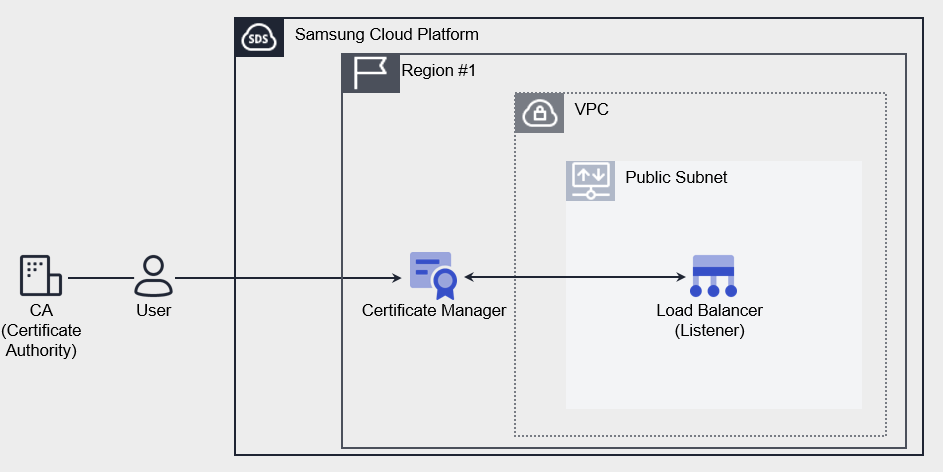
Provided features
Certificate Manager provides the following features.
- Certificate Creation: You can generate a user certificate issued by a certification authority or a self-signed certificate suitable for development/testing (Self-signed).
- Connected Resource Lookup: You can view Samsung Cloud Platform resources that are using the certificate. Currently, it provides a list of Load Balancer listeners (HTTPS).
- Expiration Alert: You can set expiration alert recipients for each certificate. Emails are sent to the recipients starting 45 days before expiration. (Sent 45/30/15/7/1 days before expiration)
Component
User certificates in Certificate Manager consist of a Private Key, Certificate Body, and Certificate Chain. Enter the entire certificate information, including the BEGIN and END lines.
Private Key
Enter the private key in PEM format. Private Key supports RSA and must be entered as a decrypted value.
-----BEGIN RSA PRIVATE KEY-----
(개인키)
-----END RSA PRIVATE KEY-----
Certificate Body
Enter the Server (Leaf) certificate in PEM format. Only one certificate can be entered in the Certificate Body.
-----BEGIN CERTIFICATE-----
(서버 인증서)
-----END CERTIFICATE-----
Certificate Chain
Enter the upper-level certificate in PEM format. Input them in the order Sub (Intermediate) CA → Root CA, and you may omit this only for self‑signed or self‑issued certificates.
-----BEGIN CERTIFICATE-----
(중간 인증서)
-----END CERTIFICATE-----
-----BEGIN CERTIFICATE-----
(루트 인증서)
-----END CERTIFICATE-----
Constraints
Certificate Manager provides services on a per‑Region basis. Create the service in the required Region and use it. The quota per Region is as follows.
| Category | Default quantity | Explanation |
|---|---|---|
| CERTIFICATE_MANAGER.USER_CERT_DEFAULT.COUNT | 100 | Number of user certificates per Region |
| CERTIFICATE_MANAGER.SELFSIGNED_CERT_DEFAULT.COUNT | 100 | Number of self-issued certificates per Region |
Prior Service
Certificate Manager has no prerequisite services.
2 - How-to guides
Users can create the service by entering the required information for the Certificate Manager service and selecting detailed options through the Samsung Cloud Platform Console.
Create Certificate Manager
You can create and use the Certificate Manager service in the Samsung Cloud Platform Console.
To request the creation of a Certificate Manager service, follow these steps.
- Click the All Services > Security > Certificate Manager menu. 1. Go to the Service Home page.
- On the Service Home page, click the Create Certificate Manager button. 2. Go to the Create Certificate Manager page.
- Create Certificate Manager page, enter the information needed to create the service, and choose detailed options.
- In the Service Information Input area, enter or select the required information.
Category required statusDetailed description Certificate name Required Enter the Certificate Manager name to use - Enter within 3-30 characters, including English letters, numbers, and special characters (
-,_,.)
- Cannot be the same as an existing name
type Required Select the Certificate Manager type to use - User Certificate: a public certificate issued by a Certificate Authority (CA)
- Self-issued Certificate: a certificate self-issued (Self-signed) by Samsung Cloud Platform
- Since it is relatively less secure, it is recommended for development/testing use only.
User Certificate > Certificate Body Required Enter Server(Leaf) certificate information - Only one certificate can be entered in the certificate body
Enter the full content, including the lines from —–BEGIN CERTIFICATE—–to—–END CERTIFICATE—–
User Certificate > Private Key Required Enter the private key information - The Private Key supports the RSA encryption method
- The Private Key can be entered in an unencrypted PEM format
Enter the entire content, including the lines from —–BEGIN RSA PRIVATE KEY—–to—–END RSA PRIVATE KEY—-
User Certificate > Certificate Chain Required Enter the Certificate Chain information - Can be omitted when using a private certificate
- The Certificate Chain should be entered in the order: Intermediate (Subordinate) certificate → Root certificate
- For a public certificate, the Certificate Chain information must be entered; only when there is no intermediate certificate (Chain CA) should use be disabled
Enter the full content, including the lines from —–BEGIN CERTIFICATE—–—–END CERTIFICATE—–
- If there are multiple Intermediate (Subordinate) certificates, enter each certificate’s content in order
User Certificate > Certificate Validation Required Validate the entered certificate’s validity Self-signed certificate > Common Name Required Enter the domain name to use the certificate Self-issued certificate > Organization Unit Required Enter the organization and department that will use the certificate Self-issued certificate > Start date Required Enter the certificate start date (creation date) Self-issued certificate > Expiration date Required Enter the certificate expiration date Expiration alert Selection Set whether to receive pre‑expiration certificate alerts - Select Use to enable expiration alerts
- If expiration alerts are set, an email is sent to the recipients 45, 30, 15, 7, and 1 days before the certificate expires
Expiration Alert > Alert Recipient Required Select notification recipients when using expiration alerts - Enter a user name in the search area to select notification recipients
- Up to 100 recipients can be registered
Table. Certificate Manager service information input itemsReference- If the entered certificate information is invalid, you cannot create the Certificate Manager service.
- If the Private Key is encrypted, enter the decrypted value using the openssl command below.
openssl rsa -in [Encrypted Private Key File name] -out [Decrypted Private Key File name]
- For certificates issued via Let’s Encrypt, even if you already have a previously issued Certificate Chain value, extract it again and enter it.
- For detailed instructions on extraction methods, see Extract Chain Certificate.
- Enter within 3-30 characters, including English letters, numbers, and special characters (
- In the Additional Information Input area, enter or select the required information.
Category required statusDetailed description tag Selection Add Tag - Up to 50 can be added per resource
- After clicking the Add Tag button, input or select Key, Value values
Table. Certificate Manager additional information input fields
- In the Service Information Input area, enter or select the required information.
- Review the entered service information and additional details, then click the Create button.
- When creation is complete, check the created resource on the Certificate Manager List page.Reference
To create a Load Balancer for use with the Certificate Manager service, click Load Balancer creation in Service Home.
- For detailed information on creating a Load Balancer, please refer to Load Balancer Creation.
- When creation is complete, check the created resource on the Certificate Manager List page.
Check Certificate Manager detailed information
The Certificate Manager service allows you to view and edit the full list of resources and detailed information. Certificate Manager Details page consists of Details, Connected Resources, Tags, Activity History tabs.
To view detailed information for Certificate Manager, follow these steps.
- All Services > Security > Certificate Manager Click the menu. 1. Go to the Service Home page of Certificate Manager.
- On the Service Home page, click the Certificate Manager menu. 2. Navigate to the Certificate Manager List page.
- On the Certificate Manager List page, click the resource to view its detailed information. 3. Navigate to the Certificate Manager Details page.
- Certificate Manager Details page displays the status and detailed information of the Certificate Manager, and consists of Details, Connected Resources, Tags, Activity History tabs.
Category Detailed description Service status Certificate Manager status - Creating: In progress
- Active/Valid: Certificate valid
- Expired: Certificate expired
- Editing: Changing settings
- Terminating: Terminating
- Error: Certificate error
Service termination Button to cancel Certificate Manager Table. Status information and additional features
- Certificate Manager Details page displays the status and detailed information of the Certificate Manager, and consists of Details, Connected Resources, Tags, Activity History tabs.
Detailed Information
Certificate Manager List page lets you view detailed information of the selected resource and, if necessary, edit the information.
| Category | Detailed description |
|---|---|
| service | Service Name |
| Resource type | Resource Type |
| SRN | Unique resource ID in Samsung Cloud Platform |
| Resource name | Resource Name |
| Resource ID | Unique resource ID in the service |
| Constructor | User who created the service |
| Creation date and time | Service creation date and time |
| Modifier | User who edited the service information |
| Modification date | Date and time the service information was modified |
| Certificate name | Certificate Manager certificate name |
| type | Certificate type information |
| Issuing Authority | User Certificate Issuing Authority Information |
| Common Name | Self-issued certificate display of information entered when creating the service |
| Organization Unit | Self-issued certificate Display the information entered when creating the service |
| Additional domain | User Certificate’s registered SAN information, displayed up to a maximum of 250 |
| Public Key information | User Certificate’s key algorithm type and length display |
| Signature algorithm | User Certificate’s issuing authority signature method display |
| Use status | Indicates whether the connected resource is registered |
| Start date/time / Expiration date/time | Display the certificate’s start/expiration date |
| Number of days remaining until expiration | Display the number of days remaining until expiration based on the current date
|
| Expiration alert | Certificate expiration alert settings details
|
Connected resource
On the Certificate Manager List page, you can view the connected Load Balancer information.
| Category | Detailed description |
|---|---|
| Load Balancer | Load Balancer resource ID attached to the service |
| Listener | Click the name of the Listener resource ID
|
| status | Display the status of Listeners connected to the service |
Tag
On the Certificate Manager List page, you can view the tag information of the selected resource and add, modify, or delete it.
| Category | Detailed description |
|---|---|
| Tag list | Tag list
|
Job History
You can view the operation history of the selected resource on the Certificate Manager List page.
| Category | Detailed description |
|---|---|
| Task History List | Resource Change History
|
Terminate Certificate Manager
You can request the termination of the Certificate Manager service from the Samsung Cloud Platform Console.
To request termination of the Certificate Manager service, follow the steps below.
- Click the All Services > Security > Certificate Manager menu. 1. Go to the Service Home page of Certificate Manager.
- On the Service Home page, click the Certificate Manager menu. 2. Go to the Certificate Manager List page.
- On the Certificate Manager List page, click the resource to view its detailed information. 3. Navigate to the Certificate Manager Details page.
- On the Certificate Manager Details page, click the Cancel Service button.
- Once the termination is complete, verify the service termination status in the Certificate Manager list.
2.1 - Extract Certificate Chain
Users can extract and input the Certificate Chain certificate to be used when creating a Certificate Manager service.
Extract Certificate Chain
You can extract the Certificate Chain value required when creating a Certificate Manager.
The Certificate Chain consists of Intermediate (Subordinate) certificates issued by a trusted certification authority and the Root certificate.
- Even if you already have a Certificate Chain value, extract and register the Intermediate (Subordinate) certificate through the Root certificate again using the Certificate Body file. (Recommended)
Extract Intermediate (Subordinate) Certificate Value
You can extract the intermediate (subordinate) certificate from the certificate chain required for user certificate enrollment.
To extract the Intermediate(Subordinate) certificate value, follow these steps.
- Run the certificate file in crt format on the PC. The certificate window will appear.
- In the certificate window, click the Certificate Path tab.
- If the file is in PEM format, convert it to a .crt file.
- Click the certificate under Root and click View Certificate.
- After clicking the Details tab, click Copy to file.
- When the certificate export wizard runs, click Next.
- Select the format Base 64-encoded X.509(.CER)(S) and click Next.
- Click Browse to select the folder where you want to save the file, then click Next.
- Click Finish. The certificate export wizard will complete.
- Open the exported file as a TEXT file and verify the values.
- The extracted certificate value must start and end with
—–BEGIN CERTIFICATE—–and—–END CERTIFICATE—-.
- The extracted certificate value must start and end with
Extract Root certificate value
You can extract the root certificate of the certificate chain required for user certificate enrollment.
To extract the Root certificate value, follow these steps.
- Run the certificate file in crt format on the PC. The certificate window will appear.
- In the certificate window, click the Certificate Path tab.
- If the file is in PEM format, convert it to a .crt file.
- Click the topmost Root certificate and click View Certificate.
- After clicking the Details tab, click Copy to File.
- When the certificate export wizard runs, click Next.
- Select the format Base 64-encoded X.509(.CER)(S) and click Next.
- Click Browse to select the path where you want to save the file, then click Next.
- Click Finish. The certificate export wizard will complete.
- Open the exported file in TEXT format and verify the values.
- The start and end of the extracted certificate value must include the
—–BEGIN CERTIFICATE—–and—–END CERTIFICATE—-entries.
- The start and end of the extracted certificate value must include the
Enter Certificate Chain value
This explains how to enter the extracted Intermediate (Subordinate) certificate and Root certificate values into the Certificate Chain field when creating a Certificate Manager.
To enter the Intermediate (Subordinate) certificate and Root certificate values into the Certificate Chain field, follow these steps.
- Execute the Intermediate (Subordinate) certificate file and the Root certificate file as text files.
- Copy the entire value of the Intermediate (Subordinate) certificate file.
- Paste it into the Certificate Chain input area on the Certicafate Manager Creation page.
- Paste it, including the
—–BEGIN CERTIFICATE—–at the beginning and the—–END CERTIFICATE—-at the end of the certificate value.
- Paste it, including the
- Copy the entire value of the Root certificate file.
- Paste it into the Certificate Chain input area on the Create Certicafate Manager page.
- Paste it, including the
—–BEGIN CERTIFICATE—–at the beginning and—–END CERTIFICATE—-at the end of the certificate value. - Paste the Root certificate value on the line below the Intermediate (Subordinate) certificate.
- Paste it, including the
3 - API Reference
4 - CLI Reference
5 - Release Note
Certificate Manager
- We have launched the Certificate Manager service that supports SSL/TLS certificate deployment and unified management.
- You can register a certificate issued by a Certificate Authority (CA) or generate a Self-signed certificate for development/testing purposes.
- You can encrypt network communications and manage the certificate lifecycle by connecting to Samsung Cloud Platform resources.