This is the multi-page printable view of this section. Click here to print.
Certificate Manager
1 - Overview
Service Overview
Certificate Manager is a service that supports certificate deployment and integrated management, allowing users to create and use SSL/TLS certificates issued by a Certificate Authority (CA) and self-signed certificates for development or testing purposes in Samsung Cloud Platform resources. It also enables management of the certificate lifecycle by checking expiring certificates through expiration notification emails.
Features
- Easy creation: You can create a certificate with a simple task on the Samsung Cloud Platform Console. User certificates issued from outside undergo validity verification and only deployable certificates are distributed.
- Service Integration: Connects certificates registered in Certificate Manager to Load Balancer to encrypt network connections and protect services.
- Certificate Expiration Alert: Until 1 day before the expiration date, periodic notifications allow you to check and replace certificates that are about to expire.
Service Composition Diagram
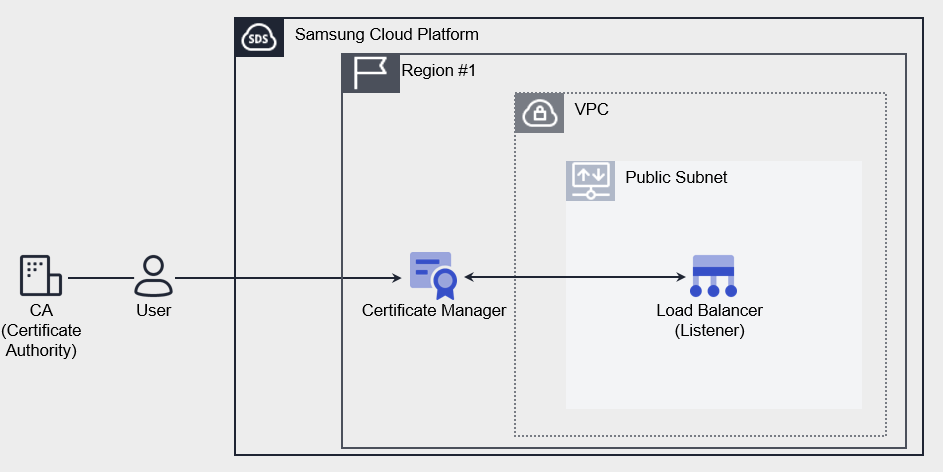
Provided Features
Certificate Manager provides the following functions.
- Certificate Creation: You can create a user certificate issued by a certificate authority or a self-signed certificate suitable for development/testing purposes.
- Connected Resource Inquiry: You can inquire about Samsung Cloud Platform resources that are using certificates. Currently, it provides a list of Load Balancer’s Listener(HTTPS).
- Expiration Notice: You can set the recipient of the expiration notice for each certificate. The notification recipient will receive an email from 45 days before expiration. (Sent 45/30/15/7/1 day before expiration)
Components
The Certificate Manager’s user certificate consists of Private Key, Certificate Body, and Certificate Chain. Enter the certificate information, including the entire contents, including the BEGIN and END lines.
Private Key
Enter the private key in PEM format. The private key supports RSA and the decrypted value must be entered.
-----BEGIN RSA PRIVATE KEY-----
Private Key
-----END RSA PRIVATE KEY-----
Certificate Body
Server(Leaf) inputs the certificate in PEM format. Only one certificate can be entered in the Certificate Body.
-----BEGIN CERTIFICATE-----
Server Certificate
-----END CERTIFICATE-----
Certificate Chain
Enter the upper certificate in PEM format. Enter in the order of Sub(Intermediate) CA → Root CA, and it can be omitted only when it is a self-signed/issued certificate.
-----BEGIN CERTIFICATE-----
Intermediate Certificate
-----END CERTIFICATE-----
-----BEGIN CERTIFICATE-----
Root Certificate
-----END CERTIFICATE-----
Constraints
Certificate Manager provides a service by Region unit. Please create and use the service in the required Region. The quota per Region is as follows.
| Classification | Basic Quantity | Description |
|---|---|---|
| CERTIFICATE_MANAGER.USER_CERT_DEFAULT.COUNT | 100 | Number of user certificates per region |
| CERTIFICATE_MANAGER.SELFSIGNED_CERT_DEFAULT.COUNT | 100 | Number of self-issued certificates per Region |
Preceding Service
Certificate Manager has no preceding services.
2 - How-to guides
The user can enter the required information for the Certificate Manager service through the Samsung Cloud Platform Console, select detailed options, and create the service.
Certificate Manager Create
You can create and use the Certificate Manager service from the Samsung Cloud Platform Console.
To request the creation of a Certificate Manager service, follow the steps below.
- All Services > Security > Certificate Manager Click the menu. Service Home page will be opened.
- Click the Create Certificate Manager button on the Service Home page. You will be taken to the Create Certificate Manager page.
- Certificate Manager creation On the page, enter the information required to create the service, and select detailed options.
- Service Information Input area: enter or select the required information.
Category RequiredDetailed description Certificate Name Required Enter the name of the Certificate Manager to use - Enter within 3-30 characters, including English letters, numbers, and special characters (
-,_,.)
- Cannot be the same as an existing name in use
Type Required Select the Certificate Manager type to use - User Certificate: Public certificate issued by a Certificate Authority (CA)
- Self-issued Certificate: Certificate self-issued (Self-signed) by Samsung Cloud Platform
- Since it is relatively insecure, it is recommended for development/testing use.
User Certificate > Certificate Body Required Enter Server (Leaf) certificate information - Only one certificate can be entered in the certificate body
- Enter the entire content including the lines from
—–BEGIN CERTIFICATE—–to—–END CERTIFICATE—–
User Certificate > Private Key Required Enter private key information - Private Key supports RSA encryption method
- Private Key can be entered in unencrypted PEM format
- Enter the entire content including the lines from
—–BEGIN RSA PRIVATE KEY—–to—–END RSA PRIVATE KEY—-
User Certificate > Certificate Chain Required Enter Certificate Chain information - Can be omitted when using a private certificate
- Enter the Certificate Chain in order: Intermediate (Subordinate) certificate → Root certificate
- Public certificates must provide Certificate Chain information; only when there is no intermediate certificate (Chain CA) should use be disabled
- Enter the entire content including the lines from
—–BEGIN CERTIFICATE—–to—–END CERTIFICATE—–
- If there are multiple Intermediate (Subordinate) certificates, enter each certificate’s content in order
User Certificate > Certificate Validity Check Required Validate the entered certificate’s validity Self-issued certificate > Common Name Required Enter the domain name to be used for the certificate Self-issued certificate > Organization Unit Required Enter the organization and department that will use the certificate Self-issued Certificate > Start Date Required Enter the certificate usage start date (creation date) Self-issued certificate > Expiration date Required Enter certificate expiration date Expiration Alert Select Set whether to receive alerts before certificate expiration - Use can be selected to enable expiration alerts
- If expiration alerts are set, an email is sent to recipients 45 days/30 days/15 days/7 days/1 day before certificate expiration
Expiration Alert > Notification Recipient Required Select notification recipient when using expiration alert - Enter user name in the search area to select notification recipient
- Up to 100 can be registered
Table. Certificate Manager Service Information Input ItemsReference- If the entered certificate information is not valid, you cannot create the Certificate Manager service.
- If the Private Key is encrypted, enter the decrypted value using the openssl command below.
openssl rsa -in [Encrypted Private Key File name] -out [Decrypted Private Key File name]
- For certificates issued via Let’s Encrypt, even if there is a previously issued Certificate Chain value, extract it again and input.
- For detailed explanation of the extraction method, please refer to Chain Certificate Extraction.
- Enter within 3-30 characters, including English letters, numbers, and special characters (
- Additional Information Input Enter or select the required information in the area.
Category Whether requiredDetailed description Tag Select Add Tag - Up to 50 can be added per resource
- After clicking the Add Tag button, enter or select Key, Value values
Table. Certificate Manager additional information input items
- Service Information Input area: enter or select the required information.
- Verify the entered service information and additional information, and click the Complete button.
- Once creation is complete, check the created resource on the Certificate Manager List page.Reference
To create a Load Balancer to use in the Certificate Manager service, click Load Balancer creation in Service Home.
- For detailed explanation about creating a Load Balancer, please refer to Creating a Load Balancer.
- Once creation is complete, check the created resource on the Certificate Manager List page.
Certificate Manager View Detailed Information
Certificate Manager service can view and edit the full resource list and detailed information. Certificate Manager Details page consists of Details, Connected Resources, Tags, Activity History tabs.
To view detailed information of Certificate Manager, follow the steps below.
- All Services > Security > Certificate Manager Click the menu. Go to the Certificate Manager’s Service Home page.
- On the Service Home page, click the Certificate Manager menu. Navigate to the Certificate Manager list page.
- Click the resource to view detailed information on the Certificate Manager List page. You will be taken to the Certificate Manager Details page.
- Certificate Manager Details page displays the status information and detailed information of Certificate Manager, and consists of Details, Connected Resources, Tags, Activity History tabs.
Category Detailed description Service Status Certificate Manager Status - Creating: Creating
- Active/Valid: Certificate valid
- Expired: Certificate expired
- Editing: Editing settings
- Terminating: Terminating
- Error: Certificate error
Service termination Button to cancel Certificate Manager Table. Status Information and Additional Functions
Detailed Information
Certificate Manager list page, you can view detailed information of the selected resource and, if necessary, edit the information.
| Category | Detailed description |
|---|---|
| service | service name |
| Resource Type | Resource Type |
| SRN | Unique resource ID in Samsung Cloud Platform |
| Resource Name | Resource Name |
| Resource ID | Unique resource ID in the service |
| Creator | User who created the service |
| Creation DateTime | Date and time the service was created |
| Editor | User who modified the service information |
| Modification DateTime | Date and time when the service information was modified |
| Certificate Name | Certificate Manager Certificate Name |
| Type | Certificate type information |
| Certificate Information | Detailed information of the selected certificate type
|
| Expiration Notification | Certificate expiration notification settings details
|
Connected Resources
You can view the connected Load Balancer information on the Certificate Manager list page.
| Category | Detailed description |
|---|---|
| Load Balancer | Load Balancer resource ID connected to the service |
| Listener | Listener resource name ID connected to the service
|
| Status | Display the status of the Listener connected to the service |
Tag
Certificate Manager list page, you can view the tag information of the selected resource, and you can add, modify, or delete it.
| Category | Detailed description |
|---|---|
| Tag List | Tag List
|
Work History
Certificate Manager List page, you can view the operation history of the selected resource.
| Category | Detailed description |
|---|---|
| Work History List | Resource Change History
|
Certificate Manager Cancel
You can apply for termination of the Certificate Manager service from the Samsung Cloud Platform Console.
To request termination of the Certificate Manager service, follow the steps below.
- All Services > Security > Certificate Manager Click the menu. Go to the Service Home page of Certificate Manager.
- Click the Certificate Manager menu on the Service Home page. Navigate to the Certificate Manager list page.
- Certificate Manager List Click the resource to view detailed information on the page. Certificate Manager Details You will be taken to the page.
- Click the Service Termination button on the Certificate Manager Details page.
- Once termination is complete, check the service termination status in the Certificate Manager list.
2.1 - Chain Certificate Extraction
The user can extract and enter the Certificate Chain certificate to be used when creating the Certificate Manager service.
Extract Certificate Chain
You can extract the Certificate Chain certificate value required when creating a Certificate Manager.
The Certificate Chain consists of Intermediate (Subordinate) certificates issued by a public certification authority to the Root certificate.
- Even if you have an existing Certificate Chain value, it is recommended to re-extract and register the Intermediate (Subordinate) certificate to the Root certificate through the Certificate Body file.
Intermediate (Subordinate) Certificate Value Extraction
You can extract the Intermediate (Subordinate) certificate of the Certificate Chain required when registering a user certificate.
To extract the Intermediate(Subordinate) certificate value, follow these steps.
- Run the crt file format certificate file on PC. The certificate window appears.
- Click the Certificate Path tab in the Certificate window.
- If it is in PEM file format, change the file format to crt.
- Click the certificate under the Root and click Certificate View.
- Click the Details tab and move, then click Copy to file.
- When the Certificate Export Wizard runs, click Next.
- Select Base 64 encoded X.509(.CER)(S) as the format to use and click Next.
- Click Browse to select the path where you want to save the file, and then click Next.
- Click Finish. The Certificate Export Wizard is complete.
- Open the exported file in TEXT file format and check the value.
- The extracted certificate value must have
—–BEGIN CERTIFICATE—–and—–END CERTIFICATE—-items at the beginning and end.
- The extracted certificate value must have
Root Certificate Value Extraction
You can extract the Root certificate of the Certificate Chain required when registering a user certificate.
To extract the Root certificate value, follow these steps.
- Run the crt file format certificate file on PC. The certificate window appears.
- Click the Certificate Path tab in the Certificate window.
- If it is in PEM file format, change the file format to crt.
- Click the topmost Root certificate and click Certificate View.
- Click the Details tab and move, then click Copy to file.
- When the Certificate Export Wizard runs, click Next.
- Select Base 64 encoded X.509(.CER)(S) as the format to use and click Next.
- Click Browse to select the path where you want to save the file, and then click Next.
- Click Finish. The Certificate Export Wizard is complete.
- Open the exported file in TEXT file format and check the value.
- The extracted certificate value must have
—–BEGIN CERTIFICATE—–and—–END CERTIFICATE—-items at the beginning and end.
- The extracted certificate value must have
Input Certificate Chain value
This explains how to enter the extracted Intermediate (Subordinate) certificate and Root certificate values into the Certificate Chain item when creating a Certificate Manager.
To enter the Intermediate (Subordinate) certificate and Root certificate values in the Certificate Chain item, follow these procedures.
- Intermediate (Subordinate) certificate file and Root certificate file should be run in text file format.
- Intermediate (Subordinate) certificate file values should be copied in their entirety.
- Certicafate Manager creation page’s Certificate Chain input area, please paste.
- Include the certificate value, including
—–BEGIN CERTIFICATE—–at the beginning and—–END CERTIFICATE—-at the end, and paste it.
- Include the certificate value, including
- Copy the entire value of the Root certificate file.
- Paste it into the Certificate Chain input area of the Certicafate Manager Creation page.
- Includes the
—–BEGIN CERTIFICATE—–and—–END CERTIFICATE—-at the start and end of the certificate value and paste it. - Intermediate (Subordinate) certificate’s below line will be pasted with the Root certificate value.
- Includes the
3 - API Reference
4 - CLI Reference
5 - Release Note
Certificate Manager
- Released Certificate Manager service that supports SSL/TLS certificate deployment and integrated management.
- You can register a certificate issued by a certification authority (CA) or create a self-signed certificate for development/test purposes.
- Samsung Cloud Platform connects to resources and enables encryption of network communication and management of certificate lifecycles.