Based on the largest and longest accumulated security service operation experience, we provide automated security services tailored to various customer environments.
This is the multi-page printable view of this section. Click here to print.
Security
- 1: Key Management Service
- 1.1: Overview
- 1.2: How-to guides
- 1.3: API Reference
- 1.4: CLI Reference
- 1.5: Release Note
- 2: Config Inspection
- 2.1: Overview
- 2.2: How-to guides
- 2.2.1: Dashboard Check
- 2.2.2: Diagnosis Result Management
- 2.2.3: Setting up the Cloud
- 2.3: Release Note
- 3: Certificate Manager
- 3.1: Overview
- 3.2: How-to guides
- 3.2.1: Chain Certificate Extraction
- 3.3: API Reference
- 3.4: CLI Reference
- 3.5: Release Note
- 4: Secret Vault
- 4.1: Overview
- 4.2: How-to guides
- 4.3: API Reference
- 4.4: CLI Reference
- 4.5: Release Note
- 5: SingleID
- 5.1: Overview
- 5.2: How-to guides
- 5.2.1: SingleID Manuals
- 5.2.1.1: User Portal
- 5.2.1.1.1: Notice and Language Settings
- 5.2.1.1.2: Login using authentication method
- 5.2.1.1.3: Register authentication tool
- 5.2.1.1.4: Sign up
- 5.2.1.1.5: Find ID and Reset Password
- 5.2.1.1.6: Privacy Policy, Terms of Service, Service Desk
- 5.2.1.1.7: PC SSO Agent
- 5.2.1.1.8: My App
- 5.2.1.1.9: App Catalog
- 5.2.1.1.10: Notification
- 5.2.1.1.11: Approval Request
- 5.2.1.1.12: Personal Profile
- 5.2.1.2: Admin Portal
- 5.2.1.2.1: Dashboard
- 5.2.1.2.2: Integration
- 5.2.1.2.3: Identity Store
- 5.2.1.2.4: Policy
- 5.2.1.2.5: Terms and Conditions
- 5.2.1.2.6: Open Source licence
- 5.2.1.3: MFA Portal
- 5.2.1.3.1: Login using authentication method
- 5.2.1.3.2: Register authentication tool
- 5.2.1.3.3: Set Up Personal Information
- 5.2.1.4: CAM Portal
- 5.2.1.4.1: Getting Started
- 5.2.1.4.2: Home
- 5.2.1.4.3: Console Access
- 5.2.1.4.4: Resource Access
- 5.2.1.4.5: Monitoring
- 5.2.1.4.6: Configuration
- 5.2.1.4.7: FAQ
- 5.2.1.5: SingleID Authenticatior
- 5.2.1.5.1: Installing the App
- 5.2.1.5.2: Authenticating Users
- 5.2.1.5.3: Manage Authentication Methods
- 5.2.1.5.4: Managing Service List
- 5.2.1.5.5: Open Source Licence(Android)
- 5.2.1.5.6: Open Source Licence(ISO)
- 5.2.1.6: Open API Guides
- 5.2.1.6.1: ADFS Adapter Guide
- 5.2.1.6.2: Adapter Setup Guide
- 5.3: Release Note
- 6: WAF
- 6.1: Overview
- 6.2: How-to guides
- 6.3: Release Note
- 7: DDoS Protection
- 7.1: Overview
- 7.2: How-to guides
- 7.3: Release Note
- 8: IPS
- 8.1: Overview
- 8.2: How-to guides
- 8.3: Release Note
- 9: Secured Firewall
- 9.1: Overview
- 9.2: How-to guides
- 9.3: Release Note
- 10: Secured VPN
- 10.1: Overview
- 10.2: How-to guides
- 10.3: Release Note
- 11: FPMS
- 11.1: Overview
- 11.2: How-to guides
- 11.3: Release Note
- 12: Secrets Manager
- 12.1: Overview
- 12.2: How-to guides
- 12.3: Release Note
- 13: Log Transmission
- 13.1: Overview
- 13.2: How-to guides
- 13.3: Release Note
1 - Key Management Service
1.1 - Overview
Service Overview
Key Management Service(KMS) is a service that creates and safely stores/manages encryption keys in a convenient way to securely protect important data of applications. The user uses the encryption key to encrypt/decrypt data, and the encryption key is managed stably with a hierarchically encrypted centralized encryption key method.
Provided Function
Key Management Service provides the following functions.
- Key Management: KMS can create/delete and manage keys. Users can create data keys for encrypting data using the master key created through KMS.
- Key Authority Management: You can control and manage access rights to the master key based on a user-defined policy.
- Key Life Cycle Management: through key rotation, it is possible to generate new encryption data for the corresponding master key without having to create a new key, and the key rotation cycle can be set according to customer policy. Key life cycle management safely protects data from cryptographic threats by deactivating or deleting encryption keys that are no longer in use.
Components
Master Key
The master key is used to generate a data key used for encrypting data, and depending on the purpose, it can generate symmetric keys (encryption/decryption (AES), generation/verification (HMAC)) and asymmetric keys (encryption/decryption and signing/verification (RSA), signing/verification (ECDSA)) respectively. With proper master key management, data keys can be encrypted to protect frequently used data keys during operation.
- The master key is a key created through the creation of KMS product services in the Samsung Cloud Platform Console.
Data Key
The data key is used to encrypt actual data, and is created for each target service that performs encryption, thereby ensuring that even if one data key is leaked, it will not affect services encrypted with other data keys.
HSM (Hardware Security Module)
The root key of the KMS system area is stored, the master key is created through the root key stored in the HSM (Hardware Security Module) that complies with the FIPS 140-2 Lv3 standard, and it is safely distributed and protected in the KMS.
Limitations
Samsung Cloud Platform’s Key Management Service limits the number of Key creations as follows.
| Item | Detailed Description | Allocation Amount |
|---|---|---|
| KMS Key | Number of KMS Keys created per region | 10000 |
| KMS Validation Password Key | Number of public authentication algorithm keys that can be created per account | 100 |
Table. Key Management Service Restrictions
Reference
- KMS keys created by region services can only be used within the region.
- The constraints of the public certification algorithm Key only apply to the SCP Sovereign.
Preceding service
Key Management Service has no preceding service.
1.2 - How-to guides
The user can enter the essential information of the Key Management Service service and create the service by selecting detailed options through the Samsung Cloud Platform Console.
Key Management Service creation
You can create and use the Key Management Service on the Samsung Cloud Platform Console.
To create a Key Management Service, follow the following procedure.
- All services > Security > Key Management Service menu is clicked. It moves to the Service Home page of Key Management Service.
- Service Home page, click the Key Management Service creation button. It moves to the Key Management Service creation page.
- Key Management Service creation page, enter the information required for service creation and add additional information.
- Service Information Input area, please enter or select the required information.ClassificationMandatory
Detailed Description Key Name Required Enter Key Name Public Certification Algorithm Option Select whether to use the public certification algorithm - The public certification algorithm option is only available in SCP Sovereign
- The public certification algorithm provides the Aria algorithm that has completed security verification by the National Intelligence Service
Purpose Required Select the purpose and encryption method of the key Automatic Rotation Option Select whether to use automatic rotation of the key - Use is selected, the internal algorithm of the generated key is converted to a different value and applied for each set rotation cycle
Auto Rotation > Rotation Period Required Enter the rotation period of the key - The rotation period can enter a value between 1~730 days. If the rotation period is not entered, it is automatically set to 90 days
Description Options Enter additional information for the key Table. Key Management Service service information input items - Additional Information Input area, please enter or select the required information.
Classification MandatoryDetailed Description Tag Selection Add Tag - Up to 50 can be added per resource
- Click the Add Tag button and enter or select Key, Value
Table. Key Management Service Additional Information Input Items
- Summary panel, review the detailed information generated and the estimated billing amount, and click the Complete button.
- Once creation is complete, check the created resource on the Key Management Service list page.
Key Management Service detailed information check
Key Management Service can check and modify the entire resource list and detailed information. The Key Management Service details page consists of details, tags, and operation history tabs.
Key Management Service detailed information to confirm, please follow the next procedure.
- All services > Security > Key Management Service menu is clicked. It moves to the Service Home page of Key Management Service.
- Service Home page, click the Key Management Service menu. It moves to the Key Management Service list page.
- Key Management Service list page, click the resource to check the detailed information. It moves to the Key Management Service details page.
- Key Management Service details page top displays the status information and additional features description.
Classification Detailed Description Status Indicates the status of Key Management Service - Active: Available/Activated
- Stop: Stopped/Deactivated
- To be Terminated: Scheduled for Deletion
- Creating: Being Created/Creation Error (Only immediate deletion is possible for retrying creation)
Key Rotation A button that can manually rotate the generated key Key Deactivation a button that can deactivate the generated key Service Cancellation Button to cancel the service Table. Key Management Service Status Information and Additional Features
Detailed Information
Key Management Service list page where you can check the detailed information of the selected resource and modify the information if necessary.
Classification | Detailed Description |
|---|---|
| Service | Service Name |
| Resource Type | Resource Type |
| SRN | Unique resource ID in Samsung Cloud Platform |
| Resource Name | Resource Title |
| Resource ID | Unique resource ID in the service |
| Creator | The user who created the service |
| Creation Time | The time when the service was created |
| Key Name | Name of the generated key |
| Public Certification Algorithm | Cryptographic algorithm verified through the Korea Cryptographic Module Validation Program
|
| Purpose | Purpose of the key such as encryption/decryption and signing/verification and encryption method |
| Automatic Rotation | Whether to use automatic rotation of the key |
| Rotation Period | Set the rotation period when using auto-rotation |
| Next rotation date | Display of the next rotation date of the key according to the rotation cycle
|
| usage count | the number of times the key is used to call the encryption/decryption function |
| Description | Display additional description for the key |
Table. Key Management Service detailed information tab items
Tag
Key Management Service list page where you can check the tag information of the selected resource, and add, change or delete it.
| Classification | Detailed Description |
|---|---|
| Tag List | Tag list
|
Table. Key Management Service tags tab items
Work History
Key Management Service list page where you can check the operation history of the selected resource.
| Classification | Detailed Description |
|---|---|
| Work History | Work Performance Contents
|
| Work Time | Work Performance Time |
| Resource Type | Resource Type |
| Resource Name | Resource Title |
| Task Result | Task Execution Result(Success/Failure) |
| Worker Information | Information of the user who performed the task |
Table. Key Management Service job history tab detailed information items
Key Management Service management
You can create a new version of the registered key or change its usage status.
KMS Key Rotation Settings
Key rotation is a function that converts the internal algorithm of the generated key into another value.
Note
- When rotating the key, only the master key value is changed, and the ciphertext and plaintext values of the data key created previously are not changed.
- Even if the key rotation is performed, the master key has the previous version of the data, so there is no effect on the decryption performed through the master key, and the value of the data key being used is also not changed.
- However, if you wrap (decrypt and re-encrypt) with a changed master key, calling the rewrapData API will execute the key rotation function.
To create a new version of the created Key Management Service (key rotation), follow these steps.
- All services > Security > Key Management Service menu is clicked. It moves to the Service Home page of Key Management Service.
- Service Home page, click the Key Management Service menu. It moves to the Key Management Service list page.
- Key Management Service list page, click on the resource to check the detailed information. It moves to the Key Management Service details page.
- Key Management Service details page, click the key rotation button. It moves to the key rotation popup window.
- Key Rotation popup window, check the message and click the Confirm button.
KMS Key Activation Settings
You can set whether to use the selected key.
Reference
If you change the key to an inactive state, users who use the key can no longer use the key.
To set whether to enable or disable the created Key Management Service, follow the next procedure.
- All services > Security > Key Management Service menu is clicked. It moves to the Service Home page of Key Management Service.
- Service Home page, click the Key Management Service menu. It moves to the Key Management Service list page.
- Key Management Service list page, click on the resource to check the detailed information. It moves to the Key Management Service details page.
- Key Management Service details page, click the key activation/key deactivation button. Move to the key activation/key deactivation popup window.
- Key Activation/Key Deactivation popup window, check the message and click the Confirm button.
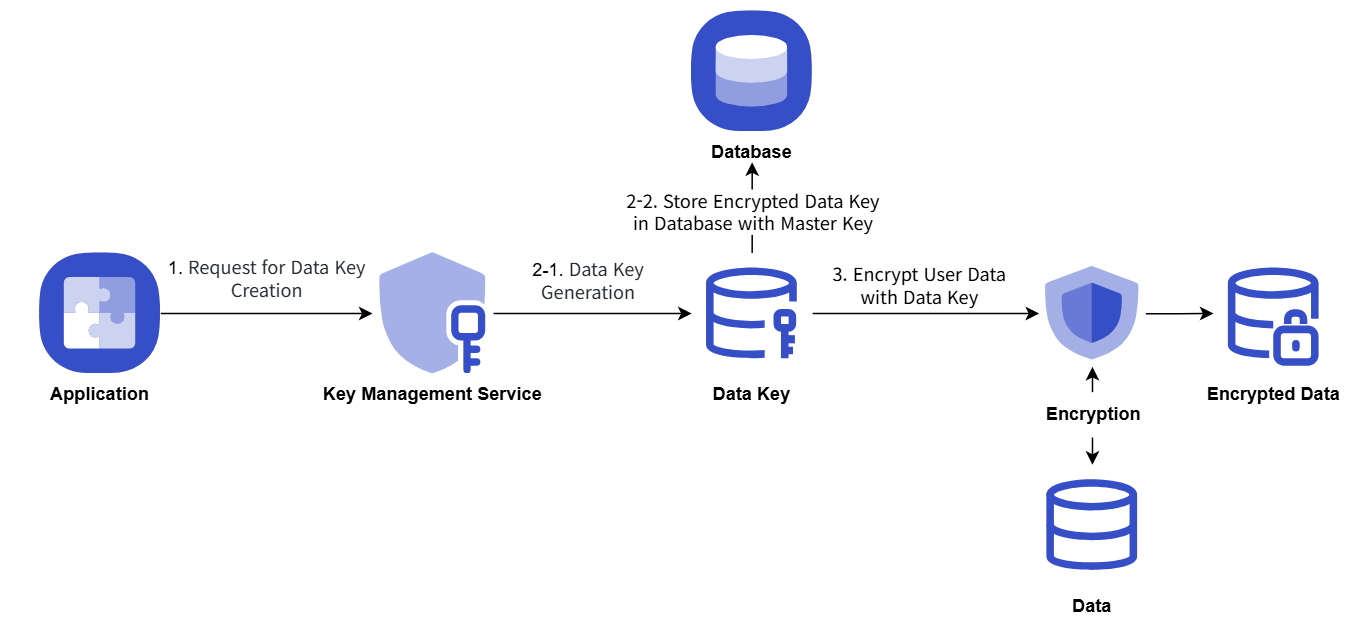
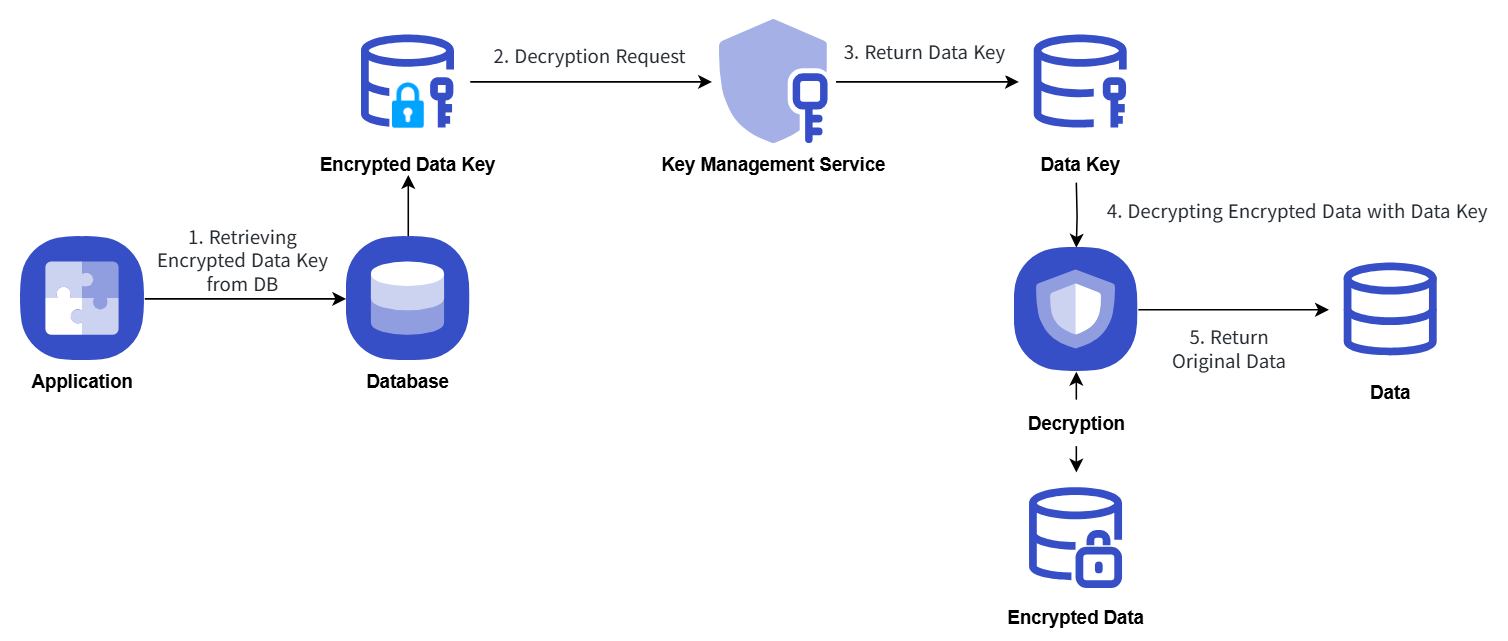
Key Management Service utilizing keys for encryption cases
The procedure example for storing important data of the user Application by issuing a data key from KMS and encrypting it is as follows.
- Application startup, when KMS master key information is used to issue a data key, and then the data key in plain text form is used on the client-side to perform secure data encryption and storage.
- The data key is stored in the database in the form encrypted with the master key.
- When performing security data decryption, it requests decryption with KMS master key information by querying the data key stored in the database.
Key Management Service uses the key for encryption/decryption procedures, which are explained in the following concept diagram.
Encryption
Decryption
Key Management Service Cancellation
You can cancel the Key Management Service that is not being used.
Caution
If the key is revoked, all requests and functions of the Key Management Service will be unavailable, and it will be permanently deleted immediately or 72 hours later through scheduled revocation.
To cancel the Key Management Service, follow the following procedure.
- All services > Security > Key Management Service menu, click. It moves to the Service Home page of Key Management Service.
- Service Home page, click the Key Management Service menu. It moves to the Key Management Service list page.
- Key Management Service list page, click the resource to check the detailed information. It moves to the Key Management Service details page.
- Key Management Service details page, click the service cancellation button. It moves to the service cancellation pop-up window.
- Service Cancellation popup window, select Immediate Cancellation/Reserved Cancellation and confirm the contents, then click the Confirm button.
- Once the cancellation is complete, check if the resource has been cancelled on the Key Management Service list page.
- Key deletion notification will be sent to both the user who created the key and the user who deleted it when the key deletion is completed.
Reference
- You can also deactivate the selected key by clicking the Cancel Service button in the More Menu button at the far right of the generated KMS list.
- To cancel the cancellation of a reserved service, click the Cancel Cancellation button on the KMS list page or detail page.
- Service Cancellation Cancellation In the popup window, if you click Confirm, the selected key will be restored to an inactive state without being deleted.
- To reuse the key, click the Key Activation button on the Key Management Service details page.
1.2.1 - Key Management Service Encryption example using keys
Key Management Service Encryption Example Using Keys
This is a Java code example for implementing envelope encryption (Envelope Encryption) and data signing/verification using a key generated by KMS.
Reference
The code below is a simple reference example to help understand the Samsung Cloud Platform KMS.
Since only the functions required for KMS operation are described, executing it as is will cause an error. Be sure to modify and use it according to the user’s actual scenario.
Envelope Encryption
It presents an envelope encryption scenario, and you can view the Java, Go, and Python example code and results written according to the scenario.
Scenario
- Obtain a Data Key to encrypt password information using envelope encryption.
- Use the issued Data Key information to encrypt the password.
- Encrypt the password and encrypted Data Key information using envelope encryption and save it as a JSON file.
Java Example Code
This is a Java example code written according to the presented scenario.
// URI
static String KMS_API_BASE_URI = {{ Reference the OpenAPI guide URL }};
// END POINT
static String KMS_API_DECRYPT = "/v1/kms/openapi/decrypt/%s";
static String KMS_API_CREATE_DATAKEY = "/v1/kms/openapi/datakey/%s";
// KEY ID
static String KEY_ID = {{Master Key ID}};

createEnvelop() {
    // Request creation of a new data key
    String encryptedDataKey = getDataKey();
    // Data to be encrypted
    String example_json_data = "{\"PASSWORD\":\"SECRET_CREDENTIAL\"}";
    // Encrypted data envelope(Envelop encryption)
    String envelope = encryptData(example_json_data, encryptedDataKey);
    // In this example code, the encrypted data envelope is saved to a file
    File envelopeFile = new File("envelope.json");
}

getDataKey() {
    String endPoint = String.format(KMS_API_CREATE_DATAKEY, KEY_ID);
    String url = KMS_API_BASE_URI + endPoint;
    JSONObject data = new JSONObject();
    data.put("key_type", "plaintext");
    JSONObject respJsonObject = callApi(endPoint, data.toJSONString());
    return respJsonObject.get("ciphertext").toString();
}

encryptData() {
    Map<String, String> envelope = new HashMap<>();
    // Data key decryption
    String dataKey = decryptDataKey(encryptedDataKey);
    // Encrypt the generated data key using AES-CBC method
    // Cipher Class usage (User can use the encryption algorithm they are already using)
    SecretKey secretKey = new SecretKeySpec(decodeBase64(dataKey), "AES");
    Cipher cipher = Cipher.getInstance("AES/CBC/PKCS5Padding");
    cipher.init(Cipher.ENCRYPT_MODE, secretKey);
    byte[] iv = cipher.getParameters().getParameterSpec(IvParameterSpec.class).getIV();
    byte[] cipherText = cipher.doFinal(obj.toString().getBytes());

    envelope.put("encryptedKey", encryptedDataKey);
    envelope.put("cipherText", encodeBase64(cipherText));
    envelope.put("iv", encodeBase64(iv));

    return JSONValue.toJSONString(envelope);
}

decryptDataKey() {
    String endPoint = String.format(KMS_API_DECRYPT, KEY_ID);
    JSONObject data = new JSONObject();
    data.put("cipherText", sealedKey);
    JSONObject respJsonObject = callApi(endPoint, data.toJSONString());
    String plaintext = (respJsonObject.get("plaintext")).toString();
    return plaintext;
}
Go example code
This is a Go example code written according to the presented scenario.
// URI
const KMS_API_BASE_URI = {{ Reference the OpenAPI guide URL }}

// END POINT
const KMS_API_DECRYPT = "/v1/kms/openapi/decrypt/%s"
const KMS_API_CREATE_DATAKEY = "/v1/kms/openapi/datakey/%s"

// KEY ID
const KEY_ID = {{Master Key ID}}

createEnvelop() {
        // Request new data key creation
        encryptedDataKey := getDataKey()

        // data to be encrypted
        example_json_data := "{\"PASSWORD\":\"SECRET_CREDENTIAL\"}"
        // encrypted data envelope(Envelop encryption)
        envelope := encryptData(example_json_data, encryptedDataKey)
        // In this example code, the encrypted data envelope is saved to a file
        file, _ := os.Create("envelope.json")
        defer file.Close()

        file.WriteString(envelope)
"}

getDataKey() {
        endPoint := fmt.Sprintf(KMS_API_CREATE_DATAKEY, KEY_ID)
        data := map[string]interface{}{
            "key_type": "plaintext",
        }
        jsonData, _ := json.Marshal(data)
        respJsonObject := callApi(endPoint, jsonData)
        info := &KMSDatakeyInfo{}
        json.Unmarshal([]byte(respJsonObject), info)

        return info.DataKey
"}

encryptData() {
        envelope := make(map[string]string)
        // Data key decryption
        dataKey := decryptDataKey(encryptedDataKey)
        secretKey, _ := base64.StdEncoding.DecodeString(dataKey)
        // Encrypt the generated data key using AES-CBC method
        // Cipher Class use
        block, _ := aes.NewCipher(secretKey)
        cipherText := make([]byte, aes.BlockSize+len(example_json_data))
        iv := cipherText[:aes.BlockSize]
        if _, err := io.ReadFull(rand.Reader, iv); err != nil {
               panic(err)
        }

        mode := cipher.NewCFBEncrypter(block, iv)
        mode.XORKeyStream(cipherText[aes.BlockSize:], []byte(example_json_data))


        envelope["encryptedKey"] = encryptedDataKey
        envelope["cipherText"] = base64.StdEncoding.EncodeToString(cipherText)
        envelope["iv"] = base64.StdEncoding.EncodeToString(iv)

        jsonString, _ := json.Marshal(envelope)

        return string(jsonString)
}


decryptDataKey() {
        endPoint := fmt.Sprintf(KMS_API_DECRYPT, KEY_ID)
        data := map[string]interface{}{
               "cipherText": sealedKey,
        }
        jsonData, _ := json.Marshal(data)
        respJsonObject := callApi(endPoint, jsonData)
        info := &KMSDecryptInfo{}
        json.Unmarshal([]byte(respJsonObject), info)

        return info.DecryptedData

}
Python example code
This is a Python example code written according to the presented scenario.
# URI
KMS_API_BASE_URI = {{ Refer to the URL of the OpenAPI guide }}

# END POINT
KMS_API_DECRYPT = "/v1/kms/openapi/decrypt/"
KMS_API_CREATE_DATAKEY = "/v1/kms/openapi/datakey/"


# KEY ID
KEY_ID = {{Master Key ID}}

create_envelop()
    # Request new data key creation
    encrypted_data_key = get_dataKey()


    # Data to be encrypted
    example_json_data = {"PASSWORDTEST":"SECRET_CREDENTIALTEST"}
    json_data_str = json.dumps(example_json_data)

    # Encrypted Data Envelope(Envelop encryption)
    envelope = encrypt_data(json_data_str,encrypted_data_key)

    # In this example code, the encrypted data envelope is saved to a file
    with open("envelope.json", "w") as file:
        file.write(envelope)


get_dataKey()
    end_point = f"{KMS_API_CREATE_DATAKEY}{KEY_ID}"
    data = {
        "key_type": "plaintext"
    }
    response_object = call_api(end_point, data)

    data_key = response_object.get("ciphertext", "")

    return data_key


encrypt_data()
    envelope = {}
    # Data key decryption
    dataKey = decrypt_data_key(encrypted_data_key)
    decoded_data_key = base64.b64decode(dataKey)

    # Encrypt the generated data key using AES-CBC
    # Cipher Class use
    iv = get_random_bytes(16)
    cipher = AES.new(decoded_data_key, AES.MODE_CBC, iv)
    data_to_encrypt = obj
    data_bytes = data_to_encrypt.encode()

    padded_data = pad(data_bytes, AES.block_size)
    cipher_text = cipher.encrypt(padded_data).hex()


    envelope["encryptedKey"] = encrypted_data_key
    envelope["cipherText"] = cipher_text
    envelope["iv"] = base64.b64encode(iv).decode()

    return json.dumps(envelope)

decrypt_data_key()
    end_point = f"{KMS_API_DECRYPT}{KEY_ID}"
    data = {}
    data["cipherText"] = sealed_key
    resp_json_object = call_api(end_point,data)
    plaintext = resp_json_object.get("decryptedData")
    return plaintext
Example code output
Displays the result value of the example code.
  {
        "cipherText":"d3S81rzaGAl8U12LlKSlRbDekPlGuibTntXX962KCjBIKuXdPOG8N8vk3Jet8lyG",
        "iv":"0kP7QKZ6BUeQPlThk4tySA==",
        "encryptedKey":"vault:v1:KJjjLtGHTbaV5N8LWC5O9eMDCaJVeff5SM\/MAYseugjiqiXFVgdXaKXg6kym0NmjHkO\/wLPsa+YK0aVk"
    }
## Use envelope encryption

Present a use case for envelope encryption and you can check the example code in Java, Go, Python written according to the scenario and the resulting values.

### Scenario

1. Decrypt the Data Key of the encrypted envelope file.
2. Decrypt the encrypted data of the envelope file using the decrypted Data Key.

### Java Example Code
This is a Java example code written according to the presented scenario.
// URI static String KMS_API_BASE_URI = {{ Refer to the OpenAPI guide URL }}; // END POINT static String KMS_API_DECRYPT = “/v1/kms/openapi/decrypt/%s”; // KEY ID static String KEY_ID = {{Master Key ID}};;
getData() { // Encrypted data envelope(Envelop encryption) String envelope = new String(Files.readAllBytes(Paths.get(“envelope.json”))); JSONParser parser = new JSONParser(); JSONObject envelopeJson = (JSONObject) parser.parse(envelope); String encryptedDataKey = envelopeJson.get(“encryptedKey”).toString(); String cipherText = envelopeJson.get(“cipherText”).toString(); String iv = envelopeJson.get(“iv”).toString();
return decryptData(cipherText, encryptedDataKey, iv);
}
decryptData() { String dataKey = decryptDataKey(encryptedDataKey); IvParameterSpec ivParameterSpec = new IvParameterSpec(decodeBase64(iv)); SecretKey secretKey = new SecretKeySpec(decodeBase64(dataKey), “AES”); Cipher cipher = Cipher.getInstance(“AES/CBC/PKCS5Padding”); cipher.init(Cipher.DECRYPT_MODE, secretKey, ivParameterSpec); byte[] plaintext = cipher.doFinal(decodeBase64(cipherText));
return new String(plaintext);
}
decryptDataKey() { String endPoint = String.format(KMS_API_DECRYPT, KEY_ID); JSONObject data = new JSONObject(); data.put(“cipherText”, sealedKey); JSONObject respJsonObject = callApi(endPoint, data.toJSONString()); String plaintext = (respJsonObject.get(“plaintext”)).toString(); return plaintext; }
### Go example code
This is a Go example code written according to the presented scenario.
// URI
const KMS_API_BASE_URI = {{ Reference the OpenAPI guide URL }}

// END POINT
const KMS_API_DECRYPT = "/v1/kms/openapi/decrypt/%s"

// KEY ID
const KEY_ID = {{Master Key ID}}

getData() {
    // Load encrypted data envelope(Envelop encryption)
    jsonData, _ := os.ReadFile("envelope.json")
    var envelope map[string]interface{}
    if err := json.Unmarshal(jsonData, &envelope); err != nil {
           fmt.Println("JSON parsing error:", err)
           os.Exit(1)
    }
    encryptedDataKey := envelope["encryptedKey"].(string)
    cipherText := envelope["cipherText"].(string)
    iv := envelope["iv"].(string)

    return decryptData(cipherText, encryptedDataKey, iv)
}

decryptData() {
    dataKey := decryptDataKey(encryptedDataKey)
    ciphertext, _ := base64.StdEncoding.DecodeString(cipherText)
    dataKeyBytes, _ := base64.StdEncoding.DecodeString(dataKey)
    decodedData := ciphertext[aes.BlockSize:]
    ivparam := ciphertext[:aes.BlockSize]
    block, _ := aes.NewCipher(dataKeyBytes)

    mode := cipher.NewCFBDecrypter(block, ivparam)
    mode.XORKeyStream(decodedData, decodedData)
    decryptedData := string(decodedData)

    return decryptedData
"}

decryptDataKey() {
    endPoint := fmt.Sprintf(KMS_API_DECRYPT, KEY_ID)
    data := map[string]interface{}{
           "cipherText": sealedKey,
    }
    jsonData, _ := json.Marshal(data)
    respJsonObject := callApi(endPoint, jsonData)
    info := &KMSDecryptInfo{}
    json.Unmarshal([]byte(respJsonObject), info)

    return info.DecryptedData
}
Python example code
This is a Python example code written according to the presented scenario.
# URI
KMS_API_BASE_URI = {{ Refer to the OpenAPI guide URL }}


# END POINT
KMS_API_DECRYPT = "/v1/kms/openapi/decrypt/"

# KEY ID
KEY_ID = {{Master Key ID}}

get_data()
    # Open Encrypted Data Envelope(Envelop encryption)
    with open("envelope.json", "r") as file:
        envelope = file.read()

    envelope_json = json.loads(envelope)
    encrypted_data_key = envelope_json["encryptedKey"]
    cipher_text = envelope_json["cipherText"]
    iv = envelope_json["iv"]
    return decrypt_data(cipher_text, encrypted_data_key, iv)

decrypt_data()
    data_key = decrypt_data_key(encrypted_data_key)
    iv_bytes = base64.b64decode(iv)
    decoded_data_key = base64.b64decode(data_key)
    cipher_txt = bytes.fromhex(cipher_text)

    cipher = AES.new(decoded_data_key, AES.MODE_CBC, iv_bytes)
    plain_text_bytes = unpad(cipher.decrypt(cipher_txt), AES.block_size)
    plain_text = plain_text_bytes.decode('utf-8')
    return plain_text

decrypt_data_key()
    end_point = f"{KMS_API_DECRYPT}{KEY_ID}"
    data = {}
    data["cipherText"] = sealed_key
    resp_json_object = call_api(end_point,data)
    plaintext = resp_json_object.get("decryptedData")
    return plaintext
Example code output
Displays the result value of the example code.
{"PASSWORD":"SECRET_CREDENTIAL"}
Use Data Signature
It presents a data signature usage scenario to ensure data integrity, and you can check the Java, Go, Python example code and results written according to the scenario.
Scenario
- Call OpenAPI with the data to be signed and sign it.
- The signed data is enveloped and saved as a json file.
Java Example Code
This is a Java example code written according to the presented scenario.
// URI
static String KMS_API_BASE_URI = {{ Refer to the OpenAPI guide URL }};

// END POINT
static String KMS_API_SIGN = "/v1/kms/openapi/sign/%s";

// KEY ID
static String KEY_ID = {{master key ID}};

signEnvelop() {
    // signature data envelope(Envelop encryption)
    String envelope = sign();
    // In this example code, the signature data envelope is saved to a file
    File envelopeFile = new File("signEnvelope.json");
    OutputStream os = new BufferedOutputStream(new FileOutputStream(envelopeFile));

    try {
        os.write(envelope.getBytes());
    } finally {
        os.close();
    }
}

sign() {
    Map<String, String> envelope = new HashMap<>();

    String example_credential = "SCP KMS Sign Test!!!";
    String endPoint = String.format(KMS_API_SIGN, KEY_ID);
    JSONObject data = new JSONObject();
    data.put("input", encodeToBase64(example_credential));

    JSONObject respJsonObject = callApi(endPoint, data.toJSONString());

    envelope.put("signature", respJsonObject.get("signature").toString());
    if(respJsonObject.get("batch_results") != null) {

        envelope.put("batch_results", respJsonObject.get("batch_results").toString());
    }

    return JSONValue.toJSONString(envelope);
"}
Go example code
This is a Go example code written according to the given scenario.
// URI
const KMS_API_BASE_URI = {{ Reference the OpenAPI guide URL }}


// END POINT
const KMS_API_SIGN = "/v1/kms/openapi/sign/%s"

// KEY ID
const KEY_ID = {{Master Key ID}}


signEnvelop() {
    // signature data envelope(Envelop encryption)
    envelope := sign()
    // In this example code, the signature data envelope is saved to a file
    file, _ := os.Create("signEnvelope.json")
    defer file.Close()
    file.WriteString(envelope)
"}

sign() {
    envelope := make(map[string]string)
    example_credential := "SCP KMS Sign Test!!!"
    endPoint := fmt.Sprintf(KMS_API_SIGN, KEY_ID)
    data := map[string]interface{}{
        "input": base64.StdEncoding.EncodeToString([]byte(example_credential)),
    }
    jsonData, _ := json.Marshal(data)
    respJsonObject := callApi(endPoint, jsonData)
    info := &KMSSignInfo{}
    json.Unmarshal([]byte(respJsonObject), info)

    envelope["signature"] = info.Signature

    jsonString, _ := json.Marshal(envelope)

    return string(jsonString)
}
Python Example Code
This is a Python example code written according to the given scenario.
# URI
KMS_API_BASE_URI = {{ Refer to the URL of the OpenAPI guide }}

# END POINT
KMS_API_SIGN = "/v1/kms/openapi/sign/"


# KEY ID
KEY_ID = {{Master Key ID}}

sign_envelop()
    # Signature Data Envelope(Envelop encryption)
    envelope = sign()

    # This example code saves the signature data envelope to a file
    with open("signEnvelope.json", "w") as file:
        file.write(envelope)


sign()
    envelope = {}

    example_credential = "SCP KMS Sign Test!!!"
    end_point = f"{KMS_API_SIGN}{KEY_ID}"
    credential_bytes = example_credential.encode('utf-8')


    data = {
        "input": base64.b64encode(credential_bytes).decode('utf-8')
    }

    resp_json_object = call_api(end_point,data)

    envelope["signature"] = resp_json_object.get("signature")

    return json.dumps(envelope)
Example code output
Displays the result value of the example code.
  {
    "signature":"vault:v1:qHGf4ALkTao1Yy\/lpSbLQ2l8YVpsHWBP6ic3Ux1BKSodQQxnEIrjPyUwXXQ1NZfGSVxdeVe5Y6kb0nUPNADQpzkOh9\/e8T\/QCOs9==",
    "projectId":"PROJECT-qWrHRJX5sZnTkopcr9N1dk"
}
Data Validation Use
It presents a verification usage scenario for validating data integrity, and you can view the Java, Go, and Python example code and results written according to the scenario.
Scenario
- Retrieve the signature value of the signed envelope file.
- Verify the signed data and output the result.
Java example code
This is a Java example code written according to the presented scenario.
// URI
static String KMS_API_BASE_URI = {{ Reference the OpenAPI guide URL }};

// END POINT
static String KMS_API_VERIFY = "/v1/kms/openapi/verify/%s";

// KEY ID
static String KEY_ID = {{Master Key ID}};

getSign() {
    // signature data envelope(Envelop encryption)
    String envelope = new String(Files.readAllBytes(Paths.get("signEnvelope.json")));
    JSONParser parser = new JSONParser();
    JSONObject envelopeJson = (JSONObject) parser.parse(envelope);
    String signature = envelopeJson.get("signature").toString();

    return verify(signature);
}

verify() {
    String endPoint = String.format(KMS_API_VERIFY, KEY_ID);
    JSONObject data = new JSONObject();
    data.put("input", "U0NQIEtNUyBTaWduIFRlc3QhISE=");
    data.put("signature", signature);
    JSONObject respJsonObject = callApi(endPoint, data.toJSONString());
    String valid = (respJsonObject.get("valid")).toString();
    return valid;
}
Go example code
This is a Go example code written according to the presented scenario.
// URI const KMS_API_BASE_URI = {{ Reference the OpenAPI guide URL }}
// END POINT const KMS_API_VERIFY = “/v1/kms/openapi/verify/%s”
// KEY ID const KEY_ID = {{Master Key ID}}
getSign() { // Load signature data envelope (Envelop encryption) jsonData, _ := os.ReadFile(“signEnvelope.json”) var envelope map[string]interface{} if err := json.Unmarshal(jsonData, &envelope); err != nil { fmt.Println(“JSON parsing error:”, err) os.Exit(1) } signature := envelope[“signature”].(string)
return verify(signature)
}
verify() { endPoint := fmt.Sprintf(KMS_API_VERIFY, KEY_ID) data := map[string]interface{}{ “input”: “U0NQIEtNUyBTaWduIFRlc3QhISE=”, “signature”: signature, } jsonData, _ := json.Marshal(data) respJsonObject := callApi(endPoint, jsonData) info := &KMSVerifyInfo{} json.Unmarshal([]byte(respJsonObject), info)
return info.Valid
}
### Python example code
This is a Python example code written according to the presented scenario.
URI
KMS_API_BASE_URI = {{ Refer to the URL of the OpenAPI guide }}
END POINT
KMS_API_VERIFY = “/v1/kms/openapi/verify/”
KEY ID
KEY_ID = {{Master Key ID}}
get_sign() # Signature data envelope(Envelop encryption) Open with open(“signEnvelope.json”, “r”) as file: envelope = file.read()
envelope_json = json.loads(envelope)
signature = envelope_json["signature"]

return verify(signature)
verify() end_point = f"{KMS_API_VERIFY}{KEY_ID}"
data = {
    "input": "U0NQIEtNUyBTaWduIFRlc3QhISE=",
    "signature": signature
}

resp_json_object = call_api(end_point,data)
valid = resp_json_object.get("valid")

return valid
### Example code output
Displays the result value of the example code.
{ “valid”: true “}
1.3 - API Reference
API Reference
1.4 - CLI Reference
CLI Reference
1.5 - Release Note
Key Management Service
2025.10.23
FEATURE
Log Expansion and Notification Feature Improvement- Encryption, decryption, etc., improved to facilitate tracking management by logging work records for API calls in detail by individual API units.
- When the encryption key is deleted, it provides notification not only to the user who deleted the key, but also to the key creator, and also provides the name of the region where the encryption key is located in the notification.
2025.07.01
FEATURE
Addition of Encryption Methods- It also provides a hash-based message authentication code creation and verification (HMAC) encryption method.
2025.02.27
NEW
Key Management Service Official Version Release- The customer application’s important data is safely protected by launching a key management service (Key Management Service) for encryption key management.
- You can create, provide, and manage encryption keys for various purposes (encryption/decryption, signing/verification).
2 - Config Inspection
2.1 - Overview
Service Overview
Config Inspection is a service that diagnoses the security level of console settings for each service of Samsung Cloud Platform. It provides a security checklist organized by areas such as IAM, Networking, Database, Logging, and checks the current status via API calls to see whether the recommended security settings for each diagnostic item are applied.
Users can create a diagnostic target through service creation and then request a diagnosis, and the diagnosis request results can be checked via the Report. The Report provides the diagnosis request history and item-specific diagnosis results, and for diagnostic items that require the user’s final confirmation or action, detailed results including the resource information corresponding to each item and a remedial guide can be viewed.
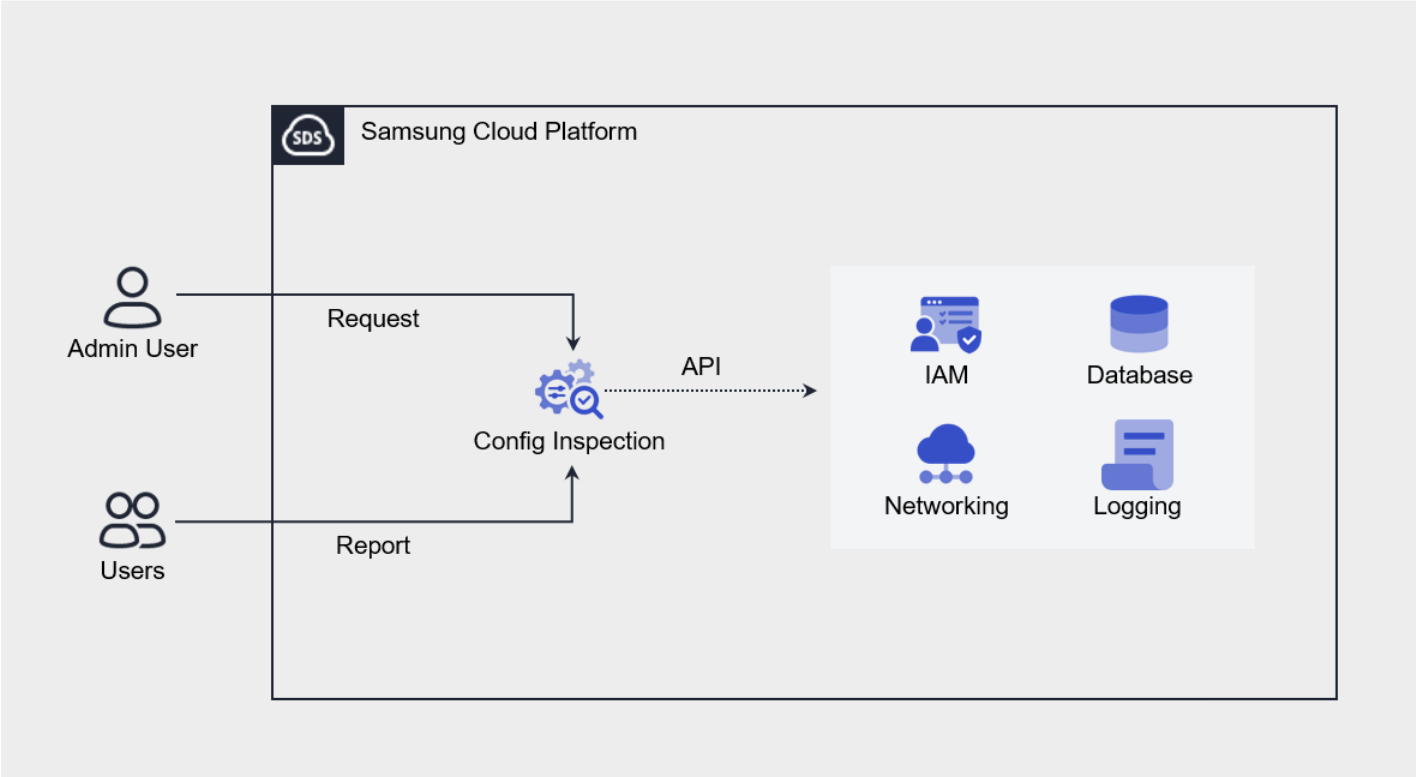
Provided Features
Config Inspection provides the following features.
- Console Diagnosis: You can diagnose the security level by calling the Console API using the authentication key method.
- Diagnosis Target Management: Through service creation, you can create and manage the user’s Samsung Cloud Platform account as a diagnosis target.
- Diagnosis Request: In the resource detail screen, you can request a diagnosis by clicking the Diagnosis Request button.
- Diagnostic Result Management: In Report, you can view the list of diagnosis requests and detailed diagnosis results, and download them as an Excel file.
Components
Checklist
The checklist is a collection of diagnostic items that serve as the basis for diagnostic results, and the checklist currently provided by Config Inspection is as follows.
| Cloud | Checklist Name | Number of Items |
|---|---|---|
| Samsung Cloud Platform | Best Practice | 18 |
Table. Config Inspection checklist
The detailed diagnostic items of the Best Practice checklist provided by Samsung Cloud Platform are as follows.
| Area | Diagnostic Item |
|---|---|
| Networking |
|
| Container |
|
| Database |
|
| Logging |
|
Table. Samsung Cloud Platform Best Practice checklist composition items
Report
In the Config Inspection Report, you can view the diagnostic results in the order of result list, result details, and item details.
| Category | Detailed description |
|---|---|
| Diagnosis Result List | All diagnosis request history within Account
|
| Diagnosis Result Details | Result of a successfully completed diagnosis request (diagnosis item list)
|
| Diagnostic Item Details | Detailed Results per Diagnostic Item |
Table. Config Inspection Report diagnostic configuration
Preliminary Service
Config Inspection has no preceding service.
2.2 - How-to guides
The user can input the necessary information for the Config Inspection service and create the service by selecting detailed options through the Samsung Cloud Platform Console.
Create a certificate
To create and use the Config Inspection service in the Samsung Cloud Platform Console, authentication key creation is required in advance.
API key creation is available at My menu > My Info. > API key management > API key creation. For more information, please refer to API key management.
Note
- The expiration period of the authentication key is up to 365 days.
- To create an authentication key with no expiration date, it must be created as permanent.
Config Inspection creation
You can create and use the Config Inspection service in the Samsung Cloud Platform Console.
Reference
The user must be a member of the AdministratorGroup user group to use the services provided by Config Inspection service normally.
To create a Config Inspection, follow these steps.
Click All Services > Security > Config Inspection menu. It moves to the Service Home page of Config Inspection.
On the Service Home page, click the Config Inspection creation button. It moves to the Config Inspection creation page.
Config Inspection Creation page where you enter the necessary inputs for service creation and select detailed options.
- Enter Service Information area, enter or select the required information.
Classification NecessityDetailed Description Diagnosis Type Required Console Cloud Required Select cloud to diagnose - SCP: Samsung Cloud Platform
- AWS: Amazon Web Service
- Azure: Microsoft Azure
- Detailed input items may vary depending on the selected cloud type
Diagnosis target > Diagnosis name Required Name to distinguish diagnosis target - Use the entered value as the resource name
- Use English, numbers, and special characters (
-,_) within 25 characters
Diagnosis target > Diagnosis account Required Diagnosis target is Console information - Select the Account ID to be diagnosed from the list
- If you select the same Account ID, it will be duplicated and an additional fee will be incurred
- If you select AWS, enter the Account ID in the diagnosis account (12-digit number)
- If you select Azure, enter the Subscription ID in the diagnosis account (36 characters including letters, numbers, and special characters)
Diagnosis Schedule > Check List Mandatory Automatically set when Using Diagnosis Schedule is selected Diagnosis Schedule > Diagnosis Cycle Required Diagnosis Cycle Selection - Diagnosis is executed on the selected date according to the specified cycle
- Monthly is selected, diagnosis may not be performed on the selected date
- Example) Monthly 31st selected - February does not have that date, so diagnosis is not performed
Diagnosis Schedule > Start Time Mandatory Diagnosis start time selection - Set the hour and minute information to start the diagnosis
Authentication Key Mandatory Select the authentication key to use for Open API calls - Select button to select the corresponding authentication key from the authentication key list in the Authentication Key Selection popup window
- If there are no selectable authentication keys, create a new authentication key through the Authentication Key Management button
- For more information about authentication keys, see Managing Authentication Keys
Rate Plan Selection Select the rate plan to use - General: Charges are based on the number of diagnoses
- Monthly Fee: Charges are based on a fixed monthly amount regardless of the number of diagnoses (up to 30 diagnoses per month)
- The rate plan cannot be changed after applying for the service
Table. Config Inspection service information input items- Enter Additional Information Please enter or select the required information in the area.
Classification NecessityDetailed Description Tag Select Add Tag - Up to 50 can be added per resource
- Click the Add Tag button and enter or select Key, Value
Table. Additional Information Input Items for Config InspectionIn the Summary panel, check the detailed information and estimated billing amount generated, and click the Create button.
- Once creation is complete, check the created resource on the Config Inspection list page.
Config Inspection detailed information check
Config Inspection service can check and modify the entire resource list and detailed information. The Config Inspection details page consists of detailed information, tags, and work history tabs.
To check the detailed information of the Config Inspection service, follow the next procedure.
- Click on the menu of all services > Security > Config Inspection. It moves to the Service Home page of Config Inspection.
- On the Service Home page, click the Config Inspection menu. It moves to the Config Inspection list page.
- Config Inspection list page, click on the resource to check the detailed information. Move to the Config Inspection details page.
- Config Inspection Details page displays status information and additional feature information, and consists of Details, Tags, Work History tabs.
Classification Detailed Description Status Config Inspection status is displayed - Ready: after service creation, when there is no diagnosis request (diagnosis request possible)
- In Progress: when a diagnosis request is being executed (diagnosis request/service cancellation not possible)
- Error: when an error occurs in the diagnosis request (diagnosis request possible)
- Completed: when the diagnosis request is completed normally (diagnosis request possible)
Diagnostic Request Button that can perform Console diagnosis Service Cancellation Button to cancel the service Fig. Config Inspection status information and additional features
- Config Inspection Details page displays status information and additional feature information, and consists of Details, Tags, Work History tabs.
Detailed Information
On the Config Inspection List page, you can check the detailed information of the selected resource and modify the information if necessary.
| Division | Detailed Description |
|---|---|
| Service | Service Category |
| Resource Type | Service Name |
| SRN | Unique resource ID in Samsung Cloud Platform |
| Resource Name | Resource Title |
| Resource ID | Unique resource ID in the service |
| Creator | Service creator user |
| Creation Time | Time when the service was created |
| Modifier | Service information modified user |
| Modified Time | Time when service information was modified |
| Diagnosis Type | Service-provided diagnosis type |
| Cloud | Diagnostic Target Type |
| Diagnosis Target | Diagnosis target is Console information
|
| Rate Plan | Selected Rate Plan Type |
| Recently diagnosed time | Last executed diagnosis request time |
| Recent diagnosis result | Last executed diagnosis request result
|
| Authentication Key | Registered user’s authentication key when the service is created
|
| Diagnosis Schedule | Displays the selected diagnosis schedule information
|
Fig. Config Inspection detailed information tab items
Tag
On the Config Inspection 목록 page, you can check the tag information of the selected resource, and add, change, or delete it.
| Classification | Detailed Description |
|---|---|
| Tag List | Tag List
|
Fig. Config Inspection Tag Tab Items
Work History
Config Inspection 목록 page where you can check the operation history of the selected resource.
| Division | Detailed Description |
|---|---|
| Work history list | Resource change history
|
Fig. Config Inspection job history tab detailed information items
Config Inspection Resource Management
Config Inspection resource status inquiry and diagnosis request are required in case of Config Inspection list or Config Inspection detail page where work can be performed.
Modifying the authentication key
You can select the authentication key to use for diagnosis by diagnosis target.
To modify the service authentication key, follow these steps.
- Click on the menu for all services > Security > Config Inspection. It moves to the Service Home page of Config Inspection.
- On the Service Home page, click the Config Inspection menu. It moves to the Config Inspection list page.
- Config Inspection list page, click the resource to modify the authentication key. Move to the Config Inspection details page.
- Check the authentication key and click the edit icon. The edit authentication key popup window appears.
- Modify Authentication Key popup window, select the registered authentication key and click the OK button.
Classification Detailed Description Access Key Access Key information of the authentication key Creation Date Access Key Creation Date Expiration Date Access Key Expiration Date Status Authentication key status - In use: available status
- Expired: expiration of usage period status
Fig. Edit Authentication Key Popup Window Items
Reference
- If the authentication key is deleted, it will be displayed as
-state. - Authentication key information (Access Key, status) of resources created by other users will be displayed as
-.
Request Diagnosis
You can request a diagnosis from the Console based on the set checklist.
To request a console diagnosis, follow these steps.
Click on the menu for all services > Security > Config Inspection. It moves to the Service Home page of Config Inspection.
On the Service Home page, click the Config Inspection menu. It moves to the Config Inspection list page.
Config Inspection list page, click the resource to request diagnosis. Move to the Config Inspection details page.
Config Inspection details page, click the Diagnosis Request button. Diagnosis Request popup window appears.
Diagnosis Request In the diagnosis request popup window, enter the necessary information for diagnosis and click the Confirm button.
- Diagnostic Request The items in the popup window vary depending on the Console you select.
Classification Detailed Description Console access method The method of accessing the Console, with the authentication key method fixed Check List Fixed as Best Practice when SCP is selected Authentication Key Select the authentication key created in advance if SCP is selected Access Key If you selected AWS, enter the Access Key Secret Key If you choose AWS, enter the Secret Key Client ID Enter Client ID if Azure is selected Client Secret If Azure is selected, enter Client Secret Tenant ID If Azure is selected, enter the Tenant ID Fig. Diagnostic Request Popup Window Items
- Diagnostic Request The items in the popup window vary depending on the Console you select.
Check the Status value on the Config Inspection List page.
- When the diagnosis request is completed, the status value is displayed as Completed or Error.
- Completed case, you can check the diagnosis result in the diagnosis result menu. For more information, please refer to Report management.
Reference
For details on the preliminary setup required for running diagnostics by console, see Preparation.
Config Inspection disable
You can cancel the unused Config Inspection service. However, if you cancel Config Inspection, all saved diagnostic data will be deleted.
Caution
- If you cancel the resource, all diagnostic data will be deleted and you will not be able to view the diagnostic results in the Report.
- If the status of the Config Inspection service is In Progress, the service cannot be cancelled.
To disable Config Inspection, follow the next procedure.
- Click All Services > Security > Config Inspection menu. It moves to the Service Home page of Config Inspection.
- On the Service Home page, click the Config Inspection menu. It moves to the Config Inspection list page.
- Config Inspection list page, click the resource to be canceled. Move to the Config Inspection details page.
- Config Inspection details page, click the service cancellation button.
- Once the cancellation is complete, please check if the resource has been cancelled on the Config Inspection list page.
2.2.1 - Dashboard Check
Users can check the diagnostic results of the Config Inspection service at a glance on the dashboard through the Samsung Cloud Platform Console.
Check Dashboard
On the dashboard page, you can check the diagnosis status and history of Config Inspection, etc.
To check the dashboard, follow the next procedure.
- 모든 서비스 > Security > Config Inspection menu is clicked. It moves to the Service Home page of Config Inspection.
- On the Service Home page, click the Dashboard menu. It moves to the Dashboard page.
- Dashboard page where you can check the summary information of the diagnosis result.
- Dashboard page, you can check the dashboard information based on the period or diagnosis name at the top.
Period: You can check the summary information of the diagnosis results by setting a period within 6 months based on this month.
Diagnosis Name: If you select all, you can summarize the entire diagnosis result, and if you select a diagnosis account, you can check the detailed history of the diagnosis result.
- Download button allows you to download the information displayed on the dashboard page as a PDF file.
Division Detailed Description Security Level (Total) The average value of the latest diagnosis results of all diagnosis targets is displayed - The latest diagnosis results are listed
- Diagnosis score calculation formula = Total - (Fail + Error + Check)) / Total x 100
Diagnostic Status by Period Displays diagnostic status by target during the search period - Diagnosis Completed: Displays recent diagnosis completion records
- Diagnosis Error: Displays recent diagnosis error records, and moves to the detailed diagnosis result page when selecting a diagnosis name
Summary of diagnostic results by period (all) Displays summary information of diagnostic results (all) during the search period - Selecting a diagnosis name from the list moves to the diagnostic result details page
Table. Detailed description of dashboard items for overall diagnosis resultsClassification Detailed Description Security Level The last diagnosis result score of the selected diagnosis account is displayed - The latest diagnosis result is displayed in the list
Periodic diagnosis result summary Display a summary of the diagnosis results of the last diagnosis account during the search period Vulnerability Status by Period Displays the vulnerability diagnosis results of the diagnosis account during the search period in a graph - Displays detailed information of vulnerable items in the diagnosis results when selecting a graph
Fig. Detailed description of dashboard items for diagnostic results by diagnostic account
2.2.2 - Diagnosis Result Management
You can check the Config Inspection diagnosis request results on the diagnosis result page and change the diagnosis results.
Note
Diagnosis results are created when a diagnosis request is made through the Config Inspection service, and the diagnosis results are deleted when the service is terminated.
Checking Diagnosis Results
On the diagnosis result page, you can check the results of the diagnosis request.
Checking the Diagnosis Result List
To check the diagnosis result list, follow these steps:
- Click All Services > Security > Config Inspection. You will be taken to the Service Home page of Config Inspection.
- On the Service Home page, click Diagnosis Result. You will be taken to the Diagnosis Result List page.
- On the Diagnosis Result List page, check the summary information of the diagnosis results.
Category Detailed Description Diagnosis Name Resource Name Diagnosis Account Console information that is the target of diagnosis Checklist A collection of diagnosis items that serve as the basis for the diagnosis result PASS The number of items in the checklist with a diagnosis result of PASS (normal) FAIL The number of items in the checklist with a diagnosis result of FAIL (vulnerable) CHECK The number of items in the checklist with a diagnosis result of CHECK (requires verification) ERROR The number of items in the checklist with a diagnosis result of ERROR (diagnosis not possible) N/A The number of items in the checklist with a diagnosis result of N/A (not applicable) Total The total number of items in the checklist Diagnosis Result The result of the diagnosis request - Completed: The diagnosis request was completed normally
- Error: The diagnosis request was not completed normally, and the error status items cannot be checked in detail
Diagnosis Time The time the diagnosis request was made Table. Diagnosis Result List Items
Checking Detailed Diagnosis Result Information
To check the detailed information of the diagnosis result, follow these steps:
Click All Services > Security > Config Inspection. You will be taken to the Service Home page of Config Inspection.
On the Service Home page, click Diagnosis Result. You will be taken to the Diagnosis Result List page.
- You can search for diagnosis results by entering the diagnosis name in the search area of the Diagnosis Result List page or by clicking the Detailed Search button.
On the Diagnosis Result List page, click on an item with a diagnosis result of Completed. You will be taken to the detailed diagnosis result page.
- Items with a diagnosis result of Error do not display detailed information.
On the Detailed Diagnosis Result page, check the detailed diagnosis results.
Category Detailed Description Excel Download Download the detailed diagnosis result list as an Excel file More > Diagnosis Result Management Move to the diagnosis result management page Checklist A collection of diagnosis items that serve as the basis for the diagnosis result Area The scope of diagnosis (Samsung Cloud Platform services) Diagnosis Item Security standards recommended for service settings Result The result of checking the diagnosis item Table. Detailed Diagnosis Result ItemsClick on the diagnosis item you want to check in detail. The Diagnosis Item Details popup window will appear.
- In the Diagnosis Item Details popup window, you can check the following information:
  | Category | Detailed Description |
  |---------|---------|
  | Area | The scope of diagnosis (Samsung Cloud Platform services) |
  | Diagnosis Item | Security standards recommended for service settings |
  | Result | The result of checking the diagnosis item |
  | Diagnosis Criteria | The criteria for determining the result |
  | Diagnosis Method | The method for checking the current settings |
  | Countermeasure Guide | The method for setting the security standards |
  | Detailed Result | Information about the resources and settings corresponding to the diagnosis item |
  | Change Diagnosis Result | A button to change the diagnosis result |
  <div class="figure-caption">
    Table. Config Inspection Diagnosis Item Details
  </div>
- In the Diagnosis Item Details popup window, you can check the following information:
Managing Diagnosis Results
The diagnosis result page allows you to change the results of items with a CHECK status.
Changing Diagnosis Results
To change a diagnosis result, follow these steps:
Click All Services > Security > Config Inspection menu. You will be directed to the Config Inspection Service Home page.
Click the Diagnosis Result menu on the Service Home page. You will be directed to the Diagnosis Result List page.
Click an item with a completed diagnosis result on the Diagnosis Result List page. You will be directed to the Diagnosis Result Detail page.
- Items with an Error status will not display detailed information.
Click the Diagnosis Result Management button at the top of the Diagnosis Result Detail page. You will be directed to the Diagnosis Result Management page.
Click the Result Change button for the item you want to change the diagnosis result for** on the Diagnosis Result Management page. You will be directed to the Result Change popup window.
Select or enter the required information for the result change in the Result Change popup window.
Category Required Description Register - Email of the person changing the diagnosis result Valid Period Required Set the valid period for the diagnosis result Result Change Required Select the new diagnosis result (Pass, Check, Fail) Detailed Reason Required Enter a detailed reason for changing the result Attachment Optional Upload a file required for result change confirmation - Click the File Attachment button to upload a file, up to 5 files can be registered
Inspection Result - Display detailed inspection results Table. Detailed Items for Changing Diagnosis ResultsConfirm the entered information and click the Register button. Verify that the diagnosis result has been changed in the Diagnosis Result Management list.
Deleting Diagnosis Result Change History
To delete the diagnosis result change history, follow these steps:
- Click All Services > Security > Config Inspection menu. You will be directed to the Config Inspection Service Home page.
- Click the Diagnosis Result menu on the Service Home page. You will be directed to the Diagnosis Result List page.
- Click an item with a completed diagnosis result on the Diagnosis Result List page. You will be directed to the Diagnosis Result Detail page.
- Items with an Error status will not display detailed information.
- Click the Diagnosis Result Management button at the top of the Diagnosis Result Detail page. You will be directed to the Diagnosis Result Management page.
- Click the Result Confirmation button for the item you want to delete the diagnosis result change history for** on the Diagnosis Result Management page. You will be directed to the Result Confirmation popup window.
- Click the Delete button in the Result Confirmation popup window.
2.2.3 - Setting up the Cloud
To use the Config Inspection service through the Samsung Cloud Platform Console, users must set up cloud prerequisites, such as generating authentication keys and adding access control IPs.
Note
The settings to be configured vary depending on the type of cloud to be used. Refer to the relevant chapter to set up the necessary items for each cloud.
Setting up the Samsung Cloud Platform Console
To diagnose the Samsung Cloud Platform and external clouds using the Config Inspection service, configure the following items.
Checking policies connected to user groups
Guide
- Config Inspection can diagnose the Samsung Cloud Platform or external clouds. Depending on the diagnosis target, you can use the service by granting the necessary policy requirements to the user group.
- Make sure that the user group policy that matches the desired diagnosis target is set up.
- If policy creation is required, contact the Account administrator.
To check the policies of the user group you belong to, follow these steps:
- Click All Services > Management > IAM. You will be taken to the Service Home page of IAM.
- On the Service Home page, click User Group. You will be taken to the User Group List page.
- On the User Group List page, click the user group you want to check. You will be taken to the User Group Details page.
- On the User Group Details page, click the Policy tab. You will be taken to the Policy tab page.
- On the Policy tab page, click the policy you want to check. You will be taken to the Policy Details page.
- On the Policy Details page, check the detailed information.
Generating authentication keys
You can check and generate authentication keys to be used for the Config Inspection service.
Guide
- You can create up to two authentication keys.
- After creating a new authentication key, you must apply the changed API authentication key to the service you are using.
To generate an authentication key in the Samsung Cloud Platform Console, follow these steps:
- Click My Menu > My Info. You will be taken to the My Info. details page.
- On the My Info. details page, click the Authentication Key Management tab. You will be taken to the Authentication Key Management tab page.
- On the Authentication Key Management tab page, click the Create Authentication Key button. You will be taken to the Create Authentication Key page.
- On the authentication key management page, you can check the list of authentication keys.
- On the Create Authentication Key page, enter the expiration period and click the Confirm button.
- Check if the created authentication key is displayed in the authentication key list.
Adding Allowed Access IP
You can add an allowed access IP in the Samsung Cloud Platform Console.
To add an allowed access IP in the Console, follow these steps:
- Click the My menu > My info. menu in the Console. You will be moved to the My info. detail page.
- Click the Authentication key management tab on the My info. detail page. You will be moved to the Authentication key management tab page.
- On the Authentication key management tab page, click the Modify icon in the Security settings section. The Modify authentication key security settings popup window will open.
- In the Modify authentication key security settings popup window, enter the authentication method and allowed access IP.
- Select Authentication key as the authentication method.
- Set the allowed access IP to Use and enter the IP address, then click the Add button.
- Once the allowed access IP is added, click the Confirm button. Verify that the information entered in the Security settings section has been modified.
Setting up AWS
To diagnose the AWS (Amazon Web Services) cloud in the Config Inspection service, set up the following items.
Adding Permission Policy
You can add a permission policy for a user or user group in the AWS Console.
Adding User Permissions
To add a user access permission policy in the AWS Console, follow these steps:
- Click IAM > Users in the AWS Console.
- Select the diagnostic user name from the user list.
- Click the Permissions tab on the user information page.
- Select Add permissions in the permission policy.
- When adding permissions, select ReadOnlyAccess, ViewOnlyAccess.
Adding User Group Permissions
To add a user group access permission policy in the AWS Console, follow these steps:
- Click IAM > User groups in the AWS Console.
- Select the user group that the user belongs to from the user group list.
- Click the Permissions tab on the user group page.
- Select Add permissions in the permission policy.
- When adding permissions, select ReadOnlyAccess, ViewOnlyAccess.
Adding Access Control IP
If you are using an IP access control policy, you must add an exception IP to the policy.
Adding IP Access Control for Users
To add IP access control for users in the AWS Console, follow these steps:
- Click IAM > Users in the AWS Console.
- Select the diagnostic user name from the user list.
- Click the Permissions tab on the user information page.
- Click Edit on the IP Access Control Policy in the permissions policy item.
- Add 123.37.24.82 to the exception IP for blocking.
Adding IP Access Control for User Groups
To add IP access control for user groups in the AWS Console, follow these steps:
- Click IAM > User Groups in the AWS Console.
- Select the user group that the user belongs to from the user group list.
- Click the Permissions tab on the user group page.
- Click Edit on the IP Access Control Policy in the permissions policy item.
- Add 123.37.24.82 to the exception IP for blocking.
Creating Access Keys
To create access keys in the AWS Console, follow these steps:
- Click IAM > Users in the AWS Console.
- Select the diagnostic user name from the user list.
- Click the Security Credentials tab on the user information page.
- Click Access Keys on the Security Credentials page.
- Create an access key for third-party services on the Create Access Key page.
- Be sure to save the created access key information.
Note
Secret Key can only be downloaded as a CSV file or recorded separately.
- Secret key information can only be checked during access key creation and cannot be recovered later.
Setting up Azure
To diagnose Azure cloud in the Config Inspection service, set up the following items.
Registering Entra ID Application
To register Entra ID Application in the Azure Console, follow these steps:
- Click Microsoft Entra ID > App Registration in the Azure Console.
- Click New Registration on the App Registration page.
- Register the application (client) ID.
- After completing the app registration, check the App Name, Application (Client) ID, Directory (Tenant) ID on the overview page.
Adding API Permissions
Reference
To use the Config Inspection service, you must pre-set it with an account that has the Global Administrator role in Azure AD.
To add API permissions in the Azure Console, follow these steps:
- Click Microsoft Entra ID > App Registration (App registrations) > Entra ID Application Registration and select the created App Name > API Permissions (App permissions) > Add a permission.
- Select Microsoft Graph from the API Permissions list.
- Click Application Permissions on the API Permission Request page.
- Select Application.Read.All, Device.Read.All, Group.Read.All, User.Read.All, DeviceManagementManagedDevices.Read.All, AuditLog.Read.All, Directory.Read.All, Domain.Read.All, GroupMember.Read.All, Policy.Read.All, Reports.Read.All from the permission list.
- Click Grant admin consent for account name after adding permissions on the App API Permission Registration page.
- Check if the status has changed to Granted for account name.
Creating Client Secret
To create a client secret in the Azure Console, follow these steps:
- Click Microsoft Entra ID > App Registration (App registrations) > Entra ID Application Registration and select the created App Name > Certificates & Secrets.
- Click New Client Secret on the Certificates & Secrets list.
- Check the Value item of the client secret in the list after creating the client secret.
- Be sure to save the client secret value.
Note
The client secret value (Value) can only be checked during creation. Be sure to record or save it separately.
Adding Subscription Access Permissions in Azure Console
Subscription access permissions in the Azure Console can be added to the tenant root group or individual subscriptions. Choose the desired method to add subscription access permissions.
Adding Permissions to the Tenant Root Group
To add Azure Console subscription access permissions to the Tenant Root Group, follow these steps:
- Click on Management groups > Overview in the Azure Console.
- Click on Tenant Root Group > IAM.
- If you cannot access the Tenant Root Group menu, change the following settings:
- Microsoft Entra ID > Properties > ‘Account name’ can manage access to all Azure subscriptions and management groups in this tenant. > Yes
- After adding permissions, be sure to change it back to No.
- If you cannot access the Tenant Root Group menu, change the following settings:
- On the Access Control page, click on Add > Add role assignment.
- On the Add role assignment page, enter the details and click on Save (Review+assign).
- When entering role assignment information, select the following information in the Role and Member tabs to add the App created in Entra ID Application registration. All three permissions below must be added.
  |  Category  |  Permission  |
  |---------|---------|
  |Reader|User, group, or service principal|
  |Key Vault Reader|User, group, or service principal|
  |Reader and Data Access|User, group, or service principal|
  <div class="figure-caption">
    Table. Additional permission items when entering role assignment information
  </div>
- When entering role assignment information, select the following information in the Role and Member tabs to add the App created in Entra ID Application registration. All three permissions below must be added.
Adding Permissions to an Individual Subscription
To add Azure Console subscription access permissions to an individual subscription, follow these steps:
- Click on Subscription > Overview in the Azure Console.
- Check the Subscription ID in the basic information on the overview page.
- Click on Subscription > IAM.
- On the Access Control page, click on Add > Add role assignment.
- On the Add role assignment page, enter the details and click on Save (Review+assign).
- When entering role assignment information, select the following information in the Role and Member tabs to add the App created in Entra ID Application registration. All three permissions below must be added.
  |  Category  |  Permission  |
  |---------|---------|
  |Reader|User, group, or service principal|
  |Key Vault Reader|User, group, or service principal|
  |Reader and Data Access|User, group, or service principal|
  <div class="figure-caption">
    Table. Additional permission items when entering role assignment information
  </div>
- When entering role assignment information, select the following information in the Role and Member tabs to add the App created in Entra ID Application registration. All three permissions below must be added.
Adding Access Permissions using PowerShell
To add Azure Console subscription access permissions using PowerShell, follow these steps:
- In the Azure Console, run the following command in Cloud shell > PowerShell:
New-AzRoleAssignment -ObjectId “Object ID of the App confirmed in Enterprise Application” -Scope “/providers/Microsoft.aadiam” -RoleDefinitionName ‘Reader’ -ObjectType ‘ServicePrincipal’- If the command does not work, change the following settings:
- Microsoft Entra ID > Properties > ‘Account name’ can manage access to all Azure subscriptions and management groups in this tenant. > Yes
- After adding permissions, be sure to change it back to No.
- Run the following command to check if the settings are complete:
Get-AzRoleAssignment –ObjectId “Object ID of the App confirmed in Enterprise Application” –Scope “/providers/Microsoft.aadiam”- If you need to delete permissions, run the following command:
Remove-AzRoleAssignment -ObjectId “Object ID of the App confirmed in Enterprise Application” -Scope “/providers/Microsoft.aadiam” -RoleDefinitionName ‘Reader’
2.3 - Release Note
Config Inspection
2025.07.01
FEATURE
Service Offering Expansion- We have launched the Config Inspection product, which can comprehensively diagnose and manage security vulnerabilities in the customer’s multi-cloud console.
- The account (or other cloud account) to be diagnosed is registered, allowing for continuous diagnosis, and the dashboard and detailed results can be checked in the report.
2025.02.27
FEATURE
Common Feature Changes- Samsung Cloud Platform common feature changes
- Account, IAM and Service Home, tags, etc. reflected common CX changes.
2024.12.23
NEW
Beta version release- You can manage Samsung Cloud Platform Console setting vulnerabilities through console diagnostics.
- It provides a Report that can view the security diagnosis results.
3 - Certificate Manager
3.1 - Overview
Service Overview
Certificate Manager is a service that supports certificate deployment and integrated management, allowing users to create and use SSL/TLS certificates issued by a Certificate Authority (CA) and self-signed certificates for development or testing purposes in Samsung Cloud Platform resources. It also enables management of the certificate lifecycle by checking expiring certificates through expiration notification emails.
Features
- Easy creation: You can create a certificate with a simple task on the Samsung Cloud Platform Console. User certificates issued from outside undergo validity verification and only deployable certificates are distributed.
- Service Integration: Connects certificates registered in Certificate Manager to Load Balancer to encrypt network connections and protect services.
- Certificate Expiration Alert: Until 1 day before the expiration date, periodic notifications allow you to check and replace certificates that are about to expire.
Service Composition Diagram
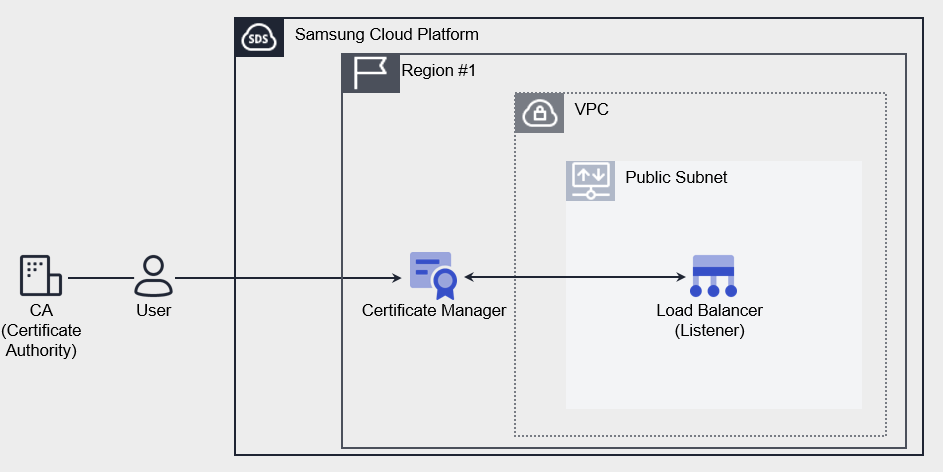
Provided Features
Certificate Manager provides the following functions.
- Certificate Creation: You can create a user certificate issued by a certificate authority or a self-signed certificate suitable for development/testing purposes.
- Connected Resource Inquiry: You can inquire about Samsung Cloud Platform resources that are using certificates. Currently, it provides a list of Load Balancer’s Listener(HTTPS).
- Expiration Notice: You can set the recipient of the expiration notice for each certificate. The notification recipient will receive an email from 45 days before expiration. (Sent 45/30/15/7/1 day before expiration)
Components
The Certificate Manager’s user certificate consists of Private Key, Certificate Body, and Certificate Chain. Enter the certificate information, including the entire contents, including the BEGIN and END lines.
Private Key
Enter the private key in PEM format. The private key supports RSA and the decrypted value must be entered.
-----BEGIN RSA PRIVATE KEY-----
Private Key
-----END RSA PRIVATE KEY-----
Certificate Body
Server(Leaf) inputs the certificate in PEM format. Only one certificate can be entered in the Certificate Body.
-----BEGIN CERTIFICATE-----
Server Certificate
-----END CERTIFICATE-----
Certificate Chain
Enter the upper certificate in PEM format. Enter in the order of Sub(Intermediate) CA → Root CA, and it can be omitted only when it is a self-signed/issued certificate.
-----BEGIN CERTIFICATE-----
Intermediate Certificate
-----END CERTIFICATE-----
-----BEGIN CERTIFICATE-----
Root Certificate
-----END CERTIFICATE-----
Constraints
Certificate Manager provides a service by Region unit. Please create and use the service in the required Region. The quota per Region is as follows.
| Classification | Basic Quantity | Description |
|---|---|---|
| CERTIFICATE_MANAGER.USER_CERT_DEFAULT.COUNT | 100 | Number of user certificates per region |
| CERTIFICATE_MANAGER.SELFSIGNED_CERT_DEFAULT.COUNT | 100 | Number of self-issued certificates per Region |
Table. Restrictions of Certificate Manager
Preceding Service
Certificate Manager has no preceding services.
3.2 - How-to guides
The user can enter the required information for the Certificate Manager service through the Samsung Cloud Platform Console, select detailed options, and create the service.
Certificate Manager Create
You can create and use the Certificate Manager service from the Samsung Cloud Platform Console.
To request the creation of a Certificate Manager service, follow the steps below.
- All Services > Security > Certificate Manager Click the menu. Service Home page will be opened.
- Click the Create Certificate Manager button on the Service Home page. You will be taken to the Create Certificate Manager page.
- Certificate Manager creation On the page, enter the information required to create the service, and select detailed options.
- Service Information Input area: enter or select the required information.
Category RequiredDetailed description Certificate Name Required Enter the name of the Certificate Manager to use - Enter within 3-30 characters, including English letters, numbers, and special characters (
-,_,.)
- Cannot be the same as an existing name in use
Type Required Select the Certificate Manager type to use - User Certificate: Public certificate issued by a Certificate Authority (CA)
- Self-issued Certificate: Certificate self-issued (Self-signed) by Samsung Cloud Platform
- Since it is relatively insecure, it is recommended for development/testing use.
User Certificate > Certificate Body Required Enter Server (Leaf) certificate information - Only one certificate can be entered in the certificate body
- Enter the entire content including the lines from
—–BEGIN CERTIFICATE—–to—–END CERTIFICATE—–
User Certificate > Private Key Required Enter private key information - Private Key supports RSA encryption method
- Private Key can be entered in unencrypted PEM format
- Enter the entire content including the lines from
—–BEGIN RSA PRIVATE KEY—–to—–END RSA PRIVATE KEY—-
User Certificate > Certificate Chain Required Enter Certificate Chain information - Can be omitted when using a private certificate
- Enter the Certificate Chain in order: Intermediate (Subordinate) certificate → Root certificate
- Public certificates must provide Certificate Chain information; only when there is no intermediate certificate (Chain CA) should use be disabled
- Enter the entire content including the lines from
—–BEGIN CERTIFICATE—–to—–END CERTIFICATE—–
- If there are multiple Intermediate (Subordinate) certificates, enter each certificate’s content in order
User Certificate > Certificate Validity Check Required Validate the entered certificate’s validity Self-issued certificate > Common Name Required Enter the domain name to be used for the certificate Self-issued certificate > Organization Unit Required Enter the organization and department that will use the certificate Self-issued Certificate > Start Date Required Enter the certificate usage start date (creation date) Self-issued certificate > Expiration date Required Enter certificate expiration date Expiration Alert Select Set whether to receive alerts before certificate expiration - Use can be selected to enable expiration alerts
- If expiration alerts are set, an email is sent to recipients 45 days/30 days/15 days/7 days/1 day before certificate expiration
Expiration Alert > Notification Recipient Required Select notification recipient when using expiration alert - Enter user name in the search area to select notification recipient
- Up to 100 can be registered
Table. Certificate Manager Service Information Input ItemsReference- If the entered certificate information is not valid, you cannot create the Certificate Manager service.
- If the Private Key is encrypted, enter the decrypted value using the openssl command below.
openssl rsa -in [Encrypted Private Key File name] -out [Decrypted Private Key File name]
- For certificates issued via Let’s Encrypt, even if there is a previously issued Certificate Chain value, extract it again and input.
- For detailed explanation of the extraction method, please refer to Chain Certificate Extraction.
- Enter within 3-30 characters, including English letters, numbers, and special characters (
- Additional Information Input Enter or select the required information in the area.
Category Whether requiredDetailed description Tag Select Add Tag - Up to 50 can be added per resource
- After clicking the Add Tag button, enter or select Key, Value values
Table. Certificate Manager additional information input items
- Service Information Input area: enter or select the required information.
- Verify the entered service information and additional information, and click the Complete button.
- Once creation is complete, check the created resource on the Certificate Manager List page.Reference
To create a Load Balancer to use in the Certificate Manager service, click Load Balancer creation in Service Home.
- For detailed explanation about creating a Load Balancer, please refer to Creating a Load Balancer.
- Once creation is complete, check the created resource on the Certificate Manager List page.
Certificate Manager View Detailed Information
Certificate Manager service can view and edit the full resource list and detailed information. Certificate Manager Details page consists of Details, Connected Resources, Tags, Activity History tabs.
To view detailed information of Certificate Manager, follow the steps below.
- All Services > Security > Certificate Manager Click the menu. Go to the Certificate Manager’s Service Home page.
- On the Service Home page, click the Certificate Manager menu. Navigate to the Certificate Manager list page.
- Click the resource to view detailed information on the Certificate Manager List page. You will be taken to the Certificate Manager Details page.
- Certificate Manager Details page displays the status information and detailed information of Certificate Manager, and consists of Details, Connected Resources, Tags, Activity History tabs.
Category Detailed description Service Status Certificate Manager Status - Creating: Creating
- Active/Valid: Certificate valid
- Expired: Certificate expired
- Editing: Editing settings
- Terminating: Terminating
- Error: Certificate error
Service termination Button to cancel Certificate Manager Table. Status Information and Additional Functions
Detailed Information
Certificate Manager list page, you can view detailed information of the selected resource and, if necessary, edit the information.
| Category | Detailed description |
|---|---|
| service | service name |
| Resource Type | Resource Type |
| SRN | Unique resource ID in Samsung Cloud Platform |
| Resource Name | Resource Name |
| Resource ID | Unique resource ID in the service |
| Creator | User who created the service |
| Creation DateTime | Date and time the service was created |
| Editor | User who modified the service information |
| Modification DateTime | Date and time when the service information was modified |
| Certificate Name | Certificate Manager Certificate Name |
| Type | Certificate type information |
| Certificate Information | Detailed information of the selected certificate type
|
| Expiration Notification | Certificate expiration notification settings details
|
Table. Certificate Manager detailed information items
Connected Resources
You can view the connected Load Balancer information on the Certificate Manager list page.
| Category | Detailed description |
|---|---|
| Load Balancer | Load Balancer resource ID connected to the service |
| Listener | Listener resource name ID connected to the service
|
| Status | Display the status of the Listener connected to the service |
Table. Certificate Manager's Connected Resources tab items
Tag
Certificate Manager list page, you can view the tag information of the selected resource, and you can add, modify, or delete it.
| Category | Detailed description |
|---|---|
| Tag List | Tag List
|
Table. Certificate Manager tag tab items
Work History
Certificate Manager List page, you can view the operation history of the selected resource.
| Category | Detailed description |
|---|---|
| Work History List | Resource Change History
|
Table. Certificate Manager operation history tab detailed information items
Certificate Manager Cancel
You can apply for termination of the Certificate Manager service from the Samsung Cloud Platform Console.
Caution
If there are resources connected to the Certificate Manager service, you cannot cancel it. To cancel the service, first delete the connected resources.
To request termination of the Certificate Manager service, follow the steps below.
- All Services > Security > Certificate Manager Click the menu. Go to the Service Home page of Certificate Manager.
- Click the Certificate Manager menu on the Service Home page. Navigate to the Certificate Manager list page.
- Certificate Manager List Click the resource to view detailed information on the page. Certificate Manager Details You will be taken to the page.
- Click the Service Termination button on the Certificate Manager Details page.
- Once termination is complete, check the service termination status in the Certificate Manager list.
3.2.1 - Chain Certificate Extraction
The user can extract and enter the Certificate Chain certificate to be used when creating the Certificate Manager service.
Extract Certificate Chain
You can extract the Certificate Chain certificate value required when creating a Certificate Manager.
Caution
The Certificate Chain consists of Intermediate (Subordinate) certificates issued by a public certification authority to the Root certificate.
- Even if you have an existing Certificate Chain value, it is recommended to re-extract and register the Intermediate (Subordinate) certificate to the Root certificate through the Certificate Body file.
Intermediate (Subordinate) Certificate Value Extraction
You can extract the Intermediate (Subordinate) certificate of the Certificate Chain required when registering a user certificate.
Reference
If there are more than two Intermediate(Subordinate) certificates, extract the values for each certificate.
To extract the Intermediate(Subordinate) certificate value, follow these steps.
- Run the crt file format certificate file on PC. The certificate window appears.
- Click the Certificate Path tab in the Certificate window.
- If it is in PEM file format, change the file format to crt.
- Click the certificate under the Root and click Certificate View.
- Click the Details tab and move, then click Copy to file.
- When the Certificate Export Wizard runs, click Next.
- Select Base 64 encoded X.509(.CER)(S) as the format to use and click Next.
- Click Browse to select the path where you want to save the file, and then click Next.
- Click Finish. The Certificate Export Wizard is complete.
- Open the exported file in TEXT file format and check the value.
- The extracted certificate value must have
—–BEGIN CERTIFICATE—–and—–END CERTIFICATE—-items at the beginning and end.
- The extracted certificate value must have
Root Certificate Value Extraction
You can extract the Root certificate of the Certificate Chain required when registering a user certificate.
To extract the Root certificate value, follow these steps.
- Run the crt file format certificate file on PC. The certificate window appears.
- Click the Certificate Path tab in the Certificate window.
- If it is in PEM file format, change the file format to crt.
- Click the topmost Root certificate and click Certificate View.
- Click the Details tab and move, then click Copy to file.
- When the Certificate Export Wizard runs, click Next.
- Select Base 64 encoded X.509(.CER)(S) as the format to use and click Next.
- Click Browse to select the path where you want to save the file, and then click Next.
- Click Finish. The Certificate Export Wizard is complete.
- Open the exported file in TEXT file format and check the value.
- The extracted certificate value must have
—–BEGIN CERTIFICATE—–and—–END CERTIFICATE—-items at the beginning and end.
- The extracted certificate value must have
Input Certificate Chain value
This explains how to enter the extracted Intermediate (Subordinate) certificate and Root certificate values into the Certificate Chain item when creating a Certificate Manager.
Reference
For detailed information on creating a Certificate Manager, please refer to Creating a Certificate Manager.
To enter the Intermediate (Subordinate) certificate and Root certificate values in the Certificate Chain item, follow these procedures.
- Intermediate (Subordinate) certificate file and Root certificate file should be run in text file format.
- Intermediate (Subordinate) certificate file values should be copied in their entirety.
- Certicafate Manager creation page’s Certificate Chain input area, please paste.
- Include the certificate value, including
—–BEGIN CERTIFICATE—–at the beginning and—–END CERTIFICATE—-at the end, and paste it.
- Include the certificate value, including
- Copy the entire value of the Root certificate file.
- Paste it into the Certificate Chain input area of the Certicafate Manager Creation page.
- Includes the
—–BEGIN CERTIFICATE—–and—–END CERTIFICATE—-at the start and end of the certificate value and paste it. - Intermediate (Subordinate) certificate’s below line will be pasted with the Root certificate value.
- Includes the
3.3 - API Reference
API Reference
3.4 - CLI Reference
CLI Reference
3.5 - Release Note
Certificate Manager
2025.07.01
NEW
Certificate Manager Service Official Version Release- Released Certificate Manager service that supports SSL/TLS certificate deployment and integrated management.
- You can register a certificate issued by a certification authority (CA) or create a self-signed certificate for development/test purposes.
- Samsung Cloud Platform connects to resources and enables encryption of network communication and management of certificate lifecycles.
4 - Secret Vault
4.1 - Overview
Service Overview
Secret Vault is a service that allows access to Samsung Cloud Platform services and resources with a security-enhanced token-based temporary key without hard-coding security information in plain text format when accessing using Open API, and also manages the lifecycle of the temporary key to maintain a security-enhanced environment when using the API.
Features
- Enhanced Security Environment: Instead of entering hard-coded authentication information into the application source code, you can respond to security threats due to authentication information leakage by issuing a token-based temporary key.
- Life-Cycle based key management: Users do not need to manage the life cycle of the key directly to meet security requirements. It provides automated key management and replacement functions according to the set life cycle.
- Various resource utilization possible: Through the token issued by Secret Vault, not only resources within Samsung Cloud Platform but also external resources (other CSP, On-Premise, etc.) can be accessed through an enhanced security environment.
Service Composition Diagram
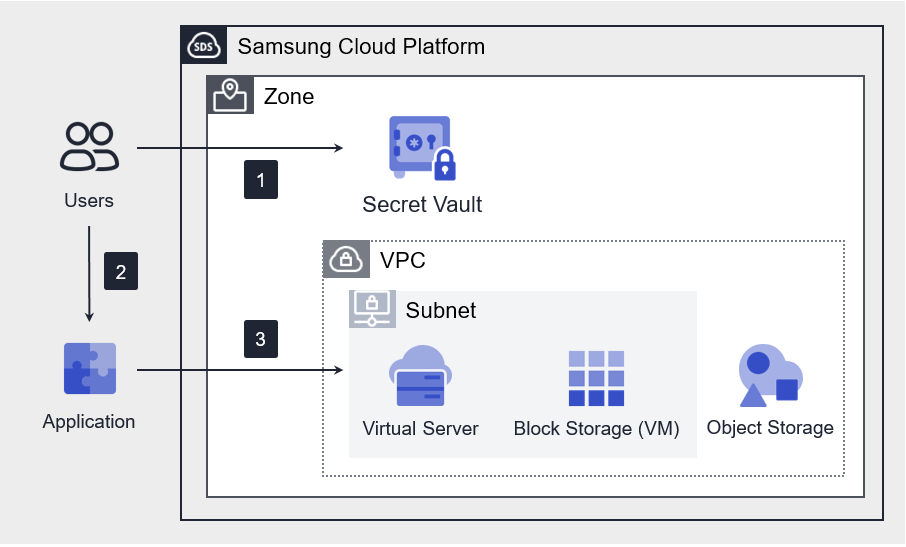
Provided Features
Secret Vault provides the following features.
- Token Authentication Addition and Encryption Storage: It provides token issuance and temporary key issuance functions using authentication keys, and safely stores authentication key information by encrypting it (AES-256).
- Key Life-cycle Management: Provides key issuance and automatic replacement functions based on the life cycle, and allows setting the replacement cycle by time unit (up to 36 hours).
- Access Control Function: The user application can control access to resources based on IP.
Component
Secret
Secret is a form of information that combines Token information and temporary key exchange cycle information, and is an object that can be applied by the user in the console.
Token
Token is a unique string used to authenticate the user’s identity and verify authority, and a temporary key can be issued to access the Samsung Cloud Platform through token-based authentication when requesting Open API.
Constraints
Secret Vault provides a region-based service. Therefore, when creating a Secret, you cannot select an authentication key being used in a Secret from a different region.
Preceding Service
Secret Vault does not require any separate prior service work.
4.2 - How-to guides
The user can enter the essential information of the Secret Vault service and create the service by selecting detailed options through the Samsung Cloud Platform Console.
Secret Vault creation
You can create and use the Secret Vault service on the Samsung Cloud Platform Console.
To create a Secret Vault, follow the following procedure.
- All services > Security > Secret Vault menu, click. It moves to the Service Home page of Secret Vault.
- Service Home page, click the Create Secret Vault button. It moves to the Create Secret Vault page.
- Secret Vault Creation page where you enter the information required for service creation and select detailed options.
- Service Information Input area, please select the required information.
Classification NecessityDetailed Description Secret name required Enter Secret name - Enter 3-63 characters using lowercase English letters and numbers
Type Required Select the type of encryption target Authentication Key Required Select the authentication key to use for the Secret Vault service - Click the Use button to select from the pre-created authentication keys in the Authentication Key Management menu.
- In the Authentication Key Management menu, you must select the security authentication method as Private Key Authentication.
- Expired authentication keys will not be retrieved, and authentication keys with a remaining usage period of less than 30 days or already in use in the Secret Vault product cannot be used. (Only one Secret Vault product can be applied per authentication key.)
Token usage period required The usage period of the Token provided by encrypting the authentication key - The Token usage period is automatically set to be the same as the validity period of the input authentication key by default.
- If the authentication key validity period is set to permanent, the Token usage period can be set up to a maximum of 7300 days (20 years).
- The Token usage period cannot be changed after the service application is completed.
- For security enhancement, periodic replacement of the Token is recommended.
- If the Token usage period expires, it is impossible to issue a temporary key, and a new Token must be issued through a new service application.
- If the Token usage period expires, it is impossible to extend the period, and the Token can no longer be used. Before the Token usage period expires, a new Token must be issued through a new service application, and the issued Token information must be applied to the source code.
Access key replacement cycle Required Select the replacement cycle of the access key to be used to access Samsung Cloud Platform resources - The access key usage time is applied from the time the service creation is completed.
- For security enhancement, the access key usage period can only be set up to a maximum of 1.5 days (36 hours).
- A new access key is issued before the access key usage period expires, and the same usage period is applied.
Access Allowed IP Required Enter the IP to allow access and click the Add button - The entered IP must also be set identically in Authentication Key Management > Security Settings > Access Allowed IP to allow access.
- Even when entering a single IP, you must enter ‘/32’ after the IP.
- Up to 10 IPs can be registered.
Description Selection Additional Information Input Table. Secret Vault service information input items - Additional Information Input area, please select the required information.
Classification MandatoryDetailed Description tag selection add tag - add tag button to create and add a tag or add an existing tag
- up to 50 can be added per resource
- newly added tags are applied after service creation is completed
Table. Additional Information Input Items for Secret Vault
- Summary panel where you can check the detailed information generated and the expected billing amount, and click the Complete button.
- Once creation is complete, check the created resource on the Secret Vault list page.
Secret Vault detailed information check
You can check and modify the entire resource list and detailed information of the Secret Vault service. The Secret Vault details page consists of details, tags, and work history tabs.
To check the detailed information of the Secret Vault service, please follow the following procedure.
- All services > Security > Secret Vault menu, click. It moves to the Service Home page of Secret Vault.
- Service Home page, click the Secret Vault menu. It moves to the Secret Vault list page.
- Secret Vault list page, click on the resource to check the detailed information. It moves to the Secret Vault details page.
- Secret Vault details page displays status information and additional feature information, and consists of details, tags, work history tabs.
Classification Detailed Description Secret Vault status the status of the Secret Vault created by the user - Active: in operation
- To be terminated: after applying for service cancellation, waiting for cancellation
- The scheduled cancellation time of the service is displayed, and the service cancellation can be canceled.
- Expired: token expiration status
- The Secret changed to the Expired status cannot perform any actions such as information inquiry, and is automatically deleted after 7 days.
Replace Master Key Delete the master key currently in use and create a new master key - Only the creator of the Secret Vault service can replace the master key.
Service Cancellation Button to cancel the service Table. Secret Vault Status Information and Additional Functions
Detailed Information
Secret Vault List page where you can check the detailed information of the selected resource and modify the information if necessary.
| Classification | Detailed Description |
|---|---|
| Service | Service Name |
| Resource Type | Resource Type |
| SRN | Unique resource ID in Samsung Cloud Platform |
| Resource Name | Resource Title |
| Resource ID | Unique resource ID in the service |
| Creator | The user who created the service |
| Creation Time | The time when the service was created |
| Editor | User who modified the service information |
| Revision Time | Time when service information was revised |
| Secret name | Name of the generated Secret |
| Type | Encryption Method |
| Description | Additional information or description of the Secret Vault service |
| Authentication Key | Authentication key used in Secret Vault service |
| Token usage period | The available period of the Token provided by encrypting the authentication key |
| Token Expiration Time | Token Usage Expiration Time |
| Token ID | Token’s unique ID |
| Token Secret | Token ID and a pair of generated Token Secret |
| Token replacement cycle | The replacement cycle of the token used to access Samsung Cloud Platform resources |
| Expiration Date of License Key | Expiration Date of License Key Usage |
| Allowed IP | List of IPs that are allowed to access |
| Description | Additional information or description about Secret Vault |
Table. Secret Vault detailed information tab items
Tag
Secret Vault List page where you can check the tag information of the selected resource, and add, change or delete it.
| Classification | Detailed Description |
|---|---|
| Tag List | Tag List
|
Fig. Secret Vault tag tab items
Work History
Secret Vault list page where you can check the work history of the selected resource.
| Classification | Detailed Description |
|---|---|
| Work History List | Resource Change History
|
Fig. Secret Vault work history tab detailed information items
Secret Vault Cancellation
You can cancel the corresponding service that is not in use to reduce operating costs. However, if you cancel the service, the operating service may be stopped immediately, so you must consider the impact of stopping the service sufficiently before proceeding with the cancellation work.
Caution
After the service is canceled, the data cannot be recovered, so please be careful.
To cancel the Secret Vault, follow the following procedure.
- All services > Security > Secret Vault menu, click. It moves to the Service Home page of Secret Vault.
- Service Home page, click the Secret Vault menu. It moves to the Secret Vault list page.
- Secret Vault list page, select the resource to be canceled and click the Service Cancellation button. It moves to the Service Cancellation pop-up window.
- Service Cancellation popup window, enter the cancellation waiting period (7-30 days) and click the Confirm button. The service will be cancelled after the cancellation waiting period entered by the user.
Note
- During the cancellation waiting period, the existing access key is deleted, and an additional access key for accessing Samsung Cloud Platform resources cannot be issued.
Secret Vault cancellation cancellation
You can cancel the cancellation of the service that is waiting for cancellation and use it again.
To cancel the cancellation of Secret Vault, follow the next procedure.
- All Services > Security > Secret Vault menu, click. It moves to the Service Home page of Secret Vault.
- Service Home page, click the Secret Vault menu. It moves to the Secret Vault list page.
- Secret Vault list page, click the resource to cancel the cancellation. It moves to the Secret Vault details page.
- Secret Vault details page, click the cancel cancellation button. It moves to the service cancellation cancellation pop-up window.
- Service Cancellation Cancel popup window, check the contents, and then click the Confirm button. The status of the resource that canceled the cancellation will be restored to Active.
Reference
- If the authentication key used in Secret is deleted, the service cancellation cannot be cancelled.
- If the authentication key used in Secret is stopped or deleted, you cannot cancel the service cancellation. First, release the suspension of the authentication key.
- Only the creator of the Secret Vault service can cancel the service cancellation.
Application Token settings
Secret Vault service application to obtain the Token information is required for API calls for OpenAPI key issuance request information, Token information for each application environment to fit please set.
To set the token information, follow the next procedure.
- Apply the Token information to the environment variable setting file of the Application.
- Set the Token information so that it can be referenced by the API call Logic within the Application.
- use OpenAPI → GET /v1/temporarykey/{secretvault_id}
- For more detailed information, please refer to the Open API Guide of Samsung Cloud Platform Console.
- Set the Token information so that the API call Logic within the Application can reference it.
- The IMS kit can remove hard coding from existing source code and use token information to call OpenAPI and issue it for use. For more information, please refer to the Open API Guide in the Samsung Cloud Platform Console.
Notice
The following is an example for reference. Set the source code according to the application standard you want to use the Token.
application.yml or application.properties and other environment variable setting files
Apply the issued Token information to the environment variable setting file.
secretvault.secretvault.id= {{ ID }}
secretvault.tokenId= {{ Token ID }}
secretvault.tokenSecret= {{ Token Secret }}
Java file
Apply to the class file for environment variable recognition.
import org.springframework.beans.factory.annotation.Value;
import org.springframework.context.annotation.Bean;
import org.springframework.context.annotation.Configuration;

@Configuration
public class SecretVaultConfiguration {
    @Value("${secretvault.id}")
    private String id;

    @Value("${secretvault.tokenId}")
    private String tokenId;

    @Value("${secretvault.tokenSecret}")
    private String tokenSecret;

    @Bean
    public OpenApiClient openApiClient() {
// Create OpenApiClient or another API client and initialize it using the setting values
        return new OpenApiClient(secretVaultName, tokenId, tokenSecret);
    }
}
4.3 - API Reference
API Reference
4.4 - CLI Reference
CLI Reference
4.5 - Release Note
Secret Vault
2025.07.01
NEW
Official Release of Secret Vault Service- A Secret Vault service has been released that can manage token-based temporary key issuance and lifecycle.
5 - SingleID
5.1 - Overview
Service Overview
SingleID not only allows authorized users to easily access information assets with one-time authentication, but also strengthens account security through policy-based authority management and real-time abnormal authentication detection, and provides account management and access framework through various history management.
Features
- Easy and convenient login and app linking: Building an integrated authentication system that can log in from On-Premises to SaaS apps with one ID can improve work productivity. Administrators can automate linking to various global SaaS apps through prepared Pre-Built Connectors, allowing them to easily link various apps without domain knowledge of authentication.
- Account Management Efficiency and Security Enhancement: It systematically manages the account lifecycle from creation to deletion for various users, including employees, partner companies, corporations, and subsidiaries. Additionally, it grants permissions to authorized users in a timely manner and revokes unnecessary permissions in a timely manner to prevent unauthorized access and strengthen account security.
- Enhanced Anomaly Detection: Situation-based authentication anomaly detection through user type, login IP, device information, access time, etc. enables the application of security policies according to the situation, preventing account infringement accidents.
- Cloud Access Management: Unifies the access path of operators/developers accessing the public cloud and executes role-based temporary token-based console/resource access control to further strengthen cloud security in a multi-cloud environment.
Service Composition Diagram
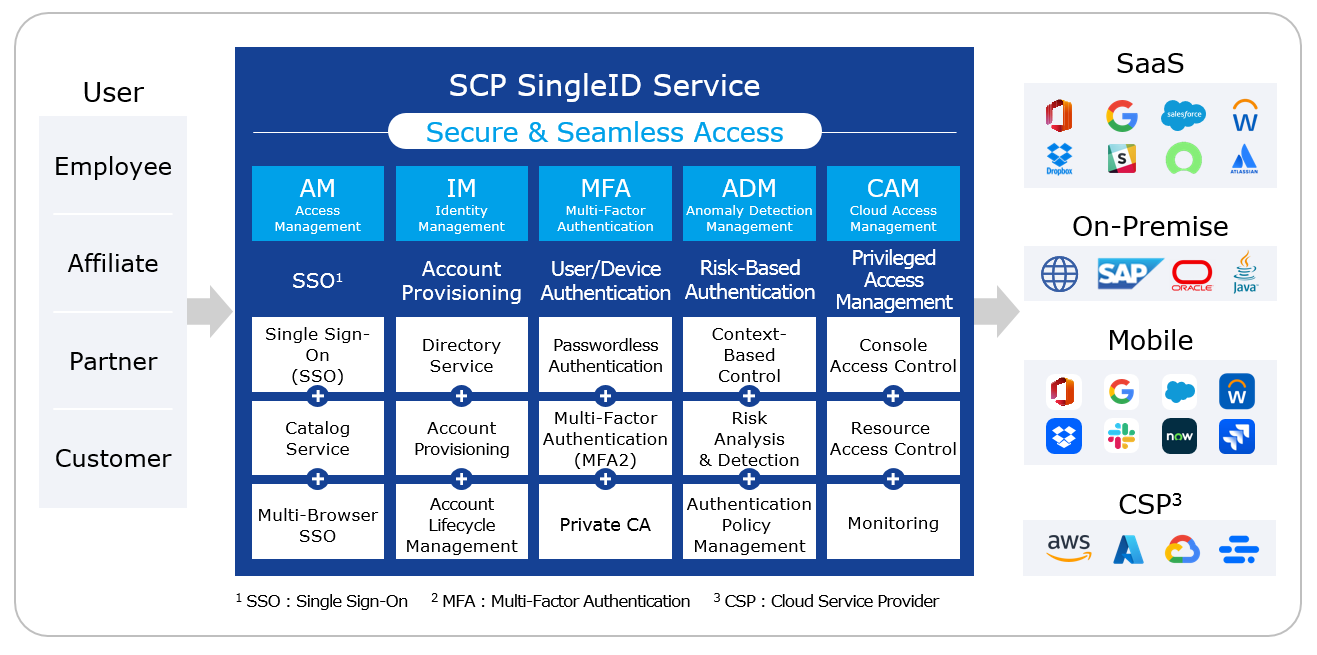
Provided Features
SingleID provides the following functions.
- Integrated Authentication and Account Management
- Supports various authentication linkage protocols (SAML, OIDC, etc.)
- Provide self-service features for app usage application and approval
- Salesforce, Workday etc. account synchronization and role (group) synchronization/management within the account
- Provides membership registration/withdrawal function that can issue accounts to non-employees, such as partners and customers
- Passwordless and Multi-Factor Authentication
- PC/Mobile passwordless authentication and multi-factor authentication (MFA)
- Existing 1st authentication environment linkage to provide 2nd authentication composite authentication (MFA-only service use case)
- Support for certificate-based authentication through Private CA (Certificate Services Authority), a private certificate issuance/management function (separate Use Case)
- Authentication method: SMS, email, mOTP, TOTP, PIN, biometric, Knox Messenger, Window Hello, etc.
- Authentication and Account Information Linking
- Automation of app connection through Pre-Built Connector
- DIY integration template for simplified custom app integration
- Anomaly Detection based on Risk-based Authentication
- Context-based access control according to the situation of attempting authentication
- Enhanced security through detailed login and authentication policy settings
- Public Cloud Access Management for Cloud Operators/Developers
- Role-based console access control through assigned accounts
- Request/Approval of Resource Access Permission and OTP-based Credential Method for Resource Access
Component
The components of the SingleID service are as follows. Users can use the service through the Samsung Cloud Platform SingleID Console.
- Access Management
- Supports various authentication linkage protocols (SAML, OIDC, etc.)
- Provide integrated login to in-house and out-of-house work systems through a single login
- Identity Management
- Manage lifecycle from account creation to disposal
- Directory integration and synchronization (Active Directory, LDAP, etc.)
- Multi Factor Authentication
- PC and mobile simple authentication
- SMS, email, mOTP, TOTP, PIN, biometric, Knox Messenger, Window Hello, etc. provide various composite authentication methods
- Anomaly Detection Management
- Context-based access control according to the situation of attempting authentication
- Providing adaptive access control through risk analysis
- Cloud Access Management
- Cloud security enhancement through singleization of access paths for cloud operators/developers
- Role-based temporary token method for console/resource access control
Regional Provision Status
SingleID can be provided in the following environments.
| Region | Availability |
|---|---|
| Korea West(kr-west1) | Provided |
| Korean East(kr-east1) | Not provided |
| South Korea 1 (kr-south1) | Not provided |
| South Korea, southern region 2(kr-south2) | Not provided |
| South Korea, southern region 3(kr-south3) | Not provided |
Table. SingleID Region-based Service Status
Preceding Service
SingleID has no preceding service.
5.2 - How-to guides
The user can enter the required information for the SingleID service and select detailed options through the Samsung Cloud Platform Console to create the service.
Reference
Check the detailed services provided per item on SingleID and apply for the product. The services provided per item are as follows.
| Service | Detailed Description |
|---|---|
| Access Management (AM) | Integrated authentication (AM) is an integrated authentication service that allows users to log in to everything from On-Premises to SaaS apps with a single ID
|
| Identity Management (IM) | Account management (IM) enables systematic account lifecycle management from creation to termination for various users such as employees, partners, corporations, subsidiaries, etc.
|
| Multi-Factor Authentication (MFA) | Multi-factor authentication (MFA) provides secondary authentication services in various methods when accessing major systems, external systems, mobile, etc.
|
| Anomaly Detection Management (ADM) | Anomaly Detection (ADM) is a service that detects authentication anomalies in login situations such as user type, login IP, device information, and access time
|
| Cloud Access Management (CAM) | Cloud Access Management (CAM) is a privileged account access management solution that strengthens cloud console/resource access control in public/multi-cloud environments
|
Table. SingleID Service Provision Guide by Item
Create SingleID
Samsung Cloud Platform Console에서 SingleID 서비스를 생성하여 사용할 수 있습니다.
- All Services > Security > SingleID Click the menu. SingleID Service Home Navigate to the page.
- Service Home on the page click the Create SingleID button. Navigate to the Create SingleID page.
- SingleID Creation On the page, enter the required information in the service information input area, and select the detailed options.
- Service Configuration Selection area, enter the information for the service and select detailed options.
Category Required or notDetailed description Service Selection Required SingleID Service Selection - Multiple services can be selected and applied
- MFA When applied alone, simple authentication function is not provided
- When IM, MFA are selected, AM is automatically selected
- Selecting ADM automatically selects AM, IM, MFA
- Selecting CAM automatically selects AM, IM, MFA
- When AM, IM, MFA or AM, IM, MFA, ADM are selected, a tenant is automatically created in the TAP/UP/MFA portal. If only the MFA item is selected, a tenant is created in the TAP/MFA portal
Tenant user count Required Enter the minimum number of Tenant users according to the selected service - Can be entered within the range of 50 - 999,999
Resource Unit Count Select Enter the number of Resource Units to register when selecting CAM service - Input possible within the range 20 - 99,999
Integration Support Select Enter number of integration support units - Can be entered within the range 1 - 9,999
- AM: 1 unit
- MFA: 1 unit
- IM: 2 units
- When using AM and MFA simultaneously, counted as 1 unit
Table. SingleID Service Configuration Selection Items- Enter Service Information area, enter the information required to create the service.
Category Required or notDetailed description Tenant name Required Enter Tenant name Tenant code Required Tenant code input Table. SingleID Service Information Input Items - Member Selection Select the tenant user who will use the service in the area.
Category RequiredDetailed description User Required Select members from user list - You must select at least one user to be able to create the service
Table. SingleID Service Member Selection Items - Additional Information Input area, please enter or select the required information.
Category Required or notDetailed description Tag Select Add Tag - Up to 50 can be added per resource
- After clicking the Add Tag button, enter or select Key, Value values
Table. SingleID additional information input items
- Summary Check the detailed information and estimated billing amount generated in the panel, and click the Complete button.
- When creation is complete, check the created resources on the SingleID List page.
SingleID Check Detailed Information
SingleID service can view and edit the full resource list and detailed information. SingleID Detail page consists of Detail Information, Tags, Activity History tabs.
To view detailed SingleID information, follow the steps below.
- All Services > Security > SingleID Click the menu. Service Home page will be displayed.
- Click the SingleID menu on the Service Home page. Navigate to the SingleID List page.
- SingleID List Click the resource to view detailed information on the page. SingleID Details You will be taken to the page.
- SingleID Details page displays status information and additional feature information, and consists of Details, Tags, Activity History tabs.
Category Detailed description Service Status Service Status Display - Creating: Creating tenant
- Active: Tenant creation completed
- Terminating: Terminating service
- Failed: Tenant creation failed
CAM Portal Cloud Access Management portal popup button - Displayed only when applying for CAM service
Admin Portal Admin portal window popup button Service termination Service termination button Table. SingleID status information and additional functions
Detailed Information
SingleID List page allows you to view detailed information of the selected resource and, if needed, modify the information.
| Category | Detailed description |
|---|---|
| service | service name |
| Resource Type | Resource Type |
| SRN | Unique resource ID in Samsung Cloud Platform |
| Resource Name | Resource Name |
| Resource ID | Service’s unique resource ID |
| Creator | User who created the service |
| Creation time | Service creation time |
| Editor | User who modified the service |
| Modification Date and Time | Service Modification Date and Time |
| Tenant name | Entered Tenant name |
| Tenant code | Entered Tenant code information |
| Tenant user count | Entered Tenant user count
|
| Resource Unit Count | Entered Resource Unit Count
|
| Payment status | Payment status and first payment date information |
| Requested Service | Display of Requested Service |
| Integration Support | Add Application Click the button to apply for integration support |
Table. SingleID detailed information tab items
Reference
If the service status is Failed, you can resolve the issue by checking the error details in the Support Center > Contact Us menu.
Tag
SingleID list page allows you to view the tag information of the selected resource, and you can add, modify, or delete it.
| Category | Detailed description |
|---|---|
| Tag List | Tag List
|
Table. SingleID tag tab items
Work History
SingleID list page allows you to view the operation history of the selected resource.
| Category | Detailed description |
|---|---|
| Work History List | Resource Change History
|
Table. SingleID Work History Tab Information Items
SingleID Admin Portal Using
In the Admin Portal, you can configure and manage SSO authentication settings, account synchronization integration, multi-factor authentication, etc.
To go to SingleID’s Admin Portal, follow the steps below.
- All Services > Security > SingleID Click the menu. Service Home page will be displayed.
- Click the SingleID menu on the Service Home page. Navigate to the SingleID list page.
- On the SingleID List page, click the resource to view detailed information. You will be taken to the SingleID Details page.
- Click the Admin Portal button on the SingleID Details page. The SingleID admin portal window appears.
- For detailed description of the Admin Portal, please refer to Admin Portal.
SingleID CAM Portal Usage
In the CAM Portal, you can set and manage console and resource access control and security management of the CSP.
To go to SingleID’s CAM Portal, follow the steps below.
- All Services > Security > SingleID Click the menu. Navigate to the Service Home page.
- Service Home page, click the SingleID menu. Go to the SingleID List page.
- SingleID List Click the resource to view detailed information on the page. SingleID Details page will be opened.
4.SingleID Details on the page, click the CAM Portal button. The SingleID cloud access management portal window appears.
- For detailed description of CAM Portal, please refer to CAM Portal.
SingleID Cancel
You can reduce operating costs by terminating the unused service.
To cancel SingleID, follow the steps below.
- All Services > Security > SingleID menu, click it. SingleID Dashboard page, navigate.
- Click the resource to be terminated on the SingleID List page. It moves to the SingleID Details page.
- Service Cancellation Click the button. A termination notice window appears.
- In the alert window, enter the Tenant name and click the Confirm button.
5.2.1 - SingleID Manuals
SingleID enables only authorized users to easily access information assets with a single authentication, and strengthens account security through policy-based permission management and real-time detection of abnormal authentication behavior, and provides account management and access framework through various history management.
SingleID Provided Manual List
SingleID provides various manuals as shown in the table below.
| Category | Description |
|---|---|
| User Portal | - SingleID User Portal is the user interface of the SingleID service, providing various security features such as access to company applications, SSO, and access permission requests. - For more details, see User Portal. |
| Admin Portal | - SingleID Admin Portal provides all configuration and management functions through the Admin Portal for all authentication services and account management services of organizations using the service, as well as the establishment and setting of security policies. - For more details, refer to Admin Portal. |
| MFA Portal | - SingleID can, while maintaining the authentication system used by existing applications, additionally require users to undergo various additional second-factor authentications through system integration to enhance security. Also, SingleID provides the MFA Portal so that users can pre-register and manage their preferred authentication methods during authentication. - For more details, refer to MFA Portal. |
| CAM Portal | - CAM(Cloud Access Management) Portal is a service for cloud console and resource access management that provides users with an easy and convenient way to access cloud consoles and resources. Users can access the portal from a PC located on the internal network using multi-factor authentication (MFA). It issues one-time tokens instead of passwords to enable access to cloud consoles and resources, and allows monitoring of all access, operation history, and abnormal behavior. - For more details, see CAM Portal. |
| SingleID Authenticator | - SingleID Authenticator is a SingleID dedicated authentication tool that can conveniently and securely authenticate website users’ identity verification and multi-factor authentication using a mobile phone. - For more details, refer to SingleID Authenticator. |
| SingleID Open API Guides | - Provides various APIs such as applications, Idp, authentication, etc., for using SingleID. - For more details, refer to the Open API Guides. |
Table. SingleID manual list
Reference
The features and configurations provided to the user may vary depending on the SingleID product configuration.
5.2.1.1 - User Portal
Overview
SingleID allows only authorized users to easily access information assets with a single authentication, and strengthens account security through policy-based permission management and real-time detection of authentication anomalies, and provides account management and access framework through various history management.
Provided Features
- Integrated authentication and account management
- Support various authentication integration protocols (SAML, OIDC, etc)
- Provision of self-service function for app usage request and approval
- Salesforce, Workday account synchronization and role (group) synchronization/management within the account
- Provide sign-up/withdrawal functionality that can issue accounts to partners, customers, etc., who are not employees.
- Passwordless and Multi-Factor Authentication
- PC/Mobile passwordless authentication and multi-factor authentication (MFA)
- Authentication method : SMS, email, SinlgeID Authenticator(mOTP, TOTP, PIN, biometric), Knox Messenger, Passkey, etc
- Provide composite authentication for secondary authentication through integration with existing primary authentication environment (MFA-only service use case)
- private certificate issuance/management function Private CA(Certificate Service Authority) through certificate-based authentication support(separate Use Case)
- PC/Mobile passwordless authentication and multi-factor authentication (MFA)
- Authentication and Account Information Integration
- Automation of app integration through Pre-Built Connector
- Simplified custom app integration through DIY integration templates
- Risk-based authentication anomaly detection
- Context-based access control based on the situation of attempting authentication
- Strengthening security through detailed login and authentication policy settings
- Public cloud access management for cloud operators/developers
- Console access control through role-based assigned accounts
- Resource access permission request/approval and resource access using OTP-based credential verification method
Notice
Depending on the company’s SingleID usage plan, the features provided to users may vary.
Service Configuration Diagram
Reference
Depending on the SingleID product configuration, the features and configurations provided to the user may differ.
User Portal what is?
SingleID User Portal is the user interface of the SingleID service, providing various security features such as access to company applications, SSO, and access permission requests.
User Portal Screen Layout
User Portal is composed of the following menus.
- My App
- App Catalog
- Notification
- Approval Request
Manual composition
This manual is composed of the following contents.
- Overview: Explains the concept and manual screen composition with the SingleID overview.
- Announcements and Language Settings: Explains how to set the language in the SingleID solution and how to check urgent announcements that can be viewed before logging in.
- Login and Authentication: It explains how to register and use various authentication methods for login.
- Register authentication tool: Explains the enrollment process where the user registers an authentication tool.
- Sign Up: Explains the two methods of sign up.
- Find ID: Describes the procedure where the user finds their ID themselves through the Find ID function.
- Privacy Policy and Terms of Use: Explains the privacy policy and terms of use that can be found via the link at the bottom of the screen.
- PC SSO Agent: Describes the PC SSO Agent, which is a login/logout auxiliary function of SingleID.
- My App: Describes the My App menu that can be accessed via SSO.
- App Catalog: Describes the App Catalog menu that allows you to view the list of apps that can be requested.
- Notification: Describes the Notification menu that can check emergency notices and general notices. 12.Approval Request: Describes the Approval Request menu that can request or approve app usage.
- Personal Information Settings: You can set photos, preferred language, and system time zone Personal Information Settings, Authentication Settings, Login History/Environment, Logout etc., describing the personal settings menu.
5.2.1.1.1 - Notice and Language Settings
Notice
You can check the notice notifications posted by the administrator on the user portal login screen and the screen after logging in to the user portal. Notices are divided into general notices and urgent notices.
- General Notice: General notices posted by administrators, used to deliver information to users. It can be checked in the User Portal > Notification menu.
- Urgent Notice: Urgent notices posted by the administrator, and can be checked on the User Portal > Login Screen and User Portal > Notification menu.
Language setting
To modify the language that appears on the screen, follow these steps.
- User Portal Screen > Top Language selection, click on the desired language from Korean or English.
- A dropdown list to select between Korean and English appears.
- Select your desired language. The screen will be switched according to the selected language.
Note
It is provided in the language set in the user’s browser at the initial login. If the language is not Korean or English, it will be set to English.
Guide
All SingleID portal sites provide services in Korean and English.
5.2.1.1.2 - Login using authentication method
Log in using authentication method
What is authentication method?
Authentication method is commonly called Authenticator and refers to an authentication tool.
SingleID provides the following nine authentication methods for user authentication.
- Password: Enter password on SingleID login screen
- Email OTP: Send OTP via email and enter OTP on the SingleID login screen
- SMS OTP: Send OTP via SMS and enter OTP on the SingleID login screen
- Knox Messenger OTP: Send OTP via Knox Messenger and enter OTP on the SingleID login screen
- Knox Identity: Authentication integration with Knox Portal user ID/Password
- SingleID Authenticator Bio: Install the dedicated SingleID mobile app and link authentication with biometric verification
- SingleID Authenticator PIN: Install the dedicated SingleID mobile app and link authentication with a PIN.
- SingleID Authenticator mOTP: Install the SingleID dedicated mobile app and integrate authentication with mOTP (Mobile OTP)
- SingleID Authenticator TOTP: Install the SingleID dedicated mobile app and integrate authentication with TOTP (Time base OTP)
- Passkey: Login and authentication using biometrics (fingerprint, facial), Mobile, PIN code without password based on Windows Hello
Reference
If you are using the SingleID Authenticator mobile app for the first time, please refer to SingleID Authenticator.
Enter user ID
The user attempts to log in by entering their ID on the login screen below.
To log in using the user ID, follow the steps below.
- Login screen > Account ID Enter the ID in the input field, and click the Next button.
- Enter the password in the password field, and click the Next button.
- Login is completed.
Passwordless Login
SingleID provides login service without a password.
To log in without using a password, follow the steps below.
- Login screen > Do you want to log in without a password? Click it.
- Select verification method The screen appears. Click one of the desired authentication methods.
- Enter the authentication code according to the selected authentication method.
- After login is completed, you will be taken to the User Portal main screen.
Reference
Authentication methods displayed as Registration Required require registration. Click Registration Required to register immediately, or check Register Authentication Tool.
Notice
Passwordless login may not be provided depending on whether it is set in the login policy settings. Please contact the administrator.
Set Preferred Authentication Method
SingleID users log in to the User Portal provided by SingleID and set up their preferred primary and secondary authentication methods.
If the user sets their preferred method, the Select verification method screen is omitted during login and authentication, allowing immediate authentication using primary and secondary methods.
If you want to set your preferred authentication method, follow the steps below.
- Click the User Portal > Personal Profile > Authentication settings.
- Authentication Settings screen appears.
- Click the ☆ 1st, ☆ 2nd that you want in front of each authentication method.
- 1st, 2nd can each be selected only one at a time. Selection is completed when it changes to ★.
Once the setup is complete, it will be configured in that manner for the next login, providing convenient login.
Reference
Even if a user sets a preferred authentication method for first and second factor authentication, the administrator can restrict it to a specific authentication method through login policy settings.
Register authentication method
All authentication methods can be set by the user. Registering an authentication method by the user is called enrollment. When a user account is first created, only email OTP is automatically enrolled using the email information from the user data. Other authentication methods can be directly enrolled by the user as needed.
There are two ways to register authentication methods (Enrollment).
- Register from Authentication Settings: User Portal > Profile > Authentication settings, click the + Add New button at the bottom to register.
- Select verification method screen registration: first authentication at login, second authentication at Select verification method screen, select the authentication method with a gray check mark (V) and register.
Reference
For detailed information about authentication method registration (Enrollment), refer to Register Authentication Tool.
First login
Password Reset
If the user logs in for the first time, they can log in after resetting the password.
If you want to reset your password, follow the steps below.
- Login screen > Account ID input field, enter the ID, and click the Next button.
- Click reset password under the Next button.
Consent for collection/use of personal information
When logging in for the first time or during a certain period, SingleID requires consent for the collection/use of personal information. According to the consent procedure, select the required, optional items and agree.
Required items must be selected to log in.
Password Authentication
Password is the most basic authentication method as the default authentication tool of SingleID.
Enter password
Follow the steps below to log in using your user ID.
- Login screen > Account ID input field, enter ID, and click the Next button.
- Password input field, enter the password, and click the Next button to log in.
Reference
If you click the eye-shaped icon in the password input field, you can view the password you entered.
Caution
When the entered password is entered incorrectly If the entered password is entered incorrectly, re-entry is required along with the message ID or password is incorrect. (1/3). The number of retry attempts is limited to the number set by the administrator in the password policy.
If the password is entered incorrectly consecutively and locked If you entered the password incorrectly and the device is locked, you can unlock it in two ways.
- Automatic unlock after 1~5 minutes: When automatic unlock is set, the account will be locked for 1~5 minutes. After that time, login is possible.
- Unlock with password reset: When the administrator sets the password policy to password reset, a password reset is required. Login is possible after password reset. Find ID you can check detailed information there.
Email OTP Authentication
Authenticate
If you want to authenticate with email OTP, an OTP will be sent to the email registered by the user.
If you want to authenticate with email OTP, follow the steps below.
- Click Email in the Identity Verification Selection method.
- An OTP code will be sent to the registered email. Enter the OTP within the time set by the administrator (usually 3-5 minutes).
- After entering the OTP, click the Confirm button, and the authentication will be completed.
Reference
- Code Resend: If you exceed the input validity time, click the code resend button. The OTP code will be resent via email.
- ‘Would you like to authenticate in a different way?’: If the current authentication cannot be used, switch to a different authentication method.
- ‘If you have changed your email, please register.’: Depending on the administrator settings, you can register (Enrollment) a different email to authenticate. For registration, you can check the details at Email Authentication Tool Registration.
Guide
If you entered the code incorrectly If the user enters the OTP code incorrectly, they can re-enter it as many times as the administrator specifies.
When locked due to exceeding the user input limit If you enter the OTP code incorrectly more times than the number set by the administrator, the screen will be locked for the duration set by the administrator. After waiting for that time, you can enter again. Refresh and try again after the input restriction period.
SMS OTP authentication
Authenticate
If you want to authenticate with SMS OTP, an SMS OTP will be sent to the mobile registered by the user.
If you want to authenticate with email OTP, follow the steps below.
- Click Email in the Identity Verification Selection method.
- The OTP code will be sent to the registered mobile phone. Enter the OTP within the time set by the administrator (usually 3–5 minutes).
- After entering, click the Confirm button, and the authentication will be completed.
Reference
- Resend Code: If you exceed the input validity time, click the resend code button. The OTP code will be resent to your mobile phone.
- ‘Would you like to authenticate in a different way?’: If the current authentication cannot be used, switch to a different authentication method.
- ‘If you have changed your mobile phone, please register.’: Clicking the link will take you to a screen for enrolling with the new mobile. You can check the details for registration at Register SMS authentication tool.
Notice
If you entered the code incorrectly If the user enters the OTP code incorrectly, they can re-enter it as many times as the administrator specifies.
If locked due to exceeding the user input limit If you enter the OTP code incorrectly more times than the number set by the administrator, the screen will be locked for the duration set by the administrator. After waiting for that time, you can enter again. Refresh and try again after the input restriction period.
Knox Messenger OTP authentication
Authenticate
Knox Messaenger OTP if you want to authenticate with OTP, the OTP will be sent to the Knox Messanger you are using.
To authenticate Knox Messenger OTP, follow the steps below.
- In the Identity Verification Selection method, click Knox Messenger.
- The OTP code is sent via the Knox Messenger you are using. Enter the OTP within the time set by the administrator (usually 3-5 minutes).
- After entering, click the Confirm button, and the authentication will be completed.
Reference
- Resend Code: If you exceed the input validity time, click the resend code button. The OTP code will be resent via Knox Messenger.
- ‘Would you like to authenticate in a different way?’: If the current authentication cannot be used, switch to a different authentication method.
- ‘Would you like to use a different Knox ID?’: Clicking the link takes you to a screen for enrolling a new Knox ID. For registration, you can see the details at Knox Messenger Authentication Tool Registration.
Guide
If you entered the code incorrectly If the user enters the OTP code incorrectly, they can re-enter it as many times as the administrator specifies.
If locked due to exceeding the user input limit If you enter the OTP code incorrectly more times than the number set by the administrator, the screen will be locked for the duration set by the administrator. After waiting for that time, you can enter again. Refresh and try again after the input restriction period.
Knox Identity Password Authentication
Authenticate
To authenticate with Knox Identity, you need to enter the Knox Identity password you are using.
If you want to authenticate with Knox Identity, follow the steps below.
- In the Select Identity Verification method, click Knox Identity.
- Enter the password for your own Knox account.
- After entering, click the Confirm button, and the authentication will be completed.
Reference
‘Would you like to authenticate in a different way?’: If the current authentication cannot be used, it changes to a different authentication method.
Guide
If the password is entered incorrectly If the user enters the password incorrectly, they can re-enter it as many times as the administrator specifies.
When locked due to exceeding the user input limit If you enter the password incorrectly more times than the number set by the administrator, the screen will be locked for the amount of time set by the administrator. After waiting for that time, you can enter again. Refresh and try again after the input restriction period.
SingleID Authenticator Authentication
SingleID service provides a mobile authentication app called SingleID Authenticator, and offers authentication in various ways.
Authentication method
| Authentication method | Description |
|---|---|
| SingleID Authenticator Bio | Send a push via the installed SingleID Authenticator mobile app on the mobile to request biometric authentication. |
| SingleID Authenticator Pin | Send a push using the installed SingleID Authenticator mobile app on the mobile device to request authentication with a PIN code. Not provided |
| SingleID Authenticator TOTP | Send a push via the installed SingleID Authenticator mobile app on the mobile device to request authentication with TOTP. |
| SingleID Authenticator mOTP | Send a push via the installed SingleID Authenticator mobile app on the mobile device to request authentication with mOTP. |
Table. SingleID Authenticator authentication method
Reference
For SingleID Authenticator installation and configuration method, refer to SingleID Authenticator.
Passkey authentication
SingleID service provides simple authentication and multi-factor authentication through a window-based Passkey.
Authentication Method
- Simple authentication: Provides easy login without ID/Password through Sign in with Passkey at the bottom of the login page.
- Multi-factor authentication: Provides easy login without needing ID/Password during secondary multi-factor authentication.
Authentication Types
- Mobile Passkey: Scan the QR code, and log in using Android and iOS mobile
- Security key: Log in using the Windows security key
- PIN: Login using Windows PIN code
Reference
Passkey support environment 1.Operating System(laptop or desktop)
- Windows 11, macOS Ventura, ChromeOS 109 or higher
- Mobile phone: iOS 16 or Android 9 or higher
- Hardware security key: hardware security key supporting the FIDO2 protocol
- Browse version
- Chrome 109 or higher
- Safari 16 or higher
- Edge 109
- Device Settings
- Bluetooth activation
- Set password for screen lock
- PIN code registration
- Allow fingerprint or facial recognition
Reference
Passkey must have Windows Hello set up in advance. For details, see the Reference Link.
Admin Authentication
Authenticate
In the SingleID service, the administrator provides authentication by delegating identity verification on behalf of the user.
If you want to perform administrator authentication, follow the steps below.
- Identity verification selection method, if you cannot perform identity verification at the bottom of the screen, you can request verification from the administrator. Click here. Click.
- On the administrator selection screen, select the administrator to delegate and click the Request button.
- After clicking the Request button and requesting approval from the selected administrator, the authentication will be completed.
Guide
If there is no phrase at the bottom If you cannot verify your identity, you can request verification from the administrator. Click here
The administrator has disabled the admin authentication delegation feature by policy. Please contact the administrator.
5.2.1.1.3 - Register authentication tool
Register authentication tool
All authentication tools should be registered and used by the user themselves as a principle.
Registering an authentication tool by a user is called enrollment.
When a user is created for the first time, only Email OTP is automatically registered using the email information from the user data.
The remaining information can be directly registered and used by the user as needed.
There are three ways to register.
- Login screen > ID/Passwrod Enter > Identity verification method Register on the selection screen
- On the identity verification method selection screen, if you click the authentication tool marked Registration Required (V mark), you can register.
- User Portal(after login) > Profile > Authentication Settings > + Add New Click the button to register
- Register through the registration message link at the bottom of all authentication screens
- Below screen is an example of SMS verification screen. At the bottom, you can click the If you have changed your mobile phone, please register. message to register.
- All authentication code entries can be changed via the message below(Message format: ~ please register.)
Example of authentication code input screen
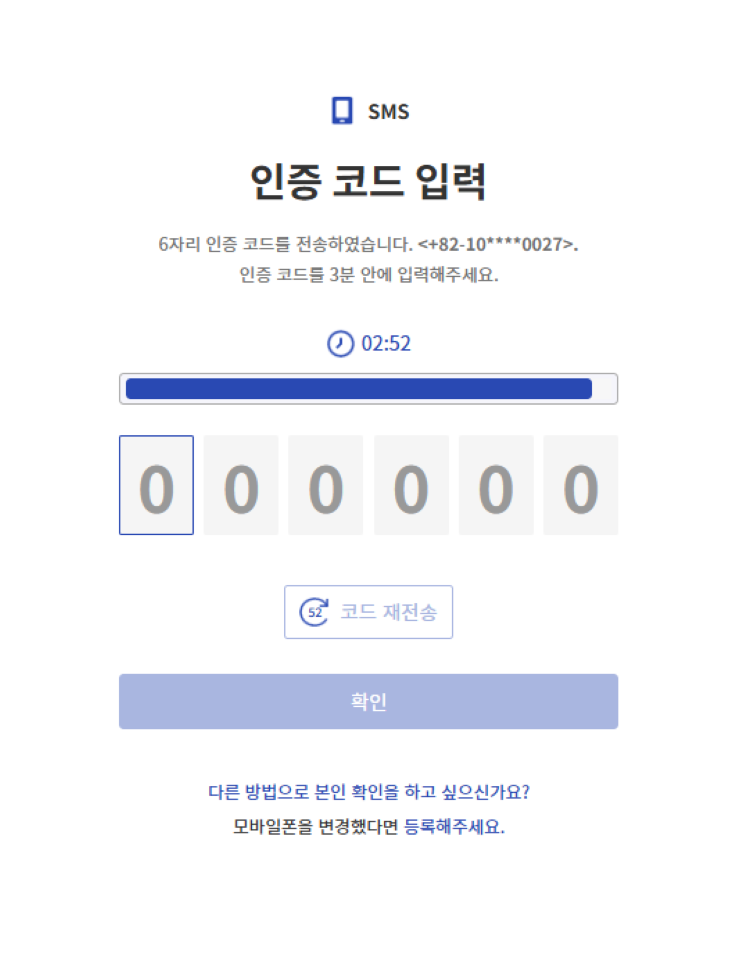
Register Email Verification Tool
Email registration consists of the following three steps.
- Verification Stage: It is the identity verification stage before registering the email authentication tool.
- Registration stage: This is the step of registering a new email and checking whether the number is valid.
- Completion Stage: This is the final step to confirm that the registration has been completed successfully.
Verification Stage
This is the step of identity verification before using the authentication tool. To view the identity verification process, refer to Login and Authenticate.
Caution
In the verification stage, the authentication method to be used can only be performed with the authentication tool configured by the administrator.
Registration Stage
It is the step of registering the email address the user wants to register and checking the email address’s validity.
The user proceeds as follows.
- Confirm step, when you complete identity verification, you automatically move to the Register step.
- Enter the email address you want to register.
- Send verification code button을 클릭하세요.
- Check the OTP code sent to the entered email address, and enter the OTP code on the screen.
- If the verification code is entered correctly, it moves to the Complete stage.
Notice
According to company policy, for security reasons, a new email address that is not a company email address may not be registered.
Completion Stage
Registration completion screen will appear, and on the next login you can perform first and second authentication using the email verification tool.
Register SMS authentication tool
SMS registration consists of the following three steps.
- Verification step: This is the identity verification step before registering the SMS authentication tool.
- Registration Stage: This is the stage where you register a new mobile phone number and check whether the number is valid.
- Completion Stage: This is the final step to confirm that the registration has been completed successfully.
Verification Stage
It is the step of verifying your identity before using the authentication tool. To view the identity verification process, refer to Login and Authentication.
Confirm stage can only be authenticated using the authentication tool set by the administrator.
Registration Stage
It is the step of registering the mobile phone number the user wants to register and checking the validity of the mobile phone number.
The user proceeds as follows.
- Verification stage, if you complete identity verification, you automatically move to the Registration stage.
- Select the Country code, and enter the mobile phone number you want to register.
- Click the Send verification code button.
- Check the OTP code sent to the entered mobile phone number, and enter the OTP code on the screen.
- If the verification code is entered correctly, it moves to the complete stage.
Completion Stage
Registration complete screen will appear, and on the next login you can perform first and second authentication using the SMS authentication tool.
Register Knox Messenger authentication tool
Knox Messenger registration consists of the following three steps.
- Verification Stage: This is the verification stage before registering the Knox Messenger authentication tool.
- Registration step: Enter the Knox ID to register. This is the step that checks whether the Knox ID to be registered is valid.
- Completion Stage: This is the final verification stage confirming that the registration has been completed successfully.
Verification Stage
It is the step of identity verification before using the authentication tool. To view the identity verification process, refer to Login and Authentication.
In the verification stage, the authentication method to be used can only be authenticated using the authentication tool configured by the administrator.
Registration Stage
This is the step of registering the mobile phone number the user wants to register and checking the validity of the mobile phone number.
The user proceeds as follows.
- Verification stage, if you complete identity verification, you automatically move to the Registration stage.
- Enter the Knox ID to register.
- Click the Send verification code button.
- Check the OTP code sent to Knox Messenger of the entered Knox ID, and enter the OTP code on the screen.
- If the authentication code is entered correctly, it moves to the complete stage.
Completion Stage
Registration complete screen appears, and on the next login you can perform first and second authentication using the Knox Messenger authentication tool.
Register Passkey authentication tool
SingleID Authenticator is an authentication tool provided to the SingleID service.
Passkey enrollment consists of the following three steps.
- Verification stage: This is the identity verification stage before registering the Passkey authentication tool.
- Registration Stage: Passkey registration stage.
- Completion Stage: This is the final step to confirm that the registration has been completed successfully.
Confirmation Stage
This is the step to verify your identity before registering the authentication tool. To view the identity verification process, refer to Login and Authenticate.
Notice
In the verification stage, the authentication method to be used can only be authenticated using the authentication tool configured by the administrator.
Registration Stage
This is the step to check the mobile phone or PC environment you want to register a Passkey on.
Please complete the registration process in the four steps below.
- Activation: This is a guide to the Passkey supported environment.
- Confirm: Complete identity verification using an authentication method.
- Registration: This is the Passkey registration step. Create on this device button click generates and registers a Passkey on the PC. Create on another device button click registers with a mobile phone or hardware security key.
- Complete: Registration completed is the step to confirm that it has been completed. Click the Continue button.
Reference
Passkey supported environment 1.Operating System(Laptop or Desktop)
- Windows 11, macOS Ventura, ChromeOS 109 or higher
- Mobile phone: iOS 16 or Android 9 or higher
- Hardware security key: hardware security key supporting the FIDO2 protocol
- Browse version
- Chrome 109 or higher
- Safari 16 or higher
- Edge 109
3.Device Settings
- Bluetooth activation
- Set password for screen lock
- PIN code registration
- Allow fingerprint or facial recognition
Completion Stage
After the Passkey registration is completed, the Registration complete screen appears. During the next login, you can perform first and second factor authentication using the Windows Hello authentication tool.
Reference
PC Passkey must have Windows Hello set up in advance. For details, see the Reference Link.
When registering a passkey on mobile, it can be set in an environment where QR code scanning is possible.
SingleID Authenticator Register authentication tool
SingleID Authenticator is an authentication tool provided to the SingleID service.
SingleID Authenticator enrollment consists of the following four steps.
- Verification Stage: It is the identity verification stage before registering the SingleID Authenticator authentication tool.
- Installation Step: This is the user’s SingleID installation guide step.
- Registration Stage: This is the step to register a new mobile app and for service registration.
- Completion Stage: This is the final step to confirm that the registration has been completed successfully.
Verification Stage
Before using the authentication tool, this is the step of verifying your identity. To view the identity verification process, refer to Login and Authenticate.
Guide
In the verification stage, the authentication method to be used can only be authenticated using the authentication tool configured by the administrator.
Installation Steps
There are three main ways to install the SingleID mobile app.
- Recognize QR code on user mobile or search for “SinlgeID” on Google Play (for Android) or App Store (for iOS) to install SingleID Authenticator.
- How to install by entering your mobile phone number and using the download link via SMS
- How to install via manual download link Install the SingleID Authenticator app and click the Next button to proceed to the registration step.
Registration Stage
After installing the SingleID Authenticator mobile app on the mobile phone you want to register, please run SingleID Authenticator.
Please perform the registration process in the following three steps.
- Service Registration: Click the ‘+’ at the top in the SingleID Authenticator app.
- QR or authentication number input: Scan QR code or enter authentication code to register.
- Service Registration Complete: Confirm Click the button to complete the registration.
Completion Stage
After registration is completed in SingleID Authenticator, the Registration Complete screen appears. At the next login, you can perform first and second factor authentication using the Windows Hello authentication tool.
5.2.1.1.4 - Sign up
Sign up
According to the company’s internal policy, users who are not employees, such as partners, subsidiaries, and customers, can create an account through separate membership registration.
Sign up through the login page link
This is a method of signing up through the sign up link on the login page.
On the login page, click “Sign up” at the bottom if you don’t have an account, join.
Agreement
To sign up, you need to agree to the terms and conditions.
Information Input
Follow the procedure below.
- Please enter the email you want to register.
- After entering the email, click the OTP transmission button, and the OTP code will be sent.
- Enter the OTP code from the received email address and click the Confirm button.
- If you enter the authentication code correctly, the sign-up button will be activated.
- Sign up button을 클릭하세요.
Information Input
Enter various personal information required for membership.
| Division | Description |
|---|---|
| ID | Enter the ID to register |
| Korean Name | Enter Korean Name |
| English Name | Enter English Name |
| Enter phone number | Enter registered country and mobile phone number |
| OTP Code | Enter the received OTP code |
| Department | Department Name Input |
| Language and Time Zone | User language and time zone settings |
Table. Personal Information Input Items
Notice
The above information input items may vary depending on the company’s membership policy.
Membership
After entering personal information and clicking the join button, the approval request will be completed. You can proceed to the next step after approval is completed. Once the administrator has completed the approval, you can log in through password reset.
Notice
You may also be able to join without approval according to the membership policy.
Membership through invitation email
You can join through an invitation email from the administrator. By clicking the sign up button in the received email, you can sign up for membership.
The subsequent registration procedure is the same as membership registration through the login page link.
5.2.1.1.5 - Find ID and Reset Password
ID Find
If the user has forgotten their ID, click ID Find on the login screen.
Find ID using mobile phone number
The user can find their ID by entering their name and mobile phone number.
Follow the procedure below.
- Mobile tab should be clicked.
- Name을 입력하세요.
- Last Name을 입력하세요.
- Enter the country code and phone number.
- Click the Send Authentication Code button.
- On the authentication code input screen, enter the received authentication code and click the Confirm button.
Reference
If the ID with the corresponding information does not exist, a ‘ID not found’ message appears. To search again, click the Go back to find ID button.
Password Reset
Reset Password
If the user wants to reset their password, click Password Reset at the bottom of the login screen.
Perform self-authentication
To set a password, the user must first go through self-authentication. When the password reset button is clicked, a screen for selecting an authentication method according to the policy set by the administrator appears. For more information on authentication, please refer to Logging in and Authenticating.
Password Reset
Once the user completes the self-authentication, the user can move to the screen where they can set their new password.
The password must be set to match the password pattern and complexity set by the administrator as a policy. When the user enters the password, it is displayed in green if it meets the conditions, and in red if it does not. Set the password so that all items turn green.
Please follow the following procedure to reset your password.
- Please enter a new password.
- If the newly entered password does not meet any of the complexity and patterns set by the administrator, create a more complex password.
- To prevent user input errors, please enter the same password as the one you entered again.
- Click the Change Password button.
When the password setting is complete, clicking the Login with Password button will take you back to the login screen.
5.2.1.1.6 - Privacy Policy, Terms of Service, Service Desk
All screens have links to Personal Information Processing Policy and Terms of Use at the bottom left, so users can always check them.
Personal Information Processing Policy
A link to the Privacy Policy is provided at the bottom left of every screen, allowing users to view the privacy policy for SingleID services at any time.
To check the privacy policy, please follow the following procedure.
- Click the Privacy Policy at the bottom left of the screen. You can view the latest version of the Privacy Policy.
- When you want to check the previous version, you can select the desired version at the top and inquire about it.
Terms of Service
There is a link to Terms of Service at the bottom left of every screen, so users can always check the terms of service for SingleID services.
To check the terms of use, please follow the following procedure.
- Click the Terms of Service at the bottom left of the screen. You can view the latest version of the Terms of Service.
- When you want to check the previous version, you can select the desired version at the top and inquire about it.
Service Desk Information
If the user has any inquiries about SingleID, they can contact us using the Service Desk phone number and the representative email account at the bottom of the screen.
5.2.1.1.7 - PC SSO Agent
PC SSO Agent
SingleID PC SSO Agent provides integrated SSO authentication services in the Window Desktop environment.
SingleID PC SSO Agent provides the following features.
- Integration SSO and login/logout between internet browsers
- PC Device Authentication
- Check for installation of essential security software feature (SingleID administrator settings)
Notice
SingleID PC SSO Agent may not be used depending on the administrator’s settings.(Agentless operation)
Reference
PC SSO Agent recommended installation environment
- Windows Desktop 10 and 11 (x86 and x64 CPU Only)
- Web Browser: Microsoft Edge 88.x or higher, Chrome 87.x or higher
- .NET Framework 4.0 or higher
- Disk Capacity 100MB or more
Check if PC SSO Agent is installed
If the administrator has set the policy to use the PC SSO Agent, SingleID automatically checks if the SingleID SSO Agent is installed on the user’s PC as follows:
- After the user logs in to SingleID, check if the PC SSO Agent is installed automatically.
- If the PC SSO Agent is installed on the user’s PC, it automatically moves to the next screen, and if not, it automatically moves to the installation guide screen.
- If the automatic installation guide screen does not appear, click the Next button to install the PC SSO Agent.
Download PC SSO Agent
Click the Download button on the PC SSO Agent installation guide screen to download and install the PC SSO Agent program on your PC.
Installing PC SSO Agent
If you download and install the SingleID Agent.exe file on your PC, a ‘ID’ tray will be created in the right bottom tray of the PC as follows. If the PC SSO Agent is installed normally and SSO authentication is successful, you can check that it is working normally by right-clicking and clicking Status View.
Notice
If the installation does not proceed smoothly, remove the ‘SingleIdAgent’ app from the list of existing installed apps and install again.
Re-authentication attempt
After installing the PC SSO Agent, you can log in from the beginning again or click the Re-authentication button at the bottom of the screen below to try re-authentication using the Agent.
Notice
SingleID PC SSO Agent integrates logout processing for Chrome and Edge browsers when logging out.
5.2.1.1.8 - My App
Recently used apps
When the user logs in to the User Portal, they can see the My Apps menu first. The left menu bar can be expanded or collapsed by clicking the arrow(→) icon at the bottom left.
When you click the My App menu, 3 sub-menus that are provided by default and cannot be modified will appear
- Recently used apps
- Bookmark
- basic app
Among them, clicking Recently Used Apps will display the apps that the user has recently used. Recently used apps can be displayed up to a maximum of 12.
Bookmark
In the My App menu, clicking the Bookmark menu displays the apps that the user has bookmarked. You can bookmark frequently used apps to use them conveniently.
You can add a bookmark by clicking the Bookmark button at the bottom right of the app card, and clicking it again will remove the bookmark. Up to 12 bookmarks are possible.
Add/Delete Bookmark
Click the Bookmark button at the bottom right of the app you want to add, and it will be added to the Bookmark. If you click again, the bookmark will be deleted.
Basic App
The basic app menu exposes all apps available to the logged-in user. When the user clicks on an app, it is authenticated with SSO and the app runs in a new browser. If a disabled app is clicked, a popup window appears indicating that it is disabled.
Add category
The user can click the Add Category button to create a category with the user’s desired category name and manage the app.
- Click the Add Category button, then enter the category name and click the Check button.
- After adding a category, the user can click the More button located to the right of the category to move, change, or delete the category.
If an app is included in a category and the category is deleted, the remaining apps will be moved to the Default App category.
5.2.1.1.9 - App Catalog
Using the App Catalog
When you click the App Catalog menu, by default, the list of apps that are Pending Approval is displayed.
The app catalog can be checked as a list of apps in three states
- Not in use: available for request
- Pending Approval: The request for use has been completed and is waiting for approval
- In use: The request for use has been approved and is in the state of being used
If there is no “request” button among unused apps, it is a case where the user cannot request it by themselves due to company policy. Please contact the administrator to use it.
Requesting App Usage
To request the use of an unused app, the user must click the Request button, enter the purpose of using the app, and then click the Request button.
The app usage approval process may vary depending on the administrator’s settings. By default, the list of approvers set by the administrator is displayed, and if there are multiple approvers, it is determined by the result of the first approval or rejection process.
When the app usage request is completed, you can check the request status in two menus.
- App Catalog > Pending Approval status can be checked from the status.
- App Usage Approval > My Request can be checked in detail.
You can check the details by clicking my request list and app, and in the waiting state for use approval, you can cancel the request through the Cancel Request button.
5.2.1.1.10 - Notification
Notification
If you click the notification menu, you can check the notification list. There are two types of notifications.
- Urgent: Tenant administrator urgently announces an urgent notification (e.g., system outage) that users can check before login regardless of the user’s login.
- General: All notifications that are not emergency alerts, which the user can see after logging in, can be checked in the Notifications menu.
When you click the Notification menu, by default the All status notification is set, so both urgent and regular notifications are displayed. If there are unread notifications, they are displayed as a number next to the notification menu, and because they are marked with a red dot in the list, unread notifications can be easily recognized. If you click this notification, you can view the details.
| Name | Description |
|---|---|
| Type | This is the type of notice. It is divided into urgent and general. |
| Title | This is a notice title. |
| Start date and time | This is the start date and time of the notice posting. |
| End Date/Time | This is the end date and time of the notice posting. |
Table. Notification List
Approval Request
When you click the approval request menu, the administrator can view and cancel all users’ approval requests.
Approval requests consist of the Approval request list and Approval request queue tabs.
Approval Request List
There are several types of approval request statuses. You can easily filter and view them using the Approval Request, Approve, Reject, Cancel Submission buttons at the top. If you want detailed search, you can use detailed search in the search bar at the top right.
- Approval Request: Shows all approval request statuses.
- Approval: Shows all approved completed statuses.
- Rejection: Shows approval request items that have been rejected.
- Submission Cancellation: Shows approval request items where the approval has been cancelled.
The description of the approval request list items is as follows.
| Name | Description |
|---|---|
| Approval System | It indicates the approval system according to the approval policy. It is possible to verify which approval system the request was made through. Policy > Approval Policy Please refer to. |
| Title | This is a notice title. |
| Start date and time | This is the start date and time of the notice posting. |
| End Date/Time | This is the end date and time of the notice posting. |
Table. Notification List
5.2.1.1.11 - Approval Request
Approval Request
The app usage approval menu provides two functions.
- My Request Tab: A list of apps I’ve requested to use is displayed.
- Approved List Tab: A list of app usage requests requested by me will be displayed.
Requesting App Usage
To request the use of an unused app, the user must click the request button, enter the purpose of using the app, and then click the request button. The app usage approval process may vary from company to company.
By default, the list of approvers set by the tenant administrator is displayed, and if there are multiple approvers, it is determined by the result of the first approval or rejection process.
When the app usage request is completed, you can check the request status in two menus.
- App Catalog > Pending Approval status can be checked from the status.
- Approval Request > My Request where you can check the details and perform additional tasks.
My Request
You can check the details by clicking the app in the My Request list, and when waiting for use approval, you can cancel the request through the Cancel Request button.
When the use approval is completed, the status item in my request list will be changed to Approved. By clicking approved apps in the list, you can check the details of the approved use.
Approval List
If you are an app usage approver, please click the Approved List tab.
- If the user is in a state where approval for using the app is requested, you can see that the status item in the list is indicated as Pending Approval.
To check the details of the requested approval, click on the corresponding list.
After checking the details and leaving the approver’s opinion, clicking the approval button will approve the request so that the requester can use the app.
In the Approved List tab, you can see that the status item has been changed to Approved.
By clicking on the app in the list, you can also check the details of the history approved by the user as an approver.
5.2.1.1.12 - Personal Profile
Set up personal information
This is a menu for the user’s environment settings.
To set up your personal information, please follow the following procedure.
- Click the personal profile > personal information settings on the top right corner of the screen.
- You can check photos, names, emails, phone numbers, languages, and time zones.
- Photo: Photo > Photo Click to change and upload the icon image you want to display.
- Language: Korean or English, please select your desired language.
- Language Time Zone: Please select the time zone where you are currently located. When you click the City Search button, a city search popup window appears. Search for the desired city in English and select it.
- Click the Save button at the bottom of the screen to save.
Reference
By clicking the withdrawal button at the bottom left of the personal information screen, you can withdraw your current user account.
If you withdraw, your account will be deleted, so please only withdraw if you are sure you want to delete it.
Set up authentication
You can register the user’s authentication tool and set the preferred authentication tool.
To set up authentication, please follow the following procedure.
- Click the Personal Profile > Authentication setting on the top right corner of the screen.
- +Add new button is clicked to add the desired authentication tool.
- Delete button to delete the authentication tool you do not want to use.
- ☆ Click the icon to set your preferred authentication method.
Reference
Please refer to ‘How to register/delete authentication tools’(link insertion needed) for the user’s authentication tool registration/deletion method.
Change password
In the authentication settings, you can change your password by clicking on the password change and going through the self-confirmation authentication process.
Check login history
You can check the user’s login history/environment.
To view the user’s login history/environment, please follow the following procedure.
- Click Personal Profile > Login History/Environment at the top right corner of the screen.
- Login History tab allows you to check the information of login time, location, country, city, IP address, OS type, browser type, detection, and result.
- Login Environment tab, if there is a registered login environment, you can check the detailed contents, and if it is an environment that is no longer used, you can delete it through the ‘Delete’ button.
Notice
Check the national ISO code from the link below.
ISO 3166 - Wikipedia, the free encyclopedia please refer to the method.
Notice
If you are using the SingleID ADM (Anomaly Detection Management) feature
The detection item will be displayed as Normal or Detected. The item is a login history where authentication abnormality was detected.
Log out
Click the photo icon located at the top right of the screen and click Logout.
When you click the Logout button, you will be logged out of all applications you visited through SingleID, and if PC SSO Agent is set up for integrated logout, you will also be logged out of the associated browser.
5.2.1.2 - Admin Portal
SingleID provides SSO (Single Sign-On) authentication service and account management (Identity Management) service needed to access various business systems in the company’s on-premise and cloud environments.
All authentication services and account management services of organizations using SingleID, as well as the establishment and configuration of security policies, are managed through the Admin Portal.
Users who can access the Admin Portal to configure and manage the system are called administrators, and through the Admin Portal’s management functions, they can integrate the organization’s business systems without restriction and define security policies to access each business system.
The administrative functions provided by the Admin Portal are as follows.
| Function | Description |
|---|---|
| Notification Management | Through the user portal, you can register posts to announce to the organization’s users and manage posting periods, etc. If there is urgent information related to system usage, you can post the content on the login screen so that even users who are not logged in can see it. |
| Application Integration Management | Connects the organization’s internal business systems or cloud environment business systems. You can configure authentication integration using standard protocols such as SAML, OIDC, or use the SCIM protocol to import information such as accounts and groups into SingleID or export them through SingleID. |
| Identity Provider Integration Management | If an integrated authentication environment is already set up within the organization, you can register the system as an Identity Provider so that you can use applications linked by SingleID without re-authenticating through SingleID. Authentication integration with all Identity Providers that use standard authentication protocols such as SAML and OIDC is possible. |
| Authenticator Management | You can add and manage Authenticators to configure user identity verification or multi-factor authentication. If you add a desktop Authenticator such as PC SSO Agent, you can use multi-browser SSO. |
| MFA Service Provider Integration Management | If you want to increase the security level when accessing business systems while using an already configured in‑organization authentication system, you can link the business system with an MFA Consumer Provider to add only the multi‑factor authentication function to the system. By linking the system with an MFA Consumer Provider, you can configure the authentication environment to perform second‑factor authentication using the Authenticators added to SingleID. |
| User Management | You can view and edit all users registered in the organization, and you can delete users or directly register new users. You can also change a user’s group membership or assign permissions so that the user can use the application. |
| Group Management | You can view and edit all groups registered in the organization, delete groups, or register new groups. You can also change the group’s membership rules or assign permissions so that group members can use the application. |
| Login Policy Management | You can set detailed policies on which authentication methods users can use when logging in with SingleID, and, if necessary, create and manage condition-specific authentication policies for users authenticating in specific environments. |
| Authentication Policy Management | According to the organization’s security policy, detailed authentication settings can be configured by dividing them into the following four categories: Session Policy, Authenticator Policy, MFA Service Provider Policy, Password Policy |
| Abnormal behavior detection policy management | SingleID collects and analyzes user behavior information before and after authentication in real time to determine whether there is abnormal authentication behavior, and provides a function that immediately notifies the user of risk when identified as belonging to an abnormal authentication category. Tenant administrators can manage detailed settings of policies for abnormal behavior detection and decide whether each policy is enabled. |
| Terms and Conditions Management | Using the provided templates, register privacy policies, terms of use, and conditions tailored to the organization’s needs, then notify users and obtain their consent. |
| SMS Settings | SingleID issues OTP via SMS for identity verification and authentication. In SMS Settings, you can configure and set the SMS sent by SingleID. |
Table. Admin Portal provided features
If you are using SingleID for the first time, you can set up the basic environment by configuring the functions in the following order.
- Register additional administrator (User registration)
- User synchronization through application integration (Application Registration)
- Management of synchronized users (User)
- Group composition (Group)
- Business application integration (Application registration)
- SMS Settings (SMS Service Settings
- Authenticator registration (Authenticator add)
- Login Policy Configuration (Login Policy)
- Authentication policy configuration (Authentication Policy)
The supported range and recommended specifications for the SingleID connection environment are as follows.
| Support | Recommended |
|---|---|
Windows : Windows Desktop 10 and 11 (x86 and x64 CPU Only)
| Windows : Windows Desktop 10 and 11 (x86 and x64 CPU Only)
|
Android : 8 and later versions
| Android : 8 and later versions
|
iOS : 16 ,17
| iOS : 16 ,17
|
Table. SingleID Connection Environment Support Scope and Recommended Specifications
5.2.1.2.1 - Dashboard
Notifications are a feature that can deliver and share important alerts related to the use of SingleID to users.
Administrators can register and manage notifications through the notification menu. Administrators select the notification type (normal/urgent) based on the notification content and importance, and when they create a notification, users can receive the notification before login (urgent) or after login (normal/urgent).
The administrator can register and manage notifications to be delivered to users. There are two types of notifications, which are provided as distinguished below.
| Type | Description |
|---|---|
| General | You can create and deliver a general notice to users. Users can view general notifications in the User Portal > Notifications menu. |
| Urgent | You can create and deliver urgent notices to users. Users can view urgent alerts in a popup window on the login page. |
Table. Notification Type
Notification
List
To check the notification list, access the menu as follows.
- Admin Portal > Dashboard > Notifications
| Category | Description |
|---|---|
| Type | This is the type of notification.
|
| Title | It is the title of the notification. |
| Period | It is the period for announcing the notification. |
| Registrant | Name of the administrator who registered. |
| Editor | It is the name of the administrator who edited. |
| Date Modified | This is the date of the last modification. |
| All button | Both regular and urgent notifications can be viewed in the list. |
| General button | Only general notifications can be viewed in the list. |
| Emergency Button | Only emergency alerts can be viewed in the list. |
| Search term input field | You can search the notification list. After entering a search term, click the magnifying glass icon or press Enter to perform the search.
|
| Detail button | Detailed search is possible. Search conditions can be combined with AND. After entering multiple fields, click the Search button to search according to the conditions.
|
| Registration button | You can register a new notification. |
Table. List
Notification Registration
If you want to register a notification, follow the steps below.
- Admin Portal > Dashboard > Notifications Please click the menu.
- Register button, when clicked, you will be taken to the notification registration page.
- Check the input items as below and select and enter the details in detail.
- Click the Save button.
- Check the notifications registered in the list.
| Category | Required? | Description |
|---|---|---|
| Type | Required | Notification type “General”, “Urgent” select |
| Period | Required | Specify notification posting period “Start Date~End Date” |
| Language | Required | Select notification language (activates the “Language tab” based on the selected language) |
| Title | Required | Notification Title |
| Content | Required | Write notification content |
Table. Alarm Registration
Reference
If you exceed the maximum number of characters that can be entered, an error message will be displayed.
All required fields must be entered in all active tabs. Clicking the Cancel button will not save the data and will navigate to the notification list screen.
Notification Edit
If you want to edit the notification, follow the steps below.
- Admin Portal > Dashboard > Notifications Please click the menu.
- Select the notification that needs editing, and click the Edit button at the bottom of the screen.
- After editing the field you want to modify, click the Save button.
- Check the edited notification in the list.
Delete Notification
If you want to delete the notification, follow the steps below.
- Admin Portal > Dashboard > Notifications Click the menu.
- Select the notification that needs to be deleted, and click the Delete button at the top right of the screen.
- The notification delete popup appears.
- Confirm If you click the button, the notification will be deleted.
Approval Request
When you click the approval request menu, the administrator can view and cancel all users’ approval requests.
The approval request consists of the Approval Request List and Approval Request Queue tabs.
Approval Request List
If you click the approval request list tab, you can view all approval request items.
There are four types of approval request statuses. You can easily filter and view them using the Approval Request, Approve, Reject, Cancel Submission buttons at the top. If you want a detailed search, you can use detailed search in the search bar at the top right.
- Approval Request: Shows all approval request statuses.
- Approval: Shows all completed approval statuses.
- Rejection: Shows approval request items that have been rejected.
- Submission Cancellation: Shows approval request items where the approval has been cancelled.
The description for the approval request list items is as follows.
| Name | Description |
|---|---|
| Approval System | Represents the approval system according to the approval policy. It is possible to check which approval system was used for the request. Policy > Refer to Approval Policy. |
| Type | This is the type of approval request. App Access, Sign Up, Usage Period types are available. - App Access: This is the type for an application access request. - Sign Up: This is the type for a sign‑up request during registration - Usage Period: This is an approval request used when extending the account usage period before it expires. |
| Title | It is the approval request title. |
| Requester | It is the approval requester. |
| Recent update date | It is the update date of the recent approval list. |
| Request date/time | This is the initial approval request date and time. |
| Status | Indicates the status of the approval request. It matches the button at the top. |
Table. Approval Request List
Approval request lookup and cancellation
When you click the approval request list, the information of the corresponding approval request appears in a popup. Requests that have not yet been approved can be cancelled by the administrator using the Cancel Request button.
Approval Request Queue
Click the approval request queue tab to view all ongoing approval requests and delete them by selecting all or selecting individually. Through detailed search, if the requester has resigned or the approver is absent, the administrator can arbitrarily cancel (delete) the approval request.
Delete approval request
If you want to delete the approval request, follow the steps below.
- check the left selection box of the list (v).
- At the top of the list, the Delete button will be activated. Please click the Delete button.
- Request Delete Popup appears. Click the Delete button.
- The selected approval request in the list has been deleted.
Sign Up
When you click the sign-up menu, the list of sign-up requests appears.
Sign-up Request
When you click the sign-up request tab, the list of sign-up requests appears.
The status of approval requests has four types. You can easily filter and view them using the Approval Request, Approval, Rejection, Submission Cancel buttons at the top. If you want detailed search, you can use detailed search in the search bar at the top right.
- Approval Request: Shows all approval request statuses.
- Approval: Shows all completed approval statuses.
- Rejected: Shows approval request items that have been rejected.
- Submission Cancellation: Shows approval request items where the approval has been cancelled.
| Name | Description |
|---|---|
| Type | This is the type of approval request. General, IdP types are available. - General: When applied through sign‑up on the login page or a separate sign‑up page - Idp: When sign‑up is requested via an Identity Provider |
| Approval System | Indicates the approval system according to the approval policy. It is possible to verify which approval system the request was made through. Policy > Approval Policy Please refer to. |
| Requester | It is the approval requester. |
| Name | It is the requester’s name. |
| Requester’s email address. | |
| Phone | It is the requester’s mobile number. |
| Status | Indicates the status of the approval request. It matches the button at the top. |
| Registration Date | This is the sign-up registration date. |
| Modification Date | Recent modification date and time. |
Table. Approval Request List
Sign-up Email Invitation
The sign-up email invitation is a method where the administrator sends an invitation email to the desired user via their email address for them to register.
If you want to send an invitation email, follow the steps below.
- Dashboard > Sign Up > Sign Up Email Invitation Click the tab.
- Click the Send Invitation Email button at the top right.
- Invitation Email Sending Popup appears.
- Enter the email address to invite in the email field, and click the Add button.
- Select the group that will be automatically assigned when a recipient joins the group item. (If not set, the group will be unspecified)
- Click the Invite button at the bottom right of the popup.
- An invitation email will be sent to the email address you specified.
Reference
Please refer to the Policy > Sign-up Policy menu for detailed sign-up policies.
5.2.1.2.2 - Integration
Integration is a service that sets up and manages authentication services and account information for various applications.
In SCP SingleID, we support integration with new applications through customized authentication linkage and account distribution services, as well as the DIY (Do-It-Yourself) feature.
Through the integration menu, we provide integration management features such as Application, Identity Provider, Authenticator, MFA Service Provider.
Application
The application is a menu that registers and connects various applications to apply the authentication service of SCP SingleID.
The administrator can register/modify a new application through the application list screen, and can sort, search, and delete registered applications.
Application List
The administrator can select a registered application on the application list screen to edit/delete, sort, search, etc., and can navigate to a menu screen where a new application can be registered.
To check the application list, access the menu as follows.
- Admin Portal > Integration > Application
| Category | Description |
|---|---|
| Name | This is the name of the application. It can be entered when creating the application. |
| Type | Classified by application integration protocols as SAML, OIDC, SCIM. |
| Display | This is a displayed item in the User Portal application list.
|
| Status | It is the application status. It is divided into active and inactive.
|
| All button | Displays all active and inactive applications in the list. |
| Active button | Only active applications are displayed in the list. |
| Inactive button | Only inactive applications are displayed in the list. |
| Search term input field | You can search the application list. After entering a search term, click the magnifying glass icon or press Enter to perform the search.
|
| Detail button | Detailed search is possible. Search conditions can be combined with AND. After entering multiple fields and clicking the ‘Search’ button, the search is performed according to the conditions.
|
| Download button | SAML metadata download is available. You can download the SAML metadata files for the internal network and the internet network. |
| Register button | You can register a new application. |
Table. Application List
Application Registration
The administrator can register the application by clicking the Register button on the list screen.
Application registration is possible in two ways: Custom App Integration and Pre-Built App Integration.
To register an application, access the menu as follows.
- Admin Portal > Integration > Application > Register Button Click
- Custom App Integration or Pre-Built App Integration Select tab
Custom App Integration
Custom App Integration registration is a connection menu for authenticating the application you want to integrate and distributing accounts.
We provide three types of connection functions as follows.
When you want to register an application by linking authentication, you provide and select the type (SAML, OIDC) according to the standard authentication linkage method.
When registering an application by linking account distribution, we provide the standard online API method (SCIM).
Reference
The integration features provided by SingleID can be classified as follows, and the information input and configuration steps differ depending on the required integration scope. When setting up the standard authentication integration methods SAML and OIDC, if account provisioning is not selected, the attribute integration step is omitted, shortening the registration process.
| Standard Protocol | Authentication linkage, account deployment linkage | Authentication linkage | Account deployment linkage |
|---|---|---|---|
| SAML | ○ | ○ | - |
| OIDC | ○ | ○ | - |
| SCIM | - | - | ○ |
Table. Standard Protocol
To register the application Custom App Integration, follow the steps below.
- Admin Portal > Integration > Application > Register Click button
- Custom App Integration > Web Application(SAML) orWeb Application(OIDC) or Identity Provisioning(SCIM v2.0) select > Next click the button
- Go to detailed settings
Through a screen consisting of six steps as follows, you can enter and configure the information required for integration and register the application.
Applications using standard protocols (SAML, OIDC, SCIM) can register information and set policies and attributes through a screen consisting of the following six steps.
General
Enter the general application information by referring to the below.
| Category | Description | Required? |
|---|---|---|
| Name | Enter the application name. | Required |
| Description | Enter description of the application. | Select |
| Logo Image | Register logo. (File upload or URL link) | Select |
| Screen display | Displayed to the user on the User Portal. | Select |
| Access URL | Enter the application access URL. | Required |
| Auto Logout | Set auto logout according to session policy. | Select |
| Automatic Redirection | Set to automatically move to the Service Provider after logout. | Select |
| Logout URL | Enter the URL address to navigate to after logout (if not entered, use Access URL) | Optional |
Table. General Application Information
Reference
Delete Application
If you want to delete, select the checkbox ([V]) and then click the Delete button at the top of the list.
SSO
On the SSO information input screen, enter Single Sign On configuration information.
| Category | Description | Required |
|---|---|---|
| Issuer | Enter the unique identifier value of SP. | Required |
| Single Sign-On URL | Enter Full URL for login. | Required |
| Logout URL | Enter SLO Return URL. | Optional |
| Logout Method | Provides Back-Channel Logout, Front-Channel Logout (HTTP Redirect Binding), Front-Channel Logout (HTTP POST Binding). | Required |
| Response Signing | SAML Response signing setting. | Select |
| Validation On-Request | Setting whether to use Signature Validation. | Select |
| Encryption | Encryption application setting. | Select |
| Application Certificate | Certificate registration (PEM format) | Required |
| Attribute to map during SSO | Select SSO connection attribute information and set a unique value. | Required |
| ‘Metadata File Import’ button | Provides SAML metadata file upload functionality. (Identifies ID provider endpoint and certificate) | Select |
Table. SSO Information
Reference
Single Sign-On Settings
- If you select either Validation On Request or Encryption, you must register a certificate. (Register the certificate value exported as Plain Text)
- Attribute to map during SSO Information can be added by clicking to select attribute information provided by SingleID. Among the selected attributes, a unique value for user identification must be selected as mandatory.
- To deliver SingleID’s Attribute information to the connected target application, you can align the SingleID attribute name to the attribute name that will be mapped in the application and deliver it. This communication information exchanged during authentication is called claim (Claim) information, and the received information is used by the SP to set permissions or as attribute information for operation and management.
Provisioning
The Provisioning menu is an account management function that can distribute user information to applications for synchronization. In SingleID, we provide methods based on global standard API specifications such as SCIM and REST.
On the Provisioning information input screen, enter the configuration information for account information distribution.
| Category | Description | Required? |
|---|---|---|
| Provisioning Configuration | If you want to use account information synchronization, please click the On button. If you select Off, you can skip account synchronization. | Required |
| Base Address | Enter the Base Address (URL) that defines the Endpoint of the target system supporting the SCIM API. | Required |
| Accept | Enter the Accept (e.g., application/json) information, which is the HTTP Accept Header value used in SCIM REQUEST. | Required |
| Content Type | Enter the Content Type (e.g., application/json), which is the HTTP Content Type header value used in SCIM REQUEST. | Required |
| User Name | Registers the User Name used for authentication to the target REST service. | Required |
| Password | Set the password used for authentication to the target REST service. | Required |
| Bearer Token | Register the Bearer Token used when calling the API (for authorization). | Optional |
| Client ID | Register the Client ID. The Client ID is an ID issued by the authentication server to a registered client, and because the Client ID itself is information disclosed to the resource owner, it should not be used alone for client authentication. | Optional |
| Client Secret | Register the Client Secret information. Client Secret is a secret information generated by the authentication server, a unique value known only to the authentication server. | Optional |
| Access Token Node ID | Register Access Token Node ID. Access Token Node ID is the Field ID of a JSON Object Node, returned from the target Access Token REST service, and includes the Token value. Access Token is used for the purpose of authorizing access to resources. It is important that the resource server only accepts Access Tokens from the Client. | Optional |
| Access Token Base Address | Register the Access Token Base Address (URL) required to receive an Access Token as the Base Address of the target REST service. | Optional |
| Access Token Content Type | Registers the Access Token Content Type (e.g., application/x-www-form-urlencoded), which is the HTTP Content-Type header value of the target Access Token REST service. | Required |
| Provisioning | Select one of user or group as the default target for provisioning, and if necessary, you can select both user and group. | Select |
| Inbound Provisioning Schedule | Click On to register periodically (hour, day, month, year) through Intbound Provisioning Schedule | Select |
| Outbound Provisioning Schedule | Click On to register the Outbound Provisioning Schedule. Click Off to deploy in real time. | Select |
Table. Provisioning information input
Reference
If you select Provisioning Configuration to “Off”, the Provisioning stage and profile stage are omitted, and the application registration is set to use only the authentication service, completing the process.
Profile
Enter the setting information for user/group for deployment on the profile information input screen.
| Category | Description | Required |
|---|---|---|
| Profile name | Enter the profile name. | Required |
| Description | Register a description for the profile. | Optional |
| Attribute | Click Add to select and enter attribute information. | Select |
Table. Profile Information Input
Notice
Profile Mapping
- Provisioning target selection tab menu, click User, Group to add properties.
- Click Profile Mapping to match and connect the required information in the target application based on the SCIM schema information.
- Provides a feature that allows you to configure the creation of an execution script that can perform real-time conversion when running provisioning (a conversion script based on the JEXL standard script). However, there is no validation check function as it receives and executes as entered.
After entering all items and clicking the Complete button, the basic application settings are completed. When you complete registering a new application, it will be added to the application list and new tabs called Policy, Assignment will be created.
Policy
You can set login policy and access control information for application policy configuration.
| Category | Description | Required? |
|---|---|---|
| Login Policy | Set the login policy applied when logging into the application. To set it, please assign the application in the Login Policy to be configured. | Select |
| Access Control | This is a setting that allows the user to control access to the app. When enabled, you can set whether to request access permission for the application and whether it is approved. | Select |
Table. Policy Settings
Allocation
Register information for assigning application users based on users and groups. This menu assigns access permissions by setting the users and groups that can access the registered application.
If you want to assign a user, follow the steps below.
- If you click the application, you will be taken to the detailed page of that application.
- Click the Assign tab and User tab > Assign button
- User Assignment When the popup appears, select the user you want to assign, and click the Assign button.
- Assignment tab shows the selected user in the list.
Caution
Similarly, you can assign a predefined group via the Group tab’s Assign button. Assign the group using the same method.
Group Settings
- When setting groups that can access the application, configure it to include information that defines specific groups for distinction.
- You must define rules and groups in advance so that you can manage access permissions with member rules that can distinguish groups.
Reference
Application status
Activation (Active): Exposes the application in the User Portal, and by configuring Sign-On services, provisioning, policies, etc., it is a state where users can access and use the application.
Inactive: It does not expose the application on the User Portal, and it is a state where the application can be deleted.
Delete: When deleting a registered application, caution is required. Therefore, a popup is displayed to allow you to verify the application information and status once more.
Pre-Built App Integration
Pre-Built App Integration menu provides a convenient way to quickly and easily connect the SaaS application you want to use, by pre-preparing necessary settings such as connection information, name, icon, so you can use it conveniently.
To integrate the application via Pre-Built App Integration, check the menu path below.
- Admin Portal > Integration > Application > Register > Pre-Built App Integration Click tab
- Application select > Next button click
- Go to detailed settings
Pre-Built App Integration menu, like the Custom App Integration menu, can register an application by entering and configuring the necessary integration information through a screen consisting of six steps as follows.
The input items and methods for each step are the same, except for the information that has been predefined and entered for Pre-Built.
General
Enter the general application information by referring to the below.
| Category | Description | Required? |
|---|---|---|
| Name | Enter the name of the application. | Required |
| Description | Enter a description of the application (e.g., tasks, usage, etc.). | Optional |
| Logo Image | Register a logo that can intuitively identify the application. There are file upload and URL link methods. | Optional |
| Screen display | When selected, it is shown to the user in the User Portal. | Select |
| Access URL | Enter the application’s Access URL. For the application to access, enter the login page. | Required |
| Auto logout | When selected, it will be automatically logged out without re-confirmation according to the session policy. | Select |
| Automatic Redirection | When selected, it moves to the Service Provider without displaying the logout completion page. | Select |
| Logout URL | Enter the URL address to navigate to when the user logs out. If left blank, it will be set to the Access URL address. | Optional |
Table. General
SSO
Enter Single Sign On setting information on the SSO information input screen.
| Category | Description | Required |
|---|---|---|
| Issuer | Enter the Issuer, which is the unique identifier of the SP (Service Provider) and the value verified by the Response Issuer. | Required |
| Single Sign-On URL | Enter the Single Sign-On URL, which is the full URL required when logging into the system. | Required |
| Logout URL | Enter the Logout URL, which is the URL value for SLO (Single Logout) Return. | Optional |
| Logout Method | The logout methods for SLO (Single Logout) Return are provided in three ways as follows.
| Required |
| Response Signing | If you want to sign the returned SAML Response after the authentication process, use Response Signing. | Select |
| Validation On-Request | Check to use Signature Validation. | Select |
| Encryption | Select whether to apply Encryption. | Select |
| Application Certificate | If you select one of Validation On Request or Encryption, you must register a “certificate”. Please enter a valid value according to the PEM (Privacy-Enhanced Mail) format. | Required |
| Attribute to map during SSO | Select the attribute information required for SSO connection and set a unique value for user identification. ※ The ‘Next’ button is activated only after selecting a Subject Attribute. | Required |
| ‘Metadata file import’ button | The SAML metadata file contains information about various SAML identity providers that can be used for SAML 2.0 protocol message exchanges. This metadata identifies the IdP endpoints and certificates to secure SAML 2.0 message exchanges. When you click ‘Import metadata file’, you can upload a file. | Select |
Table. SSO Information
Guide
Single Sign-On Settings
- If you select either Validation On Request or Encryption, you must register the certificate. (Register the certificate value exported as Plain Text)
- Attribute to map during SSO Information can be added by clicking and selecting attribute information provided by SingleID. Among the selected attributes, a unique value for user identification must be selected as mandatory.
- To deliver SingleID attribute information to the connected target application, you can align the SingleID attribute name to the attribute name that will be mapped in the application and deliver it. This information communicated during authentication is called claim (Claim) information, and the SP uses the received information to set permissions or as attribute information for operation and management.
Provisioning
The Provisioning menu is an account management function that can distribute user information to applications for synchronization. In SingleID, we provide methods based on global standard API specifications such as SCIM and REST.
Enter the configuration information for account information distribution on the Provisioning information input screen.
| Category | Description | Required |
|---|---|---|
| Provisioning Configuration | Click the ‘On’ button to enable account information synchronization. Selecting ‘Off’ will allow you to SKIP account synchronization. | Required |
| Base Address | Enter the Base Address (URL) that defines the Endpoint of the target system supporting the SCIM API. | Required |
| Accept | Enter the Accept (e.g., application/json) information, which is the HTTP Accept Header value used in SCIM REQUEST. | Required |
| Content Type | Enter the Content Type (e.g., application/json), which is the HTTP Content Type header value used in SCIM REQUEST. | Required |
| User Name | Registers the User Name used for authentication to the target REST service. | Required |
| Password | Set the password used for authentication to the target REST service. | Required |
| Bearer Token | Register the Bearer Token used when calling the API (for authorization). | Optional |
| Client ID | Register the Client ID. The Client ID is an ID issued by the authentication server to a registered client, and because the Client ID itself is information disclosed to the resource owner, it should not be used alone for client authentication. | Optional |
| Client Secret | Register Client Secret information. Client Secret is a secret generated by the authentication server, a unique value known only to the authentication server. | Optional |
| Access Token Node ID | Register the Access Token Node ID. The Access Token Node ID is the Field ID of a JSON Object Node, which is returned from the target Access Token REST service and includes the token value. The Access Token is used for the purpose of authorizing access to resources. It is important that the resource server accepts only the Access Token from the client. | 선택 |
| Access Token Base Address | Register the Access Token Base Address (URL) required to obtain an Access Token as the Base Address of the target REST service. | Optional |
| Access Token Content Type | Registers the Access Token Content Type (e.g., application/x-www-form-urlencoded), which is the HTTP Content-Type header value of the target Access Token REST service. | Required |
| Provisioning | Select one of user or group as the default target for provisioning, and if needed you can select both user and group. | Select |
| Inbound Provisioning Schedule | Click On to register periodically (hour, date, month, year) through Intbound Provisioning Schedule. | Select |
| Outbound Provisioning Schedule | Click On to register the Outbound Provisioning Schedule. Click Off to deploy in real time. | Select |
Table. Provisioning information
Note
If you select Provisioning Configuration as “Off”, the Provisioning stage and profile stage are omitted, and the application registration is set to use only the authentication service and is completed.
Profile
Enter the user/group configuration information for deployment on the profile information input screen.
| Category | Description | Required? |
|---|---|---|
| Profile name | Enter the profile name. | Required |
| Description | Register a description for the profile. | Required |
| Attribute | Click Add to select and enter attribute information. | Required |
Table. Profile
Notice
Profile Mapping
- In the tab menu where the Provisioning target is selected, click User, Group to add properties.
- Click Profile Mapping to match and connect the required information in the target application based on the SCIM schema information.
- Provides the ability to configure an execution script (written as a conversion script based on the JEXL standard script) that can perform real-time conversion when executing provisioning.
However, there is no validation check function as it receives and executes as entered.
After entering all items and clicking the Complete button, the basic application settings are completed. When you complete registering a new application, it is added to the application list and new tabs called Policy, Assignment are created.
Policy
You can set login policies and access control information for application policy settings.
| Category | Description | Required |
|---|---|---|
| Login Policy | Set the login policy applied when logging into the application. To set it, please assign the application in the ‘Login Policy’ to be configured. | Select |
| Access Control | This is a setting that allows the user to control access to the app. When enabled, you can set whether to allow access requests to the application and whether they are approved. | Select |
Table. Policy
Assignment Settings
Register information for assigning application users based on User and Group. This menu assigns access permissions by setting users and groups that can access the registered application.
To assign a user, follow the steps below.
- When you click the application, you will be taken to the detailed page of that application.
- Click the Assign tab and the User tab > Assign button.
- User Assignment When the popup appears, select the user you want to assign, and click the Assign button.
- Assignment tab shows the selected user in the list.
Caution
Similarly, you can assign a predefined group via the Assign button in the group tab. Assign groups using the same method.
Group Settings
When setting the groups that can access the application, configure it to include information that defines specific groups for distinction. You must define rules and groups in advance so that you can manage access permissions with member rules that can distinguish groups.
Note
Application status
- Activation (Active): Exposes the application on the User Portal, and by setting Sign-On services, provisioning, policies, etc., it is a state where users can access and use the application.
- Inactive: Does not expose the application in the User Portal, and is a state where the application can be deleted.
- Delete: When deleting a registered application, caution is required. Therefore, a popup is displayed so that the application information and status can be checked once more.
Application Modification
You can modify the settings by clicking the application on the list screen.
If you want to modify the application, follow the steps below.
- Admin Portal > Integration > Select Application > Edit Click the button.
- Click the General, SSO, Provisioning, Policy, Assignment, Permission Items, Rebranding tab to edit the items.
- Save button을 클릭하세요.
Notice
If you want to deactivate the application, select the application and click the Deactivate button.
Permission Items
The permissions tab provides synchronization integration with the application’s permissions.
If you want to set permissions, follow the steps below.
- If you click the application, you will be taken to the detailed page of that application.
- Click the Assignment tab and the Permission Items tab > click the Register button.
- Permission item When the popup window appears, it is necessary to register the permission item.
- Enter Permission, key, display name, content and click Save to register the permission.
Rebranding
When registering in the application, an additional rebranding tab that does not appear is created. The application’s rebranding includes rebranding functionality for the login page when accessing a separate application.
The included rebranding features are as follows.
- Favicon : The favicon can be edited in the browser.
- Header logo: The header logo on the login screen can be changed to the logo you want.
- Key visual image: The key image set by default on the login page can be modified.
- Sign-up page redirection: Registration can be done on a separate operating sign-up page instead of SingleID’s sign-up page.
- Privacy Policy Redirection: You can register the privacy policy URL used in the existing application.
- Terms of Service redirection: You can register the Terms of Service URL used in the existing application.
Reference
Rebranding Tab Activation Conditions
The rebranding tab appears in SAML and OIDC target applications.
UI
By clicking the application on the list screen, and clicking the edit button on the rebranding tab, you can configure application-specific UI rebranding.
Guide
Clicking the temporary save at the bottom right allows you to save the settings midway.
Favicon Change
Favicon changes in the application can be set according to the characteristics of the corporate application.
If you want to edit the favicon, follow the steps below.
- Admin Portal > Integration > Select Application > UI > Edit Click the button.
- Favicon select custom in the Favicon item.
- Favicon image (pencil shape) Click the item, then click the favicon image.
- Upload an icon file or enter the icon image URL.
- Save button, click it and verify through the preview screen that the upload was successful. 6.Korean page Enter the title in Korean.
- English page Enter in English in the title.
- If the input is completed, check through the right preview whether it was entered correctly.
- Click the Publish button at the lower right corner.
Notice
The recommended size for the favicon image is 256 x 256 px, only ICO files are allowed, and please upload files under 2MB.
Favicon images are applied only on PC screens.
Header Logo Change
In the application, separate header logo changes can be configured to suit the characteristics of the corporate application.
If you want to edit the header logo, follow the steps below.
- Admin Portal > Integration > Select Application > UI > Edit Click the button.
- Header Logo Select custom in the item.
- Text logo and image logo can be selected and set.
- Enter the Korean Redirect URL and the English Redirect URL.
- If the input is completed, check through the right preview whether it was entered correctly.
- Click the Publish button at the lower right corner.
Notice
The recommended size for the header logo image is 288 x 72 px. Only PNG, JPG, JPEG files are allowed, and please upload files under 1MB.
It is possible to set logo images separately for each language.
Key Visual Change
In the application, separate key visual changes can be configured to suit the characteristics of the corporate application.
If you want to edit the key visual, follow the steps below.
- Admin Portal > Integration > Application Selection > UI > Edit button, click it.
- Key Visual Select Custom in the item.
- Click to use a single key visual for all languages and language-specific key visuals.
- If the image upload is complete, check through the right preview to see if it was entered correctly.
- Click the Publish button at the lower right.
Guide
The recommended size for the key visual image is 600 x 612 px. Only PNG, JPG, JPEG files are allowed, and please upload files under 1MB.
Redirect
By clicking the application on the list screen, then clicking the edit button in the Rebranding tab, you can configure application-specific rebranding for redirection.
Guide
You can save the settings midway by clicking the temporary save at the lower right.
| Category | Description |
|---|---|
| Sign Up | Enter the URL if you want to set a separate sign-up page. |
| Privacy Policy | Enter a separate privacy policy URL in the application. |
| Terms of Service | Enter a separate Terms of Service URL in the I application. |
Table. Redirection
Notice
The default selection outputs the SingleID basic registration page, conditions, and terms.
Application Deletion
From the application list screen, select the application, deactivate it, then return to the list screen and you can delete it from the three‑dot menu. To register again, click the Add button to register.
Identity Provider
This is a menu for registering and managing IdPs that provide authentication services and credentials to SCP SingleID. At this time, SCP SingleID acts as a Service Provider and receives authentication services from the IdP.
Identity Provider List
On the list screen, you can select a registered Identity Provider to edit/delete, sort, search, etc., and you can navigate to a menu screen where you can register a new Identity Provider.
To view the Identity Provider list, you can access the following menu.
- Admin Portal > Integration > Identity Provider
| Category | Description |
|---|---|
| Name | Identity Provider name. |
| Type | Displays the standard protocol registered by the Identity Provider. The Identity Provider type is distinguished by SAML2.0 and OIDC methods. |
| Status | Displays the status of the Identity Provider. It is distinguished as active and inactive. |
| Active button | Only active Identity Providers are displayed in the list. |
| Inactive button | Only inactive Identity Providers are displayed in the list. |
| Search term input field | You can search the Identity Provider list. After entering a search term, click the magnifying glass icon or press Enter to perform the search. Searchable items: name, description |
| Detail button | You can perform a detailed search. Search conditions can be combined with AND. After entering multiple fields, click the Search button, and the search will be performed according to the conditions. Click the Reset button to reset all search fields. |
| Download button | SAML metadata download is available. You can download the SAML metadata files for the internal network and the internet network. |
| Register button | You can register a new application. |
Table. Identity Provider List
Reference
Identity Provider Delete
If you want to delete, select the checkbox (V) and then click the Delete button at the top of the list.
Identity Provider Registration
You can register by clicking Register at the top of the Identity Provider list screen.
To register Identity Provider, follow the steps below.
- Admin Portal > Integration > Identity Provider > Register Click button
- Custom App Integration > Web Application(SAML) or Web Application(OIDC) select > next click the button
- Go to detailed settings
Identity Provider can be registered by entering and setting the information required for integration through a three-step screen as follows.
General
Enter general information for IdP (Identity Provider).
| Category | Description | Required |
|---|---|---|
| Name | Enter the name of the Identity Provider. Since it is identified by name, rules for distinction and management are required. | Required |
| Description | Enter a description of the Identity Provider (business, usage, etc.). | Optional |
| Logo Image | Register a logo that can intuitively identify the Identity Provider. | Optional |
| Login button | Displays IdP as a button/link (Text) etc.
| Required |
Table. Identity Provider General
SSO
Enter Single Sign On configuration information on the SSO information input screen.
When integrating with Web Application (OIDC)
| Category | Description | Required |
|---|---|---|
| Client ID | Register the Client ID. The Client ID is an ID issued by the authentication server to a registered Client, and because the Client ID itself is information disclosed to the resource owner, it should not be used alone for Client authentication. | Required |
| Client Secret | Register the Client Secret information. The Client Secret is a secret piece of information used for authentication to the target REST service, a unique value known only to the authentication server. | Required |
| Authorization Endpoint URL | The Authorization Endpoint must obtain authorization from the Resource Owner. Enter the Authorization Endpoint URL, which is the URL value used at this time. | Required |
| Token Endpoint URL | Token Endpoint is used by the client and obtains an Access Token via an Authorization Grant or Refresh Token. Enter the Token Endpoint URL, which is the URL value used at this time. | Required |
| Logout URL | Enter the Logout URL, which is the URL value for Return in SLO (Single Logout). | Optional |
| Userinfo Endpoint URL | Provided by the IdP (Identity Provider) and enter the Userinfo Endpoint URL that includes the user profile (username, name, etc.). | Optional |
| IdP Sign-In Key | Set the IdP Sign-In Key value and select the SingleID mapping attribute for the IdP Sign-In Key. | Required |
Table. Web Application(OIDC) SSO
Guide
IdP Sign-In Key Settings There are two ways to handle login in SCP SingleID by receiving the key value that passes the ID.
- How to receive identifier ID value using standard SAML Keyword
- How to create and receive a custom identifier ID
You can map the name obtained by one of the above methods to the User ID, or you can also map it to the CN value. This is a feature that sets how to map authentication information to a value for handling login.
JIT provisioning
Identity Provider’s JIT provisioning feature tab has been added. This feature synchronizes accounts in real time when user changes occur. You can set items when synchronizing accounts in real time.
| Category | Description | Required |
|---|---|---|
| JIT provisioning | JIT provisioning stands for Just-In Provisioning and is an ID and access management feature used to quickly create user accounts when a user logs into the system for the first time.
| Required |
| When there is no SingleID user mapped to the IdP user | Manage actions when the user accesses for the first time.
| Required |
| If there is a SingleID user mapped to the IdP user | If the user exists, update the user information. | Required |
Table. JIT provisioning
After entering all items and clicking the Complete button, the basic application settings are completed.
Identity Provider Edit
If you click the Identity Provider in the list screen, you can modify the settings.
If you want to modify the Identity Provider, follow the steps below.
- Admin Portal > Integration > Identity Provider Select > Edit Click the button.
- Click the General, SSO, Provisioning, Policy, Assignment tab to edit the items you want to modify.
- Save button을 클릭하세요.
Notice
If you want to deactivate the application, select the application and click the Deactivate button.
Identity Provider Delete
On the Identity Provider list screen, after selecting an Identity Provider and disabling it, you can return to the list screen and delete it from the three‑dot menu. To register again, click the Add button to register.
Authenticator
Configure by integrating the Authenticator provided by SCP SingleID. By default, password and Email are set to active state.
The Authenticator that is additionally configured and provided is as follows.
- Knox Messenger: OTP can be sent via Knox Messenger.
- PC SSO Agent: SingleID: Provides SSO with Agentless, but uses SSO Agent for multi-browser SSO functionality,
- SingleID Authenticator: It is a SingleID dedicated authentication mobile app that supports biometrics (fingerprint, facial), PIN, mOTP, TOTP.
- SMS: OTP can be sent via mobile SMS.
- Active Directory: Performs authentication with an AD account.
- Passkey: Mobile Passkey, security key, a convenient authentication method that allows easy login with Windows biometric/PIN code.
Authenticator List
We support all authenticators of the six available types.
If you want to check the Authenticator, please check at the following path.
- Admin Portal > Integration > Authenticator
Authenticator Add
When you click Register on the Authenticator list screen, it moves to the next screen and switches to a screen where you can add an Authenticator.
Authenticator를 추가하시려면, 다음의 절차를 따르세요. -> If you want to add an Authenticator, follow the steps below.
- Admin Portal > Integration > Authentictor > Add Click the button.
- each authentication methodto select > Next Click the button.
- Enter the information required for authentication settings.
- Click the Save button.
Notice
All nine types of Authenticators, including optimized work environments that a typical IdP service can provide, are already offered and registered/configured, so there are no new Authenticators to add until a new type of Authenticator is needed.
Notice
If you want to disable the Authenticator, select the application and click the Disable button.
Authenticator Edit
On the Authenticator list screen, after selecting an Authenticator and clicking edit, it switches to a screen where you can edit.
If you want to modify the Authenticator, follow the steps below.
- Admin Portal > Integration > Authentictor > Edit button click
- Edit each item and click the Edit button to complete the modification.
Authenticator Delete
On the Authenticator list screen, select the Authenticator, deactivate it, then return to the list screen and you can delete it from the three‑dot menu. If you want to register again, click the Add button to register.
MFA Service Provider
MFA Service Provider menu provides a service that enhances user convenience by meeting the security requirements required by companies through multi-factor authentication, applying stronger authentication technologies along with biometric and simple authentication technologies.
MFA Service Provider List
To check the MFA Service Provider list, you can access the following menu.
- Admin Portal > Integration > MFA Service Provider
| Category | Description |
|---|---|
| Name | It is the name of the MFA Service Provider. |
| System Code | Displays system code information. |
| Project Code | Displays the project code information. |
| User Tag | Displays the User Tag. |
| Type | Displays the MFA Service Provider integration method. It is shown in the following three ways.
|
| System Code Input Field | Enter system code information. |
| Project Code Input Field | Enter the project code information. |
| Search input field | You can search the Identity Provider list. After entering a search term, click the magnifying glass icon or press Enter to perform the search.
|
| Detail button | Detailed search is possible. Search conditions can be combined with AND. After entering multiple fields and clicking the ‘Search’ button, the search is performed according to the conditions.
|
| Register button | You can register a new MFA Service Provider. |
Table. MFA Service Provider List
MFA Service Provider Registration
To register the MFA Service Provider, follow the steps below.
- Admin Portal > Integration > MFA Service Provider > Register button click
- ADFS Federated Application or Custom Application or Network Equipment select > next button click
Notice
MFA Service Provider has three types as follows.
- ADFS Federated Application : Register an ADFS federated application that will be linked with SingleID MFA.
- Custom Application : Register an application that uses the MFA API to be integrated with SingleID MFA.
- Network Equipment : Register network equipment that will be linked with RADIUS-based MFA.
You can register an MFA Service Provider by entering and configuring the information required for MFA Service Provider integration through a three-step screen as follows.
- General
- MFA integration
- [Person in charge](#person in charge)
General
MFA Service Provider Enter general information.
| Category | Description | Required |
|---|---|---|
| Name | Enter the name of the MFA Service Provider. Since it is identified by name, rules for distinction and management are required. | Required |
| Description | Enter description of MFA Service Provider (tasks, usage, etc.). | Optional |
| Logo Image | Register a logo that can intuitively identify the MFA Service Provider. | Optional |
| User Management using User Tag | If you enable the use of User Tag, when a new user is registered from the MFA Service Provider, “#"+User Tag is automatically added after the user’s ID, preventing duplicate ID registration. | Select |
| User Tag | Only one User Tag can be registered per MFA Service Provider.
| Required |
| System Code | Enter system code information. | Optional |
| Project Code | Enter project code information. | Optional |
| Campaign | If only one authentication method is used, a popup page guiding the user to register a personal authentication method is displayed. It becomes active when the selection box is selected. | Select |
Table. MFA Service Provider General
MFA integration
Enter MFA integration information.
| Category | Description | Required |
|---|---|---|
| Login | Select the provided Authenticator from the drop-down list. | Required |
| Identity verification at registration | Set the identity verification method that must be performed obligatorily during the registration process.
| Required |
| ADFS Identifier | Please enter the ADFS Identifier URL information. | Required |
| Claim | Enter Claim name.
| Required |
| Secret Key | Secret Key is an encryption key for trusted communication between SingleID and MFA Service Provider.
| Required |
Table. MFA Integration
Notice
The person who can verify identity on your behalf can be set in the Person in charge tab.
Person in charge
Select and register the person in charge of the newly registered MFA Service Provider.
| Category | Description |
|---|---|
| Add button | You can add a person in charge of the MFA Service Provider. |
| Search | You can find the person in charge by search term (ID, name, email, status). |
| Select (Check Box) | Select the person in charge found in the list. |
| Add | You can add the selected assignee. |
| Complete | Complete assigning the person in charge. |
Table. Person in charge registration
Click the Complete button to complete the registration.
MFA Service Provider Edit
On the MFA Service Provider list screen, after selecting the Authenticator and clicking edit, it switches to a screen where you can modify.
If you want to modify the MFA Service Provider, follow the steps below.
- Admin Portal > Integration > MFA Service Provider > Edit Click the button.
- Modify each item and click the Edit button to complete the modification.
MFA Service Provider Delete
MFA Service Provider list screen, select the MFA Service Provider, deactivate it, then return to the list screen and you can delete it from the three‑dot menu. To register again, click the Add button to register.
5.2.1.2.3 - Identity Store
The Identity Store provides a feature to manage users and groups registered in an organization.
There are several cases where users or groups are registered in an organization, such as being provisioned through registered applications or being directly registered by administrators. The Identity Store integrates users and groups registered in various ways, allowing them to be searched and providing various management functions for administrators to configure detailed settings for each user or group. Administrators can manage all users and groups registered in the organization through the Identity Store.
Users
Tenant administrators can use the features provided in the user menu to search and modify all users registered in the organization, delete users, or directly register new users.
Additionally, administrators can change a user’s group membership or assign usage permissions to allow users to use applications.
Users are registered in SingleID in the following ways:
- Registered through account synchronization (Inbound Provisioning) from an application
- Registered through Just-In-Time (JIT) provisioning from an Identity Provider
- Registered from an MFA Service Provider
- Manually registered by an administrator Administrators can manage registered users in a unified manner using the user menu.
To access the user menu, go to the following menu:
- Admin Portal > Identity Store > User
User List
You can view and search all users registered in SingleID in a list format.
| Category | Description |
|---|---|
| ID | The user’s ID is displayed. |
| Name | The user’s name is displayed (in the order of last name and first name). |
| The user’s email address is displayed. | |
| Phone | The user’s mobile phone number is displayed. |
| Admin | Indicates whether the user is an administrator of the Admin Portal. |
| System Mapping ID | The application system mapping ID. |
| Status | Indicates whether the account is active.
|
| Managing Entity | Indicates the managing entity of the account. You can see which system the account was automatically registered from or if it was manually registered.
|
| Registration Date | The initial registration date of the account |
| Modification Date | The latest update date |
| Expiration Date | The account expiration date |
| Dormant User Button | You can view dormant users. |
| Search Input Field | You can search the user list. Enter a search term and click the magnifying glass icon or press Enter to perform the search.
|
| Detail Button | You can perform a detailed search. You can search with AND conditions. Enter multiple fields and click the ‘Search’ button to search according to the conditions.
|
| Register Button | You can register a new MFA Service Provider. |
Table. User List
Guide
There are three methods to search for users.
- Filter by user status
- Keyword search
- Advanced search
Filter by User Status
To filter users by status, follow these steps.
- Click the button of the group that displays the status you want to filter by. (Only one button can be selected at a time)
- After filtering, you can move to another page to view the list of users you want.
- After filtering, you can use the keyword search to find the user you want. (However, if you perform an advanced search after filtering, the filter will be removed)
- To remove the filter, click the All button.
Keyword Search
To perform a keyword search, follow these steps.
- Click on the keyword search input box with your mouse.
- Enter the word you want to search for. At this time, a dropdown menu will be displayed below the search input box. If you select one of ID, English Name, Email from the dropdown menu, the search will be executed for the corresponding field, and if you select All, the search will be executed for all ID, English Name, and Email fields.
- After entering the search term, press the Enter key or click on the magnifying glass icon with your mouse to execute the search. At this time, the search will be executed for all ID, English Name, and Email fields.
- The search results will be displayed in the user list.
- If you want to cancel the search results and display the entire list, click the X icon on the right side of the keyword search input box.
Advanced Search To perform an advanced search, follow the procedure below.
- Click the Advanced button.
- In the advanced search screen, enter the search term in the field you want to search.
- In the advanced search screen, you can select the user’s registration date and modification date to limit the search range.
- If you enter search terms in multiple fields, the search will be executed with AND conditions.
- After entering the search term, press Enter or click the Search button to execute the search.
- The search results will be displayed in the user list.
- If you want to cancel the search results and display the entire list, click the Reset button in the advanced search screen.
User Registration
The tenant administrator can register users manually on the screen without going through account synchronization.
To register a user, follow the procedure below.
- Click the Admin Portal > Identity Store > User > Register button
The user can input and register information through a 3-step screen as follows:
- Profile
- User Group
- Summary
Profile
In the profile screen, enter the user’s basic profile information. The fields to be entered are as follows.
| Classification | Description | Required |
|---|---|---|
| ID | Enter the user’s ID. A value that overlaps with the ID of an already registered user cannot be entered. | Required |
| Administrator | Specifies whether it is an administrator. Selecting “Allow” gives administrator privileges. | Required |
| Name (Korean name, surname) | Enter the Korean name and surname in order. | Required |
| Name (English name, surname) | Enter the English name and surname in order. If there is no English name, enter the Korean name and surname again. | Required |
| Enter the email address. This information is used for identity verification, so accurate information must be entered. | Required | |
| Phone | Enter the mobile phone number. This information is used for identity verification, so accurate information must be entered. | Required |
| Department | Enter the Korean department name and English department name. | Optional |
| Organization | Enter the Korean organization name and English organization name. | Optional |
| Language | Specifies the user’s preferred language. The screen is displayed in the specified language when the user logs in. | Required |
| Time zone | Specifies the user’s time zone. All times are displayed in the specified time zone when the user logs in. | Required |
| Expiration date | Sets the user’s expiration date. The default value is “Not set”.
| Optional |
Table. Profile Information
Click the Next button to move to the User Group screen.
User Group
In the User Group screen, specify the group to be registered for the user. The entire group that can be assigned to the user is displayed on the left side of the screen. Select the group to be assigned to the user and click the > button to move to the assigned group.
To cancel group assignment, select the group to be canceled in the assigned group and click the < button. Click the Next button to move to the Summary screen.
Note
The reason for assigning a group to a user is to organically control access in login policies, authentication policies, application access policies, and more.
Summary
- On the summary screen, confirm the registered information and register the user.
- If you want to modify the entered information, click the Back button to return to the screen you want to modify.
- To cancel the registration, click the Cancel button.
- Clicking the Complete and Add Registration button registers the user and returns to the profile screen to register a new user.
- Clicking the Complete button registers the user and moves to the detailed information screen of the registered user.
User Modification
To modify a user, follow the procedure below.
- Click the user you want to modify in Admin Portal > Identity Store > User.
- Profile, Group, Application, Multi-factor Authentication (MFA) method, Device, Active Session will be displayed.
- Click the Modify button at the bottom and modify the data you want to change.
- Click the Save button.
Changing the User’s Status
The status of users managed by SingleID is as follows.
| Category | Description |
|---|---|
| Active | A user who has logged in to SingleID after initial registration, initialized their password, and is using it normally. |
| Inactive | A user whose use has been suspended by the administrator. |
| Pending | A user who has not logged in to SingleID even once after initial registration. |
| Locked | A user who has been locked due to repeated login failures, etc. (The user can unlock themselves through password reset) |
| Dormant User | An account status that has been dormant due to no access for a certain period. |
Table. User Status
The tenant administrator can change the user’s status according to the user’s current status as follows.
| Current | Change | Description |
|---|---|---|
| Active | Inactive | You can change the active user to inactive by clicking the inactive button. |
| Inactive | Active | You can change the inactive user to active by clicking the active button. |
| Pending | None | A pending user cannot be changed to active or inactive. |
| Locked | Active | A locked user can be changed to active by clicking the password reset button and initializing the password at the same time. |
Table. User Status
The button to change the user’s status is exposed as follows in the list and detail screens.
- When one or more active or inactive users are selected in the list screen
- When moving to the detail screen of an active or inactive user
Notice
If the tenant administrator attempts to deactivate a user, a confirmation popup will be displayed.
To deactivate a user, confirm the user’s information and then click the deactivate button again to change the user’s status from active to inactive.
In contrast, when changing a user from inactive to active, no separate confirmation popup is displayed.
Password Reset
The tenant administrator can reset a user’s password. When the tenant administrator resets a user’s password, a guidance email is sent to the user.
Note
The reset password is not displayed to the administrator. Also, the reset password is not directly delivered to the user through the guidance email.
The user must access SingleID directly after receiving the guidance email and use the password reset function to change their password after going through the identity verification process.
To change a user’s password, follow these steps:
- Select and click the user to change the password from the user list.
- Click the Password Reset button at the top right of the user details screen.
- When the confirmation popup is displayed, click the Confirm button.
- If the user’s password is reset while it is locked, the lock is released and the status is changed to active.
Group
The tenant administrator can view the groups to which a user belongs and add or delete group memberships.
To manage a user’s group, click the Group tab on the details screen.
| Classification | Description |
|---|
| Group Tab | Displays the user’s group management screen. | | All Groups | Displays a list of all groups that can be assigned to the user. | | Assigned Groups | Displays a list of groups that have already been assigned to the user. | | All Groups Search | Searches for groups or group descriptions that can be assigned to the user. The search results are displayed in the list below. To display the entire list after searching, click the X button on the right side of the search input field. | | Assigned Groups Search | Searches for groups or group descriptions that have already been assigned to the user. The search results are displayed in the list below. To display the entire list after searching, click the X button on the right side of the search input field. | | Delete Assigned Groups | Deletes the selected group from the groups assigned to the user. The user is excluded from the members of the deleted group. | | Assign Group | Assigns the selected group to the user. The user becomes a member of the assigned group. |
Group Tab
Delete Group
To delete a group assigned to a user, follow these steps:
- Select the group to be deleted from the list of assigned groups. (Check the checkbox to the left of the group name)
- Click the < button to delete the assigned group.
Notice
Groups assigned by group rules do not display a checkbox next to the group name. Membership established by rules cannot be manually removed by an administrator.
Assign Group
To assign a new group to a user, follow these steps:
- Select the Group to be newly assigned from the list of all groups. (Check the checkbox to the left of the group name)
- Click the > button to assign the group.
Notice
When assigning a group, user permissions are automatically granted for the applications assigned to the added group.
Application
The tenant administrator can view the applications that users can use, add or delete applications. To manage a user’s application, click the Application tab on the detailed screen.
| Classification | Description |
|---|---|
| Application Tab | Displays the application management screen for the user. |
| Assigned Application List | The applications assigned to the user are displayed in a list. |
| Assign Button | Allows you to assign an application to the user. |
Application Tab
Deleting an Application
To delete an application assigned to a user, follow these steps:
Select the application to be deleted from the assigned application list. (Check the checkbox to the left of the application name) Click the Unassign button displayed above the application list. Click the Confirm button in the confirmation popup.
Guide
If you delete an assigned application, it will no longer be displayed in the User Portal > My Apps menu.
Application Assignment
To assign a new application to a user, follow these steps:
- Click the Assign button located at the top right of the application list.
- In the Application Assignment popup, select the application (check the checkbox to the left of the application name).
- Click the Assign button.
- If you have assigned all applications, click the Cancel button to close the popup.
Note
Assigned applications can be found in the User Portal > My Apps menu. (If the “Screen Display” option for the assigned application is turned off, it will not be displayed in the user portal.)
Multi-Factor Authentication (MFA) Method Inquiry and Management
The tenant administrator can view the multi-factor authentication method registered by the user and modify or delete some of the registration information.
To manage a user’s multi-factor authentication (MFA) method, click the Multi-Factor Authentication (MFA) Method tab on the detailed screen.
| Classification | Description |
|---|---|
| Multi-Factor Authentication (MFA) Method Tab | Displays the management screen for the user’s multi-factor authentication (MFA) method. |
| Multi-Factor Authentication (MFA) Method List | Displays a list of the user’s registered multi-factor authentication (MFA) methods. |
| Modify Button | Allows modification or deletion of the user’s registered multi-factor authentication (MFA) method. |
Multi-Factor Authentication (MFA) Method List
Modifying Multi-Factor Authentication (MFA) Method
To modify the MFA method registered by the user, follow the procedure below.
- Click the Modify button at the bottom right of the screen.
- Click the Registration Information column of the MFA list you want to modify.
- After modifying the information, click the Save button at the bottom right of the screen.
Deleting Multi-Factor Authentication (MFA) Method
To delete the MFA method registered by the user, follow the procedure below.
- Click the Modify button at the bottom right of the screen.
- Click the Delete button to the right of the MFA method you want to delete.
- Click the Confirm button in the warning popup.
- Click the Save button at the bottom right of the screen.
Viewing User Device Information
The administrator can view the device information added when the user registers the MFA method.
To view the user’s device information, click the Device tab in the detailed screen.
| Category | Description |
|---|---|
| Device Tab | Displays the user’s device management screen. |
| Device List | Displays a list of devices added when the user registers the MFA method. |
Device Tab
Notice
Device information can only be viewed and cannot be added, modified, or deleted by the tenant administrator.
Active Sessions
When a user logs in to SingleID, SingleID manages the session information of the logged-in user.
The tenant administrator can view the user’s current active session and manage it to force the session to end and log out the user.
To manage a user’s session, click the Active Sessions tab on the detailed screen.
| Classification | Description |
|---|---|
| Active Sessions Tab | Displays the user’s session management screen. |
| Active Sessions List | The user’s currently active sessions are displayed in a list. |
| Terminate Button | Forces the user’s active session to terminate. |
Active Sessions Tab
Notice
If the user’s active session list is displayed as an empty list, it means that the user is not currently logged in to SingleID.
Session Forced Termination
To forcibly terminate a user’s session, follow these steps:
- Click the Terminate button located at the top right of the session you want to terminate.
- In the Terminate Confirmation popup, click the Terminate button.
Notice
The terminated user will be forcibly logged out of SingleID and must log in again to use the system.
However, the session of the application accessed using SingleID before the session termination will be maintained, and the session of each application will be managed by each application.
Forcible Termination of Multiple Sessions
If you want to terminate multiple sessions simultaneously, follow these steps:
- Select the sessions you want to terminate in the list and check the checkbox (V) displayed on the left side of the session information.
- Click the Terminate button displayed at the top of the list.
- In the Terminate Confirmation popup, click the Terminate button.
User Deletion
The tenant administrator can delete user information from SingleID.
The delete user button is exposed in both the list and detail screens as follows:
- When one or more users are selected in the list screen
- After selecting a user, click the Delete button to display a Confirmation popup on the screen.
- To delete a user, confirm the user’s information and enter the user’s ID, then click the Delete button.
- When multiple users are selected and the Delete button is clicked, the following Confirmation popup is displayed on the screen.
- To delete the selected users, use the <, > buttons to confirm all users’ information, enter Delete All, and then click the Delete button.Notice
You must confirm all user information and enter Delete All to activate the delete button.
If you have moved to the user details screen
- If the administrator wants to delete a user, a confirmation popup will be displayed.
- To delete a user, check the user’s information, enter the user’s ID, and click the Delete button.
Note
Deleted user information cannot be recovered.
When user information is deleted, the groups, applications, and multi-factor authentication (MFA) methods assigned to the user are also deleted. Even if you re-register a user with the same ID, the deleted groups, applications, and MFA methods will not be recovered.
Users registered through an application’s inbound provisioning can be re-provisioned from the application even if they are deleted from SingleID.
To completely delete a user, you must delete the user’s information from the original system that manages the user’s information.
Even if a user with the same ID is re-registered after deletion, the deleted groups, applications, and MFA methods will not be automatically recovered.
Group
The administrator can use the functions provided in the Group menu to view and modify all groups registered in the organization, delete groups, or register new groups.
You can also change the group membership rules or assign usage permissions to group members so that they can use applications.
Groups are registered in SingleID in the following ways:
- Registered through inbound provisioning from an application (Application)
- Manually registered by the administrator (Create Group) The tenant administrator can manage registered groups in various ways using the group menu.
To access the group menu, move as follows:
- Admin Portal > Identity Store > Group
Group List
The tenant administrator can view and search all groups registered in the organization in a list format.
| Classification | Description |
|---|---|
| Group List | The group list is displayed. |
| Keyword Search | Search by group name and description. |
| Detailed Search | Detailed options for searching groups are displayed on the screen. |
Table. Group List
Create Group
The administrator can manually register a group on the screen without going through inbound provisioning.
- To manually register a group, click the Register button on the group list screen.
- When you click the Register button, the group registration popup is displayed on the screen.
The fields that must be entered for group registration are as follows:
| Classification | Description | Required |
|---|---|---|
| Type | Select the group type. | Required |
| Name | Enter the name of the group. Duplicate values of already registered group names cannot be entered. | Required |
| Description | Enter a description of the group. | Required |
Table. Group List
- Complete button is clicked, the group is registered and moves to the detailed information screen of the registered group.
Detailed Information Inquiry and Modification
The administrator can move to the group’s detailed information inquiry screen by clicking the Group in the group list.
If a new group is registered, it will also move to the group’s detailed screen immediately after registration.
At the top of the group detail screen, the group name, description, and management entity information are displayed, and below that, the group information is composed of multiple tabs.
| Division | Description |
|---|---|
| Type | The type of group is displayed. |
| Name | The name of the group is displayed. |
| Management Entity | The system that manages the group is displayed. For groups directly registered by the tenant administrator in SingleID, it is displayed as SingleID, and for groups provisioned in through an application, the application name is displayed. |
| Description | The description of the group is displayed. |
Table. Detailed Information Inquiry
The tenant administrator can confirm the detailed information of the registered group through the Group Profile tab.
| Category | Description |
|---|---|
| Group Profile | The group profile will be displayed. |
| List | A button to return to the list. |
| Edit | Edit the profile. |
Table. Detailed Information Inquiry
To modify the group’s detailed information, follow the procedure below.
- In the group detail screen, select the Profile tab.
- Click the Edit button.
- Modify the Group Information.
The fields that can be modified are as follows.
| Category | Description | Required |
|---|---|---|
| Name | Enter the group name. A value that is duplicated with an already registered group name cannot be entered. | Required |
| Description | Enter a description of the group. | Required |
Table. Edit Fields
- Click the Save button.
- To return to the inquiry state without saving the modified information, click the Cancel button.
Group Membership Rule Management
The administrator can set rules to automatically configure users who meet certain conditions as group members.
When a group rule is set, the tenant administrator does not need to manually manage members, and the group members are automatically configured and added or deleted according to the set condition.
To manage group membership rules, click the Rules tab on the detailed screen.
| Category | Description |
|---|---|
| Rules Tab | The group rules are displayed. |
| Rules | The set group rules are displayed. (The default setting for membership policy after creating a group is Off) If the membership policy setting is Off, members are not automatically managed. |
| List | A button to return to the list. |
| Edit | Edits the rules. |
Table. Rules Tab
To set a group rule, follow the procedure below.
- Select the Rules tab on the group detailed screen.
- Click the Edit button.
- Click the On button for the membership policy setting.
- Set the condition in the WHEN section.
- Click the Save button.
- To return to the inquiry state without saving the set rule, click the Cancel button.
Notice
When a group membership rule is set, if the administrator changes the user’s detailed information or the user’s detailed information is changed by inbound provisioning, the system automatically searches for users according to the set rule and manages each group member.
Members automatically added according to the group membership rule cannot be manually deleted by the tenant administrator. WHEN area conditions are composed as follows.
| Classification | Description |
|---|---|
| Conditional expression operation relationship | If there is one or more conditional expressions, it defines the operation relationship between conditional expressions. You can choose one of AND or OR, and it is commonly applied to all conditional expressions. |
| Conditional expression type | Sets the type of conditional expression. You can select User Attribute. |
| Condition item | Sets the condition item of the conditional expression. When the type of conditional expression is User Attribute, you can select the user’s attribute from the list. |
| Operator | Sets the operation method of the conditional expression. |
| Condition value | Sets the condition value of the conditional expression. |
| Add conditional expression | Adds a conditional expression. |
| Delete conditional expression | Deletes a conditional expression. When there is only one conditional expression, it cannot be deleted. |
Table. Rule Tab
The user’s attributes that can be set in the condition item are as follows.
| Property | Data Type | Description | Mandatory |
|---|---|---|---|
| key | String | Key | Mandatory |
| username | String | ID | Mandatory |
| password | GuardedString | Password | Mandatory |
| status | String | Status | Mandatory |
| mustChangePassword | Boolean | Forced password setting | Mandatory |
| suspended | Boolean | Waiting status | Mandatory |
| creator | String | Creator | Optional |
| creationDate | Date | Creation Date | Optional |
| lastModifier | String | Last Modifier | Optional |
| lastChangeDate | Date | Last Change Date | Optional |
| administrator | Boolean | Administrator | Optional |
| displayName | String | Display Name | Optional |
| cn | String | Common Name | Optional |
| local | String | Locale (Email Sending Standard) | Optional |
| userSource | String | User Source | Optional |
| syncDate | String | Last Sync Date | Optional |
| contractNumber | String | Contract Number | Optional |
| contractStartDate | String | Contract Start Date | Optional |
| contractEndDate | String | Contract End Date | Optional |
| agreementDate | String | Agreement Date | Optional |
| accountStartDate | String | Account Start Date | Optional |
| accountEndDate | String | Account End Date | Optional |
| partnerOrganizationCode | String | Partner Organization Code | Optional |
| approvalUser | String | Approval User ID | Optional |
| formattedName | String | Korean Display Name | Optional |
| familyName | String | Korean Last Name | Optional |
| givenName | String | Korean First Name | Optional |
| enFormattedName | String | English Display Name | Optional |
| enFamilyName | String | English Last Name | Optional |
| enGivenName | String | English First Name | Optional |
| adDomain | String | AD Domain | Optional |
| nickName | String | Nickname | Optional |
| employeeNumber | String | Employee Number | Optional |
| epId | String | EP ID | Optional |
| String | Email Address | Optional | |
| phoneNumberWork | String | Phone Number | Optional |
| mobile | String | Phone Number | Optional |
| title | String | Title Name | Optional |
| executiveYn | String | Executive Status | Optional |
| timeZone | String | Time Zone | Optional |
| accountLocked | Boolean | Account Forced Lock | Optional |
| accountAutoLocked | Boolean | Account Auto Lock | Optional |
| accountDisabled | Boolean | Account Disabled | Optional |
| accountSuspended | Boolean | Dormant Account | Optional |
| accountSuspendedTime | Date | Dormant Processing Time | Optional |
| lastLoginTime | Date | Last Login Time | Optional |
| accountState | String | Account Status | Optional |
Table. Condition Attributes
The operators that can be set in the operator are as follows.
| Operator | Description |
|---|---|
| Equals | Searches for users whose condition item value matches the condition value. |
| Not Equals | Searches for users whose condition item value does not match the condition value. |
| Starts with | Searches for users whose condition item value starts with the condition value string. |
| Ends with | Searches for users whose condition item value ends with the condition value string. |
| Contains | Searches for users whose condition item value contains the condition value string. |
Table. Operator List
Group Member Management
Tenant administrators can manually specify members of a group or delete users from group members.
To manage group members, click the Members tab on the detail screen.
| Name | Description |
|---|---|
| Members Tab | Displays the group member management screen. |
| Member List | Displays group members in a list format. |
| Filter Button Group | Filters group members by status and displays the list. |
| Keyword Search | Searches for group members by entering keywords. |
| Advanced Search | Searches for group members by entering detailed search conditions. |
| Add Button | Adds members to the group. |
Table. Member Tab
There are three ways to search for members within the group tab.
- Member status filter
- Keyword search
- Advanced search
Notice
Member Status Classification
- Active: A user who has logged in to SingleID after initial registration, initialized their password, and is currently using it normally
- Inactive: A user whose use has been suspended by an administrator
- Pending: A user who has not logged in to SingleID even once after initial registration
- Locked: A user who has been locked out due to repeated login failures, etc. (in a state where the user can unlock themselves through password reset)
Member Status Filter
To filter members by status, follow these steps:
- Click the button for the status of the member you want to filter (Active, Inactive, Pending, Locked button)
- You can check the list of members in the filtered state by moving to another page
- You can search for the desired member using keyword search in the filtered state (However, if you perform a detailed search in the filtered state, the filter will be removed)
- To remove the filter, click the All button
Keyword Search
To perform a keyword search, follow these steps:
- Click on the keyword search input box with your mouse
- Enter the word you want to search for. At this time, a dropdown menu will be displayed below the search input box. If you select one of the “ID”, “English Name”, or “Email” displayed in the dropdown menu, the search will be executed for the corresponding field, and if you select “All”, the search will be executed for all ID, English Name, and Email fields
- After entering the search term, press the Enter key or click on the magnifying glass icon with your mouse to execute the search. At this time, the search will be executed for all ID, English Name, and Email fields
- The search results will be displayed in the member list
- If you want to cancel the search results and display the entire list, click the X icon on the right side of the keyword search input box
Advanced Search
To perform an advanced search, follow these steps:
- Click the Advanced button
- Enter the search term in the field you want to search for on the advanced search screen
- On the advanced search screen, you can limit the search range by selecting the member’s registration date
- If you enter search terms in multiple fields, the search will be executed with an “AND” condition
- Enter the search term and press the Enter key or click the Search button to execute the search.
- The search results are displayed in the member list.
- If you want to cancel the search results and display the entire list, click the Reset button on the detailed search screen.
Member Deletion
To delete a member from a group, follow these steps.
- Select one or more members to delete from the member list. (Check the checkbox to the left of the member ID)
- Click the Delete button displayed at the top of the list.
- Click the Confirm button in the warning popup.
Guide
Deleting a member from a group does not delete the member’s user information.
The deleted member will lose the application usage rights assigned through the group.
Member Addition
To add a member to a group, follow these steps.
- Click the Add button at the top right of the member list.
- In the member addition popup, select one or more users to add as members. (Check the checkbox to the left of the user ID)
- Click the Add button.
- If you have added all the desired users as members, click the Cancel button in the popup to close the member addition popup.
Guide
Added members will immediately receive application usage permissions assigned through the group.
Application Management
The tenant administrator can view the applications assigned to a group and add or delete applications.
To manage a group’s applications, click the Group tab on the detail screen.
| Name | Description |
|---|---|
| Application Tab | Displays the application management screen for the group. |
| Assigned Application List | The applications assigned to the group are displayed in a list. |
| Assign Button | Allows you to add and assign applications to the group. |
Table. Application Management
Application Deletion
To delete an application assigned to a group, follow these steps.
- Select the application to be deleted from the list of assigned applications. (Check the checkbox to the left of the application name)
- Click the Unassign button displayed above the application list.
- Click the Confirm button in the confirmation popup.
Notice
If an assigned application is deleted, it will no longer be displayed in the User Portal > My Apps menu for group members.
Application Assignment
To assign a new application to a group, follow the procedure below.
- Click the Assign button displayed at the top right of the application list.
- In the Application Assignment popup, select the application. (Check the checkbox to the left of the application name)
- Click the Assign button.
- If you have assigned all applications, click the Cancel button to close the Application Assignment popup.
Notice
Assigned applications can be found in the User Portal > My Apps menu for group members. (If the Screen Display option for the assigned application is turned off, it will not be displayed in the user portal)
Group Deletion
Tenant administrators can delete groups from SingleID.
The group deletion button is exposed as follows in the list and detail screens.
- When one or more groups are selected in the list screen
- After selecting the group, click the Delete button to display the following Confirmation Popup on the screen.
- To delete the group, confirm the group information and enter the group name, then click the Delete button.
- If you select multiple groups and click the Delete button, the following Confirmation Popup will be displayed on the screen.
- To delete the selected groups, use the <, > buttons to confirm the information of all groups and enter the phrase Delete All, then click the Delete button.
Notice
You must confirm the information of all groups and enter the phrase Delete All to activate the Delete button.
Moved to the group detail screen
- If the tenant administrator wants to delete a group, a confirmation popup will be displayed as follows.
- To delete a group, check the group information, enter the group name, and click the Delete button.
Note
The information of the deleted group cannot be recovered again.
When the group information is deleted, the group members and application information assigned to the group are also deleted, and even if the group is registered again with the same name, the member or application information is not recovered.
- Groups registered through the application’s inbound provisioning can be reprovisioned from the application even if they are deleted from SingleID.
- To completely delete a group, it must be deleted from the ledger system that manages the group information.
- Even if the group is registered again with the same name after deletion, the deleted members or application information are not automatically recovered.
5.2.1.2.4 - Policy
When logging in to SingleID or logging in to an application registered with SingleID, various settings such as login method, authentication session, and password must be set according to the organization’s security policy.
SingleID provides a policy management feature that allows for detailed settings for login and authentication information.
If you have purchased the anomaly detection feature (ADM), you can set it to analyze the user’s login behavior when logging in and alert the user to potential security threats when an unusual authentication is detected.
The policy features provided by SingleID are as follows:
- Login policy
- Authentication policy
- Anomaly detection policy
Using SingleID’s policy feature, you can specify a detailed login method according to who, when, and under what environment logs in to which application, creating a secure authentication environment that meets the organization’s security requirements.
Login Policy
The administrator can set a detailed policy on which authentication means can be used to authenticate when a user logs in to SingleID, and can create a conditional authentication policy for users authenticating in a specific environment if necessary.
Login policy can be configured using the following conditions:
- Which application is logging in?
- Who logs in?
- In what environment do they log in?
To access the login policy menu, navigate as follows:
- Admin Portal > Policies > Login Policy
Basic Login Policy
The Admin Portal has two default policies created as follows.
- Admin Portal Policy: Policy to control Admin Portal access rights
- Default Policy: Basic access control policy for users
The Admin Portal Policy is a login policy applied when logging in to the Admin Portal, and the Default Policy is a login policy applied when logging in to the user portal.
After integrating an application with SingleID, if no separate login policy is assigned, the Default Policy is automatically assigned as the basic login policy.
Notice
The above two basic policies cannot be deactivated or deleted.
Registering a Login Policy
The login policy sets the login policy for administrators and users. You can set login policies based on access environment, application, and situation.
The login policy can be registered through a 4-step screen as follows:
- General
- Assignment
- Initial Redirection
- Rules
General
In the general screen, enter the name and description of the login policy.
The fields to be entered are as follows.
| Name | Description | Required |
|---|---|---|
| Name | Enter the name of the login policy. | Required |
| Description | Enter the description of the login policy. | Required |
Table. General
Click the Next button to move to the assignment screen.
Assignment
In the assignment screen, specify the application to which the login policy will be applied.
| Name | Description |
|---|---|
| Filter | Filters applications by status. |
| Keyword Search | Searches by application name and description. |
| Detailed Search | Displays detailed search options for applications on the screen. |
| Assign Button | Displays the application assignment popup on the screen. |
| Assigned Application List | The assigned applications are displayed in a list format. The list starts empty. |
Table. Assignment
- Click the Assign button to display the application assignment popup on the screen.
- Application Assignment popup, select one or more applications to assign to the login policy and click the Assign button.
- If all applications have been assigned, click the Cancel button to close the Application Assignment popup.
Initial Redirection
The Initial Redirection screen specifies the user’s login screen entry method and login method
Redirected to SingleID’s Sign-in page (login page)
Redirected to the external IdP
The explanations for the two methods are as follows:
- If Redirected to SingleID’s Sign-in page is selected, the SingleID login page will be displayed to the user attempting to log in.
- If Redirected to the external IdP is selected, the login page of the selected Identity Provider will be displayed to the user attempting to log in.
- After selecting Redirected to the external IdP, you must select and specify the Identity Provider from the selection list.
- If Redirected to SingleID’s Sign-in page is selected, you can optionally display a button at the bottom of the SingleID login screen that allows the user to log in through an Identity Provider.
- AND see the following external IdP buttons on the Sign-In page, you can set up the login screen to display by selecting one or more Identity Providers registered with SingleID in the text input box below and clicking the mouse.
Notice
For settings on registering an Identity Provider or displaying a registered Identity Provider on the login screen, refer to
Identity Provider Registration.
Rules
On the Rules screen, you can modify or add login rules and set the priority between login rules.
| Name | Description |
|---|---|
| Rule List | The login rules are displayed on the screen in a list format. The Default Rule is displayed by default, and the Default Rule cannot be deleted. |
| Keyword Search | Searches by the name or description of the login rule. |
| Register Button | Registers a new login rule. |
| Complete Button | Registers the login policy. |
Table. Rule
Default Rule Setting
The login rule list on the rule screen displays the Default Rule by default.
The Default Rule cannot be deleted and can only be modified. Additionally, when one or more login rules are added, the priority cannot be set. (It is always the lowest priority.)
To modify the Default Rule, follow these steps:
- Click on the Default Rule in the rule list.
- The WHEN condition of the Default Rule cannot be modified.
- The THEN result of the Default Rule can be modified.
| Name | Description |
|---|---|
| Access Permission Setting | Sets the access permission. |
| Mandatory Authentication Method | Sets the primary login method. Additional login methods can be displayed on the login screen besides the default login method. |
| MFA Authentication | Sets additional login to be required after the primary login is successful. |
| Terms and Conditions for Collecting Consent and Terms | Sets the terms and conditions to be displayed and consent to be obtained when the user logs in to SingleID for the first time. |
| Save Button | Saves the modified login rule. |
Table. Default Rule
- Deny Access
- Allow Access
If you select Deny Access, all user logins will be denied.
If you select Allow Access in the access permission setting, you can set the user’s login method.
Notice
If you selected Redirected to the external IdP as the login method on the Initial Redirection screen, the primary login setting will not be displayed on the screen.
Essential authentication methods are performed by the external Identity Provider based on the Initial Redirection settings.
To allow users to log in through multi-factor authentication, check the MFA authentication checkbox and select one or more authenticators in the text input box.
If you want to set up the terms and conditions agreement for users logging in to SingleID for the first time, check the terms and conditions agreement setting (d) checkbox and select one or more terms or conditions to be displayed on the screen in the text input box.
Add Rule
To add a login rule, follow these steps:
- Click the Register button at the top right of the rule list.
- Enter the name and description of the rule on the rule registration screen.
- Refer to the following to enter the rule items:
| Name | Description |
|---|---|
| Name | The name of the rule. |
| Description | Rule description. |
| User Group Assignment | Select the user group to which the rule will be applied. |
| Profile Attribute Assignment | Click the ‘Add’ button in the profile attribute assignment list to add attributes. For attribute descriptions and operator explanations, refer to the help below. |
| Group Settings | Specifies the group to which the logging-in user belongs. |
| User Attribute List | Specifies the attributes of the logging-in user and the conditions for each attribute. |
| Add User Attribute Button | Displays the “Add Attribute” popup on the screen. |
Table. Rule Addition
Access Environment
| Name | Description |
|---|---|
| Network | Specifies the IP or network range of the logging-in user. The default value is “IP address anywhere”.- Desktop- Mobile |
| Platform | Specifies the device information of the logging-in user. The default value is “Any platforms”.- Desktop- Mobile |
| Browser | Specifies the browser information of the logging-in user. The default value is “Any browsers”.- Edge- Chrome- Safari |
| OS | Specifies the OS information of the logging-in user. The default value is “Any OS”.- Windows 10- Windows 11- Android- iOS |
| AND Anomalies (Abnormal Behavior) | Sets the condition for whether an anomaly was detected during login.Anomaly detection condition setting is only possible for tenants who have purchased the Anomaly Detection Management (ADM) option.To use the anomaly detection function (ADM), you must select the additional option when signing the SingleID usage contract.If you want to use the anomaly detection function, you can make an additional purchase on the SCP product purchase page.After setting all the “WHEN” condition areas, set the login method to be used when a user who meets the conditions logs in. |
Table. Access Environment
Guide
The following are the attributes of the user that can be selected.
User Attribute Information
| Attribute Name | Data Type | Required | Description |
|---|---|---|---|
| key | String | Required | Key |
| username | String | Required | ID |
| password | GuardedString | Required | Password |
| status | String | Required | Status |
| mustChangePassword | Boolean | Required | Password Forced Setting |
| suspended | Boolean | Required | Waiting Status |
| creator | String | - | Creator |
| creationDate | Date | - | Creation Date |
| lastModifier | String | - | Last Modifier |
| lastChangeDate | Date | - | Last Change Date |
| administrator | Boolean | - | Administrator |
| displayName | String | - | Display Name |
| cn | String | - | Common Name |
| local | String | - | Locale (Email Sending Standard) |
| userSource | String | - | User Source |
| syncDate | String | - | Last Sync Date |
| contractNumber | String | - | Contract Number |
| contractStartDate | String | - | Contract Start Date |
| contractEndDate | String | - | Contract End Date |
| agreementDate | String | - | Mandatory Agreement Date |
| accountStartDate | String | - | Account Usage Start Date |
| accountEndDate | String | - | Account Usage End Date |
| partnerOrganizationCode | String | - | Partner Company Code |
| approvalUser | String | - | Approval User ID |
| formattedName | String | - | Korean Display Name |
| familyName | String | - | Korean Last Name |
| givenName | String | - | Korean First Name |
| enFormattedName | String | - | English Display Name |
| enFamilyName | String | - | English Last Name |
| enGivenName | String | - | English Name |
| adDomain | String | - | AD Domain |
| nickName | String | - | Nickname |
| employeeNumber | String | - | Employee Number |
| epId | String | - | EP ID |
| String | - | Email Address | |
| phoneNumberWork | String | - | Phone Number |
| mobile | String | - | Mobile Phone Number |
| title | String | - | Title |
| enTitle | String | - | English Title |
| titleCode | String | - | Title Code |
| entitlement | String | - | Position |
| department | String | - | Department Name |
| enDepartment | String | - | English Department Name |
| departmentCode | String | - | Department Code |
| organization | String | - | Company Name |
| enOrganization | String | - | English Company Name |
| organizationCode | String | - | Company Code |
| region | String | - | Location |
| userStatus | String | - | Employee Status |
| userType | String | - | Employee Type |
| securityLevel | String | - | Security Level |
| preferredLanguage | String | - | Preferred Language |
| executiveYn | String | - | Executive Status |
| timeZone | String | - | Time Zone |
| accountLocked | Boolean | - | Account Lock |
| accountAutoLocked | Boolean | - | Account Auto Lock |
| accountDisabled | Boolean | - | Account Disabled |
| accountSuspended | Boolean | - | Dormant Account |
| accountSuspendedTime | Date | - | Dormant Account Time |
| lastLoginTime | Date | - | Last Login Time |
| accountState | String | - | Account State |
Table. User Attributes
Operators are as follows.
| Operator | Description |
|---|---|
| Equals | Searches for users whose attribute value matches the condition value. |
| Not Equals | Searches for users whose attribute value does not match the condition value. |
| Starts with | Searches for users whose attribute value starts with the condition string. |
| Ends with | Searches for users whose attribute value ends with the condition string. |
| Contains | Searches for users whose attribute value contains the condition string. |
Table. Operators
THEN Settings
THEN result area sets the login method and procedure.
In the access permission setting (a), you can select one of the following two options:
- Deny Access
- Allow Access Deny Access is selected, all user logins will be denied. (The default value of access permission setting (a) is Deny Access)
To allow users to log in and set detailed login methods, select Allow Access.
| Name | Description |
|---|---|
| Access Permission Setting | Sets the access permission. |
| Primary Login Setting | Sets the primary login method. In addition to the default login method, additional login methods can be displayed on the login screen. |
| Additional Login Setting | Sets to require additional login after the primary login is successful. |
| Terms and Conditions Agreement Setting | Sets to display the terms and conditions and request agreement when the user logs in to SingleID for the first time. |
| PC SSO Agent Setting | Sets to check if a security program (Endpoint Security) is installed on the user’s PC using the PC SSO Agent. |
| Save Button | Saves the modified login rules. |
Table. THEN
- In the selection list of the primary login setting, select the Authenticator to be used for login.
- If you want to allow the user to log in with another Authenticator in addition to the selected primary login method, select the checkbox (V) of And allow another factors below: and select one or more Authenticators in the text input box.
Guide
If Redirected to the external IdP is selected as the login entry method on the Initial Redirection screen, the primary login setting will not be displayed.
The primary login is performed at the external Identity Provider according to the Initial Redirection setting.
- To allow users to log in through multi-factor authentication, select the checkbox (V) of the additional login setting and select one or more Authenticators in the text input field.
- To set the terms and conditions agreement when the user logs in to SingleID for the first time, select the checkbox of the terms and conditions agreement setting and select one or more terms or conditions to be displayed on the screen in the text input box.
- To check if a security program (Endpoint Security) is installed on the user’s PC using the PC SSO Agent, select the checkbox (V) of the PC SSO Agent setting. If this setting is enabled, login will be blocked for users who do not have a security program installed on their PC.
If the PC SSO Agent is not registered, the PC SSO Agent setting item will not be displayed on the screen. While the PC SSO Agent setting is enabled, instead of blocking the login of users who do not have a security program installed on their PC, you can require additional authentication by selecting the checkbox below and selecting one or more Authenticators in the text input box.
Click the Save button to register the login rule and return to the rule list.
Rule Priority Management
If one or more login rules have been added, the administrator can set the priority of the login rules. If a user meets the conditions set for multiple rules, the login method will be applied according to the rule with the higher priority.
To set the priority of the login rules, follow the procedure below.
- Drag the ≡ area to the left of the rule name in the rule list with the mouse.
- The priority of the login rules will be determined based on the position where they are dragged and dropped.
- The higher the position in the rule list, the higher the priority.
Note
The Default Policy has the lowest priority and cannot be changed.
Policy Status Change
The status of the login policy managed by SingleID is as follows.
| Status | Description |
|---|---|
| Active | Login policy that is working normally |
| Inactive | Login policy that has been suspended by the administrator |
Table. Policy Status
| Current Status | Changeable Status | Description |
|---|---|---|
| Active | Inactive | You can change the active login policy to inactive by clicking the Deactivate button. |
| Inactive | Active | You can change the inactive login policy to active by clicking the Activate button. You can also delete the inactive login policy. |
Table. Policy Status
Notice
Two login policies provided by default in SingleID, Admin Portal Policy and Default Policy, cannot be deactivated.
When a login policy is deactivated, the applications assigned to the deactivated login policy will be automatically changed to be assigned to the default policy (Default Policy).
Policy Deactivation
To deactivate an active login policy, follow these steps:
- Click the policy you want to deactivate in the policy list to move to the policy details screen.
- Click the Deactivate button.
- Confirm the login policy information (the number of assigned applications, the number of rules included in the login policy) displayed in the Confirm popup, and then click the Deactivate button.
Notice
When a login policy is deactivated, the applications assigned to the deactivated login policy will be automatically changed to be assigned to the default policy (Default Policy).
Even if the deactivated login policy is changed back to active, the previously assigned applications will not be automatically reassigned.
Policy Activation
To change the login policy from inactive to active, follow these steps:
- Click on the policy you want to activate in the policy list to move to the policy details screen.
- Click the Activate button to change the status of the login policy to active.
Notice
When activating an inactive login policy, the status will be changed immediately without a separate confirmation popup.
Policy Deletion
The administrator can delete the login policy from SingleID.
To delete a login policy, follow these steps:
- Click on the policy you want to delete in the policy list to move to the policy details screen.
- If the login policy is activated, click the Deactivate button to deactivate the policy.
- Click the Delete button displayed at the top right of the deactivated login policy.
- A popup screen will appear to confirm the deletion of the login policy.
- To delete the login policy, confirm the policy information, enter the name of the policy you want to delete, and click the Delete button.
Note
Deleted login policies cannot be recovered.
When a login policy is deleted, the rules included in the policy are also deleted. Even if you register a login policy with the same name, the deleted rules or settings will not be recovered.
Access Simulation
As the number of login policies and rules increases, it can be difficult to understand which user is subject to which policy for login methods. SingleID provides an access simulation feature that allows administrators to quickly check the login policies and rules applied to users.
Using the access simulation feature, you can select a user and an application to access, and define the user’s login environment (network, device, browser, OS) to predict in advance what kind of login method the user will experience in different cases.
Additionally, if there are users who are having trouble logging in and need to review their requests, you can use the access simulation feature to quickly check and modify the policies or rules that are causing the problem.
To use the access simulation feature, click the Access Simulation button at the top right of the login policy list screen.
| Name | Description |
|---|---|
| User ID Input | Enter the user ID to be simulated. |
| Network Settings | Specify the IP of the user to be simulated. The default value is “IP address anywhere”. |
| Platform Settings | Specify the device information of the user to be simulated. The default value is “Any platforms”. |
| Browser Settings | Specify the browser information of the user to be simulated. The default value is “Any browsers”. |
| OS Settings | Specify the OS information of the user to be simulated. The default value is “Any OS”. |
| Application Selection | Select the application to be simulated. Click the application selection button to display a popup. |
| Run Simulation Button | Run the access simulation. |
| Simulation Results | Display the access simulation results on the screen. The login policies and rules applied to the specified user are displayed. |
| List Button | Return to the login policy list. |
Table. Access Simulation
To run the access simulation, follow these steps:
- Enter the ID of the user to be simulated.
- Specify the IP of the user to be simulated. You can select Specific IP Address and enter the IP directly. Enter the IP in the format 123.123.123.123.
- Specify the device information of the user to be simulated. You can select Platform and choose a device from the selection list.
- Specifies the browser information of the user to be simulated. After selecting Browser, you can select a browser from the selection list.
- Specifies the OS information of the user to be simulated. After selecting OS, you can select an OS from the selection list.
- Click the Application Selection button to select the target application to be simulated.
- In the Application Selection popup, click the radio button to the left of the application name to select the application, and then click the Add button.
Note
If you want to reselect the application, click the X button to the right of the selected application name, and then click the Application Selection button again.
- Click the Simulation Run button.
- The access simulation is executed, and when the execution is finished, the login policy and rules screen are displayed according to the simulation result.
Authentication Policy
The administrator may need to change the detailed settings related to authentication according to the organization’s security policy.
SingleID manages the detailed settings related to authentication in the following four policies:
- Session policy
- Authenticator policy
- MFA Service Provider policy
- Password policy
To access the authentication policy menu, move as follows:
- Admin Portal > Policy > Authentication Policy
To modify the authentication policy, click the Modify button at the bottom right of the authentication policy screen, change the settings, and then click the Save button.
Session Policy
To change the session policy, follow the procedure below:
- Click the Modify button at the bottom right of the authentication policy screen.
- Set the maximum number of sessions that a user can create at the same time in the maximum session limit setting.
- The minimum value that can be set is 1, and the maximum value is 100. If set to 1, the user can only log in from one browser at a time and cannot log in from multiple PCs or browsers simultaneously.
- In the session priority setting, you can set the priority of the session created by the user. The priority can be one of the following two options:
- Old session
- New session
If the maximum session limit is set to 1 and Old session is selected in the maximum session limit setting, when a logged-in user attempts to log in from another PC or browser that is not logged in, the login will be blocked.
Additionally, if the maximum session limit is set to 1 and New session is selected in the maximum session limit setting, when a logged-in user attempts to log in from another PC or browser that is not logged in, the session of the previously logged-in browser will be forcibly expired, and the session of the new PC or browser will be maintained.
In the maximum session time setting, you can set the maximum time to maintain a session.
The maximum session time can be one of the following two options:
- No time limit
- Set time limit
If set to No time limit, once a session is created, it will not expire automatically until the user logs out. If set to Set time limit and a time is set, the session will expire when the set time passes, and the user will be automatically logged out. In the maximum idle session time setting, you can set the maximum idle session time.
If the maximum idle session time is set, the session will expire if the user does not make an authentication request within the set time, and the user will be automatically logged out.
To save the changed settings, click the Save button at the bottom right of the authentication policy screen.
To discard the changed settings without saving, click the Cancel button at the bottom right of the authentication policy screen.
| Name | Description |
|---|---|
| Maximum session limit setting | Sets the maximum number of concurrent sessions for the user. |
| Session priority setting | Sets the priority between the old session and the new session when the number of concurrent sessions exceeds the maximum allowed. |
| Maximum Session Time Setting | Sets the maximum time to maintain a session after it is created. The session expires when the maximum session time elapses. |
| Maximum Idle Session Time Setting | Sets the time when a session expires if a user does not make an authentication request to the server for a certain period after the session is created. |
Table. Access Simulation
Authenticator Policy
To change the Authenticator policy, follow the procedure below.
- Click the Edit button at the bottom right of the authentication policy screen.
- Set each item as follows.
- When the settings are complete, click the Save button.
| Name | Description |
|---|---|
| Available Authenticator Settings(for login policy) | Sets the Authenticators available for authentication. |
| Registration Authentication Method | Sets the primary identity verification method for users when registering an Authenticator. |
| Additional Authentication | Sets the additional identity verification methods allowed for users when registering an Authenticator, in addition to the primary method. |
| Account Search | Sets the authentication method for ID search. |
| Password Reset | Sets the authentication method for password search. |
| Unlock Setting | If a user fails to authenticate repeatedly using Authenticators, their ID will be locked. This setting allows you to specify a time after which the lock will be automatically released. |
Table. Authenticator Policy
Notice
- To remove an Authenticator specified in the available Authenticator settings, it must first be removed from all login policy rules.
Note: I’ve translated only the Korean text into English, leaving the rest of the content (including HTML, code, and Hugo shortcodes) unchanged. 2. Configurable Authenticators can be registered in the Authenticator addition menu. Disabled Authenticators cannot be set in the available Authenticator settings.
Notice
If you haven’t purchased the MFA product
- Available Authenticator settings (for login policy) will not be displayed on this screen.
- To purchase additional MFA products, please contact us through Support Center > Inquiry.
Notice
If a user fails to log in due to repeated incorrect password entries and is locked out, the lock will not be released even after a certain period of time. The password lock and release method should be set in the Password Policy.
If you reset a user’s password in the user menu, you can release the lock before the lock release waiting time. Please refer to the password reset.
MFA Service Provider Policy
To change the MFA Service Provider policy, follow the procedure below.
- Click the Edit button at the bottom right of the authentication policy screen.
- Refer to the table below and set each item accordingly.
- When the settings are complete, click the Save button.
| Name | Description |
|---|---|
| Available Authenticator settings (for MFA Service Provider) | Sets the Authenticator that users can use when an authentication request occurs from the MFA Service Provider. |
| Terms and Conditions option | When a user is registered from the MFA Service Provider, it can display the terms and conditions and obtain the user’s consent. |
| Lock release settings | When an authentication request occurs from the MFA Service Provider and a user fails to authenticate repeatedly, the ID will be locked. It can set the time for the locked user to be automatically released after a certain period of time. |
Table. MFA Service Provider Policy
Notice
To remove the specified Authenticator from the available Authenticator settings, the Authenticator must be removed from all MFA Service Providers first.
The Authenticators that can be set are registered in the Authenticator addition menu. Disabled Authenticators cannot be set in the available Authenticator settings.
To set up the terms and conditions to be displayed to the user and to request the user’s consent when the user authenticates from the MFA Service Provider for the first time, check the checkbox in the terms and conditions option and select one or more terms or conditions to be displayed on the screen in the text input box.
If a user who authenticates from the MFA Service Provider repeatedly fails to authenticate, the user’s ID will be locked. To automatically unlock the lock after a certain period of time, set the lock release waiting time in the lock release settings.
Password Policy
To change the password policy, follow the procedure below.
- Click the Edit button at the bottom right of the authentication policy screen.
- Refer to the table below and set each item accordingly.
- When the settings are complete, click the Save button.
| Name | Description |
|---|---|
| Password History | You can set it to prevent the reuse of previously used passwords. Specify the number of recently used passwords to prevent reuse. The user will not be able to use the password used in the past as many times as set above. |
| Password Expiration | Specify the password validity period. After the validity period has passed, you must change your password to log in. It can be set from 1 day to 365 days. |
| Password Lock | The user’s ID will be locked when the password is repeatedly entered incorrectly. Specify the number of repeated input failures.
|
| Pattern and Complexity | Set the minimum length, minimum characters, numbers, etc. of the password. |
| Minimum Character Setting | Specify the minimum length of the password. |
| Minimum Alphabet Setting | Specify the minimum number of alphabets to be included in the password. |
| Minimum Number Setting | Specify the minimum number of numbers to be included in the password. |
| Minimum special character setting | Specifies the minimum number of special characters to be included in the password. |
| Maximum character setting | Specifies the maximum length of the password. |
| Allow using user ID as password | Sets whether to allow the user’s ID to be included in the password. |
Table. Password policy
Notice
A user locked out due to repeated password input failure must reset their password themselves to be unlocked.
To change the status of a user locked out due to repeated password input failure, refer to Changing User Status.
Membership registration policy
To allow user membership registration, you must activate the membership registration policy, which allows registration of users other than those provisioned from the personnel system or IdP. It provides features to register, create, modify, and delete accounts through account synchronization, as well as invite users through the login screen or email.
To activate and use the membership registration policy, follow these steps:
- Admin Portal > Policy > Membership registration policy.
- Activate Allow user membership registration.
- After activation, the Policy tab and User invitation tab will appear.
- Refer to the explanations of the Policy tab and User invitation tab below and set the policy.
- Once the settings are complete, click the Save button.
Policy
You can set general membership registration policies.
| Name | Description |
|---|---|
| Display membership registration link on login screen | Displays the membership registration link on the SingleID login screen.
|
| Terms and conditions option | Selects the terms and conditions agreement option during membership registration. During membership registration, you can apply terms and conditions separately. |
| Allow membership registration invitation | When activated, you can invite users by email. You can set it so that only invited users can join, without a separate membership registration page. In this case, joining through the SingleID membership registration link is not possible. |
| Registration Input Form | Sets the user attributes to be input when signing up. Can be added as required. |
| ID Duplication Prevention Setting | If activated, a suffix is added to the ID to prevent duplication. This setting is to prevent cases where the ID of an existing auto-provisioned account is the same. Since there are many cases where the ID value is the same, setting is recommended. When signing up, the PostFix value is added to the end of the ID. |
| Maximum Usage Period | The maximum usage period is set after signing up. Can be set from 1 to 2000 days. |
| Approval when Signing up | When the sign-up approval setting is activated, the registered approval policy can be loaded and set. |
Table. Policy Tab
Approval Policy
The administrator can select the approval system and set the policy according to the type, such as sign-up policy and app access policy, with various approval lines. Various approval policies can be applied flexibly whenever the security policy changes.
Approval is possible by dividing it into self-approval system function and Knox Portal approval system. If you need to link with another approval system, please request it through 1:1 inquiry.
To check the approval policy, follow the path below.
- Admin Portal > Policy > Approval Policy
Approval Policy List
The administrator can select the approval system and set the policy according to the type, such as sign-up policy and app access policy, with various approval lines. Various approval policies can be applied flexibly whenever the security policy changes.
| Name | Description |
|---|---|
| ID | Automatically generated ID when creating an approval policy. |
| Approval System | Divided into SingleID and Knox Portal. If you need to register another approval system, please request it through 1:1 inquiry. |
| Type | Divided into app access and sign-up. |
| Status | Approval policy status. Unavailable means you need to change the approver and notifier. |
| Approval Use | Divided into in use and not in use. Details button click to view the applications using the approval policy. |
Table. Approval Policy List
Approval Policy Registration
Register button, you can set the approval system, type, approver, notification method, and approval period.
| Name | Description |
|---|---|
| Approval System | 2 options are available.
|
| Type | 2 options are available.
|
| Approver | Select and register the approver and notifier. |
| Notification Method | Select the notification method when an approval request is received by the approver and notifier. |
Table. Approval Policy Registration
Anomaly Detection Policy
SingleID collects and analyzes user behavior information in real-time before and after authentication, determining whether the authentication is abnormal. If it is identified as an abnormal authentication category, it immediately notifies the user of the risk.
To access the anomaly detection policy menu, follow these steps:
- Admin Portal > Policy > Anomaly Detection Policy
Notice
A detailed description of the anomaly detection policy menu is provided separately to ADM purchasing customers.
If you have not purchased the anomaly detection feature as an option, you will not be able to view the policy management menu in the Admin Portal.
If you want to use the anomaly detection feature, please contact us through 1:1 inquiry or sales representative.
5.2.1.2.5 - Terms and Conditions
The company using SingleID can manage the Personal Information Processing Policy and Terms of Use, etc. according to the situation and characteristics of each company.
The organization can write a personal information processing policy according to the requirements and notify the user or show the terms of use or terms and conditions to the user using SingleID before use and obtain consent.
Through the Terms and Conditions menu, you can notify users of the Personal Information Processing Policy, Terms of Use, and Terms and Conditions, and obtain consent.
SingleID provides a basic template to make it easy to write terms and conditions.
To access the Terms and Conditions menu, move as follows.
- Tenant Admin Portal > Rebranding > Terms and Conditions
The functions provided by the Terms and Conditions menu are as follows.
- Terms and Conditions Attribute Setting
- Terms and Conditions Version Management
- Terms and Conditions Publication
Terms and Conditions List
The tenant administrator can view the terms and conditions in a list format.
The basic template provided by SingleID is as follows.
Terms Type Template
- Privacy
- Terms of Use
- Collection and Use of Personal Information
- Marketing
Conditions Type Template
- Are you over age 14?
Cookie Type Template
- Cookie
By clicking on the terms and conditions to be modified in the list, you can move to the detailed screen of the terms and conditions.
| Name | Description |
|---|---|
| Type | The type is displayed in the form of an icon. |
| Name | The name is displayed. |
| Description | The description is displayed. |
| Type Setting | The type can be changed. |
| Name | The name can be modified. |
| Mandatory Setting | The mandatory setting can be set. |
| Email Notification Setting | Whether to set an email notification when the terms and conditions are changed. |
| Description | The description can be modified. |
| Registration Date and Registrar | The registration date and registrar are displayed. |
| Last Modified Date | The last modified date and last modifier are displayed. |
| List Button | A button to return to the list. |
| Modify Button | Modifies the terms and conditions. |
Table. Terms and Conditions List
- In the detailed screen of the terms and conditions, select the General Settings tab.
- Click the Modify button.
- You can modify the Title.
- You can modify the Mandatory setting. The available options are as follows.
- Mandatory: When this term or condition is posted to the user, if the user does not agree, the use will be restricted so that the user cannot log in further.
- Optional: The agreement is up to the user’s choice, and even if the user does not agree to the terms and conditions, there is no restriction on logging in.
- Reference: The agreement is not checked.
- You can modify the description of the terms and conditions. The description is for reference by the administrator and is not displayed to the user.
- After modifying all settings, click the Save button.
If you want to return to the inquiry state without saving the modified information, click the Cancel button.
Terms and Conditions Version Management
The tenant administrator can view and manage the version list of terms and conditions. The default version of terms and conditions is v1.0.0, and it is registered by default for each template when the tenant is created. To check the version list, click the Version History tab in the detailed screen of the terms and conditions.
Version History
The version history can be checked by clicking the Version item at the top of the personal information processing policy and terms of use.
By clicking List, you can check the history of previously published versions. Once a version is published, it cannot be modified.
Version Addition
By clicking the Add button on the Version History tab, you can create a new version of the terms and conditions.
To select version addition, follow the procedure below.
- Click the Add button on the Version History tab.
- Click the desired Locale to select the writing language.
- The selected language represents the region where the terms and conditions will be displayed. The terms and conditions must be written for each language.
- Enter the Title and Content for each language.
- Click the Save button and click the List button to return to the list.
After completing the writing, review the written content.
Republishing
The newly written version is published by setting the republishing scheduled date.
To publish a new version, follow the procedure below.
- Click the Republishing Scheduled Date button on the Version History tab.
- Set the Version.
- Set the Republishing Date.
- Set the Republishing Modification. If activated, the modified terms and conditions will be republished, and the user may need to agree based on the General Settings > Mandatory setting.
- Enter a simple reason for the modification.
- Click the Publishing Settings button to complete the settings.
Note
Before the republishing scheduled date, the title and content of the terms and conditions can be modified. After republishing, modification is not possible for version management.
On the Version History tab, clicking the Delete button on the version history list cancels the republishing.
5.2.1.2.6 - Open Source licence
The open source licenses used in the SingleID solution are as follows: Please refer to the details below.
SingleID_MobileApp_Client-APK
The following sets forth attribution notices for third party software that may be contained in portions of this product. If you have any questions, please contact <global.cs@samsung.com.>
| License | Open Source Component | License Text |
|---|---|---|
| Jdom License | JDOM(http://www.jdom.org/) | JDOM License Copyright (C) 2000-2004 Jason Hunter & Brett McLaughlin. All rights reserved. Redistribution and use in source and binary forms, with or without modification, are permitted provided that the following conditions are met: 1. Redistributions of source code must retain the above copyright notice, this list of conditions, and the following disclaimer. 2. Redistributions in binary form must reproduce the above copyright notice, this list of conditions, and the disclaimer that follows these conditions in the documentation and/or other materials provided with the distribution. 3. The name “JDOM” must not be used to endorse or promote products derived from this software without prior written permission. For written permission, please contact {request_AT_jdom_DOT_org}. 4. Products derived from this software may not be called “JDOM”, nor may “JDOM” appear in their name, without prior written permission from the JDOM Project Management {request_AT_jdom_DOT_org}. In addition, we request (but do not require) that you include in the end-user documentation provided with the redistribution and/or in the software itself an acknowledgment equivalent to the following: “This product includes software developed by the JDOM Project (http://www.jdom.org/)." Alternatively, the acknowledgment may be graphical using the logos available at http://www.jdom.org/images/logos. THIS SOFTWARE IS PROVIDED “AS IS” AND ANY EXPRESSED OR IMPLIED WARRANTIES, INCLUDING, BUT NOT LIMITED TO, THE IMPLIED WARRANTIES OF MERCHANTABILITY AND FITNESS FOR A PARTICULAR PURPOSE ARE DISCLAIMED. IN NO EVENT SHALL THE JDOM AUTHORS OR THE PROJECT CONTRIBUTORS BE LIABLE FOR ANY DIRECT, INDIRECT, INCIDENTAL, SPECIAL, EXEMPLARY, OR CONSEQUENTIAL DAMAGES (INCLUDING, BUT NOT LIMITED TO, PROCUREMENT OF SUBSTITUTE GOODS OR SERVICES; LOSS OF USE, DATA, OR PROFITS; OR BUSINESS INTERRUPTION) HOWEVER CAUSED AND ON ANY THEORY OF LIABILITY, WHETHER IN CONTRACT, STRICT LIABILITY, OR TORT (INCLUDING NEGLIGENCE OR OTHERWISE) ARISING IN ANY WAY OUT OF THE USE OF THIS SOFTWARE, EVEN IF ADVISED OF THE POSSIBILITY OF SUCH DAMAGE. |
| MIT License | Xamarin.Android.Support.VersionedParcelable (http://www.nuget.org/packages/Xamarin.Android .Support.VersionedParcelable) , Animal Sniffer Annotations (http://mojo.codehaus.org/animal-sniffer/ animal-sniffer-annotations) , Checker Qual (http://checkerframework.org) , Xamarin.Android.Support.SwipeRefreshLayout (http://www.nuget.org/packages/Xamarin.Android .Support.SwipeRefreshLayout) , chai (https://www.npmjs.org/package/chai) , The Legion of the Bouncy Castle (http://www.bouncycastle.org/index.html) , SLF4J API Module(http://www.slf4j.org) , jsrsasign(https://www.npmjs.org/package/jsrsasign) ,Checker Qual(http://checkerframework.org) , , jsrsasign (https://www.npmjs.org/package/jsrsasign) , Mocha(https://www.npmjs.org/package/mocha) , Xamarin.Android.Support.ViewPager (http://www.nuget.org/packages/Xamarin. Android.Support.ViewPager) , SLF4J LOG4J-12 Binding (http://www.slf4j.org) , android-gif-drawable (http://github.com/koral--/android-gif-drawable/) Android - platform - hardware - intel - common – libva (http://developer.android.com/index.html) | The MIT License Xamarin.Android.Support.VersionedParcelable : Copyright (c) .NET Foundation Contributors Animal Sniffer Annotations : Copyright (c) 2009 codehaus.org. Checker Qual : Copyright 2004-present by the Checker Framework developers Xamarin.Android.Support.SwipeRefreshLayout : Copyright (c) .NET Foundation Contributors chai : Copyright (c) 2017 Chai.js Assertion Library The Legion of the Bouncy Castle : Copyright © 2013 Legion of the Bouncy Castle Inc. (ABN 84 166 338 567) All rights reserved. SLF4J API Module , SLF4J LOG4J-12 Binding : Copyright © 2004-2023 QOS.ch jsrsasign : Copyright (c) 2010-2021 Kenji Urushima Checker Qual : Copyright 2004-present by the Checker Framework developers Mocha: Copyright (c) 2011-2022 OpenJS Foundation and contributors, https://openjsf.org Xamarin.Android.Support.ViewPager , Android - platform - hardware - intel - common - libva: Copyright (c) .NET Foundation Contributors android-gif-drawable : Copyright (c) 2013 - present Karol Wrótniak, Droids on Roids LLC Permission is hereby granted, free of charge, to any person obtaining a copy of this software and associated documentation files (the “Software”), to deal in the Software without restriction, including without limitation the rights to use, copy, modify, merge, publish, distribute, sublicense, and/or sell copies of the Software, and to permit persons to whom the Software is furnished to do so, subject to the following conditions: The above copyright notice and this permission notice shall be included in all copies or substantial portions of the Software. THE SOFTWARE IS PROVIDED “AS IS”, WITHOUT WARRANTY OF ANY KIND, EXPRESS OR IMPLIED, INCLUDING BUT NOT LIMITED TO THE WARRANTIES OF License Open Source Component License Text MERCHANTABILITY, FITNESS FOR A PARTICULAR PURPOSE AND NONINFRINGEMENT. IN NO EVENT SHALL THE AUTHORS OR COPYRIGHT HOLDERS BE LIABLE FOR ANY CLAIM, DAMAGES OR OTHER LIABILITY, WHETHER IN AN ACTION OF CONTRACT, TORT OR OTHERWISE, ARISING FROM, OUT OF OR IN CONNECTION WITH THE SOFTWARE OR THE USE OR OTHER DEALINGS IN THE SOFTWARE. |
SingleID_MobileApp_Client-APK
SingleID_MobileApp_Client-IOS
The following sets forth attribution notices for third party software that may be contained in portions of This product. If you have any questions, please contact global.cs@samsung.com
| License | Open Source Component | License Text |
|---|---|---|
| Apache License 2.0 | Open Computer Vision Library (OpenCV): KA ProgressLabel: | Apache License Version 2.0, January 2004 http://www.apache.org/licenses/ TERMS AND CONDITIONS FOR USE, REPRODUCTION, AND DISTRIBUTION 1. Definitions. “License” shall mean the terms and conditions for use, reproduction, and distribution as defined by Sections 1 through 9 of this document. “Licensor” shall mean the copyright owner or entity authorized by the copyright owner that is granting the License. “Legal Entity” shall mean the union of the acting entity and all other entities that control, are controlled by, or are under common control with that entity. For the purposes of this definition, “control” means (i) the power, direct or indirect, to cause the direction or management of such entity, whether by contract or otherwise, or (ii) ownership of fifty percent (50%) or more of the outstanding shares, or (iii) beneficial ownership of such entity. “You” (or “Your”) shall mean an individual or Legal Entity exercising permissions granted by this License. “Source” form shall mean the preferred form for making modifications, including but not limited to software source code, documentation source, and configuration files. “Object” form shall mean any form resulting from mechanical transformation or translation of a Source form, including but not limited to compiled object code, generated documentation, and conversions to other media types. “Work” shall mean the work of authorship, whether in Source or Object form, made available under the License, as indicated by a copyright notice that is included in or attached to the work (an example is provided in the Appendix below). “Derivative Works” shall mean any work, whether in Source or Object form, that is based on (or derived from) the Work and for which the editorial revisions, annotations, elaborations, or other modifications represent, as a whole, an original work of authorship. For the purposes of this License, Derivative Works shall not include works that remain separable from, or merely link (or bind by name) to the interfaces of, the Work and Derivative Works thereof. “Contribution” shall mean any work of authorship, including the original version of the Work and any modifications or additions to that Work or Derivative Works thereof, that is intentionally submitted to Licensor for inclusion in the Work by the copyright owner or by an individual or Legal Entity authorized to submit on behalf of the copyright owner. For the purposes of this definition, “submitted” means any form of electronic, verbal, or written communication sent to the Licensor or its representatives, including but not limited to communication on electronic mailing lists, source code control systems, and issue tracking systems that are managed by, or on behalf of, the Licensor for the purpose of discussing and improving the Work, but excluding communication that is conspicuously marked or otherwise designated in writing by the copyright owner as “Not a Contribution.” “Contributor” shall mean Licensor and any individual or Legal Entity on behalf of whom a Contribution has been received by Licensor and subsequently incorporated within the Work. 1. Grant of Copyright License. Subject to the terms and conditions of this License, each Contributor hereby grants to You a perpetual, worldwide, non-exclusive, no-charge, royalty-free, irrevocable copyright license to reproduce, prepare Derivative Works of, publicly display, publicly perform, sublicense, and distribute the Work and such Derivative Works in Source or Object form. 2. Grant of Patent License. Subject to the terms and conditions of this License, each Contributor hereby grants to You a perpetual, worldwide, non-exclusive, no-charge, royalty-free, irrevocable (except as stated in this section) patent license to make, have made, use, offer to sell, sell, import, and otherwise transfer the Work, where such license applies only to those patent claims licensable by such Contributor that are necessarily infringed by their Contribution(s) alone or by combination of their Contribution(s) with the Work to which such Contribution(s) was submitted. If You institute patent litigation against any entity (including a cross-claim or counterclaim in a lawsuit) alleging that the Work or a Contribution incorporated within the Work constitutes direct or contributory patent infringement, then any patent licenses granted to You under this License for that Work shall terminate as of the date such litigation is filed. 4. Redistribution. You may reproduce and distribute copies of the Work or Derivative Works thereof in any medium, with or without modifications, and in Source or Object form, provided that You meet the following conditions: a. You must give any other recipients of the Work or Derivative Works a copy of this License; and b. You must cause any modified files to carry prominent notices stating that You changed the files; and c. You must retain, in the Source form of any Derivative Works that You distribute, all copyright, patent, rademark, and attribution notices from the Source form of the Work, excluding those notices that do not pertain to any part of the Derivative Works; and d. If the Work includes a “NOTICE” text file as part of its distribution, then any Derivative Works that You distribute must include a readable copy of the attribution notices contained within such NOTICE file, excluding those notices that do not pertain to any part of the Derivative Works, in at least one of the following places: within a NOTICE text file distributed as part of the Derivative Works; within the Source form or documentation, if provided along with the Derivative Works; or, within a display generated by the Derivative Works, if and wherever such third-party notices normally appear. The contents of the NOTICE file are for informational purposes only and do not modify the License. You may add Your own attribution notices within Derivative Works that You distribute, alongside or as an addendum to the NOTICE text from the Work, provided that such additional attribution notices cannot be construed as modifying the License. You may add Your own copyright statement to Your modifications and may provide additional or different license terms and conditions for use, reproduction, or distribution of Your modifications, or for any such Derivative Works as a whole, provided Your use, reproduction, and distribution of the Work otherwise complies with the conditions stated in this License. 5. Submission of Contributions. Unless You explicitly state otherwise, any Contribution intentionally submitted for inclusion in the Work by You to the Licensor shall be under the terms and conditions of this License, without any additional terms or conditions. Notwithstanding the above, nothing herein shall supersede or modify the terms of any separate license agreement you may have executed with Licensor regarding such Contributions. 6. Trademarks. This License does not grant permission to use the trade names, trademarks, service marks, or product names of the Licensor, except as required for reasonable and customary use in describing the origin of the Work and reproducing the content of the NOTICE file. 7. Disclaimer of Warranty. Unless required by applicable law or agreed to in writing, Licensor provides the Work (and each Contributor provides its Contributions) on an “AS IS” BASIS, WITHOUT WARRANTIES OR CONDITIONS OF ANY KIND, either express or implied, including, without limitation, any warranties or conditions of TITLE, NON-INFRINGEMENT, MERCHANTABILITY, or FITNESS FOR A PARTICULAR PURPOSE. You are solely responsible for determining the appropriateness of using or redistributing the Work and assume any risks associated with Your exercise of permissions under this License. 8. Limitation of Liability. In no event and under no legal theory, whether in tort (including negligence), contract, or otherwise, unless required by applicable law (such as deliberate and grossly negligent acts) or agreed to in writing, shall any Contributor be liable to You for damages, including any direct, indirect, special, incidental, or consequential damages of any character arising as a result of this License or out of the use or inability to use the Work (including but not limited to damages for loss of goodwill, work stoppage, computer failure or malfunction, or any and all other commercial damages or losses), even if such Contributor has been advised of the possibility of such damages. 9. Accepting Warranty or Additional Liability. While redistributing the Work or Derivative Works thereof, You may choose to offer, and charge a fee for, acceptance of support, warranty, indemnity, or other liability obligations and/or rights consistent with this License. However, in accepting such obligations, You may act only on Your own behalf and on Your sole responsibility, not on behalf of any other Contributor, and only if You agree to indemnify, defend, and hold each Contributor harmless for any liability incurred by, or claims asserted against, such Contributor by reason of your accepting any such warranty or additional liability. END OF TERMS AND CONDITIONS APPENDIX: How to apply the Apache License to your work To apply the Apache License to your work, attach the following boilerplate notice, with the fields enclosed by brackets “[]” replaced with your own identifying information. (Don’t include the brackets!) The text should be enclosed in the appropriate comment syntax for the file format. We also recommend that a file or class name and description of purpose be included on the same “printed page” as the copyright notice for easier identification within third-party archives. Copyright [yyyy] [name of copyright owner] Licensed under the Apache License, Version 2.0 (the “License”); you may not use this file except in compliance with the License. You may obtain a copy of the License at http://www.apache.org/licenses/LICENSE-2.0 Unless required by applicable law or agreed to in writing, software distributed under the License is distributed on an “AS IS” BASIS, WITHOUT WARRANTIES OR CONDITIONS OF ANY KIND, either express or implied. See the License for the specific language governing permissions and limitations under the License. |
| Apple MIT License | Apple Reachability: https://developer.apple.com/library/ios/samplecode/Reachability/Introduction/Intro.html | Disclaimer: IMPORTANT: This Apple software is supplied to you by Apple Computer, Inc. (“Apple”) in consideration of your agreement to the following terms, and your use, installation, modification or redistribution of this Apple software constitutes acceptance of these terms. If you do not agree with these terms, please do not use, install, modify or redistribute this Apple software. In consideration of your agreement to abide by the following terms, and subject to these terms, Apple grants you a personal, non-exclusive license, under Apple’s copyrights in this original Apple software (the “Apple Software”), to use, reproduce, modify and redistribute the Apple Software, with or without modifications, in source and/or binary forms; provided that if you redistribute the Apple Software in its entirety and without modifications, you must retain this notice and the following text and disclaimers in all such redistributions of the Apple Software. Neither the name, trademarks, service marks or logos of Apple Computer, Inc. may be used to endorse or promote products derived from the Apple Software without specific prior written permission from Apple. Except as expressly stated in this notice, no other rights or licenses, express or implied, are granted by Apple herein, including but not limited to any patent rights that may be infringed by your derivative works or by other works in which the Apple Software may be incorporated. The Apple Software is provided by Apple on an “AS IS” basis. APPLE MAKES NO WARRANTIES, EXPRESS OR IMPLIED, INCLUDING WITHOUT LIMITATION THE IMPLIED WARRANTIES OF NON-INFRINGEMENT, MERCHANTABILITY AND FITNESS FOR A PARTICULAR PURPOSE, REGARDING THE APPLE SOFTWARE OR ITS USE AND OPERATION ALONE OR IN COMBINATION WITH YOUR PRODUCTS. IN NO EVENT SHALL APPLE BE LIABLE FOR ANY SPECIAL, INDIRECT, INCIDENTAL OR CONSEQUENTIAL DAMAGES (INCLUDING, BUT NOT LIMITED TO, PROCUREMENT OF SUBSTITUTE GOODS OR SERVICES; LOSS OF USE, DATA, OR PROFITS; OR BUSINESS INTERRUPTION) ARISING IN ANY WAY OUT OF THE USE, REPRODUCTION, MODIFICATION AND/OR DISTRIBUTION OF THE APPLE SOFTWARE, HOWEVER CAUSED AND WHETHER UNDER THEORY OF CONTRACT, TORT (INCLUDING NEGLIGENCE), STRICT LIABILITY OR OTHERWISE, EVEN IF APPLE HAS BEEN ADVISED OF THE POSSIBILITY OF SUCH DAMAGE. |
| Brian Gladman AES License | Gladman AES: http://www.gladman.me.uk/AES | Brian Gladman AES License Copyright (c) 1998-2013, Brian Gladman, Worcester, UK. All rights reserved. The redistribution and use of this software (with or without changes) is allowed without the payment of fees or royalties provided that: source code distributions include the above copyright notice, this list of conditions and the following disclaimer; binary distributions include the above copyright notice, this list of conditions and the following disclaimer in their documentation. This software is provided ‘as is’ with no explicit or implied warranties in respect of its operation, including, but not limited to, correctness and fitness for purpose. |
| BSD 3-clause “New” or “Revised” License | TPPropertyAnimation: http://atastypixel.com/blog/key-path-based-property-animation Sqlcipher: https://cocoapods.org/pods/SQLCipher ASM All: http://asm.objectweb.org/asm/ Protocol Buffers [BOM]: https://developers.google.com/protocol-buffers/ | TPPropertyAnimation: Copyright 2010 A TASTY PIXEL. All rights Reserved sqlcipher: Copyright (c) 2008-2023, ZETETIC LLC All rights reserved. ASM All: Copyright (c) 2000-2011 INRIA, France Telecom All rights reserved. Protocol Buffers [BOM]: Copyright 2008 Google Inc. All rights reserved. Redistribution and use in source and binary forms, with or without modification, are permitted provided that the following conditions are met: * Redistributions of source code must retain the above copyright notice, this list of conditions and the following disclaimer. * Redistributions in binary form must reproduce the above copyright notice, this list of conditions and the following disclaimer in the documentation and/or other materials provided with the distribution. * Neither the name of the THIS SOFTWARE IS PROVIDED BY THE COPYRIGHT HOLDERS AND CONTRIBUTORS “AS IS” AND ANY EXPRESS OR IMPLIED WARRANTIES, INCLUDING, BUT NOT LIMITED TO, THE IMPLIED WARRANTIES OF MERCHANTABILITY AND FITNESS FOR A PARTICULAR PURPOSE ARE DISCLAIMED. IN NO EVENT SHALL THE COPYRIGHT OWNER OR CONTRIBUTORS BE LIABLE FOR ANY DIRECT, INDIRECT, INCIDENTAL, SPECIAL, EXEMPLARY, OR CONSEQUENTIAL DAMAGES (INCLUDING, BUT NOT LIMITED TO, PROCUREMENT OF SUBSTITUTE GOODS OR SERVICES; LOSS OF USE, DATA, OR PROFITS; OR BUSINESS INTERRUPTION) HOWEVER CAUSED AND ON ANY THEORY OF LIABILITY, WHETHER IN CONTRACT, STRICT LIABILITY, OR TORT (INCLUDING NEGLIGENCE OR OTHERWISE) ARISING IN ANY WAY OUT OF THE USE OF THIS |
| MIT License | SlatherOrg/slather: https://github.com/SlatherOrg/slather FDKeychain: https://cocoapods.org/pods/FDKeychain JSONModel: https://cocoapods.org/pods/JSONModel FLAnimatedImage: https://cocoapods.org/pods/FLAnimatedImage Ssziparchive: https://cocoapods.org/pods/SSZipArchive | The MIT License SlatherOrg/slather: Copyright (c) 2014 Mark Larsen All rights reserved FDKeychain: Copyright (c) 2016 Reid Main All rights reserved JSONModel: Copyright (c) 2012-2016 Marin Todorov and JSONModel contributors All rights reserved FLAnimatedImage: Copyright (c) 2014-2016 Flipboard All rights reserved ssziparchive: Copyright (c) 2013-2021, ZipArchive, https://github.com/ZipArchive All rights reserved Permission is hereby granted, free of charge, to any person obtaining a copy of this software and associated documentation files (the “Software”), to deal in the Software without restriction, including without limitation the rights to use, copy, modify, merge, publish, distribute, sublicense, and/or sell copies of the Software, and to permit persons to whom the Software is furnished to do so, subject to the following conditions: The above copyright notice and this permission notice shall be included in all copies or substantial portions of the Software. THE SOFTWARE IS PROVIDED “AS IS”, WITHOUT WARRANTY OF ANY KIND, EXPRESS OR IMPLIED, INCLUDING BUT NOT LIMITED TO THE WARRANTIES OF MERCHANTABILITY, FITNESS FOR A PARTICULAR PURPOSE AND NONINFRINGEMENT. IN NO EVENT SHALL THE AUTHORS OR COPYRIGHT HOLDERS BE LIABLE FOR ANY CLAIM, DAMAGES OR OTHER LIABILITY, WHETHER IN AN ACTION OF CONTRACT, TORT OR OTHERWISE, ARISING FROM, OUT OF OR IN CONNECTION WITH THE SOFTWARE OR THE USE OR OTHER DEALINGS IN THE SOFTWARE. |
| OpenSSL Combined License | OpenSSL - in C: http://www.openssl.org | LICENSE ISSUES The OpenSSL toolkit stays under a dual license, i.e. both the conditions of the OpenSSL License and the original SSLeay license apply to the toolkit. See below for the actual license texts. Actually both licenses are BSD-style Open Source licenses. In case of any license issues related to OpenSSL please contact openssl-core@openssl.org. OpenSSL License ————— Copyright (c) 1998-2008 The OpenSSL Project. All rights reserved. Redistribution and use in source and binary forms, with or without modification, are permitted provided that the following conditions are met: 1. Redistributions of source code must retain the above copyright notice, this list of conditions and the following disclaimer. 2. Redistributions in binary form must reproduce the above copyright notice, this list of conditions and the following disclaimer in the documentation and/or other materials provided with the distribution. 3. All advertising materials mentioning features or use of this software must display the following acknowledgment: “This product includes software developed by the OpenSSL Project for use in the OpenSSL Toolkit. (http://www.openssl.org/)" 4. The names “OpenSSL Toolkit” and “OpenSSL Project” must not be used to endorse or promote products derived from this software without prior written permission. For written permission, please contact openssl-core@openssl.org. 5. Products derived from this software may not be called “OpenSSL” nor may “OpenSSL” appear in their names without prior written permission of the OpenSSL Project. 6. Redistributions of any form whatsoever must retain the following acknowledgment: “This product includes software developed by the OpenSSL Project for use in the OpenSSL Toolkit (http://www.openssl.org/)" THIS SOFTWARE IS PROVIDED BY THE OpenSSL PROJECT “AS IS” AND ANY EXPRESSED OR IMPLIED WARRANTIES, INCLUDING, BUT NOT LIMITED TO, THE IMPLIED WARRANTIES OF MERCHANTABILITY AND FITNESS FOR A PARTICULAR PURPOSE ARE DISCLAIMED. IN NO EVENT SHALL THE OpenSSL PROJECT OR ITS CONTRIBUTORS BE LIABLE FOR ANY DIRECT, INDIRECT, INCIDENTAL, SPECIAL, EXEMPLARY, OR CONSEQUENTIAL DAMAGES (INCLUDING, BUT NOT LIMITED TO, PROCUREMENT OF SUBSTITUTE GOODS OR SERVICES; LOSS OF USE, DATA, OR PROFITS; OR BUSINESS INTERRUPTION) HOWEVER CAUSED AND ON ANY THEORY OF LIABILITY, WHETHER IN CONTRACT, STRICT LIABILITY, OR TORT (INCLUDING NEGLIGENCE OR OTHERWISE) ARISING IN ANY WAY OUT OF THE USE OF THIS SOFTWARE, EVEN IF ADVISED OF THE POSSIBILITY OF SUCH DAMAGE. This product includes cryptographic software written by Eric Young (eay@cryptsoft.com). This product includes software written by Tim Hudson (tjh@cryptsoft.com). Original SSLeay License Copyright (C) 1995-1998 Eric Young (eay@cryptsoft.com) All rights reserved. This package is an SSL implementation written by Eric Young (eay@cryptsoft.com). The implementation was written so as to conform with Netscapes SSL. This library is free for commercial and non-commercial use as long as the following conditions are aheared to. The following conditions apply to all code found in this distribution, be it the RC4, RSA, lhash, DES, etc., code; not just the SSL code. The SSL documentation included with this distribution is covered by the same copyright terms except that the holder is Tim Hudson (tjh@cryptsoft.com). Copyright remains Eric Young’s, and as such any Copyright notices in the code are not to be removed. If this package is used in a product, Eric Young should be given attribution as the author of the parts of the library used. This can be in the form of a textual message at program startup or in documentation (online or textual) provided with the package. Redistribution and use in source and binary forms, with or without modification, are permitted provided that the following conditions are met: 1. Redistributions of source code must retain the copyright notice, this list of conditions and the following disclaimer. 2. Redistributions in binary form must reproduce the above copyright notice, this list of conditions and the following disclaimer in the documentation and/or other materials provided with the distribution. 3. All advertising materials mentioning features or use of this software must display the following acknowledgement: “This product includes cryptographic software written by Eric Young (eay@cryptsoft.com)” The word ‘cryptographic’ can be left out if the rouines from the library being used are not cryptographic related :-). 4. If you include any Windows specific code (or a derivative thereof) from the apps directory (application code) you must include an acknowledgement: “This product includes software written by Tim Hudson (tjh@cryptsoft.com)” THIS SOFTWARE IS PROVIDED BY ERIC YOUNG “AS IS” AND ANY EXPRESS OR IMPLIED WARRANTIES, INCLUDING, BUT NOT LIMITED TO, THE IMPLIED WARRANTIES OF MERCHANTABILITY AND FITNESS FOR A PARTICULAR PURPOSE ARE DISCLAIMED. IN NO EVENT SHALL THE AUTHOR OR CONTRIBUTORS BE LIABLE FOR ANY DIRECT, INDIRECT, INCIDENTAL, SPECIAL, EXEMPLARY, OR CONSEQUENTIAL DAMAGES (INCLUDING, BUT NOT LIMITED TO, PROCUREMENT OF SUBSTITUTE GOODS OR SERVICES; LOSS OF USE, DATA, OR PROFITS; OR BUSINESS INTERRUPTION) HOWEVER CAUSED AND ON ANY THEORY OF LIABILITY, WHETHER IN CONTRACT, STRICT LIABILITY, OR TORT (INCLUDING NEGLIGENCE OR OTHERWISE) ARISING IN ANY WAY OUT OF THE USE OF THIS SOFTWARE, EVEN IF ADVISED OF THE POSSIBILITY OF SUCH DAMAGE. The licence and distribution terms for any publically available version or derivative of this code cannot be changed. i.e. this code cannot simply be copied and put under another distribution licence [including the GNU Public Licence.] |
| zlib License | Base64: https://cocoapods.org/pods/Base64nl minizip: http://tracker.debian.org/pkg/minizip | The zlib/libpng License Copyright (c) This software is provided ‘as-is’, without any express or implied warranty. In no event will the authors be held liable for any damages arising from the use of this software. Permission is granted to anyone to use this software for any purpose, including commercial applications, and to alter it and redistribute it freely, subject to the following restrictions: 1. The origin of this software must not be misrepresented; you must not claim that you wrote the original software. If you use this software in a product, an acknowledgment in the product documentation would be appreciated but is not required. 2. Altered source versions must be plainly marked as such, and must not be misrepresented as being the original software. 3. This notice may not be removed or altered from any source distribution. |
SingleID_MobileApp_Client-APK
SingleID_MobileApp_Flutter-UMA
The following sets forth attribution notices for third party software that may be contained in portions of this product. If you have any questions, please contact global.cs@samsung.com
| License | Open Source Component | License Text |
|---|---|---|
| Apache License 2.0 | Android Support Library media compat, Converter: Gson, Adapter: RxJava 2, Android Support Library core utils, Android Arch-Runtime, Guava (Google Common Libraries), Android Support AnimatedVectorDrawable, Android Support Library core UI, Android Support Library Custom View - androidx.customview:customview, Android Lifecycle LiveData, OkHttp, Gson, android.support.annotation, Android Support Library Custom View - androidx.swiperefreshlayout:swiperefreshlayout, Android Support Library v4, OkHttp, Android Lifecycle ViewModel, Commons Lang, rxjava, Android Support Library compat, Roboto Fonts, Apache Commons Collections, Android Support Library v4, Android Lifecycle LiveData Core, RxAndroid, joda-time, okio, Apache Commons IO, JetBrains/java-annotations, Android AppCompat Library v7, Android Support Library Collections, Android Support VectorDrawable, Kotlin Stdlib, Android Lifecycle-Common, Android Support Library loader, Retrofit | Apache License Version 2.0, January 2004 http://www.apache.org/licenses/ TERMS AND CONDITIONS FOR USE, REPRODUCTION, AND DISTRIBUTION 1. Definitions. “License” shall me an the terms and conditions for use, reproduction, and distribution as defined by Sections 1 through 9 of this document. “Licensor” shall mean the copyright owner or entity authorized by the copyright owner that is granting the License. “Legal Entity” shall mean the union of the acting entity and all other entities that control, are controlled by, or are under common control with that entity. For the purposes of this definition, “control” means (i) the power, direct or indirect, to cause the direction or management of such entity, whether by contract or otherwise, or (ii) ownership of fifty percent (50%) or more of the outstanding shares, or (iii) beneficial ownership of such entity. “You” (or “Your”) shall mean an individual or Legal Entity exercising permissions granted by this License. “Source” form shall mean the preferred form for making modifications, including but not limited to software source code, documentation source, and configuration files. “Object” form shall mean any form resulting from mechanical transformation or translation of a Source form, including but not limited to compiled object code, generated documentation, and conversions to other media types. “Work” shall mean the work of authorship, whether in Source or Object form, made available under the License, as indicated by a copyright notice that is included in or attached to the work (an example is provided in the Appendix below). “Derivative Works” shall mean any work, whether in Source or Object form, that is based on (or derived from) the Work and for which the editorial revisions, annotations, elaborations, or other modifications represent, as a whole, an original work of authorship. For the purposes of this License, Derivative Works shall not include works that remain separable from, or merely link (or bind by name) to the interfaces of, the Work and Derivative Works thereof. “Contribution” shall mean any work of authorship, including the original version of the Work and any modifications or additions to that Work or Derivative Works thereof, that is intentionally submitted to Licensor for inclusion in the Work by the copyright owner or by an individual or Legal Entity authorized to submit on behalf of the copyright owner. For the purposes of this definition, “submitted” means any form of electronic, verbal, or written communication sent to the Licensor or its representatives, including but not limited to communication on electronic mailing lists, source code control systems, and issue tracking systems that are managed by, or on behalf of, the Licensor for the purpose of discussing and improving the Work, but excluding communication that is conspicuously marked or otherwise designated in writing by the copyright owner as “Not a Contribution.” “Contributor” shall mean Licensor and any individual or Legal Entity on behalf of whom a Contribution has been received by Licensor and subsequently incorporated within the Work. 2. Grant of Copyright License. Subject to the terms and conditions of this License, each Contributor hereby grants to You a perpetual, worldwide, non-exclusive, no-charge, royalty-free, irrevocable copyright license to reproduce, prepare Derivative Works of, publicly display, publicly perform, sublicense, and distribute the Work and such Derivative Works in Source or Object form. 3. Grant of Patent License. Subject to the terms and conditions of this License, each Contributor hereby grants to You a perpetual, worldwide, non-exclusive, no-charge, royalty-free, irrevocable (except as stated in this section) patent license to make, have made, use, offer to sell, sell, import, and otherwise transfer the Work, where such license applies only to those patent claims licensable by such Contributor that are necessarily infringed by their Contribution(s) alone or by combination of their Contribution(s) with the Work to which such Contribution(s) was submitted. If You institute patent litigation against any entity (including a cross-claim or counterclaim in a lawsuit) alleging that the Work or a Contribution incorporated within the Work constitutes direct or contributory patent infringement, then any patent licenses granted to You under this License for that Work shall terminate as of the date such litigation is filed. 4. Redistribution. You may reproduce and distribute copies of the Work or Derivative Works thereof in any medium, with or without modifications, and in Source or Object form, provided that You meet the following conditions: a. You must give any other recipients of the Work or Derivative Works a copy of this License; and b. You must cause any modified files to carry prominent notices stating that You changed the files; and c. You must retain, in the Source form of any Derivative Works that You distribute, all copyright, patent, trademark, and attribution notices from the Source form of the Work, excluding those notices that do not pertain to any part of the Derivative Works; and d. If the Work includes a “NOTICE” text file as part of its distribution, then any Derivative Works that You distribute must include a readable copy of the attribution notices contained within such NOTICE file, excluding those notices that do not pertain to any part of the Derivative Works, in at least one of the following places: within a NOTICE text file distributed as part of the Derivative Works; within the Source form or documentation, if provided along with the Derivative Works; or, within a display generated by the Derivative Works, if and wherever such third-party notices normally appear. The contents of the NOTICE file are for informational purposes only and do not modify the License. You may add Your own attribution notices within Derivative Works that You distribute, alongside or as an addendum to the NOTICE text from the Work, provided that such additional attribution notices cannot be construed as modifying the License. You may add Your own copyright statement to Your modifications and may provide additional or different license terms and conditions for use, reproduction, or distribution of Your modifications, or for any such Derivative Works as a whole, provided Your use, reproduction, and distribution of the Work otherwise complies with the conditions stated in this License. 5. Submission of Contributions. Unless You explicitly state otherwise, any Contribution intentionally submitted for inclusion in the Work by You to the Licensor shall be under the terms and conditions of this License, without any additional terms or conditions. Notwithstanding the above, nothing herein shall supersede or modify the terms of any separate license agreement you may have executed with Licensor regarding such Contributions. 6. Trademarks. This License does not grant permission to use the trade names, trademarks, service marks, or product names of the Licensor, except as required for reasonable and customary use in describing the origin of the Work and reproducing the content of the NOTICE file. 7. Disclaimer of Warranty. Unless required by applicable law or agreed to in writing, Licensor provides the Work (and each Contributor provides its Contributions) on an “AS IS” BASIS, WITHOUT WARRANTIES OR CONDITIONS OF ANY KIND, either express or implied, including, without limitation, any warranties or conditions of TITLE, NON-INFRINGEMENT, MERCHANTABILITY, or FITNESS FOR A PARTICULAR PURPOSE. You are solely responsible for determining the appropriateness of using or redistributing the Work and assume any risks associated with Your exercise of permissions under this License. 8. Limitation of Liability. In no event and under no legal theory, whether in tort (including negligence), contract, or otherwise, unless required by applicable law (such as deliberate and grossly negligent acts) or agreed to in writing, shall any Contributor be liable to You for damages, including any direct, indirect, special, incidental, or consequential damages of any character arising as a result of this License or out of the use or inability to use the Work (including but not limited to damages for loss of goodwill, work stoppage, computer failure or malfunction, or any and all other commercial damages or losses), even if such Contributor has been advised of the possibility of such damages. 9. Accepting Warranty or Additional Liability. While redistributing the Work or Derivative Works thereof, You may choose to offer, and charge a fee for, acceptance of support, warranty, indemnity, or other liability obligations and/or rights consistent with this License. However, in accepting such obligations, You may act only on Your own behalf and on Your sole responsibility, not on behalf of any other Contributor, and only if You agree to indemnify, defend, and hold each Contributor harmless for any liability incurred by, or claims asserted against, such Contributor by reason of your accepting any such warranty or additional liability. END OF TERMS AND CONDITIONS APPENDIX: How to apply the Apache License to your work To apply the Apache License to your work, attach the following boilerplate notice, with the fields enclosed by brackets “[]” replaced with your own identifying information. (Don’t include the brackets!) The text should be enclosed in the appropriate comment syntax for the file format. We also recommend that a file or class name and description of purpose be included on the same “printed page” as the copyright notice for easier identification within third-party archives. Copyright [yyyy] [name of copyright owner] Licensed under the Apache License, Version 2.0 (the “License”); you may not use this file except in compliance with the License. You may obtain a copy of the License at http://www.apache.org/licenses/LICENSE-2.0 Unless required by applicable law or agreed to in writing, software distributed under the License is distributed on an “AS IS” BASIS, WITHOUT WARRANTIES OR CONDITIONS OF ANY KIND, either express or implied. See the License for the specific language governing permissions and limitations under the License. |
| Creative Commons Zero v1.0 Universal | reactive-streams: http://www.reactive-streams.org/ | Creative Commons CC0 1.0 Universal Creative Commons Legal Code CC0 1.0 Universal CREATIVE COMMONS CORPORATION IS NOT A LAW FIRM AND DOES NOT PROVIDE LEGAL SERVICES. DISTRIBUTION OF THIS DOCUMENT DOES NOT CREATE AN ATTORNEY-CLIENT RELATIONSHIP. CREATIVE COMMONS PROVIDES THIS INFORMATION ON AN “AS-IS” BASIS. CREATIVE COMMONS MAKES NO WARRANTIES REGARDING THE USE OF THIS DOCUMENT OR THE INFORMATION OR WORKS PROVIDED HEREUNDER, AND DISCLAIMS LIABILITY FOR DAMAGES RESULTING FROM THE USE OF THIS DOCUMENT OR THE INFORMATION OR WORKS PROVIDED HEREUNDER. Statement of Purpose The laws of most jurisdictions throughout the world automatically confer exclusive Copyright and Related Rights (defined below) upon the creator and subsequent owner(s) (each and all, an “owner”) of an original work of authorship and/or a database (each, a “Work”). Certain owners wish to permanently relinquish those rights to a Work for the purpose of contributing to a commons of creative, cultural and scientific works (“Commons”) that the public can reliably and without fear of later claims of infringement build upon, modify, incorporate in other works, reuse and redistribute as freely as possible in any form whatsoever and for any purposes, including without limitation commercial purposes. These owners may contribute to the Commons to promote the ideal of a free culture and the further production of creative, cultural and scientific works, or to gain reputation or greater distribution for their Work in part through the use and efforts of others. For these and/or other purposes and motivations, and without any expectation of additional consideration or compensation, the person associating CC0 with a Work (the “Affirmer”), to the extent that he or she is an owner of Copyright and Related Rights in the Work, voluntarily elects to apply CC0 to the Work and publicly distribute the Work under its terms, with knowledge of his or her Copyright and Related Rights in the Work and the meaning and intended legal effect of CC0 on those rights. 1. Copyright and Related Rights. A Work made available under CC0 may be protected by copyright and related or neighboring rights (“Copyright and Related Rights”). Copyright and Related Rights include, but are not limited to, the following: i. the right to reproduce, adapt, distribute, perform, display, communicate, and translate a Work; ii. moral rights retained by the original author(s) and/or performer(s); iii. publicity and privacy rights pertaining to a person’s image or likeness depicted in a Work; iv. rights protecting against unfair competition in regards to a Work, subject to the limitations in paragraph 4(a), below; v. rights protecting the extraction, dissemination, use and reuse of data in a Work; vi. database rights (such as those arising under Directive 96/9/EC of the European Parliament and of the Council of 11 March 1996 on the legal protection of databases, and under any national implementation thereof, including any amended or successor version of such directive); and vii. other similar, equivalent or corresponding rights throughout the world based on applicable law or treaty, and any national implementations thereof. 2. Waiver. To the greatest extent permitted by, but not in contravention of, applicable law, Affirmer hereby overtly, fully, permanently, irrevocably and unconditionally waives, abandons, and surrenders all of Affirmer’s Copyright and Related Rights and associated claims and causes of action, whether now known or unknown (including existing as well as future claims and causes of action), in the Work i. in all territories worldwide, ii. for the maximum duration provided by applicable law or treaty (including future time extensions), iii. in any current or future medium and for any number of copies, and iv. for any purpose whatsoever, including without limitation commercial, advertising or promotional purposes (the “Waiver”). Affirmer makes the Waiver for the benefit of each member of the public at large and to the detriment of Affirmer’s heirs and successors, fully intending that such Waiver shall not be subject to revocation, rescission, cancellation, termination, or any other legal or equitable action to disrupt the quiet enjoyment of the Work by the public as contemplated by Affirmer’s express Statement of Purpose. 3. Public License Fallback. Should any part of the Waiver for any reason be judged legally invalid or ineffective under applicable law, then the Waiver shall be preserved to the maximum extent permitted taking into account Affirmer’s express Statement of Purpose. In addition, to the extent the Waiver is so judged Affirmer hereby grants to each affected person a royalty-free, non transferable, non sublicensable, non exclusive, irrevocable and unconditional license to exercise Affirmer’s Copyright and Related Rights in the Work i. in all territories worldwide, ii. for the maximum duration provided by applicable law or treaty (including future time extensions), iii. in any current or future medium and for any number of copies, and iv. for any purpose whatsoever, including without limitation commercial, advertising or promotional purposes (the “License”). The License shall be deemed effective as of the date CC0 was applied by Affirmer to the Work. Should any part of the License for any reason be judged legally invalid or ineffective under applicable law, such partial invalidity or ineffectiveness shall not invalidate the remainder of the License, and in such case Affirmer hereby affirms that he or she will not i. exercise any of his or her remaining Copyright and Related Rights in the Work or ii. assert any associated claims and causes of action with respect to the Work, in either case contrary to Affirmer’s express Statement of Purpose. 4. Limitations and Disclaimers. a. No trademark or patent rights held by Affirmer are waived, abandoned, surrendered, licensed or otherwise affected by this document. b. Affirmer offers the Work as-is and makes no representations or warranties of any kind concerning the Work, express, implied, statutory or otherwise, including without limitation warranties of title, merchantability, fitness for a particular purpose, non infringement, or the absence of latent or other defects, accuracy, or the present or absence of errors, whether or not discoverable, all to the greatest extent permissible under applicable law. c. Affirmer disclaims responsibility for clearing rights of other persons that may apply to the Work or any use thereof, including without limitation any person’s Copyright and Related Rights in the Work. Further, Affirmer disclaims responsibility for obtaining any necessary consents, permissions or other rights required for any use of the Work. Affirmer understands and acknowledges that Creative Commons is not a party to this document and has no duty or obligation with respect to this CC0 or use of the Work. |
| ISC License | gotham-fonts: https://www.npmjs.org/package/gotham-fonts | ISC License (ISCL) gotham-fonts : Copyright @ Bogdan Pop Permission to use, copy, modify, and/or distribute this software for any purpose with or without fee is hereby granted, provided that the above copyright notice and this permission notice appear in all copies. THE SOFTWARE IS PROVIDED “AS IS” AND THE AUTHOR DISCLAIMS ALL WARRANTIES WITH REGARD TO THIS SOFTWARE INCLUDING ALL IMPLIED WARRANTIES OF MERCHANTABILITY AND FITNESS. IN NO EVENT SHALL THE AUTHOR BE LIABLE FOR ANY SPECIAL, DIRECT, INDIRECT, OR CONSEQUENTIAL DAMAGES OR ANY DAMAGES WHATSOEVER RESULTING FROM LOSS OF USE, DATA OR PROFITS, WHETHER IN AN ACTION OF CONTRACT, NEGLIGENCE OR OTHER TORTIOUS ACTION, ARISING OUT OF OR IN CONNECTION WITH THE USE OR PERFORMANCE OF THIS SOFTWARE. |
| MIT License | Xamarin.Android.Support.VersionedParcelable: http://www.nuget.org/packages/Xamarin.Android.Support.VersionedParcelable Xamarin.Android.Support.CoordinaterLayout: http://www.nuget.org/packages/Xamarin.Android.Support.CoordinaterLayout The Legion of the Bouncy Castle: http://www.bouncycastle.org/index.html Xamarin.Android.Support.SlidingPaneLayout: http://www.nuget.org/packages/Xamarin.Android.Support.SlidingPaneLayout XamarinLibrary.Xamarin.Android.Support.Multidex: https://www.nuget.org/packages/XamarinLibrary.Xamarin.Android.Support.Multidex Xamarin.Android.Support.Interpolator: http://www.nuget.org/packages/Xamarin.Android.Support.Interpolator Xamarin.Android.Support.LocalBroadcastManager: http://www.nuget.org/packages/Xamarin.Android.Support.LocalBroadcastManager Xamarin.Android.Support.DrawerLayout: http://www.nuget.org/packages/Xamarin.Android.Support.DrawerLayout @fontsource/Montserrat: https://www.npmjs.org/package/@fontsource/montserrat Xamarin.Android.Support.DocumentFile: http://www.nuget.org/packages/Xamarin.Android.Support.DocumentFile Xamarin.Android.Support.Print: http://www.nuget.org/packages/Xamarin.Android.Support.Print Xamarin.Android.Support.AsyncLayoutInflater: http://www.nuget.org/packages/Xamarin.Android.Support.AsyncLayoutInflater SLF4J API Module: http://www.slf4j.org Xamarin.Android.Support.ViewPager: http://www.nuget.org/packages/Xamarin.Android.Support.ViewPager secure-random: http://github.com/avodonosov/secure-random/ Xamarin.Android.Support.CursorAdapter: http://www.nuget.org/packages/Xamarin.Android.Support.CursorAdapter | The MIT License Xamarin.Android.Support.VersionedParcelable: Copyright (c) .NET Foundation Contributors All rights reserved. Xamarin.Android.Support.CoordinaterLayout: Copyright (c) .NET Foundation Contributors All rights reserved. The Legion of the Bouncy Castle: Copyright (c) 2000-2023 The Legion of the Bouncy Castle Inc. (https://www.bouncycastle.org) All rights reserved. Xamarin.Android.Support.SlidingPaneLayout: Copyright (c) .NET Foundation Contributors All rights reserved. XamarinLibrary.Xamarin.Android.Support.Multidex: Copyright (c) .NET Foundation Contributors All rights reserved. Xamarin.Android.Support.Interpolator: Copyright (c) .NET Foundation Contributors All rights reserved. Xamarin.Android.Support.LocalBroadcastManager: Copyright (c) .NET Foundation Contributors All rights reserved. Xamarin.Android.Support.DrawerLayout: Copyright (c) .NET Foundation Contributors All rights reserved. @fontsource/Montserrat: Copyright (c) 2023 fontsource All rights reserved. Xamarin.Android.Support.DocumentFile: Copyright (c) .NET Foundation Contributors All rights reserved. Xamarin.Android.Support.Print: Copyright (c) .NET Foundation Contributors All rights reserved. Xamarin.Android.Support.AsyncLayoutInflater: Copyright (c) .NET Foundation Contributors All rights reserved. SLF4J API Module: Copyright © 2004-2023 QOS.ch All rights reserved. Xamarin.Android.Support.ViewPager: Copyright (c) .NET Foundation Contributors All rights reserved. secure-random: Copyright (C) 2011 by Anton Vodonosov (avodonosov@yandex.ru). All rights reserved. Xamarin.Android.Support.CursorAdapter: Copyright (c) .NET Foundation Contributors All rights reserved. Permission is hereby granted, free of charge, to any person obtaining a copy of this software and associated documentation files (the “Software”), to deal in the Software without restriction, including without limitation the rights to use, copy, modify, merge, publish, distribute, sublicense, and/or sell copies of the Software, and to permit persons to whom the Software is furnished to do so, subject to the following conditions: The above copyright notice and this permission notice shall be included in all copies or substantial portions of the Software. THE SOFTWARE IS PROVIDED “AS IS”, WITHOUT WARRANTY OF ANY KIND, EXPRESS OR IMPLIED, INCLUDING BUT NOT LIMITED TO THE WARRANTIES OF MERCHANTABILITY, FITNESS FOR A PARTICULAR PURPOSE AND NONINFRINGEMENT. IN NO EVENT SHALL THE AUTHORS OR COPYRIGHT HOLDERS BE LIABLE FOR ANY CLAIM, DAMAGES OR OTHER LIABILITY, WHETHER IN AN ACTION OF CONTRACT, TORT OR OTHERWISE, ARISING FROM, OUT OF OR IN CONNECTION WITH THE SOFTWARE OR THE USE OR OTHER DEALINGS IN THE SOFTWARE. |
| SIL Open Font License 1.1 | @fontsource/rubik, https://www.npmjs.org/package/@fontsource/rubik @fontsource/montserrat https://www.npmjs.org/package/@fontsource/montserrat | SIL OPEN FONT LICENSE Version 1.1 - 26 February 2007 PREAMBLE The goals of the Open Font License (OFL) are to stimulate worldwide development of collaborative font projects, to support the font creation efforts of academic and linguistic communities, and to provide a free and open framework in which fonts may be shared and improved in partnership with others. The OFL allows the licensed fonts to be used, studied, modified and redistributed freely as long as they are not sold by themselves. The fonts, including any derivative works, can be bundled, embedded, redistributed and/or sold with any software provided that any reserved names are not used by derivative works. The fonts and derivatives, however, cannot be released under any other type of license. The requirement for fonts to remain under this license does not apply to any document created using the fonts or their derivatives. DEFINITIONS “Font Software” refers to the set of files released by the Copyright Holder(s) under this license and clearly marked as such. This may include source files, build scripts and documentation. “Reserved Font Name” refers to any names specified as such after the copyright statement(s). “Original Version” refers to the collection of Font Software components as distributed by the Copyright Holder(s). “Modified Version” refers to any derivative made by adding to, deleting, or substituting — in part or in whole — any of the components of the Original Version, by changing formats or by porting the Font Software to a new environment. “Author” refers to any designer, engineer, programmer, technical writer or other person who contributed to the Font Software. PERMISSION & CONDITIONS Permission is hereby granted, free of charge, to any person obtaining a copy of the Font Software, to use, study, copy, merge, embed, modify, redistribute, and sell modified and unmodified copies of the Font Software, subject to the following conditions: 1. Neither the Font Software nor any of its individual components, in Original or Modified Versions, may be sold by itself. 2. Original or Modified Versions of the Font Software may be bundled, redistributed and/or sold with any software, provided that each copy contains the above copyright notice and this license. These can be included either as stand-alone text files, human-readable headers or in the appropriate machine-readable metadata fields within text or binary files as long as those fields can be easily viewed by the user. 3. No Modified Version of the Font Software may use the Reserved Font Name(s) unless explicit written permission is granted by the corresponding Copyright Holder. This restriction only applies to the primary font name as presented to the users. 4. The name(s) of the Copyright Holder(s) or the Author(s) of the Font Software shall not be used to promote, endorse or advertise any Modified Version, except to acknowledge the contribution(s) of the Copyright Holder(s) and the Author(s) or with their explicit written permission. 5. The Font Software, modified or unmodified, in part or in whole, must be distributed entirely under this license, and must not be distributed under any other license. The requirement for fonts to remain under this license does not apply to any document created using the Font Software. TERMINATION This license becomes null and void if any of the above conditions are not met. DISCLAIMER THE FONT SOFTWARE IS PROVIDED “AS IS”, WITHOUT WARRANTY OF ANY KIND, EXPRESS OR IMPLIED, INCLUDING BUT NOT LIMITED TO ANY WARRANTIES OF MERCHANTABILITY, FITNESS FOR A PARTICULAR PURPOSE AND NONINFRINGEMENT OF COPYRIGHT, PATENT, TRADEMARK, OR OTHER RIGHT. IN NO EVENT SHALL THE COPYRIGHT HOLDER BE LIABLE FOR ANY CLAIM, DAMAGES OR OTHER LIABILITY, INCLUDING ANY GENERAL, SPECIAL, INDIRECT, INCIDENTAL, OR CONSEQUENTIAL DAMAGES, WHETHER IN AN ACTION OF CONTRACT, TORT OR OTHERWISE, ARISING FROM, OUT OF THE USE OR INABILITY TO USE THE FONT SOFTWARE OR FROM OTHER DEALINGS IN THE FONT SOFTWARE. |
SingleID_MobileApp_Flutter-UMA
SingleID_SSO-Agent-Windows
The following sets forth attribution notices for third party software that may be contained in portions of this product. If you have any questions, please contact global.cs@samsung.com
| License | Open Source Component | License Text |
|---|---|---|
| BSD 3-clause “New” or “Revised” License | NLog - Advanced .NET Logging http://www.nuget.org/packages/NLog | NLog - Advanced .NET Logging: Copyright (c)2004-2023 Nlog Redistribution and use in source and binary forms, with or without modification, are permitted provided that the following conditions are met: * Redistributions of source code must retain the above copyright notice, this list of conditions and the following disclaimer. * Redistributions in binary form must reproduce the above copyright notice, this list of conditions and the following disclaimer in the documentation and/or other materials provided with the distribution. * Neither the name of the THIS SOFTWARE IS PROVIDED BY THE COPYRIGHT HOLDERS AND CONTRIBUTORS “AS IS” AND ANY EXPRESS OR IMPLIED WARRANTIES, INCLUDING, BUT NOT LIMITED TO, THE IMPLIED WARRANTIES OF MERCHANTABILITY AND FITNESS FOR A PARTICULAR PURPOSE ARE DISCLAIMED. IN NO EVENT SHALL THE COPYRIGHT OWNER OR CONTRIBUTORS BE LIABLE FOR ANY DIRECT, INDIRECT, INCIDENTAL, SPECIAL, EXEMPLARY, OR CONSEQUENTIAL DAMAGES (INCLUDING, BUT NOT LIMITED TO, PROCUREMENT OF SUBSTITUTE GOODS OR SERVICES; LOSS OF USE, DATA, OR PROFITS; OR BUSINESS INTERRUPTION) HOWEVER CAUSED AND ON ANY THEORY OF LIABILITY, WHETHER IN CONTRACT, STRICT LIABILITY, OR TORT (INCLUDING NEGLIGENCE OR OTHERWISE) ARISING IN ANY WAY OUT OF THE USE OF THIS SOFTWARE, EVEN IF ADVISED OF THE POSSIBILITY OF SUCH DAMAGE. |
| MIT License | Jose JWT: http://www.nuget.org/packages/jose-jwt cassia: http://www.nuget.org/packages/Cassia Bouncy-Castle: https://www.nuget.org/packages/Bouncy-Castle Fody: http://www.nuget.org/packages/Fody Json.NET: http://www.nuget.org/packages/Newtonsoft.Json Costura.Fody: http://www.nuget.org/packages/Costura.Fody Opencover: http://www.nuget.org/packages/OpenCover Fleck2: http://www.nuget.org/packages/Fleck2 chartist-js: http://github.com/gionkunz/chartist-js/ | The MIT License Jose JWT: Copyright (c) 2014-2021 dvsekhvalnov cassia: Copyright (c) 2008 - 2017 Dan Ports Bouncy-Castle: Copyright (c) 2000-2023 The Legion of the Bouncy Castle Inc. Bouncy-Castle: https://www.nuget.org/packages/Bouncy-Castle Fody: http://www.nuget.org/packages/Fody Json.NET: http://www.nuget.org/packages/Newtonsoft.Json Costura.Fody: http://www.nuget.org/packages/Costura.Fody Opencover: http://www.nuget.org/packages/OpenCover Fleck2: http://www.nuget.org/packages/Fleck2 chartist-js: http://github.com/gionkunz/chartist-js/ Fody: Copyright (c) Simon Cropp Json.NET: Copyright (c) 2007 James Newton-King Costura.Fody: Copyright (c) 2012 Simon Cropp and contributors Opencover: Copyright (c) 2011-2019 Shaun Wilde Fleck2: Copyright (c) 2013 Peter Sunde Copyright (c) 2010-2012 Jason Staten chartist-js: Copyright (c)2013 Gion Kunz gion.kunz@gmail.com Permission is hereby granted, free of charge, to any person obtaining a copy of this software and associated documentation files (the “Software”), to deal in the Software without restriction, including without limitation the rights to use, copy, modify, merge, publish, distribute, sublicense, and/or sell copies of the Software, and to permit persons to whom the Software is furnished to do so, subject to the following conditions: The above copyright notice and this permission notice shall be included in all copies or substantial portions of the Software. THE SOFTWARE IS PROVIDED “AS IS”, WITHOUT WARRANTY OF ANY KIND, EXPRESS OR IMPLIED, INCLUDING BUT NOT LIMITED TO THE WARRANTIES OF MERCHANTABILITY, FITNESS FOR A PARTICULAR PURPOSE AND NONINFRINGEMENT. IN NO EVENT SHALL THE AUTHORS OR COPYRIGHT HOLDERS BE LIABLE FOR ANY CLAIM, DAMAGES OR OTHER LIABILITY, WHETHER IN AN ACTION OF CONTRACT, TORT OR OTHERWISE, ARISING FROM, OUT OF OR IN CONNECTION WITH THE SOFTWARE OR THE USE OR OTHER DEALINGS IN THE SOFTWARE. |
| Mozilla Public License 2.0 | OpenRPA: https://github.com/open-rpa/openrpa.git | Mozilla Public License Version 2.0 1. Definitions 1.1. “Contributor” means each individual or legal entity that creates, contributes to the creation of, or owns Covered Software. 1.2. “Contributor Version” means the combination of the Contributions of others (if any) used by a Contributor and that particular Contributor’s Contribution. 1.3. “Contribution” means Covered Software of a particular Contributor. 1.4. “Covered Software” means Source Code Form to which the initial Contributor has attached the notice in Exhibit A, the Executable Form of such Source Code Form, and Modifications of such Source Code Form, in each case including portions thereof. 1.5. “Incompatible With Secondary Licenses” means a. that the initial Contributor has attached the notice described in Exhibit B to the Covered Software; or b. that the Covered Software was made available under the terms of version 1.1 or earlier of the License, but not also under the terms of a Secondary License. 1.6. “Executable Form” means any form of the work other than Source Code Form. 1.7. “Larger Work” means a work that combines Covered Software with other material, in a separate file or files, that is not Covered Software. 1.8. “License” means this document. 1.9. “Licensable” means having the right to grant, to the maximum extent possible, whether at the time of the initial grant or subsequently, any and all of the rights conveyed by this License. 1.10. “Modifications” means any of the following: c. any file in Source Code Form that results from an addition to, deletion from, or modification of the contents of Covered Software; or d. any new file in Source Code Form that contains any Covered Software. 1.11. “Patent Claims” of a Contributor means any patent claim(s), including without limitation, method, process, and apparatus claims, in any patent Licensable by such Contributor that would be infringed, but for the grant of the License, by the making, using, selling, offering for sale, having made, import, or transfer of either its Contributions or its Contributor Version. 1.12. “Secondary License” means either the GNU General Public License, Version 2.0, the GNU Lesser General Public License, Version 2.1, the GNU Affero General Public License, Version 3.0, or any later versions of those licenses. 1.13. “Source Code Form” means the form of the work preferred for making modifications. 1.14. “You” (or “Your”) means an individual or a legal entity exercising rights under this License. For legal entities, “You” includes any entity that controls, is controlled by, or is under common control with You. For purposes of this definition, “control” means (a) the power, direct or indirect, to cause the direction or management of such entity, whether by contract or otherwise, or (b) ownership of more than fifty percent (50%) of the outstanding shares or beneficial ownership of such entity. 2. License Grants and Conditions 2.1. Grants Each Contributor hereby grants You a world-wide, royalty-free, non-exclusive license: a. under intellectual property rights (other than patent or trademark) Licensable by such Contributor to use, reproduce, make available, modify, display, perform, distribute, and otherwise exploit its Contributions, either on an unmodified basis, with Modifications, or as part of a Larger Work; and b. under Patent Claims of such Contributor to make, use, sell, offer for sale, have made, import, and otherwise transfer either its Contributions or its Contributor Version. 2.2. Effective Date The licenses granted in Section 2.1 with respect to any Contribution become effective for each Contribution on the date the Contributor first distributes such Contribution. 2.3. Limitations on Grant Scope The licenses granted in this Section 2 are the only rights granted under this License. No additional rights or licenses will be implied from the distribution or licensing of Covered Software under this License. Notwithstanding Section 2.1(b) above, no patent license is granted by a Contributor: c. for any code that a Contributor has removed from Covered Software; or d. for infringements caused by: (i) Your and any other third party’s modifications of Covered Software, or (ii) the combination of its Contributions with other software (except as part of its Contributor Version); or e. under Patent Claims infringed by Covered Software in the absence of its Contributions. This License does not grant any rights in the trademarks, service marks, or logos of any Contributor (except as may be necessary to comply with the notice requirements in Section 3.4). 2.4. Subsequent Licenses No Contributor makes additional grants as a result of Your choice to distribute the Covered Software under a subsequent version of this License (see Section 10.2) or under the terms of a Secondary License (if permitted under the terms of Section 3.3). 2.5. Representation Each Contributor represents that the Contributor believes its Contributions are its original creation(s) or it has sufficient rights to grant the rights to its Contributions conveyed by this License. 2.6. Fair Use This License is not intended to limit any rights You have under applicable copyright doctrines of fair use, fair dealing, or other equivalents. 2.7. Conditions Sections 3.1, 3.2, 3.3, and 3.4 are conditions of the licenses granted in Section 2.1. 3. Responsibilities 3.1. Distribution of Source Form All distribution of Covered Software in Source Code Form, including any Modifications that You create or to which You contribute, must be under the terms of this License. You must inform recipients that the Source Code Form of the Covered Software is governed by the terms of this License, and how they can obtain a copy of this License. You may not attempt to alter or restrict the recipients’ rights in the Source Code Form. 3.2. Distribution of Executable Form If You distribute Covered Software in Executable Form then: a. such Covered Software must also be made available in Source Code Form, as described in Section 3.1, and You must inform recipients of the Executable Form how they can obtain a copy of such Source Code Form by reasonable means in a timely manner, at a charge no more than the cost of distribution to the recipient; and b. You may distribute such Executable Form under the terms of this License, or sublicense it under different terms, provided that the license for the Executable Form does not attempt to limit or alter the recipients’ rights in the Source Code Form under this License. 3.3. Distribution of a Larger Work You may create and distribute a Larger Work under terms of Your choice, provided that You also comply with the requirements of this License for the Covered Software. If the Larger Work is a combination of Covered Software with a work governed by one or more Secondary Licenses, and the Covered Software is not Incompatible With Secondary Licenses, this License permits You to additionally distribute such Covered Software under the terms of such Secondary License(s), so that the recipient of the Larger Work may, at their option, further distribute the Covered Software under the terms of either this License or such Secondary License(s). 3.4. Notices You may not remove or alter the substance of any license notices (including copyright notices, patent notices, disclaimers of warranty, or limitations of liability) contained within the Source Code Form of the Covered Software, except that You may alter any license notices to the extent required to remedy known factual inaccuracies. 3.5. Application of Additional Terms You may choose to offer, and to charge a fee for, warranty, support, indemnity or liability obligations to one or more recipients of Covered Software. However, You may do so only on Your own behalf, and not on behalf of any Contributor. You must make it absolutely clear that any such warranty, support, indemnity, or liability obligation is offered by You alone, and You hereby agree to indemnify every Contributor for any liability incurred by such Contributor as a result of warranty, support, indemnity or liability terms You offer. You may include additional disclaimers of warranty and limitations of liability specific to any jurisdiction. 4. Inability to Comply Due to Statute or Regulation If it is impossible for You to comply with any of the terms of this License with respect to some or all of the Covered Software due to statute, judicial order, or regulation then You must: (a) comply with the terms of this License to the maximum extent possible; and (b) describe the limitations and the code they affect. Such description must be placed in a text file included with all distributions of the Covered Software under this License. Except to the extent prohibited by statute or regulation, such description must be sufficiently detailed for a recipient of ordinary skill to be able to understand it. 5. Termination 5.1. The rights granted under this License will terminate automatically if You fail to comply with any of its terms. However, if You become compliant, then the rights granted under this License from a particular Contributor are reinstated (a) provisionally, unless and until such Contributor explicitly and finally terminates Your grants, and (b) on an ongoing basis, if such Contributor fails to notify You of the non-compliance by some reasonable means prior to 60 days after You have come back into compliance. Moreover, Your grants from a particular Contributor are reinstated on an ongoing basis if such Contributor notifies You of the non-compliance by some reasonable means, this is the first time You have received notice of non-compliance with this License from such Contributor, and You become compliant prior to 30 days after Your receipt of the notice. 5.2. If You initiate litigation against any entity by asserting a patent infringement claim (excluding declaratory judgment actions, counter-claims, and cross-claims) alleging that a Contributor Version directly or indirectly infringes any patent, then the rights granted to You by any and all Contributors for the Covered Software under Section 2.1 of this License shall terminate. 5.3. In the event of termination under Sections 5.1 or 5.2 above, all end user license agreements (excluding distributors and resellers) which have been validly granted by You or Your distributors under this License prior to termination shall survive termination. 6. Disclaimer of Warranty Covered Software is provided under this License on an “as is” basis, without warranty of any kind, either expressed, implied, or statutory, including, without limitation, warranties that the Covered Software is free of defects, merchantable, fit for a particular purpose or non-infringing. The entire risk as to the quality and performance of the Covered Software is with You. Should any Covered Software prove defective in any respect, You (not any Contributor) assume the cost of any necessary servicing, repair, or correction. This disclaimer of warranty constitutes an essential part of this License. No use of any Covered Software is authorized under this License except under this disclaimer. 7. Limitation of Liability Under no circumstances and under no legal theory, whether tort (including negligence), contract, or otherwise, shall any Contributor, or anyone who distributes Covered Software as permitted above, be liable to You for any direct, indirect, special, incidental, or consequential damages of any character including, without limitation, damages for lost profits, loss of goodwill, work stoppage, computer failure or malfunction, or any and all other commercial damages or losses, even if such party shall have been informed of the possibility of such damages. This limitation of liability shall not apply to liability for death or personal injury resulting from such party’s negligence to the extent applicable law prohibits such limitation. Some jurisdictions do not allow the exclusion or limitation of incidental or consequential damages, so this exclusion and limitation may not apply to You. 8. Litigation Any litigation relating to this License may be brought only in the courts of a jurisdiction where the defendant maintains its principal place of business and such litigation shall be governed by laws of that jurisdiction, without reference to its conflict-of-law provisions. Nothing in this Section shall prevent a party’s ability to bring cross-claims or counter-claims. 9. Miscellaneous This License represents the complete agreement concerning the subject matter hereof. If any provision of this License is held to be unenforceable, such provision shall be reformed only to the extent necessary to make it enforceable. Any law or regulation which provides that the language of a contract shall be construed against the drafter shall not be used to construe this License against a Contributor. 10. Versions of the License 10.1. New Versions Mozilla Foundation is the license steward. Except as provided in Section 10.3, no one other than the license steward has the right to modify or publish new versions of this License. Each version will be given a distinguishing version number. 10.2. Effect of New Versions You may distribute the Covered Software under the terms of the version of the License under which You originally received the Covered Software, or under the terms of any subsequent version published by the license steward. 10.3. Modified Versions If you create software not governed by this License, and you want to create a new license for such software, you may create and use a modified version of this License if you rename the license and remove any references to the name of the license steward (except to note that such modified license differs from this License). 10.4. Distributing Source Code Form that is Incompatible With Secondary Licenses If You choose to distribute Source Code Form that is Incompatible With Secondary Licenses under the terms of this version of the License, the notice described in Exhibit B of this License must be attached. Exhibit A - Source Code Form License Notice This Source Code Form is subject to the terms of the Mozilla Public License, v. 2.0. If a copy of the MPL was not distributed with this file, You can obtain one at http://mozilla.org/MPL/2.0/. If it is not possible or desirable to put the notice in a particular file, then You may include the notice in a location (such as a LICENSE file in a relevant directory) where a recipient would be likely to look for such a notice. You may add additional accurate notices of copyright ownership. Exhibit B - “Incompatible With Secondary Licenses” Notice This Source Code Form is “Incompatible With Secondary Licenses”, as defined by the Mozilla Public License, v. 2.0. |
SingleID_SSO-Agent-Windows
SingleID_ADFS-Adapter
The following sets forth attribution notices for third party software that may be contained in portions of this product. If you have any questions, please contact global.cs@samsung.com
| License | Open Source Component | License Text |
|---|---|---|
| Apache License 2.0 | Microsoft.NetFramework.Analyzers, Microsoft.CodeAnalysis.VersionCheckAnalyzer, Microsoft.NetCore.Analyzers, Microsoft.CodeAnalysis.FxCopAnalyzers, Microsoft.CodeQuality.Analyzers | Apache License Version 2.0, January 2004 http://www.apache.org/licenses/ TERMS AND CONDITIONS FOR USE, REPRODUCTION, AND DISTRIBUTION 1. Definitions. “License” shall mean the terms and conditions for use, reproduction, and distribution as defined by Sections 1 through 9 of this document. “Licensor” shall mean the copyright owner or entity authorized by the copyright owner that is granting the License. “Legal Entity” shall mean the union of the acting entity and all other entities that control, are controlled by, or are under common control with that entity. For the purposes of this definition, “control” means (i) the power, direct or indirect, to cause the direction or management of such entity, whether by contract or otherwise, or (ii) ownership of fifty percent (50%) or more of the outstanding shares, or (iii) beneficial ownership of such entity. “You” (or “Your”) shall mean an individual or Legal Entity exercising permissions granted by this License. “Source” form shall mean the preferred form for making modifications, including but not limited to software source code, documentation source, and configuration files. “Object” form shall mean any form resulting from mechanical transformation or translation of a Source form, including but not limited to compiled object code, generated documentation, and conversions to other media types. “Work” shall mean the work of authorship, whether in Source or Object form, made available under the License, as indicated by a copyright notice License Open Source Software License Text that is included in or attached to the work (an example is provided in the Appendix below). “Derivative Works” shall mean any work, whether in Source or Object form, that is based on (or derived from) the Work and for which the editorial revisions, annotations, elaborations, or other modifications represent, as a whole, an original work of authorship. For the purposes of this License, Derivative Works shall not include works that remain separable from, or merely link (or bind by name) to the interfaces of, the Work and Derivative Works thereof. “Contribution” shall mean any work of authorship, including the original version of the Work and any modifications or additions to that Work or Derivative Works thereof, that is intentionally submitted to Licensor for inclusion in the Work by the copyright owner or by an individual or Legal Entity authorized to submit on behalf of the copyright owner. For the purposes of this definition, “submitted” means any form of electronic, verbal, or written communication sent to the Licensor or its representatives, including but not limited to communication on electronic mailing lists, source code control systems, and issue tracking systems that are managed by, or on behalf of, the Licensor for the purpose of discussing and improving the Work, but excluding communication that is conspicuously marked or otherwise designated in writing by the copyright owner as “Not a Contribution.” “Contributor” shall mean Licensor and any individual or Legal Entity on behalf of whom a Contribution has been received by Licensor and subsequently incorporated within the Work. 2. Grant of Copyright License. Subject to the terms and conditions of this License, each Contributor hereby grants to You a perpetual, worldwide, non-exclusive, no-charge, royalty-free, irrevocable copyright license to reproduce, prepare Derivative Works of, publicly display, publicly perform, sublicense, and distribute the Work and such Derivative Works in Source or Object form. 3. Grant of Patent License. Subject to the terms and conditions of this License, each Contributor hereby grants to You a perpetual, worldwide, non-exclusive, no-charge, royalty-free, irrevocable (except as stated in this section) patent license to make, have made, use, offer to sell, sell, import, and otherwise transfer the Work, where such license applies only to those patent claims licensable by such Contributor that are necessarily infringed by their Contribution(s) alone or by combination of their Contribution(s) with the Work to which such Contribution(s) was submitted. If You institute patent litigation against any entity (including a cross-claim or counterclaim in a lawsuit) alleging that the Work or a Contribution incorporated within the Work constitutes direct or contributory patent infringement, then any patent licenses granted to You under this License for that Work shall terminate as of the date such litigation is filed. 4. Redistribution. You may reproduce and distribute copies of the Work or Derivative Works thereof in any medium, with or without modifications, and in Source or Object form, provided that You meet the following conditions: a. You must give any other recipients of the Work or Derivative Works a copy of this License; and b. You must cause any modified files to carry prominent notices stating that You changed the files; and c. You must retain, in the Source form of any Derivative Works that You distribute, all copyright, patent, trademark, and attribution notices from the Source form of the Work, excluding those notices that do not pertain to any part of the Derivative Works; and d. If the Work includes a “NOTICE” text file as part of its distribution, then any Derivative Works that You distribute must include a readable copy of the attribution notices contained within such NOTICE file, excluding those notices that do not pertain to any part of the Derivative Works, in at least one of the following places: within a NOTICE text file distributed as part of the Derivative Works; within the Source form or documentation, if provided along with the Derivative Works; or, within a display generated by the Derivative Works, if and wherever such third-party notices normally appear. The contents of the NOTICE file are for informational purposes only and do not modify the License. You may add Your own attribution notices within Derivative Works that You distribute, alongside or as an addendum to the NOTICE text from the Work, provided that such additional attribution notices cannot be construed as modifying the License. You may add Your own copyright statement to Your modifications and may provide additional or different license terms and conditions for use, reproduction, or distribution of Your modifications, or for any such Derivative Works as a whole, provided Your use, reproduction, and distribution of the Work otherwise complies with the conditions stated in this License. 5. Submission of Contributions. Unless You explicitly state otherwise, any Contribution intentionally submitted for inclusion in the Work by You to the Licensor shall be under the terms and conditions of this License, without any additional terms or conditions. Notwithstanding the above, nothing herein shall supersede or modify the terms of any separate license agreement you may have executed with Licensor regarding such Contributions. 6. Trademarks. This License does not grant permission to use the trade names, trademarks, service marks, or product names of the Licensor, except as required for reasonable and customary use in describing the origin of the Work and reproducing the content of the NOTICE file. 7. Disclaimer of Warranty. Unless required by applicable law or agreed to in writing, Licensor provides the Work (and each Contributor provides its Contributions) on an “AS IS” BASIS, WITHOUT WARRANTIES OR CONDITIONS OF ANY KIND, either express or implied, including, without limitation, any warranties or conditions of TITLE, NON-INFRINGEMENT, MERCHANTABILITY, or FITNESS FOR A PARTICULAR PURPOSE. You are solely responsible for determining the appropriateness of using or License Open Source Software License Text redistributing the Work and assume any risks associated with Your exercise of permissions under this License. 8. Limitation of Liability. In no event and under no legal theory, whether in tort (including negligence), contract, or otherwise, unless required by applicable law (such as deliberate and grossly negligent acts) or agreed to in writing, shall any Contributor be liable to You for damages, including any direct, indirect, special, incidental, or consequential damages of any character arising as a result of this License or out of the use or inability to use the Work (including but not limited to damages for loss of goodwill, work stoppage, computer failure or malfunction, or any and all other commercial damages or losses), even if such Contributor has been advised of the possibility of such damages. 9. Accepting Warranty or Additional Liability. While redistributing the Work or Derivative Works thereof, You may choose to offer, and charge a fee for, acceptance of support, warranty, indemnity, or other liability obligations and/or rights consistent with this License. However, in accepting such obligations, You may act only on Your own behalf and on Your sole responsibility, not on behalf of any other Contributor, and only if You agree to indemnify, defend, and hold each Contributor harmless for any liability incurred by, or claims asserted against, such Contributor by reason of your accepting any such warranty or additional liability. END OF TERMS AND CONDITIONS APPENDIX: How to apply the Apache License to your work To apply the Apache License to your work, attach the following boilerplate notice, with the fields enclosed by brackets “[]” replaced with your own identifying information. (Don’t include the brackets!) The text should be enclosed in the appropriate comment syntax for the file format. We also recommend that a file or class name and description of purpose be included on the same “printed page” as the copyright notice for easier identification within third-party archives. Copyright [yyyy] [name of copyright owner] Licensed under the Apache License, Version 2.0 (the “License”); you may not use this file except in compliance with the License. You may obtain a copy of the License at http://www.apache.org/licenses/LICENSE-2.0 Unless required by applicable law or agreed to in writing, software distributed under the License is distributed on an “AS IS” BASIS, WITHOUT WARRANTIES OR CONDITIONS OF ANY KIND, either express or implied. See the License for the specific language governing permissions and limitations under the License. |
| Microsoft .NET Library License | System.Security.Claims http://www.nuget.org/packages/System.Security.Claims | MICROSOFT SOFTWARE LICENSE TERMS MICROSOFT .NET LIBRARY These license terms are an agreement between Microsoft Corporation (or based on where you live, one of its affiliates) and you. Please read them. They apply to the software named above, which includes the media on which you received it, if any. The terms also apply to any Microsoft * updates, * supplements, * Internet-based services, and * support services for this software, unless other terms accompany those items. If so, those terms apply. BY USING THE SOFTWARE, YOU ACCEPT THESE TERMS. IF YOU DO NOT ACCEPT THEM, DO NOT USE THE SOFTWARE. IF YOU COMPLY WITH THESE LICENSE TERMS, YOU HAVE THE PERPETUAL RIGHTS BELOW. 1. INSTALLATION AND USE RIGHTS. a. Installation and Use. You may install and use any number of copies of the software to design, develop and test your programs. You may modify, copy, distribute or deploy any .js files contained in the software as part of your programs. b. Third Party Programs. The software may include third party programs that Microsoft, not the third party, licenses to you under this agreement. Notices, if any, for the third party program are included for your information only. 2. ADDITIONAL LICENSING REQUIREMENTS AND/OR USE RIGHTS. a. DISTRIBUTABLE CODE. In addition to the .js files described above, the software is comprised of Distributable Code. “Distributable Code” is code that you are permitted to distribute in programs you develop if you comply with the terms below. i. Right to Use and Distribute. * You may copy and distribute the object code form of the software. * Third Party Distribution. You may permit distributors of your programs to copy and distribute the Distributable Code as part of those programs. ii. Distribution Requirements. For any Distributable Code you distribute, you must * use the Distributable Code in your programs and not as a standalone distribution; * require distributors and external end users to agree to terms that protect it at least as much as this agreement; * display your valid copyright notice on your programs; and * indemnify, defend, and hold harmless Microsoft from any claims, including attorneys’ fees, related to the distribution or use of your programs. iii. Distribution Restrictions. You may not * alter any copyright, trademark or patent notice in the Distributable Code; * use Microsoft’s trademarks in your programs’ names or in a way that suggests your programs come from or are endorsed by Microsoft; * include Distributable Code in malicious, deceptive or unlawful programs; or * modify or distribute the source code of any Distributable Code so that any part of it becomes subject to an Excluded License. An Excluded License is one that requires, as a condition of use, modification or distribution, that * the code be disclosed or distributed in source code form; or * others have the right to modify it. 3. SCOPE OF LICENSE. The software is licensed, not sold. This agreement only gives you some rights to use the software. Microsoft reserves all other rights. Unless applicable law gives you more rights despite this limitation, you may use the software only as expressly permitted in this agreement. In doing so, you must comply with any technical limitations in the software that only allow you to use it in certain ways. You may not * work around any technical limitations in the software; * reverse engineer, decompile or disassemble the software, except and only to the extent that applicable law expressly permits, despite this limitation; * publish the software for others to copy; * rent, lease or lend the software; or * transfer the software or this agreement to any third party. BACKUP COPY. You may make one backup copy of the software. You may use it only to reinstall the software. DOCUMENTATION. Any person that has valid access to your computer or internal network may copy and use the documentation for your internal, reference purposes. EXPORT RESTRICTIONS. The software is subject to United States export laws and regulations. You must comply with all domestic and international export laws and regulations that apply to the software. These laws include restrictions on destinations, end users and end use. For additional information, see www.microsoft.com/exporting SUPPORT SERVICES. Because this software is “as is,” we may not provide support services for it. ENTIRE AGREEMENT. This agreement, and the terms for supplements, updates, Internet-based services and support services that you use, are the entire agreement for the software and support services. APPLICABLE LAW. a. United States. If you acquired the software in the United States, Washington state law governs the interpretation of this agreement and applies to claims for breach of it, regardless of conflict of laws principles. The laws of the state where you live govern all other claims, including claims under state consumer protection laws, unfair competition laws, and in tort. b. Outside the United States. If you acquired the software in any other country, the laws of that country apply. LEGAL EFFECT. This agreement describes certain legal rights. You may have other rights under the laws of your country. You may also have rights with respect to the party from whom you acquired the software. This agreement does not change your rights under the laws of your country if the laws of your country do not permit it to do so. DISCLAIMER OF WARRANTY. THE SOFTWARE IS LICENSED “AS-IS.” YOU BEAR THE RISK OF USING IT. MICROSOFT GIVES NO EXPRESS WARRANTIES, GUARANTEES OR CONDITIONS. YOU MAY HAVE ADDITIONAL CONSUMER RIGHTS OR STATUTORY GUARANTEES UNDER YOUR LOCAL LAWS WHICH THIS AGREEMENT CANNOT CHANGE. TO THE EXTENT PERMITTED UNDER YOUR LOCAL LAWS, MICROSOFT EXCLUDES THE IMPLIED WARRANTIES OF MERCHANTABILITY, FITNESS FOR A PARTICULAR PURPOSE AND NON-INFRINGEMENT. FOR AUSTRALIA – YOU HAVE STATUTORY GUARANTEES UNDER THE AUSTRALIAN CONSUMER LAW AND NOTHING IN THESE TERMS IS INTENDED TO AFFECT THOSE RIGHTS. LIMITATION ON AND EXCLUSION OF REMEDIES AND DAMAGES. YOU CAN RECOVER FROM MICROSOFT AND ITS SUPPLIERS ONLY DIRECT DAMAGES UP TO U.S. $5.00. YOU CANNOT RECOVER ANY OTHER DAMAGES, INCLUDING CONSEQUENTIAL, LOST PROFITS, SPECIAL, INDIRECT OR INCIDENTAL DAMAGES. This limitation applies to * anything related to the software, services, content (including code) on third party Internet sites, or third party programs; and claims for breach of contract, breach of warranty, guarantee or condition, strict liability, negligence, or other tort to the extent permitted by applicable law. It also applies even if Microsoft knew or should have known about the possibility of the damages. The above limitation or exclusion may not apply to you because your country may not allow the exclusion or limitation of incidental, consequential or other damages. Please note: As this software is distributed in Quebec, Canada, some of the clauses in this agreement are provided below in French. Remarque : Ce logiciel étant distribué au Québec, Canada, certaines des clauses dans ce contrat sont fournies ci-dessous en français. EXONÉRATION DE GARANTIE. Le logiciel visé par une licence est offert « tel quel ». Toute utilisation de ce logiciel est à votre seule risque et péril. Microsoft n’accorde aucune autre garantie expresse. Vous pouvez bénéficier de droits additionnels en vertu du droit local sur la protection des consommateurs, que ce contrat ne peut modifier. La ou elles sont permises par le droit locale, les garanties implicites de qualité marchande, d’adéquation à un usage particulier et d’absence de contrefaçon sont exclues. LIMITATION DES DOMMAGES-INTÉRÊTS ET EXCLUSION DE RESPONSABILITÉ POUR LES DOMMAGES. Vous pouvez obtenir de Microsoft et de ses fournisseurs une indemnisation en cas de dommages directs uniquement à hauteur de 5,00 $ US. Vous ne pouvez prétendre àaucune indemnisation pour les autres dommages, y compris les dommages spéciaux, indirects ou accessoires et pertes de bénéfices. Cette limitation concerne : * tout ce qui est relié au logiciel, aux services ou au contenu (y compris le code) figurant sur des sites Internet tiers ou dans des programmes tiers ; et * les réclamations au titre de violation de contrat ou de garantie, ou au titre de responsabilité stricte, de négligence ou d’une autre faute dans la limite autorisée par la loi en vigueur. Elle s’applique également, même si Microsoft connaissait ou devrait connaître l’éventualité d’un tel dommage. Si votre pays n’autorise pas l’exclusion ou la limitation de responsabilité pour les dommages indirects, accessoires ou de quelque nature que ce soit, il se peut que la limitation ou l’exclusion ci-dessus ne s’appliquera pas à votre égard. EFFET JURIDIQUE. Le présent contrat décrit certains droits juridiques. Vous pourriez avoir d’autres droits prévus par les lois de votre pays. Le présent contrat ne modifie pas les droits que vous confèrent les lois de votre pays si celles-ci ne le permettent pas. |
| MIT License | System.IdentityModel.Tokens.Jwt, http://www.nuget.org/packages/System.IdentityModel.Tokens.Jwt Microsoft.IdentityModel.Abstractions, https://www.nuget.org/packages/Microsoft.IdentityModel.Abstractions System.ValueTuple, http://www.nuget.org/packages/System.ValueTuple System.Threading.Tasks.Extensions, http://www.nuget.org/packages/System.Threading.Tasks.Extensions System.Security.AccessControl, http://www.nuget.org/packages/System.Security.AccessControl System.IO.FileSystem.AccessControl, http://www.nuget.org/packages/System.IO.FileSystem.AccessControl System.Runtime.CompilerServices.Unsafe, http://www.nuget.org/packages/System.Runtime.CompilerServices.Unsafe Microsoft.Bcl.AsyncInterfaces, https://www.nuget.org/packages/Microsoft.Bcl.AsyncInterfaces System.DirectoryServices, http://www.nuget.org/packages/System.DirectoryServices System.Buffers, http://www.nuget.org/packages/System.Buffers System.Text.Json, http://www.nuget.org/packages/System.Text.Json Microsoft.IdentityModel.Tokens, http://www.nuget.org/packages/Microsoft.IdentityModel.Tokens System.Numerics.Vectors, http://www.nuget.org/packages/System.Numerics.Vectors Microsoft.IdentityModel.Logging, http://www.nuget.org/packages/Microsoft.IdentityModel.Logging System.Security.Principal.Windows, http://www.nuget.org/packages/System.Security.Principal.Windows System.Memory, http://www.nuget.org/packages/System.Memory System.Text.Encodings.Web, http://www.nuget.org/packages/System.Text.Encodings.Web azure-activedirectory-identitymodel-extensions-for-dotnet http://www.nuget.org/packages/Microsoft.IdentityModel.JsonWebTokens | The MIT License azure-activedirectory-identitymodel-extensions-for-dotnet Copyright (c) Microsoft Corporation. All rights reserved. Microsoft.Bcl.AsyncInterfaces Copyright (c) Microsoft Corporation. All rights reserved. Microsoft.IdentityModel.Abstractions Copyright (c) Microsoft Corporation. All rights reserved Microsoft.IdentityModel.Logging Copyright (c) Microsoft Corporation. All rights reserved Microsoft.IdentityModel.Tokens Copyright (c) Microsoft Corporation. All rights reserved System.Buffers Copyright (c) Microsoft Corporation. All rights reserved System.DirectoryServices Copyright (c) Microsoft Corporation. All rights reserved System.IdentityModel.Tokens.Jwt Copyright (c) Microsoft Corporation. All rights reserved System.IO.FileSystem.AccessControl Copyright (c) Microsoft Corporation. All rights reserved System.Memory Copyright (c) Microsoft Corporation. All rights reserved System.Numerics.Vectors Copyright (c) Microsoft Corporation. All rights reserved System.Runtime.CompilerServices.Unsafe Copyright (c) Microsoft Corporation. All rights reserved System.Security.AccessControl Copyright (c) Microsoft Corporation. All rights reserved System.Security.Principal.Windows Copyright (c) Microsoft Corporation. All rights reserved System.Text.Encodings.Web Copyright (c) Microsoft Corporation. All rights reserved System.Text.Json Copyright (c) Microsoft Corporation. All rights reserved System.Threading.Tasks.Extensions Copyright (c) Microsoft Corporation. All rights reserved System.ValueTuple Copyright (c) Microsoft Corporation. All rights reserved Permission is hereby granted, free of charge, to any person obtaining a copy of this software and associated documentation files (the “Software”), to deal in the Software without restriction, including without limitation the rights to use, copy, modify, merge, publish, distribute, sublicense, and/or sell copies of the Software, and to permit persons to whom the Software is furnished to do so, subject to the following conditions: The above copyright notice and this permission notice shall be included in all copies or substantial portions of the Software. THE SOFTWARE IS PROVIDED “AS IS”, WITHOUT WARRANTY OF ANY KIND, EXPRESS OR IMPLIED, INCLUDING BUT NOT LIMITED TO THE WARRANTIES OF MERCHANTABILITY, FITNESS FOR A PARTICULAR PURPOSE AND NONINFRINGEMENT. IN NO EVENT SHALL THE AUTHORS OR COPYRIGHT HOLDERS BE LIABLE FOR ANY CLAIM, DAMAGES OR OTHER LIABILITY, WHETHER IN AN ACTION OF CONTRACT, TORT OR OTHERWISE, ARISING FROM, OUT OF OR IN CONNECTION WITH THE SOFTWARE OR THE USE OR OTHER DEALINGS IN THE SOFTWARE. |
SingleID_ADFS-Adapter
5.2.1.3 - MFA Portal
Overview
SingleID’s MFA service provides additional 2-factor authentication services to users through system integration while maintaining the authentication system used by applications. Also, SingleID provides an MFA Portal that allows users to pre-register and manage their preferred authentication method, making it easy to set up.
The MFA Portal manual provides a function for users to self-register for 2-factor composite authentication.
For more information, please refer to the following items:
- Logging in using authentication method
- Registering authentication tools
- Setting up personal information
SingleID Language Setting
- Select the language at the top of the user portal screen > Select the desired language from ‘Korean’ or ‘English’.
- The language will be changed to the selected language.
Note
It is provided in the language set by the user’s browser at the initial login. If the language is not Korean or English, it is set to English.
SingleID Access Environment and Support
| Support | Recommended |
|---|---|
Windows : Windows Desktop 10 and 11 (x86 and x64 CPU Only)
| Windows : Windows Desktop 10 and 11 (x86 and x64 CPU Only)
|
Android : 8 and later versions
| Android : 8 and later versions
|
iOS : 16 ,17
| iOS : 16 ,17
|
Table. SingleID Access Environment and Support
5.2.1.3.1 - Login using authentication method
Log in using authentication method
What is an authentication method?
Authentication method is commonly called Authenticator and refers to an authentication tool.
SingleID provides the following 9 authentication methods for user authentication.
- Password: Enter password on SingleID login screen
- Email OTP: Send OTP via email and enter OTP on the SingleID login screen
- SMS OTP: Send OTP via SMS and enter OTP on the SingleID login screen
- Knox Messenger OTP: Send OTP via Knox Messenger and enter OTP on the SingleID login screen.
- Knox Identity: Knox Portal authentication integration using user ID and password
- lo: When activated on PC, link the activated Windows Hello authentication with authentication results
- SingleID Authenticator Bio: Install the SingleID dedicated mobile app and link authentication using biometric authentication (fingerprint, facial)
- SingleID Authenticator PIN: Install the SingleID dedicated mobile app and link authentication with a PIN
- SingleID Authenticator mOTP: Install the SingleID dedicated mobile app and integrate authentication with mOTP (Mobile OTP)
- SingleID Authenticator TOTP: Install the SingleID dedicated mobile app and integrate authentication with TOTP (Time-based OTP)
- Passkey: Login and authentication using biometrics (fingerprint, facial), Mobile, PIN code without a password, based on Windows Hello
Note
SingleID Authenticator if you are using the mobile app for the first time, please refer to SingleID Authenticator.
Set Preferred Authentication Method
The user logs into the User Portal provided by SingleID and provides settings for the primary and secondary authentication methods they prefer.
When the user sets their preferred method, the screen for selecting a verification method is skipped during login and authentication, allowing immediate authentication with first and second factor methods.
If you want to set your preferred authentication method, follow the steps below.
- User Portal > Personal Profile > Authentication settings click.
- Preferred 1st authentication (1st) method, 2nd authentication (2nd) method click the star (☆) for each.
When the setup is complete, it will be set in that method at the next login, providing convenient login.
Notice
Even if a user sets a preferred authentication method for first and second factor authentication, the administrator can restrict it to a specific authentication method through login policy settings.
Register authentication tool
All authentication methods can be set by the user. Registering an authentication method by the user is called enrollment (Enrollment). When a user account is first created, only email OTP is automatically enrolled (Enrollment) using the email information from the user data. Other authentication methods can be directly enrolled (Enrollment) by the user as needed.
I will explain the two methods of authentication registration (Enrollment).
- Register from Authentication Settings: User Portal > Profile > Authentication settings, click the bottom + Add New button to register.
- Register on the identity verification method selection screen: During login, first authentication; during second authentication, on the Identity Verification Method Selection screen, select the authentication method that has the gray check mark (V) and register.
Reference
For registration, refer to Register authentication tool.
First login
Consent to collection/use of personal information
SingleID requires consent for the collection/use of personal information when logging in for the first time or during a certain period. According to the consent procedure, select required, optional items to agree. Required items must be selected in order to log in.
Password Authentication
Password is the most basic authentication method as a SingleID basic authentication tool.
Enter password
To log in using the user ID, follow the steps below.
- Login screen > Account ID Enter the ID in the input field, and click the Next button.
- Enter the password in the Password field, and click the Next button to log in.
Reference
If you click the eye-shaped icon in the password input field, you can check the password you entered.
Notice
When the entered password is entered incorrectly
If the entered password is not correct, you can re-enter it with a message indicating it is wrong. The number of retry attempts allowed is as many as set by the administrator in the password policy.
When the password is entered incorrectly consecutively and gets locked
If you entered the password incorrectly and the device is locked, you can unlock it in two ways.
- Automatically unlock after 1~5 minutes: When the automatic unlock setting is enabled, the account will be locked for 1~5 minutes. After that period, login is possible.
- Unlock with password reset: When the administrator sets the password policy to password reset, a password reset is required. Login is possible after resetting the password. Find ID you can view the detailed contents.
Email OTP Authentication
Authenticate
If you want to authenticate with email OTP, an OTP will be sent to the email registered by the user.
If you want to authenticate with email OTP, follow the steps below.
- Click Email in Identity verification selection method.
- An OTP code will be sent to the registered email. Enter the OTP within the time set by the administrator (usually 3-5 minutes).
- After entering, click the Confirm button, and the authentication will be completed.
Reference
- Code Resend: If you exceed the input validity time, click the code resend button. The OTP code will be resent via email.
- Do you want to authenticate in a different way?: If the current authentication cannot be used, change to a different authentication method.
- If you have changed your email, please register.: Depending on the administrator settings, you can register (Enrollment) a different email for verification. You can check the details of enrollment at Email authentication tool enrollment.
Notice
If the code is entered incorrectly
If the user enters the OTP code incorrectly, they can re-enter it as many times as the administrator has specified.
If locked due to exceeding the user input limit
If you enter the OTP code incorrectly more times than the number set by the administrator, the screen will be locked for the time set by the administrator. After waiting for that time, you can enter again. Refresh and try again after the input restriction period.
SMS OTP authentication
Authenticate
If you want to authenticate with SMS OTP, an SMS OTP will be sent to the mobile registered by the user.
If you want to authenticate with email OTP, follow the steps below.
- Click Email in Identity Verification Selection Method.
- The OTP code will be sent to the registered mobile phone. Enter the OTP within the time set by the administrator (usually 3~5 minutes).
- After entering, click the Confirm button, and the authentication will be completed.
Reference
- Code Resend: If you exceed the input validity time, click the code resend button. The OTP code will be resent to your mobile phone.
- Would you like to authenticate in a different way?: If the current authentication cannot be used, switch to a different authentication method.
- If you have changed your mobile phone, please register.: Clicking the link will take you to a screen to enroll the new mobile. You can check the detailed information about enrollment at SMS authentication tool enrollment.
Guide
If you entered the code incorrectly
If the user enters the OTP code incorrectly, they can re-enter it as many times as the administrator specifies.
If locked due to exceeding the user input limit
If you enter the OTP code incorrectly more times than the number set by the administrator, the screen will be restricted from input for the time set by the administrator. After waiting for that time, you can input again. Refresh and try again after the input restriction period.
Knox Messenger OTP authentication
Authenticate
Knox Messaenger If you want to authenticate with OTP, the OTP will be sent to the Knox Messanger you are using.
If you want to authenticate Knox Messenger OTP, follow the steps below.
- From Identity verification selection method, click Knox Messenger.
- The OTP code will be sent via the Knox Messenger you are using. Enter the OTP within the time set by the administrator (usually 3~5 minutes).
- After entering, click the Confirm button, and the authentication will be completed.
Reference
- Resend Code: If you exceed the input validity time, click the resend code button. The OTP code will be resent to your mobile phone.
- Would you like to authenticate in a different way?: If the current authentication cannot be used, switch to a different authentication method.
- Would you like to use a different Knox ID?: Clicking the link will take you to a screen that enrolls a new Knox ID. You can view the detailed information for enrollment at Knox Messenger Authentication Tool Enrollment.
Information
If you entered the code incorrectly
If the user enters the OTP code incorrectly, they can re-enter it up to the number of times specified by the administrator.
If locked due to exceeding user input limit
If you enter the OTP code incorrectly more times than the number set by the administrator, the screen will be locked for the amount of time set by the administrator. After waiting for that time, you can enter again. Refresh and try again after the input restriction period.
Knox Identity Password Authentication
Authenticate
If you want to authenticate with Knox Identity, you need to enter the Knox Identity password you are using.
If you want to authenticate with Knox Identity, follow the steps below.
- Click Knox Identity in Identity verification selection method.
- Please enter the password of your own Knox account.
- After entering, click the Confirm button, and the authentication will be completed.
Reference
Would you like to authenticate in a different way?: If the current authentication cannot be used, it changes to a different authentication method.
Notice
If the password is entered incorrectly
If the user enters the password incorrectly, they can re-enter it up to the number of times specified by the administrator.
If locked due to exceeding user input limit
If you enter the password incorrectly more times than the number set by the administrator, the screen will be locked for the duration set by the administrator. You can enter after waiting for that time. Refresh and try again after the lockout period.
SingleID Authenticator authentication
SingleID service provides a mobile authentication app called SingleID Authenticator, and offers authentication in various ways.
Authentication Method
| Authentication method | Description |
|---|---|
| SingleID Authenticator Bio | Send a push via the installed SingleID Authenticator mobile app on the mobile device to request biometric authentication. |
| SingleID Authenticator PIN | Send a push via the installed SingleID Authenticator mobile app on the mobile device to request authentication with a PIN code. |
| SingleID Authenticator TOTP | Send a push using the installed ID Authenticator mobile app on the mobile to request authentication with TOTP. |
| SingleID Authenticator mOTP | Send a push using the installed SingleID Authenticator mobile app on the mobile device to request authentication with mOTP. |
Table. SingleID Authenticator authentication method
Reference
- SingleID Authenticator installation and configuration method, please refer to SingleID Authenticator.
- SingleID Authenticator Detailed information on how to register the authentication tool can be found at Register Authentication Tool.
Passkey authentication
SingleID service provides simple authentication and multi-factor authentication through a window-based Passkey.
Authentication Method
- Convenient authentication: Provides easy login without ID/Password through Sign in with Passkey at the bottom of the login page.
- Multi-factor authentication: Provides easy login without needing ID/Password during secondary multi-factor authentication.
Authentication Types
- Mobile Passkey: Scan the QR code and log in using Android and iOS mobile
- Security key: Log in using the Windows security key
- PIN: Window login using PIN code
Reference
Passkey supported environment 1.Operating System(Laptop or Desktop)
- Windows 11, macOS Ventura, ChromeOS 109 or higher
- Mobile phone: iOS 16 or Android 9 or higher
- Hardware security key: hardware security key that supports the FIDO2 protocol
- Browse version
- Chrome 109 or higher
- Safari 16 or higher
- Edge 109
3.Device Settings
- Bluetooth activation
- Set password for screen lock
- PIN code registration
- Allow fingerprint or facial recognition
Reference
Passkey must have Window Hello set up in advance. For detailed information, please check the Reference link.
Admin Authentication
Authenticate
In the SingleID service, the administrator delegates identity verification on behalf of the user and provides authentication.
If you want to perform administrator authentication, follow the steps below.
- Identity verification selection method, if you cannot perform identity verification at the bottom of the screen, you can request verification from the administrator. Click here. Click it.
- On the administrator selection screen, select the administrator to delegate and click the Request button.
- After clicking the Request button and requesting approval from the selected administrator, the authentication will be completed.
Guide
If there is no If you cannot perform identity verification, you can request verification from the administrator. Click here text at the bottom
The administrator has disabled the admin authentication delegation feature by policy. Please contact the administrator.
5.2.1.3.2 - Register authentication tool
Register authentication tool (Enrollment)
All authentication tools are to be registered and used by the user themselves as a principle. The act of a user registering an authentication tool is called enrollment (Enrollment). When a user is first created, only Email OTP is automatically registered using the email information among the user information. The remaining information can be directly registered by the user as needed.
There are three ways to register.
- Login screen > ID/Passwrod entry > Select authentication method Register on the screen
- If you click the authentication tool marked as ‘Registration required’ (gray check mark) on the authentication method selection screen, you can register.
- User Portal(after login) > Profile > in authentication settings +Add New Click the button to register
- Register via the registration message link at the bottom of all authentication screens
- The screen below is an example of an SMS verification screen. At the bottom, you can click the ‘If you have changed your mobile phone, please register.’ message to register.
- You can change it through a message below all authentication code inputs (Message format: ~ please register.)
Register email verification tool
Email registration consists of the following three steps.
- Verification Stage: This is the identity verification stage before registering the email authentication tool.
- Registration Stage: This is the step where you register a new email and check if the number is valid.
- Completion Stage: This is the final step to confirm that the registration has been completed successfully.
Verification Stage
This is the step of verifying your identity before using the authentication tool. To view the identity verification process, refer to Login.
Caution
In the verification stage, the authentication method to be used can only be authenticated with the authentication tool configured by the administrator.
Registration Stage
It is the step of registering the email address the user wants to register and checking the email address’s validity.
The user can proceed with the following procedure.
- If you complete identity verification in the confirmation step, you will automatically move to the registration step.
- Please enter the email address you want to register.
- Send verification code button을 클릭하세요.
- Check the OTP code sent to the entered email address and enter the OTP code on the screen.
- If the authentication code is entered correctly, it moves to the completion stage.
Completion Stage
The registration complete screen will appear, and on the next login you can perform first and second authentication using the email verification tool.
Register SMS authentication tool
SMS registration consists of the following three steps.
- Verification step: This is the identity verification step before registering the SMS authentication tool.
- Registration Stage: This is the stage where you register a new mobile phone number and check if the number is valid.
- Completion Stage: This is the final step to confirm that the registration has been completed successfully.
Verification Stage
It is the step of identity verification before using the authentication tool. To view the identity verification process, refer to Login.
In the verification stage, the authentication method to be used can only be authenticated using the authentication tool set by the administrator.
Registration Stage
This is the step of registering the mobile phone number the user wants to register and checking the validity of the mobile phone number.
The user proceeds as follows.
- If you complete identity verification in the confirmation step, you will automatically move to the registration step.
- Select the country code and enter the mobile phone number you want to register.
- Click the Send verification code button.
- Check the OTP code sent to the entered mobile phone number, and enter the OTP code on the screen.
- If the authentication code is entered correctly, it moves to the completion stage.
Completion Stage
Registration Complete The screen will appear, and on the next login you can perform first and second authentication using the SMS verification tool.
Register Knox Messenger authentication tool
Knox Messenger registration consists of the following three steps.
- Verification Stage: This is the identity verification stage before registering the Knox Messenger authentication tool.
- Registration step: Enter the Knox ID to register. This is the step that checks whether the Knox ID to be registered is valid.
- Completion Stage: This is the final step to confirm that the registration has been completed successfully.
Verification Stage
It is the step of verifying your identity before using the authentication tool. To view the identity verification process, refer to Login.
In the verification stage, the authentication method to be used can only be authenticated using the authentication tool configured by the administrator.
Registration Stage
This is the step of registering the mobile phone number the user wants to register and checking the validity of the mobile phone number.
The user proceeds as follows.
- If you complete identity verification in the confirmation step, you will automatically move to the registration step.
- Enter the Knox ID to register.
- Click the Send verification code button.
- Check the OTP code sent to the Knox Messenger of the entered Knox ID, and enter the OTP code on the screen.
- If the authentication code is entered correctly, it moves to the completion stage.
Completion Stage
Registration Complete screen will appear, and on the next login you can perform first and second authentication using the Knox Messenger authentication tool.
Register Passkey authentication tool
SingleID Authenticator is an authentication tool provided to the SingleID service.
Passkey enrollment consists of the following three steps.
- Verification stage: It is the identity verification stage before registering the Passkey authentication tool.
- Registration Stage: This is the Passkey registration stage.
- Completion Stage: This is the final step to confirm that the registration has been completed successfully.
Verification Stage
This is the step to verify your identity before registering the authentication tool. To view the identity verification process, refer to Login and Authenticate.
Notice
In the verification stage, the authentication method to be used can only be authenticated using the authentication tool configured by the administrator.
Registration Stage
This is the step to verify the mobile phone you want to register the Passkey on or the PC environment you are accessing.
Please complete the registration process in the four steps below.
- Activation: This is a guide to the Passkey supported environment.
- Confirm: Complete identity verification using an authentication method.
- Registration: Passkey registration stage. Create on this device button click registers the passkey on the PC. Create on another device button click registers with a mobile phone or hardware security key.
- Complete: Registration Complete is the step to confirm that it has been completed. Click the Continue button.
Reference
Passkey support environment 1.Operating System(Laptop or Desktop)
- Windows 11, macOS Ventura, ChromeOS 109 or higher
- Mobile phone: iOS 16 or Android 9 or higher
- Hardware security key: Hardware security key that supports the FIDO2 protocol
- Browse version
- Chrome 109 or higher
- Safari 16 or higher
- Edge 109
3.Device Settings
- Bluetooth activation
- Set password for screen lock
- PIN code registration
- Allow fingerprint or facial recognition
Completion Stage
After the Passkey registration is completed, the registration complete screen appears. At the next login, you can perform first and second factor authentication using the Windows Hello authentication tool.
Reference
PC Passkey must have Windows Hello set up in advance. For detailed information, see the Reference Link.
When registering a passkey on mobile, it can be set in an environment where QR code scanning is possible.
SingleID Authenticator Register authentication tool
SingleID Authenticator is an authentication tool provided to the SingleID service.
SingleID Authenticator enrollment consists of the following four steps.
- Verification Stage: This is the identity verification stage before registering the SingleID Authenticator authentication tool.
- Installation step: This is the user’s SingleID installation guide step.
- Registration Stage: This is the stage to register a new mobile app and for service registration.
- Completion Stage: This is the final step to confirm that the registration has been completed successfully.
Confirmation Stage
Before using the authentication tool, this is the step to verify your identity. To view the identity verification process, refer to Login.
Notice
In the verification stage, the authentication method to be used can only be authenticated using the authentication tool configured by the administrator.
Installation Steps
There are three main ways to install the SingleID mobile app.
- How to install ‘SingleID Authenticator’ by recognizing a QR code on the user’s mobile, or searching for ‘SinlgeID’ on Google Play (for Android) or the App Store (for iOS).
- How to install by entering your mobile phone number and using the download link via SMS
- How to install via manual download link SingleID Authenticator install the app and click the Next button to move to the registration step.
Registration Stage
After installing the SingleID Authenticator mobile app on the mobile phone you want to register, run the SingleID Authenticator.
Please complete the registration process in the three steps below.
- Service Registration: In the SingleID Authenticator app, click the ‘+’ at the top.
- QR or authentication number input: Scan QR code or enter authentication code to register.
- Service Registration Complete: Click the Confirm button to complete registration.
Completion Stage
SingleID Authenticator after registration is completed Registration Complete screen appears. On the next login, you can perform first and second factor authentication using the Windows Hello authentication tool.
Registration Stage
After installing the SingleID Authenticator mobile app on the mobile phone you want to register, run the SingleID Authenticator.
Perform the registration process in the three steps below.
- Service Registration: Click the ‘+’ at the top in the SingleID Authenticator app.
- QR or authentication number input: Scan QR code or enter authentication code to register.
- Service registration complete: Confirm Click the button to complete the registration.
Completion Stage
SingleID Authenticator after registration is completed, the Registration Complete screen appears. At the next login, you can perform first and second factor authentication using the Windows Hello authentication tool.
5.2.1.3.3 - Set Up Personal Information
Set Up Personal Information
This menu is for the user’s environment settings.
To set up your personal information, follow these steps:
- Click on Personal Profile > Personal Information settings in the top right corner of the screen.
- You can view your photo, name, email, phone number, language, and time zone.
- Photo: Click on Photo > Change Photo to upload the icon image you want to display.
- Language: Select your desired language, either Korean or English.
- Time Zone: Select the time zone where you are currently located. Click the City Search button to open the city search popup window, search for your city in English, and select it.
- Click the Save button at the bottom of the screen to save your changes.
Note
You can click the Withdrawal button at the bottom left of the personal information screen to withdraw from your current user account.
Please note that withdrawing will delete your account, so only do so if you intend to delete it.
Set Up Authentication
You can register your authentication tools and set your preferred authentication tool.
To set up authentication, follow these steps:
- Click on Personal Profile > Authentication settings in the top right corner of the screen.
- Click the + Add New button to add your desired authentication tool.
- Click the Delete button to delete the authentication tool you no longer want to use.
- Click the Star (☆) icon to set your preferred authentication method.
Note
Please refer to Enrolling Authentication Tools for the method of registering/deleting authentication tools.
Change Password
In the authentication settings, you can change your password by going through the self-verification authentication process.
Check Login History
You can check your login history/environment.
To view your login history/environment, follow these steps:
- Click on Personal Profile > Login History/Environment in the top right corner of the screen.
- In the Login History tab, you can view information such as login time, location, country, city, IP address, OS type, browser type, detection, and results.
- In the Login Environment tab, you can view detailed information if you have registered login environments, and delete them if you no longer use them.
Guide
Please check the country ISO code at the following link:
ISO 3166 - Wikipedia, the free encyclopedia.
Guide
If you are using the SingleID ADM (Anomaly Detection Management) feature,
the detection items will be displayed as Normal or Detected. These items are login histories where authentication anomalies were detected.
Log Out
Click on the photo icon in the top right corner of the screen and click Log Out.
The Log Out button will log you out of all applications you visited through SingleID, and if PC SSO Agent is set up for integrated logout, it will also log you out of associated browsers.
5.2.1.4 - CAM Portal
Overview
CAM (Cloud Access Management) is a service for managing cloud console and resource access, providing users with easy and convenient access to cloud consoles and resources.
Users can access the portal from a PC located on the company network through multi-factor authentication. Instead of using a password, a one-time token is issued to access the cloud consoles and resources, and all console access history, activity history, and approval history can be monitored.
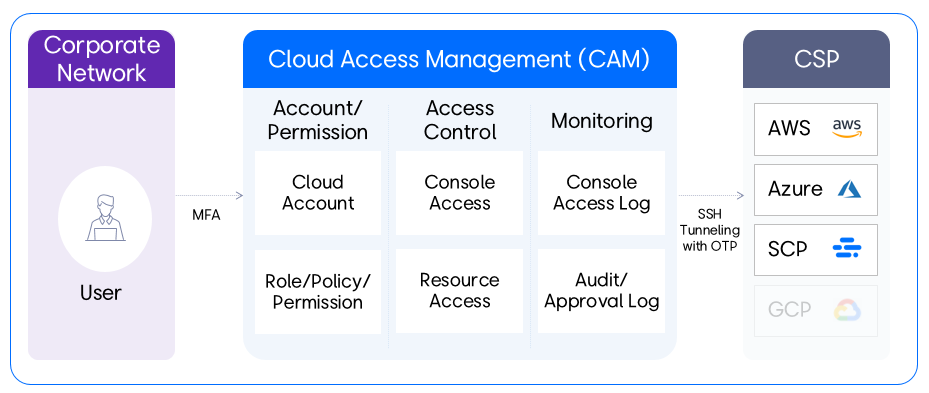
Service Scenario
In the past, users accessed the console and resources directly with their IAM personal accounts, but now CAM provides a unified access channel.
- Step 1: During the transition period, the TO-BE access channel is newly configured and operated in parallel with the AS-IS access channel.
- Step 2: After the Cut-Over, the AS-IS access channel is blocked, and the TO-BE channel is switched.
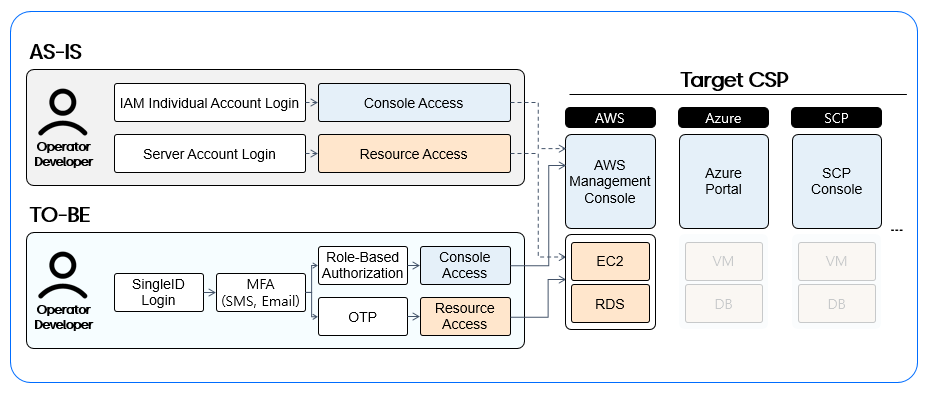
Key Features
User Scenario
The user scenario proceeds in the following order:
- Sign-In → Basic Information Setting → Console Access Control → Resource Access Control → Monitoring
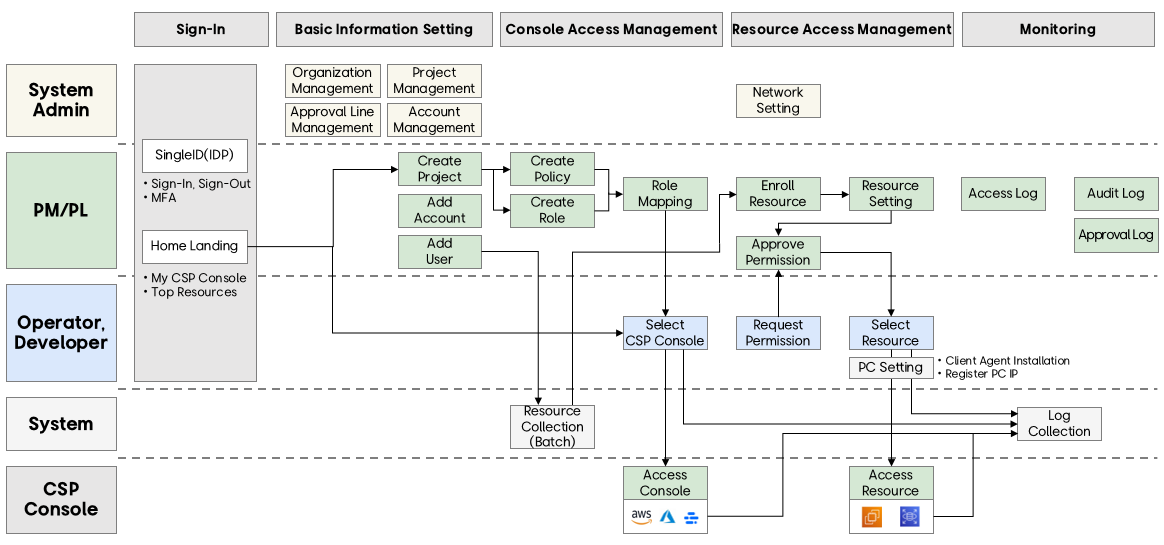
Login & Home
Users log in with their SingleID or SSO account (e.g., Knox Portal) and proceed with multi-factor authentication. After entering the authentication code received via SMS or email, the login process is completed and access to CAM is granted.
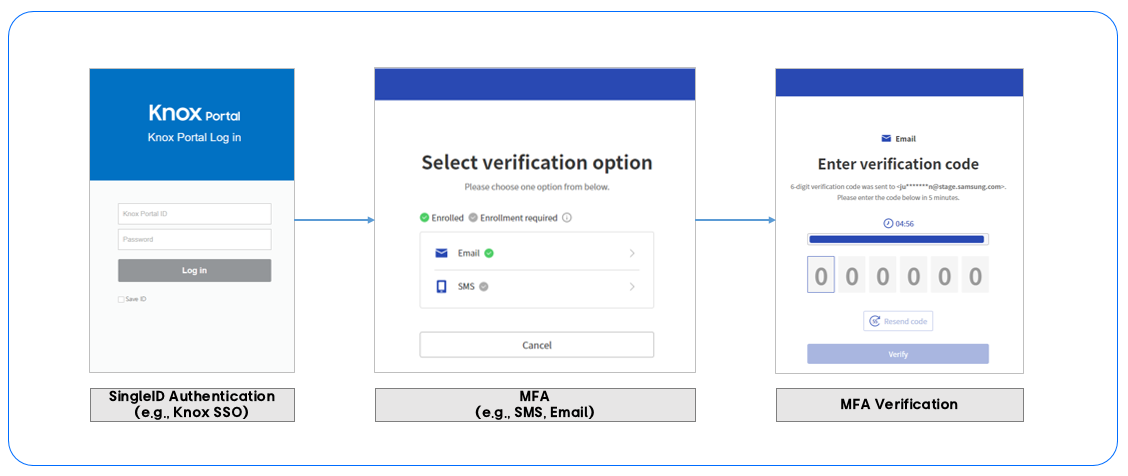
The home screen provides a personalized screen that allows users to access cloud consoles and resources with one click, making it easy for users to access consoles and resources.
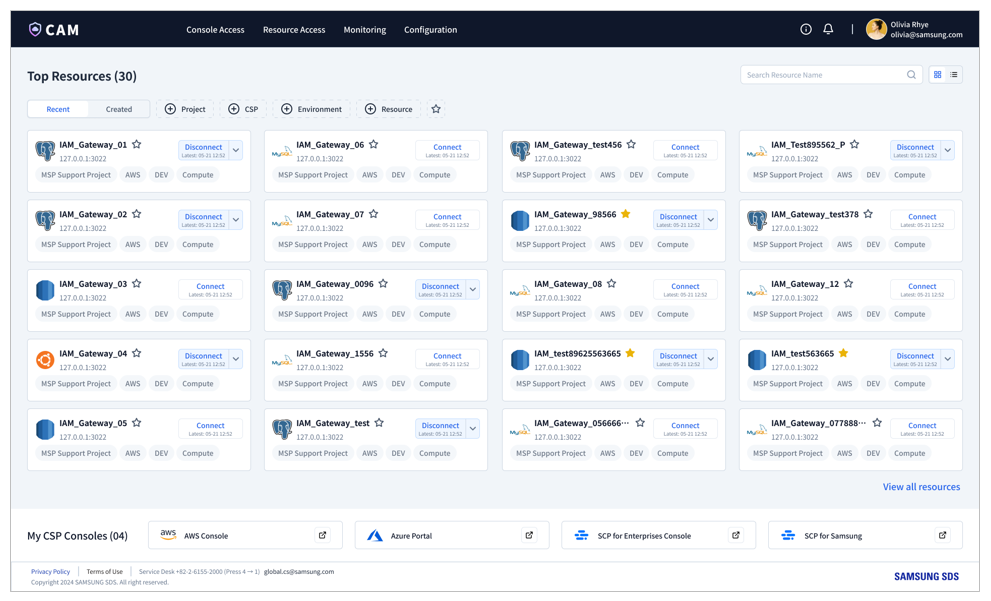
Configuration
After creating a project, users can easily register their CSP (Cloud Service Provider) account. Additionally, users can be added to the project to provide project-specific permissions.
Console Access
Roles and policies can be created to set and control access permissions to the cloud console. Roles can be mapped to specific accounts and users, defining which users can access the CSP console and their permission levels.
Resource Access
Cloud resource access permissions are managed. To manage cloud resource access, users first request permissions, download and install the PC client agent, and register their access IP address. Once set up, users can access their desired resources from their personalized resource list.
5.2.1.4.1 - Getting Started
This manual aims to help users quickly understand the essential features and processes required to effectively use CAM.
Network Environment
Access is only possible in a network environment allowed by each tenant.
- CAM Portal, Console Access: Access is possible from a network environment allowed by each tenant.
- DEV, STG, ETC Resource Access: Access is possible from a network environment allowed by each tenant.
- PRD Resource Access: Access is only possible from a network environment with internet blocked, so access is only possible from a specific IP range for each tenant.
- Additional individual PC environment settings are required.
Pre-work
To use the CAM portal, some pre-work is necessary. If you are a PM (Project Manager) or PL (Project Leader) group user, please check the cloud account and resource preparation below and prepare the environment in advance.
Cloud Account Preparation
To register and manage accounts in CAM, you need to create a role in the CSPs (AWS, Azure, SCP) and configure it with the policies required by CAM, and then assume the role in CAM.
Guide
If it’s not in the document Configuration > Add Account for reference.
Resource Preparation
Resource Configuration
To register and access resources in CAM, some setup work is required during resource configuration.
First, you must allow password-based connections. This configuration is necessary to access resources through CAM because a one-time password is issued for SSH connections when accessing resources in CAM.
Additionally, if the resource type is Compute, the following configuration must be added.
- Add the following content to a file named /etc/sudoers.
- Ubuntu: %sudo ALL=(ALL) NOPASSWD:ALL
- Amazon Linux: %wheel ALL=(ALL) NOPASSWD: ALL
- Restart the server with systemctl restart sshd.service.
Network Settings
To access resources through CAM, you need to configure the firewall and security group registration in the tenant’s network environment so that CAM can access the resources. Please check the necessary information with the tenant administrator and proceed with the network settings.
Service Scope
CAM currently supports AWS, Azure, SCP CSPs and plans to expand to more CSPs sequentially.
| Item | Description |
|---|---|
| AWS | Amazon Web Services |
| IAM (Console) | AWS Identity and Access Management |
| SCP | Samsung Cloud Platform (KR EAST1 region, KR WEST1 region) |
| EC2 | Elastic Compute Cloud |
| RDS | Relational Database Service |
Table. CSP Abbreviations
| OS | Version |
|---|---|
| Ubuntu | Ubuntu Server 24.04 LTS |
| Ubuntu | Ubuntu Server 22.04 LTS |
| Amazon Linux | Amazon Linux 2023 AMI |
| Redhat | Red Hat Enterprise Linux 9.4 |
Table. OS
| DB Engine | Version |
|---|---|
| PostgreSQL | 16.x |
| MySQL | 8.0.x |
| Aurora PostgreSQL | 15.x |
| Aurora MySQL | 3.05.x |
| Aurora MySQL | 3.04.x |
| Aurora MySQL | 3.03.x |
| MariaDB | 10.11.10x |
Table. DB
5.2.1.4.2 - Home
After logging in, you can access your CSP console and personally assigned resources with one click from your personalized homepage. Operators and developers can access approved consoles and resources quickly and easily from one place, streamlining their work.
The CAM (Cloud Access Management) home screen is divided into two sections:
- Top Resources
- My CSP Consoles
Both sections provide access to assigned resources and CSP consoles.
Top Resources
This section displays a list of the top 30 accessible resources.
Card View and List View
Resources are provided in card view by default, and you can switch to list view according to your preference.
Search and Filter
You can use the search function to quickly find a specific resource, and filter resources based on the following items:
- Project
- CSP (Cloud Service Provider)
- Environment (e.g., DEV, STG, PRD, ETC)
- Resource Type (e.g., Compute, DB)
Favorites
You can set favorites using the Favorites (★) icon, and set a favorites filter to filter only resources that have been set as favorites.
Sorting
The resource list can be sorted by two criteria:
- Recent (default sorting)
- Creation Date
Resource Information
You can check the detailed information of resources in both card and list views.
- Resource Name
- Project
- CSP (e.g., AWS, Azure, SCP)
- Environment (e.g., DEV, STG, PRD, ETC)
- Resource Type (e.g., Compute, DB)
Resource Connection/Disconnection
Each resource has the Connect button to connect or disconnect. If you are already connected to a resource, the following details are displayed:
- Last Connection Date/Time
- Connection Status
Resource Connection
When you click the Connect button on a card or list, a connection popup opens.
To connect to a resource, enter the following details:
- Local Port: Enter a port number between 1024 and 65535 that is not currently in use on your PC.
- Remote Port: Enter the port number of the resource.
- Launch Putty: Select ‘ON’ to automatically run putty during the connection process.
Note
Before attempting to connect, ensure that the client agent is installed and the IP address is registered.
Refer to Resource Access > PC Settings for settings.
Connection Details
When connected to a resource, you can click the dropdown to view detailed connection information, such as user ID, password, and local IP. This information is provided through a popup as details for the user to connect to the resource via SSH.
- User ID: Click the Copy icon on the right to copy the user ID.
- Password: Click the Copy icon on the right to copy the password.
- Local IP: Click the Copy icon on the right to copy the local IP address.
- Client Server IP: Refer to the connected client server IP displayed on the screen.
Resource Disconnection
When connected to a resource, the Disconnect button appears. Click this button to start the disconnection process. A popup will be displayed for final confirmation before the connection is terminated.
My CSP Consoles
The page provides a CSP access link in a sticky footer at the bottom. It offers CSP console access via SAML SSO, allowing you to access it directly without a separate authentication process.
5.2.1.4.3 - Console Access
The console access feature allows PM and PL group users to manage access to the CSP console by assigning roles and policies to cloud accounts and users. Here, users can access the console with the appropriate permissions based on the settings.
The console access section consists of four main management areas.
- Role Management: Defines and manages the level at which users can access the CSP console.
- Policy Management: Defines new policies and manages the roles mapped to each policy.
- Account Management: Manages cloud accounts and ensures each account is mapped to the correct role permissions.
- User Management: Controls user console access by mapping users to the correct roles, giving them the necessary permissions to access the cloud console.
Role Management
In the role management menu, you can view and manage all roles registered to a project, and filter roles by CSP or project.
Create Role
To create a role, click the Create Role button. To create a new role, you must fill in the required information in the popup window:
- Project: Select a project from the user’s project list.
- CSP: Select a CSP.
- Role Name: Enter a unique role name and click the Validate button to check for consistency.
- Description: Add a brief description of the role.
View Role
To access detailed information about a role, go to the role management menu and click on the desired role. All project users can view role details, including policies, cloud accounts, and users mapped to the role.
The role view screen displays the following key details:
- Role Information: Basic details related to the role.
- Delete Role: Click the Delete button to remove this role.
- Policies: Displays a list of policies currently mapped to the role.
- Accounts: Displays a list of accounts related to the role.
- Users: Displays a list of users connected to the role.
Note
To set up policy, account, and user mappings, you must first create policies in the policy management menu and ensure that cloud accounts and users are pre-registered to the project.
Note
- The process in CSPs starts after the user addition approval is completed. Therefore, it may take some time for the status to change to Approved and be confirmed in the user’s CSP Role list. (Up to 10 minutes)
- Maximum 10 policies can be mapped to an AWS role.
- Each account has a role limit based on its CSP with up to 800 roles in AWS and up to 5000 in Azure.
- Each user has a role limit based on the CSP with up to 10 roles of AWS and 4000 roles of Azure can be mapped.
Delete Role
To delete a role and remove its mapping, select the role from the list and click the Delete button. Or alternatively, click the Delete button on the View Role page. Confirm the action to delete the role permanently. Removing a policy mapping eliminates the relationship between the role and the related policy.
Policy Management
PM and PL group users can add or delete policies mapped to a role by selecting or deselecting policies from the policy list.
Create Policy
To create a new policy, click Create Policy and fill in the required information:
- Project: Select a project from your list of registered projects.
- CSP: Choose the cloud service provider.
- Policy Name: Enter a name for the policy and validate it.
- JSON Code: Provide the JSON code that defines the policy.
- Description: Include a brief description of the policy.
To map a policy to a role, click the Add button above the policy list to open a popup. In the popup, you can view and select policies defined within the same project. Click the Save button to complete the mapping process. You can map multiple policies at once.
Make sure to check if the desired policy is created in the policy management menu before mapping.
View Policy
To access detailed information about a policy, navigate to the Policy Management section and click on the desired policy. All project users can view policy details, including the roles mapped to the policy.
Delete Policy
To remove a policy mapping from a role, select the policy from the list and click the Delete button. The deleted policy will reappear in the Add Policy popup list, allowing you to add it back if needed. Removing a policy mapping eliminates the relationship between the role and the related policy.
Account Management
PM and PL group users can map cloud accounts to a role or remove them.
View Account
To view account details:
- Navigate to Account Management and click on the desired account.
- All project users can access the account’s details, including a list of roles mapped to that account.
- Project managers or PL group users can also edit or delete roles associated with the account.
Add Role to Account
- To map roles to an account, click the “Add” button above the roles list to open the “Add Roles” pop-up.
- In the pop-up, select roles from the list that belong to the same project as the account, and click the Save button to complete the mapping process.
Note
- Maximum 800 roles can be mapped to an AWS account and 5000 roles to an Azure account.
Delete Role from Account
To remove a role from an account, select the role from the list and click the Delete button. The deleted role will reappear in the Add Role popup, allowing you to add it back if needed. You can delete multiple roles at once.
User Management
Through the user management menu, users can view and manage all users registered to a project. Users can be searched by name.
View User
To view user details:
- Go to the user management menu and click on the user.
- All project users can view user details, including roles mapped to the user.
- PM or PL group users can add or delete roles from the user.
Add Role to User
To map a role to a user, click the Add button above the role list to open the Add Role popup. In the popup, you can view all roles in the user’s project, select the role to add, and click the Create Approval button to proceed with the approval process.
Note
- Each user has a role limit based on the CSP with up to 10 roles of AWS and 4000 roles of Azure can be mapped.
Create Approval
Assigning a role to a user requires an approval process, which is done through the Create Approval popup and sent via Knox approval system or CAM’s own approval system.
- Title: Automatically input by the system and cannot be modified.
- Approver: Automatically added by the system, with the option to add approvers and consensus following the approval guide.
- Content: Project and role information is automatically input by the system and cannot be modified.
Delete Role from User
To remove a role from a user, click the Delete button. After a final deletion confirmation, the user’s role mapping will be removed. The removed role will reappear in the Add Role popup, allowing you to add it back if needed. Role removal does not require approval, but re-adding a role does.
5.2.1.4.4 - Resource Access
You can check all resources with individual permissions and access them. To access resources, a PM or PL group user must register the resources of the cloud account registered in the project and go through the user’s permission request and approval process.
Resources
It shows all resources that have been approved for the user. The user can check the resource list and access the resources directly.
Access
You can access resources by clicking the Connect button, and after connection, it provides connection details.
- Local Port: Enter a port number that is not used for other purposes on your PC.
- Remote Port: Enter the port number of the resource.
- Putty Execution: To automatically run Putty, you need to set it to ON.
Note
Before accessing resources, please make sure to install the client agent and register the IP address.
For more information, refer to Resource Access > PC Settings.
Connection Information
It provides detailed connection information to access resources through SSH.
- User ID: You can copy and use the user ID by clicking the copy icon.
- Password: You can copy and use the password by clicking the copy icon.
- Local IP: You can copy and use the local IP by clicking the copy icon.
- Cloud Server IP: You can copy and use the cloud server IP by clicking the copy icon.
Disconnection
When connected to a resource, the Connect button changes to Disconnect. To disconnect from the resource, click the Disconnect button.
Resource Registration
This menu allows you to register resource information necessary for resource access and shows a list of registered resources.
Registration
To register a resource, cloud account registration must be done in advance in the project menu. PM and PL group users can register resources created in the cloud account. Click the Enrollbutton to move to the resource registration screen and set the resource connection information.
- Project: Select a project registered as a PM or PL group user.
- Account: Select a cloud account registered in the selected project.
- Region: Select the region information of the selected account.
- Resource Type: Select one of Compute or DB.
- Resource: Select a resource that matches the selected criteria.
- Connection Type: Select one of Direct (connect directly to the server) or Bastion (connect through a proxy server).
- Address: Enter the address information of the resource.
- Root User: Provide the IP and password of the root user of the resource.
Note
Before registering a resource, please make sure that cloud account registration and resource creation are completed.
Cloud account registration can be done in Configuration > Project.
Guide
Supported OS/DB
Currently, the OS and DB that can be registered for ‘Resource Registration’ are limited as follows, and supported OS and DB will be continuously added.
| OS | Version |
|---|---|
| Ubuntu | Ubuntu Server 24.04 LTS |
| Ubuntu | Ubuntu Server 22.04 LTS |
| Amazon Linux | Amazon Linux 2023 AMI |
| Redhat | Red Hat Enterprise Linux 9.4 |
Table. Supported OS
| DB Engine | Version |
|---|---|
| PostgreSQL | 16.x |
| MySQL | 8.0.x |
| Aurora PostgreSQL | 15.x |
| Aurora MySQL | 3.05.x |
| Aurora MySQL | 3.04.x |
| Aurora MySQL | 3.03.x |
| MariaDB | 10.11.10x |
Table. Supported DB
Network Settings
To register resources in CAM and access resources through CAM, network settings must be done in advance.
Please follow the guide from the tenant administrator and proceed with network settings suitable for each tenant environment, such as firewall registration and security group registration, before registering resources.
Withdrawal
Resources that are no longer used must be deleted from the registered resource list. Select the resource from the resource view or resource registration list and click the “Withdraw” button to prevent further access.
Request Permission
The permission request menu allows you to inquire about the resource permissions of project members and request user-specific CSP resource type permissions.
Request
Users can request resource permissions by type of CSP resource by selecting the period and permission type. All permissions require approval, but when ‘Emergency’ is selected, the permission is granted simultaneously with the approval request, and a related email is sent to the approver.
Resource Information
- Project: Select a project that the user belongs to.
- Account: Select an account registered in the selected project.
- Resource Type: Select one of Compute or DB.
Permission
- Period: Select a period (e.g., 4h, 8h, 24h, 10d, 30d, 12m).
- Emergency: If checked, the permission is granted simultaneously with the approval request, and a related email is sent to the approver.
- Permission Level: Select one of USER, ADMIN, or DBA.
- Comment: Add a comment for approval.
Create Approval
To obtain resource access permissions, an approval process is required. To proceed with the approval process, go through the “Create Approval” popup and send it to Knox Approval, which will proceed through Knox Approval.
- Title: Automatically entered by the system and cannot be modified.
- Approver: Add approvers and consensus according to the guide.
- Content: Project and permission information are automatically entered by the system and cannot be modified.
Withdrawal
To remove permissions that are no longer needed, select the corresponding permission from the permission request list and click the Withdraw button.
PC Settings
To access cloud resources, you must install the client agent and register the IP address of the access environment.
Client Agent Download
Click Download Client Agent to start the download and install the client agent.
User Guide
To access resources, client download and installation are required. Also, if the installation is not completed or the version is not supported, you cannot connect to resources even if other preparations, such as permission and IP registration, are completed.
Installation Guide
To start the installation process, click the Download Client Agent button to download the installation file. After the download is complete, refer to the following information to proceed with the installation.
- Download Location: Specify a folder in the local drive.
- Execution: Select the downloaded file and click Run as Administrator by right-clicking to run it.
IP Registration
Cloud resource access is only possible for registered IPs, and up to 5 IPs can be registered. Refer to the following information to register an IP.
- To add a new IP, click the Add button.
- To remove an existing IP, select the corresponding IP from the list and click the Delete button.
5.2.1.4.5 - Monitoring
CAM’s monitoring menu provides essential features for tracking console access history, user activities, and approval history. This feature ensures transparency, security, and compliance by providing insights through detailed information.
Access Log
The Access Log section provides a record of user activities within the CAM console, allowing administrators to track and review access-related actions across projects and cloud environments. It helps ensure security compliance and offers visibility into how and when users interact with cloud resources through the CAM interface.
Console Access Log
The Console Access Log records all events related to console access performed through CAM. This log enables tenant administrators to monitor console connection attempts, view event results, and identify access patterns for AWS, Azure, and SCP accounts. The Console Access Log page is available under Monitoring > Access Log > Console Access Log.
Console Access Log Features
Log Scope
- Tenant (Company) Administrator: Can view logs for console access within the tenant.
- User: Can only view logs for their own projects.
Log Details
- The Console Access Log captures event data for all console-related activities initiated through CAM.
- Logs are available for all configured tenants and cover access events across AWS, Azure, and SCP.
- Log details display information such as event type, date/time, project, account ID, etc.
- Click the Expand icon to view detailed information about all actions. This detailed view provides a deeper understanding of each access attempt. The detailed event information includes:
- Event ID
- Event Source
- Event Result
- Request Type
- User Agent
- Region
- Source IP Address
- User Information
- Use filters such as project, CSP, environment, etc. to narrow down the results.
- Select a period to filter logs. The default period is 30 days.
- Logs are sorted in reverse chronological order, with the most recent actions at the top.
- Each log entry serves as an audit trail to trace console access patterns and user activity across CAM.
- Download all log data for the selected period as an Excel file for offline analysis or record-keeping.
Audit Log
Guide
- Navigate to Monitoring > Audit Log from the menu.
- Select the desired log type: audit log or approval log.
- Use search and filter options to find logs based on criteria such as user, resource type, or period.
- Check the details, including the timestamp of access, user information, and resource details.
The Audit Log section of the monitoring module provides a comprehensive history of user and system actions performed within the CAM portal, divided into two detailed items.
- Audit Log
- Approval Log
Audit Log
The Audit Log section displays the history of operations related to the creation, update, and deletion of data within the CAM portal.
Audit Log Features
Log Scope
- Tenant (Company) Administrator: Can view logs for all projects within the tenant.
- User: Can only view logs for their own projects.
Log Details
- Log details display information such as event type, date/time, user, IP, etc.
- Click the Expand icon to view detailed information about all actions.
- Use filters such as project, event type, user, etc. to narrow down the results.
- Select a period to filter logs. The default period is 30 days.
- Logs are sorted in reverse chronological order, with the most recent actions at the top.
- Download all log data for the selected period as an Excel file for offline analysis or record-keeping.
Approval Log
The Approval Log section provides a history of all approval requests and approval statuses within the CAM.
Approval Log Features
Log Scope
- Tenant (Company) Administrator: Can view approval logs for all projects within the tenant.
- User: Can view approval logs for their own projects.
Log Details
- Log details display approval type, approval status, details, and approval history.
- Check the approval status, such as pending, approved, or rejected.
- Open a specific approval item to view its details.
- Use filters such as project, approval type, approval status, user, etc. to narrow down the results.
- Select a period to filter logs. The default period is 30 days.
- Logs are sorted in reverse chronological order, with the most recent approvals at the top.
- Download all log data for the selected period as an Excel file for offline analysis or record-keeping.
5.2.1.4.6 - Configuration
The configuration feature enables PM and PL group users to manage essential project settings, account configurations and tenant administrators to set up approval lines and organizational charts.
Project
The project menu allows users to view all projects they belong to. Project details are initially registered by the PM, and can be modified by the PM or PL group users as needed.
Create Project
To create a project, click the Create Project button and enter the project information.
- Project Name: Give a name to the project.
- PM: Designate a project manager who can manage project-related information and permissions. Note that if you designate someone other than yourself, you will no longer be able to manage the project after creation.
- Organization: Select the organization that will carry out the project.
- Description: Enter a description of the project.
View Project
In the View Project screen, PM or PL group users can manage project information and add CSP accounts and users to the project.
- General Information: Displays the project information registered in the Create Project screen.
- Edit: Click the Edit button to modify the project’s general information.
- Delete: Click the Delete button to delete the project.
- Users: Displays a list of users registered to the project.
- Accounts: Displays a list of cloud accounts registered to the project.
Cloud Account Management
PM and PL group users can add new accounts to the project or delete accounts that are no longer in use.
Adding AWS Account
CAM supports a keyless method to enhance security when connecting cloud accounts. To register an account, you need to create a new role in the AWS IAM service with the policy required by CAM. Follow these steps to create a role in AWS:
- Access the AWS IAM service
- Log in to the AWS console and navigate to the IAM service https://aws.amazon.com/console/
- Go to the Roles menu and click Create Role
- Click the Create button in the Access management > Roles section to go to the Create Role screen.
- Create Role > Step 1: Select a trusted entity.
This step is where you enter CAM account information.
- Select AWS account and Another AWS account in order, and enter the CAM account ID 022499039571 in the account ID field.
- Create Role > Step 2: Add permissions
- Assign the CAM policy to the newly created role.Guide
Search for and select the relevant policy, and proceed to the next step.
- IAMFullAccess
- AmazonEC2FullAccess
- AmazonRDSFullAccess
- AWSCloudTrail_FullAccess
- AmazonS3FullAccess
- AmazonEventBridgeFullAccess
- Assign the CAM policy to the newly created role.
- Create Role > Step 3: Name, review, and create Enter a role name and click the Create Role button to complete the role creation. ※ The role name created here will be used as the Role Name when registering the account in CAM.
Guide
After creating a role in IAM, go back to the Project View screen in CAM and register the account. Click the Add button above the account list and enter the account information to register the account to the project. To complete the account registration, an approval process is required. Click the Create Approval button to proceed with the approval, which will be sent to an approval system such as Knox for processing. Once the approval is complete, you can view the newly registered account in the account list.
- CSP: Select the CSP.
- Environment: Select the service environment.
- Account Name: Give a name to the account.
- Account ID: Enter the account ID registered in AWS and click the ‘Verify’ button to confirm.
- AWS Type: Set to ON if the account is a Chinese account.
- Role Name: Enter the role name created in the AWS IAM.
Note
Account registration policies may vary depending on the tenant. According to the tenant’s policy, accounts may be restricted to registration in only one project.
- Title: Automatically entered by the system and cannot be modified.
- Approver: The approval line is automatically added by the system, and approvers and agreeers can be added according to the approval guide.
- Content: Account information is automatically entered by the system and cannot be modified.
Adding SCP Account
PM and PL group users can add new SCP account to a CAM project through the Add Account button in the View Project page. CAM supports a keyless connection method for enhanced security, so no credentials are exchanged directly during account registration. Before you begin, make sure that the required setup is completed in the SCP Console.
Note
SCP includes both SCP for Samsung and SCP for Enterprises environments. Depending on your CSP authority or selection, the pre-requisites and steps for adding an account are identical for both.
Step 1. Pre-requisite Setup (One-time Trust Configuration for CAM Account)
Before adding your SCP account in CAM, ensure the following configuration is completed on the SCP side. This setup allows CAM to securely access the target project and verify account information.
First you will need to setup policy, if it is not already created based on the described steps in the manual below. Then authorize the CAM account via Permission Groups and then add members.
- Create a Policy for CAM Access
Go to SCP Console.
Login and navigate to the IAM > Policies section in SCP Console.
Create a Policy with the name ‘CAM_Linked_Policy’ Create a new policy that includes the necessary permissions required for CAM operation based on the following table:
ID Action Reason [Platform] Permission Management List, Read, Create, Delete, Update Permission Create/Delete Policy, Assign Policy to Role [Platform] Resource Management List, Read View List and Details of SCP [Platform] Tag Management List, Read View Tag List/Information, etc. [Platform] Project Management List, Read Assigned Project List/Information Table. Policy for CAM Access listAlternatively, you can also add policy requirements to JSON Mode.
You can connect Permission Group and role later, so Complete Policy creation without checking anything
- Authorize the CAM Account via Permission Groups
- Once the policy is created, link it to the CAM system account using a permission group.
- Step-by-step:
- Navigate to IAM > Permission Groups
- Create a new permission group (e.g., CAM-Access-Group)
- Create a Permission Group with the name ‘CAM_Linked_Group’.
- Attach the CAM policy created above to this group
- When you add User to your project, you will connect User to Permission Group, so now you can Complete Permission Group generation without checking any User.
- Assign CAM Service Account to the Permission Group
- Navigate to the Project Members section in your SCP Console.
- Add the required account as a member of your target project.
- This account represents CAM and will be used for integration.
- To Add it, select the target project > Identity Access Management > Add User > Add Project Member > Add SCP User to Target Project
- Proceed to Add Project Member
- Search CAM users with ‘cam.app@samsung.com’ e-mail address.
- Click the ADD button to select the cam.app user.
- Add the User available from the list. Alternatively, you can search the user by using the search functionality.
- Search user to add as a Project Member.
- Select the Permission Group with the name ‘CAM_Linked_Group’ that you created above and complete the Add Project member operation.
- Connect Permission Groups to complete Adding Project Member
- After completing the above steps, return to the Project View screen in CAM to add your SCP account.
Step 2. Add Account in CAM console
- In CAM, go to View Project > Manage Accounts.
- Click the Add Account button.
- In the pop-up that opens, fill in the following details:
- Select CSP and Environment
- CSP: Choose SCP for Enterprises or SCP for Samsung.
- Environment: Select the environment this account will belong to (e.g., DEV, STG, PRD, or ETC).
- Enter Account Information
- Account Name:
- Enter a name to identify this account within CAM.
- This can be up to 50 characters long.
- Only English letters and numbers are allowed.
- Project ID (from SCP Console):
- Enter the Project ID of the SCP project you prepared earlier.
- Allowed: English letters, numbers, and hyphens only
- Max: 30 characters
- Account Name:
- Click Verify after entering the Project ID. CAM checks the following:
- The project exists in SCP.
- The required roles (cam-Administrator, cam-Operator, cam-Developer) are present.
- The project isn’t already registered in another CAM project or awaiting approval elsewhere.
- If any of these conditions are not met, you’ll see a validation message.
- Select CSP and Environment
Step 3. Create Approval
Once the Project ID is verified and other details are complete, the Create Approval button will become active.
Click it to send the account addition request for approval. Depending on your CAM setup, you can either select the approvers manually or let the system route it to the default approvers. After approval, the SCP account will appear in the Project Accounts table in CAM.
Adding Azure Account
Before adding an Azure account in CAM, complete the following setup steps in the Microsoft Entra ID and Azure Portal. These steps must be performed by a Tenant Admin.
Step 1: Pre-requisite Setup (One-time Trust and Domain Configuration for CAM Account)
This step ensures that CAM is trusted within the target Azure tenant and has the required access permissions. This step needs to be completed before adding an Azure account in CAM by the Tenant Admin.
These pre-requisites are divided into two sections:
- Trust Configuration
- Domain Configuration
Trust Configuration for CAM Account
This step ensures that CAM is trusted within the target Azure tenant and has the required access permissions. It must be performed by a Tenant Administrator in the target Azure tenant. The purpose is to grant the CAM application the necessary permissions to access resources within Microsoft Entra ID.
To allow CAM to integrate with Azure, the Tenant Administrator must open the CAM Admin Consent URL. This URL triggers a Microsoft Entra Admin Center consent dialog, where the admin can approve the requested permissions for the CAM application.
Obtain the Tenant ID
The CAM Admin Consent URL includes an App Client ID linked to a specific tenant. Before using it, the Tenant ID of the target Azure tenant must be confirmed.
To find your Tenant ID:
- Sign in to the Azure Portal.
- In the left navigation menu, go to Microsoft Entra ID.
- In the Overview tab (first screen), locate the Tenant ID field.
- Copy the Tenant ID for use in the Admin Consent URL.
Access the CAM Admin Consent URL
Open the CAM Admin Consent URL in a web browser. (https://login.microsoftonline.com/{Your_Tenant_ID}/adminconsent?client_id=39613ae7-2fd4-4f3c-9471-aba2391da0b5)
Replace the placeholder {Your_Tenant_ID} in the URL with the actual Tenant ID you copied earlier.
When prompted, select the Global Administrator account of the target tenant.
This account must have the highest administrative privileges in the tenant.
Review the Consent Agreement displayed. This agreement outlines the exact permissions CAM will be granted.
If you agree, click Accept to approve the integration.
By completing this step, CAM gains access to the tenant-level resources in Microsoft Entra ID.
No Subscription Access Yet: This step does not grant CAM access to Azure subscriptions. Subscription-level access will be configured separately in later steps (Management Group Role creation and Subscription Role assignment).
Verify CAM application registration after granting consent
- In Azure Portal, navigate to Microsoft Entra ID → Enterprise Applications.
- Search for the CAM application.
- Confirm the CAM app appears in the list and is properly registered.
Note
When you grant Admin Consent, you are giving CAM tenant-level recognition.
Domain Configuration for CAM Account In Azure, domain linkage is required so that you as a user can authenticate through email and integrate with CAM’s Keycloak authentication. The process of Domain Configuration has two main phases:
| Phase | Who Performs It | Frequency |
|---|---|---|
| Create a Domain | Tenant Admin or PM/PL | Once per tenant (maybe repeated for new domains if required) |
| Register your domain in the Azure Tenant | Tenant Admin | Once per tenant (unless additional domains are added later) |
Table. Domain Configuration for CAM Account list
Create a Domain You can create a public domain using any DNS service that can generate TXT records (e.g., AWS Route 53, SCP DNS). For this guide, we use SCP DNS as an example.
- Pre-Domain Creation Operations
- Log into SCP DNS.
- Access the SCP console and navigate to the DNS menu.
- Initiate Public Domain Purchase.
- Click Product Request.
- This opens the Purchase Form.
- Fill in the details of Domain Purchase Form.
- Usage Type: Select Public
- Domain Name: Enter desired public domain name.
- Registrant Details: Enter name, email, address, phone number.
- Description and Designation fields.
- Billing Information will be displayed before purchase confirmation.
- Confirm Purchase
- Review the final billed amount.
- Click Next to confirm.
- Verify DNS Status
- Once created, the domain will appear in the SCP DNS list.
- Wait until the status shows Active; which suggests it is now publicly usable.
- You now have an active public domain that can be linked to your Azure tenant for user authentication.
- Log into SCP DNS.
Register your Domain in the Azure tenant
Now that the public domain exists, it must be linked to Microsoft Entra ID for authentication.
Pre-Domain Setup Operations (Azure Tenant)
- Sign in to the Azure Portal with a Tenant Administrator account.
- Navigate to Microsoft Entra ID → Custom Domain Names.
- Click +Add Custom Domain.
- Enter your public domain name (the one you created in SCP).
- Click Add Domain.
Generate a TXT Record of the Domain (Azure → SCP DNS)
- Once you add the domain in Azure:
- Azure will display a TXT record value that must be added to your domain’s DNS settings. This is required to verify domain ownership.
- Copy the TX record value from Azure.
- Once you add the domain in Azure:
Add TXT Record (To SCP / Domain Host)
- Go to SCP DNS then select the Active public domain you created.
- Click Add Record.
- Record Type: Select TXT.
- Value: Paste the TXT record value copied from Azure.
- TTL (Time to Live): Choose according to preference.
- Click Confirm.
- Ensure the record appears in the domain’s DNS list.
Validate Domain in Azure
- Return to the Azure Portal; select Microsoft Entra ID; then select Custom Domain Names.
- Initially, the domain status will be unverified.
- Click the domain and click Verify button.
- Once Azure detects the TXT record (propagation may take several minutes); Status changes to Verified.
- Your public domain is now officially linked to the Azure tenant.
Step 2. Add Account in CAM console
- In CAM, go to View Project > Manage Accounts.
- Click the Add Account button.
- In the pop-up that opens, fill in the following details:
- Select CSP and Environment
- CSP: Choose Azure
- Environment: Select the environment this account will
- Enter Account Information
- Account Name:
- Enter a name to identify this account within CAM.
- This can be up to 50 characters long.
- Only English letters and numbers are allowed.
- Tenant ID (from Azure Portal):
- Enter the Tenant ID.
- Only English letters, numbers, and hyphens are allowed.
- Maximum 36 characters can be entered.
- Click Verify and CAM will check the following:
- Confirm if the Tenant ID format is correct.
- Validate it against Azure to ensure it exists.
- Only after Tenant ID is verified will the Subscription ID field be enabled.
- Subscription ID (from Azure Portal):
- Enter the Subscription ID.
- Only English letters, numbers, and hyphens are allowed.
- Maximum 36 characters can be entered.
- Click Verify and CAM will check the following:
- Confirm if the Subscription ID format is correct.
- Check if the Subscription ID is already linked to another CAM project.
- Check if it is already registered or has a pending approval request.
- Only after Subscription ID is verified will the Federation Domain field be enabled.
- Federation Domain (from Azure Portal):
- Enter the Federation Domain.
- Only English letters, numbers, hyphens, and dots are allowed.
- Maximum 48 characters can be entered.
- Click Verify and CAM will check the following:
- Confirm that the Federation Domain format is correct.
- Ensure it matches an existing verified domain from Azure Domain Configuration.
- Account Name:
- Select CSP and Environment
Step 3. Create Approval
Once all the fields are verified and details are complete, the Create Approval button will become active.
Click it to send the account addition request for approval. Depending on your CAM setup, you can either select the approvers manually or let the system route it to the default approvers. After approval, the Azure account will appear in the Project Accounts table in CAM.
Delete Account
Click the Delete button in the View Account section to delete an account that is no longer in use.
User Management
PM and PL group users can add or remove users from the project. Only users registered to the project can be granted console and resource access within the project, so users who need console or resource access must be registered as project users.
Add User
Click the Add button above the user list to add a user to the project.
- Name: Search for the user name registered in CAM.
- Group: Select the user’s group.
- PL: Can manage project-related information and has the same permissions as the project manager.
- Operator, Developer: Can view project-related information and request permissions for resources. These users are categorized for project role management but have the same permissions in the CAM portal.
Delete User
Select the user to delete from the user list and click the Delete button. After deleting a user, the deleted user can no longer view project-related information.
Notice
The Notice section allows Tenant Admins to create and manage notices that are displayed in the GNB Notices panel for users within the tenant. Multiple notices can be active simultaneously. Each notice can include a title, detailed description, optional attachment(s), and a defined display period.
Create Notice
To Create a Notice, click on the Create button on List page. In the Create Notice page, enter the following details:
- Title: Enter a title for the notice.
- Description: Provide the content or message to be displayed.
- Attachment (Optional): Upload supporting files (up to 5 files, with a combined maximum size of 50 MB). Empty files cannot be uploaded and supported file formats include images, documents, .mp4, and .zip.
- Display: Toggle ON to enable the notice for display in the GNB. Once the toggle is turned ON, you can select the Display Period or the date range during which the notice should be visible to users.
Select Save to create the notice. The newly created notice will appear in the Notice list.
View Notice Details
Select any notice title from the list to open the Notice Details page. All notice information (Title, Description, Attachments, Display Period, Created By, and Created Date) is displayed in read-only mode.
From this view:
- Use Edit to modify the notice.
- Use Delete to permanently remove the notice. .
Edit Notice
- From the Notice List, select a notice to open its Detail View.
- Select Edit.
- Modify the required fields (Title, Description, Attachment, Display settings, or Date Range).
- Select Save to update the notice.
Note
Changes made to an active notice take effect immediately.
Delete Notice
- From the Notice Detail view page, select Delete.
- Confirm the deletion when prompted. The selected notice will be removed from the list and will no longer appear in GNB Notices.
Approval Line
Tenant administrators can predefine approval lines that users must specify when creating an approval.
Create Approval Line
To create an approval line, click the Create button and specify the approval case and organization to create.
- Name: Enter a name for the approval line that will not be exposed to users.
- Target: Select when and which organization to apply.
- Approver Guide: Enter the approver information that cannot be automatically designated by the system but must be included in the approval line. If entered, it will be exposed to users as follows.
- Approver: Search for and add the approver’s name to be automatically designated and exposed by the system.
View Approval Line
To view detailed information about an approval line, go to the Approval Line menu and click on the desired approval line. You can view information about all approval lines and modify or delete them.
Modify Approval Line
Click the Edit button in the View Approval Line screen to modify the information.
Delete Approval Line
Click the Delete button to delete an approval line that is no longer in use.
Organization
The organization menu allows tenant administrators to manually manage the tenant’s organization. Tenant administrators can create organizations, which can be used to manage projects and approval lines by organization unit.
Add Organization
To add an organization, click the Add button and enter the following details in the Add Organization popup.
- Parent (Upper Organization): Select the name of the upper organization. The default value is the tenant name.
- Name: Enter the name of the organization to create.
- Display: Set the toggle to ON to expose the organization in the Organization list to users.
View Organization
The View Organization page displays a list of all created organizations. Click on the organization name to view detailed organization information on the right. You can expand the entire organization list to view all organizations at once, or collapse it to view only the top-level organizations.
Modify Organization
The data entered when creating the organization is displayed, and all data can be modified. Click the Save button after modifying.
Delete Organization
Click the Delete button in the View Organization screen to delete an organization that is no longer in use.
Note
Parent organizations and organizations with registered projects cannot be deleted.
Tenant Administrator
The tenant administrator menu allows you to add, specify, or delete administrators who manage the tenant. Initially, the user who applied for the service is designated as the tenant administrator, and subsequent administrators can be directly added, deleted, and managed by tenant administrators with administrative privileges.
Tenant administrators can manage tenant-based information through dedicated menus (e.g., Approval Line, Organization, etc.) and view all content within the tenant.
Add Tenant Administrator
To add a tenant administrator, click the Add button and search for and register a user among those registered to the tenant.
Delete Tenant Administrator
Select the user to delete from the tenant administrator list and click the Delete button.
5.2.1.4.7 - FAQ
Common
- I am unable to access the CAM site.
- Do I need to process the firewall in advance?
- I am unable to log in.
I am unable to access the CAM site.
- The CAM site can only be accessed from the allowed internal network of the tenant.
- Please check if the network you are accessing is an accessible environment.
- Refer to Getting Started > Network Environment.
Do I need to process the firewall in advance?
- To access resources through the CAM site, firewall registration must be done in advance from CAM to the accessing resources (Jumphost).
- For the contents required for firewall registration, please inquire with the tenant administrator.
I am unable to log in.
- Membership registration and login follow the SingleID system, so you must go through SingleID’s sign-in process or your company’s SSO process (e.g., Knox SSO), followed by MFA (e.g., SMS, Email, etc.) to access the CAM portal.
- When accessing for the first time, select the MFA method (SMS, Email, etc.), and the OTP will be sent to the phone number or email stored in Knox personal information, if SSO is configured for Knox, and you can log in by entering the OTP. If your phone number has changed, it may take some time for the Knox personal information to be updated and reflected in SingleID, so please try again.
Project
- Is there anything I need to prepare in advance to register a cloud account?
- I am unable to register an account.
- I registered an account, but the information is not visible.
Is there anything I need to prepare in advance to register a cloud account?
- To register an account in CAM, you need to create a new role in CSP IAM and have the CAM service account assume that role.
- Add the policies required by CAM to create a new role and add the CAM service account as a trusted entity.
- For a detailed guide on registering a new role in CSP IAM, please refer to add account section of Configuration manual.
I am unable to register an account.
- When registering an account, the consistency of the account ID and role name is checked.
- Please enter the CSP account ID information in the account ID and the role name information created in CSP IAM according to the guide.
- Also, check if the role was created correctly according to the guide.
I registered an account, but the information is not visible.
- The account information will be exposed on the project screen’s account list only after the approval for account registration is completed.
- If Knox approval system is used as an approval system, please check the approval status in Knox approval.
Console Access
- An error message appears on the CSP console login screen.
- I am unable to access the CSP console login screen.
- I created a role and policy, but the role is not visible on the CSP console login screen.
- I get an ‘Invalid policy JSON.’ error message and policy creation fails.
- I get an ‘Unable to complete due to a CSP error response.’ error message and role mapping fails.
An error message appears on the CSP console login screen.
- The CAM site provides CSP login based on console roles, and if there is no role that the user can log in to, CSP recognizes it as an invalid request and displays an error message.
- If you see the message “Your request included an invalid SAML response,” please request an CSP role from the PM or PL.
- After the PM or PL registers the user to the role and the approval is completed, you can log in by selecting the corresponding role on the CSP console screen.
I am unable to access the CSP console login screen.
- The CAM site has restrictions on accessing some services depending on the access environment.
- While the CAM site can be accessed from the internal network environment, resource access may be allowed only for specific IP ranges for each tenant. Please check your access environment and inquire with the tenant administrator.
I created a role and policy, but the role is not visible on the CSP console login screen.
- It may take a few minutes for the role and policy to be actually created and applied in CSP.
- Or, the user registration and approval for the role must be completed for the registered user to select the role on the CSP console login screen, so please check the user registration and approval status.
I get an ‘Invalid CSP policy JSON.’ error message and policy creation fails.
- This is a CSP error that occurs when the input JSON template is not supported by CSP.
- Please check the input JSON and rewrite it in a valid format.
I get an ‘Unable to complete due to a CSP error response.’ error message and role mapping fails.
- This is a CSP error that occurs when the JSON of the policy being mapped or the policy to be mapped is invalid.
- Please delete the corresponding policy and create a new policy in a JSON format supported by CSP.
Resource Access
- Is there anything I need to prepare in advance to access resources?
- I get an ‘Access to PRD server resources is restricted to ‘VDI for server connect’ environments where the Internet is blocked.’ error message and resource access fails.
- I get a ‘Resource connect is restricted due to unauthorized IP.’ error message and resource access fails.
- I get an ‘Unable to connect to the resource since the local port you entered is already in use.’ error message and resource access fails.
- What are the supported OS, DB vendors, and versions for enrolling resources?
- I get a ‘The address information you provided is not valid.’ error message and resource registration fails.
- I get an ‘Invalid authentication credentials. Please check your credentials, then try again.’ error message and resource registration fails.
- I get an ‘Unable to connect to the resource because the PC agent is not connected.’ error message and resource access fails.
- I get an ‘Unable to connect to the resource. Please try again after checking the resource status.’ error message and resource access fails.
Is there anything I need to prepare in advance to access resources?
- To access resources through the CAM site, you need to apply for access permissions by account and resource type and get approval.
- Please apply and get approval through the authority request menu.
- After approval, you need to install the client agent on the PC you want to access and register the IP of the access environment.
- You can install the client agent by clicking the Download Client Agent button in the PC settings menu, and you can register up to 5 IPs.
- Refer to Resource Access > PC Settings.
I get an ‘Access to PRD server resources is restricted to ‘VDI for server connect’ environments where the Internet is blocked.’ error message and resource access fails.
- Access to PRD resources is restricted in general internal network environments.
- PRD resources can only be accessed from specific IP ranges where the Internet is blocked. For tenant-specific restricted environments, please inquire with the tenant administrator.
I get a ‘Resource connect is restricted due to unauthorized IP.’ error message and resource access fails.
- This error occurs because the current access IP is not registered in the CAM site.
- To access resources through the CAM site, you need to register the IP of the access environment in advance.
- Please register the IP of the access environment in the PC settings menu and use it.
- Refer to Resource Access > IP Registration.
I get an ‘Unable to connect to the resource since the local port you entered is already in use.’ error message and resource access fails.
- This message appears when the local port you entered is already in use by another application on your PC.
- Please enter an unused port between 1024 and 65,535 and try again.
What are the supported OS, DB vendors, and versions for enrolling resources?
- Currently, OS supports Ubuntu and Amazon Linux, and DB supports some versions of PostgreSQL, MySQL, Aurora PostgreSQL, and Aurora MySQL.
- For detailed version information of each OS/DB, please refer to Getting Started > Service Scope.
I get a ‘The address information you provided is not valid.’ error message and resource registration fails.
- This message appears when the address information of the resource to be registered is invalid.
- Please check the IP and port information of the address and try again.
I get an ‘Invalid authentication credentials. Please check your credentials, then try again.’ error message and resource registration fails.
- This message appears when the root user information of the resource to be registered is invalid.
- Please check the ID and password information of the root account and try again.
I get an ‘Unable to connect to the resource because the PC agent is not connected.’ error message and resource access fails.
- This occurs when the Client Agent is not automatically executed when the PC is running.
- We recommend restarting the PC to automatically execute the Client Agent, or reinstalling and executing the Client Agent.
I get an ‘Unable to connect to the resource. Please try again after checking the resource status.’ error message and resource access fails.
- This occurs when the resource to be accessed is not in an accessible state.
- Please check if the resource can be accessed through the network and try again after taking necessary actions.
5.2.1.5 - SingleID Authenticatior
Overview
SingleID Authenticator is a dedicated authentication tool that allows users to authenticate themselves on a website using their mobile phone in a convenient and secure manner.
SingleID Authenticator Authentication Methods
- Biometric (fingerprint, facial recognition)
- TOTP (Time-based One-Time Password)
- mOTP (mobile One-Time Password)
- PIN
Notice
The available authentication methods may vary depending on the services supported by the authentication method and the device support range.
Mobile Environment Support
SingleID Authenticator supports the following mobile environments.
| Support | Recommended |
|---|---|
Android : 8 and later versions
| Android : 8 and later versions
|
iOS : 16 ,17
| iOS : 16 ,17
|
Table. Mobile Environment Support
5.2.1.5.1 - Installing the App
SingleID Authenticator mobile app can be downloaded in various ways.
Scanning the QR Code to Download
When proceeding with the SingleID Authenticator registration procedure on the SingleID User Portal, such as during authentication settings or authentication pages, you can scan the QR code to conveniently visit the app store and download it.
Note
If you are a user in China who cannot access the app store, click For Chinese users or those who cannot access the App Store, click here below the QR code on the screen to receive the SMS URL.
Downloading from the Mobile App Store
If you cannot scan the QR code with your camera due to company internal security, you can download it directly by searching for it on the app store for Android and iOS operating systems.
- Run Play Store (Android) or App Store on your smartphone.
- Search for SingleID.
- Confirm SingleID Authenticator and press the install button to install it.
Downloading via Smartphone Browser
If you have accessed the additional authentication page on your mobile device, follow the procedure below to download and install the app.
- Click the button below on the service registration guide page.
- Click the app download to download the installation file and install it.
Caution
For iOS, after installation, set SAMSUNG SDS to trusted in Device Settings > General > Device Management to use it.
5.2.1.5.2 - Authenticating Users
Authenticating with PUSH
Registered users will automatically receive a PUSH notification on their mobile app from the service for additional authentication. To authenticate using PUSH, follow the procedure below.
- When additional authentication is requested, the SingleID Authenticator receives a PUSH notification. Tap the PUSH notification to launch the app.
- Authenticate using your preferred method.
- If authentication is successful, return to the browser to complete the authentication.
Note
For iOS, users must manually switch to the browser by clicking the top-left Safari button to complete the authentication. For Android OS devices, the browser will automatically switch.
Requesting Manual Authentication
If you don’t tap the PUSH notification or didn’t receive it, you can request additional authentication directly from the app. To authenticate by requesting authentication from the app, follow the procedure below.
- Launch the app and click the + button at the top right.
- Scan the QR code or enter the manual code displayed on the web browser into the mobile app.
- Once the input is complete, the authentication service will be registered.
Authenticating with OTP
For users registered with the OTP service, the additional authentication screen will automatically send OTP information to the user’s mobile app via PUSH. To confirm and authenticate OTP in the app, follow the procedure below.
- When OTP authentication is requested, the SingleID Authenticator receives a PUSH notification. Tap the PUSH notification to launch the app.
- Check if the OTP displayed in the app matches the OTP on the web screen. If they match, select Confirm in the app.
- If authentication is successful, return to the browser to complete the authentication.
Note
If you are using an older version of the app that does not support OTP, you can update the app and use OTP authentication. Follow the guide on the authentication screen to update the app, register OTP, and use it.
5.2.1.5.3 - Manage Authentication Methods
To use SingleID Authenticator, you must set a PIN, and you can add other authentication methods supported by the service.
PIN Change
When you first register a service with SingleID Authenticator, you will register a PIN as a required authentication method. To change the PIN, follow the steps below.
- Main screen > Authentication method go to.
- Click change on the PIN item. Go through the identity verification process and change to the desired number.
Reference
The authentication methods that can be registered may vary depending on the authentication methods and devices supported by the service.
Cancel authentication method
If you no longer use the registered authentication method or need to re‑register, you can cancel the authentication method. To cancel the authentication method, follow the steps below.
- Go to Settings > Authentication Method Management.
- Authentication with PIN is required when accessing the menu.
- Select the right icon of the authentication method you want to cancel.
- A delete confirmation popup appears as shown below.
- If the authentication method is deregistered, the right icon changes to Off state.
Reference
After registering the service, the initial PIN cannot be cancelled with the default setting. If you do not want to authenticate with SingleID Authenticator, delete the service.
5.2.1.5.4 - Managing Service List
You can change the order of the list of registered services or delete services that are not in use.
Changing the List Order
If you want to change the order of the service list, follow the procedure below.
- Select the icon from the home screen to move to the service list change.
- Press and hold the icon of the service you want to change the order of, and drag it to the desired location.
- After changing to the desired order, click Complete. The changed list will be saved.
- Deleting Registered Services
- There are two ways to delete registered services: deleting one service at a time and bulk deleting multiple services.
If you want to delete a service, you can delete it directly from the list. Follow the procedure below.
- From the home screen, select the service you want to delete and slide it to the left.
- When the trash can icon appears on the right, click Trash.
- When the Do you want to delete the selected service? popup appears, click Confirm to delete.
- Confirm that the service has been deleted from the list.
FAQ
The app does not open when using the Samsung browser.
For users using the latest version of the Samsung browser, the app logo may not be displayed in the browser due to smartphone settings, and the app may not open automatically.
You can open the app by selecting the app icon next to the browser address bar. To set the app to open automatically, follow the procedure below.
- Go to Samsung Browser > Internet Settings > Useful Features.
- Change the setting to open links in other apps to On.
- Go back to the browser and run the app again, and it will work normally.
5.2.1.5.5 - Open Source Licence(Android)
The open source licenses used in the SingleID solution are as follows. For more details, see below.
SingleID_MobileApp_Client-APK
The following sets forth attribution notices for third party software that may be contained in portions of this product. If you have any questions, please contact <global.cs@samsung.com.>
| License | Open Source Component | License Text |
|---|---|---|
| Jdom License | JDOM(http://www.jdom.org/) | JDOM License Copyright (C) 2000-2004 Jason Hunter & Brett McLaughlin. All rights reserved. Redistribution and use in source and binary forms, with or without modification, are permitted provided that the following conditions are met: 1. Redistributions of source code must retain the above copyright notice, this list of conditions, and the following disclaimer. 2. Redistributions in binary form must reproduce the above copyright notice, this list of conditions, and the disclaimer that follows these conditions in the documentation and/or other materials provided with the distribution. 3. The name “JDOM” must not be used to endorse or promote products derived from this software without prior written permission. For written permission, please contact {request_AT_jdom_DOT_org}. 4. Products derived from this software may not be called “JDOM”, nor may “JDOM” appear in their name, without prior written permission from the JDOM Project Management {request_AT_jdom_DOT_org}. In addition, we request (but do not require) that you include in the end-user documentation provided with the redistribution and/or in the software itself an acknowledgment equivalent to the following: “This product includes software developed by the JDOM Project (http://www.jdom.org/)." Alternatively, the acknowledgment may be graphical using the logos available at http://www.jdom.org/images/logos. THIS SOFTWARE IS PROVIDED “AS IS” AND ANY EXPRESSED OR IMPLIED WARRANTIES, INCLUDING, BUT NOT LIMITED TO, THE IMPLIED WARRANTIES OF MERCHANTABILITY AND FITNESS FOR A PARTICULAR PURPOSE ARE DISCLAIMED. IN NO EVENT SHALL THE JDOM AUTHORS OR THE PROJECT CONTRIBUTORS BE LIABLE FOR ANY DIRECT, INDIRECT, INCIDENTAL, SPECIAL, EXEMPLARY, OR CONSEQUENTIAL DAMAGES (INCLUDING, BUT NOT LIMITED TO, PROCUREMENT OF SUBSTITUTE GOODS OR SERVICES; LOSS OF USE, DATA, OR PROFITS; OR BUSINESS INTERRUPTION) HOWEVER CAUSED AND ON ANY THEORY OF LIABILITY, WHETHER IN CONTRACT, STRICT LIABILITY, OR TORT (INCLUDING NEGLIGENCE OR OTHERWISE) ARISING IN ANY WAY OUT OF THE USE OF THIS SOFTWARE, EVEN IF ADVISED OF THE POSSIBILITY OF SUCH DAMAGE. |
| MIT License | Xamarin.Android.Support.VersionedParcelable (http://www.nuget.org/packages/Xamarin.Android .Support.VersionedParcelable) , Animal Sniffer Annotations (http://mojo.codehaus.org/animal-sniffer/ animal-sniffer-annotations) , Checker Qual (http://checkerframework.org) , Xamarin.Android.Support.SwipeRefreshLayout (http://www.nuget.org/packages/Xamarin.Android .Support.SwipeRefreshLayout) , chai (https://www.npmjs.org/package/chai) , The Legion of the Bouncy Castle (http://www.bouncycastle.org/index.html) , SLF4J API Module(http://www.slf4j.org) , jsrsasign(https://www.npmjs.org/package/jsrsasign) ,Checker Qual(http://checkerframework.org) , , jsrsasign (https://www.npmjs.org/package/jsrsasign) , Mocha(https://www.npmjs.org/package/mocha) , Xamarin.Android.Support.ViewPager (http://www.nuget.org/packages/Xamarin. Android.Support.ViewPager) , SLF4J LOG4J-12 Binding (http://www.slfj.org) , android-gif-drawable (http://github.com/koral--/android-gif-drawable/) Android - platform - hardware - intel - common – libva (http://developer.android.com/index.html) | The MIT License Xamarin.Android.Support.VersionedParcelable : Copyright (c) .NET Foundation Contributors Animal Sniffer Annotations : Copyright (c) 2009 codehaus.org. Checker Qual : Copyright 2004-present by the Checker Framework developers Xamarin.Android.Support.SwipeRefreshLayout : Copyright (c) .NET Foundation Contributors chai : Copyright (c) 2017 Chai.js Assertion Library The Legion of the Bouncy Castle : Copyright © 2013 Legion of the Bouncy Castle Inc. (ABN 84 166 338 567) All rights reserved. SLF4J API Module , SLF4J LOG4J-12 Binding : Copyright © 2004-2023 QOS.ch jsrsasign : Copyright (c) 2010-2021 Kenji Urushima Checker Qual : Copyright 2004-present by the Checker Framework developers Mocha: Copyright (c) 2011-2022 OpenJS Foundation and contributors, https://openjsf.org Xamarin.Android.Support.ViewPager , Android - platform - hardware - intel - common - libva: Copyright (c) .NET Foundation Contributors android-gif-drawable : Copyright (c) 2013 - present Karol Wrótniak, Droids on Roids LLC Permission is hereby granted, free of charge, to any person obtaining a copy of this software and associated documentation files (the “Software”), to deal in the Software without restriction, including without limitation the rights to use, copy, modify, merge, publish, distribute, sublicense, and/or sell copies of the Software, and to permit persons to whom the Software is furnished to do so, subject to the following conditions: The above copyright notice and this permission notice shall be included in all copies or substantial portions of the Software. THE SOFTWARE IS PROVIDED “AS IS”, WITHOUT WARRANTY OF ANY KIND, EXPRESS OR IMPLIED, INCLUDING BUT NOT LIMITED TO THE WARRANTIES OF License Open Source Component License Text MERCHANTABILITY, FITNESS FOR A PARTICULAR PURPOSE AND NONINFRINGEMENT. IN NO EVENT SHALL THE AUTHORS OR COPYRIGHT HOLDERS BE LIABLE FOR ANY CLAIM, DAMAGES OR OTHER LIABILITY, WHETHER IN AN ACTION OF CONTRACT, TORT OR OTHERWISE, ARISING FROM, OUT OF OR IN CONNECTION WITH THE SOFTWARE OR THE USE OR OTHER DEALINGS IN THE SOFTWARE. |
SingleID_MobileApp_Client-APK
SingleID_MobileApp_Flutter-UMA
The following sets forth attribution notices for third party software that may be contained in portions of this product. If you have any questions, please contact global.cs@samsung.com
| License | Open Source Component | License Text |
|---|---|---|
| Apache License 2.0 | Android Support Library media compat, Converter: Gson, Adapter: RxJava 2, Android Support Library core utils, Android Arch-Runtime, Guava (Google Common Libraries), Android Support AnimatedVectorDrawable, Android Support Library core UI, Android Support Library Custom View - androidx.customview:customview, Android Lifecycle LiveData, OkHttp, Gson, android.support.annotation, Android Support Library Custom View - androidx.swiperefreshlayout:swiperefreshlayout, Android Support Library v4, OkHttp, Android Lifecycle ViewModel, Commons Lang, rxjava, Android Support Library compat, Roboto Fonts, Apache Commons Collections, Android Support Library v4, Android Lifecycle LiveData Core, RxAndroid, joda-time, okio, Apache Commons IO, JetBrains/java-annotations, Android AppCompat Library v7, Android Support Library Collections, Android Support VectorDrawable, Kotlin Stdlib, Android Lifecycle-Common, Android Support Library loader, Retrofit | Apache License Version 2.0, January 2004 http://www.apache.org/licenses/ TERMS AND CONDITIONS FOR USE, REPRODUCTION, AND DISTRIBUTION 1. Definitions. “License” shall me an the terms and conditions for use, reproduction, and distribution as defined by Sections 1 through 9 of this document. “Licensor” shall mean the copyright owner or entity authorized by the copyright owner that is granting the License. “Legal Entity” shall mean the union of the acting entity and all other entities that control, are controlled by, or are under common control with that entity. For the purposes of this definition, “control” means (i) the power, direct or indirect, to cause the direction or management of such entity, whether by contract or otherwise, or (ii) ownership of fifty percent (50%) or more of the outstanding shares, or (iii) beneficial ownership of such entity. “You” (or “Your”) shall mean an individual or Legal Entity exercising permissions granted by this License. “Source” form shall mean the preferred form for making modifications, including but not limited to software source code, documentation source, and configuration files. “Object” form shall mean any form resulting from mechanical transformation or translation of a Source form, including but not limited to compiled object code, generated documentation, and conversions to other media types. “Work” shall mean the work of authorship, whether in Source or Object form, made available under the License, as indicated by a copyright notice that is included in or attached to the work (an example is provided in the Appendix below). “Derivative Works” shall mean any work, whether in Source or Object form, that is based on (or derived from) the Work and for which the editorial revisions, annotations, elaborations, or other modifications represent, as a whole, an original work of authorship. For the purposes of this License, Derivative Works shall not include works that remain separable from, or merely link (or bind by name) to the interfaces of, the Work and Derivative Works thereof. “Contribution” shall mean any work of authorship, including the original version of the Work and any modifications or additions to that Work or Derivative Works thereof, that is intentionally submitted to Licensor for inclusion in the Work by the copyright owner or by an individual or Legal Entity authorized to submit on behalf of the copyright owner. For the purposes of this definition, “submitted” means any form of electronic, verbal, or written communication sent to the Licensor or its representatives, including but not limited to communication on electronic mailing lists, source code control systems, and issue tracking systems that are managed by, or on behalf of, the Licensor for the purpose of discussing and improving the Work, but excluding communication that is conspicuously marked or otherwise designated in writing by the copyright owner as “Not a Contribution.” “Contributor” shall mean Licensor and any individual or Legal Entity on behalf of whom a Contribution has been received by Licensor and subsequently incorporated within the Work. 2. Grant of Copyright License. Subject to the terms and conditions of this License, each Contributor hereby grants to You a perpetual, worldwide, non-exclusive, no-charge, royalty-free, irrevocable copyright license to reproduce, prepare Derivative Works of, publicly display, publicly perform, sublicense, and distribute the Work and such Derivative Works in Source or Object form. 3. Grant of Patent License. Subject to the terms and conditions of this License, each Contributor hereby grants to You a perpetual, worldwide, non-exclusive, no-charge, royalty-free, irrevocable (except as stated in this section) patent license to make, have made, use, offer to sell, sell, import, and otherwise transfer the Work, where such license applies only to those patent claims licensable by such Contributor that are necessarily infringed by their Contribution(s) alone or by combination of their Contribution(s) with the Work to which such Contribution(s) was submitted. If You institute patent litigation against any entity (including a cross-claim or counterclaim in a lawsuit) alleging that the Work or a Contribution incorporated within the Work constitutes direct or contributory patent infringement, then any patent licenses granted to You under this License for that Work shall terminate as of the date such litigation is filed. 4. Redistribution. You may reproduce and distribute copies of the Work or Derivative Works thereof in any medium, with or without modifications, and in Source or Object form, provided that You meet the following conditions: a. You must give any other recipients of the Work or Derivative Works a copy of this License; and b. You must cause any modified files to carry prominent notices stating that You changed the files; and c. You must retain, in the Source form of any Derivative Works that You distribute, all copyright, patent, trademark, and attribution notices from the Source form of the Work, excluding those notices that do not pertain to any part of the Derivative Works; and d. If the Work includes a “NOTICE” text file as part of its distribution, then any Derivative Works that You distribute must include a readable copy of the attribution notices contained within such NOTICE file, excluding those notices that do not pertain to any part of the Derivative Works, in at least one of the following places: within a NOTICE text file distributed as part of the Derivative Works; within the Source form or documentation, if provided along with the Derivative Works; or, within a display generated by the Derivative Works, if and wherever such third-party notices normally appear. The contents of the NOTICE file are for informational purposes only and do not modify the License. You may add Your own attribution notices within Derivative Works that You distribute, alongside or as an addendum to the NOTICE text from the Work, provided that such additional attribution notices cannot be construed as modifying the License. You may add Your own copyright statement to Your modifications and may provide additional or different license terms and conditions for use, reproduction, or distribution of Your modifications, or for any such Derivative Works as a whole, provided Your use, reproduction, and distribution of the Work otherwise complies with the conditions stated in this License. 5. Submission of Contributions. Unless You explicitly state otherwise, any Contribution intentionally submitted for inclusion in the Work by You to the Licensor shall be under the terms and conditions of this License, without any additional terms or conditions. Notwithstanding the above, nothing herein shall supersede or modify the terms of any separate license agreement you may have executed with Licensor regarding such Contributions. 6. Trademarks. This License does not grant permission to use the trade names, trademarks, service marks, or product names of the Licensor, except as required for reasonable and customary use in describing the origin of the Work and reproducing the content of the NOTICE file. 7. Disclaimer of Warranty. Unless required by applicable law or agreed to in writing, Licensor provides the Work (and each Contributor provides its Contributions) on an “AS IS” BASIS, WITHOUT WARRANTIES OR CONDITIONS OF ANY KIND, either express or implied, including, without limitation, any warranties or conditions of TITLE, NON-INFRINGEMENT, MERCHANTABILITY, or FITNESS FOR A PARTICULAR PURPOSE. You are solely responsible for determining the appropriateness of using or redistributing the Work and assume any risks associated with Your exercise of permissions under this License. 8. Limitation of Liability. In no event and under no legal theory, whether in tort (including negligence), contract, or otherwise, unless required by applicable law (such as deliberate and grossly negligent acts) or agreed to in writing, shall any Contributor be liable to You for damages, including any direct, indirect, special, incidental, or consequential damages of any character arising as a result of this License or out of the use or inability to use the Work (including but not limited to damages for loss of goodwill, work stoppage, computer failure or malfunction, or any and all other commercial damages or losses), even if such Contributor has been advised of the possibility of such damages. 9. Accepting Warranty or Additional Liability. While redistributing the Work or Derivative Works thereof, You may choose to offer, and charge a fee for, acceptance of support, warranty, indemnity, or other liability obligations and/or rights consistent with this License. However, in accepting such obligations, You may act only on Your own behalf and on Your sole responsibility, not on behalf of any other Contributor, and only if You agree to indemnify, defend, and hold each Contributor harmless for any liability incurred by, or claims asserted against, such Contributor by reason of your accepting any such warranty or additional liability. END OF TERMS AND CONDITIONS APPENDIX: How to apply the Apache License to your work To apply the Apache License to your work, attach the following boilerplate notice, with the fields enclosed by brackets “[]” replaced with your own identifying information. (Don’t include the brackets!) The text should be enclosed in the appropriate comment syntax for the file format. We also recommend that a file or class name and description of purpose be included on the same “printed page” as the copyright notice for easier identification within third-party archives. Copyright [yyyy] [name of copyright owner] Licensed under the Apache License, Version 2.0 (the “License”); you may not use this file except in compliance with the License. You may obtain a copy of the License at http://www.apache.org/licenses/LICENSE-2.0 Unless required by applicable law or agreed to in writing, software distributed under the License is distributed on an “AS IS” BASIS, WITHOUT WARRANTIES OR CONDITIONS OF ANY KIND, either express or implied. See the License for the specific language governing permissions and limitations under the License. |
| Creative Commons Zero v1.0 Universal | reactive-streams: http://www.reactive-streams.org/ | Creative Commons CC0 1.0 Universal Creative Commons Legal Code CC0 1.0 Universal CREATIVE COMMONS CORPORATION IS NOT A LAW FIRM AND DOES NOT PROVIDE LEGAL SERVICES. DISTRIBUTION OF THIS DOCUMENT DOES NOT CREATE AN ATTORNEY-CLIENT RELATIONSHIP. CREATIVE COMMONS PROVIDES THIS INFORMATION ON AN “AS-IS” BASIS. CREATIVE COMMONS MAKES NO WARRANTIES REGARDING THE USE OF THIS DOCUMENT OR THE INFORMATION OR WORKS PROVIDED HEREUNDER, AND DISCLAIMS LIABILITY FOR DAMAGES RESULTING FROM THE USE OF THIS DOCUMENT OR THE INFORMATION OR WORKS PROVIDED HEREUNDER. Statement of Purpose The laws of most jurisdictions throughout the world automatically confer exclusive Copyright and Related Rights (defined below) upon the creator and subsequent owner(s) (each and all, an “owner”) of an original work of authorship and/or a database (each, a “Work”). Certain owners wish to permanently relinquish those rights to a Work for the purpose of contributing to a commons of creative, cultural and scientific works (“Commons”) that the public can reliably and without fear of later claims of infringement build upon, modify, incorporate in other works, reuse and redistribute as freely as possible in any form whatsoever and for any purposes, including without limitation commercial purposes. These owners may contribute to the Commons to promote the ideal of a free culture and the further production of creative, cultural and scientific works, or to gain reputation or greater distribution for their Work in part through the use and efforts of others. For these and/or other purposes and motivations, and without any expectation of additional consideration or compensation, the person associating CC0 with a Work (the “Affirmer”), to the extent that he or she is an owner of Copyright and Related Rights in the Work, voluntarily elects to apply CC0 to the Work and publicly distribute the Work under its terms, with knowledge of his or her Copyright and Related Rights in the Work and the meaning and intended legal effect of CC0 on those rights. 1. Copyright and Related Rights. A Work made available under CC0 may be protected by copyright and related or neighboring rights (“Copyright and Related Rights”). Copyright and Related Rights include, but are not limited to, the following: i. the right to reproduce, adapt, distribute, perform, display, communicate, and translate a Work; ii. moral rights retained by the original author(s) and/or performer(s); iii. publicity and privacy rights pertaining to a person’s image or likeness depicted in a Work; iv. rights protecting against unfair competition in regards to a Work, subject to the limitations in paragraph 4(a), below; v. rights protecting the extraction, dissemination, use and reuse of data in a Work; vi. database rights (such as those arising under Directive 96/9/EC of the European Parliament and of the Council of 11 March 1996 on the legal protection of databases, and under any national implementation thereof, including any amended or successor version of such directive); and vii. other similar, equivalent or corresponding rights throughout the world based on applicable law or treaty, and any national implementations thereof. 2. Waiver. To the greatest extent permitted by, but not in contravention of, applicable law, Affirmer hereby overtly, fully, permanently, irrevocably and unconditionally waives, abandons, and surrenders all of Affirmer’s Copyright and Related Rights and associated claims and causes of action, whether now known or unknown (including existing as well as future claims and causes of action), in the Work i. in all territories worldwide, ii. for the maximum duration provided by applicable law or treaty (including future time extensions), iii. in any current or future medium and for any number of copies, and iv. for any purpose whatsoever, including without limitation commercial, advertising or promotional purposes (the “Waiver”). Affirmer makes the Waiver for the benefit of each member of the public at large and to the detriment of Affirmer’s heirs and successors, fully intending that such Waiver shall not be subject to revocation, rescission, cancellation, termination, or any other legal or equitable action to disrupt the quiet enjoyment of the Work by the public as contemplated by Affirmer’s express Statement of Purpose. 3. Public License Fallback. Should any part of the Waiver for any reason be judged legally invalid or ineffective under applicable law, then the Waiver shall be preserved to the maximum extent permitted taking into account Affirmer’s express Statement of Purpose. In addition, to the extent the Waiver is so judged Affirmer hereby grants to each affected person a royalty‑free, non transferable, non sublicensable, non exclusive, irrevocable and unconditional license to exercise Affirmer’s Copyright and Related Rights in the Work i. in all territories worldwide, ii. for the maximum duration provided by applicable law or treaty (including future time extensions), iii. in any current or future medium and for any number of copies, and iv. for any purpose whatsoever, including without limitation commercial, advertising or promotional purposes (the “License”). The License shall be deemed effective as of the date CC0 was applied by Affirmer to the Work. Should any part of the License for any reason be judged legally invalid or ineffective under applicable law, such partial invalidity or ineffectiveness shall not invalidate the remainder of the License, and in such case Affirmer hereby affirms that he or she will not i. exercise any of his or her remaining Copyright and Related Rights in the Work or ii. assert any associated claims and causes of action with respect to the Work, in either case contrary to Affirmer’s express Statement of Purpose. 4. Limitations and Disclaimers. a. No trademark or patent rights held by Affirmer are waived, abandoned, surrendered, licensed or otherwise affected by this document. b. Affirmer offers the Work as‑is and makes no representations or warranties of any kind concerning the Work, express, implied, statutory or otherwise, including without limitation warranties of title, merchantability, fitness for a particular purpose, non infringement, or the absence of latent or other defects, accuracy, or the present or absence of errors, whether or not discoverable, all to the greatest extent permissible under applicable law. c. Affirmer disclaims responsibility for clearing rights of other persons that may apply to the Work or any use thereof, including without limitation any person’s Copyright and Related Rights in the Work. Further, Affirmer disclaims responsibility for obtaining any necessary consents, permissions or other rights required for any use of the Work. Affirmer understands and acknowledges that Creative Commons is not a party to this document and has no duty or obligation with respect to this CC0 or use of the Work. |
| ISC License | gotham-fonts: https://www.npmjs.org/package/gotham-fonts | ISC License (ISCL) gotham-fonts : Copyright @ Bogdan Pop Permission to use, copy, modify, and/or distribute this software for any purpose with or without fee is hereby granted, provided that the above copyright notice and this permission notice appear in all copies. THE SOFTWARE IS PROVIDED “AS IS” AND THE AUTHOR DISCLAIMS ALL WARRANTIES WITH REGARD TO THIS SOFTWARE INCLUDING ALL IMPLIED WARRANTIES OF MERCHANTABILITY AND FITNESS. IN NO EVENT SHALL THE AUTHOR BE LIABLE FOR ANY SPECIAL, DIRECT, INDIRECT, OR CONSEQUENTIAL DAMAGES OR ANY DAMAGES WHATSOEVER RESULTING FROM LOSS OF USE, DATA OR PROFITS, WHETHER IN AN ACTION OF CONTRACT, NEGLIGENCE OR OTHER TORTIOUS ACTION, ARISING OUT OF OR IN CONNECTION WITH THE USE OR PERFORMANCE OF THIS SOFTWARE. |
| MIT License | Xamarin.Android.Support.VersionedParcelable: http://www.nuget.org/packages/Xamarin.Android.Support.VersionedParcelable Xamarin.Android.Support.CoordinaterLayout: http://www.nuget.org/packages/Xamarin.Android.Support.CoordinaterLayout The Legion of the Bouncy Castle: http://www.bouncycastle.org/index.html Xamarin.Android.Support.SlidingPaneLayout: http://www.nuget.org/packages/Xamarin.Android.Support.SlidingPaneLayout XamarinLibrary.Xamarin.Android.Support.Multidex: https://www.nuget.org/packages/XamarinLibrary.Xamarin.Android.Support.Multidex Xamarin.Android.Support.Interpolator: http://www.nuget.org/packages/Xamarin.Android.Support.Interpolator Xamarin.Android.Support.LocalBroadcastManager: http://www.nuget.org/packages/Xamarin.Android.Support.LocalBroadcastManager Xamarin.Android.Support.DrawerLayout: http://www.nuget.org/packages/Xamarin.Android.Support.DrawerLayout @fontsource/Montserrat: https://www.npmjs.org/package/@fontsource/montserrat Xamarin.Android.Support.DocumentFile: http://www.nuget.org/packages/Xamarin.Android.Support.DocumentFile Xamarin.Android.Support.Print: http://www.nuget.org/packages/Xamarin.Android.Support.Print Xamarin.Android.Support.AsyncLayoutInflater: http://www.nuget.org/packages/Xamarin.Android.Support.AsyncLayoutInflater SLF4J API Module: http://www.slf4j.org Xamarin.Android.Support.ViewPager: http://www.nuget.org/packages/Xamarin.Android.Support.ViewPager secure-random: http://github.com/avodonosov/secure-random/ Xamarin.Android.Support.CursorAdapter: http://www.nuget.org/packages/Xamarin.Android.Support.CursorAdapter | The MIT License Xamarin.Android.Support.VersionedParcelable: Copyright (c) .NET Foundation Contributors All rights reserved. Xamarin.Android.Support.CoordinaterLayout: Copyright (c) .NET Foundation Contributors All rights reserved. The Legion of the Bouncy Castle: Copyright (c) 2000-2023 The Legion of the Bouncy Castle Inc. (https://www.bouncycastle.org) All rights reserved. Xamarin.Android.Support.SlidingPaneLayout: Copyright (c) .NET Foundation Contributors All rights reserved. XamarinLibrary.Xamarin.Android.Support.Multidex: Copyright (c) .NET Foundation Contributors All rights reserved. Xamarin.Android.Support.Interpolator: Copyright (c) .NET Foundation Contributors All rights reserved. Xamarin.Android.Support.LocalBroadcastManager: Copyright (c) .NET Foundation Contributors All rights reserved. Xamarin.Android.Support.DrawerLayout: Copyright (c) .NET Foundation Contributors All rights reserved. @fontsource/Montserrat: Copyright (c) 2023 fontsource All rights reserved. Xamarin.Android.Support.DocumentFile: Copyright (c) .NET Foundation Contributors All rights reserved. Xamarin.Android.Support.Print: Copyright (c) .NET Foundation Contributors All rights reserved. Xamarin.Android.Support.AsyncLayoutInflater: Copyright (c) .NET Foundation Contributors All rights reserved. SLF4J API Module: Copyright © 2004-2023 QOS.ch All rights reserved. Xamarin.Android.Support.ViewPager: Copyright (c) .NET Foundation Contributors All rights reserved. secure-random: Copyright (C) 2011 by Anton Vodonosov (avodonosov@yandex.ru). All rights reserved. Xamarin.Android.Support.CursorAdapter: Copyright (c) .NET Foundation Contributors All rights reserved. Permission is hereby granted, free of charge, to any person obtaining a copy of this software and associated documentation files (the “Software”), to deal in the Software without restriction, including without limitation the rights to use, copy, modify, merge, publish, distribute, sublicense, and/or sell copies of the Software, and to permit persons to whom the Software is furnished to do so, subject to the following conditions: The above copyright notice and this permission notice shall be included in all copies or substantial portions of the Software. THE SOFTWARE IS PROVIDED “AS IS”, WITHOUT WARRANTY OF ANY KIND, EXPRESS OR IMPLIED, INCLUDING BUT NOT LIMITED TO THE WARRANTIES OF MERCHANTABILITY, FITNESS FOR A PARTICULAR PURPOSE AND NONINFRINGEMENT. IN NO EVENT SHALL THE AUTHORS OR COPYRIGHT HOLDERS BE LIABLE FOR ANY CLAIM, DAMAGES OR OTHER LIABILITY, WHETHER IN AN ACTION OF CONTRACT, TORT OR OTHERWISE, ARISING FROM, OUT OF OR IN CONNECTION WITH THE SOFTWARE OR THE USE OR OTHER DEALINGS IN THE SOFTWARE. |
| SIL Open Font License 1.1 | @fontsource/rubik, https://www.npmjs.org/package/@fontsource/rubik @fontsource/montserrat https://www.npmjs.org/package/@fontsource/montserrat | SIL OPEN FONT LICENSE Version 1.1 - 26 February 2007 PREAMBLE The goals of the Open Font License (OFL) are to stimulate worldwide development of collaborative font projects, to support the font creation efforts of academic and linguistic communities, and to provide a free and open framework in which fonts may be shared and improved in partnership with others. The OFL allows the licensed fonts to be used, studied, modified and redistributed freely as long as they are not sold by themselves. The fonts, including any derivative works, can be bundled, embedded, redistributed and/or sold with any software provided that any reserved names are not used by derivative works. The fonts and derivatives, however, cannot be released under any other type of license. The requirement for fonts to remain under this license does not apply to any document created using the fonts or their derivatives. DEFINITIONS “Font Software” refers to the set of files released by the Copyright Holder(s) under this license and clearly marked as such. This may include source files, build scripts and documentation. “Reserved Font Name” refers to any names specified as such after the copyright statement(s). “Original Version” refers to the collection of Font Software components as distributed by the Copyright Holder(s). “Modified Version” refers to any derivative made by adding to, deleting, or substituting — in part or in whole — any of the components of the Original Version, by changing formats or by porting the Font Software to a new environment. “Author” refers to any designer, engineer, programmer, technical writer or other person who contributed to the Font Software. PERMISSION & CONDITIONS Permission is hereby granted, free of charge, to any person obtaining a copy of the Font Software, to use, study, copy, merge, embed, modify, redistribute, and sell modified and unmodified copies of the Font Software, subject to the following conditions: 1. Neither the Font Software nor any of its individual components, in Original or Modified Versions, may be sold by itself. 2. Original or Modified Versions of the Font Software may be bundled, redistributed and/or sold with any software, provided that each copy contains the above copyright notice and this license. These can be included either as stand-alone text files, human-readable headers or in the appropriate machine-readable metadata fields within text or binary files as long as those fields can be easily viewed by the user. 3. No Modified Version of the Font Software may use the Reserved Font Name(s) unless explicit written permission is granted by the corresponding Copyright Holder. This restriction only applies to the primary font name as presented to the users. 4. The name(s) of the Copyright Holder(s) or the Author(s) of the Font Software shall not be used to promote, endorse or advertise any Modified Version, except to acknowledge the contribution(s) of the Copyright Holder(s) and the Author(s) or with their explicit written permission. 5. The Font Software, modified or unmodified, in part or in whole, must be distributed entirely under this license, and must not be distributed under any other license. The requirement for fonts to remain under this license does not apply to any document created using the Font Software. TERMINATION This license becomes null and void if any of the above conditions are not met. DISCLAIMER THE FONT SOFTWARE IS PROVIDED “AS IS”, WITHOUT WARRANTY OF ANY KIND, EXPRESS OR IMPLIED, INCLUDING BUT NOT LIMITED TO ANY WARRANTIES OF MERCHANTABILITY, FITNESS FOR A PARTICULAR PURPOSE AND NONINFRINGEMENT OF COPYRIGHT, PATENT, TRADEMARK, OR OTHER RIGHT. IN NO EVENT SHALL THE COPYRIGHT HOLDER BE LIABLE FOR ANY CLAIM, DAMAGES OR OTHER LIABILITY, INCLUDING ANY GENERAL, SPECIAL, INDIRECT, INCIDENTAL, OR CONSEQUENTIAL DAMAGES, WHETHER IN AN ACTION OF CONTRACT, TORT OR OTHERWISE, ARISING FROM, OUT OF THE USE OR INABILITY TO USE THE FONT SOFTWARE OR FROM OTHER DEALINGS IN THE FONT SOFTWARE. |
SingleID_MobileApp_Flutter-UMA
5.2.1.5.6 - Open Source Licence(ISO)
The open source licenses used in the SingleID solution are as follows. For more details, see below.
SingleID_MobileApp_Client-IOS
The following sets forth attribution notices for third party software that may be contained in portions of This product. If you have any questions, please contact global.cs@samsung.com
| License | Open Source Component | License Text |
|---|---|---|
| Apache License 2.0 | Open Computer Vision Library (OpenCV): KA ProgressLabel: | Apache License Version 2.0, January 2004 http://www.apache.org/licenses/ TERMS AND CONDITIONS FOR USE, REPRODUCTION, AND DISTRIBUTION 1. Definitions. “License” shall mean the terms and conditions for use, reproduction, and distribution as defined by Sections 1 through 9 of this document. “Licensor” shall mean the copyright owner or entity authorized by the copyright owner that is granting the License. “Legal Entity” shall mean the union of the acting entity and all other entities that control, are controlled by, or are under common control with that entity. For the purposes of this definition, “control” means (i) the power, direct or indirect, to cause the direction or management of such entity, whether by contract or otherwise, or (ii) ownership of fifty percent (50%) or more of the outstanding shares, or (iii) beneficial ownership of such entity. “You” (or “Your”) shall mean an individual or Legal Entity exercising permissions granted by this License. “Source” form shall mean the preferred form for making modifications, including but not limited to software source code, documentation source, and configuration files. “Object” form shall mean any form resulting from mechanical transformation or translation of a Source form, including but not limited to compiled object code, generated documentation, and conversions to other media types. “Work” shall mean the work of authorship, whether in Source or Object form, made available under the License, as indicated by a copyright notice that is included in or attached to the work (an example is provided in the Appendix below). “Derivative Works” shall mean any work, whether in Source or Object form, that is based on (or derived from) the Work and for which the editorial revisions, annotations, elaborations, or other modifications represent, as a whole, an original work of authorship. For the purposes of this License, Derivative Works shall not include works that remain separable from, or merely link (or bind by name) to the interfaces of, the Work and Derivative Works thereof. “Contribution” shall mean any work of authorship, including the original version of the Work and any modifications or additions to that Work or Derivative Works thereof, that is intentionally submitted to Licensor for inclusion in the Work by the copyright owner or by an individual or Legal Entity authorized to submit on behalf of the copyright owner. For the purposes of this definition, “submitted” means any form of electronic, verbal, or written communication sent to the Licensor or its representatives, including but not limited to communication on electronic mailing lists, source code control systems, and issue tracking systems that are managed by, or on behalf of, the Licensor for the purpose of discussing and improving the Work, but excluding communication that is conspicuously marked or otherwise designated in writing by the copyright owner as “Not a Contribution.” “Contributor” shall mean Licensor and any individual or Legal Entity on behalf of whom a Contribution has been received by Licensor and subsequently incorporated within the Work. 1. Grant of Copyright License. Subject to the terms and conditions of this License, each Contributor hereby grants to You a perpetual, worldwide, non-exclusive, no-charge, royalty-free, irrevocable copyright license to reproduce, prepare Derivative Works of, publicly display, publicly perform, sublicense, and distribute the Work and such Derivative Works in Source or Object form. 2. Grant of Patent License. Subject to the terms and conditions of this License, each Contributor hereby grants to You a perpetual, worldwide, non-exclusive, no-charge, royalty-free, irrevocable (except as stated in this section) patent license to make, have made, use, offer to sell, sell, import, and otherwise transfer the Work, where such license applies only to those patent claims licensable by such Contributor that are necessarily infringed by their Contribution(s) alone or by combination of their Contribution(s) with the Work to which such Contribution(s) was submitted. If You institute patent litigation against any entity (including a cross-claim or counterclaim in a lawsuit) alleging that the Work or a Contribution incorporated within the Work constitutes direct or contributory patent infringement, then any patent licenses granted to You under this License for that Work shall terminate as of the date such litigation is filed. 4. Redistribution. You may reproduce and distribute copies of the Work or Derivative Works thereof in any medium, with or without modifications, and in Source or Object form, provided that You meet the following conditions: a. You must give any other recipients of the Work or Derivative Works a copy of this License; and b. You must cause any modified files to carry prominent notices stating that You changed the files; and c. You must retain, in the Source form of any Derivative Works that You distribute, all copyright, patent, rademark, and attribution notices from the Source form of the Work, excluding those notices that do not pertain to any part of the Derivative Works; and d. If the Work includes a “NOTICE” text file as part of its distribution, then any Derivative Works that You distribute must include a readable copy of the attribution notices contained within such NOTICE file, excluding those notices that do not pertain to any part of the Derivative Works, in at least one of the following places: within a NOTICE text file distributed as part of the Derivative Works; within the Source form or documentation, if provided along with the Derivative Works; or, within a display generated by the Derivative Works, if and wherever such third-party notices normally appear. The contents of the NOTICE file are for informational purposes only and do not modify the License. You may add Your own attribution notices within Derivative Works that You distribute, alongside or as an addendum to the NOTICE text from the Work, provided that such additional attribution notices cannot be construed as modifying the License. You may add Your own copyright statement to Your modifications and may provide additional or different license terms and conditions for use, reproduction, or distribution of Your modifications, or for any such Derivative Works as a whole, provided Your use, reproduction, and distribution of the Work otherwise complies with the conditions stated in this License. 5. Submission of Contributions. Unless You explicitly state otherwise, any Contribution intentionally submitted for inclusion in the Work by You to the Licensor shall be under the terms and conditions of this License, without any additional terms or conditions. Notwithstanding the above, nothing herein shall supersede or modify the terms of any separate license agreement you may have executed with Licensor regarding such Contributions. 6. Trademarks. This License does not grant permission to use the trade names, trademarks, service marks, or product names of the Licensor, except as required for reasonable and customary use in describing the origin of the Work and reproducing the content of the NOTICE file. 7. Disclaimer of Warranty. Unless required by applicable law or agreed to in writing, Licensor provides the Work (and each Contributor provides its Contributions) on an “AS IS” BASIS, WITHOUT WARRANTIES OR CONDITIONS OF ANY KIND, either express or implied, including, without limitation, any warranties or conditions of TITLE, NON-INFRINGEMENT, MERCHANTABILITY, or FITNESS FOR A PARTICULAR PURPOSE. You are solely responsible for determining the appropriateness of using or redistributing the Work and assume any risks associated with Your exercise of permissions under this License. 8. Limitation of Liability. In no event and under no legal theory, whether in tort (including negligence), contract, or otherwise, unless required by applicable law (such as deliberate and grossly negligent acts) or agreed to in writing, shall any Contributor be liable to You for damages, including any direct, indirect, special, incidental, or consequential damages of any character arising as a result of this License or out of the use or inability to use the Work (including but not limited to damages for loss of goodwill, work stoppage, computer failure or malfunction, or any and all other commercial damages or losses), even if such Contributor has been advised of the possibility of such damages. 9. Accepting Warranty or Additional Liability. While redistributing the Work or Derivative Works thereof, You may choose to offer, and charge a fee for, acceptance of support, warranty, indemnity, or other liability obligations and/or rights consistent with this License. However, in accepting such obligations, You may act only on Your own behalf and on Your sole responsibility, not on behalf of any other Contributor, and only if You agree to indemnify, defend, and hold each Contributor harmless for any liability incurred by, or claims asserted against, such Contributor by reason of your accepting any such warranty or additional liability. END OF TERMS AND CONDITIONS APPENDIX: How to apply the Apache License to your work To apply the Apache License to your work, attach the following boilerplate notice, with the fields enclosed by brackets “[]” replaced with your own identifying information. (Don’t include the brackets!) The text should be enclosed in the appropriate comment syntax for the file format. We also recommend that a file or class name and description of purpose be included on the same “printed page” as the copyright notice for easier identification within third-party archives. Copyright [yyyy] [name of copyright owner] Licensed under the Apache License, Version 2.0 (the “License”); you may not use this file except in compliance with the License. You may obtain a copy of the License at http://www.apache.org/licenses/LICENSE-2.0 Unless required by applicable law or agreed to in writing, software distributed under the License is distributed on an “AS IS” BASIS, WITHOUT WARRANTIES OR CONDITIONS OF ANY KIND, either express or implied. See the License for the specific language governing permissions and limitations under the License. |
| Apple MIT License | Apple Reachability: https://developer.apple.com/library/ios/samplecode/Reachability/Introduction/Intro.html | Disclaimer: IMPORTANT: This Apple software is supplied to you by Apple Computer, Inc. (“Apple”) in consideration of your agreement to the following terms, and your use, installation, modification or redistribution of this Apple software constitutes acceptance of these terms. If you do not agree with these terms, please do not use, install, modify or redistribute this Apple software. In consideration of your agreement to abide by the following terms, and subject to these terms, Apple grants you a personal, non-exclusive license, under Apple’s copyrights in this original Apple software (the “Apple Software”), to use, reproduce, modify and redistribute the Apple Software, with or without modifications, in source and/or binary forms; provided that if you redistribute the Apple Software in its entirety and without modifications, you must retain this notice and the following text and disclaimers in all such redistributions of the Apple Software. Neither the name, trademarks, service marks or logos of Apple Computer, Inc. may be used to endorse or promote products derived from the Apple Software without specific prior written permission from Apple. Except as expressly stated in this notice, no other rights or licenses, express or implied, are granted by Apple herein, including but not limited to any patent rights that may be infringed by your derivative works or by other works in which the Apple Software may be incorporated. The Apple Software is provided by Apple on an “AS IS” basis. APPLE MAKES NO WARRANTIES, EXPRESS OR IMPLIED, INCLUDING WITHOUT LIMITATION THE IMPLIED WARRANTIES OF NON-INFRINGEMENT, MERCHANTABILITY AND FITNESS FOR A PARTICULAR PURPOSE, REGARDING THE APPLE SOFTWARE OR ITS USE AND OPERATION ALONE OR IN COMBINATION WITH YOUR PRODUCTS. IN NO EVENT SHALL APPLE BE LIABLE FOR ANY SPECIAL, INDIRECT, INCIDENTAL OR CONSEQUENTIAL DAMAGES (INCLUDING, BUT NOT LIMITED TO, PROCUREMENT OF SUBSTITUTE GOODS OR SERVICES; LOSS OF USE, DATA, OR PROFITS; OR BUSINESS INTERRUPTION) ARISING IN ANY WAY OUT OF THE USE, REPRODUCTION, MODIFICATION AND/OR DISTRIBUTION OF THE APPLE SOFTWARE, HOWEVER CAUSED AND WHETHER UNDER THEORY OF CONTRACT, TORT (INCLUDING NEGLIGENCE), STRICT LIABILITY OR OTHERWISE, EVEN IF APPLE HAS BEEN ADVISED OF THE POSSIBILITY OF SUCH DAMAGE. |
| Brian Gladman AES License | Gladman AES: http://www.gladman.me.uk/AES | Brian Gladman AES License Copyright (c) 1998-2013, Brian Gladman, Worcester, UK. All rights reserved. The redistribution and use of this software (with or without changes) is allowed without the payment of fees or royalties provided that: source code distributions include the above copyright notice, this list of conditions and the following disclaimer; binary distributions include the above copyright notice, this list of conditions and the following disclaimer in their documentation. |
| This software is provided ‘as is’ with no explicit or implied warranties in respect of its operation, including, but not limited to, correctness and fitness for purpose. | ||
| BSD 3-clause “New” or “Revised” License | TPPropertyAnimation: http://atastypixel.com/blog/key-path-based-property-animation Sqlcipher: https://cocoapods.org/pods/SQLCipher ASM All: http://asm.objectweb.org/asm/ Protocol Buffers [BOM]: https://developers.google.com/protocol-buffers/ | TPPropertyAnimation: Copyright 2010 A TASTY PIXEL. All rights Reserved sqlcipher: Copyright (c) 2008-2023, ZETETIC LLC All rights reserved. ASM All: Copyright (c) 2000-2011 INRIA, France Telecom All rights reserved. Protocol Buffers [BOM]: Copyright 2008 Google Inc. All rights reserved. Redistribution and use in source and binary forms, with or without modification, are permitted provided that the following conditions are met: * Redistributions of source code must retain the above copyright notice, this list of conditions and the following disclaimer. * Redistributions in binary form must reproduce the above copyright notice, this list of conditions and the following disclaimer in the documentation and/or other materials provided with the distribution. * Neither the name of the THIS SOFTWARE IS PROVIDED BY THE COPYRIGHT HOLDERS AND CONTRIBUTORS “AS IS” AND ANY EXPRESS OR IMPLIED WARRANTIES, INCLUDING, BUT NOT LIMITED TO, THE IMPLIED WARRANTIES OF MERCHANTABILITY AND FITNESS FOR A PARTICULAR PURPOSE ARE DISCLAIMED. IN NO EVENT SHALL THE COPYRIGHT OWNER OR CONTRIBUTORS BE LIABLE FOR ANY DIRECT, INDIRECT, INCIDENTAL, SPECIAL, EXEMPLARY, OR CONSEQUENTIAL DAMAGES (INCLUDING, BUT NOT LIMITED TO, PROCUREMENT OF SUBSTITUTE GOODS OR SERVICES; LOSS OF USE, DATA, OR PROFITS; OR BUSINESS INTERRUPTION) HOWEVER CAUSED AND ON ANY THEORY OF LIABILITY, WHETHER IN CONTRACT, STRICT LIABILITY, OR TORT (INCLUDING NEGLIGENCE OR OTHERWISE) ARISING IN ANY WAY OUT OF THE USE OF THIS |
| MIT License | SlatherOrg/slather: https://github.com/SlatherOrg/slather FDKeychain: https://cocoapods.org/pods/FDKeychain JSONModel: https://cocoapods.org/pods/JSONModel FLAnimatedImage: https://cocoapods.org/pods/FLAnimatedImage Ssziparchive: https://cocoapods.org/pods/SSZipArchive | The MIT License SlatherOrg/slather: Copyright (c) 2014 Mark Larsen All rights reserved FDKeychain: Copyright (c) 2016 Reid Main All rights reserved JSONModel: Copyright (c) 2012-2016 Marin Todorov and JSONModel contributors All rights reserved FLAnimatedImage: Copyright (c) 2014-2016 Flipboard All rights reserved ssziparchive: Copyright (c) 2013-2021, ZipArchive, https://github.com/ZipArchive All rights reserved Permission is hereby granted, free of charge, to any person obtaining a copy of this software and associated documentation files (the “Software”), to deal in the Software without restriction, including without limitation the rights to use, copy, modify, merge, publish, distribute, sublicense, and/or sell copies of the Software, and to permit persons to whom the Software is furnished to do so, subject to the following conditions: The above copyright notice and this permission notice shall be included in all copies or substantial portions of the Software. THE SOFTWARE IS PROVIDED “AS IS”, WITHOUT WARRANTY OF ANY KIND, EXPRESS OR IMPLIED, INCLUDING BUT NOT LIMITED TO THE WARRANTIES OF MERCHANTABILITY, FITNESS FOR A PARTICULAR PURPOSE AND NONINFRINGEMENT. IN NO EVENT SHALL THE AUTHORS OR COPYRIGHT HOLDERS BE LIABLE FOR ANY CLAIM, DAMAGES OR OTHER LIABILITY, WHETHER IN AN ACTION OF CONTRACT, TORT OR OTHERWISE, ARISING FROM, OUT OF OR IN CONNECTION WITH THE SOFTWARE OR THE USE OR OTHER DEALINGS IN THE SOFTWARE. |
| OpenSSL Combined License | OpenSSL - in C: http://www.openssl.org | LICENSE ISSUES The OpenSSL toolkit stays under a dual license, i.e. both the conditions of the OpenSSL License and the original SSLeay license apply to the toolkit. See below for the actual license texts. Actually both licenses are BSD-style Open Source licenses. In case of any license issues related to OpenSSL please contact openssl-core@openssl.org. OpenSSL License ————— Copyright (c) 1998-2008 The OpenSSL Project. All rights reserved. Redistribution and use in source and binary forms, with or without modification, are permitted provided that the following conditions are met: 1. Redistributions of source code must retain the above copyright notice, this list of conditions and the following disclaimer. 2. Redistributions in binary form must reproduce the above copyright notice, this list of conditions and the following disclaimer in the documentation and/or other materials provided with the distribution. 3. All advertising materials mentioning features or use of this software must display the following acknowledgment: “This product includes software developed by the OpenSSL Project for use in the OpenSSL Toolkit. (http://www.openssl.org/)" 4. The names “OpenSSL Toolkit” and “OpenSSL Project” must not be used to endorse or promote products derived from this software without prior written permission. For written permission, please contact openssl-core@openssl.org. 5. Products derived from this software may not be called “OpenSSL” nor may “OpenSSL” appear in their names without prior written permission of the OpenSSL Project. 6. Redistributions of any form whatsoever must retain the following acknowledgment: “This product includes software developed by the OpenSSL Project for use in the OpenSSL Toolkit (http://www.openssl.org/)" THIS SOFTWARE IS PROVIDED BY THE OpenSSL PROJECT “AS IS” AND ANY EXPRESSED OR IMPLIED WARRANTIES, INCLUDING, BUT NOT LIMITED TO, THE IMPLIED WARRANTIES OF MERCHANTABILITY AND FITNESS FOR A PARTICULAR PURPOSE ARE DISCLAIMED. IN NO EVENT SHALL THE OpenSSL PROJECT OR ITS CONTRIBUTORS BE LIABLE FOR ANY DIRECT, INDIRECT, INCIDENTAL, SPECIAL, EXEMPLARY, OR CONSEQUENTIAL DAMAGES (INCLUDING, BUT NOT LIMITED TO, PROCUREMENT OF SUBSTITUTE GOODS OR SERVICES; LOSS OF USE, DATA, OR PROFITS; OR BUSINESS INTERRUPTION) HOWEVER CAUSED AND ON ANY THEORY OF LIABILITY, WHETHER IN CONTRACT, STRICT LIABILITY, OR TORT (INCLUDING NEGLIGENCE OR OTHERWISE) ARISING IN ANY WAY OUT OF THE USE OF THIS SOFTWARE, EVEN IF ADVISED OF THE POSSIBILITY OF SUCH DAMAGE. This product includes cryptographic software written by Eric Young (eay@cryptsoft.com). This product includes software written by Tim Hudson (tjh@cryptsoft.com). Original SSLeay License Copyright (C) 1995-1998 Eric Young (eay@cryptsoft.com) All rights reserved. This package is an SSL implementation written by Eric Young (eay@cryptsoft.com). The implementation was written so as to conform with Netscapes SSL. This library is free for commercial and non-commercial use as long as the following conditions are aheared to. The following conditions apply to all code found in this distribution, be it the RC4, RSA, lhash, DES, etc., code; not just the SSL code. The SSL documentation included with this distribution is covered by the same copyright terms except that the holder is Tim Hudson (tjh@cryptsoft.com). Copyright remains Eric Young’s, and as such any Copyright notices in the code are not to be removed. If this package is used in a product, Eric Young should be given attribution as the author of the parts of the library used. This can be in the form of a textual message at program startup or in documentation (online or textual) provided with the package. Redistribution and use in source and binary forms, with or without modification, are permitted provided that the following conditions are met: 1. Redistributions of source code must retain the copyright notice, this list of conditions and the following disclaimer. 2. Redistributions in binary form must reproduce the above copyright notice, this list of conditions and the following disclaimer in the documentation and/or other materials provided with the distribution. 3. All advertising materials mentioning features or use of this software must display the following acknowledgement: “This product includes cryptographic software written by Eric Young (eay@cryptsoft.com)” The word ‘cryptographic’ can be left out if the rouines from the library being used are not cryptographic related :-). 4. If you include any Windows specific code (or a derivative thereof) from the apps directory (application code) you must include an acknowledgement: “This product includes software written by Tim Hudson (tjh@cryptsoft.com)” THIS SOFTWARE IS PROVIDED BY ERIC YOUNG “AS IS” AND ANY EXPRESS OR IMPLIED WARRANTIES, INCLUDING, BUT NOT LIMITED TO, THE IMPLIED WARRANTIES OF MERCHANTABILITY AND FITNESS FOR A PARTICULAR PURPOSE ARE DISCLAIMED. IN NO EVENT SHALL THE AUTHOR OR CONTRIBUTORS BE LIABLE FOR ANY DIRECT, INDIRECT, INCIDENTAL, SPECIAL, EXEMPLARY, OR CONSEQUENTIAL DAMAGES (INCLUDING, BUT NOT LIMITED TO, PROCUREMENT OF SUBSTITUTE GOODS OR SERVICES; LOSS OF USE, DATA, OR PROFITS; OR BUSINESS INTERRUPTION) HOWEVER CAUSED AND ON ANY THEORY OF LIABILITY, WHETHER IN CONTRACT, STRICT LIABILITY, OR TORT (INCLUDING NEGLIGENCE OR OTHERWISE) ARISING IN ANY WAY OUT OF THE USE OF THIS SOFTWARE, EVEN IF ADVISED OF THE POSSIBILITY OF SUCH DAMAGE. The licence and distribution terms for any publically available version or derivative of this code cannot be changed. i.e. this code cannot simply be copied and put under another distribution licence [including the GNU Public Licence.] |
| zlib License | Base64: https://cocoapods.org/pods/Base64nl minizip: http://tracker.debian.org/pkg/minizip | The zlib/libpng License Copyright (c) This software is provided ‘as-is’, without any express or implied warranty. In no event will the authors be held liable for any damages arising from the use of this software. Permission is granted to anyone to use this software for any purpose, including commercial applications, and to alter it and redistribute it freely, subject to the following restrictions: 1. The origin of this software must not be misrepresented; you must not claim that you wrote the original software. If you use this software in a product, an acknowledgment in the product documentation would be appreciated but is not required. 2. Altered source versions must be plainly marked as such, and must not be misrepresented as being the original software. 3. This notice may not be removed or altered from any source distribution. |
SingleID_MobileApp_Client-APK
SingleID_MobileApp_Flutter-UMA
The following sets forth attribution notices for third party software that may be contained in portions of this product. If you have any questions, please contact global.cs@samsung.com
| License | Open Source Component | License Text |
|---|---|---|
| Apache License 2.0 | Android Support Library media compat, Converter: Gson, Adapter: RxJava 2, Android Support Library core utils, Android Arch-Runtime, Guava (Google Common Libraries), Android Support AnimatedVectorDrawable, Android Support Library core UI, Android Support Library Custom View - androidx.customview:customview, Android Lifecycle LiveData, OkHttp, Gson, android.support.annotation, Android Support Library Custom View - androidx.swiperefreshlayout:swiperefreshlayout, Android Support Library v4, OkHttp, Android Lifecycle ViewModel, Commons Lang, rxjava, Android Support Library compat, Roboto Fonts, Apache Commons Collections, Android Support Library v4, Android Lifecycle LiveData Core, RxAndroid, joda-time, okio, Apache Commons IO, JetBrains/java-annotations, Android AppCompat Library v7, Android Support Library Collections, Android Support VectorDrawable, Kotlin Stdlib, Android Lifecycle-Common, Android Support Library loader, Retrofit | Apache License Version 2.0, January 2004 http://www.apache.org/licenses/ TERMS AND CONDITIONS FOR USE, REPRODUCTION, AND DISTRIBUTION 1. Definitions. “License” shall me an the terms and conditions for use, reproduction, and distribution as defined by Sections 1 through 9 of this document. “Licensor” shall mean the copyright owner or entity authorized by the copyright owner that is granting the License. “Legal Entity” shall mean the union of the acting entity and all other entities that control, are controlled by, or are under common control with that entity. For the purposes of this definition, “control” means (i) the power, direct or indirect, to cause the direction or management of such entity, whether by contract or otherwise, or (ii) ownership of fifty percent (50%) or more of the outstanding shares, or (iii) beneficial ownership of such entity. “You” (or “Your”) shall mean an individual or Legal Entity exercising permissions granted by this License. “Source” form shall mean the preferred form for making modifications, including but not limited to software source code, documentation source, and configuration files. “Object” form shall mean any form resulting from mechanical transformation or translation of a Source form, including but not limited to compiled object code, generated documentation, and conversions to other media types. “Work” shall mean the work of authorship, whether in Source or Object form, made available under the License, as indicated by a copyright notice that is included in or attached to the work (an example is provided in the Appendix below). “Derivative Works” shall mean any work, whether in Source or Object form, that is based on (or derived from) the Work and for which the editorial revisions, annotations, elaborations, or other modifications represent, as a whole, an original work of authorship. For the purposes of this License, Derivative Works shall not include works that remain separable from, or merely link (or bind by name) to the interfaces of, the Work and Derivative Works thereof. “Contribution” shall mean any work of authorship, including the original version of the Work and any modifications or additions to that Work or Derivative Works thereof, that is intentionally submitted to Licensor for inclusion in the Work by the copyright owner or by an individual or Legal Entity authorized to submit on behalf of the copyright owner. For the purposes of this definition, “submitted” means any form of electronic, verbal, or written communication sent to the Licensor or its representatives, including but not limited to communication on electronic mailing lists, source code control systems, and issue tracking systems that are managed by, or on behalf of, the Licensor for the purpose of discussing and improving the Work, but excluding communication that is conspicuously marked or otherwise designated in writing by the copyright owner as “Not a Contribution.” “Contributor” shall mean Licensor and any individual or Legal Entity on behalf of whom a Contribution has been received by Licensor and subsequently incorporated within the Work. 2. Grant of Copyright License. Subject to the terms and conditions of this License, each Contributor hereby grants to You a perpetual, worldwide, non-exclusive, no-charge, royalty-free, irrevocable copyright license to reproduce, prepare Derivative Works of, publicly display, publicly perform, sublicense, and distribute the Work and such Derivative Works in Source or Object form. 3. Grant of Patent License. Subject to the terms and conditions of this License, each Contributor hereby grants to You a perpetual, worldwide, non-exclusive, no-charge, royalty-free, irrevocable (except as stated in this section) patent license to make, have made, use, offer to sell, sell, import, and otherwise transfer the Work, where such license applies only to those patent claims licensable by such Contributor that are necessarily infringed by their Contribution(s) alone or by combination of their Contribution(s) with the Work to which such Contribution(s) was submitted. If You institute patent litigation against any entity (including a cross-claim or counterclaim in a lawsuit) alleging that the Work or a Contribution incorporated within the Work constitutes direct or contributory patent infringement, then any patent licenses granted to You under this License for that Work shall terminate as of the date such litigation is filed. 4. Redistribution. You may reproduce and distribute copies of the Work or Derivative Works thereof in any medium, with or without modifications, and in Source or Object form, provided that You meet the following conditions: a. You must give any other recipients of the Work or Derivative Works a copy of this License; and b. You must cause any modified files to carry prominent notices stating that You changed the files; and c. You must retain, in the Source form of any Derivative Works that You distribute, all copyright, patent, trademark, and attribution notices from the Source form of the Work, excluding those notices that do not pertain to any part of the Derivative Works; and d. If the Work includes a “NOTICE” text file as part of its distribution, then any Derivative Works that You distribute must include a readable copy of the attribution notices contained within such NOTICE file, excluding those notices that do not pertain to any part of the Derivative Works, in at least one of the following places: within a NOTICE text file distributed as part of the Derivative Works; within the Source form or documentation, if provided along with the Derivative Works; or, within a display generated by the Derivative Works, if and wherever such third-party notices normally appear. The contents of the NOTICE file are for informational purposes only and do not modify the License. You may add Your own attribution notices within Derivative Works that You distribute, alongside or as an addendum to the NOTICE text from the Work, provided that such additional attribution notices cannot be construed as modifying the License. You may add Your own copyright statement to Your modifications and may provide additional or different license terms and conditions for use, reproduction, or distribution of Your modifications, or for any such Derivative Works as a whole, provided Your use, reproduction, and distribution of the Work otherwise complies with the conditions stated in this License. 5. Submission of Contributions. Unless You explicitly state otherwise, any Contribution intentionally submitted for inclusion in the Work by You to the Licensor shall be under the terms and conditions of this License, without any additional terms or conditions. Notwithstanding the above, nothing herein shall supersede or modify the terms of any separate license agreement you may have executed with Licensor regarding such Contributions. 6. Trademarks. This License does not grant permission to use the trade names, trademarks, service marks, or product names of the Licensor, except as required for reasonable and customary use in describing the origin of the Work and reproducing the content of the NOTICE file. 7. Disclaimer of Warranty. Unless required by applicable law or agreed to in writing, Licensor provides the Work (and each Contributor provides its Contributions) on an “AS IS” BASIS, WITHOUT WARRANTIES OR CONDITIONS OF ANY KIND, either express or implied, including, without limitation, any warranties or conditions of TITLE, NON-INFRINGEMENT, MERCHANTABILITY, or FITNESS FOR A PARTICULAR PURPOSE. You are solely responsible for determining the appropriateness of using or redistributing the Work and assume any risks associated with Your exercise of permissions under this License. 8. Limitation of Liability. In no event and under no legal theory, whether in tort (including negligence), contract, or otherwise, unless required by applicable law (such as deliberate and grossly negligent acts) or agreed to in writing, shall any Contributor be liable to You for damages, including any direct, indirect, special, incidental, or consequential damages of any character arising as a result of this License or out of the use or inability to use the Work (including but not limited to damages for loss of goodwill, work stoppage, computer failure or malfunction, or any and all other commercial damages or losses), even if such Contributor has been advised of the possibility of such damages. 9. Accepting Warranty or Additional Liability. While redistributing the Work or Derivative Works thereof, You may choose to offer, and charge a fee for, acceptance of support, warranty, indemnity, or other liability obligations and/or rights consistent with this License. However, in accepting such obligations, You may act only on Your own behalf and on Your sole responsibility, not on behalf of any other Contributor, and only if You agree to indemnify, defend, and hold each Contributor harmless for any liability incurred by, or claims asserted against, such Contributor by reason of your accepting any such warranty or additional liability. END OF TERMS AND CONDITIONS APPENDIX: How to apply the Apache License to your work To apply the Apache License to your work, attach the following boilerplate notice, with the fields enclosed by brackets “[]” replaced with your own identifying information. (Don’t include the brackets!) The text should be enclosed in the appropriate comment syntax for the file format. We also recommend that a file or class name and description of purpose be included on the same “printed page” as the copyright notice for easier identification within third-party archives. Copyright [yyyy] [name of copyright owner] Licensed under the Apache License, Version 2.0 (the “License”); you may not use this file except in compliance with the License. You may obtain a copy of the License at http://www.apache.org/licenses/LICENSE-2.0 Unless required by applicable law or agreed to in writing, software distributed under the License is distributed on an “AS IS” BASIS, WITHOUT WARRANTIES OR CONDITIONS OF ANY KIND, either express or implied. See the License for the specific language governing permissions and limitations under the License. |
| Creative Commons Zero v1.0 Universal | reactive-streams: http://www.reactive-streams.org/ | Creative Commons CC0 1.0 Universal Creative Commons Legal Code CC0 1.0 Universal CREATIVE COMMONS CORPORATION IS NOT A LAW FIRM AND DOES NOT PROVIDE LEGAL SERVICES. DISTRIBUTION OF THIS DOCUMENT DOES NOT CREATE AN ATTORNEY-CLIENT RELATIONSHIP. CREATIVE COMMONS PROVIDES THIS INFORMATION ON AN “AS-IS” BASIS. CREATIVE COMMONS MAKES NO WARRANTIES REGARDING THE USE OF THIS DOCUMENT OR THE INFORMATION OR WORKS PROVIDED HEREUNDER, AND DISCLAIMS LIABILITY FOR DAMAGES RESULTING FROM THE USE OF THIS DOCUMENT OR THE INFORMATION OR WORKS PROVIDED HEREUNDER. Statement of Purpose The laws of most jurisdictions throughout the world automatically confer exclusive Copyright and Related Rights (defined below) upon the creator and subsequent owner(s) (each and all, an “owner”) of an original work of authorship and/or a database (each, a “Work”). Certain owners wish to permanently relinquish those rights to a Work for the purpose of contributing to a commons of creative, cultural and scientific works (“Commons”) that the public can reliably and without fear of later claims of infringement build upon, modify, incorporate in other works, reuse and redistribute as freely as possible in any form whatsoever and for any purposes, including without limitation commercial purposes. These owners may contribute to the Commons to promote the ideal of a free culture and the further production of creative, cultural and scientific works, or to gain reputation or greater distribution for their Work in part through the use and efforts of others. For these and/or other purposes and motivations, and without any expectation of additional consideration or compensation, the person associating CC0 with a Work (the “Affirmer”), to the extent that he or she is an owner of Copyright and Related Rights in the Work, voluntarily elects to apply CC0 to the Work and publicly distribute the Work under its terms, with knowledge of his or her Copyright and Related Rights in the Work and the meaning and intended legal effect of CC0 on those rights. 1. Copyright and Related Rights. A Work made available under CC0 may be protected by copyright and related or neighboring rights (“Copyright and Related Rights”). Copyright and Related Rights include, but are not limited to, the following: i. the right to reproduce, adapt, distribute, perform, display, communicate, and translate a Work; ii. moral rights retained by the original author(s) and/or performer(s); iii. publicity and privacy rights pertaining to a person’s image or likeness depicted in a Work; iv. rights protecting against unfair competition in regards to a Work, subject to the limitations in paragraph 4(a), below; v. rights protecting the extraction, dissemination, use and reuse of data in a Work; vi. database rights (such as those arising under Directive 96/9/EC of the European Parliament and of the Council of 11 March 1996 on the legal protection of databases, and under any national implementation thereof, including any amended or successor version of such directive); and vii. other similar, equivalent or corresponding rights throughout the world based on applicable law or treaty, and any national implementations thereof. 2. Waiver. To the greatest extent permitted by, but not in contravention of, applicable law, Affirmer hereby overtly, fully, permanently, irrevocably and unconditionally waives, abandons, and surrenders all of Affirmer’s Copyright and Related Rights and associated claims and causes of action, whether now known or unknown (including existing as well as future claims and causes of action), in the Work i. in all territories worldwide, ii. for the maximum duration provided by applicable law or treaty (including future time extensions), iii. in any current or future medium and for any number of copies, and iv. for any purpose whatsoever, including without limitation commercial, advertising or promotional purposes (the “Waiver”). Affirmer makes the Waiver for the benefit of each member of the public at large and to the detriment of Affirmer’s heirs and successors, fully intending that such Waiver shall not be subject to revocation, rescission, cancellation, termination, or any other legal or equitable action to disrupt the quiet enjoyment of the Work by the public as contemplated by Affirmer’s express Statement of Purpose. 3. Public License Fallback. Should any part of the Waiver for any reason be judged legally invalid or ineffective under applicable law, then the Waiver shall be preserved to the maximum extent permitted taking into account Affirmer’s express Statement of Purpose. In addition, to the extent the Waiver is so judged Affirmer hereby grants to each affected person a royalty-free, non transferable, non sublicensable, non exclusive, irrevocable and unconditional license to exercise Affirmer’s Copyright and Related Rights in the Work i. in all territories worldwide, ii. for the maximum duration provided by applicable law or treaty (including future time extensions), iii. in any current or future medium and for any number of copies, and iv. for any purpose whatsoever, including without limitation commercial, advertising or promotional purposes (the “License”). The License shall be deemed effective as of the date CC0 was applied by Affirmer to the Work. Should any part of the License for any reason be judged legally invalid or ineffective under applicable law, such partial invalidity or ineffectiveness shall not invalidate the remainder of the License, and in such case Affirmer hereby affirms that he or she will not i. exercise any of his or her remaining Copyright and Related Rights in the Work or ii. assert any associated claims and causes of action with respect to the Work, in either case contrary to Affirmer’s express Statement of Purpose. 4. Limitations and Disclaimers. a. No trademark or patent rights held by Affirmer are waived, abandoned, surrendered, licensed or otherwise affected by this document. b. Affirmer offers the Work as-is and makes no representations or warranties of any kind concerning the Work, express, implied, statutory or otherwise, including without limitation warranties of title, merchantability, fitness for a particular purpose, non infringement, or the absence of latent or other defects, accuracy, or the present or absence of errors, whether or not discoverable, all to the greatest extent permissible under applicable law. c. Affirmer disclaims responsibility for clearing rights of other persons that may apply to the Work or any use thereof, including without limitation any person’s Copyright and Related Rights in the Work. Further, Affirmer disclaims responsibility for obtaining any necessary consents, permissions or other rights required for any use of the Work. Affirmer understands and acknowledges that Creative Commons is not a party to this document and has no duty or obligation with respect to this CC0 or use of the Work. |
| ISC License | gotham-fonts: https://www.npmjs.org/package/gotham-fonts | ISC License (ISCL) gotham-fonts : Copyright @ Bogdan Pop Permission to use, copy, modify, and/or distribute this software for any purpose with or without fee is hereby granted, provided that the above copyright notice and this permission notice appear in all copies. THE SOFTWARE IS PROVIDED “AS IS” AND THE AUTHOR DISCLAIMS ALL WARRANTIES WITH REGARD TO THIS SOFTWARE INCLUDING ALL IMPLIED WARRANTIES OF MERCHANTABILITY AND FITNESS. IN NO EVENT SHALL THE AUTHOR BE LIABLE FOR ANY SPECIAL, DIRECT, INDIRECT, OR CONSEQUENTIAL DAMAGES OR ANY DAMAGES WHATSOEVER RESULTING FROM LOSS OF USE, DATA OR PROFITS, WHETHER IN AN ACTION OF CONTRACT, NEGLIGENCE OR OTHER TORTIOUS ACTION, ARISING OUT OF OR IN CONNECTION WITH THE USE OR PERFORMANCE OF THIS SOFTWARE. |
| MIT License | Xamarin.Android.Support.VersionedParcelable: http://www.nuget.org/packages/Xamarin.Android.Support.VersionedParcelable Xamarin.Android.Support.CoordinaterLayout: http://www.nuget.org/packages/Xamarin.Android.Support.CoordinaterLayout The Legion of the Bouncy Castle: http://www.bouncycastle.org/index.html Xamarin.Android.Support.SlidingPaneLayout: http://www.nuget.org/packages/Xamarin.Android.Support.SlidingPaneLayout XamarinLibrary.Xamarin.Android.Support.Multidex: https://www.nuget.org/packages/XamarinLibrary.Xamarin.Android.Support.Multidex Xamarin.Android.Support.Interpolator: http://www.nuget.org/packages/Xamarin.Android.Support.Interpolator Xamarin.Android.Support.LocalBroadcastManager: http://www.nuget.org/packages/Xamarin.Android.Support.LocalBroadcastManager Xamarin.Android.Support.DrawerLayout: http://www.nuget.org/packages/Xamarin.Android.Support.DrawerLayout @fontsource/Montserrat: https://www.npmjs.org/package/@fontsource/montserrat Xamarin.Android.Support.DocumentFile: http://www.nuget.org/packages/Xamarin.Android.Support.DocumentFile Xamarin.Android.Support.Print: http://www.nuget.org/packages/Xamarin.Android.Support.Print Xamarin.Android.Support.AsyncLayoutInflater: http://www.nuget.org/packages/Xamarin.Android.Support.AsyncLayoutInflater SLF4J API Module: http://www.slf4j.org Xamarin.Android.Support.ViewPager: http://www.nuget.org/packages/Xamarin.Android.Support.ViewPager secure-random: http://github.com/avodonosov/secure-random/ Xamarin.Android.Support.CursorAdapter: http://www.nuget.org/packages/Xamarin.Android.Support.CursorAdapter | The MIT License Xamarin.Android.Support.VersionedParcelable: Copyright (c) .NET Foundation Contributors All rights reserved. Xamarin.Android.Support.CoordinaterLayout: Copyright (c) .NET Foundation Contributors All rights reserved. The Legion of the Bouncy Castle: Copyright (c) 2000-2023 The Legion of the Bouncy Castle Inc. (https://www.bouncycastle.org) All rights reserved. Xamarin.Android.Support.SlidingPaneLayout: Copyright (c) .NET Foundation Contributors All rights reserved. XamarinLibrary.Xamarin.Android.Support.Multidex: Copyright (c) .NET Foundation Contributors All rights reserved. Xamarin.Android.Support.Interpolator: Copyright (c) .NET Foundation Contributors All rights reserved. Xamarin.Android.Support.LocalBroadcastManager: Copyright (c) .NET Foundation Contributors All rights reserved. Xamarin.Android.Support.DrawerLayout: Copyright (c) .NET Foundation Contributors All rights reserved. @fontsource/Montserrat: Copyright (c) 2023 fontsource All rights reserved. Xamarin.Android.Support.DocumentFile: Copyright (c) .NET Foundation Contributors All rights reserved. Xamarin.Android.Support.Print: Copyright (c) .NET Foundation Contributors All rights reserved. Xamarin.Android.Support.AsyncLayoutInflater: Copyright (c) .NET Foundation Contributors All rights reserved. SLF4J API Module: Copyright © 2004-2023 QOS.ch All rights reserved. Xamarin.Android.Support.ViewPager: Copyright (c) .NET Foundation Contributors All rights reserved. secure-random: Copyright (C) 2011 by Anton Vodonosov (avodonosov@yandex.ru). All rights reserved. Xamarin.Android.Support.CursorAdapter: Copyright (c) .NET Foundation Contributors All rights reserved. Permission is hereby granted, free of charge, to any person obtaining a copy of this software and associated documentation files (the “Software”), to deal in the Software without restriction, including without limitation the rights to use, copy, modify, merge, publish, distribute, sublicense, and/or sell copies of the Software, and to permit persons to whom the Software is furnished to do so, subject to the following conditions: The above copyright notice and this permission notice shall be included in all copies or substantial portions of the Software. THE SOFTWARE IS PROVIDED “AS IS”, WITHOUT WARRANTY OF ANY KIND, EXPRESS OR IMPLIED, INCLUDING BUT NOT LIMITED TO THE WARRANTIES OF MERCHANTABILITY, FITNESS FOR A PARTICULAR PURPOSE AND NONINFRINGEMENT. IN NO EVENT SHALL THE AUTHORS OR COPYRIGHT HOLDERS BE LIABLE FOR ANY CLAIM, DAMAGES OR OTHER LIABILITY, WHETHER IN AN ACTION OF CONTRACT, TORT OR OTHERWISE, ARISING FROM, OUT OF OR IN CONNECTION WITH THE SOFTWARE OR THE USE OR OTHER DEALINGS IN THE SOFTWARE. |
| SIL Open Font License 1.1 | @fontsource/rubik, https://www.npmjs.org/package/@fontsource/rubik @fontsource/montserrat https://www.npmjs.org/package/@fontsource/montserrat | SIL OPEN FONT LICENSE Version 1.1 - 26 February 2007 PREAMBLE The goals of the Open Font License (OFL) are to stimulate worldwide development of collaborative font projects, to support the font creation efforts of academic and linguistic communities, and to provide a free and open framework in which fonts may be shared and improved in partnership with others. The OFL allows the licensed fonts to be used, studied, modified and redistributed freely as long as they are not sold by themselves. The fonts, including any derivative works, can be bundled, embedded, redistributed and/or sold with any software provided that any reserved names are not used by derivative works. The fonts and derivatives, however, cannot be released under any other type of license. The requirement for fonts to remain under this license does not apply to any document created using the fonts or their derivatives. DEFINITIONS “Font Software” refers to the set of files released by the Copyright Holder(s) under this license and clearly marked as such. This may include source files, build scripts and documentation. “Reserved Font Name” refers to any names specified as such after the copyright statement(s). “Original Version” refers to the collection of Font Software components as distributed by the Copyright Holder(s). “Modified Version” refers to any derivative made by adding to, deleting, or substituting — in part or in whole — any of the components of the Original Version, by changing formats or by porting the Font Software to a new environment. “Author” refers to any designer, engineer, programmer, technical writer or other person who contributed to the Font Software. PERMISSION & CONDITIONS Permission is hereby granted, free of charge, to any person obtaining a copy of the Font Software, to use, study, copy, merge, embed, modify, redistribute, and sell modified and unmodified copies of the Font Software, subject to the following conditions: 1. Neither the Font Software nor any of its individual components, in Original or Modified Versions, may be sold by itself. 2. Original or Modified Versions of the Font Software may be bundled, redistributed and/or sold with any software, provided that each copy contains the above copyright notice and this license. These can be included either as stand-alone text files, human-readable headers or in the appropriate machine-readable metadata fields within text or binary files as long as those fields can be easily viewed by the user. 3. No Modified Version of the Font Software may use the Reserved Font Name(s) unless explicit written permission is granted by the corresponding Copyright Holder. This restriction only applies to the primary font name as presented to the users. 4. The name(s) of the Copyright Holder(s) or the Author(s) of the Font Software shall not be used to promote, endorse or advertise any Modified Version, except to acknowledge the contribution(s) of the Copyright Holder(s) and the Author(s) or with their explicit written permission. 5. The Font Software, modified or unmodified, in part or in whole, must be distributed entirely under this license, and must not be distributed under any other license. The requirement for fonts to remain under this license does not apply to any document created using the Font Software. TERMINATION This license becomes null and void if any of the above conditions are not met. DISCLAIMER THE FONT SOFTWARE IS PROVIDED “AS IS”, WITHOUT WARRANTY OF ANY KIND, EXPRESS OR IMPLIED, INCLUDING BUT NOT LIMITED TO ANY WARRANTIES OF MERCHANTABILITY, FITNESS FOR A PARTICULAR PURPOSE AND NONINFRINGEMENT OF COPYRIGHT, PATENT, TRADEMARK, OR OTHER RIGHT. IN NO EVENT SHALL THE COPYRIGHT HOLDER BE LIABLE FOR ANY CLAIM, DAMAGES OR OTHER LIABILITY, INCLUDING ANY GENERAL, SPECIAL, INDIRECT, INCIDENTAL, OR CONSEQUENTIAL DAMAGES, WHETHER IN AN ACTION OF CONTRACT, TORT OR OTHERWISE, ARISING FROM, OUT OF THE USE OR INABILITY TO USE THE FONT SOFTWARE OR FROM OTHER DEALINGS IN THE FONT SOFTWARE. |
SingleID_MobileApp_Flutter-UMA
5.2.1.6 - Open API Guides
SingleID Open API Guides
To use the SCP SingleID Open API, the system must be registered as an Application first. The registered system information is used to issue a JWT Token, which must be included in the HTTP header when calling the SCP SingleID Open API.
API Calling Method
- Call with the token (JWT Token) value included in the HTTP header
- Set the access token header name to Authorization and the access token type value to Bearer - set the JWT Token value after the Bearer string.
- Environment information for testing
- domain :
- Internal: stg-scloud.iam.samsung.net
- External: stg2-cloud.singleid.samsung.net
- tenant-name : test-tenant
- domain :
- Test Swagger UI URL
API List
| Module | API | URI | Method | Description |
|---|---|---|---|---|
| Portal Common | Get MFA Token | https://{domain}/{tenant-name}/common-api/open/v1.1/asis/{tenant-name}/user/mfa/token/authentication | GET | Issue MFA Token |
| Portal Common | OTP Send | https://{domain}/{tenant-name}/common-api/open/v1.1/asis/otp/send | POST | Create OTP based on authentication type (email, SMS, message) |
| Portal Common | OTP Validation | https://{domain}/{tenant-name}/common-api/open/v1.1/asis/otp/validate | POST | Validate OTP |
| Portal Common | MFA Consumer Request | https://{domain}/{tenant-name}/common-api/open/v1.1/mfa/request | GET | Request MFA |
| Portal Common | MFA Consumer Request | https://{domain}/{tenant-name}/common-api/open/v1.1/mfa/request | POST | Request MFA |
| Tenant Admin Portal | Send Email about Anomaly Detection | https://{domain}/{tenant-name}/admin-api/open/v1.1/emails/anomalyDetection | POST | Send email to user when anomaly detection occurs |
| Tenant Admin Portal | Send Email about New Sign-in Environment | https://{domain}/{tenant-name}/admin-api/open/v1.1/emails/newSignInEnvironment | POST | Send confirmation email to user when signing in to a new environment |
| User Portal | Get User | https://{domain}/{tenant-name}/user-api/open/v1.1/users/{username} | GET | Retrieve user’s username, email, preferred language, and timezone |
| User Portal | Get User Profile Image | https://{domain}/{tenant-name}/user-api/open/v1.1/users/image/{username} | GET | Retrieve user’s profile image |
| User Portal | Create account assignment list | https://{domain}/{tenant-name}/user-api/1.0/scp-auth/create | POST | Create user’s SCP permission |
| User Portal | Delete account assignment list | https://{domain}/{tenant-name}/user-api/1.0/scp-auth/delete | POST | Delete user’s SCP permission |
| User Portal | Get account assignment list | https://{domain}/{tenant-name}/user-api/1.0/scp-auth/list | GET | Retrieve user’s SCP permission |
| User Portal | Search User | https://{domain}/{tenant-name}/user-api/1.0/scp-user/list | GET | Search for SCP target users |
| Portal Common | MFA Consumer Request | https://{domain}/{tenant-name}/common-api/open/v1.1/mfa/request/mfa | POST | Request MFA (including device) |
| Portal Common | MFA Consumer Verification | https://{domain}/{tenant-name}/common-api/open/v1.1/mfa/verification/mfa | POST | Verify MFA (including device) |
Table. API list
API Specification - Get MFA Token (Portal Common)
| Module | API | URI | Method | Description |
|---|---|---|---|---|
| Portal Common | Get MFA Token | https://{domain}/{tenant-name}/common-api/open/v1.1/asis/{tenant-name}/user/mfa/token/authentication | GET | Issue MFA Token |
Table. Get MFA Token (Portal Common)
Request Parameters
| Properties | Attribute | Mandatory | Parameter Type | Data Type | Sample Data | Note |
|---|---|---|---|---|---|---|
| Tenant Name | tenant-name | Y | Path | String | test-tenant | |
| User Name | userName | Y | query | String | mkdir.kim | |
| Protocol | protocol | Y | query | String | uma-uaf | |
| sessionDataKey | sessionDataKey | N | query | String | sessionDataKey1 | |
| redirectUrl | redirectUrl | N | query | String | redirectUrl1 | |
| errorRedirectUrl | errorRedirectUrl | N | query | String | errorRedirectUrl1 | |
| params | params | N | query | String | params1 | |
| language | language | N | query | String | ko |
Table. Request Parameters
Response Parameters
| Properties (Result) | Attribute | Data Type | Sample Data | Note |
|---|---|---|---|---|
| Result | result | String | SUCCESS | |
| Result Value | value | Object | {"token": "eyJpc3MiOiJodHRwczov...","serviceUri": "/ua/MPHTOCHW5I/de6f67d0-8bec-46ac-bf53-16ef00eb2066/dgauth/mfa"} |
Table. Response Parameters
Sample
| Request | Response |
|---|---|
curl -X POST "https://stg-scloud.singleid.samsung.net:443/stg4/user-api/1.0/scp-auth/delete" -H "accept: application/json"-H "apiKey: {apiKey}" INPUT JSON{ "instanceId": "instnace-01", "permissionSetId": "PERMISSION-SET-Ablxc5__qEaIYmWGyMeqlf", "principalId": "singleid.test001", "principalType": "USER", "targetId": "PROJECT-ka2tfhLHsweVwm4BrR1rae", "targetType": "PROJECT" } | { "instanceId": "instnace-01", "permissionSetId": "PERMISSION-SET-Ablxc5__qEaIYmWGyMeqlf", "principalId": "singleid.test001", "principalType": "USER", "targetId": "PROJECT-ka2tfhLHsweVwm4BrR1rae", "targetType": "PROJECT" "status": "SUCCESS", "createdDate": "2024-04-03T01:58:46.538Z", "failureReason": "" } |
Table. Sample
Error Code
| HTTP Response Code | Error Code | Error Message | Action Required |
|---|---|---|---|
| 400 | N/A | N/A | User name verification required |
Table. Error Code
API Specification - OTP Send(Portal Common)
| Module | API | URI | Method | Description |
|---|---|---|---|---|
| Portal Common | OTP Send | https://{domain}/{tenant-name}/common-api/open/v1.1/asis/otp/send | POST | Create OTP based on authentication type (email, sms, msg) |
Table. OTP Send(Portal Common)
Request Parameters
| Properties | Attribute | Mandatory | Parameter Type | Data Type | Sample Data | Note |
|---|---|---|---|---|---|---|
| locale | locale | Y | body | String | en | |
| authentication type | type | Y | body | String | email, sms, msg | |
| userName | userName | Y | body | String | gildong.hong |
Table. Request Parameters
Response Parameters
| Properties | Attribute | Data Type | Sample Data | Note |
|---|---|---|---|---|
| otpString | otpString | String | 0000000c5bb286c166530ac928d0bdf1f0894ed3a6d891eb3ab7ec89fc9faef7817b9f2f02f8c89ae91558cdc9afec94d6bede93a91d9825f4fe14dc2a282f6456d09f823d194570bc91b353830826e69d5f818172c12dbdb7b524 |
Table. Response Parameters
Sample
| Request | Response |
|---|---|
ccurl -X POST "https://localhost:7443/open/v1.1/asis/otp/send" -H "accept: */*" -H "Content-Type: application/json" -d "{\"locale\":\"ko\",\"type\":\"email\",\"userName\":\"gildong.hong\"}" | { "otpString": 0000000c5bb286c166530ac928d0bdf1f0894ed3a6d891eb3ab7ec89fc9faef7817b9f2f02f8c89ae91558cdc9afec94d6bede93a91d9825f4fe14dc2a282f6456d09f823d194570bc91b353830826e69d5f818172c12dbdb7b524} |
Table. Sample
Error Code
| Http Response Code | Error Code | Error Message | Measures |
|---|---|---|---|
| 404 | N/A | N/A | When the user does not exist |
| 429 | N/A | N/A | Duplicate calls within 60 seconds |
| 500 | N/A | N/A | Server error, check error message and contact administrator |
Table. Error Code
API Specification - OTP Validation(Portal Common)
| Module | API | URI | Method | Description |
|---|---|---|---|---|
| Portal Common | OTP Validation | https://{domain}/{tenant-name}/common-api/open/v1.1/asis/otp/validate | POST | Validates the OTP. |
Table. OTP Validation(Portal Common)
Request Parameter
| Properties | Attribute | Mandatory | Parameter Type | Data Type | Sample Data | Note |
|---|---|---|---|---|---|---|
| userName | userName | Y | Body | String | gildong.hong | |
| otp(6 digits) | otp | Y | Body | String | 121215 | |
| checkValue | checkValue | Y | Body | String | 0000000c5bb286c166530ac928d0bdf1f0894ed3a6d891eb3ab7ec89fc9faef7817b9f2f02f8c89ae91558cdc9afec94d6bede93a91d9825f4fe14dc2a282f6456d09f823d194570bc91b353830826e69d5f818172c12dbdb7b524 | sendOtp response otpString value |
| Authentication Type | type | Y | Body | String | email, sms, msg |
Table. Request Parameters
Response Parameter
| Properties | Attribute | Data Type | Sample Data | Note |
|---|---|---|---|---|
| Result | result | String | SUCCESS |
Table. Response Parameters
Sample
| Request | Response |
|---|---|
curl -X POST "https://localhost:7443/open/v1.1/asis/otp/validate" -H "accept: */*" -H "Content-Type: application/json" -d "{\"checkValue\":\"0000000c5bb286c166530ac928d0bdf1f0894ed3a6d891eb3ab7ec89fc9faef7817b9f2f02f8c89ae91558cdc9afec94d6bede93a91d9825f4fe14dc2a282f6456d09f823d194570bc91b353830826e69d5f818172c12dbdb7b524\",\"otp\":\"791462\",\"type\":\"email\",\"userName\":\"gildong.hong\"}" | { "result": "success" } |
Table. Sample
Error Code
| Http Response Code | Error Code | Error Message | Countermeasure |
|---|---|---|---|
| 400 | N/A | N/A | When OTP is entered incorrectly |
| 404 | N/A | N/A | When the user does not exist |
| 410 | N/A | N/A | When OTP has expired |
| 429 | N/A | N/A | When API call fails more than 10 times |
| 500 | N/A | N/A | Server error, check error message and contact administrator |
Table. Error Code
API Specification - MFA Consumer Request(Portal Common)
| Module | API | URI | Method | Description |
|---|---|---|---|---|
| Portal Common | MFA Consumer Request | https://{domain}/{tenant-name}/common-api/open/v1.1/mfa/request | GET | Requests MFA. |
Table. MFA Consumer Request(Portal Common)
Request Parameter
| Properties | Attribute | Mandatory | Parameter Type | Data Type | Sample Data | Note |
|---|---|---|---|---|---|---|
| JWT Token | jwtTokenRequest | Y | query | String | eyJ0eXAiOiJKV1QiLCJhbGciOiJIUzI1NiJ9.eyJ1aWQiOiJqaW5vbmUua2ltIiwiZGlzcGxheVVpZCI6Imppbm9uZS5raW1Ac2Ftc3VuZy5jb20iLCJlbWFpbCI6ImxUL3p4WngxNk81REo2SU91Z2VnRW9wVGk2eDh5bkxXY3NHLzRaWFE2TVlDSzNQV05oTS9hQUFnQmpkSEJMN1hkcFA2Y25jNCIsIm1vYmlsZSI6InlkVU54ZVl6YkNOY0xEYnFqN01rL2ZCdFcvaHZoRE1Bbm9lNzhRVTRvQTAzZUlwN2NsOVFpSGFoIiwicnRuIjoiaHR0cHM6Ly9zdGcxLWNsb3VkLnNpbmdsZWlkLnNhbXN1bmcubmV0L21vY2svcW1zL21mYS1jb25zdW1lci9yZXN1bHQiLCJyZXEiOiI3NjFlZmQ1Mi05N2QwLTQ1MWYtOWNmOS1jZjg2NzQwZTdjYTMiLCJzeXMiOiI4MDE0ODYyMS04MjZmLTQ5YmUtOGM5ZS0zMTE1ZTUzMDFlMWIiLCJuYmYiOjE3MTIwMjkxNDIsImV4cCI6MTcxNDYyMTE0MiwiaWF0IjoxNzEyMDI5MTQyfQ.-FWTK4IJsu8AonfJTTq7_OA1qAh-9FU89iC1JZcRg_c | Original token sample data{ "sys":"test-system", "req":"761efd52-97d0-451f-9cf9-cf86740e7ca3", "uid":"gildong.hong", "rtn":"https://test.com/mfa/response","email":"gildong.hong@samsung.com","mobile":"+82-1012345678", "nbf": 1698232068, "exp": 1698239268, "iat": 1698232068, "displayUid": "gildong.hong@samsung.com" } |
Table. Request Parameters
Response
MFA authentication page is redirected. By default, the response token is delivered in the post method, but if you want to deliver it in the get method (query), add the following parameters to the request token:
- returnMethod: get
Sample
| Request | Response |
|---|---|
curl -X GET "https://stg2-cloud.singleid.samsung.net/test-tenant/common-api/open/v1.1/mfa/request?jwtTokenRequest=eyJhbGciOiJIUzI1NiJ9.eyJzeXMiOiJ0ZXN0LXN5c3RlbSIsInJlcSI6Ijc2MWVmZDUyLTk3ZDAtNDUxZi05Y2Y5LWNmODY3NDBlN2NhMyIsInVpZCI6Imppbm9uZS5raW0iLCJydG4iOiJodHRwczovL3Rlc3QuY29tL21mYS9yZXNwb25zZSIsIm5iZiI6MTY5ODIzMjA2OCwiZXhwIjoxNjk4MjM5MjY4LCJpYXQiOjE2OTgyMzIwNjh9.cDgKMHIINaHhBiyAd_OIlVvQwmUs0QaXH_RfJ8B_KdY" | Page moved |
Table. Sample
Error Code
| Http Response Code | Error Code | Error Message | Measures |
|---|---|---|---|
| 400 | N/A | N/A | Check the token data. |
Table. Error Code
API Specification - MFA Consumer Request(Portal Common)
| Module | API | URI | Method | Description |
|---|---|---|---|---|
| Portal Common | MFA Consumer Request | https://{domain}/{tenant-name}/common-api/open/v1.1/mfa/request | POST | Requests MFA. |
Table. MFA Consumer Request(Portal Common)
Request Parameter
| Properties | Attribute | Mandatory | Parameter Type | Data Type | Sample Data | Note |
|---|---|---|---|---|---|---|
| JWT Token | jwtTokenRequest | Y | query | String | eyJ0eXAiOiJKV1QiLCJhbGciOiJIUzI1NiJ9.eyJ1aWQiOiJqaW5vbmUua2ltIiwiZGlzcGxheVVpZCI6Imppbm9uZS5raW1Ac2Ftc3VuZy5jb20iLCJlbWFpbCI6ImxUL3p4WngxNk81REo2SU91Z2VnRW9wVGk2eDh5bkxXY3NHLzRaWFE2TVlDSzNQV05oTS9hQUFnQmpkSEJMN1hkcFA2Y25jNCIsIm1vYmlsZSI6InlkVU54ZVl6YkNOY0xEYnFqN01rL2ZCdFcvaHZoRE1Bbm9lNzhRVTRvQTAzZUlwN2NsOVFpSGFoIiwicnRuIjoiaHR0cHM6Ly9zdGcxLWNsb3VkLnNpbmdsZWlkLnNhbXN1bmcubmV0L21vY2svcW1zL21mYS1jb25zdW1lci9yZXN1bHQiLCJyZXEiOiI3NjFlZmQ1Mi05N2QwLTQ1MWYtOWNmOS1jZjg2NzQwZTdjYTMiLCJzeXMiOiI4MDE0ODYyMS04MjZmLTQ5YmUtOGM5ZS0zMTE1ZTUzMDFlMWIiLCJuYmYiOjE3MTIwMjkxNDIsImV4cCI6MTcxNDYyMTE0MiwiaWF0IjoxNzEyMDI5MTQyfQ.-FWTK4IJsu8AonfJTTq7_OA1qAh-9FU89iC1JZcRg_c | Token original data sample{ "sys":"test-system", "req":"761efd52-97d0-451f-9cf9-cf86740e7ca3", "uid":"gildong.hong", "rtn":"https://test.com/mfa/response","email":"gildong.hong@samsung.com","mobile":"+82-1012345678", "nbf": 1698232068, "exp": 1698239268, "iat": 1698232068, "displayUid": "gildong.hong@samsung.com" } |
| MFA Consumer Home Redirect | registerFlag | Y | query | Boolean | true | Determines whether to move to MFA Consumer Home. If true, it moves to MFA Consumer Home. |
Table. Request Parameters
Response
- registerFlag = true: Redirects to MFA Consumer Home.
- registerFlag = false: Redirects to MFA authentication page.
Sample
| Request | Response |
|---|---|
curl -X POST "https://stg2-cloud.singleid.samsung.net/test-tenant/common-api/open/v1.1/mfa/request?jwtTokenRequest=eyJhbGciOiJIUzI1NiJ9.eyJzeXMiOiJ0ZXN0LXN5c3RlbSIsInJlcSI6Ijc2MWVmZDUyLTk3ZDAtNDUxZi05Y2Y5LWNmODY3NDBlN2NhMyIsInVpZCI6Imppbm9uZS5raW0iLCJydG4iOiJodHRwczovL3Rlc3QuY29tL21mYS9yZXNwb25zZSIsIm5iZiI6MTY5ODIzMjA2OCwiZXhwIjoxNjk4MjM5MjY4LCJpYXQiOjE2OTgyMzIwNjh9.cDgKMHIINaHhBiyAd_OIlVvQwmUs0QaXH_RfJ8B_KdY®isterFlag=true" | Page move |
Table. Sample
Error Code
| Http Response Code | Error Code | Error Message | Action Plan |
|---|---|---|---|
| 400 | N/A | N/A | Check token data. |
Table. Error Code
API Specification - Send Email about Anomaly Detection(Tenant Admin Portal)
| Module | API | URI | Method | Description |
|---|---|---|---|---|
| Tenant Admin Portal | Send Email about Anomaly Detection | https://{domain}/{tenant-name}/admin-api/open/v1.1/emails/anomalyDetection | POST | Sends an email when a user is detected for abnormal authentication behavior. |
Table. Send Email about Anomaly Detection(Tenant Admin Portal)
Request Parameter
| Properties | Attribute | Mandatory | Parameter Type | Data Type | Sample Data | Note |
|---|---|---|---|---|---|---|
| User IP | accessIP | Y | Body | String | 10.0.0.0 | |
| Detection Time | detectionTime | Y | Body | String | 2023-09-10 23:01:01 | |
| Y | Body | String | gildong.hong@samsung.com | |||
| User Environment | environment | Y | Body | String | PC / Window / Chrome | |
| Language | language | Y | Body | String | ko | |
| Network Environment | location | Y | Body | String | Internal | |
| Detection Rule Number | rule | Y | Body | String | P001 | |
| User Account | username | Y | Body | String | gildong.hong | |
| Authentication GUID | envGuid | Y | Body | String | d8b09752-405a-4d52-8605-bff9aa3f4741 |
Table. Request Parameters
Response Parameter
| Properties | Data Type | Sample Data | Note |
|---|---|---|---|
| 결과 | boolean | true | Email sent successfully when true / failed when false |
Table. Response Parameters
Sample
| Request | Response |
|---|---|
curl -X POST "https://stg1-cloud.singleid.samsung.net:443/test-tenant/admin-api/open/v1.1/emails/anomalyDetection" -H "accept: application/json" -H "Content-Type: application/json" -d "{\"accessIP\":\"10.0.0.0\",\"detectionTime\":\"2023-09-10 23:01:01\",\"email\":\"gildong.hong@samsung.com\",\"environment\":\"PC / Window / Chrome\",\"language\":\"ko\",\"location\":\"Internal\",\"rule\":\"P001\",\"username\":\"gildong.hong\",\"envGuid\":\"d8b09752-405a-4d52-8605-bff9aa3f4741\"}" | true |
Table. Sample
Error code
| Http Response Code | Error Code | Error Message | Measures |
|---|---|---|---|
| 400 | N/A | N/A | Bad Request |
| 403 | N/A | N/A | Forbidden |
| 500 | N/A | N/A | Internal Server Error |
Table. Error Code
API Specification - Send Email about New Sign-in Environment(Tenant Admin Portal)
| Module | API | URI | Method | Description |
|---|---|---|---|---|
| Tenant Admin Portal | Send Email about New Sign-in Environment | https://{domain}/{tenant-name}/admin-api/open/v1.1/emails/newSignInEnvironment | POST | Sends a notification email to the user when they sign in from a new environment and checks if the environment is registered. |
Table. Send Email about New Sign-in Environment (Tenant Admin Portal)
Request Parameter
| Properties | Attribute | Mandatory | Parameter Type | Data Type | Sample Data | Note |
|---|---|---|---|---|---|---|
| User IP | accessIP | Y | Body | String | 10.0.0.0 | |
| Registration Time | detectionTime | Y | Body | String | 2023-09-10 23:01:01 | |
| Y | Body | String | gildong.hong@samsung.com | |||
| User Environment | environment | Y | Body | String | PC / Window / Chrome | |
| Language | language | Y | Body | String | ko | |
| Network Environment (Internal/External) | location | Y | Body | String | Internal | |
| Detection Rule Number | rule | Y | Body | String | P001 | |
| User Account | username | Y | Body | String | gildong.hong | |
| Authentication Unique Value | envGuid | Y | Body | String | d8b09752-405a-4d52-8605-bff9aa3f4741 |
Table. Request Parameters
Response Parameter
| Properties | Data Type | Sample Data | Note |
|---|---|---|---|
| Result | boolean | true | true if the email is sent successfully, false otherwise |
Table. Response Parameters
Sample
| Request | Response |
|---|---|
curl -X POST "https://stg1-cloud.singleid.samsung.net:443/test-tenant/admin-api/open/v1.1/emails/anomalyDetection" -H "accept: application/json" -H "Content-Type: application/json" -d "{\"accessIP\":\"10.0.0.0\",\"detectionTime\":\"2023-09-10 23:01:01\",\"email\":\"gildong.hong@samsung.com\",\"environment\":\"PC / Window / Chrome\",\"language\":\"ko\",\"location\":\"Internal\",\"rule\":\"P001\",\"username\":\"gildong.hong\",\"envGuid\":\"d8b09752-405a-4d52-8605-bff9aa3f4741\"}" | true |
Table. Sample
Error Code
| Http Response Code | Error Code | Error Message | Measures |
|---|---|---|---|
| 400 | N/A | N/A | Bad Request |
| 403 | N/A | N/A | Forbidden |
| 500 | N/A | N/A | Internal Server Error |
Table. Error Code
API Specification - Get User(User Portal)
| Module | API | URI | Method | Description |
|---|---|---|---|---|
| User Portal | Get User | https://{domain}/{tenant-name}/user-api/open/v1.1/users/{username} | GET | Retrieves the user’s name, email, preferred language, and timezone data. |
Table. Get User(User Portal)
Request Parameter
| Properties | Attribute | Mandatory | Parameter Type | Data Type | Sample Data | Note |
|---|---|---|---|---|---|---|
| User ID | username | Y | Path | String | gildong.hong |
Table. Request Parameters
Response Parameter
| Properties | Attribute | Data Type | Sample Data | Note |
|---|---|---|---|---|
| User ID | username | String | gildong.hong | |
| String | gildong.hong@stage.samsung.com | |||
| Full Name | formattedName | String | 김동호 | |
| First Name | givenName | String | 동호 | |
| Last Name | familyName | String | 김 | |
| English Full Name | enFormattedName | String | Dongho Kim | |
| English First Name | enGivenName | String | Dongho | |
| English Last Name | enFamilyName | String | Kim | |
| Preferred Language | preferredLanguage | String | ko | 1) en : English 2) ko : Korean |
| Time Zone | timeZone | String | Asia/Seoul |
Table. Response Parameters
Sample
| Request | Response |
|---|---|
curl -X GET "https://stg2-cloud.singleid.samsung.net/test-tenant/user-api/open/v1.1/users/gildong.hong" -H "accept: application/json" -H "Authorization: Bearer {JWT_TOKEN}" | { "username": "gildong.hong", "email": "gildong.hong@stage.samsung.com", "formattedName": "김동호", "givenName": "동호", "familyName": "김", "enFormattedName": "Dongho Kim", "enGivenName": "Dongho", "enFamilyName": "Kim", "preferredLanguage": "ko", "timeZone": "Asia/Seoul" } |
Table. Sample
Error Code
| Http Response Code | Error Code | Error Message | Countermeasure |
|---|---|---|---|
| 401 | N/A | N/A | It is necessary to check if the JWT Token is valid. |
Table. Error Code
API Specification - Get User Profile Image(User Portal)
| Module | API | URI | Method | Description |
|---|---|---|---|---|
| User Portal | Get User Profile Image | https://{domain}/{tenant-name}/user-api/open/v1.1/users/image/{username} | GET | Retrieves the user’s profile image data. |
Table. Get User Profile Image(User Portal)
Request Parameter
| Properties | Attribute | Mandatory | Parameter Type | Data Type | Sample Data | Note |
|---|---|---|---|---|---|---|
| User ID | username | Y | Path | String | gildong.hong |
Table. Request Parameters
Response Parameter
| Properties | Attribute | Data Type | Sample Data | Note |
|---|---|---|---|---|
| username | username | String | null |
Table. Response Parameters
Sample
| Request | Response |
|---|---|
curl -X GET "https://stg2-cloud.singleid.samsung.net:443/test-tenant/user-api/open/v1.1/users/image/gildong.hong" -H "accept: application/json" -H "Authorization: Bearer {JWT_TOKEN}" | File data { "username": null, "image": "" } File URL { "username": "gildong.hong", "image": "" } |
Table. Sample
Error Code
| Http Response Code | Error Code | Error Message | Measures |
|---|---|---|---|
| 401 | N/A | N/A | Check if the JWT Token is valid. |
Table. Error Code
API Specification - Create account assignment list(User Portal)
| Module | API | URI | Method | Description |
|---|---|---|---|---|
| User Portal | Create account assignment list | https://{domain}/{tenant-name}/user-api/1.0/scp-auth/create | POST | Creates SCP permissions for the user. |
Table. Create account assignment list (User Portal)
Request Parameter
| Properties | Attribute | Mandatory | Parameter Type | Data Type | Sample Data | Note |
|---|---|---|---|---|---|---|
| instance id | instanceId | Y | JSON | String | Provided by SCP | |
| permission set id | permissionSetId | Y | JSON | String | “PERMISSION-SET-Ablxc5__qEaIYmWGyMeqlf” | Provided by SCP |
| principal id | principalId | Y | JSON | String | “gildong.hong” | User’s username |
| principal type | principalType | Y | JSON | String | “USER” | Currently only USER is available |
| target id | targetId | Y | JSON | String | “PROJECT-ka2tfhLHsweVwm4BrR1rae” | PROJECT ID, provided by SCP |
| target type | targetType | Y | JSON | String | “PROJECT” | Currently only PROJECT is available |
Table. Request Parameters
Response Parameter
| Properties | Attribute | Data Type | Sample Data | Note |
|---|---|---|---|---|
| instance id | instanceId | JSON | Returned saved value | |
| permission set id | permissionSetId | JSON | “PERMISSION-SET-Ablxc5__qEaIYmWGyMeqlf” | Returned saved value |
| principal id | principalId | JSON | “gildong.hong” | Returned saved value |
| principal type | principalType | JSON | “USER” | Returned saved value |
| target id | targetId | JSON | “PROJECT-ka2tfhLHsweVwm4BrR1rae” | Returned saved value |
| target type | targetType | JSON | “PROJECT” | Returned saved value |
| status | status | JSON | “SUCCESS” | Success or failure |
| failure reason | failureReason | JSON | Reason for failure | |
| created date | createdDate | JSON | creation time |
Table. Response Parameters
Sample
| Request | Response |
|---|---|
curl -X POST "https://stg-scloud.singleid.samsung.net:443/stg4/user-api/1.0/scp-auth/create" -H "accept: application/json"-H "apiKey: {apiKey}" INPUT JSON{ "instanceId": "instnace-01", "permissionSetId": "PERMISSION-SET-Ablxc5__qEaIYmWGyMeqlf", "principalId": "singleid.test001", "principalType": "USER", "targetId": "PROJECT-ka2tfhLHsweVwm4BrR1rae", "targetType": "PROJECT" } | { "instanceId": "instnace-01", "permissionSetId": "PERMISSION-SET-Ablxc5__qEaIYmWGyMeqlf", "principalId": "singleid.test001", "principalType": "USER", "targetId": "PROJECT-ka2tfhLHsweVwm4BrR1rae", "targetType": "PROJECT" "status": "SUCCESS", "createdDate": "2024-04-03T01:58:46.538Z", "failureReason": "" } |
Table. Sample
API Specification - Delete account assignment list(User Portal)
| Module | API | URI | Method | Description |
|---|---|---|---|---|
| User Portal | Delete account assignment list | https://{domain}/{tenant-name}/user-api/1.0/scp-auth/create](https://{domain}/{tenant-name}/user-api/1.0/scp-auth/delete | POST | Deletes the SCP authority for the user. |
Table. Delete account assignment list(User Portal)
Request Parameter
| Properties | Attribute | Mandatory | Parameter Type | Data Type | Sample Data | Note |
|---|---|---|---|---|---|---|
| instance id | instanceId | Y | JSON | String | Provided by SCP | |
| permission set id | permissionSetId | Y | JSON | String | “PERMISSION-SET-Ablxc5__qEaIYmWGyMeqlf” | Provided by SCP |
| principal id | principalId | Y | JSON | String | “gildong.hong” | User’s username |
| principal type | principalType | Y | JSON | String | “USER” | Currently only USER is available |
| target id | targetId | Y | JSON | String | “PROJECT-ka2tfhLHsweVwm4BrR1rae” | Project ID, provided by SCP |
| target type | targetType | Y | JSON | String | “PROJECT” | Currently only PROJECT is functional |
Table. Request Parameters
Response Parameter
| Properties | Attribute | Data Type | Sample Data | Note |
|---|---|---|---|---|
| instance id | instanceId | JSON | Deleted value returned | |
| permission set id | permissionSetId | JSON | “PERMISSION-SET-Ablxc5__qEaIYmWGyMeqlf” | Deleted value returned |
| principal id | principalId | JSON | “gildong.hong” | Deleted value returned |
| principal type | principalType | JSON | “USER” | Deleted value returned |
| target id | targetId | JSON | “PROJECT-ka2tfhLHsweVwm4BrR1rae” | Deleted value returned |
| target type | targetType | JSON | “PROJECT” | Deleted value returned |
| status | status | JSON | “SUCCESS” | Success or failure |
| failure reason | failureReason | JSON | Failure reason | |
| created date | createdDate | JSON | Deletion date |
Table. Response Parameters
Sample
| Request | Response |
|---|---|
curl -X GET "https://stg1-cloud.singleid.samsung.net/test-tenant/common-api/open/v1.1/asis/test-tenant/user/mfa/token/authentication?userName=mkdir.kim&protocol=uma-uaf&sessionDataKey=sessionDataKey111&redirectUrl=redirectUrl1111&errorRedirectUrl=errorRedirectUrl1111¶ms=params111&language=en" | { "result": "SUCCESS", "value": { "token": "eyJpc3MiOiJodHRwczovL3N0ZzItY2xvdWQuaWFtLnNhbXN1bmcubmV0Iiwic3ViIjoibWtkaXIua2ltIiwiYXVkIjoiaHR0cHM6Ly9zdGcyLWNsb3VkLmlhbS5zYW1zdW5nLm5ldCIsImV4cCI6MTY5ODEyOTM2OSwiaWF0IjoxNjk4MTI5MTg5LCJqdGkiOiJkNWZmZGE5Ny1mMzZkLTRjZDktYWJmZi1mMzY4ZTkxYWVkNTUiLCJhbXIiOltdLCJ6b25laW5mbyI6IkFzaWEvU2VvdWwiLCJsb2NhbGUiOiJlbl9VUyIsInByb3RvY29sIjoidW1hLXVhZiIsInJlZGlyZWN0X3VybCI6InJlZGlyZWN0VXJsMSIsImVycm9yX3JlZGlyZWN0X3VybCI6ImVycm9yUmVkaXJlY3RVcmwxIiwicGFyYW1zIjoicGFyYW1zMSIsInVzZXJJZCI6Im1rZGlyLmtpbSJ9:MEUCIHqWV_UcgKHsMlDI7Ks31fw1QPpCYnKorMpnr2L653LwAiEAz30ShMmACEi6H-IuF1YMV2bKT1WIFmAdJ6OCsmEzscA", "serviceUri": "/ua/MPHTOCHW5I/de6f67d0-8bec-46ac-bf53-16ef00eb2066/dgauth/mfa", "appId": null }, "message": "succeeded to get nexsign token.", "statusCode": null, "statusCodeValue": "0", "data": null} |
Table. Sample
Error Code
| Http Response Code | Error Code | Error Message | Measures |
|---|---|---|---|
| 400 | N/A | N/A | You must check the userName. |
Table. Error Code
API Specification - Get account assignment list(User Portal)
| Module | API | URI | Method | Description |
|---|---|---|---|---|
| User Portal | Get account assignment list | https://{domain}/{tenant-name}/user-api/1.0/scp-auth/list | POST | Retrieves the SCP authority for the user. |
Table. Get account assignment list(User Portal)
Request Parameter
| No. | Properties | Attribute | Mandatory | Parameter Type | Data Type | Sample Data | Note |
|---|---|---|---|---|---|---|---|
| 1 | principal type | principalType | Y | query | String | “USER” | Currently only USER is available |
| 2 | principal id | principalId | Y | query | String | “gildong.hong” | The username of the user to be queried |
Table. Request Parameters
Response Parameter
| Properties | Attribute | Data Type | Sample Data | Note |
|---|---|---|---|---|
| instance id | instanceId | JSON | ||
| permission set id | permissionSetId | JSON | “PERMISSION-SET-Ablxc5__qEaIYmWGyMeqlf” | |
| principal id | principalId | JSON | “gildong.hong” | |
| principal type | principalType | JSON | “USER” | |
| target id | targetId | JSON | “PROJECT-ka2tfhLHsweVwm4BrR1rae” | |
| target type | targetType | JSON | “PROJECT” |
Table. Response Parameters
Sample
| Request | Response |
|---|---|
curl -X GET "https://stg-scloud.singleid.samsung.net:443/stg4/user-api/1.0/scp-auth/list?principalType=USER&principalId=singleid.test001" -H "accept: application/json" -H "apiKey: {apiKey}" | [ { "instanceId": "instnace-01", "permissionSetId": "PERMISSION-SET-Ablxc5__qEaIYmWGyMeqlf", "principalId": "singleid.test001", "principalType": "USER", "targetId": "PROJECT-ka2tfhLHsweVwm4BrR1rae", "targetType": "PROJECT" }, { "instanceId": "instnace-01", "permissionSetId": "PERMISSION-SET-Ablxc5__qEaIYmWGyMe121", "principalId": "singleid.test001", "principalType": "USER", "targetId": "PROJECT-ka2tfhLHsweVwm4BrR1rae", "targetType": "PROJECT" } ] |
Table. Sample
Error Code
| Http Response Code | Error Code | Error Message | Measures |
|---|---|---|---|
| 401 | N/A | N/A | The API key needs to be verified for validity. |
Table. Error Code
API Specification - Search User(User Portal)
| Module | API | URI | Method | Description |
|---|---|---|---|---|
| User Portal | Search User | https://{domain}/{tenant-name}/user-api/1.0/scp-user/list | POST | Searches for target users in SCP. |
Table. Search User(User Portal)
Request Parameter
| Properties | Attribute | Mandatory | Parameter Type | Data Type | Sample Data | Note |
|---|---|---|---|---|---|---|
| page | page | N | query | Integer | 0 | Page to retrieve |
| size | size | N | query | Integer | 10 | Page size |
| username | username | N | query | String | “gildong.hong” | User ID to search |
| group name | groupName | N | query | String | “ADGroup” | Group to search |
| create Date(from) | creationDateGe | N | query | DateTime | “2024-04-03T07:49:23.845Z” | |
| create Date(to) | creationDateLe | N | query | DateTime | “2024-04-03T07:49:23.845Z” | |
| last change date(from) | lastChangeDateGe | N | query | DateTime | “2024-04-03T07:49:23.845Z” | |
| last change date(to) | lastChangeDateLe | N | query | DateTime | “2024-04-03T07:49:23.845Z” |
Table. Request Parameters
Response Parameter
| Properties | Attribute | Data Type | Sample Data | Note |
|---|---|---|---|---|
| key | key | String | “01890501-74fa-7785-91e0-67bd71217a2e” | |
| username | username | String | “gildong.hong” | |
| administrator | administrator | Boolean | false | |
| formatted name | formattedName | String | “Gildong Hong” | |
| formatted Name(en) | enFormattedName | String | “gildong hong” | |
| String | “gildong.hong@samsung.com” | |||
| mobile | mobile | String | “+02-01011112222” | |
| preferred language | preferredLanguage | String | “en” | |
| time zone | timeZone | String | “Asia/Seoul” | |
| managed by | managedBy | String | “SINGLEID” | |
| creator | creator | String | “admin001” | |
| creation date | creationDate | DateTime | “2024-04-03T07:49:23.845Z” | |
| last modifier | lastModifier | String | “admin001” | |
| last change date | lastChangeDate | DateTime | “2024-04-03T07:49:23.845Z” |
Table. Response Parameters
Sample
| Request | Response |
|---|---|
curl -X POST "https://stg-scloud.singleid.samsung.net:443/stg4/user-api/1.0/scp-user/list" -H "accept: application/json" -H "apiKey: {apiKey}" | [ { "key": "01890501-74fa-7785-91e0-67bd71217a2e", "administrator": false, "username": "gildong.hong", "enFormattedName": "gildong hong", "formattedName": "Gildong Hong", "email": "gildong.hong@samsung.com", "mobile": "+02-01011112222", "preferredLanguage": "en", "timeZone": "Asia/Seoul", "managedBy": "SINGLEID", "creator": "admin001", "creationDate": "2024-04-03T07:49:23.845Z", "lastModifier": "admin001", "lastChangeDate": "2024-04-03T07:49:23.845Z" }, { "key": "01890501-74fa-7785-91e0-67bd71217a2e", "administrator": false, "username": "gildong.hong", "enFormattedName": "gildong hong", "formattedName": "Gildong Hong", "email": "gildong.hong@samsung.com", "mobile": "+02-01011112222", "preferredLanguage": "en", "timeZone": "Asia/Seoul", "managedBy": "SINGLEID", "creator": "admin001", "creationDate": "2024-04-03T07:49:23.845Z", "lastModifier": "admin001", "lastChangeDate": "2024-04-03T07:49:23.845Z" } ] |
Table. Sample
Error Code
| Http Response Code | Error Code | Error Message | Measures |
|---|---|---|---|
| 401 | N/A | N/A | Check if the API key is valid. |
Table. Error Code
API Specification - MFA Consumer Request(Portal Common)
| Module | API | URI | Method | Description |
|---|---|---|---|---|
| Portal Common | MFA Consumer Request | https://{domain}/{tenant-name}/common-api/open/v1.1/mfa/request/mfa | POST | Requests MFA. |
Table. MFA Consumer Request(Portal Common)
Request Parameter
| No. | Properties | Attribute | Mandatory | Parameter Type | Data Type | Sample Data | Note |
|---|---|---|---|---|---|---|---|
| 1 | username | username | Y | Body | String | mkdir.kim | |
| 2 | authentication type | type | N | Body | String | email, sms, msg, uaApp, uaMOTP, one of them. If not specified, it follows the default setting or user’s preferred method. | |
| 3 | serviceProviderId | serviceProviderId | Y | Body | String | d8b09752-405a-4d52-8605-bff9aa3f4741 | UUID. Device ID assigned after registration in SingleID Admin Portal. |
Table. Request Parameters
Response Parameter
| Properties | Attribute | Data Type | Sample Data | Note |
|---|---|---|---|---|
| requestId | requestId | String | 01890501-74fa-7785-91e0-67bd71217a2e | UUID. Used as a request parameter for MFA verification. |
| authentication type | type | String | sms | email, sms, msg, uaApp, uaMOTP, one of them. Verification logic may vary depending on the MFA type. |
| otp | otp | String | 123456 | 6-digit or 8-digit number. Issued only when the type is uaMOTP (6-digit) or uaApp (8-digit). |
Table. Response Parameters
Sample
| Request | Response |
|---|---|
curl -X POST "https://stg1-cloud.singleid.samsung.net:443/test/common-api/open/v1.1/mfa/request/mfa" -H "accept: application/json" -H "Content-Type: application/json" -d "{\"username\":\"mkdir.kim\",\"type\":\"sms\",\"serviceProviderId\":\"dceef541-1f22-479d-96ac-c402ab0789e9\"} | { "otp": "123456", "requestId": "d8b09752-405a-4d52-8605-bff9aa3f4741", "serviceProviderId": "", "type": "sms", "username": "" } |
Table. Sample
Error Codes and Responses
| Http Response Code | Error Code | Error Message | Action Plan |
|---|---|---|---|
| 400 | N/A | common.error.requiredValue | The required value is missing. Please check. |
| 400 | N/A | user.error.notFound | The user was not found. Please check the user ID |
| 400 | N/A | serviceProvider.error.notFound | The service provider was not found. Please contact the administrator |
| 400 | N/A | authenticator.error.notFound | The authentication method was not found. Please contact the administrator |
| 400 | N/A | common.error.disallowedValue | The type is incorrect. Please contact the administrator |
| 400 | N/A | user.error.locked + remain | The account is locked. Please try again after {remain} minutes. |
| 400 | N/A | otp.error.tooManyAttempts | Move to the security warning screen (the account is locked due to multiple authentication failures) |
Table. Error Code
API Specification - MFA Consumer Verification(Portal Common)
| Module | API | URI | Method | Description |
|---|---|---|---|---|
| Portal Common | MFA Consumer Verification | https://{domain}/{tenant-name}/common-api/open/v1.1/mfa/verification/mfa | POST | Verifies the MFA. |
Table. MFA Consumer Verification(Portal Common)
Request Parameter
| Properties | Attribute | Mandatory | Parameter Type | Data Type | Sample Data | Note |
|---|---|---|---|---|---|---|
| requestId | requestId | Y | Body | String | d8b09752-405a-4d52-8605-bff9aa3f4741 | UUID |
| otp | otp | N | Body | String | 123456 | 6-digit number/Not required for uaApp, uaMOTP |
Table. Request Parameters
Response Parameter
| Http Status Code | Status |
|---|---|
| 200 | Authentication completed |
| 202 | Authentication pending (only occurs when type is uaMOTP, uaApp. Periodic polling is required until the result is confirmed with a 200 status code) |
| Others | Error |
Table. Response Parameters
Sample
| Request | Response |
|---|---|
curl -X POST "https://stg1-cloud.singleid.samsung.net:443/test/common-api/open/v1.1/mfa/verification/mfa" -H "accept: application/json" -H "Content-Type: application/json" -d "{\"otp\":\"000000\",\"requestId\":\"095db652-877f-42e5-b87f-e404fb07048b\"}" | { “statusCode”: “ACCEPTED”, } |
Table. Sample
Error Codes
| Http Response Code | Error Code | Error Message | Measures to Take |
|---|---|---|---|
| 400 | N/A | common.error.requiredValue | The required value is missing. Please check. |
| 400 | N/A | common.error.invalidRequest | The request is not found. Please contact the administrator. |
| 400 | N/A | request.error.invalidStatus | The request status is incorrect. Please contact the administrator. |
| 400 | N/A | otp.error.notMatch | The OTP is incorrect. Please check the OTP. |
| 400 | N/A | otp.error.tooManyAttempts | Move to the security warning screen (the account is locked due to multiple authentication failures) |
Table. Error Code
5.2.1.6.1 - ADFS Adapter Guide
ADFS Adapter Guide
Microsoft ADFS (Active Directory Federation Service) is a service that supports SAML/Oauth-based SSO (Single-Sign-On) for web services based on AD accounts.
MS supports MFA (multi-factor authentication) using 3rd party solutions for SSO-linked web services. To do this, an ADFS Adapter must be developed and installed.
There are two main ways to implement an ADFS Adapter:
- Server-to-Server Call method
- WebClient method
Among them, the WebClient method has the advantage of minimizing firewall opening between MFA servers and AD (FS) and utilizing CX provided by MFA providers, making it possible to lightweight ADFS Adaptor.
Note
SingleID ADFS Adapter was developed using the WebClient method.
Caution
The diagram in this document assumes a setting that stores the nonce value in LDAP. The nonce value is used to verify the MFA result, and the setting can be changed to store it in the MFA server instead of LDAP.
Please refer to the ADFS Adaptor settings manual for more detailed information.
Server-to-Server Call Method
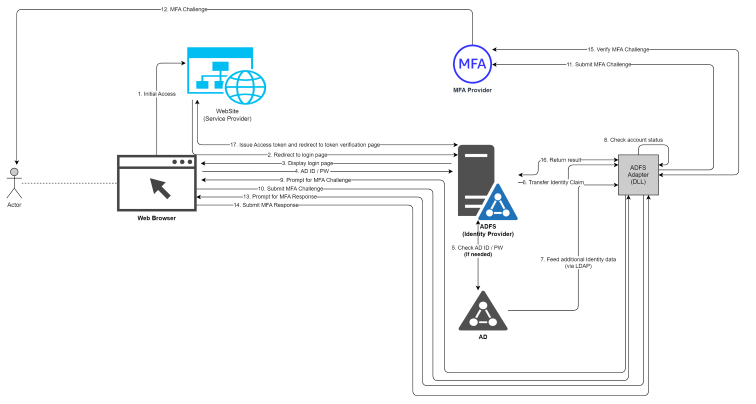
WebClient Method
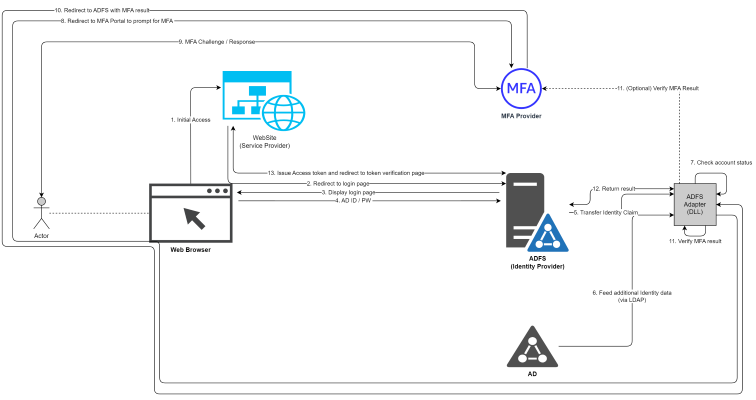
Internal Operation
Overall Flowchart of Adapter
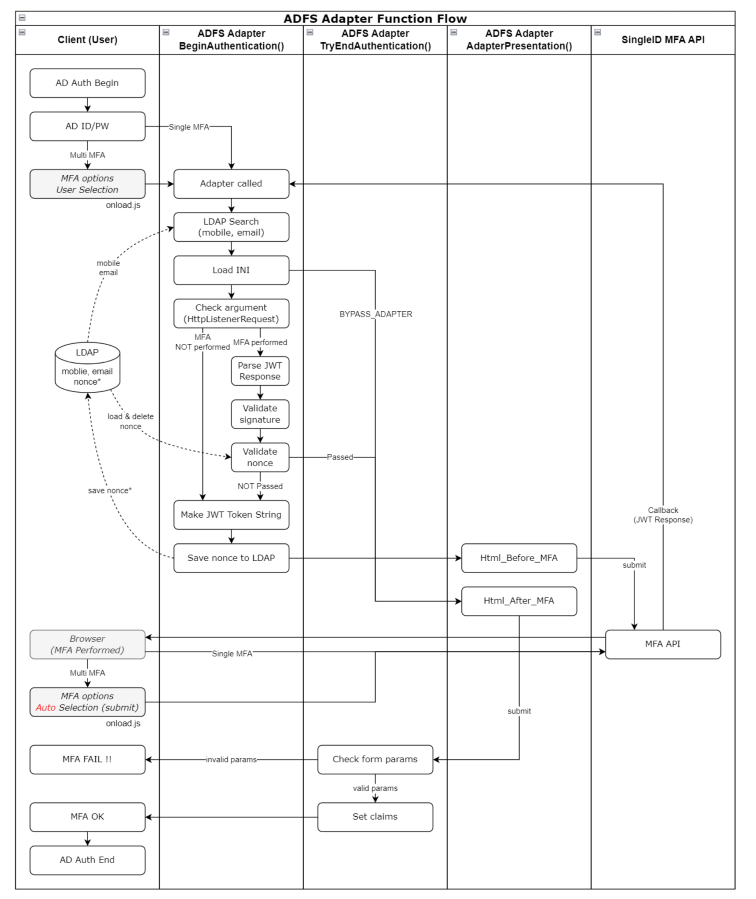
Flowchart at First Run of Adapter
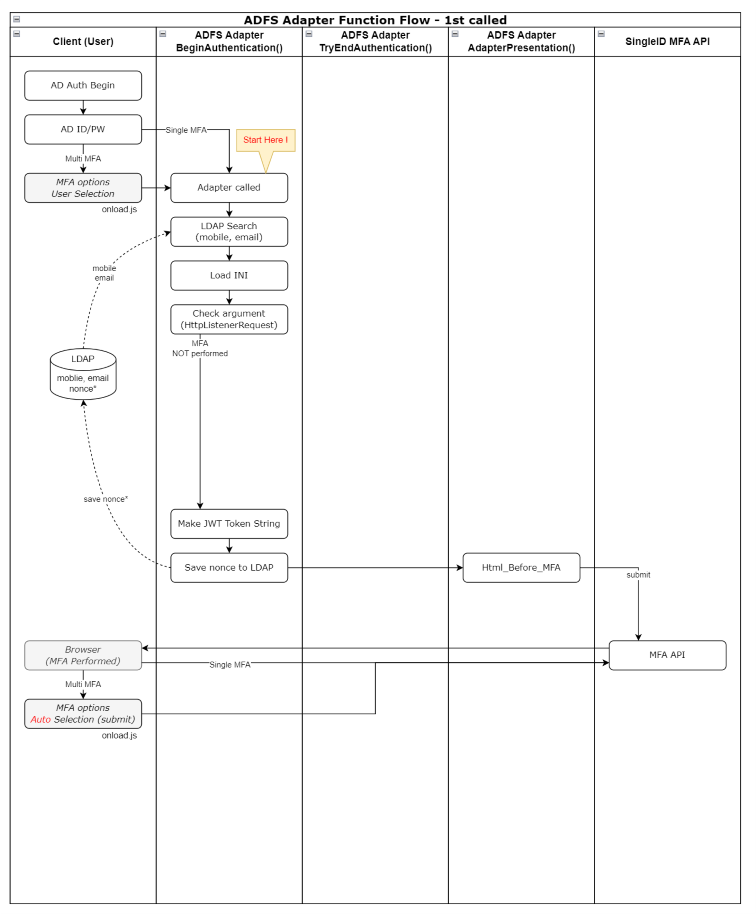
Flowchart after MFA (MFA PASS Case)
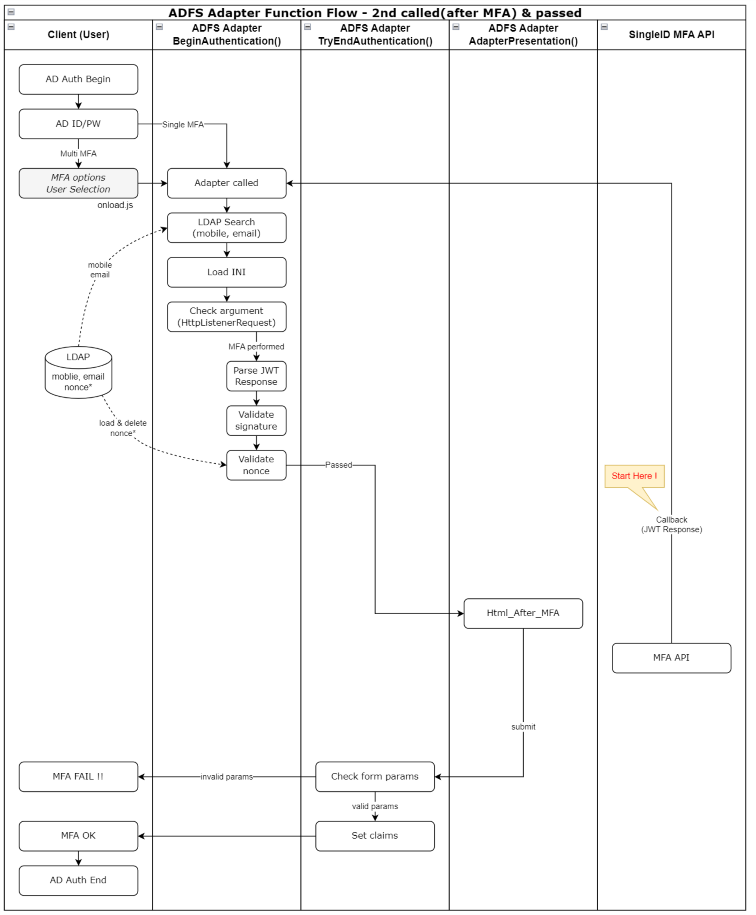
Flowchart after MFA (MFA FAIL Case)
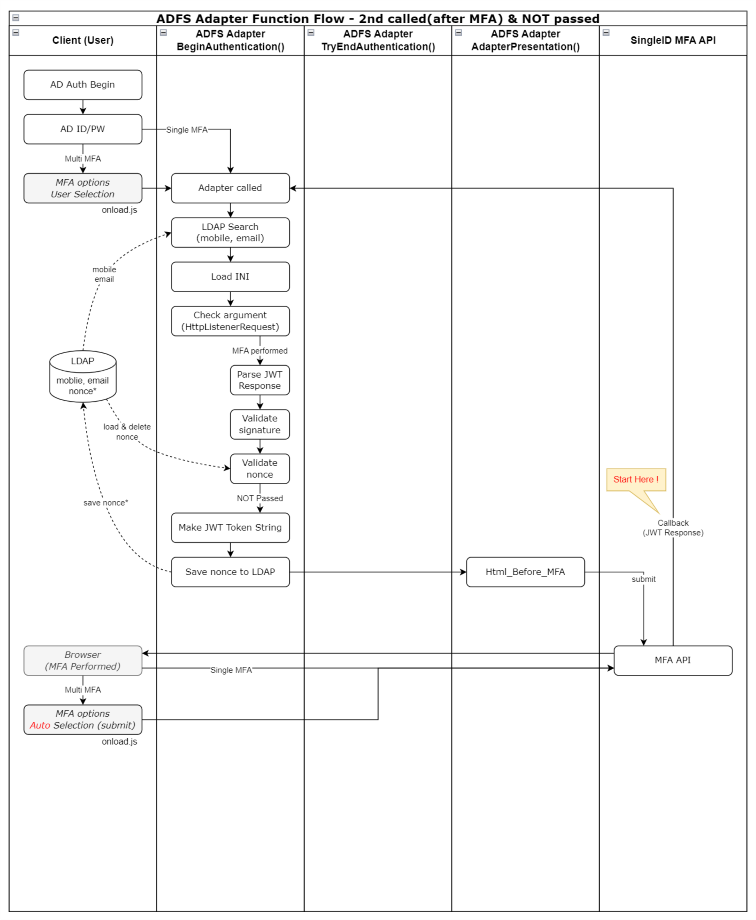
Operation by Scenario
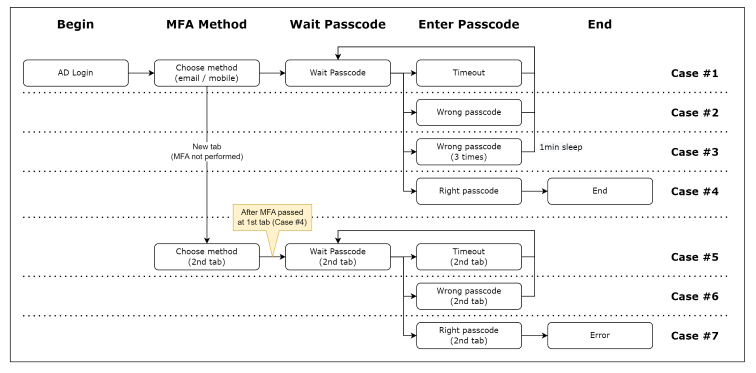
Case #1
- Passcode input screen has timed out due to exceeding the time limit.
- When timed out, the “Resend Code” button is activated, and you can retry the Passcode by clicking this button.
Case #2
- Incorrect Passcode has been entered.
- You can attempt to enter the Passcode up to 3 times.
Case #3
- Passcode input has failed 3 times.
- You cannot enter the Passcode for 1 minute.
Case #4
- Normal MFA process.
Case #5
- On the MFA selection screen, the Passcode was not entered, and a new browser tab was added, proceeding to MFA selection.
- After that, MFA is successful on the initial tab.
- After that, the new tab times out.
Case #6
- On the MFA selection screen, the Passcode was not entered, and a new browser tab was added, proceeding to MFA selection.
- After that, MFA is successful on the initial tab.
- After that, an incorrect Passcode is entered on the new tab.
Case #7
- On the MFA selection screen, the Passcode was not entered, and a new browser tab was added, proceeding to MFA selection.
- After that, MFA is successful on the initial tab.
- After entering the normal Passcode:
- 1st tab, 2nd tab are both in passcode input waiting state, after 1st authentication, 2nd authentication attempt results in no response from 2nd tab (page freeze)
- 1st tab is in passcode input waiting state, 2nd tab is in MFA selection waiting state, after 1st authentication, selecting 2nd MFA type results in error, error message is displayed from AD before adapter operation
Scenario-based actions
Adapter installation
Application method
Pre-check
Pre-check
| Location | Check item | Note |
|---|---|---|
| ADFS server | MFA server connection availability (group network, TCP 80/443)
| If nonce is stored in LDAP, MFA server communication is not required |
| .NET Framework 4.8 installation availability | ||
| User PC | MFA server connection availability (internet network, TCP 80/443)
| If connection is not available, check the following three items ① Firewall check ② Proxy check ③ Website block check |
Table. Personal information input items
Adapter deployment
Caution
If multiple ADFS servers are configured, steps 1-4 of the following 7 steps must be applied to all servers.
- Upload adapter-related files to the ADFS server
Location: [drvie]:\ADFSadapter\

ADFSadapter.dll: Adapter file
ADFS Adapter Configuration File : configuration file
replace_dll.ps1 : script file used to replace the installed Adapter with an improved version
restart_adfs.ps1 : AD FS service restart script file
Assembly_netstandard2.0 folder : pre-installation dll files for Adapter application
- Grant full permissions to the ADFS service account for the corresponding folder
Right-click on the C:\ADFSadapter folder > Properties > Security > Add the ADFS service account and select all permissions
※ The ADFS service account can be checked by running services.msc > AD FS service execution account "Log on as"
- Registry addition
Create a registry to record Adapter-related events in the Windows event log

Create a key and two values under HKEY_LOCAL_MACHINE\SYSTEM\CurrentControlSet\Services\EventLog
- Created key: MFA_Adapter
- Create two values in MFA_Adapter
   . Name: AutoBackupLogFiles
   . Type: DWORD (32-bit) value (REG_DWORD)
   . Data: 0

   . Name: MaxSize
   . Type: DWORD (32-bit) value (REG_DWORD)
   . Data: hexadecimal 80000

Create a key and one value under MFA_Adapter
- Created key: AdapterDLL
- Create one value in AdapterDLL
  . Name: EventMessageFile
  . Type: expandable string value (REG_EXPAND_SZ)
Here is the translation:

  . Data: C:\Windows\Microsoft.NET\Framework64\v4.0.30319\EventLogMessages.dll
- Adapter required dll pre-installation The Assembly_netstandard2.0 folder in C:\ADFSadapter contains a collection of libraries that need to be pre-installed. Refer to the following for the installation work. When the ADFS Adapter runs, the necessary assemblies are loaded, and the dll is installed in the Global Assembly Cache of the ADFS server.
**dll installation**

#Pre-work
Unzip and copy the Assembly_netstandard2.0 folder to the C:\ADFSadapter folder.
#Run Powershell with administrator privileges and move to the execution location
PS>cd C:\ADFSadapter

#dll installation
PS>.\gacutil.exe /il .\Assembly_netstandard2.0\AssemblyList.txt
#dll verification
PS>.\gacutil.exe /l
Notice
Assembly_netstandard v2.0.zip file can be requested separately via email (singleid.scp@samsung.com).
The necessary assembly files are stored in the Assembly_netstandard2.0 folder, and the files can be copied to the server and installed offline. Assembly_netstandard2.0 folder: dll files for installing Microsoft.IdentityModel.Tokens v7.2, System.IdentityModel.Tokens.Jwt v7.2 assemblies (including all dependency files)
Installed dll list
| Assembly Name | Installation Version | Package Version |
|---|---|---|
| Microsoft.Bcl.AsyncInterfaces | 1.0.0.0 | 1.0.0 |
| Microsoft.IdentityModel.Abstractions | 7.2.0.0 | 7.2.0 |
| Microsoft.IdentityModel.JsonWebTokens | 7.2.0.0 | 7.2.0 |
| Microsoft.IdentityModel.Logging | 7.2.0.0 | 7.2.0 |
| Microsoft.IdentityModel.Tokens | 7.2.0.0 | 7.2.0 |
| System.Buffers | 4.0.3.0 | 4.5.1 |
| System.IdentityModel.Tokens.Jwt | 7.2.0.0 | 7.2.0 |
| System.Memory | 4.0.1.1 | 4.5.3 |
| System.Numerics.Vectors | 4.1.4.0 | 4.5.0 |
| Microsoft.CSharp | 4.0.4.0 | 4.5.0 |
| System.Runtime.CompilerServices.Unsafe | 4.0.4.1 | 4.5.3 |
| System.Security.Cryptography.Cng | 4.3.0.0 | 5.0.0 |
| System.Text.Encodings.Web | 4.0.5.1 | 4.7.2 |
| System.Text.Json | 4.0.1.2 | 4.7.2 |
| System.Threading.Tasks.Extensions | 4.2.0.1 | 4.5.4 |
Table. Installed DLL List
Adapter Deployment
The nuget file was downloaded and installed, and note that the nuget package version and the version installed on the server may differ. Use the dll as .net standard 2.0 (.net framework 4.8 supported) based on .net framework 4.8.
Package download: NuGet Gallery | Microsoft.IdentityModel.Tokens 7.2.0
- Adapter Application Run in administrator mode using powershell and execute the following command
# Move to execution location
PS>cd C:\ADFSadapter

# Register dll
PS>./gacutil.exe /if ADFSadapter.dll

# Check dll
PS>./gacutil.exe /l ADFSadapter
 The following assembly is in the global assembly cache.
  ADFSadapter, Version=1.2.1.0, Culture=neutral, PublicKeyToken=0e0fe476002e81b3, processorArchitecture=MSIL
# Register as authentication provider in ADFS
PS>$typename="ADFSadapter.AuthenticationAdapter, ADFSadapter, Version=1.2.1.0, Culture=neutral, PublicKeyToken=0e0fe476002e81b3, processorArchitecture=MSIL"
PS>Register-AdfsAuthenticationProvider -TypeName $typename -Name "ADFSadapter"
# Check authentication provider in ADFS
PS>Get-AdfsAuthenticationProvider
AdminName                          : ADFS MFA Adapter
AllowedForPrimaryExtranet          : False
AllowedForPrimaryIntranet          : False
AllowedForAdditionalAuthentication : True
AuthenticationMethods              : {http://schemas.microsoft.com/ws/2012/12/authmethod/otp}
Descriptions                       : {[1033, ADFS MFA Adapter], [1042, ADFS MFA Adapter]}
DisplayNames                       : {[1033, ADFS MFA Adapter], [1042, ADFS MFA Adapter]}
Name                               : ADFSadapter
IdentityClaims                     : {http://schemas.xmlsoap.org/ws/2005/05/identity/claims/upn}
IsCustom                           : True
RequiresIdentity                   : True
# Restart ADFS service
PS>net stop adfssrv
PS>net start adfssrv
#Move to the execution location
PS>cd C:\ADFSadapter
#Register dll
PS>./gacutil.exe /if ADFSadapter.dll
#Check dll
PS>./gacutil.exe /l ADFSadapter
 The following assembly is in the global assembly cache.
  ADFSadapter, Version=1.2.1.0, Culture=neutral, PublicKeyToken=0e0fe476002e81b3, processorArchitecture=MSIL
#Restart ADFS service
PS>net stop adfssrv
PS>net start adfssrv
Set up ADFS multi-factor authentication method AD FS Management > Services > Authentication Methods > Multi-factor Authentication Methods > Click Edit and select the created mfa (ADFS MFA Adapter) and apply (multiple selections are possible)
Apply MFA policy to relying party trust AD FS Management > Relying Party Trusts > Select the relying party trust to apply > Edit Access Control Policy > Select ‘Allow all users and require MFA’ and apply
Adapter Upgrade and Change
This method is performed when the ADFS MFA Adapter is already registered and the Adapter needs to be upgraded or changed. The adapter replacement work can be completed by running this script only.
#Move to the execution location and upload the changed Adapter.dll file
PS>cd C:\ADFSadapter

#Perform adapter replacement


PS>./replace_dll.ps1

Confirmation window output: Click Yes (Y) or All Yes (A)
 - Selecting Yes (Y) or All Yes (A): Remove existing Adapter from ADFS and proceed with replacement work (normal procedure)
 - Selecting No (N) or All No (L): Do not remove Adapter and proceed to the next step, resulting in an error
 - Selecting Suspend (S): Suspend the script
Note
※ Perform on both primary and secondary servers.
On secondary servers, an error occurs when registering with ADFS, but it is necessary to perform for dll installation
Adapter Settings
Description of the Adapter environment setting file. You must configure the environment before applying the ADFS Adapter.
Guide
Adapter installation location change
From adapter 1.2.0.6, installation is possible on drives other than C.
Existing: Only installed on C:/ADFSadapter Changed: Installed on the root of drives from C to Z Example: C:/ADFSadapter, D:/ADFSadapter, E:/ADFSadapter, ……, Z:/ADFSadapter
Precautions: It can only be installed on one drive, and if it is installed on multiple drives, the first discovered directory is used while scanning from C to Z
If installed on a drive other than C, only the drive name (drive letter) in the example below needs to be changed.
Example: If installed in D:\ADFSadapter, the ini path is → D:\ADFSadapter\ADFSadapter.ini
File Name and Path
- File Name → ADFSadapter.ini
- Full Path → C:\ADFSadapter\ADFSadapter.ini
- File Encoding → Must be saved in UTF-8 (otherwise, Korean characters will be broken)
Things to Keep in Mind
When expressing values, " and ’ can be used, and spaces can be entered on either side of = Spaces before and after the Value are trimmed The following Values are all the same Example 1) MAIN_TITLE=DWP MFA Adapter Example 2) MAIN_TITLE = DWP MFA Adapter Example 3) MAIN_TITLE = “DWP MFA Adapter” Example 4) MAIN_TITLE = " DWP MFA Adapter "
Section names with -1033, -1042 at the end represent locale At least 1033 must exist.
locale number : 1033 (en-us), 1042 (ko) locale section : MFA-1033, MFA-1042, TXT-1033, TXT-1042, MSG-1033, MSG-1042
ini File Structure Example
# ADFS MFA Adapter Environment Settings
# Installation location changes
#   - Before v1.2.0.6: C:\ADFSadapter\ADFSadapter.ini
#   - From v1.2.0.6: Can be installed on a drive other than C (same location as adapter resource installation)
#     Example: C:\ADFSadapter\ADFSadapter.ini, D:\ADFSadapter\ADFSadapter.ini, E:\ADFSadapter\ADFSadapter.ini
# Note: The DLL file name is ADFSadapter.dll, which is different from the existing MFAadapter.dll linked to Nexsign


# When expressing values, " and ' can be used, and spaces can be entered on both sides of =
# Spaces before and after the value are trimmed.
# The following values are all the same.
# Example 1) MAIN_TITLE=ADFS MFA Adapter
# Example 2) MAIN_TITLE = ADFS MFA Adapter
# Example 3) MAIN_TITLE = "ADFS MFA Adapter"
# Example 4) MAIN_TITLE = "   ADFS MFA Adapter   "


# Among the section names, those with -1033, -1042 at the end mean locale
# At least 1033 must exist
# Locale number: 1033 (en-us), 1042 (ko)
# Locale section: MFA-1033, MFA-1042, TXT-1033, TXT-1042, MSG-1033, MSG-1042


# LOG_LEVEL (criteria for recording in Windows event log)
# 0: Error
# 1: Error + Warning
# 2: Error + Warning + Information + Debug


[MAIN]
MAIN_MFA_TITLE="ADFS MFA Adapter"
MAIN_CLAIM1=http://schemas.microsoft.com/ws/2008/06/identity/claims/authenticationmethod
MAIN_CLAIM2=http://schemas.microsoft.com/ws/2012/12/authmethod/otp


# MFA API Information
# Do not add "/" at the end of the URL
#MFA_API_URL="https://stg2-cloud.singleid.samsung.net/test/common-api/open/v1.1/mfa/request"
MFA_API_URL="https://stg1-cloud.singleid.samsung.net/test/common-api/open/v1.1/mfa/request"
CONSUMER_KEY="**************************************"
SECRET_KEY="**************************************"


# Domain vs Consumer Key List
# If the Consumer Key is different for each domain, list it (in this case, leave the CONSUMER_KEY value above blank)
# Insert the sys value of the Request Token
# Format: DOMAIN_CONSUMER_KEY_##=domain;consumerKey
# Example: DOMAIN_CONSUMER_KEY_01=aaa.com;**************************************
#     DOMAIN_CONSUMER_KEY_02=bbb.com;**************************************
# (Note) If both CONSUMER_KEY value and list value exist, only the CONSUMER_KEY value is used
DOMAIN_CONSUMER_KEY_01=aaa.com;**************************************
DOMAIN_CONSUMER_KEY_02=bbb.com;**************************************

# Domain vs Secret Key List
# If the Secret Key is different for each domain, list it (in this case, leave the SECRET_KEY value above blank)
# Format: DOMAIN_SECRET_KEY_##=domain;secretKey
# Example: DOMAIN_SECRET_KEY_01=aaa.com;**************************************
#     DOMAIN_SECRET_KEY_02=bbb.com;**************************************
# (Note) If both SECRET_KEY value and list value exist, only the SECRET_KEY value is used
DOMAIN_SECRET_KEY_01=aaa.com;**************************************
DOMAIN_SECRET_KEY_02=bbb.com;**************************************
# LDAP Search result-based MFA progress
# 0 : Do not perform LDAP Search (do not use the information below, such as LDAP_SERVER, LDAP_USE_IDPW, etc. Insert an empty value into the token)
# 1 : Attempt LDAP Search, but failure is irrelevant (proceed with MFA even if server failure or no information occurs. Insert an empty value into the token)
# 2 : LDAP Search must be successful and user information must exist (proceed only if user information exists. However, proceed even if the result value is empty)
USE_LDAP_SEARCH=1


# LDAP address and ID/PW
# LDAP_SERVER can be domain, ipv4, ipv6, and must be prefixed with "LDAP://" in uppercase (must be uppercase)
# Example: LDAP://adpw5004.hw.dev , LDAP://70.2.180.218 , LDAP://fe80::644b:3c9f:c5ac:ce1c%10
# Set LDAP_USE_IDPW to 1 to use ID/PW, and set to 0 not to use
# Set LDAP_SSLTLS to 1 to use SSL/TLS, and set to 0 not to use (only applicable when LDAP_USE_IDPW=1)
LDAP_SERVER="LDAP://adpw5004.hw.dev"
LDAP_USE_IDPW=1
LDAP_SSLTLS=1
LDAP_ID="isadmin"
LDAP_PW="sds*****"


# Perform DNS Lookup to verify the IP address of the LDAP server (LDAP_SERVER) and connect based on the IP address
# Even if the LDAP_SERVER value is set to IP (ipv4, ipv6), DNS Lookup is performed and the IP is returned as is
# If DNS Lookup fails, connect using the LDAP_SERVER value as is
# 0 : Connect to the server using the LDAP_SERVER value as is (do not perform DNS lookup)
# 1 : Connect to the LDAP server using the IP address verified through DNS lookup (use the first IP in the DNS lookup result list)
# 2 : Verify the IP address through DNS lookup and use the first matching IP in the LDAP_WHITE_IP_## list (use the LDAP_SERVER if not found in the list)
# 3 : Verify the IP address through DNS lookup and use the first matching IP in the LDAP_WHITE_IP_## list (do not connect to the LDAP server if not found in the list)
LDAP_DNS_LOOKUP=1
# DNS Lookup result has multiple entries, try to connect to the next IP address if the first one fails
# Example: 4 lookup results: 1st IP connection fails -> try 2nd IP & fail -> try 3rd IP & fail -> try 4th IP
LDAP_DNS_IF_FAIL_USE_NEXT=1


# List of allowed LDAP server IP addresses to compare with DNS Lookup results (only applicable when LDAP_DNS_LOOKUP = 2 or 3)
# In the format of LDAP_WHITE_IP_##, recorded sequentially from 01 to 99
# Compare DNS Lookup results with the list sequentially
# Record in IPv4 or IPv6 format (if the same server has both IPv4 and IPv6, the one with higher priority in the list is applied)
# If the order of DNS Lookup results and White IP list is different, follow the order of White IP list
LDAP_WHITE_IP_01="70.2.180.218"
LDAP_WHITE_IP_02="fe80::644b:3c9f:c5ac:ce1c%10"


# Whether to encrypt user information (e.g., mobile, email, etc.)
# Target: USERINFO_## list
# Depending on the encryption, the claim name of the token sent to the API server is different
# 0: Do not encrypt -> token claim name is plainMobile, plainEmail
# 1: Encrypt -> token claim name is mobile, email
USERINFO_ENCRYPT=0


# LDAP Search user information attribute name and JWT token claim name (delimiter between two values = ";")
# Format: USERINFO_## = attribute;encryptedClaim;plainClaim
#   Example: If "mail" attribute is read from LDAP and used as "email" claim in JWT, then "mail;email;plainEmail"
# Key name is in the format "USERINFO_##", starting with USERINFO_01
# Number of keys: 0 to a maximum of 99 (if 0, do not write anything in the ini file, and do not write USERINFO_00)
# Note) In USERINFO_##, the number corresponding to ## must start from 01 and not be interrupted if there are multiple
#           USERINFO_01, USERINFO_02, USERINFO_03: OK (01, 02, 03 information is used)
#           USERINFO_01, USERINFO_02, USERINFO_05: only read up to 02, and do not use the numbers after the interruption (01, 02 information is used)
USERINFO_01=mobile;mobile;plainMobile
USERINFO_02=mail;email;plainEmail


# MFA API server's callback result parameter key name
# Example: https://adpw5004.hw.dev/adfs/ls?client-request-id=xxxxxx&pullStatus=0&jwtTokenResponse=yyyyyy
KEY_NAME_IN_RESPONSE="jwtTokenResponse"


# JWT Token's exp additional value
# Format: dhms (day, hour, minute, second) string -> 1d=86400, 1h=3600, 1m=60 (simple number without dhms is considered as seconds)
# Example 1: 1d02h38m27s -> 95907 seconds
# Example 2: 12345 -> 12345 seconds
TOKEN_EXP_TIME=1d


# Whether to add client claim to the token when calling the API
# Client: issuer for SAML, client-id for OIDC
# 0: Do not include client in the token
# 1: Include client in the token
TOKEN_CLAIM_CLIENT=0


# MFA nonce (guid, request-id) verification method
# 0: Do not verify
# 1: Adapter generates guid and stores/compares it in LDAP (adapter verifies)
#     -> Related settings: CACHE_ATTRIBUTE, CACHE_DELIMETER, SKEW_SECONDS, CACHE_LIFE_TIME
# 2: API server generates request-id and adapter uses it in the call URL (API server verifies)
#     -> Related settings: MFA_VERIFY_URL
MFA_VERIFY_TYPE=2
# MFA result verification URL (server to server communication) : Appends the {request-id} received from the API server to the end of the URL
# The adapter checks if the return is 200 (OK) to process the MFA result
# Do not add a "/" at the end of the URL
MFA_VERIFY_URL="https://stg1-cloud.iam.samsung.net/test/common-api/open/v1.1/mfa/request/status"


# Security protocol used for MFA result verification
# Available protocols (case-insensitive) : TLS12, TLS13
# (Note) Do not use SSL3, TLS, TLS11
MFA_VERIFY_SECURE_PROTOCOL="TLS12"


# Name of the LDAP attribute to store the user's req guid value
# (Note) Write permission to LDAP is required
CACHE_ATTRIBUTE="otherPager"


# Delimiter used to combine req and time information stored in LDAP -> "req;time"
CACHE_DELIMETER=";"


# Allowed time difference (in seconds) between the time stored in LDAP and the time the JWT is received
# This is the time after AD login, not when the MFA selection screen is displayed (the time is already stored when the MFA selection screen is displayed)
# Therefore, the time should not be set too tightly, and around 1 hour is suitable?? (Is there anyone who takes 1 hour to select MFA?)
SKEW_SECONDS=3600
# Time to live for req stored in LDAP -> Check time on next access and delete old ones
# Format: String in dhms (day, hour, minute, second) format -> 1d=86400, 1h=3600, 1m=60 (numbers without dhms are considered seconds)
# Example 1: 1d02h38m27s -> 95907 seconds
# Example 2: 12345 -> 12345 seconds
CACHE_LIFE_TIME=1d


# Whether to bypass adapter functionality (0=normal use, 283901=disable, other values=normal use)
# For emergency situations where adapter functionality needs to be disabled due to MFA issues
# Do not modify this value under normal circumstances -> Normal value is 0
# Note: To disable, the exact value must be set (not just any non-zero number, exact number required to avoid noise)
BYPASS_ADAPTER=0


[API]
API_SYSTEMNAME=SingleID


[MSG-1033]
MSG_INTERNAL_ERROR="Internal error occurred. Contact administrator."


[MSG-1042]
MSG_INTERNAL_ERROR="Internal error occurred. Contact administrator."


[MANAGE]
LOG_LEVEL=2
Setting Value Description
- Fixed Value: This means that the value displayed in the “Setting Value” column in the table below is used as is when installing the ADFS server.
- If you want to add languages other than English and Korean, you can add them for two sections: MSG-1033, MSG-1042
| dss | Key | Setting Value (Example) | Fixed | Description |
|---|---|---|---|---|
| MAIN | MAIN_MFA_TITLE | ADFS MFA Adapter | O | HTML page title (does not affect MFA functionality) |
| MAIN_CLAIM1 | http://schemas.microsoft.com/ws/2008/06/identity/claims/authenticationmethod | O | Must apply the value on the left as is | |
| MAIN_CLAIM2 | http://schemas.microsoft.com/ws/2012/12/authmethod/otp | O | Must apply the value on the left as is | |
| MFA_API_URL | https://stg2-cloud.singleid.samsung.net/test/common-api/open/v1.1/mfa/request | SingleID MFA API address The address may vary depending on the tenant, so you need to check the exact address value | ||
| CONSUMER_KEY | 4312a8b9-75c4-7897-89a7-89347f18943e | Consumer Key issued by SingleID | ||
| SECRET_KEY | gQgkyLVO6FR8vJkLtlgBiupsRM/ilgrbEfoKWRnhALd= | Secret Key issued by SingleID Used for JWT Signature verification Absolute prohibition on external disclosure | ||
| DOMAIN_CONSUMER_KEY_01 | 4312a8b9-75c4-7897-89a7-89347f18943e | Domain vs Consumer Key list If the Consumer Key is different for each domain, list it (in this case, leave the CONSUMER_KEY value blank) Format: DOMAIN_CONSUMER_KEY_##=domain;consumerKey Example: DOMAIN_CONSUMER_KEY_01=aaa.com;4312a8b9-75c4-7897-89a7-89347f18943e DOMAIN_CONSUMER_KEY_02=bbb.com;96567780-2b12-23da-637c-9375a6502d5a (Note) If both CONSUMER_KEY value and list value exist, only CONSUMER_KEY value is used | ||
| DOMAIN_CONSUMER_KEY_02 | 96567780-2b12-23da-637c-9375a6502d5a | |||
| DOMAIN_CONSUMER_KEY_## | 367c89d5-88f7-978a-9739-8ed21748f36b | |||
| DOMAIN_SECRET_KEY_01 | gQgkyLVO6FR8vJkLtlgBiupsRM/ilgrbEfoKWRnhALd= | Domain vs Secret Key list If the Secret Key is different for each domain, list it (in this case, leave the SECRET_KEY value blank) Format: DOMAIN_SECRET_KEY_##=domain;secretKey Example: DOMAIN_SECRET_KEY_01=aaa.com;gQgkyLVO6FR8vJkLtlgBiupsRM/ilgrbEfoKWRnhALd= DOMAIN_SECRET_KEY_02=bbb.com;kgkWRnLygQhsRgrLVbtKlO6FiLdABupEgoMR8v/ilfJ= (Note) If both SECRET_KEY value and list value exist, only SECRET_KEY value is used | ||
| DOMAIN_SECRET_KEY_02 | kgkWRnLygQhsRgrLVbtKlO6FiLdABupEgoMR8v/ilfJ= | |||
| DOMAIN_SECRET_KEY_## | dABupkRnLygQhsrLgWVRbt8vRgkLilLKlO1FioMgfJE= | |||
| USE_LDAP_SEARCH | 0 or 1 or 2 | MFA progress based on LDAP Search result 0 : Do not perform LDAP Search (do not use the information below, such as LDAP_SERVER, LDAP_USE_IDPW, etc. and insert an empty value into the token) 1 : Try LDAP Search, but proceed with MFA even if it fails (proceed with MFA even if server failure or no information occurs, and insert an empty value into the token) 2 : Proceed with MFA only if LDAP Search is successful and user information exists (proceed only when user information exists, but proceed even if the result value is empty) | ||
| LDAP_SERVER | LDAP://adpw5004.hw.dev | LDAP address that can query AD user information Domain, IPv4, and IPv6 are all possible, and “LDAP://” must be attached to the beginning | ||
| LDAP_USE_IDPW | 0 or 1 | Whether to use id/pw when accessing LDAP The adapter operates with system privileges, so it is common to access LDAP without id/pw, but there are cases where it is not If there is an AD connection error in the event log while the id/pw is not used for connection, it is necessary to set it to use id/pw If this value is set to 1, LDAP_ID and LDAP_PW values must be set | ||
| LDAP_SSLTLS | 0 or 1 | Whether to use SSL/TLS when connecting to LDAP Generally, it is set to use | ||
| LDAP_ID | LDAP connection id | LDAP connection id (when LDAP_USE_IDPW=1) | ||
| LDAP_PW | LDAP connection pw | LDAP connection pw (when LDAP_USE_IDPW=1) | ||
| LDAP_DNS_LOOKUP | 0 or 1 or 2 or 3 | Whether to perform DNS Lookup to check the IP address of the LDAP server (LDAP_SERVER) and connect based on the IP address 0 : Connect to the server with the LDAP_SERVER value as is (do not perform DNS lookup) 1 : Perform DNS lookup to check the IP address and connect to the LDAP server (use the first IP in the DNS lookup result list) 2 : Perform DNS lookup to check the IP address and use the first IP that matches the LDAP_WHITE_IP_## list (if not in the list, use the LDAP_SERVER value) 3 : Perform DNS lookup to check the IP address and use the first IP that matches the LDAP_WHITE_IP_## list (if not in the list, do not connect to LDAP) | ||
| LDAP_DNS_IF_FAIL_USE_NEXT | 0 or 1 | Whether to try the next IP address when the first IP address fails to connect after performing DNS lookup Example: If there are 4 lookup results, try to connect to the first IP, and if it fails, try to connect to the second IP, and if it fails, try to connect to the third IP, and if it fails, try to connect to the fourth IP | ||
| LDAP_WHITE_IP_01 | 70.2.180.218 | List of allowed LDAP server IP addresses for comparison with DNS lookup results (only applicable when LDAP_DNS_LOOKUP = 2 or 3) Format: LDAP_WHITE_IP_##, recorded sequentially from 01 to 99 Compare DNS lookup results with the list in sequence Recorded in IPv4 or IPv6 format (if the same server has both IPv4 and IPv6, the IP in the higher order of the list is applied) If the DNS lookup result order and the White IP list order are different, follow the White IP list order | ||
| LDAP_WHITE_IP_02 | fe80::644b:3c9f:c5ac:ce1c%10 | |||
| LDAP_WHITE_IP_## | A. : 01 ~ 99 White IP address (IPv4 or IPv6) | |||
| USERINFO_ENCRYPT | 0 or 1 | Whether to encrypt user information (e.g., mobile, email, etc.) Target: USERINFO_## list The claim name of the token sent to the API server differs depending on the encryption 0: Not encrypted -> token claim name is plainMobile, plainEmail 1: Encrypted -> token claim name is mobile, email | ||
| USERINFO_01 | mobile;mobile;plainMobile | O | LDAP Search user information attribute name and JWT token claim name (delimiter to separate three values = “;”) Format: USERINFO_## = attribute; encryptedClaim; plainClaim Example: If you read the “mail” attribute from LDAP and use the encrypted value as the “email” claim and the plain text value as the “plainEmail” claim in the JWT → “mail;email;plainEmail” | |
| USERINFO_02 | mail;email;plainEmail | O | ||
| USERINFO_## | A. : 01 ~ 99 [LDAP attribute name];[encrypted token claim name];[plain token claim name] | |||
| KEY_NAME_IN_RESPONSE | jwtTokenResponse | O | Key name used in the result parameter when the MFA API server calls back Example: https://adpw5004.hw.dev/adfs/ls?client-request-id=xxxxxx&pullStatus=0&jwtTokenResponse=yyyyyy | |
| TOKEN_EXP_TIME | 1d | Value added to the exp of the JWT token String in the format of day, hour, minute, and second (dhms) 1d = 86400, 1h = 3600, 1m = 60 If there is no dhms, it is considered as seconds Example 1: 1d02h38m27s → 95907 seconds Example 2: 12345 → 12345 seconds | ||
| TOKEN_CLAIM_CLIENT | 0 or 1 | Whether to add the client claim to the token when calling the API Client: issuer in the case of SAML, client-id in the case of OIDC 0: Do not include the client in the token 1: Include the client in the token | ||
| MFA_VERIFY_TYPE | 0 or 1 or 2 | MFA nonce (guid, request-id) verification method 0: Do not verify 1: Method of storing and comparing the guid created by the adapter in LDAP (verified by the adapter) → related setting values: CACHE_ATTRIBUTE, CACHE_DELIMETER, SKEW_SECONDS, CACHE_LIFE_TIME 2: Method of using the request-id created by the API server and used in the call URL (verified by the API server) → related setting value: MFA_VERIFY_URL | ||
| MFA_VERIFY_URL | https://stg1-cloud.iam.samsung.net/test/common-api/open/v1.1/mfa/request/status | MFA result verification URL (server-to-server communication): The {request-id} received from the API server is appended to the end of the URL and called → The adapter checks if the return is 200 (OK) to process the MFA result Do not add a “/” at the end of the URL | ||
| MFA_VERIFY_SECURE_PROTOCOL | TLS12 or TLS13 | Secure protocol used for MFA result verification Selectable protocols (case-insensitive): TLS12, TLS13 (Note) Do not use SSL3, TLS, or TLS11 | ||
| CACHE_ATTRIBUTE | otherPager | O | Name of the LDAP attribute to store the user’s req guid value | |
| CACHE_DELIMETER | “;” | Delimiter used to combine the req and time information when storing in LDAP -> “req;time” | ||
| SKEW_SECONDS | 3600 | Time difference allowance (in seconds) between the time stored in LDAP and the time received in the JWT This is the time right after AD login, not the time when the MFA selection screen is displayed (the time has already been stored when the MFA selection screen is displayed) Therefore, do not set the time too tightly, and about 1 hour is suitable?? (Is there anyone who takes 1 hour to select MFA?) | ||
| CACHE_LIFE_TIME | 1d | Lifetime of the req stored in LDAP -> delete old ones when checking the time at the next access String in the format of day, hour, minute, and second (dhms) 1d = 86400, 1h = 3600, 1m = 60 If there is no dhms, it is considered as seconds | ||
| BYPASS_ADAPTER | 0 or 283901 | Whether to bypass the adapter function (0 = normal use, 283901 = disable, other values = normal use) Used in emergency situations where the adapter function needs to be disabled due to MFA function issues Do not modify this value in normal situations -> the normal value is 0 Note: To disable, you must set the exact value (not just any number other than 0, but the exact number is required. Be careful of noise) | ||
| API | API_SYSTEMNAME | SingleID | O | (No effect on MFA function) |
| MSG-1033 | MSG_INTERNAL_ERROR | “Internal error occurred. Contact administrator.” | Message to display to the user when stopping due to authentication interruption, error occurrence, etc. (English) | |
| MSG-1042 | MSG_INTERNAL_ERROR | “Internal error occurred. Contact administrator.” | Message to display to the user when stopping due to authentication interruption, error occurrence, etc. (English) Enter in English, as entering in Korean will cause an error | |
| MANAGE | LOG_LEVEL | 0 또는 1 또는 2 | Standard for recording in the Windows event log 0 = record only errors 1 = record errors and warnings 2 = record all including errors, warnings, and information |
Table. Setting value description
INI Setting Method
- LDAP Search related
- Using DNS Lookup with the hostName of the LDAP server
- Using only the first address among multiple DNS Lookup results
- Attempting to connect to multiple DNS Lookup results in sequence
- Using id/pw when connecting to the LDAP server
- Using a specific LDAP attribute name and JWT token claim name (USERINFO_##)
- Only allowed LDAP addresses can be accessed (White IP list)
- Set user attributes to be retrieved from LDAP
- API connection related
- Whether to encrypt user information included in the token sent to the API server
- MFA integrity verification method: Verified by the adapter
- MFA integrity verification method: Verified by the API server
- Others
- Options that should never be changed
- Options that must be issued and set by the SingleID operations department
- Options that need to be set according to the installation environment
Caution
The consumer key and secret key used on this page are sample data. (fake value)
LDAP Search related
When using DNS Lookup with the hostName of the LDAP server
USE_LDAP_SEARCH=1
LDAP_SERVER="LDAP://adpw5004.hw.dev"
LDAP_DNS_LOOKUP=1
The beginning of the LDAP server address must be “LDAP://” in uppercase. It has been confirmed that if it is in lowercase during testing on the development server, the connection will not be made. If DNS Lookup fails, the LDAP_SERVER value is used as the LDAP connection address.
When you want to use only the first address among multiple DNS Lookup results
LDAP_DNS_LOOKUP=1
LDAP_DNS_IF_FAIL_USE_NEXT=0
DNS lookup result is as follows,
- IP1 = 10.10.10.10
- IP2 = 10.10.10.20
- IP3 = 10.10.10.30
Since LDAP_DNS_IF_FAIL_USE_NEXT=0, it attempts to connect to IP1 only and stops regardless of success or failure. Therefore, setting LDAP_DNS_IF_FAIL_USE_NEXT=0 requires caution.
When you want to attempt to connect to all DNS lookup results sequentially
LDAP_DNS_LOOKUP=1
LDAP_DNS_IF_FAIL_USE_NEXT=1
DNS lookup result is as follows,
- IP1 = 10.10.10.10
- IP2 = 10.10.10.20
- IP3 = 10.10.10.30
Since LDAP_DNS_IF_FAIL_USE_NEXT=1, it attempts to connect to IP1, IP2, and IP3 sequentially until it succeeds. For example, if it succeeds in connecting to IP2, it will not attempt to connect to IP3. LDAP Server Connection using ID/PW
LDAP_ID="******"
LDAP_PW="******"
MFA operates with system privileges, so ID/PW may not be necessary. If LDAP connection is not possible without ID/PW (can be checked in server logs), please try setting it to use ID/PW.
Allowing only permitted LDAP addresses (White IP list)
LDAP_DNS_LOOKUP=2
or
LDAP_DNS_LOOKUP=3

LDAP_WHITE_IP_01="70.2.180.218"
LDAP_WHITE_IP_02="fe80::644b:3c9f:c5ac:ce1c%10"
This method does not use the DNS Lookup result directly, but compares it with the White IP list and only uses addresses that belong to the list. For example, if the DNS Lookup result is as follows,
- IP1 = 10.10.10.10
- IP2 = 10.10.10.20
- IP3 = 10.10.10.30
And the White IP list is as follows,
- WIP1 = 10.10.10.20
- WIP2 = 10.10.10.40 The actual address used is IP2 = WIP1 = 10.10.10.20.
The order follows the White IP list order. In the following case, the server attempts to connect in the order of 10.10.10.30, 10.10.10.20.
- IP1 = 10.10.10.10
- IP2 = 10.10.10.20
- IP3 = 10.10.10.30
- WIP1 = 10.10.10.30
- WIP2 = 10.10.10.20
If there is no White IP list,
- LDAP_DNS_LOOKUP=2 → The LDAP_SERVER value is used directly as the LDAP connection address.
- LDAP_DNS_LOOKUP=3 → No connection to the LDAP server is made. (An option that requires caution when using)
Setting user attribute to query from LDAP
USERINFO_01=mobile;mobile;plainMobile
USERINFO_02=mail;email;plainEmail
USERINFO_03=company;company;plainCompany
USERINFO_04=department;department;plainDepartment
USERINFO_05=displayname;displayname;plainDisplayname
User information claim to be included in the Request Token to be sent to the MFA API server. It retrieves a list of items from LDAP based on the number set in the ini file and includes the results in the token to be sent to the MFA API server. The configuration rules can be found in the table on the page below, under the “USERINFO_##” description.
If the LDAP query results are as follows, like the sample above,
- mobile = +82-10-1234-5678
- mail = gd.hong@samsung.com
- company = no value
- department = no value
- displayname = Hong Gil Dong
The Request Token will be composed as follows. If the query results are empty, they will be included in the token as is (like plainCompany and plainDepartment below).
{
  "sys": "4312a8b9-75c4-7897-89a7-89347f18943e",
  "uid": "gd.hong",
  "displayUid": "gd.hong",
  "rtn": "https://adpw5004.hw.dev:443/adfs/ls?client-request-id=4b978185-59e1-4018-c800-0080020000f6&pullStatus=0",
  "nbf": 1716346465,
  "exp": 1716432865,
  "iat": 1716346465,
  "authType": "saml",
  "returnMethod": "get",
  "plainMobile": "+82-10-1234-5678",
  "plainEmail": "gd.hong@samsung.com",
  "plainCompany": "",
  "plainDepartment": "",
  "plainDisplayname": "Hong Gil Dong"
}
To avoid querying from LDAP, you can empty or remark the setting value. In this case, the token will not contain user information.
USERINFO_01=
or
#USERINFO_01=mobile;mobile;plainMobile
API Connection Related
Whether to encrypt user information included in the token to be sent to the API server
USERINFO_ENCRYPT=0
As of adapter version 1.2.0.8, it is not possible to transmit encrypted data because the encryption logic of the API server is not implemented in the same way. The server uses AES GCM encryption, but the adapter cannot use AES GCM due to its development environment characteristics.
- Target information: mobile, email
Therefore, we use USERINFO_ENCRYPT=0. Since the adapter and API server are connected via https, it is unlikely that there will be a man-in-the-middle interception issue.
MFA Integrity Verification Method: Verified by Adapter
MFA_VERIFY_TYPE=1
CACHE_ATTRIBUTE="otherPager"
CACHE_DELIMETER=";"
SKEW_SECONDS=3600
CACHE_LIFE_TIME=1d
Conditions required to use this option
- You must have write permission to LDAP → Very important every week!
This method uses the “otherPager” attribute in LDAP user information as a temporary storage space. The adapter has no session concept, so it cannot store or remember information on its own.
The LDAP server is the same as the LDAP Search address. In other words, options such as LDAP SERVER and LDAP_DNS_LOOKUP are also applied.
The above settings are interpreted as follows:
- MFA_VERIFY_TYPE=1 : A method of storing/comparing the guid created by the adapter in LDAP (verified by the adapter)
- Use the “otherPager” attribute of LDAP user information
- Multiple stored information is concatenated with “;” and stored as a string → Example: “aaa;bbb;ccc”
- The allowed difference between the time of the request stored in LDAP and the time of receiving JWT is 3600 seconds
- The lifespan of the request stored in LDAP is 1d (one day) → When accessing again, check the time and delete old ones
MFA integrity verification method: Verified by API server
MFA_VERIFY_TYPE=2
MFA_VERIFY_URL="https://stg1-cloud.iam.samsung.net/test/common-api/open/v1.1/mfa/request/status"
MFA_VERIFY_SECURE_PROTOCOL="TLS12"
When the adapter receives the MFA result jwt token responded by the API server, it uses the req value in the token’s information to ask the API server again, and checks if the result is 200. The above settings are interpreted as follows:
- MFA_VERIFY_TYPE=2 : The method of using the request-id created by the API server and received by the adapter to call the URL (verified by the API server)
- Re-asking for the MFA_VERIFY_URL address
- The security protocol uses TLS 1.2
Others
MAIN_CLAIM1=http://schemas.microsoft.com/ws/2008/06/identity/claims/authenticationmethod
MAIN_CLAIM2=http://schemas.microsoft.com/ws/2012/12/authmethod/otp
KEY_NAME_IN_RESPONSE="jwtTokenResponse"
CACHE_ATTRIBUTE="otherPager"
CACHE_DELIMETER=";"
BYPASS_ADAPTER=0
The contents of the INI file provided at the initial installation must be maintained as is. If changed arbitrarily, the adapter may not work at all. Some values may need to be changed depending on the system situation, but the opinion of the administrator/responsible person must be gathered in advance.
Options that must be issued and set by the SingleID Operations Department
MFA_API_URL="https://stg1-cloud.singleid.samsung.net/test/common-api/open/v1.1/mfa/request"
CONSUMER_KEY="4312a8b9-75c4-7897-89a7-89347f18943e"
SECRET_KEY="gQgkyLVO6FR8vJkLtlgBiupsRM/ilgrbEfoKWRnhALd="
MFA_VERIFY_URL="https://stg1-cloud.iam.samsung.net/test/common-api/open/v1.1/mfa/request/status"
MFA_VERIFY_SECURE_PROTOCOL="TLS12"
API-related addresses, keys, and bearer values are provided by the SingleID operations department. The general setting for the security protocol (MFA_VERIFY_SECURE_PROTOCOL) is TLS 1.2.
Options that need to be set according to the installation environment
LDAP_SERVER="LDAP://adpw5004.hw.dev"
LDAP_ID="******"
LDAP_PW="******"
LDAP_WHITE_IP_01="70.2.180.218"
LDAP_WHITE_IP_02="fe80::644b:3c9f:c5ac:ce1c%10"
These options are determined after investigating the installation environment.
INI Settings and Results
- USERINFO_ENCRYPT
- USE_LDAP_SEARCH
- LDAP_DNS_LOOKUP
- LDAP_DNS_IF_FAIL_USE_NEXT
- LDAP_USE_IDPW
- MFA_VERIFY_TYPENoteThe consumer key and secret key used on this page are sample data. (fake value)
USERINFO_ENCRYPT
USERINFO_ENCRYPT=0
Sets whether the user information included in the token sent by the adapter to the MFA API server is encrypted or in plain text. (For example, mobile, email) As of adapter version v1.2.0.8 (April ‘24), since AES/GCM/NoPadding cannot be used, it is set to plain text. In other words, USERINFO_ENCRYPT=0 is fixed. Later, if the adapter supports AES/GCM/NoPadding, the setting can be changed.
USE_LDAP_SEARCH
USE_LDAP_SEARCH=0
LDAP_SERVER=“LDAP://adpw5004.hw.dev” Since USE_LDAP_SEARCH is 0, the LDAP_SERVER value is not used. In other words, if USE_LDAP_SEARCH is 0, LDAP_SERVER can be set to an empty value or deleted.
USE_LDAP_SEARCH=1
What if the LDAP search fails?
- The user information is treated as an empty value and proceeds to the next step.
- The cause of the failure, whether it’s a server connection failure or no information, is irrelevant.
USE_LDAP_SEARCH=2
What if the LDAP search fails?
- An error is displayed to the user and the process is stopped.
- The server log will record the following (or similar content):
→ “Failed to retrieve user information from LDAP.”
This option should be used with caution and, if possible, set to USE_LDAP_SEARCH=1. It is desirable to leave the handling of user information that is not available to the MFA API side. Adapters may not be able to handle user guidance and functions for these situations.
LDAP_DNS_LOOKUP
LDAP_SERVER="LDAP://adpw5004.hw.dev"
LDAP_DNS_LOOKUP=1
LDAP_WHITE_IP_01="10.10.10.10"
LDAP_WHITE_IP_02="10.10.10.30"
The adapter remembers the DNS lookup result in memory as a list (an ordered list) → LDAP address list Assuming the LDAP server is duplicated and each IP is as follows. (IP that can be looked up from DNS)
- IP#1 : 10.10.10.10
- IP#2 : 10.10.10.20
Since the DNS lookup result applies to both IPv4 and IPv6, the result comes out as follows. (The following is a sample and is different from the actual result)
- IP#1 = fe80::644b:3c9f:c5ac:ce1c%10
- IP#2 = fe80::f03d:b045:8dc3:f5ed%3
- IP#3 = 10.10.10.10
- IP#4 = 10.10.10.20
In this state, the following cases can be considered.
Case 1) If DNS lookup fails
- The number of LDAP address lists is 1, and the LDAP_SERVER value is directly assigned. Note: I’ve translated only the Korean text into English, leaving the code, HTML, and other non-Korean elements unchanged.
- That is, the 1st value of the LDAP address list = “LDAP://adpw5004.hw.dev”
Case 2) If DNS Lookup is successful and there is a White IP list setting value (LDAP_WHITE_IP_##=“x.x.x.x”)
- The LDAP address list is created in the order of the White IP list.
- In the case of the above sample, the value of the LDAP address list is as follows.
→ 1st value = 10.10.10.10
- The 2nd White IP 10.10.10.30 is not reflected in the LDAP address list because it does not exist in the DNS Lookup result.
Case 3) If DNS Lookup is successful and there is no White IP list setting value (LDAP_WHITE_IP_##="" or no LDAP_WHITE_IP_##)
- The DNS Lookup result is reflected in the LDAP address list.
- In the case of the above sample, the value of the LDAP address list is as follows.
→ 1st value = fe80::644b:3c9f:c5ac:ce1c%10
→ 2nd value = fe80::f03d:b045:8dc3:f5ed%3
→ 3rd value = 10.10.10.10
→ 4th value = 10.10.10.20
LDAP_DNS_IF_FAIL_USE_NEXT
LDAP_DNS_IF_FAIL_USE_NEXT=0
Assuming the LDAP address list is as follows.
- 1st value = 10.10.10.10
- 2nd value = 10.10.10.20
If the connection attempt to the 1st address 10.10.10.10 fails, it will not proceed further. The LDAP search result (user information) is set to an empty value.
LDAP_DNS_IF_FAIL_USE_NEXT=1
Assuming the LDAP address list is as follows.
- 1st value = 10.10.10.10
- 2nd value = 10.10.10.20
If the connection attempt to the 1st address 10.10.10.10 fails, it will attempt to connect to the 2nd address. If the connection to the 2nd address also fails, the LDAP search result (user information) is set to an empty value.
LDAP_USE_IDPW
LDAP_USE_IDPW=0
LDAP_ID="******"
LDAP_PW="******"
If LDAP_USE_IDPW is 0, the LDAP_ID and LDAP_PW values are not used. In other words, if LDAP_USE_IDPW is 0, LDAP_ID and LDAP_PW can be set to empty values or deleted.
LDAP_USE_IDPW=1
LDAP_ID=""
LDAP_PW=""
If LDAP_USE_IDPW is 1, LDAP_ID and LDAP_PW values are absolutely necessary. Therefore, if you leave LDAP_ID and LDAP_PW values empty or delete them, as shown in the sample above, you will not be able to connect to the LDAP server.
LDAP_USE_IDPW=1
LDAP_ID="******"
LDAP_PW="******"
This means that id/pw is used for LDAP connection, and if the connection fails, check if the id/pw is correct. Since the INI file is in plain text, there is a risk that the id/pw will be exposed. Therefore, it is necessary to configure the server environment so that LDAP connection is possible without using id/pw as much as possible.
MFA_VERIFY_TYPE
MFA_VERIFY_TYPE=0
From the adapter’s perspective, MFA result verification means that the adapter re-confirms the result of the user’s MFA performance, which is done through the MFA API. If the MFA_VERIFY_TYPE value is 0, it means that MFA result verification is not performed. In normal operating conditions, it is not set to 0.
MFA_VERIFY_TYPE=1
CACHE_ATTRIBUTE="otherPager"
CACHE_DELIMETER=";"
The adapter directly performs MFA result verification. To do this, the LDAP server is utilized, and LDAP write permission is required. The CACHE_ATTRIBUTE value is not allowed to be changed.
MFA_VERIFY_TYPE=2
MFA_VERIFY_URL="https://stg1-cloud.iam.samsung.net/test/common-api/open/v1.1/mfa/request/status"
MFA_VERIFY_SECURE_PROTOCOL="TLS12"
MFA verification result is requested to the MFA API server. This is an alternative when there is no LDAP write permission.
INI Configuration Example
Example 1
USE_LDAP_SEARCH=0
LDAP_SERVER="LDAP://adpw5004.hw.dev"
LDAP_DNS_LOOKUP=0
MFA_VERIFY_TYPE=1
CACHE_ATTRIBUTE="otherPager"
CACHE_DELIMETER=";"
- LDAP search is not used.
- The user information included in the token sent to the API server is set to an empty string value. (e.g., mobile, email, etc.)
- The reason LDAP_SERVER information exists even though LDAP search is not used is because MFA_VERIFY_TYPE=1.
- DNS lookup for the LDAP server is not performed.
- In other words, the LDAP_SERVER value is used directly as the LDAP address.
- The adapter directly verifies the MFA result, using the LDAP server. Therefore, the LDAP server address value must exist.
- The above setting means that the adapter stores the nonce it created in the “otherPager” attribute of the user information in the LDAP server and retrieves it for comparison when MFA is completed.
Example 2
USE_LDAP_SEARCH=1
LDAP_SERVER="LDAP://adpw5004.hw.dev"
LDAP_USE_IDPW=0
LDAP_SSLTLS=1
LDAP_DNS_LOOKUP=0
MFA_VERIFY_TYPE=1
CACHE_ATTRIBUTE="otherPager"
CACHE_DELIMETER=";"
- Use LDAP search.
- Retrieve user information from LDAP (e.g., mobile, email, etc.).
- If the LDAP connection fails or there is no search result, the user information will be set to an empty string value.
- Do not use id/pw for LDAP connection.
- This applies to cases where the LDAP connection is possible without entering id/pw.
- Use SSL/TLS to enhance security when connecting to LDAP.
- Do not perform DNS lookup for the LDAP server.
- In other words, use the LDAP_SERVER value directly as the LDAP address.
- The adapter directly verifies the MFA result, using the LDAP server. Therefore, the LDAP server address value is required.
- The above settings mean that the adapter stores the created nonce in the “otherPager” attribute of the user information in the LDAP server and retrieves it for comparison when MFA is completed.
Example 3
USE_LDAP_SEARCH=1
LDAP_SERVER="LDAP://adpw5004.hw.dev"
LDAP_USE_IDPW=0
LDAP_DNS_LOOKUP=0
MFA_VERIFY_TYPE=2
MFA_VERIFY_URL="https://stg1-cloud.iam.samsung.net/test/common-api/open/v1.1/mfa/request/status"
MFA_VERIFY_SECURE_PROTOCOL="TLS12"
- Use LDAP search.
- Retrieve user information from LDAP (e.g., mobile, email, etc.).
- If the LDAP connection fails or there is no search result, the user information will be set to an empty string value.
- Do not use id/pw for LDAP connection.
- This applies to cases where you can connect to LDAP without entering id/pw.
- DNS lookup for the LDAP server is not performed.
- In other words, the LDAP_SERVER value is used directly as the LDAP address.
- The API server verifies the MFA result, and the security protocol uses TLS 1.2.
- Extract the “req” value included in the MFA result response token received from the API server, and append it to the end of the result verification URL.
- → MFA_VERIFY_URL + “/” + req
- → For example, when req is “xxxxxx”,
- https://stg1-cloud.iam.samsung.net/test/common-api/open/v1.1/mfa/request/status/xxxxxx
Example 4
USE_LDAP_SEARCH=1
LDAP_SERVER="LDAP://adpw5004.hw.dev"
LDAP_USE_IDPW=1
LDAP_SSLTLS=1
LDAP_ID="******"
LDAP_PW="******"
LDAP_DNS_LOOKUP=1
LDAP_DNS_IF_FAIL_USE_NEXT=0
MFA_VERIFY_TYPE=1
CACHE_ATTRIBUTE="otherPager"
CACHE_DELIMETER=";"
- Use LDAP search.
- Retrieve user information from LDAP (e.g., mobile, email, etc.).
- If the LDAP connection fails or there is no search result, the user information is set to an empty string value.
- Use id/pw for LDAP connection.
- This account must have write permission.
- Use SSL/TLS for LDAP connection to enhance security.
- Use DNS lookup for the LDAP server.
- DNS Lookup results are directly inserted into the LDAP address table.
- If DNS Lookup fails, only one LDAP_SERVER value is recorded in the LDAP address table.
- Only the first one in the LDAP address table is attempted to connect.
- Even if it fails, it does not attempt to connect to the next server in sequence.
- The adapter directly performs MFA result verification, using the LDAP server. Therefore, the LDAP server address value must exist.
- The above settings mean that the adapter stores the created nonce in the “otherPager” attribute of the user information in the LDAP server and compares it when MFA is completed.
Example 5
USE_LDAP_SEARCH=1
LDAP_SERVER="LDAP://adpw5004.hw.dev"
LDAP_USE_IDPW=1
LDAP_SSLTLS=1
LDAP_ID="******"
LDAP_PW="******"
LDAP_DNS_LOOKUP=1
LDAP_DNS_IF_FAIL_USE_NEXT=0
LDAP_WHITE_IP_01=""
LDAP_WHITE_IP_02=""
MFA_VERIFY_TYPE=1
CACHE_ATTRIBUTE="otherPager"
CACHE_DELIMETER=";"
- This is the same setting as Example 4.
- Although LDAP_WHITE_IP_## exists, it has an empty value, which means it is the same as not existing.
Example 6
USE_LDAP_SEARCH=1
LDAP_SERVER="LDAP://adpw5004.hw.dev"
LDAP_USE_IDPW=1
LDAP_SSLTLS=1
LDAP_ID="******"
LDAP_PW="******"
LDAP_DNS_LOOKUP=1
LDAP_DNS_IF_FAIL_USE_NEXT=1
LDAP_WHITE_IP_01="70.2.180.218"
LDAP_WHITE_IP_02="fe80::644b:3c9f:c5ac:ce1c%10"
MFA_VERIFY_TYPE=2
MFA_VERIFY_URL="https://stg1-cloud.iam.samsung.net/test/common-api/open/v1.1/mfa/request/status"
MFA_VERIFY_SECURE_PROTOCOL="TLS12"
- LDAP search is used.
- User information is retrieved from LDAP (e.g., mobile, email, etc.).
- If the LDAP connection fails or there are no search results, the user information is set to an empty string value.
- ID/PW is used for LDAP connection.
- This account must have write permissions.
- SSL/TLS is used to enhance security when connecting to the LDAP server.
- DNS Lookup is used for the LDAP server.
- The DNS Lookup result is compared to the White IP list, and the LDAP address table is created in the order of the White IP list.
- If the DNS Lookup is successful but the IP is not in the White IP list, only one LDAP_SERVER value is recorded in the LDAP address table.
- If the DNS Lookup fails, only one LDAP_SERVER value is recorded in the LDAP address table.
- The LDAP address table is attempted to connect in order from the beginning, and if it fails, it attempts to connect to the next server in sequence.
- The API server verifies the MFA result, and the security protocol uses TLS 1.2.
- The “req” value included in the MFA result response token received from the API server is extracted and appended to the end of the result verification URL.
- → MFA_VERIFY_URL + “/” + req
- → For example, if the req is “xxxxxx”, https://stg1-cloud.iam.samsung.net/test/common-api/open/v1.1/mfa/request/status/xxxxxx
ADFS Adapter Management
Service Verification
Configuration Verification
- AD FS Management > Service > Authentication Method > Multi-factor Authentication Method > ADFS MFA Adapter setting verification
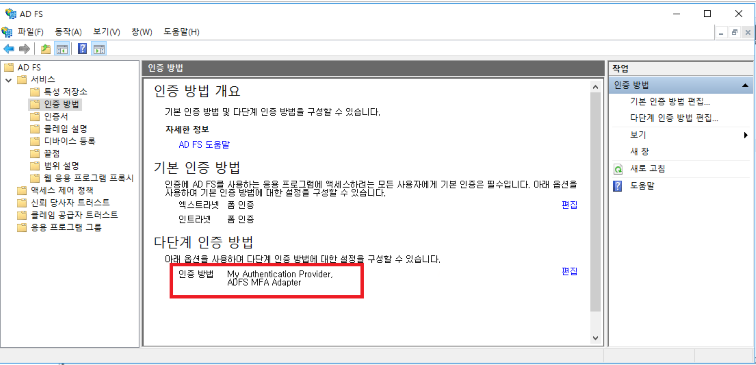
- AD FS Management > Relying Party Trust, Access Control Policy: Allow all users and require MFA
- Test SP connection: https://sptest.iamshowcase.com/ixs?idp=9a72b90bb06815f52d57a2eb71898f56fca097d0
Server Event Log
The log of the adapter execution process is recorded in the Windows event log area.
By adjusting the LOG_LEVEL value in the ADFSadapter.ini setting, you can selectively record error, warning, and general logs.
LOG_LEVEL Setting in ADFSadapter.ini
| Value Setting | Recorded Log |
|---|---|
| LOG_LEVEL=0 | Error recording |
| LOG_LEVEL=1 | Error, warning recording |
| LOG_LEVEL=2 | Error, warning, general message all recording |
Windows Event Log Location
- Computer Management (Local) > System Tools > Event Viewer > Application and Service Logs > MFA_Adapter
- At the beginning of each account log, the MFA version and account name are displayed → Refer to log analysis/tracing
- During operation, focus on monitoring the parts displayed as “Error” or “Warning”
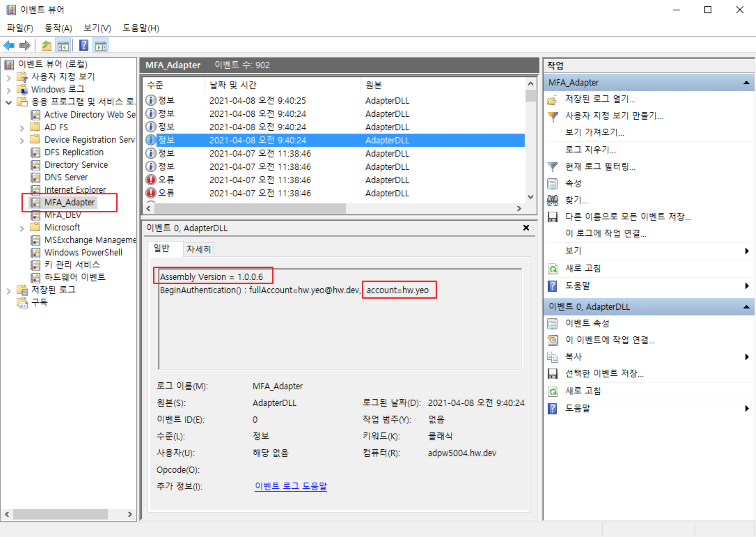
Windows Event Log Description and Handling Method
[#0000] Success
Err.Success
This is not an error, but a simple log.
It's an unnecessary log, and if you see this log, you can ask the developer to delete it.

[#0001] Invalid Arguments
Err.InvalidArguments
Error: This means that an argument is missing when calling a function within the adapter program.
Action: This is a serious error, and it should be immediately reported to the developer for prompt action.
Note
Although the adapter may work without any symptoms, it has the potential for serious errors, so it should not be neglected.

[#1000] Cannot extract account information from identityClaim
Err.IdentityClaimHasNoAccount
Error: When the adapter is executed initially, it receives the current user's information from the AD server, but cannot find the account information.
Action: Check the status of the AD server.
Note
This is not an LDAP query, but an internally processed information flow within ADFS. If this situation occurs, it means that the adapter is in an environment where it cannot function normally.

[#1001] Cannot load INI file
Err.FailToLoadIni
Error: The server cannot read the MFA environment configuration INI file.
Action: Check if the file exists in the following path on the server
C:\ ADFSadapter \ ADFSadapter.ini
Note
If the file exists, check the file properties or permissions.

[#1002] HTML files cannot be loaded.
Err.FailToLoadHtml
Error: The server cannot read the HTML file.
Action: Check if the file exists in the following path on the server.
C:\ ADFSadapter \ Html_*.txt
Note
If the file exists, check the file properties or permissions. If any of them are missing, an error will occur. You can find out what is missing in the server event log.

[#1003] Cannot retrieve user information from LDAP.
Err.FailToLdapSearch
Error: The LDAP server was queried, but the AD user information could not be retrieved.
Action: Check the status of the AD server.
Note
The token configuration requires mobile and email information, but this information failed to be retrieved. If user information exists, even if mobile and email are empty, it will not be treated as an error. Therefore, this error means that the LDAP query itself failed.

[#1004] The BeginAuthentication function's request does not contain URL information.
Err.NoURLInRequest
Error: The BeginAuthentication function's argument request does not contain URL information when the adapter is first executed.
Action: Check if the SingleID MFA API server is sending a normal response.
Note
If there is no URL information, the response sent by the SingleID MFA API server in GET mode cannot be used.

[#1005] Cannot create a JWT token.
Err.FailToMakeJwtToken
Error: The GenerateRequestToken function failed to create a token.
Action: The exact cause can be found in the server event log, and the developer should be asked to analyze the cause.
[#1006] ADFS adapter directory or INI file not found. The [drive]:/ADFSadapter/ADFSadapter.ini file must exist on one of the drives from C to Z.
Err.CannotFindDirOrIni
Error: From adapter version 1.2.0.6, the adapter installation location is not fixed to the C drive, but can be installed on any drive from C to Z, and the adapter scans the drives to determine the installation location. The [drive]:/ADFSadapter/ADFSadapter.ini file must exist.
Action: Check if the adapter is installed correctly on the server, if the directory name and file name are correct, and if drive access is blocked.

[#2000] No account information in TryEndAuthentication().
Err.TryEndHasNoAccount
Error: The authentication process has moved to the TryEndAuthentication stage, but account information is unknown. (Adapter internal error)
Action: Immediately report the situation to the developer and request cause analysis.
Note: This case should never occur and should not occur.

[#2001] No step information.
Err.NoStepInfo
Error: There is no information about the MFA progress stage (step). (Adapter internal error)
Action: Immediately report the situation to the developer and request cause analysis.
Note: This case should never occur and should not occur.

[#2002] Invalid step information.
Err.InvalidStepInfo
Error: The MFA progress stage (step) information is incorrect. (Adapter internal error)
Action: Immediately report the situation to the developer and request cause analysis.
Note: This case should never occur and should not occur.

[#3000] Retrieves the HTML string.
Err.SucceedInGetHtml
This is not an error, but a simple log. It displays the contents of the Html_.txt file read from the server. It helps to check if the adapter reads the file contents correctly after modifying the Html_.txt file contents.
[#3001] Unable to retrieve HTML.
Err.FailToGetHtml
Error: The server is unable to read the Html_*.txt file.
Action: Check if the file exists, has read permission, or is locked.

[#4000] HTML file not found.
Err.HtmlFileNotFound
Error: The server is unable to read the Html_*.txt file.
Action: Check if the file exists.

[#4001] HTML file exists but is empty.
Err.HtmlFileIsEmpty
Error: The server is unable to read the Html_*.txt file.
Action: Check if the file has read permission or is locked.

[#4002] Step not found in HtmlPrefix list.
Err.StepNotInHtmlPrefixList
Error: The adapter has a predefined keyword list for each processing step, and a keyword not in the list was found.
Action: Immediately report the situation to the developer and request cause analysis.
Note: This case should never occur and should not occur.

[#4003] Empty prefix value in HtmlPrefix list.
Err.EmptyPrefixInHtmlPrefixList
Error: The adapter has a predefined keyword list for each processing step, and the list is empty.
Action: Immediately report the situation to the developer and request cause analysis.
Note: This case should never occur and should not occur.
[#5000] Unable to read the ini file.
Err.FailToReadIniFile
Error: Unable to read the INI file.
Action: Check if the file exists at the following path on the server:
C:\ ADFSadapter \ ADFSadapter.ini
Note:
If the file exists, check the file properties or permissions.

[#5001] System name (API_SYSTEMNAME) is not in the ini file.
Err.NoSystemNameInIni
Error: The "API_SYSTEMNAME" setting value is not in the INI file.
Action: Check if anything is missing in the INI file, or if the INI file is an old version.

[#5002] Claim1 (MAIN_CLAIM1) is not in the ini file.
Err.NoClaim1InIni
Error: The "MAIN_CLAIM1" setting value is not in the INI file.
Action: Check if anything is missing in the INI file, or if the INI file is an old version.

[#5003] Claim2 (MAIN_CLAIM2) is not in the ini file.
Err.NoClaim2InIni
Error: The "MAIN_CLAIM2" setting value is not in the INI file.
Action: Check if anything is missing in the INI file, or if the INI file is an old version.

[#5004] The ini file does not exist.
Err.IniFileNotFound
Error: Unable to find the MFA environment configuration INI file on the server.
Action: Check if the file exists at the following path on the server:
C:\ ADFSadapter \ ADFSadapter.ini

[#5005] Failed to add to the ini list using AddToList().
Err.FailToAddIniList
Error: This is an internal adapter error.
Action: Immediately report the situation to the developer and request cause analysis.
Note
This case should never occur and should not occur.

[#5006] No key or value was read from the ini file.
Err.NoKeyValueInIni
Error: The INI file was read, but no key-value combination was set.
Action: Check the contents of the INI file.

[#5007] LDAP server information is not in the ini file. (LDAP_SERVER)
Err.NoLdapServerValueInIni
Error: There is no "LDAP_SERVER" setting value in the INI file.
Action: Check if anything is missing in the INI file, or if the INI file is an old version.

[#5008] MFA API URL is not in the ini file. (MFA_API_URL)
Err.NoMfaApiUrlValueInIni
Error: There is no "MFA_API_URL" setting value in the INI file.
Action: Check if anything is missing in the INI file, or if the INI file is an old version.

[#5009] Consumer Key value is not in the ini file. (CONSUMER_KEY)
Err.NoConsumerKeyValueInIni
Error: There is no "CONSUMER_KEY" setting value in the INI file.
Action: Check if anything is missing in the INI file, or if the INI file is an old version.

[#5010] Secret Key value is not in the ini file. (SECRET_KEY)
Err.NoSecretKeyValueInIni
Error: There is no "SECRET_KEY" setting value in the INI file.
Action: Check if anything is missing in the INI file, or if the INI file is an old version.
[#5011] Cache Attribute value is not in the ini file. (CACHE_ATTRIBUTE)
Err.NoCacheAttributeValueInIni
Error: There is no "CACHE_ATTRIBUTE" setting value in the INI file.
Action: Check if there are any missing values in the INI file, or if the INI file is an old version.

[#5012] Cache Delimeter value is not in the ini file. (CACHE_DELIMETER)
Err.NoCacheDelimeterValueInIni
Error: There is no "CACHE_DELIMETER" setting value in the INI file.
Action: Check if there are any missing values in the INI file, or if the INI file is an old version.

[#5013] Skew Seconds value is not in the ini file. (SKEW_SECONDS)
Err.NoSkewSecondsValueInIni
Error: There is no "SKEW_SECONDS" setting value in the INI file.
Action: Check if there are any missing values in the INI file, or if the INI file is an old version.

[#5014] Token expiration time value is not in the ini file. (TOKEN_EXP_TIME)
Err.NoTokenExpTimeInIni
Error: There is no "TOKEN_EXP_TIME" setting value in the INI file.
Action: Check if there are any missing values in the INI file, or if the INI file is an old version.

[#5015] Cache life time value is not in the ini file. (CACHE_LIFE_TIME)
Err.NoCacheLifeTimeInIni
Error: There is no "CACHE_LIFE_TIME" setting value in the INI file.
Action: Check if there are any missing values in the INI file, or if the INI file is an old version.

[#5016] User information claim list is not in the ini file. (USERINFO_##)
Err.NoUserinfoListInIni
Reserved (This error code is reserved and will be used in the future.)
[#5017] LDAP connection is set to use id/pw (LDAP_USE_IDPW=1), but LDAP id or pw is not in the ini file (LDAP_ID, LDAP_PW)
Err.NoLdapIdPwInIni
Error: LDAP connection is set to use id/pw, but LDAP_ID and LDAP_PW settings are not found in the INI file.
Action: Check if there are any missing settings in the INI file and if the INI file is an old version.

[#6000] An exception occurred while searching for user information in AD (LDAP).
Err.ExceptionInAD
Error: An exception occurred while querying the LDAP server.
Action: Check if the AD server address set in the INI file is correct and check the status of the AD server.
Reference: Provide the detailed exception content in the event log to the developer.

[#6001] Unable to find user information in AD (LDAP).
Err.CannotFindUserInAD
Error: Unable to retrieve AD user information from the LDAP server.
Action: Check the status of the AD server.
Reference: The token configuration requires mobile and email information, but failed to retrieve this information. If user information exists, empty mobile and email values are not treated as errors. Therefore, this error occurs when the LDAP query itself fails.
User Error Message
If an error occurs during the MFA process, an error message is displayed on the user’s PC screen. The error message is fixed as “Internal error occurred. Contact administrator.” and the error code is displayed on the next line.
Internal error occurred. Contact administrator.
ErrorCode : 0001
Below is an explanation of the error code, its cause, and the measures to take. ※ Refer to the event log of the server’s internal processing procedure, excluding user error messages
ErrorCode : 0001
* Err.IdentityClaimHasNoAccount
* The function call arguments were incorrect
* This error is not shown to the user
+ → If it appears, contact the developer
+ → Check the server event log at this point

ErrorCode : 1000
* Err.IdentityClaimHasNoAccount
* "Cannot extract account information from identityClaim."
* At the initial execution of the adapter, it receives the current user's information from the AD server, but cannot find account information
* Since it's an internally processed information flow within ADFS, rather than querying LDAP,
+ If this situation occurs, consider the adapter unable to function normally
* Check the AD server status first

ErrorCode : 1001
* Err.FailToLoadIni
* The server cannot read the MFA environment configuration INI file
* Check if the file exists at the following path on the server
+ C:\ ADFSadapter \ ADFSadapter.ini
* If the file exists, check its properties or permissions

ErrorCode : 1002
* Err.FailToLoadHtml
* The server cannot read the HTML file
* Check if the file exists at the following path on the server
+ C:\ ADFSadapter \ Html_*.txt
* If the file exists, check the file properties or permissions
* If one or more are missing, an error occurs → You can find out what is missing in the server event log

ErrorCode : 1003
* Err.FailToLdapSearch
* "Failed to retrieve user information from LDAP."
* The LDAP server was queried, but failed to retrieve AD user information
* The token configuration requires mobile and email information, but failed to retrieve this information
* Even if mobile and email are empty values, they are not processed as errors
* So, this error occurred because the LDAP query itself failed

ErrorCode : 1004
* Err.NoURLInRequest
* "There is no URL information in the request of the BeginAuthentication function."
* The request argument of the BeginAuthentication function, which runs at the initial execution of the adapter, has no URL information
* Without URL information, the response sent by the SingleID MFA API server in GET method cannot be used
* You need to check if the SingleID MFA API server is sending the response normally

ErrorCode : 1005
* Err.FailToMakeJwtToken
* "Failed to create a JWT token."
* The GenerateRequestToken function failed to create a token
* The exact cause can be found in the server event log

ErrorCode : 1006
* Err.CannotFindDirOrIni
* "Failed to create a JWT token."
* The ADFSadapter directory or INI file cannot be found
* From adapter version 1.2.0.6, the adapter installation location can be installed in any drive from C to Z, not just the C drive, and
+ Adapter scans C to Z drives to find the installed location
* [drive]:/ADFSadapter/ADFSadapter.ini file must exist
* Check if the adapter is installed correctly on the server and if the directory name and file name are correct
* Check if drive access is blocked

ErrorCode : 2000
* Err.TryEndHasNoAccount
* "No account information in TryEndAuthentication()"
* Moved to the TryEndAuthentication step, but account information is unknown
* This case should never occur (if it occurs, contact the developer)

ErrorCode : 2001
* Err.NoStepInfo
* No MFA step information
* Check the server's event log for detailed information and cause

ErrorCode : 2002
* Err.InvalidStepInfo
* MFA step information is incorrect
* Check the server's event log for detailed information and cause
ADFS Login Page Modification
Editing onload.js
Background
If multiple MFAs are set, the user will see a selection screen like the one below. In the initial screen display (MFA not yet completed), a selection is required on this screen.
After completing the MFA, the above selection screen should be automatically submitted when it appears. To achieve this, the existing onload.js file in ADFS needs to be edited. If it’s not a multi-MFA case, editing the onload.js file is not necessary.
File Path
The file exists in the following directory on the AD server:
- Directory = C:/default_WebTheme/script
- File name = onload.js
File Editing
Add the following script to the end of the file contents:
Note
Do not use copy and paste with the example Script Text below, as multilingual messages may not be input correctly.
Prepare a separate file with the correct Script Text.
The onload.js file must be saved in UTF-8 format.
// ------------------------------------------ SingleID MFA : begin
function singleidMfa() {
var authOptions = document.getElementById('authOptions')
if (authOptions) {
var noticeflag = document.getElementById('mfaGreeting');
var url = document.location.href;
var isToken = url.indexOf('jwtTokenResponse');
if (noticeflag && isToken < 1) {
var browserLang = navigator.language || navigator.userLanguage;
// 다국어 처리
// 한국어
if (lang == 'ko-KR' || lang == 'ko') {
document.getElementById('footerPlaceholder').innerHTML="<h3 style='font-weight: bold;'><br/> <br/> ※ 신규 복합인증솔루션 테스트 중 (13:00~15:00) <br/> 'My Authentication Provider' 메뉴를 이용해주세요. </h3>";
}
// 중국어
else if (lang == "zh" || lang.indexOf("zh-") > -1) {
document.getElementById('footerPlaceholder').innerHTML="<h3 style='font-weight: bold;'><br/> <br/> ※ 正在??新的?合??解?方案 (13:00~15:00) <br/> ?登? 'My Authentication Provider' 菜?。 </h3>";
}
// 베트남어
else if (lang == "vi") {
document.getElementById('footerPlaceholder').innerHTML="<h3 style='font-weight: bold;'><br/> <br/> ※ đang ki?m tra gi?i phap xac th?c k?t h?p m?i (13:00~15:00) <br/> Xin vui long đ?ng nh?p vao trinh đ?n 'My Authentication Provider'. </h3>";
}
// 스페인어
else if (lang == "es" || lang.indexOf("es-") > -1) {
document.getElementById('footerPlaceholder').innerHTML="<h3 style='font-weight: bold;'><br/> <br/> ※ Prueba de una nueva solucion de autenticacion compleja (13:00~15:00) <br/> Inicie sesion en el menu 'My Authentication Provider'. </h3>";
}
// 영어
else {
document.getElementById('footerPlaceholder').innerHTML="<h3 style='font-weight: bold;'><br/> <br/> ※ Testing a new MFA solution (13:00~15:00) <br/> Please use 'My Authentication Provider' menu. </h3>";
}
}
var opt = document.getElementById('optionSelection');
if (opt && isToken > 0) {
opt.value = 'ADFSadapter';
document.forms['options'].submit();
}
}
}
window.addEventListener('load', function () {
singleidMfa();
});
// ------------------------------------------ SingleID MFA : end
Script Function
- This applies to the case where authOptions exist among the page controls.
- It operates after the page load is completely finished (because an error occurs if it runs before that).
- It uses window.addEventListener to add to the load event (same as the window.onload event).
- Case 1: If mfaGreeting exists among the controls and jwtTokenResponse does not exist in the URL, it displays a user guide message according to the browser language setting (multilingual).
- Case 2: If optionSelection exists among the controls and jwtTokenResponse exists in the URL, it assigns ADFSadapter to optionSelection and forcibly submits the options form.
Precautions when Adding Scripts
- To manage without affecting existing scripts and for ease of management, it is safe to put the script at the end.
Applying onload.js
The ADFS Sign-in Page customization is possible by modifying and reflecting the onload.js file.
Note
The command contains a potentially malicious script command, so please note that the command you need to enter is different from the displayed command.
-ON-LOADScriptPath is actually the following command, so please be aware of it to avoid confusion.
Application Method
Current Status Check
PS> Get-AdfsWebConfig ## Check the applied (activated) WebTheme PS> Get-AdfsWebTheme ## Check the list of created WebThemes
Theme Application
Theme Application Method 1) Create a new theme from the default theme
PS> New-AdfsWebTheme -Name "custom_stg" -SourceName default  ## Create a new WebTheme
PS> Set-AdfsWebTheme -TargetName "custom_stg" -Illustration @{Path="C:\adfs_Login_dev\illustration\image_0624\8.jpg"} -Logo @{Path="C:\adfs_Login_dev\images\logo.png"} -StyleSheet @{Path="C:\adfs_Login_dev\css\style.css"} -ON-LOADScriptPath "C:\adfs_Login_dev\script\ON-LOAD_new.js"  ## Apply a custom js file
Theme Application Method 2) Update from an existing theme
PS> New-AdfsWebTheme -Name "custom_stg" -SourceName [existing theme]  ## Create a new WebTheme
PS > Set-AdfsWebTheme -TargetName "custom_stg" -OnLoadScriptPath "C:\adfs_Login_dev\script\onload_stg.js"  ## Apply a custom js file

※ Server command capture for theme application methods 1) and 2). The OnLoad command is automatically changed when organizing Confluence, so a capture is attached
PS> Set-AdfsWebConfig -ActiveThemeName "custom_stg" ## Activate the created WebTheme
Recovery of Existing Theme
PS> Set-AdfsWebConfig -ActiveThemeName "default" ## Activate existing WebTheme
Note
Only one custom js file can be applied to a single WebTheme We also inquired with MS, but officially, only one onload.js file can be applied, and the additional methods they provided do not work
“the ON-LOAD.js is an integrated part of the HTML (the last script in the body) which always executes when the ADFS Page is loaded
There can be only one named ON-LOAD.JS per Web theme.

What is possible though is that additional ('external') scripts can be loaded as part of the actual ON-LOAD.js execution

let’s say in a specific part of your ON-LOAD.JS you want to load a bootstap.js which implements additional functionality
you would firstly import that additional JS to the webpage as AdditionalFileResource //it should not be named ON-LOAD.js

eg
Set-AdfsWebTheme -TargetName custom -AdditionalFileResource @{Uri='/adfs/portal/script/bootstrap.js';path="c:\theme\script\bootstrap.js"}

then you implement a loading functionality in the ON-LOAD.js which dynamically loads your additional script as needed”
Reference documents
http://www.javascriptkit.com/javatutors/loadjavascriptcss.shtml
https://www.codeproject.com/Articles/5310336/Dynamically-Loading-a-JavaScript-File
In other words, as stated in the official documentation, only one ON-LOAD.JS file can be applied to a single ADFS theme page. However, it is possible to apply an additional file named bootstap.js as AdditionalFileResource to the same page.
Note
WebTheme settings allow additional options
- Options can be used to apply illustrations, logos, stylesheets, etc.
PS> Set-AdfsWebTheme -TargetName "custom_stg" -Illustration @{Path="C:\adfs_Login_dev\illustration\image_0624\8.jpg"} -Logo @{Path="C:\adfs_Login_dev\images\logo.png"}
       -StyleSheet @{Path="C:\adfs_Login_dev\css\style.css"} -OnLoadScriptPath "C:\adfs_Login_dev\script\onload_stg.js"
Reference document
https://learn.microsoft.com/en-us/powershell/module/adfs/set-adfswebtheme?view=windowsserver2022-ps
Changing the Adapter display name
When applying multiple Adapters for user selection, the Adapter’s display name can be set to show to the user (browser). By default, the name used when registering the Adapter is displayed.
- Before application
- The name used when registering the Adapter is displayed to the user (browser)
- After application
- The Adapter’s display name is shown to the user (browser)
- Display names can be set differently for each language
Guide
Three languages (Korean, English, Global) are applied during testing
- The Adapter’s display name changes according to the browser’s language settings (chrome://settings/languages, edge://settings/languages)
- English (US), English (UK), and other languages starting with ’en-’ are all applied as English settings. If a language other than Korean or English is selected, the global setting is applied
- Setup method
- ADFS adapter (new adapter name) display name setting
- Set to 3 locales: ko (Korean), en (English), and unset (global)
Set-AdfsAuthenticationProviderWebContent -Name "ADFSadapter" -Locale ko -DisplayName "New ADFS Plugin (ko)" -Description "New ADFS Plugin Description (ko)"
Set-AdfsAuthenticationProviderWebContent -Name "ADFSadapter" -locale en -DisplayName "New ADFS Plugin (en)" -Description "New ADFS Plugin Description (en)"
Set-AdfsAuthenticationProviderWebContent -Name "ADFSadapter" -DisplayName "New ADFS Plugin (global)" -Description "New ADFS Plugin Description (global)"
- MyAuthenticationProvider (existing adapter name) display name setting
- Set to 3 locales: ko (Korean), en (English), and unset (global)
Set-AdfsAuthenticationProviderWebContent -Name "MyAuthenticationProvider" -locale "ko" -DisplayName "Existing ADFS Plugin (ko)" -Description "Existing ADFS Plugin Description (ko)"
Set-AdfsAuthenticationProviderWebContent -Name "MyAuthenticationProvider" -locale "en" -DisplayName "ADFS Plugin (en)" -Description "ADFS Plugin Description (en)"
Set-AdfsAuthenticationProviderWebContent -Name "MyAuthenticationProvider"  -DisplayName "ADFS Plugin (global)" -Description "ADFS Plugin Description (global)"
Locale ID reference: [MS-OE376] (separate inquiry)
ADFS Adapter Related Tips
Adapter Registration and Operation Order Summary
- Adapter DLL → GAC area registration → ADFS registration → ADFS management multi-factor authentication method check → AD authentication MFA requirement adapter operation
Tools required for adapter management (gacutil.exe)
- Tool for registering/deleting adapter DLL in AD FS server’s GAC area
Reference
What is GAC?
Global Assembly Cache abbreviation, a special cache for sharing .NET Assembly across the machine. GAC is located in the Windows directory under the assembly directory.
- The Assembly installed in the GAC must be a Strongly-named assembly
- The DLL must include the name, Version, Culture, and public key
- When the DLL is installed in the GAC, it takes priority at runtime
- Multiple versions of the same DLL can coexist even with the same name
Registering/Unregistering Adapter in GAC (using gacutil.exe)
Typically used in cmd, but used in PowerShell for convenience (must be used in the form .\gacutil.exe)
- Register in GAC
PS C:\ADFSadapter> .\gacutil.exe /if ADFSadapter.dll
- Unregister from GAC → The file C:\ADFSadapter\ADFSadapter.dll is not deleted
PS C:\ADFSadapter> .\gacutil.exe /u ADFSadapter
- Check if registered in GAC
PS C:\ADFSadapter> .\gacutil.exe /l ADFSadapter
- DLL replacement order in GAC
- Delete using gacutil.exe /u
- Replace the file C:\ADFSadapter\ADFSadapter.dll
- Register using gacutil.exe /if
Registering/Unregistering GAC Assembly in ADFS (PowerShell command)
- Register in ADFS First, check the Version, Culture, and public key information using the gacutil.exe /l option
PS C:\ADFSadapter> .\gacutil.exe /l ADFSadapter
ADFS adapter, Version=1.0.0.0, Culture=neutral, PublicKeyToken=3b3a799d949dc414, processorArchitecture=MSIL
          Use the result string to construct TypeName and register it with AD FS
           (The first part of TypeName is fixed as ADFSadapter.AuthenticationAdapter)

PS C:\ADFSadapter> $typename = "ADFSadapter.AuthenticationAdapter, ADFSadapter, Version=1.0.0.0, Culture=neutral, PublicKeyToken=3b3a799d949dc414, processorArchitecture=MSIL"
PS C:\ADFSadapter> Register-AdfsAuthenticationProvider -TypeName $typename -Name "ADFSadapter" -Verbose
- Delete from ADFS
PS C:\ADFSadapter> Unregister-AdfsAuthenticationProvider -Name "ADFSadapter"
- Check if registered with ADFS
PS C:\ADFSadapter> Get-AdfsAuthenticationProvider
ADFS Adapter replacement order
- Disable multi-factor authentication method in ADFS management
- Unregister-AdfsAuthenticationProvider
- Restart ADFS service
- Replace DLL in GAC
- Register-AdfsAuthenticationProvider
- Restart ADFS service
- Configure multi-factor authentication method in ADFS management
The above steps 1) to 7) can be automated using the replace_dll.ps1 script file
If MFA function does not work properly
AD account/password authentication not available
→ This occurs before the MFA step, so it is not related to the AdapterAdapter registration status check
→ Check if ADFS MFA Adapter is displayed when running the Get-AdfsAuthenticationProvider commandAD FS setting check
→ Check if ADFS MFA Adapter is specified in Service > Authentication Method > Multi-factor Authentication Method
→ Check if Service > Device Registration is set
→ Check if Access Control Policy is set to require MFAAdapter execution log check
→ Log location: Computer Management > System Tools > Event Viewer > Application and Service Logs > MFA_Adapter
→ Check if there are any logs marked as Error
→ If there are errors, send the log content to the developer for analysis
5.2.1.6.2 - Adapter Setup Guide
Adapter Setup Guide
This is a description of the Adapter environment setup file. You must configure the environment before applying the ADFS Adapter.
Notice
Adapter Installation Location Change
From adapter 1.2.0.6, installation is possible on drives other than the C drive.
Existing : Only installed on C:/ADFSadapter
Change : Installed on the root of drives C to Z
Example: C:/ADFSadapter , D:/ADFSadapter , E:/ADFSadapter , …… , Z:/ADFSadapter
Precautions : It can only be installed on one drive, and if it is installed on multiple drives, the first discovered directory is used while scanning from C to Z
If installed on a drive other than C, only the drive name (drive letter) in the example below needs to be changed.
- Example: If installed in D:\ADFSadapter, the ini path → D:\ADFSadapter\ADFSadapter.ini
File Name and Path
- File Name: ADFSadapter.ini
- Full Path: C:\ADFSadapter\ADFSadapter.ini
- File Encoding: Must be saved in UTF-8 (Korean characters may be broken if not)
Things to Keep in Mind
* When expressing values, " and " can be used, and spaces can be entered on either side of the = sign.
+ Spaces before and after the Value are trimmed.
+ The following Values are all the same
+ Example 1) MAIN_TITLE = DWP MFA Adapter
+ Example 2) MAIN_TITLE = DWP MFA Adapter
+ Example 3) MAIN_TITLE = "DWP MFA Adapter"
+ Example 4) MAIN_TITLE = " DWP MFA Adapter "

* Some section names have -1033, -1042 appended to the end, which means locale.
+ At least 1033 must exist.
+ Locale number: 1033 (en-us), 1042 (ko)
+ Locale section: MFA-1033, MFA-1042, TXT-1033, TXT-1042, MSG-1033, MSG-1042
Ini File Structure Example
Some values in the example settings below are masked for security purposes, and the actual values are not asterisks
# ADFS MFA Adapter Environment Settings
# Installation Location Changes
#   - Before v1.2.0.6: C:\ADFSadapter\ADFSadapter.ini
#   - From v1.2.0.6: Can be installed on a drive other than C (same location as adapter resource installation)
#     Examples: C:\ADFSadapter\ADFSadapter.ini, D:\ADFSadapter\ADFSadapter.ini, E:\ADFSadapter\ADFSadapter.ini
# Note: The DLL file name is ADFSadapter.dll, which is different from the existing MFAadapter.dll linked to Nexsign


# When expressing values, " and ' can be used, and spaces can be entered on either side of =
# Leading and trailing spaces of the Value are trimmed.
# The following Values are all the same.
# Example 1) MAIN_TITLE=ADFS MFA Adapter
# Example 2) MAIN_TITLE = ADFS MFA Adapter
# Example 3) MAIN_TITLE = "ADFS MFA Adapter"
# Example 4) MAIN_TITLE = "   ADFS MFA Adapter   "


# Section names with -1033, -1042 at the end represent locale
# At least 1033 must exist
# Locale number: 1033 (en-us), 1042 (ko)
# Locale section: MFA-1033, MFA-1042, TXT-1033, TXT-1042, MSG-1033, MSG-1042


# LOG_LEVEL (Windows event log recording criteria)
# 0: Error
# 1: Error + Warning
# 2: Error + Warning + Information + Debug
[MAIN] MAIN_MFA_TITLE=“ADFS MFA Adapter” MAIN_CLAIM1=http://schemas.microsoft.com/ws/2008/06/identity/claims/authenticationmethod MAIN_CLAIM2=http://schemas.microsoft.com/ws/2012/12/authmethod/otp
MFA API Information
Do not add “/” at the end of the URL
#MFA_API_URL=“https://stg2-cloud.singleid.samsung.net/test/common-api/open/v1.1/mfa/request" MFA_API_URL=“https://stg1-cloud.singleid.samsung.net/test/common-api/open/v1.1/mfa/request" CONSUMER_KEY=”” SECRET_KEY=""
Domain vs Consumer Key List
If the Consumer Key is different for each domain, list it (in this case, leave the CONSUMER_KEY value above blank)
Insert the sys value of the Request Token
Format: DOMAIN_CONSUMER_KEY_##=domain;consumerKey
Example: DOMAIN_CONSUMER_KEY_01=aaa.com;**************************************
DOMAIN_CONSUMER_KEY_02=bbb.com;**************************************
(Note) If both CONSUMER_KEY value and list value exist, only the CONSUMER_KEY value is used
DOMAIN_CONSUMER_KEY_01=aaa.com;************************************** DOMAIN_CONSUMER_KEY_02=bbb.com;**************************************
Domain vs Secret Key List
If the Secret Key is different for each domain, list it (in this case, leave the SECRET_KEY value above blank)
Format: DOMAIN_SECRET_KEY_##=domain;secretKey
Example: DOMAIN_SECRET_KEY_01=aaa.com;**************************************
DOMAIN_SECRET_KEY_02=bbb.com;**************************************
(Note) If both SECRET_KEY value and list value exist, only the SECRET_KEY value is used
DOMAIN_SECRET_KEY_01=aaa.com;************************************** DOMAIN_SECRET_KEY_02=bbb.com;**************************************
LDAP Search result-based MFA progress
0 : Do not perform LDAP Search (do not use the information below, such as LDAP_SERVER, LDAP_USE_IDPW, etc. Insert an empty value into the token)
1 : Attempt LDAP Search, but failure is irrelevant (proceed with MFA even if server failure or no information occurs. Insert an empty value into the token)
2 : LDAP Search must be successful and user information must exist (proceed only when user information exists. However, proceed even if the result value is empty)
USE_LDAP_SEARCH=1
LDAP address and ID/PW
LDAP_SERVER can be domain, ipv4, ipv6, etc., and the upper case “LDAP://” must be attached to the front (must be upper case)
Example: LDAP://adpw5004.hw.dev , LDAP://70.2.180.218 , LDAP://fe80::644b:3c9f:c5ac:ce1c%10
Set LDAP_USE_IDPW to 1 to use ID/PW, and set LDAP_USE_IDPW to 0 not to use
Set LDAP_SSLTLS to 1 to use SSL/TLS, and set LDAP_SSLTLS to 0 not to use (only applicable when LDAP_USE_IDPW=1)
LDAP_SERVER=“LDAP://adpw5004.hw.dev” LDAP_USE_IDPW=1 LDAP_SSLTLS=1 LDAP_ID=“isadmin” LDAP_PW=“sds*****”
Perform DNS Lookup to check the IP address of the LDAP server (LDAP_SERVER) and connect based on the IP address
Even if the LDAP_SERVER value is set to IP (ipv4, ipv6), DNS Lookup is performed, and the IP is returned as is
If DNS Lookup fails, connect using the LDAP_SERVER value as is
0 : Connect to the server using the LDAP_SERVER value as is (do not perform DNS lookup)
1 : Connect to the LDAP server using the IP address confirmed by DNS lookup (use the first IP in the DNS lookup result list)
2 : Confirm the IP address using DNS lookup and use the IP that corresponds to the LDAP_WHITE_IP_## list first (use the LDAP_SERVER if not in the list)
3 : Confirm the IP address using DNS lookup and use the IP that corresponds to the LDAP_WHITE_IP_## list first (do not connect to the LDAP if not in the list)
LDAP_DNS_LOOKUP=1
DNS Lookup result has multiple entries, try to connect to the next IP address if the first one fails
Example: 4 lookup results: 1st IP connection fails -> try 2nd IP & fail -> try 3rd IP & fail -> try 4th IP
LDAP_DNS_IF_FAIL_USE_NEXT=1
List of allowed LDAP server IP addresses to compare with DNS Lookup results (only applicable when LDAP_DNS_LOOKUP = 2 or 3)
In the format of LDAP_WHITE_IP_##, recorded sequentially from 01 to 99
Compare DNS Lookup results with the list in sequence
Record in IPv4 or IPv6 format (if the same server has both IPv4 and IPv6, the one with higher priority in the list is applied)
If the order of DNS Lookup results and White IP list is different, follow the order of White IP list
LDAP_WHITE_IP_01=“70.2.180.218” LDAP_WHITE_IP_02=“fe80::644b:3c9f:c5ac:ce1c%10”
Whether to encrypt user information (e.g., mobile, email, etc.)
Target: USERINFO_## list
The name of the claim in the token sent to the API server varies depending on whether encryption is used
0: Do not encrypt -> claim name in token is plainMobile, plainEmail
1: Encrypt -> claim name in token is mobile, email
USERINFO_ENCRYPT=0
LDAP Search user information attribute name and JWT token claim name (delimiter between two values = “;”)
Format: USERINFO_## = attribute;encryptedClaim;plainClaim
Example: If the “mail” attribute is read from LDAP and used as the “email” claim in JWT, then “mail;email;plainEmail”
Key name is in the format “USERINFO_##” and starts with USERINFO_01
Number of keys: 0 to a maximum of 99 (if there are no keys, do not write anything in the ini file, and do not write USERINFO_00)
Note) The number in USERINFO_## should start from 01 and should not be interrupted if there are multiple keys
USERINFO_01, USERINFO_02, USERINFO_03 : OK (01, 02, 03 information is used)
USERINFO_01, USERINFO_02, USERINFO_05 : 02 is read and subsequent numbers are not used (01, 02 information is used)
USERINFO_01=mobile;mobile;plainMobile USERINFO_02=mail;email;plainEmail
MFA API server callback result parameter key name
Example: https://adpw5004.hw.dev/adfs/ls?client-request-id=xxxxxx&pullStatus=0&jwtTokenResponse=yyyyyy
KEY_NAME_IN_RESPONSE=“jwtTokenResponse”
JWT Token exp additional value
Format: dhms (day, hour, minute, second) string -> 1d=86400, 1h=3600, 1m=60 (numbers without dhms are considered seconds)
Example1: 1d02h38m27s -> 95907 seconds
Example2: 12345 -> 12345 seconds
TOKEN_EXP_TIME=1d
Whether to add client claim to the token when calling the API
client: issuer for SAML, client-id for OIDC
0: do not include client in token
1: include client in token
TOKEN_CLAIM_CLIENT=0
MFA nonce (guid, request-id) verification method
0: do not verify
1: adapter-generated guid is stored and compared in LDAP (adapter verifies)
-> related settings: CACHE_ATTRIBUTE, CACHE_DELIMETER, SKEW_SECONDS, CACHE_LIFE_TIME
2: API server-generated request-id is received by the adapter and used in the call URL (API server verifies)
-> Related setting value: MFA_VERIFY_URL
MFA_VERIFY_TYPE=2
MFA verification result URL (server-to-server communication): The URL is called by appending the {request-id} received from the API server to the end
The adapter checks if the return is 200 (OK) to process the MFA result
Do not attach a “/” at the end of the URL
MFA_VERIFY_URL=“https://stg1-cloud.iam.samsung.net/test/common-api/open/v1.1/mfa/request/status"
Security protocol used for MFA verification
Available protocols (case-insensitive): TLS12, TLS13
(Note) Do not use SSL3, TLS, TLS11
MFA_VERIFY_SECURE_PROTOCOL=“TLS12”
Name of the LDAP attribute to store the user’s req guid value
(Note) Write permission to LDAP is required
CACHE_ATTRIBUTE=“otherPager”
Delimiter used to combine req and time information when storing in LDAP -> “req;time”
CACHE_DELIMETER=”;"
Allowed time difference (in seconds) between the time stored in LDAP and the time the JWT is received
This is the time after AD login, not when the MFA selection screen is displayed (time is already stored when the MFA selection screen is displayed)
Therefore, the time should not be set too tightly, and around 1 hour is suitable?? (Is there anyone who takes 1 hour to select MFA?)
SKEW_SECONDS=3600
Time to live for req stored in LDAP -> Check time on next access and delete old ones
Format: String in dhms (day, hour, minute, second) format -> 1d=86400, 1h=3600, 1m=60 (numbers without dhms are considered seconds)
Example 1: 1d02h38m27s -> 95907 seconds
Example 2: 12345 -> 12345 seconds
CACHE_LIFE_TIME=1d
Whether to bypass Adapter functionality (0=normal use, 283901=disable, other values=normal use)
For emergency situations where MFA functionality issues require adapter functionality to be disabled
Do not modify this value under normal circumstances -> Normal value is 0
Note: To disable, the exact value must be set (not just any non-zero number, exact number required to avoid noise)
BYPASS_ADAPTER=0
[API] API_SYSTEMNAME=SingleID
[MSG-1033] MSG_INTERNAL_ERROR=“Internal error occurred. Contact administrator.”
[MSG-1042] MSG_INTERNAL_ERROR=“Internal error occurred. Contact administrator.”
[MANAGE] LOG_LEVEL=2
# Setting Value Description
* **Fixed Value** : It means that the value displayed in the **Setting Value** column of the table below is used as is when installing the ADFS server.
* If you want to add a language other than English and Korean, you can add up to 2 sections.
* MSG-1033, MSG-1042
dss
Key
Setting Value (Example)
Fixed Value
Description
MAIN
MAIN_MFA_TITLE
ADFS MFA Adapter
O
HTML page title (no effect on MFA function)
MAIN_CLAIM1
http://schemas.microsoft.com/ws/2008/06/identity/claims/authenticationmethod
O
Must apply the value on the left as is
MAIN_CLAIM2
http://schemas.microsoft.com/ws/2012/12/authmethod/otp
O
Must apply the value on the left as is
MFA_API_URL
https://stg2-cloud.singleid.samsung.net/test/common-api/open/v1.1/mfa/request
SingleID MFA API address- May vary depending on the tenant, so the exact address value must be confirmed
CONSUMER_KEY
4312a8b9-75c4-7897-89a7-89347f18943e
Consumer Key issued by SingleID
SECRET_KEY
gQgkyLVO6FR8vJkLtlgBiupsRM/ilgrbEfoKWRnhALd=
Secret Key issued by SingleID- Used for JWT Signature verification
- Absolutely do not disclose to the outside
DOMAIN_CONSUMER_KEY_01
4312a8b9-75c4-7897-89a7-89347f18943e
Domain vs Consumer Key list- If the Consumer Key is different for each domain, list it (in this case, the value of CONSUMER_KEY above should be emptied)
- Format: DOMAIN_CONSUMER_KEY_##=domain;consumerKey
- Example:
DOMAIN_CONSUMER_KEY_01=aaa.com;4312a8b9-75c4-7897-89a7-89347f18943e
DOMAIN_CONSUMER_KEY_02=bbb.com;96567780-2b12-23da-637c-9375a6502d5a
- (Note) If both CONSUMER_KEY value and list value exist, only CONSUMER_KEY value is used
DOMAIN_CONSUMER_KEY_02
96567780-2b12-23da-637c-9375a6502d5a
DOMAIN_CONSUMER_KEY_##
367c89d5-88f7-978a-9739-8ed21748f36b
DOMAIN_SECRET_KEY_01
gQgkyLVO6FR8vJkLtlgBiupsRM/ilgrbEfoKWRnhALd=
Domain vs Secret Key list- If the Secret Key is different for each domain, list it (in this case, the value of SECRET_KEY above should be emptied)
- Format: DOMAIN_SECRET_KEY_##=domain;secretKey
- Example:
DOMAIN_SECRET_KEY_01=aaa.com;gQgkyLVO6FR8vJkLtlgBiupsRM/ilgrbEfoKWRnhALd=
DOMAIN_SECRET_KEY_02=bbb.com;kgkWRnLygQhsRgrLVbtKlO6FiLdABupEgoMR8v/ilfJ=
- (Note) If both SECRET_KEY value and list value exist, only SECRET_KEY value is used
DOMAIN_SECRET_KEY_02
kgkWRnLygQhsRgrLVbtKlO6FiLdABupEgoMR8v/ilfJ=
DOMAIN_SECRET_KEY_##
dABupkRnLygQhsrLgWVRbt8vRgkLilLKlO1FioMgfJE=
USE_LDAP_SEARCH
0 or 1 or 2
MFA progress based on LDAP Search result- 0 : Do not perform LDAP Search (do not use the information below, such as LDAP_SERVER, LDAP_USE_IDPW, etc. and insert an empty value into the token)
- 1 : Try LDAP Search, but it doesn’t matter if it fails (proceed with MFA even if server failure, no information, etc. occurs, and insert an empty value into the token)
- 2 : LDAP Search must be successful and user information must exist (proceed only if user information exists, but proceed even if the result value is empty)
LDAP_SERVER
LDAP://adpw5004.hw.dev
LDAP address that can query AD user information- All three types, domain, ipv4, and ipv6, are possible, and “LDAP://” must be attached to the front
LDAP_USE_IDPW
0 or 1
Whether to use id/pw when accessing LDAP- The adapter operates with system privileges, so it is common to access LDAP without id/pw, but there are cases where it is not
- If an AD connection error occurs in the event log in a state where id/pw is not used for connection, it is necessary to set it to use id/pw for connection
- If this value is set to 1, LDAP_ID and LDAP_PW values must be set
LDAP_SSLTLS
0 or 1
Whether to use SSL/TLS when connecting to LDAP- Generally, set to use
LDAP_ID
LDAP connection id
LDAP connection id (when LDAP_USE_IDPW=1)
LDAP_PW
LDAP connection pw
LDAP connection pw (when LDAP_USE_IDPW=1)
LDAP_DNS_LOOKUP
0 or 1 or 2 or 3
Whether to perform DNS lookup to check the IP address of the LDAP server (LDAP_SERVER) and connect based on the IP address- 0 : Connect to the server with the LDAP_SERVER value as is (do not perform DNS lookup)
- 1 : Perform DNS lookup to check the IP address and connect to the LDAP server (use the first IP in the DNS lookup result list)
- 2 : Perform DNS lookup to check the IP address and use the first corresponding IP in the LDAP_WHITE_IP_## list (if not in the list, use LDAP_SERVER)
- 3 : Perform DNS lookup to check the IP address and use the first corresponding IP in the LDAP_WHITE_IP_## list (if not in the list, do not connect to LDAP)
| | LDAP_DNS_IF_FAIL_USE_NEXT | 0 or 1 | | When there are multiple DNS lookup results, whether to try the next IP address if the connection to the first IP address fails<ul><li> Example: 4 lookup results: 1st IP connection failure -> 2nd IP connection attempt & failure -> 3rd IP connection attempt & failure -> 4th IP connection attempt |
| | LDAP_WHITE_IP_01 | 70.2.180.218 | | List of allowed LDAP server IP addresses to compare with DNS lookup results (only applicable when LDAP_DNS_LOOKUP = 2 or 3)</li></ul><ul><li> In the format of LDAP_WHITE_IP_##, recorded sequentially from 01 to 99</li></ul><ul><li> Compared sequentially with DNS lookup results</li></ul><ul><li> Recorded in IPv4 or IPv6 format (if the same server has both IPv4 and IPv6, the IP in the higher priority list is applied)</li></ul><ul><li> If the order of DNS lookup results and White IP list is different, the order of the White IP list is followed </li></ul>|
| | LDAP_WHITE_IP_02 || |fe80::644b:3c9f:c5ac:ce1c%10 |
| | LDAP_WHITE_IP_## | | | A. : 01 ~ 99<br>White IP address (IPv4 or IPv6) |
| | USERINFO_ENCRYPT | 0 or 1 | | Whether to encrypt user information (e.g., mobile, email, etc.)<ul><li> Target: USERINFO_## list</li></ul><ul><li> Depending on the encryption, the claim name of the token sent to the API server is different</li></ul><ul><li> 0: Not encrypted -> token's claim name is plainMobile, plainEmail</li></ul><ul><li> 1: Encrypted -> token's claim name is mobile, email </li></ul>|
| | USERINFO_01 | mobile;mobile;plainMobile | O | LDAP search user information attribute name and JWT token claim name (3 values are separated by ";")<ul><li> Format: USERINFO_## = attribute; encryptedClaim; plainClaim</li></ul><ul><li> Example: If you read the "mail" attribute from LDAP and use the encrypted value as "email" claim and the plain value as "plainEmail" claim in JWT, then "mail;email;plainEmail"</li></ul> |
| | USERINFO_02 | mail;email;plainEmail | O | |
| | USERINFO_## | | | A. : 01 ~ 99<br>[LDAP attribute name];[encrypted token claim name];[plain token claim name] |
| | KEY_NAME_IN_RESPONSE | jwtTokenResponse | O | Key name used in the result parameter when the MFA API server calls back<ul><li> Example: https://adpw5004.hw.dev/adfs/ls?client-request-id=xxxxxx&pullStatus=0&jwtTokenResponse=yyyyyy</li></ul> |
| | TOKEN_EXP_TIME | 1d | | Value to be added to the exp of the JWT token<ul><li> String in the format of day, hour, minute, second (dhms)<br>1d=86400, 1h=3600, 1m=60</li></ul><ul><li> If dhms is not present, it is considered as seconds</li></ul><ul><li> Example 1: 1d02h38m27s -> 95907 seconds<br>Example 2: 12345 -> 12345 seconds</li></ul> |
| | TOKEN_CLAIM_CLIENT | 0 or 1 | | Whether to add the client claim to the token when calling the API<ul><li> Client: issuer in SAML, client-id in OIDC</li></ul><ul><li> 0: Do not include client in the token</li></ul><ul><li> 1: Include client in the token</li></ul> |
| | MFA_VERIFY_TYPE | 0 or 1 or 2 | | MFA nonce (guid, request-id) verification method<ul><li> 0: Do not verify</li></ul><ul><li> 1: Store and compare the guid created by the adapter in LDAP (verified by the adapter) -> related settings: CACHE_ATTRIBUTE, CACHE_DELIMETER, SKEW_SECONDS, CACHE_LIFE_TIME</li></ul><ul><li> 2: Use the request-id created by the API server and used by the adapter in the call URL (verified by the API server) -> related settings: MFA_VERIFY_URL</li></ul> |
| | MFA_VERIFY_URL | https://stg1-cloud.iam.samsung.net/test/common-api/open/v1.1/mfa/request/status | | MFA result verification URL (server-to-server communication): {request-id} received from the API server is appended to the end of the URL and called -> the adapter checks if the return is 200 (OK) to process the MFA result<ul><li> Do not add "/" at the end of the URL </li></ul>|
| | MFA_VERIFY_SECURE_PROTOCOL | TLS12 or TLS13 | | Secure protocol used for MFA result verification<ul><li> Selectable protocols (case-insensitive): TLS12, TLS13</li></ul><ul><li> (Note) Do not use SSL3, TLS, TLS11 </li></ul>|
| | CACHE_ATTRIBUTE | otherPager | O | Name of the LDAP attribute to store the user's req guid value |
| | CACHE_DELIMETER | ";" | | Delimiter used to combine req + time information when storing in LDAP -> "req;time" |
| | SKEW_SECONDS | 3600 | | Allowed difference in seconds between the time stored in LDAP and the time received in JWT<ul><li> The time when the user logs in to AD, not when the MFA selection screen is displayed (the time is already stored when the MFA selection screen is displayed)</li></ul><ul><li> Not the time it takes for the user to select MFA and enter the passcode</li></ul><ul><li> Therefore, do not set the time too tightly, and about 1 hour is suitable?? (Is there anyone who takes 1 hour to select MFA?) |
| | CACHE_LIFE_TIME | 1d | | Lifetime of the req stored in LDAP -> delete old ones when checking the time at the next access<ul><li> String in the format of day, hour, minute, second (dhms)<br>1d=86400, 1h=3600, 1m=60<br>(If dhms is not present, it is considered as seconds) </li></ul>|
| | BYPASS_ADAPTER | 0 or 283901 | | Whether to bypass the adapter function (0 = normal use, 283901 = disable, other values = normal use)<ul><li> Used in emergency situations where the adapter function needs to be disabled due to MFA issues</li></ul><ul><li> Do not modify it in normal situations -> the normal value is 0</li></ul><ul><li> Note: To disable, you must set the exact value (not just any number other than 0, but the exact number. Be careful of noise) </li></ul>|
|API | API_SYSTEMNAME | SingleID | O | (No effect on MFA function)|
| MSG-1033 | MSG_INTERNAL_ERROR | "Internal error occurred. Contact administrator." | | Message displayed to the user when the authentication process is stopped due to an error (English) |
| MSG-1042 | MSG_INTERNAL_ERROR | "Internal error occurred. Contact administrator." | | Message displayed to the user when the authentication process is stopped due to an error (Korean) <ul><li> If you enter Korean, an error occurs, so please enter it in English. </li></ul> |
|MANAGE | LOG_LEVEL | 0 or 1 or 2 | | Standard for recording in the Windows event log<ul><li> 0 = only error</li></ul><ul><li> 1 = error + warning</li></ul><ul><li> 2 = error + warning + notice, etc. all recorded </li></ul>|
<div class="figure-caption">
Table. Setting value description
</div>
5.3 - Release Note
SingleID
2025.11.04
FEATURE
Add console access history log monitoring feature, Expand CSP support for console access control, Improve announcement feature, Improve approval system feature, Improve batch scheduler management feature, Improve CAM system user role management feature, Improve system global variable management feature- Console access history log monitoring feature added
- Added the feature to view and download console access logs
- Console access control support CSP expanded
- Expanded support CSP for console access control from the existing AWS to Azure and Samsung Cloud Platform (KR EAST1 region, KR WEST1 region)
- Notice feature improved
- Improved the feature to register and manage notices per tenant
- Approval system feature improved
- Added a self-built approval system-based approval function to the existing Knox-based approval function
- Batch scheduler management feature improved
- The batch scheduler management function has been improved, allowing execution results and details to be viewed and enabling immediate execution.
- CAM system user role management feature improved
- Improved to allow creation/listing/viewing/detail of user roles for the CAM system itself.
- System-wide variable management feature improved
- Added system-wide variable management function for CAM Portal system itself
- Other convenience improved
- Improved so that users of PM/PL group can change the IP of already enrolled resources (no need to re-enroll the resource)
- Improved multiple selection functionality for user/role/policy search (when multiple selection, retain previously added items)
- Improved to allow navigation to the detailed Role/Policy/Account page from Console Access menu
- Changed manual, release note and FAQ URLs to SCP Documentation URL
2025.10.23
FEATURE
Add admin delegation feature, Add approval status menu to dashboard, Add sign-up status menu to dashboard, Add user campaign feature, Add dormant account policy feature, Add user lifecycle management feature, Add rebranding feature to login page, Improve simple authentication feature, Add user security enhancement feature, Improve user profile attribute setting feature, Add application entitlement management feature- Admin delegation feature added
- A feature that allows delegating authentication for identity verification to an administrator has been added. This feature is only available for MFA products.
- Approval status menu added to dashboard
- A feature has been added that allows managing user approval requests and statuses from the dashboard.
- Member registration status menu added to dashboard
- A feature has been added that allows managing users’ sign-up status from the dashboard.
- User campaign feature added
- If only one user authentication method is registered, a campaign feature that recommends adding additional authentication registration has been added.
- Dormant account policy feature added
- Dormant user settings, alarm sending settings, exception user registration, long-term dormant user, dormant self-recovery settings have been added.
- User lifecycle management feature added
- When signing up and registering users, features for setting user defaults, setting user account usage period, and approval policy have been added.
- Rebranding feature added to login page
- A feature has been added to change the top and bottom logos, key visual images, text, etc. in the Admin Portal.
- The redirection functions for member sign-up page settings, bottom privacy policy, terms of use, etc., have been added.
- Passwordless authentication feature improved
- Mobile Passkey, security key, a convenient authentication method that allows easy login with a Windows PIN code has been added.
- User security feature enhanced
- If you use only one authentication method for a long period, a conditional authentication policy feature that requires additional identity verification has been added.
- User profile attribute setting feature improved
- You can further expand and apply the user’s personal information attributes.
- Application permission (Entitlement) management feature added
- Synchronize application permissions to manage application permissions for users/groups.
- Other convenience improved
- Improved the process when the authentication session timeout expires
- Improved the app access process in the mobile app
- Improved the screen for mobile app download
- Improved the application registration/modification screen (Field modifications, Mapping screen improvements, etc.)
- Improved Identity Providers registration/edit screen (field added/modified)
- Added a user mobile app (device) reset function
- Added a feature to set a prefix text when sending SMS
- Improved the image upload screen and process
2025.07.01
NEW
SingleID Service Official Version Release- SingleID service launched that allows users to log into business systems with a single ID and enables administrators to easily control access by integrating various access environments
6 - WAF
6.1 - Overview
Service Overview
WAF (Web Application Firewall) is a service that monitors website traffic to safely protect web applications. It quickly detects and analyzes HTTP, HTTPS-based security threats that target website vulnerabilities.
Features
- Powerful Detection/Blocking: Monitor the HTTP, HTTPS traffic of web pages registered by the customer, detecting hacker attack attempts in real time. Classify attacks such as SQL Injection, Cross-Site Scripting (XSS), Web Scan, and provide various defense functions needed for web security to immediately counter new web attack types.
- Stable Web Service Operation Support: We respond to new security threats through web firewall signature pattern and firmware updates. OWASP (Open Web Application Security Project) top 10 attacks, National Intelligence Service’s 8 major vulnerability attacks, Zero-Day attacks, and other new web threats as well as Bad Bot hacker attack attempts are detected to support the operation of efficient and stable web services..
- Convenient Security Management: Provides monthly reports so you can conveniently check event history.
Service Configuration Diagram
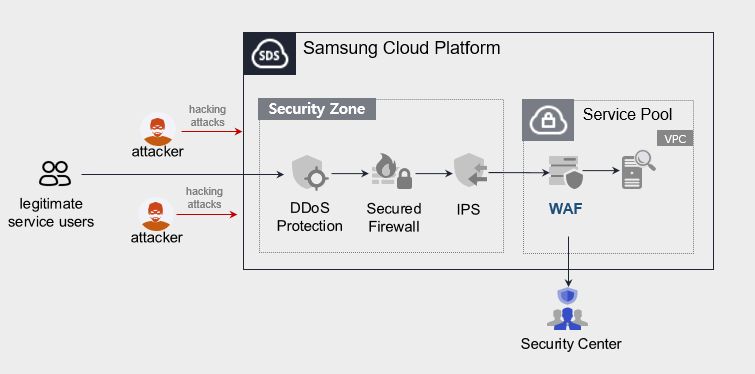
Public-facing WAF service does not provide monitoring (Security Center).
Provided Features
We provide the following features.
- Intrusion detection/analysis provided
- 24x365 event monitoring (alert issuance, monthly report provision), however, the public-facing WAF service does not provide this content.
- Attack classification through web firewall event analysis (Injection, XSS, File Include, File Up/Download, Web Scan, etc)
- Detection of latest attack patterns (including Apache Struts vulnerabilities)
- Intrusion Response
- Provide IP information of attack attempts on registered URL targets
Components
Samsung Cloud Platform’s VPC Virtual Server installs a WAF license and provides the service.
Constraints
To use WAF, please check the following items in advance.
- If WAF is configured as a single unit, service continuity cannot be guaranteed in case of a WAF installation VM or WAF application failure.
- Samsung Cloud Platform’s Load Balancer and WAF do not support bypass.
- Samsung Cloud Platform provided security monitoring service is offered only for Pentasecurity products. (operation + monitoring product)
- The public-oriented WAF service does not provide security monitoring services.
- The WAF service is directly installed with support from engineers, and it takes some time from application to deployment.
Provision status by region
WAF is available in the environment below.
| Region | General (Enter) | Public |
|---|---|---|
| Korea West (kr-west1) | Provided | Not provided |
| Korea East(kr-east1) | Not provided | Not provided |
| Korea South1(kr-south1) | Not provided | Provided |
| South Korea 2 (kr-south2) | Not provided | Provided |
| South Korea South3 (kr-south3) | Not provided | Provided |
Table. WAF regional availability status
Preceding Service
This is a list of services that must be pre-configured before applying for the service. For details, refer to the guide provided for each service and prepare in advance.
- When using the WAF service, a WAF license is installed on the Virtual Server and provided. First install a Virtual Server that matches the service specifications you want.
| Service Category | Service | Detailed Description |
|---|---|---|
| Compute | Virtual Server | Virtual server optimized for cloud computing |
| Networking | Direct Connect | A service that safely and quickly connects the customer’s network with Samsung Cloud Platform |
Table. WAF Pre-service
Reference
Customers using Secured VPN do not need a separate Direct Connect application. (Direct Connect application required when applying for Secured VPN)
However, regular (enterprise) customers who do not use Secured VPN must apply for Direct Connect separately.
* Application path : Console > Support Center > Service request
* Service : Networking > Direct Connect
* Work classification : Uplink line request
6.2 - How-to guides
Users can apply for the service by entering the required information for using the WAF service through the Samsung Cloud Platform Console.
WAF Apply
You can apply for and use the WAF service from the Samsung Cloud Platform Console.
To request WAF service creation, follow the steps below.
All Services > Security > WAF Click the menu. Navigate to the WAF’s Service Home page.
On the Service Home page, click the WAF Service Request button. Navigate to the Support Center > Service Request List > Service Request page.
Service Request page, please enter or select the relevant information in the required input fields.
- Select WAF creation in the task category.
Input Item Detailed Description Title Enter the title of the service request content - Example: WAF service creation request
Region Select the location of Samsung Cloud Platform - Automatically filled with the region corresponding to the Account
Service Select service category and service. If the WAF service request button is pressed, it is entered automatically - Service Category: Security
- Service: WAF
Task Category Select the type you want to request - WAF creation: select when requesting a new service
Content Guidance on creating and applying basic customer information - Content to be written: End customer/MSP information
Attachment Upload the completed WAF service application (required) and any additional files you wish to share - Each attached file must be within 5MB, up to a maximum of 5 files can be attached
- Only doc, docx, xls, xlsx, ppt, ppts, hwp, txt, pdf, jpg, jpeg, png, gif, tif files can be attached
Table. WAF Service Creation Request Items
- Select WAF creation in the task category.
After checking the application process and reference information, click the Form Download > Service Request Form Download button to download the WAF Service Application Form.
WAF Service Application Form please fill out.
- Refer to the item descriptions in the Application Information and Control Information tabs, and fill out the required fields.
Category Detailed Content Application Information Write required items such as application type, usage period, throughput information, basic information, etc. Monitoring Information Write required items such as WAF service application information, SSL certificate information, etc. - Public sector customers do not need to fill out
Table. Main contents of WAF service creation application form
- Refer to the item descriptions in the Application Information and Control Information tabs, and fill out the required fields.
Attach the completed application form in the attachment area.
On the service request page, click the Request button.
- When the application is completed, check the requested content on the Support Center > Service Request List page.
After the monitoring officer verifies the submitted service request, the process for using the service proceeds.
WAF service will be launched.
WAF Cancel
To request termination of the WAF service, follow the steps below.
- All Services > Management > Support Center Click the menu. Support Center > Service Home Go to the page.
- Click the Service Request button on the Support Center Service Home page. You will be taken to the Service Request List page.
- Service Request List page, click the Service Request button. It navigates to the Service Request page.
- Service Request page, please enter or select the relevant information in the required input fields.
- Select WAF termination in the work classification.
Input Item Detailed Description Title Enter the title of the service request content - Example: WAF service termination request
Region Select the location of Samsung Cloud Platform - Automatically filled with the region corresponding to the Account
Service Select service category and service - Service Category: Security
- Service: WAF
Task Category Select the type you want to request - WAF termination: select if you are terminating the service
Content Guidance on creating and applying basic customer information - Content to be written: End customer/MSP information
Attachment Upload the completed WAF service application (required) and any additional files you wish to share - Each attached file must be within 5 MB, up to a maximum of 5 files can be attached
- Only doc, docx, xls, xlsx, ppt, ppts, hwp, txt, pdf, jpg, jpeg, png, gif, tif files can be attached
Table. Table. WAF service termination request items
- Select WAF termination in the work classification.
- After checking the Application Process and Reference Information, click the Form Download > Service Request Form Download button to download the WAF Service Application Form.
- WAF Service Application Form please fill out.
- Refer to the item descriptions in the Application Information and Control Information tabs, and fill out the required items.
Category Detailed Content Application Information Application type, usage period, processing amount information, basic information, etc. Fill in required items Control Information When terminating the entire service, no input is required Table. Main contents of WAF service termination application form
- Refer to the item descriptions in the Application Information and Control Information tabs, and fill out the required items.
- Please attach the completed application form to the attachment area.
- On the service request page, click the Request button.
- When the application is completed, check the submitted details on the Support Center > Service Request list page.
- After the monitoring officer verifies the submitted service request, if the monitored URL, Port, and IP are deleted, the termination process is completed.
- Service termination takes 3 business days, counting from the cancellation request date.
6.2.1 - WAF Construction Process Guide
To initiate the WAF service, a license installation and control system connection check are required after applying for the service. If you apply for the WAF service, the person in charge will contact you after checking the service request details. Refer to the process below to apply for the WAF service.
Notice
WAF installation is directly supported by SDS engineers, and it proceeds after discussing the configuration/specifications with the customer company.
- Please apply for the service at least 1 month before the minimum service opening date (based on business days) considering the entire process schedule.

1. Preparatory Work
The preliminary preparation work for using the WAF service will proceed according to the following procedure.
- Apply for WAF installation as a service request.(MSP → SDS)
- Request WAF SW installation.(SDS → Engineer)
- Please provide engineer information for WAF installation work.(SDS → MSP)
2. Samsung Cloud Platform Console work (MSP performance)
To use the WAF service, the following work is done in the Samsung Cloud Platform Console.
- Register the SSL certificate in the Certificate Manager service.
- Application path: Samsung Cloud Platform Console > Security > Certificate Manager
- Purpose: Operation
- Create a Virtual Server service for WAF.
- Application path: Samsung Cloud Platform Console > Compute > Virtual Server
- WAF specifications determine the capacity of CPU/Memory/Block Storage
- WAF Virtual Server specification: Check the quotation
- Load Balancer service should be created.
- Application path: Samsung Cloud Platform Console > Networking > Load Balancer
- Create an L7 service for SSL Offloading.
- Create an L4 service when load balancing is needed for WAF redundancy.
- Create an L4 service when load balancing is needed for WEB server duplication.
- Set the necessary Load Balancer/Firewall/Security Group.
- Load Balancer’s communication path should have a corresponding Firewall and Security Group set as follows.
- The starting point is where you enter your network information.
Classification Common Security Zone FW Internet Gateway FW Load Balancer FW Virtual Server SG Inbound (Destination) LB 서비스 Public IP LB 서비스 Private IP LB 서비스 Private IP LB Link IP IP (example) 123.43.8.xxx 10.10.0.xxx 10.10.0.xxx 192.168.254.xxx Port LB Service Port LB Service Port LB Service Port Forward/Health Check Port Table. FW/SG setting items according to the communication path of Load Balancer
- Set the HTTP redirection of the LB service. (optional)
- Load Balancer’s HTTP redirection item should be set as follows.
Load Balancer Service L7 HTTP L7 HTTPS LB Profile > Profile Type Application Application LB Profile > Service Classification L7 HTTP L7 HTTP LB Profile > HTTP Redirection Settings Not Set IP/NAT IP set the same way set the same way Service Port 80 443 Transfer Port 80 80 Server Group > WAF in use Not set WAF Virtual Server Server Group > WAF not used not set WEB Virtual Server Certificate Registration Unregistered Registered Table. Load Balancer's HTTP redirection settings
- Grant WAF engineers access permission to the WAF Virtual Server.
3. WAF SW installation and testing (WAF engineer & MSP)
When the WAF specification is confirmed, the engineer installs the WAF software and proceeds with the test.
4. Policy request and reflection for WAF security monitoring
WAF security monitoring requires policies to be created and applied.
- Request the necessary policy from the Samsung Cloud Platform Console.(SDS → MSP)
- Deliver and apply the created policy.(SDS → MSP)
- Check the details that require policy registration.(Direct Connect Firewall/Security Group/Routing)
- SDS → Check if the WAF access path is secured for each customer company. If additional registration is required, please request by email.
- It checks if the log transmission path from WAF to SIEM is secured for each client company. If additional registration is required, please request by email.
Limitations
WAF installation, check the following restrictions first and proceed.
- When WAF is configured alone, service continuity cannot be guaranteed in case of WAF installation Virtual Server or WAF application failure (Samsung Cloud Platform LB and WAF do not support bypass)
- If the service availability of the WAF-applied target website is important, WAF duplication application is required. If WAF duplication application is required, it must be requested separately.
- Samsung Cloud Platform service provides security monitoring through Pentasecurity products only.
- Other vendor products are registered in the marketplace, but the SamsungSDS security management service is not provided.
6.3 - Release Note
WAF
2025.07.01
NEW
WAF Service Official Version Release- We are launching a WAF service to protect web applications from web vulnerabilities and attacks.
7 - DDoS Protection
7.1 - Overview
Service Overview
DDoS Protection is a service that detects and defends against DDoS (Distributed Denial of Service) attacks that generate large amounts of traffic intensively and cause service disruptions. Through continuous monitoring, it detects and blocks external traffic attacks to protect the servers inside the Samsung Cloud Platform. When a DDoS attack occurs, by blocking the attack traffic, it minimizes the traffic load entering the internal servers of the Samsung Cloud Platform, ensuring the continuity of web services.
Features
- Rapid Attack Detection: Detects DDoS attacks in real time when a large amount of traffic is incoming. Continuously updates DDoS defense items to effectively respond to the latest attack techniques.
- Effective Attack Defense: When a DDoS attack occurs, it detects in real time and blocks attack traffic to ensure service availability, supporting regular users to access the website normally.
- Stable web service operation: Based on large‑scale network operation experience, we can effectively respond to external security threats. Additionally, we provide monthly reports to check the details of events.
Diagram
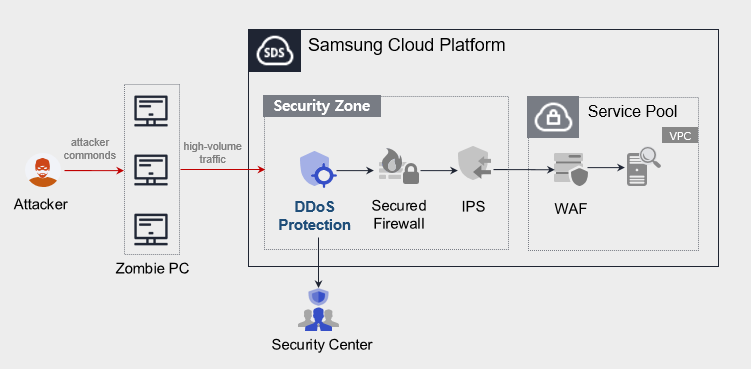
The public DDoS Protection service does not provide monitoring (Security Center).
Provided Features
We provide the following features.
- Intrusion Detection and Analysis
- 24x365 event monitoring (However, the public DDoS Protection service does not provide this content.)
- DDoS attack automatic detection
- Intrusion Response
- Provide learning-based detection and blocking for various L3/L4 level DDoS attacks
- Monitoring Information Provision
- Alarm on event detection
- Monthly report provision
Components
- DDoS Protection provides services based on public IP configured within the VPC.
- We provide services targeting servers that can be accessed via the Internet, and blocking is possible based on attacker IP.
Constraints
When providing DDoS Protection service, a minimum one-month learning period is required to set the protection threshold, and we analyze the learned thresholds to provide optimal policy settings.
Provision status by region
DDoS Protection is available in the following environments.
| Region | General (Enter) | Public |
|---|---|---|
| Korea West (kr-west1) | Provided | Not provided |
| Korea East (kr-east1) | Not provided | Not provided |
| South Korea 1 (kr-south1) | Not provided | Not provided |
| South Korea 2(kr-south2) | Not provided | Not provided |
| South Korea 3 (kr-south3) | Not provided | Provided |
Table. DDoS Protection regional provision status
Preliminary Service
- DDoS Protection service list that must be pre-configured before creating the service. For details, refer to the guide provided for each service and prepare in advance.
- When creating a VPC’s Internet Gateway, you must select SIGW (Secure Internet Gateway) in the category to be able to use DDoS Protection.
Caution
- When creating a VPC’s Internet Gateway, if you select Internet Gateway in the ‘Category’, you cannot use the DDoS Protection service.
- if changed to Secure Internet Gateway, you need to change the public IP you are using.
| Service Category | Service | Detailed Description |
|---|---|---|
| Networking | VPC | A service that provides an independent virtual network in a cloud environment |
Table. DDoS Protection Preliminary Service
7.2 - How-to guides
The user can apply for the service by entering the required information for using the DDoS Protection service through the Samsung Cloud Platform Console.
DDoS Protection Create
You can apply for and use the DDoS Protection service on the Samsung Cloud Platform Console.
To request DDoS Protection service creation, follow the steps below.
- All Services > Security > DDoS Protection Click the menu. Navigate to DDoS Protection’s Service Home page.
- Click the DDoS Protection Service Request button on the Service Home page. Navigate to the Support Center > Service Request List > Service Request page.
- Service Request page, enter or select the relevant information in the required input fields.
- In the task category, select Create DDoS Protection.
Input Item Detailed Description Title Enter the title of the service request content - Example: DDoS Protection service creation request
Region Select the location of Samsung Cloud Platform - Automatically filled with the region corresponding to the Account
Service Select the service category and service. If the DDoS Protection service request button is pressed, it is entered automatically - Service Category: Security
- Service: DDoS Protection
Task Category Select the type you want to request - Create DDoS Protection: select when requesting a new service
Content Guide to creating basic customer information and application process - Content to be written: End customer/MSP information
Attachment Upload the completed DDoS Protection service application form (required) and any additional files you wish to share - Each attachment can be up to 5MB, with a maximum of 5 files
- Only doc, docx, xls, xlsx, ppt, ppts, hwp, txt, pdf, jpg, jpeg, png, gif, tif files are allowed
Table. DDoS Protection Service Creation Request Items
- In the task category, select Create DDoS Protection.
- After checking the application process and reference information, click the Form Download > Service Request Form Download button to download the DDoS Protection Service Application Form.
- DDoS Protection service application form please fill out.
- Refer to the item descriptions in the Application Information and Control Information tabs, and fill out the required items.
Category Detailed Content Application Information Fill in required items such as application type, usage period, basic information, etc. - Application Type: Select Application
- Usage Period: Desired start date, contract status, expected usage period input
- Basic Information: Account name, Project name, recipient information input
Monitoring Information Write required items such as protected target IP, exception handling IP, etc. (need to specify purpose per IP) - Write application classification per IP
- New: select when applying for a new service
- Public-facing customers do not need to fill out
Table. DDoS Protection service creation application form main contents
- Refer to the item descriptions in the Application Information and Control Information tabs, and fill out the required items.
- Attach the completed application form in the attachment area.
- On the service request page, click the Request button.
- When the application is completed, check the applied content on the Support Center > Service Request List page.
- After the monitoring officer verifies the submitted service request, the process for using the service proceeds.
- DDoS Protection service will be launched.
DDoS Protection Cancel
If you want to request termination of DDoS Protection service, follow the steps below.
- All Services > Management > Support Center Click the menu. Support Center > Service Home Navigate to the page.
- Support Center Service Home on the page click the Service Request button. Navigate to the Service Request List page.
- Service Request List page, click the Service Request button. Service Request page will be opened.
- Service Request on the page, enter or select the relevant information in the required input fields.
- In the task category, please select DDoS Protection cancellation.
Input Item Detailed Description Title Enter the title of the service request content - Example: DDoS Protection service termination request
Region Select the location of Samsung Cloud Platform - Automatically filled with the region corresponding to the Account
Service Select service category and service - Service Category: Security
- Service: DDoS Protection
Task Category Select the type you want to request - DDoS Protection termination: select if you want to cancel the service
Content Guide to creating and applying basic customer information - Content to write: End customer/MSP information
Attachment Upload the completed DDoS Protection service application form (required) and any additional files you wish to share - Each attached file must be within 5 MB, and up to 5 files can be attached
- Only doc, docx, xls, xlsx, ppt, ppts, hwp, txt, pdf, jpg, jpeg, png, gif, tif files can be attached
Table. Table. DDoS Protection service termination request items
- In the task category, please select DDoS Protection cancellation.
- After checking the Application Process and Reference Information, click the Form Download > Service Request Form Download button to download the DDoS Protection Service Application Form.
- DDoS Protection service application form please fill out.
- Refer to the item descriptions in the Application Information and Control Information tabs, and fill out the required fields.
Category Details Application Information Application type, usage period, basic information, etc. required items fill - Application type: Select termination
- Usage period: Enter desired termination date
- Basic information: Account name, Project name, Recipient information
Control Information No input required when terminating the entire service Table. DDoS Protection Service Termination Application Form Main Contents
- Refer to the item descriptions in the Application Information and Control Information tabs, and fill out the required fields.
- Attach the completed application form to the attachment section.
- Click the request button on the service request page.
- When the application is completed, check the applied content on the Support Center > Service Request list page.
- After the monitoring staff verifies the submitted service request, if the monitored IP/policy is deleted, the termination process is completed.
- Service termination takes 3 business days, including the cancellation request date.
7.3 - Release Note
DDoS Protection
2025.07.01
NEW
DDoS Protection Service Official Version Release- We are launching a DDoS Protection service that provides detection and response to large-scale network traffic attacks.
8 - IPS
8.1 - Overview
Service Overview
IPS(Intrusion Prevention System) continuously updates IPS intrusion detection policies reflecting the latest security threats to respond in real time. Additionally, it detects up to the application layer through packet monitoring.
Features
- Latest Attack Type Detection: Generate detection patterns for new threats, and improve detection rate through continuous signature management. Apply the TI DB of security specialist companies and self-developed advanced detection policies, and provide services by correlational analysis of the relationship between attack patterns detected by IPS and patterns set in SIEM (Security Information and Event Management).
- Cloud Optimized Operations: We provide detection services optimized for cloud environments. When a security threat occurs, we respond quickly through security professionals.
- Efficient response and support: Monthly reports are provided to check the details of the event.
Configuration diagram
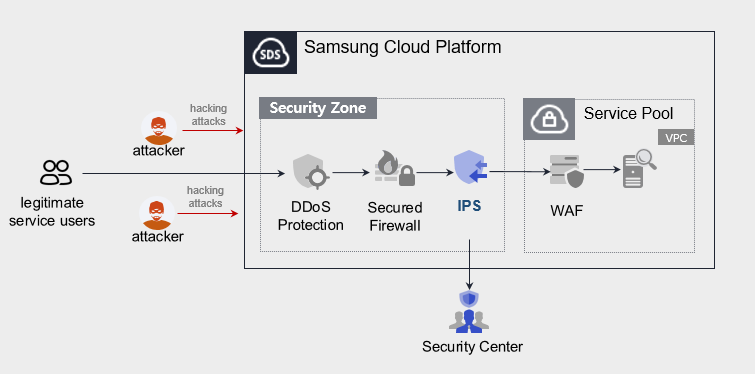
The public IPS service does not provide monitoring (Security Center).
Provided Features
We provide the following features.
- Intrusion Detection and Analysis
- In-depth analysis through raw data
- New threat detection pattern update reflecting external trend information
- Periodic detection pattern optimization
- Monitoring Information Provision
- Monthly report provision
- Intrusion response
- Provide IP information of attack attempts on SCP client servers
Components
- IPS provides services based on public IP configured within the VPC.
- We provide services targeting servers that can be accessed via the Internet, and when a user requests a service, we refer to the server (Virtual Server) specifications listed in the service application form.
Constraints
IPS provides detection based on traffic that is not encrypted with HTTP. It does not provide monitoring for traffic encrypted with HTTS SSL.
The public IPS service does not provide monitoring (Security Center).
Provision status by region
IPS can be provided in the environment below.
| Region | Normal (Enter) | Public |
|---|---|---|
| Korea West (kr-west1) | Provided | Not provided |
| Korea East (kr-east1) | Not provided | Not provided |
| Korea South 1 (kr-south1) | Not provided | Provided |
| South Korea South 2(kr-south2) | Not provided | Provided |
| South Korea South3 (kr-south3) | Not provided | Provided |
Table. IPS Region-wise Provision Status
Preceding Service
- This is a list of services that must be pre-configured before creating the IPS service. For details, refer to the guide provided for each service and prepare in advance.
- When creating a VPC’s Internet Gateway, you must select SIGW (Secure Internet Gateway) in the category to be able to use IPS.
Caution
- When creating a VPC’s Internet Gateway, if you select Internet Gateway in the ‘Category’, you cannot use the IPS service.
- If you change to Secure Internet Gateway, you need to change the public IP you are using.
| Service Category | Service | Detailed Description |
|---|---|---|
| Networking | VPC | A service that provides an independent virtual network in a cloud environment |
Table. IPS Pre-service
8.2 - How-to guides
The user can apply for the service by entering the required information for using the IPS service through the Samsung Cloud Platform Console.
Create IPS
You can apply for the IPS service and use it from the Samsung Cloud Platform Console.
To request IPS service creation, follow the steps below.
- All Services > Security > IPS Click the menu. Navigate to the IPS Service Home page.
- Service Home on the page, click the IPS Service Request button. Navigate to the Support Center > Service Request List > Service Request page.
- Service Request page, please enter or select the relevant information in the required input fields.
- Please select IPS creation in the work category.
Input Item Detailed Description Title Enter the title of the service request content - Example: IPS service creation request
Region Select the location of Samsung Cloud Platform - Automatically filled with the region corresponding to the Account
Service Select the service category and service. If the IPS service request button is pressed, it is entered automatically - Service Category: Security
- Service: IPS
Task Classification Select the type you want to request - IPS creation: select when requesting a new service
Content Guidance on creating and applying basic customer information - Content to be written: End customer/MSP information
Attachment Upload the completed IPS service application (required) and any additional files you wish to share - Each attached file can be up to 5 MB, with a maximum of 5 files
- Only doc, docx, xls, xlsx, ppt, ppts, hwp, txt, pdf, jpg, jpeg, png, gif, tif files can be attached
Table. IPS Service Creation Request Items
- Please select IPS creation in the work category.
- After checking the application process and reference information, click the Form Download > Service Request Form Download button to download the IPS Service Application Form.
- IPS Service Application Form please fill out.
- Refer to the item-by-item description of the Application Information and Control Information tabs, and fill out the required fields.
Category Details Application Information Fill in required items such as application type, usage period, basic information, etc. - Application type: select application
- Usage period: enter desired start date, contract status, expected usage period
- Basic information: enter Account name, Project name, recipient information
Monitoring Information Write required items such as protected target IP, exception handling IP, etc. (Purpose per IP required) - Write application classification per IP
- New: select when applying for a new service
- Public customers do not need to fill out
Table. IPS Service Creation Application Form Main Contents
- Refer to the item-by-item description of the Application Information and Control Information tabs, and fill out the required fields.
- Attach the completed application form in the attachment area.
- On the service request page, click the Request button.
- When the application is completed, check the requested details on the Support Center > Service Request List page.
- After the monitoring officer verifies the submitted service request, the process for using the service proceeds.
- IPS service will be launched.
Cancel IPS
To request termination of the IPS service, follow the steps below.
- All Services > Management > Support Center Click the menu. Support Center > Service Home Navigate to the page.
- Support Center Service Home on the page, click the Service Request button. Navigate to the Service Request List page.
- Service Request List page, click the Service Request button. Service Request page will be opened.
- Service Request page, enter or select the required information in the mandatory input fields.
- Select IPS termination in the work type.
Input Item Detailed Description Title Enter the title of the service request content - Example: IPS service termination request
Region Select the location of Samsung Cloud Platform - Automatically filled with the region corresponding to the Account
Service Select service category and service - Service Category: Security
- Service: IPS
Task Category Select the type you want to request - IPS termination: select if canceling the service
Content Guidance on creating and applying basic customer information - Content to be written: End customer/MSP information
Attachment Upload the completed IPS service application (required) and any additional files you want to share - Each attached file can be up to 5 MB, with a maximum of 5 files
- Only doc, docx, xls, xlsx, ppt, ppts, hwp, txt, pdf, jpg, jpeg, png, gif, tif files can be attached
Table. Table. IPS Service Termination Request Items
- Select IPS termination in the work type.
- After checking the Application Process and Reference Information, click the Form Download > Service Request Form Download button to download the IPS Service Application Form.
- IPS Service Application Form please fill out.
- Refer to the item-by-item description of the Application Information and Control Information tabs, and fill out the required fields.
Category Detailed Content Application Information Fill in required items such as application type, usage period, basic information - Application type: Termination selected
- Usage period: Enter desired termination date
- Basic information: Account name, Project name, recipient information
Control Information When the entire service is cancelled, no input is required Table. Main contents of IPS service termination application form
- Refer to the item-by-item description of the Application Information and Control Information tabs, and fill out the required fields.
- Attach the completed application form in the attachment area.
- Click the request button on the service request page.
- When the application is completed, check the applied content on the Support Center > Service Request list page.
- After the monitoring staff verifies the submitted service request, the termination process is completed once the monitored IP is deleted.
- Service termination takes 3 business days, including the cancellation request date.
8.3 - Release Note
IPS
2025.07.01
NEW
IPS Service Official Version Release- Launched an IPS service that continuously updates IPS intrusion detection policies reflecting the latest security threats and responds in real-time.
9 - Secured Firewall
9.1 - Overview
Service Overview
Secured Firewall is a next-generation firewall service for cloud network security provided by Samsung Cloud Platform. It manages network access to servers based on IP address/port policies, and supports detailed analysis in the event of a security incident.
Special Features
- Diverse Network Environment Protection: Supports setting robust network security policies to safely protect cloud assets. Detects and blocks based on IP, protocol/port-based ACL policies, providing a secure network communication environment.
- Easy and simple network management: You can easily establish firewall policies, and conveniently create and manage applied rules such as source/destination IP, protocol/port, inbound/outbound, etc.
- Security expert-based firewall policy implementation: We support establishing firewall policies optimized for customers’ systems migrating to the cloud. We provide a service where we receive firewall policy requests from customers to more easily apply security policies in the cloud environment, and security professionals reflect the policies.
- Security Authentication Product-Based Service: You can use firewall services that meet various networks and requirements for internet connectivity and ensure an optimized security environment. This safely protects the internal network from unauthorized access.
Diagram
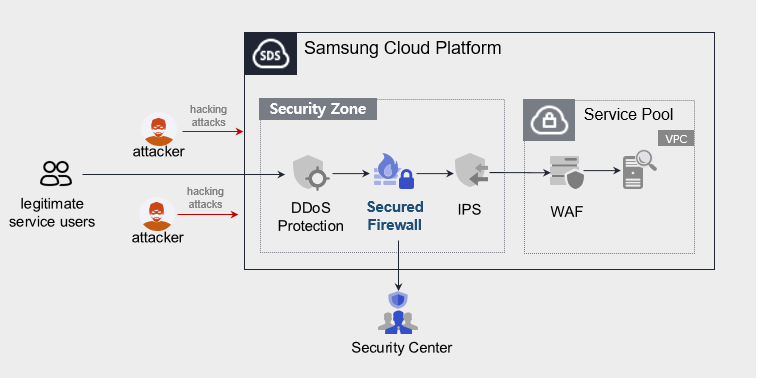
Public-oriented Secured Firewall service does not provide monitoring (Security Center).
Provided Features
We provide the following features.
- Cloud Optimized Firewall
- Apply domain policy considering cloud environment
- Apply firewall rules and logging
- Monitoring Information Provision
- Monthly report provision
Components
- Secured Firewall provides services based on public IP configured within the VPC.
- We provide services targeting servers that can be accessed via the Internet, and when a user requests a service, we provide it based on the server (Virtual Server) specifications listed in the service application form.
Constraints
- Firewall policy applications cannot be applied for in the Samsung Cloud Platform Console.
- We will send the application form to the email you registered when applying for the service. Please refer to the form to proceed with the firewall application.
- Access control management of the system built inside the Pool (Security Group, etc. firewall policy management) must be performed by the customer directly.
Provision status by region
Secured Firewall is available in the environment below.
| Region | General (Enter) | Public |
|---|---|---|
| Korea West (kr-west1) | Provided | Not provided |
| Korea East (kr-east1) | Not provided | Not provided |
| Korea South 1 (kr-south1) | Not provided | Provided |
| South Korea South2(kr-south2) | Not provided | Provided |
| South Korea South3(kr-south3) | Not provided | Provided |
Table. Secured Firewall Provision Status by Region
Preliminary Service
- This is a list of services that must be pre-configured before creating the Secured Firewall service. For details, refer to the guide provided for each service and prepare in advance.
- When creating a VPC’s Internet Gateway, you must select SIGW (Secure Internet Gateway) in the type to be able to use Secured Firewall.
Caution
- When creating a VPC’s Internet Gateway, if you select Internet Gateway in the ‘Category’, you cannot use the Secured Firewall service.
- If you change to Secure Internet Gateway, you need to change the public IP you are using.
| Service Category | Service | Detailed Description |
|---|---|---|
| Networking | VPC | Service that protects web applications from web vulnerabilities and attacks |
Table. Secured Firewall Preliminary Service
9.2 - How-to guides
The user can apply for the service by entering the required information for using the Secured Firewall service through the Samsung Cloud Platform Console.
Secured Firewall Create
You can apply for and use the Secured Firewall service on the Samsung Cloud Platform Console.
Secured Firewall If you want to request service creation, follow the steps below.
All Services > Security > Secured Firewall Click the menu. Navigate to the Service Home page of Secured Firewall.
Click the Secured Firewall Service Request button on the Service Home page. Navigate to the Support Center > Service Request List > Service Request page.
Service Request page, enter or select the relevant information in the required input fields.
- In the work category, select Secured Firewall creation.
Input Item Detailed Description Title Enter the title of the service request content - Example: Secured Firewall service creation request
Region Select the location of Samsung Cloud Platform - Automatically filled with the region corresponding to the Account
Service Select the service category and service. Secured Firewall service request button is pressed, it is entered automatically - Service Category: Security
- Service: Secured Firewall
Task Category Select the type you want to request - Create Secured Firewall: select when requesting a new service
Content Guidance on creating and applying customer basic information - Content to write: End customer/MSP information
Attachment Upload the completed Secured Firewall service application (required) and any additional files you wish to share - Each attached file must be within 5MB, and up to 5 files can be attached
- Only doc, docx, xls, xlsx, ppt, ppts, hwp, txt, pdf, jpg, jpeg, png, gif, tif files can be attached
Table. Secured Firewall service creation request items
- In the work category, select Secured Firewall creation.
After checking the application process and reference information, click the Form Download > Service Request Form Download button to download the Secured Firewall Service Application Form.
Secured Firewall service application form please fill out.
- Refer to the item descriptions in the Application Information and Control Information tabs, and fill out the required items.
Category Details Application Information Fill in required items such as application type, usage period, basic information - Application Type: Select Application
- Usage Period: Desired start date, contract status, expected usage period input
- Basic Information: Account name, Project name, recipient information input
Monitoring Information Write required items such as protected target IP, exception handling IP, etc. (need to specify purpose per IP) - Write application classification per IP
- New: select when applying for a new service
- Public customers do not need to fill out
Table. Secured Firewall Service Creation Application Form Main Contents
- Refer to the item descriptions in the Application Information and Control Information tabs, and fill out the required items.
Attach the completed application form in the attachment area.
On the service request page, click the Request button.
- When the application is completed, check the applied content on the Support Center > Service Request List page.
After the monitoring officer verifies the submitted service request, the process for using the service proceeds.
Secured Firewall service will be launched.
Secured Firewall Cancel
Secured Firewall To request service termination, follow the steps below.
- All Services > Management > Support Center Click the menu. Support Center > Service Home Go to the page.
- Support Center Service Home on the page, click the Service Request button. Navigate to the Service Request List page.
- Service Request List page, click the Service Request button. It navigates to the Service Request page.
- Service Request page, enter or select the relevant information in the required input fields.
- In the work category, select Secured Firewall termination.
Input Item Detailed Description Title Enter the title of the service request content - Example: Secured Firewall service termination request
Region Select the location of Samsung Cloud Platform - Automatically filled with the region corresponding to the Account
Service Select service category and service - Service Category: Security
- Service: Secured Firewall
Task Category Select the type you want to request - Secured Firewall termination: select if you are terminating the service
Content Guidance on creating and applying customer basic information - Content: End customer/MSP information
Attachment Upload the completed Secured Firewall service application (required) and any additional files you wish to share - Each attached file must be within 5 MB, and up to 5 files can be attached
- Only doc, docx, xls, xlsx, ppt, ppts, hwp, txt, pdf, jpg, jpeg, png, gif, tif files can be attached
Table. Table. Secured Firewall service termination request items
- In the work category, select Secured Firewall termination.
- Application Process and Reference Information after checking, click the Form Download > Service Request Form Download button to download the Secured Firewall Service Application Form.
- Secured Firewall Service Application Form please fill out.
- Refer to the item descriptions in the Application Information and Control Information tabs, and fill out the required items.
Category Detailed Content Application Information Fill in required items such as application type, usage period, basic information, etc. - Application type: Select termination
- Usage period: Enter desired termination date
- Basic information: Account name, Project name, Recipient information
Control information When the entire service is terminated, no input is required Table. Secured Firewall Service Termination Application Form Key Contents
- Refer to the item descriptions in the Application Information and Control Information tabs, and fill out the required items.
- Attach the completed application form in the attachment area.
- On the service request page, click the Request button.
- When the application is completed, check the submitted details on the Support Center > Service Request list page.
- After the monitoring staff verifies the submitted service request, the termination process is completed once the monitored IP is deleted.
- Service termination takes 3 business days, including the cancellation request date.
9.3 - Release Note
Secured Firewall
2025.07.01
NEW
Secured Firewall Service Official Version Released- Samsung Cloud Platform has released Secured Firewall, a next-generation firewall service for cloud network security.
10 - Secured VPN
10.1 - Overview
Service Overview
Secured VPN (Virtual Private Network) is a service that securely connects external customer networks and the Samsung Cloud Platform network through an encrypted virtual private network. Authenticated customer networks can securely access the Samsung Cloud Platform at any time via a secure channel.
Features
- Rapid Service Provision: To ensure a secure VPN communication link between the customer’s network and the Samsung Cloud Platform, a dedicated VPN device must be deployed, and during deployment, we provide installation support services by security specialists.
- Secure Access: Provides a virtual network tunnel equipped with certified authentication devices and nationally certified encryption modules that have been verified for performance and stability, allowing customers to safely connect from their external network to the internal network built on the Samsung Cloud Platform.
- Convenient operating environment: Providing network configuration and VPN operation services optimized for the customer’s environment by security experts, we provide an operating environment that enables easier use of VPN services.
Configuration diagram
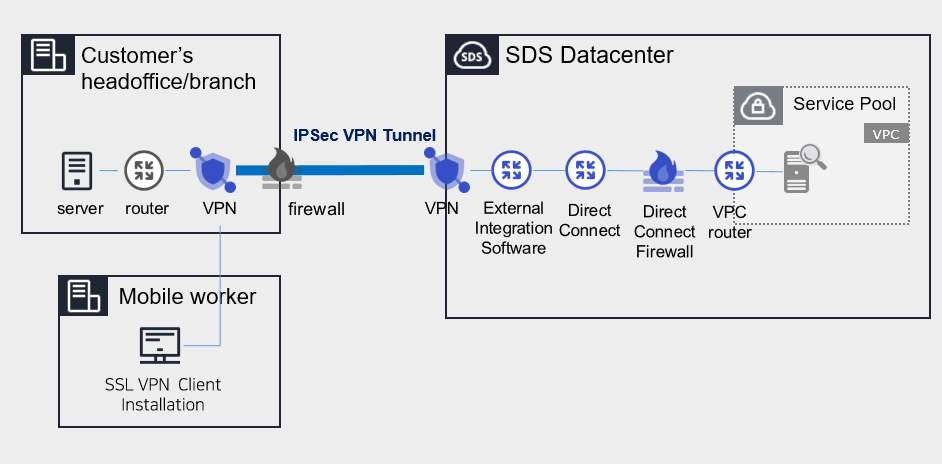
Provided Features
We provide the following features.
- IPSec VPN provision
- IPSec VPN provided with nationally validated cryptographic module
- Virtual Private Gateway creation
- to connect the internal cloud network with the customer’s network, create Virtual Private Gateway
- Select traffic bandwidth for bidirectional communication considering network scale
- VPN Tunnel Creation
- IPsec VPN Gateway Redundant configuration ensures service continuity in case of failure
Components
Secured VPN(Virtual Private Network) is composed of a center VPN managed by SDS and a branch VPN installed within the customer’s internal network, providing services.
Constraints
- The center VPN equipment is a shared device used by many customers, and it cannot be used if it overlaps with VPC ranges used by other client companies or ranges currently used in Samsung Cloud Platform. Customers who need to use the Secured VPN service, please check the available range in advance.
- Samsung Cloud Platform usage range: 172.16.0.0/12, 192.168.240.0/20
- Example: Customer A has applied for and is using the 10.0.0.1/24 range, and when Customer B newly applies for Secured VPN, the 10.0.0.1/24 range cannot be used. Need to check available ranges in advance and configure VPC range accordingly.
Reference
- To check the available band, go to Console > Support Center > Contact or inquire via mssp.scp@samsung.com.
- After checking the available range, SDS changes the IP by processing NAT on the branch VPN (rental). However, if the branch VPN equipment was purchased directly by the customer, the NAT setting is performed by the customer.
- MSP adds the NATed IP to the VPC routing rule in the Samsung Cloud Platform Console.
- Check if the branch VPN and Samsung Cloud Platform IP ranges overlap. If the destination IP range is included in the source IP range, the router will send traffic internally instead of externally, making communication impossible.
- The branch VPN is provided as a rental of SECUI equipment, and a separate cost is incurred when renting the equipment. If the client has VPN equipment in use, it is necessary to verify whether non-SECUI vendor equipment is compatible with the center VPN equipment (SECUI).
- For matters related to compatibility testing other than SECUI equipment, Console > Support Center > Contact Us or contact via mssp.scp@samsung.com.
Provision status by region
Secured VPN is available in the following environment.
| Region | General (Enter) | Public |
|---|---|---|
| Korea West (kr-west1) | Provided | Not provided |
| Korea East (kr-east1) | Not provided | Not provided |
| Korea South1(kr-south1) | Not provided | Provided |
| South Korea 2 (kr-south2) | Not provided | Provided |
| South Korea 3 (kr-south3) | Not provided | Provided |
Table. Secured VPN Provision status by region
Preceding Service
Before creating the Secured VPN service, this is a list of services that must be pre-configured. For details, refer to the guide provided for each service and prepare in advance.
- When creating Direct Connect, create a connection to the target VPC and DCon-VPN.
| Service Category | Service | Detailed Description |
|---|---|---|
| Networking | Direct Connect | A service that safely and quickly connects the customer’s network with Samsung Cloud Platform |
Table. Secured VPN Preliminary Service
- Secured VPN service usage requires configuration work for communication between the customer’s Office (On-premise) and the customer’s VPC within Samsung Cloud Platform. Please follow the process below, including external integration software and VPN settings, Direct Connect firewall opening, etc., to apply for an Uplink line.
- Application path : Console > Support Center > Service request
- Service : Networking > Direct Connect
- Work classification : Uplink line request
Note
Direct Connect creation and Uplink line application must be completed to use Secured VPN service.
10.2 - How-to guides
The user can create the service by entering the required information for using the Secured VPN (Virtual Private Network) service through the Samsung Cloud Platform Console.
Secured VPN Create
You can apply for and use the Secured VPN service from the Samsung Cloud Platform Console.
To request the creation of a Secured VPN service, follow the steps below.
All Services > Security > Secured VPN Click the menu. Go to the Secured VPN Service Home page.
Service Home page, click the Secured VPN Service Request button. Navigate to the Support Center > Service Request List > Service Request page.
Service Request page, enter or select the relevant information in the required input fields.
- In the task category, select Secured VPN creation.
Input Item Detailed Description Title Enter the title of the service request content - Example: Secured VPN service creation request
Region Select the location of Samsung Cloud Platform - Automatically filled with the region corresponding to the Account
Service Select the service category and service. If the Secured VPN service request button is pressed, it is entered automatically - Service Category: Security
- Service: Secured VPN
Task Category Select the type you want to request - Secured VPN creation: select when requesting a new service
Content Guidance on creating and applying basic customer information - Content to write: End customer/MSP information
Attachment Upload the completed Secured VPN service application form (required) and any additional files you wish to share - Each attached file can be up to 5 MB, with a maximum of 5 files
- Only doc, docx, xls, xlsx, ppt, ppts, hwp, txt, pdf, jpg, jpeg, png, gif, tif files can be attached
Table. Secured VPN Service Creation Request Items
- In the task category, select Secured VPN creation.
After checking the application process and reference information, click the Form Download > Service Request Form Download button to download the Secured VPN Service Application Form.
Secured VPN service application form please fill it out.
- Refer to the item descriptions in the Application Information and Control Information tabs, and fill out the required items.
Category Details Application Information Fill in required items such as application type, usage period, basic information, etc. - Application type: select application
- Usage period: enter desired start date
- Guaranteed bandwidth: select bandwidth
- Basic information: enter Account name, Project name, recipient information
Control information Common application information, same model/different model connection application information, etc. Fill required items (need to specify purpose per IP) - Same-model connection application information: when connecting SECUI equipment
- Different-model connection application information: when connecting equipment other than SECUI
Table. Secured VPN Service Creation Application Form Main Contents
- Refer to the item descriptions in the Application Information and Control Information tabs, and fill out the required items.
Attach the completed application form in the attachment area.
On the service request page, click the Request button.
- When the application is completed, check the submitted details on the Support Center > Service Request List page.
After the monitoring officer verifies the submitted service request, the process for using the service proceeds.
Secured VPN service will be launched.
Secured VPN Cancel
If you want to request termination of Secured VPN service, follow the steps below.
- All Services > Management > Support Center Click the menu. Support Center > Service Home Navigate to the page.
- Support Center Service Home on the page click the Service Request button. Service Request List page navigate.
- Service Request List page, click the Service Request button. Service Request page will be opened.
- Service Request page, enter or select the relevant information in the required input fields.
- In the work category, please select Secured VPN termination.
Input Item Detailed Description Title Enter the title of the service request content - Example: Secured VPN Service Termination Request
Region Select the location of Samsung Cloud Platform - Automatically filled with the region corresponding to the Account
Service Select service category and service - Service Category: Security
- Service: Secured VPN
Task Category Select the type you want to request - Secured VPN termination: select if you want to terminate the service
Content Guidance on creating and applying basic customer information - Content to write: End customer/MSP information
Attachment Upload the completed Secured VPN service application form (required) and any additional files you wish to share - Each attached file can be up to 5 MB, with a maximum of 5 files
- Only doc, docx, xls, xlsx, ppt, ppts, hwp, txt, pdf, jpg, jpeg, png, gif, tif files can be attached
Table. Table. Secured VPN Service Termination Request Items
- In the work category, please select Secured VPN termination.
- Application Process and Reference Information after checking, click the Form Download > Service Request Form Download button to download the Secured VPN Service Application Form.
- Secured VPN Service Application please fill out.
- Refer to the item descriptions in the Application Information and Control Information tabs, and fill out the required items.
Category Detailed Content Application Information Fill in required items such as application type, usage period, basic information, etc. - Application type: select termination
- Usage period: enter desired termination date
- Guaranteed bandwidth: select the bandwidth applied for
- Basic information: enter Account name, Project name, recipient information
Control Information When terminating the entire service, no input is required Table. Secured VPN Service Termination Application Form Main Contents
- Refer to the item descriptions in the Application Information and Control Information tabs, and fill out the required items.
- Attach the completed application form in the attachment area.
- On the service request page, click the Request button.
- When the application is completed, check the applied content on the Support Center > Service Request list page.
- After the monitoring staff verifies the submitted service request, if the monitored target IP is deleted, the termination process is completed.
- Service termination takes 3 business days, including the cancellation request date.
10.2.1 - Secured VPN Construction Process Guide
To initiate the Secured VPN service, it is necessary to proceed with the installation of the branch VPN in the customer’s band and then perform the connection inspection work. However, if you have a directly operated VPN, you do not need to perform the connection inspection work. Please refer to the process below to apply for the Secured VPN service.
Caution
When using the Secured VPN service, please check the restrictions.
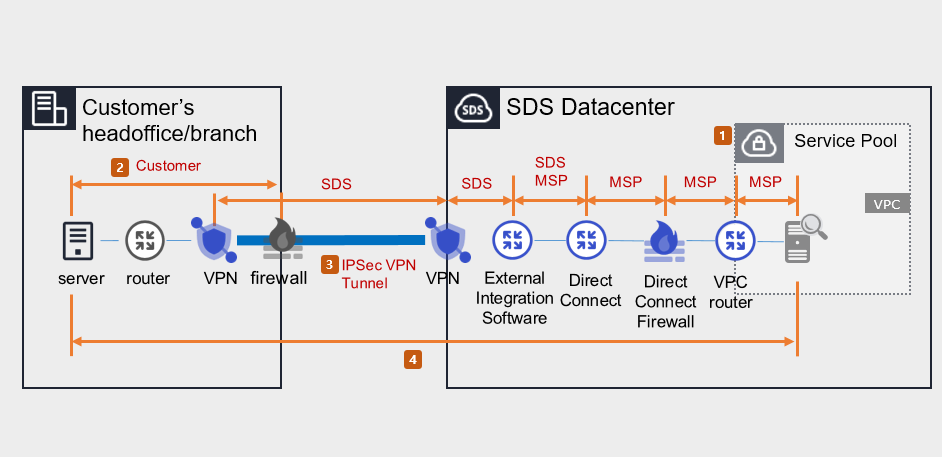
1. Samsung Cloud Platform Console work (MSP performance)
- Apply for Direct Connect.
- Create a connection target VPC and DCon-VPN connection.
- Apply for Uplink line.
- Application purpose: This is a setup work for communication between the customer’s Office (On-premise) and the customer VPC within the Samsung Cloud Platform.
- Application path: Console > Support Center > Service Request should be selected.
- Service: Networking > Direct Connect
- Work classification: Uplink line application
- Please inquire about the construction period and Uplink line work schedule through Console > Support Center > Contact Us.
- Set up routing, such as Firewall, Security Group, Direct Connect, etc.
2. Routing and Firewall Settings (Customer Implementation)
- Set up routing between the customer’s Office internal subnet and branch VPN, and configure the customer’s firewall. Prior consultation is required for routing and firewall settings. (SDS → MSP → Customer Company)
- Set up the Samsung Cloud Platform bandwidth and the customer’s Office bandwidth to allow for two-way communication.
3. Installation of customer’s VPN equipment and tunnel opening (MSP/SDS performance)
When installing VPM equipment for customer companies, you can use SDS equipment for rent or use your own equipment. Please check the process suitable for the situation.
Case 1) Using the branch VPN equipment as SECUI leased equipment provided by SDS
- Check the specifications, quantity, schedule, and installation location of the leased VPN equipment.(MSP→SDS)
- Request to create a pre-installation environment survey for VPN installation.(SDS → MSP)
- Visit the customer’s site and install SECUI leased VPN equipment.(SDS)
- Open a tunnel between the branch VPN and the center VPN.(SDS)
Case 2) When using the branch VPN equipment as the customer’s own equipment
- Check the specifications and schedule of the branch VPN equipment.(MSP→SDS)
- Request equipment compatibility, IPSec VPN license/equipment settings. (SDS → Customer/MSP)
- Open a tunnel between the branch VPN and the center VPN.(Customer/SDS)
Reference
- In case the customer requests a VPN installation work plan, please inquire through Console > Support Center > Contact Us or mssp.scp@samsung.com.
- Please proceed with the work in compliance with the National Intelligence Service VPN installation guide and security review standards.
4. End-to-End test (MSP/SDS execution)
- Check and share the test schedule after installing the branch VPN equipment (or setting up existing equipment) and share it. (SDS → MSP)
- Check the communication between the branch VPN device and VPC (both directions).
Caution
The End-to-End test may fail due to reasons such as not applying for an uplink line, customer routing and firewall setting errors, etc.
10.3 - Release Note
Secured VPN
2025.07.01
NEW
Official Release of Secured VPN Service- Launched Secured VPN service that securely connects the customer network outside and the cloud network of Samsung Cloud Platform through an encrypted virtual private network.
11 - FPMS
11.1 - Overview
Service Overview
FPMS(Firewall Policy Management System) is a firewall operation automation service for efficient and safe operation of firewalls in various cloud environments. It automates all processes that operators are currently performing manually, eliminating human errors and failures, and reducing the user’s service lead time.
Features
- Failure Prevention: Prevent human errors that may occur when manually registering firewall policies, and check if the IP, Port information, etc. of the application information is a value that conforms to grammar and structure, thereby converting it to the correct data to prevent failures in advance.
- Improved Operational Convenience: It provides features such as automating firewall policy application and replicating the applied policy to another firewall for duplication configuration. It can be used to enable policies to be used only for a certain period of time using the firewall policy expiration feature provided by FPMS, and provides features such as automatic deletion of inactive policies, which can reduce the operational burden of personnel.
- Firewall Policy Optimization: Optimizes the firewall policy being applied by utilizing optimization algorithms, and also checks for duplicate or permanent policies to prevent unnecessary rule applications.
- Continuous Security Enhancement: Analyze and diagnose excessive open policies, expired or unmanaged policies, and quantify the scores by department to easily grasp the vulnerability status. Additionally, the vulnerability handling guide enables continuous security enhancement.
Service Composition Diagram
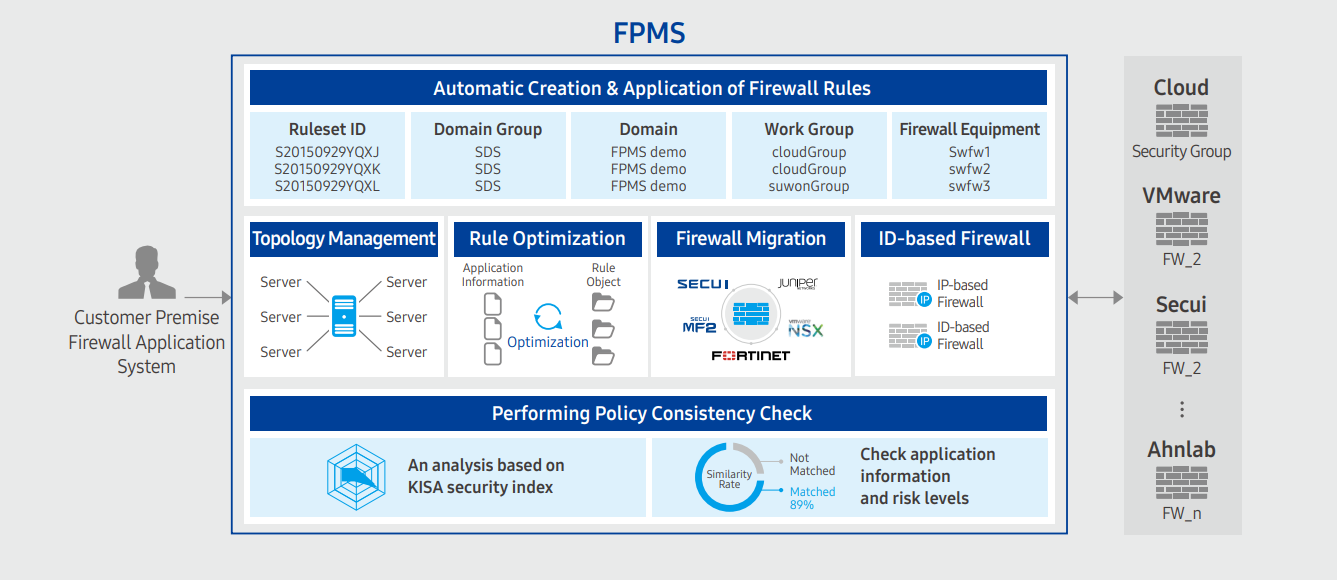
Provided Features
FPMS provides the following functions.
- Policy Management
- Policy change history management and real-time monitoring
- Policy search and policy expiration management
- Policy Auto Registration
- Check application information consistency and automatic conversion
- Network operation/security standard inspection and conversion
- Automatic creation/application of rules based on firewall vendor characteristics
- Policy Optimization
- Remove duplicates of policy address/port/protocol
- Policy pattern analysis optimization
- Analysis of unused/expired/duplicate policies
- Policy Security Analysis
- Provides security index results by firewall policy
- Analyze the similarity between application information and policy, and report risks after analysis
Component
Firewall
FPMS can register and manage firewalls in operation.
- It is necessary to check if the firewall is connectable before registration. (Check manufacturer, model name, OS version)
- FPMS uses API to access firewall devices and put in policies or retrieve information. To do this, the firewall operator must create a linked account on the firewall device and set up API settings or check information to enable access.
Firewall Application System
To retrieve the firewall application data, FPMS and the application system must be linked.
Constraints
The limitations of the FPMS service are as follows. Please confirm the limitations below before use and reflect them in your service usage plan.
- A separate infrastructure must be prepared for the installation and provision of FPMS services.
- VM and DBMS configuration for Web/App services and data storage are required.
Regional Provision Status
FPMS can be provided in the following environment.
| Region | Availability |
|---|---|
| Western Korea(kr-west1) | Provided |
| Korea East(kr-east1) | Provided |
| South Korea 1(kr-south1) | Not provided |
| South Korea, southern region 2(kr-south2) | Not provided |
| South Korea southern region 3(kr-south3) | Not provided |
Table. FPMS Regional Provision Status
Preceding service
FPMS has no preceding service.
11.2 - How-to guides
The user can create the service by entering the necessary information to receive the FPMS service through the Samsung Cloud Platform Console.
Create FPMS
You can create and use the FPMS service in the Samsung Cloud Platform Console.
To request the creation of an FPMS service, follow the following procedure.
- Click all services > Security > FPMS menu. It moves to the Service Home page of FPMS.
- Service Home page, click the FPMS Service Request button. It moves to the Support Center > Service Request List > Service Request page.
- Service Request page, enter or select the corresponding information in the required input field.
- Select FPMS Service Creation in the work division.
| Input Item | Detailed Description |
|---|---|
| Title | Enter the title of the service request content
|
| Region | Select the location of Samsung Cloud Platform |
| Service | Select service group and service. If the FPMS service request button is pressed, it is automatically entered
|
| Work Division | Select the work you want to request
|
| Content | Check the service application process and notes, and enter the detailed application content |
| Attachments | If you have additional files you want to share for service application, you can upload them
|
Table. FPMS Service Creation Request Items
- Check the required information entered on the Service Request page and click the Request button. Once the FPMS service application is completed, the FPMS dedicated technical support manager will contact you by email for FMPS installation and usage settings. After checking the details with the FPMS dedicated technical support person in charge, FPMS installation and related system linkage work will be proceeded.
FPMS Application History Check
After applying for the FPMS service, you can check the detailed history and processing process.
To check the FPMS service application history, follow the following procedure.
- Click all services > Support Center menu. It moves to the Service Home page of Support Center.
- On the Service Home page, click the Service Request menu. It moves to the Service Request List page.
- On the Service Request List page, select the application item. It moves to the Service Request Details page.
- Service Request Details page to check the details and processing procedure.
Guide
FPMS detailed information can be found in a separate FPMS management portal.
- The management portal address will be sent separately by email after the FPMS installation is completed by the person in charge.
Cancel FPMS
To request the cancellation of FPMS service, please follow the following procedure.
- Click All Services > Security > FPMS menu. It moves to the Service Home page of FPMS.
- On the Service Home page, click the FPMS Service Request button. It moves to the Support Center > Service Request List > Service Request page.
- Service Request page, enter or select the corresponding information in the required input area.
- Select FPMS Service Cancellation in the work classification.
| Input Item | Detailed Description |
|---|---|
| Title | Enter the title of the service request content
|
| Region | Select the location of Samsung Cloud Platform |
| Service | Select service group and service. If the FPMS service request button is pressed, it is automatically entered
|
| Work Classification | Select the work you want to request
|
| Content | Check the service cancellation process and notes, and enter the detailed application content |
| Attachments | If you have any additional files you would like to share for service cancellation, please upload them
|
Table. Table. FPMS Service Cancellation Request Items
- On the Service Request page, check the required information entered and click the Request button.
- Once the FPMS service cancellation application is completed, the FPMS dedicated technical support person in charge will confirm and proceed with the FPMS service cancellation and deletion work.
11.3 - Release Note
FPMS
2025.12.16
FEATURE
Add firewall and Security Group registration feature, improve SecuAI firewall support- A feature has been added that allows registering the firewall and Security Group of the Samsung Cloud Platform Console to FPMS for management.
- SecuEye firewall v3.7 support (anyzone) feature has been improved.
2025.07.01
NEW
FPMS Service Official Version Release- We have launched the Firewall Policy Management System (FPMS) service for automating firewall operation tasks to efficiently and safely operate firewalls in various cloud environments.
12 - Secrets Manager
12.1 - Overview
Service Overview
Secrets Manager is a service that encrypts customers’ sensitive information as Secrets (secure information) and stores and manages it safely. It removes hardcoding of important information in application source code, and allows you to call and retrieve Secrets stored safely in a Key-Value format. Secrets are encrypted with user-managed keys in conjunction with Key Management Service and stored securely.
Service Architecture Diagram
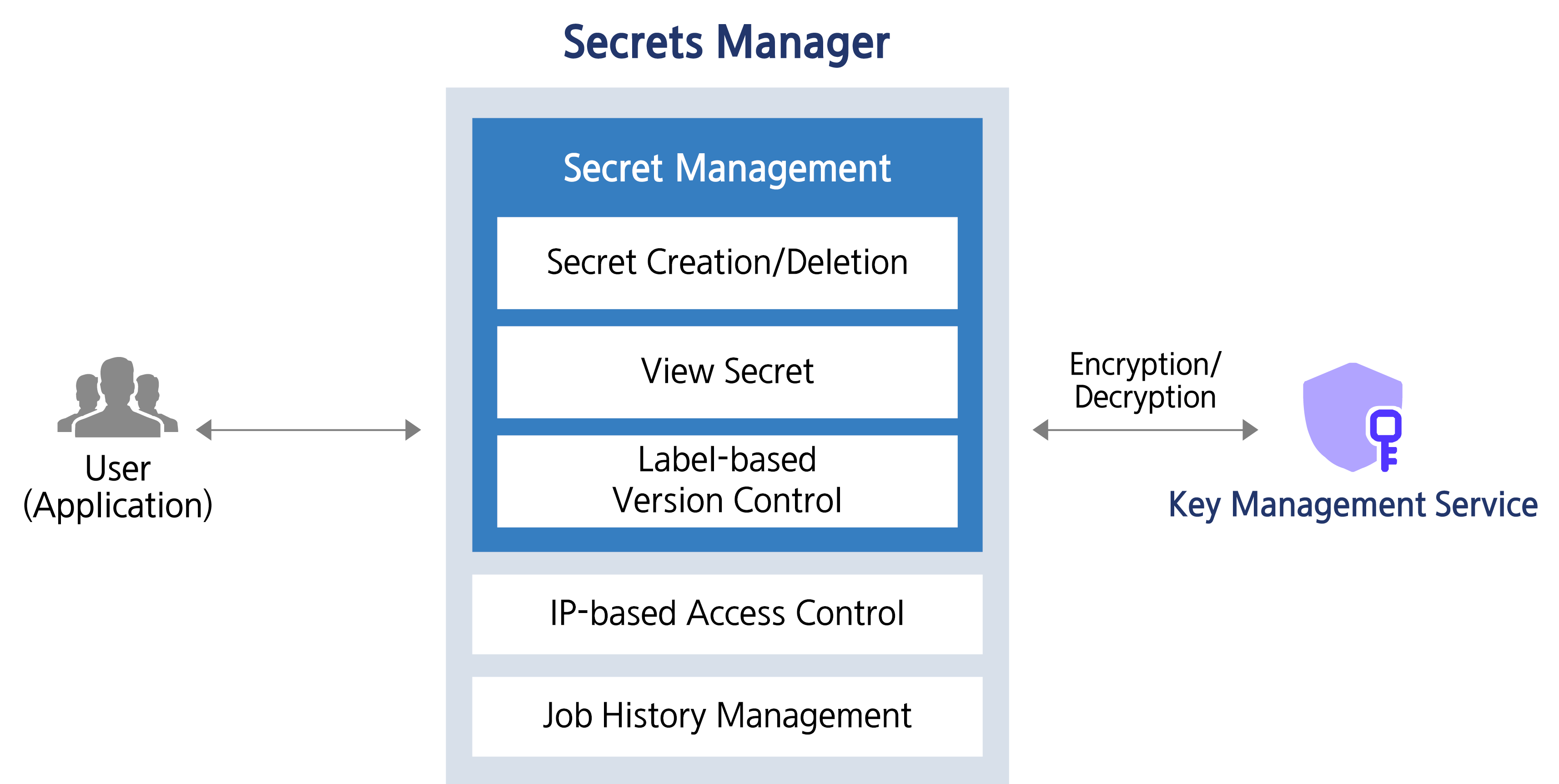
Provided Features
Secrets Manager provides the following features.
- Secret creation/deletion: Secrets Manager can create/delete and manage Secrets. Users store security (sensitive) information in Key/Value form in the created Secret.
- Secret lookup: You can view the Secret value based on custom policies and permissions.
- Label-based version control: You can set a label on the version, which is a snapshot of unique data generated each time a Secret is modified, allowing you to manage Secrets more efficiently.
Components
Secret
It stores the logical unit for sensitive (important) information by encrypting security information values in Key/Value form with a KMS key.
- Secret is an object created through the creation of a Secrets Manager product service in the Samsung Cloud Platform Console.
Version
It is a snapshot of unique data that is newly created each time a Secret is modified (the unit that stores the actual value of the Secret).
Label
It is a name tag or label attached to a specific version of a Secret (a pointer for referencing a specific version).
Constraints
Secrets Manager service constraints are as follows. Before use, be sure to check the constraints below and reflect them in your service usage plan.
Reference
- Secrets Manager is a regional service, and the created Secret can only be used within that region.
- As of December 2025, Secrets Manager provides only public endpoints via Open API. In the future, we plan to provide private endpoints that can be connected based on Samsung Cloud Platform resources.
| Item | Detailed Description | Quota |
|---|---|---|
| Secret Value Size | Size of encrypted Secret value | 65,536 |
| Secrets | Number of Secrets per region in an Account | 500,000 |
| Attached Labels for Secret | Number of Labels attached to all versions of Secret | 20 |
| Versions per Secret | Number of Secret versions | 100 |
Table. Secrets Manager Constraints
Pre-service
Secrets Manager has no prerequisite service.
12.2 - How-to guides
The user can enter the required information for the Secrets Manager service through the Samsung Cloud Platform Console, select detailed options, and create the service.
Secrets Manager Create
You can create and use Secrets Manager from the Samsung Cloud Platform Console.
To create a Secrets Manager, follow the steps below.
Click the All Services > Security > Secrets Manager menu. Go to the Service Home page of Secrets Manager.
Click the Secrets Manager Create button on the Service Home page. You will be taken to the Secrets Manager Create page.
Secrets Manager creation 페이지에서 서비스 생성에 필요한 정보들을 입력하고 추가 정보를 입력하세요.
- Enter service information area, input or select the required information.CategoryRequired
Detailed description Secret name Required Enter Secret name Type Required Select the type you want to manage encrypted with Secret from the list Key/Value input Required Enter a pair of Secret information’s Key/Value - + Click to add up to 10
- X Click to delete the entry
Encryption Key Required Select the KMS key to use when encrypting the Secret from the list - Choose a key created in the KMS service from the list. Or click +Create New to create a KMS key
- Only KMS keys for encryption/decryption can be selected. The selectable encryption/decryption KMS key types are encryption/decryption (AES-256), encryption/decryption and signing/verification (RSA-2048), encryption/decryption (ARIA) – three types
- When entering Key/Value, input must be within 64 KB; registration is not allowed if the size exceeds this limit
- For detailed information on creating a KMS key, refer to Create KMS Key
Allowed Access IP Required Enter allowed access IP - After entering the IP address, click the Add button to register up to 10
- Click the Delete All button to remove all IP entries from the list
- You can register the 0.0.0.0/24 - 0.0.0.0/32 range, but it may be vulnerable to security
Description Option Enter additional information for Secret Table. Secrets Manager service information input items - Additional Information Input area, enter or select the required information.
Category RequiredDetailed description Tag Select Add Tag - Up to 50 can be added per resource
- After clicking the Add Tag button, enter or select Key, Value values
Table. Secrets Manager Additional Information Input Items
- Enter service information area, input or select the required information.
Summary Check the detailed information and estimated billing amount generated in the panel, and click the Complete button.
- When creation is complete, check the created resource on the Secrets Manager List page.
Secrets Manager View Detailed Information
Secrets Manager can view and edit the full list of resources and detailed information. Secrets Manager Details page consists of Detail Information, Version, Tag, Operation History tabs.
To view the detailed information of Secrets Manager, follow these steps.
- All Services > Security > Secrets Manager 메뉴를 클릭하세요. Secrets Manager의 Service Home 페이지로 이동합니다.
- Click the Secrets Manager menu on the Service Home page. Navigate to the Secrets Manager List page.
- Click the resource to view detailed information on the Secrets Manager List page. You will be taken to the Secrets Manager Details page.
- Secrets Manager Details At the top of the page, status information and descriptions of additional features are displayed.
Category Detailed description Status Displays the status of Secrets Manager - Active: Available/Active
- To be Terminated: Scheduled for deletion
Service termination Button to cancel the service Table. Secrets Manager status information and additional features
- Secrets Manager Details At the top of the page, status information and descriptions of additional features are displayed.
Detailed Information
On the Secrets Manager List page, you can view the detailed information of the selected resource and, if necessary, edit the information.
Category | Detailed description |
|---|---|
| Service | Service Name |
| Resource Type | Resource Type |
| SRN | Unique resource ID in Samsung Cloud Platform |
| Resource Name | Resource Name |
| Resource ID | Unique resource ID in the service |
| Creator | User who created the service |
| Creation Date/Time | Service Creation Date/Time |
| Editor | User who modified the service |
| Modification Date/Time | Service Modification Date/Time |
| Secret | Name of the generated Secret |
| Secret value | Entered Secret value
|
| Type | Type of the generated Secret |
| Recent search timestamp | Recent search timestamp of the generated Secret |
| Encryption Key | Display the KMS key name selected by the user
|
| Allowed Access IP (CIDR) | Display registered access control IP information
|
| Description | Display additional description for Secret
|
Table. Secrets Manager Detailed Information Tab Items
Version
On the Secrets Manager List page, you can use labels to track the version of a selected secret.
Reference
Refer to the definition of each item when checking the version information of Secret Manager.
- Secret: Logical unit that stores sensitive (important) information
- Version: A snapshot of unique data generated each time the Secret is modified (the unit that stores the actual value of the Secret)
- Label: name tag or tag attached to a specific version of a Secret (a pointer to reference a specific version)
| Category | Detailed description |
|---|---|
| Version ID | Displays the ID of the current version, previous version, and the version with a custom label (Custom Label) set
|
| Label | Secret version display
|
| Last Access Time | Secret’s Recent Access Time |
| Creation Time | Secret’s creation time |
Table. Secrets Manager version tab items
Caution
The constraints when using the Secret version are as follows.
- Up to 100 versions can be stored per Secret. If the number of versions exceeds 100, regardless of whether a custom label is set, the oldest versions will be deleted.
- For important versions with custom labels, create a new Secret before the version is deleted due to quota exceedance, and configure the running application to reference the new Secret.
Tag
Secrets Manager List page allows you to view the tag information of the selected resource, and you can add, modify, or delete it.
| Category | Detailed description |
|---|---|
| Tag List | Tag List
|
Table. Secrets Manager tag tab items
Work History
You can view the operation history of the selected resource on the Secrets Manager list page.
| Category | Detailed description |
|---|---|
| Work Details | Work Execution Content |
| Work Date/Time | Task Execution Date/Time |
| Resource Type | Resource Type |
| Resource Name | Resource Name |
| Work Result | Task Execution Result (Success/Failure) |
| Operator Information | Information of the user who performed the work |
Table. Secrets Manager job history tab detailed information items
Secrets Manager Cancel
You can cancel the unused Secrets Manager.
Caution
If you cancel Secret Manager, you cannot use any features of Secrets Manager, and it will be permanently deleted after the cancellation waiting period. During the cancellation waiting period, the Secret cannot be searched.
To cancel Secrets Manager, follow the steps below.
- All Services > Security > Secrets Manager 메뉴를 클릭하세요. Secrets Manager의 Service Home 페이지로 이동합니다.
- Click the Secrets Manager menu on the Service Home page. Go to the Secrets Manager List page.
- Click the resource to view detailed information on the Secrets Manager list page. It navigates to the Secrets Manager details page.
- Click the Cancel Service button on the Secrets Manager Details page. You will be taken to the Cancel Service popup.
- Service termination in the popup window, enter the cancellation waiting period and click the Confirm button.
- The termination waiting period can be entered within the range of 7 - 30 days.
- After termination is complete, check on the Secrets Manager List page whether the resource has been terminated.
Notice
If you want to reuse the Secret during the termination waiting period, click Cancel Termination in the context menu of the desired Secret item on the Secrets Manager List page.
If the termination cancellation succeeds, you can use the Secret again.
12.3 - Release Note
Secrets Manager
2025.12.16
NEW
Secrets Manager Service Official Version Release- We have launched a service that encrypts customers’ sensitive information in the form of Secret (secure information) and safely stores and manages it.
- You can remove hardcoding of security information in the application source code and call the securely stored Secret to retrieve it.
13 - Log Transmission
13.1 - Overview
Service Overview
Log Transmission collects and stores logs in real time from firewalls, IPS, DDoS security devices, and transmits them to the area needed by the customer as a service. It provides a foundation for performing security monitoring of the user area using those logs.
Features
- Security event log collection/transmission: Collect/store logs from security devices in real time and transmit security events.
- Secure Log Storage/Transmission: Log data can be stored securely, and backup and recovery are possible when needed. Collected logs are safely stored in a redundant storage, and data is utilized using VPN services, etc. Sending safely.
Diagram
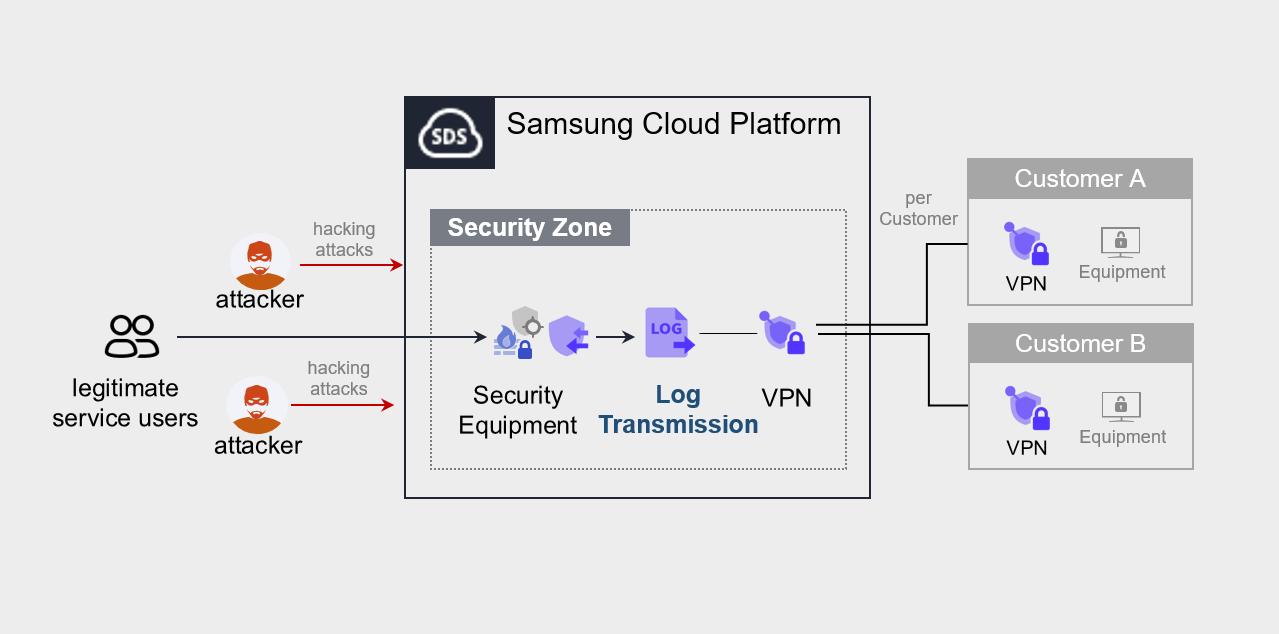
Provided Features
We provide the following features.
- Various security log source integration
- Real-time log collection from various log sources such as firewalls, IPS, DDoS security devices, etc.
- Log filtering and processing
- Filter out unnecessary logs or extract only the logs requested by the customer
Components
Log Transmission sends service log sources from Samsung Cloud Platform to the equipment or system desired by the customer.
- The service runs by connecting via VPN to the customer’s office (server room) where the device that receives the log source is located.
Constraints
To use Log Transmission, please check the following items in advance.
- Collect and send logs targeting Security products provided by Samsung Cloud Platform.
- To send logs, you must be connected via VPN to the device that will receive the logs.
Region-wise Provision Status
Log Transmission is available in the environment below.
| Region | Availability |
|---|---|
| Korea West (kr-west1) | Provided |
| Korea East (kr-east1) | Not provided |
| South Korea South1(kr-south1) | Not provided |
| South Korea South2(kr-south2) | Not provided |
| South Korea 3 (kr-south3) | Not provided |
Table. Log Transmission Regional Provision Status
Preliminary Service
This is a list of services that must be pre-configured before creating the Log Transmission service. For details, refer to the guide provided for each service and prepare in advance.
| Service Category | Service | Detailed Description |
|---|---|---|
| Networking | Direct Connect | A service that safely and quickly connects the customer’s network with Samsung Cloud Platform. |
| Security | DDoS Protection | Large-scale network traffic attack detection and response service |
| Security | IPS | A service that detects and responds to intrusions on websites and application servers in real time. |
| Security | Secured Firewall | Next-generation firewall service that meets high security requirement levels |
Table. Log Transmission Pre-service
- Log Transmission when executed, you must select the service to which logs should be sent. When the log transmission service target is determined, a VPN connection is required for secure log transmission.
- Log Transmission service usage requires configuration work for communication between the client company’s Office (On-premise) and the client VPC within Samsung Cloud Platform. Please follow the process below, such as external integration software and VPN settings, Direct Connect firewall opening, to apply for an uplink line.
- Direct Connect Create the service.
- Create a connection between the client company’s VPC and DCon-VPN.
- Apply for an uplink line for communication between the client company’s on-premise and VPC.
- Application path: Support Center > Service Request List > Service Request
- Select Service: Networking > Direct Connect
- Task type: Uplink line request
- Proceed with the routing configuration of the VPN path.
- Firewall, Security Group, Direct Connect etc. configure the necessary routing information.
Reference
Direct Connect creation and Uplink line application must be completed to use the Log Transmission service.
13.2 - How-to guides
The user can create the service by entering the required information for using the Log Transmission service through the Samsung Cloud Platform Console.
Log Transmission Create
You can apply for and use the Log Transmission service from the Samsung Cloud Platform Console.
To request the creation of the Log Transmission service, follow the steps below.
All Services > Security > Log Transmission Click the menu. Navigate to Log Transmission’s Service Home page.
Click the Log Transmission Service Request button on the Service Home page. Navigate to the Support Center > Service Request List > Service Request page.
Service Request page, enter or select the relevant information in the required input fields.
- In the work classification, select Create Log Transmission.
Input Item Detailed Description Title Enter the title of the service request content - Example: Log Transmission Service Creation Request
Region Select the location of Samsung Cloud Platform - Automatically filled with the region corresponding to the Account
Service Select the service category and service. Log Transmission service request button is pressed, it is entered automatically - Service Category: Security
- Service: Log Transmission
Task Classification Select the type you want to request - Create Log Transmission: select when requesting a new service
Content Guidance on creating and applying basic customer information - Content to write: End customer/MSP information
Attachment Upload the completed Log Transmission service application form (required) and any additional files you wish to share - Each attached file must be within 5MB, and up to 5 files can be attached
- Only doc, docx, xls, xlsx, ppt, ppts, hwp, txt, pdf, jpg, jpeg, png, gif, tif files can be attached
Table. Log Transmission Service Creation Request Items
- In the work classification, select Create Log Transmission.
After checking the application process and reference information, click the Form Download > Service Request Form Download button to download the Log Transmission Service Application Form.
Log Transmission service application form please fill out.
- Refer to the item descriptions in the Application Information and Control Information tabs, and fill out the required items.
Category Detailed Content Application Information Write required items such as application type, usage period, recipient information, etc. - Application type: select application
- Usage period: enter desired start date
- Basic information: enter Account name, Project name, recipient information
Monitoring Information Write required items such as log transmission target, client company usage IP (range), etc. - Write all items except special cases
Table. Main contents of Log Transmission service creation application form
- Refer to the item descriptions in the Application Information and Control Information tabs, and fill out the required items.
Attach the completed application form in the attachment area.
On the service request page, click the Request button.
- When the application is completed, check the applied content on the Support Center > Service Request List page.
After the monitoring officer verifies the submitted service request, the process for using the service proceeds.
Log Transmission service will be launched.
Log Transmission Check detailed information
Log Transmission service proceeds with procedures after applying through SR. Unlike other services, Log Transmission detailed information cannot be viewed in the Console.
- To view detailed information, click the Support Center > Inquiry List page’s Inquiry button. On the Inquiry page, you can write and submit your questions.
Log Transmission Cancel
To request cancellation of the Log Transmission service, follow the steps below.
- All Services > Management > Support Center Click the menu. Support Center > Service Home Navigate to the page.
- Support Center Service Home on the page, click the Service Request button. Navigate to the Service Request List page.
- Service Request List page, click the Service Request button. Service Request page will be opened.
- Service Request on the page, enter or select the relevant information in the required input fields.
- In the work classification, select Log Transmission cancellation.
Input Item Detailed Description Title Enter the title of the service request content - Example: Log Transmission Service Termination Request
Region Select the location of Samsung Cloud Platform - Automatically filled with the region corresponding to the Account
Service Select service category and service - Service Category: Security
- Service: Log Transmission
Task Classification Select the type you want to request - Log Transmission termination: select if you are terminating the service
Content Guidance on creating and applying basic customer information - Content to write: End customer/MSP information
Attachment Upload the completed Log Transmission service application form (required) and any additional files you wish to share - Each attached file can be up to 5 MB, with a maximum of 5 files
- Only doc, docx, xls, xlsx, ppt, ppts, hwp, txt, pdf, jpg, jpeg, png, gif, tif files can be attached
Table. Table. Log Transmission Service Termination Request Items
- In the work classification, select Log Transmission cancellation.
- After checking the Application Process and Reference Information, click the Form Download > Service Request Form Download button to download the Log Transmission Service Application Form.
- Log Transmission service application form please fill out.
- Refer to the item descriptions in the Application Information and Control Information tabs, and fill out the required items.
Category Details Application Information Fill in required items such as application type, usage period, recipient information, etc. - Application Type: Select Application
- Usage Period: Enter desired service termination date
- Basic Information: Enter Account name, Project name, recipient information
- Usage amount does not need to be filled
Control Information Write required items such as log transmission target, client company usage IP (range) etc. - Write all items except special cases
Table. Log Transmission Service Termination Application Form Main Contents
- Refer to the item descriptions in the Application Information and Control Information tabs, and fill out the required items.
- Attach the completed application form in the attachment area.
- On the service request page, click the Request button.
- When the application is completed, check the submitted details on the Support Center > Service Request list page.
- After the monitoring officer confirms the submitted service request, if the log transmission target and the customer’s used IP (range) are deleted, the termination process is completed.
- Service termination takes 2-3 business days, including the cancellation request date.