This is the multi-page printable view of this section. Click here to print.
Samsung Cloud Platform
- 1: New Features
- 2: Overview
- 3: Getting Started with Console
- 3.1: Log in
- 3.2: Console
- 3.3: Integrated Management
- 4: Copilot
1 - New Features
New feature
Explore the new features of the Samsung Cloud Platform Console~
Resource Management Using Copilot
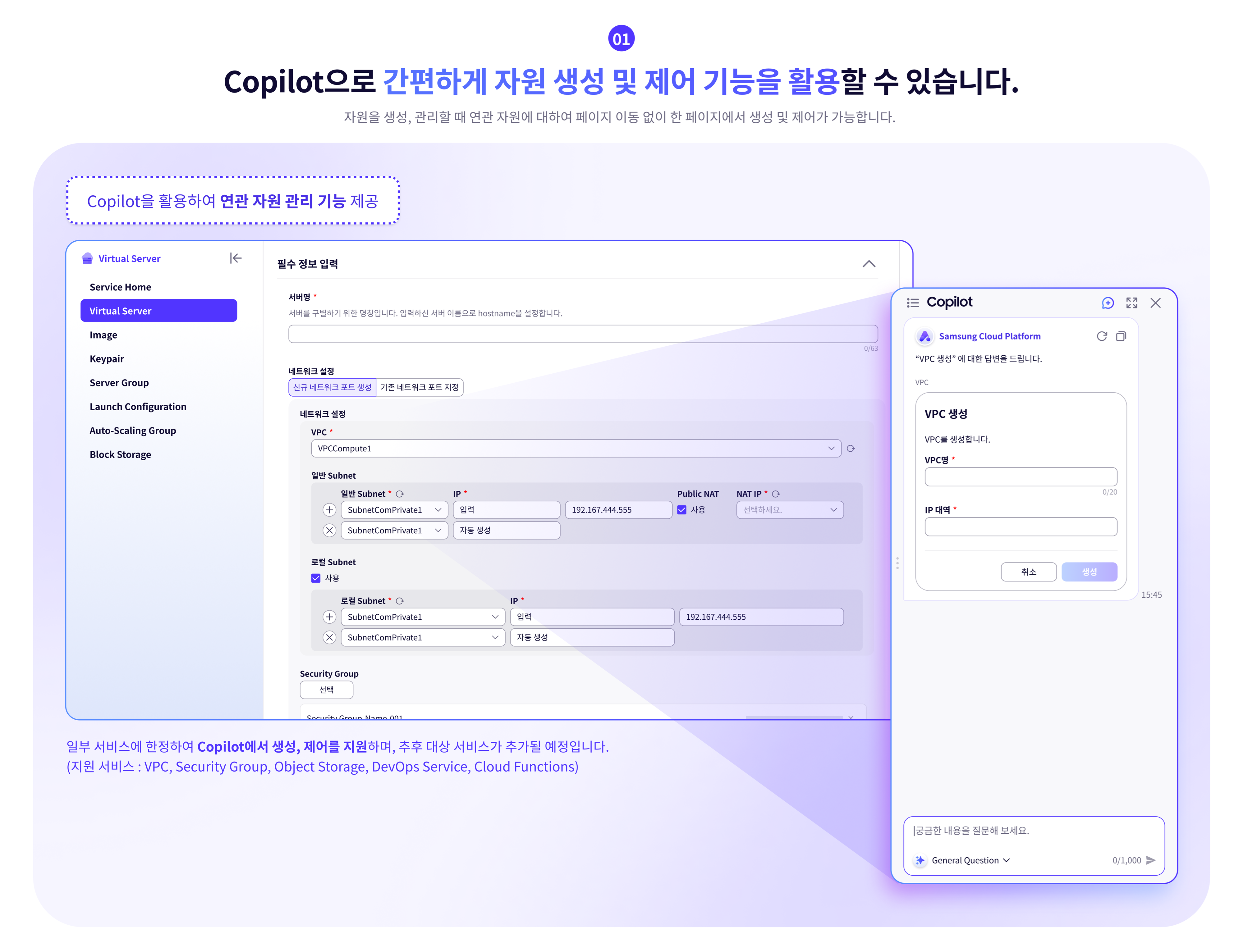
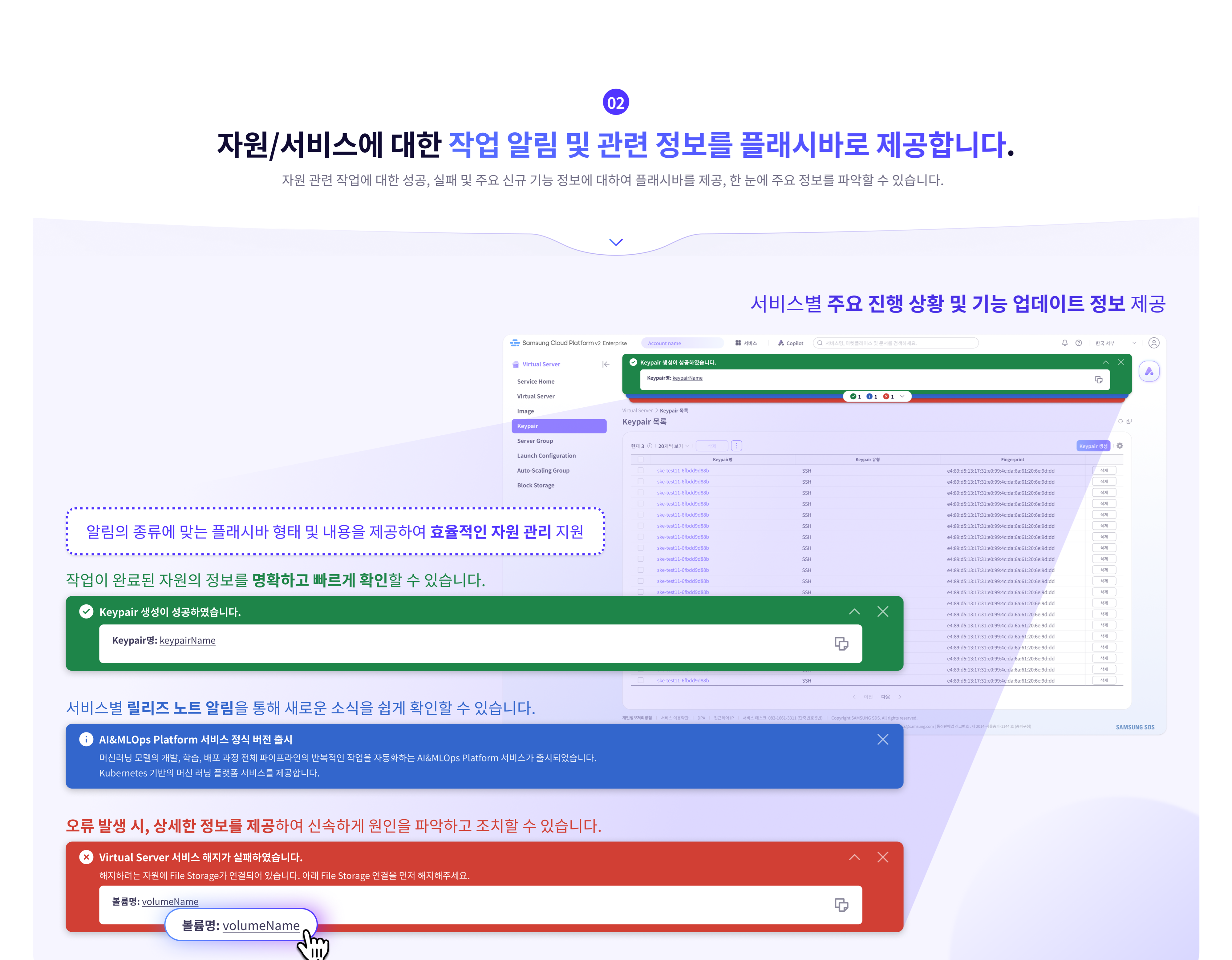
Information about resources/services
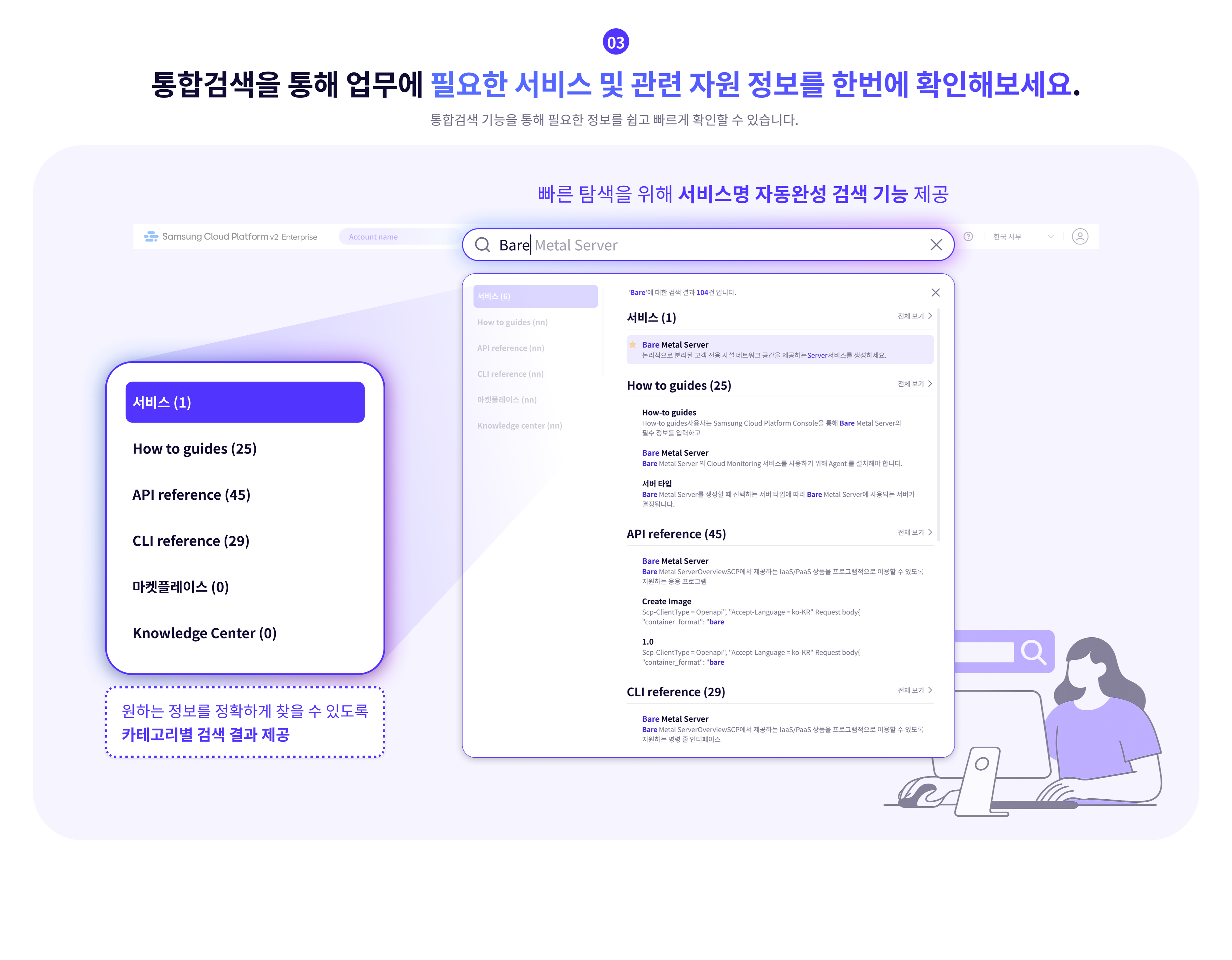
Easy and fast integrated search
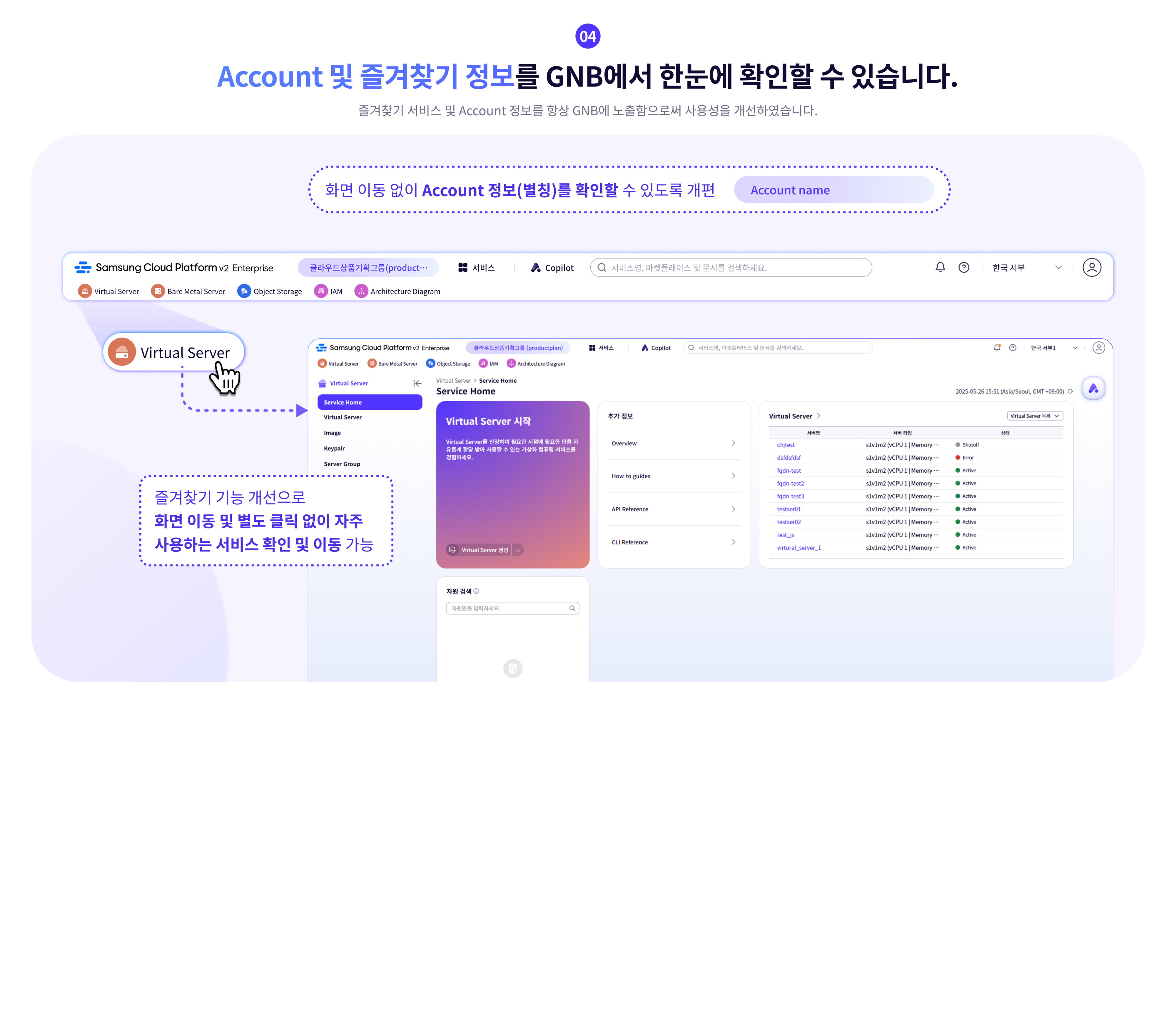
Improving accessibility of Account and Favorites
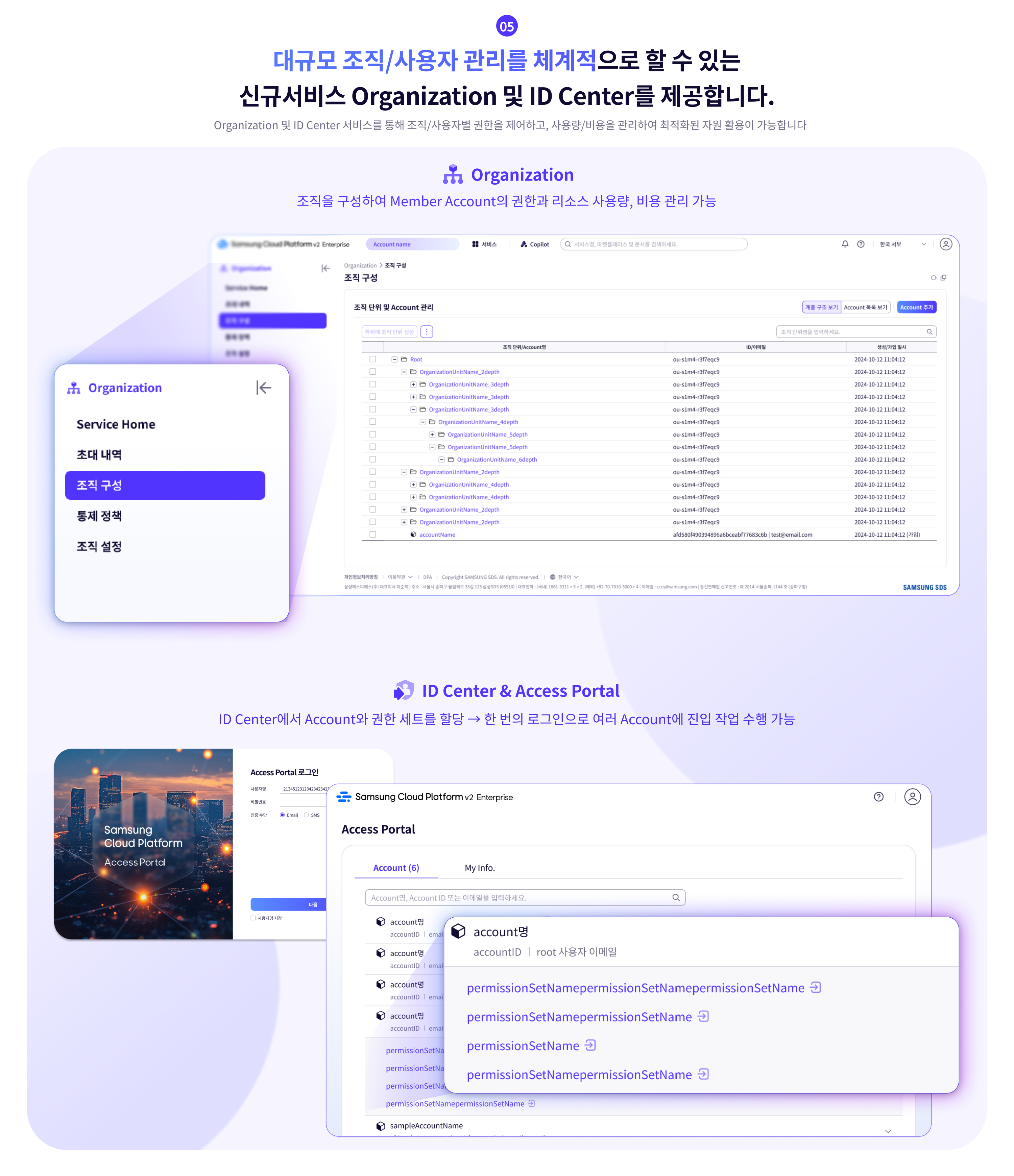
Providing services for large-scale organizations and systematic user management
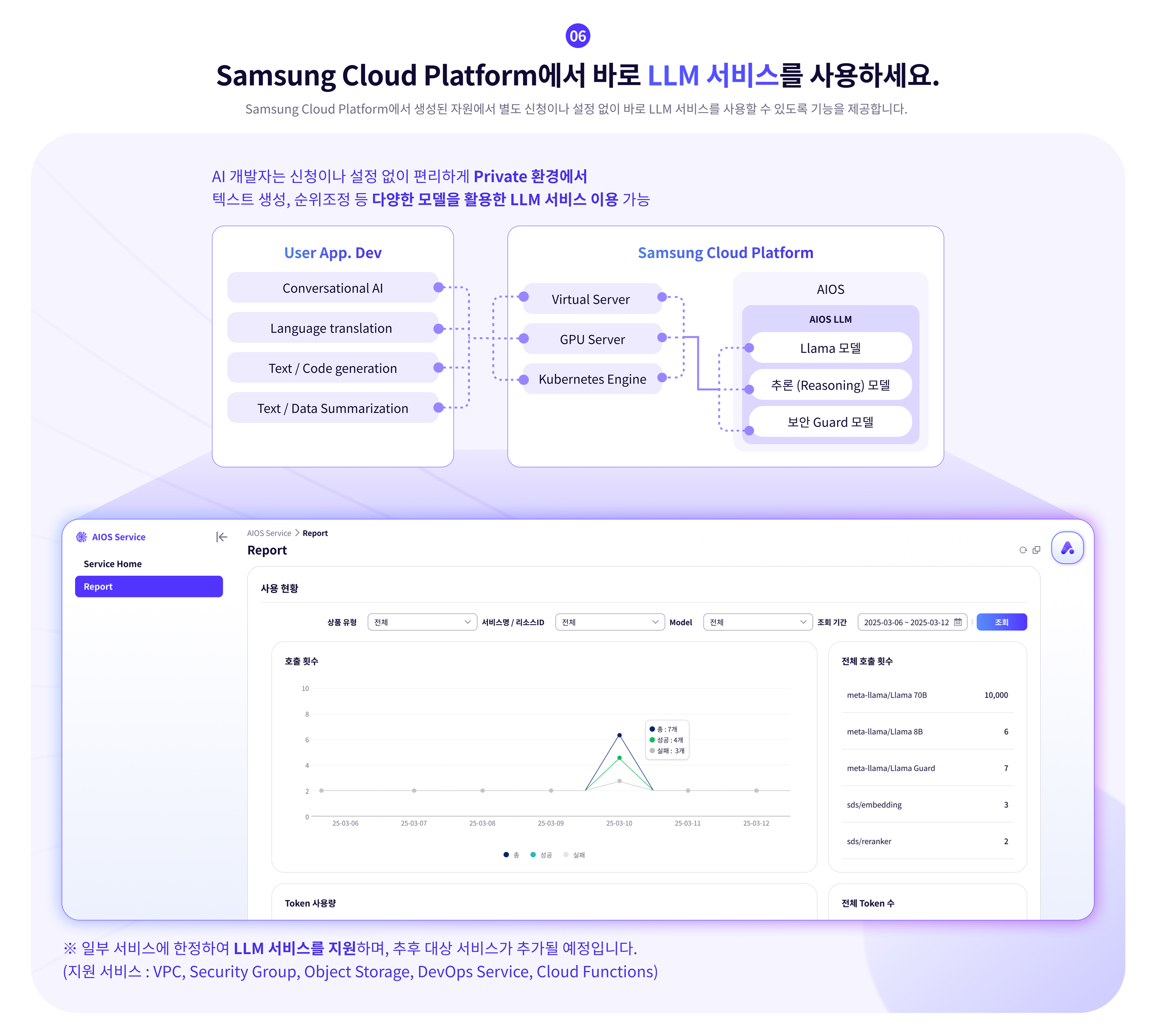
LLM service that can be used without a separate application
2 - Overview
Samsung Cloud Platform
Samsung Cloud Platform is a cloud environment that virtualizes and provides various resource pools such as computing, storage, networking, and databases needed by enterprises.
Through the Samsung Cloud Platform, you can use the required resources in a cloud environment without needing to provide hardware or physical space. Since charges are billed based on actual usage, efficient budget management is possible, and companies can reduce costs associated with building and managing their own server environments.
The main terms used in Samsung Cloud Platform are as follows.
term | Detailed description |
|---|---|
| Region | Consists of one or more data centers to ensure availability as geographically separated cloud service delivery units. |
| Account | The basic unit and billing unit required to use the Samsung Cloud Platform service |
| Root user | User who created the Account and holds top-level privileges |
| IAM user | A user with restricted permissions created by the root user within the account |
| Service | Various types of IT services and infrastructure (Compute, Storage, Network, etc.) provided by Samsung Cloud Platform |
| Resource (resource) | An individual unit entity (Entity) that is created and managed as the user uses the service. |
Component
Samsung Cloud Platform provides a Service Portal, Console, and Documentation.
Category | Detailed description |
|---|---|
| Service Portal | Service and pricing overview for Samsung Cloud Platform, as well as information such as customer support |
| Console | Self-service interface that provides functions such as creating accounts and resources, and checking costs on the Samsung Cloud Platform. |
| Documetation | As a documentation service for Samsung Cloud Platform, it provides user guides, API/CLI references, and more. |
region
Regions are geographically distinct units of cloud service provision, composed of one or more data centers to ensure availability. Services offered on the Samsung Cloud Platform are managed by region, so the services provided may vary slightly. Refer to the user guide for each service.
| Region name | Region |
|---|---|
| Western Korea | Korea West (kr-west1) |
| Eastern Korea | Korea East (kr-east1) |
| South Korea (administrative) | South Korea South 1 (kr-south1) |
| South Korea (public) | South Korea 2 (kr-south2) |
| South Korea (Internet) | South Korea South 3(kr-south3) |
Account
To use the Samsung Cloud Platform, you need to create an Account, which can be done through sign‑up. A user who signs up and creates an Account becomes the Account’s root user and is responsible for payment. Once you sign up and register a payment method, you can create resources.
The root user can create users in IAM and add them to user groups. Users created in this way are IAM users.
The typical flow from a user creating an account to setting up a cloud environment and performing tasks is as follows.
- When a user signs up, an Account is created and they become a Root user.
- If a root user registers a payment method, they can create resources on the Samsung Cloud Platform.
- The root user creates IAM users and adds them to user groups so they can perform tasks according to their respective permissions.
- IAM users request the required services as needed to carry out their tasks.
The detailed responsibilities for each role are as follows.
| role | Job responsibilities |
|---|---|
| Root user | User with the highest privileges of the Account
|
| IAM user | User with limited permissions within the Account
|
3 - Getting Started with Console
3.1 - Log in
To use the Samsung Cloud Platform Console, you need to create an Account, and you can create an Account through sign up. The user who registers and creates an Account becomes the Account’s root user and is responsible for the Account’s payment. You can create resources by signing up and registering a payment method. For more details, refer to 결제 수단 등록하기.
Sign up
To use the Samsung Cloud Platform Console, you need to create an Account, and you can create an Account through sign‑up. To create an Account in the Samsung Cloud Platform Console, follow these steps.
On the login page, select the user type as Root user and click the Sign Up button. 1. Go to the Sign Up page.
On the Sign Up page, complete Identity Verification.
- Click the Next button when identity verification is complete.
Item Required statusExplanation Prevent automatic input Required Enter the characters displayed in the image into the input field. email Required Email to be used as the subscriber ID - Enter the email address and click the Duplicate Check and Authentication button
Table. Personal authentication information - In Sign-up Information Input, select the region information and agree to the terms.
Item required statusExplanation Region Required Select subscriber region Agree to Terms of Service Required Check service terms agreement Consent for Collection and Use of Personal Information Required Check consent for collection and use of personal information Consent for overseas transfer of personal data Required Check whether consent for overseas transfer of personal information Are you at least 14 years old? Required Check if the user is 14 years old or older. Consent for Collection and Use of Personal Information Selection Check consent for personal data collection and use Table. Enter registration information - Enter the required item information in Member Information Input.
Item required statusExplanation ID(email) Required Email to be used as the subscriber ID - Display the email information used for identity verification
Username Required Subscriber name - Can be entered using Korean, English, numbers, and spaces within 60 characters
Account name Required Account - can be entered using Korean, English, numbers, and spaces, within 60 characters
Password Required The password that the subscriber can use must be entered within 9 to 20 characters - Include at least one uppercase letter (English), one lowercase letter (English), one digit, and one special character (
!@#$%&*^)
- The ID cannot be used as the password
- The same character cannot be used three or more times consecutively
- Passwords that are easy to guess are not allowed
- Sequences of four or more consecutive letters or numbers are not allowed
- Password change interval: 90 days
Confirm password Essential Confirm the password the subscriber will use mobile phone number Required Enter mobile phone number - Enter the mobile phone number and click the Authenticate button to issue a verification code
- Enter the verification code received on the mobile phone and click the Confirm button
- If the verification code is valid, identity verification is completed
Notification language Required Notification language settings for email, SMS, etc., provided by Samsung Cloud Platform - After logging in, change in Notification popover > Notification settings
Table. Member information input
- Click the Next button when identity verification is complete.
After entering all the information, click the Complete button, and a verification email will be sent to the entered email address.
- Click the Verify button in the received email to complete registration.
Log in
The Samsung Cloud Platform Console has two types of users: Root users and IAM users. The Root user is the user who created an account that performs tasks requiring unlimited access permissions. An IAM user is a user within an account who performs daily tasks, and the Root user can create IAM users. For detailed information about user creation, see IAM.
Log in as root user
To log in to the Samsung Cloud Platform Console as the Root user, follow the steps below.
- On the login page, select the user type as Root user, enter ID(이메일), and click the Next button.
- Go to the Root User Login page. 2. Enter the password.
- Select the method to send the verification code, and click the Send Verification Code button.
- Enter the received verification code and click the Login button.
- If the login is successful, you will be redirected to the Console Home page.
- Please enter the password and verification code correctly. * If you enter the password or verification code incorrectly five or more times, the account will be locked for security.
- If the account is locked, provide the locked account information to the user.
- When an allowed IP is configured, login from an unauthorized IP is not possible. * Access Allowed IP Not Set Click the item to disable the IP restriction.
- If you have disabled the allowed IP setting and logged in, for security, go to the Management > IAM > My info. page and reset it. * For more details, please refer to 접근 IP 관리하기.
IAM User Login
To log in to the Samsung Cloud Platform Console as an IAM user, follow these steps.
- On the login page, select the user type as IAM user, enter the Account information, and then click the Next button.
- Go to the IAM User Login page. 2. Enter IAM username and password.
- Select Authentication method, and click the Next button.
- Enter the received verification code and click the Next button.
- If the login is successful, you will be taken to the Console Home page.
- If an IAM user loses their password, they can click the Find Password button to reset the password.
- Password Recovery In the popup window, use your login information (Account information, IAM username) and the pre‑registered email account to reset your password, then log in again.
- Please enter the password and verification code correctly. * If you enter the password or verification code incorrectly five or more times, the account will be locked for security.
- If the account is locked, deliver the locked account information to the user or administrator.
- When an allowed IP is configured, login from an unauthorized IP is not possible. * Access Allowed IP Not Set Click the item to remove the IP restriction.
- If you have removed the allowed IP setting and logged in, for security, go to the Management > IAM > My info. page and reset it. * For more details, refer to 접근 IP 관리하기.
Switch user
After logging into the Samsung Cloud Platform Console, you can switch to a Root user or an IAM user.
To switch users, follow the steps below.
- Console Home on the page, click the User Switch button to the right of the Account name. 1. User Switch popup window opens.
- Click the user name you want to change among the account-specific user names. 2. A popup window notifying a user switch opens.
- After verifying the user name, click the Confirm button. 3. User transition is complete and you are redirected to the Console Home page.
Changing console language
You can set the language to use in the Samsung Cloud Platform Console.
Change on the login page
- To change the language displayed in the Samsung Cloud Platform Console, click the user language in the upper right corner of the login page, select the desired language, and then log in.
Change on the Console page
- If you are logged into the Samsung Cloud Platform Console, select the language you want to use from Language Settings > User Language Settings at the top right of the page.
Modify User Information
You can change user information such as username, password, and mobile phone number.
To edit user information, go to the My menu > My Info at the top right of the Console page. Click .
3.2 - Console
When you first log in to the Samsung Cloud Platform Console, you are taken to the Console page.
Console
On the Console page, you can view the Console Home page, and you can configure the widgets of Console Home. In the left menu of Console, Console Home and All Services provide the following functions.
| Provided features | Explanation |
|---|---|
| Console Home | The Console Home of the Console provides important information about the Samsung Cloud Platform and offers shortcut widgets for services
|
| All services | You can view all Samsung Cloud Platform service categories and service listings in the Console and navigate to the respective service
|
Console Home
When you first log in to the Samsung Cloud Platform Console, you are taken to the Console page, and on the Console page, the Console Home page is displayed by default.
Console Home is composed of widgets, and can be changed by clicking the Dashboard Settings button in the upper right corner.
| Provided features | Explanation |
|---|---|
| Welcome | Greeting and Samsung Cloud Platform introduction with main shortcut buttons
|
| Recent visit service | Recently visited services list
|
| Feature Update | Samsung Cloud Platform Console Recent update history by service
|
| Notice | Samsung Cloud Platform Console announcements
|
| Register payment method | Register a payment method to use all resources of the Samsung Cloud Platform Console
|
| This month’s usage and estimated amount | Predict this month’s estimated amount and check the billed amount
|
| Samsung Cloud Platform Main Services | List of major services provided by Samsung Cloud Platform
|
| Architecture Diagram | Provide resource information in diagram form to view inter-resource relationships at a glance
|
| This month’s carbon emissions | Carbon emission data generated when using services on the Samsung Cloud Platform Console
|
Configure Dashboard
- On the Console page, click Console Home in the left menu. 1. Navigate to the Console Home page.
- When you first log in, the default page is the Console > Console Home screen.
- On the Console Home page, click the Dashboard Settings button in the upper right corner. 2. Dashboard Settings popup window opens.
- Dashboard Settings popup’s Widget Settings where you change the items and order of the widgets displayed on Console Home.
- All widgets except the Welcome widget can have their settings changed by the user.
- If you select the widget’s checkbox, you can add it to the dashboard; if you deselect the checkbox, you can remove it from the dashboard.
- You can change the order by holding the hamburger button next to the widget name and moving it up or down.
- In the Dashboard Settings popup, selecting Select All in Widget Settings selects all widgets. * If you deselect Select All, all widgets except Welcome will be disabled.
- In the Dashboard Settings popup window’s Preview, after checking the widget changes, click the Save button.
- You can view the configured widget in the preview displayed on the right.
- Check the changed settings on the Console Home page.
All services
You can view the service categories and service list provided by Samsung Cloud Platform at a glance. Click each service name to go to the Sevice Home page of that service.
3.3 - Integrated Management
Integrated management refers to a set of functions located at the top of the Samsung Cloud Platform Console.
Integrated Management Feature
In integrated management, you can use the following features.
- In Integrated Management, you can view the service list and also see the list of services you have recently visited.
- You can converse with Copilot, and you can view notifications received in the Samsung Cloud Platform Console.
- You can view the region of the Samsung Cloud Platform and see the list of regions that can be changed.
- In the My menu, you can view the user’s information and Account information.
| Category | Detailed description |
|---|---|
| Service | Search for Samsung Cloud Platform services, etc., and navigate to the service
|
| Copilot | Copilot provided by Samsung Cloud Platform
|
| Unified Search | Samsung Cloud Platform service, Console internal documents, Marketplace, etc. search
|
| Notification | Check notifications received from the Samsung Cloud Platform Console
|
| support | Support Center, Documentation, can navigate to announcements
|
| Language Settings | Language settings can be configured for use in the Samsung Cloud Platform Console
|
| Region | You can view the region of Samsung Cloud Platform and check the list of regions that can be changed
|
| My menu | Check user and Account information
|
- On small screens such as mobile devices, you can click the More button to view the Notifications, Support Center, Documentation, Announcements, and Language Settings features.
- Copilot is available only in Korea West (kr-west1) and Korea East (kr-east1).
service
You can search for services provided by the Samsung Cloud Platform by keyword, service category, recent visits, favorites, etc., and navigate to the service.
| Category | Detailed description |
|---|---|
| Search term lookup | Search within the service using a keyword
|
| Recent visit | List of recently visited services
|
| Favorites | List of bookmarked services
|
| All services | A list where all services are sorted in ascending order. |
Add to Favorites
You can add the service to your favorites.
- Click the 서비스 button at the top of the Console. 1. Go to the Service popup window.
- In the Service popup window, search for the service you want to add to favorites in All Services or Recent Visits. 2. Click the star icon to the left of the service name to add it to favorites.
- Please verify that the star shape has been changed to yellow.
- Service > Favorites allows you to view the services you have added to your favorites.
- You can also view the services you added to favorites at the top of the Console.
- You can drag the services you added to favorites at the top of the console left or right to change their order.
Check Favorites
You can view the services added to your favorites and navigate to the corresponding service.
- Click the 서비스 button at the top of the Console. 1. service popup window will be opened.
- In the Service popup window, click Bookmark. 2. You can view the services added to your favorites.
- When you hover the mouse cursor over a service added as a favorite at the top of the Console, a description of that service is displayed.
- In Service > Favorites, click the name of the service you want to navigate to. 3. Go to the service.
- You can also click the service added to favorites at the top of the Console to navigate to that service.
Remove from favorites
You can remove services added to your favorites.
- Click the 서비스 button at the top of the Console. 1. Navigate to the Service page.
- In the service popup window, click bookmark. 2. You can view the services added to your favorites.
- Deselect the star icon to the left of the service name you added to favorites.
- You can deselect the star icon to the left of the service name anywhere within any service.
- In Service > Favorites, you can confirm that the service you unfavorited has been removed.
- The service that was unfavorited is also removed from the top of the Console.
Copilot
Copilot is a generative AI-based conversational assistant that can help understand, build, scale, and operate the Samsung Cloud Platform. In the Samsung Cloud Platform Console, you can click the Copilot icon to start a conversation with Copilot.
For more details, refer to Copilot. Below are some example questions you can ask Copilot.
Example question
- How can I check the estimated charges?
- How do I create a Virtual Server?
- Please show the list of Virtual Server resources in my Account.
- Find the 192.168.21.1 IP among Virtual Servers
- How do I add a user to a user group?
- Download cost details
- What is the estimated bill amount for this month?
Unified Search
You can easily find services and documents provided by Samsung Cloud Platform using the integrated search.
To find the desired service or document using the unified search, follow these steps.
Enter the keyword you want to search for in the integrated search box. 1. The search results popup opens.
- When you enter a keyword in the unified search box, the keyword is auto‑completed, and a popup window displaying the search results for the completed keyword opens.
- Clicking the View All button in the search results category displays all results for that category.
Category Detailed description Service, Condole documents, Marketplace Enter a keyword with at least two characters. Resource name, Resource ID Enter the resource name or resource ID you are looking for /+ resource name (or resource ID) in that format- Resource name (or resource ID) must be at least two characters
Table. How to input keywords for each search itemReference- After entering a keyword, click 코파일럿에게 질문하기 to check the keyword using Copilot.
- For detailed information about Copilot, see the Copilot 개요.
Click the information to view in the search results popup. 2. Go to the page.
The scope searchable with the unified search is as follows.
- Service and resource names, resource IDs within Samsung Cloud Platform
- User guide documentation: How-to guides, API reference, CLI reference
- Knowledge Center
- Marketplace
Notification
You can view notifications received from the Samsung Cloud Platform Console and navigate to the notification settings.
| Category | Detailed description |
|---|---|
| Notification List | The latest 10 notifications received in the Samsung Cloud Platform Console
|
| Notification Settings | Notification Settings button, when clicked, navigates to the Notification popup’s Notification Settings
|
Check notification details
- Click the 알림 button in the top right corner of the Console to view the latest 10 notifications received in the Console.
- Selecting a specific notification item from the latest 10 notifications list opens the notification detail popup.
Category Detailed description Resource name Name of the resource that generated the alert Notification type Notification Types - Announcements: notifications received about announcements
- Service: notifications received per service
- Cost Management: notifications received about Cost Management
- IAM: notifications received about IAM
- Notification Manager: notifications received about Notification Manager
- Support: notifications received about Support such as inquiries and service requests
Constructor Notification creator Notification creation timestamp Notification creation timestamp Table: Notification Detail Items
Check notification settings
- If you click the Notification button at the top right of the Console, you can view the latest 10 notifications received by the Console.
- Click the Notification Settings button next to Notification. 2. Notifications > Notification Settings navigates to the popup window.
- Notifications > Notification Settings You can view the notification settings status in the popup window.
Category Detailed description Notification language Language for receiving notifications Notification Target > Notification Type Notification types by recipient - Announcements: notifications received about announcements
- Service: notifications received per service
- Cost Management: notifications received about Cost Management
- IAM: notifications received about IAM
- Notification Manager: notifications received about Notification Manager
- Support: notifications received about Support, including inquiries and service requests
Table. Notification Settings Items
Edit Notification Settings
- If you click the 알림 button at the top right of the Console, you can view the latest 10 notifications received by the Console.
- Click the Notification Settings button next to Notification. 2. Notifications > Notification Settings navigates to the popup window.
- Notifications > Notification Settings You can view the notification settings status in the popup window.
- Notification > Notification Settings In the popup window, click the Edit button to modify the notification settings.
Category Detailed description Notification language Language for receiving notifications Notification Target > Notification Type You can select the notification type (email, SMS) to receive for each notification target. The default setting is email - Announcements: notifications received for announcements
- Service: notifications received per service
- Cost Management: notifications received about Cost Management
- IAM: notifications received about IAM
- Notification Manager: notifications received about Notification Manager
- Support: notifications received about Support such as inquiries and service requests
Table. Notification Settings Edit Items
Support
In Support, we provide Support Center, Documentation, Announcements.
- Support Center provides technical support, standard architecture, incident response, and service inquiry/response when using Samsung Cloud Platform. * Please refer to Support Center.
- Documentation is a user guide that clearly and concisely explains concepts of various services, Console usage, and utilization methods. * Please refer to the User Guide.
- Notice is the notice provided to users in the Samsung Cloud Platform Console.
Language Settings
In the language settings, you can set the language to be used in the Samsung Cloud Platform Console.
- After clicking the Language Settings button, select the language to use in the user language settings popup.
- Samsung Cloud Platform Console provides Korean and English.
Region
You can view the Samsung Cloud Platform region and see the list of regions that can be changed.
The services offered by Samsung Cloud Platform are managed by region, so the services provided may vary slightly. A region is a geographically separated unit of cloud service provision, consisting of one or more data centers to ensure availability. For certain services like Samsung Cloud Platform Console or IAM, you do not need to select a region for Global services.
| Region name | Region |
|---|---|
| Global | - |
| Western Korea | Korea West (kr-west1) |
| East Korea | Korea East (kr-east1) |
| South Korea (administrative) | South Korea 1 (kr-south1) |
| South Korea (public) | South Korea South 2 (kr-south2) |
| South Korea (Internet) | South Korea South 3 (kr-south3) |
My menu
If you click the profile-shaped button at the top right of the Console, you can view the features offered in the My menu. You can view the Account ID, IAM username, or Root username, and navigate to Account, My Info., Cost Management.
| Provided features | Explanation |
|---|---|
| Account ID | Account ID logged in to Samsung Cloud Platform Console |
| IAM username or Root username | IAM user name or Root user name logged into the Samsung Cloud Platform Console |
| Time zone | User-configured time zone
|
| Account | Account information
|
| My Info. | Provides functionality to manage users’ basic information and authentication keys. |
| Cost Management | You can view usage and billing details, payment history, and cost analysis, and manage Credit, budget, Account, and payment methods
|
| Role Switch | Can switch to another role
|
| Logout | Log out from Samsung Cloud Platform Console |
4 - Copilot
Copilot Overview
Through the generative AI-based work assistance service Copilot, you can use Samsung Cloud Platform more conveniently. Users can easily leverage Copilot using familiar interfaces and natural language, allowing them to perform tasks accurately and efficiently.
You can start a conversation with Copilot by clicking the Copilot button in the Samsung Cloud Platform Console.
- Clearly state the reason for requesting the work and the final objective to ensure an accurate response.
- To solve complex problems, request small and simple requirements incrementally.
- We use terminology used in Samsung Cloud Platform.
- Please ensure you do not enter any sensitive information related to work, as it cannot be used.
- Answers generated based on generative AI may contain inaccurate information, so be sure to review them before use.
- For general questions related to the Samsung Cloud Platform, please select General Inquiry, and for questions about the resources you are using, please select Resource Lookup.
Using Copilot
You can use Copilot via the Copilot button at the top of the Samsung Cloud Platform Console and the Copilot button at the bottom right.
You can also use Copilot via the Copilot widget on the Dashboard of the Console Home page, which is the first login screen of the Samsung Cloud Platform Console.
- Click the Copilot button at the top of the console. 1. Copilot popup window opens.
- Copilot Please check the popup window. 2. The features provided by Copilot are as follows.
Category Detailed description Ask a question > General query General questions about using Samsung Cloud Platform - Example question
- How do I create a Virtual Server?
- How can I check the estimated charges?
- What is the estimated bill for this month?
- 일반 질의하기 Reference
Ask a question > View Resource Question about resources used in Samsung Cloud Platform - Example question
- Show the list of Virtual Server resources in my Account.
- Find the 192.168.21.1 IP among the Virtual Servers
- Resource 조회하기 see
Conversation List Check the list of previous conversations - 대화 목록 확인하기 reference
Start a new conversation Start a new conversation - Start a new conversation Reference
Copilot Settings Current region information Open in a new tab Display the Copilot popup in a new tab - 새 탭에서 보기 Reference
Recommended Prompt List of recommended questions from Copilot - Use recommended prompt Reference
Add tag information Add tag information to a specific resource or project - 태그 정보 추가하기 Reference
Table. Copilot-provided featuresReference Tip- When you drag text in the Samsung Cloud Platform Console, the Copilot button appears. * Click the Copilot button to search the text using Copilot.
- On the creation page of each service, clicking the info button displayed next to an item provides a detailed guide through Copilot.
- The Copilot Recommendation feature can be enabled or disabled in My info under the My menu.
- Example question
General query
You can ask general questions about the features, usage, and other aspects provided by Samsung Cloud Platform through Copilot.
To make a general query to Copilot, follow the steps below.
- Click the Copilot button at the top of the Console. 1. Copilot popup window opens.
- Copilot popup window’s bottom prompt: select General Query and ask a comprehensive question about Samsung Cloud Platform.
- Example question
- Service that must be created in advance before creating a Virtual Server
- What network settings are required to create a Virtual Server?
- Clearly state the reason for requesting the work and the final objective to ensure an accurate response.
- To solve complex problems, start by requesting small and simple requirements step by step.
- We use terminology used in Samsung Cloud Platform.
- Please be careful not to enter any sensitive information related to work, as it cannot be used.
- Responses generated using generative AI may contain inaccurate information, so be sure to review them before use.
- For general questions related to the Samsung Cloud Platform, select General Inquiry, and for questions about the resources you are using, select Resource Lookup.
Resource Query
You can ask questions about resources created on the Samsung Cloud Platform through Copilot.
To ask Copilot a question related to Resources, follow the steps below.
- Click the Copilot button at the top of the console. 1. Copilot popup window opens.
- In the bottom prompt of the Copilot popup window, select View Resource and ask a question about resources on the Samsung Cloud Platform.
- example question
- Please show the Virtual Server list.
- Active state Load Balancer
- Clearly state the reason for requesting the work and the final objective to ensure an accurate response.
- To solve complex problems, request small and simple requirements incrementally.
- We utilize terminology used in Samsung Cloud Platform.
- Please be careful not to input any sensitive information related to work, as it cannot be used.
- Answers generated based on generative AI may contain inaccurate information, so be sure to review them before use.
- Please select General Inquiry for general questions about the Samsung Cloud Platform, and Resource Lookup for questions about the resources you are using.
Start a new conversation
You can start a new conversation with Copilot.
To start a new conversation with Copilot, follow these steps.
- Click the Copilot button at the top of the console. 1. Copilot popup window opens.
- Click the Start new conversation button in the top right corner of the Copilot popup window. 2. A new conversation is starting.
Check conversation list
You can view the list of conversations you had with Copilot.
To view the list of conversations with Copilot, follow these steps.
- Click the Copilot button at the top of the console. 1. Copilot popup window opens.
- Click the Conversation List button at the top left of the Copilot popup. 2. Conversation List expands.
- Click the conversation you want to view in the Conversation List, and you will be taken to that conversation.
Check recommended prompts
You can view the recommended prompt questions provided by Copilot.
Follow these steps to check the Copilot recommended prompt questions.
- Click the Copilot button at the top of the console. 1. Copilot Navigate to the popup window.
- In the Copilot popup, click the Recommended Prompt button on the left side of the bottom prompt. 2. Recommended Prompt The popup window opens.
- Recommended Prompt You can view the questions needed for your work in the popup window.
Category Detailed description product - Are there any prerequisite services that must be set up before creating a Virtual Server?
- What are the constraints that differ between Virtual Server and Bare Metal Server?
- Are there any precautions to take when using a Bare Metal Server?
Fee - What is the contract rate policy?
- What time period is used as the basis for rate calculation?
- How can I view the estimated charges?
member - How do I register for an IAM account?
- How can I recover my password if I forget it?
- How do I update my user information and change my password?
Other - How should the network configuration and firewall settings be set up to access the Samsung Cloud Platform Virtual Machine from an overseas local internal network?
- If there are errors or improvement suggestions while using the service, how should I contact support?
Table. Recommended Prompt Question Items
Add tag information
You can add tag information to a specific resource or project.
Follow these steps to add tag information.
Click the Copilot button at the top of the console. 1. Copilot popup window opens.
Copilot In the bottom prompt of the Copilot popup, enter the command to add tag values together with the name of the resource or project for which you want to add tag information.
- Example: Add a tag value to Virtual Server Project1
Copilot After entering the tag save information displayed in the popup window, click the Save button.
Category required statusDetailed description Service name Required Home region of Cloud Control - Cloud Control sets the default region as the home region and it cannot be changed
- All regions other than the default region are managed by Cloud Control
Resource name Required Enter the default organizational unit within the landing zone - Case-sensitive English letters, up to 128 characters
- The default organizational unit includes shared Accounts (Log Account, Audit Account)
- Security: Default organizational unit name of the shared Account
- Can be edited after the landing zone is created
tag value Required Add Tag - Add Tag after clicking the button Key, Value enter or select values
- Key value required
- You can add up to 10
Table. Tag storage itemsWhen the popup notifying tag saving opens, click the Confirm button.
View in a new tab
You can view and use Copilot in a new browser tab.
To use Copilot in a new tab, follow these steps.
- Click the Copilot button at the top of the console. 1. Copilot popup window opens.
- Copilot click the View new window button in the upper right. 2. It opens in a new tab of Copilot’s browser.
- Click the Copilot tab opened in the browser. 3. Go to the Copilot page.
- Use the desired feature on the Copilot page.
| Category | Detailed description |
|---|---|
| Ask a question > General query | General questions about using Samsung Cloud Platform
|
| Ask a question > View Resource | Question about resources used in Samsung Cloud Platform
|
| Start a new conversation | Start a new conversation
|
| Conversation List | Check the list of previous conversations
|
| Recommended Prompt List | Display list of recommended questions from Copilot
|