This is the multi-page printable view of this section. Click here to print.
Samsung Cloud Platform
- 1: New Features
- 2: Overview
- 3: Getting Started with Console
- 3.1: Login
- 3.2: Console
- 3.3: Integrated Management
- 4: Copilot
1 - New Features
New feature
Let’s take a look at the new features of Samsung Cloud Platform Console~
Resource Management using Copilot
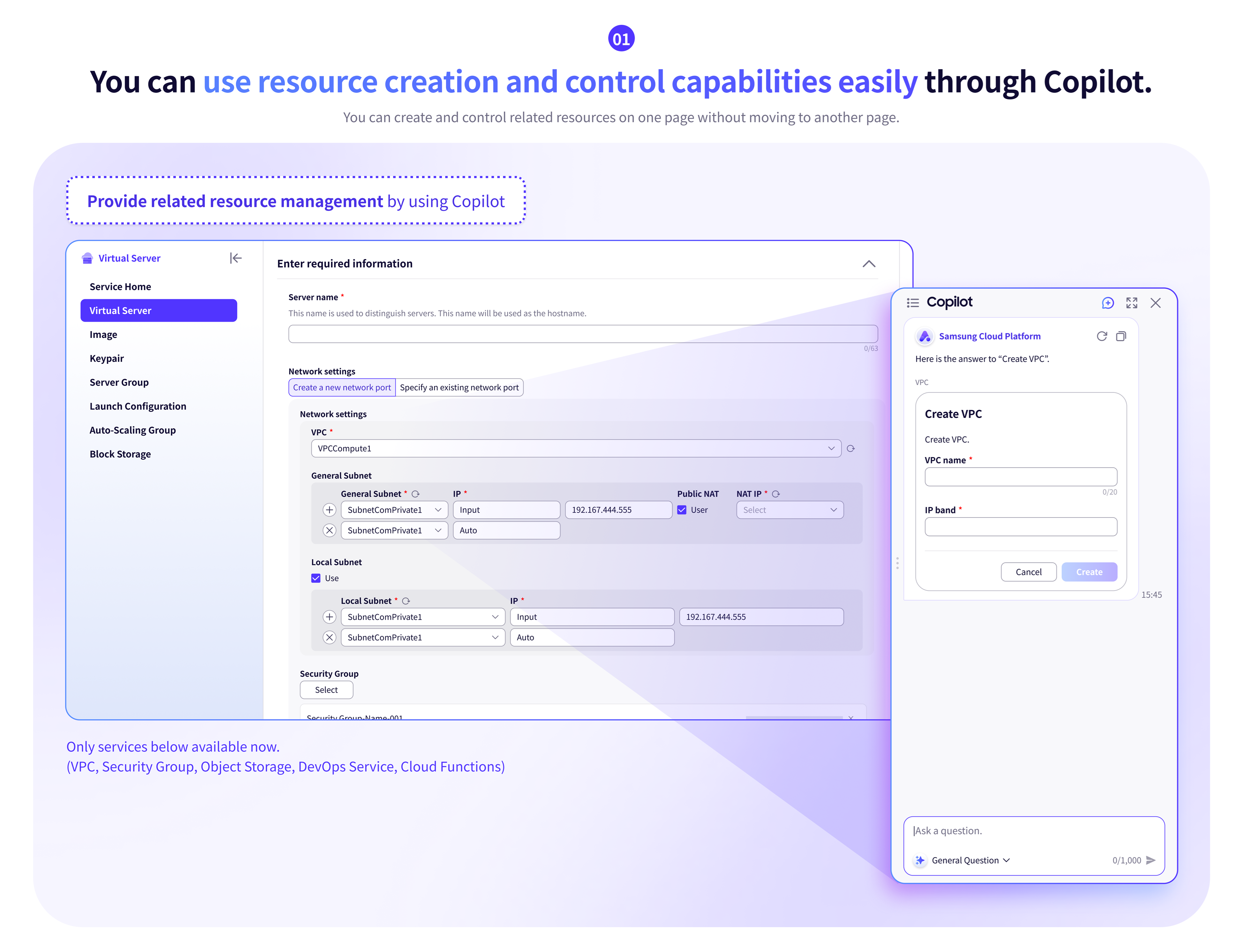
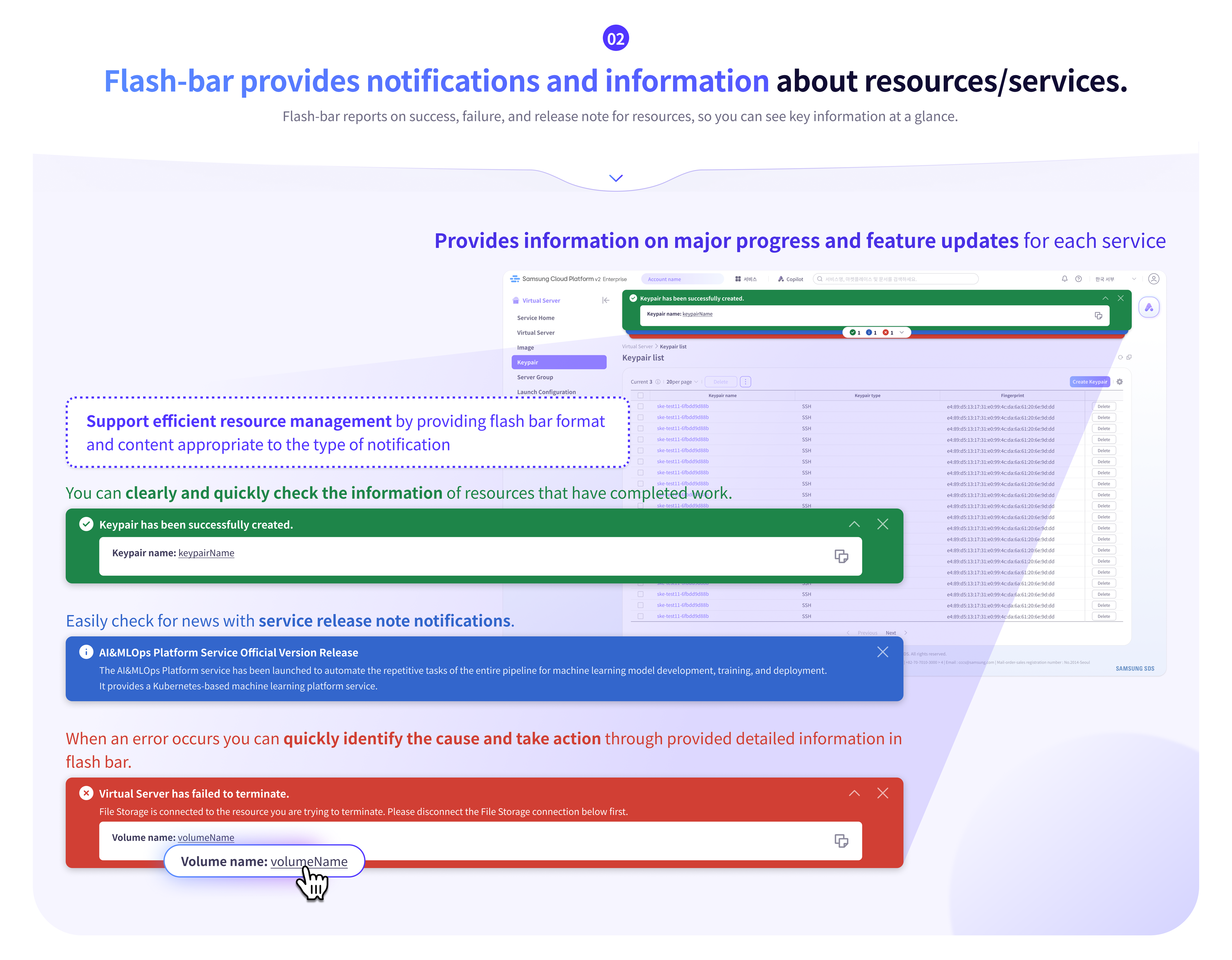
Information about resources/services
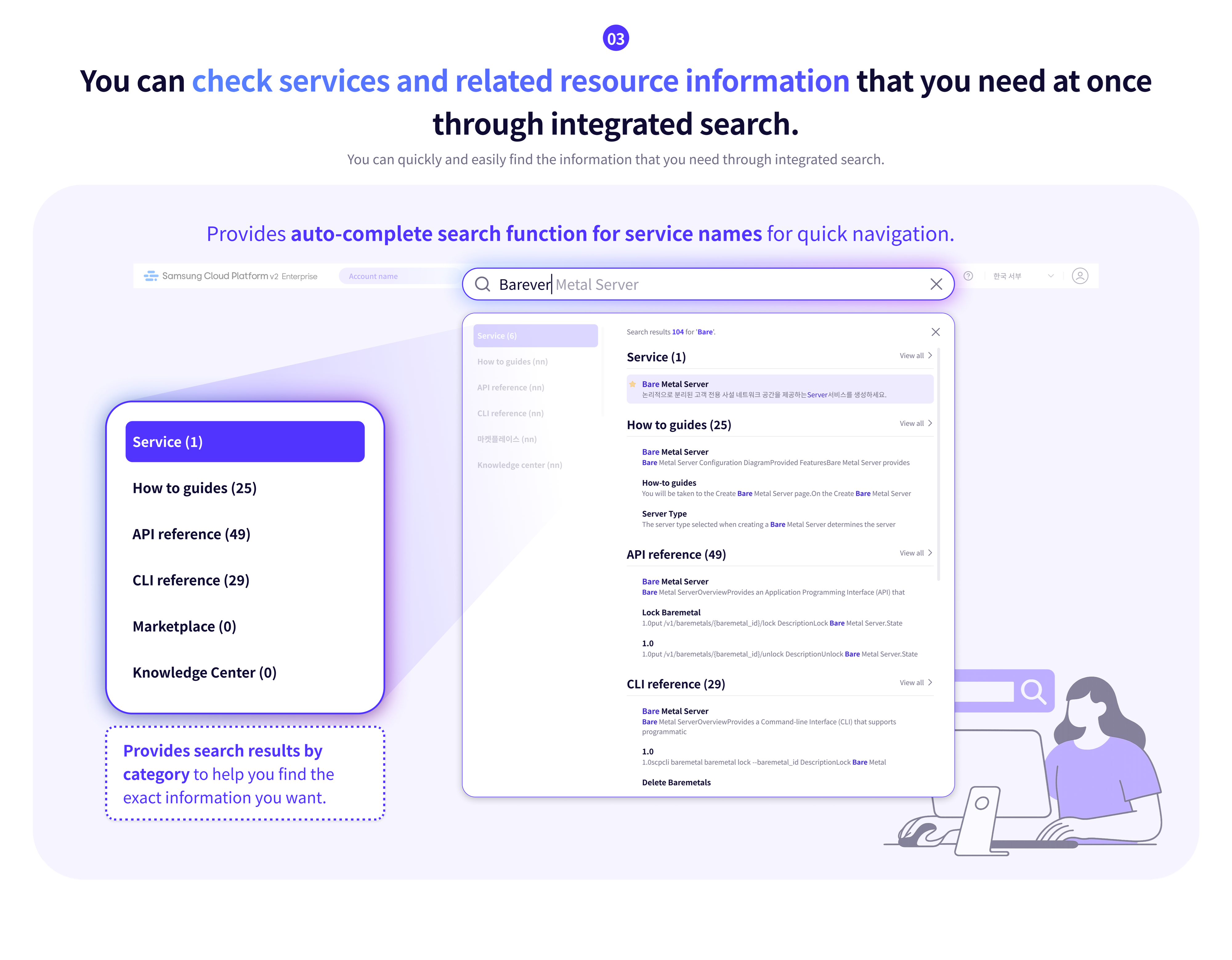
Easy and Fast Integrated Search
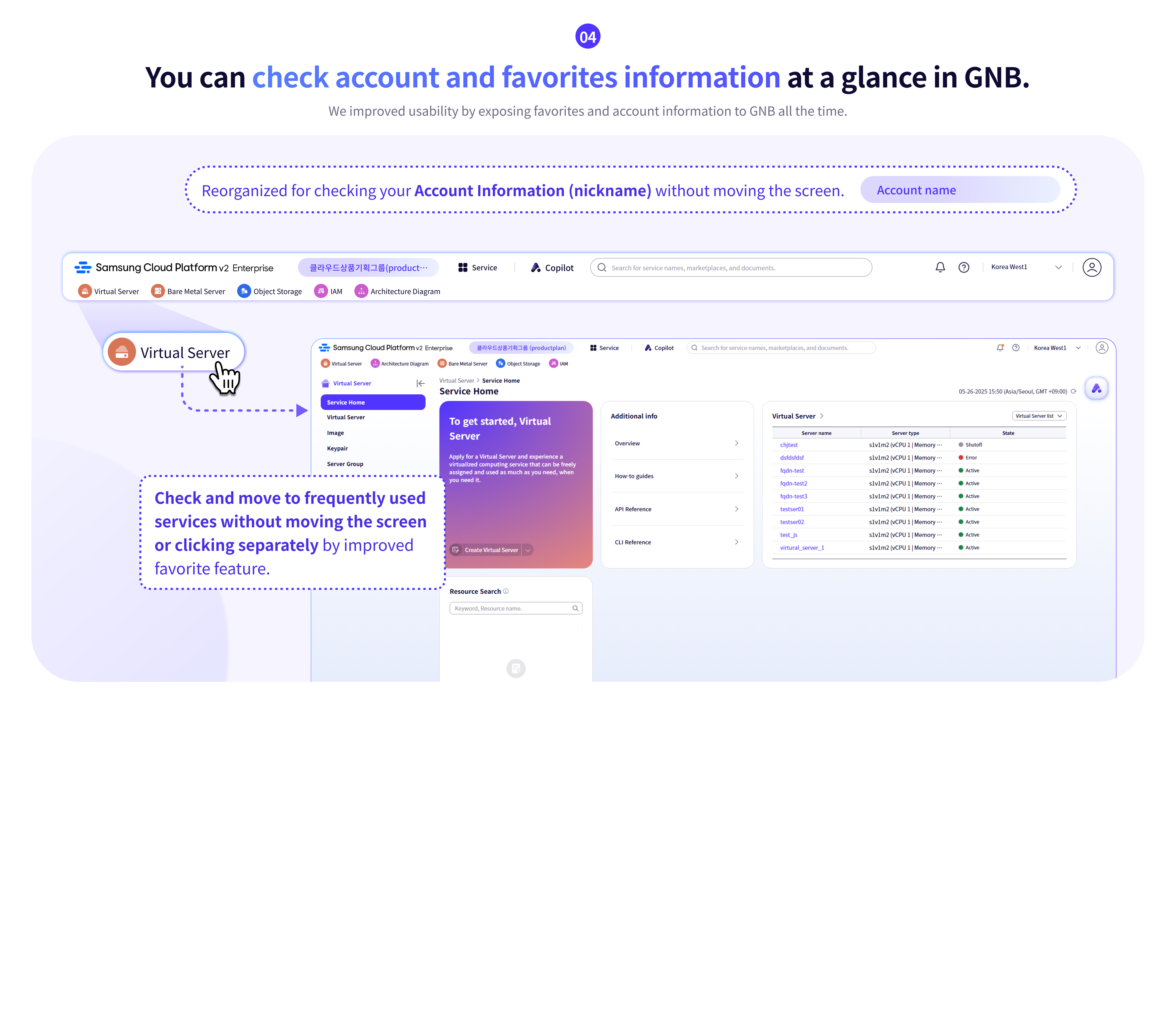
Account and Favorites Accessibility Improvements
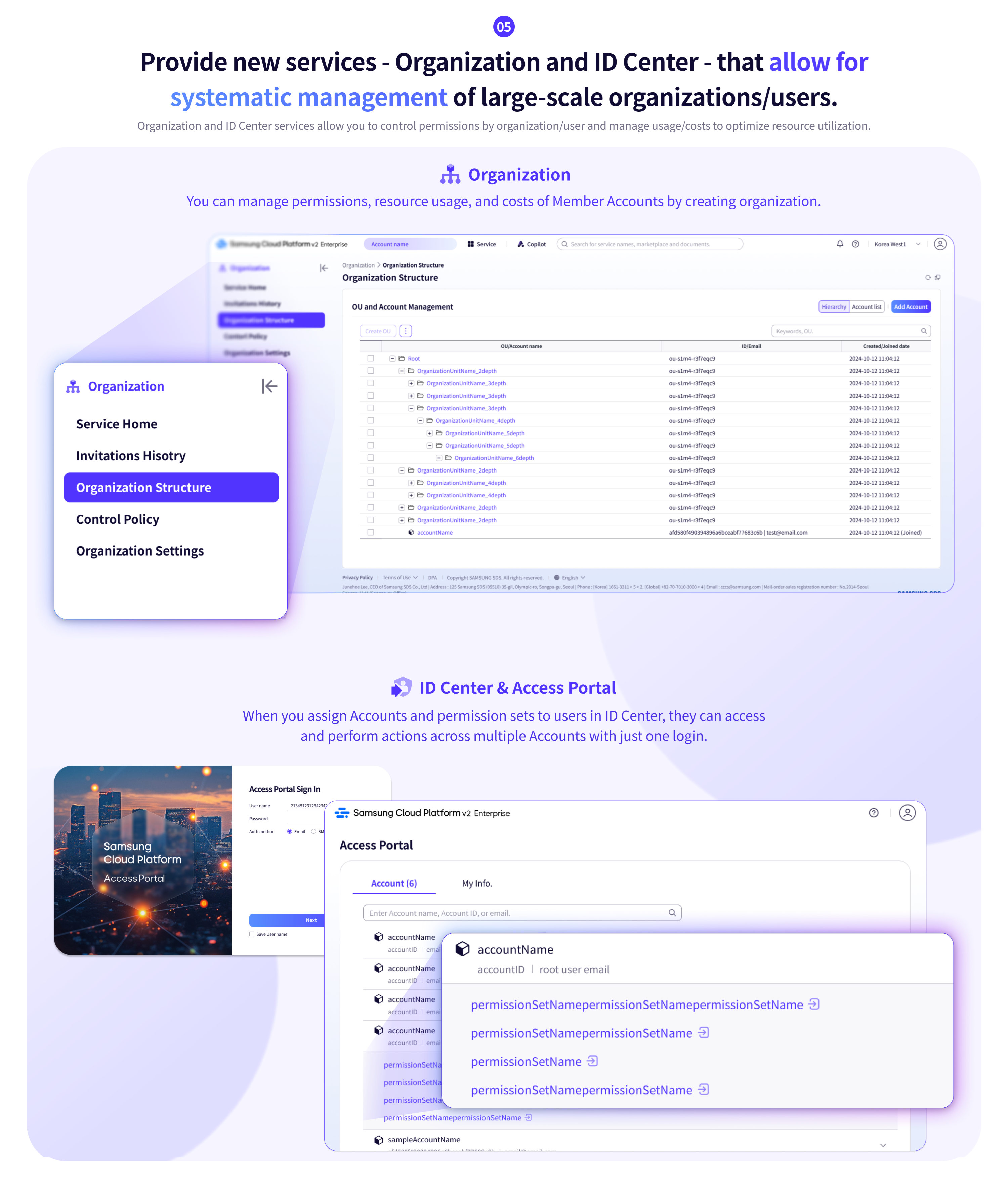
Providing services for large-scale organizations and systematic user management
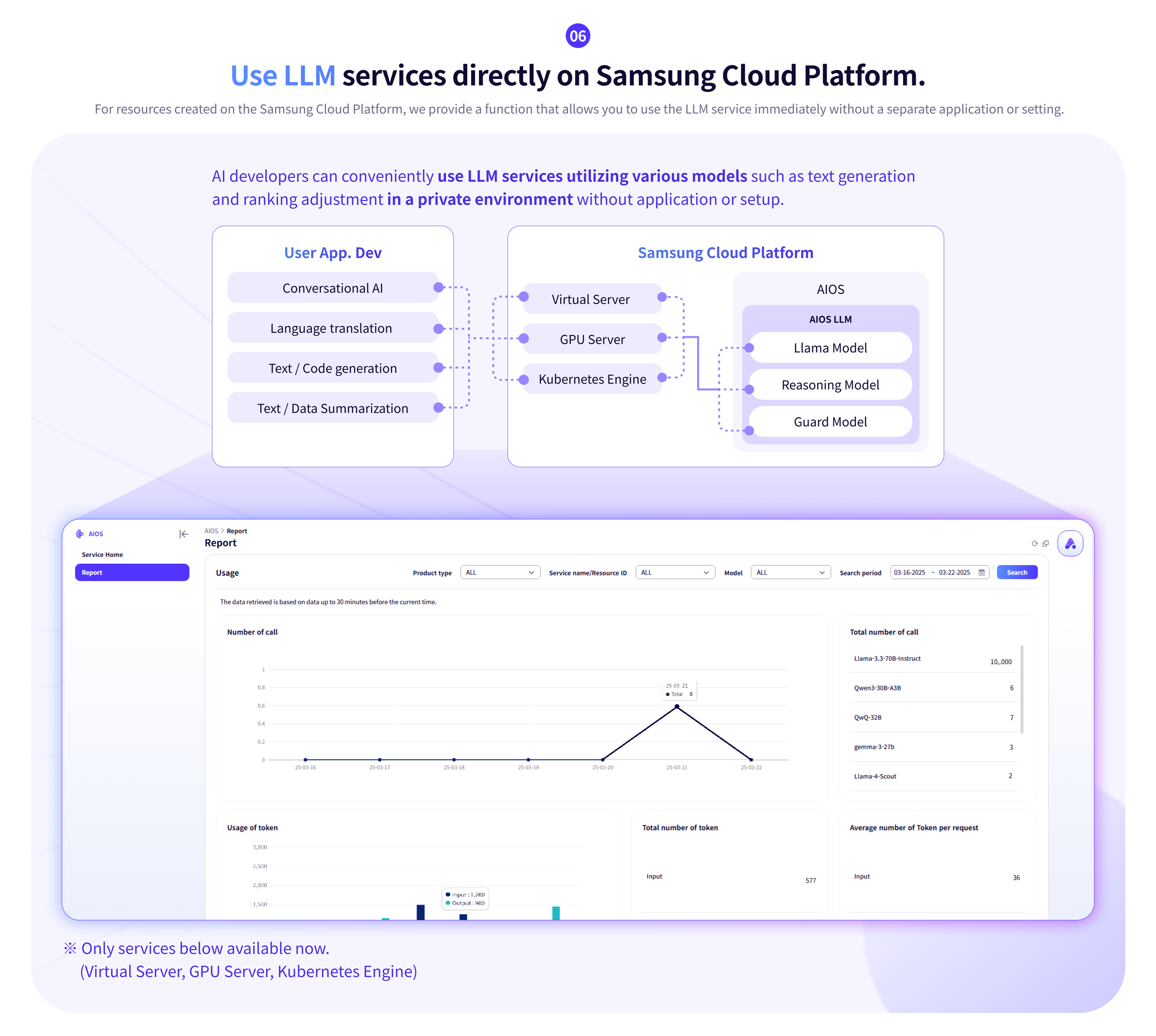
LLM service that can be used without separate application
2 - Overview
Samsung Cloud Platform
Samsung Cloud Platform is a cloud environment that virtualizes and provides various resource pools such as computing, storage, networking, and database required by companies.
Through the Samsung Cloud Platform, you can use the necessary resources in the cloud environment without having to equip hardware or physical space. The fee is charged according to the actual usage, so efficient budget operation is possible, and companies can reduce the cost of building and managing their own server environment.
The main terms used in Samsung Cloud Platform are as follows.
Term | Detailed Description |
|---|---|
| A region is a geographically separated unit of cloud service provision, consisting of one or more data centers to ensure availability | |
| Account | The basic unit and billing unit required to use Samsung Cloud Platform services |
| Root User | The user who created the account, with the highest authority |
| IAM User | A user created by the Root user within the Account with limited privileges |
| Service | Various types of IT services and infrastructure (Compute, Storage, Network, etc.) provided by Samsung Cloud Platform |
| Resource | An individual unit object (Entity) created and managed by the user while using the service |
Components
Samsung Cloud Platform provides Service Portal, Console, Documentation.
Classification | Detailed Description |
|---|---|
| Service Portal | Introduction to services and fees for Samsung Cloud Platform, providing information such as customer support |
| Console | Samsung Cloud Platform’s account and resource creation, cost verification, and other features are provided through a self-service interface |
| Documentation | Samsung Cloud Platform’s integrated documentation service that provides user guides, API/CLI references, etc. |
Region
A region is a geographically separated unit of cloud service provision, consisting of one or more data centers to ensure availability. Services provided by Samsung Cloud Platform are managed and provided on a region-by-region basis, so some services may differ. Please refer to the user guide for each service.
| Region Name | Region |
|---|---|
| West Korea | Korea West(kr-west1) |
| South Korea (administrative) | South Korea south1(kr-south1) |
| South Korea (public) | South Korea south2(kr-south2) |
| South Korea (Internet) | South Korea South3(kr-south3) |
Account
To use the Samsung Cloud Platform, account creation is necessary, and you can create an account through membership registration. The user who creates an account through membership registration is the root user of the account and is responsible for paying the account’s fees. By registering a payment method through membership registration, resource creation is possible.
The Root user can create a user in IAM and add it to a user group, and the user created in this way is an IAM user.
The general flow from creating an Account to configuring a cloud environment and performing tasks is as follows.
- When the user signs up, an account is created and becomes the root user.
- When the Root user registers a payment method, they can create resources on the Samsung Cloud Platform.
- The Root user creates an IAM user and adds it to a user group to perform tasks according to each authority.
- IAM users apply for necessary services according to their purpose and perform tasks.
The detailed tasks for each role are as follows.
| Role | Responsible Task |
|---|---|
| Root user | Account’s top-level authority user
|
| IAM user | A user with limited privileges within an Account
|
3 - Getting Started with Console
3.1 - Login
To use the Samsung Cloud Platform Console, Account creation is required, and you can create an Account through membership registration. The user who creates an Account through membership registration is the root user of the Account and is responsible for paying the Account’s bills. After registering for membership and registering a payment method, resource creation is possible. For more information, see Registering a payment method.
Join membership
To use the Samsung Cloud Platform Console, account creation is necessary, and you can create an account through membership registration. To create an account on the Samsung Cloud Platform Console, follow the procedure below.
- On the login page, select the user type as Root User and then click the Sign Up button. It moves to the Sign Up page.
- Member registration page where you can proceed with identity verification.
- Once the self-authentication is completed, click the next button.
Item MandatoryDescription Automatic input prevention Required Enter the characters output in the image into the input window Mobile phone number Required Enter mobile phone number - Enter the mobile phone number and click the authentication button to issue an authentication number
- Enter the authentication number issued to your mobile phone and click the confirm button
- If the authentication number is valid, the identity verification is complete
Table. Personal Authentication Information - Enter membership information and select regional information, and agree to the terms.
Item MandatoryDescription Region Required Select joiner region Service Terms Agreement Required Check whether the service terms agreement is accepted Personal information collection and usage agreement Required Check for personal information collection and usage agreement Personal Information Overseas Transfer Consent Required Check for personal information overseas transfer consent Are you 14 years old or older? Required Check if you are 14 years old or older Personal Information Collection and Usage Agreement Select Check for Personal Information Collection and Usage Agreement Table. Input information for membership registration - Member Information Input where you enter required item information.
Item MandatoryDescription ID(email) required email to be used as subscriber ID Username Required Subscriber name - Can be entered within 60 characters using Korean and English, numbers, and spaces
Account name Required Account that the subscriber will use - Can be entered within 60 characters using Korean and English, numbers, and spaces
Password Required The password that the member will use can be entered within 9-20 characters - Must include at least one uppercase letter (English), lowercase letter (English), number, and special character (
!@#$%&*^)
- ID cannot be used as password
- Same character cannot be used more than 3 times
- Easy-to-guess passwords cannot be used
- Continuous characters/numbers of 4 or more characters cannot be used
- Password change cycle: 90 days
Password Confirmation Required Confirmation of the password to be used by the member Mobile phone number Required Mobile phone number used for self-authentication Notification Language Required Notification language setting such as email, SMS, etc. provided by Samsung Cloud Platform - Changed in Notification Popover > Notification Settings after logging in
Table. Member Information Input
- After entering all the information and clicking the completion button, a verification email will be sent to the entered email address.
- After receiving the mail, click the authentication button to complete membership registration.
Log in
Samsung Cloud Platform Console has two types of user types: Root user and IAM user. The Root user is the user who created the Account that performs tasks that require unlimited access rights. The IAM user is a user within the Account that performs daily tasks, and the Root user can create an IAM user. For more information related to user creation, please refer to IAM.
Root user login
To log in to the Samsung Cloud Platform Console as a root user, follow these procedures.
- On the login page, select the user type as Root user and enter the ID(email), then click the Next button.
- Root user login page moves. Password should be entered.
- Select the means to send the authentication number and click the Send Authentication Number button.
- Enter the received authentication number and click the login button.
- If you log in successfully, it moves to the Console Home page.
- Please enter your password and authentication number correctly. If you enter your password or authentication number incorrectly more than 5 times, your account will be locked for security reasons.
- If the account is locked, it provides the user with the locked account information.
- If the allowed access IP is set, login through unallowed IP is not possible. Click the Access allowed IP not set item to release the IP restriction.
- If you have logged in after releasing the allowed IP setting, please move to the Management > IAM > My info. page to reset for security reasons. For more information, please refer to Access IP Management.
IAM user login
To log in to the Samsung Cloud Platform Console as an IAM user, follow these procedures.
- On the login page, select the user type as IAM user and enter Account information, then click the Next button.
- IAM User Login page moves. Enter the IAM Username and Password.
- Authentication method을 선택하고, next 버튼을 클릭하세요.
- Enter the received authentication number and click the next button.
- If you log in successfully, it moves to the Console Home page.
- Please enter the password and authentication number correctly. If you enter the password or authentication number incorrectly more than 5 times, the account will be locked for security reasons.
- If the account is locked, it delivers the locked account information to the user or administrator.
- If the allowed access IP is set, login through unallowed IP is not possible. Click the Access allowed IP not set item to release the IP restriction.
- If you have logged in after releasing the allowed IP setting, please move to the Management > IAM > My info. page to reset for security reasons. For more information, please refer to Access IP Management.
Switch to user
You can switch to the Root user or an IAM user after logging in to the Samsung Cloud Platform Console.
To switch users, follow the following procedure.
- Console Home page, click the Switch User button to the right of the Account name. The Switch User popup window opens.
- Click the user name you want to change among the account-by-user names. A pop-up window notifying user switching will open.
- Check the user name and then click the Confirm button. The user switch is completed and moves to the Console Home page.
Console language change
You can set the language to be used in the Samsung Cloud Platform Console.
- from the login page to change
- To change the language displayed on the Samsung Cloud Platform Console, click the language to be used on the top right of the login page and select the language to use, then log in.
- Change from the Console page
- If you are logged in to the Samsung Cloud Platform Console, you can change the language by clicking the language at the bottom of the page.
Modify user information
You can change user information such as username, password, mobile phone number, etc.
To modify user information, click My menu > My Info. on the top right of the Console.
3.2 - Console
When you first log in to the Samsung Cloud Platform Console, you will be taken to the Console page.
Console
On the Console page, you can view the Console Home page and configure the widgets of Console Home. Additionally, you can view the list of all services of Samsung Cloud Platform. The Console left menu’s Console Home and All Services provide the functions below.
| Provided Features | Description |
|---|---|
| Console Home | In the Console Home of the Console, it provides important information about the Samsung Cloud Platform and provides shortcut widgets for services
|
| All Services | Check all Samsung Cloud Platform service categories and service list in the Console and navigate to the respective service
|
Console Home
When you first log in to the Samsung Cloud Platform Console you are taken to the Console page and on the Console page the Console Home page is shown by default.
Console Home is composed of widgets, and can be changed by clicking the Dashboard Settings button at the top right.
| Provided Features | Description |
|---|---|
| Welcome | Greeting and Samsung Cloud Platform text introduction
|
| Recent Visited Service | List of services visited recently
|
| Copilot | Introduction to Copilot or list of conversations with Copilot
|
| Architecture Diagram | Provide resource information in diagram form to grasp the relationships between resources at a glance
|
| Notice | Samsung Cloud Platform Console Notice |
| Payment method registration | Payment method registration possible to use all resources of the Samsung Cloud Platform Console
|
| Support Center | A service that provides technical support, standard architecture, incident response, service inquiries/answers, etc., needed when using the Samsung Cloud Platform Console
|
| This month’s usage and estimated amount | Predict this month’s estimated amount and check the billing amount
|
| User Access Trend | Daily user access count including duplicates for the past week |
| Service Status | Service status by service category
|
| This month’s carbon emissions | Carbon emission data generated when using services of the Samsung Cloud Platform Console
|
Setting up the Dashboard
- From the Console page, click Console Home in the left menu. You will be taken to the Console Home page.
- When you first log in, the default page is the Console > Console Home screen.
- Console Home page, click the Dashboard Settings button at the top right. Dashboard Settings popup opens.
- Dashboard Settings In the popup’s Widget Settings, change the items and order of the widgets displayed on Console Home.
- Welcome The other widgets, except the Welcome widget, can have their settings changed by the user.
- If you select the widget’s checkbox, you can add it to the dashboard, and if you deselect the checkbox, you can remove it from the dashboard.
- You can change the order by clicking and holding the hamburger button next to the widget name and moving it up or down.
- Dashboard Settings popup window’s Widget Settings when Select All is selected, all widgets are selected. When Select All is deselected, all widgets except Welcome are deselected.
- Dashboard Settings in the popup window’s Preview, after checking the widget changes, click the Save button.
- The configured widget can be previewed on the right.
- Console Home Check the changed settings on the page.
All Services
You can view the service categories and service list provided by Samsung Cloud Platform at a glance. And you can navigate to the respective service.
3.3 - Integrated Management
Integrated management means the collection of functions located at the top of the Samsung Cloud Platform Console.
Integrated Management Function
In Integrated Management, you can view the list of services and see the list of services you recently visited. You can converse with Copilot, and you can check notifications received in the Samsung Cloud Platform Console. You can view the region of the Samsung Cloud Platform and see the list of regions that can be changed. In the My menu, you can view the user’s information and Account information.
| Category | Detailed description |
|---|---|
| Service | Search for Samsung Cloud Platform services, etc., and go to the service
|
| Copilot | Copilot provided by Samsung Cloud Platform
|
| Unified Search | Search Samsung Cloud Platform services, internal Console documents, Marketplace, etc.
|
| Notification | Check notifications received from Samsung Cloud Platform Console
|
| Support | Support Center, Documentation, Can navigate to Announcements
|
| Region | You can view the region of Samsung Cloud Platform and check the list of regions that can be changed
|
| My Menu | User and Account Information Check
|
Service
You can search for services provided by Samsung Cloud Platform by keyword, service category, recent visits, favorites, etc., and navigate to the service.
| Category | Detailed description |
|---|---|
| Search term lookup | Lookup using the search term within the service
|
| Recent Visits | List of recently visited services
|
| Favorites | List of bookmarked services
|
| All services | A list where all services are sorted in ascending order |
Add to Favorites
You can add the service to favorites.
- Click the Service button at the top of the Console. It moves to the Service popup window.
- Service In the popup window, search for the service to add to favorites from All Services or Recent Visits. Click the star icon to the left of the service name you want to add to favorites.
- Please check that the star shape has been changed to yellow.
- Service > Favorites you can check the services you added to favorites.
- You can also view the services you added to favorites at the top of the Console.
Check Favorites
You can view the services added to your favorites and navigate to the respective service.
- Click the Service button at the top of the Console. It will move to the Service popup window.
- In the service popup window, click bookmark. You can check the services added to your favorites.
- Service > Favorites Click the name of the service you want to move to. It will navigate to that service.
Remove from Favorites
You can remove a service added to your favorites.
- Click the Service button at the top of the Console. Service page will open.
- Service in the popup window, click Bookmark. You can check the services added to your bookmarks.
- Please deselect the star icon to the left of the service name you added to favorites.
- You can deselect the star icon to the left of the service name anywhere within all services, etc., service.
- In Service > Favorites, you can confirm that the service you unfavorited has been removed.
- Console also at the top, the unfavorited service will be removed.
Copilot
Copilot is a generative AI-based conversational assistant that can help you understand, build, scale, and operate the Samsung Cloud Platform. You can start a conversation with Copilot by clicking the Copilot icon in the Samsung Cloud Platform Console.
For more details, refer to Copilot. Below are some example questions you can ask Copilot.
Example question
- How can I check the estimated charges?
- How do I create a Virtual Server?
- Please show the list of Virtual Server resources of my Account.
- Find the 192.168.21.1 IP among Virtual Server
- How do I add a user to a user group?
- Download cost details
- What is the estimated bill amount for this month?
Integrated Search
You can easily find services and documents provided by Samsung Cloud Platform using integrated search.
To find the desired service or document using integrated search, follow these steps.
- Enter the keyword you want to search for in the integrated search box. A search results popup will open.
- When you enter a keyword in the integrated search box, the keyword is auto-completed and a popup window with the search results for the completed keyword opens.
- If you click the View All button in the search results category, the full results searched in that category will be displayed.
Category Detailed description Service, Condole documents, Marketplace Enter at least two characters for the keyword you want to search Resource Name, Resource ID Enter the resource name or resource ID you want to find in the form /+ resource name (or resource ID)- Enter at least two characters for the resource name (or resource ID)
Table. How to input keywords for each search item
- Click the information to be checked in the search result popup window. It will move to the corresponding page.
The scope that can be found with integrated search is as follows.
- Services and resource names, resource IDs within Samsung Cloud Platform
- User guide documents: How-to guides, API reference, CLI reference
- Knowledge Center
- Marketplace
Notification
You can view notifications received from the Samsung Cloud Platform Console, and you can go to the notification settings.
| Category | Detailed description |
|---|---|
| Notification List | Latest 10 notifications received from Samsung Cloud Platform Console
|
| Notification Settings | Click the Notification Settings button to move to the Notification popup’s Notification Settings
|
Check notification details
- Click the Notification button at the top right of the Console to view the latest 10 notifications received in the Console.
- When you select a specific notification item from the latest 10 notifications list, you will be taken to the notification detail popup.
Category Detailed description Resource Name Name of the resource where the alert occurred Notification Type Notification Occurrence Type - Announcement: Notification received about announcements
- Service: Notification received per service
- Cost Management: Notification received about Cost Management
- IAM: Notification received about IAM
- Notification Manager: Notification received about Notification Manager
- Support: Notification received about Support such as inquiries, service requests, etc.
Creator Notification Creator Notification creation time Notification creation time Table. Notification detailed information items
Check Notification Settings
- If you click the Notification button at the top right of the Console, you can view the list of the latest 10 notifications received in the Console.
- Click the Notification Settings button next to Notification. It moves to the Notification > Notification Settings popup.
- Notification > Notification Settings You can check the notification settings status in the popup window.
Category Detailed description Notification language Language to receive notifications Notification Target > Notification Type Notification Types by Target - Announcements: Notifications received about announcements
- Service: Notifications received per service
- Cost Management: Notifications received about Cost Management
- IAM: Notifications received about IAM
- Notification Manager: Notifications received about Notification Manager
- Support: Notifications received about Support such as inquiries, service requests, etc.
Table. Notification Settings Items
Edit notification settings
- Click the Notification button at the top right of the Console to view the list of the latest 10 notifications received in the Console.
- Click the Notification Settings button next to Notification. It moves to the Notification > Notification Settings popup window.
- Notification > Notification Settings You can check the notification settings status in the popup window.
- Notification > Notification Settings in the popup window, click the Edit button to modify the notification settings.
Category Detailed description Notification language Language to receive notifications Notification Target > Notification Type For each notification target, you can select the notification type to receive (email, SMS). The default setting is email - Announcements: Notifications received about announcements
- Service: Notifications received per service
- Cost Management: Notifications received about Cost Management
- IAM: Notifications received about IAM
- Notification Manager: Notifications received about Notification Manager
- Support: Notifications received about Support such as inquiries, service requests, etc.
Table. Notification Settings Modification Items
Support
In support, we provide Support Center, Documentation, Announcements.
- Support Center provides technical support, standard architecture, incident response, service inquiries/answers, etc., needed when using Samsung Cloud Platform. Please refer to Support Center.
- Documentation is a user guide that provides easy and clear guidance on concepts of various services, Console usage, and utilization methods. Please refer to User Guide.
- Notice is a notice provided to users in the Samsung Cloud Platform Console.
Region
You can check the region of Samsung Cloud Platform and view the list of regions that can be changed.
The services provided by Samsung Cloud Platform are managed on a per-region basis, so the services offered may differ slightly. A region is a geographically separated unit of cloud service provision, consisting of one or more data centers to ensure availability. For some services such as the Samsung Cloud Platform Console or IAM, there is no need to select a region as they are global services.
| Region Name | Region |
|---|---|
| Global | - |
| Korea West | Korea West(kr-west1) |
| Korea East | Korea East(kr-east1) |
| South Korea (administrative) | South Korea 1(kr-south1) |
| South Korea (public) | South Korea2(kr-south2) |
| South Korea (Internet) | South Korea 3(kr-south3) |
My menu
Click the profile-shaped button at the top right of the Console to view the functions provided in the My menu. You can check the Account ID, IAM username, or Root username, and you can navigate to Account, My Info., Cost Management.
| Provided Features | Description |
|---|---|
| Account ID | Account ID logged into Samsung Cloud Platform Console |
| IAM username or Root username | IAM username or Root username logged into Samsung Cloud Platform Console |
| Time zone | User-set time zone
|
| Account | Account information
|
| My Info. | Provides basic user information and authentication key management functions |
| Cost Management | You can view usage and billing details, payment details, cost analysis, and manage Credit, budget, Account, payment methods
|
| Role Switching | Can switch to another role
|
| Logout | Logout from Samsung Cloud Platform Console |
4 - Copilot
Copilot Overview
Through the generative AI-based work assistance service Copilot, you can use Samsung Cloud Platform more conveniently. Users can easily utilize Copilot using familiar interfaces and natural language, allowing them to conduct work accurately and efficiently.
You can start a conversation with Copilot by clicking the Copilot button in the Samsung Cloud Platform Console.
- Clearly describe the reason for requesting the task and the ultimate goal in order to obtain an accurate answer.
- To solve complex problems, we request small and easy requirements step by step.
- We utilize the terminology used in Samsung Cloud Platform.
- Since sensitive information related to work cannot be used, please be careful not to input it.
- Answers generated based on generative AI may contain inaccurate content, so be sure to review them before use.
- For general questions related to Samsung Cloud Platform, select General Query, and for questions about the resources you are using, select Resource Lookup and ask.
Using Copilot
You can use Copilot via the Copilot button at the top of the Samsung Cloud Platform Console and the Copilot button at the bottom right.
You can also use Copilot through the Copilot widget on the Dashboard of the Console Home page, which is the first login screen of the Samsung Cloud Platform Console.
- Click the Copilot button at the top of the Console. The Copilot popup window opens.
- Copilot Check the popup window. The features provided by Copilot are as follows.
Category Detailed description Ask > General Inquiry General questions about using Samsung Cloud Platform - Example questions
- How do I create a Virtual Server?
- How can I check the estimated charges?
- What is the estimated bill for this month?
- General Inquiry reference
Ask > Resource Lookup Questions about resources used in Samsung Cloud Platform - Example question
- Please show the list of Virtual Server resources in my Account.
- Find the 192.168.21.1 IP among Virtual Servers
- Resource Lookup reference
Start New Conversation Start a new conversation - Start New Conversation Reference
View in new window Display Copilot popup in a new tab Conversation List Check the list of previous conversations - Check Conversation List Reference
Recommended Prompt List of recommended questions from Copilot - Using Recommended Prompt Reference
Table. Copilot provided featuresReference Tip- When you drag text in the Samsung Cloud Platform Console, the Copilot button appears. Click the Copilot button to search the text via Copilot.
- If you click the info button displayed next to the item on the creation page of each service, detailed guidance is provided through Copilot.
- Example questions
General Query
Through Copilot, you can ask general questions about the features, usage, etc. provided by Samsung Cloud Platform.
To make a general query to Copilot, follow the steps below.
- Click the Copilot button at the top of the Console. The Copilot popup window opens.
- Copilot In the bottom prompt of the popup window, select General Query and ask overall questions about Samsung Cloud Platform.
- example question
- Service that must be created in advance before creating Virtual Server
- What network settings are required to create a Virtual Server?
- Clearly describe the reason for requesting the task and the ultimate goal in order to obtain an accurate answer.
- To solve complex problems, we request small and easy requirements step by step.
- Use the terminology used in Samsung Cloud Platform.
- Please be careful not to input any sensitive information related to work as it cannot be used.
- Answers generated based on generative AI may contain inaccurate information, so be sure to review them before using them.
- For overall questions regarding Samsung Cloud Platform, please select General Query, and for questions about the resources you are using, select Resource Lookup.
Resource View
You can ask questions about resources created on the Samsung Cloud Platform through Copilot.
To ask Copilot a question related to Resource, follow the steps below.
- Click the Copilot button at the top of the Console. The Copilot popup window opens.
- Copilot In the bottom prompt of the popup window, select View Resource and ask a question about resources on Samsung Cloud Platform.
- example question
- Virtual Server Please show the list.
- Active state Load Balancer
- Clearly describe the reason for requesting the work and the final goal in order to provide an accurate answer.
- To solve complex problems, we request small and easy requirements step by step.
- Use the terminology used in Samsung Cloud Platform.
- Please be careful not to enter sensitive information related to work, as it cannot be used.
- Answers generated based on generative AI may contain inaccurate content, so be sure to review them before use.
- For general questions related to Samsung Cloud Platform, select General Inquiry, and for questions about the resources you are using, select Resource Lookup and please ask.
Start a new conversation
You can start a new conversation with Copilot.
To start a new conversation with Copilot, follow the steps below.
- Click the Copilot button at the top of the Console. Copilot popup window opens.
- Copilot Click the Start New Conversation button at the top right of the popup window. A new conversation will begin.
Check conversation list
You can view the list of conversations you had with Copilot.
To view the list of conversations with Copilot, follow the steps below.
- Click the Copilot button at the top of the Console. The Copilot popup window opens.
- Copilot Click the Conversation List button at the top left of the popup window. The Conversation List expands.
- Conversation List If you click the conversation you want to check among them, you will be taken to that conversation.
Check recommended prompts
You can view the recommended prompt questions provided by Copilot.
To check the Copilot recommended prompt questions, follow the steps below.
- Click the Copilot button at the top of the Console. You will be taken to the Copilot popup window.
- Copilot Click the Recommended Prompt button on the left side of the bottom prompt of the popup. The Recommended Prompt popup opens.
- Recommended Prompt You can check the questions needed for work in the popup window.
Category Detailed description Product - Are there any prerequisite services that need to be set up before creating a Virtual Server?
- What are the constraints of Virtual Server and other Bare Metal Servers?
- Are there any precautions when using a Bare Metal Server?
Fee - What is the contract fee policy?
- What is the time basis for fee calculation?
- How can I check the estimated fee?
Member - How do I register for an IAM member?
- If I lose my password, how can I retrieve it?
- How do I change user information and password?
Other - How should the network configuration and firewall settings be set up to access the Samsung Cloud Platform Virtual Machine from an overseas local internal network?
- If there are errors or improvements when using the service, how should I inquire?
Table. Recommended Prompt Question Items
View in a new window
You can check and use Copilot in a new browser tab.
To use Copilot in a new tab, follow these steps.
- Click the Copilot button at the top of the Console. Copilot popup window opens.
- Copilot Click the View New Window button at the top right. It opens in a new tab of Copilot’s browser.
- Click the Copilot tab opened in the browser. It will navigate to the Copilot page.
- Use the desired feature on the Copilot page.
| Category | Detailed description |
|---|---|
| Ask a question > General inquiry | Samsung Cloud Platform usage overall questions
|
| Ask Question > Resource Lookup | Questions about resources used in Samsung Cloud Platform
|
| New Conversation Start | Start a new conversation
|
| Conversation List | Check the list of previous conversations
|
| Recommended Prompt List | Display list of questions recommended by Copilot
|