This is the multi-page printable view of this section. Click here to print.
VPN
- 1: Overview
- 1.1: ServiceWatch Metrics
- 2: How-to guides
- 2.1: VPN Tunnel
- 3: API Reference
- 4: CLI Reference
- 5: Release Note
1 - Overview
Service Overview
VPN(Virtual Private Network) is a service that connects the customer’s network to the Samsung Cloud Platform through an encrypted virtual private network.
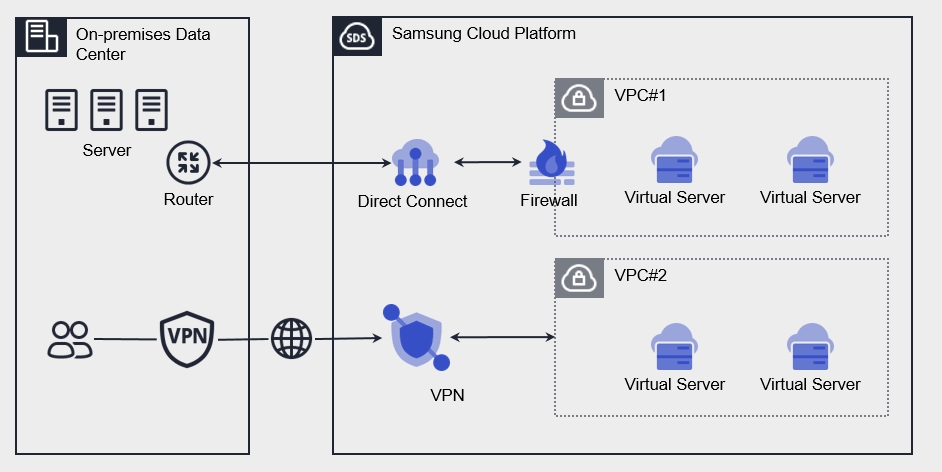
Features
Rapid Service Delivery You can configure automated services through a web-based console, and after creating a service, you can use the VPN service immediately without any waiting time.
Thorough secure connection You can securely connect from a customer’s external network to the customer’s internal network built on the Samsung Cloud Platform via encrypted virtual tunneling using a performance‑ and reliability‑validated IPsec VPN.
Simple operating environment You can easily and quickly manage web-based deployment, capacity provisioning, and service updates without the need for a complex network environment setup.
Efficient Service Use You can bear costs only for the amount you use the service without any separate installation fees, enabling efficient cost management.
Provided features
VPN provides the following features.
- Provide virtual tunneling encrypted with IPsec
- Compatible VPN: Secui – Bluemax (TG360),Paloalto,Axgate,Cisco-router/ASA/Meraki, Checkpoint,AWS,Azure,Vmware NSX-T
- Virtual Private Gateway creation
- Create a Gateway to connect the customer’s network to a private network that cannot be accessed externally.
- VPN Tunnel Creation
- Select IPsec VPN Gateway (up to 5 VPN tunnels per VPN Gateway)
- In an IPsec VPN Gateway redundancy configuration, the standby device automatically operates when a failure occurs on the active device.
The system stays in a waiting state until the remote peer initiates a connection, and when the peer sends a connection request, it receives it from the waiting state and automatically establishes a tunnel. * Remote Peer VPN must be operated in Active mode.
Constraints
| Category | Default quota | Detailed description |
|---|---|---|
| VPN Gateway | 3 | Up to 3 can be created per account |
| VPN Tunnel | 5 | Up to 5 can be created per VPN Gateway |
Provision status by region
VPN is available in the following environments.
| Region | Provision status |
|---|---|
| Korea West (kr-west1) | Provide |
| Korea East (kr-east1) | Provide |
| South Korea 1 (kr-south1) | Not provided |
| South Korea 2 (kr-south2) | Not provided |
| South Korea South 3 (kr-south3) | Provide |
Preceding Service
| Service Category | service | Detailed description |
|---|---|---|
| Networking | VPC | A service that provides an isolated virtual network in a cloud environment |
1.1 - ServiceWatch Metrics
VPN sends metrics to ServiceWatch. The metrics provided by default monitoring are data collected at a 1‑minute interval.
Basic Metrics
The following are the basic metrics for the VPN namespace.
The indicators whose names are displayed in bold below are the key indicators selected from the basic indicators provided by VPN. Key metrics are used to configure service dashboards that are automatically built for each service in ServiceWatch.
Each metric indicates, via the user guide, which statistical value is meaningful when viewing that metric, and among the meaningful statistics, the values shown in bold are the primary statistics. In the service dashboard, you can view key metrics using these primary statistical values.
| Performance items | Detailed description | unit | meaningful statistics |
|---|---|---|---|
| Network In Total Bytes _vpn_tunnel | Cumulative traffic volume heading from VPN → VPC | Bytes |
|
| Network Out Total Bytes _vpn_tunnel | Cumulative traffic volume from VPC → VPN | Bytes |
|
| Network In Total Bytes _vpn_tunnel_Delta | Cumulative traffic volume over 5 minutes from VPN → VPC | Bytes |
|
| Network Out Total Bytes _vpn_tunnel_Delta | Cumulative traffic volume over 5 minutes from VPC → VPN | Bytes |
|
2 - How-to guides
Create VPN
You can create and use a VPN service from the Samsung Cloud Platform Console.
To create a VPN, follow these steps.
Click the All Services > Networking > VPN menu. You will be taken to the VPN Service Home page.
On the Service Home page, click the Create VPN button. You will be taken to the Create VPN page.
On the VPN creation page, enter the information required to create the service and select detailed options.
Enter the required information in the Service Information Input area.
Category Required statusDetailed description VPN Gateway name Required Enter VPN Gateway name - Enter using English letters and numbers, within 3 to 20 characters
Connected VPC name Required Select the VPC connected to the VPN Gateway - Click + New to create a VPC and then select it
Public IP Required Select the IP for communicating with the remote site from the VPN Gateway. Table. VPN Service Information Input ItemsEnter or select the required information in the Additional Information Input area.
Category Required statusDetailed description Explanation Selection User additional description tag Selection Add Tag - Up to 50 can be added per resource
- After clicking the Add Tag button, enter or select Key, Value values.
Table. VPN service additional information input fields
Summary Check the detailed information and estimated billing amount generated in the panel, and click the Create button.
- After creation is complete, check the created resources on the VPN List page.
Check VPN detailed information
The VPN service allows you to view and edit the full resource list and detailed information. VPN Details page consists of Details, Tags, Activity Log tabs.
To view detailed information about the VPN service, follow these steps.
- Click the All Services > Networking > VPN menu. You will be taken to the VPN’s Service Home page.
- On the Service Home page, click the VPN menu. You will be taken to the VPN List page.
- On the VPN List page, click the resource to view detailed information. You will be taken to the VPN Details page.
- VPC Details page displays status information and additional feature information, and consists of Details, Tags, Activity History tabs.
Detailed Information
On the VPN List page, you can view the operation history of the selected resource.
| Category | Detailed description |
|---|---|
| Service status | Current status
|
| Service termination | Cancel VPN service |
| Category | Detailed description |
|---|---|
| Service | Service name |
| Resource Type | Resource Type |
| SRN | Unique resource ID in Samsung Cloud Platform |
| Resource name | VPN resource name |
| Resource ID | Unique resource ID in the service |
| constructor | User who created the service |
| Creation timestamp | Service creation timestamp |
| Editor | User who modified the service |
| Modification date and time | Date and time the service information was modified |
| VPN Gateway name | VPN Gateway name |
| Connected VPC name | VPC name connected to VPN |
| Public IP | IP information for communicating with remote sites from the VPN Gateway |
| Explanation | Additional description written by the user
|
tag
On the VPN List page, you can view the tag information of the selected resource, and you can add, modify, or delete it.
| Category | Detailed description |
|---|---|
| Tag list | Tag list
|
Job History
On the VPN Details page, you can view the operation history of the selected resource.
| Category | Detailed description |
|---|---|
| Task History List | Resource Change History
|
Terminate VPN
You can terminate unused VPCs to reduce operating costs. However, terminating a service may cause the running service to stop immediately, so you should thoroughly consider the impact of service interruption before proceeding with the termination.
- If there are resources connected to a VPN, such as a VPN Tunnel, they cannot be terminated.
- The VPN service cannot be canceled when its status is Creating or Editing.
To cancel the VPN, follow these steps.
- Click the All Services > Networking > VPN menu. Go to the VPN Service Home page.
- From the Service Home page, click the VPN menu. You will be taken to the VPN List page.
- On the VPN List page, select the resource to cancel. Navigate to the VPN Details page.
- On the VPN Details page, click the Cancel Service button.
- Once the termination is complete, check on the VPN List page whether the resource has been terminated.
2.1 - VPN Tunnel
Create VPN Tunnel
In the Samsung Cloud Platform Console, you can configure IPSec Tunning with remote sites in the VPN service.
Samsung Cloud Platform VPN service operates in Passive Mode (Responder role).
- Remote Peer VPN must be operated in Active mode.
To create a VPN Tunnel, follow these steps.
Click the All Services > Networking > VPN menu. 1. Navigate to the VPN Service Home page.
On the Service Home page, click the Create VPN Tunnel button. 2. Navigate to the Create VPN Tunnel page.
VPN Tunnel creation On the page, enter the information required to create the service, and select detailed options.
Enter the required information in the Service Information Input area.
Category required statusDetailed description VPN Tunnel name Required Enter VPN Tunnel name - Enter using English letters and numbers, within 3 to 20 characters
VPC name Required Select the VPN Gateway to connect VPC name Default Automatically input VPC information connected to the VPN Gateway Public IP Default Automatic entry of IP information for communicating with remote sites from the VPN Gateway Peer VPN GW IP Required Enter the remote VPN IP information - Example: 192.168.10.0
Romote Subnet(CIDR) Required Enter the subnet address of the remote site to connect - After entering the IP address, click the Add button, up to 10 can be added
- Example: 20.0.0.0/24
Pre-shared Key Required Enter the shared key (PSK) to be used for IKE mutual authentication between VPN gateways - Enter within 8 - 64 characters
- It is recommended to use a 32-character alphanumeric string
Explanation Selection User additional description Table. VPN Tunnel Service Information Input ItemsEnter or select the required information in the Tunnel Settings area.
Category Required statusDetailed description IKE Settings > IKE Version Required Select IKE version IKE Settings > Algorithm Settings Required Select Encryption Algorithm and Digest Algorithm, then click the Add button. IKE Settings > Diffie-Hellman Required Diffie-Hellman group selection IKE Settings > SA Lifetime Required Enter VPN session (Security Association) validity period IPSec Settings > Algorithm Settings Required Select Encryption Algorithm and Digest Algorithm, then click the Add button. IPSec Settings > Perfect Forward Secrecy(PFS) Required Select whether to use the PFS group IPSec Settings > Diffie-Hellman Required Diffie-Hellman group selection IPSec Settings > SA Lifetime Required VPN session (Security Association) valid time input Table. VPN Tunnel configuration itemsEnter the required information in the DPD Additional Settings area.
Category RequiredDetailed description DPD additional settings > DPD probe interval Required Enter the DPD inspection interval - Enter a value between 1 and 3,600 seconds
Table. VPN Tunnel DPD Additional Configuration Input ItemsIn the Additional Information Input area, enter or select the required information.
Category required statusDetailed description tag Selection Add Tag - Up to 50 can be added per resource
- After clicking the Add Tag button, input or select Key, Value values
Table. VPN Tunnel additional information input fields
Summary Check the detailed information and estimated charges generated in the panel, and click the Create button.
- When creation is complete, check the created resources on the VPN Tunnel list page.
Check VPN Tunnel detailed information
The VPN Tunnel service allows you to view and edit the full resource list and detailed information. The VPN Tunnel Details page is composed of Details, Tags, Activity History tabs.
To view detailed VPN information, follow these steps.
- All Services > Networking > VPN Click the menu. 1. Navigate to the VPN’s Service Home page.
- On the Service Home page, click the Create VPN Tunnel button. 2. Go to the VPN Tunnel List page.
- On the VPN Tunnel List page, click the resource to view detailed information. 3. VPN Tunnel Details page.
- VPN Tunnel Details page displays status information and additional feature information, and consists of Details, Tags, Activity Log tabs.
| Category | Detailed description |
|---|---|
| Status | Current status
|
| Delete VPN Tunnel | VPN Tunnel Delete button |
Detailed Information
On the VPN Tunnel List page, you can view detailed information of the selected resource and edit the information if needed.
| Category | Detailed description |
|---|---|
| service | Service name |
| Resource Type | Resource Type |
| SRN | Unique resource ID in Samsung Cloud Platform |
| Resource Name | VPN resource name |
| Resource ID | Unique resource ID in the service |
| Constructor | User who created the service |
| Creation date and time | Service creation date and time |
| Editor | User who edited the service information |
| Modification date and time | Date and time the service information was modified |
| VPN Tunnel name | VPN Tunnel name |
| VPN Gateway name | VPN Gateway name |
| Public IP | Public IP information |
| Peer VPN GW IP | Peer VPN GW information
|
| Remote Subnet (CIDR) | Remote Sunet information
|
| Pre-shared Key | Pre-shared Key information
|
| Tunneling connection status | Current tunneling service connection status |
| Explanation | VPN Tunnel additional description
|
| IKE | Edit button can be clicked to bulk edit the configuration information |
| IKE Version | IKE Version information |
| Encryption Algorithm/Digest Algorithm | Algorithm information |
| Diffie-Hellman | Diffie-Hellman information |
| SA LifeTime | SA LifeTime information |
| IPSec | Click the Edit button to bulk edit configuration information. |
| Encryption Algorithm/Digest Algorithm | Algorithm information |
| Diffie-Hellman | Diffie-Hellman information |
| SA LifeTime | SA LifeTime information |
| Perfect Forward Secrecy(PFS) | PFS configuration information |
| DPD | DPD probe interval information
|
Tag
VPN Tunnel list page allows you to view the tag information of the selected resource, and you can add, modify, or delete it.
| Category | Detailed description |
|---|---|
| Tag list | Tag list
|
Job History
VPN Tunnel List page allows you to view the operation history of the selected resource.
| Category | Detailed description |
|---|---|
| Task History List | Resource Change History
|
Delete VPN Tunnel
You can reduce operating costs by deleting unused VPC tunnels. However, deleting a Tunnel may cause the running service to stop immediately, so you should proceed with the deletion only after fully considering the impact of service interruption.
To cancel the VPN, follow these steps.
- Click the All Services > Networking > VPN menu. 1. Navigate to the VPN’s Service Home page.
- On the Service Home page, click the Create VPN Tunnel button. 2. Navigate to the VPN Tunnel List page.
- On the VPN Tunnel List page, click the resource to view detailed information. 3. Go to the VPN Tunnel Details page.
- VPN Tunnel Delete button, click it.
- When the termination is complete, check on the VPN Tunnel List page whether the resource has been deleted.
3 - API Reference
4 - CLI Reference
5 - Release Note
VPN
- You can input up to 10 Romote Subnet (CIDR).
- A VPN service that connects the customer network to the Samsung Cloud Platform via an encrypted (IPSec) virtual private network has been launched.