This is the multi-page printable view of this section. Click here to print.
SASE
- 1: Overview
- 2: How-to guides
- 2.1: SASE Lastmile
- 3: Release Note
1 - Overview
Service Overview
SASE is a service that integrates network and security functions on a cloud basis, allowing users to securely access corporate assets and applications from anywhere. It routes traffic via optimal paths and provides consistent security services for both internal and external environments through SASE points of presence located in Samsung Cloud Platform global regions.
Features
- Global SASE Fabric: We continuously expand service coverage upon customer demand by linking SASE hubs that utilize the systematic Samsung SDS Global network infrastructure with vPOPs prepared across all regions.
- All in One Security: It covers a security layer that includes advanced SSL/TLS analysis, sophisticated application awareness/policy, and AI/ML‑based real‑time behavior analysis within a single solution, optimizing operational complexity and performance.
- Network/Security Unification: By delivering network and security integrated on a single operating system based on a unified architecture, traffic is processed swiftly.
- End to End Full Managed: Provide the required infrastructure for connecting customer sites as a packaged solution under a single contract, and deliver comprehensive operational services ranging from monitoring to incident notification and reporting.
Service Architecture Diagram
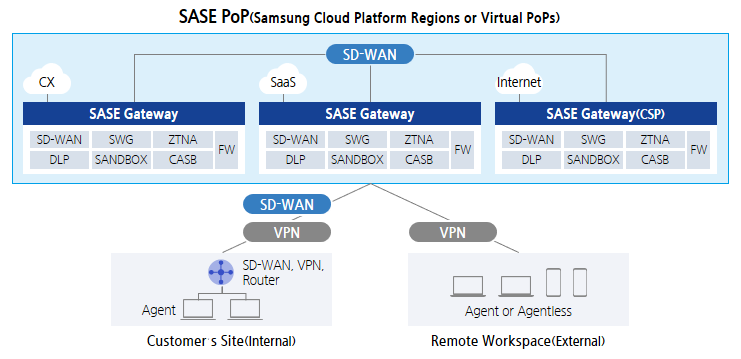
- SASE hub: Configure a gateway and control unit in Samsung SDS Global POP and CSP vPOP to provide network connectivity and security functions
- SASE circuit: Physical circuit connecting the customer site and the SASE hub, configured as an SD‑WAN or VPN over internet/MPLS/dedicated line
- SASE Edge: Customer edge device for connecting to the SASE circuit, using a router/SD‑WAN device/VPN device on‑premises and a PC/mobile or similar customer‑owned endpoint device off‑premises.
Provided features
The SASE service provides the following features.
- WAN Edge Network
- Provide intra- and inter-region communication between various edge devices (SD-WAN devices, routers, VPN devices, PC, Mobile, etc.)
- Providing optimal application-specific routes using SD-WAN
- Provides traffic control (QoS) and TCP acceleration capabilities for high-quality networks.
- SSE(Secure Service Edge) security
- ZTNA: Provide least privilege, security, and private connections for internal applications
- SWG: Provides gateway security to protect internal users from insecure traffic such as that on the Internet.
- CASB: Provides the ability to apply corporate security policies between users and cloud applications.
- FWaaS : Provides inspection and control of all service traffic through a cloud-based firewall
- RBI, DLP, SANDBOX, etc. provide additional advanced security features
- Unified Orchestrator and DEM(Digital Experience Monitoring)
- Integrated network and security management for cloud, on-premises, and edge devices
- Monitoring of user experience (identifying issues such as network performance degradation, app interruptions, and determining their causes)
Constraints
The constraints of the SASE service are as follows.
- Service is unavailable in the China region, but will be offered in the future.
Provision status by region
SASE is available in the environments below.
| Region | Provision status |
|---|---|
| Korea West (kr-west1) | Provided |
| Korea East (kr-east1) | Not provided |
| South Korea 1 (kr-south1) | Not provided |
| South Korea South 2 (kr-south2) | Not provided |
| South Korea 3 (kr-south3) | Not provided |
Prior Service
SASE has no preceding service.
2 - How-to guides
Users can create the service by entering the required SASE service information and selecting detailed options through the Samsung Cloud Platform Console.
Create SASE
You can create and use SASE services in the Samsung Cloud Platform Console.
To request the creation of a SASE service, follow these steps.
- All Services > Networking > SASE Click the menu. 1. Go to the Service Home page of SASE.
- On the Service Home page, click the Create SASE button. 2. Navigate to the Create SASE page.
- Enter the information required to create the service on the SASE Creation page.
- Enter the required information in the Service Information Input area.
Category whether requiredDetailed description SASE name Required SASE name to be used by the user - Enter using letters and numbers, 3-20 characters
Service Level Required Select SASE service level Service type required Select SASE service type - Agent type: Enter the number of agents to use in increments of 10, within 1‑10,000
- Edge type: Select whether to enable inter‑region connections, and choose the upstream country and connection bandwidth for the Site
- Click + to add items up to a maximum of 10, click X to delete an item
Contract period Essential Select SASE contract period Other requests Option Enter request details when applying for SASE service Table. SASE service information entry items - After becoming active, resource downgrades are not permitted by policy for contracted plans (for non‑contracted cases, Resource downgrade is possible).
- Even before activation or without a contract, if SASE Lastmile is connected, the Edge usage cannot be changed.
- Enter the required information in the Service Information Input area.
- Check the detailed information and estimated billing amount generated in the summary panel, and click the Create button.
- Once creation is complete, check the created resource on the Resource List page.
Check SASE detailed information
You can view and edit the full resource list and detailed information of the SASE service from the SASE menu. SASE Detail page consists of Detail Information, Task History tabs.
To view detailed information about SASE, follow these steps.
- All Services > Networking > SASE Click the menu. 1. Go to the Service Home page of SASE.
- On the Service Home page, click the SASE menu. 2. Go to the SASE List page.
- On the SASE list page, click the resource to view detailed information. 3. SASE details Navigate to the page.
- SASE Details page displays status information and additional feature information, and consists of Details, Activity Log tabs.
Category Detailed description status Current service status - Request: Service request in progress
- Creating: Service request completed
- Active: Service approved and successfully created
- Deleting: Service termination request in progress
Previous state change Previous state change button - In Creating, Active, Deleting states, you can revert to the previous state
Service cancellation Cancel service button Table. SASE status information and additional feature items
- SASE Details page displays status information and additional feature information, and consists of Details, Activity Log tabs.
Detailed Information
Detailed Information tab lets you view the detailed information of the selected SASE.
| Category | Detailed description |
|---|---|
| service | Service Name |
| Resource Type | Resource Type (SASE) |
| SRN | Unique resource ID in Samsung Cloud Platform |
| Resource name | Resource Name |
| Resource ID | Unique resource ID in the service |
| Constructor | Service creation request user |
| Creation Date/Time | Service creation date and time |
| Modifier | Service modification request user |
| Modification date | Service modification timestamp |
| Service Details | SASE service selection item
|
| Service Level | SASE service level
|
| Contract period | SASE service contract period |
| Other requests | SASE service request
|
Job History
Task History tab allows you to view the task history of the selected resource.
| Category | Detailed description |
|---|---|
| Task History List | Resource Change History
|
Terminate SASE
Terminating unused SASE can reduce operating costs.
To cancel SASE, follow the steps below.
- Click the All Services > Networking > SASE menu. 1. Go to the Service Home page of SASE.
- On the Service Home page, click the SASE menu. 2. Navigate to the SASE list page.
- On the SASE list page, click the resource to be terminated. 3. Navigate to the SASE Details page.
- On the SASE Details page, click the Cancel Service button.
- When the termination is complete, check the resource termination status in the SASE list.
2.1 - SASE Lastmile
Users can create the service by entering the required information for the SASE Lastmile service and selecting detailed options through the Samsung Cloud Platform Console.
Create SASE Lastmile
You can create and use the SASE Lastmile service in the Samsung Cloud Platform Console.
To request the creation of a SASE Lastmile service, follow these steps.
Click the All Services > Networking > SASE menu. Navigate to the Service Home page of SASE.
On the Service Home page, click the SASE Lastmile Create button. It navigates to the SASE Lastmile Create page.
On the SASE Lastmile Creation page, enter the information required to create the service.
- Enter the required information in the Service Information Input area.
Category Required statusDetailed description SASE name Required Select the SASE service to use - Click + New Creation to create a SASE service and then select it
Site Required Select detailed items for the SASE site to use - Site name: Select the site to use
- Connection bandwidth, Parent country: Automatically fill in selected SASE information
- Circuit: Apply then select circuit1, circuit2
- Customer Edge: Apply then select Customer Edge1, Customer Edge2
Table. SASE Lastmile Service Information Input Items
- Enter the required information in the Service Information Input area.
Verify the detailed information and estimated charges generated in the summary panel, and click the Create button.
- After creation is complete, check the created resource on the Resource List page.
Check detailed information of SASE Lastmile
The SASE Lastmile service can view and edit the full resource list and detailed information from the SASE Lastmile menu. The SASE Lastmile Details page consists of Detail Information, Task History tabs.
To view detailed information about SASE Lastmile, follow these steps.
- Click the All Services > Networking > SASE menu. Navigate to the Service Home page of SASE.
- On the Service Home page, click the SASE Lastmile menu. You will be taken to the SASE Lastmile List page.
- SASE Lastmile List page, click the resource to view detailed information. You will be taken to the SASE Lastmile Details page.
- SASE Lastmile Details page displays status information and additional feature information, and consists of Details, Work History tabs.
Category Detailed description status Current service status - Request: Service request in progress
- Creating: Service request completed
- Active: Service approved and successfully created
- Deleting: Service termination request in progress
Previous state change Previous state change button - In Creating, Active, Deleting states, it is possible to revert to the previous state
Delete SASE Lastmile Cancel Service button Table. SASE Lastmile status information and additional feature items
- SASE Lastmile Details page displays status information and additional feature information, and consists of Details, Work History tabs.
Detailed Information
Detailed Information tab allows you to view detailed information of the selected SASE Lastmile.
| Category | Detailed description |
|---|---|
| Service | Service name |
| Resource Type | Resource Type (SASE Lastmile) |
| SRN | Unique resource ID in Samsung Cloud Platform |
| Resource name | Resource Name |
| Resource ID | Unique resource ID in the service |
| Constructor | Service creation request user |
| Creation date and time | Service creation date and time |
| Editor | Service modification request user |
| Modification date | Service modification date and time |
| Site | Site configuration information
|
Job History
Work History tab allows you to view the operation history of the selected resource.
| Category | Detailed description |
|---|---|
| Task History List | Resource Change History
|
Terminate SASE Lastmile
If you cancel the unused SASE Lastmile, you can reduce operating costs.
To cancel SASE Lastmile, follow the steps below.
- Click the All Services > Networking > SASE menu. Navigate to the Service Home page of SASE.
- On the Service Home page, click the SASE Lastmile menu. You will be taken to the SASE Lastmile List page.
- SASE Lastmile List page, click the resource to cancel. You will be taken to the SASE Lastmile Details page.
- On the SASE Lastmile Details page, click the SASE Lastmile Delete button.
- When the termination is complete, check the resource termination status in the SASE Lastmile list.
3 - Release Note
SASE
- The automatic ledger creation feature via the Samsung Cloud Platform user console has been added.
- We have launched a SASE service that combines networking and security functions into a single cloud-based platform.