This is the multi-page printable view of this section. Click here to print.
SASE
- 1: Overview
- 2: How-to guides
- 3: Release Note
1 - Overview
Service Overview
SASE is a service that integrates network and security functions into the cloud to allow users to safely access internal assets and applications from anywhere. It transmits traffic through the optimal route and provides consistent security services inside and outside the company through SASE hubs located in Samsung Cloud Platform global regions.
Features
- Global SASE Fabric: Utilizing the systematic Samsung SDS Global communication network infrastructure, SASE points and vPOPs prepared in all regions are linked to continuously expand service coverage whenever customer demands arise.
- All in One Security: Covers a security layer that includes advanced SSL/TLS analysis, sophisticated application recognition/policy, and AI/ML-based real-time behavior analysis in one solution to optimize operational complexity and performance.
- Network/Security Unification: Provides network and security in a single operating system based on a single architecture, allowing for rapid traffic processing.
- End to End Full Managed: provides infrastructure necessary for customer site connection in a package form through a single contract, and provides comprehensive operation services from monitoring to failure notification and reporting.
Service Composition Diagram
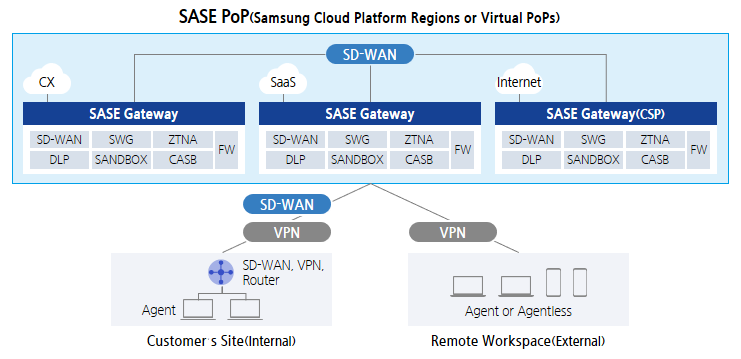
- SASE Hub: Composed of Gateway and control plane in SamsungSDS Global POP and CSP vPOP to provide network connection and security functions
- SASE Circuit: Physical circuit for connection between customer site and SASE hub, based on internet/MPLS/dedicated line SD-WAN or VPN configuration
- SASE Edge: SASE line connection for customer Edge equipment, in-house routers/SD-WAN equipment/VPN equipment, out-of-house PC/mobile etc. customer’s own Endpoint terminal
Provided Features
The SASE service provides the following functions.
- WAN Edge network
- Provides Intra, Inter region communication between various Edge devices (SD-WAN devices, routers, VPN devices, PCs, Mobile, etc.)
- Providing optimal route for each application using SD-WAN
- Provides traffic control (QoS) and TCP acceleration features for high-quality networks
- SSE(Secure Service Edge) Security
- ZTNA : Provide least privilege, security, and private connection to internal applications
- SWG : Security Gateway that provides internal user protection from insecure traffic such as the internet
- CASB : Provides a feature to apply corporate security policies between users and cloud applications
- FWaaS : Cloud-based firewall provides traffic inspection and control for all services
- Provides additional advanced security features such as RBI, DLP, SANDBOX, etc.
- Unified Orchestrator and DEM(Digital Experience Monitoring)
- Integrated network and security management for cloud, on-premises, and Edge devices
- Monitoring of user experience (recognition and identification of causes of problems such as network performance degradation, app suspension, etc.)
Constraints
The limitations of the SASE service are as follows.
- The service is not available in China and will be provided later.
Regional Provision Status
SASE can be provided in the following environments.
| Region | Availability |
|---|---|
| Western Korea(kr-west1) | Provided |
| Korean East(kr-east1) | Not provided |
| South Korea, southern region1(kr-south1) | Not provided |
| South Korea southern region 2(kr-south2) | Not provided |
| South Korea southern region 3(kr-south3) | Not provided |
Preceding Service
SASE has no preceding service.
2 - How-to guides
The user can input the necessary information for the SASE service through the Samsung Cloud Platform Console and create the service by selecting detailed options.
Create SASE
You can create and use the SASE service in the Samsung Cloud Platform Console.
To request SASE service creation, follow these steps.
- Click All services > Networking > SASE menu. It moves to the Service Home page of SASE.
- On the Service Home page, click the SASE Service Request button. It moves to the Support Center > Service Request List > Service Request page.
- Service Request page, enter or select the corresponding information in the required input field.
| Input Item | Detailed Description |
|---|---|
| Title | Enter the title of the service request content
|
| Region | Select the location of Samsung Cloud Platform
|
| Service | Select service group and service. If the SASE service request button is pressed, it is automatically entered
|
| Work Classification | Select the work you want to request
|
| Content | Enter detailed information required for SASE service creation
|
| Attachments | If you have additional files you want to share, upload them
|
- Check the required information entered on the Service Request page and click the Request button.
- SASE service creation work will proceed after confirmation by the person in charge, and it is expected to take around 5-7 business days.
Check SASE Application History
You can check the detailed information and processing procedure after applying for the SASE service.
To check the SASE service application history, follow the next procedure.
- All services > Support Center menu is clicked. It moves to the Service Home page of Support Center.
- On the Service Home page, click the Service Request menu. It moves to the Service Request List page.
- On the Service Request List page, select the application item. It moves to the Service Request Details page.
- Service Request Details page, please check the detailed information and processing procedure.
Canceling SASE
You can cancel through the SASE service request on the Samsung Cloud Platform Console.
To request cancellation of SASE service, follow the procedure below.
- Click All services > Networking > SASE menu. It moves to the Service Home page of SASE.
- On the Service Home page, click the SASE Service Request button. It moves to the Support Center > Service Request List > Service Request page.
- Service Request page, enter or select the corresponding information in the required input area.
| Input Item | Detailed Description |
|---|---|
| Title | Enter the title of the service request content
|
| Region | Select the location of Samsung Cloud Platform
|
| Service | Select service group and service. If the SASE service request button is pressed, it is automatically entered
|
| Work classification | Select the work you want to request
|
| Content | Detailed information required for SASE service cancellation
|
| Attachment | If you have additional files you want to share, upload them
|
- Check the required information entered on the Service Request page and click the Request button. The SASE service cancellation process will be proceeded after confirmation by the person in charge, and it is expected to take around 5-7 business days.