This is the multi-page printable view of this section. Click here to print.

Return to the regular view of this page.

How-to guides

You can create a Load Balancer service by entering essential information and selecting detailed options through the Samsung Cloud Platform Console.

Creating a Load Balancer

You can create and use a Load Balancer service through the Samsung Cloud Platform Console.

Follow these steps to create a Load Balancer:

  1. Click the All Services > Networking > Load Balancer menu. You will be navigated to the Load Balancer’s Service Home page.
  2. On the Service Home page, click the Create Load Balancer button. You will be navigated to the Create Load Balancer page.
  3. On the Create Load Balancer page, enter the information required for service creation and select detailed options.
    • In the Service Information area, enter or select the required information.

Item
Required
Detailed Description
Load Balancer NameRequiredLoad Balancer resource name
  • Enter 3 to 63 characters using uppercase/lowercase English letters, numbers, and special characters(-_)
Service TypeRequiredLoad Balancer service type
  • Select L4 or L7
VPC NameRequiredVPC where the Load Balancer will be created
  • Select from the VPC list
  • If you select + Create New, you can create and then select
Service Subnet NameRequiredVPC Subnet where the Load Balancer will be created
  • Select from the list of Subnets created in the selected VPC
  • If you select + Create New, you can create and then select
Service IPOptionalService IP of the Load Balancer
  • Enter 1 IP in the Service Subnet range in IP address format
  • If not entered, automatically assigned from the IP allocation range of the selected Subnet
Public NAT IPOptionalPublic NAT IP to use in the Load Balancer when allowing service access from external (internet)
  • Can set to Use when selecting a VPC and Service Subnet or when an Internet Gateway is connected to the selected VPC
  • Select from the list of Public IPs created in the selected VPC
  • If you select + Create New, you can create and then select
Source NAT IPOptionalIP to use for member communication in the Load Balancer
  • Enter 1 IP in the Service Subnet range in IP address format
  • If not entered, automatically assigned from the IP allocation range of the selected Subnet
  • If a Load Balancer already created exists in the selected Subnet, the previously assigned IP information is displayed
  • Cannot modify IP after creating Load Balancer
Health Check IPOptionalIP to use for health check in the Load Balancer
  • Enter 2 IPs in the Service Subnet range in IP address format respectively
  • If not entered, automatically assigned from the IP allocation range of the selected Subnet (if only 1 IP is entered, the remaining 1 IP is automatically assigned)
  • If a Load Balancer already created exists in the selected Subnet, the previously assigned IP information is displayed
  • Cannot modify IP after creating Load Balancer
Use FirewallOptionalSet whether to use Firewall
  • Select whether to activate Firewall for Load Balancer access control
    • If set to Use, Firewall resource is created
    • If not checked, Firewall resource is created in unused state
  • If a Firewall already in use exists in the selected Subnet, the Firewall resource information is displayed
Save Firewall LogOptionalSelect whether to save Firewall log
Table. Load Balancer service information input items
* In the Additional Information area, enter or select the required information.
Item
Required
Detailed Description
DescriptionOptionalEnter resource description
TagOptionalAdd tag
  • Can add up to 50 tags per resource
Table. Load Balancer additional information input items

  1. Review the created service information and estimated charges, then click the Create button.
    • When creation is complete, verify the created resource on the Load Balancer List page.
      Notice
      • The Load Balancer service does not provide access control functionality for Service IP and service ports.
        • When creating a Load Balancer, we recommend selecting Use Firewall to manage communication between client and Load Balancer, and between Load Balancer and members using Firewall rules, and using Save Firewall Log to store access logs.
      • If you set the Firewall log storage feature when creating a service, you must set up the log storage first. If the log storage setup is not complete, you cannot create the Load Balancer service.
      Caution

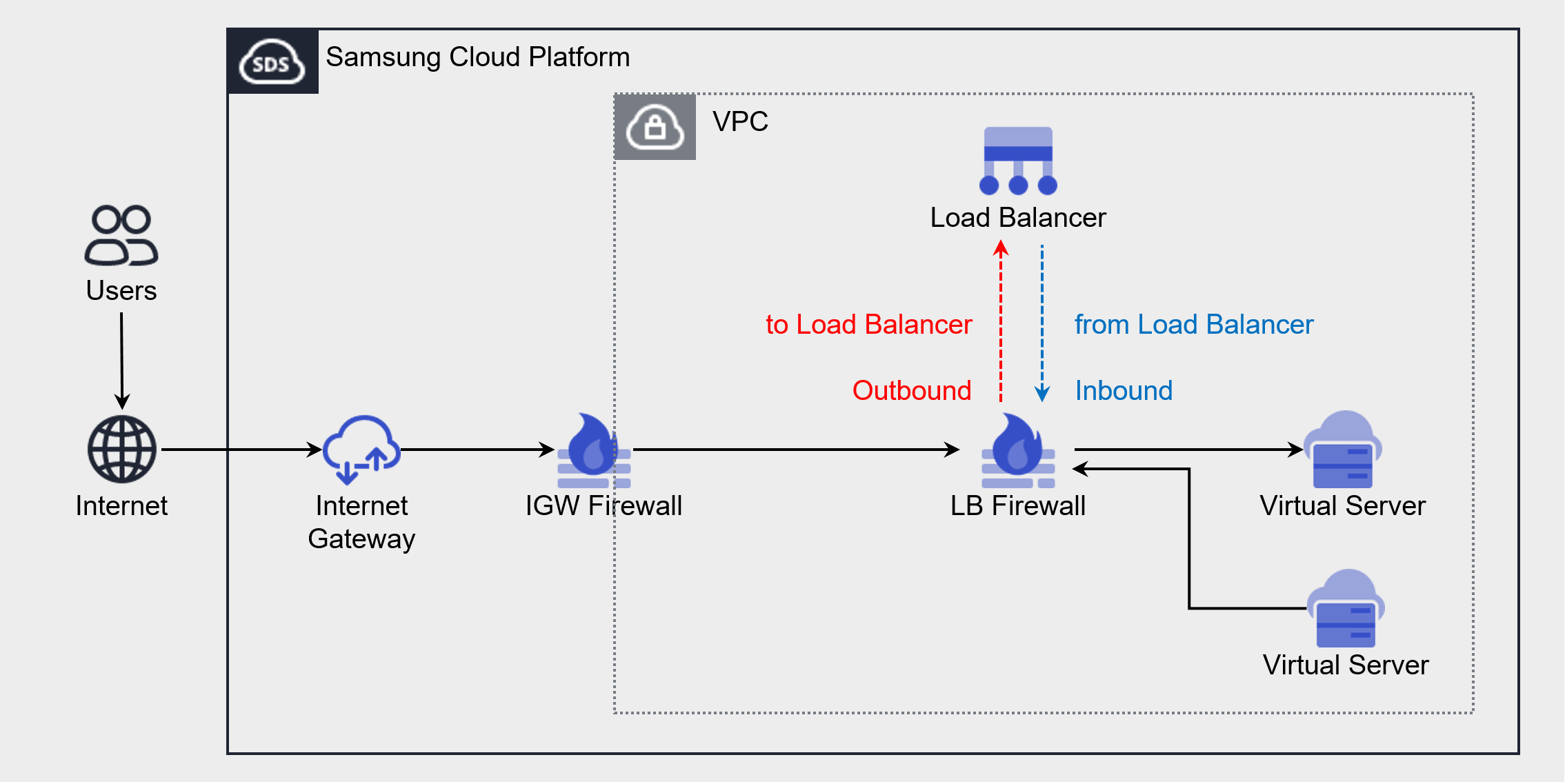
      If using Firewall, you must add rules required for Load Balancer communication. Pay attention to the direction for each purpose when registering rules.

      • If you do not add rules, the Load Balancer service will not function properly.
      Diagram
      PurposeSource IPDestination IPProtocolDestination Port/TypeDirection
      Client → LB ConnectionClient IPLB Service IPListener ProtocolListener Service PortOutbound
      LB → Member ConnectionLB Source NAT IPLB Server Group Member IPLB Server Group ProtocolMember PortInbound
      LB → Member Health CheckLB Health Check IPLB Server Group Member IPHealth Check ProtocolHealth Check Port
      • If health check port and member port are different, register member port
      Inbound
      Figure and Table. Adding Load Balancer Firewall Rules

Viewing Load Balancer Detailed Information

For Load Balancer services, you can view and modify resource lists and detailed information from the Load Balancer menu. The Load Balancer Detail page consists of Detailed Information, Connected Resources, Tags, and Task History tabs.

Follow these steps to view detailed information about the Load Balancer service:

  1. Click the All Services > Networking > Load Balancer menu. You will be navigated to the Load Balancer’s Service Home page.
  2. On the Service Home page, click the Load Balancer menu. You will be navigated to the Load Balancer List page.
  3. On the Load Balancer List page, click the resource for which you want to view detailed information. You will be navigated to the Load Balancer Detail page.
    • The Load Balancer Detail page displays status information and additional feature information, and consists of Detailed Information, Connected Resources, Tags, Task History tabs.
      ItemDetailed Description
      StatusLoad Balancer resource status
      • Active: Service is normally activated
      • Deleting: Processing service termination request
      • Creating: Processing service creation request
      • Error: Cannot check current status due to internal error
      • Editing: Processing service modification request
      Service TerminationDelete Load Balancer resource
      Table. Load Balancer status information and additional feature items

Detailed Information

On the Detailed Information tab, you can view and modify the detailed information of the resource selected from the Load Balancer List, and modify necessary information.

ItemDetailed Description
ServiceService name
Resource TypeResource type
SRNUnique resource ID in Samsung Cloud Platform
Resource NameResource name
Resource IDUnique resource ID in the service
Creation DateService creation date
Modification DateService modification date
CreatorUser who requested service creation
ModifierUser who requested service modification
Load Balancer NameLoad Balancer name
Service IPLoad Balancer’s Service IP (used during communication between client and Load Balancer)
  • Uses 1 IP from Service Subnet
Service TypeLoad Balancer service type
Source NAT IPLoad Balancer’s Source NAT IP (used during communication between Load Balancer and server)
  • Uses 1 IP from Service Subnet
VPC NameVPC resource name where the Load Balancer is created
  • Clicking the resource name navigates to the detail page
Service Subnet NameSubnet resource name where the Load Balancer is created
  • Clicking the resource name navigates to the detail page
Public NAT IPLoad Balancer’s Public NAT IP (used when configuring internet service)
  • Can modify settings by clicking the Edit icon
Private NAT IPLoad Balancer’s Private NAT IP
  • Can modify settings by clicking the Edit icon
Health Check IPLoad Balancer Health Check IP (used when checking health of LB server group members)
  • Uses 2 IPs from Service Subnet
DescriptionAdditional information or description about the Load Balancer
  • Can modify by clicking the Edit icon
Firewall NameFirewall resource name connected to the Load Balancer
  • Clicking the resource name navigates to the detail page
Table. Load Balancer detailed information tab items

Connected Resources

On the Connected Resources tab, you can view the list of Listeners connected to the Load Balancer, and create or terminate Listeners.

  • By selecting a Listener item on the Connected Resources tab, you can navigate to the Listener Detail page to view detailed information and modify or delete it.
  • By clicking the Edit icon on the Listener Detail page items, you can modify the information.
ItemDetailed Description
Create ListenerCreate Listener button
Listener NameListener resource name
Routing RulesRouting rules connected to the Listener
  • Routing Action: Traffic routing method
  • Setting Value: Setting value for routing action
ProtocolProtocol to which the Listener will listen
PortPort to which the Listener will listen
Creation DateListener creation date
DeleteDelete Listener button
Table. Load Balancer connected resources list items

Tags

You can view, add, modify, or delete tag information for the resource selected from the Load Balancer List page.

ItemDetailed Description
Tag ListTag list
  • Can view Key, Value information of the tag
  • Can add up to 50 tags per resource
  • When entering a tag, search and select from the list of previously created Keys and Values
Table. Load Balancer tags tab items

Task History

On the Task History tab, you can view the task history of the selected resource.

ItemDetailed Description
Task DetailsTask execution content
Task DateTask execution date
Resource TypeResource type
Resource NameLoad Balancer name
Task ResultTask execution result (Success/Failure)
Task User InformationUser information who performed the task
Table. Load Balancer task history list items

Managing Load Balancer Resources

You can manage Load Balancer resources such as creating and deleting Listeners.

Creating a Listener

Create a Listener on the Load Balancer to receive client requests and process traffic according to Listener settings.

Notice

The protocol for receiving client requests varies depending on the Load Balancer service type.

  • For L4 Load Balancer: TLS, TCP, UDP protocols
  • For L7 Load Balancer: HTTP, HTTPS protocols

Creating a Listener in L4 Load Balancer

Follow these steps to create a Listener in an L4 Load Balancer:

  1. Click the All Services > Networking > Load Balancer menu. You will be navigated to the Load Balancer’s Service Home page.
  2. On the Service Home page, click the Load Balancer menu. You will be navigated to the Load Balancer List page.
  3. On the Load Balancer List page, click the Load Balancer resource where you want to create a Listener. You will be navigated to the Load Balancer Detail page.
  4. On the Load Balancer Detail page, click the Connected Resources tab. You will be navigated to the Connected Resources tab page.
  5. On the Connected Resources tab page, click the Create Listener button in the upper right corner.
  6. In the Service Information area, enter or select the required information.
    • The information you can enter varies depending on the Protocol.
Item
Required
Detailed Description
Load BalancerRequiredLoad Balancer resource name where the Listener will be created
Listener NameRequiredListener resource name
ProtocolRequiredSelect Listener listening protocol
  • Select from TCP, UDP, TLS, TCP_Proxy
Service PortRequiredEnter Listener listening port
  • Enter a value between 1 and 65,534
Routing RulesRequiredSet routing rules
  • Routing Action: Fixed to LB Server Group Forward for L4 Load Balancer
  • LB Server Group: Select LB Server Group to process client requests
    • Can select from LB Server Groups created in the same Service Subnet as the Load Balancer
    • Cannot select LB Server Groups already in use by other Load Balancers
Session Persistence TimeRequiredSet client session persistence time
  • Default value 120 seconds
  • When using TCP, TLS protocol, can enter in 60-second increments between 60 and 3,600 seconds
  • When using UDP protocol, can enter in 60-second increments between 60 and 180 seconds
Proxy ProtocolOptionalSet whether to add client IP information to proxy protocol header (when using TCP protocol)
  • Insert client IP address into TCP proxy protocol header and forward to server (supports proxy protocol v1)
PersistenceRequiredSelect session persistence (Sticky Session) method (when using TCP, TLS protocol)
  • Source IP: Fix connection server based on client IP address
SSL CertificateOptionalSelect default encryption certificate and security level (when using TLS protocol)
  • Select certificate to use for SSL/TLS Handshake with client
    • Default Certificate (Required): Select certificate to use for client connection
    • SSL Security Level (Required): Select security level when encrypting client connection (refer to Supported Items by SSL Security Level)
      • High: Support Cipher Suites of TLS 1.3 version
      • Normal: Support Cipher Suites including TLS 1.2 version
      • Low (Not recommended): Support Cipher Suites including TLS 1.1 version
Server SSL Security LevelRequiredSelect security level when configuring End-to-End SSL (when using TLS protocol)
  • If not encrypting server connection, select Do Not Use
Table. Listener service information input - When using L4 Load Balancer
  1. In the Additional Information area, enter or select the required information.
Item
Required
Detailed Description
DescriptionOptionalEnter resource description
TagOptionalAdd tag
  • Can add up to 50 tags per resource
Table. Listener additional information input items
  1. Review the created service information and click the Create button.
    • When creation is complete, verify the created resource on the Connected Resources tab of the Load Balancer Detail page.

Creating a Listener in L7 Load Balancer

Follow these steps to create a Listener in an L7 Load Balancer:

  1. Click the All Services > Networking > Load Balancer menu. You will be navigated to the Load Balancer’s Service Home page.
  2. On the Service Home page, click the Load Balancer menu. You will be navigated to the Load Balancer List page.
  3. On the Load Balancer List page, click the Load Balancer resource where you want to create a Listener. You will be navigated to the Load Balancer Detail page.
  4. On the Load Balancer Detail page, click the Connected Resources tab. You will be navigated to the Connected Resources tab page.
  5. On the Connected Resources tab page, click the Create Listener button in the upper right corner.
  6. In the Service Information area, enter or select the required information.
    • The information you can enter varies depending on the Protocol.
Item
Required
Detailed Description
Load BalancerRequiredLoad Balancer resource name where the Listener is created
Listener NameRequiredListener resource name
ProtocolRequiredSelect Listener listening protocol
  • Select from HTTP, HTTPS
Service PortRequiredEnter Listener listening port
  • Enter a value between 1 and 65,534
Routing Rules > Routing ActionRequiredSelect routing processing method
  • LB Server Group Forward: Forward traffic to LB Server Group
  • URL Redirection: Load Balancer responds with redirection
Routing Rules > Routing ConditionRequiredWhen routing action is LB Server Group Forward, set LB Server Group by routing condition
  • URL Path: Set LB Server Group by URL path
  • Host Header: Set LB Server Group based on Host value
  • Redirection Target: When routing action is URL Redirection, set redirection response
    • Change URL Path: Enter URL path to redirect
    • Change Host: Enter Host value to redirect
    • Protocol/Port: Set protocol and port to redirect (when using HTTP protocol)
PersistenceOptionalSelect session persistence (Sticky Session) method (when routing action is LB Server Group Forward)
  • Source IP: Fix connection server based on client IP address
  • Cookie: Fix connection server based on cookie first inserted by Load Balancer
Listener timeout settings > Session Persistence TimeOptionalSet HTTP connection persistence time
  • When Use, can enter between 60 and 3,600 seconds
  • Cannot change Use → Not Use, so recommend using only for necessary services
Listener timeout settings > HTTP Connection TimeoutOptionalSet HTTP response timeout time
  • When each item of Use client connection persistence time, server response wait time, response timeout, can enter between 1 and 120 seconds
  • Cannot change Use → Not Use, so recommend using only for necessary services
X-Forwarded-ForOptionalSet whether to insert client IP information
  • When used, add client IP address to X-Forwarded-For header
X-Forwarded-ProtoOptionalSet whether to insert client request protocol information
  • When used, add client request protocol to X-Forwarded-Proto header
X-Forwarded-PortOptionalSet whether to insert client request port information
  • When used, add client request port to X-Forwarded-Port header
HTTP 2.0OptionalSet whether to use HTTP/2 when connecting client and server
SSL CertificateOptionalSelect encryption certificate and security level (when using HTTPS protocol)
  • Select certificate to use for SSL/TLS Handshake with client
    • Default Certificate (Required): Select certificate to use for client connection
    • SSL Security Level (Required): Select security level when encrypting client connection (refer to Supported Items by SSL Security Level)
      • High: Support Cipher Suites of TLS 1.3 version
      • Normal: Support Cipher Suites including TLS 1.2 version
      • Low (Not recommended): Support Cipher Suites including TLS 1.1 version
  • If multi-domain service, add and register certificate to SNI Certificate after creating Listener
Server SSL Security LevelRequiredSelect security level when configuring End-to-End SSL (when using HTTPS protocol)
  • If not encrypting server connection, select Do Not Use
Table. Listener service information input - When using L7 Load Balancer
Note

The URL path matching method for routing rules is Starts with (prefix match).

  • Checks whether the entered URL path starts with a specific string, and if the beginning matches, the routing rule is applied.
  • Example: If the entered URL is /api/
    • Matching URLs: /api/users, /api/v1/login, /api/images/logo.png
    • Non-matching URLs: /auth/api/, /API/users
  1. In the Additional Information area, enter or select the required information.
Item
Required
Detailed Description
DescriptionOptionalEnter resource description
TagOptionalAdd tag
  • Can add up to 50 tags per resource
Table. Listener additional information input items
  1. Review the created service information and click the Create button.
    • When creation is complete, verify the created resource on the Connected Resources tab of the Load Balancer Detail page.

Supported Items by SSL Security Level

The list of TLS versions and Cipher Suites supported by SSL security level in the Listener is as follows.

Security LevelTLS VersionCipher Suite (Encryption Algorithm)
HighTLS 1.3TLS13_AES_128_GCM_SHA256
TLS13_AES_256_GCM_SHA384
TLS13_CHACHA20_POLY1305_SHA256
Normal/LowNormal: TLS 1.3, 1.2
Low: TLS 1.3, 1.2, 1.1
TLS13_AES_128_GCM_SHA256
TLS13_AES_256_GCM_SHA384
TLS13_CHACHA20_POLY1305_SHA256
RC4-MD5
RC4-SHA
DES-CBC3-SHA
DHE-RSA-AES128-GCM-SHA256
DHE-RSA-AES256-GCM-SHA384
DHE-RSA-CHACHA20-PLY1305
ECDHE-RSA-AES128-SHA
ECDHE-RSA-AES256-SHA
ECDHE-RSA-AES128-SHA256
ECDHE-RSA-AES256-SHA384
ECDHE-RSA-CHACHA20-POLY135
ECDHE-ECDSA-AES128-SHA
ECDHE-ECDSA-AES256-SHA
ECDHE-ECDSA-AES128-SHA256
ECDHE-ECDSA-AES256-SHA384
ECDHE-ECDSA-AES128-GCM-SHA256
ECDHE-ECDSA-AES256-GCM-SHA384
ECDHE-ECDSA-CHACHA20-POLY1305
Table. Supported items by SSL security level

Viewing Listener Detailed Information

You can view and modify detailed information of a Listener by selecting it from the Connected Resources tab on the Load Balancer Detail page.

Follow these steps to view detailed information of the Listener:

  1. Click the All Services > Networking > Load Balancer menu. You will be navigated to the Load Balancer’s Service Home page.
  2. On the Service Home page, click the Load Balancer menu. You will be navigated to the Load Balancer List page.
  3. On the Load Balancer List page, click the resource for which you want to view detailed information. You will be navigated to the Load Balancer Detail page.
  4. On the Load Balancer Detail page, click the Connected Resources tab.
  5. From the connected resources list, click the Listener for which you want to view detailed information. You will be navigated to the Listener Detail page.
    • The Listener Detail page displays status information and additional feature information, and consists of Detailed Information, Tags, Task History tabs.
ItemDetailed Description
StatusListener status
  • Active: Service is normally activated
  • Deleting: Processing service termination request
  • Creating: Processing service creation request
  • Error: Cannot check current status due to internal error
  • Editing: Processing service modification request
Delete ListenerDelete Listener
Table. Listener status information and additional feature items

Detailed Information

On the Detailed Information tab, you can view the detailed information of the Listener and modify necessary information. The detailed information varies depending on the Load Balancer in use.

L4 Load Balancer Detailed Information

ItemDetailed Description
ServiceService name
Resource TypeResource type
SRNUnique resource ID in Samsung Cloud Platform
Resource NameResource name
Resource IDUnique resource ID in the service
CreatorUser who requested Listener creation
Creation DateListener creation date
ModifierUser who requested Listener modification
Modification DateListener modification date
Listener NameListener name
ProtocolProtocol used by Listener
PortPort used by Listener
Session Persistence TimeClient session persistence time
  • Can modify by clicking the Edit icon
Proxy ProtocolWhether to insert client IP information
  • Can modify by clicking the Edit icon
PersistenceWhether to use session persistence (Sticky Session)
  • Can modify by clicking the Edit icon
Routing RulesRouting action and LB Server Group information
  • Can modify LB Server Group by clicking the Edit icon
SSL CertificateDefault certificate, SSL security level, and expiration date information
  • Can modify by clicking the Edit icon
  • If registered SNI certificates exist, cannot modify default certificate (can modify after deleting SNI certificates)
SNI CertificateSNI certificate detailed information
  • Can modify referenced SNI information and add register certificates by clicking the Edit icon
Server SSL Security LevelWhether to encrypt server connection
  • Can modify by clicking the Edit icon
DescriptionAdditional information about the Listener
  • Can modify by clicking the Edit icon
Table. Listener detailed information tab - When using L4 Load Balancer

L7 Load Balancer Detailed Information

ItemDetailed Description
ServiceService name
Resource TypeResource type
SRNUnique resource ID in Samsung Cloud Platform
Resource NameResource name
Resource IDUnique resource ID in the service
CreatorUser who requested Listener creation
Creation DateListener creation date
ModifierUser who requested Listener modification
Modification DateListener modification date
Listener NameListener name
ProtocolProtocol used by Listener
PortPort used by Listener
Session Persistence TimeHTTP connection persistence time
  • Can modify Not Use → Use and modify input value by clicking the Edit icon
Client Connection Persistence TimeHTTP client connection persistence timeout
  • Can modify Not Use → Use and modify input value by clicking the Edit icon
Server Response Wait TimeHTTP server response wait timeout
  • Can modify Not Use → Use and modify input value by clicking the Edit icon
X-Forwarded-ForWhether to insert client IP information
  • Can modify by clicking the Edit icon
X-Forwarded-ProtoWhether to insert client request protocol information
  • Can modify by clicking the Edit icon
X-Forwarded-PortWhether to insert client request port information
  • Can modify by clicking the Edit icon
PersistenceWhether to use session persistence (Sticky Session)
  • Can modify by clicking the Edit icon
HTTP 2.0Whether to use HTTP/2 when connecting client and server
  • Can modify by clicking the Edit icon
Routing RulesRouting action and routing condition/redirection target information
  • Can modify Routing Condition or Redirection Target by clicking the Edit icon
SSL CertificateDefault certificate, SSL security level, and expiration date information
  • Can modify by clicking the Edit icon
  • If registered SNI certificates exist, cannot modify default certificate (can modify after deleting SNI certificates)
SNI CertificateSNI certificate detailed information
  • Can modify referenced SNI information and add register certificates by clicking the Edit icon
Server SSL Security LevelWhether to encrypt server connection
  • Can modify by clicking the Edit icon
DescriptionAdditional information about the Listener
  • Can modify by clicking the Edit icon
Table. Listener detailed information tab - When using L7 Load Balancer

Tags

You can view, add, modify, or delete tag information for the Listener.

ItemDetailed Description
Tag ListTag list
  • Can view Key, Value information of the tag
  • Can add up to 50 tags per resource
  • When entering a tag, search and select from the list of previously created Keys and Values
Table. Listener tags tab items

Task History

You can view the task history of the Listener.

ItemDetailed Description
Task DetailsTask execution content
Task DateTask execution date
Resource TypeResource type
Resource NameListener name
Task ResultTask execution result (Success/Failure)
Task User InformationUser information who performed the task
Table. Listener task history tab items

Modifying Routing Rules

You can modify routing rules of a Listener from the Connected Resources tab on the Load Balancer Detail page.

Follow these steps to modify routing rules of the Listener:

  1. Click the All Services > Networking > Load Balancer menu. You will be navigated to the Load Balancer’s Service Home page.
  2. On the Service Home page, click the Load Balancer menu. You will be navigated to the Load Balancer List page.
  3. On the Load Balancer List page, click the resource for which you want to view detailed information. You will be navigated to the Load Balancer Detail page.
  4. On the Load Balancer Detail page, click the Connected Resources tab.
  5. From the connected resources list, click the Listener for which you want to add routing conditions. You will be navigated to the Listener Detail page.
  6. On the Listener Detail page, click the Edit icon on the Routing Rules item. The Modify Routing Rules popup window will open.
  7. Modify routing rules according to the routing action, then click the OK button.
    Item
    Required
    Detailed Description
    Routing Action-Currently set routing method (cannot modify)
    Routing ConditionRequiredCan modify routing conditions when routing action is LB Server Group Forward
    • URL Path: Modify request URL path and LB Server Group (can add up to 20)
    • Host Header: Modify request host and LB Server Group (can add up to 20)
    Redirection TargetRequiredCan modify redirection target when routing action is URL Redirection
    • Path: Can modify change URL path
    • Host: Can modify change host
    • Protocol/Port: Cannot modify (only HTTP → HTTPS redirection possible)
    Table. Listener routing rule modification items

Deleting a Listener

Follow these steps to delete a Listener that is not in use:

  1. Click the All Services > Networking > Load Balancer menu. You will be navigated to the Load Balancer’s Service Home page.
  2. On the Service Home page, click the Load Balancer menu. You will be navigated to the Load Balancer List page.
  3. On the Load Balancer List page, click the Load Balancer resource from which you want to delete a Listener. You will be navigated to the Load Balancer Detail page.
  4. On the Load Balancer Detail page, click the Connected Resources tab. You will be navigated to the Connected Resources tab page.
  5. On the Connected Resources tab page, click the Listener you want to delete. You will be navigated to the Listener Detail page.
  6. On the Listener Detail page, click the Delete Listener button.

Terminating Load Balancer

You can terminate a Load Balancer that is not in use to reduce costs. However, since it may affect application services, request termination after sufficient prior review.

Caution

You cannot terminate a Load Balancer in the following cases:

  • If there are Listeners connected to the Load Balancer: Delete the connected Listeners on the Connected Resources tab of the Load Balancer Detail page.
  • If using Public NAT IP on the Load Balancer: Release the Public NAT IP in use on the Detailed Information tab of the Load Balancer Detail page.
  • If using Private NAT IP on the Load Balancer: Release the Private NAT IP in use on the Detailed Information tab of the Load Balancer Detail page.
  • If there are rules registered in the Firewall: Delete the rules of the Firewall in use on the Detailed Information tab of the Load Balancer Detail page.
  • If connected to PrivateLink Service: Check the connected Load Balancer on the PrivateLink Service Detail page.

Follow these steps to terminate a Load Balancer:

  1. Click the All Services > Networking > Load Balancer menu. You will be navigated to the Load Balancer’s Service Home page.
  2. On the Service Home page, click the Load Balancer menu. You will be navigated to the Load Balancer List page.
  3. On the Load Balancer List page, click the resource you want to terminate. You will be navigated to the Load Balancer Detail page.
  4. On the Load Balancer Detail page, click the Terminate Service button.
  5. When termination is complete, verify resource termination on the Load Balancer List.

1 - LB Server Group

You can create an LB Server Group through the Samsung Cloud Platform Console and connect it to a Load Balancer’s Listener.

Creating LB Server Group

Note
You can create up to 1,000 LB Server Groups per Account.

Follow these steps to create an LB Server Group:

  1. Click the All Services > Networking > Load Balancer menu. You will be navigated to the Load Balancer’s Service Home page.
  2. On the Service Home page, click the LB Server Group menu. You will be navigated to the LB Server Group List page.
  3. On the LB Server Group List page, click the Create LB Server Group button. You will be navigated to the Create LB Server Group page.
  4. On the Create LB Server Group page, enter the information required for service creation and select detailed options.
    • In the Service Information area, enter or select the required information.
      Item
      Required
      Detailed Description
      LB Server Group NameRequiredLB Server Group resource name
      • Enter 3 to 63 characters using uppercase/lowercase English letters, numbers, and special characters(-_)
      • LB Server Group name cannot be duplicated within an Account
      VPC NameRequiredSelect VPC to create LB Server Group
      • Select VPC where the Load Balancer to which the LB Server Group will be connected is created
      Service Subnet NameRequiredSelect VPC Subnet to create LB Server Group
      • Select Subnet where the Load Balancer to which the LB Server Group will be connected is created
      Load BalancingRequiredSelect load balancing algorithm
      • Round Robin: Distribute sequentially to registered members
      • Weighted round robin: Distribute sequentially in proportion to the weight assigned to each member
      • Least Connection: Distribute to the member with the fewest connections
      • Weighted least connection: Distribute to the member with the highest priority considering the weight assigned to each member and the number of connections
      • IP Hash: Distribute to a specific member according to the client IP address hash value
      ProtocolRequiredSelect LB Server Group listening protocol
      • Select protocol to forward to members of LB Server Group
      LB Health CheckRequiredSelect LB Health Check
      • Select from LB Health Checks created in the same Service Subnet as the LB Server Group
      Table. LB Server Group service information input items
    • In the Additional Information area, enter or select the required information.
      Item
      Required
      Detailed Description
      DescriptionOptionalEnter resource description
      TagOptionalAdd tag
      • Can add up to 50 tags per resource
      Table. LB Server Group additional information input items
  5. Review the created service information and estimated charges, then click the Create button.
    • When creation is complete, verify the created resource on the LB Server Group List page.

Viewing LB Server Group Detailed Information

You can view and modify resource lists and detailed information from the LB Server Group menu. The LB Server Group Detail page consists of Detailed Information, Connected Resources, Tags, and Task History tabs.

Follow these steps to view detailed information of the LB Server Group:

  1. Click the All Services > Networking > Load Balancer menu. You will be navigated to the Load Balancer’s Service Home page.

  2. On the Service Home page, click the LB Server Group menu. You will be navigated to the LB Server Group List page.

    • You can modify column display by clicking the Settings button in the upper right of the table.
      Item
      Display
      Detailed Description
      LB Server Group NameDefaultLB Server Group resource name
      ProtocolDefaultLB Server Group protocol
      Load Balancer NameDefaultLoad Balancer resource name connected to LB Server Group
      LB Health Check IDDefaultLB Health Check resource name used by LB Server Group
      Member CountDefaultNumber of members registered in LB Server Group
      Creation DateDefaultLB Server Group creation date
      StatusDefaultLB Server Group resource status
      Table. LB Server Group list items
  3. On the LB Server Group List page, click the resource for which you want to view detailed information. You will be navigated to the LB Server Group Detail page.

    • At the top of the LB Server Group Detail page, status information and description of additional features are displayed.
      ItemDetailed Description
      StatusLB Server Group resource status
      • Active: Service is normally activated
      • Deleting: Processing service termination request
      • Creating: Processing service creation request
      • Error: Cannot check current status due to internal error
        • If this status persists, contact Support Center
      • Editing: Processing service modification request
      Delete LB Server GroupDelete LB Server Group resource
      Table. LB Server Group status information and additional feature items

Detailed Information

On the Detailed Information tab, you can view detailed information of the resource from the LB Server Group List and modify information if necessary.

ItemDetailed Description
ServiceService name
Resource TypeResource type
SRNUnique resource ID in Samsung Cloud Platform
Resource NameResource name
Resource IDUnique resource ID in the service
CreatorUser who requested service creation
Creation DateService creation date
ModifierUser who requested service modification
Modification DateService modification date
Load Balancer NameLoad Balancer resource name connected to LB Server Group
  • Clicking the resource name navigates to the detail page
LB Server Group NameLB Server Group name
VPC NameVPC resource name where the LB Server Group is created
  • Clicking the resource name navigates to the detail page
Service Subnet NameSubnet resource name where the LB Server Group is created
  • Clicking the resource name navigates to the detail page
PortLB Server Group forwarding port
ProtocolLB Server Group forwarding protocol
Load BalancingLB Server Group traffic distribution method
  • Can modify by clicking the Edit icon
LB Health CheckLB Health Check resource name
  • Can modify by clicking the Edit icon
DescriptionLB Server Group additional description
  • Can modify by clicking the Edit icon
Table. LB Server Group detailed information tab items

Connected Resources

On the Connected Resources tab, you can view the list of members connected to the LB Server Group and add or delete members.

ItemDetailed Description
Add MemberAdd LB Server Group member button
Member NameMember name (server name) added to LB Server Group
IP AddressMember IP address
PortMember listening port
WeightLoad balancing weight
  • Default value 1
  • When using weighted load balancing (Weighted Round Robin, Weighted Least Connection) in LB Server Group, can enter 1 to 1000
EnabledWhether member is enabled
  • Enable: Receiving client requests
  • Disable: Excluded from receiving client requests
Creation DateMember addition date
Health Check StatusHealth check status information
  • Healthy: Health check normal
  • Unhealthy: Health check abnormal
  • Unknown: Cannot check health check status
StatusMember resource status
Table. LB Server Group connected resources list items

Tags

You can view, add, modify, or delete tag information for the resource selected from the LB Server Group List page.

ItemDetailed Description
Tag ListTag list
  • Can view Key, Value information of the tag
  • Can add up to 50 tags per resource
  • When entering a tag, search and select from the list of previously created Keys and Values
Table. LB Server Group tags tab items

Task History

On the Task History tab, you can view the task history of the selected resource.

ItemDetailed Description
Task DetailsTask execution content
Task DateTask execution date
Resource TypeResource type
Resource NameLB Server Group name
Task ResultTask execution result (Success/Failure)
Task User InformationUser information who performed the task
Table. LB Server Group task history list items

Managing LB Server Group Resources

You can view the member list of the LB Server Group and add or delete members.

Adding Member

You can add a member to the LB Server Group to register server resources that will process client requests.

Follow these steps to add a member to the LB Server Group:

  1. Click the All Services > Networking > Load Balancer menu. You will be navigated to the Load Balancer’s Service Home page.

  2. On the Service Home page, click the LB Server Group menu. You will be navigated to the LB Server Group List page.

  3. On the LB Server Group List page, click the resource for which you want to modify detailed information. You will be navigated to the LB Server Group Detail page.

  4. On the LB Server Group Detail page, click the Connected Resources tab. You will be navigated to the Connected Resources tab page.

  5. On the Connected Resources tab page, click the Add Member button in the upper right corner.

  6. In the Add Member popup window, enter the required information, then click the OK button.

    Item
    Required
    Detailed Description
    LB Server Group NameDefaultLB Server Group name to add member to
    Target ServerRequiredServer information to add as member
    • Virtual Server/Bare Metal Server: Select from the list of servers created in the same VPC as the LB Server Group
    • Direct IP Input: Enter server IP directly
    • Can add target server by clicking the Add button
    Member InformationRequiredSet member port and weight
    • Member Name: Display server name and IP to be added as member
    • Port: Port that the member will listen to
    • Weight: Weight to be applied to load balancing
      • When using Weighted Round Robin, Weighted Least Connection load balancing, must enter a value between 1 and 1000
    Table. LB Server Group member addition items

  7. In the notification window, click the OK button.

  8. Verify member addition on the Connected Resources tab.

Notice
For communication between Load Balancer and LB Server Group members, add the following rules to the Security Group of the server added as a member. * (Direction) Inbound rule, (Target Address) Load Balancer’s Source NAT IP, (Protocol) LB Server Group protocol, (Allowed Port) Member port
Note
  • If the LB Server Group is in Creating, Editing, Deleting, Error status, you cannot add members.
  • If the number of members that can be created in the Account to which the LB Server Group belongs is exceeded, you cannot add members. The maximum number of members that can be created in one Account is 1,000.
Note
  • You can add a server created in a different VPC as a member through VPC Peering. After adding the target server by Direct IP Input, check the Health Check Status of the added member on the Connected Resources tab.
    For details, refer to VPC > VPC Peering.

Modifying Member

Clicking the member name in the member list navigates you to the Member Detail page. You can view detailed information of the member and change information by clicking the Edit icon.

Follow these steps to modify member detailed information:

  1. Click the All Services > Networking > Load Balancer menu. You will be navigated to the Load Balancer’s Service Home page.
  2. On the Service Home page, click the LB Server Group menu. You will be navigated to the LB Server Group List page.
  3. On the LB Server Group List page, click the resource for which you want to modify detailed information. You will be navigated to the LB Server Group Detail page.
  4. On the LB Server Group Detail page, click the Connected Resources tab. You will be navigated to the Connected Resources tab page.
  5. On the Connected Resources tab page, click the member you want to modify. You will be navigated to the Member Detail page.
  6. On the Member Detail page, modify the desired member information.

Modifying Weight

Can be modified when using weighted load balancing (Weighted Round Robin, Weighted Least Connection).

  • Click the Edit icon on the Weight item. Enter the weight to modify in the modification window and click the OK button.

Modifying Port

To modify the member port, click the Edit icon on the Port item. Enter the port to modify in the modification window and click the OK button.

Modifying Enabled

To modify member enabled status, click the Edit icon on the Enabled item. Set the enabled status in the modification window and click the OK button.

Note
If you modify Enabled to Disable, the member will only handle existing connections and stop new connections.

Deleting Member

Follow these steps to delete a member that is not in use:

  1. Click the All Services > Networking > Load Balancer menu. You will be navigated to the Load Balancer’s Service Home page.
  2. On the Service Home page, click the LB Server Group menu. You will be navigated to the LB Server Group List page.
  3. On the LB Server Group List page, click the resource for which you want to modify detailed information. You will be navigated to the LB Server Group Detail page.
  4. On the LB Server Group Detail page, click the Connected Resources tab. You will be navigated to the Connected Resources tab page.
  5. On the Connected Resources tab page, click the member you want to delete. You will be navigated to the Member Detail page.
  6. On the Member Detail page, click the Delete Member button.
  7. Verify member deletion on the Connected Resources tab.

Terminating LB Server Group

You can terminate an LB Server Group that is not in use. However, since it may affect application services, request termination after sufficient prior review.

Notice

You cannot terminate an LB Server Group in the following cases:

  • If the LB Server Group is in use by a Listener: Modify the LB Server Group of the Listener before terminating the LB Server Group.
  • If there are registered members in the LB Server Group: Delete all resources connected to the LB Server Group before terminating the LB Server Group.
  • If the LB Server Group is used in an Auto-Scaling Group: Set Load Balancer to not use in the Auto-Scaling Group or modify to not use that LB Server Group. For details, refer to Auto-Scaling Group > Using Load Balancer.

Follow these steps to terminate the LB Server Group:

  1. Click the All Services > Networking > Load Balancer menu. You will be navigated to the Load Balancer’s Service Home page.
  2. On the Service Home page, click the LB Server Group menu. You will be navigated to the LB Server Group List page.
  3. On the LB Server Group List, click the resource you want to terminate. You will be navigated to the LB Server Group Detail page.
  4. On the LB Server Group Detail page, click the Delete LB Server Group button.
  5. When termination is complete, verify resource termination on the LB Server Group List.

2 - LB Health Check

You can create an LB Health Check through the Samsung Cloud Platform Console and use it for LB Server Groups.

Creating LB Health Check

Note
You can create up to 500 LB Health Checks per Account.

Follow these steps to create an LB Health Check:

  1. Click the All Services > Networking > Load Balancer menu. You will be navigated to the Load Balancer’s Service Home page.
  2. On the Service Home page, click the LB Health Check menu. You will be navigated to the LB Health Check List page.
  3. On the LB Health Check List page, click the Create LB Health Check button. You will be navigated to the Create LB Health Check page.
  4. On the Create LB Health Check page, enter the information required for service creation and select detailed options.
    • In the Service Information area, enter or select the required information.
      Item
      Required
      Detailed Description
      LB Health Check NameRequiredLB Health Check resource name
      • Enter 3 to 63 characters using uppercase/lowercase English letters, numbers, and special characters(-_)
      • LB Health Check name cannot be duplicated within an Account
      VPC NameRequiredSelect VPC to create LB Health Check
      • Select VPC where the LB Server Group to use the LB Health Check is created
      Service Subnet NameRequiredSelect VPC Subnet to create LB Health Check
      • Select Subnet where the LB Server Group to use the LB Health Check is created
      Health Check Method > ProtocolRequiredHealth check protocol
      • Select from TCP, HTTP to use for member health check
      Health Check Method > Health Check PortRequiredHealth check port
      • Enter a value between 1 and 65,534 to use for member health check
      Health Check Method > IntervalRequiredHealth check interval
      • Default value 5 seconds, can enter between 1 and 180 seconds
      Health Check Method > TimeoutRequiredHealth check response wait time
      • Default value 5 seconds, can enter between 1 and 180 seconds
      • Cannot set to a value greater than the interval
      Health Check Method > Healthy ThresholdRequiredNumber of times to determine health check status
      • Default value 3 times, can enter between 1 and 10
      Health Check Method > HTTP MethodRequiredSet HTTP request method (when using HTTP protocol)
      • Select from GET, POST
      Health Check Method > URL PathRequiredEnter health check URL path (when using HTTP protocol)
      • Enter within 50 characters using English letters, numbers, and special characters(/.-_?&=)
      Health Check Method > Response CodeRequiredEnter HTTP response code to receive from server (when using HTTP protocol)
      • Enter response codes in the 200 ~ 500 range
      Health Check Method > Request StringRequiredEnter health check request string (when using HTTP protocol POST method)
      • Enter content to include in Request Body within 255 bytes using English letters, numbers, and special characters(/.-_?&=)
      Table. LB Health Check service information input items
    • In the Additional Information area, enter or select the required information.
      Item
      Required
      Detailed Description
      DescriptionOptionalEnter resource description
      TagOptionalAdd tag
      • Can add up to 50 tags per resource
      Table. LB Server Group additional information input items
  5. In the Summary panel, review the created service information and estimated charges, then click the Create button.
    • When creation is complete, verify the created resource on the LB Health Check List page.
Notice

For member health check in Load Balancer, add the following rules to the Security Group of the server added as a member.

  • (Direction) Inbound rule, (Target Address) Load Balancer’s health check IP, (Protocol) Health check protocol, (Allowed Port) Health check port
  • We recommend setting the health check port to be the same as the member port.
  • If the health check port and member port are different, health check is performed based on the member port.
Notice

Set the LB Health Check to a value that can respond from members to be added to the LB Server Group.

  • Since Load Balancer determines member status based on health check response, the LB Health Check result may differ from the actual service status.

Viewing LB Health Check Detailed Information

You can view and modify resource lists and detailed information from the LB Health Check menu. The LB Health Check Detail page consists of Detailed Information, Connected Resources, Tags, and Task History tabs.

Follow these steps to view detailed information of the LB Health Check:

  1. Click the All Services > Networking > Load Balancer menu. You will be navigated to the Load Balancer’s Service Home page.

  2. On the Service Home page, click the LB Health Check menu. You will be navigated to the LB Health Check List page.

    • You can modify column display by clicking the Settings button in the upper right of the table.
      Item
      Display
      Detailed Description
      LB Health Check NameDefaultLB Health Check resource name
      Service Subnet IDDefaultVPC Subnet name where the LB Health Check is created
      LB Server Group CountDefaultNumber of LB Server Groups using the LB Health Check
      TypeDefaultLB Health Check type
      ProtocolDefaultLB Health Check protocol
      Creation DateDefaultLB Health Check creation date
      StatusDefaultLB Health Check resource status
      Table. LB Health Check list items
  3. On the LB Health Check List page, click the resource for which you want to view detailed information. You will be navigated to the LB Health Check Detail page.

    • At the top of the LB Health Check Detail page, status information and description of additional features are displayed.
      ItemDetailed Description
      StatusLB Health Check resource status
      • Active: Service is normally activated
      • Deleting: Processing service termination request
      • Creating: Processing service creation request
      • Error: Cannot check current status due to internal error
        • If this status persists, contact Support Center
      • Editing: Processing service modification request
      Delete LB Health CheckDelete LB Health Check resource
      Table. LB Health Check status information and additional feature items

Detailed Information

On the Detailed Information tab, you can view detailed information of the resource from the LB Health Check List and modify information if necessary.

ItemDetailed Description
ServiceService name
Resource TypeResource type
SRNUnique resource ID in Samsung Cloud Platform
Resource NameResource name
Resource IDUnique resource ID in the service
CreatorUser who requested service creation
Creation DateService creation date
ModifierUser who requested service modification
Modification DateService modification date
LB Health Check NameLB Health Check name
TypeLB Health Check type
VPC NameVPC to use the LB Health Check
  • Clicking the resource name navigates to the detail page
Service Subnet NameVPC Subnet to use the LB Health Check
  • Clicking the resource name navigates to the detail page
Health Check MethodLB Health Check method setting information
  • Can modify by clicking the Edit icon
DescriptionAdditional information about the LB Health Check
  • Can modify by clicking the Edit icon
Table. LB Health Check detailed information tab items

Connected Resources

On the Connected Resources tab, you can view detailed information of the LB Server Group connected to the LB Health Check.

ItemDetailed Description
LB Server Group NameLB Server Group resource name
  • Clicking the resource name navigates to the LB Server Group detail page
ProtocolLB Health Check protocol
Load Balancer NameLoad Balancer resource name connected to LB Server Group
Member CountNumber of members added to LB Server Group
Creation DateLB Server Group creation date
StatusLB Server Group resource status
  • Active: Service is normally activated
  • Deleting: Processing service termination request
  • Creating: Processing service creation request
  • Error: Cannot check current status due to internal error
    • If this status persists, contact Support Center
  • Editing: Processing service modification request
Table. LB Health Check connected resources list items

Tags

You can view, add, modify, or delete tag information for the resource selected from the LB Health Check List page.

ItemDetailed Description
Tag ListTag list
  • Can view Key, Value information of the tag
  • Can add up to 50 tags per resource
  • When entering a tag, search and select from the list of previously created Keys and Values
Table. LB Health Check tags tab items

Task History

On the Task History tab, you can view the task history of the selected resource.

ItemDetailed Description
Task DetailsTask execution content
Task DateTask execution date
Resource TypeResource type
Resource NameLB Health Check name
Task ResultTask execution result (Success/Failure)
Task User InformationUser information who performed the task
Table. LB Health Check task history list items

Modifying LB Health Check Method

You can modify the health check method on the LB Health Check Detail page.

Follow these steps to modify the LB Health Check method:

  1. Click the All Services > Networking > Load Balancer menu. You will be navigated to the Load Balancer’s Service Home page.
  2. On the Service Home page, click the LB Health Check menu. You will be navigated to the LB Health Check List page.
  3. On the LB Health Check List page, click the resource for which you want to modify detailed information. You will be navigated to the LB Health Check Detail page.
  4. On the LB Health Check Detail page, click the Edit icon on Health Check Method. You will be navigated to the Modify Health Check Method popup window.
  5. In the Modify Health Check Method popup window, modify the required information, then click the OK button.

Terminating LB Health Check

You can terminate an LB Health Check service that is not in use.

Caution
  • You cannot delete LB Health Check resources of Default type.
  • You cannot delete LB Health Check resources in use by LB Server Groups.

Follow these steps to terminate the LB Health Check:

  1. Click the All Services > Networking > Load Balancer menu. You will be navigated to the Load Balancer’s Service Home page.
  2. On the Service Home page, click the LB Health Check menu. You will be navigated to the LB Health Check List page.
  3. On the LB Health Check List, click the resource you want to terminate. You will be navigated to the LB Health Check Detail page.
  4. On the LB Health Check Detail page, click the Delete LB Health Check button.
  5. When termination is complete, verify resource termination on the LB Health Check List.