The user can enter required Load Balancer information and select detailed options through the Samsung Cloud Platform Console to create a service.
Load Balancer Create
You can create and use the Load Balancer service from the Samsung Cloud Platform Console.
To create a Load Balancer, follow the steps below.
- All Services > Networking > Load Balancer Click the menu. Navigate to the Service Home page of Load Balancer.
- Click the Load Balancer Create button on the Service Home page. You will be taken to the Load Balancer Create page.
- Load Balancer creation on the page, enter the information required to create the service and select detailed options.
- Service Information Input Enter or select the required information in the area.
| Category | Required | Detailed description |
|---|---|---|
| Load Balancer name | Required | Load Balancer resource name
|
| Service Category | Required | Load Balancer Service Type
|
| VPC | Required | VPC where the Load Balancer will be created
|
| Service Subnet | Required | VPC Subnet where the Load Balancer will be created
|
| Service IP | Select | Load Balancer service IP
|
| Source NAT IP | Select | IP to be used for member communication in the Load Balancer
|
| Health Check IP | Select | IP to use for health check in Load Balancer
|
| Use Firewall | Select | Whether to use Firewall
|
| Firewall log storage | Select | Select whether to save Firewall logs
|
- Additional Information Input Enter or select the required information in the area.
Category RequiredDetailed description Description Select Enter resource description Tag Select Add Tag - Up to 50 tags can be added per resource
Table. Load Balancer Additional Information Input Items
- Check the created service information and the estimated billing amount, and click the Complete button.
- When creation is complete, check the created resources on the Load Balancer List page.Guide
Load Balancer service does not provide access control functionality for Service IP and service ports.
- Load Balancer when creating use Firewall to manage communication between client and Load Balancer, and between Load Balancer and members with Firewall rules, and use Firewall log storage to store access logs is recommended.
CautionIf you use the firewall, you must add rules required for Load Balancer communication. Register the rules, paying attention to the direction for each purpose.
- If you do not add the rule, the Load Balancer service will not operate correctly.
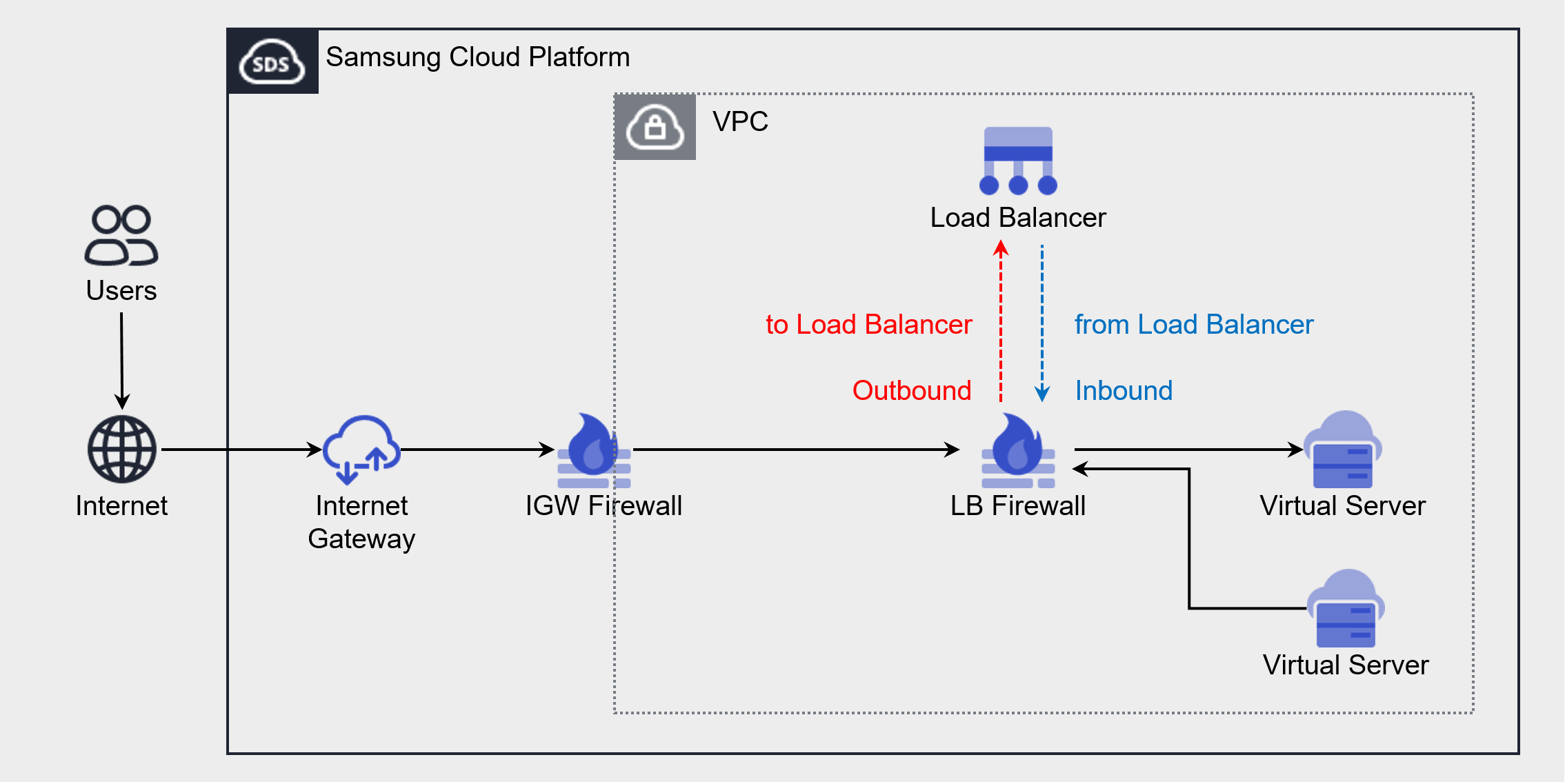
Purpose Source IP Destination IP Protocol Destination Port/Type Direction Client → LB connection Client IP LB Service IP Listener protocol Listener service port Outbound LB → Member Connection LB Source NAT IP LB Server Group Member IP LB Server Group Protocol Member Port Inbound LB → Member Health Check LB Health Check IP LB Server Group Member IP Health Check Protocol Health Check Port - If the health check port and member port are different, register the member port
Inbound Figures and Tables. Add Load Balancer Firewall Rule
- When creation is complete, check the created resources on the Load Balancer List page.
Load Balancer Check Detailed Information
The Load Balancer service can view and edit the resource list and detailed information in the Load Balancer menu. Load Balancer Details page consists of Details, Connected Resources, Tags, Activity Log tabs.
To view detailed information of the Load Balancer service, follow the steps below.
- All Services > Networking > Load Balancer Click the menu. Go to the Service Home page of the Load Balancer.
- Click the Load Balancer menu on the Service Home page. Navigate to the Load Balancer List page.
- Click the resource to view detailed information on the Load Balancer List page. You will be taken to the Load Balancer Details page.
- Load Balancer Detail page displays status information and additional feature information, and consists of Detail Information, Connected Resources, Tags, Operation History tabs.
Category Detailed description Status Load Balancer resource status - Active: The service is properly activated
- Deleting: Processing service termination request
- Creating: Processing service creation request
- Error: Cannot determine current status due to internal error
- Editing: Processing service modification request
Service termination Load Balancer resource deletion Table. Load Balancer status information and additional feature items
- Load Balancer Detail page displays status information and additional feature information, and consists of Detail Information, Connected Resources, Tags, Operation History tabs.
Detailed Information
Detailed Information tab allows you to view detailed information of the selected resource from the Load Balancer list, and modify necessary information.
| Category | Detailed description |
|---|---|
| Service | Service Name |
| Resource Type | Resource Type |
| SRN | Resource unique ID in Samsung Cloud Platform |
| Resource Name | Resource Name |
| Resource ID | Unique resource ID in the service |
| Creation Date/Time | Service Creation Date/Time |
| Modification Date/Time | Service Modification Date/Time |
| Creator | Service creation request user |
| Editor | Service modification request user |
| Load Balancer name | Load Balancer name |
| Service IP | Load Balancer’s Service IP (used for communication between client and Load Balancer)
|
| Service Category | Load Balancer Service Type |
| Source NAT IP | Load Balancer’s Source NAT IP (used for communication between Load Balancer and server)
|
| VPC | VPC resource name where Load Balancer is created |
| Service Subnet | Subnet resource name where Load Balancer is created |
| Public NAT IP | Load Balancer’s Public NAT IP (used when configuring internet service)
|
| Health Check IP | Load Balancer Health Check IP (used when checking health of LB server group members)
|
| Description | Additional information or description about the Load Balancer |
| Firewall name | Firewall resource name connected to Load Balancer |
Connected Resources
In the Connected Resources tab, you can view the list of Listeners attached to the Load Balancer, and create or delete Listeners.
- connected resource tab, when you select the Listener item, you go to the Listener details page where you can view detailed information and edit or delete it.
- Listener Details page items, clicking the Edit icon allows you to edit the information.
| Category | Detailed description | |
|---|---|---|
| Listener creation | Listener creation button | |
| Listener name | Listener resource name | |
| Routing Rules | Routing rules connected to Listener
| |
| Protocol | Protocol that the Listener receives | |
| Port | Port that the Listener receives | |
| Creation Time | Listener Creation Time | |
| Delete | Listener Delete Button |
Tag
Load Balancer list page allows you to view the tag information of the selected resource, and you can add, modify, or delete it.
| Category | Detailed description |
|---|---|
| Tag List | Tag List
|
Work History
Work History tab allows you to view the work history of the selected resource.
| Category | Detailed description |
|---|---|
| Work Details | Work Execution Content |
| Work date/time | Work execution date/time |
| Resource Type | Resource Type |
| Resource Name | Load Balancer Name |
| Work Result | Task execution result (success/failure) |
| Operator Information | Information of the user who performed the task |
Load Balancer Resource Management
You can manage resources such as creating and deleting Load Balancer listeners.
Creating a Listener
Create a Listener on the Load Balancer to receive client requests and handle traffic according to the Listener settings.
The protocol that receives client requests varies depending on the Load Balancer service type.
- L4 Load Balancer case: TLS, TCP, UDP protocol
- L7 Load Balancer in case: HTTP, HTTPS protocol
Creating a Listener in L4 Load Balancer
To create a Listener in L4 Load Balancer, follow the steps below.
- All Services > Networking > Load Balancer Click the menu. Navigate to the Load Balancer’s Service Home page.
- Click the Load Balancer menu on the Service Home page. Go to the Load Balancer List page.
- Load Balancer List page, click the Load Balancer resource to create a Listener. Go to the Load Balancer Details page.
- Click the Connected Resources tab on the Load Balancer Details page. It navigates to the Connected Resources tab page.
- Connected Resources tab page, click the Create Listener button in the upper right.
- Service Information Input Enter or select the required information in the area.
- Protocol determines which information can be entered.
| Category | Required | Detailed description |
|---|---|---|
| Load Balancer | Required | Name of the Load Balancer resource where the Listener will be created |
| Listener name | Required | Listener resource name |
| Protocol | Required | Select Listener receiving protocol
|
| Service Port | Required | Enter Listener receiving port
|
| Routing Rule | Required | Routing Rule Settings
|
| Session Keep Time | Required | Set client session keep time
|
| Insert Client IP | Select | Set whether to insert client IP information (set when using TCP protocol)
|
| SSL Certificate | Select | Select encrypted certificate and security level (set when using TLS protocol)
|
| Server SSL security level | Required | Select security level when configuring End-to-End SSL (set when using TLS protocol)
|
| Persistence | Required | Select session persistence (Sticky Session) method (set when using TCP, TLS protocols)
|
- Enter Additional Information In the area, enter or select the required information.
| Category | Required or not | Detailed description |
|---|---|---|
| Description | Select | Enter Resource Description |
| Tag | Select | Add Tag
|
- Check the created service information and click the Complete button.
- When creation is complete, check the created resources in the Load Balancer Details page’s Connected Resources tab.
Creating a Listener in L7 Load Balancer
To create a Listener in L7 Load Balancer, follow the steps below.
- Click the All Services > Networking > Load Balancer menu. Go to the Load Balancer’s Service Home page.
- On the Service Home page, click the Load Balancer menu. You will be taken to the Load Balancer List page.
- Load Balancer List on the page, click the Load Balancer resource to create a Listener. Navigate to the Load Balancer Details page.
- Click the Connected Resources tab on the Load Balancer Details page. You will be taken to the Connected Resources tab page.
- Connected Resources tab page, click the Create Listener button at the top right.
- Service Information Input area, enter or select the required information.
- The information that can be entered varies according to the Protocol.
| Category | Required | Detailed description |
|---|---|---|
| Load Balancer | Required | Name of the Load Balancer resource where the Listener is created |
| Listener name | Required | Listener resource name |
| Protocol | Required | Select Listener receiving protocol
|
| Service Port | Required | Enter Listener receiving port
|
| Routing Rule | Required | Configure Routing Rule
|
| Persistence | Select | Select session persistence (Sticky Session) method (set when routing action is LB server group forwarding)
|
| Session Keep Time | Optional | Set HTTP connection keep-alive time
|
| Response Timeout | Select | Set HTTP response timeout
|
| X-Forwarded-For | Option | Set whether to insert client IP information
|
| X-Forwarded-Proto | Select | Set whether to insert client request protocol information
|
| X-Forwarded-Port | Optional | Set whether to insert client request port information
|
| HTTP 2.0 | Select | Set whether to use HTTP/2 when connecting client and server |
| SSL Certificate | Select | Select encryption certificate and security level (set when using HTTPS protocol)
|
| Server SSL security level | Required | Select security level when configuring End-to-End SSL (HTTPSS protocol setting)
|
- Additional Information Input Please input or select the required information in the area.
| Category | Required | Detailed description |
|---|---|---|
| Description | Select | Enter resource description |
| Tag | Select | Add Tag
|
- Check the created service information and click the Complete button.
- When creation is complete, check the created resource in the Connected Resources tab of the Load Balancer Details page.
SSL Security Level Support Items
The list of TLS versions and Cipher Suites supported by the Listener for each SSL security level is as follows.
| Security Level | TLS Version | Cipher Suite (Encryption Algorithm) |
|---|---|---|
| High | TLS 1.3 | TLS13_AES_128_GCM_SHA256 TLS13_AES_256_GCM_SHA384 TLS13_CHACHA20_POLY1305_SHA256 |
| Normal/Low | Normal: TLS 1.3, 1.2 Low: TLS 1.3, 1.2, 1.1 | TLS13_AES_128_GCM_SHA256 TLS13_AES_256_GCM_SHA384 TLS13_CHACHA20_POLY1305_SHA256 RC4-MD5 RC4-SHA DES-CBC3-SHA DHE-RSA-AES128-GCM-SHA256 DHE-RSA-AES256-GCM-SHA384 DHE-RSA-CHACHA20-PLY1305 ECDHE-RSA-AES128-SHA ECDHE-RSA-AES256-SHA ECDHE-RSA-AES128-SHA256 ECDHE-RSA-AES256-SHA384 ECDHE-RSA-CHACHA20-POLY135 ECDHE-ECDSA-AES128-SHA ECDHE-ECDSA-AES256-SHA ECDHE-ECDSA-AES128-SHA256 ECDHE-ECDSA-AES256-SHA384 ECDHE-ECDSA-AES128-GCM-SHA256 ECDHE-ECDSA-AES256-GCM-SHA384 ECDHE-ECDSA-CHACHA20-POLY1305 |
Listener Check Detailed Information
Load Balancer Details page’s Connected Resources tab by selecting a Listener you can view and edit the detailed information.
To view the detailed information of the Listener, follow the steps below.
- All Services > Networking > Load Balancer Click the menu. Navigate to the Service Home page of Load Balancer.
- On the Service Home page, click the Load Balancer menu. You will be taken to the Load Balancer List page.
- Load Balancer List Click the resource to view detailed information on the page. Go to the Load Balancer Details page.
- Click the Connected Resources tab on the Load Balancer Details page.
- Click the Listener to view detailed information from the list of connected resources. It moves to the Listener Details page.
- Listener Details page displays status information and additional feature information, and consists of Details, Tags, Activity History tabs.
| Category | Detailed description |
|---|---|
| Status | Listener Status
|
| Listener delete | Listener delete |
Detailed Information
Detailed Information tab allows you to view the listener’s detailed information and edit necessary information. Detailed information varies depending on the Load Balancer in use.
L4 Load Balancer Detailed Information
| Category | Detailed description |
|---|---|
| Service | Service Name |
| Resource Type | Resource Type |
| SRN | Resource unique ID in Samsung Cloud Platform |
| Resource Name | Resource Name |
| Resource ID | Unique resource ID in the service |
| Creator | Listener creation request user |
| Creation Time | Listener Creation Time |
| Editor | Listener modification request user |
| Edit Timestamp | Listener Edit Timestamp |
| Listener name | Listener name |
| Protocol | Listener usage protocol |
| Port | Listener used port |
| Session retention time | Client session retention time
|
| Insert Client IP | Client IP information insertion status
|
| Persistence | Whether to use session fixation (Sticky Session)
|
| Routing Rules | Routing Action and LB Server Group Information
|
| SSL Certificate | Basic certificate and SSL security level information
|
| SNI certificate | SNI certificate information
|
| Server SSL security level | Server connection encryption status
|
| Description | Additional information about Listener |
L7 Load Balancer Detailed Information
| Category | Detailed description |
|---|---|
| Service | Service Name |
| Resource Type | Resource Type |
| SRN | Resource unique ID in Samsung Cloud Platform |
| Resource Name | Resource Name |
| Resource ID | Unique resource ID in the service |
| Creator | Listener creation request user |
| Creation Time | Listener Creation Time |
| Editor | Listener modification request user |
| Edit Timestamp | Listener Edit Timestamp |
| Listener name | Listener name |
| Protocol | Listener usage protocol |
| Port | Listener used port |
| Session retention time | HTTP connection keep-alive time
|
| Response time out | HTTP response timeout
|
| X-Forwarded-For | Insert client IP information
|
| X-Forwarded-Proto | Insert client request protocol information
|
| X-Forwarded-Port | Whether to insert client request port information
|
| HTTP 2.0 | Whether to use HTTP/2 when connecting client and server
|
| Persistence | Whether to use session fixation (Sticky Session)
|
| Routing Rules | Routing action and routing condition/redirect target information
|
| SSL Certificate | Basic certificate and SSL security level information
|
| SNI certificate | SNI certificate information
|
| Server SSL security level | Whether server connection is encrypted
|
| Description | Additional information about Listener |
Tag
You can view the tag information of the Listener, and add, modify, or delete it.
| Category | Detailed description |
|---|---|
| Tag List | Tag List
|
Work History
You can view the Listener’s operation history.
| Category | Detailed description |
|---|---|
| Work Details | Work Execution Content |
| Work Date | Task Execution Date |
| Resource Type | Resource Type |
| Resource Name | Listener Name |
| Task Result | Task Execution Result (Success/Failure) |
| Worker Information | Information of the user who performed the task |
Edit routing rules
On the Connected Resources tab of the Load Balancer Details page, you can modify the Listener’s routing rules.
To modify the Listener’s routing rules, follow the steps below.
- All Services > Networking > Load Balancer Click the menu. Navigate to Load Balancer’s Service Home page.
- Click the Load Balancer menu on the Service Home page. Navigate to the Load Balancer List page.
- Load Balancer List page, click the resource to view detailed information. It navigates to the Load Balancer Details page.
- Click the Connected Resources tab on the Load Balancer Details page.
- Click the Listener to add a lighting condition from the list of connected resources. Listener Details page.
- Click the Edit icon of the Routing Rule item on the Listener Details page. The Edit Routing Rule popup opens.
- After modifying the routing rules according to the routing action, click the Confirm button.
Category Required or notDetailed description Routing Action - Current routing method (cannot be modified) Routing Condition Required Routing condition can be modified when routing action is LB server group delivery - URL Path: modify request URL path and LB server group (up to 20 additions possible)
- Host Header: modify request host and LB server group (up to 20 additions possible)
Redirect target Required If the routing action is URL redirect, the redirect target can be edited - Path: Can modify the changed URL path
- Host: Can modify the changed host
- Protocol/Port: Cannot modify (only HTTP → HTTPS redirect is possible)
Table. Listener Routing Rule Modification Items
Listener Delete
To delete an unused Listener, follow the steps below.
- All Services > Networking > Load Balancer Click the menu. Navigate to the Service Home page of the Load Balancer.
- Click the Load Balancer menu on the Service Home page. Move to the Load Balancer List page.
- Click the Load Balancer resource to delete the Listener on the Load Balancer List page. It navigates to the Load Balancer Detail page.
- Load Balancer Details 페이지에서 Connected Resources 탭을 클릭하세요. Connected Resources 탭 페이지로 이동합니다.
- On the Connected Resources tab page, click the Listener you want to delete. It navigates to the Listener Details page.
- Click the Delete Listener button on the Listener Details page.
Load Balancer Cancel
You can cancel unused Load Balancers to reduce costs. However, since it may affect the application service, request cancellation after sufficient prior review.
In the following cases, the Load Balancer cannot be terminated.
- If there is a Listener attached to the Load Balancer: Load Balancer Details page’s Connected Resources tab, delete the attached Listener.
- If using a Public NAT IP on the Load Balancer: Load Balancer Details page’s Details tab, deselect the Public NAT IP in use.
- If there are rules registered in the Firewall: Load Balancer Details page’s Details tab, delete the rules of the Firewall in use.
- If connected to a PrivateLink Service: Check the connected Load Balancer on the PrivateLink Service Details page.
To cancel the Load Balancer, follow the steps below.
- All Services > Networking > Load Balancer Click the menu. Navigate to the Service Home page of the Load Balancer.
- Click the Load Balancer menu on the Service Home page. You will be taken to the Load Balancer List page.
- On the Load Balancer List page, click the resource to be terminated. It navigates to the Load Balancer Details page.
- Click the Cancel Service button on the Load Balancer Details page.
- Once termination is complete, check the resource termination status in the Load Balancer list.