How-to guides
Users can create a service by entering the required information for a Load Balancer and selecting detailed options through the Samsung Cloud Platform Console.
Create a Load Balancer
You can create and use the Load Balancer service in the Samsung Cloud Platform Console.
To create a Load Balancer, follow these steps.
- Click the All Services > Networking > Load Balancer menu. 1. Go to the Service Home page of the Load Balancer.
- On the Service Home page, click the Create Load Balancer button. 2. Navigate to the Create Load Balancer page.
- On the Create Load Balancer page, enter the information required to create the service and select the detailed options.
- Enter or select the required information in the Service Information Input area.
| Category | Required | Detailed Description |
|---|---|---|
| Load Balancer Name | Required | Load Balancer resource name
|
| Service Category | Required | Load Balancer service type
|
| VPC Name | Required | The VPC in which the Load Balancer will be created. Select from the VPC list. When you select + Create New, you can select it after creation. |
| Service Subnet Name | Required | The VPC Subnet where the Load Balancer will be created
|
| Availability Zone 1 | Required | Select the Availability Zone in which to create the Load Balancer from among the Availability Zones where the Service Subnet is created.
|
| Availability Zone 2 | Required | This item is available only when a Multi-AZ Subnet is selected for the Service Subnet. Configure the Load Balancer for Multi-AZ.
|
| Service IP | Required | Select either automatic assignment or manual entry for the service IP exposed to the client.
|
| Public NAT IP | Select | When allowing service access from external (internet) sources, select the Public IP to associate with the Service IP.
|
| Source NAT IP | Required | Select either automatic assignment or manual entry for the IP address used for server communication in the Load Balancer.
|
| Health check IP | Required | Select either automatic assignment or manual entry for the IP used for member health checks in the Load Balancer.
|
| Using a Firewall | Select | Select whether to enable the Firewall for Load Balancer access control.
|
| Firewall log storage | Select | Select whether to store Firewall logs
|
- Enter or select the required information in the Additional Information area.
Category RequiredDetailed Description Description Select Resource Description Input Tag Select Add Tag - You can add up to 50 tags per resource.
Table. Load Balancer additional information input fields
- Review the generated service information and estimated billing amount, then click the Create button.
- After creation is complete, verify the created resource on the Load Balancer list page.Notice
- The Load Balancer service does not provide access control for Service IPs and service ports.
- When creating a Load Balancer, select Use Firewall to manage communication between the client and the Load Balancer, and between the Load Balancer and its members, using firewall rules. We also recommend using Firewall Log Storage to store access logs.
- When creating a service, if you use the Firewall log storage feature, you must first configure the log repository. * You cannot create a Load Balancer service if the log repository configuration is not complete.
WarningWhen using a firewall, you must add the rules required for Load Balancer communication. Register rules with attention to the direction for each use case.
- If you do not add rules, the Load Balancer service does not function properly.
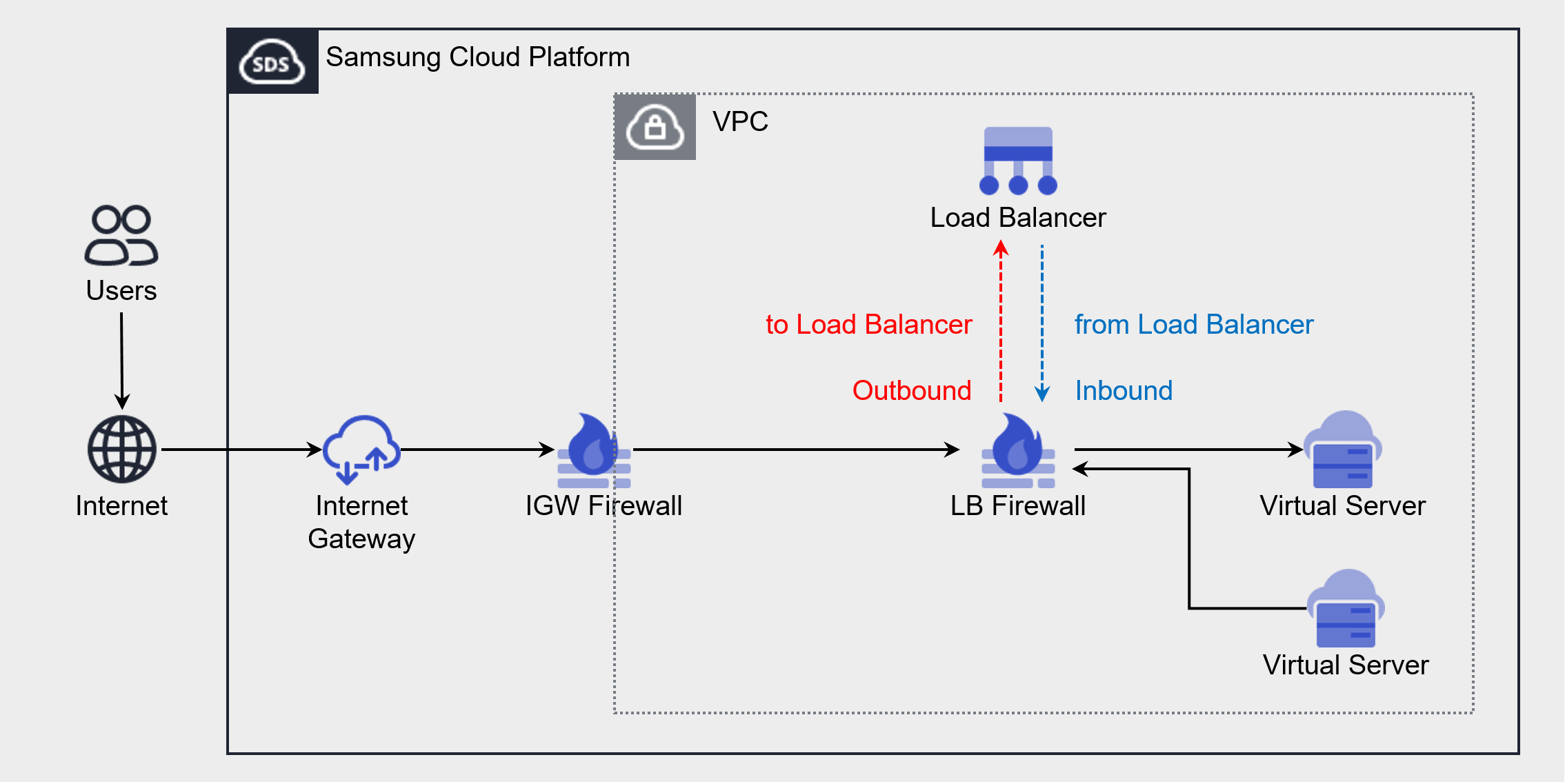
Purpose Source IP Destination IP Protocol Destination Port/Type Direction Client → LB connection Client IP LB Service IP Listener protocol Listener service port Outbound LB → Member Connection LB Source NAT IP IP addresses of LB server group members LB server group protocol Member Port Inbound LB → Member health check LB health check IP IP of LB server group members Health Check Protocol Health check port - If the health check port differs from the member port, register the member port
Inbound Figures and tables. Add a Load Balancer Firewall rule - The Load Balancer service does not provide access control for Service IPs and service ports.
- After creation is complete, verify the created resource on the Load Balancer list page.
View Load Balancer Details
You can view and modify resource lists and detailed information in the Load Balancer menu of the Load Balancer service. The Load Balancer Details page consists of the Details, Connected Resources, Tags, and Operation History tabs.
To view the detailed information of a Load Balancer service, follow these steps.
- Click the All Services > Networking > Load Balancer menu. 1. Navigate to the Service Home page of the Load Balancer.
- On the Service Home page, click the Load Balancer menu. 2. Go to the Load Balancer List page.
- Click a resource on the Load Balancer List page to view its details. 3. Go to the Load Balancer Details page.
- The Load Balancer Details page displays status information and add-on feature information, and is organized into the Details, Connected Resources, Tags, and Operation History tabs.
Category Detailed Description Status Load Balancer resource status - Active: The service is active and operating normally
- Deleting: Processing the service termination request
- Creating: Processing the service creation request
- Error: The current status cannot be determined due to an internal error
- Editing: Processing the service modification request
Service Cancellation Delete Load Balancer resource Table. Load Balancer status information and additional feature items
- The Load Balancer Details page displays status information and add-on feature information, and is organized into the Details, Connected Resources, Tags, and Operation History tabs.
Detailed Information
On the Details tab, you can view the details of the resource selected in the Load Balancer List and modify the necessary information.
| Category | Detailed Description |
|---|---|
| Service | Service Name |
| Resource Type | Resource Type |
| SRN | Resource Unique IDs in Samsung Cloud Platform |
| Resource Name | Resource name |
| Resource ID | Unique resource ID in the service |
| Created | Service creation date and time |
| Date and time of modification | Service modification date and time |
| Constructor | Service creation request user |
| Editor | Service modification request user |
| Load Balancer Name | Load Balancer name |
| Service IP | Service IP of the Load Balancer (used for client communication with the Load Balancer) |
| Service Category | Load Balancer service types |
| Source NAT IP | Source NAT IP of the Load Balancer (used for communication between the Load Balancer and the server) |
| VPC Name | VPC resource name created by the Load Balancer
|
| Service Subnet Name | The name of the Subnet resource created by the Load Balancer
|
| Public NAT IP | You can modify the settings by clicking the Modify icon for the Load Balancer’s Public NAT IP |
| Private NAT IP | Private NAT IP for Load Balancer
|
| Health check IP | Health check IP for the Load Balancer (used by the Load Balancer for member health checks) |
| Availability Zone 1 | Availability Zone information for the created Load Balancer |
| Availability Zone 2 | Availability Zone information for the created Load Balancer
|
| Description | For more information or details about the Load Balancer, click the
|
| Firewall name | Firewall resource name connected to the Load Balancer
|
Connected Resources
On the Connected Resources tab, you can view the list of listeners connected to the Load Balancer and create or delete listeners.
- Select a Listener entry on the Connected Resources tab to navigate to the Listener Details page, where you can view, modify, and delete detailed information.
- Click the Edit icon on an item on the Listener Details page to edit the information.
| Category | Detailed Description | |
|---|---|---|
| Create a Listener | Create Listener button | |
| Listener name | Listener resource name | |
| Routing Rules | Routing rules configured on the listener
| |
| Protocol | Protocol that the Listener receives | |
| Port | Service port that the Listener will receive | |
| Created | Listener creation time | |
| Status | Listener resource status | |
| Delete | Delete Listener button |
Tag
On the Load Balancer List page, you can view the tag information for the selected resource and add, modify, or delete tags.
| Category | Detailed Description |
|---|---|
| Tag List | Tag list
|
Job History
You can view the job history of the selected resource in the Job History tab.
| Category | Detailed Description |
|---|---|
| Work Log | Work performed |
| Work Date and Time | Date and time of task execution |
| Resource Type | Resource Type |
| Resource Name | Load Balancer Name |
| Work Result | Task execution result (success/failure) |
| Worker Information | User information for the task performed |
Managing Load Balancer Resources
You can manage resources, such as creating and deleting Load Balancer listeners.
Create a Listener
Create a listener on the Load Balancer to receive client requests and process traffic according to the listener settings.
The protocol that receives client requests varies depending on the Load Balancer service type.
- L4 Load Balancer: TCP, UDP, TLS, and TCP_PROXY protocols
- L7 Load Balancer: HTTP, HTTPS protocols
Create a Listener in the L4 Load Balancer
To create a listener in the L4 Load Balancer, follow these steps.
- Click the All Services > Networking > Load Balancer menu. 1. Navigate to the Service Home page of the Load Balancer.
- On the Service Home page, click the Load Balancer menu. 2. Go to the Load Balancer List page.
- On the Load Balancer List page, click the Load Balancer resource where you want to create a Listener. 3. Go to the Load Balancer Details page.
- On the Load Balancer Details page, click the Connected Resources tab. 4. Go to the Connected Resources tab page.
- On the Connected Resources tab page, click the Create Listener button in the upper-right corner.
- Enter or select the required information in the Service Information Input area.
- The information that can be entered varies depending on the protocol.
| Category | Required | Detailed Description |
|---|---|---|
| Load Balancer | Required | Load Balancer resource name where the Listener is created |
| Listener name | Required | Listener resource name |
| Protocol | Required | Select the listener receive protocol
|
| Service Port | Required | Enter the Listener receive port.
|
| Routing Rules | Required | Routing Rule Configuration
|
| Session Duration | Required | Set the client session timeout
|
| Proxy Protocol | Select | When used, the client IP is added to the proxy protocol header and forwarded to the server.
|
| Persistence | Required | Select a sticky session method (available when using the TCP, TLS, or TCP_PROXY protocol)
|
| SSL certificate | Select | Select the default encryption certificate and security level (available when using the TLS protocol)
|
| Server SSL Security Level | Required | Select the security level when configuring End-to-End SSL (available when using the TLS protocol)
|
- Enter or select the required information in the Additional Information area.
| Category | Required | Detailed Description |
|---|---|---|
| Description | Select | Resource Description Input |
| Tag | Select | Add Tag
|
- Review the generated service information and click the Create button.
- After creation is complete, verify the created resource in the Connected Resources tab on the Load Balancer Details page.
Create a Listener in L7 Load Balancer
To create a listener in L7 Load Balancer, follow these steps.
- Click the All Services > Networking > Load Balancer menu. 1. Go to the Service Home page of the Load Balancer.
- On the Service Home page, click the Load Balancer menu. 2. Go to the Load Balancer List page.
- On the Load Balancer List page, click the Load Balancer resource where you want to create a Listener. 3. Go to the Load Balancer Details page.
- On the Load Balancer Details page, click the Connected Resources tab. 4. Go to the Connected Resources tab page.
- On the Connected Resources tab page, click the Create Listener button in the upper-right corner.
- Enter or select the required information in the Service Information Input area.
- The information that can be entered varies depending on the protocol.
| Category | Required | Detailed Description |
|---|---|---|
| Load Balancer | Required | Load Balancer resource name where the Listener is created |
| Listener name | Required | Listener resource name |
| Protocol | Required | Select the listener receive protocol
|
| Service Port | Required | Enter the Listener receive port.
|
| Routing Rules > Routing Actions | Required | Select routing method
|
| Routing Rules > Routing Conditions | Required | If the routing action is LB server group forwarding, configure the LB server group for each routing condition.
|
| Persistence | Select | Select a sticky session method (available when the routing action is LB server group forwarding)
|
| Listener timeout setting > Session keep-alive time | Select | Session idle-timeout setting
|
| Listener timeout setting > HTTP connection timeout | Select | Set the client connection keep-alive time and response wait time.
|
| X-Forwarded-For | Select | Set whether to insert client IP information
|
| X-Forwarded-Proto | Select | Set whether to insert client request protocol information
|
| X-Forwarded-Port | Select | Set whether to insert client request port information
|
| HTTP 2.0 | Select | Set whether to use HTTP/2 when connecting the client to the server.
|
| SSL certificate | Select | Select an encryption certificate and security level (available when the Listener protocol is HTTPS)
|
| Server SSL Security Level | Required | Select the security level when configuring End-to-End SSL (available when the Listener protocol is HTTPS)
|
The URL path matching method in routing conditions is start-with (prefix match).
- A routing rule is applied when the starting string of the Path in the HTTP request header matches the request URL path of the routing condition.
- Example: When you enter Request URL path as
/api,- If matched:
/api/users, /api/v1/login, /api/images/logo.png - No match:
/auth/api/, /API/users
- If matched:
- Enter or select the required information in the Additional Information area.
| Category | Required | Detailed Description |
|---|---|---|
| Description | Select | Resource Description Input |
| Tag | Select | Add Tag
|
- Review the generated service information and click the Create button.
- After creation is complete, verify the created resource in the Connected Resources tab on the Load Balancer Details page.
SSL Support Items by Security Level
The following are the TLS versions and cipher suites supported by Listener for each SSL security level.
| Security level | TLS version | Cipher Suite |
|---|---|---|
| High | TLS 1.3 | TLS13_AES_128_GCM_SHA256 TLS13_AES_256_GCM_SHA384 TLS13_CHACHA20_POLY1305_SHA256 |
| Normal/Low | Normal: TLS 1.3, 1.2 Low: TLS 1.3, 1.2, 1.1 | TLS13_AES_128_GCM_SHA256 TLS13_AES_256_GCM_SHA384 TLS13_CHACHA20_POLY1305_SHA256 RC4-MD5 RC4-SHA DES-CBC3-SHA DHE-RSA-AES128-GCM-SHA256 DHE-RSA-AES256-GCM-SHA384 DHE-RSA-CHACHA20-POLY1305 ECDHE-RSA-AES128-SHA ECDHE-RSA-AES256-SHA ECDHE-RSA-AES128-SHA256 ECDHE-RSA-AES256-SHA384 ECDHE-RSA-CHACHA20-POLY1305 ECDHE-ECDSA-AES128-SHA ECDHE-ECDSA-AES256-SHA ECDHE-ECDSA-AES128-SHA256 ECDHE-ECDSA-AES256-SHA384 ECDHE-ECDSA-AES128-GCM-SHA256 ECDHE-ECDSA-AES256-GCM-SHA384 ECDHE-ECDSA-CHACHA20-POLY1305 |
The low SSL security level supports the insecure TLS 1.1 version, so use it with caution.
- The Low security level cannot be selected when creating a listener. You can configure it after the listener is created by clicking the Edit icon for the SSL Certificate field on the Details tab of the Listener Details page.
- Users are responsible for managing the security vulnerabilities that arise from changing the security level to Low. * Use High or Medium only when necessary.
- Samsung Cloud Platform will discontinue support for TLS 1.1 in the future.
Viewing Listener Details
On the Load Balancer Details page, select a Listener in the Connected Resources tab to view and modify its details.
To view the detailed information of a listener, follow these steps.
- Click the All Services > Networking > Load Balancer menu. 1. Navigate to the Service Home page of the Load Balancer.
- On the Service Home page, click the Load Balancer menu. 2. Go to the Load Balancer List page.
- Click a resource on the Load Balancer List page to view its details. 3. Go to the Load Balancer Details page.
- On the Load Balancer Details page, click the Connected Resources tab.
- Click the Listener in the list of connected resources to view its details. 5. Navigates to the Listener Details page.
- The Listener Details page displays status information and additional feature information, and is organized into the Details, Tags, and Activity History tabs.
| Category | Detailed Description |
|---|---|
| Status | Listener status
|
| Delete Listener | Delete Listener |
Details
You can view and modify the detailed information of a Listener in the Details tab. The details vary depending on the Load Balancer you are using.
L4 Load Balancer Details
| Category | Detailed Description |
|---|---|
| Service | Service Name |
| Resource Type | Resource Type |
| SRN | Resource Unique IDs in Samsung Cloud Platform |
| Resource Name | Resource name |
| Resource ID | Unique resource ID in the service |
| Constructor | User who requested Listener creation |
| Created | Listener creation time |
| Editor | User requesting Listener modifications |
| Date and time of modification | Listener modification timestamp |
| Listener name | Listener name |
| Protocol | Listener Usage Protocol |
| Port | Port used by the Listener |
| Session Duration | TCP session idle timeout information. Click the Edit icon to modify. |
| Proxy Protocol | Whether to insert a proxy protocol header
|
| Persistence | Whether to use sticky sessions
|
| Routing Rules | Routing action and routing condition information
|
| SSL certificate | Basic certificate and SSL security level, expiration date and time information
|
| SNI certificate | SNI certificate details
|
| Server SSL Security Level | Whether the server connection is encrypted
|
| Description | Additional information about the Listener
|
L7 Load Balancer Details
| Category | Detailed Description |
|---|---|
| Service | Service Name |
| Resource Type | Resource Type |
| SRN | Resource Unique IDs in Samsung Cloud Platform |
| Resource Name | Resource name |
| Resource ID | Unique resource ID in the service |
| Constructor | User who requested Listener creation |
| Created | Listener creation time |
| Editor | User requesting Listener modifications |
| Date and time of modification | Listener modification timestamp |
| Listener name | Listener name |
| Protocol | Listener Usage Protocol |
| Port | Port used by the Listener |
| Session Duration | TCP session idle timeout information. Click the
|
| Client connection keep-alive duration | HTTP client keep-alive duration
|
| Server response wait time | HTTP server response wait time
|
| X-Forwarded-For | Whether to insert the X-Forwarded-For header
|
| X-Forwarded-Proto | Whether to insert the X-Forwarded-Proto header
|
| X-Forwarded-Port | Whether to insert the X-Forwarded-Port header
|
| Persistence | Sticky Session Configuration
|
| HTTP 2.0 | Whether to use HTTP/2
|
| Routing Rules | Set routing actions and routing conditions
|
| SSL certificate | Basic certificate and SSL security level, expiration date and time information
|
| SNI certificate | SNI certificate details
|
| Server SSL Security Level | Whether the server connection is encrypted
|
| Add response header | Whether to insert HTTP response headers. You can configure this by clicking the
|
| Description | Additional information about the Listener
|
Tag
You can view, add, modify, or delete the tag information of a listener.
| Category | Detailed Description |
|---|---|
| Tag List | Tag list
|
Job History
You can check the Listener’s work history.
| Category | Detailed Description |
|---|---|
| Work Log | Work performed |
| Work Date and Time | Date and time of task execution |
| Resource Type | Resource Type |
| Resource Name | Listener name |
| Work Result | Task execution result (success/failure) |
| Worker Information | User information for the task performed |
Modifying Routing Rules
You can modify the routing rules for a listener in the Connected Resources tab of the Load Balancer Details page.
To modify the routing rules of a listener, follow these steps.
- Click the All Services > Networking > Load Balancer menu. 1. Navigate to the Service Home page of the Load Balancer.
- On the Service Home page, click the Load Balancer menu. 2. Go to the Load Balancer List page.
- Click a resource on the Load Balancer List page to view its details. 3. Go to the Load Balancer Details page.
- On the Load Balancer Details page, click the Connected Resources tab.
- Click the Listener in the list of associated resources to modify the routing condition. 5. Navigates to the Listener Details page.
- On the Listener Details page, click the Edit icon for the Routing Rule item. 6. The Edit Routing Rule popup window opens.
- After modifying the routing rules according to the routing action, click the Confirm button.
Category RequiredDetailed Description Routing Action - Currently configured routing method (not modifiable) Routing conditions Required If the routing action is LB server group forwarding, you can modify the routing condition sub-settings. - URL Path: Modify the request URL path and LB server group (up to 20 entries can be added).
- Host Header: Modify the request host and LB server group (up to 20 entries can be added).
Redirect target Required If the routing action is URL redirect, you can modify the redirect target. - URL: Modify the redirect URL.
- Protocol/Port: Modify the redirect port.
Table. Listener routing rule modification items
Modifying the Response Header
You can modify the response header additions for a Listener in the Connected Resources tab of the Load Balancer Details page.
To modify the response headers for a listener, follow these steps.
- Click the All Services > Networking > Load Balancer menu. 1. Navigate to the Service Home page of the Load Balancer.
- On the Service Home page, click the Load Balancer menu. 2. Go to the Load Balancer List page.
- Click a resource on the Load Balancer List page to view its details. 3. Go to the Load Balancer Details page.
- On the Load Balancer Details page, click the Connected Resources tab.
- Click the Listener in the list of connected resources to modify the response header addition. 5. Navigates to the Listener Details page.
- On the Listener Details page, click the Edit icon for the Add Response Header item. 6. The Modify Additional Response Header dialog box opens.
- After setting the header to insert, click the OK button.
Category RequiredDetailed Description HTTP Strict Transport Security (HSTS) header Select Select whether to insert the HSTS header (enforces HTTPS connections to enhance security) - When Enabled, configure max-age and whether to apply to subdomains
- max-age: Enter a value between 1 and 63072000 (maximum 2 years)
- Apply to subdomains: When Enabled, applies to all subdomains
Table. Items to add or modify in the response header - When Enabled, configure max-age and whether to apply to subdomains
Deleting a Listener
To delete an unused Listener, follow these steps.
- Click the All Services > Networking > Load Balancer menu. 1. Navigate to the Service Home page of the Load Balancer.
- On the Service Home page, click the Load Balancer menu. 2. Go to the Load Balancer List page.
- On the Load Balancer List page, click the Load Balancer resource for which you want to delete the Listener. 3. Go to the Load Balancer Details page.
- On the Load Balancer Details page, click the Connected Resources tab. 4. Go to the Connected Resources tab page.
- Click the Listener to delete on the Connected Resources tab page. 5. Navigates to the Listener Details page.
- On the Listener Details page, click the Delete Listener button.
Terminate a Load Balancer
You can reduce costs by terminating unused Load Balancers. However, this may impact the application service, so please request cancellation only after thorough prior review.
You cannot cancel the Load Balancer in the following cases.
- If the Load Balancer has connected Listeners: Delete the connected Listeners in the Connected Resources tab on the Load Balancer Details page.
- If you are using a public NAT IP for the load balancer: On the Load Balancer Details page, go to the Details tab and disassociate the public NAT IP in use.
- If you are using a Private NAT IP for the Load Balancer: On the Load Balancer Details page, go to the Details tab and release the Private NAT IP in use.
- If rules are registered in the firewall: Delete the rules of the firewall in use on the Details tab of the Load Balancer Details page.
- If connected to a PrivateLink Service: Check the connected Load Balancer on the PrivateLink Service Details page.
To cancel a Load Balancer, follow these steps.
- Click the All Services > Networking > Load Balancer menu. 1. Navigate to the Service Home page of the Load Balancer.
- On the Service Home page, click the Load Balancer menu. 2. Go to the Load Balancer List page.
- On the Load Balancer List page, click the resource you want to cancel. 3. Go to the Load Balancer Details page.
- On the Load Balancer Details page, click the Terminate Service button.
- After the cancellation is complete, verify the resource cancellation status in the Load Balancer list.