This is the multi-page printable view of this section. Click here to print.
Load Balancer
- 1: Overview
- 2: How-to guides
- 2.1: LB Server Group
- 2.2: LB Health Check
- 3: API Reference
- 4: CLI Reference
- 5: Release Note
1 - Overview
Service Overview
Samsung Cloud Platform’s Load Balancer (LB) service automatically distributes traffic to available servers in case of unpredictable traffic spikes or server failures, ensuring the stability and continuity of customer services.
Load Balancer is deployed in a VPC Subnet as the service endpoint provided to clients, depending on the service type (L4 / L7), and you can configure multiple services by adding a Listener to the created Load Balancer.
Listener receives client requests through the service port and processes traffic according to routing rules. L4 supports TCP/UDP/TLS protocols, L7 supports HTTP/HTTPS protocols, and in L7 you can specify LB server groups per routing condition or set a redirect response for request URLs.
The LB server group forwards requests received by the Listener to specific servers based on load balancing and health checks. The server receives client requests from the Load Balancer’s Source NAT IP through the port set on the member, and the server status is periodically monitored by the Load Balancer’s health check IP.
LB health check defines the member health check method registered in the LB server group. You can select the LB health check resource provided by default in the LB server group, or create a new one to configure monitoring suitable for the application.
Features
- Various load balancing methods: Round Robin, Least Connection, IP Hash etc. provides various load balancing methods.
- SSL authentication encryption and Offloading: Supports SSL offloading and allows selection of encryption level.
- Enhanced Security: Use a firewall to manage Load Balancer communication and view connection logs through log storage.
Service Diagram
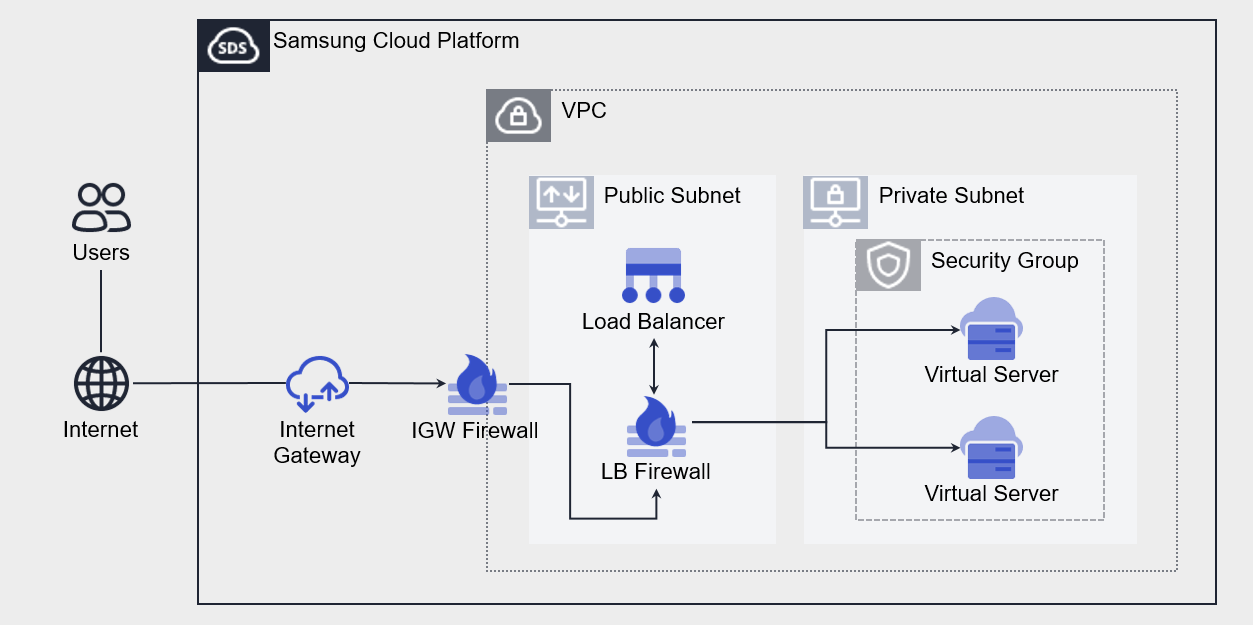
Provided Features
- Load Balancer: Choose the service type and set the IP to be used in the Load Balancer.
- Listener: Set the protocol, port, and routing rules. You can add multiple Listeners to a single Load Balancer.
- LB server group: Set the load balancing method. LB server group can be connected to a single Load Balancer.
- Member: Select the server to add to the LB server group. You can select Virtual Server or Bare Metal Server resources created in the same VPC as the Load Balancer, or directly enter an IP.
- LB Health Check: Set the member health check method. LB health check can be registered and used in multiple LB server groups.
Components
Load Balancer consists of Load Balancer(Listener), LB server group(member), LB health check.
Load Balancer
The components that make up a Load Balancer are as follows. Depending on the settings for each component, you can configure load balancing suitable for the customer’s workload.
| Component | Detailed Description |
|---|---|
| Service Classification | Load Balancer Service Type
|
| Service Sunbet | VPC Subnet where the Load Balancer will be deployed
|
| Service IP | Service IP that the client will access |
| Source NAT IP | IP to be used for delivering server traffic from the Load Balancer |
| Health Check IP | IP to be used for health check in Load Balancer |
| Listener | Resources connected to Load Balancer
|
LB Server Group
The elements that make up the LB server group are as follows. Traffic is delivered to members of the LB server group according to the settings of each component.
| Component | Detailed Description |
|---|---|
| Protocol | LB server group forwarding protocol |
| Load Balancing | Traffic Distribution Method
|
| LB Health Check | Member Health Check Method
|
| Member | Server to handle client requests
|
LB Health Check
LB health check components are as follows. Member health checks are performed according to settings for each component.
| Component | Detailed Description |
|---|---|
| Protocol | Health Check Protocol |
| Health Check Port | Port used for health check |
| Period | Health check execution period |
| Waiting Time | Server response waiting time for health check |
| Detection Count | Criteria for determining member health check status (Healthy / Unhealthy) |
Constraints
Samsung Cloud Platform’s Load Balancer has a default quota applied, which imposes restrictions on the number of Load Balancers, Listeners, LB server groups, and members that can be created. Through the console, you can manage current usage and request additional quota for items that can be expanded.
| Item | Default Quota | Detailed Description |
|---|---|---|
| LOAD_BALANCER.SERVICE_SUBNET.DEFAULT.COUNT | 3 | Number of Service Subnets that can create Load Balancers per VPC |
| LOAD_BALANCER.DEFAULT.COUNT | 50 | Number of Load Balancers created per Region |
| LOAD_BALANCER.LISTENER.DEFAULT.COUNT | 1000 | Number of Listeners created per Region |
| LOAD_BALANCER.SERVER_GROUP.DEFAULT.COUNT | 1000 | Number of LB server groups created per Region |
| LOAD_BALANCER.MEMBER.DEFAULT.COUNT | 1000 | Number of members that can be registered in the entire LB server group per Region |
| LOAD_BALANCER.HEALTH_CHECK.DEFAULT.COUNT | 500 | Number of LB health checks created per Region |
Preceding Service
Before creating the Load Balancer service, this is the list of services that must be pre-configured. Please refer to the guide provided for each service for detailed information and prepare in advance.
| Service Category | Service | Detailed Description |
|---|---|---|
| Networking | VPC | Service that provides an independent virtual network in a cloud environment |
2 - How-to guides
The user can enter required Load Balancer information and select detailed options through the Samsung Cloud Platform Console to create a service.
Load Balancer Create
You can create and use the Load Balancer service from the Samsung Cloud Platform Console.
To create a Load Balancer, follow the steps below.
- All Services > Networking > Load Balancer Click the menu. Navigate to the Service Home page of Load Balancer.
- Click the Load Balancer Create button on the Service Home page. You will be taken to the Load Balancer Create page.
- Load Balancer creation on the page, enter the information required to create the service and select detailed options.
- Service Information Input Enter or select the required information in the area.
| Category | Required | Detailed description |
|---|---|---|
| Load Balancer name | Required | Load Balancer resource name
|
| Service Category | Required | Load Balancer Service Type
|
| VPC | Required | VPC where the Load Balancer will be created
|
| Service Subnet | Required | VPC Subnet where the Load Balancer will be created
|
| Service IP | Select | Load Balancer service IP
|
| Source NAT IP | Select | IP to be used for member communication in the Load Balancer
|
| Health Check IP | Select | IP to use for health check in Load Balancer
|
| Use Firewall | Select | Whether to use Firewall
|
| Firewall log storage | Select | Select whether to save Firewall logs
|
- Additional Information Input Enter or select the required information in the area.
Category RequiredDetailed description Description Select Enter resource description Tag Select Add Tag - Up to 50 tags can be added per resource
Table. Load Balancer Additional Information Input Items
- Check the created service information and the estimated billing amount, and click the Complete button.
- When creation is complete, check the created resources on the Load Balancer List page.Guide
Load Balancer service does not provide access control functionality for Service IP and service ports.
- Load Balancer when creating use Firewall to manage communication between client and Load Balancer, and between Load Balancer and members with Firewall rules, and use Firewall log storage to store access logs is recommended.
CautionIf you use the firewall, you must add rules required for Load Balancer communication. Register the rules, paying attention to the direction for each purpose.
- If you do not add the rule, the Load Balancer service will not operate correctly.
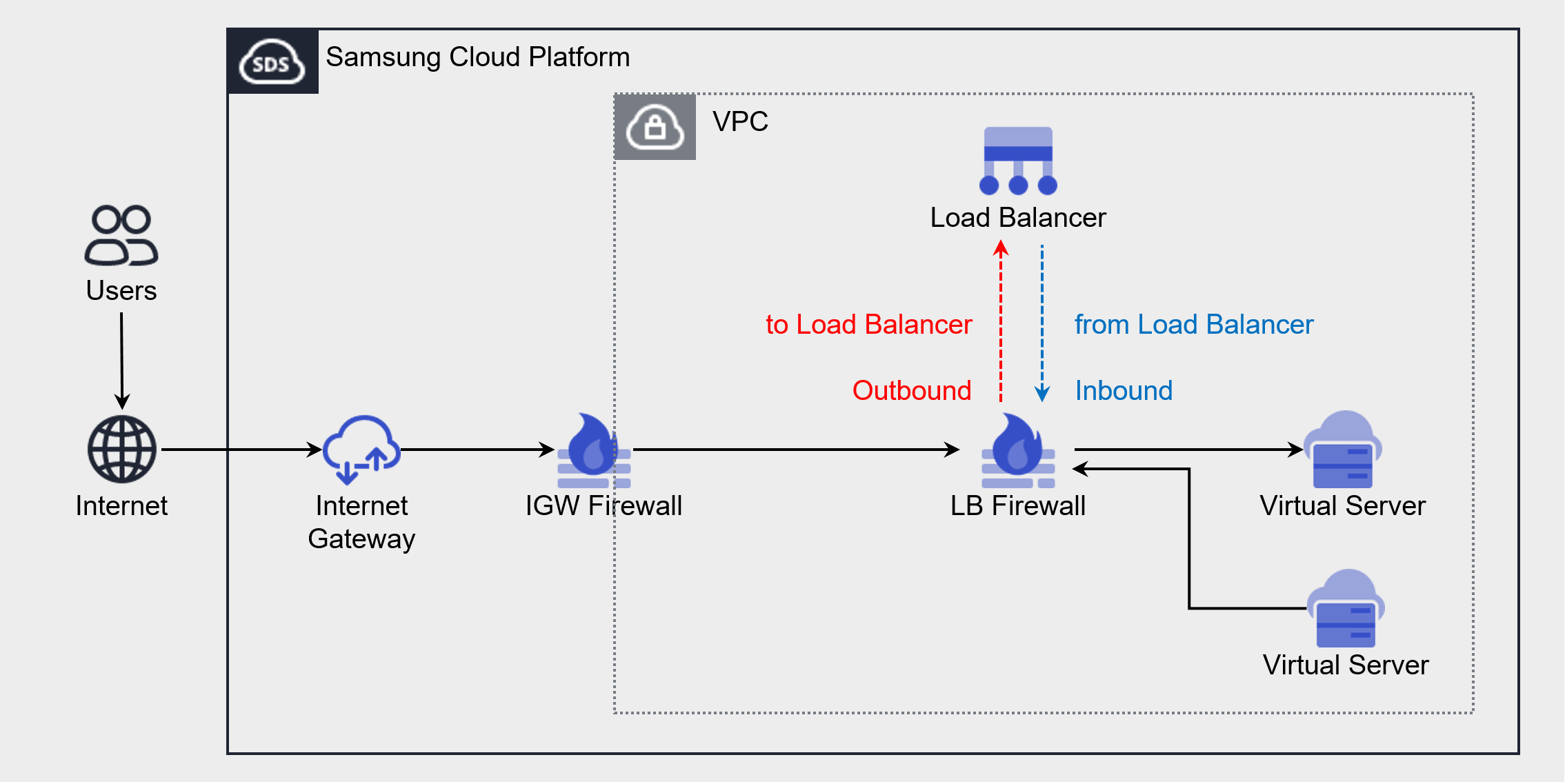
Purpose Source IP Destination IP Protocol Destination Port/Type Direction Client → LB connection Client IP LB Service IP Listener protocol Listener service port Outbound LB → Member Connection LB Source NAT IP LB Server Group Member IP LB Server Group Protocol Member Port Inbound LB → Member Health Check LB Health Check IP LB Server Group Member IP Health Check Protocol Health Check Port - If the health check port and member port are different, register the member port
Inbound Figures and Tables. Add Load Balancer Firewall Rule
- When creation is complete, check the created resources on the Load Balancer List page.
Load Balancer Check Detailed Information
The Load Balancer service can view and edit the resource list and detailed information in the Load Balancer menu. Load Balancer Details page consists of Details, Connected Resources, Tags, Activity Log tabs.
To view detailed information of the Load Balancer service, follow the steps below.
- All Services > Networking > Load Balancer Click the menu. Go to the Service Home page of the Load Balancer.
- Click the Load Balancer menu on the Service Home page. Navigate to the Load Balancer List page.
- Click the resource to view detailed information on the Load Balancer List page. You will be taken to the Load Balancer Details page.
- Load Balancer Detail page displays status information and additional feature information, and consists of Detail Information, Connected Resources, Tags, Operation History tabs.
Category Detailed description Status Load Balancer resource status - Active: The service is properly activated
- Deleting: Processing service termination request
- Creating: Processing service creation request
- Error: Cannot determine current status due to internal error
- Editing: Processing service modification request
Service termination Load Balancer resource deletion Table. Load Balancer status information and additional feature items
- Load Balancer Detail page displays status information and additional feature information, and consists of Detail Information, Connected Resources, Tags, Operation History tabs.
Detailed Information
Detailed Information tab allows you to view detailed information of the selected resource from the Load Balancer list, and modify necessary information.
| Category | Detailed description |
|---|---|
| Service | Service Name |
| Resource Type | Resource Type |
| SRN | Resource unique ID in Samsung Cloud Platform |
| Resource Name | Resource Name |
| Resource ID | Unique resource ID in the service |
| Creation Date/Time | Service Creation Date/Time |
| Modification Date/Time | Service Modification Date/Time |
| Creator | Service creation request user |
| Editor | Service modification request user |
| Load Balancer name | Load Balancer name |
| Service IP | Load Balancer’s Service IP (used for communication between client and Load Balancer)
|
| Service Category | Load Balancer Service Type |
| Source NAT IP | Load Balancer’s Source NAT IP (used for communication between Load Balancer and server)
|
| VPC | VPC resource name where Load Balancer is created |
| Service Subnet | Subnet resource name where Load Balancer is created |
| Public NAT IP | Load Balancer’s Public NAT IP (used when configuring internet service)
|
| Health Check IP | Load Balancer Health Check IP (used when checking health of LB server group members)
|
| Description | Additional information or description about the Load Balancer |
| Firewall name | Firewall resource name connected to Load Balancer |
Connected Resources
In the Connected Resources tab, you can view the list of Listeners attached to the Load Balancer, and create or delete Listeners.
- connected resource tab, when you select the Listener item, you go to the Listener details page where you can view detailed information and edit or delete it.
- Listener Details page items, clicking the Edit icon allows you to edit the information.
| Category | Detailed description | |
|---|---|---|
| Listener creation | Listener creation button | |
| Listener name | Listener resource name | |
| Routing Rules | Routing rules connected to Listener
| |
| Protocol | Protocol that the Listener receives | |
| Port | Port that the Listener receives | |
| Creation Time | Listener Creation Time | |
| Delete | Listener Delete Button |
Tag
Load Balancer list page allows you to view the tag information of the selected resource, and you can add, modify, or delete it.
| Category | Detailed description |
|---|---|
| Tag List | Tag List
|
Work History
Work History tab allows you to view the work history of the selected resource.
| Category | Detailed description |
|---|---|
| Work Details | Work Execution Content |
| Work date/time | Work execution date/time |
| Resource Type | Resource Type |
| Resource Name | Load Balancer Name |
| Work Result | Task execution result (success/failure) |
| Operator Information | Information of the user who performed the task |
Load Balancer Resource Management
You can manage resources such as creating and deleting Load Balancer listeners.
Creating a Listener
Create a Listener on the Load Balancer to receive client requests and handle traffic according to the Listener settings.
The protocol that receives client requests varies depending on the Load Balancer service type.
- L4 Load Balancer case: TLS, TCP, UDP protocol
- L7 Load Balancer in case: HTTP, HTTPS protocol
Creating a Listener in L4 Load Balancer
To create a Listener in L4 Load Balancer, follow the steps below.
- All Services > Networking > Load Balancer Click the menu. Navigate to the Load Balancer’s Service Home page.
- Click the Load Balancer menu on the Service Home page. Go to the Load Balancer List page.
- Load Balancer List page, click the Load Balancer resource to create a Listener. Go to the Load Balancer Details page.
- Click the Connected Resources tab on the Load Balancer Details page. It navigates to the Connected Resources tab page.
- Connected Resources tab page, click the Create Listener button in the upper right.
- Service Information Input Enter or select the required information in the area.
- Protocol determines which information can be entered.
| Category | Required | Detailed description |
|---|---|---|
| Load Balancer | Required | Name of the Load Balancer resource where the Listener will be created |
| Listener name | Required | Listener resource name |
| Protocol | Required | Select Listener receiving protocol
|
| Service Port | Required | Enter Listener receiving port
|
| Routing Rule | Required | Routing Rule Settings
|
| Session Keep Time | Required | Set client session keep time
|
| Insert Client IP | Select | Set whether to insert client IP information (set when using TCP protocol)
|
| SSL Certificate | Select | Select encrypted certificate and security level (set when using TLS protocol)
|
| Server SSL security level | Required | Select security level when configuring End-to-End SSL (set when using TLS protocol)
|
| Persistence | Required | Select session persistence (Sticky Session) method (set when using TCP, TLS protocols)
|
- Enter Additional Information In the area, enter or select the required information.
| Category | Required or not | Detailed description |
|---|---|---|
| Description | Select | Enter Resource Description |
| Tag | Select | Add Tag
|
- Check the created service information and click the Complete button.
- When creation is complete, check the created resources in the Load Balancer Details page’s Connected Resources tab.
Creating a Listener in L7 Load Balancer
To create a Listener in L7 Load Balancer, follow the steps below.
- Click the All Services > Networking > Load Balancer menu. Go to the Load Balancer’s Service Home page.
- On the Service Home page, click the Load Balancer menu. You will be taken to the Load Balancer List page.
- Load Balancer List on the page, click the Load Balancer resource to create a Listener. Navigate to the Load Balancer Details page.
- Click the Connected Resources tab on the Load Balancer Details page. You will be taken to the Connected Resources tab page.
- Connected Resources tab page, click the Create Listener button at the top right.
- Service Information Input area, enter or select the required information.
- The information that can be entered varies according to the Protocol.
| Category | Required | Detailed description |
|---|---|---|
| Load Balancer | Required | Name of the Load Balancer resource where the Listener is created |
| Listener name | Required | Listener resource name |
| Protocol | Required | Select Listener receiving protocol
|
| Service Port | Required | Enter Listener receiving port
|
| Routing Rule | Required | Configure Routing Rule
|
| Persistence | Select | Select session persistence (Sticky Session) method (set when routing action is LB server group forwarding)
|
| Session Keep Time | Optional | Set HTTP connection keep-alive time
|
| Response Timeout | Select | Set HTTP response timeout
|
| X-Forwarded-For | Option | Set whether to insert client IP information
|
| X-Forwarded-Proto | Select | Set whether to insert client request protocol information
|
| X-Forwarded-Port | Optional | Set whether to insert client request port information
|
| HTTP 2.0 | Select | Set whether to use HTTP/2 when connecting client and server |
| SSL Certificate | Select | Select encryption certificate and security level (set when using HTTPS protocol)
|
| Server SSL security level | Required | Select security level when configuring End-to-End SSL (HTTPSS protocol setting)
|
- Additional Information Input Please input or select the required information in the area.
| Category | Required | Detailed description |
|---|---|---|
| Description | Select | Enter resource description |
| Tag | Select | Add Tag
|
- Check the created service information and click the Complete button.
- When creation is complete, check the created resource in the Connected Resources tab of the Load Balancer Details page.
SSL Security Level Support Items
The list of TLS versions and Cipher Suites supported by the Listener for each SSL security level is as follows.
| Security Level | TLS Version | Cipher Suite (Encryption Algorithm) |
|---|---|---|
| High | TLS 1.3 | TLS13_AES_128_GCM_SHA256 TLS13_AES_256_GCM_SHA384 TLS13_CHACHA20_POLY1305_SHA256 |
| Normal/Low | Normal: TLS 1.3, 1.2 Low: TLS 1.3, 1.2, 1.1 | TLS13_AES_128_GCM_SHA256 TLS13_AES_256_GCM_SHA384 TLS13_CHACHA20_POLY1305_SHA256 RC4-MD5 RC4-SHA DES-CBC3-SHA DHE-RSA-AES128-GCM-SHA256 DHE-RSA-AES256-GCM-SHA384 DHE-RSA-CHACHA20-PLY1305 ECDHE-RSA-AES128-SHA ECDHE-RSA-AES256-SHA ECDHE-RSA-AES128-SHA256 ECDHE-RSA-AES256-SHA384 ECDHE-RSA-CHACHA20-POLY135 ECDHE-ECDSA-AES128-SHA ECDHE-ECDSA-AES256-SHA ECDHE-ECDSA-AES128-SHA256 ECDHE-ECDSA-AES256-SHA384 ECDHE-ECDSA-AES128-GCM-SHA256 ECDHE-ECDSA-AES256-GCM-SHA384 ECDHE-ECDSA-CHACHA20-POLY1305 |
Listener Check Detailed Information
Load Balancer Details page’s Connected Resources tab by selecting a Listener you can view and edit the detailed information.
To view the detailed information of the Listener, follow the steps below.
- All Services > Networking > Load Balancer Click the menu. Navigate to the Service Home page of Load Balancer.
- On the Service Home page, click the Load Balancer menu. You will be taken to the Load Balancer List page.
- Load Balancer List Click the resource to view detailed information on the page. Go to the Load Balancer Details page.
- Click the Connected Resources tab on the Load Balancer Details page.
- Click the Listener to view detailed information from the list of connected resources. It moves to the Listener Details page.
- Listener Details page displays status information and additional feature information, and consists of Details, Tags, Activity History tabs.
| Category | Detailed description |
|---|---|
| Status | Listener Status
|
| Listener delete | Listener delete |
Detailed Information
Detailed Information tab allows you to view the listener’s detailed information and edit necessary information. Detailed information varies depending on the Load Balancer in use.
L4 Load Balancer Detailed Information
| Category | Detailed description |
|---|---|
| Service | Service Name |
| Resource Type | Resource Type |
| SRN | Resource unique ID in Samsung Cloud Platform |
| Resource Name | Resource Name |
| Resource ID | Unique resource ID in the service |
| Creator | Listener creation request user |
| Creation Time | Listener Creation Time |
| Editor | Listener modification request user |
| Edit Timestamp | Listener Edit Timestamp |
| Listener name | Listener name |
| Protocol | Listener usage protocol |
| Port | Listener used port |
| Session retention time | Client session retention time
|
| Insert Client IP | Client IP information insertion status
|
| Persistence | Whether to use session fixation (Sticky Session)
|
| Routing Rules | Routing Action and LB Server Group Information
|
| SSL Certificate | Basic certificate and SSL security level information
|
| SNI certificate | SNI certificate information
|
| Server SSL security level | Server connection encryption status
|
| Description | Additional information about Listener |
L7 Load Balancer Detailed Information
| Category | Detailed description |
|---|---|
| Service | Service Name |
| Resource Type | Resource Type |
| SRN | Resource unique ID in Samsung Cloud Platform |
| Resource Name | Resource Name |
| Resource ID | Unique resource ID in the service |
| Creator | Listener creation request user |
| Creation Time | Listener Creation Time |
| Editor | Listener modification request user |
| Edit Timestamp | Listener Edit Timestamp |
| Listener name | Listener name |
| Protocol | Listener usage protocol |
| Port | Listener used port |
| Session retention time | HTTP connection keep-alive time
|
| Response time out | HTTP response timeout
|
| X-Forwarded-For | Insert client IP information
|
| X-Forwarded-Proto | Insert client request protocol information
|
| X-Forwarded-Port | Whether to insert client request port information
|
| HTTP 2.0 | Whether to use HTTP/2 when connecting client and server
|
| Persistence | Whether to use session fixation (Sticky Session)
|
| Routing Rules | Routing action and routing condition/redirect target information
|
| SSL Certificate | Basic certificate and SSL security level information
|
| SNI certificate | SNI certificate information
|
| Server SSL security level | Whether server connection is encrypted
|
| Description | Additional information about Listener |
Tag
You can view the tag information of the Listener, and add, modify, or delete it.
| Category | Detailed description |
|---|---|
| Tag List | Tag List
|
Work History
You can view the Listener’s operation history.
| Category | Detailed description |
|---|---|
| Work Details | Work Execution Content |
| Work Date | Task Execution Date |
| Resource Type | Resource Type |
| Resource Name | Listener Name |
| Task Result | Task Execution Result (Success/Failure) |
| Worker Information | Information of the user who performed the task |
Edit routing rules
On the Connected Resources tab of the Load Balancer Details page, you can modify the Listener’s routing rules.
To modify the Listener’s routing rules, follow the steps below.
- All Services > Networking > Load Balancer Click the menu. Navigate to Load Balancer’s Service Home page.
- Click the Load Balancer menu on the Service Home page. Navigate to the Load Balancer List page.
- Load Balancer List page, click the resource to view detailed information. It navigates to the Load Balancer Details page.
- Click the Connected Resources tab on the Load Balancer Details page.
- Click the Listener to add a lighting condition from the list of connected resources. Listener Details page.
- Click the Edit icon of the Routing Rule item on the Listener Details page. The Edit Routing Rule popup opens.
- After modifying the routing rules according to the routing action, click the Confirm button.
Category Required or notDetailed description Routing Action - Current routing method (cannot be modified) Routing Condition Required Routing condition can be modified when routing action is LB server group delivery - URL Path: modify request URL path and LB server group (up to 20 additions possible)
- Host Header: modify request host and LB server group (up to 20 additions possible)
Redirect target Required If the routing action is URL redirect, the redirect target can be edited - Path: Can modify the changed URL path
- Host: Can modify the changed host
- Protocol/Port: Cannot modify (only HTTP → HTTPS redirect is possible)
Table. Listener Routing Rule Modification Items
Listener Delete
To delete an unused Listener, follow the steps below.
- All Services > Networking > Load Balancer Click the menu. Navigate to the Service Home page of the Load Balancer.
- Click the Load Balancer menu on the Service Home page. Move to the Load Balancer List page.
- Click the Load Balancer resource to delete the Listener on the Load Balancer List page. It navigates to the Load Balancer Detail page.
- Load Balancer Details 페이지에서 Connected Resources 탭을 클릭하세요. Connected Resources 탭 페이지로 이동합니다.
- On the Connected Resources tab page, click the Listener you want to delete. It navigates to the Listener Details page.
- Click the Delete Listener button on the Listener Details page.
Load Balancer Cancel
You can cancel unused Load Balancers to reduce costs. However, since it may affect the application service, request cancellation after sufficient prior review.
In the following cases, the Load Balancer cannot be terminated.
- If there is a Listener attached to the Load Balancer: Load Balancer Details page’s Connected Resources tab, delete the attached Listener.
- If using a Public NAT IP on the Load Balancer: Load Balancer Details page’s Details tab, deselect the Public NAT IP in use.
- If there are rules registered in the Firewall: Load Balancer Details page’s Details tab, delete the rules of the Firewall in use.
- If connected to a PrivateLink Service: Check the connected Load Balancer on the PrivateLink Service Details page.
To cancel the Load Balancer, follow the steps below.
- All Services > Networking > Load Balancer Click the menu. Navigate to the Service Home page of the Load Balancer.
- Click the Load Balancer menu on the Service Home page. You will be taken to the Load Balancer List page.
- On the Load Balancer List page, click the resource to be terminated. It navigates to the Load Balancer Details page.
- Click the Cancel Service button on the Load Balancer Details page.
- Once termination is complete, check the resource termination status in the Load Balancer list.
2.1 - LB Server Group
Users can create an LB server group through the Samsung Cloud Platform Console and connect it to the Load Balancer’s listener.
Create LB server group
To create an LB server group, follow the steps below.
- All Services > Networking > Load Balancer Click the menu. Navigate to the Service Home page of Load Balancer.
- On the Service Home page, click LB server group. Navigate to the LB server group list page.
- Click the Create LB Server Group button on the LB Server Group List page. It navigates to the Create LB Server Group page.
- Create LB Server Group 페이지에서 서비스 생성에 필요한 정보를 입력하고 상세 옵션을 선택하세요.
- Enter Service Information area, input or select the required information.
Category RequiredDetailed description LB server group name Required LB server group resource name - Enter 3~63 characters using English letters (uppercase and lowercase), numbers, and special characters (
-_)
- LB server group name must be unique within the Account
VPC Required Select VPC to create LB server group - Select VPC where the Load Balancer that will connect to the LB server group is created
Service Subnet Required Select VPC Subnet to create LB server group - Select Subnet where Load Balancer that will connect to LB server group is created
Load Balancing Required Select load balancing algorithm - Round Robin: Distribute sequentially to registered members
- Weighted round robin: Distribute sequentially in proportion to the weight assigned to each member
- Least Connection: Distribute to the member with the fewest connections
- Weighted least connection: Distribute to the member with higher priority considering the weight assigned to each member and the number of connections
- IP Hash: Distribute to a specific member based on the hash value of the client IP address
Protocol Required Select LB server group receive protocol - Select the protocol to deliver to members of the LB server group
LB health check Required Select LB health check - Select from LB health checks created in the same Service Subnet as the LB server group
Table. LB Server Group Service Information Input Items - Enter 3~63 characters using English letters (uppercase and lowercase), numbers, and special characters (
- Enter additional information Enter or select the required information in the area.
Category RequiredDetailed description Description Select Enter resource description Tag Select Add Tag - Up to 50 tags can be added per resource
Table. LB Server Group Additional Information Input Items
- Enter Service Information area, input or select the required information.
- Check the created service information and the estimated billing amount, and click the Complete button.
- Once creation is complete, check the created resources on the LB Server Group List page.
Check LB server group detailed information
LB server group menu allows you to view and edit the resource list and detailed information. The LB server group details page consists of Details, Connected Resources, Tags, Activity Log tabs.
To view detailed information of the LB server group, follow the steps below.
All Services > Networking > Load Balancer Click the menu. Navigate to the Service Home page of Load Balancer.
On the Service Home page, click LB server group. It navigates to the LB server group list page.
- Column display can be modified by clicking the Settings button at the top right of the table.
Category Display statusDetailed description LB server group name default LB server group resource name Protocol Default LB Server Group Protocol Load Balancer Default Load Balancer resource name connected to LB server group LB Health Check Default Name of LB health check resource used by LB server group Member count Default Number of members registered in LB server group Creation Time Default LB Server Group Creation Time Status Default LB Server Group Resource Status Table. LB server group list item
- Column display can be modified by clicking the Settings button at the top right of the table.
Click the resource to view detailed information on the LB Server Group List page. It moves to the LB Server Group Details page.
- LB Server Group Details At the top of the page, status information and descriptions of additional functions are displayed.
Category Detailed description Status LB server group resource status - Active: Service is normally activated
- Deleting: Processing service termination request
- Creating: Processing service creation request
- Error: Cannot determine current status due to internal error
- If this status persists, contact via Support Center
- Editing: Processing service modification request
Delete LB server group Delete LB server group resource Table. LB Server Group Status Information and Additional Feature Items
Detailed Information
Detailed Information tab allows you to view detailed information of resources in the LB server group list, and modify the information if needed.
| Category | Detailed description |
|---|---|
| Service | Service Name |
| Resource Type | Resource Type |
| SRN | Resource unique ID in Samsung Cloud Platform |
| Resource Name | Resource Name |
| Resource ID | Unique resource ID in the service |
| Creator | Service creation request user |
| Creation Date/Time | Service Creation Date/Time |
| Editor | Service modification request user |
| Modification Date/Time | Service Modification Date/Time |
| Load Balancer name | Load Balancer resource name connected to LB server group |
| LB server group name | LB server group name |
| VPC | VPC resource name where LB server group is created |
| Service Subnet | Subnet resource name where the LB server group is created |
| Port | LB server group forwarding port |
| Protocol | LB server group forwarding protocol |
| Load Balancing | LB server group traffic distribution method
|
| LB Health Check | LB Health Check Resource Name
|
Linked Resources
Connected Resources tab allows you to view the list of members connected to the LB server group, and add or delete members.
| Category | Detailed description |
|---|---|
| Member Name | Member name (server name) added to LB server group |
| IP address | member IP address |
| Port | Member Receive Port |
| Weight | Load Balancing Weight
|
| Activation | Member activation status
|
| Creation Date/Time | Member Addition Date/Time |
| Health State | Health Check Status
|
| Status | Member resource status |
Tag
LB server group list page, you can view the tag information of the selected resource, and you can add, modify, or delete it.
| Category | Detailed description |
|---|---|
| Tag List | Tag List
|
Work History
Work History tab allows you to view the work history of the selected resource.
| Category | Detailed description |
|---|---|
| Work details | Work execution content |
| Work date/time | Work execution date/time |
| Resource Type | Resource Type |
| Resource Name | LB Server Group Name |
| Work Result | Task Execution Result (Success/Failure) |
| Operator Information | Information of the user who performed the task |
Managing LB Server Group Resources
You can view the member list of the LB server group and add or remove members.
Add Member
You can add members to the LB server group to register server resources that handle client requests.
To add a member to the LB server group, follow the steps below.
All Services > Networking > Load Balancer Click the menu. Go to the Load Balancer’s Service Home page.
Click LB server group on the Service Home page. You will be taken to the LB server group list page.
Click the resource to edit detailed information on the LB Server Group List page. You will be taken to the LB Server Group Details page.
LB Server Group Details 페이지에서 Connected Resources 탭을 클릭하세요. Connected Resources 탭 페이지로 이동합니다.
Click the Add Member button at the top right of the Connected Resources tab page.
Add Member After entering the required information in the popup window, click the Confirm button.
Category RequiredDetailed description LB server group name Default LB server group name to add members Target Server Required Server information to add as member - Virtual Server/Bare Metal Server: Select from the list of servers created in the same VPC as the LB server group
- Direct IP input: Directly input server IP
- Add button can be clicked to add target server
Member Information Required Member Port and Weight Settings - Member Name: Display server name and IP to be added as a member
- Port: Port that the member will receive
- Weight: Weight applied to load balancing
- When using Weighted Round Robin or Weighted Least Connection load balancing, a value between 1 and 1000 is required
Table. LB server group member addition itemsCheck whether members have been added in the Connected Resources tab.
Add the following rule to the Security Group of the server added as a member, for communication between the Load Balancer and LB server group members.
- (Direction) Inbound rule, (Target address) Load Balancer’s Source NAT IP, (Protocol) LB server group protocol, (Allowed port) member port
- If the LB server group is in Creating, Editing, Deleting, Error state, you cannot add members.
- If the number of members that can be created in the Account that the LB server group belongs to is exceeded, you cannot add members. The maximum number of members that can be created in a single Account is 1,000.
- You can add a server created in another VPC as a member via VPC Peering. After adding the target server by direct IP input, check the added member’s health check status in the Connected Resources tab.
For more details, please refer to VPC > VPC Peering.
Member Edit
When you click a member name in the member list, you are taken to the Member Details page. You can view the member detail information, and you can click the Edit icon to change the information.
Weight Modification
Member weight can be modified by following the steps below. It can be modified when using weighted load balancing (Weighted Round Robin, Weighted Least Connection).
- All Services > Networking > Load Balancer Click the menu. Navigate to the Service Home page of the Load Balancer.
- Click LB Server Group on the Service Home page. You will be taken to the LB Server Group List page.
- Click the resource to edit detailed information on the LB Server Group List page. You will be taken to the LB Server Group Details page.
- LB Server Group Details 페이지에서 Connected Resources 탭을 클릭하세요. Connected Resources 탭 페이지로 이동합니다.
- Connected Resources tab page, click the member to edit. Navigate to the Member Details page.
- Click the Edit Weight button on the Member Details page.
- Weight Modification In the popup, enter the weight to modify and click the Confirm button.
- Check whether the weight has been modified in the Connected Resources tab.
Port Edit
To modify the member port, follow the steps below.
- All Services > Networking > Load Balancer Click the menu. Navigate to the Service Home page of Load Balancer.
- Click LB Server Group on the Service Home page. You will be taken to the LB Server Group List page.
- Click the resource to edit detailed information on the LB Server Group List page. You will be taken to the LB Server Group Details page.
- LB Server Group Details 페이지에서 Connected Resources 탭을 클릭하세요. Connected Resources 탭 페이지로 이동합니다.
- Click the member to edit on the Connected Resources tab page. You will be taken to the Member Details page.
- Member Details 페이지에서 Edit Port 버튼을 클릭하세요.
- Port Modification In the popup, enter the port to modify and click the Confirm button.
- Connected Resources tab, check whether the port has been modified.
Activation Edit
To modify member activation, follow these steps.
- All Services > Networking > Load Balancer Click the menu. Go to the Load Balancer’s Service Home page.
- Click LB server group on the Service Home page. You will be taken to the LB server group list page.
- Click the resource to edit detailed information on the LB Server Group List page. It moves to the LB Server Group Details page.
- Click the Connected Resources tab on the LB Server Group Details page. You will be taken to the Connected Resources tab page.
- Connected Resources 탭 페이지에서 수정할 멤버를 클릭하세요. Member Details 페이지로 이동합니다.
- Member Details 페이지에서 Edit Activation 버튼을 클릭하세요.
- Edit Activation in the popup select Disable or Enable and click the Confirm button.
- Check whether activation editing is enabled in the Connected Resources tab.
- If you change the activation to Disable, the member will only handle existing connections and stop new connections.
Member Deletion
To delete unused members, follow the steps below.
- All Services > Networking > Load Balancer menu. Navigate to the Load Balancer’s Service Home page.
- Click LB Server Group on the Service Home page. You will be taken to the LB Server Group List page.
- Click the resource to edit detailed information on the LB Server Group List page. You will be taken to the LB Server Group Details page.
- Click the Connected Resources tab on the LB Server Group Details page. Connected Resources tab page will be displayed.
- Connected Resources tab page, click the member to delete. You will be taken to the Member Details page.
- Click the Delete Member button on the Member Details page.
- In the Connected Resources tab, verify if the member has been deleted.
Cancel LB server group
You can cancel an unused LB server group. However, since it may affect the application service, please request cancellation after sufficient prior review.
In the following case, the LB server group cannot be terminated.
- If the LB server group is being used in the Listener: modify the Listener’s LB server group before deleting the LB server group.
- If there are members registered in the LB server group: Delete all resources connected to the LB server group before terminating the LB server group.
- When using LB server group in Auto-Scaling Group: Set Load Balancer to not used in Auto-Scaling Group or modify so that the LB server group is not used. For more details, refer to Auto-Scaling Group > Load Balancer usage.
To cancel the LB server group, follow the steps below.
- All Services > Networking > Load Balancer Click the menu. Navigate to the Service Home page of Load Balancer.
- Click LB Server Group on the Service Home page. You will be taken to the LB Server Group List page.
- Click the resource to be terminated in the LB server group list. You will be taken to the LB server group details page.
- Click the Delete LB Server Group button on the LB Server Group Details page.
- When the termination is completed, check the resource termination status in the LB server group list.
2.2 - LB Health Check
Users can create LB health checks through the Samsung Cloud Platform Console and use them for LB server groups.
LB Create health check
LB health check를 생성하려면 다음 절차를 따르세요.
- All Services > Networking > Load Balancer Click the menu. Navigate to the Service Home page of the Load Balancer.
- Click LB Health Check on the Service Home page. You will be taken to the LB Health Check List page.
- LB Health Check List on the page, click the LB Health Check Create button. Navigate to the LB Health Check Create page.
- LB Health Check Creation page, enter the information required to create the service and select detailed options.
- Service Information Input area, enter or select the required information.
Category RequiredDetailed description LB health check name Required LB health check resource name - Enter using English letters (uppercase and lowercase), numbers, and special characters (
-_) with 3 to 63 characters
- LB health check name cannot be duplicated within an Account
VPC Required Select VPC to create LB health check - Select the VPC where the LB server group that will use the LB health check is created
Service Subnet Required Select VPC Subnet to create LB health check - Select Subnet where the LB server group that will use the LB health check is created
Health Check Method > Protocol Required Health Check Protocol - Select TCP or HTTP as the protocol to use for member health checks
Health Check Method > Health Check Port Required Health Check Port - Enter a value between 1 and 65,534 to be used as the port for member health checks
Health check method > Interval Required Health check interval - Default 5 seconds, input possible within 1~180 seconds
Health Check Method > Wait Time Required Health Check Response Wait Time - Default 5 seconds, input possible within 1~180 seconds
- Cannot set a value larger than the interval
Health Check Method > Detection Count Required Number of times to determine health check status - Default is 3 times, input possible within 1~10
Health check method > HTTP method Required HTTP request method setting (HTTP protocol used when setting) - Select GET, POST
Health Check Method > URL Monitor Required Enter health check URL path (HTTP protocol setting when used) - Enter using English letters, numbers, special characters (
/.-_?&=) within 50 characters
Health Check Method > Response Code Required Enter the HTTP response code to be received from the server (HTTP protocol used when setting) - Enter response codes in the 200~500 range
Health check method > Request string Required Enter health check request string (set when using HTTP protocol POST method) - Enter the content to be included in the Request Body using English letters, numbers, special characters (
/.-_?&=) within 255 bytes
Table. LB Health Check Service Information Input Items - Enter using English letters (uppercase and lowercase), numbers, and special characters (
- Enter additional information Please input or select the required information in the area.
Category RequiredDetailed description Description Select Enter resource description Tag Select Add Tag - Up to 50 tags can be added per resource
Table. LB server group additional information input items
- Service Information Input area, enter or select the required information.
- Summary Check the service information and estimated billing amount generated in the panel, and click the Complete button.
- When creation is complete, check the created resources on the LB Health Check List page.
Add the following rule to the Security Group of the server added as a member for member health checks in the Load Balancer.
- (Direction) Inbound rule, (Target address) Load Balancer’s health check IP, (Protocol) health check protocol, (Allowed port) health check port
- It is recommended to set the health check port the same as the member port.
- If the health check port and the member port are different, the health check is performed based on the member port.
Set the LB health check to a value that can be responded to by members added to the LB server group.
- Load Balancer determines member status based on health check response, so the LB health check result may differ from the actual service status.
LB Health Check Check detailed information
LB Health Check menu allows you to view and edit the resource list and detailed information. LB Health Check Details page consists of Details, Connected Resources, Tags, Operation History tabs.
To check the detailed LB health check information, follow the steps below.
All Services > Networking > Load Balancer Click the menu. Navigate to the Load Balancer’s Service Home page.
Click LB Health Check on the Service Home page. Navigate to the LB Health Check List page.
- Column display can be modified by clicking the Settings button at the top right of the table.
Category Display statusDetailed description LB Health Check Name Default LB Health Check Resource Name Service Subnet Default VPC Subnet name where LB health check is created LB server group count default LB server group count using health check Type Default LB health check type Protocol Default LB Health Check Protocol Creation Time Default LB Health Check Creation Time Status Default LB health check resource status Table. LB health check list items
- Column display can be modified by clicking the Settings button at the top right of the table.
LB Health Check List page, click the resource to view detailed information. LB Health Check Details page will be opened.
- LB Health Check Details At the top of the page, status information and descriptions of additional features are displayed.
Category Detailed description Status LB health check resource status - Active: The service is properly activated
- Deleting: Processing service termination request
- Creating: Processing service creation request
- Error: Cannot determine current status due to internal error
- If this status persists, please contact the Support Center.
- Editing: Processing service modification request
LB health check delete LB health check resource delete Table. LB Health Check Status Information and Additional Feature Items
- LB Health Check Details At the top of the page, status information and descriptions of additional features are displayed.
Detailed Information
Detailed Information tab allows you to view the resource’s detailed information from the LB health check list, and modify the information if needed.
| Category | Detailed description |
|---|---|
| Service | Service Name |
| Resource Type | Resource Type |
| SRN | Resource unique ID in Samsung Cloud Platform |
| Resource Name | Resource Name |
| Resource ID | Unique resource ID in the service |
| Creator | Service creation request user |
| Creation Date/Time | Service Creation Date/Time |
| Editor | Service modification request user |
| Modification Date/Time | Service Modification Date/Time |
| LB Health Check Name | LB Health Check Name |
| Type | LB health check type |
| VPC | VPC to use LB health check |
| Service Subnet | VPC Subnet to use for LB health check |
| Health Check Method | LB Health Check Method
|
| Description | Additional information about LB health check |
Connected Resources
Connected Resources tab allows you to view detailed information of the LB server group linked to LB Health Check.
| Category | Detailed description |
|---|---|
| LB Server Group | LB Server Group Resource Name
|
| Protocol | LB health check protocol |
| Load Balancer | Load Balancer resource name connected to LB server group |
| Number of members | Number of members added to LB server group |
| Creation Time | LB Server Group Creation Time |
| Status | LB server group resource status
|
Tag
LB Health Check List page allows you to view the tag information of the selected resource, and you can add, modify, or delete it.
| Category | Detailed description |
|---|---|
| Tag List | Tag List
|
Work History
Work History tab allows you to view the work history of the selected resource.
| Category | Detailed description |
|---|---|
| Work Details | Task Execution Content |
| Work Date/Time | Work Execution Date/Time |
| Resource Type | Resource Type |
| Resource Name | LB Health Check Name |
| Work Result | Task execution result (success/failure) |
| Worker Information | Information of the user who performed the task |
Modify LB health check method
LB Health Check Details page allows you to modify the health check method.
To modify the LB health check method, follow the steps below.
- All Services > Networking > Load Balancer Click the menu. Navigate to the Service Home page of the Load Balancer.
- Click LB Health Check on the Service Home page. You will be taken to the LB Health Check List page.
- Click the resource to edit detailed information on the LB Health Check List page. You will be taken to the LB Health Check Details page.
- LB Health Check Details page, click the Edit icon of Health Check Method. You will be taken to the Edit Health Check Method popup.
- Modify health check method After editing the required information in the popup window, click the Confirm button.
LB Health Check Cancellation
You can cancel the unused LB health check service.
- Basic type LB health check resources cannot be deleted.
- LB health check resources used in the LB server group cannot be deleted.
To cancel the LB health check, follow the steps below.
- All Services > Networking > Load Balancer > LB Health Check menu를 클릭하세요. LB Health Check List 페이지로 이동합니다.
- Click the resource to cancel in the LB health check list. You will be taken to the LB health check details page.
- Click the Delete LB Health Check button on the LB Health Check Details page.
- If termination is completed, check the resource termination status in the LB health check list.
3 - API Reference
4 - CLI Reference
5 - Release Note
Load Balancer
- LB health check port configuration method has been changed.
- You can choose between member port/direct input, and if you select direct input, specify the port to use.
- Existing LB health checks are changed to member ports. (Same as the current health check method)
- HTTPS option has been added to the LB health check protocol.
- You can monitor the server TLS connection status.
- When using URL redirection on the HTTP Listener, you can specify the target port for the redirection.
- You can add Multi-node GPU Cluster resources to LB server group members.
- You can set the Source NAT IP and health check IP when creating a Load Balancer.
- TLS protocol has been added to L4 Listener.
- You can configure TLS services based on TCP.
- Routing rule option has been added to L7 Listener.
- Routing conditions allow setting URL path or host-specific branching.
- Supports multiple SSL certificates.
- Supports SNI, allowing multiple certificates to be registered on a single Listener.
- Add LB health check management feature
- Create an LB health check to define the required health check method and connect it to an LB server group for use.
- LB server group weighted load balancing support
- Weighted Round Robin and Weighted Least Connection have been added to the load balancing options.
- By setting per-member weights, you can distribute server load.
- Add LB server group member activation feature
- You can select whether to enable or disable members belonging to the LB server group.
- A Load Balancer service that provides more stable and enhanced features has been launched.
- Provides an L7 Load Balancer that supports HTTP, HTTPS protocols.
- Provides an L4 Load Balancer that supports TCP, UDP protocols.