This is the multi-page printable view of this section. Click here to print.
Cloud LAN-Data Center
- 1: Overview
- 2: How-to guides
- 3: Release Note
1 - Overview
Service Overview
Cloud LAN-Data Center is a shared network infrastructure based on SDDC (Software-Defined Data Center) in the data center of the Samsung Cloud Platform region or the customer’s on-premise data center, allowing connection between various networks such as servers, WAN Edge, CX (Cloud eXchange), etc.
Features
Cloud LAN-Data Center provides the following functions.
- Rapid Network Access: When building a network environment in the Samsung Cloud Platform region or the customer’s on-premises data center, a fast and secure corporate customized data center network configuration is possible through the SDDC-based infrastructure.
- Cost Optimization: Through the logical configuration of virtualized infrastructure and optimization design by experts, it is possible to build a customer-dedicated network with the same effect as building a high-cost physical network infrastructure alone. The cost of building a physical environment, such as network equipment, data center facilities, and cabling, is reduced through the virtual network environment.
- Operational Persistence: Provides a customized operating environment for each company by maintaining existing settings such as network security policies, IP systems, and network protocols required in various on-premises environments of enterprises.
- Flexible network environment provision: In the SDDC-based infrastructure, the separation of edge nodes (external network connection), service nodes (built-in equipment connection), and computing nodes (server connection) allows for the accommodation of not only physical security devices and network solution devices that require physical installation in the data center, but also virtualized devices.
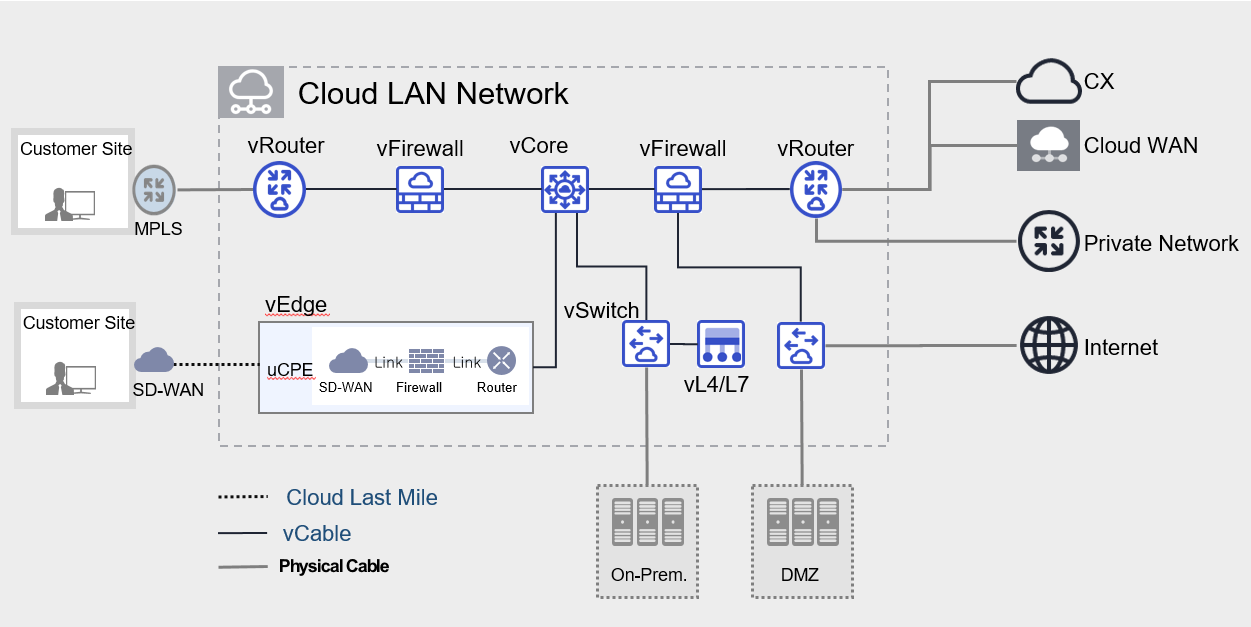
Provided Features
Cloud LAN - Data Center provides the following functions.
- Various network connection virtualization: Provides virtualization resources for flexible N/W configuration and allows customers to configure a dedicated network through various types of vDevices.
- Network/Security Solution Integration: It provides virtualization solutions in the form of NFV, and can configure a network by connecting various types of appliances.
Component
Cloud LAN-Data Center is a service that provides connections between various networks through virtual network configuration within the data center. The components are as follows, and related service creation is possible.
| Division | Detailed Content |
|---|---|
| Cloud LAN Network | Cloud LAN-Data Center infrastructure within a logically separated network configuration for virtual space |
| vRouter | virtual resource for external line (L2, L3) connection |
| vSwitch | Virtual resource for customer dedicated H/W connection and VLAN provision |
| vFirewall | Cloud LAN-Data Center internally created infrastructure protection for virtual firewall |
| vL4/L7 | Cloud LAN-Data Center internal traffic load balancing for virtual L4/L7 switch |
| vCore | Virtual resource for Full Mesh routing connection |
| vCable | virtual Cable for routing connections between virtual resources |
| Interface | Provides a physical interface where H/W devices and lines can be connected to vDevice |
Constraints
When using the Cloud LAN-Data Center service, there are the following restrictions.
- The available creation capacity by region is 1:1, please inquire.
Regional Provision Status
Cloud LAN-Data Center is available in the following environment.
| Region | Availability |
|---|---|
| Western Korea(kr-west1) | Provided |
| South Korea, southern region 1 (kr-south1) | Not provided |
| South Korea 2(kr-south2) | Not provided |
| South Korea, southern region 3(kr-south3) | Not provided |
Preceding Service
Cloud LAN-Data Center has no preceding service.
2 - How-to guides
The user can input the essential information of the Cloud LAN Network service and create the service by selecting detailed options through the Samsung Cloud Platform Console.
Create Cloud LAN Network
You can create and use the Cloud LAN Network service in the Samsung Cloud Platform Console.
To request the creation of a Cloud LAN Network service, follow the procedure below.
All services > Networking > Cloud LAN-Data Center menu, click. It moves to the Cloud LAN-Data Center Service Home page.
On the Cloud LAN-Data Center Service Home page, click the Create Cloud LAN Network button. It moves to the Create Cloud LAN Network page.
Cloud LAN Network Creation page, enter the corresponding information in the service information input area and click the Complete button.
- Please enter or select the required information in the service information input area.
Division NecessityDetailed Description Cloud LAN Network name required Enter the name of the Cloud LAN Network to be created - Enter 3-21 characters using English, numbers, and special characters
Cloud LAN Network location required Select Cloud LAN Network location Description Selection Enter additional information or description for Cloud LAN Network service Table. Cloud LAN Network Service Information Input Items
- Additional Information Input area, please enter or select the necessary information.
Classification MandatoryDetailed Description Tag Select Add Tag - Up to 50 can be added per resource
- Click the Add Tag button and enter or select Key, Value
Fig. Cloud LAN Network Additional Information Input Items
- Once the creation is complete, check the created resource on the Cloud LAN Network list page.
Cloud LAN Network detailed information check
Cloud LAN Network service allows you to check and modify the list of connected resources and detailed information. The Cloud LAN Network details page consists of details, connected resources, tags, and operation history tabs.
To check the detailed information of Cloud LAN Network, follow the next procedure.
- All Services > Networking > Cloud LAN-Data Center menu is clicked. It moves to the Cloud LAN-Data Center Service Home page.
- Cloud LAN-Data Center Service Home page, click the Cloud LAN Network menu. Move to the Cloud LAN Network list page.
- Cloud LAN Network list page, click the resource to check the detailed information. Move to the Cloud LAN Network details page.
- Cloud LAN Network Details page displays status information and additional feature information, and consists of Details, Connected Resources, Tags, Operation History tabs.
Division Detailed Description Service Status Service Status Display - Creating: Being created
- Active: In operation
- Deleting: Being deleted
- Failed: Creation/deletion failed
Service Cancellation Service Cancellation Button Fig. Cloud LAN Network status information and additional features
- Cloud LAN Network Details page displays status information and additional feature information, and consists of Details, Connected Resources, Tags, Operation History tabs.
Detailed Information
On the Cloud LAN Network list page, you can check the detailed information of the selected resource and modify the information if necessary.
| Classification | Detailed Description |
|---|---|
| Service | Service Name |
| Resource Type | Resource Type |
| SRN | Unique resource ID in Samsung Cloud Platform |
| Resource Name | Resource Title |
| Resource ID | Service’s unique resource ID |
| Creator | Service creator user |
| Creation Time | The time when the service was created |
| Modifier | User who modified the service |
| Modified Time | Time the service was modified |
| Service Information | Detailed information of the created service
|
Connected Resources
You can check the vDevice information assigned to the selected resource on the Cloud LAN Network list page.
| Classification | Detailed Description |
|---|---|
| vDevice list | Displays vDevice information and status assigned to the created service |
Tag
On the Cloud LAN Network list page, you can check the tag information of the selected resource, and add, change, or delete it.
| Classification | Detailed Description |
|---|---|
| Tag List | Tag List
|
Work History
You can check the operation history of the selected resource on the Cloud LAN Network list page.
| Classification | Detailed Description |
|---|---|
| Work history list | Resource change history
|
Cloud LAN Network Cancellation
To cancel the Cloud LAN Network, follow the procedure below.
- If other resources are connected to Cloud LAN Network, the service cannot be terminated. Please delete all connected resources and then terminate the service.
- Cloud LAN Network service status is Creating or Deleting, the service cannot be cancelled.
- If you cancel the Cloud LAN Network service, it will be deleted immediately and cannot be recovered. If you cancel the service, the service in operation may be stopped immediately, so please proceed with the cancellation work after fully considering the impact that may occur when the service is stopped.
- Click All Services > Networking > Cloud LAN-Data Center menu. It moves to the Cloud LAN-Data Center Service Home page.
- Cloud LAN-Data Center Service Home page, click the Cloud LAN Network menu. It moves to the Cloud LAN Network list page.
- Cloud LAN Network list page, click on the resource to check the detailed information. It moves to the Cloud LAN Network details page.
- Cloud LAN Network details page, click the cancel service button.
- When the cancellation is complete, check if the resource has been deleted from the Cloud LAN Network list.
2.1 - vDevice
The user can enter the necessary information for the vDevice service through the Samsung Cloud Platform Console and create the service by selecting detailed options.
Create vDevice
You can create and use the vDevice service on the Samsung Cloud Platform Console.
- To apply for a vDevice, a Cloud LAN Network must be created. Please check the Cloud LAN Network information before applying for a vDevice.
- The detailed settings of the created vDevice use a separate operation platform (NiO). For inquiries about NiO, please contact us through Support Center > Inquiry and we will guide you.
To request the creation of a vDevice service, follow the procedure below.
- All Services > Networking > Cloud LAN-Data Center menu, click. It moves to the Cloud LAN-Data Center Service Home page.
- On the Cloud LAN-Data Center Service Home page, click the vDevice creation button. It moves to the vDevice creation page.
- vDevice creation page, please enter the corresponding information in the service information input area.
- Please enter or select the required information in the service information input area.
Classification NecessityDetailed Description Cloud LAN Network name Required Select the Cloud LAN Network to assign to vDevice vDevice Type required Select the type of vDevice to create - vRouter: virtual resource for external line (L2, L3) connection
- vSwitch: virtual resource for customer dedicated hardware connection and VLAN provision
- vFirewall: virtual firewall for protecting infrastructure created in Data Center
- vCore: resource connection service for full-mesh communication between virtual resources
- vL4/L7: virtual L4/L7 switch for traffic load balancing in Cloud LAN-Data Center
vDevice Type > vRouter required Enter the name to be created when selecting vRouter - Enter 3-21 characters using English, numbers, and special characters
vDevice Type > vSwitch required Enter the name to be created when selecting vSwitch - Enter 3-21 characters using English, numbers, and special characters
vDevice Type > vFirewall required vFirewall selection creates selection information - vFirewall: enter the name to be created
- Vendor: select vendor
- Type: select the rate system of the selected vendor
- Redundancy: select whether to use redundancy, use selects the fee for 2 firewalls, and non-use applies for a single configuration
- Log storage option: select whether to use the log storage option, logs are stored on 1 server, and even if redundancy is selected, only the fee for 1 server is charged
- Contract period: select the contract period
vDevice Type > vCore Required Enter the name to be created when selecting vCore - Enter 3-21 characters using English, numbers, and special characters
vDevice Type > vL4/L7 Required When selecting vL4/L7, select creation information - vL4/L7 name: Enter the name to be created
- Unit: Enter the number of units to be used within 1-20
- Redundancy: Select whether to use firewall redundancy
- Contract period: Select the contract period
Table. vDevice Service Information Input ItemsNoteWhen applying for vFirewall, the Firewall Interface is automatically created. The detailed information of the firewall by vendor is as follows.
Vendor Firewall type Number of Interfaces Created vFirewall Interface SECUI 6 Gbs, 5,000 Rules 3 int / ext / dmz.1 SECUI 12 Gbs, 15,000 Rules 3 int / ext / dmz.1 SECUI 30 Gbs, 30,000 Rules 4 int / ext / dmz.1 / dmz.2 SECUI 60 Gbs, 100,000 Rules 5 int / ext / dmz.1 / dmz.2 / dmz.3 Fortinet 1 Gbs, 1,000 Rules 3 int / ext / dmz.1 Table. Detailed Firewall Information by Vendor - Additional Information Input area, please enter or select the necessary information.
Classification NecessityDetailed Description Tag Select Add Tag - Up to 50 can be added per resource
- Click the Add Tag button and enter or select Key, Value
Table. Input items for adding vDevice information
- Please enter or select the required information in the service information input area.
- In the Summary panel, review the detailed information and estimated charges, then click the Complete button.
- After creation is complete, check the created resource on the vDevice list page.
vDevice detailed information check
The vDevice service allows you to check and modify the list of connected resources and detailed information. The vDevice details page consists of detailed information, connected resources, tags, and operation history tabs.
To check the vDevice details, follow the next procedure.
- Click all services > Networking > Cloud LAN-Data Center menu. It moves to the Cloud LAN-Data Center Service Home page.
- Cloud LAN-Data Center Service Home page, click the vDevice menu. It moves to the vDevice list page.
- vDevice list page, click on the resource to check the detailed information. Move to the vDevice details page.
- vDevice details page displays status information and additional feature information, and consists of details, connected resources, tags, operation history tabs.
Division Detailed Description Service Status Service Status Display - Creating: Being created
- Active: In operation
- Deleting: Being deleted
- Failed: Creation/deletion failed
vDevice deletion service deletion button Table. vDevice Status Information and Additional Functions
- vDevice details page displays status information and additional feature information, and consists of details, connected resources, tags, operation history tabs.
Detailed Information
vDevice List page where you can view detailed information of the selected resource and modify the information if necessary.
| Classification | Detailed Description |
|---|---|
| Service | Service Name |
| Resource Type | Resource Type |
| SRN | Unique resource ID in Samsung Cloud Platform |
| Resource Name | Resource Title |
| Resource ID | Service’s unique resource ID |
| Creator | The user who created the service |
| Creation Time | Time when the service was created |
| Modifier | User who modified the service |
| Modified Date | Date the service was modified |
| Service Information | Detailed service information created
|
Connected Resources
You can check the resources assigned to the selected resource on the vDevice list page.
| Classification | Detailed Description |
|---|---|
| Connected Resource List | Detailed information and status of resources assigned to the created service
|
Tag
On the vDevice list page, you can check the tag information of the selected resource, and add, change, or delete it.
| Classification | Detailed Description |
|---|---|
| Tag list | Tag list
|
Work History
You can check the operation history of the resource selected on the vDevice list page.
| Division | Detailed Description |
|---|---|
| Work history list | Resource change history
|
vDevice cancellation
To cancel the vDevice, follow the procedure below.
- All services > Networking > Cloud LAN-Data Center menu, click. Move to the Cloud LAN-Data Center Service Home page.
- Cloud LAN-Data Center Service Home page, click the vDevice menu. Move to the vDevice list page.
- Click on the resource to check the detailed information on the vDevice list page. It moves to the vDevice details page.
- vDevice details page, click the vDevice delete button.
- When the cancellation is complete, check if the resource has been deleted from the vDevice list.
2.2 - Interface
The user can enter the required information of the Interface service through the Samsung Cloud Platform Console and create the service by selecting detailed options.
Create Interface
You can create and use the Interface service in the Samsung Cloud Platform Console.
- To apply for the Interface, Cloud LAN Network and vDevice must be created. Please check the Cloud LAN Network and vDevice information before applying for the Interface.
- Interface is a function that assigns a physical port to a pre-created vDevice. Interface can only be applied to vRouter and vSwitch.
- vFirewall is automatically created with the number of interfaces specified in the specification when created.
To request the creation of an Interface service, follow the next procedure.
Click All Services > Networking > Cloud LAN-Data Center menu. It moves to the Cloud LAN-Data Center Service Home page.
On the Cloud LAN-Data Center Service Home page, click the Create Interface button. It moves to the Create Interface page.
Interface creation page, please enter the corresponding information in the service information input area.
- Please enter or select the necessary information in the service information input area.
Classification NecessityDetailed Description Cloud LAN Network name required Select the Cloud LAN Network to assign the Interface vDevice Type Required Select the type of vDevice to use - vRouter: virtual resource for connecting external lines (L2, L3)
- vSwitch: virtual resource for customer dedicated hardware connection and VLAN provision
vDevice Type details required Select detailed information of vDevice type - vDevice name: Select vDevice
- Interface Type: Select the type of Interface to use
- Interface name: Enter the Interface name
- Up to 5 Interface items can be added, click the (+) button to add an item, click the (x) button to delete an item
- Interface redundancy: Set whether to use Interface redundancy, if redundancy is selected, the fee for 2 ports will be charged
- Contract period: Select the desired contract period
Table. Interface service information input items - Enter Additional Information Enter or select the required information in the area.
Classification NecessityDetailed Description Tag Selection Add Tag - Up to 50 can be added per resource
- Click the Add Tag button and enter or select Key, Value
Table. Input items for additional interface information
- Please enter or select the necessary information in the service information input area.
In the Summary panel, check the detailed information generated and the expected billing amount, and click the Complete button.
- Once the creation is complete, check the created resource on the Interface list page.
Interface detailed information check
The Interface service allows you to check and modify the list of connected resources and detailed information. The Interface details page consists of details, tags, and work history tabs.
To check the interface details, follow the next procedure.
- All Services > Networking > Cloud LAN-Data Center menu, click. It moves to the Cloud LAN-Data Center Service Home page.
- Cloud LAN-Data Center Service Home page, click the Interface menu. It moves to the Interface list page.
- Interface List page, click on the resource to check the detailed information. Move to the Interface Detail page.
- Interface Detail page displays status information and additional feature information, and consists of Detail Info, Tags, Work History tabs.
Classification Detailed Description Service Status Service Status Display - Creating: Being created
- Active: In operation
- Deleting: Being deleted
- Failed: Creation/deletion failed
Interface deletion Service deletion button Table. Interface Status Information and Additional Functions
- Interface Detail page displays status information and additional feature information, and consists of Detail Info, Tags, Work History tabs.
Detailed Information
On the Interface List page, you can check the detailed information of the selected resource and modify the information if necessary.
| Classification | Detailed Description |
|---|---|
| Service | Service Name |
| Resource Type | Resource Type |
| SRN | Unique resource ID in Samsung Cloud Platform |
| Resource Name | Resource Title |
| Resource ID | Service’s unique resource ID |
| Creator | The user who created the service |
| Creation Time | Time when the service was created |
| Modifier | User who modified the service |
| Modified Date | Date the service was modified |
| vDevice Type | vDevice Type information |
| Virtual Device Name | Virtual Device Name |
| Interface Type | Interface Type Information |
| Port Duplication | Whether to use port duplication |
| Contract Period | Selected Contract Period |
Tag
On the Interface List page, you can check the tag information of the selected resource, and add, change, or delete it.
| Classification | Detailed Description |
|---|---|
| Tag list | Tag list
|
Work History
You can check the work history of the resource selected on the Interface list page.
| Classification | Detailed Description |
|---|---|
| Work history list | Resource change history
|
Interface cancellation
To cancel the interface, follow the next procedure.
- All Services > Networking > Cloud LAN-Data Center menu is clicked. It moves to the Cloud LAN-Data Center Service Home page.
- Cloud LAN-Data Center Service Home page, click the Interface menu. Move to the Interface list page.
- Interface List page, click on the resource to check the detailed information. Move to the Interface Detail page.
- Interface details page, click the Interface delete button.
- When the cancellation is complete, check if the resource has been deleted from the Interface list.
2.3 - vCable
The user can enter the necessary information for the vCable service through the Samsung Cloud Platform Console and create the service by selecting detailed options.
Create vCable
You can create and use the vCable service in the Samsung Cloud Platform Console.
- To apply for vCable, Cloud LAN Network and vDevice must be created. Please check the Cloud LAN Network and vDevice information before applying for vCable.
- Only vCable configuration between vDevices created in the same Cloud LAN Network is possible.
To request the creation of a vCable service, follow these steps.
- All Services > Networking > Cloud LAN-Data Center menu is clicked. It moves to the Cloud LAN-Data Center Service Home page.
- Cloud LAN-Data Center Service Home page, click the vCable creation button. Move to the vCable creation page.
- vCable creation page, please enter the corresponding information in the service information input area.
- Please enter or select the necessary information in the service information input area.
Classification NecessityDetailed Description Cloud LAN Network name required Select the Cloud LAN Network to assign vCable vCable Type Required Select the type of vCable to be created - Static: Provides 1:1 connection between vDevices, when setting vDevice A and vDevice B, different virtual resources are selected
- vCore: Provides multi-peering between vDevices, connects multiple vDevices to provide connections between vDevices
vCable Type > details required Enter detailed information according to vCable Type - vCable name: Enter the name of the vCable to be created
- vDevice A: Select vDevice A
- vDevice B: Select vDevice B
- Select vDevice A and B in sequence, if vFirewall Interface is selected from A list, it will not be displayed in B list
- If vCable Type is Static, vCore cannot be selected from vDevice A and vDevice B
- If vCable Type is vCore, vCore can only be selected from vDevice A
- vDevice can only be connected to 1 vCable
- vFirewall can be connected to vCable using vFirewall Interface
Table. vCable Service Information Input Items - Enter Additional Information Enter or select the required information in the area.
Classification NecessityDetailed Description Tag Selection Add Tag - Up to 50 can be added per resource
- Click the Add Tag button and enter or select Key, Value
Table. Additional information input items for vCable
- Please enter or select the necessary information in the service information input area.
- In the Summary panel, review the detailed information and estimated charges, and click the Complete button.
- Once the creation is complete, check the created resource on the vCable list page.
Check vCable detailed information
The vCable service can check and modify the list of connected resources and detailed information. The vCable details page consists of detailed information, tags, and work history tabs.
To check the vCable details, follow the next procedure.
- Click All Services > Networking > Cloud LAN-Data Center menu. It moves to the Cloud LAN-Data Center Service Home page.
- Cloud LAN-Data Center Service Home page, click the vCable menu. It moves to the vCable list page.
- vCable list page, click the resource to check the detailed information. Move to the vCable detail page.
- vCable Details page displays status information and additional feature information, and consists of Details, Tags, Work History tabs.
Classification Detailed Description Service Status Service Status Display - Creating: Being created
- Active: In operation
- Deleting: Being deleted
- Failed: Creation/deletion failed
vCable delete service delete button Table. vCable Status Information and Additional Functions
- vCable Details page displays status information and additional feature information, and consists of Details, Tags, Work History tabs.
Detailed Information
On the vCable List page, you can check the detailed information of the selected resource and modify the information if necessary.
| Classification | Detailed Description |
|---|---|
| Service | Service Name |
| Resource Type | Resource Type |
| SRN | Unique resource ID in Samsung Cloud Platform |
| Resource Name | Resource Title |
| Resource ID | Service’s unique resource ID |
| Creator | Service creator user |
| Creation Time | The time when the service was created |
| Modifier | User who modified the service |
| Modified Time | Time the service was modified |
| vDevice Type | vDevice Type Category |
| vDevice A name | vDevice A name |
| vDevice B name | vDevice B title |
Tag
On the vCable List page, you can check the tag information of the selected resource, and add, change, or delete it.
| Classification | Detailed Description |
|---|---|
| Tag list | Tag list
|
Work History
You can check the operation history of the selected resource on the vCable List page.
| Division | Detailed Description |
|---|---|
| Work history list | Resource change history
|
Canceling vCable
To cancel vCable, follow the procedure below.
- All Services > Networking > Cloud LAN-Data Center menu is clicked. It moves to the Cloud LAN-Data Center Service Home page.
- Cloud LAN-Data Center Service Home page, click the vCable menu. It moves to the vCable list page.
- vCable list page, click on the resource to check the detailed information. It moves to the vCable details page.
- vCable details page, click the vCable delete button.
- Once the cancellation is complete, please check if the resource has been deleted from the vCable list.
2.4 - vEdge
Users can apply for the vEdge service by entering the necessary information for using the service through the Samsung Cloud Platform Console.
Create vEdge
You can apply for and use the vEdge service on the Samsung Cloud Platform Console.
To request the creation of a vEdge service, follow these steps.
All Services > Networking > Cloud LAN-Data Center menu is clicked. It moves to the Cloud LAN-Data Center Service Home page.
On the Service Home page, click the vEdge service request button. It moves to the Support Center > Service Request List > Service Request page.
Service Request page, please enter or select the corresponding information in the required input area.
- Select vEdge creation in the work division.
Input Item Detailed Description Title Enter the title of the service request content - Example: vEdge service creation request
Region Select the location of Samsung Cloud Platform - Automatically entered as the region corresponding to the Account
Service Select service category and service. If the vEdge service request button is pressed, it is automatically entered - Service category: Networking
- Service: vEdge
Work classification Select the type you want to request - vEdge creation: Select if you are newly requesting a service
Contents and guidance on the service application process and notes Attachments If you have files you want to share with others, proceed with uploading - Attached files can be up to 5MB each, with a maximum of 5 files
- Only doc, docx, xls, xlsx, ppt, ppts, hwp, txt, pdf, jpg, jpeg, png, gif, tif files can be attached
Table. vEdge Service Creation Request Items
- Select vEdge creation in the work division.
Check the required information entered on the Service Request page and click the Request button. When the application is complete, check the contents of the application on the Support Center > Service Request List page.
Check vEdge Application History
You can check the application and cancellation history of the vEdge service in the Samsung Cloud Platform Console.
To check the vEdge service application history, follow the procedure below.
- Click all services > Management > Support Center menu. It moves to the Support Center > Service Home page.
- Support Center Service Home page, click the Service Request menu. It moves to the Service Request List page.
- On the Service Request List page, click the title of the service request you applied for. It moves to the Service Request Details page.
- Service Request Details page to check the application status and information.
vEdge cancellation
To request the cancellation of the vEdge service, follow the procedure below.
Click all services > Management > Support Center menu. It moves to the Support Center > Service Home page.
On the Support Center Service Home page, click the Service Request button. It moves to the Service Request List page.
On the Service Request List page, click the Service Request button. It moves to the Service Request page.
Service Request page, enter or select the corresponding information in the required input field.
- Select vEdge Cancellation in the work classification.
Input Item Detailed Description Title Enter the title of the service request content - Example: vEdge service cancellation request
Region Select the location of Samsung Cloud Platform - Automatically entered as the region corresponding to the account
Service Select service category and service - Service Category: Networking
- Service: vEdge
Work classification Select the type you want to request - vEdge cancellation: Select if you want to cancel the service
Content Guide to service application process and notes Attachment If you have additional files you want to share, upload them - Attached files can be up to 5 files, each within 5 MB
- Only doc, docx, xls, xlsx, ppt, ppts, hwp, txt, pdf, jpg, jpeg, png, gif, tif files can be attached
Table. vEdge Service Cancellation Request Items
- Select vEdge Cancellation in the work classification.
Check the required information entered on the Service Request page and click the Request button.
- Once the application is complete, check the contents of the application on the Support Center > Service Request List page.
- Service cancellation takes 5-7 business days from the date of cancellation application, including the cancellation application date.
3 - Release Note
Cloud LAN-Data Center
- Samsung Cloud Platform common feature change
- Account, IAM and Service Home, tags, etc. reflected common CX changes.
- We have launched the Cloud LAN-Data Center service, which provides connections between various networks through virtual network configuration within the data center.