This is the multi-page printable view of this section. Click here to print.
GSLB
- 1: Overview
- 2: How-to guides
- 3: API Reference
- 4: CLI Reference
- 5: Release Note
1 - Overview
Service Overview
GSLB (Global Server Load Balancing) automatically distributes network traffic to an available adjacent region based on DNS when traffic increases in a specific global area. When a specific server fails, we load‑balance network traffic to an available new resource to ensure the service continues reliably.
Features
- Stable Service Provision: By using the health check function (Health Check) that verifies the normal operation of connected resources, if a failure occurs on a specific server, the resource is immediately Fail over and removed from domain responses, redirecting traffic to other resources to provide stable service.
- Easy Service Port Configuration: Through the web-based console, you can conveniently create GSLB and set/manage service ports. For L4-level load balancing, multiple ports can be configured (e.g., 80, 443, 8080-8090), and you can apply and manage several load balancing rules simultaneously.
- Efficient Cost Management: Because the billing method is granularly applied so that fees are determined based on the number of configured domains, the number of added Health Check resources, and the number of queries, costs can be managed efficiently.
Service Architecture Diagram
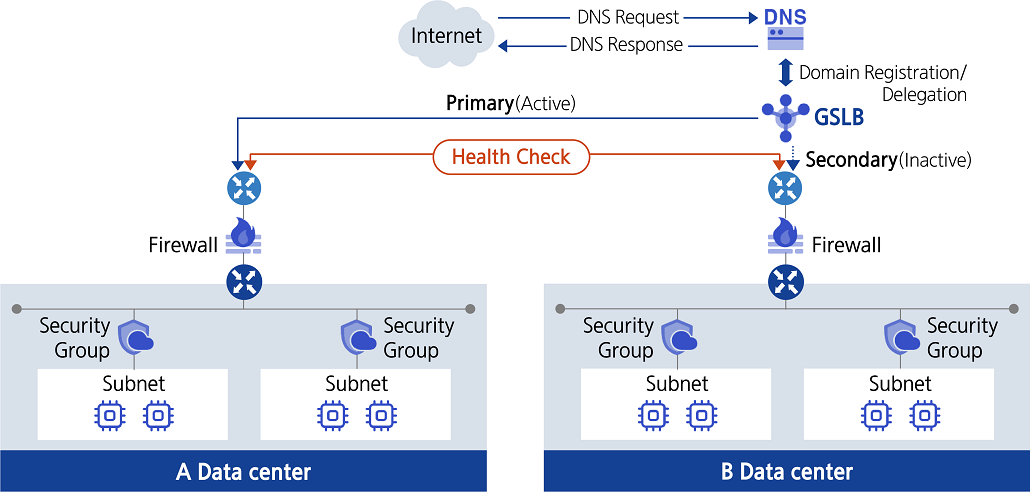
Provided features
The GSLB service provides the following features.
- GSLB Creation/Management: You can register multiple resources to a single GSLB.
- Load Balancing Algorithm Selection: Provides the Ratio method, which distributes traffic proportionally to the weight (Weight) of each connection target, and the Round Robin method, which cycles traffic and distributes it evenly.
- Health Check Settings: check interval (Interval), service down detection time (Timeout), response wait time (Probe Timeout), protocols (ICMP, TCP, HTTP, HTTPS), and service ports can be configured.
Constraints
The limitations of the GSLB service are as follows.
| Category | Explanation |
|---|---|
| Maximum number of domains that can be created per account | 20 |
| Maximum number of connectable resources per domain | 8 |
- For GSLB to monitor the target, an allow rule must be added to the target resource’s firewall and security group.
Provision status by region
The GSLB service is available in the environments below.
| Region | Provision status |
|---|---|
| Korea West (kr-west1) | Provide |
| Korea East (kr-east1) | Provided |
| South Korea South 1 (kr-south1) | Not provided |
| South Korea 2 (kr-south2) | Not provided |
| South Korea South 3 (kr-south3) | Not provided |
Preliminary Service
The GSLB service has no prerequisite services.
2 - How-to guides
Users can create the service by entering the required information for the GSLB service and selecting detailed options through the Samsung Cloud Platform Console.
Create GSLB
You can create and use a GSLB service in the Samsung Cloud Platform Console.
To request the creation of a GSLB service, follow these steps.
- All Services > Networking > GSLB Click the menu. You will be taken to the Service Home page.
- On the Service Home page, click the Create GSLB button. You will be taken to the Create GSLB page.
- On the GSLB Creation page, enter the information required to create a service and select detailed options.
- Enter or select the required information in the Service Information Input area.
Category Required statusDetailed description Purpose Required Automatically input PUBLIC when creating GSLB domain name Required Enter the GSLB domain name to use - Enter using lowercase English letters and numbers, between 4 and 40 characters
- Cannot use the same name as an existing one
Add connection target > IP Required Enter the target IP address Add connection target > Location Required Select the location to perform monitoring for the connection target - It is recommended to specify a location close to the IP server
Add connection target > Description Select Enter additional information or description about the connection target Add connection target > Connection target list Required Display added target IP, location, and description entries - Enter target IP, location, and description, then click the Add button to add the entry
- Up to 8 target connections can be added to a single GSLB service
- Click x to remove an entry from the list, click the Delete All button to remove all entries from the list
Table. GSLB Service Information Input Items - Enter or select the required information in the Connection Target Monitoring Settings area.
Category RequiredDetailed description Health Check Required Select the protocol type for health check - ICMP, TCP, HTTP, HTTPS can be selected (recommended to use HTTPS for security)
Interval Required Enter the time interval (seconds) for performing health checks. Timeout Required Enter the waiting time (seconds) to determine the server’s status (UP or DOWN) during a health check. Probe Timeout Required Enter the response timeout (seconds) - Enter the domain name (recommended) or the origin server’s public IP directly
Service Port Required When using TCP/HTTP/HTTPS protocols, enter the port to be used for health checks - Enter the domain name (recommended) or directly input the origin server’s public IP
User Name Select Enter the username to use when authentication is required for health check communication when using the HTTP/HTTPS protocol. Password Select Enter the password to use when authentication is required for health check communication while using the HTTP/HTTPS protocol - Include English letters, numbers, and special characters (@$!%*#?&) and enter it within 8 - 20 characters
Send String Selection When using the HTTP/HTTPS protocol, enter the string to be sent when checking a specific web page - Example) GET /www/example/index.html
- For HTTP 1.0/1.1, use /r/n for line breaks, and special characters (<, >, #) cannot be used in the string
Receive String Required When using the HTTP/HTTPS protocol, enter the string to be received as a health‑check response - The string must contain only English letters (uppercase and lowercase) and numbers
Table. GSLB connection target monitoring configuration input items - Enter or select the required information in the Load Balancing Policy Settings area.
Category Required statusDetailed description Algorithm Required Select load balancing method - Ratio: Distribute traffic proportionally to the weight (Weight) of each connection target
- Round robin: Distribute traffic evenly based on a round-robin method
Connection target Required Enter Weight for each target when selecting Ratio - Weight is the weighting applied to each target when distributing service requests; enter a value between 0 and 100.
- Click the detail view icon of the description item to view target information
Table. GSLB load balancing policy input items - In the Additional Information Input area, enter or select the required information.
Category RequiredDetailed description Explanation Selection Enter additional information or description about the GSLB service. tag Select Add Tag - Up to 50 per resource can be added
- After clicking the Add Tag button, enter or select Key, Value values
Table. GSLB additional information input fields
- Enter or select the required information in the Service Information Input area.
- Check the creation history and click the Create button.
- When creation is complete, check the created resource on the GSLB List page.
Check GSLB detailed information
The GSLB service allows you to view and edit the full resource list and detailed information. GSLB Details page consists of Details, Targets, Tags, Activity Log tabs.
To view detailed GSLB information, follow these steps.
- Click the All Services > Networking > GSLB menu. Navigate to the Service Home page of GSLB.
- On the Service Home page, click the GSLB menu. You will be taken to the GSLB List page.
- On the GSLB List page, click the resource to view detailed information. You will be taken to the GSLB Details page.
- The GSLB Details page displays the GSLB’s status and detailed information, and consists of the Details, Targets, Tags, Activity Log tabs.
Category Detailed description Service status GSLB status - Creating: In progress
- Active: Running
- Editing: In progress
- Deleting: In progress
- Error: An error occurred
Service termination Button to cancel GSLB Table. GSLB status information and additional features
- The GSLB Details page displays the GSLB’s status and detailed information, and consists of the Details, Targets, Tags, Activity Log tabs.
Detailed Information
On the GSLB List page, you can view detailed information of the selected resource and, if necessary, edit the information.
| Category | Detailed description |
|---|---|
| Service | Service name |
| Resource Type | Resource Type |
| SRN | Unique resource ID in Samsung Cloud Platform |
| Resource Name | Resource Name |
| Resource ID | Unique resource ID in the service |
| constructor | User who created the service |
| Creation date and time | Service creation date and time |
| Editor | User who edited the service information |
| Modification date | Date and time the service information was modified |
| Domain name | GSLB domain information |
| Purpose | GSLB usage |
| Algorithm | Configured GSLB algorithm information
|
| Health Check | Configured GSLB health check information
|
| Explanation | Entered GSLB description
|
Connection target
On the GSLB List page, you can view the connection target information of the selected resource and, if necessary, edit the information.
| Category | Detailed description |
|---|---|
| IP | Destination IP address |
| Resource ID | GSLB Resource ID |
| Location | Location to perform monitoring of the connection target |
| description | Enter additional information or description for the connection target
|
| Whether to use | Indicate whether the connection target is used |
| Weight | Display the weight of the connection target |
| Connection status | Connection status display
|
| Edit connection target | Add or modify connection target
|
tag
On the GSLB List page, you can view the tag information of the selected resource and add, modify, or delete it.
| Category | Detailed description |
|---|---|
| Tag list | Tag list
|
Job History
On the GSLB List page, you can view the operation history of the selected resource.
| Category | Detailed description |
|---|---|
| Task History List | Resource Change History
|
Modify connection target information
You can add, modify, or delete GSLB connection target information.
To change the GSLB connection target information, follow these steps.
- Click the All Services > Networking > GSLB menu. Navigate to the Service Home page of GSLB.
- On the Service Home page, click the GSLB menu. Navigate to the GSLB List page.
- On the GSLB List page, click the resource to view its details. You will be taken to the GSLB Details page.
- On the GSLB Details page, click the Connection Targets tab. You will be taken to the Connection Targets tab page.
- Connection Target tab page, click the Edit Connection Target button. You will be taken to the Edit Connection Target page.
- On the Edit Connection Target page, modify the information you want.
- Add: Enter the target IP, select the location, and enter a description, then click the Add button to add the item.
- Delete: To delete the linked target item, click the Delete button.
- You can modify the Weight for each item in the connection target list.
- When the edit is complete, click Done. An edit notification window will open.
- Click OK in the alert dialog. The service information update is complete.
- You can add up to 8 targets to a single GSLB service.
- When adding a connection target, it is recommended to set the location field to a position close to the target server.
Configuring the Regional Routing Controller
You can query the Regional Routing Controller and change its usage status.
To change the usage status of the Regional Routing Controller, follow these steps.
All Services > Networking > GSLB Click the menu. Navigate to the Service Home page of GSLB.
On the Service Home page, click the Regional Routing Controller menu. You will be taken to the Regional Routing Controller List page.
Retrieve the resource to view detailed information on the Regional Routing Controller List page.
- Advanced Search button can be clicked to select domain, connection location, and usage status for the search.
On the Regional Routing Controller List page, view the resource information and change its usage status.
Category Detailed description domain name Registered domain name - When you click the domain name, you will be taken to the GSLB Details > Connection Targets tab page
Purpose Domain purpose Connection location Location to perform monitoring of the connection target Connection target by location Number of connection targets by location Whether to use Display the connection target usage status, and you can change the usage status by clicking the More button - Use: Enable the connection target
- Stop: Disable the connection target
- You can also set usage by selecting a domain from the list and choosing Use or Stop at the top
Table. Regional Routing Controller ListClick Confirm in the alert dialog. The domain usage status change is complete.
Terminate GSLB
You can request termination of the GSLB service in the Samsung Cloud Platform Console.
To request cancellation of the GSLB service, follow the steps below.
- Click the All Services > Networking > GSLB menu. Navigate to the Service Home page of GSLB.
- On the Service Home page, click the GSLB menu. You will be taken to the GSLB List page.
- On the GSLB List page, click the resource you want to view detailed information for. You will be taken to the GSLB Details page.
- On the GSLB Details page, click the Cancel Service button.
- After the termination is complete, check the service termination status in the GSLB list.
3 - API Reference
4 - CLI Reference
5 - Release Note
GSLB
- You can control the usage of traffic you want to connect via GSLB on a per-region basis.
- We have launched a GSLB service that can automatically distribute network traffic to adjacent regions based on DNS when traffic increases in a specific global region, providing stable service.