This is the multi-page printable view of this section. Click here to print.
GSLB
- 1: Overview
- 2: How-to guides
- 3: API Reference
- 4: CLI Reference
- 5: Release Note
1 - Overview
Service Overview
GSLB (Global Server Load Balancing) automatically distributes network traffic to an available adjacent region based on DNS when traffic increases in a specific global region. In the event of a failure on a specific server, the service can continue stably by load balancing network traffic to available new resources.
Features
- Stable Service Provision: Through the health check function, which checks the normal operation of connected resources, if a failure occurs in a specific server, the corresponding resource is immediately failed over and removed from the domain response, thereby diverting traffic to other resources to provide stable services.
- Service Port Easy Setup: You can easily create and manage GSLB and set up/service ports through the web-based console. For L4 unit load balancing, multiple port settings are possible (e.g., 80, 443, 8080-8090), and you can apply and manage multiple load balancing rules simultaneously.
- Efficient Cost Management: The cost is determined by the number of configured domains, the number of added Health Check resources, and the number of queries, so the billing method is applied in a granular manner, allowing for efficient cost management.
Service Composition Diagram
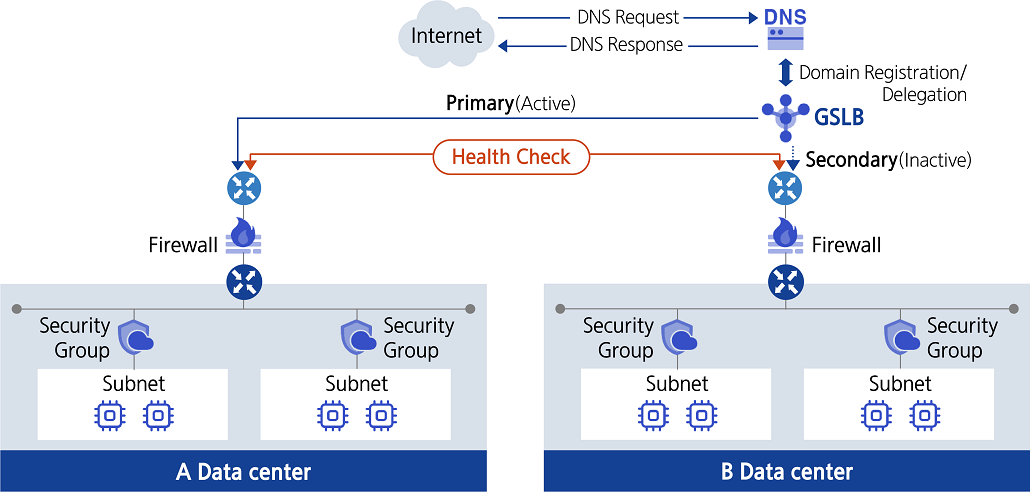
Provided Features
GSLB service provides the following features.
- GSLB Creation/Management: You can register multiple resources to a single GSLB.
- Distributed Algorithm Selection: Provides Ratio method, which distributes traffic in proportion to the weight of the connection target, and Round Robin method, which distributes traffic evenly in a circular manner.
- Health Check 설정: You can set the check cycle (Interval), service down detection time (Timeout), response wait time (Probe Timeout), protocol (ICMP, TCP, HTTP, HTTPS), and service port.
Constraints
The constraints of the GSLB service are as follows.
| Division | Description |
|---|---|
| Maximum number of domains that can be created per Account | 20 |
| Maximum connectable resources per domain | 8 |
- For GSLB to monitor the connection target, an allow rule must be added to the Firewall and Security Group of the connection target resource.
Regional Provision Status
GSLB service can be provided in the following environment.
| Region | Availability |
|---|---|
| Western Korea(kr-west1) | Provided |
| Korean East(kr-east1) | Provided |
| South Korea 1(kr-south1) | Not provided |
| South Korea southern region 2(kr-south2) | Not provided |
| South Korea southern region 3(kr-south3) | Not provided |
Preceding Service
The GSLB service has no preceding service.
2 - How-to guides
The user can enter required information for the GSLB service through the Samsung Cloud Platform Console, select detailed options, and create the service.
GSLB Create
You can create and use GSLB services from the Samsung Cloud Platform Console.
To request GSLB service creation, follow the steps below.
- All Services > Networking > GSLB 메뉴를 클릭하세요. Service Home 페이지로 이동합니다.
- Click the Create GSLB button on the Service Home page. You will be taken to the Create GSLB page.
- Create GSLB page, enter the information required to create the service, and select detailed options.
- Service Information Input area, input or select the required information.
Category RequiredDetailed description Purpose Required Automatically input PUBLIC when creating GSLB Domain Name Required Enter the GSLB domain name to use - Enter using lowercase English letters and numbers, within 4-40 characters
- Cannot be the same as an existing name in use
Add Connection Target > IP Required Enter connection target IP address Add Connection Target > Location Required Select the location to perform monitoring of the connection target - Recommended to specify a location close to the IP server
Add connection target > Description Optional Enter additional information or description about the connection target Add Connection Target > Connection Target List Required Display added connection target IP, location, description items - After entering connection target IP, location, description, click the Add button to add the item
- Up to 8 connection targets can be added to a single GSLB service
- Click x to delete the item from the list, click the Delete All button to delete all items in the list
Table. GSLB Service Information Input Items - Connection Target Monitoring Settings area, please enter or select the required information.
Category Required or notDetailed description Health Check Required Select the protocol type for health check - Options: ICMP, TCP, HTTP, HTTPS (HTTPS is recommended for security)
Interval Required Enter the time interval (seconds) for performing health checks Timeout Required Enter the waiting time (seconds) to determine the server status (UP or DOWN) during health check Probe Timeout Required Enter response wait time (seconds) - Enter the domain name (recommended) or the public IP of the origin server directly
Service Port Required Enter the port to be used for health check when using TCP/HTTP/HTTPS protocol - Enter the domain name (recommended) or the public IP of the origin server directly
User Name Select Enter the user name to use when authentication is required for health check communication when using HTTP/HTTPS protocol Password Select Enter the password to use when authentication is required for health check communication when using HTTP/HTTPS protocol - Enter 8-20 characters, including letters, numbers, and special characters (@$!%*#?&)
Send String Select When using HTTP/HTTPS protocol, enter the string to be sent when checking a specific webpage - Example) GET /www/example/index.html
- For HTTP 1.0/1.1, line breaks should be entered as /r/n, and special characters (<, >, #) cannot be used in the string
Receive String Required Enter the string to be received as a health check response when using HTTP/HTTPS protocol - Only English letters (uppercase and lowercase) and numbers are allowed in the string
Table. GSLB connection target monitoring setting input items - In the Load Balancing Policy Configuration area, enter or select the required information.
Category RequiredDetailed description Algorithm Required Select load balancing method - Ratio: Distribute traffic proportionally to the weight of each connection target (Weight)
- Round robin: Distribute traffic evenly based on a cyclic method
Connection Target Required When Ratio is selected, input Weight for each connection target - Weight is the weighting applied to the connection target when distributing service requests, entered within 0-100
- Click the detail view icon of the description item to view connection target information
Table. GSLB load balancing policy input items - Additional Information Input Enter or select the required information in the area.
Category Required statusDetailed description Description Select Enter additional information or description about the GSLB service Tag Select Add Tag - Up to 50 can be added per resource
- After clicking the Add Tag button, enter or select Key, Value values
Table. GSLB Additional Information Input Items
- Service Information Input area, input or select the required information.
- Check the creation history and click the Complete button.
- When creation is complete, check the created resources on the GSLB List page.
GSLB Check detailed information
GSLB service can view and edit the full resource list and detailed information. GSLB Detail page consists of Detail Information, Connection Targets, Tags, Operation History tabs.
To view detailed GSLB information, follow the steps below.
- All Services > Networking > GSLB Click the menu. Navigate to the GSLB’s Service Home page.
- Click the GSLB menu on the Service Home page. Navigate to the GSLB List page.
- Click the resource to view detailed information on the GSLB List page. It will navigate to the GSLB Details page.
- GSLB Detail page displays GSLB’s status information and detailed information, and consists of Detail Information, Connection Targets, Tags, Operation History tabs.
Category Detailed description Service Status GSLB Status - Creating: Creating
- Active: Running
- Editing: Editing
- Deleting: Deleting
- Error: Error occurred
Service termination Button to cancel GSLB Table. Status Information and Additional Functions
- GSLB Detail page displays GSLB’s status information and detailed information, and consists of Detail Information, Connection Targets, Tags, Operation History tabs.
Detailed Information
On the GSLB List page, you can view detailed information of the selected resource and, if necessary, edit the information.
| Category | Detailed description |
|---|---|
| service | service name |
| Resource Type | Resource Type |
| SRN | Unique resource ID in Samsung Cloud Platform |
| Resource Name | Resource Name |
| Resource ID | Unique resource ID in the service |
| Creator | User who created the service |
| Creation time | Date/time the service was created |
| Editor | User who modified the service information |
| Modification Date/Time | Date/Time when service information was modified |
| Domain Name | GSLB domain information |
| Purpose | GSLB Purpose |
| Algorithm | Configured GSLB algorithm information
|
| Health Check | Configured GSLB health check information
|
| Description | Entered GSLB description
|
Connection Target
GSLB List page allows you to view the connection target information of the selected resource and, if necessary, edit the information.
| Category | Detailed description |
|---|---|
| IP | Target IP address |
| Resource ID | GSLB Resource ID |
| Location | Location to perform monitoring of the connection target |
| Description | Enter additional information or description about the connection target
|
| Usage status | Display usage status of connection target |
| Weight | Display of the connected target’s Weight |
| Connection Status | Connection Status Display
|
| Edit Connection Target | Add Connection Target and Edit Information
|
Tag
GSLB List page allows you to view the tag information of the selected resource, and you can add, modify, or delete it.
| Category | Detailed description |
|---|---|
| Tag List | Tag List
|
Work History
You can view the operation history of the selected resource on the GSLB List page.
| Category | Detailed description |
|---|---|
| Work History List | Resource Change History
|
Edit connection target information
You can add, modify, or delete GSLB connection target information.
To change the GSLB connection target information, follow the steps below.
- All Services > Networking > GSLB Click the menu. Go to the GSLB Service Home page.
- Click the GSLB menu on the Service Home page. Go to the GSLB list page.
- GSLB list Click the resource to view detailed information on the page. GSLB details Navigate to the page.
- GSLB Details page, click the Connection Target tab. Connection Target tab page will be displayed.
- Connection Target tab page, click the Edit Connection Target button. Edit Connection Target page will be opened.
- Edit Connection Target page, edit the desired information.
- Add: Enter the target IP, select the location, enter a description, and click the Add button to add an item.
- Delete: To delete the linked target item, click the Delete button.
- Click Save when editing is complete. An edit notification window will appear.
- Click Confirm in the alert window. Service information modification is completed.
- You can add up to 8 connection targets to a single GSLB service.
- It is recommended to set the location item to a location close to the target server when adding a connection target.
Regional Routing Controller Setup
You can view the Regional Routing Controller and change its usage status.
To change the usage status of the Regional Routing Controller, follow the steps below.
All Services > Networking > GSLB Click the menu. Navigate to the GSLB Service Home page.
Click the Regional Routing Controller menu on the Service Home page. Navigate to the Regional Routing Controller list page.
Query the resource to view detailed information on the Regional Routing Controller List page.
- Detailed Search button, click to select domain, connection location, and usage status for searching.
Regional Routing Controller List on the page, check the resource information and change the usage status.
Category Detailed description Domain Name Registered Domain Name - Click the domain name to go to the GSLB Details > Connection Target tab page
Purpose Domain purpose Connection location Location to perform monitoring of the connection target Connection target by location Number of connection targets by location Usage status Displays the connection target usage setting status, you can change the usage status by clicking the more button - Use: Connection target enabled
- Stop: Connection target disabled
- You can also set usage by selecting a domain from the list and choosing Use or Stop at the top
Table. Regional Routing Controller ListClick Confirm in the alert window. The domain usage status change is complete.
GSLB Cancel
You can apply for a GSLB service hatch in the Samsung Cloud Platform Console.
To request termination of the GSLB service, follow the steps below.
- All Services > Networking > GSLB Click the menu. Navigate to the GSLB’s Service Home page.
- Click the GSLB menu on the Service Home page. Go to the GSLB list page.
- Click the resource to view detailed information on the GSLB List page. It moves to the GSLB Details page.
- GSLB Detail page, click the Cancel Service button.
- Once the termination is complete, check the service termination status in the GSLB list.
3 - API Reference
4 - CLI Reference
5 - Release Note
GSLB
- You can control the usage of traffic you want to connect through GSLB by region.
- We have launched a GSLB service that can automatically distribute network traffic to neighboring regions based on DNS, providing stable service when traffic increases in a specific global region.