This is the multi-page printable view of this section. Click here to print.
Direct Connect
- 1: Overview
- 1.1: ServiceWatch Metrics
- 2: How-to guides
- 3: API Reference
- 4: CLI Reference
- 5: Release Note
1 - Overview
Service Overview
Samsung Cloud Platform provides a Direct Connect service that supports safe and fast connections between the customer’s network and the Samsung Cloud Platform environment.
Through Direct Connect, you can allocate the internal private network range of an existing system to Samsung Cloud Platform resources for use. You can deploy backend systems such as application servers in a private network range without internet access, and enhance security by applying Samsung Cloud Platform network services such as Security Groups.
Through Direct Connect, customers can seamlessly migrate their existing systems to Samsung Cloud Platform even if they hard-code IP addresses on devices or have architecture dependencies on IP.
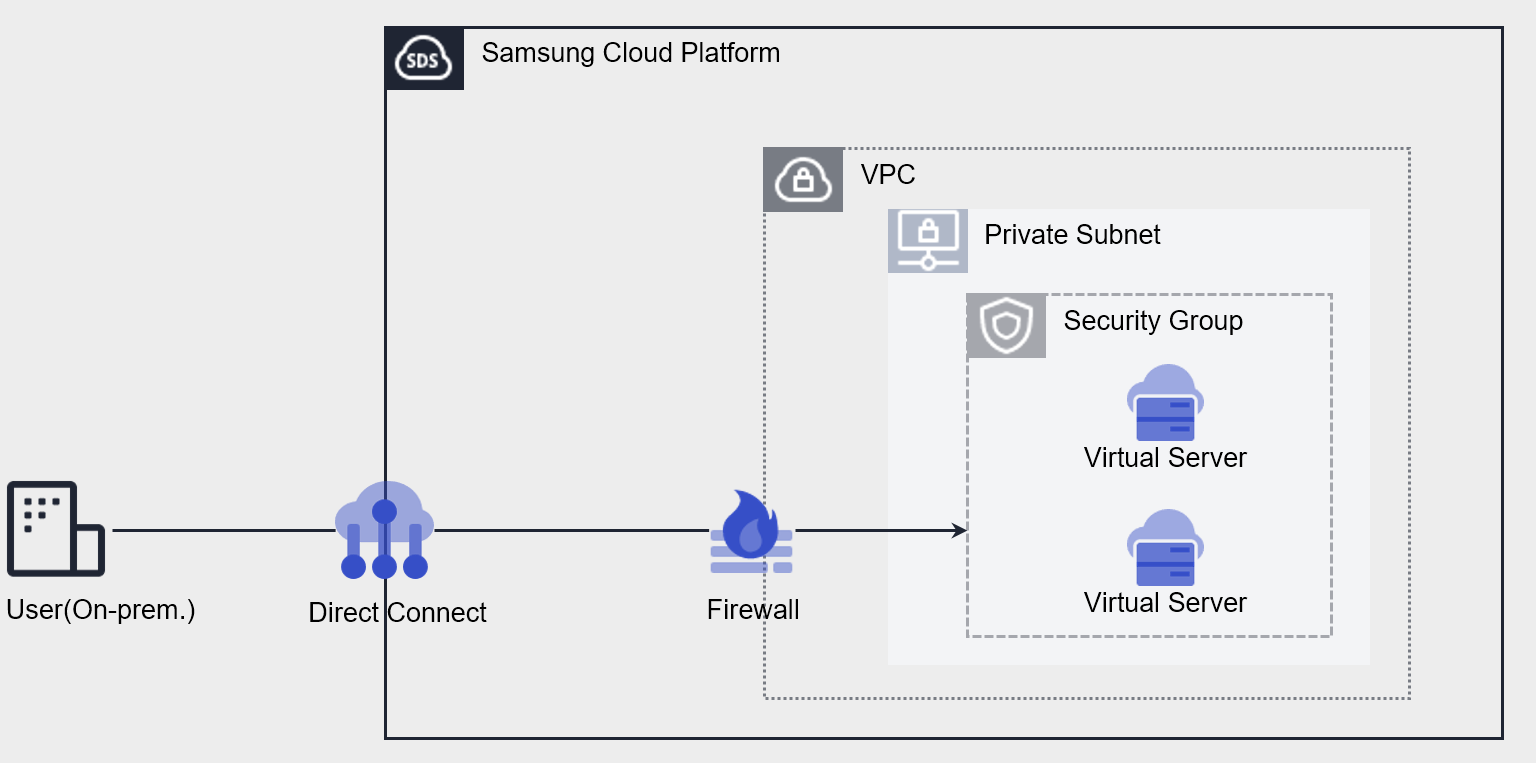
Direct Connect Connection Creation
Supports connecting by selecting a single VPC to connect to the customer network.
Access can be blocked through the Direct Connect Firewall, and a Route configuration feature is provided to ensure a secure connection path.
Constraints
| Category | Default quota | Detailed description |
|---|---|---|
| Direct Connect | 5 | Based on the account, you can create one VPC per service zone (1:1). |
Preceding Service
This is a list of services that must be pre-configured before creating the service. Please refer to the guide provided for each service and prepare in advance.
| Service Category | Service | Detailed description |
|---|---|---|
| Networking | VPC | A service that provides an isolated virtual network in a cloud environment |
| Networking | Security Group | Virtual firewall that controls server traffic |
1.1 - ServiceWatch Metrics
Direct Connect sends metrics to ServiceWatch. The metrics provided by default monitoring are data collected at 5‑minute intervals.
Basic Metrics
The following are the basic metrics for the Direct Connect namespace.
The indicators whose names are displayed in bold below are the key indicators selected from the basic indicators provided by Direct Connect. Key metrics are used to configure service dashboards that are automatically generated for each service in ServiceWatch.
Each metric indicates through the user guide which statistical value is meaningful when viewing that metric, and among the meaningful statistics, the statistical values shown in bold text are the primary statistics. In the service dashboard, primary metrics can be viewed using the primary statistical values.
| Indicator Name | Detailed description | unit | Meaningful statistics |
|---|---|---|---|
| DirectConnect Network In Bytes | Cumulative traffic volume toward VPC from Direct Connect | Bytes |
|
| DirectConnect Network Out Bytes | Cumulative traffic volume from VPC to Direct Connect | Bytes |
|
| DirectConnect Network In Bytes_Delta | Cumulative traffic volume over 5 minutes from Direct Connect → VPC | Bytes |
|
| DirectConnect Network Out Bytes_Delta | Cumulative traffic volume over 5 minutes from VPC → Direct Connect | Bytes |
|
2 - How-to guides
Users can create the service by entering the required information for the Direct Connect service and selecting detailed options through the Samsung Cloud Platform Console.
Create Direct Connect
You can create and use the Direct Connect service in the Samsung Cloud Platform Console.
To create a Direct Connect, follow these steps.
Click the All Services > Networking > Direct Connect menu. 1. Go to the Service Home page of Direct Connect.
On the Service Home page, click the Create Direct Connect button. 2. Navigate to the Create Direct Connect page.
- Enter or select the required information in the Service Information Input area.
Category Required statusDetailed description Direct Connect name Required A name for Direct Connect that is easily identifiable - Enter using English letters (uppercase and lowercase) and numbers, within 3 to 20 characters
Use Uplink Required Bandwidth of the communication port for remote communication - Port capacity can be selected from 1G / 10G /20G / 40G
- The selected port capacity cannot be changed after creation
VPC name Required Select a VPC for communicating with the remote site - AZ information can be checked in the VPC list; VPCs already in use cannot be selected
- If the selected VPC is Multi-AZ, choose a connection center; selecting an Active connection center automatically assigns a Standby connection center
Explanation Selection Enter description for Direct Connect Use firewall Selection Select whether to use Direct Connect Firewall Whether to store firewall logs Selection Firewall log saving option - Select whether to save Firewall logs
- When using the Firewall, connection logs are saved
- For more details, see Using Firewall Log Storage
Table. Direct Connect service information input items - Additional Information Input area, please enter or select the required information.
Category Required statusDetailed description tag Selection Add Tag - Up to 50 per resource can be added
- After clicking the Add Tag button, enter or select Key, Value values
Table. Direct Connect additional information input fields
- Enter or select the required information in the Service Information Input area.
Summary Review the detailed information and estimated charges generated in the panel, then click the Create button.
- Once creation is complete, check the created resources on the Direct Connect list page.
Direct Connect Check detailed information
The Direct Connect service can view and edit the full resource list and detailed information in the Resource Management menu. The Direct Connect Details page consists of the Details, Rules, Tags, Activity History tabs.
To view the detailed information of Direct Connect, follow these steps.
- All Services > Networking > Direct Connect Click the menu. 1. Navigate to Direct Connect’s Service Home page.
- On the Service Home page, click the Direct Connect menu. 2. Go to the Direct Connect List page.
- On the Direct Connect List page, click the resource for which you want to view detailed information. 3. Go to the Direct Connect Details page.
- Direct Connect Details page displays status information and additional feature information, and consists of Details, Rules, Tags, Activity History tabs.
Category Detailed description status Current status - Active: Operating normally
- Deleting: Deletion in progress
- Creating: Creation in progress
- Error: Unable to determine current status
- If it occurs continuously, contact the registered administrator
Service cancellation Button to cancel the service - Terminate Direct Connect when there is no connected service
- When you cancel a service, the running service may be stopped immediately, so proceed with the cancellation only after fully considering the impact of service interruption
Table. Direct Connect status information and additional features
- Direct Connect Details page displays status information and additional feature information, and consists of Details, Rules, Tags, Activity History tabs.
Detailed Information
On the Direct Connect List page, you can view detailed information of the selected resource and edit the information if needed.
| Category | Detailed description |
|---|---|
| service | Service name |
| Resource Type | Direct Connect resource type |
| SRN | Unique resource ID in Samsung Cloud Platform
|
| Resource name | Direct Connect resource name |
| Resource ID | Unique resource ID in Direct Connect |
| Constructor | User who created Direct Connect |
| Creation timestamp | Direct Connect creation date and time information |
| Modifier | User who edited Direct Connect information |
| Modification date and time | Date and time the Direct Connect information was modified |
| Direct Connect name | Direct Connect VPC resource name |
| Direct Connect ID | Direct Connect ID information |
| Use Uplink | Port range allocated for line connection |
| Connection Center | Multi-AZ connection center information for the connected VPC |
| Quick link to line application/cancellation | Line connection service for the Samsung Cloud Platform local segment that connects to the customer’s line
|
| Explanation | Direct Connect resource description
|
| Connected VPC name | VPC name connected to Direct Connect
|
| Connected VPC ID | VPC ID connected to Direct Connect |
| Firewall name | Firewall name
|
| Use firewall | Firewall usage |
| Whether to store firewall logs | Whether to enable firewall log storage |
rule
You can register or modify communication rules between a remote location and the VPC.
| Category | Detailed description |
|---|---|
| Add rule | Add Rule button |
| Destination IP | Destination IP information |
| Destination | Routing direction |
| Creation timestamp | Creation timestamp information |
| status | Connection status
|
| Delete | Rule Delete Button
|
Tag
Direct Connect list page allows you to view the tag information of the selected resource, and add, modify, or delete it.
| Category | Detailed description |
|---|---|
| Tag list | Tag list
|
Job History
Direct Connect list page allows you to view the operation history of the selected resource.
| Category | Detailed description |
|---|---|
| Task History List | Resource Change History
|
Add Direct Connect rule
To add a Direct Connect rule, follow these steps.
- All Services > Networking > Direct Connect Click the menu. 1. Go to Direct Connect’s Service Home page.
- On the Service Home page, click the Direct Connect menu. 2. Go to the Direct Connect List page.
- Direct Connect List On the page, click the resource to which you want to add a rule. 3. Navigate to the Direct Connect Details page of the resource.
- On the Direct Connect Details page, click the Rules tab.
- Click the Add Rule button on the Rules tab. 5. Add Rule Navigate to the popup window.
- Add Rule Enter the required information in the popup window, and click the Confirm button.
Category Detailed description Destination Select between VPC and remote site according to the routing direction. Destination IP Enter destination IP range - Example:
192.168.25.0/24
Table. Direct Connect rule additional input items - Example:
Terminate Direct Connect
You can cancel unused Direct Connect to reduce operating costs. However, if you terminate the service, the running service may be discontinued immediately, so you should proceed with the termination only after fully considering the impact of the service interruption.
To cancel Direct Connect, follow these steps.
- All Services > Networking > Direct Connect Click the menu. 1. Go to Direct Connect’s Service Home page.
- On the Service Home page, click the Direct Connect menu. 2. Go to the Direct Connect List page.
- On the Direct Connect List page, click the resource to cancel. 3. Go to the Direct Connect Details page of the resource.
- On the Direct Connect 상세 page, click the 서비스 해지 button.
- When termination is complete, verify on the Direct Connect List page that the resource has been terminated.
3 - API Reference
4 - CLI Reference
5 - Release Note
Direct Connect
- Samsung Cloud Platform Common Feature Changes
- Account, IAM, Service Home, tags, and other common CX changes have been reflected.
- We are launching the Direct Connect service that quickly and securely connects the customer’s network with the Samsung Cloud Platform network.