This is the multi-page printable view of this section. Click here to print.
Direct Connect
- 1: Overview
- 1.1: ServiceWatch Metrics
- 2: How-to guides
- 3: API Reference
- 4: CLI Reference
- 5: Release Note
1 - Overview
Service Overview
Samsung Cloud Platform provides Direct Connect service to support safe and fast connection between the customer’s network and the Samsung Cloud Platform environment. Through Direct Connect, you can allocate the internal private network range of the existing system to Samsung Cloud Platform resources and use it. You can deploy Backend systems such as application servers in a private network range without internet access, and you can enhance security by applying network services of Samsung Cloud Platform such as Security Group.
Through Direct Connect, even if the customer’s existing system hard-codes IPs on devices or has architecture dependencies on IP, it can seamlessly migrate to Samsung Cloud Platform.
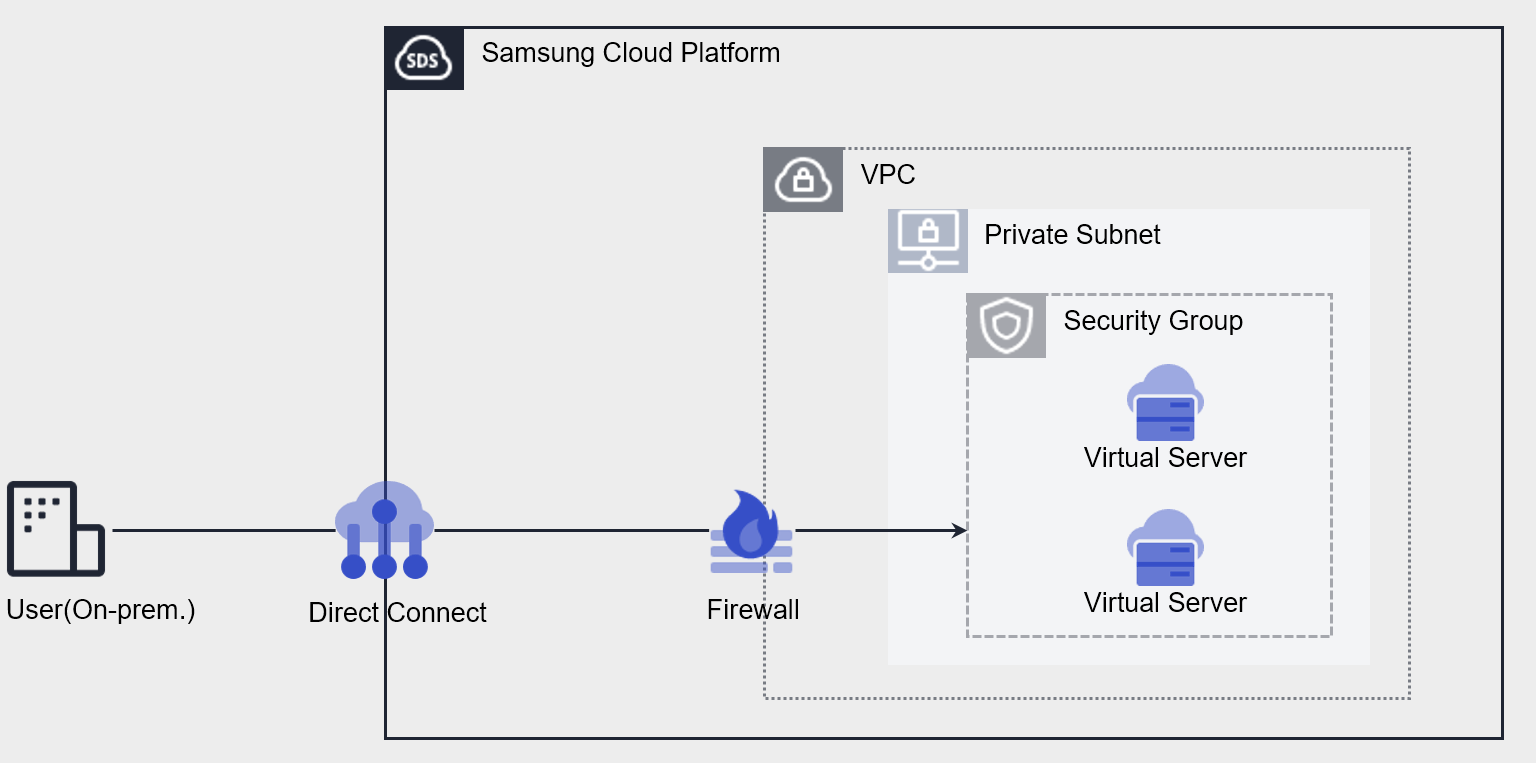
Direct Connect Create Connection
Select a single VPC to connect to the customer network and support the connection.
Through Direct Connect Firewall provision, access blocking is possible, and by providing Route configuration functionality, a safe connection path is provided.
Constraints
| Category | Default quota | Detailed description |
|---|---|---|
| Direct Connect | 5 | It is possible to create one VPC per service zone per account (1:1). |
Preceding Service
This is a list of services that must be pre-configured before creating the service. Please refer to the guide provided for each service for details and prepare in advance.
| Service Category | Service | Detailed Description |
|---|---|---|
| Networking | VPC | Service that provides an independent virtual network in a cloud environment |
| Networking | Security Group | Virtual firewall that controls server traffic |
1.1 - ServiceWatch Metrics
Direct Connect sends metrics to ServiceWatch. The metrics provided as basic monitoring are data collected at a 5‑minute interval.
Basic Indicators
The following are the default metrics for the Direct Connect namespace.
| Indicator Name | Detailed Description | Unit | Meaningful Statistics |
|---|---|---|---|
| DirectConnect Network In Bytes | Cumulative traffic to VPC from Direct Connect | Bytes |
|
| DirectConnect Network Out Bytes | Cumulative traffic volume from VPC to Direct Connect | Bytes |
|
| DirectConnect Network In Bytes_Delta | Direct Connect → VPC cumulative traffic amount over 5 minutes | Bytes |
|
| DirectConnect Network Out Bytes_Delta | VPC → Direct Connect cumulative traffic amount over 5 minutes | Bytes |
|
2 - How-to guides
The user can create a Direct Connect service by entering the required information and selecting detailed options through the Samsung Cloud Platform Console.
Creating Direct Connect
You can create a Direct Connect service using the Samsung Cloud Platform Console.
To create a Direct Connect, follow these steps:
Click on All Services > Networking > Direct Connect menu. It will move to the Service Home page of Direct Connect.
On the Service Home page, click the Create Direct Connect button. It will move to the Create Direct Connect page.
In the Service Information Input section, enter or select the required information.
Category RequiredDetailed Description Direct Connect Name Required A name that can easily identify Direct Connect - Enter within 3-20 characters using English letters and numbers
Uplink Usage Required Bandwidth of the communication port for remote communication - Select port capacity 1G or port capacity 10G
VPC Required Select a VPC for communication with the remote site Description Optional Enter a description of Direct Connect Firewall Usage Optional Select whether to use Direct Connect Firewall. Firewall Log Storage Optional Whether to store Firewall logs - Select whether to store Firewall logs
- Store access logs if Firewall is used
- For more information, see Using Firewall Log Storage
Table. Direct Connect Service Information Input ItemsIn the Additional Information Input section, enter or select the required information.
Category RequiredDetailed Description Tags Optional Add tags - Up to 50 tags can be added per resource
- Click the Add Tag button and enter or select Key and Value
Table. Direct Connect Additional Information Input Items
In the Summary panel, check the created details and estimated billing amount, and click the Complete button.
- Once created, check the created resource on the Direct Connect List page.
Checking Direct Connect Details
The Direct Connect service can be checked and modified in its entirety on the Resource Management menu. The Direct Connect Details page consists of Details, Rules, Tags, and Work History tabs.
To check the Direct Connect details, follow these steps.
- Click on All Services > Networking > Direct Connect menu. It will move to the Service Home page of Direct Connect.
- On the Service Home page, click the Direct Connect menu. It will move to the Direct Connect List page.
- On the Direct Connect List page, click the resource you want to check the details for. It will move to the Direct Connect Details page.
- The Direct Connect Details page displays status information and additional feature information, and consists of Details, Rules, Tags, and Work History tabs.
| Category | Detailed Description |
|---|---|
| Status | Current status
|
| Service Cancellation | Button to cancel the service
|
Details
You can check and modify the details of the selected resource on the Direct Connect List page.
| Category | Detailed Description |
|---|---|
| Service | Direct Connect service category |
| Resource Type | Direct Connect resource type |
| SRN | Unique resource ID in Samsung Cloud Platform
|
| Resource Name | Direct Connect resource name |
| Resource ID | Unique resource ID in Direct Connect |
| Creator | User who created Direct Connect |
| Creation Date | Direct Connect creation date and time information |
| Modifier | User who modified Direct Connect information |
| Modification Date | Direct Connect information modification date and time |
| Direct Connect Name | Direct Connect VPC resource name |
| Uplink Usage | Port bandwidth allocated for line connection |
| Line Application/Cancellation SR Shortcut | Line connection service between the customer’s line and Samsung Cloud Platform’s local segment
|
| Connected VPC Name | Name of VPC connected to Direct Connect |
| Firewall Name | Firewall name |
| Firewall Usage | Whether to use firewall |
Rules
You can register or modify communication rules between the remote site and VPC.
| Category | Detailed Description |
|---|---|
| Destination IP | Destination IP information |
| Destination | Routing direction |
| Creation Date | Creation date and time information |
| Status | Connection status
|
| Deletion | You can delete the rule. |
Tags
You can check, add, change, or delete tag information of the selected resource on the Direct Connect List page.
| Category | Detailed Description |
|---|---|
| Tag List | Tag list
|
Work History
You can check the work history of the selected resource on the Direct Connect List page.
| Category | Detailed Description |
|---|---|
| Work History List | Resource change history
|
Adding Direct Connect Rules
- Click on All Services > Networking > Direct Connect menu. It will move to the Service Home page of Direct Connect.
- On the Service Home page, click the Direct Connect menu. It will move to the Direct Connect List page.
- On the Direct Connect List page, click the resource you want to add a rule to. It will move to the Direct Connect Details page of that resource.
- On the Direct Connect Details page, click the Rules tab.
- On the Rules tab, click the Add Rule button. It will move to the Add Rule popup window.
- On the Add Rule popup window, enter the required information and click the Confirm button.
Category Detailed Description Destination IP Enter the destination IP range - Example:
192.168.25.0/24
Destination Select the routing direction according to VPC and remote site. Table. Direct Connect Rule Addition Input Items - Example:
Canceling Direct Connect
You can cancel unused VPC to reduce operating costs. However, service cancellation may immediately stop the operating service, so consider the impact of service interruption before proceeding with the cancellation.
To cancel Direct Connect, follow these steps:
- Click on All Services > Networking > Direct Connect menu. It will move to the Service Home page of Direct Connect.
- On the Service Home page, click the Direct Connect menu. It will move to the Direct Connect List page.
- On the Direct Connect List page, click the resource you want to cancel. It will move to the Direct Connect Details page of that resource.
- On the Direct Connect Details page, click the Service Cancellation button.
- Once canceled, check if the resource has been canceled on the Direct Connect List page.
3 - API Reference
4 - CLI Reference
5 - Release Note
Direct Connect
- Samsung Cloud Platform common feature changes
- Reflected common CX changes, including Account, IAM, Service Home, and tags.
- Launching Direct Connect service, which quickly and securely connects customer networks and Samsung Cloud Platform networks.