This is the multi-page printable view of this section. Click here to print.
Cloud WAN
- 1: Overview
- 1.1: Monitoring Metrics
- 2: How-to guides
- 3: Release Note
1 - Overview
Service Overview
Cloud WAN is a service that provides network connectivity between Samsung Cloud Platform global regions and customer locations. This offering is based on network traffic usage and provides differentiated operational management services according to the selected service level.
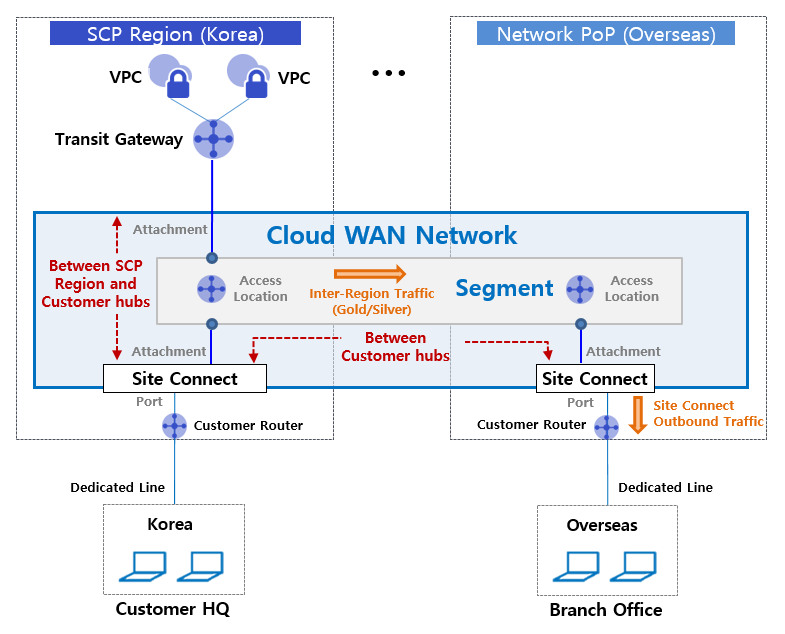
The Cloud WAN service consists of the customer virtual backbone Cloud WAN Network, the Segment that provides logical network segmentation by purpose, and the Attachment that connects Samsung Cloud Platform Compute resources or receives a dedicated line from the customer’s site and connects it to a Segment.
For example, to configure a backbone network connection from a system in a Samsung Cloud Platform region to a customer’s overseas location, the following settings are required in the user console. First, create the customer’s virtual backbone Cloud WAN Network. Next, select the access location, service level, contract period, and other options to create a segment that fits the intended use. Then, by attaching the segment at the region or the customer’s location, the backbone network between the SCP region and the customer locations is connected, enabling communication between them.
Service Architecture Diagram
Provided features
Cloud WAN provides the following features.
- Rapid Backbone Network Configuration: Customers using Samsung Cloud Platform can select desired site locations, create a virtual global backbone network, and configure a fast and secure cloud network between Samsung Cloud Platform regions and customer sites, as well as among customer sites.
- Providing Various Network Edge Connection Types: By offering various Edge types that can connect to Cloud WAN, Samsung Cloud Platform Compute resources can be conveniently connected via Transit Gateway, and customers’ on‑premise local lines can be connected via Site Connect.
- Cost Optimization Through Multi-Path Selection Feature: Unlike traditional backbone network line services based on line bandwidth, we charge only for the actual usage in the desired segment, and provide a transmission path option (Gold/Silver) selection feature based on traffic characteristics, enabling line cost optimization.
- Service Level-Based Operations Management: Customers can choose the utilization mode of the Cloud WAN backbone transport network, the provided features, monitoring, fault management, and technical support level, and receive differentiated network operations management services according to the selected service level.
Component
The Cloud WAN service provides a global customer virtual backbone network. The components are as follows, and users can create resources directly through the user Console.
| Category | Detailed description |
|---|---|
| Cloud WAN Network | Customer-specific virtual backbone network |
| Segment | Logical virtual routing domains in Cloud WAN Network, categorized by usage
|
| Access Location | Physical base location for constructing a Segment |
| Attachment | Connect Samsung Cloud Platform or the customer’s dedicated line Edge resources |
| Transit Gateway | Edge connection type for connecting Samsung Cloud Platform Compute resources |
| Site Connect | Edge connection type for connecting customer site dedicated line resources (CE equipment) |
| CE equipment | Network equipment that receives the dedicated line at the customer’s site (Customer Edge) |
| Segment Sharing | Provides routing exchange settings to enable mutual communication among resources connected to different segments. |
Constraints
The Cloud WAN service has the following limitations.
- You can create one Cloud WAN Network per account.
- You can create up to five Segments in a single Cloud WAN Network.
- You can create up to 50 Attachments in a single Segment.
- You can create up to 10 Segment Sharings for a single Segment.
- Connections between Segment and Attachment are allowed only within the same project, through request and approval.
- However, Segment Sharing can be linked across different projects through request and approval.
Provision status by region
The Cloud WAN service is available in the environments below.
| Region | Provision status |
|---|---|
| Korea West 1 (kr-west1) | Provided |
| Korea East 1 (kr-east1) | Not provided |
| South Korea South 1 (kr-south1) | Not provided |
| South Korea South 2 (kr-south2) | Not provided |
| Korea South 3(kr-south3) | Not provided |
Preliminary Service
This is a list of services that must be pre-configured before creating the service. Please refer to the guide provided for each service and prepare in advance.
| Service Category | Service | Detailed description |
|---|---|---|
| Networking | Transit Gateway | A service that securely and quickly connects Compute resources within the Samsung Cloud Platform to a Cloud WAN Segment. |
1.1 - Monitoring Metrics
According to Samsung Cloud Platform’s policy, the Cloud Monitoring service is scheduled to be discontinued in September 2026.
Accordingly, after the September 2026 release, resource monitoring of the Samsung Cloud Platform via Cloud Monitoring will no longer be possible.
With the new alternative service, you can continuously conduct resource monitoring by using ServiceWatch, released in October 2025.
ServiceWatch provides more modern and powerful features, replacing Cloud Monitoring to deliver a smooth monitoring environment.
Block Storage is planned to be integrated with ServiceWatch starting after the September 2026 release.
Detailed information about ServiceWatch can be found in the ServiceWatch Overview.
Cloud WAN monitoring metrics
The table below shows the monitoring metrics for Cloud WAN that can be viewed in Cloud Monitoring. For detailed usage of Cloud Monitoring, see the Cloud Monitoring guide.
| Performance items | Detailed description | unit |
|---|---|---|
| Instance Status | Attachment connection status | status |
| Network in bytes | In bytes (inbound traffic usage per interval) | bytes |
| Network In Error Packets | In Error Packet count (number of received error packets per cycle) | Cnt |
| Network In Packets [Broadcast] | In Broadcast Packet count (number of Broadcast packets per cycle) | Cnt |
| Network In Packets [Dropped] | In Dropped Packet count (number of dropped packets per cycle) | Cnt |
| Network In Packets [Multicast] | In Multicast Packet count (number of Multicast packets per cycle) | Cnt |
| Network In Packets [Unicast] | In Unicast Packet count (number of Unicast packets per cycle) | Cnt |
| Network out bytes | Out bytes(Outbound traffic usage per interval) | bytes |
| Network Out Error Packets | Out Error Packet count (number of transmission error packets per cycle) | Cnt |
| Network Out Packets [Broadcast] | Out Broadcast Packet count (number of Broadcast packets per cycle) | Cnt |
| Network Out Packets [Dropped] | Out Dropped Packet count (number of dropped packets per cycle) | Cnt |
| Network Out Packets [Multicast] | Out Multicast Packet count (number of Multicast packets per cycle) | Cnt |
| Network Out Packets [Unicast] | Out Unicast Packet count (Unicast packet count per cycle) | Cnt |
2 - How-to guides
Users can enter the required Cloud WAN information and select detailed options to create a service through the Samsung Cloud Platform Console.
Create Cloud WAN Network
You can create and use a Cloud WAN Network from the Samsung Cloud Platform Console.
To create a Cloud WAN Network, follow these steps.
- All Services > Networking > Cloud WAN menu, click it. 1. Navigate to the Service Home page of Cloud WAN.
- On the Service Home page, click the Create Cloud WAN Network button. 2. Navigate to the Cloud WAN Network Create page.
- On the Cloud WAN Network Creation page, enter the information required to create the service and select detailed options.
- Enter or select the required information in the Service Information Input area.
Category Required statusDetailed description Cloud WAN Network name Required Enter the name of the Cloud WAN Network to create - Enter using English letters and numbers, 3~20 characters
Table. Cloud WAN Network Service Information Input Items - Additional Information Input area, please enter or select the required information.
Category RequiredDetailed description Explanation Selection Enter resource description tag Selection Add tags - Maximum of 50 tags can be added per resource
Table. Cloud WAN Network additional information input items
- Enter or select the required information in the Service Information Input area.
- In the summary panel, check the service information and estimated billing amount, then click the Create button.
- Once creation is complete, check the created resources on the Cloud WAN Network List page.
Check detailed information of Cloud WAN Network
The Cloud WAN Network service can be viewed and edited from the Cloud WAN Network menu, where you can see the full list of resources and detailed information. Cloud WAN Network Details page consists of Details, Connected Resources, Tags, Activity Log tabs.
To view detailed information about the Cloud WAN Network, follow these steps.
- All Services > Networking > Cloud WAN Click the menu. 1. Navigate to the Service Home page of Cloud WAN.
- On the Service Home page, click the Cloud WAN Network menu. 2. Go to the Cloud WAN Network List page.
- Cloud WAN Network List page, click the resource to view detailed information. 3. Go to the Cloud WAN Network Details page.
- Cloud WAN Network Details page displays status information and additional feature information, and consists of Details, Connected Resources, Tags, Activity History tabs.
Category Detailed description Status Service current status - Creating: Service request in progress
- Active: Service operating normally
- Deleting: Service termination request in progress
- Failed: Service failed state
- Error: Unable to verify service status
Service cancellation Service termination button - If there are no connected services, the Cloud WAN Network can be terminated
Table. Cloud WAN Network status information and additional feature items
- Cloud WAN Network Details page displays status information and additional feature information, and consists of Details, Connected Resources, Tags, Activity History tabs.
Detailed Information
Detailed Information tab lets you view the detailed information of the selected Cloud WAN Network.
| Category | Detailed description |
|---|---|
| Service | Service name |
| Resource Type | Resource Type (Cloud WAN Network) |
| SRN | Resource unique ID in Samsung Cloud Platform |
| Resource name | Resource Name |
| Resource ID | Unique resource ID in the service |
| Constructor | User requesting service creation |
| Creation Date/Time | Service creation timestamp |
| Modifier | User requesting service modification |
| Modification date and time | Service modification date and time |
| Cloud WAN Network name | Cloud WAN Network name |
| Segment count | Number of used segments |
| Explanation | Service description
|
Connected resource
Connected Resources tab allows you to view Segment connection status information.
| Category | Detailed description |
|---|---|
| Segment name | Segment resource name |
| Segment ID | Segment ID information |
| Status | Service resource status information |
Tag
In the Tag tab, you can view the tag information of the selected resource and add, modify, or delete it.
| Category | Detailed description |
|---|---|
| Tag list | Tag list
|
Job History
Job History tab allows you to view the job history of the selected resource.
| Category | Detailed description |
|---|---|
| Task History List | Resource Change History
|
Terminate Cloud WAN Network
Terminating an unused Cloud WAN Network can reduce operating costs.
- If there are resources connected to the Cloud WAN Network, you cannot cancel the service. * Delete the connected resources first, then terminate the service.
- If the service status of Cloud WAN Network is Creating or Deleting, the service cannot be terminated.
To cancel the Cloud WAN Network, follow these steps.
- All Services > Networking > Cloud WAN Click the menu. 1. Navigate to the Service Home page of Cloud WAN.
- On the Service Home page, click the Cloud WAN Network menu. 2. Go to the Cloud WAN Network List page.
- On the Cloud WAN Network List page, click the resource to terminate. 3. Go to the Cloud WAN Network Details page.
- On the Cloud WAN Network Details page, click the Cancel Service button.
- After termination is complete, check the resource termination status in the Cloud WAN Network list.
Create Segment
You can create and use a Segment in the Samsung Cloud Platform Console.
To create a Segment, follow these steps.
Click the All Services > Networking > Cloud WAN menu. 1. Navigate to the Service Home page of Cloud WAN.
From the drop-down on the Service Home page, click the Create Segment button. 2. Go to the Create Segment page.
On the Segment creation page, enter the information required to create the service and select detailed options.
- Enter or select the required information in the Service Information Input area.
Category RequiredDetailed description Cloud WAN Network name Essential Select Cloud WAN Network - Click +Create New to create a Cloud WAN Network and then select
Segment name Selection Enter segment name Access Location Essential Select the location to connect the Segment - Only one Access Location can be selected
- Details > Connected Resources tab, you can add Access Locations one by one
- Access Locations can be added up to the number of Cloud WAN service deployment sites
Service type Required Select Segment service type - Select usage region
- Global is for connecting domestic and overseas regions
- Select service level (PremiumPlusG)
- PremiumPlusG provides advanced technical support services with a dedicated technical support manager
- Contract term can be selected from None, 3 years, 5 years, or 7 years
- Contract discount rate is automatically applied based on the contract term
Multiple paths Selection Click Use to enable multi-path transmission - Default path: Gold (3-way structure, critical tasks)
- Option path : Silver (2-way structure, normal)
Table. Segment Service Information Input Items - In the Additional Information Input area, enter or select the required information.
Category required statusDetailed description Explanation Selection Enter description for Segment tag Selection Add tags - Maximum of 50 tags can be added per resource
Table. Segment additional information input items
- Enter or select the required information in the Service Information Input area.
In the summary panel, check the service information and estimated billing amount, then click the Create button.
- When creation is complete, check the created resources on the Segment List page.
After creating a Segment, set the following items in the Details > Connected Resources tab.
- Connect the Attachment created in the same Account to the Segment.
- To connect between different accounts, set up Segment Sharing.
Check segment details
In the Segment menu, you can view and edit the full resource list and detailed information for Segment. Segment Details page consists of Details, Connected Resources, Multi-Path, Tags, Activity History tabs.
Follow these steps to view the detailed information of the Segment.
- Click the All Services > Networking > Cloud WAN menu. 1. Navigate to the Service Home page of Cloud WAN.
- On the Service Home page, click the Segment menu. 2. Go to the Segment List page.
- Segment List page, click the resource to view detailed information. 3. Go to the Segment Details page.
- Segment Details page displays status information and additional feature information, and consists of Details, Connected Resources, Multi-Path, Tags, Activity History tabs.
Category Detailed description Status Current service status - Creating: Service is being created
- Active: Service is operating normally
- Deleting: Service deletion requested
- Failed: Service creation failed
- Error: An unknown error occurred in the service
Delete Segment Segment Delete Button - If there are no connected services, the Segment can be deleted
Table. Segment status information and additional feature items
- Segment Details page displays status information and additional feature information, and consists of Details, Connected Resources, Multi-Path, Tags, Activity History tabs.
Detailed Information
Detailed Information tab allows you to view the detailed information of the selected Segment.
| Category | Detailed description |
|---|---|
| Service | Service Name |
| Resource Type | Resource Type (Segment) |
| SRN | Resource unique ID in Samsung Cloud Platform |
| Resource Name | Resource Name |
| Resource ID | Unique resource ID in the service |
| Constructor | Service creation request user |
| Creation timestamp | Service creation timestamp |
| Modifier | Service modification request user |
| Modification date and time | Service modification date and time |
| Segment name | Segment name |
| Access Location count | Number of access locations (Access Location) connected to the segment |
| Region classification | Usage region (global, domestic) information
|
| Service Level | Provided service levels (PremiumPlusG, LiteG) information
|
| Contract period | Service usage contract period
|
| Attachment count | Number of Attachments linked to Segment |
| Multiple paths | Whether to use the transmission path option (Gold/Silver) used by Segment |
| Explanation | Description of the Segment
|
Connected resource
In the Connected Resources tab, you can view the connection status information for Access Location, Segment Sharing, and Attachment.
| Category | Detailed description |
|---|---|
| Access Location | Check the location information linked to the Segment
|
| Segment Sharing | To connect between different projects, you can request a Segment Sharing connection
|
| Attachment connection | You can request to connect an Attachment created in the same project to a Segment
|
Multiple Paths
Multi-Path tab allows you to add or delete optional path rules for multi-path.
Adding a Multi-Path Rule
To add a multi-path rule, follow the steps below.
- All Services > Networking > Cloud WAN Click the menu. 1. Navigate to the Service Home page of Cloud WAN.
- On the Service Home page, click the Segment menu. 2. Segment List Go to the page.
- On the Segment List page, click the resource to view detailed information. 3. Go to the Segment Details page.
- On the Segment Details page, click the Multiple Paths tab.
- On the Multi-Path tab page, click the Add Rule button. 5. The add rule popup appears.
- Enter the detailed information in the popup window and click Confirm.
Category whether requiredDetailed description Origin Access Location Essential Select the source location information of the multi‑path rule Source IP range Essential Enter the source IP range - When entering an IP address, register the IP range in CIDR format (e.g., 192.168.10.0/24)
Destination IP range Essential Enter destination IP range - When entering an IP address, register the IP range in CIDR format (e.g., 192.168.10.0/24)
- Cannot set both source IP range and destination IP range to 0.0.0.0/0
Protocol Selection Select the protocol Port direction Selection Select the port direction of the chosen protocol Port number Selection If TCP, UDP protocol is selected, enter the port number - Allowed range: 1 - 65535
- Port numbers can be entered up to a maximum of 5, separated by commas (e.g., 80, 443)
Explanation Selection Enter multiple path rule description Table. Input items for adding multiple path rules
- If you enter information identical to an already registered rule, you cannot register it as a new multi‑path rule.
- You can request up to 20 multi‑path rules.
Check Multi-Path Rules
Follow these steps to verify the multi-path rule.
- All Services > Networking > Cloud WAN menu, click it. 1. Navigate to the Service Home page of Cloud WAN.
- On the Service Home page, click the Segment menu. 2. Go to the Segment List page.
- On the Segment List page, click the resource to view detailed information. 3. Go to the Segment Details page.
- On the Segment Details page, click the Multiple Paths tab.
- View detailed information on the Multi-path tab page.
Category Detailed description Origin Access Location Source location information of the multi‑path rule Source IP range Source IP range Destination IP range Destination IP range Protocol Protocol Information Port direction Protocol port direction Port number Port numbers of TCP and UDP protocols Explanation Explanation of multiple path rules Table. Multi-path rule detailed information items
Click the Detailed Search button on the right side of the rule list to set search filters and perform a search.
- You can quickly view multiple rules by searching with your desired filter among Source Access Location, Source IP, Destination IP, and Description.
Delete Multi-Path Rule
To delete a multi-path rule, follow these steps.
- All Services > Networking > Cloud WAN Click the menu. 1. Go to the Service Home page of Cloud WAN.
- On the Service Home page, click the Segment menu. 2. Go to the Segment List page.
- Segment List page, click the resource to view detailed information. 3. Go to the Segment Details page.
- On the Segment Details page, click the Multiple Paths tab.
- On the Multiple Paths tab page, select the path to delete, then click the Delete button. 5. This rule will be deleted.
Tag
Tag tab allows you to view the tag information of the selected resource, and add, modify, or delete it.
| Category | Detailed description |
|---|---|
| Tag list | Tag list
|
Job History
Task History tab allows you to view the task history of the selected resource.
| Category | Detailed description |
|---|---|
| Task History List | Resource Change History
|
Delete Segment
Deleting unused Segments can reduce operating costs.
- You cannot delete it if an Attachment is connected to the Segment, or if Segment sharing or multiple path rules exist. * Delete the connected resources first, then terminate the service.
- If the service status of a Segment is Creating, Deleting, Inactive, or Failed, the service cannot be deleted.
To delete a Segment, follow these steps.
- Click the All Services > Networking > Cloud WAN menu. 1. Navigate to the Service Home page of Cloud WAN.
- On the Service Home page, click the Segment menu. 2. Segment List Navigate to the page.
- On the Segment list page, click the resource to delete. 3. Navigate to the Segment Details page.
- On the Segment Details page, click the Segment Delete button.
- When deletion is complete, check the resource deletion status in the Segment list.
Create Attachment
You can create and use the Attachment service from the Samsung Cloud Platform Console.
To create an Attachment, follow the steps below.
- Click the All Services > Networking > Cloud WAN menu. 1. Navigate to the Service Home page of Cloud WAN.
- Click the Create Attachment button in the drop-down of the Service Home page. 2. Create Attachment Navigate to the page.
- Attachment creation page: enter the information required to create the service and select detailed options.
- Enter or select the required information in the Service Information Input area.
Category whether requiredDetailed description Cloud WAN Network name Essential Select the Cloud WAN Network to request the Attachment - +Create New click to create a Cloud WAN Network and then select it
Segment명 | Selection | Select the Segment to attach the Attachment
- +Create New. Click to create the Segment and then select
- Attachment name: Enter attachment name
- ASN information: Enter ASN information within the range 1-65,534. Note that 65,001 cannot be used
- Port capacity: Select port capacity
- BGP Password: Enter the password to be used for BGP (Border Gateway Protocol) when configuring BGP routing with the customer’s Customer Edge equipment
- When connecting Site Connect, additional work with the customer’s CE router and SR is performed, taking several days until final connection
- If you select an Access Location with Multi-AZ enabled, only Transit Gateway can be set in the connection type
- Only Transit Gateway items within the same project are displayed
- TGW items that already have a TGW Peering connection or an Attachment connection are not shown in the list
- When a TGW item is selected, the Attachment name is generated automatically
Table. Attachment service information input items - Enter or select the required information in the Additional Information Input area.
Category whether requiredDetailed description Explanation Selection Enter description for Attachment tag Selection Add tags - Up to 50 tags can be added per resource
Table. Attachment additional information input items
- Enter or select the required information in the Service Information Input area.
- Once creation is complete, check the created resources on the Attachment List page.
Check attachment detailed information
In the Attachment menu, you can view and edit the full resource list and detailed information for Attachment. Attachment Detail page consists of Detail Information, Tag, Work History tabs.
To view the detailed information of the Attachment, follow these steps.
- All Services > Networking > Cloud WAN Click the menu. 1. Navigate to the Service Home page of Cloud WAN.
- On the Service Home page, click the Attachment menu. 2. Attachment list Go to the page.
- Attachment List On the page, click the resource to view its detailed information. 3. Go to the Attachment Details page.
- Attachment Details page displays status information and additional feature information, and consists of Details, Tags, Activity History tabs.
Category Detailed description Status Current service status - Creating: Creating service
- Active: Service operating normally
- Requesting: Service request in progress, Attachment request can be canceled
- Deleting: Service deletion request in progress
- Failed: Service creation failed
- Error: An unknown error occurred in the service
Delete Attachment Attachment delete button - when in Requesting state Attachment request cancel button is displayed
Table. Attachment status information and additional feature items
- Attachment Details page displays status information and additional feature information, and consists of Details, Tags, Activity History tabs.
Detailed Information
Detailed Information tab allows you to view the detailed information of the selected Attachment.
| Category | Detailed description |
|---|---|
| Service | Service Name |
| Resource Type | Resource Type(Attachment) |
| SRN | Unique resource ID in Samsung Cloud Platform |
| Resource Name | Resource Name |
| Resource ID | Unique resource ID in the service |
| Constructor | Service creation request user |
| Creation timestamp | Service creation date and time |
| Modifier | User requesting service modification |
| Modification date and time | Service modification date and time |
| Attachment name | Attachment name |
| Segment name | Name of the attached Segment |
| Access Location | Attachment Connection Point (Access Location) |
| Connection type | Attachment connection type (Site Connect or Transit Gateway) |
| ASN information | When Site Connect is selected, the AS Number
|
| Port capacity | Port capacity set when selecting Site Connect |
| BGP Password | When selecting Site Connect, the entered BGP password
|
| Explanation | Description of the attachment
|
Tag
In the Tag tab, you can view the tag information of the selected resource, and you can add, modify, or delete it.
| Category | Detailed description |
|---|---|
| Tag list | Tag list
|
Job History
Task History tab allows you to view the task history of the selected resource.
| Category | Detailed description |
|---|---|
| Task History List | Resource change history
|
Delete Attachment
Deleting unused Attachment can reduce operating costs.
To delete the Attachment, follow these steps.
- Click the All Services > Networking > Cloud WAN menu. 1. Navigate to the Service Home page of Cloud WAN.
- On the Service Home page, click the Attachment menu. 2. Go to the Attachment list page.
- On the Attachment List page, click the resource you want to delete. 3. Go to the Attachment Details page.
- On the Attachment Details page, click the Attachment Delete button.
- Once deletion is complete, check whether the resource has been deleted in the Attachment list.
3 - Release Note
Cloud WAN
- A multi-path selection feature has been added when creating Cloud WAN in Samsung’s offering. * You can choose the transmission path (Gold/Silver) according to the importance of the usage traffic, and the provided rates are applied differentially.
- We have launched the Cloud WAN service in the Enterprise offering.
- When you select the Cloud WAN > Attachment > Site Connect type, a BGP Password configuration feature has been added for BGP routing settings with the customer’s Customer Edge equipment.
- Samsung Cloud Platform has launched the Cloud WAN service that provides network connectivity between global regions and customer locations.