This is the multi-page printable view of this section. Click here to print.
Cloud WAN
- 1: Overview
- 1.1: Monitoring Metrics
- 2: How-to guides
- 3: Release Note
1 - Overview
Service Overview
Cloud WAN is a service that provides network connections between Samsung Cloud Platform global regions and customer bases. This product provides services based on network traffic usage, and provides differentiated operation management services according to the selected service level.
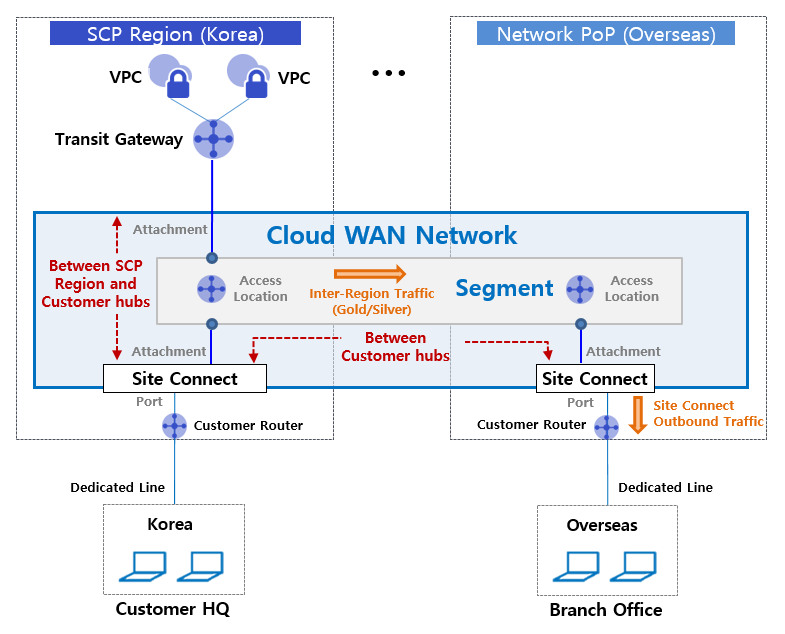
Cloud WAN service consists of Cloud WAN Network, which is a customer virtual backbone, Segment, which provides logical network separation by purpose, and Attachment, which connects Samsung Cloud Platform Compute resources or receives a dedicated line from the customer’s business site and connects it to the Segment.
For example, to configure a backbone network connection from a system in the Samsung Cloud Platform region to a customer’s overseas base, the following settings are required in the user console. First, create a customer virtual backbone Cloud WAN Network. Next, select the access location, service level, and contract period to create a segment that suits the purpose. Then, by connecting the attachment to the segment in the relevant region or customer base, the backbone network between the relevant SCP region and the customer base is connected, allowing communication between them.
Service Composition Diagram
Provided Features
Cloud WAN provides the following features.
- Rapid Backbone Network Configuration: Samsung Cloud Platform customers can select their desired hub location and create a virtual global backbone network to quickly and securely configure cloud networks between Samsung Cloud Platform regions and customer hubs, and between customer hubs.
- Various Network Edge Connection Types Provided: Various Edge types that can be connected to Cloud WAN are provided, so Samsung Cloud Platform Compute resources can be connected as Transit Gateway, and local lines of customer’s business site can be connected as Site Connect, making it convenient.
- Multi-path transmission selection function for cost optimization: Unlike existing circuit bandwidth-based backbone network line services, customers are only charged for the actual usage in the desired section, and traffic characteristic-based transmission path options (Gold/Silver) are provided to optimize line costs.
- Service Level-Based Operation Management: Customers can receive differentiated network operation management services according to the selected service level, including the form of Cloud WAN backbone transmission network utilization, provided functions, monitoring, fault management, and technical support levels.
Component
Cloud WAN service provides a global customer virtual backbone network. The components are as follows, and users can create resources directly through the user Console.
| Division | Detailed Description |
|---|---|
| Cloud WAN Network | Customer-specific virtual backbone network |
| Segment | Cloud WAN Network by use case, logically separated virtual routing domain
|
| Access Location | Location of physical points to form a Segment |
| Attachment | Connect Samsung Cloud Platform or customer’s dedicated line Edge resources |
| Transit Gateway | Samsung Cloud Platform Compute resources connection type for Edge connection |
| Site Connect | Edge connection type for connecting customer business site dedicated line resources (CE equipment) |
| CE equipment | Network equipment that receives a dedicated line for customer business sites (Customer Edge) |
| Segment Sharing | Provides routing exchange settings to enable mutual communication between resources connected to different segments |
Constraints
The Cloud WAN service has the following restrictions.
- You can create one Cloud WAN Network per Account.
- You can create up to 5 segments in a single Cloud WAN Network.
- You can create up to 50 attachments in one segment.
- You can create up to 10 Segment Sharings in one Segment.
- Connection between Segment and Attachment is only allowed within the same project through request/approval.
- However, Segment Sharing can also be connected between different projects through requests and approvals.
Preceding Service
This is a list of services that must be pre-configured before creating this service. Please refer to the guide provided for each service and prepare in advance.
| Service Category | Service | Detailed Description |
|---|---|---|
| Networking | Transit Gateway | A service that safely and quickly connects Samsung Cloud Platform’s Compute resources to Cloud WAN Segment |
1.1 - Monitoring Metrics
Cloud WAN Monitoring Metrics
The following table shows the monitoring metrics of Cloud WAN that can be viewed through Cloud Monitoring. For detailed Cloud Monitoring usage, please refer to the Cloud Monitoring guide.
| Performance Item | Detailed Description | Unit |
|---|---|---|
| Instance Status | Attachment connection status | status |
| Network in bytes | In bytes(per cycle inbound traffic usage) | bytes |
| Network In Error Packets | In Error Packet count (number of received error packets per cycle) | Cnt |
| Network In Packets [Broadcast] | In Broadcast Packet count (number of broadcast packets per cycle) | Cnt |
| Network In Packets [Dropped] | In Dropped Packet count (number of Dropped packets per cycle) | Cnt |
| Network In Packets [Multicast] | In Multicast Packet count (number of Multicast packets per cycle) | Cnt |
| Network In Packets [Unicast] | In Unicast Packet count (number of Unicast packets per cycle) | Cnt |
| Network out bytes | Out bytes(per cycle outbound traffic usage) | bytes |
| Network Out Error Packets | Out Error Packet count (number of transmission error packets per cycle) | Cnt |
| Network Out Packets [Broadcast] | Out Broadcast Packet count (number of broadcast packets per cycle) | Cnt |
| Network Out Packets [Dropped] | Out Dropped Packet count (number of dropped packets per cycle) | Cnt |
| Network Out Packets [Multicast] | Out Multicast Packet count (number of Multicast packets per cycle) | Cnt |
| Network Out Packets [Unicast] | Out Unicast Packet count (number of Unicast packets per cycle) | Cnt |
2 - How-to guides
The user can create a service by entering the essential information of Cloud WAN and selecting detailed options through the Samsung Cloud Platform Console.
Creating a Cloud WAN Network
You can create a Cloud WAN Network through the Samsung Cloud Platform Console.
To create a Cloud WAN Network, follow these steps:
- Click All Services > Networking > Cloud WAN menu. It moves to the Service Home page of Cloud WAN.
- Click the Create Cloud WAN Network button on the Service Home page. It moves to the Create Cloud WAN Network page.
- Enter the necessary information and select detailed options on the Create Cloud WAN Network page.
- Enter the necessary information in the Service Information section.
| Category | Required | Detailed Description |
|---|---|---|
| Cloud WAN Network Name | Required | Enter the name of the Cloud WAN Network to be created
|
- Enter additional information in the Additional Information section.
Category RequiredDetailed Description Description Optional Enter a description of the resource Tag Optional Add a tag - Up to 50 tags can be added per resource
Table. Cloud WAN Network Additional Information Input Items
- Confirm the service information and estimated billing amount in the summary panel, and click the Complete button.
- After creation is complete, confirm the created resource on the Cloud WAN Network List page.
Checking Cloud WAN Network Details
The Cloud WAN Network service can be checked and modified on the Cloud WAN Network menu. The Cloud WAN Network Details page consists of Details, Connected Resources, Tags, and Operation History tabs.
To check the details of the Cloud WAN Network, follow these steps:
- Click All Services > Networking > Cloud WAN menu. It moves to the Service Home page of Cloud WAN.
- Click the Cloud WAN Network menu on the Service Home page. It moves to the Cloud WAN Network List page.
- Click the resource to check the details on the Cloud WAN Network List page. It moves to the Cloud WAN Network Details page.
- The Cloud WAN Network Details page displays status information and additional feature information, and consists of Details, Connected Resources, Tags, and Operation History tabs.
| Category | Detailed Description |
|---|---|
| Status | Current service status
|
| Service Cancellation | Service cancellation button
|
Details
The Details tab displays detailed information about the selected Cloud WAN Network.
| Category | Detailed Description |
|---|---|
| Service | Service category |
| Resource Type | Service name (Cloud WAN Network) |
| SRN | Unique ID of the resource in Samsung Cloud Platform |
| Resource Name | Resource name |
| Resource ID | Unique ID of the resource in the service |
| Creator | User who requested service creation |
| Creation Time | Service creation time |
| Modifier | User who requested service modification |
| Modification Time | Service modification time |
| Cloud WAN Network Name | Cloud WAN Network name |
| Number of Segments | Number of segments used |
| Description | Description of the service |
Connected Resources
The Connected Resources tab displays the Segment connection status information.
| Category | Detailed Description |
|---|---|
| Segment Name | Segment resource name |
| Segment ID | Segment ID Information |
| Status | Service Resource Status Information |
Tags
In the Tags tab, you can view, add, modify, or delete tag information for the selected resource.
| Classification | Detailed Description |
|---|---|
| Tag List | Tag list
|
Operation History
In the Operation History tab, you can view the operation history of the selected resource.
| Classification | Detailed Description |
|---|---|
| Operation History List | Resource change history
|
Canceling Cloud WAN Network
Canceling an unused Cloud WAN Network can help reduce operating costs.
- If there are resources connected to the Cloud WAN Network, the service cannot be canceled. Delete the connected resources first and then cancel the service.
- If the service status of the Cloud WAN Network is Creating or Deleting, the service cannot be canceled.
To cancel a Cloud WAN Network, follow these steps:
- Click All Services > Networking > Cloud WAN. The Cloud WAN Service Home page will be displayed.
- On the Service Home page, click Cloud WAN Network. The Cloud WAN Network List page will be displayed.
- On the Cloud WAN Network List page, click the resource to be canceled. The Cloud WAN Network Details page will be displayed.
- On the Cloud WAN Network Details page, click the Cancel Service button.
- After cancellation is complete, check the resource cancellation status on the Cloud WAN Network List.
Creating a Segment
You can create a Segment on the Samsung Cloud Platform Console and use it.
To create a Segment, follow these steps:
- Click All Services > Networking > Cloud WAN. The Cloud WAN Service Home page will be displayed.
- On the Service Home page, click the Create Segment button in the drop-down menu. The Create Segment page will be displayed.
- On the Create Segment page, enter the necessary information for service creation and select detailed options.
- In the Service Information Input section, enter or select the necessary information.
| Classification | Mandatory | Detailed Description |
|---|---|---|
| Cloud WAN Network Name | Mandatory | Select a Cloud WAN Network
|
| Segment Name | Optional | Enter a Segment name and click the Duplicate Check button |
| Access Location | Mandatory | Select a location to connect the Segment
|
| Service Type | Mandatory | Select the Segment service type
|
| Multiple Paths | Optional | Select multiple transmission paths (to be provided from December 25)
|
- In the Additional Information Input section, enter or select the necessary information.
Classification MandatoryDetailed Description Description Optional Enter a description of the Segment Tag Optional Add a tag - Up to 50 tags can be added per resource
Table. Segment Additional Information Input Items
- In the summary panel, check the service information and estimated billing amount, and click the Complete button.
- After creation is complete, check the created resource on the Segment List page.
After creating a Segment, set the following in the Detailed Information > Connected Resources tab:
- Connect an Attachment created in the same Account to the Segment.
- To connect between different Accounts, set Segment Sharing.
Checking Segment Details
A Segment can be checked in the Segment menu, where you can view the entire resource list and detailed information, and modify it. The Segment Details page consists of Detailed Information, Connected Resources, Multiple Paths, Tags, and Operation History tabs.
To check the detailed information of a Segment, follow these steps:
- Click All Services > Networking > Cloud WAN. The Cloud WAN Service Home page will be displayed.
- On the Service Home page, click Segment. The Segment List page will be displayed.
- On the Segment List page, click the resource to check the detailed information. The Segment Details page will be displayed.
- The Segment Details page displays status information and additional feature information, and consists of Detailed Information, Connected Resources, Multiple Paths, Tags, and Operation History tabs.
Category Detailed Description Status Current service status - Creating: Service creation in progress
- Active: Service operating normally
- Deleting: Service deletion request in progress
- Failed: Service creation failed status
- Error: Unknown error occurred in the service
Service Deletion Service deletion button - If there are no connected services, the Segment can be deleted
Table. Segment Status Information and Additional Function Items
- The Segment Details page displays status information and additional feature information, and consists of Detailed Information, Connected Resources, Multiple Paths, Tags, and Operation History tabs.
Detailed Information
The Detailed Information tab allows you to view detailed information about the selected Segment.
| Category | Detailed Description |
|---|---|
| Service | Service category |
| Resource Type | Service name (Segment name) |
| SRN | Unique resource ID in Samsung Cloud Platform |
| Resource Name | Resource name |
| Resource ID | Unique resource ID in the service |
| Creator | User who requested service creation |
| Creation Time | Service creation time |
| Modifier | User who requested service modification |
| Modification Time | Service modification time |
| Segment Name | Segment name |
| Access Location Count | Number of Access Locations connected to the Segment |
| Region | Selected usage region (global, domestic)
|
| Service Level | Selected service level (PremiumPlusG, LIteG)
|
| Contract Period | Service usage contract period
|
| Attachment Count | Number of Attachments connected to the Segment |
| Multi-Path | Transmission path option (Gold/Silver) selected for the Segment
|
| Description | Description of the Segment |
Connected Resources
The Connected Resources tab allows you to view the connection status of Access Locations, Segment Sharing, and Attachments.
| Category | Detailed Description |
|---|---|
| Access Location | View location information connected to the Segment
|
| Segment Sharing | Request Segment Sharing connection between projects
|
| Attachment Connection | Request Attachment connection from the same project to the Segment
|
Multi-Path
The Multi-Path tab allows you to add or delete multi-path rules.
Adding Multi-Path Rules
To add a multi-path rule, follow these steps:
- Click All Services > Networking > Cloud WAN. The Cloud WAN Service Home page will be displayed.
- Click the Segment menu on the Service Home page. The Segment List page will be displayed.
- Click the resource you want to view detailed information about on the Segment List page. The Segment Details page will be displayed.
- Click the Multi-Path tab on the Segment Details page.
- Click the Add Rule button on the Multi-Path tab page. A rule addition popup window will appear.
- Enter detailed information in the popup window and click Confirm.
| Category | Required | Detailed Description |
|---|---|---|
| Source Access Location | Required | Select the source location information for the multi-path rule |
| Source IP Range | Required | Enter the source IP range
|
| Destination IP Range | Required | Enter the destination IP range
|
| Protocol | Optional | Select the protocol |
| Port Direction | Optional | Select the port direction for the selected protocol |
| Port Number | Optional | Enter the port number if TCP or UDP protocol is selected
|
| Description | Optional | Enter a description for the multi-path rule |
- If you enter the same information as an existing rule, you cannot register it as a new multi-path rule.
- You can apply for up to 20 multi-path rules.
Viewing Multi-Path Rules
To view multi-path rules, follow these steps:
- Click All Services > Networking > Cloud WAN. The Cloud WAN Service Home page will be displayed.
- Click the Segment menu on the Service Home page. The Segment List page will be displayed.
- Click the resource you want to view detailed information about on the Segment List page. The Segment Details page will be displayed.
- Click the Multi-Path tab on the Segment Details page.
- View the detailed information on the Multi-Path tab page.
| Category | Detailed Description |
|---|---|
| Origin Access Location | Origin location information for multi-path rules |
| Origin IP Range | Origin IP range |
| Destination IP Range | Destination IP range |
| Protocol | Protocol information |
| Port Direction | Port direction of the protocol |
| Port Number | Port number for TCP, UDP protocols |
| Description | Description of multi-path rules |
You can search by setting search filters by clicking the Detailed Search button on the right side of the rule list.
- You can quickly check multi-rules by searching with the desired filter among origin access location, origin IP, destination IP, and description.
Deleting Multi-Path Rules
To delete a multi-path rule, follow these steps.
- Click All Services > Networking > Cloud WAN menu. Move to the Service Home page of Cloud WAN.
- Click the Segment menu on the Service Home page. Move to the Segment List page.
- Click the resource to be checked in detail on the Segment List page. Move to the Segment Detail page.
- Click the Multi-Path tab on the Segment Detail page.
- Click the Delete button on the Multi-Path tab page. The rule will be deleted.
Tags
In the Tags tab, you can check the tag information of the selected resource and add, change, or delete it.
| Division | Detailed Description |
|---|---|
| Tag List | Tag list
|
Work History
In the Work History tab, you can check the work history of the selected resource.
| Division | Detailed Description |
|---|---|
| Work History List | Resource change history
|
Deleting a Segment
Deleting an unused Segment can reduce operating costs.
- If there is an Attachment connected to the Segment or Segment sharing, multi-path rules, it cannot be deleted. Delete the connected resources first and then cancel the service.
- The service cannot be deleted if the service status of the Segment is Creating, Deleting, Inactive, or Failed.
To delete a Segment, follow these steps.
- Click All Services > Networking > Cloud WAN menu. Move to the Service Home page of Cloud WAN.
- Click the Segment menu on the Service Home page. Move to the Segment List page.
- Click the resource to be deleted on the Segment List page. Move to the Segment Detail page.
- Click the Service Delete button on the Segment Detail page.
- After deletion is complete, check if the resource is deleted in the Segment List.
Creating an Attachment
You can create an Attachment service using the Samsung Cloud Platform Console.
To create an Attachment, follow these steps.
- Click All Services > Networking > Cloud WAN menu. Move to the Service Home page of Cloud WAN.
- Click the Attachment Creation button on the Service Home page. Move to the Attachment Creation page.
- Enter the necessary information for service creation and select detailed options on the Attachment Creation page.
- In the Service Information Input section, enter or select the necessary information.
| Division | Required | Detailed Description |
|---|---|---|
| Cloud WAN Network Name | Required | Select the Cloud WAN Network to apply for the Attachment
|
| Segment Name | Optional | Select the Segment to connect the Attachment
|
| Access Location | Required | Select the location connected to the Segment |
| Connection Type | Required | Set detailed connection information for Site Connect
|
| Connection Type | Required | Select a connectable Transit Gateway (available from December 25)
|
| Tag | Optional | Add a tag
|
- Once created, check the created resource on the Attachment List page.
Checking Attachment Details
Attachments can be checked and modified in the Attachment menu, which includes a list of all resources and detailed information. The Attachment Details page consists of Details, Tags, and Work History tabs.
To check the details of an attachment, follow these steps:
- Click the All Services > Networking > Cloud WAN menu. This will move to the Cloud WAN Service Home page.
- On the Service Home page, click the Attachment menu. This will move to the Attachment List page.
- On the Attachment List page, click the resource you want to check the details for. This will move to the Attachment Details page.
- The Attachment Details page displays status information and additional feature information, and consists of Details, Tags, and Work History tabs.
| Category | Detailed Description |
|---|---|
| Status | Current service status
|
| Service Deletion | Service deletion button |
Details
The Details tab allows you to check the detailed information of the selected attachment.
| Category | Detailed Description |
|---|---|
| Service | Service category |
| Resource Type | Service name (Attachment name) |
| SRN | Unique ID of the resource in Samsung Cloud Platform |
| Resource Name | Resource name |
| Resource ID | Unique ID of the resource in the service |
| Creator | User who requested service creation |
| Creation Time | Service creation time |
| Modifier | User who requested service modification |
| Modification Time | Service modification time |
| Attachment Name | Attachment name |
| Segment Name | Name of the segment connected to the attachment |
| Access Location | Access location to be connected to the attachment |
| Connection Type | Attachment connection type (Site Connect or Transit Gateway) |
| ASN Information | If Site Connect is selected, the AS Number entered by the user
|
| Description | Description of the attachment |
Tags
In the Tags tab, you can check the tag information of the selected resource and add, change, or delete it.
| Category | Detailed Description |
|---|---|
| Tag List | Tag list
|
Work History
The Work History tab allows you to check the work history of the selected resource.
| Category | Detailed Description |
|---|---|
| Work History List | Resource change history
|
Deleting an Attachment
Deleting an unused attachment can help reduce operating costs.
To delete an attachment, follow these steps:
- Click the All Services > Networking > Cloud WAN menu. This will move to the Cloud WAN Service Home page.
- On the Service Home page, click the Attachment menu. This will move to the Attachment List page.
- On the Attachment List page, click the resource you want to delete. This will move to the Attachment Details page.
- On the Attachment Details page, click the Service Deletion button.
- Once deleted, check if the resource has been deleted on the Attachment List page.