This is the multi-page printable view of this section. Click here to print.
Organization
1 - Overview
Service Overview
Organization is a service that organizes accounts by organizational unit and hierarchically manages and controls resource access rights. The user can manage the resource usage of accounts belonging to the organization to optimize costs.
Features
- Hierarchical Project Management: It is possible to manage hierarchically by inviting accounts created within the organization to the Organization and organizing them by organizational unit.
- Organizational Unit Governance: Policies can be controlled by organizational unit, allowing you to apply policies in bulk to all organizational units and accounts under it.
- Efficient resource management and cost optimization: You can monitor the resource usage of all accounts within the organization to optimize costs.
Composition
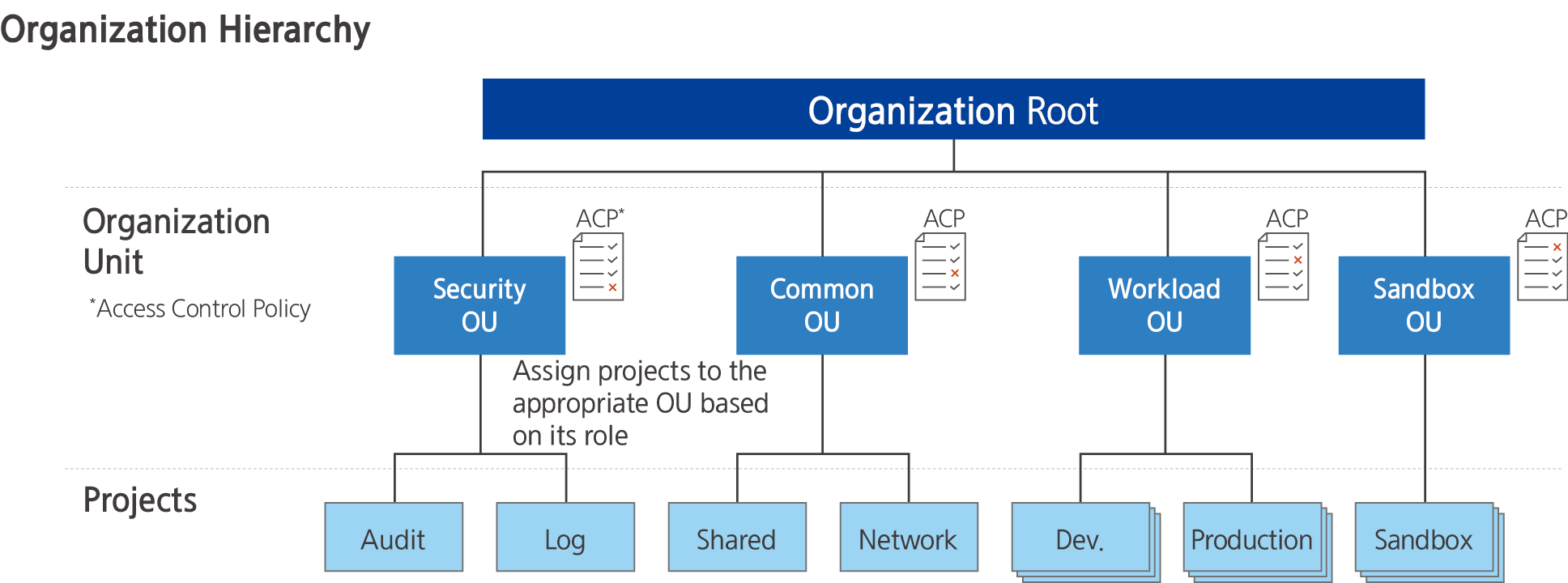
Provided Features
Organization provides the following functions.
- Account Management: You can create a new account within the organization or invite an existing account to manage it.
- Organization Unit Management: You can manage by composing an organization unit and composing an organization unit or Account under it.
- Compliance Policy Management: Manage compliance-related settings as integrated policies and apply them by organization unit and account to prevent or detect compliance violations in advance.
Preceding Service
Organization has no preceding service.
2 - How-to guides
The user can enter the essential information of the Organization through the Samsung Cloud Platform Console and create a service by selecting detailed options.
Organization creation
You can create and use an Organization in the Samsung Cloud Platform Console.
To create an Organization, follow the following procedure.
- All services > Management > Organization menu, click. It moves to the Service Home page of Organization.
- Service Home page, click the Organization creation button. The organization creation popup window opens.
- Organization Creation popup window, enter the Organization Name, then click the Confirm button.
- Use Hangul, English, numbers, spaces, and special characters (
+=,.@-_) to write within 20 characters
- Organization When the popup window notifying the creation is opened, click the Confirm button.
- Service Home page, check the dashboard of the Organization.
| Classification | Detailed Description |
|---|---|
| Organization Information | Management Account information is displayed
|
| Organization Unit | The number of organization units that make up the organization
|
| Account | The number of Accounts that make up the organization
|
| Control Policy | The number of control policies that make up the organization
|
Organization detailed information check
Organization’s detailed information can be checked and permissions can be managed.
To check the detailed information of the Organization and manage permissions, follow the following procedure.
- All services > Management > Organization menu, click. It moves to the Service Home page of Organization.
- Service Home page, click the Organization Settings menu. It moves to the Organization Settings page.
| Classification | Detailed Description |
|---|---|
| Organization Delete | Button to delete the organization |
| Organization Name | Organization Name
|
| Organization ID | Organization ID |
| Creator | Name of the user who initially created the organization |
| Creation Time | Organization Creation Time |
| Editor | The user name of the last user to modify the organization information |
| Modified Time | The last modified time of organization information |
| Management Account Name | Management Account Name |
| Management Account ID | Management Account ID |
| Management Account email | Management Account email |
| Control Policy | Whether to use control policy
|
| Delegation of Authority | Organization Management Authority Delegation Information
|
- Control Policy is disabled, the link of the associated control policy is released, and authorized users cannot view the control policy.
- Delegation of authority information can only be managed in the Management Account.
Organization to invite Account
You can manage the list of accounts invited to the Organization.
To manage the list of accounts invited by Organization, follow these procedures.
- All services > Management > Organization menu should be clicked. It moves to the Service Home page of Organization.
- Service Home page, click the invitation history menu. It moves to the invitation history list page.
- Invitation History List page, click the Account Invitation button. It moves to the Add Account page.
| Classification | Detailed Description |
|---|---|
| Account Email | |
| Account name | Account title |
| Account ID | Account’s ID |
| Request Time | Account Invitation Time |
| Completion Time | Invitation cancellation, rejection, , expiration, completion time |
| Invitation Status | Invitation Progress Status |
| Cancel Invitation | Cancel the invitation of the selected account
|
| Account Invitation | Invite a new Account to the organization
|
- Account addition page where you create and register a new Account or add an existing Account.
- For more information on adding an account, please refer to Adding an Account.
Joining other Organizations
If invited from another Organization, you can check and approve the invitation information.
To manage the list of accounts invited to the Organization, follow these procedures.
- All services > Management > Organization menu, click. It moves to the Service Home page of Organization.
- Service Home page, click the Received Invitation menu. It moves to the Received Invitation page.
| Classification | Detailed Description |
|---|---|
| Invited Email | Email information invited to the organization |
| Organization Name | Organization Name |
| Organization ID | Organization ID |
| Management Account name | Management Account name |
| Management Account ID | Management Account ID |
| Management Account email | Management Account email |
| Expiration time of invitation | Expiration time of invitation
|
| Decline Invitation | Decline the invitation |
| Accept Invitation | Accept the invitation and join the corresponding Organization |
In the following cases, even if the invitation is approved, you cannot join.
- In case the number of Accounts within the organization exceeds the limit
- If the approval time is the cost settlement day (1st of every month, Asia/Seoul GMT +09:00)
- If there is an unpaid record in the corresponding Account
Organization delete
To delete an Organization, follow the following procedure.
- All services > Management > Organization menu, click. It moves to the Service Home page of Organization.
- Service Home page, click the Organization Settings menu. It moves to the Organization Settings page.
- Organization Settings page, click the Delete Organization button. Delete Organization popup window opens.
- Organization deletion popup window, click the Confirm button.
2.1 - Organization composition information
Organization’s hierarchical structure can be checked and configured with the organizational units that make up the organization and the Account can be checked and managed.
Organization configuration information check
Organization’s composition information can be confirmed.
To check the organization’s composition information, follow the following procedure.
- All services > Management > Organization menu should be clicked. It moves to the Service Home page of Organization.
- Service Home page, click the Organization Configuration menu. It moves to the Organization Configuration page.
- Organization unit and Account management area view method selection.
| Classification | Detailed Description |
|---|---|
| View Hierarchy | Display organizational units in a hierarchical structure |
| Account list view | Display the Account list within the organization |
| Account addition | A new account is invited to the organization
|
View Hierarchy Structure
Organization Structure page, by clicking the Hierarchy View button, you can check and manage the organizational units that make up the Organization and the Account in a hierarchical structure.
| Classification | Detailed Description |
|---|---|
| Create organization unit below | Add a new organization unit below the selected organization unit
|
| See more > Delete organization unit | Delete the selected organization unit
|
| See more > Account Move | Select the organizational unit to be deleted
|
| 더보기 > Account 제외 | Selected Account will be excluded from the organization |
| See more > Delete Account | Deletes the selected Account
|
| Organization Unit/Account Name | Displays the name of the organization unit and Account in a measurement structure format
|
| ID/Email | The organization unit is ID, Account displays ID and Email |
| Creation/Joining Time | Organization unit displays creation time, Account displays creation or joining time |
Account list view
Organization Structure page, by clicking the Account List View button, you can check and manage the list of accounts that make up the Organization.
| Classification | Detailed Description |
|---|---|
| Account Movement | Move Account to another organization
|
| See more > Exclude from organization | Account to be excluded from the organization
|
| Account name | Account Name |
| Account ID | Account’s ID |
| Account’s user email | |
| Additional Time | Account creation, additional time |
| Additional type | Account addition method
|
Account management
Organization을 -> You can check and manage the list of Accounts that make up the Organization: Organization을 구성하고 있는 Account 목록을 확인하고 관리할 수 있습니다. -> You can check and manage the list of Accounts that make up the Organization, becomes: You can check and manage the list of Accounts that make up the Organization. Corrected translation: You can check and manage the list of accounts that make up the organization. So the final translation is: You can check and manage the list of accounts that make up the organization.
Account addition
You can create a new Account or add an existing Account to the Organization.
To add an account to the Organization, follow the next procedure.
All services > Management > Organization menu is clicked. It moves to the Service Home page of Organization.
Service Home page, click the Organization Configuration menu. It moves to the Organization Configuration page.
Organization Structure page, click the Add Account button. It moves to the Add Account page.
Account addition page where you enter the account information to be added, and click the Complete button.
Classification MandatoryDetailed Description Additional method Required Select the method to add an account - Create a new account: Add by creating a new account
- Invite an existing account: Add by entering the root user email of an existing account
Account name Required Name of the account to be created - Enter within 3-30 characters using Korean, English, numbers, spaces, and special characters(
+=-_@[](),.)
Email Required Email to be set as the root user of the new Account - Account Invitation button clicked, move to Account Add page
Email Verification Required Re-verify email information - Organization Information button clicks will move to the Settings page and you can check the organization details
IAM Role Name Required Display organizational units in a hierarchical structure - Enter within 64 characters using English, numbers, special characters (
+=-_@,.)
Root user email Required Root user email of the Account - If you select an existing Account invitation, enter only the Root user email
- You can add up to 10 at the same time by clicking the Add button
Table. Adding an Organization AccountWhen the account creation and invitation notification popup window opens, click the Confirm button.
Reference- Account can be added up to a maximum of 200.
- The newly created Account can log in directly via email or access through an automatically generated role.
- If you log in directly with your email, you must use the password finder to reset your password.
Account detailed information check
You can check and modify the detailed information of the Account.
To check the detailed information of the Account, follow the next procedure.
- All services > Management > Organization menu, click. It moves to the Service Home page of Organization.
- Service Home page, click the Organization Configuration menu. It moves to the Organization Configuration page.
- Organization Structure page, click the View Account List button.
- In the Account list, click the Account name to confirm detailed information. It moves to the Account details page.
- Account Details page consists of Basic Information tab, Control Policy tab.
Classification Detailed Description Excluded from the organization Account excluded from the organization - When you click the button, a popup window opens to notify you of the account exclusion
- For more information, see Excluding an Account
Account Movement Move Account to a different organizational unit - Clicking the button moves to the Account Movement page
- For more information, refer to Moving Account
Basic Information Tab Displays basic information about the Account Control Policy Display the control policy linked to the Account Table. Account detailed page items
Detailed Information
You can check the detailed information of the organizational unit and modify the information if necessary.
| Classification | Detailed Description |
|---|---|
| Account name | Account full name |
| Account ID | Account’s ID |
| Creator | The user who created the Account |
| Creation Time | Time when the Account was created |
| Editor | User who modified the Account |
| Revision Time | Time when the Account was revised |
| Account’s user email | |
| Additional type | Account addition method
|
| Higher organization unit | Displays the higher level of the current organization unit in a hierarchical structure
|
Control Policy
You can check the control policy connected to the Account and change the connection status.
| Classification | Detailed Description |
|---|---|
| Direct Disconnection | Disconnects the connection of the selected control policy
|
| Control Policy Connection | Connect a new control policy
|
| Control Policy Name | Control Policy Title |
| Type | Control Policy Type |
| Connection method | Connection method of control policy
|
| Revision Time | Last Revision Time of Control Policy |
Account Move
Organization 내 조직 단위 간 Account를 이동할 수 있습니다 -> Organization within the organization unit can move the account. However, the correct translation would be: Organization within the organization unit can move the account -> You can move accounts between organizational units within an organization. So the correct translation is: You can move accounts between organizational units within an organization.
To move the Account, follow the next procedure.
All services > Management > Organization menu, click. It moves to the Service Home page of Organization.
Service Home page, click the Organization Configuration menu. It moves to the Organization Configuration page.
Organization Structure page, click the View Account List button.
Select the Account to move the organization unit, then click the Account Move button. It moves to the Account Move page.
Account Move page where you select the organizational unit to move the account, and then click the Complete button.
Classification Detailed Description Select Account Enter the name of the organization unit - Organization names distinguish between uppercase and lowercase letters
Moving organizational unit Select the organizational unit to move the Account Organization Unit Name Name of the organization unit Organization Unit ID ID of the organization unit Organization Creation Time The time when the organization unit was created Table. Creating an Organization UnitWhen the popup window notifying account transfer opens, check the transfer information and click the Confirm button.
Reference- The newly created Account can log in directly via email or access through an automatically generated role.
- If you log in directly by email, you must use the password finder to reset your password.
Account Exclusion
Organization에서 Account를 제외할 수 있습니다 -> Organization can exclude the Account. However, following the exact format and translation rules, the correct translation should be: Organization에서 Account를 제외할 수 있습니다 -> Organization can exclude Account from it, but keeping the original format, it should be: Organization에서 Account를 제외할 수 있습니다 -> Organization where Account can be excluded. However, the most accurate translation following the format is: Organization에서 Account를 제외할 수 있습니다 -> You can exclude Account from Organization, so the final translation is: Organization에서 Account를 제외할 수 있습니다 -> Organization where you can exclude Account. But to keep the format and meaning, it should be: Organization에서 Account를 제외할 수 있습니다 -> Organization can exclude Account. So the correct translation is: Organization에서 Account를 제외할 수 있습니다 -> Organization can exclude Account. Thus the translated line is: Organization can exclude Account.
To exclude an account from the Organization에, follow these procedures: should be translated to: To exclude an account from the Organization, follow these procedures: So the correct translation is: To exclude an account from the Organization, follow these procedures:
- All services > Management > Organization menu, click. It moves to the Service Home page of Organization.
- Service Home page, click the Organization Configuration menu. It moves to the Organization Configuration page.
- Organization Structure page, click the View Account List button.
- Organization에서 제외할 Account를 선택한 후, 더보기 > Account 제외 버튼을 클릭하세요. -> 4. Select the Account to be excluded from the Organization, then click the More > Exclude Account button.
- Account exclusion notification When the notification popup window opens, click the Confirm button.Notice
In the following cases, the Account cannot be excluded.
- Account that has not registered a payment method
- If there is a credit assigned to the account
- Excluding the time when the settlement date (1st of every month, Asia/Seoul GMT +09:00)
Account deletion
You can delete the Account.
To delete an Account, follow the following procedure.
- All services > Management > Organization menu should be clicked. It moves to the Service Home page of Organization.
- Service Home page, click the Organization Configuration menu. It moves to the Organization Configuration page.
- Organization Structure page, click the View Account List button.
- Select the Account to be deleted from the Account list, then click the More > Delete Account button. The Delete Account popup window will open.
- You can also delete by clicking the Account name of the Account to be deleted, and then clicking the Account Delete button on the Account Details page.
- Enter the Account name to be deleted, then click the Confirm button.
Account를 삭제하면 다음 사용자에게 Account 삭제 알림 메일이 발송됩니다 -> If you delete the Account, an Account deletion notification email will be sent to the following user.
- Organization을 생성한 관리자 -> * Administrator who created the Organization
- Created Account’s Root user
- User with delegation for the generated Account
- When deleting from the Account list, you must select only one Account to be deleted.
- Before deletion, all resources in the Account must be deleted.
- Management Account and accounts joined through invitation cannot be deleted.
Managing Organization Units
Organization을 구성하고 있는 조직 단위와 Account를 계층 구조로 확인하고 관리할 수 있습니다 -> You can configure and manage the organizational units that make up the Organization and the Account in a hierarchical structure.
Creating an organizational unit
You can create a new organizational unit.
To create and add an organizational unit to the Organization, follow these procedures.
- all services > Management > Organization menu, click. It moves to the Service Home page of Organization.
- Service Home page, click the Organization Configuration menu. It moves to the Organization Configuration page.
- Organization Structure page, click the Hierarchical Structure View button.
- Select the location to add an organizational unit in the hierarchical structure list, then click the Create organizational unit below button. It moves to the Create organizational unit page.
- Root or you can only select one existing organization unit.
- Root is the basis for creating organizational units within 5 levels below.
Organization Unit Creation page, enter the organization unit information to be added, and then click the Complete button.
Classification NecessityDetailed Description Organization Unit Name Required Enter the name of the organization unit - Organization names distinguish between uppercase and lowercase letters
Description Select Enter a description of the organizational unit within 1,000 characters Control Policy Connection Required Select a control policy to connect to the organizational unit - For more information on creating a control policy, see Creating a Control Policy
Table. Creating an Organization UnitWhen the popup window for creating an organizational unit opens, click the Confirm button.
Reference- Account can be added up to a maximum of 200.
- The newly created Account can be accessed directly by email login or through the automatically generated role.
- If you log in directly with your email, you must use the password finder to reset your password.
Check detailed information of organizational units
You can check and modify detailed information of the organization unit.
To check the detailed information of the organization unit, follow the following procedure.
- All services > Management > Organization menu, click. It moves to the Service Home page of Organization.
- Service Home page, click the Organization Configuration menu. It moves to the Organization Configuration page.
- Organization Structure page, click the Hierarchy View button.
- Click the Root/Account name of the organizational unit to check detailed information in the hierarchical structure list. It moves to the Organizational Unit Details page.
- Organization Unit Details page consists of Basic Information tab, Sub Items tab, Control Policies tab.
Classification Detailed Description Delete Organization Unit A button to delete the organization unit - When you click the button, a popup window opens to notify the organization deletion
- For more information, see How to Delete Organization Unit
Basic Info Tab Displays basic information about the organizational unit Sub-item Indicates a lower element of the organizational unit Control Policy Displays the control policy attached to the organizational unit Table. Organization organizational unit detailed page items
Detailed Information
You can check the detailed information of the organization unit and modify the information if necessary.
| Classification | Detailed Description |
|---|---|
| Service | Service Name |
| Resource Type | Service Type |
| SRN | Unique resource ID in Samsung Cloud Platform |
| Resource Name | Resource Title |
| Resource ID | Unique resource ID in the service |
| Creator | The user who created the service |
| Creation Time | The time when the service was created |
| Editor | User who modified the service information |
| Revision Time | Time when service information was revised |
| Organization Unit Name | The name of the organization unit
|
| Description | Description of the organizational unit
|
| Higher organizational unit | Displays the higher level of the current organizational unit in a hierarchical structure
|
Sub-items
You can check and manage the organizational unit under the current organizational unit and Account.
| Classification | Detailed Description |
|---|---|
| Create organization unit below | Add a new organization unit below the selected organization unit
|
| See more > Delete organization unit | Delete the selected organization unit
|
| Organization Unit/Account Name | Displays the name of the organization unit and account in a measurement structure format
|
| ID/Email | The organization unit shows ID, Account shows ID and Email |
| Creation/Joining Time | The organizational unit displays the creation time, and the Account displays the creation or joining time |
Control Policy
You can check the control policies connected to the organizational unit and change the connection status.
| Classification | Detailed Description |
|---|---|
| Direct Disconnection | Disconnects the connection of the selected control policy
|
| Control Policy Connection | Connect a new control policy
|
| Control Policy Name | Control Policy Title |
| Type | Control Policy Type |
| Connection method | Connection method of control policy
|
| Last Modified Time | Last modified time of control policy |
Deleting an organizational unit
Organization에서 you can delete organizational units.
Organization에서 조직 단위를 삭제하려면 다음 절차를 따르세요 -> Organization to delete an organizational unit, follow these procedures:
- All services > Management > Organization menu, click. It moves to the Service Home page of Organization.
- Service Home page, click the Organization Configuration menu. It moves to the Organization Configuration page.
- Organization Structure page, click the View Hierarchy button.
- Select the organizational unit to be deleted from the hierarchical structure list, then click the More > Delete Organizational Unit button.
- When the popup window notifying the deletion of an organizational unit opens, click the Confirm button.
Control policy linking
Organization의 조직 단위나 Account에 통제 정책을 연결할 수 있습니다 -> You can attach control policies to an organizational unit or Account of the Organization.
To link a control policy, follow the next procedure.
- All services > Management > Organization menu, click. It moves to the Service Home page of Organization.
- Service Home page, click the Organization Configuration menu. It moves to the Organization Configuration page.
- Organization Structure page, click the View Hierarchy button.
- In the hierarchical structure list, click on the organizational unit or Account to which you want to add a control policy, and it will move to the detailed page of the element.
- Root or you can only select one existing organizational unit.
- Root is the basis for creating organizational units within 5 levels below.
Click the Control Policy tab on the detail page. It moves to the Control Policy Link page.
After selecting the control policy to connect, click the Complete button.
Classification Detailed Description Connected Control Policy Enter the name of the organization unit or account currently connected to the control policy organization unit, the name of the organization unit is case-sensitive and distinguishes between uppercase and lowercase English letters - Organization name is case-sensitive and distinguishes between uppercase and lowercase English letters
Table. Controlled Policy Link ItemsWhen the popup window notifying the control policy connection opens, click the Confirm button.
ReferenceTo create a new control policy, please refer to Create a Control Policy.
2.2 - Organization Control Policy
You can check and manage the control policies of Organization.
Organization Create control policy
Organization’s control policies can be created.
To create a control policy, follow the steps below.
All Services > Management > Organization Please click the menu. Navigate to Organization’s Service Home page.
Click the Control Policy menu on the Service Home page. Navigate to the Control Policy List page.
Click the Create Control Policy button on the Control Policy List page. It navigates to the Create Control Policy page.
After entering items in the Basic Information area, click the Next button.
Category RequiredDetailed description Control Policy Name Required Enter the name of the control policy - Enter using English letters, numbers, and special characters (
+=-_@,.) within 3~128 characters
Description Select Enter a description of the organizational unit within 1,000 characters Table. Organization Control Policy Creation - Basic Information Settings- Enter using English letters, numbers, and special characters (
After selecting the control policy setting method and the service to apply in the Control Requirements Setting area, click the Next button.
Category RequiredDetailed description Load Control Policy Select Enter the name of the control policy - When loading a policy, all previously entered content will be deleted
- For more details, refer to Load Policy
Basic Mode/JSON Mode Required Select policy setting method - Basic Mode: Set using the mode provided by the Console
- JSON Mode: Set directly using the JSON Editor
Service Required Select the service to set the control policy - Add Service: Add a service to set the control policy
Table. Organization Control Policy Creation - Service Settings
In the control policy settings, Basic Mode and JSON Mode are provided.
- After writing in Basic Mode, when entering JSON Mode or moving screens, services with duplicate control requirements are merged into one, and services that have not completed configuration are deleted.
- JSON mode If the content written in JSON mode does not conform to JSON format, it cannot be switched to basic mode.
After setting the permissions, click the Next button.
Category RequiredDetailed description Control Type Required Select control policy type - Allow Policy: Control policy that allows defined permissions
- Deny Policy: Control policy that denies defined permissions
Action Required Select actions provided per service - Actions that can select individual resources are displayed in purple
- Actions that target all resources are displayed in black
- Add action directly: Using the wildcard
*, multiple actions can be specified at once
Applied Resource Required Resources to which the action applies - All Resources: Apply to all resources for the selected action
- Individual Resources: Apply only to specified resources for the selected action
- Individual resources are only possible when selecting the purple action that allows individual resource selection
- Click the Add Resource button to specify target resources by resource type
- For details on Add Resource, refer to Register Individual Resources as Applied Resources
Authentication Type Required Authentication method of the user target to which the control policy will be applied - All authentication: Apply regardless of authentication method
- Authentication key authentication: Apply to authentication key authentication users
- Temporary key authentication, Console login: Apply to temporary key authentication or Console login users
Applied IP Required IP that allows control policy application - Custom IP: User directly registers and manages IP
- Applied IP: IP that the user directly registers for control policy application, can be registered as IP address or range format
- Excluded IP: IP to be excluded from Applied IP, can be registered as IP address or range format
- All IP: No IP access restriction
- Access is allowed for all IPs, but if an exception is needed, register Excluded IP to restrict access for the registered IPs
Additional Condition Select Add condition for Attribute-Based Access Control (ABAC) - Condition Key: Select from Global Condition Keys and Service Condition Keys list
- Qualifier: Default value, arbitrary value in request, all values in request
- Operator: Bool, Null
- Value: True, False
Table. Organization Control Policy Creation - Permission SettingsCheck Input Information After confirming the information entered on the page, click the Complete button.
When the popup notifying the creation of a control policy opens, click the Confirm button. It navigates to the Integrated Policy List page.
Load Control Policy
When creating a control policy, you can modify the policy requirements of an existing policy to create it.
To load an existing policy and create a 통저 policy, follow the steps below.
All Services > Management > Organization Click the menu. Navigate to Organization’s Service Home page.
Click the Control Policy menu on the Service Home page. Navigate to the Control Policy List page.
Control Policy List page, click the Create Control Policy button. Navigate to the Create Control Policy page.
After entering items in the Basic Information area, click the Next button.
Category RequiredDetailed description Control Policy Name Required Enter the name of the control policy - Enter using English letters, numbers, and special characters(
+=-_@,.) within 3 to 128 characters
Description Select Enter a description of the organizational unit within 1,000 characters Table. Organization Control Policy Creation - Basic Information Settings- Enter using English letters, numbers, and special characters(
Control Requirement Setting area, click the Load Control Policy button. The Load Control Policy popup window opens.
Click the Load Policy button. The Load Control Policy popup opens.
After selecting the control policy to load from the control policy list, click the Confirm button. The settings of the loaded policy will be entered automatically.
After editing the information that needs to be changed, click the Next button.
After confirming the information entered on the Input Information Confirmation page, click the Complete button. You will be taken to the Integrated Policy List page.
Register individual resources as applied resources
Permission setting during which you can register individual resources as applied resources.
To register an individual resource as an applied resource, follow the steps below.
All Services > Management > Organization Click the menu. Go to Organization’s Service Home page.
Service Home page, click the Control Policy menu. Navigate to the Control Policy List page.
Click the Create Control Policy button on the Control Policy List page. It navigates to the Create Control Policy page.
After entering items in the Basic Information area, click the Next button.
Category RequiredDetailed description Control Policy Name Required Enter the name of the control policy - Use English letters, numbers, special characters(
+=-_@,.) within 3~128 characters
Description Select Enter a description of the organizational unit within 1,000 characters Table. Organization Control Policy Creation - Basic Information Settings- Use English letters, numbers, special characters(
Control Requirement Setting In the area, after selecting the service to which the control policy will be applied, click the Next button.
Load Policy Click the button. Load Control Policy The popup window opens.
After selecting the control policy to load from the control policy list, click the Confirm button. The settings of the loaded policy will be entered automatically.
After editing the information that needs to be changed, click the Next button.
After verifying the entered information on the Check Input Information page, click the Complete button. You will be redirected to the Integrated Policy List page.
In the Action selection, select the Action that can select individual resources.
- Actions that allow individual resource selection are displayed in purple.
Click Individual Resource in Applied Resources.
Add Resource Click the button. Add Resource The popup window opens.
Category RequiredDetailed description Jawin type Required Select the type of resource to add SRN - Unique resource ID in Samsung Cloud Platform - Automatically updated according to the input items below
Account Required Set Account ID - Current Account: Current Account ID is auto-filled and cannot be edited
- All Accounts: Add to all Accounts (not recommended)
- Manual Input: Manually enter the Account ID using lowercase English letters and numbers, up to 100 characters (wildcard input not allowed)
Region Select Directly input the resource’s region information within 100 characters - Select All when checked, add resources of all regions
Resource ID Required Enter the resource ID to add directly within 100 characters - Select All when checked, adds all resources of the corresponding resource type
Table. Organization Control Policy Creation - Basic Information SettingsWhen the setup is complete, click the Next button. It will navigate to the Check Input Information page.
After verifying the entered information, click the Complete button. You will be redirected to the Integrated Policy List page.
Check detailed control policy information
Control Policy Details page allows you to view and edit detailed information of the control policy.
To view detailed information of the control record, follow the steps below.
- All Services > Management > Organization Click the menu. Go to Organization’s Service Home page.
- Click the Control Policy menu on the Service Home page. Navigate to the Control Policy List page.
- Click the control policy to view detailed information on the Control Policy List page. You will be taken to the Control Policy Details page.
- Policy Details page displays basic information, and consists of Basic Information tab, Control Requirements tab, Connected Targets tab.
Basic Information
Check the basic information of the control policy, and if necessary, you can edit the policy name and description.
| Category | Detailed description |
|---|---|
| service | service name |
| Resource Type | Resource Type |
| SRN | Unique resource ID in Samsung Cloud Platform |
| Resource Name | Resource Name
|
| Resource ID | Unique Resource ID |
| Creator | User who created the service |
| Creation time | Service creation time |
| Editor | User who edited the service information |
| Modification Date | Date Service Information Modified |
| Control Policy Name | Control Policy’s Name
|
| Type | Control Policy Type
|
| Description | Explanation of control policy
|
Control Requirements
You can view services with permissions set in the current control policy.
- Basic mode and JSON mode can be checked.
- Clicking the arrow to the right of the service name will display the control requirements set for that service.
| Category | Detailed description |
|---|---|
| Control Type | Control Policy Control Type
|
| Action | Provided functions of each service that are subject to the control policy |
| Applicable Resources | Resources to which the action is applied
|
| Authentication Type | Authentication method of the user target to which the control policy will be applied
|
| Applicable IP | IP that permits the application of control policies
|
Connection Target
You can view the organizational units and accounts directly linked to the control policy.
| Category | Detailed description |
|---|---|
| Root | Root connection status and the number of control policies connected to Root are displayed
|
| Organization Unit | Current control policy linked organization unit and total number of control policies linked to that organization unit
|
| Account | Number of total control policies linked to the Account currently connected and the total number of control policies linked to that Account
|
Connect organization unit
You can link organizational units to the control policy.
To connect the organizational unit, follow the steps below.
- All Services > Management > Organization Click the menu. Navigate to Organization’s Service Home page.
- Service Home page, click the Control Policy menu. Navigate to the Control Policy List page.
- Control Policy List page, click the control policy to connect the organizational unit. Control Policy Details page will be displayed.
- Click the Connection Target tab on the Control Policy Details page.
- Click the Organizational Unit Connection button in the Organizational Unit area. You will be taken to the Organizational Unit Connection page.
- After selecting the organizational unit to connect, click the Complete button.
Category Detailed description Organization Unit/Account Name Display the organization unit and account names in a measurement structure format - Click the +, - buttons to expand or collapse the hierarchy
ID/email Organization unit shows ID, Account shows ID and email Creation Date The date the organizational unit was created is the creation date, and for Account it shows the creation or registration date Table. Organizational Unit Connection Items
7.Account When the popup notifying the connection opens, click the Confirm button.
Account Connect
You can link an Account to a control policy.
To connect Account, follow the steps below.
All Services > Management > Organization Click the menu. Navigate to the Service Home page of Organization.
Service Home on the page click the Control Policy menu. Control Policy List navigate to the page.
Control Policy List page, click the control policy to link the Account. Control Policy Details page will be displayed.
Control Policy Details page, click the Connection Target tab.
Click the Account Connection button in the Account area. You will be taken to the Account Connection page.
After selecting the Account to connect, click the Done button.
Category Detailed description Organization Unit/Account Name Display the organization unit and account names in a measurement structure format - Click the +, - buttons to expand or collapse the hierarchy
ID/email Organization unit shows ID, Account shows ID and email Creation Date The date the organizational unit was created is the creation date, and for Account it shows the creation or registration date Table. Account connection itemsWhen a popup notifying the connection opens, click the Confirm button.
Delete control policy
You can delete the control policy.
To delete the control policy, follow the steps below.
- All Services > Management > Organization Click the menu. Navigate to Organization’s Service Home page.
- Service Home page, click the Control Policy menu. Navigate to the Control Policy List page.
- Click the control policy to delete on the Control Policy List page. Navigate to the Control Policy Details page.
- Control Policy Details page, click the Delete Control Policy button.
- When the popup notifying the deletion of the control policy opens, click the Confirm button.
3 - API Reference
4 - CLI Reference
5 - Release Note
Organization
- You can also delete the Account created in the Organization from the Member Account.
- Deletable Accounts are limited to Accounts directly created in the Organization.
- Organization service has been officially launched.
- Account can be organized by organizational units, managed hierarchically, and resource access permissions can be controlled.
- You can monitor the resource usage of all accounts within the organization to optimize costs.