This is the multi-page printable view of this section. Click here to print.
ID Center
1 - Overview
Service Overview
ID Center is a service that allows you to easily manage access permissions for account-based resources on the Samsung Cloud Platform from a central location. You can manage to perform tasks according to user permissions by creating authority policies for each service and assigning accounts and policies associated with the Organization service to users.
Features
- Easy Access Control: Through SAML (Security Assertion Markup Language) based qualification authentication, it is possible to access the resources of multiple accounts within the organization by granting authentication and authorization from the Samsung Cloud Platform.
- Efficient Account Management: Integrated management of costs and resource usage from all accounts owned by the organization is possible by linking with the Organization service.
- Account Security Enhancement: Security can be enhanced by allowing only authorized ID Center users to access through the Access Portal, which is provided separately from the Samsung Cloud Platform Console. Through the Access Portal, it is possible to prevent other users outside the customer organization from accessing the account in the first place.
Composition
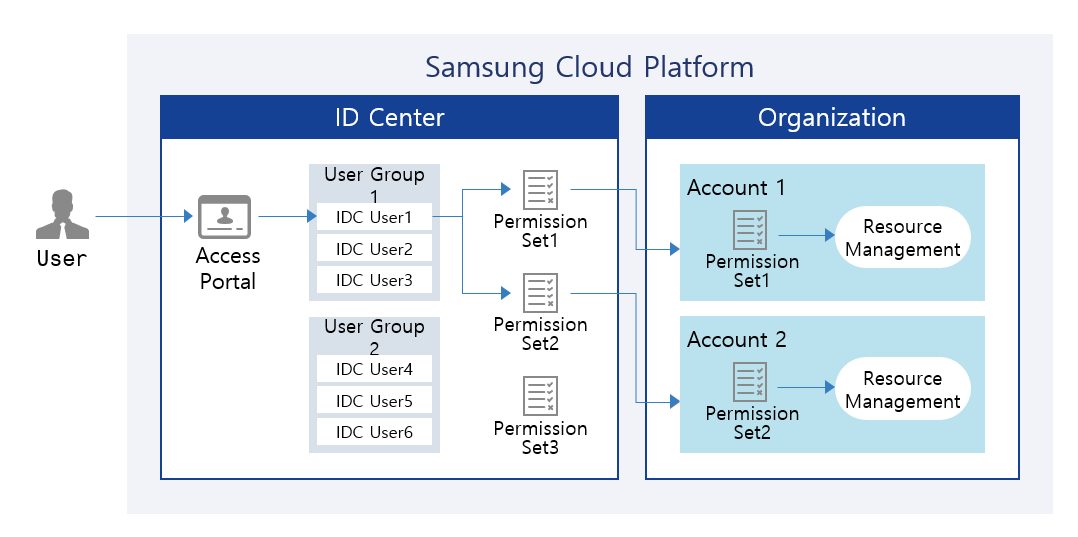
Provided Features
ID Center provides the following functions.
- User and User Group Management: User and user group management can be created and service-specific authority management policies can be configured. Users must have MFA (Multi-Factor Authentication) applied to strengthen account access management.
- Account Assignment Management: You can assign and manage accounts corresponding to each user’s task.
- Permission Set Management: You can create and manage permission sets using default policies or custom policies for each account, or by configuring policies directly.
- Access Portal Provided: An Access Portal is provided instead of Samsung Cloud Platform Console, allowing only ID Center users to access.
Components
User
The administrator can create users and add them to user groups. The administrator can automatically generate or manually create user passwords and provide users with Access Portal connection information. Additionally, administrators can assign users to accounts that match each task.
User Group
You can link users and accounts through user groups. You can configure user groups suitable for each task and register users to assign them to accounts.
Permission Set
You can create a set of permissions by utilizing the default policies and custom policies existing in the Account or by directly composing a policy.
Regional Provision Status
ID Center can be provided in the following environment.
| Region | Availability |
|---|---|
| Western Korea(kr-west1) | Provided |
| Korea East(kr-east1) | Provided |
| South Korea (kr-south1) | Provided |
| South Korea (kr-south2) | Provided |
| South Korea, southern region 3(kr-south3) | Not provided |
Preceding Service
This is a list of services that must be pre-configured before creating this service. Please refer to the guide provided for each service and prepare in advance.
| Service Category | Service | Detailed Description |
|---|---|---|
| Management | Organization | A service that organizes accounts by organizational unit, manages them hierarchically, and controls resource access permissions |
2 - How-to guides
The user can enter the required information of ID Center through the Samsung Cloud Platform Console, select detailed options, and create the service.
ID Center Create
You can create and use an ID Center in the Samsung Cloud Platform Console.
To create an ID Center, follow the steps below.
- Click the All Services > Management > ID Center menu. Go to the Service Home page of ID Center.
- Click the ID Center Application button on the Service Home page. Navigate to the ID Center Creation page.
- ID Center creation page, after entering the basic information, click the Complete button.
Category RequiredDetailed description ID Center name Required Enter the name of the ID Center - Enter using English letters, numbers, special characters (
+=-_@,.) within 3~128 characters
Description Select Enter a description of the organizational unit within 1,000 characters Credential Source Required Select Credential Source Type - ID Center’s own directory: Use directory within ID Center
- AD (Active Directory): Use Active Directory managed directly by the user
- For detailed information on settings when selected, refer to Change Credential Source Type
- Automatically synchronize AD information upon creation
Table. ID Center creation basic information - Enter using English letters, numbers, special characters (
- When the popup notifying the creation of ID Center opens, click the Confirm button.
- Service Home Check the ID Center dashboard on the page.
Category Detailed description ID Center Information Displays the name, ID, and Access Portal URL of the ID Center - Clicking the ID Center Information item navigates to the ID Center Settings page where detailed ID Center information can be viewed
User Number of users created in ID Center - Clicking the user count moves to the User List page
- Clicking the Create item moves to the User Creation page. Create User refer
User Group Number of user groups created in ID Center - Clicking the group count moves to the User Group List page
- Clicking the Create item moves to the User Group Creation page. See Create User Group
Permission Set Number of permission sets created in ID Center - Click the number of permission sets to go to the Permission Set List page
- Click the Add item to go to the Create Permission Set page. Create Permission Set see
Table. ID Center Service Home Dashboard Items
ID Center Check detailed information
You can view detailed information of the ID Center and manage permissions.
To view detailed information of the ID Center and manage permissions, follow the steps below.
- All Services > Management > ID Center Click the menu. Navigate to ID Center’s Service Home page.
- Service Home page, click the ID Center Settings menu. Navigate to the ID Center Settings page.
| Category | Detailed description |
|---|---|
| ID Center Delete | Button to delete ID Center
|
| service | service name |
| Resource Type | Resource Type |
| SRN | Unique resource ID in Samsung Cloud Platform |
| Resource Name | Resource Name |
| Resource ID | Unique resource ID in the service |
| Creator | User who created the service |
| Creation time | Time the service was created |
| Editor | User who modified the service information |
| Modification Date and Time | Date and time when service information was edited |
| ID Center name | ID Center name
|
| Region | Region that created the ID Center |
| Description | Description of ID Center
|
| Organization ID | Organization’s ID |
| Credential Source | Type of Credential Source
|
| Access Portal URL | URL to access the Access Portal |
| Delegated Authority | Display Account Name, Account ID, Email, Delegation Date/Time information of the Account that delegated ID Center management authority
|
Managing Credential Sources
You can change the credential source type or change and manage the setting values of the AD (Active Directory) type.
AD (Active Directory) Apply for Integration
To use a user-managed AD (Active Directory) integration, you must first prepare the VPC and Load Balancer, then submit a request via SR. To apply for AD integration, follow the steps below.
Secure a VPC to integrate with the user’s AD.
- If network connection is required, connect to the network where the user’s AD exists via the Direct Connect service.
- For more details, refer to Create Direct Connect.
Configure the Load Balancer.
- Create a Load Balancer and an LB server group.
- Add the IP to be linked with AD as a member of the connected resources of the LB server group.
- Create a Listener from the connected resources of the Load Balancer and connect the LB server group.Guide
- Through the Load Balancer service, call information for AD synchronization from ID Center can pass through the user’s VPC to call the user’s AD.
- For detailed information on creating and using the Load Balancer service, please refer to Using Load Balancer Service.
Configure the PrivateLink Service in the user’s VPC.
- Create the PrivateLink Service of the user VPC that will be called from ID Center.
- When creating a PrivateLink Service, select the Load Balancer created in step 2 as the connection resource.
When the preparation work is finished, click the All Services > Management > Support Center menu. Move to the Service Home page.
From the Service Home page, click the Service Request menu. Navigate to the Service Request List page.
Click the Service Request button on the Service Request List page.
- Select and enter the information required for the service request.
Category RequiredDetailed description Title Required Title for service request - Enter within 64 characters using Korean, English, numbers, special characters (
+=,.@-_)
Region Required Select the region to request the service Service Required Management service group’s ID Center service selection Work Category Required ID Center AD Integration Request Optional Content Required Information input for ID Center AD linkage application Table. ID Center AD Integration Application Items - Enter within 64 characters using Korean, English, numbers, special characters (
- Select and enter the information required for the service request.
Check the input information and click the Request button.
- When creation is complete, check on the Service Request List page.
Change Credential Source Type
You can change the credential source or modify the settings.
Follow the steps below to change the credential source type.
- All Services > Management > ID Center Click the menu. Navigate to ID Center’s Service Home page.
- Click the ID Center Settings menu on the Service Home page. Navigate to the ID Center Details page.
- ID Center Details page, click the Edit button of the Credential Source item. Credential Source Change popup opens.
- After selecting the credential source type to use, click the Confirm button. A popup window notifying the credential source change will open.
| Category | Detailed description |
|---|---|
| ID Center own directory | Use directory within ID Center
|
| AD (Active Directory) | Use Active Directory that the user manages directly
|
AD (Active Directory) Information Synchronization
You can synchronize AD information.
- AD information is automatically synchronized daily from 0:00 to 06:00 (Asia/Seoul, GMT +09:00).
- If a new AD information connection is required, click the AD Reset button to change the AD information, then synchronize.
To synchronize AD information, follow the steps below.
- All Services > Management > ID Center Click the menu. Navigate to ID Center’s Service Home page.
- Click the ID Center Settings menu on the Service Home page. Navigate to the ID Center Details page.
- ID Center Details on the page, click the Sync button next to the sync time of the Credential Source item. The AD Information Sync popup window opens.
- After checking the synchronization notification, click the Confirm button. AD information synchronization will start.
- The change time varies depending on the scale.
Manage Permissions
You can delegate the administrative rights of the ID Center to another Account, or revoke the delegated rights.
Delegating Permissions
You can delegate the management authority of the ID Center to another account.
Follow the steps below to delegate management rights to another account.
- All Services > Management > ID Center Click the menu. Navigate to ID Center’s Service Home page.
- Click the ID Center Settings menu on the Service Home page. Navigate to the ID Center Details page.
- Click the Permission Delegation button on the ID Center Details page. You will be taken to the Permission Delegation page.
- Permission Delegation button is displayed only when there is no Account that has currently delegated authority.
- Permission Delegation on the page, after selecting the account to delegate authority to, click the Complete button.
Category Detailed description Account name Account name Account ID Account’s ID email Account email Additional Date Account creation or registration date/time in Organization Add Type Method of adding Account in Organization - Create: Add by creating new on Add Account page
- Join: Add an already created Account
Table. ID Center Delegated Authority Account List
Cancel Delegation
You can revoke the administrative privileges of the ID Center delegated to another Account.
To cancel the delegation of administrative authority, follow the steps below.
- All Services > Management > ID Center Click the menu. Navigate to the Service Home page of ID Center.
- Click the ID Center Settings menu on the Service Home page. Navigate to the ID Center Details page.
- Click the Cancel Delegation button on the ID Center Details page.
- If a popup notifying the revocation of delegation opens, click the Confirm button.
ID Center Delete
To delete the ID Center, follow these steps.
- All Services > Management > ID Center menu, click. Go to ID Center’s Service Home page.
- Service Home on the page, click the ID Center 설정 menu. Navigate to the ID Center 설정 page.
- ID Center Settings on the page click the ID Center Delete button. ID Center Delete popup window opens.
- ID Center Delete After entering the name of the ID Center to delete in the popup window, click the Confirm button. Navigate to the Service Home page.
- ID Center deletion time varies depending on the scale, and you can confirm via notification when deletion is complete.
- While deleting the ID Center, you cannot navigate to other menu pages.
2.1 - ID Center User Management
ID Center’s user can be checked and managed.
Create User
You can create a user and add it to the ID Center.
To create a user, follow the following procedure.
- All services > Management > ID Center menu, click. It moves to the Service Home page of ID Center.
- Service Home page, click the User menu. It moves to the User List page.
- User List page, click the Create User button. It moves to the Create User page.
- User Created page, enter the basic information and additional information, then click the Complete button.
Classification NecessityDetailed Description Username Required Enter the user’s name - Use English letters, numbers, and special characters (
+=-_@,.) within 128 characters
- The username cannot be changed after creation
Description Selection Enter a description of the user within 1,000 characters Password Required Password creation method selection - Automatic generation: Automatically generate a password and provide it in a popup window when user creation is complete
- Direct input: Refer to the password creation rules and enter directly
User Real Name Required Enter the user’s last name and first name in real name Affiliation Information Input Select Enter business unit, department, administrator, and employee number information, each within 128 characters User Group Selection Select Select the user group to which you want to add users - To create a user group, refer to How to Create a User Group
Table. User-generated information - Use English letters, numbers, and special characters (
- Uppercase letters (English), lowercase letters (English), numbers, special characters (
!@#$%&*^) must each be included at least once. - The length is 9~20 characters.
- ID or username cannot be used as a password.
- The same character cannot be used three times or more.
- Easily guessable passwords cannot be used.
- Recently used passwords cannot be used.
- 4 characters or more of continuous characters/numbers cannot be used.
- The password change cycle is 90 days.
- When the popup window notifying user addition opens, click the Confirm button. The ID Center user login information popup window will open.
- ID Center check the user login information, then click the confirm button.
| Classification | Detailed Description |
|---|---|
| Access Portal URL | URL information to access the Access Portal |
| User Name | Created User Name |
| password | the password of the authenticated user
|
| Excel Download | Download ID Center user login information as an Excel file |
| Email transmission | An Excel file containing ID Center user login information is sent via email
|
Check user details
You can check and manage detailed information about the user, user groups, and account information.
To check the user details, follow the next procedure.
- All services > Management > ID Center menu, click. It moves to the Service Home page of ID Center.
- Service Home page, click the User menu. It moves to the User List page.
- User List page, click the username to check the detailed information. It moves to the User Details page.
- User Details page displays basic information, and consists of Basic Information, User Group, Account tabs.
Basic Information
You can check the user’s basic information and modify the user’s description and options if necessary.
| Category | Detailed Description |
|---|---|
| Delete User | Button to delete the user
|
| User Name | The user’s name |
| User Real Name | The user’s actual name
|
| Description | A description of the username
|
| Last Login | The time when the user last logged in |
| Password | Password last changed time
|
| Password reuse restriction | The number of recently used passwords that cannot be set as a password
|
Email authentication status
| |
| Mobile Phone Number | Mobile Phone Number Authentication Status |
| affiliation information | user’s business unit, department, administrator, employee number information
|
User Group
The user can check the registered user group and add or exclude the user group as needed.
| Category | Detailed Description |
|---|---|
| Exclusion | Exclude the selected user group from the user group list
|
| Add user group | Add a user group to register users
|
| User Group Name | Name of the User Group |
| description | description of the user group |
| Revision Time | The time when the user group was revised |
Account
You can check the Account assigned to the user and add a set of permissions or assign an Account as needed.
- Permission Set details can be found in Permission Set.
- Account Assignment에 대한 자세한 내용은 Account Assignment을 참고하세요.
| Classification | Detailed Description |
|---|---|
| Add permission set | Add a new permission set to the Account
|
| View more > Exclude all direct applications | Exclude all permission sets directly applied to the Account
|
| Account assignment | Assign a new account to the user
|
| Account name | Account’s name |
| Set of permissions | Number of sets of permissions applied to the Account
|
| Application method | Method of applying the set of privileges to the Account
|
Change password
You can change the user’s password.
To change the user’s password, follow the following procedure.
- All services > Management > ID Center menu, click. It moves to the Service Home page of ID Center.
- Service Home page, click the User menu. It moves to the User List page.
- User List page, click the username to change the password. It moves to the User Details page.
- User Details page, click the Password item’s Edit button. The Password Reset popup window opens.
- Password Reset popup window, set the password, then click the Confirm button. ID Center User Login Information popup window will open.
- Auto Generation: Automatically generate a password
- Direct Input: Refer to the password creation rules and enter directly
- Uppercase letters (English), lowercase letters (English), numbers, special characters (
!@#$%&*^) must each be included at least once. - The length is 9~20 characters.
- ID or username cannot be used as a password.
- The same character cannot be used three times or more.
- Easily guessable passwords cannot be used.
- Recently used passwords cannot be used.
- 4 characters or more of continuous characters/numbers cannot be used.
- The password change cycle is 90 days.
- ID Center user login information popup window, check the user information after, confirm button click.
| Classification | Detailed Description |
|---|---|
| Access Portal URL | URL information to access the Access Portal |
| User Name | Created User Name |
| password | the password of the authenticated user
|
| Excel Download | Download ID Center user login information as an Excel file |
| Email transmission | An Excel file containing ID Center user login information is sent via email
|
Add user group
You can add a new user group.
To add a user group, follow the following procedure.
All services > Management > ID Center menu, click. It moves to the Service Home page of ID Center.
Service Home page, click the User menu. It moves to the User List page.
User List page, click the username to add to the user group. It moves to the User Details page.
User Details page, click the User Group tab. The user group list will be displayed.
Add User Group button will be clicked. It moves to the Add User Group page.
Add User Group page, select the user group to be added from the user group list, and then click the Complete button.
Classification NecessityDetailed Description Added user group - Name of the user group that the user was added to User Group Required Select a user group to add users to - If selected, add to Added User Group item
Table. Items to Add User GroupWhen the popup window notifying the addition of a user group opens, click the Confirm button.
Add permission set
You can add a set of permissions to the Account.
To add a set of permissions to the Account, follow the following procedure.
All services > Management > ID Center menu, click. It moves to the Service Home page of ID Center.
Service Home page, click the User menu. It moves to the User List page.
User List page, click the username to add the permission set. It moves to the User Details page.
User Details page, click the Account tab. The list of accounts will be displayed.
Select the Account to add a set of permissions from the Account list, then click the Add Permission Set button. It moves to the Add Permission Set page.
Add Permission Set page’s permission set list, select the permission set you want to add, then click the Complete button.
Classification NecessityDetailed Description Selected Account - Account name to add permission set Applied permission set - Name of the permission set applied to the selected Account Permission Set Required Select one or more permission sets to apply to the Account - When selected, add to the Applied Permission Set item
Table. Adding Permission Set ItemsWhen the popup window notifying the addition of the authority set opens, click the Confirm button.
Account assignment
You can assign a new Account to the user.
To assign a new Account, follow the next procedure.
- All services > Management > ID Center menu, click. It moves to the Service Home page of ID Center.
- Service Home page, click the User menu. It moves to the User List page.
- User List page, click the username to assign the Account. It moves to the User Details page.
- User Details page, click the Account tab. The list of accounts will be displayed.
- Account Assignment 버튼을 클릭하세요. Account Assignment 페이지로 이동합니다.
- Account assignment page where you assign the account to be assigned and the set of privileges to be applied to the account, click the Complete button.
Classification MandatoryDetailed Description Account Selection Required Select the Account to be assigned to the user - Hierarchical Structure View: Display Accounts in the form of the organization’s hierarchical structure
- Account List View: Display Accounts in a list format
Permission Set Selection Required Select the permission set to be applied to the selected Account Table. Assigning User Account Items
- Account 할당을 사용자 그룹 추가를 알리는 팝업창이 열리면 확인 버튼을 클릭하세요 -> 7. When the popup window notifying the addition of a user group to the account allocation opens, click the Confirm button.
Delete user
To delete a user, follow the following procedure.
- All services > Management > ID Center menu is clicked. It moves to the Service Home page of ID Center.
- Service Home page, click the User menu. It moves to the User List page.
- Select one or more users to delete from the user list.
- After confirming the selected users, click the delete button.
- You can also delete them individually from the user details page of the user to be deleted.
- When a popup window notifying user deletion opens, click the Confirm button.
2.2 - ID Center User Group Management
ID Center’s user group can be checked and managed.
Create a user group
You can create a user group and add it to the ID Center.
To create a user group, follow the following procedure.
All services > Management > ID Center menu, click. It moves to the Service Home page of ID Center.
Service Home page, click the User Group menu. It moves to the User Group List page.
User Group List page, click the Create User Group button. Move to the Create User Group page.
Create User Group page, enter the basic information and additional information, then click the Complete button.
Classification NecessityDetailed Description User Group Name Required Enter the name of the user group - Use English letters, numbers, and special characters (
+=-_@,.) to enter within 3-30 characters
Description Select Enter a description of the user group within 1,000 characters Add User Select Select a user to add to the user group - Displays a list of users registered in the account
- To create a new user, refer to Create User
- If there are no users to add when linked to AD, add the user from the AD provider and proceed with synchronization on the ID Center Settings > Credential Source page
Table. User Group Creation Information- Use English letters, numbers, and special characters (
When the popup window notifying the addition of a user group opens, click the Confirm button.
Check user group detailed information
You can check and manage detailed information about the user group and user group, account information.
To check the user group details, follow the following procedure.
- All services > Management > ID Center menu is clicked. It moves to the Service Home page of ID Center.
- Service Home page, click the User Group menu. It moves to the User Group List page.
- User Group List page, click the user group name to check the detailed information. It moves to the User Group Details page.
- User Group Details page displays basic information, and consists of Basic Information, User, Account tabs.
Basic Information
You can check the basic information of the user group and modify the description and options of the user group if necessary.
| Classification | Detailed Description |
|---|---|
| Delete user group | A button to delete the user group |
| User Group Name | The name of the user group |
| User Group ID | The ID of the user group |
| Creator | The user who created the service |
| Creation Time | The time when the service was created |
| Editor | User who modified the service information |
| Revision Time | Time when service information was revised |
| User Group Name | The name of the user group
|
| Description | A description of the user group name
|
User
You can check the users registered in the user group and add or exclude users as needed.
| Classification | Detailed Description |
|---|---|
| Exclusion | Excludes the user selected from the user list
|
| Add User | Add a user group to be registered in the user group
|
| Username | User’s Name |
| User Group | Number of user groups the user is registered to |
| Creation Time | The time when the user was created |
Account
You can check the Account assigned to the user and add a set of permissions or assign an Account as needed.
- Permission Set details can be found in Permission Set.
- Account Assignment에 대한 자세한 내용은 Account Assignment을 참고하세요. should be translated to: * Account Assignment for more information, please refer to Account Assignment.
| Classification | Detailed Description |
|---|---|
| Add permission set | Add a new permission set to the Account
|
| More > Cancel Assignment | Cancel the assignment of the selected Account
|
| Account assignment | Assign a new Account to the user group
|
| Account name | Account’s name |
| Permission Set | Number of permission sets applied to the Account
|
Add User
You can add a new user to the user group.
To add a user, follow the following procedure.
All services > Management > ID Center menu is clicked. It moves to the Service Home page of ID Center.
Service Home page, click the User Group menu. It moves to the User Group List page.
User Group List page, click the user group name to add a user, it will move to the User Group Details page.
User Group Details page, click the User tab. The user list will be displayed.
Add User button should be clicked. It moves to the Add User page.
Add User page’s user list, select the user you want to add, then click the Complete button.
Classification MandatoryDetailed Description Added User - Name of the user group to which the user is added User Required List of user groups to which no users have been added - Display the list of users registered in the account
- When selected, add to the added user item
- To create a new user, refer to Create a user
- If there are no users to add when linked to AD, add the user from the AD provider and proceed with synchronization on the ID Center Settings > Credential Source page
Table. Add User ItemsCheck if the added user has been added to the list.
Add permission set
You can add a set of permissions to the Account.
To add a set of permissions to an Account, follow these procedures.
All services > Management > ID Center menu, click. It moves to the Service Home page of ID Center.
Service Home page, click the User Group menu. It moves to the User Group List page.
User Group List page, click the user group name to add the permission set. It moves to the User Group Details page.
User Group Details page, click the Account tab. The account list will be displayed.
Select the Account to add a set of permissions from the Account list, then click the Add Permission Set button. It moves to the Add Permission Set page.
Add Permission Set page, select the permission set you want to add from the list of permission sets, and then click the Complete button.
Classification MandatoryDetailed Description Selected Account - Account name to add permission set Applied permission set - Name of the permission set applied to the selected Account Permission Set Required Select one or more permission sets to apply to the Account - When selected, add to the Applied Permission Set item
Table. Adding Permission Set ItemsPlease check if the added set of permissions has been applied to the Account.
Account assignment
You can assign a new account to the user group.
To assign a new Account, follow the next procedure.
- All services > Management > ID Center menu is clicked. It moves to the Service Home page of ID Center.
- Service Home page, click the User Group menu. It moves to the User Group List page.
- User Group List page, click the user group name to assign to the Account. It moves to the User Group Details page.
- User Group Details page, click the Account tab. The account list will be displayed.
- Account Assignment 버튼을 클릭하세요. Account Assignment 페이지로 이동합니다.
- Account assignment page where you assign an account and select a set of permissions to be applied to the account, click the Complete button.
Classification NecessityDetailed Description Account Selection Required Select the Account to be assigned to the user group - Hierarchical View: Display Accounts in the form of the organization’s hierarchical structure
- Account List View: Display Accounts in the form of a list
Permission Set Selection Required Select the permission set to be applied to the selected Account Table. Assigning Account Items
- Check if the added Account has been assigned to the user.
Delete user group
To delete a user group, follow the following procedure.
- All services > Management > ID Center menu, click. It moves to the Service Home page of ID Center.
- Service Home page, click the User Group menu. It moves to the User Group List page.
- Select one or more user groups to delete from the user group list.
- After verifying the selected user group, click the Delete User Group button.
- You can also delete them individually from the User Group Details page of the user group to be deleted.
- When a pop-up window notifying the deletion of the user group opens, click the Confirm button.
2.3 - ID Center Account assignment
ID Center’s Account can be checked and assigned to a user or a user group.
Account assignment
You can assign an Account to a user or a user group.
To assign an Account, follow the following procedure.
- All services > Management > ID Center menu, click. It moves to the Service Home page of ID Center.
- Service Home page, click the Account assignment menu. It moves to the Account list page.
- Account list page, select the account to be assigned, and then click the Assign to user or group button. It moves to the Assign to user or group page.
- Assign to user or group page’s Select assignment target area, select the assignment target, then click the Next button.
- You must select at least one user or user group to assign to the Account.
Classification NecessityDetailed Description Account to Assign - Name of the Account to assign to a user or a group of users User Select Select the user to assign the Account to User Group Select Select the user group to assign the Account Table. Selecting account allocation target items
Permission Set Selection area, select the permission set to be applied to the Account, and then click the Next button.
Classification MandatoryDetailed Description Account to Assign - Name of the Account to assign to a user or a group of users Permission Set Required Select one or more permission sets to apply to the Account Table. Account Permission Set Selection ItemsInput Information Confirmation area, check the assignment target and authority set, then click the Complete button.
Account allocation notification popup window opens, click the Confirm button.
Account detailed information check
You can check and manage detailed information about the account, the target to be assigned, and the set of authorities.
To check the detailed information of the Account, follow the next procedure.
- All services > Management > ID Center menu, click. It moves to the Service Home page of ID Center.
- Service Home page, click the Account assignment menu. It moves to the Account information page.
- Account information 페이지에서 상세 정보를 확인할 Account를 클릭하세요. Account details 페이지로 이동합니다.
- Account Details page displays basic information, and consists of Basic Information, Assignment Targets, Permission Sets tabs.
Basic Information
Account’s basic information can be checked.
| Classification | Detailed Description |
|---|---|
| Account name | Account full name |
| Account ID | Account’s ID |
| Creator | The user who created the Account |
| Creation Time | Time when the Account was created |
| Editor | User who modified the Account |
| Revision Time | Time when the Account was revised |
Assignment Target
Account can check and manage the assigned user and user group.
| Classification | Detailed Description |
|---|---|
| Revoke Assignment | Revoke the account assignment for the selected user or user group
|
| View more > Add permission set | Add a permission set to the selected Account
|
| Assign to user or group | Assign the selected Account to a new user or user group
|
| Assignment Target Name | Assignment Target’s Name |
| Target Type | Type of assigned target (user, user group) |
| Permission Set | Number of permission sets applied to the Account
|
Authority Set
Account에 applied 권한 set를 확인하고 필요한 경우, 제외할 수 있습니다 becomes Account applied authority set can be checked and excluded if necessary, However the correct translation is: The set of permissions applied to the Account can be checked and excluded if necessary,
| Classification | Detailed Description |
|---|---|
| Exclusion of permission set | Excludes the selected permission set from the Account
|
| Permission Set Name | The name of the permission set |
| Description | Description of the set of permissions |
| Revision Time | The time the permission set was last modified |
Add permission set
You can add a set of permissions to an account assigned to a user or a group of users.
To add a set of permissions to an Account, follow these procedures.
All services > Management > ID Center menu, click. It moves to the Service Home page of ID Center.
Service Home page, click the Account assignment menu. It moves to the Account list page.
Account list 페이지에서 할당할 Account를 클릭하세요. Account details 페이지로 이동합니다. -> 3. Account list page, click the Account to be assigned. It moves to the Account details page.
Account details page, click the target allocation tab. The list of allocation targets will be displayed.
After selecting the assignment target to which you want to add a permission set from the list of assignment targets, click the More > Add Permission Set button. It moves to the Add Permission Set page.
Add Permission Set page, select the permission set you want to add from the list of permission sets, then click the Complete button.
Classification MandatoryDetailed Description Assignment Target - Name of the assignment target to which the permission set is to be added Applied permission set - Name of the permission set applied to the selected Account Permission Set Required Select one or more permission sets to apply to the Account - When selected, add to the Applied Permission Set item
Table. Adding Permission Set ItemsWhen the popup window notifying the addition of the permission set opens, click the Confirm button.
Please confirm that the added set of permissions has been applied to the Account.
Add additional assignments to a user or group
You can additionally assign an Account to new users or user groups.
To assign an Account to a new user or a group of users, follow the next procedure.
- All services > Management > ID Center menu, click. It moves to the Service Home page of ID Center.
- Service Home page, click the Account assignment menu. It moves to the Account list page.
- Account list 페이지에서 할당할 Account를 클릭하세요. Account details 페이지로 이동합니다. -> 3. Account list page, click the Account to be assigned. It moves to the Account details page.
- Account details page, click the target allocation tab.
- Assignment target tab, click the Assign to user or group button. Move to the Assign to user or group page.
- Select Target area, select the target to be assigned, then click the Next button.
- You must select at least one user or user group to assign to the Account.
Classification NecessityDetailed Description Assigned User - The current account assigned user name User Select Select a user to assign to the Account - When selected, it is added to the Assigned User item
- To create a new user, refer to Create User
- If there are no users to add when linked to AD, add the user from the AD provider and proceed with synchronization on the ID Center Settings > Credential Source page
Assigned User Group - Name of the user group to which the current Account is assigned User Group Select Select the user group to assign the Account to - When selected, it is added to the Assigned User Group item
Table. Selecting Items for Account Allocation
Permission Set Selection area, select the permission set to be applied to the Account, and then click the Next button.
Classification MandatoryDetailed Description Permission Set Required Select one or more permission sets to apply to the Account Table. Account Permission Set Selection ItemsInput Information Confirmation area, check the assignment target and authority set, then click the Complete button.
Account allocation notification popup window opens, click the Confirm button.
Account assignment cancellation
To cancel the account assignment for a user or a user group, follow the following procedure.
- All services > Management > ID Center menu, click. It moves to the Service Home page of ID Center.
- Service Home page, click the Account assignment menu. It moves to the Account list page.
- Account list 페이지에서 할당할 Account를 클릭하세요. Account details 페이지로 이동합니다. -> 3. Account list page, click the Account to be assigned. It moves to the Account details page.
- Account details page, click the Target allocation tab. The list of allocation targets will be displayed.
- Select the assignment target to be canceled from the list of assignment targets and then click the Cancel Assignment button.
- Account allocation cancellation notification popup window opens, click the Confirm button.
2.4 - ID Center Permission Set Management
You can check and manage the set of permissions for the ID Center.
Create a set of permissions
You can create a set of permissions and add it to the ID Center.
To create a set of permissions, follow these steps.
- All services > Management > ID Center menu is clicked. It moves to the Service Home page of ID Center.
- On the Service Home page, click the Authority set menu. It moves to the Authority Set List page.
- On the Authority Set List page, click the Create Authority Set button. It moves to the Create Authority Set page.
- On the Create Permission Set page, in the Enter Basic Information section, enter the basic information and then click the Next button.
| Classification | Necessity | Detailed Description |
|---|---|---|
| Permission Set Name | Required | Enter the name of the permission set
|
| Enter a description of the permission set within 1,000 characters | ||
| Maximum Session Duration | Required | Enter the session time allowed for the user when accessing the Console through the Access Portal
|
- In the 권한 세트 설정 area, select a policy to use and set the policy, then click the 다음 button.
| Classification | Necessity | Detailed Description |
|---|---|---|
| Default Policy | Optional | Connects the default policy provided by Samsung Cloud Platform Console
|
| Custom Policy | Optional | Link the custom policy created under the Account
|
| Inline Policy | Optional | Set the policy to be applied to the permission set directly
|
- In the 입력 정보 확인 area, check the basic information and permission policies of the permission set, and then click the 완료 button.
- When the popup window for creating a set of permissions opens, click the Confirm button.
Check details of permission set
You can check and manage detailed information about the permission set, user group, and account information.
To view detailed information about a set of permissions, follow these steps.
- Click all services > Management > ID Center menu. It moves to the Service Home page of ID Center.
- On the Service Home page, click the 권한 세트 menu. It moves to the 권한 세트 목록 page.
- On the Authority Set List page, click the authority set to view detailed information. It moves to the Authority Set Details page.
- Authority Set Details page displays basic information and consists of Basic Information, Authority, Account tabs.
Basic Information
You can check and modify the basic information of the permission set.
| Classification | Detailed Description |
|---|---|
| Permission Set Delete | Button to delete the permission set |
| Service | Service Name |
| Resource Type | Resource Type |
| SRN | Unique resource ID in Samsung Cloud Platform |
| Resource Name | Resource Name
|
| Resource ID | Unique Resource ID |
| Creator | User who created the service |
| Creation Time | Time when the service was created |
| Modifier | User who modified the service information |
| Modified Time | Time when service information was modified |
| Permission Set Name | Policy Name |
| Maximum session persistence time | The session time allowed for users when accessing the Console through the Access Portal
|
| Description | Description of policy name
|
Authority
You can view and manage policies attached to a set of permissions.
| Classification | Detailed Description |
|---|---|
| Default Policy | The default policy linked to the set of permissions
|
| User-defined policy | User-defined policies linked to the authority set
|
| Inline Policy | Service name of inline policy connected to the authority set
|
Account
You can check and modify the account information of the authority set.
| Classification | Detailed Description |
|---|---|
| Account name | Account Name |
| Account ID | Account ID |
| Account’s Email |
Connect Basic Policy
You can attach a new default policy to the set of permissions.
To link a basic policy, follow these procedures.
- Click on 모든 서비스 > Management > ID Center menu. It moves to the Service Home page of ID Center.
- On the Service Home page, click the 권한 세트 menu. It moves to the 권한 세트 목록 page.
- On the Authority Set List page, click the authority set to link to the basic policy. It moves to the Authority Set Details page.
- Authority Set Details page, click the Authority tab.
- Click the Policy Link button in the Basic Policy area. It moves to the Basic Policy Link page.
- On the Basic Policy Linkage page, select the policy you want to link from the list of basic policies, and then click the Complete button.
| Classification | Necessity | Detailed Description |
|---|---|---|
| Connected Base Policy | - | Name of the base policy connected to the authority set |
| Default Policy Link | Required | Select the default policy to link to the authority set
|
- When the policy connection notification popup window opens, click the Confirm button.
Connect custom policies
You can attach a new custom policy to a set of permissions.
To link a custom policy, follow these steps.
- Click all services > Management > ID Center menu. It moves to the Service Home page of ID Center.
- On the Service Home page, click the Authority Set menu. It moves to the Authority Set page.
- On the Authority Set List page, click the authority set to which you want to attach a custom policy. It moves to the Authority Set Details page.
- Authority Set Details page, click the Authority tab.
- Click the Policy Link button in the Custom Policy area. It moves to the Custom Policy Link page.
- Custom Policy Connection page, select the policy you want to connect from the list of custom policies, and then click the Complete button.
| Classification | Necessity | Detailed Description |
|---|---|---|
| Connected User-Defined Policy | - | Default Policy Name Connected to the Authority Set |
| User-defined policy linking | Required | Enter the user-defined policy to be linked to the permission set directly
|
- When the policy connection notification popup window opens, click the Confirm button.
Creating an inline policy
You can modify the inline policies attached to a set of permissions.
To modify the in-line policy, follow the next procedure.
- Click all services > Management > ID Center menu. It moves to the Service Home page of ID Center.
- On the Service Home page, click the Authority Set menu. It moves to the Authority Set List page.
- On the Authority Set List page, click the authority set you want to modify the in-line policy for. It moves to the Authority Set Details page.
- Authority Set Details page, click the Authority tab.
- In the 인라인 정책 area, click the 정책 생성 button. This will take you to the 인라인 정책 생성 page.
- On the 인라인 정책 생성 page, in the 권한 설정 section, select the policy setting method and the service to apply, then click the 다음 button.
| Classification | Necessity | Detailed Description |
|---|---|---|
| Basic Mode/JSON Mode | Required | Select the policy setting method
|
| Service | Required | Select the service to set the policy
|
In policy settings, we provide default mode and JSON mode.
- When entering JSON mode or moving the screen after writing in basic mode, services with duplicated control requirements are integrated into one, and services with incomplete settings are deleted.
- JSON mode where the contents written in does not match the JSON format can not be converted to default mode.
- After setting the permissions, click the Next button.
- To register individual resources as applied resources, please refer to Registering individual resources as applied resources and proceed.
| Classification | Necessity | Detailed Description |
|---|---|---|
| Control Type | Required | Policy Control Type Selection
|
| Action | Required | Select actions provided by each service
|
| Applied Resource | Required | Resource to which the action is applied
|
| Authentication Type | Required | Authentication method for the target users to apply the policy
|
| Applied IP | Required | IP that allows policy application
|
| Additional Conditions | Optional | Add conditions for Attribute-Based Access Control (ABAC)
|
- Check Input Information page, check the entered information and click the Complete button.
- If the policy modification notification popup window opens, click the Confirm button.
Registering individual resources as applied resources
You can register individual resources as applied resources when setting permissions.
To register individual resources as applied resources, follow the next procedure.
- Select an action where individual resources can be selected from the action options.
- Actions that allow individual resource selection are displayed in purple.
- Applied Resource에서 Individual Resource을 클릭하세요.
- Click the Add Resource button. The Add Resource popup window will open.
| Classification | Necessity | Detailed Description |
|---|---|---|
| Free Type | Required | Select the type of resource to add |
| SRN | - | Unique resource ID in Samsung Cloud Platform
|
| Account | Required | Account ID setting
|
| Region | Select | Directly enter the region information of the resource within 100 characters
|
| Resource ID | Required | Directly enter the resource ID to be added within 100 characters
|
Delete permission set
To delete a set of permissions, follow these steps.
- All services > Management > ID Center menu is clicked. It moves to the Service Home page of ID Center.
- On the Service Home page, click the 권한 세트 menu. It moves to the 권한 세트 목록 page.
- Select one or more authorization sets to delete from the authorization set list.
- After confirming the selected set of permissions, click the Delete button. You can also delete them individually from the Delete permission set’s Permission set details page.
- When the popup window notifying the deletion of the permission set opens, click the Confirm button.
2.5 - ID Center Access Portal use
Access Portal을 통해 Account 자원에 접근하고 이용할 수 있습니다. -> Access Portal through which you can access and use Account resources.
- To use Access Portal, you must be registered as a user in the ID Center of the Samsung Cloud Platform Console.
- For more information about user registration, please refer to Create User.
Access Portal first access
Access Portal에 처음으로 접속할 때에는 서비스 요청을 통해 Access Portal 접속 URL을 신청한 후, 로그인해야 합니다. -> When accessing the Access Portal for the first time, you must apply for the Access Portal access URL through a service request and then log in.
Access Portal connection URL application
Samsung Cloud Platform Console에서 service request을 통해 Access Portal 접속 URL을 신청할 수 있습니다 should be translated to: Samsung Cloud Platform Console where you can apply for Access Portal access URL through a service request.
Access Portal connection URL을 신청하려면 is translated to: To apply for Access Portal connection URL, please follow the next procedure: becomes To apply for Access Portal connection URL, please follow the next procedure, so the translation is: To apply for Access Portal connection URL, please follow the next procedure.
All services > management > ID Center menu, click. It moves to the Service Home page of ID Center.
Service Home page, click the ID Center settings button. It moves to the ID Center settings page.
Access Portal URL item, click the URL application button. It moves to the service request page of the Support Center.
Classification NecessityDetailed Description title required Title for Access Portal URL application - Use Hangul, English, numbers, and special characters (
+=,.@-_) to enter within 64 characters
Region Required Select a region to apply for Access Portal URL Service Required Management service group’s ID Center service selection Task Classification Required Apply for Access Portal URL Optional Content Required Information input for Access Portal URL application Table. Access Portal URL Request Items- Use Hangul, English, numbers, and special characters (
Check the input information and click the request button.
- After requesting the service, you cannot modify or delete the written content.
- After requesting a service, you can check the details of the request on the Service Request List page of the Support Center. Please refer to Checking Service Request Details for more information.
Access Portal Initial Login
Access Portal for the first time, please follow the following procedure.
- 로그인 페이지에서 사용자명과 비밀번호를 입력하세요. -> 1. On the login page, enter your username and password.
Select a means to send the authentication number, and click the Send Authentication Number button.
Enter the received authentication number and click the next button. A pop-up window for multi-authentication (MFA) self-authentication will open.
Multi-factor authentication (MFA) for self-identification In the popup window for MFA self-identification, complete the personal information input and terms confirmation for MFA, then click the Confirm button. The Password Change popup window will open.
Item MandatoryDescription Automatic input prevention Required Enter the characters output in the image into the input window and click the Confirm button Mobile phone number Required Enter mobile phone number - Enter the mobile phone number and click the authentication button to issue an authentication number
- Enter the authentication number issued to your mobile phone and click the confirm button
- If the authentication number is valid, the identity verification is complete
Email Required Enter the email to be used for self-authentication within 60 characters - For accounts linked to the AD type as the authentication source, select Provide email information registered on the AD side as Read-Only
Region Required Region selection for personal information collection Personal information collection and use Required After checking the terms and conditions for personal information collection and use, check I agree Table. Self-authentication items for multi-factor authentication (MFA)Password Change popup window, enter the password change information and click the Confirm button. The Access Portal Terms of Service popup window will open.
Item MandatoryDescription Existing password Required Enter the password received from the ID Center administrator New Password Required Enter directly referring to the password creation rules Password Confirmation Required Re-enter the password to use Table. Password Change Items
- Uppercase letters (English), lowercase letters (English), numbers, special characters (
!@#$%&*^) must each be included at least once. - The length is 9~20 characters.
- ID or username cannot be used as a password.
- The same character cannot be used three times or more.
- Easily guessable passwords cannot be used.
- Recently used passwords cannot be used.
- 4 characters or more of consecutive characters/numbers cannot be used.
- The password change cycle is 90 days.
- Access Portal terms of use after confirmation, confirm button click. Access Portal page to move.
Access Portal Login
- If you are accessing the Access Portal for the first time, refer to Access Portal initial access to apply for the Access Portal URL first, and then log in.
Access Portal에 로그인하려면 다음 절차를 따르세요. -> To log in to Access Portal, follow the following procedure:
- Enter the Access Portal connection URL received through the service request in the browser’s address input window. It moves to the Access Portal login page.
- 로그인 페이지에서 사용자명과 비밀번호를 입력하세요. -> 2. On the login page, enter your username and password.
- Select a means to send the authentication number and click the next button. It moves to the authentication number confirmation page.
- If you do not receive the authentication number or it has expired, click the Resend Authentication Number button to request the authentication number again.
- Enter the received authentication number and click the 로그인 button, which translates to enter the received authentication number and click the login button, you will be moved to the Access Portal page.
- ID or password is lost, in the case of password find button, click, Access Portal registered email or phone number to change using available.
- Accounts linked to AD type certification source have password retrieval restricted, please contact the ID Center administrator.
- Please enter your password and authentication number correctly. If you enter your password or authentication number incorrectly more than 5 times, your account will be locked for security reasons.
- If the account is locked, it provides the user with the locked account information.
Access Portal usage
Access Portal에 로그인하면 Access Portal 페이지로 이동합니다 translates to: When you log in to Access Portal, it moves to the Access Portal page. Access Portal page is composed of Account tab and My Info tab.
Account
You can check the account and set of permissions assigned to the user and access the Samsung Cloud Platform Console with the account’s set of permissions.
Temporary Key Issuance can be used to obtain a temporary key to access the Account.
| Classification | Detailed Description |
|---|---|
| Account list | Assigned account name and ID to the user, root user email information
|
| Permission Set List | Permission set applied to Account
|
My Info.
You can check the user’s basic information and modify the user’s description and options if necessary.
| Classification | Detailed Description |
|---|---|
| User Name | The user’s name |
Email to be used for self-authentication
| |
| Mobile phone number | Mobile phone number to use for self-authentication
|
| Last Login | The time when the user last logged in |
| Password | Password last changed time
|
| Password Reuse Restriction | The number of recently used passwords that cannot be set as a password
|
| Time Zone | User Time Zone(Time Zone)
|
| Terms and Conditions | Terms and Conditions agreement status
|
- Uppercase letters (English), lowercase letters (English), numbers, special characters (
!@#$%&*^) must each be included at least once. - The length is 9~20 characters.
- ID or username cannot be used as a password.
- You cannot use the same character three times or more.
- Easily guessable passwords cannot be used.
- Recently used passwords cannot be used.
- 4 characters or more of continuous characters/numbers cannot be used.
- The password change cycle is 90 days.
Account
You can check the account and permission set assigned to the user and access the Samsung Cloud Platform Console with the account’s permission set or receive an access token for access.
| Classification | Detailed Description |
|---|---|
| Account list | Assigned account name and ID to the user, and root user email information
|
| Permission Set List | Permission set applied to Account
|
Issue Certificate
Access Portal에서 Samsung Cloud Platform Console에 접속하기 위한 임시키를 발급받을 수 있습니다. -> Access Portal where you can obtain an API key to access the Samsung Cloud Platform Console. To receive the IMSI key, follow the next procedure.
- Enter the Access Portal access URL received through the service request in the browser’s address input window. It moves to the Access Portal login page.
- Log in to Access Portal. Access Portal page will be moved.
- Access Portal page, click the Account tab. It moves to the Account tab.
- Click the Issue License Key button of the license set for which you want to issue a license key in the license set list. A pop-up window announcing the issue of the license key will open.
- Check the account name, then click the Confirm button. The ID Center Issuance popup window will open.
- Check the issuance information, then click the Confirm button.
- ID Center issuance popup window’s information cannot be checked again, so please be careful.
- In case the license key issuance information is lost, the license key must be re-issued.
3 - Release Note
ID Center
- You can choose to use AD (Active Directory) as a credential source.
- AD (Active Directory) is used so that users can directly manage the authentication source.
- ID Center service has been officially launched.
- You can manage to perform tasks according to user permissions by creating authority policies for each service and assigning policies and accounts linked to the Organization service to users.
- Access Portal을 통해 권한이 있는 ID Center 사용자만 접근하도록 보안을 강화할 수 있습니다 -> * Security can be enhanced to allow only authorized ID Center users to access through the Access Portal.