Setting Up Proxy for Oracle Web Console Access
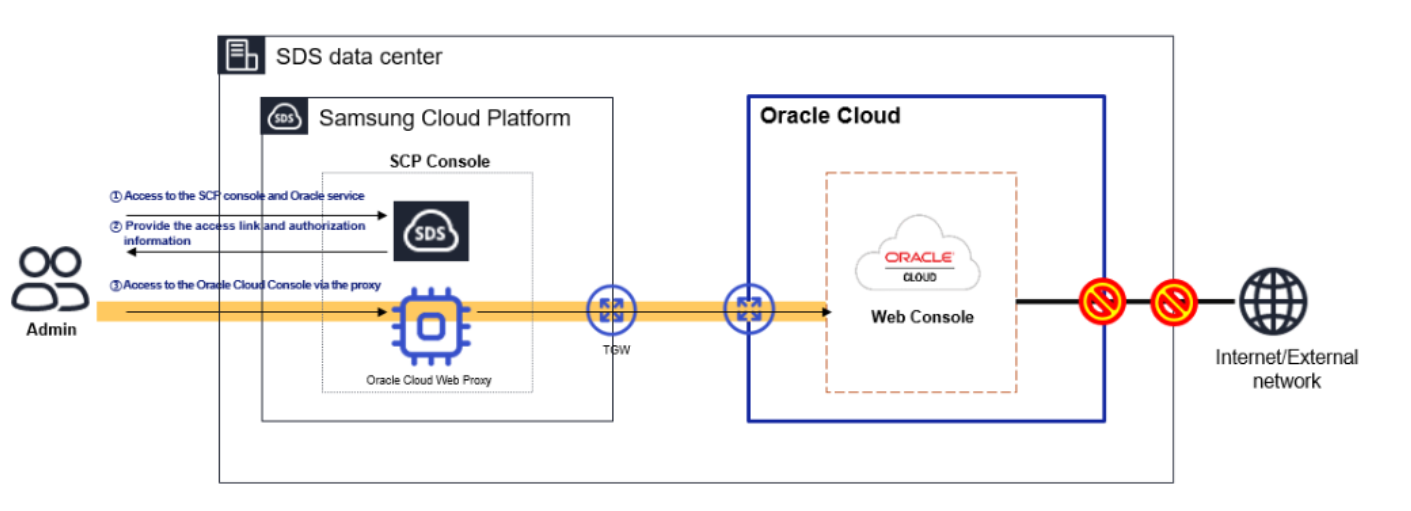
The Oracle Cloud web console used to create, read, update, and delete Oracle Services can be accessed only through the Samsung Cloud Platform. To access the Oracle console, you must configure a web browser proxy in the user’s network environment.
Connecting to the Oracle console follows the steps below.
- After logging into the Samsung Cloud Platform console, access Oracle Services.
- Oracle Cloud can only be accessed via the Samsung Cloud Platform because access to the Internet and external networks is blocked.
- To access the Oracle Cloud console, you must configure the Oracle Cloud web proxy located within the Samsung Cloud Platform in your web browser.
- When a user attempts to access the login link provided in the Samsung Cloud Platform console using a web browser, the connection is made through the proxy configured in the web browser.
Setting the web browser proxy according to the user’s network environment
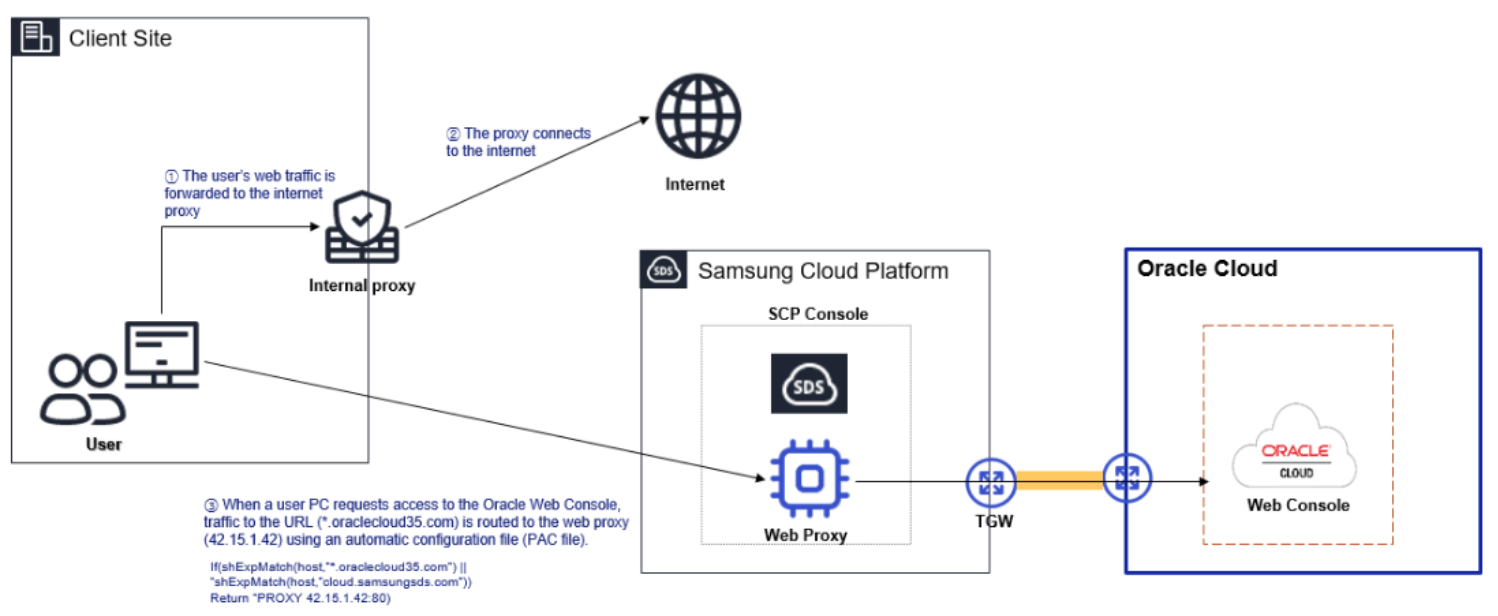
You can set the Oracle Cloud web proxy in the system settings’ web proxy configuration and use the Samsung Cloud Platform Oracle Service product. Depending on the security characteristics of the user environment, you can route connections through an internal proxy, or configure the user client to add a proxy auto‑configuration (PAC file) so that direct connections are possible.
Creating a PAC file
You can generate a PAC file to access the Oracle Cloud web console.
If you are a Samsung SDS employee, download the Developer PAC file from the following link. The branch settings for accessing the Oracle Cloud web console from the intranet are registered in the Developer PAC file.
- sdsdev.pac address: http://70.10.5.20/dev-pac.pac
To create a PAC file manually, write the following PAC file using an editor such as Notepad, or download it and save it to disk.
function FindProxyForURL(url,host)
 {

//* Local Loopback return DIRECT *//
 if (shExpMatch(url,"*localhost*") || shExpMatch(url,"*127.0.0.1*")) return "DIRECT";

//* URL Miss return DIRECT *//
 if (!isResolvable(host)) return "DIRECT";

 if (shExpMatch(host,"*.ap-suwon-1.oci.oraclecloud35.com")) {return "PROXY 42.15.1.42:8080";}  // TED
 if (shExpMatch(host,"*.oci.oraclecloud35.com")) {return "PROXY 42.15.1.42:8080";}  // TED
 if (shExpMatch(host,"*.ap-suwon-1.oraclecloud35.com")) {return "PROXY 42.15.1.42:8080";}  // TED
 if (shExpMatch(host,"*.ap-suwon-idcs-1.identity.oci.oraclecloud35.com")) {return "PROXY 42.15.1.42:8080";}  // TED


 if (shExpMatch(host,"*.ap-chunchen-2.oci.oraclecloud35.com")) {return "PROXY 42.15.1.42:8080";}  // TED
 if (shExpMatch(host,"*.oci.oraclecloud35.com")) {return "PROXY 42.15.1.42:8080";}  // TED
 if (shExpMatch(host,"*.ap-chunchen-2.oraclecloud35.com")) {return "PROXY 42.15.1.42:8080";}  // TED
 if (shExpMatch(host,"*.ap-chunchen-idcs-2.identity.oci.oraclecloud35.com")) {return "PROXY 42.15.1.42:8080";}  // TED


 if (dnsDomainIs(host,"locales.plugins.oci.oraclecloud.com")) {return "DIRECT";}     //
 if (dnsDomainIs(host,"ocsp.digicert.com")) {return "DIRECT";}     //

 else { return "DIRECT";  }
}
Register PAC file on client PC
If you download the PAC file and register it on your PC, you can access the Oracle Cloud web console through the Samsung Cloud Platform.
To register a developer PAC file in the proxy settings, follow these steps.
- In the Windows search box, search for Proxy Settings and click the result.
- Click Windows Settings > Network and Internet > Proxy to go to the proxy settings page.
- On the proxy page, click Automatic proxy configuration > Edit configuration script.
- Set the Use configuration script option to On and enter the pac file that generated the script address.
- Enter http://70.10.5.20/dev-pac.pac.
- Click Save to complete registration.
- After accessing the Samsung Cloud Platform using browsers such as Chrome or Edge, follow the Oracle Cloud Console link provided by the Samsung Cloud Platform.
- When registering a PAC file on the client PC and connecting directly, the network path is as follows.
Configure connection when a separate proxy server is present (register forwarding information on the proxy server)
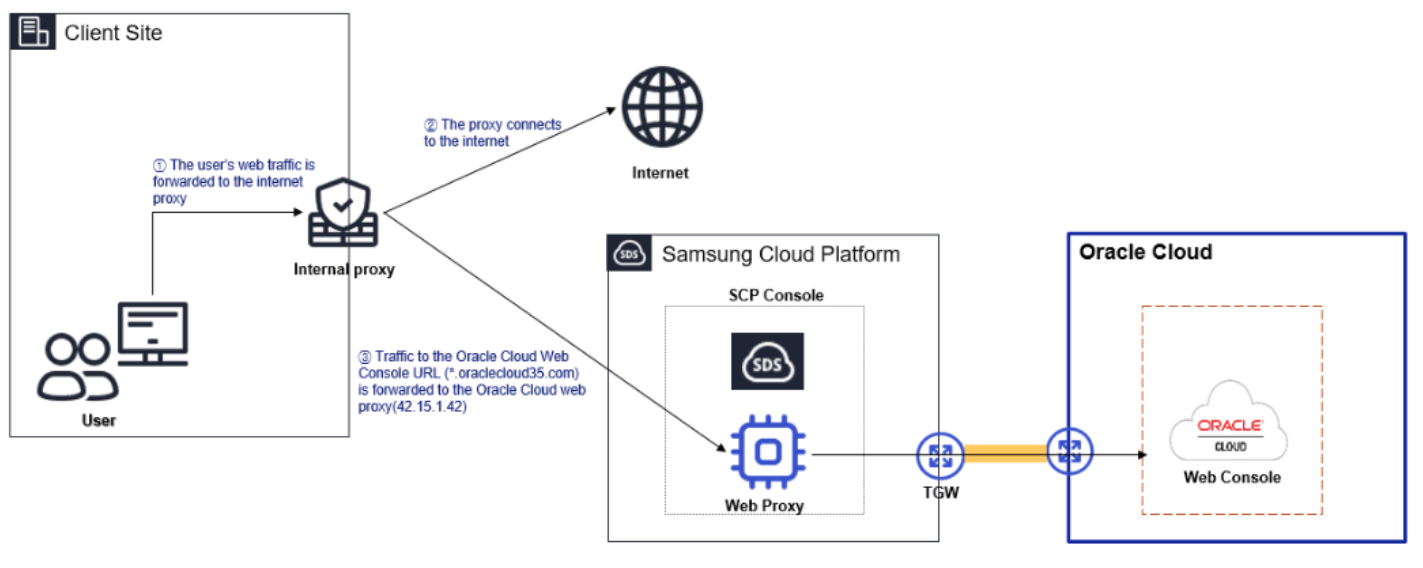
Depending on the user environment, a proxy managed by the network/security administrator may already be installed for security purposes. In such cases, you need to request the proxy administrator to add a proxy configuration for accessing the Samsung Cloud Platform Oracle service.
- When requesting the proxy administrator to register forwarding information, provide the following details.
프록시 설정 URL
                *.ap-suwon-1.oci.oraclecloud35.com
                *.ap-suwon-1.oraclecloud35.com
                *.ap-suwon-idcs-1.identity.oci.oraclecloud35.com
                *.ap-chuncheon-2.oci.oraclecloud35.com
                *.ap-chuncheon-2.oraclecloud35.com
                *.ap-chuncheon-idcs-2.identity.oci.oraclecloud35.com

프록시 IP/port
                 42.15.1.42:8080
- When connecting by registering a forward setting on the internal proxy, the network path is as follows.
If the network environment passes through other separate security devices
When a separate security device is installed and used in addition to a proxy, you must provide the network/security administrator with a diagram of the Samsung Cloud Platform Oracle Cloud web console connection and carry out the connection configuration. Contact the internal network/security administrator for proxy settings.
Apply for firewall registration
If a firewall is installed in the customer’s network environment to control external access, you must register the proxy server with the firewall to use Samsung Cloud Platform. When applying for firewall registration, use the information below.
- Source IP: User PC IP Address Destination IP: Oracle Cloud web proxy IP Address (42.15.1.42)
- Protocol/port: TCP/8080